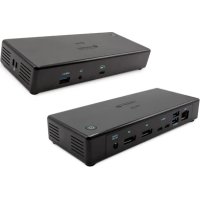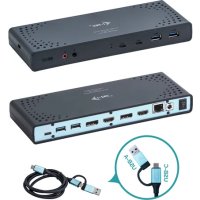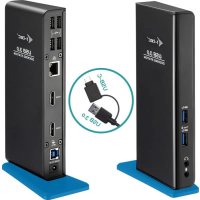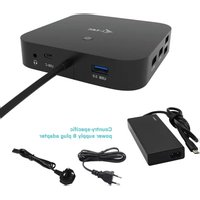
C31HDMIDPDOCKPD65 - Other computer accessories i-TEC - Free user manual and instructions
Find the device manual for free C31HDMIDPDOCKPD65 i-TEC in PDF.
User questions about C31HDMIDPDOCKPD65 i-TEC
0 question about this device. Answer the ones you know or ask your own.
Ask a new question about this device
Download the instructions for your Other computer accessories in PDF format for free! Find your manual C31HDMIDPDOCKPD65 - i-TEC and take your electronic device back in hand. On this page are published all the documents necessary for the use of your device. C31HDMIDPDOCKPD65 by i-TEC.
USER MANUAL C31HDMIDPDOCKPD65 i-TEC
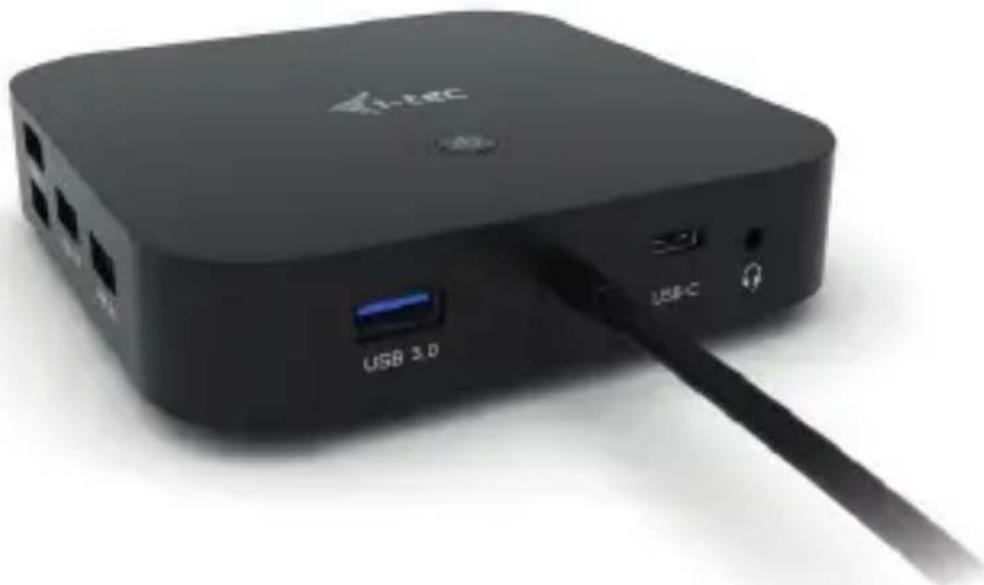
USB-C HDMI DP Docking Station with Power Delivery
1x 4K HDMI / 1x 4K DisplayPort / 1x Gigabit LAN / 1x USB-C Data / 3x USB-A 3.0 / 2x USB-A 2.0 / 1x Audio+Mic / 1x USB-C Power Delivery + Data
natural_image
Black wireless device with USB ports and a cable, no visible text or symbols on the device bodyUser guide • Gebrauchsanweisung • Mode d'emploi Manual de instrucciones • Manuale • Uživatelská príručka Instrukcje obsługi • Užívatel'ská príručka • Vartotojo vadovas Handleiding
P/N: C31HDMIDPDOCKPD
EN
Please read the entire instruction manual carefully. Detailed manual is available on our website www.i-tec.pro/en/ in the tab „Manuals, drivers“. In case of any issues, please contact our technical support at: support@itecproduct.com
DE
USB-C HDMI Display Docking Station with Power Delivery
ENGLISH....06-17
DEUTSCH....18-31
FRANÇAIS....32-44
ESPAÑOL....45-57
ITALIANO....58-70
ČESKY....71–82
POLSKI....83-94
SLOVENSKY....95-106
LIETUVOS....107-118
NEDERLANDS....119-131
WEEE....132-133
Declaration of Conformity....134–135
FCC....136

text_image
QR code image containing encoded data, no visible human-readable textwww.i-tec.pro/en
GLOSSARY
- Interface / port / connector / input / slot – a place where two devices physically interconnect.
- Controller – a semi-conductor component (so-called chipset) in a laptop, tablet, PC etc. ensuring the operation of a port.
- USB-C – is a new symmetrical connector which allows faster charging, energizing, double-function (a host and a guest), support for alternative modes (DisplayPort, MHL and Thunderbolt).
- Alternate modes (Alt modes) – special modes for the USB-C connector that can be supported. Currently the most popular modes are DisplayPort / DockPort, MHL, Thunderbolt. A device with this capability on the port and cable allows video transmission while also retaining other port functionalities (for data transfer and charging via Power Delivery).
- DisplayPort / DockPort Alt mode – this mode allows video transmission via the USB-C port and cable.
- USB-C Power Delivery (USB-C PD / Data) – optional property of the USB-C connector. A connector with this support can charge and be charged at the same time and it supports loads from 10W to 100W (depending on profiles 1-5). When connecting a data device (e.g. USB-C Hub / Ethernet), it serves as an additional data port.
- USB 3.1 / 3.0 / 2.0 – USB interface / port standard for connecting various USB devices. Using the type A USB interface allows the connection of various USB devices to a docking station or adapter. The type B USB port is used for connecting a docking station or adapter to a laptop, tablet or PC.
- Display Port – standard for digital graphics interface / port used for connecting monitors and other display devices.
- HDMI – A digital graphics interface/port standard used to connect monitors and other graphic display devices.
- LAN (Local Area Network) – the local computer network is now the most popular Ethernet that achieves a theoretical transfer rate of up to 1 Gbit/s at the docking station - GLAN / RJ-45.
- Audio – designation for sound input (microphone) or output devices (headphones / speakers).
SPECIFICATION
- 1x integrated USB-C cable for connecting to a device (100 cm)
- Docking station technology: USB-C (MST) *
• Power Delivery: 100 W (Internal consumption: 5-10 W)
• Video ports: 1x HDMI and 1x DisplayPort
- Resolution:
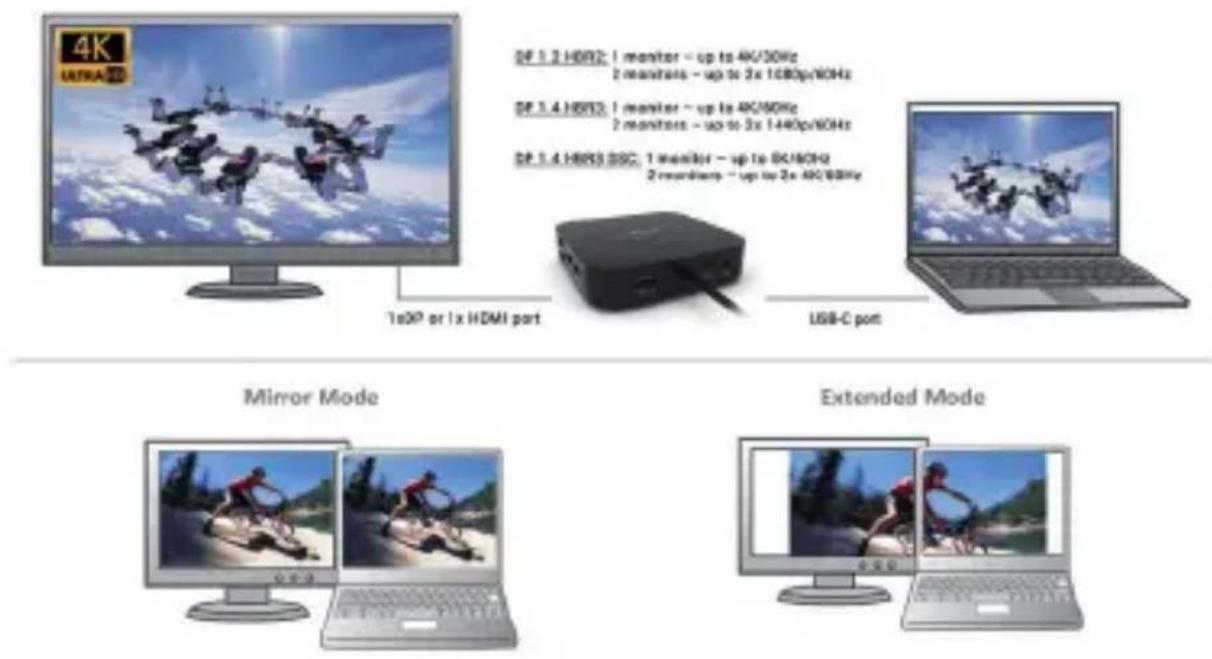
DP 1.2 HBR2:
1 monitor – up to 4K/30Hz
2 monitors – up to 2x 1080p/60Hz *
DP 1.4 HBR3:
1 monitor – up to 4K/60Hz
2 monitors – up to 2x 1440p/60Hz *
DP 1.4 HBR3 DSC:
1 monitor – up to 5K/60Hz
2 monitors – up to 2x 4K/60Hz *
• 1x USB-C Gen. 2 port (data only )
• 1x USB-C port gen. 2 + PD (data + Power Delivery)
• 3x USB 3.0 port with support for quick charging (BC 1.2)
- 2x USB 2.0 port
• 1x Ethernet GLAN RJ-45 port (Realtek RTL8153)
• 1x 3.5 mm Combo Audio port
- LED indication
- ON/OFF switch for the docking station
• Kensington lock support
• Support for VESA mounting
- OS: Windows 10, macOS *, Android, Chrome OS and Linux with the latest updates
• Product dimensions: 113 x 113 x 40 mm
* macOS does not support Multi Stream Transport (MST) technology. Connecting two monitors to the station on macOS will result in both monitors showing the same image.
text_image
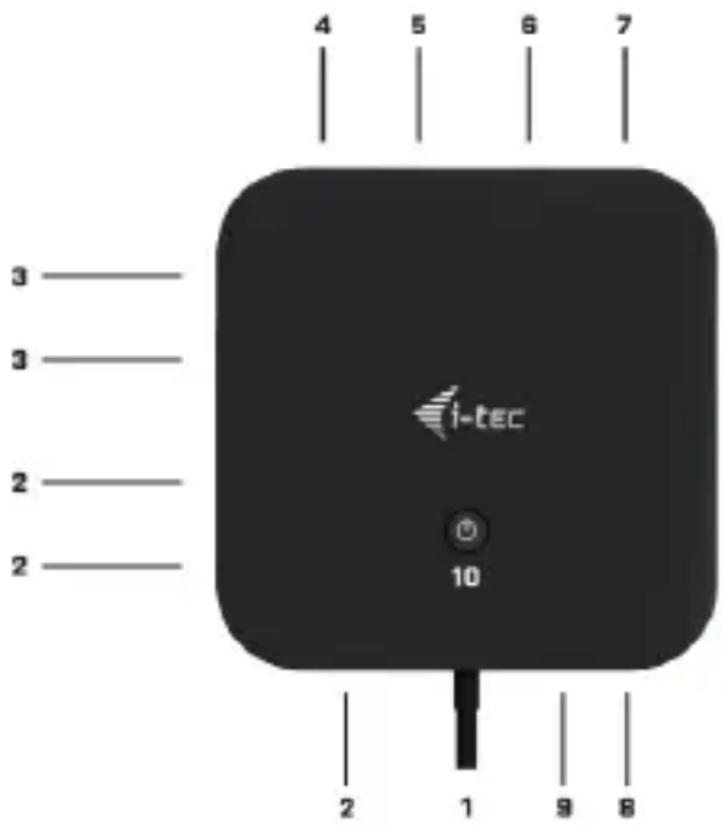
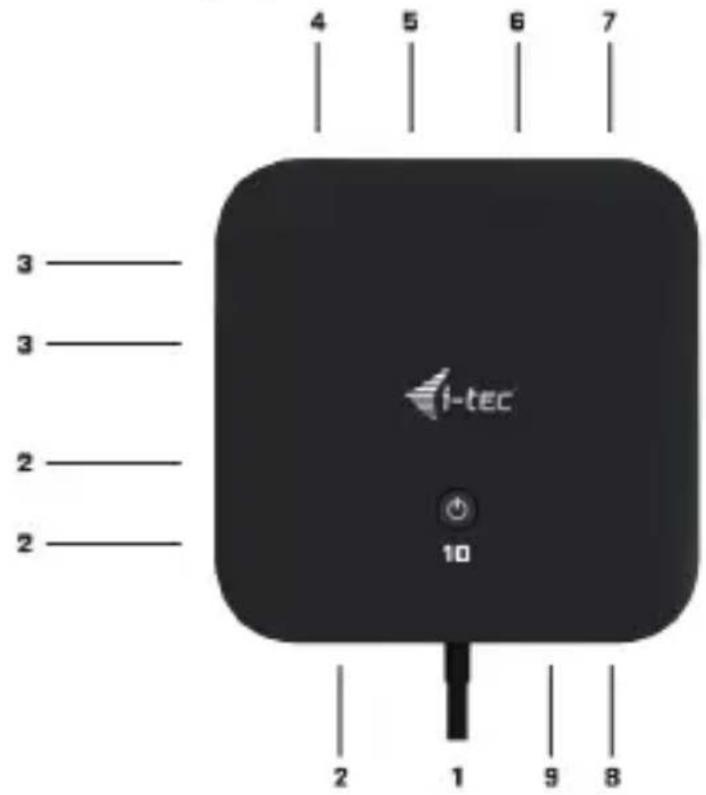
4 5 6 7 3 3 2 2 i-tec 10 2 1 9 8DESCRIPTION
- Integrated USB-C cable for connection to a device (100 cm)
- 3x USB 3.0 port (5Gb/s)
- 2x USB 2.0 port
- USB-C Gen. 2 + PD port (data + Power Delivery)
- Ethernet GLAN RJ-45 port - supports 10/100/1000 Mb/s
- 1x HDMI
- 1x DisplayPort
- 3.5 mm Combo Audio Jack
- USB-C Gen. 2 port (data only)
10.ON/OFF switch for the docking station – button must be held down for two seconds
i-tec USB-C HDMI DP Display Dock with PD 100 W
SYSTEM REQUIREMENTS
Hardware Requirements: Device with a free USB-C or Thunderbolt ^TM 3 port
Requirements for Power Delivery feature: device with a free USB-C or Thunderbolt™ 3 port with Power Delivery support.
Operating system: Windows 10, macOS* and Linux with the latest updates
* macOS does not support Multi Stream Transport (MST) technology. Connecting two monitors to the station on macOS will result in both monitors showing the same image.
DRIVER INSTALLATION
Windows 10 32/64bit: After connection, the drivers for the docking station are installed automatically on the system. Before installation make sure that your system has installed the latest drivers for your device and updated BIOS.
macOS X: Installation of the drivers in macOS X is automatic. Before installation make sure that your Mac has installed the latest OS for your device.
CONNECTING THE HDMI / DISPLAYPORT MONITOR
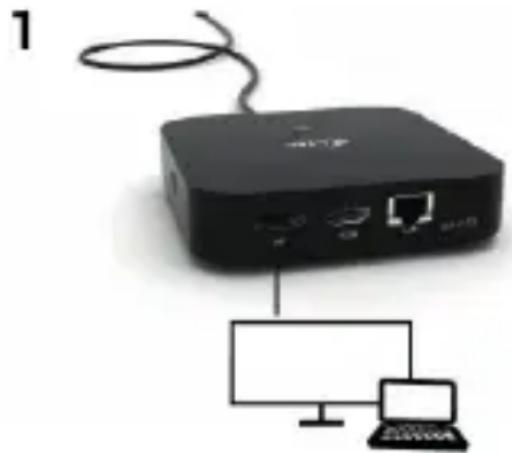
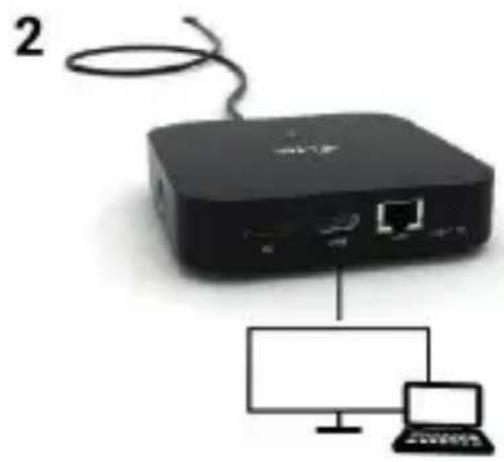
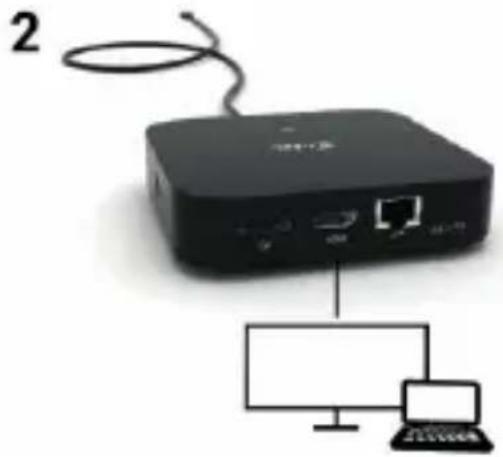
The docking station is fitted with 1x DisplayPort and 1x HDMI for connecting external monitor with a DP and HDMI interface. Modern plasma, or LCD monitors and TVs, will serve as the perfect display device of choice. The graphics chip at the heart of the docking station supports up to 5K 5120x2880 resolution @60Hz (only by DP). Connect the monitor to the docking station using a high-quality HDMI cable. The screen of your laptop, Mac, tablet or PC may flash while installing the external monitor - this is normal.
natural_image
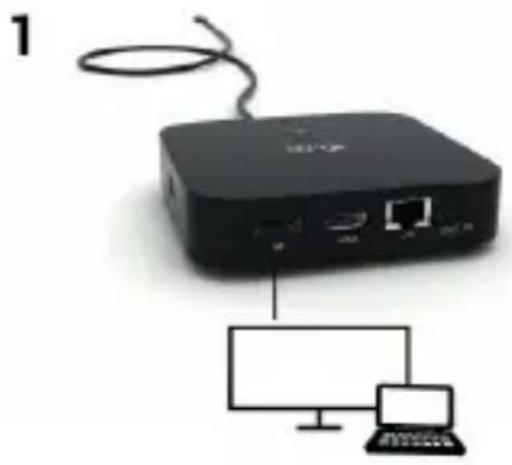
Black wireless router connected to a computer and a laptop (no visible text or symbols)- 1 monitor connected via 1x DP cable - resolution up to 5K 5120x2880/60Hz.
5K resolution is only supported if your laptop's USB-C/Thunderbolt™ 3 connector supports DisplayPort 1.4 DSC.
natural_image
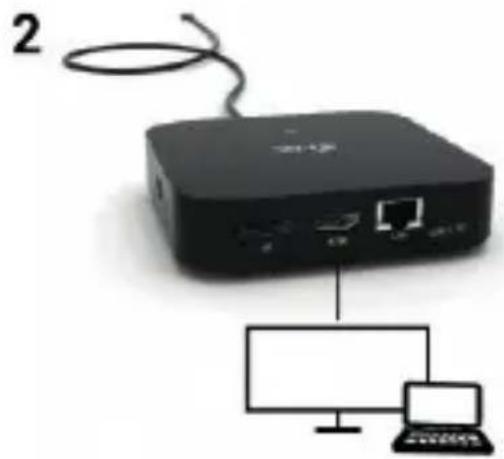
Black wireless device connected to a laptop via network cable (no text or symbols visible)- 1 monitor connected via DisplayPort/HDMI cable - resolution up to 4K 3840x2160/60Hz.
4K/60Hz resolution is only supported if your laptop's USB-C/ Thunderbolt™ 3 connector supports DisplayPort 1.4 DSC or DisplayPort 1.4 without DSC.
If the USB-C/Thunderbolt™ 3 only supports DisplayPort 1.2, the maximum resolution is 4K 3840x2160/30Hz.
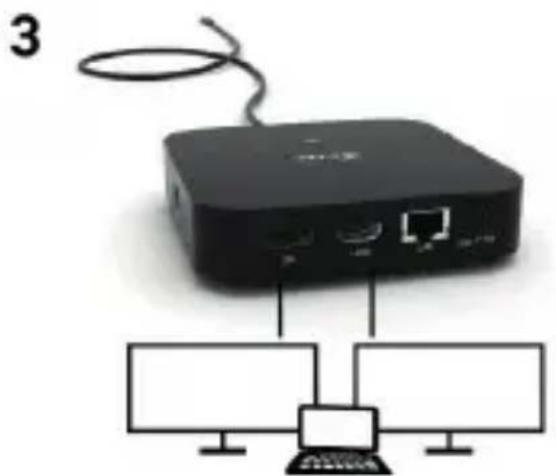
natural_image
Black network device connected to two computer monitors (no visible text or symbols)- 2 monitors connected via DisplayPort/HDMI cables - resolution up to 4K 3840x2160/60Hz.
Only if your laptop's USB-C/Thunderbolt™ 3 connector supports DisplayPort 1.4 DSC. If the USB-C/Thunderbolt™ 3 only supports DisplayPort 1.4 without DSC, the maximum resolution is 2x 2560x1440/60Hz.
If the USB-C/Thunderbolt™ 3 only supports DisplayPort 1.2, the maximum resolution is 2x 1920x1080/60Hz.
The resolution, the frame rate and the maximum number of connected external monitors depends on the capabilities of the host PC/laptop.
CONNECTING TO THE LAN
You can use the GLAN RJ-45 port for connecting the Ethernet to a router / switch and to the internet, it supports speeds of 10 / 100 / 1000 Mbps.
CONNECTING USB DEVICES
The station's USB-A 3.0 and USB-C 3.1 Gen.2 ports can be used to connect your keyboard, mouse, external hard drive, printer and other peripherals, or to connect a hub, giving you additional USB ports to use.
CHARGING
The docking station supports charging of USB mobile devices, such as smart phones, e-book readers, multimedia players, navigation devices, and tablets. Simply connect the device that you want to charge using the original cable to the USB port of the docking station. If the device is not charged, connect the original USB-C power adapter to the USB-C Power Delivery port of the docking station.
CHARGING THROUGH POWER DELIVERY
The docking station offers USB-C Power Delivery / Data port, designed for energizing of the connected “parent” device using the original power adapter and for charging of devices connected through the USB ports. If you no need charging your devices through Power Delivery, you can use the port for data transfer.
AUDIO
Audio output devices, for listening through graphic output, need to be set / verified here: System Preferences-Sound-Output – select USB Audio Device. Setting the audio output device to both the earphones and the monitor simultaneously can be done in Open-Applications-Utilities-Audio settings MIDI.app – click on „+“ on the left at the bottom – Create device with multiple outputs and select the desired outputs from the offered options on the Device with multiple outputs.
The majority of problems with the docking station and the connected peripheral devices can be solved by disconnecting the USB-C cable of the docking station from the USB-C port of the PC / Mac / smartphone and reconnecting after approximately 10 s.
Quick Start
USING IN WINDOWS OS
Advanced configuration for the graphics – after connecting the monitor and clicking on the settings for "Image Resolution" in Windows, you can select the monitor you want to use.
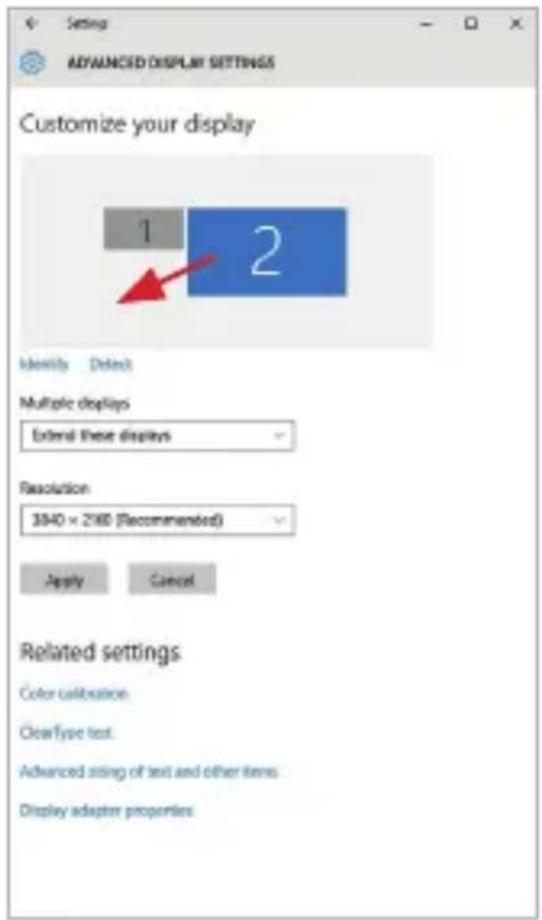
text_image
Setting ADVANCED DISPLAY SETTINGS Customize your display 1 2 Identity Detect Multiple displays Extend these displays Resolution 3840 x 2980 (Recommended) Apply Cancel Related settings Color calibration Clear type test Advanced string of text and other items Display adapter propertiesBy clicking on the second monitor and moving it you can position this monitor as required relative to the original monitor of your laptop / tablet
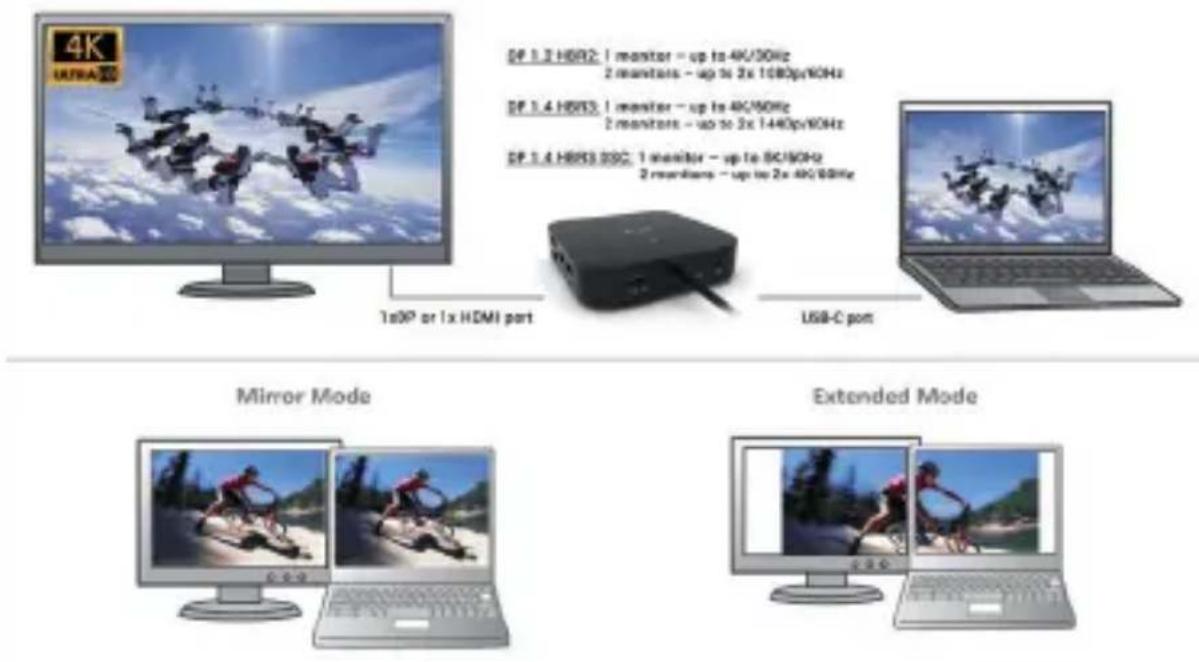
Now you can set Extend and Mirror mode:
- Mirror mode: on the monitor select the 2^nd Monitor, select Several monitors Mirror this display OK.
- Extend mode: on the monitor select the 2 ^nd Monitor, select Several monitors → Extend this display → OK.
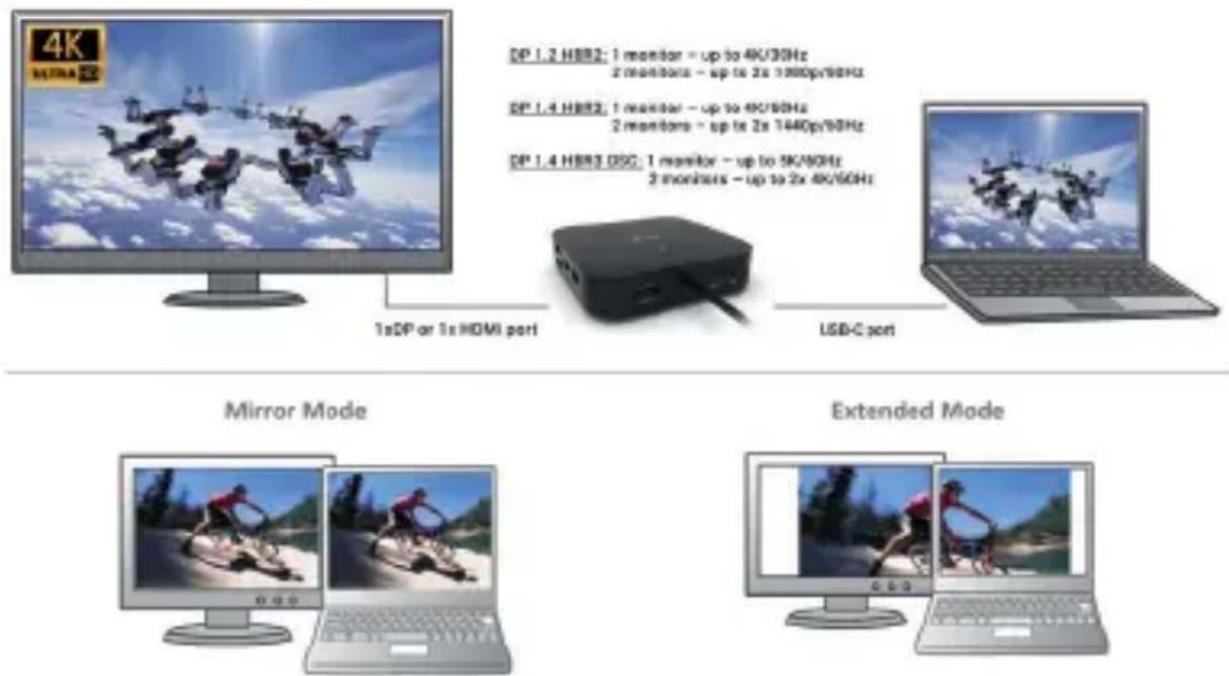
text_image
4K H019A DP 1.2 H882: 1 monitor - up to 4K/30Hz 2 monitors - up to 2x 1600py/60Hz DP 1.4 H883: 1 monitor - up to 4K/60Hz 2 monitors - up to 2x 1640py/60Hz DP 1.4 H883 DSC: 1 monitor - up to 5K/60Hz 2 monitors - up to 2x 4K/60Hz 1xDP or 1x HDMI port USB-C port Mirror Mode Extended ModeMirror and Extended mode
Audio settings – this will allow audio settings in the Control Panels → Audio.
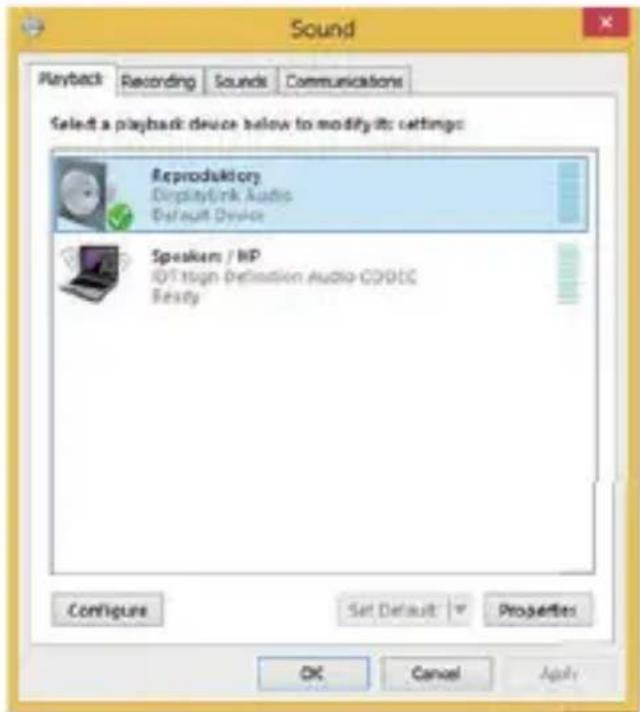
text_image
Sound Playback Recording Sounds Communications Select a playback device below to modify it: settings: Reproduktory DisplayLink Audio Default Device Speaker / HP I/O/High Definition Audio CODIC Ready Configure Sat Default Properties OK Cancel ApplyAudio settings
The Standby / Hibernate mode and the Video port – after the activation of the laptop / tablet from the Standby / Hibernate mode the primary (original) monitor is displayed, for this reason we recommend using the monitor that is integrated with the laptop / tablet as the primary monitor, so that you can log on to the system again.
The Mirror mode – the additional monitor takes on the parameters of the original monitor in the system, i.e., if you select the Mirror mode and the original monitor resolution is e.g. 1280x1024 then the screen will be displayed on the additional monitor with a resolution of max. 1280x1024 (even if you set a higher resolution).
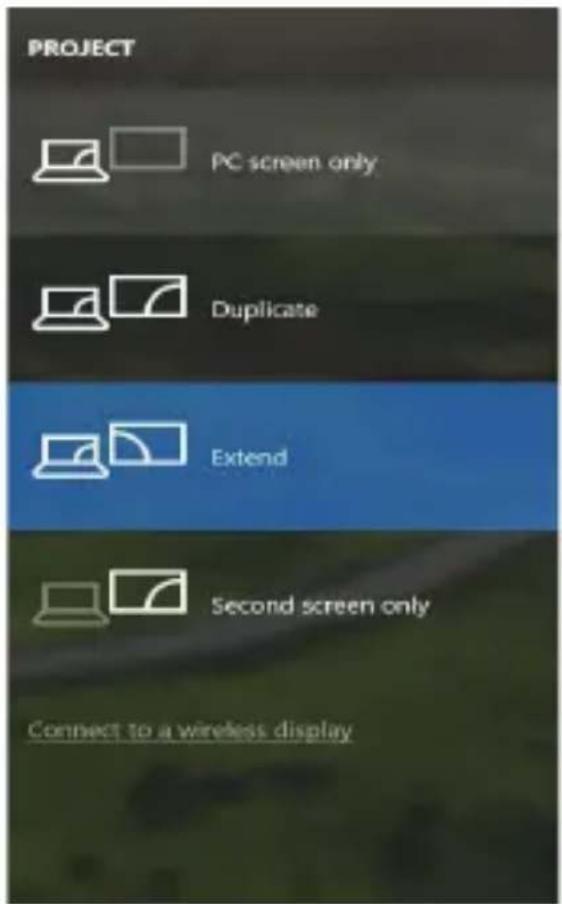
Pressing the keys „Windows“ + P you can also easily control the monitors – for using a monitor in Win 10 you can select: Computer screen only, Mirror, Extend, Second screen only.
text_image
PROJECT PC screen only Duplicate Extend Second screen only Connect to a wireless displayControl the monitor in Windows 10
USING IN MACOS X
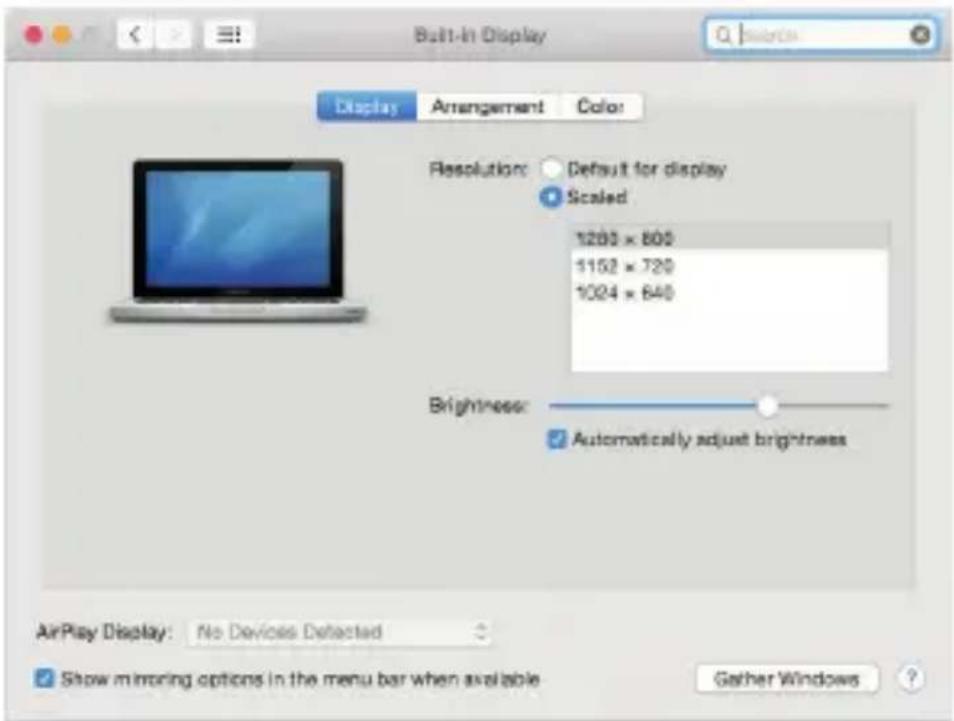
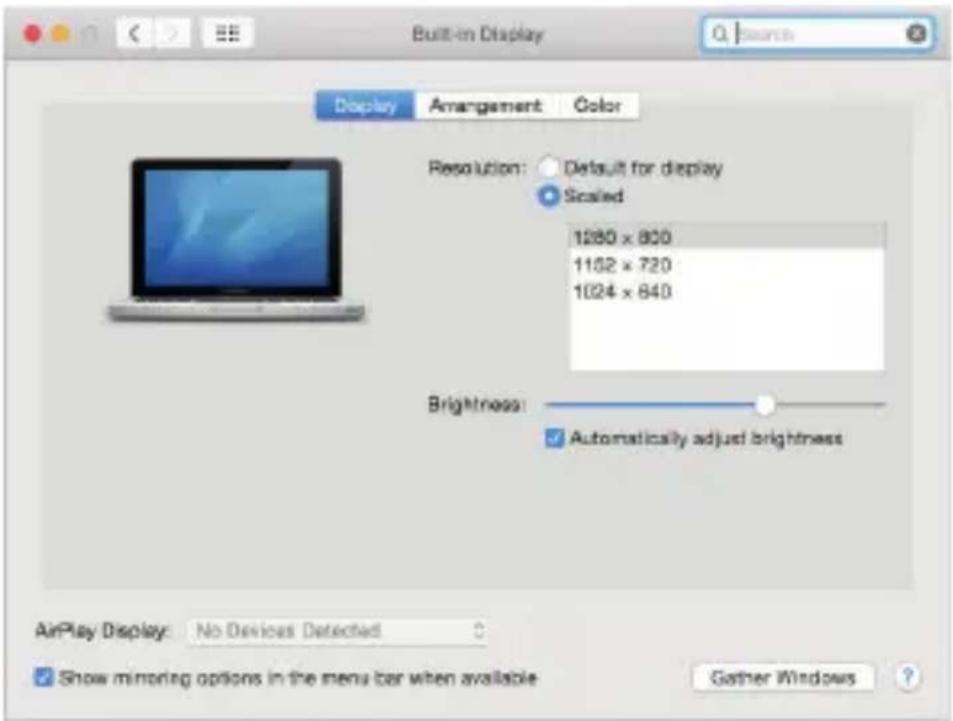
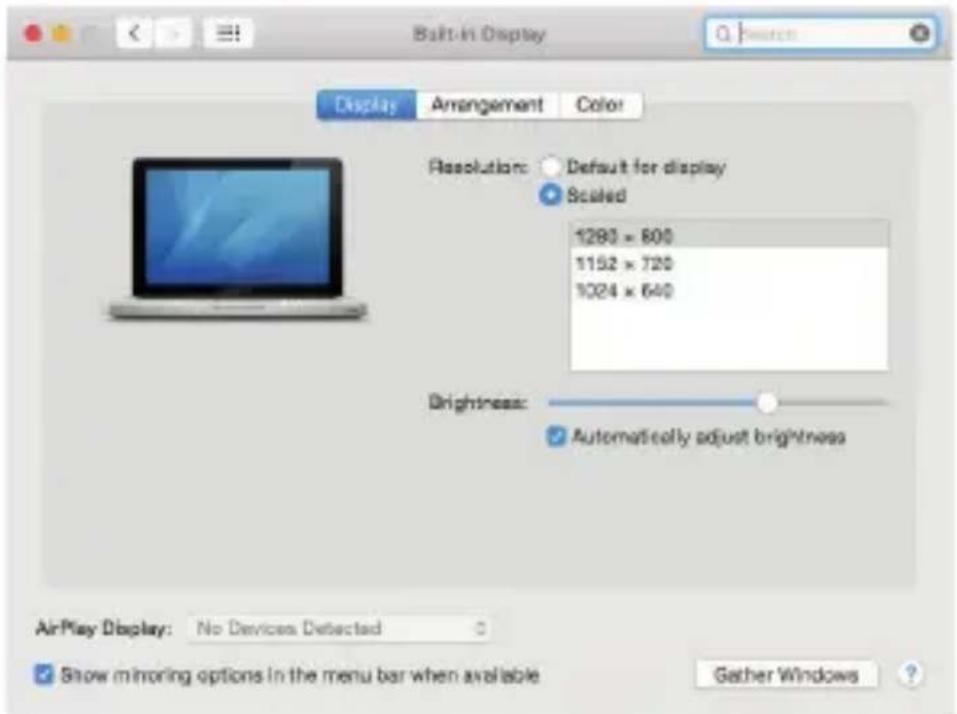
After connecting the monitor, the screen on your Mac will glimmer, which is a standard condition, after stabilization it is possible to perform standard setting of the monitor here: System Preferences-Displays:
text_image
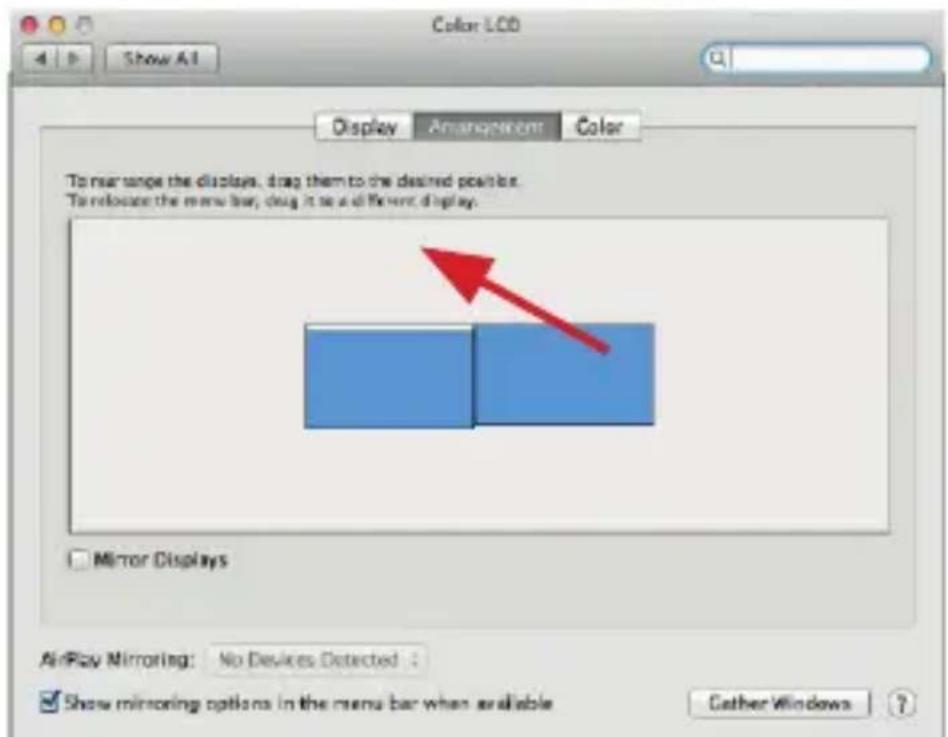
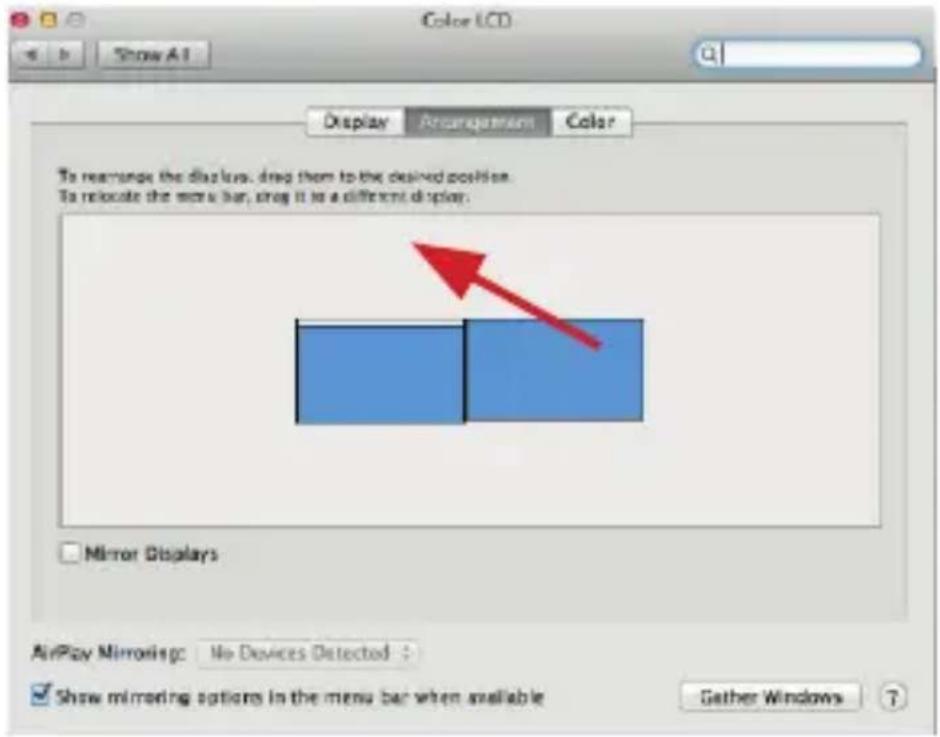
Built-in Display Display Arrangement Color Resolution: Default for display Scaled 1200 x 800 1152 x 720 1024 x 640 Brightness: Automatically adjust brightness AirPlay Display: No Devices Detected Show mirroring options in the menu bar when available Gather WindowsClick on Arrangement and in the default mode (Extended desktop) click on the new monitor and drag it as necessary vis-à-vis the Mac monitor. If you select Mirror displays the mode will change to Mirror (the resolution of the monitors will be automatically adjusted according to their parameters and the highest possible resolution will be set on both monitors). By cancelling the Mirror displays option you will return to the Extended desktop mode.
text_image
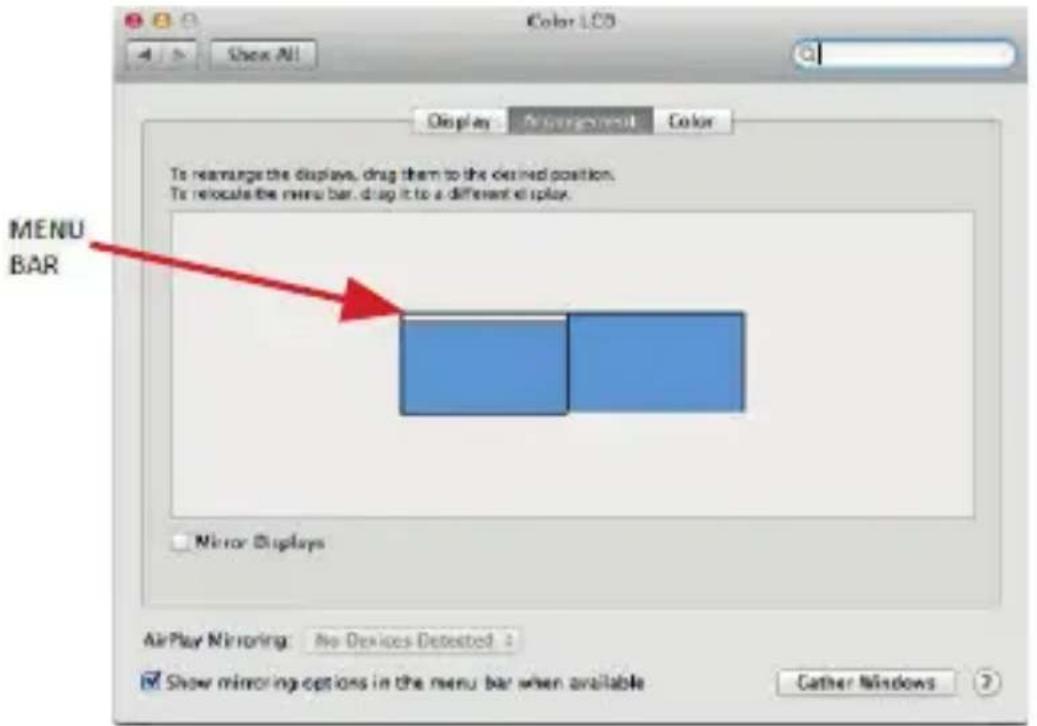
Color LCD Show All Display Amperament Color To rearrange the displays, drag them to the desired points. To release the menu bar, drag it to all different display. Mirror Displays AirPlay Mirroring: No Devices Detected : Show mirroring options in the menu bar when available Cather WindowsExtended mode: The arrow indicates the possible position of the connected monitor vis-à-vis the Mac monitor.
text_image
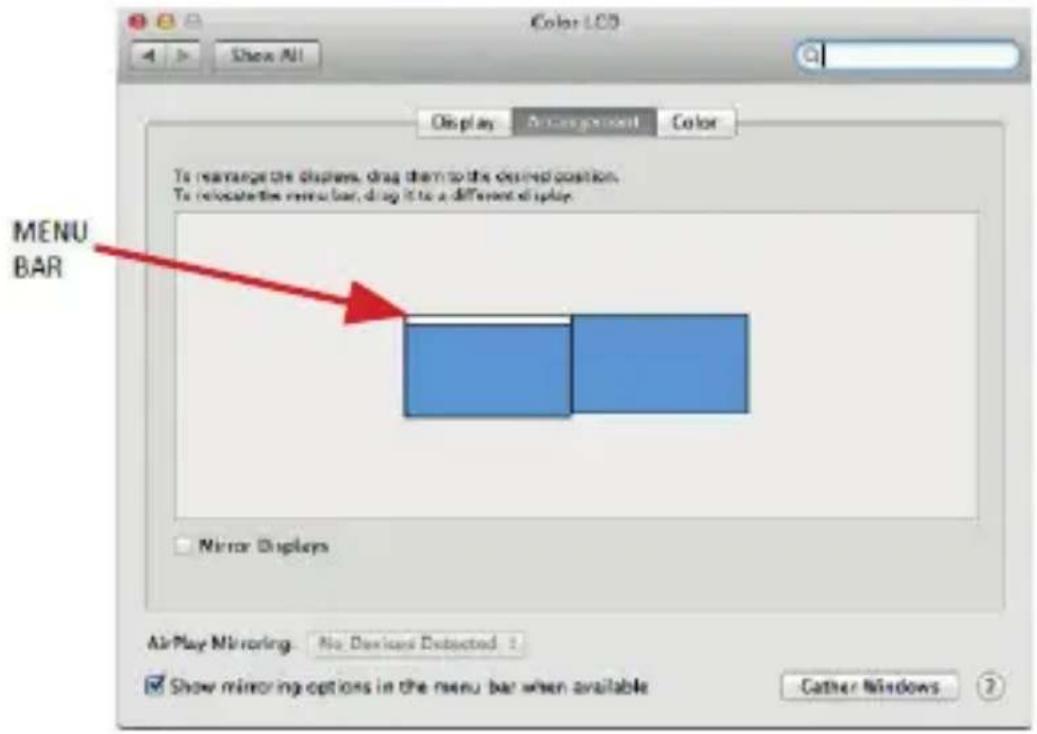
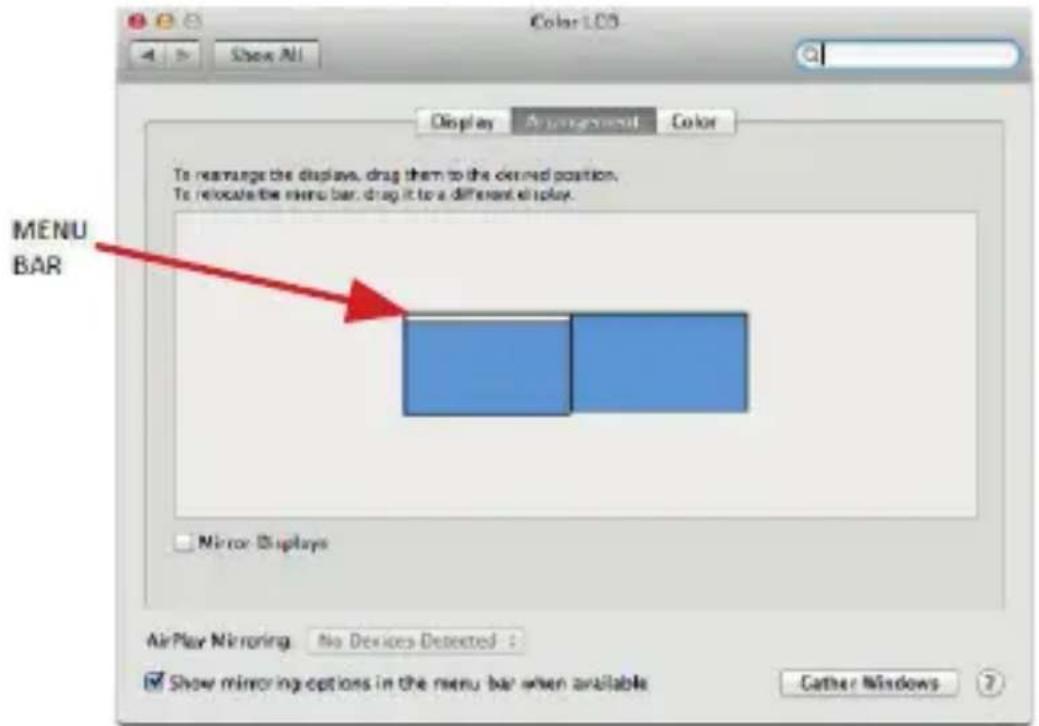
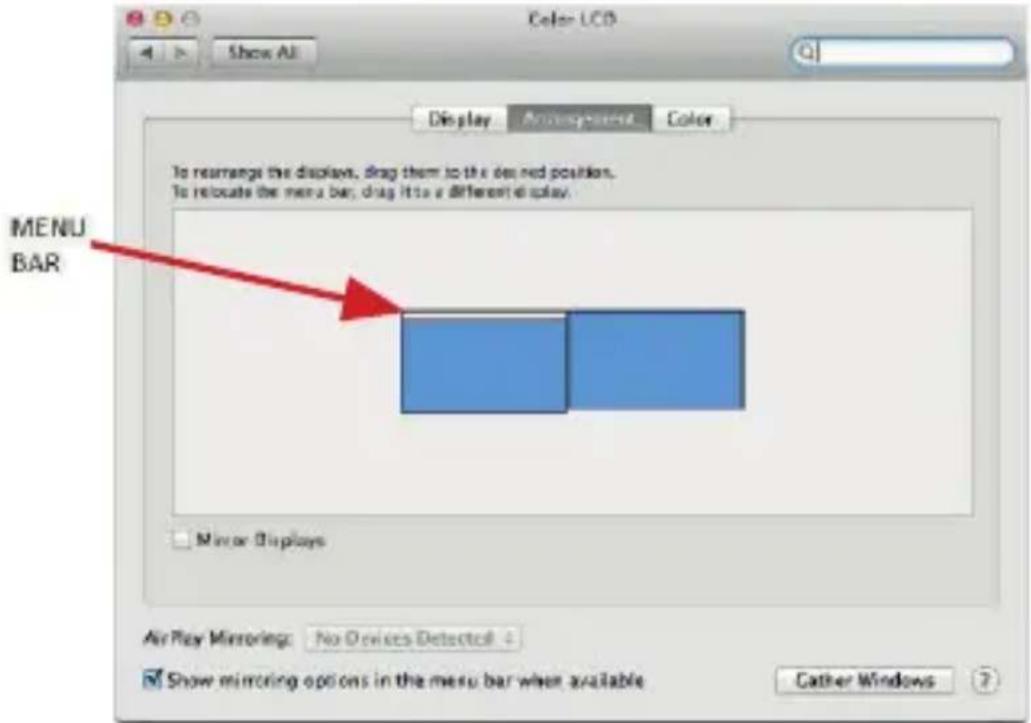
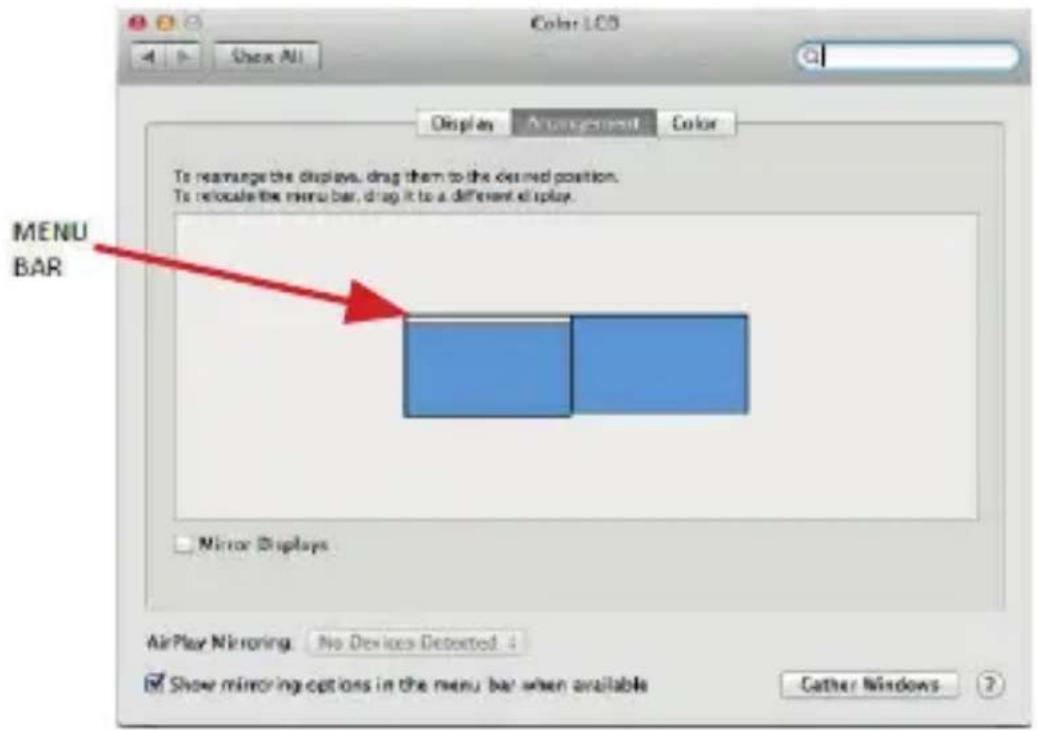
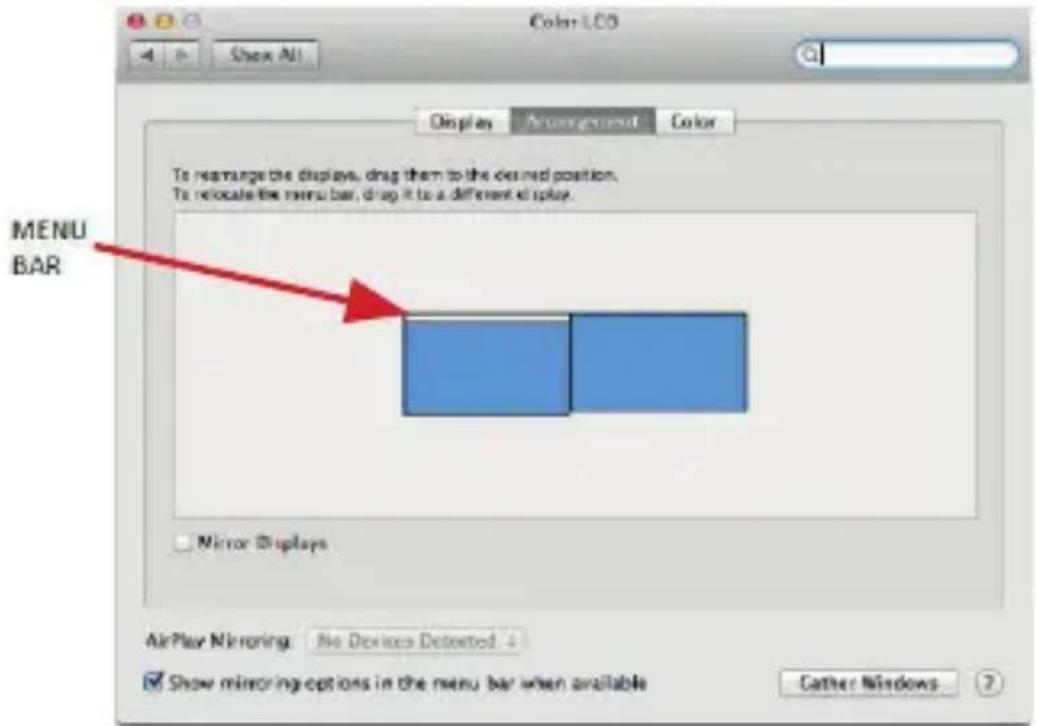
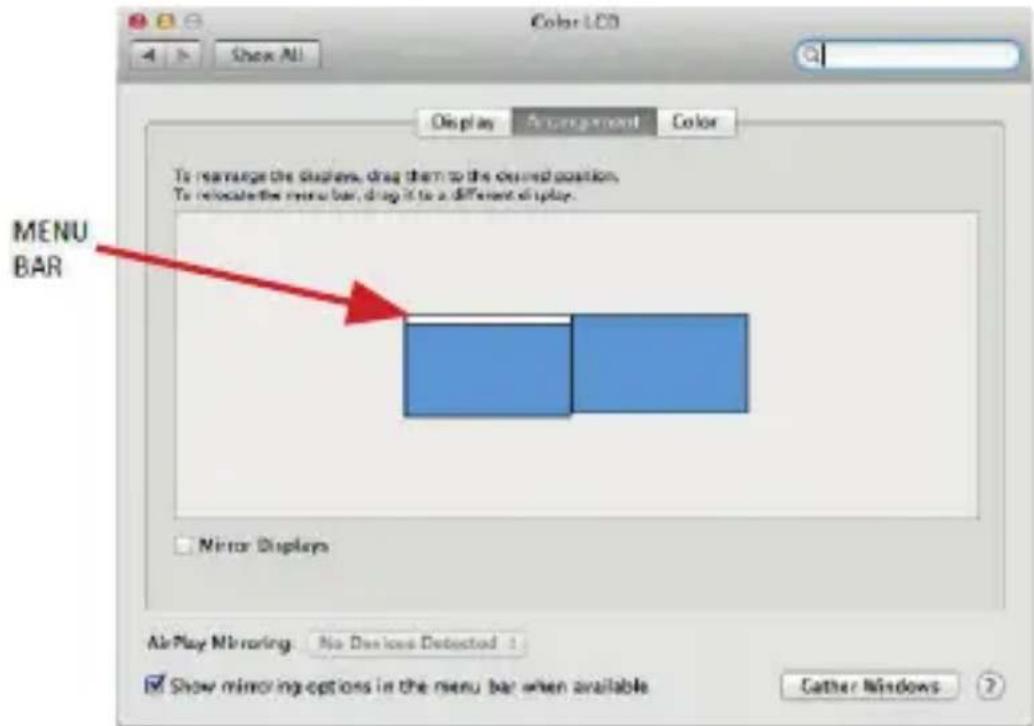
Color LCD Show All Display Antenna-present Color To rearrange the displays, drag them to the desired position. To relocate the menu bar, drag it to a different display. MENU BAR Mirror Displays AirPlay Mirroring: No Devices Detected Show mirroring options in the menu bar when available Cather WindowsExtended mode: In this mode you can choose the Main monitor by dragging the Menu Bar.

text_image
Display To rearrange the display, drag them to the desired position. To relocate the menu bar, drag it to a different display. Mirror Displays AirPlay Mirroring: No Devices Detected Show mirroring options in the menu bar when available Cather WindowsMirror mode: This mode can only be used if supported by the Mac.
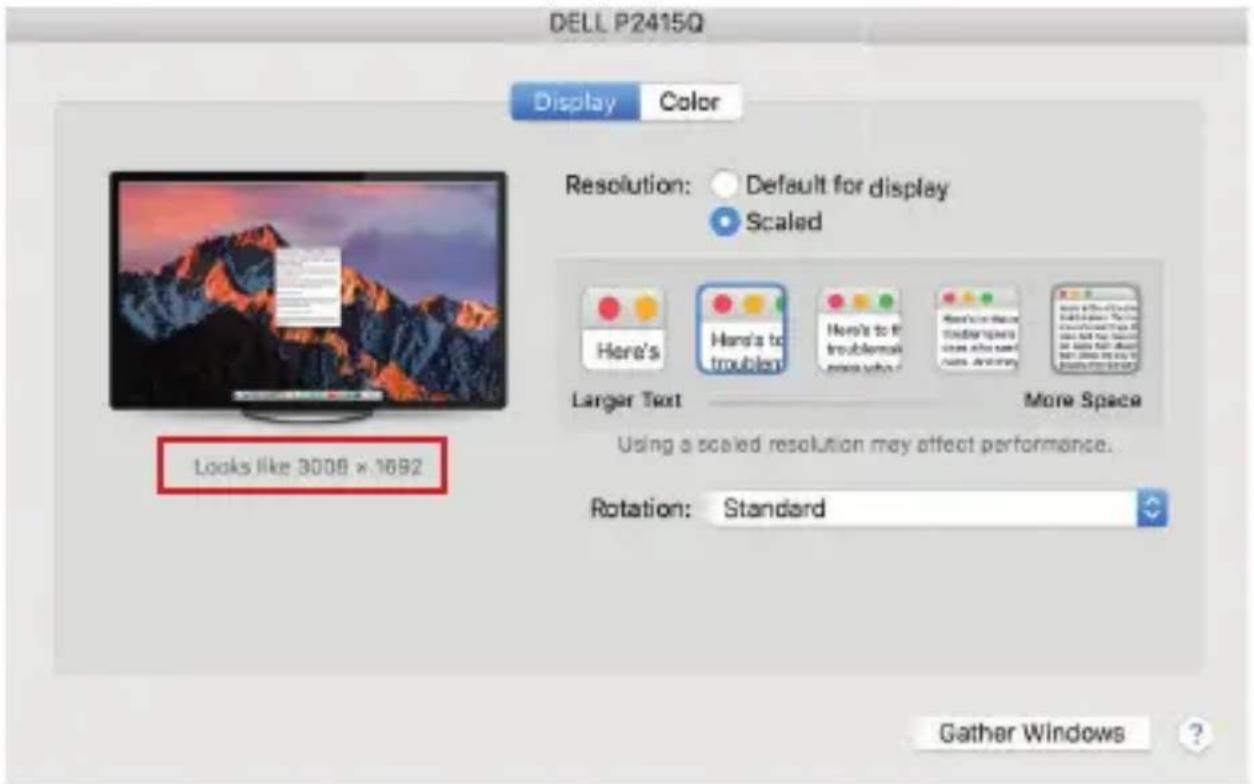
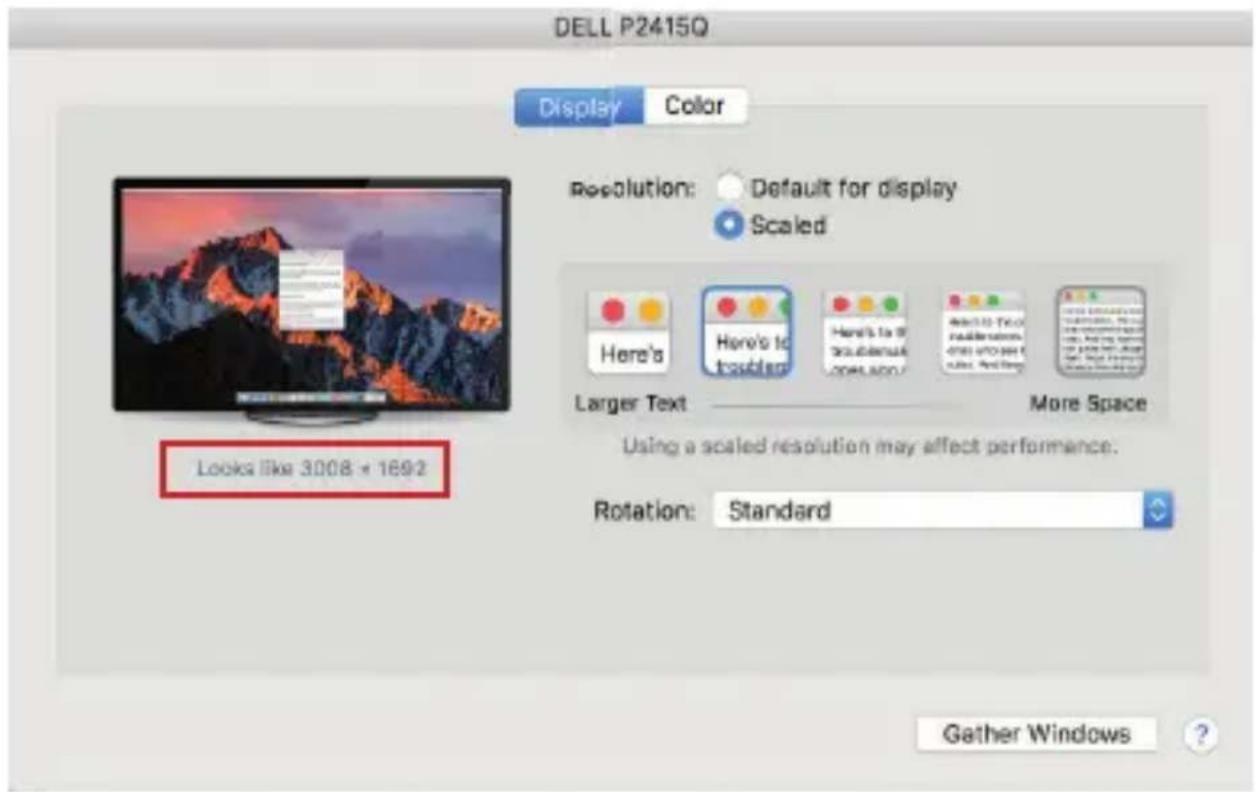
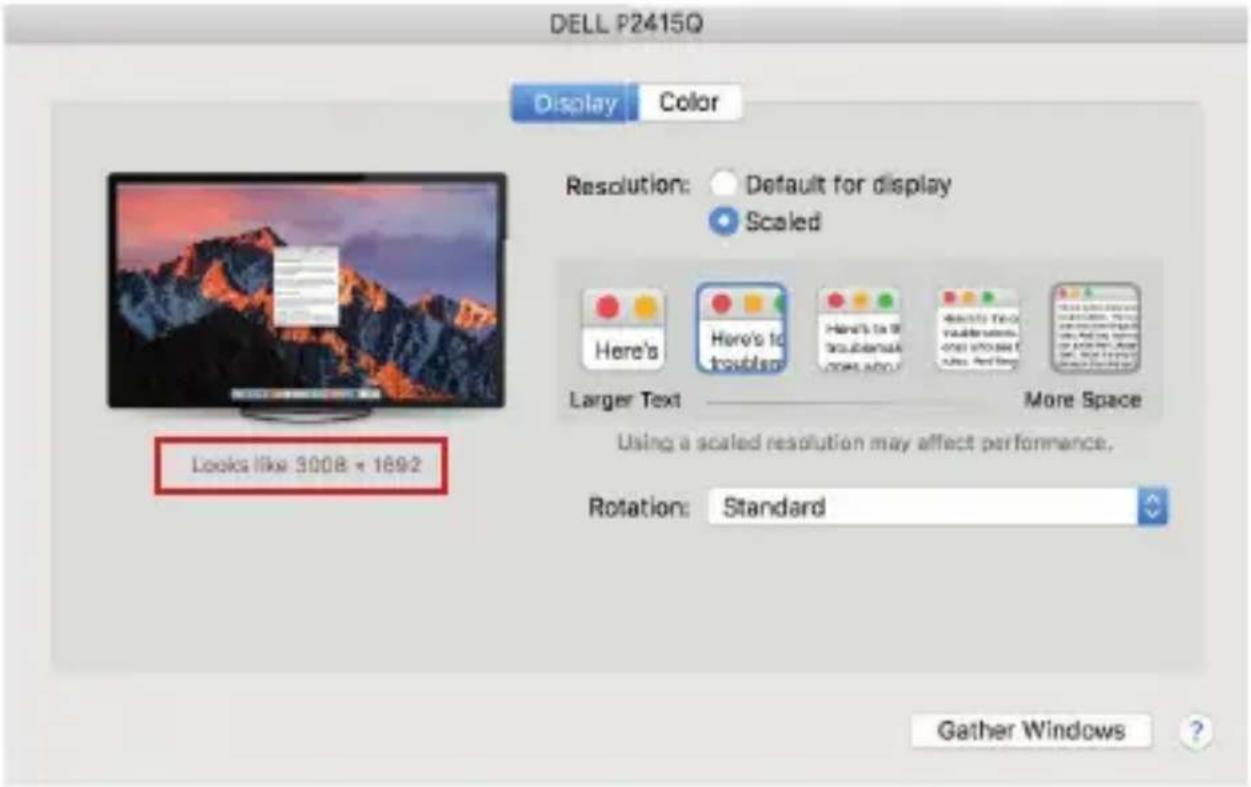
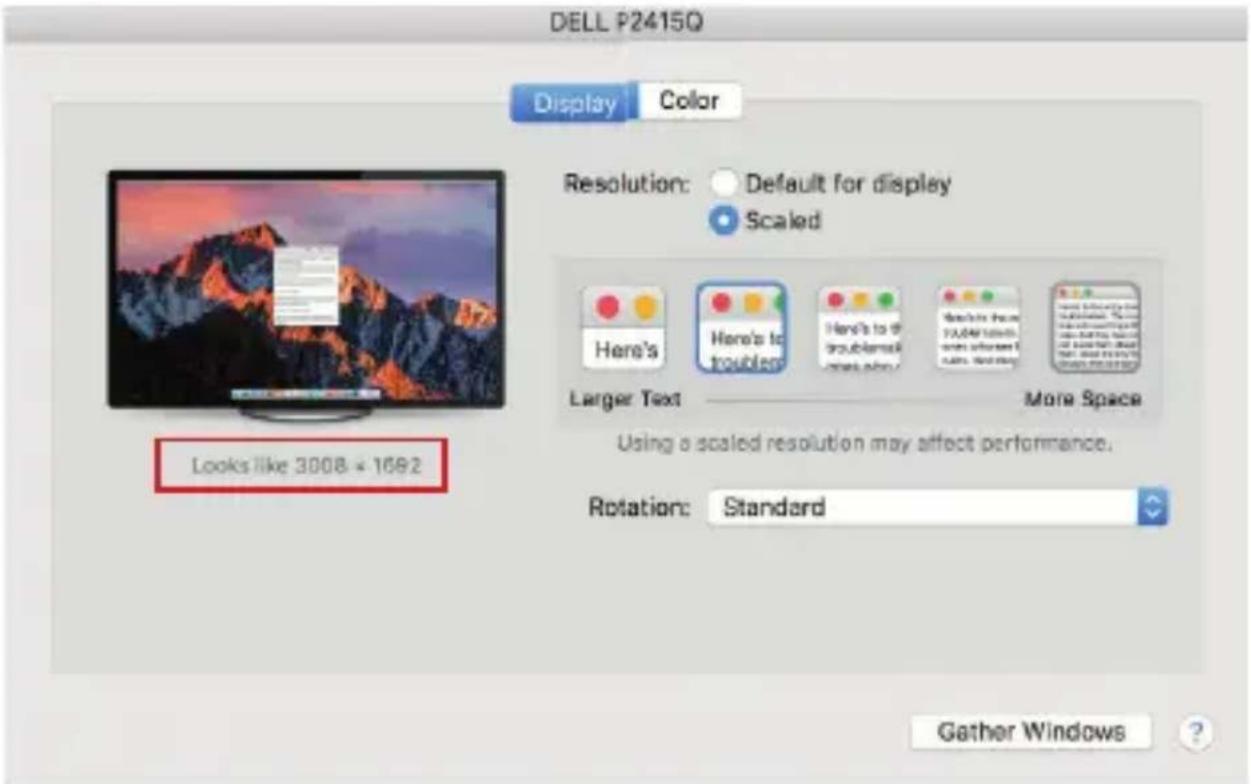
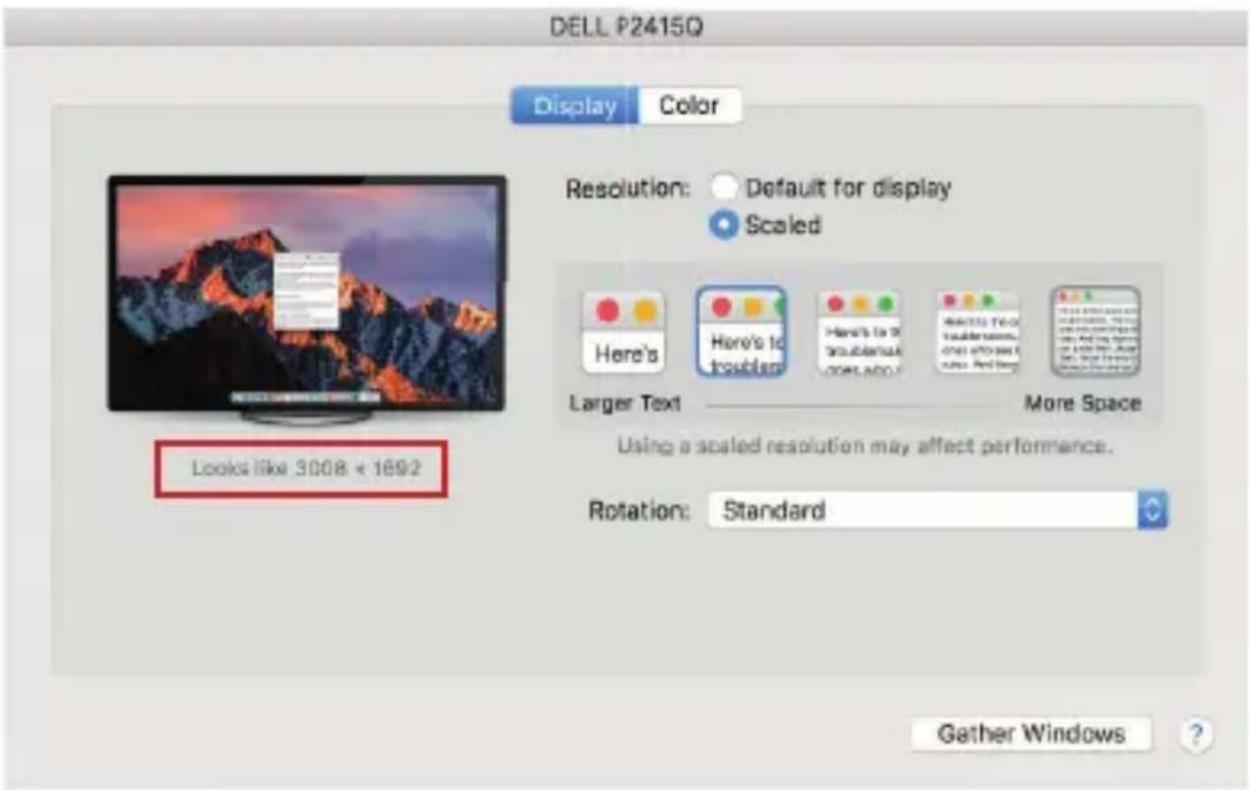
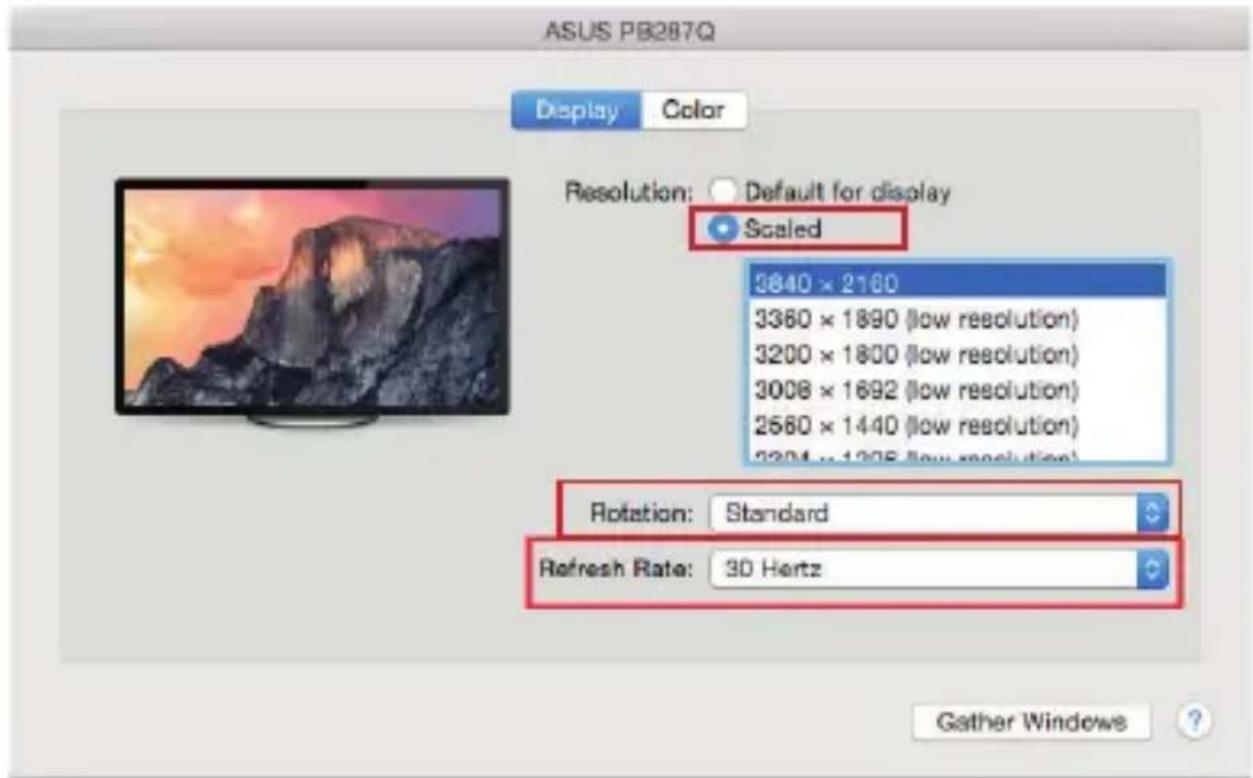
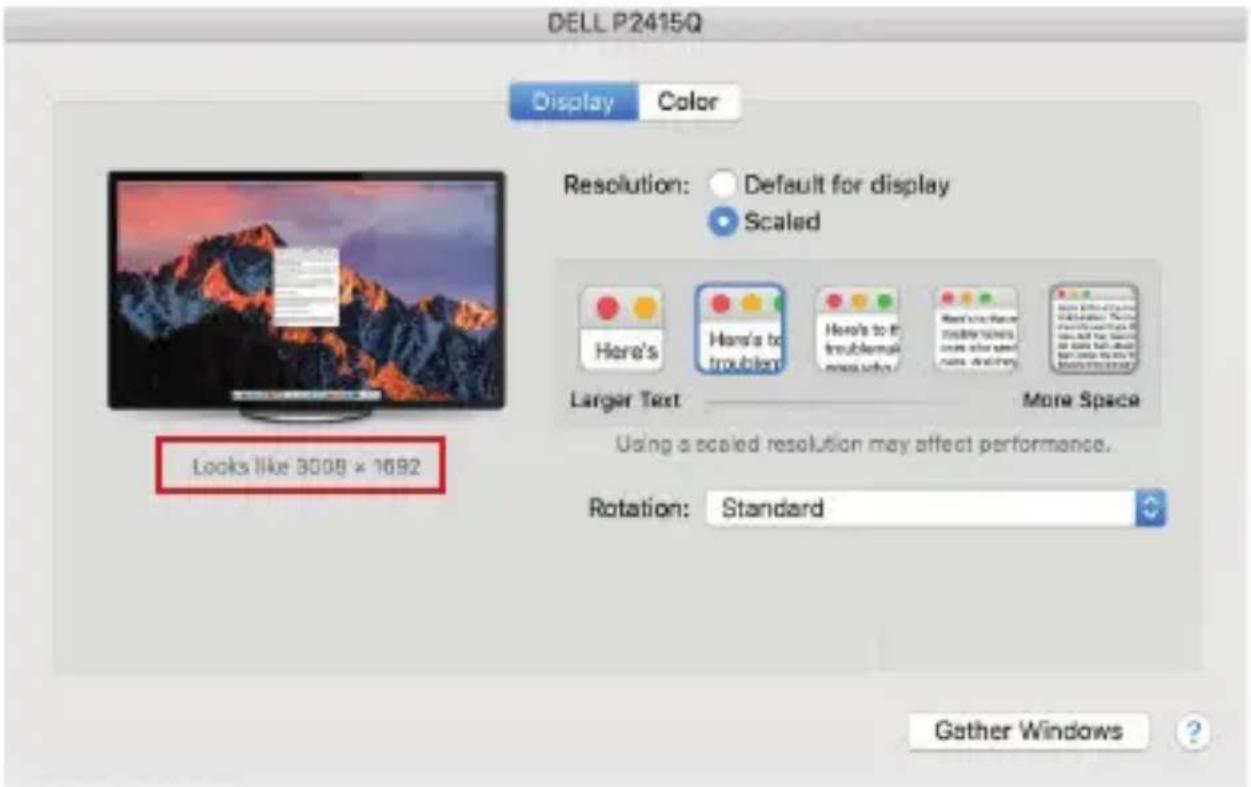
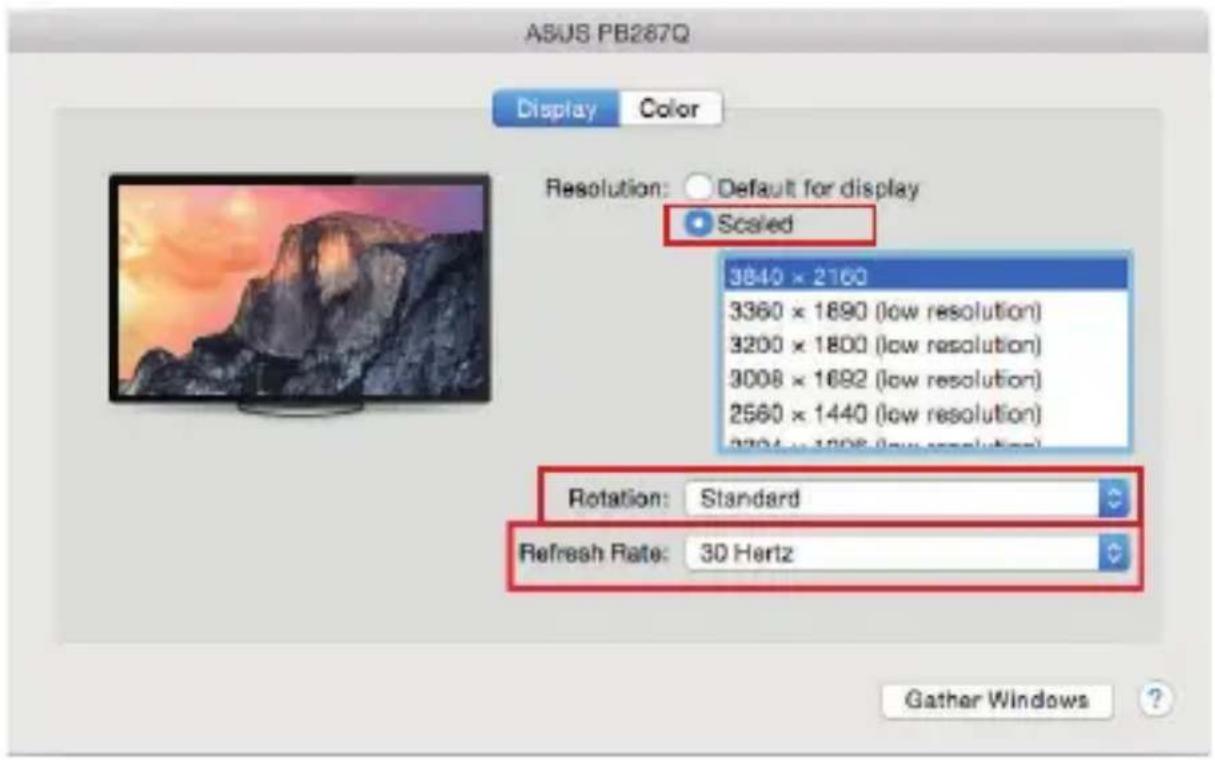
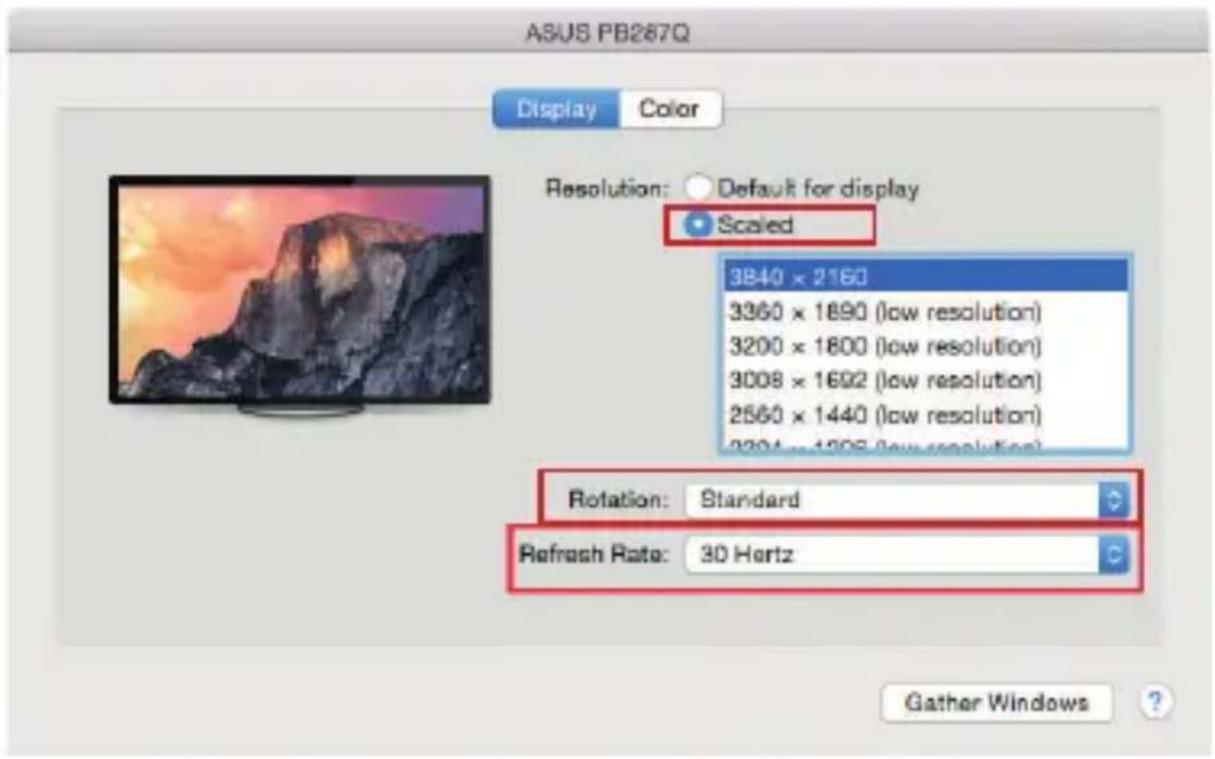
Click on Gather Windows: using this option you can choose the settings of the corresponding monitor – Scaled (offers available resolutions), Rotation (Standard, 90°, 180° and 270°) and Refresh rate (if offered).
i-tec USB-C HDMI DP Display Dock with PD 100 W
Below the following setting options are displayed. This may vary, depending on your monitor.
text_image
ASUS PB287Q Display Color Resolution: Default for display Scaled 3840 × 2160 3360 × 1890 (low resolution) 3200 × 1800 (low resolution) 3008 × 1692 (low resolution) 2560 × 1440 (low resolution) 3204 × 1205 (low resolution) Rotation: Standard Refresh Rate: 30 Hertz Gather Windows ?Display option 1

text_image
DELL P2415Q Display Color Resolution: Default for display Scaled Here's Here's to troublen Here's to it troubleman More Space Larger Text More Space Using a scaled resolution may affect performance. Rotation: Standard Looks like 3008 x 1692 Gather Windows ?Display option 2
In Scaled mode click on the required icon, the resolution is displayed below (which looks like this, 3008x1692 = 4K@30Hz)
Quick Start
Closed-display mode – It is possible to work on the connected monitor when the Mac monitor is closed, but you will require power supply and mouse and keyboard connection. More information can be found here:
https://support.apple.com/en-us/HT201834
The majority of problems with the docking station and the connected peripheral devices can be solved by disconnecting the USB-C cable of the docking station from the USB-C port of the PC / Mac / smartphone and reconnecting after approximately 10 s.
SAFETY INSTRUCTIONS
- Do not expose to extreme temperatures and air humidity.
- Use the device on flat surfaces – you will prevent it from slipping and falling to the ground.
- Save the user manual for a possible use later.
In cooperation with the service department:
- Check functionality after falling to water or to the ground.
- Check functionality when the cover is broken.
- Send the device back if it does not work in accordance with the user manual.
FREQUENTLY ASKED QUESTIONS
Available on our website www.i-tec.pro/en/ on the "FAQ" tab of this product.
BEGRIFFSWÖRTERBUCH
i-tec USB-C HDMI DP Display Dock with PD 100 W
natural_image
Black wireless router connected to a computer via cable (no visible text or symbols)natural_image
Black network device connected to a laptop via a cable, labeled with number 2 (no text or symbols on device body)natural_image
Black network device connected to two computer monitors (no visible text or symbols)text_image
Settings ADVANCED DISPLAY SETTINGS Customize your display 1 2 Identity Detected Multiple displays Extend these displays Resolution 3040 × 2560 (Recommended) Apply Cancel Related settings Color calibration ClearType text Advanced size of text and other items Display adapter propertiestext_image
4K Ultra3D SP 1.2 HBR2: 1 monitor - up to 4K/30Hz 2 monitors - up to 2x 1080pV60Hz SP 1.4 HBR3: 1 monitor - up to 4K/50Hz 2 monitors - up to 2x 1440pV60Hz SP 1.4 HBR3 OSC: 1 monitor - up to 5K/50Hz 2 monitors - up to 2x 4K/60Hz 1x6P or 1x HDMI port USB-C port Mirror Mode Extended Modetext_image
Sound Playback Recording Sounds Communications Select a playback device below of modify its settings: Reproduktory DisplayLink Audio Default Device Speakers / HP IDF High Definition Audio - COSBC Ready Configure Set Default Properties OK Cancel ApplyToneinstellung
i-tec USB-C HDMI DP Display Dock with PD 100 W
text_image
PROJECT PC screen only Duplicate Extend Second screen only Connect to a wireless displaytext_image
Built-in Display Search Display Arrangement Color Resolution: Default for display Scaled 1280 x 800 1162 x 720 1024 x 640 Brightness: Automatically adjust brightness AirPlay Display: No Devices Detected Show mirroring options in the menu bar when available Gather Windowsi-tec USB-C HDMI DP Display Dock with PD 100 W

text_image
Color LCD Show A1 Display Accumulation Color To rearrange the display, drag them to the desired position. To relocate the more bar, drag it to a different display. Mirror Displays AirPlay Mirroring: No Devices Detected Show mirroring options in the menu bar when available Gather Windowstext_image
Color LCD Show All Display Accumptives Color To rearrange the display, drag them to the desired position. To relocate the menu bar, drag it to a different display. MENU BAR Mirror Displays Air Play Mirrorings: No Devices Detected ! Show mirroring options in the menu bar when available Cather Windows ?text_image
Display To rearrange the displays, drag them to the desired position. To replace the menu bar, drag it to a different display. Mirror Displays AirPlay Mirroring: No Devices Detected.text_image
ASUS PB287Q Display Color Resolution: Default for display Scaled 3840 × 2160 3360 × 1890 (low resolution) 3200 × 1800 (low resolution) 3008 × 1692 (low resolution) 2560 × 1440 (low resolution) 3304 × 1205 (low resolution) Rotation: Standard Refresh Rate: 30 Hertz Gather Windows ?Abbildung 1
i-tec USB-C HDMI DP Display Dock with PD 100 W

text_image
DELL P2415Q Display Color Resolution: Default for display Scaled Here's Here's to troubion Here's to it troubleball press who Here's to have table times, cover also spec pass, desiring More Space Larger Text More Space Using a scaled resolution may affect performance. Rotation: Standard Looks like 3008 x 1692 Gather Windows ?https://support.apple.com/de-de/HT201834
i-tec USB-C HDMI DP Display Dock with PD 100 W
natural_image
Black network device connected to a laptop via a network interface (no text or symbols visible)i-tec USB-C HDMI DP Display Dock with PD 100 W
natural_image
Black wireless router connected to a laptop via network cable (no text or symbols visible)natural_image
Black network device connected to two computer monitors (no visible text or symbols)i-tec USB-C HDMI DP Display Dock with PD 100 W
text_image
Settings ADVANCED DISPLAY SETTINGS Customize your display 1 2 Identity Detect Multiple displays Extend these displays Resolution 3040 × 2550 (Recommended) Apply Cancel Related settings Color calibration ClearType text Advanced curing of text and other items Display adapter propertiestext_image
4K ULTRIA 3D 2x DF 1.2 HDRS: 1 monitor = up to 4K/30Hz 2 monitors = up to 2x 1680pV/60Hz DF 1.4 HDRS: 1 monitor = up to 4K/50Hz 2 monitors = up to 2x 1440pV/60Hz DF 1.4 HDRS 25G: 1 monitor = up to 5K/50Hz 2 monitors = up to 2x 8K/80Hz 1xDP at 1x HDMI port USB-C port
text_image
Mirror Mode
natural_image
Two computer monitors displaying a bicycle image, one open and one closed, both without any visible text or symbols.text_image
Sound Playback Recording Sounds Communications Select a playback device below to modify its settings Reproducity DisplayLink Audio Default Drive Speakers / HP IDT High Definition Audio CODEC Ready Configure Sat Default Properties OK Cancel ApplyParamètres audio
i-tec USB-C HDMI DP Display Dock with PD 100 W
text_image
PROJECT PC screen only Duplicate Extend Second screen only Connect to a wireless displaytext_image
Built-in Display Search Display Arrangement Color Resolution: Default for display Scaled 1280 x 800 1152 x 720 1024 x 640 Brightness: Automatically adjust brightness AirPlay Display: No Devices Detected Show mirroring options in the menu bar when available Gather Windowstext_image
Color LCD Show A1 Display Arrangement Color To rearrange the displays, drag them to the desired position. To relocate the more bar, drag it to a different display. Mirror Displays AirPlay Mirroring: No Devices Detected : Show mirroring options in the menu bar when available Gather Windows ?i-tec USB-C HDMI DP Display Dock with PD 100 W

text_image
Color LCD Show All Display Adjustment Color To rearrange the displays, drag them to the desired position. To relocate the menu bar, drag it to a different display. MENU BAR Mirror Displays AirPlay Mirroring: No Devices Detected : Show mirroring options in the menu bar when available Cather Windowstext_image
Display To rearrange the displays, drag them to the desired position. To relocate the menu box, drag it to a different display. Mirror Displays AirPlay Mirroring: No Devices Detected Show mirroring options in the menu bar when available Cather Windowstext_image
ASUS PB287Q Display Color Resolution: Default for display Scaled 9840 × 2160 3360 × 1890 (low resolution) 3200 × 1800 (low resolution) 3008 × 1692 (low resolution) 2560 × 1440 (low resolution) 3204 × 1205 (low resolution) Rotation: Standard Refresh Rate: 30 Hertz Gather Windows ?Vue option 1

text_image
DELL P2415Q Display Color Resolution: Default for display Scaled Here's Here's to Insulation Here's to 0 Sousness 204.800? Refer to To: Insulation 0 who see it More Space Larger Text More Space Using a scaled resolution may affect performance. Rotation: Standard Looks like 3008 x 1692 Gather Windows ?Vue option 2
i-tec USB-C HDMI DP Display Dock with PD 100 W
INSTRUCTIONS DE SÛRETÉ
i-tec USB-C HDMI DP Display Dock with PD 100 W
- Puertos de video: 1x HDMI, 1x DisplayPort
- Resolución:
DP 1.2 HBR2:
i-tec USB-C HDMI DP Display Dock with PD 100 W
natural_image
Black network device connected to a computer and a laptop, with no visible text or symbols.natural_image
Black network device connected to a laptop via a network cable (no text or symbols visible)natural_image
Black network device connected to two computer monitors (no visible text or symbols)i-tec USB-C HDMI DP Display Dock with PD 100 W
text_image
Settings ADVANCED DISPLAY SETTINGS Customize your display 1 2 Identify Detest Multiple display Extend these displays Resolution 3040 × 2650 (Recommended) Apply Cancel Related settings Color calibration ClearType text Advanced listing of text and other items Display adapter propertiesi-tec USB-C HDMI DP Display Dock with PD 100 W
text_image
4K ULTRA-2D 1xXP or 1x HDMI port DP.1.2 HDMI2: 1 monitor ~ up to 4K/50Hz 2 monitors ~ up to 2x 1.080pV60Hz DP.1.4 HDMI3: 1 monitor ~ up to 4K/50Hz 2 monitors ~ up to 2x 1.440pV60Hz DP.1.4 HDR3 SSC: 1 monitor ~ up to 8K/50Hz 2 monitors ~ up to 2x 4K/60Hz USB-C port Mirror Mode Extended Modetext_image
Sound Playback Recording Sounds Communications Select a playback device below to modify its settings Reproduktory DisplayLink Audio Default Device Speakers / MP ID: High Definition Audio-CO/DC Besty Configure Set Default Properties OK Cancel ApplyAjustes de sonido
Quick Start
text_image
PROJECT PC screen only Duplicate Extend Second screen only Connect to a wireless displayi-tec USB-C HDMI DP Display Dock with PD 100 W
text_image
Built-in Display Display Arrangement Color Resolution: Default for display Scaled 1280 x 800 1162 x 720 1024 x 640 Brightness: Automatically adjust brightness AirPlay Display: No Devices Detected Show mirroring options in the menu bar when available Gather Windowstext_image
Color LCD Display Arrangement Color To rearrange the displays, drag them to the desired position. To relocate the menu bar, drag it to a different display. Mirror Displays AirPlay Mirroring: No Devices Detected Show mirroring options in the menu bar when available Gather Windowstext_image
Color LCD Show All Display Attachments Color To rearrange the displays, drag them to the desired positions. To relocate the menu bar, drag it to a differential display. MENU BAR Mirror Displays Air Play Mirroring: No Devices Detected : Show mirroring options in the menu bar when available Cather Windowstext_image
Display To rearrange the displays, drag them to the desired position. To relocate the menu bar, drag it to a different display. Mirror Displays AirPlay Mirroring: No Devices Detected Show mirroring options in the menu bar when available Cather Windowsi-tec USB-C HDMI DP Display Dock with PD 100 W
text_image
ASUS PB287Q Display Color Resolution: Default for display Scaled 3840 × 2160 3360 × 1890 (low resolution) 3200 × 1800 (low resolution) 3008 × 1692 (low resolution) 2560 × 1440 (low resolution) 3704 × 1808 (low resolution) Rotation: Standard Refresh Rate: 30 Hertz Gather Windows ?text_image
DELL P2415Q Display Color Resolution: Default for display Scaled Here's Here's to troubler Here's to fit troublemark where other Here's to have double numbers where other need use, explaining More Space Larger Text More Space Using a scaled resolution may affect performance. Rotation: Standard Looks like 3008 × 1692 Gather Windows ?i-tec USB-C HDMI DP Display Dock with PD 100 W
text_image
4 5 6 7 3 3 2 2 i-tec 10 2 1 9 8DESCRIZIONE
natural_image
Black wireless router connected to a computer via network cable (no text or symbols visible)i-tec USB-C HDMI DP Display Dock with PD 100 W
natural_image
Black wireless router connected to a laptop via network cable (no text or symbols visible)natural_image
Black network device connected to two computer monitors (no visible text or symbols)text_image
Settings ADVANCED DISPLAY SETTINGS Customize your display 1 2 Identity Default Multiple displays Extend these displays Resolution: 3040 x 2560 (Recommended) Apply Cancel Related settings Color calibration ClearType text Advanced rating of text and other items Display adapters propertiesflowchart
graph TD
A["4K ULTRATED"] -->|2xDP port| B["2xDP port"]
B --> C["USB-C port"]
C --> D["Laptop"]
subgraph Mirror Mode
E["Computer monitor with 2xDP camera image"]
F["Computer monitor with cycling gear image"]
G["Computer monitor with laptop screen"]
end
subgraph Extended Mode
H["Computer monitor with 2xDP camera image"]
I["Computer monitor with cycling gear image"]
J["Computer monitor with laptop screen"]
end
text_image
Sound Playback Recording Sounds Communications Select a playback device below to modify its settings: Reprosulatory Displaylink Audio Default Device Speakers / HP 401 High Definition Audio CODEC Ready Configure Set Default Properties OK Cancel ApplyImpostazione audio
text_image
PROJECT PC screen only Duplicate Extend Second screen only Connect to a wireless displaytext_image
Built-in Display Display Amargament Calcium Resolution: Default for display Scaled 1280 x 800 1152 x 720 1024 x 640 Brightness: Automatically adjust brightness AirPlay Display: No Devices Detected Show mirroring options in the menu bar when available Gather Windowstext_image
Color LCD Show All Display Arrangement Color To rearrange the displays, drag them to the desired position. To relocate the menu bar, drag it to a different display. Mirror Displays AirPlay Mirroring: No Devices Detected Show mirroring options in the menu bar when available Gather Windows 7i-tec USB-C HDMI DP Display Dock with PD 100 W
text_image
Color LCD Show All Display Arrangement Color To rearrange the displays, drag them to the desired positions. To relocate the menu bar, drag it to a different display. MENU BAR Mirror Displays Air Play Mirrorings: No Devices Detected + Show mirroring options in the menu bar when available Cather Windowstext_image
Display Display Arrangement Color To rearrange the display, drag them to the desired position. To release the menu bar, drag it to a different display. ✓ Mirror Displays AirPlay Mirroring: No Devices Detected ✓ Show mirroring options in the menu bar when available Cather Windows ?text_image
ASUS PB287Q Display Color Resolution: Default for display Scaled 3840 × 2160 3360 × 1890 (low resolution) 3200 × 1800 (low resolution) 3008 × 1692 (low resolution) 2560 × 1440 (low resolution) 3804 × 1808 (low resolution) Rotation: Standard Refresh Rate: 30 Hertz Gather Windows ?text_image
DELL P2415Q Display Color Resolution: Default for display Scaled Here's Here's to troublet Here's to if troublet after 72.049 bytes see after last 1 Larger Text More Space Using a scaled resolution may affect performance. Rotation: Standard Gather Windows ?i-tec USB-C HDMI DP Display Dock with PD 100 W
DP 1.4 HBR3:
1 monitor – až 4K/60Hz 2 monitory – až 2x 1440p/60Hz *
DP 1.4 HBR3 DSC:
natural_image
Black network device connected to a computer and a laptop (no visible text or symbols)natural_image
Black network device connected to a laptop via a cable, labeled with number 2 (no text or symbols on device body)natural_image
Black network device connected to two computer monitors (no visible text or symbols)i-tec USB-C HDMI DP Display Dock with PD 100 W
NABÍJENÍ PŘES POWER DELIVERY
text_image
Settings ADVANCED DISPLAY SETTINGS Customize your display 1 2 Identity Delays Multiple displays Extend these displays Resolution 3040 × 2660 (Recommended) Apply Cancel Related settings Color calibration ClearType text Advanced sizing of text and other items Display adapter propertiestext_image
4K ULTRIA 10 DP 1.2 H8R2: 1 monitor - up to 4K/30Hz 2 monitors - up to 2x 1690p/60Hz DP 1.4 H8R2: 1 monitor - up to 4K/60Hz 2 monitors - up to 2x 1440p/60Hz DP 1.4 H8R3 ESC: 1 monitor - up to 5K/60Hz 2 monitors - up to 2x 4K/50Hz USB/C port 1xDP or 1x HDMI port Mirror Mode Extended Modetext_image
Sound Playback recording Sounds Communications Select a playback device below to modify its settings: Reproduktory DisplayLink Audio Default Device Speaker1/HP #01 High Definition Audio CODEC Ready Configure Set Default Properties OK Cancel ApplyNastavení zvuku
i-tec USB-C HDMI DP Display Dock with PD 100 W
text_image
PROJECT PC screen only Duplicate Extend Second screen only Connect to a wireless displaytext_image
Built-In Display Display Arrangement Color Resolution: Default for display Scaled 1200 x 600 1152 x 720 1024 x 640 Brightness: Automatically adjust brightness AirPlay Display: No Devices Detected Show mirroring options in the menu bar when available Gather Windowstext_image
Color LCD Display Arrangement Color To now arrange the displays, drag them to the desired position. To release the menu bar, drag it to a different display. Mirror Displays AirPlay Mirroring: No Devices Detected : Show mirroring options in the menu bar when available Gather Windows ?i-tec USB-C HDMI DP Display Dock with PD 100 W

text_image
Color LCD Display Arrangement Color To rearrange the displays, drag them to the desired position. To relocate the menu bar, drag it to a different display. MENU BAR Mirror Displays AirPlay Mirroring: No Devices Detected Show mirroring options in the menu bar when available Cather Windowstext_image
Display Display Arrangement Color To rearrange the displays, drag them to the desired position. To relocate the menu bar, drag it to a different display. ✓ Mirror Displays AirPlay Mirroring: No Devices Detected # ✓ Show mirroring options in the menu bar when available Cather Windows ?text_image
ASUS PB287Q Display Color Resolution: Default for display Scaled 3840 × 2160 3360 × 1890 (low resolution) 3200 × 1800 (low resolution) 3008 × 1692 (low resolution) 2560 × 1440 (low resolution) 3304 × 1808 (low resolution) Rotation: Standard Refresh Rate: 30 Hertz Gather Windows ?text_image
DELL P2415Q Display Color Resolution: Default for display Scaled Here's Here's to troublet Here's to it doublered More Space Larger Text More Space Using a scaled resolution may affect performance. Rotation: Standard Gather Windows ?https://support.apple.com/cs-cz/HT201834
2 monitory – do 2x 1080p/60 Hz *
i-tec USB-C HDMI DP Display Dock with PD 100 W
DP 1.4 HBR3:
1 monitor – do 4K/60 Hz
2 monitory – do 2x 1440p/60 Hz *
DP 1.4 HBR3 DSC:
1 monitor – do 5K/60 Hz
2 monitory – do 2x 4K/60 Hz *
i-tec USB-C HDMI DP Display Dock with PD 100 W
natural_image
Black network device connected to a computer via cable and monitor (no visible text or symbols)natural_image
Black wireless router connected to a laptop via network cable (no text or symbols visible)natural_image
Black network device connected to two computer monitors (no visible text or symbols)i-tec USB-C HDMI DP Display Dock with PD 100 W
ŁADOWANIE ZA POMOCA POWER DELIVERY
text_image
Settings ADVANCED DISPLAY SETTINGS Customize your display 1 2 Identify Detect Multiple displays Extend these displays Resolution 3500 x 2500 (Recommended) Apply Cancel Related settings Color calibration OverType text Advanced rating of text and other items Display adapter propertiestext_image
Sound Playback Recording Sounds Communications Select a playback device below to modify its settings: Reproduktory DisplayLink Audio Default Devise Speaker: / HP IDF High Definition Audio COD/EC Ready Configure Set Default Properties OK Cancel ApplyUstawienia dźwięku
i-tec USB-C HDMI DP Display Dock with PD 100 W
text_image
PROJECT PC screen only Duplicate Extend Second screen only Connect to a wireless displaytext_image
Built-in Display Display Arrangement Color Resolution: Default for display Scaled 1200 x 600 1152 x 720 1024 x 640 Brightness: Automatically adjust brightness AirPlay Display: No Devices Detected Show mirroring options in the menu bar when available Gather Windowstext_image
Color LCD Display Arrangement Color To rearrange the displays, drag them to the desired position. To release the menu bar, drag it to a different display. Mirror Displays AirPlay Mirroring: No Devices Detected Show mirroring options in the menu bar when available Cather Windowsi-tec USB-C HDMI DP Display Dock with PD 100 W

text_image
Color LCD Display Arrangement Color To rearrange the displays, drag them to the desired position. To relocate the menu bar, drag it to a different display. MENU BAR Mirror Displays AirPlay Mirroring: No Devices Detected Show mirroring options in the menu bar when available Cather Windowstext_image
Display To rearrange the displays, drag them to the desired position. To relocate the menu bar, drag it to a different display. Mirror Displays AirPlay Mirroring: No Devices Detected 2 Show mirroring options in the menu bar when available Cather Windowstext_image
ASUS PB287Q Display Color Resolution: Default for display Scaled 3840 x 2160 3360 x 1890 (low resolution) 3200 x 1800 (low resolution) 3008 x 1692 (low resolution) 2560 x 1440 (low resolution) 3304 x 1805 (low resolution) Rotation: Standard Refresh Rate: 30 Hertz Gather Windows ?Display opcja 1

text_image
DELL P2415Q Display Color Resolution: Default for display Scaled Here's Here's to troubler Here's to it soulabana CORE ADD Select To O insublers, other who set it Sales, and ring More Space Larger Text More Space Using a scaled resolution may affect performance. Rotation: Standard Gather Windows ?i-tec USB-C HDMI DP Display Dock with PD 100 W
https://support.apple.com/pl-pl/HT201834
i-tec USB-C HDMI DP Display Dock with PD 100 W
DP 1.4 HBR3:
1 monitor – až 4K/60Hz 2 monitory – až 2x 1440p/60Hz *
DP 1.4 HBR3 DSC:
i-tec USB-C HDMI DP Display Dock with PD 100 W
natural_image
Black wireless router connected to a computer via cable (no text or symbols visible)- 1 monitor pripojený cez 1 DisplayPort kábel – rozlíšenie až 5K 5120x2880/60Hz.
natural_image
Black wireless router connected to a laptop via network cable (no text or symbols visible)natural_image
Black network device connected to two computer monitors (no visible text or symbols)- 2 monitory pripojené cez DisplayPort/HDMI káble – rozlíšenie až 4K 3840x2160/60Hz.
i-tec USB-C HDMI DP Display Dock with PD 100 W
NABÍJANIE CEZ POWER DELIVERY
text_image
Settings ADVANCED DISPLAY SETTINGS Customize your display 1 2 Identify Dated Multiple displays Extend these displays Resolution 3040 × 2560 (Recommended) Apply Cancel Related settings Color calibration ClearType text Advanced size of text and other items Display adapter propertiesQuick Start
text_image
4K ULTRADD 1x0P or 1x HDMI port SF 3.2 HDRS: 1 monitor - up to 4K/30Hz 2 monitors - up to 2x 1080pV60Hz SF 3.4 HDRS: 1 monitor - up to 4K/50Hz 2 monitors - up to 2x 1440pV60Hz SF 3.4 HDRS BSC: 1 monitor - up to 5K/60Hz 2 monitors - up to 2x 4K/60Hz USB-C port Mirror Mode Extended ModeRežimy Rozšírit'a Zrkadlit'
text_image
Sound Playback Recording Sounds Communications Select a playback device below to modify its settings: Reproduktory DisplayLink Audio Default Device speakers / PHP ©1 High Definition Audio CODES Ready Configure Set Default Properties OK Cancel ApplyNastavenie zvuku
i-tec USB-C HDMI DP Display Dock with PD 100 W
text_image
PROJECT PC screen only Duplicate Extend Second screen only Connect to a wireless displaytext_image
Built-in Display Display Arrangement Color Resolution: Default for display Scaled 1200 x 600 1152 x 720 1024 x 640 Brightness: Automatically adjust brightness AirPlay Display: No Devices Detected Show minoring options in the menu bar when available Gather Windowstext_image
Color LCD Display Arrangement Color To re-serve the displays, drag them to the desired position. To release the menu bar, drag it to a different display. Mirror Displays AirPlay Mirroring: No Devices Detected Show mirroring options in the menu bar when available Gather Windowsi-tec USB-C HDMI DP Display Dock with PD 100 W
text_image
Color LCD Show All Display Management Color To rearrange the displays, drag them to the desired position. To relocate the menu bar, drag it to a different display. MENU BAR Mirror Displays AirPlay Mirroring: No Devices Detected Show mirroring options in the menu bar when available Cather Windowstext_image
Display Display Arrangement Color To rearrange the displays, drag them to the desired position. To relocate the menu bar, drag it to a different display. Mirror Displays AirPlay Mimoring: No Devices Detected Show mirroring options in the menu bar when available Cateer Windowstext_image
ASUS PB287Q Display Color Resolution: Default for display Scaled 3640 × 2160 3360 × 1890 (low resolution) 3200 × 1800 (low resolution) 3008 × 1692 (low resolution) 2560 × 1440 (low resolution) 3004 × 1808 (low resolution) Rotation: Standard Refresh Rate: 30 Hertz Gather Windows ?Variant zobrazenia 1

text_image
DELL P2415Q Display Color Resolution: Default for display Scaled Here's Here's to troublet Here's to the problemall Yes after See how to show it More Space Larger Text More Space Using a scaled resolution may affect performance. Rotation: Standard Looks like 3008 - 1692 Gather Windows ?Variant zobrazenia 2
i-tec USB-C HDMI DP Display Dock with PD 100 W
https://support.apple.com/sk-sk/HT202351
i-tec USB-C HDMI DP Display Dock with PD 100 W
DP 1.4 HBR3:
1 monitorius – iki 4K/60 Hz
2 mo nitoriai – iki 2x 1440p/60 Hz *
DP 1.4 HBR3 DSC:
1 monitorius – iki 5K/60 Hz
2 monitoriai – iki 2x 4K/60 Hz *
i-tec USB-C HDMI DP Display Dock with PD 100 W
natural_image
Black network device connected to a computer and a laptop (no visible text or symbols)- 1 monitorius prijungtas per 1 „DisplayPort“ kabelj - rezoliucija iki 5K 5120x2880 / 60Hz.
natural_image
Black network device connected to a computer via cable and laptop (no text or symbols visible)- 1 monitorius prijungtas per „DisplayPort“ / HDMI kabelj - rezoliucija iki 4K 3840x2160 / 60Hz.
4K/60Hz reozliucija palaikoma tik tada, kai nešiojamojo kompiuterio USB-C / Thunderbolt™ 3 konektorius palaiko „DisplayPort 1.4 DSC“ arba „DisplayPort 1.4 be DSC“.
natural_image
Black network device connected to two computer monitors (no visible text or symbols)- 2 monitoriai, prijungti per „DisplayPort“ / HDMI kabelius - rezoliucija iki 4K 3840x2160 / 60Hz.
Tik tada, kai nešiojamojo kompiuterio USB-C / Thunderbolt™ 3 konektorius palaiko „DisplayPort 1.4 DSC“.
i-tec USB-C HDMI DP Display Dock with PD 100 W
PAKROVIMAS PER POWER DELIVERY
text_image
Setting ADVANCED DISPLAY SETTINGS Customize your display 1 2 Identify Detect Multiple displays Extend these displays Resolution 3500 x 2500 (Recommended) Apply Cancel Related settings Color calibration ClearType text Advanced string of text and other items Display adapter propertiestext_image
4K ULTRA 1x3P or 1x HDMI port DP 1.2 H8R2: 1 monitor - up to 4K/30Hz 2 monitors - up to 2x 1080p/60Hz DP 1.4 H8R3: 1 monitor - up to 4K/50Hz 2 monitors - up to 3x 1440p/60Hz DP 1.4 H8R3 33C: 1 monitor - up to 8K/90Hz 2 monitors - up to 2x 4K/80Hz USB-C port Mirror Mode Extended Modetext_image
Sound Playback Recording Sounds Communications Select a playback device below to modify its settings: Ripopodutary Displacement Audio Default Device Speakers / MP IDT High Definition Audio CODES Ready Configure Set Default Properties OK Cancel ApplyGarso nustatymas
text_image
PROJECT PC screen only Duplicate Extend Second screen only Connect to a wireless displaytext_image
Built-In Display Search Display Arrangement Color Resolution: Default for display Scaled 1280 x 600 1152 x 720 1024 x 640 Brightness: Automatically adjust brightness AirPlay Display: No Devices Detected Show mirroring options in the menu bar when available Gather Windowstext_image
Color LCD Display Arrangement Color To return once the displays, drag them to the desired position. To release the menu bar, drag it to a different display. Mirror Displays AirPlay Mirroring: No Devices Detected : Show mirroring options in the menu bar when available Gather Windowsi-tec USB-C HDMI DP Display Dock with PD 100 W

text_image
Color LCD Show All Display Arrangement Color To rearrange the displays, drag them to the closed position. To relocate the menu bar, drag it to a different display. MENU BAR Mirror Displays AirPlay Mirroring: No Devices Detected 1 Show mirroring options in the menu bar when available Cather Windowstext_image
Display Display Arrangement Color To rearrange the displays, drag them to the desired position. To relocate the menu bar, drag it to a different display. Mirror Displays AirPlay Mirroring: No Devices Detected - Show mirroring options in the menu bar when available Catcher Windowstext_image
ASUS PB287Q Display Color Resolution: Default for display Scaled 3840 × 2160 3360 × 1890 (low resolution) 3200 × 1800 (low resolution) 3008 × 1692 (low resolution) 2560 × 1440 (low resolution) 3304 × 1898 (low resolution) Rotation: Standard Refresh Rate: 30 Hertz Gather Windows ?Vaizdo variantas 1

text_image
DELL P2415Q Display Color Resolution: Default for display Scaled Here's Here's to troublet Here's to 9 soulabana CORE ADD 0.0000000000000000000000000000000000000000000000000000000000000000000000000000000 Larger Text More Space Using a scaled resolution may affect performance. Rotation: Standard Gather Windows ?i-tec USB-C HDMI DP Display Dock with PD 100 W
natural_image
Black network device with connected computer and router (no visible text or symbols)natural_image
Black network device connected to a laptop via a network cable (no text or symbols visible)natural_image
Black network device connected to two computer monitors (no visible text or symbols)text_image
Settings ADVANCED DISPLAY SETTINGS Customize your display 1 2 Identity Detect Multiple displays Extend these displays Resolution 3040 x 2180 (Recommended) Apply Cancel Related settings Color calibration ClearType test Advanced setting of test and other items Display adapter propertiesi-tec USB-C HDMI DP Display Dock with PD 100 W

text_image
4K ULTRA2D 1xDP or 1x HDMI port DP 1.2 HBR2: 1 monitor - up to 4K/50Hz 2 monitors - up to 2x 1080pV60Hz DP 1.4 HBR3: 1 monitor - up to 4K/50Hz 2 monitors - up to 2x 1440pV60Hz DP 1.4 HBR3 SSC: 1 monitor - up to 8K/50Hz 2 monitors - up to 2x 4K/60Hz USB-C port Mirror Mode Extended Modetext_image
Sound Playback: Recording Sounds Communications Select a playback device below to modify its settings: Purpro-duktary DisplayLink Audio Default Drive Speaker / HP IDT High Definition Audio CODE Ready Configure Set Default Properties OK Cancel ApplyAudio-instellingen
text_image
PROJECT PC screen only Duplicate Extend Second screen only Connect to a wireless displayMonitorbediening in Windows 10
GEBRUIK IN MACOS X
i-tec USB-C HDMI DP Display Dock with PD 100 W

text_image
Built-in Display Display Arrangement Color Resolution: Default for display Scaled 1280 x 600 1152 x 720 1024 x 640 Brightness: Automatically adjust brightness AirPlay Display: No Devices Detected Show mirroring options in the menu bar when available Gather Windowstext_image
Color LCD Show All Display Arrangement Color To rearrange the displays, drag them to the desired position. To relocate the menu bar, drag it to a different display. Mirror Displays AirPlay Mirroring: No Devices Detected : Show mirroring options in the menu bar when available Gather Windows ?text_image
Color LCD Show All Display Arrangement Color To rearrange the displays, drag them to the desired position. To relocate the menu bar, drag it to a different display. MENU BAR Mirror Displays Air Play Mirroring: No Devices Detected Show mirroring options in the menu bar when available Cather Windowstext_image
Display Display Arrangement Color To rearrange the displays, drag them to the desired position. To relocate the menu bar, drag it to a different display. Mirror Displays AirPlay Mimming: No Devices Detected Show mirroring options in the menu bar when available Cather Windowsi-tec USB-C HDMI DP Display Dock with PD 100 W

text_image
ASUS PB287Q Display Color Resolution: Default for display Scaled 3840 × 2160 3360 × 1890 (low resolution) 3200 × 1800 (low resolution) 3008 × 1692 (low resolution) 2560 × 1440 (low resolution) 3304 × 1305 (low resolution) Rotation: Standard Refresh Rate: 3D Hertz Gather Windows ?Weergavevariant 1

text_image
DELL P2415Q Display Color Resolution: Default for display Scaled Here's Here's to Problem Here's to be Isobram or Other, but not in More Space Larger Text More Space Using a scaled resolution may affect performance. Rotation: Standard Gather Windows ?Weergavevariant 2
This equipment is marked with the above recycling symbol. It means that at the end of the life of the equipment you must dispose of it separately at an appropriate collection point and not place it in the normal domestic unsorted waste stream. This wil benefit the environment for all. (European Union only)
DEUTSCH
This equipment has been tested and found to comply within the limits of a Class B digital device pursuant to Part 15 of the FCC Rules. These limits are designed to provide reasonable protection against harmful interference in a residential installation.