C31QUATTRODOCKP - Other computer accessories i-TEC - Free user manual and instructions
Find the device manual for free C31QUATTRODOCKP i-TEC in PDF.


| Product Type | USB-C Docking Station with 85 W Power Delivery |
| Brand | i-TEC |
| Model | C31QUATTRODOCKP |
| Dimensions (L x W x H) | 198 x 85 x 34 mm |
| Weight | 294 g |
| Power Supply | DC 20 V / 6.75 A (85 W) power adapter |
| Video Ports | 2x DisplayPort, 2x HDMI |
| Maximum Resolution (1 monitor) | Up to 5K/60 Hz (via DP Alt mode) |
| Maximum Resolution (2 monitors) | Up to 2x 4K/60 Hz (via DP Alt mode) |
| USB Ports | 1x USB-C Gen1 (data), 4x USB 3.0 (including 1 with BC 1.2 fast charging) |
| Network | 1x Ethernet GLAN RJ-45 (Realtek RTL8153, 10/100/1000 Mbps) |
| Audio | 1x 3.5 mm headphone output, 1x 3.5 mm microphone input |
| Power Delivery | Up to 85 W for the host computer |
| Compatible with | Windows 10, macOS, Android, Linux |
| Security | Kensington lock compatible |
| VESA Mount | Compatible (VESA mount support) |
| Included Cable | 100 cm USB-C cable |
| Main Features | Multi-screen docking station, fast charging, USB peripheral connection, Ethernet network |
| Maintenance and Cleaning | Clean with a dry cloth. Do not use liquid or abrasive products. |
| Safety Instructions | Do not expose to extreme temperatures or humidity. Use on a flat surface. |
Frequently Asked Questions - C31QUATTRODOCKP i-TEC
User questions about C31QUATTRODOCKP i-TEC
0 question about this device. Answer the ones you know or ask your own.
Ask a new question about this device
Download the instructions for your Other computer accessories in PDF format for free! Find your manual C31QUATTRODOCKP - i-TEC and take your electronic device back in hand. On this page are published all the documents necessary for the use of your device. C31QUATTRODOCKP by i-TEC.
USER MANUAL C31QUATTRODOCKP i-TEC
USB-C Quattro Display Docking Station with Power Delivery 85 W
User guide · Gebrauchsanweisung · Mode d'emploi Manual de instrucciones · Manuale · Uživotelská príručka Instrukcje obslugi · Uživotelská príručka · Vartotojo vadovas Handleiding
EN Please read the entire instruction manual carefully. Detailed manual is available on our website www.i-tec.cz/en/ in the tab „Manuals, drivers". In case of any issues, please contact our technical support at: support@itecproduct.com
USB-C Quattro Display Docking Station with Power Delivery 85 W
ENGLISH 05-19
DEUTsCH 20-34
FRANÇAIS 35-49
ESPANOL 50-64
ITALIANO 65-80
CESKY 81-95
POLSKI 96-111
SLOVENSKY 112-126
LIETUVOS. 127-141
NEDERLANDS. 142-157
WEEE. 158-159
Declaration of Conformity 160-161
FCC. 162
GLOSSARY
- Interface / port / connector / input / slot - a place where two devices are physically connected.
- Chipset - a semiconductor device in a laptop, tablet or PC controlling the function of a port.
- USB-C / USB Type-C - is a new symmetric connector and standard, introduced by USB-IF in their specification USB 3.1. Windows 10 (Microsoft), macOS X (Apple) and Chrome OS and Android (Google) have introduced native support for this connector. It allows faster charging, energizing, double-function (a host but also a guest), support for alternative modes (DisplayPort, MHL, Thunderbolt) and error messaging using Billboard equipment.
- USB 3.1 / 3.0 / 2.0 - a standard for USB interface / port for connection of various USB devices. Various USB devices can be connected to the docking station or adapter using the USB interface type A. USB type B is used for connecting the docking station or adapter to a laptop or tablet.
- HDMI / Display Port - a standard for digital graphical interface / port for connection of monitors and other graphical display devices.
- LAN (Local Area Network) - the local computer network is now the most popular Ethernet that achieves a theoretical transfer rate of up to 1 Gbit/s at the docking station - GLAN / RJ-45.
- Audio - designation for audio input (microphone) or output (earphones / loudspeakers).
External power supply exclusively for use with C31QUATTRODOCKPD.
SPECIFICATIONS
- 1x USB-C port for connecting to a device
- Docking station technology: USB-C (MST) + DisplayLink 3900
Power Delivery: 85 W
Video ports: 2x DisplayPort 2x HDMI - Resolution: DisplayLink ports 2x HDMI: 1 monitor: up to 2560x1440/50 Hz 2 monitors: up to 2048x1152/60 Hz
USB-C DP Alt mode ports 2x DP
DP 1.2 HBR2:
1 monitor - up to 4K/30 Hz
2 monitors - up to 2x 1080p/60 Hz *
DP 1.4 HBR3:
1 monitor - up to 4K/60 Hz
2 monitors - up to 2x 1440p/60 Hz *
USB-C Quattro Display Docking Station with Power Delivery 85 WEN
DP 1.4 HBR3 DSC:
1 monitor - up to 5K/60 Hz
2 monitors - up to 2x 4K/60 Hz *
(Four monitor combination):
Up to 2x 2048x1152/60 Hz and 2x 1440p/60 Hz
- 1x USB-C gen. 1 port (for data only)
- 4x USB 3.0 port
- 1x USB 3.0 port with Fast Charge support (BC 1.2)
- 1x Ethernet GLAN RJ-45 port (Realtek RTL8153)
- 1x 3.5 mm Audio port
- 1x 3.5 mm Mic port
- 1x input for power supply (DC 20 V/6.75 A)
ON/OFF switch for the docking station - LED indication
- Kensington lock support
- Support for VESA mounting
USB-C cable (100 cm)
OS: Windows 10, macOS*, Android and Linux with the latest updates -
Product dimensions: 198 × 85 × 34 ~mm
Product weight: 294 g -
macOS does not support Multi Stream Transport (MST) technology. Connecting two monitors to the station on macOS will result in both DisplayPort monitors showing the same image.
SPECIFICATION AND DESCRIPTION
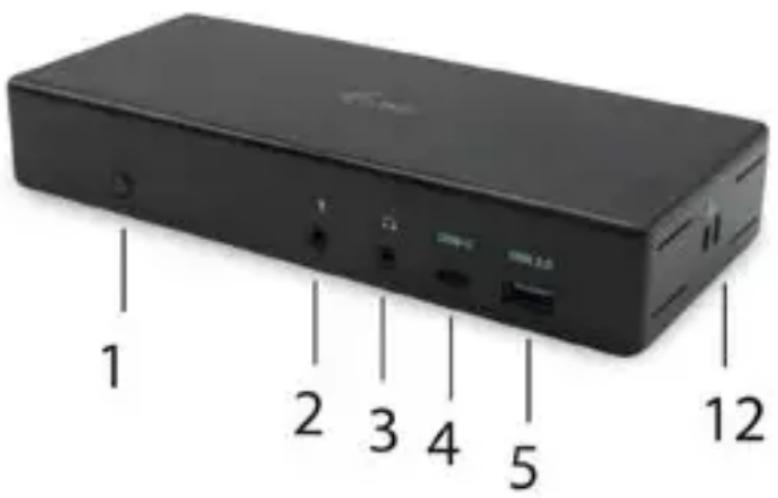
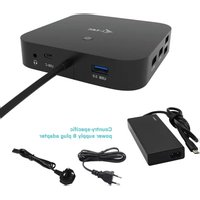
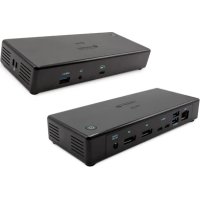
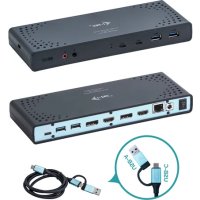
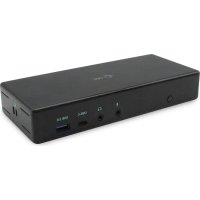
Front panel:
- ON/OFF switch for the docking station
- 3.5 mm Microphone jack
- 3.5mm Audio jack
- USB-C gen. 1 port (for data only)
- USB 3.0 port (5 GB/s) with Fast Charge support (BC 1.2)
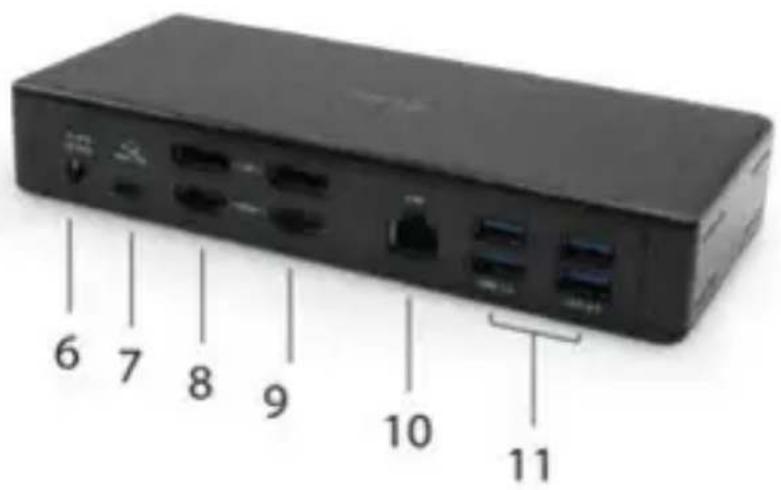
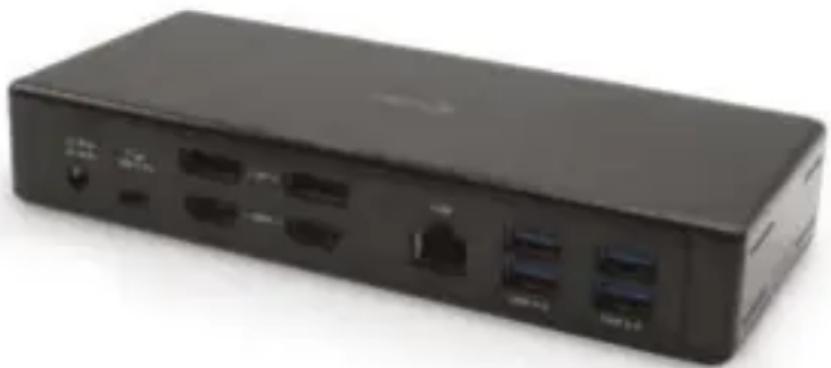
Rear panel:
- Power supply input - external power adapter (output: DC 20.0V/6.75A)
- USB-C port for connection of the docking station to a laptop with a USB-C or USB-A interface (the supply contains an adapter of USB-C/F to USB-A/M for connection to a USB-A port). In case of connection to a USB-C or Thunderbolt 3 port of your laptop, the docking station also supports a function of Power Delivery in profile 4 (85.0W) for your laptop recharging.
- 1x Ethernet GLAN RJ-45 port for fast network and Internet access with Gigabit Ethernet connection, it supports speeds of 10 / 100 / 1000 Mbps
- 1x HDMI (the HDMI port is only available in case of connection of the docking station to a USB-C port of your laptop)
- 2x Display Port
- 4x USB-A 3.0 port for connecting USB 3.1/3.0/2.0 devices and high-speed data transmission up to 5 Gbps; supports USB Hot Swapping function
Side panel:
- Kensington lock
SYSTEM REQUIREMENTS
Hardware requirements:
Device with a free USB-C or Thunderbolt™ 3 port
Requirements for Power Delivery feature:
Device with a free USB-C or Thunderbolt™ 3 port with "Power Delivery" support
Requirements for video output:
Device with a free USB-C port with "DisplayPort Alternate Mode" support or a Thunderbolt™ 3 port
Operating system:
Windows 10, macOS*, Android, and Linux with the latest updates
- macOS does not support Multi Stream Transport (MST) technology. Connecting two monitors to the station on macOS will result in both DisplayPort monitors showing the same image.
DRIVER INSTALLATION IN WINDOWS 7 / 8 / 8.1 / 10 (32/64 BIT)
ATTENTION! Do not connect the docking station to your laptop / tablet until you have installed the appropriate drivers. Drivers must only be installed before first use. Before installation, make sure that your system has installed the latest drivers for your device and updated BIOS.
For Windows, download the drivers from our website www.i-tec.cz/setup on the "Download" tab of this product. Run the installation from the downloaded file, select the installation language, and follow the instructions on the screen.
In Windows 7 / 8 / 8.1 / 10, install the drivers as the "Administrator" user. The screen may blink while the drivers are being installed, this is a standard process. Once the installation is complete, we recommend restarting the notebook / tablet.
In the environment with more than one laptops equipped with Windows 7, 8, 8.1 operating system, a single-shot corporative installation by the system administrator can be performed. For more information on a method of installation, please refer to the instructions below):
http://www.displaylink.com/downloads/corporate
HARDWARE INSTALLATION (CONNECTING THE DOCKING STATION TO LAPTOP / TABLET)
- Turn on the laptop / tablet and connect the power adapter to the docking station.
- Connect the docking station power adapter to the AC 110 V / 230 V network and press the ON button.
- Connect the USB-C cable to the USB-C port on the back panel of the docking station.
- Connect the other end to the free USB-C port of your laptop / tablet.
- Subsequently, the automatic installation of ports in each system starts.
- After the installation is complete, restart the laptop / tablet.
In Windows, the LAN port appears in Start Control Panel (Show Small Icons) Device Manager Network Adapters as "USB Ethernet". The docking station appears in Start Control Panel (Show Small Icons) Device Manager Graphic Adapters as "Quad Video Dock". Audio ports can be found in Start Control Panel (Show Small Icons) Device Manager Audio, Video and Game Controllers as "USB Dock Audio".
If any of these devices are marked with yellow ! or ?, then the docking station is not installed correctly. In this case, disconnect the docking station, uninstall the existing drivers (see chapter "Uninstalling Drivers"), and reinstall the latest drivers available on our website www.i-tec.cz/en on the "Download" tab of this product. Then reconnect the docking station to the laptop / tablet. In case of problems, please contact our technical support: support@itecproduct.com.
DRIVER INSTALLATION IN MACOS X
ATTENTION! Do not connect the dock to your Mac until you install the appropriate drivers. Drivers must only be installed before first use. We recommend that you have the latest macOS operating system installed.
Download drivers from our website www.i-tec.cz/setup on the "Download" tab of this product and run the installation:.
Unpack the file on your MacBook desktop as a virtual disk, select "Drivers" and then "DisplayLink Software Installer". Then select the installation language and follow the on-screen instructions, enter the user password if necessary. The screen may blink while the drivers are being installed, this is a standard process. After the installation is complete, restart the MacBook.
HARDWARE INSTALLATION (CONNECTING THE DOCKING STATION TO MACBOOK)
- Turn on the MacBook and connect the power adapter to the docking station.
- Connect the docking station power adapter to the AC 110 V / 230 V network and press the ON button.
- Connect the USB-C cable to the USB-C port on the back panel of the docking station.
- Connect the other end to the free USB-C port of your MacBook.
- Subsequently, automatic port installations are started.
- After the installation is complete, restart the MacBook.
For Android, Chrome OS and Ubuntu, use the DisplayLink chipset drivers. These are available for download on our website www.i-tec.cz/setup on the "Download" tab of this product or here: http://www.displaylink.com/downloads.
CONNECT THE HDMI / DISPLAY PORT MONITOR
Use an HDMI / DP cable to connect the monitor to the docking station. During the installation of an additional monitor, the laptop / tablet monitor may may blink, this is a normal state. The docking station offers a graphic interface: 2x Display Port and 2x HDMI
A remark for macOS and monitors with two DP cables:
Some displays with the resolution higher than 4K require two Display Port cables for the image transfer in full resolution:
- Dell UP2715K 5K 27-inch monitor is supported at iMac (Retina 5K, 27-inch, the end of 2014) or newer and at Mac Pro (the end 2013) with OS X Yosemite 10.10.3 or newer.
HP Z27q 5K monitor is supported at iMac (Retina 5K, 27-inch, the end of 2014) or newer and at Mac Pro (the end of 2013) with macOS Sierra.
USING IN WINDOWS OS
In the hidden icons on the Start bar, click on the network connection icon:
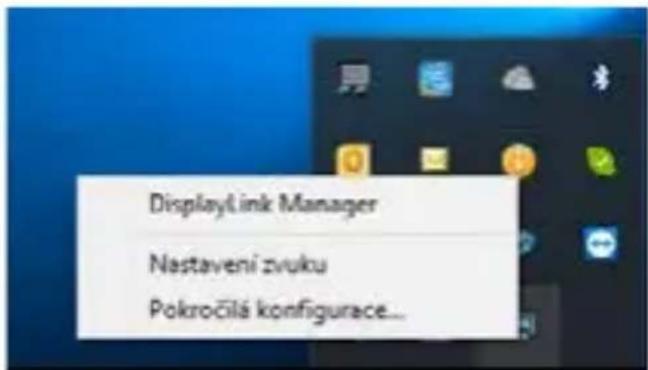
Here you can choose:
a) DisplayLink Manager
b) Audio settings
c) Advanced Configuration
ManualEN
Options for controlling the monitor with attached docking station
Ad a) DisplayLink Manager - the software version is displayed after selecting.
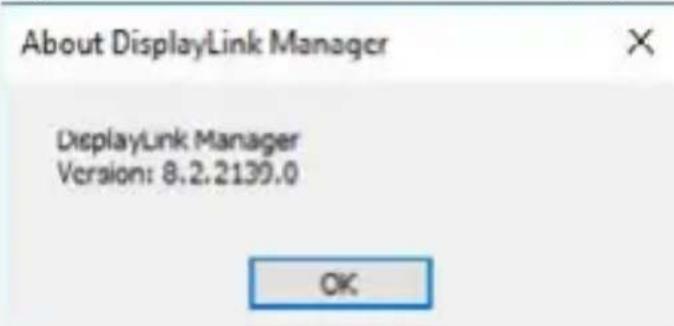
Installed software version
Ad b) Audio settings – this will allow audio settings (settings similar to Control Panels Audio). For use, select 2-channel headphones and a 3.5mm jack microphone. In audio devices, set "DisplayLink Audio" as input and output as the default device.
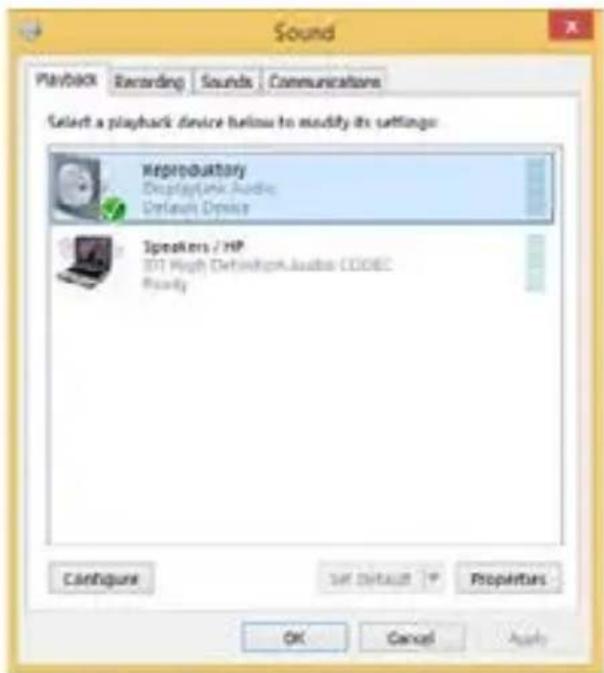
Audio settings
USB-C Quattro Display Docking Station with Power Delivery 85 WEN
This can be used to set up Skype, for example.
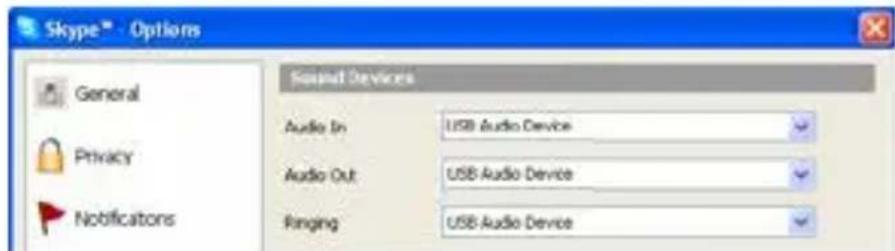
Audio settings for Skype
Ad c) Advanced configuration - clicks to display the Windows Display Resolution settings.
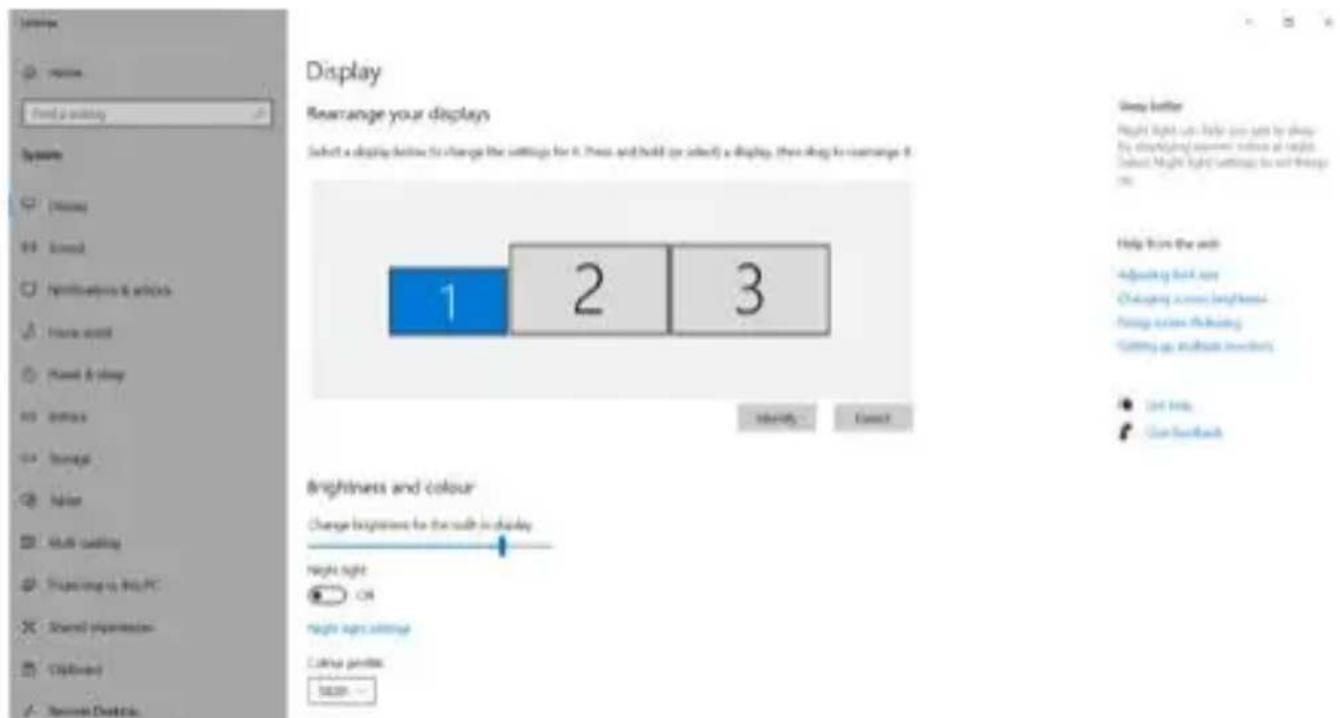
Display Resolution in Windows 10
Now you can set Extend and Mirror mode:
- Extend mode: on the monitor select the 2 nd Monitor, select Several monitors Extend this display OK.
-
Mirror mode: on the monitor select the 2 nd Monitor, select Several monitors Duplicate this display mode on two monitors of your choice * OK .
-
Windows is capable of duplicating the image on a maximum of two monitors. Others must be either turned off or in Extend mode
By selecting the "Set this monitor as primary" field, you select the additional monitor as the primary monitor. By clicking on the second monitor and moving it you can position this monitor as required relative to the original monitor of your laptop / tablet.
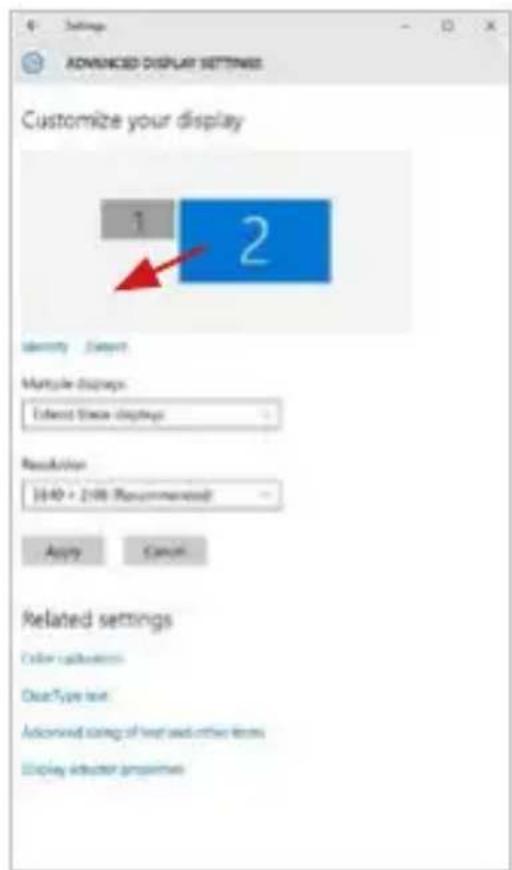
Placing one additional monitor to the original laptop / tablet monitor
The Standby / Hibernate mode and the Video port - after the activation of the laptop / tablet from the Standby / Hibernate mode the primary (original) monitor is displayed, for this reason we recommend using the monitor that is integrated with the laptop / tablet as the primary monitor, so that you can log on to the system again.
The Mirror mode - the additional monitor takes on the parameters of the original monitor in the system, i.e., if you select the Mirror mode and the original monitor resolution is e.g. 1280x1024 then the screen will be displayed on the additional monitor with a resolution of max. 1280x1024 (even if you set a higher resolution).
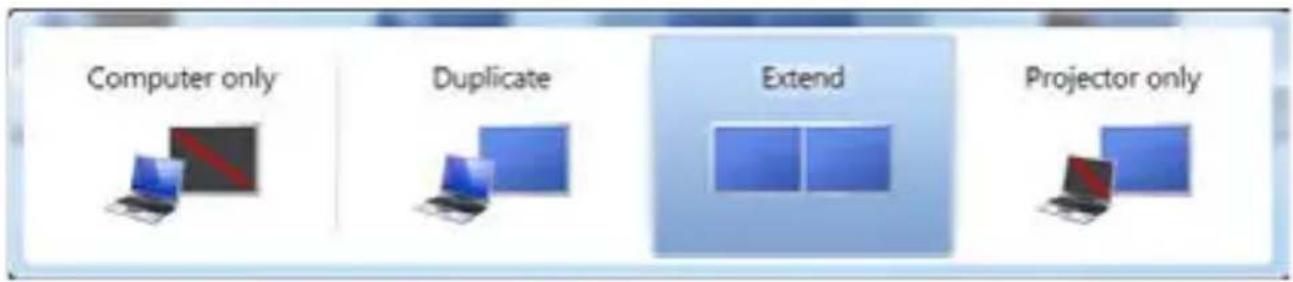
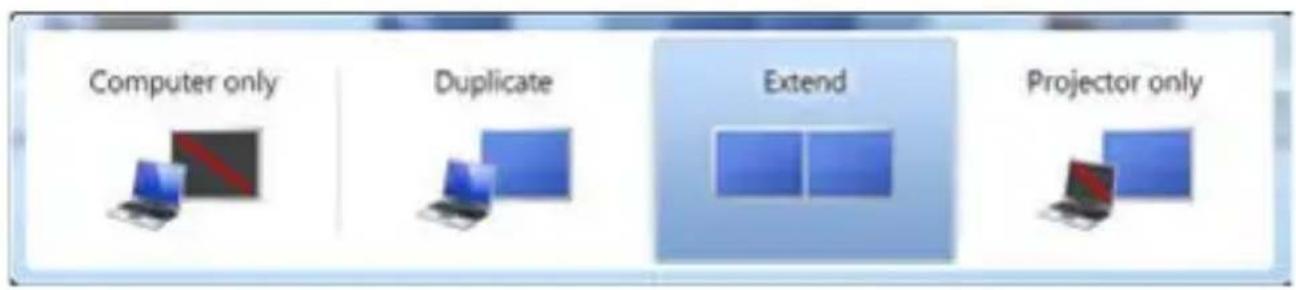
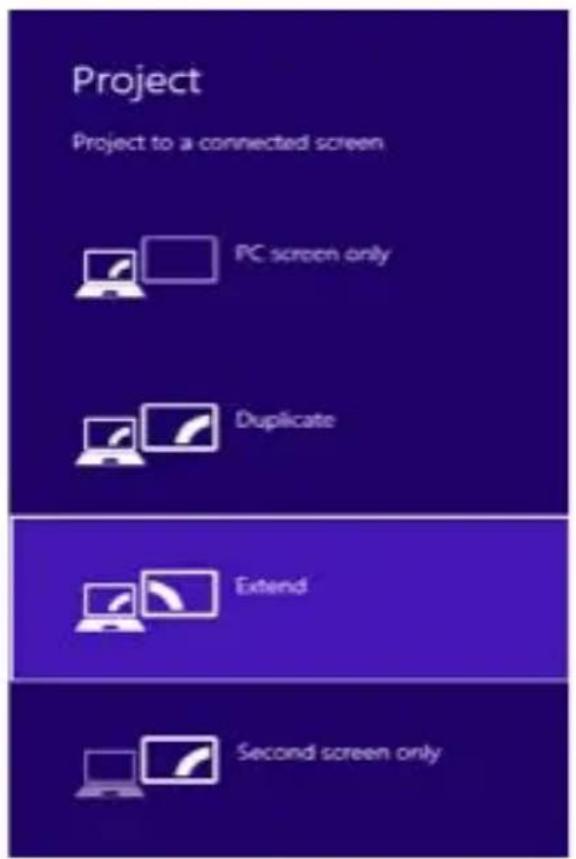
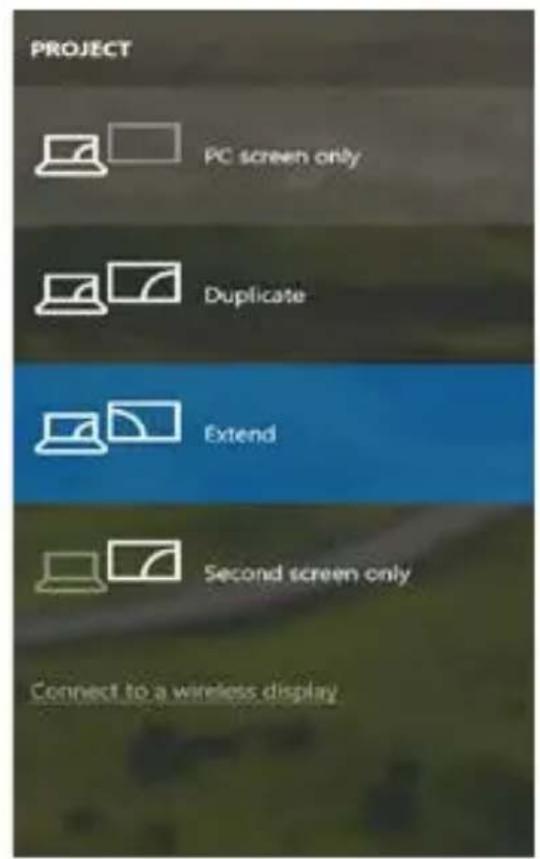
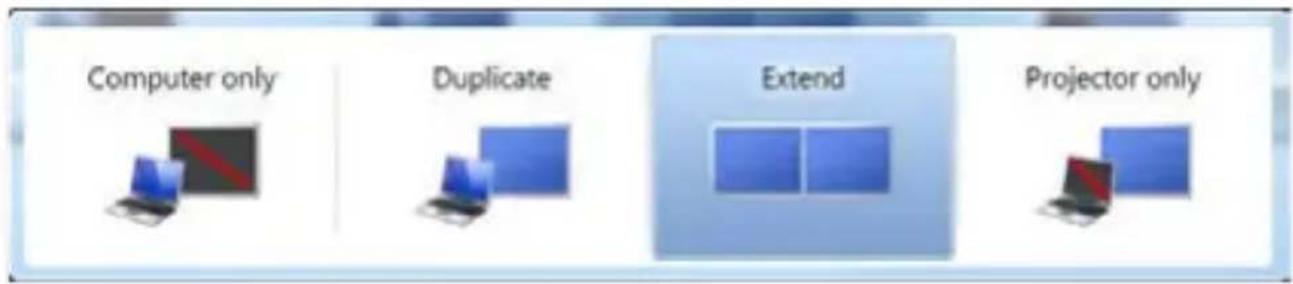
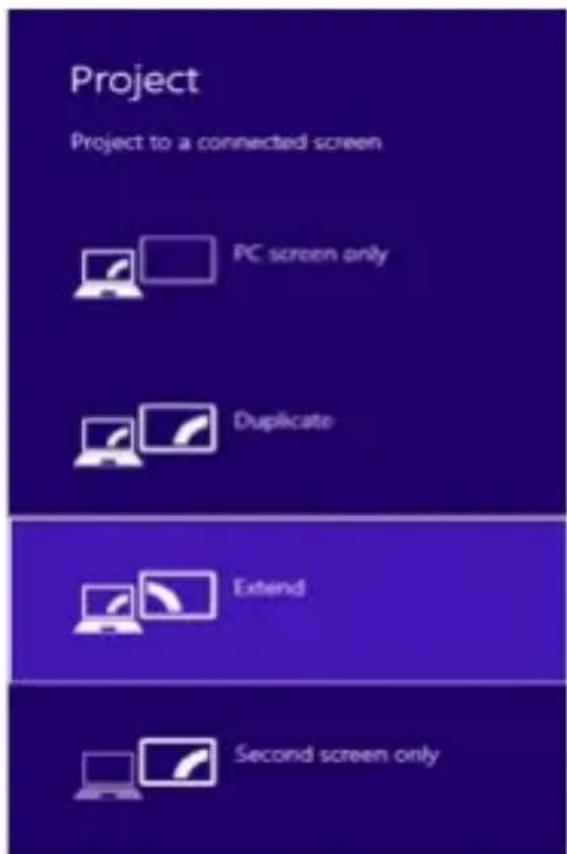
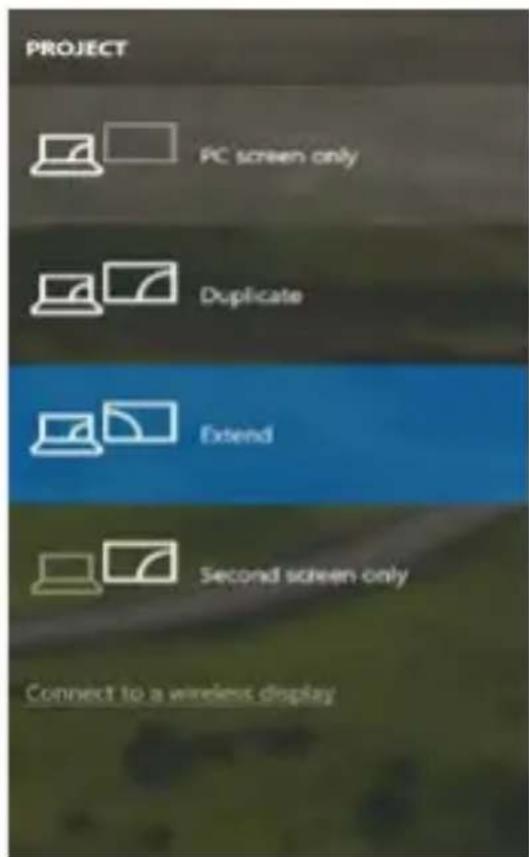
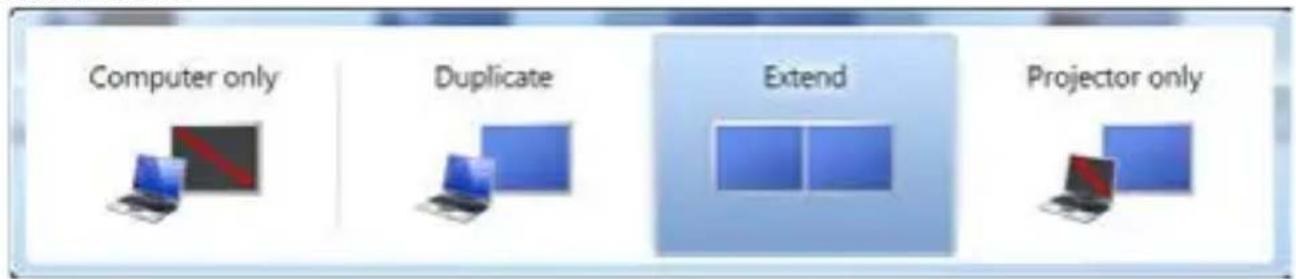
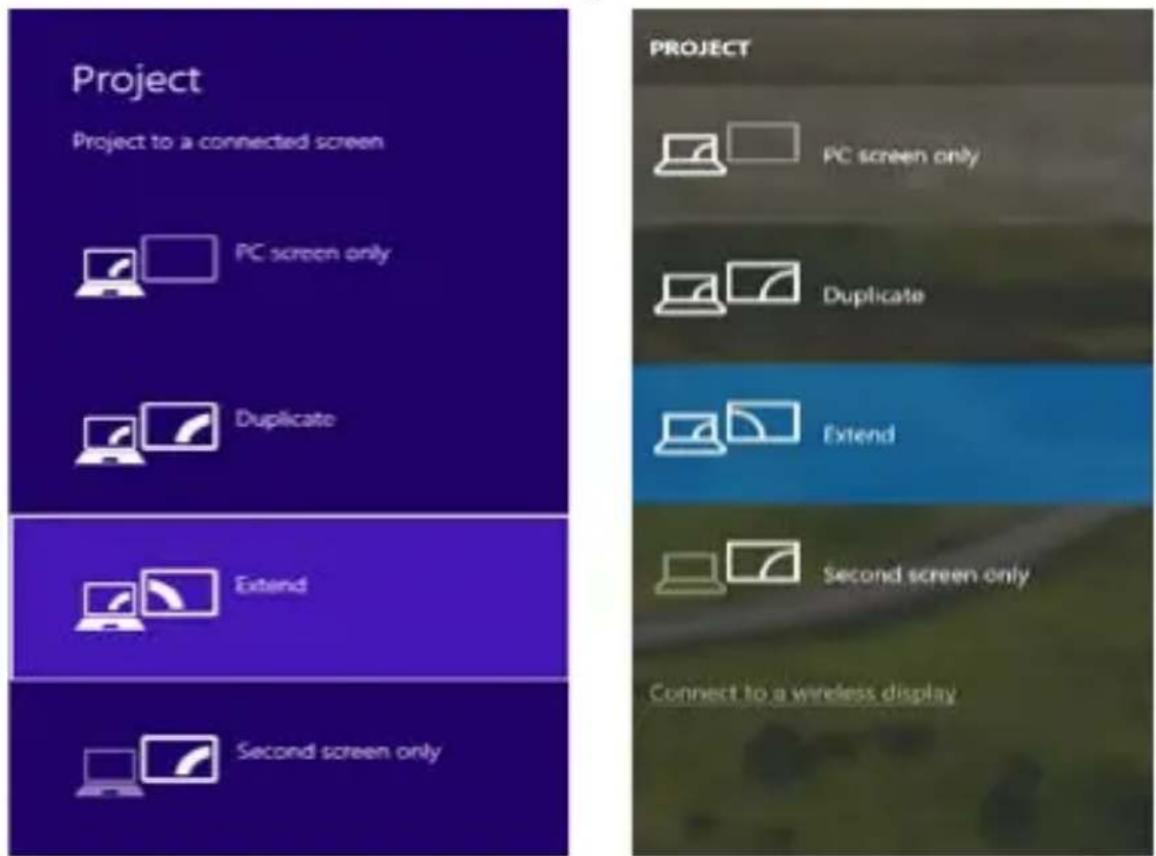
Pressing the keys "Windows" + P you can also easily control the monitors (this keyboard shortcut works only from Windows 7 and higher). For using a monitor in Windows 7 you can select: Computer Only, Duplicate, Extend, and Projector Only. For using a monitor in Win 8 / 8.1 / 10 you can select: Computer screen only, Mirror, Extend, Second screen only.
USB-C Quattro Display Docking Station with Power Delivery 85 WEN
Control the monitor in Windows 7
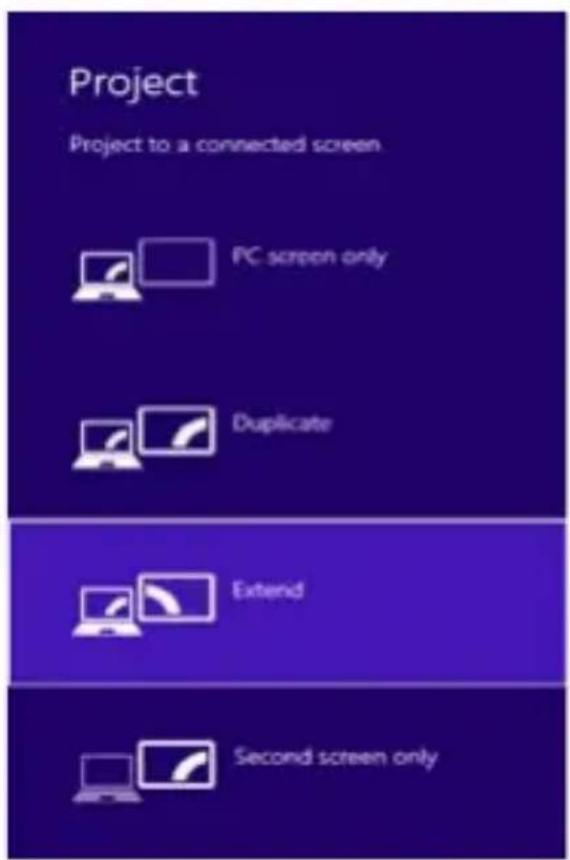
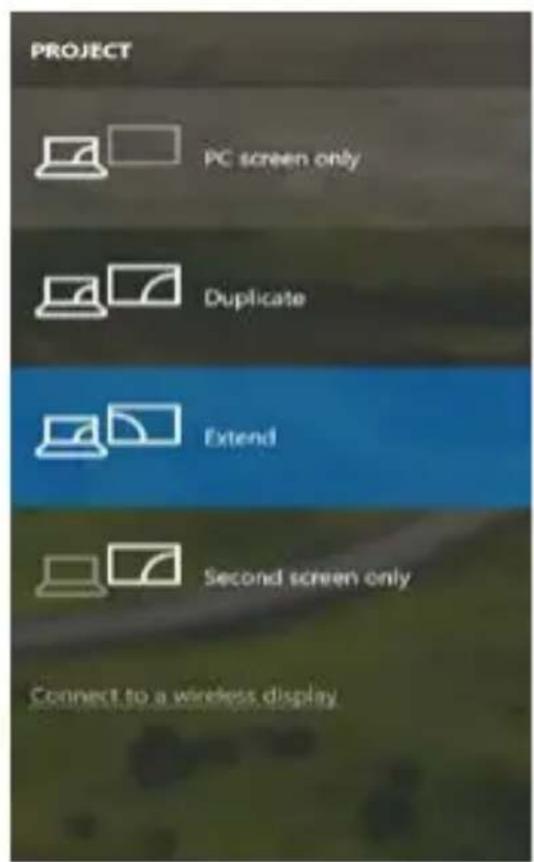
Control the monitor in Windows 8/8.1 and Windows 10
UNINSTALLING DRIVERS
Go to Control Panel All Control Panel Items Programs and Features Remove: DisplayLink Core Software for Video drivers. During uninstalling, confirm your choices.
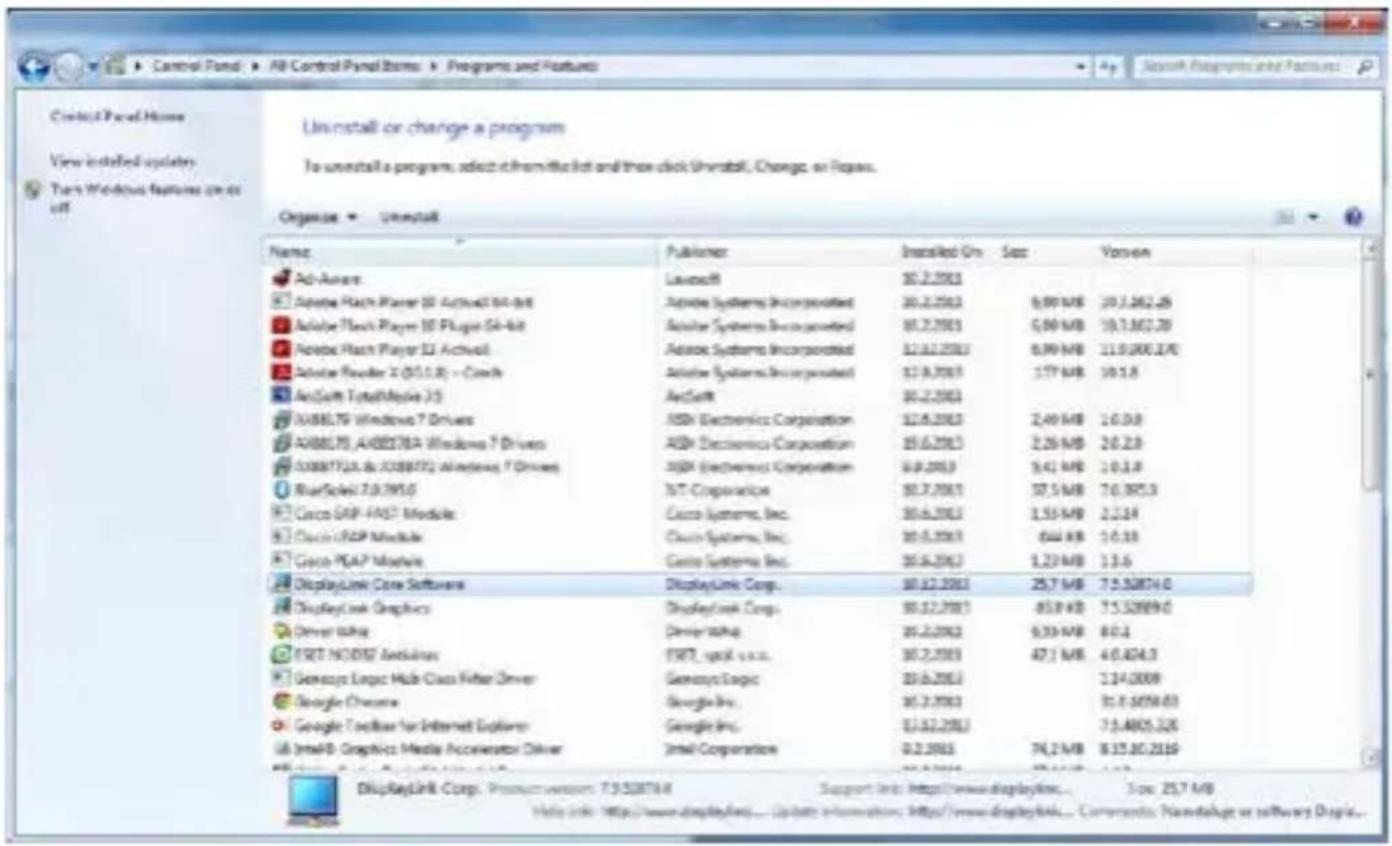
ManualEN
Uninstalling drivers
USING IN MACOS
After connecting the monitor, the screen on your Mac will glimmer, which is a standard condition, after stabilization it is possible to perform standard setting of the monitor here: System Preferences-Displays:
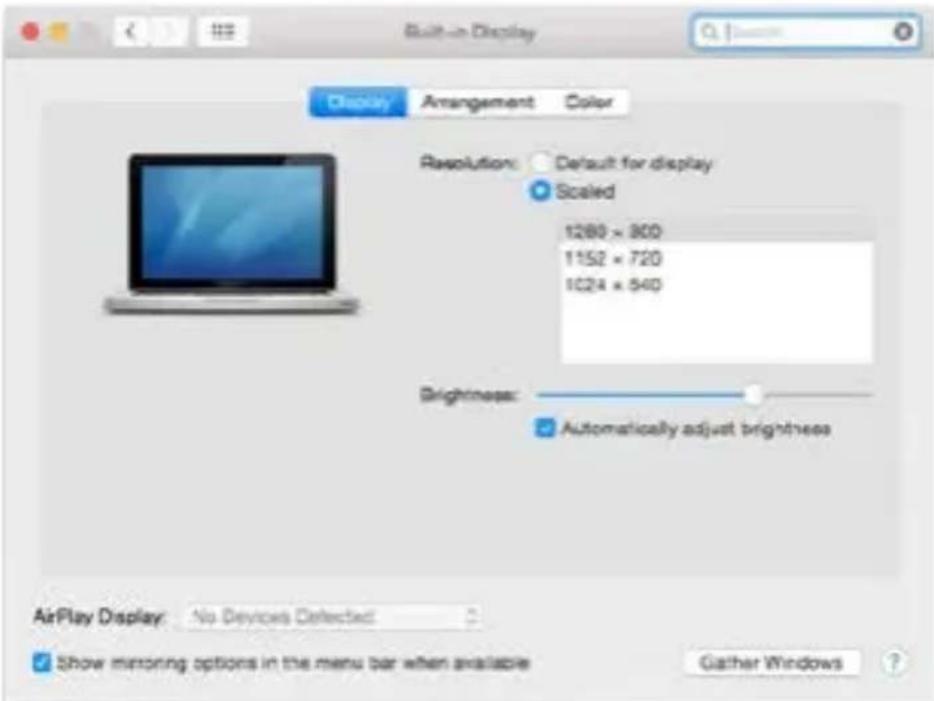
USB-C Quattro Display Docking Station with Power Delivery 85 WEN
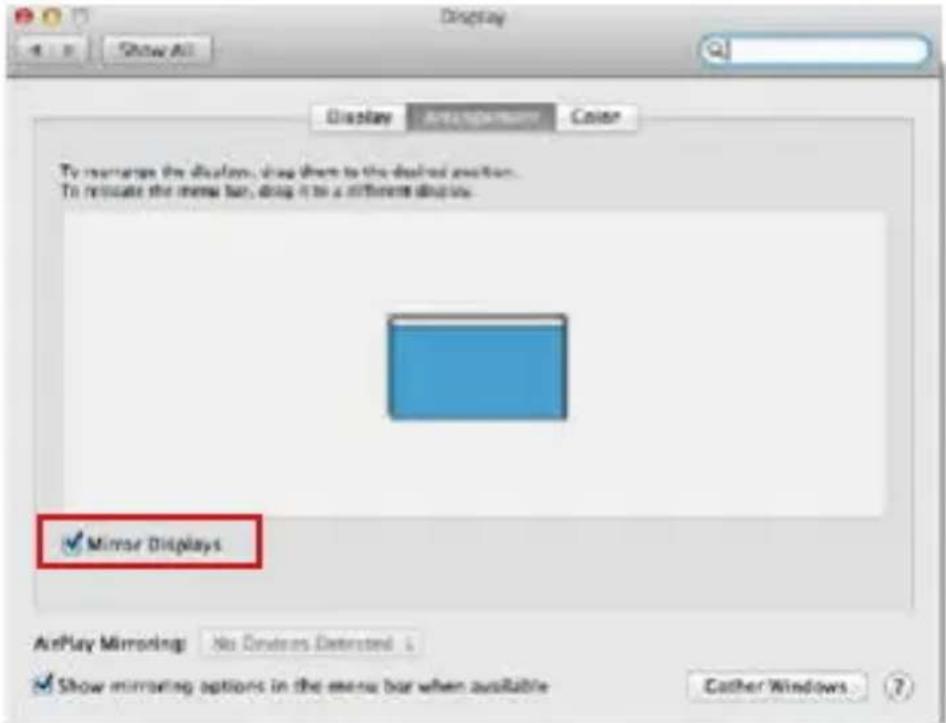
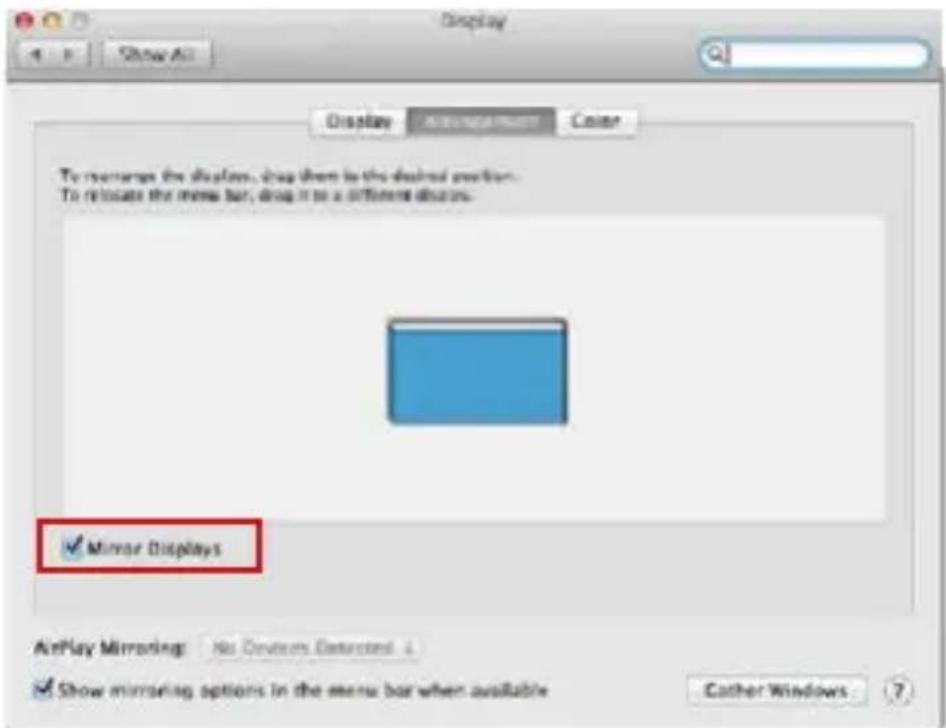
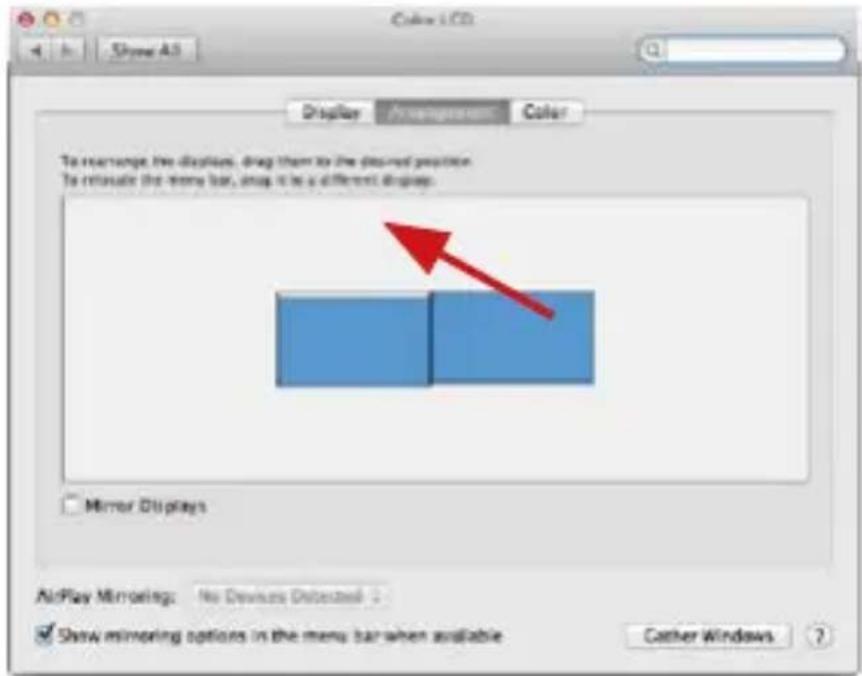
Click on Arrangement and in the default mode (Extended desktop) click on the new monitor and drag it as necessary vis-à-vis the Mac monitor. If you select Mirror displays the mode will change to Mirror (the resolution of the monitors will be automatically adjusted according to their parameters and the highest possible resolution will be set on both monitors). By cancelling the Mirror displays option you will return to the Extended desktop mode.
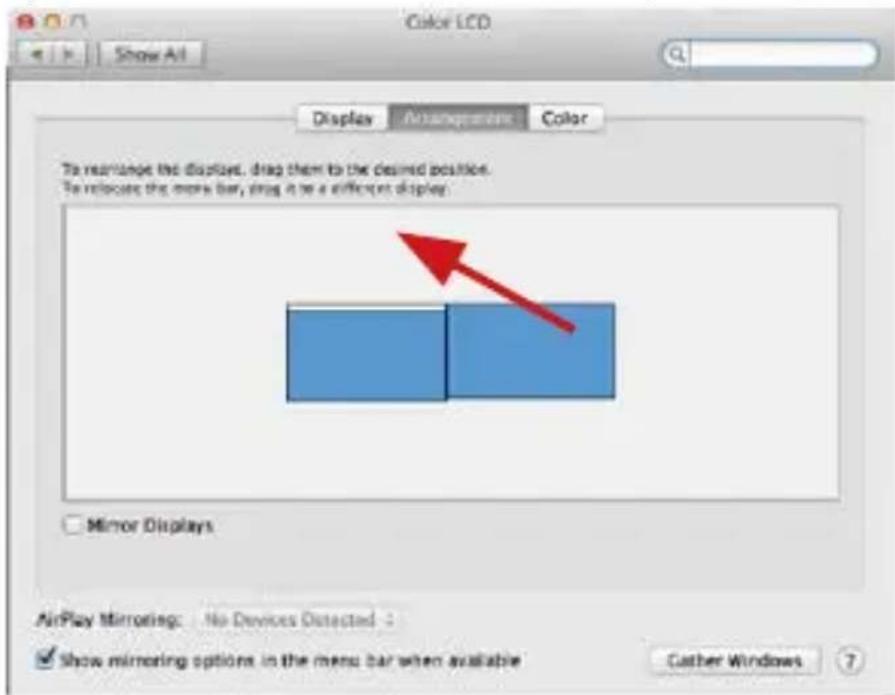
Extended mode: The arrow indicates the possible position of the connected monitor vis-à-vis the Mac monitor.
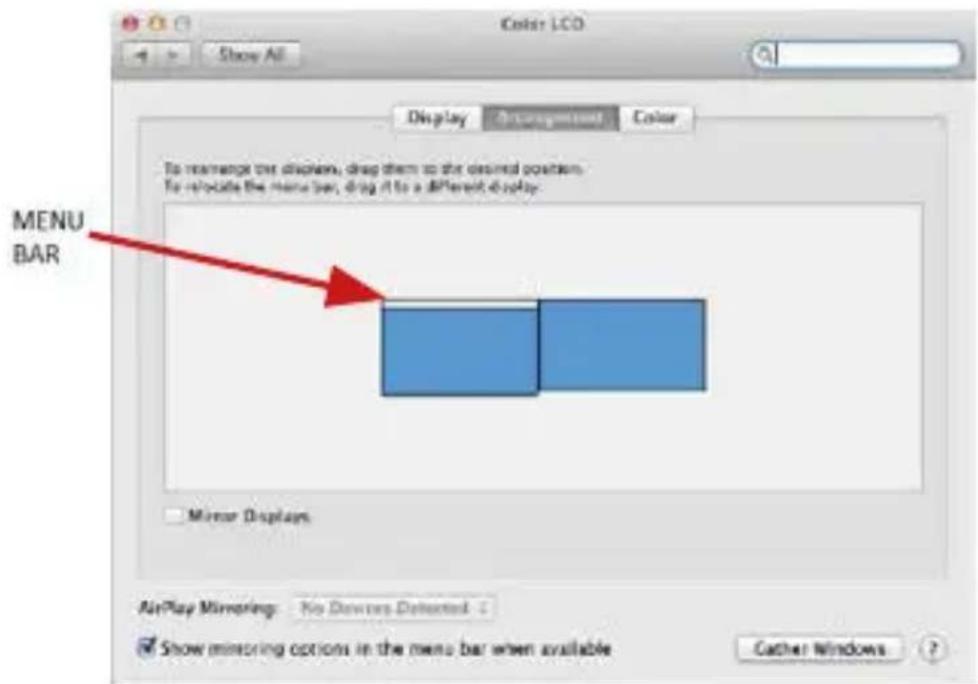
Extended mode: In this mode you can choose the Main monitor by dragging the Menu Bar.
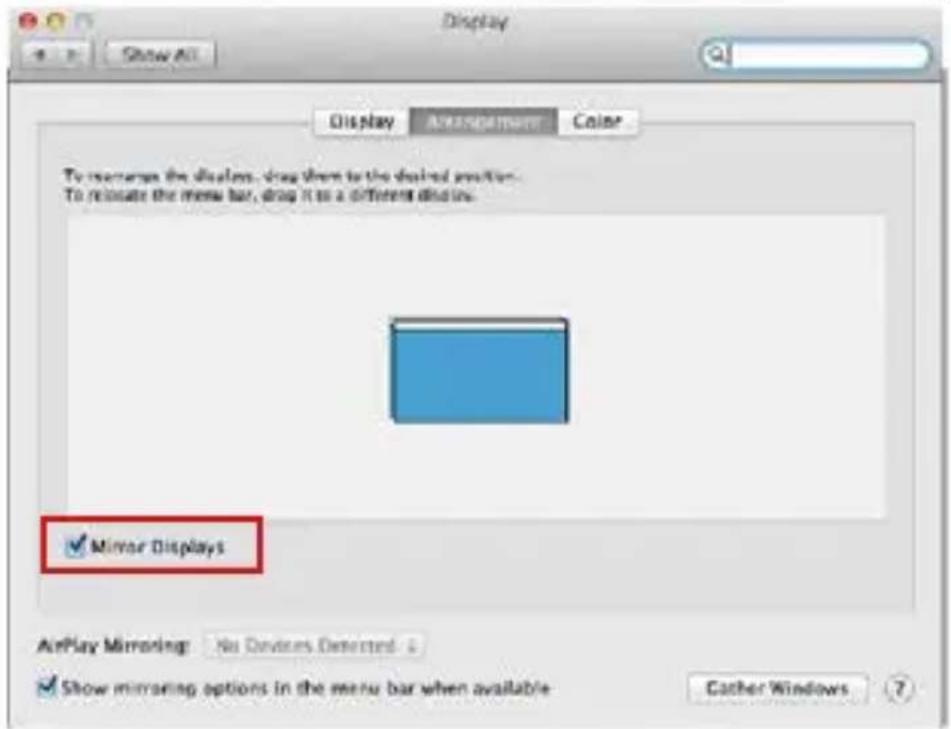
ManualEN
Mirror mode: This mode can only be used if supported by the Mac.
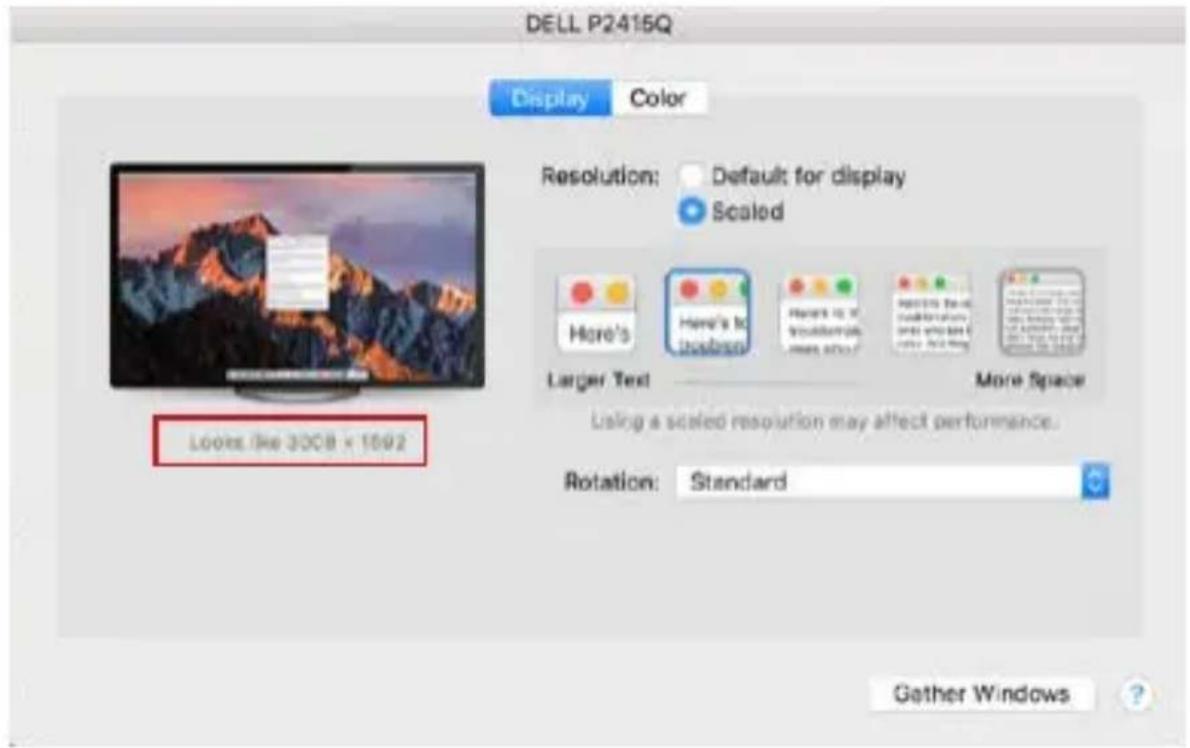
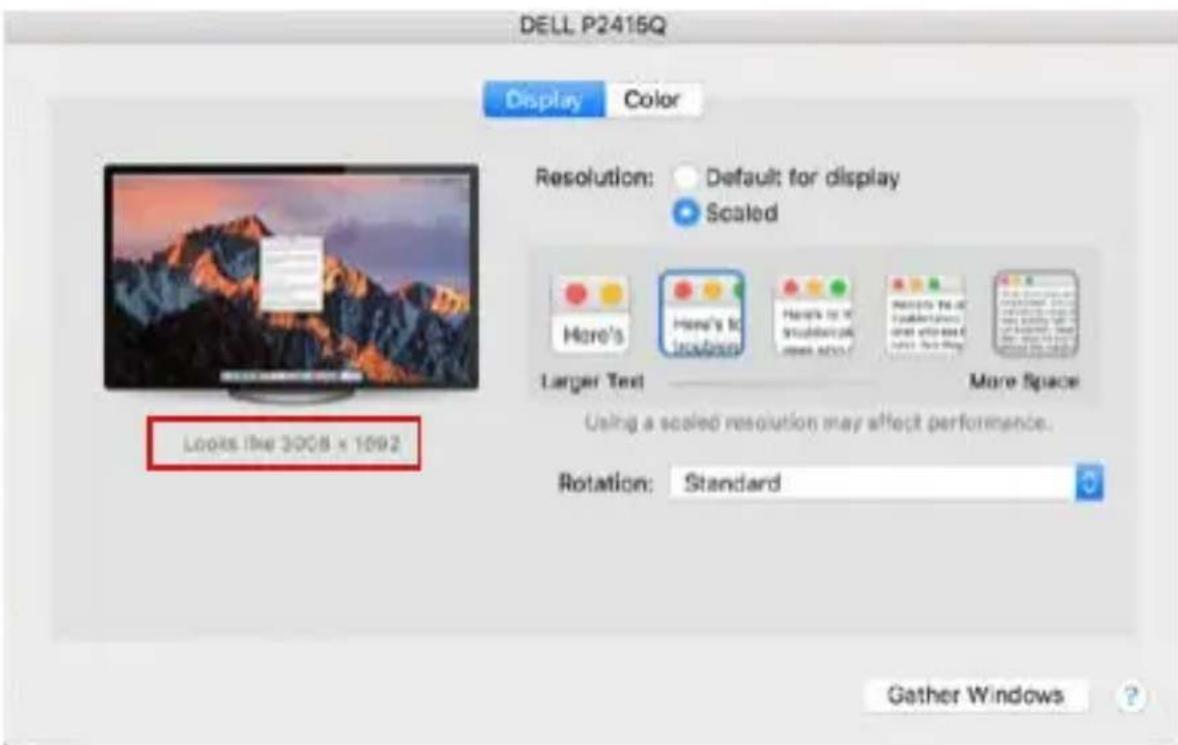
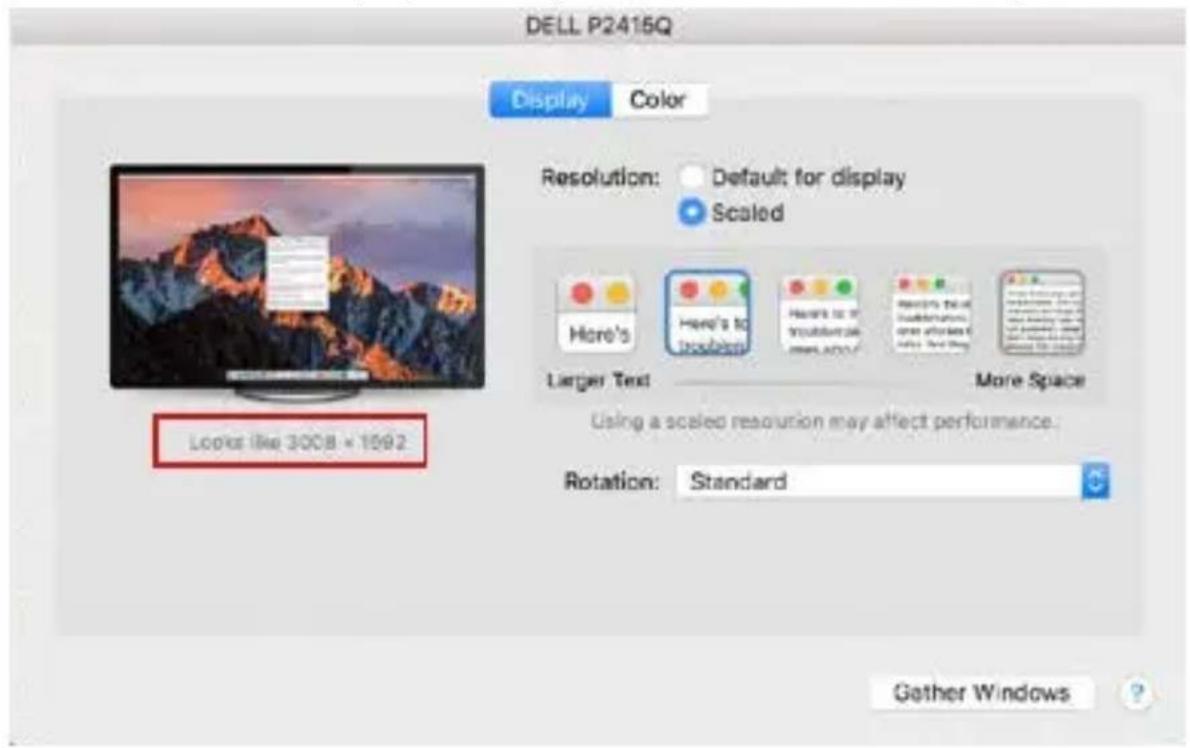
Click on Gather Windows: using this option you can choose the settings of the corresponding monitor - Scaled (offers available resolutions), Rotation (Standard, 90^ , 180^ and 270^ ) and Refresh rate (if offered). Below the following setting options are displayed. This may vary, depending on your monitor.

Display option 1
USB-C Quattro Display Docking Station with Power Delivery 85 WEN
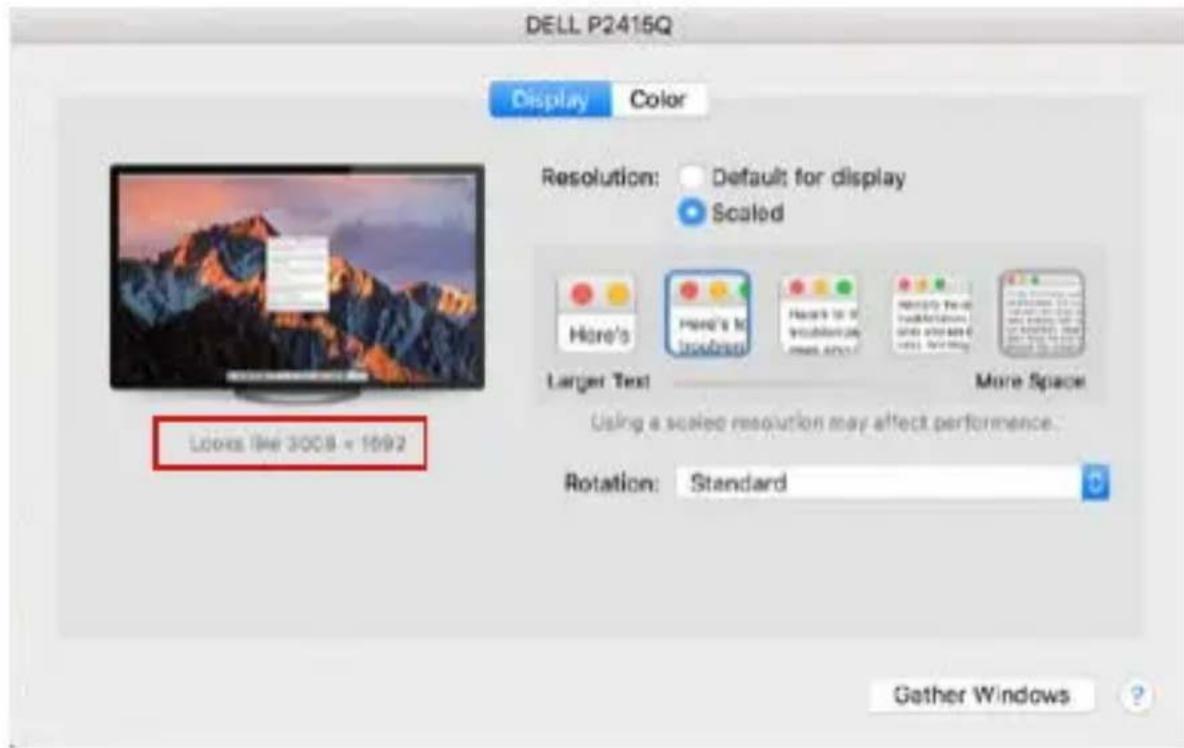
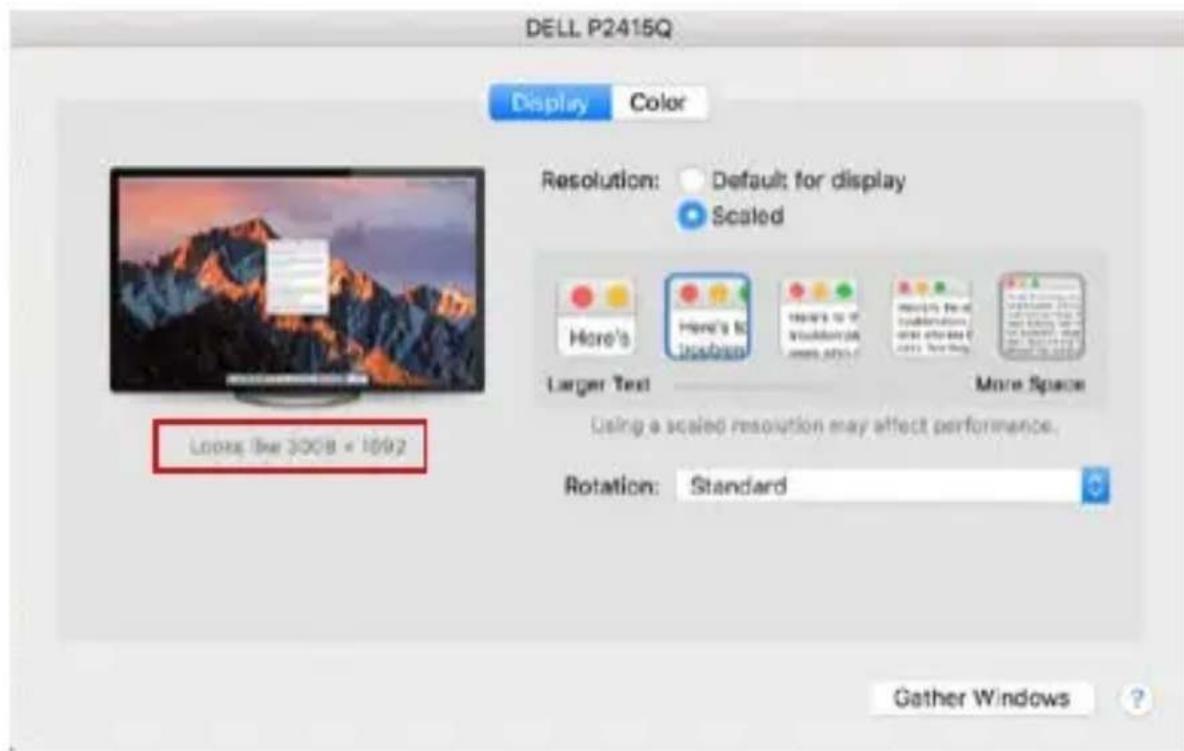
Display option 2 In Scaled mode click on the required icon, the resolution is displayed below (which looks like this, 3008 × 1692 = 4K@30Hz )
Closed-display mode - It is possible to work on the connected monitor when the Mac monitor is closed, but you will require power supply and mouse and keyboard connection. More information can be found here: https://support.apple.com/en-us/HT201834
Most problems with renewing the screen on the connected monitor after hibernation of the Mac, after using screensaver, after restarting the Mac, after turning the Mac off / on can be solved by turning the docking station off and turning on after approximately 10 s. Please wait for completion of connection of all peripherals.
OTHER FUNCTIONS
Connecting USB devices - after the USB device is connected to the USB 3.0 port of the docking station (USB external HDD, USB keyboard, USB mouse, USB Hub, USB graphics adapter), these devices are used in a standard way.
Charging - docking station supports charging of USB mobile devices, such as smart phones, e-book readers, multimedia players, navigation devices, and tablets. Simply connect the device that you want to charge using the original cable to the USB port of the docking station.
Audio
Audio output devices, for listening through graphic output, need to be set / verified here: System Preferences-Sound-Output - select USB Audio Device.
Setting the audio output device to both the earphones and the monitor simultaneously can be done in Open-Applications-Utilities-Audio settings MIDI.app - click on "+" on the left at the bottom - Create device with multiple outputs and select the desired outputs from the offered options on the Device with multiple outputs.
Note: The majority of problems with the docking station and the connected peripheral devices can be solved by turning the docking station off and turning on after approximately 10 s.
SAFETY INSTRUCTIONS
- Do not expose to extreme temperatures and air humidity.
- Use the device on flat surfaces - you will prevent it from slipping and falling to the ground.
- Save the user manual for a possible use later.
In cooperation with the service department: - Check functionality after falling to water or to the ground.
- Check functionality when the cover is broken.
- Send the device back if it does not work in accordance with the user manual.
FREQUENTLY ASKED QUESTIONS
Available on our website www.i-tec.cz/en/ on the "FAQ" tab of this product.
BEGRIFFSWÖRTERBUCH
USB-C Quattro Display Docking Station with Power Delivery 85 WDE
http://www.displaylink.com/downloads.
USB-C Quattro Display Docking Station with Power Delivery 85 WDE
USB-C Quattro Display Docking Station with Power Delivery 85 WDE
USB-C Quattro Display Docking Station with Power Delivery 85 WDE
USB-C Quattro Display Docking Station with Power Delivery 85 WDE
Audio
USB-C Quattro Display Docking Station with Power Delivery 85 WFR
DP 1.4 HBR3:
USB-C Quattro Display Docking Station with Power Delivery 85 WFR
USB-C Quattro Display Docking Station with Power Delivery 85 WFR
USB-C Quattro Display Docking Station with Power Delivery 85 WFR
1 monitor - up to 5K/60Hz
2 monitores - up to 2x 4K/60Hz *
http://www.displaylink.com/downloads.
CONEXION DE LA PANTALLA MEDIANTE HDMI / DISPLAY PORT
USB-C Quattro Display Docking Station with Power Delivery 85 WES
USB-C Quattro Display Docking Station with Power Delivery 85 WES
USB-C Quattro Display Docking Station with Power Delivery 85 WIT
USB-C DP Alt mode ports 2x DP
DP 1.2 HBR2:
USB-C Quattro Display Docking Station with Power Delivery 85 WIT
USB-C Quattro Display Docking Station with Power Delivery 85 WIT
USB-C Quattro Display Docking Station with Power Delivery 85 WIT
USB-C Quattro Display Docking Station with Power Delivery 85 WCZ
DP 1.4 HBR3:
1 monitor - až 4K/60Hz
2 monitory - až 2x 1440p/60Hz *
DP 1.4 HBR3 DSC:
1 monitor - up to 5K/60Hz
2 monitors - up to 2x 4K/60Hz *
USB-C Quattro Display Docking Station with Power Delivery 85 WCZ
Operacni systém:
USB-C Quattro Display Docking Station with Power Delivery 85 WCZ
USB-C Quattro Display Docking Station with Power Delivery 85 WCZ
USB-C Quattro Display Docking Station with Power Delivery 85 WCZ
Ovladani monitoru ve Windows 7
Ovladani monitoru ve Windows 8/8.1 a Windows 10
ODINSTALOVÁNÍ OVLADACÜ
USB-C Quattro Display Docking Station with Power Delivery 85 WCZ
USB-C Quattro Display Docking Station with Power Delivery 85 WCZ
CASTO KLADENE OTÁZKY
USB-C Quattro Display Docking Station with Power Delivery 85 WPL
Panel przedni:
USB-C Quattro Display Docking Station with Power Delivery 85 WPL
Tutaj mozeszybrać:
USB-C Quattro Display Docking Station with Power Delivery 85 WPL
USB-C Quattro Display Docking Station with Power Delivery 85 WPL
Steruj monitorem w systemie Windows 7
Steruj monitorem w systemie Windows 8 / 8.1 i Windows 10
ODINSTALLOWANIE STEROWNIKÓW
USB-C Quattro Display Docking Station with Power Delivery 85 WPL
USB-C Quattro Display Docking Station with Power Delivery 85 WPL
USB-C Quattro Display Docking Station with Power Delivery 85 WSK
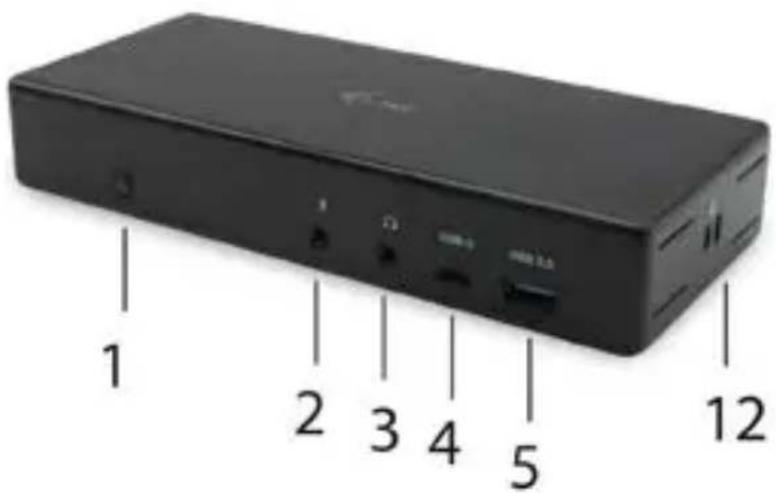
Predná strana:
- Prepinač On/Off pre zapnutie a vypnutie dokovacej stanice
- 1x3.5mmvystuppre mikrofon
- 1x 3.5 mm Audio vystup
- USB-C port gen. 1 (iba pre data)
- USB 3.0 port (5GB/s) s podporou funkcie Fast Charge (BC 1.2)
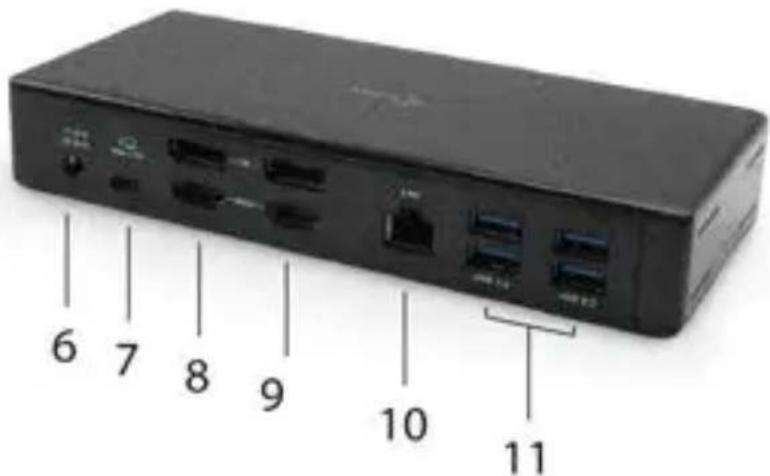
Zadná strana:
- Vstup pre napájanie (20V/6.75A)
- USB-C port pré pripojenie dokovacej stanice k notebookku s USB-C alebo Thunderbolt™ 3. Tento port je schopné dodat zariadeniu až 85W.
- 2x DisplayPort
- 2x HDMI
- Ethernet GLAN RJ-45 port - podporuje 10/100/1000 Mb/s
- 4x USB-A 3.0 port (5 GB/s)
Bočný panel:
- Kensington lock
SYSTEMEVOPEPOZIADAVKY
USB-C Quattro Display Docking Station with Power Delivery 85 WSK
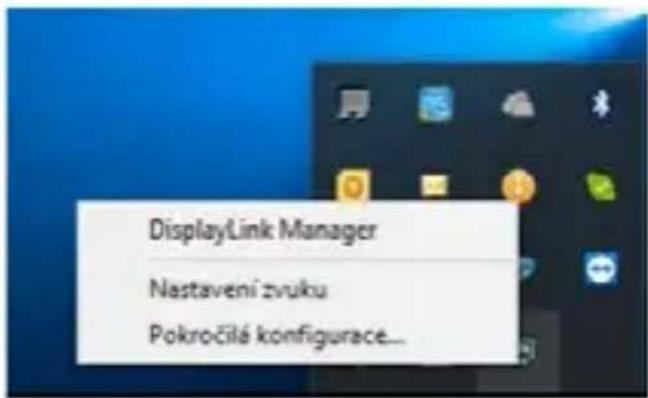
Volby pre ovladanie monitora s pripojenou dokovacou stanicou
USB-C Quattro Display Docking Station with Power Delivery 85 WSK
USB-C Quattro Display Docking Station with Power Delivery 85 WSK
USB-C Quattro Display Docking Station with Power Delivery 85 WSK
https://support.apple.com/cs-cz/HT201834
USB-C Quattro Display Docking Station with Power Delivery 85 WSK
Nabijanie - dokovacia stanica podporuje nabijanie pripojenych USB mobilnych zariadeni, aka su smartphony, citačky e-knih, multimedialne prehrávacé, navigácie a tabley. Nabijané zariadenie stačí pripojit originálnym káblom k USB portu dokovacej stanice.
Audio
Vystupné zariadenie zvuku pre počúvanie cz grafický vystup je treba nastavit/ overit' tu: Predvolby systému-Zvuk-Vystup - nastavit' USB Audio Device.
Vystupné zariadenie zvuku sučasne do slúchadiel i monitora možete volit' v Otvorit'-Aplikácie-Utility-Nastavenie audio MIDI.app - kliknite na „+“ vl'avo dolu - Vytvorit' zariadenie s viacerymi vystupmi a zvolite Zariadenie s viacerymi vystupmi požadované vystupy z ponúkanych volieb.
CASTO KLADENE OTÁZKY
K dispozicii na našom webe www.i-tec.cz v založke „FAQ“ pri tomto produkte.
TERMINU ZODINÉLIS
USB-C Quattro Display Docking Station with Power Delivery 85 WLT
DP 1.4 HBR3:
1 monitorius - iki 4K/60Hz
2 monitorai - iki 2x 1440p/60Hz
DP 1.4 HBR3 DSC:
1 monitorius - iki 5K/60Hz
2 monitoriai - iki 2x 4K/60Hz *
(Keturiug monitoriug derinys):
Iki 2x 2048x1152/60Hz ir 2x 1440p/60Hz
USB-C Quattro Display Docking Station with Power Delivery 85 WLT
USB-C Quattro Display Docking Station with Power Delivery 85 WLT
USB-C Quattro Display Docking Station with Power Delivery 85 WLT
Paspauskite ties lsdestymas ir numatytame rezime (lspesti) paspauskite ties nauju monitoriumi ir pertempkite jj j norimaj vieta, atsižvelgiant j Mac monitoriu. Pasirinkus komanda Atspindeti monitorius rezimas pasikeis j rezima Atspindeti (monitoriu raiska automatiskai reguliuojama pagal ju parametrus ir abiejose monitoriuose bus nustatyta aukšciausia galima raiska). Uzdarius komanda Atspindeti monitorius bus atnaujintas rezimas lspesti.
USB-C Quattro Display Docking Station with Power Delivery 85 WLT
Vaizdo variantas 2
Pritaikytame režime paspauskite ties pasirinkta piktograma,
po ekranu bus nurodoma raiska
(cia 3008x1692 = 4K@30Hz)
support@itecproduct.com.
DRIVERS INSTALLEREN IN MACOS X
USB-C Quattro Display Docking Station with Power Delivery 85 WNL
U=knt deinstallingen Uitbreiden (Extend) en Spiegel/Dupliceren (Mirror) toepassen:
Monitorbediening in Windows 7
Monitorbediening in Windows 8/8.1 en Windows 10
USB-C Quattro Display Docking Station with Power Delivery 85 WNL
This equipment is marked with the above recycling symbol. It means that at the end of the life of the equipment you must dispose of it separately at an appropriate collection point and not place it in the normal domestic unsorted waste stream. This wil benefit the environment for all. (European Union only)
DEUTSCH
This equipment has been tested and found to comply within the limits of a Class B digital device pursuant to Part 15 of the FCC Rules. These limits are designed to provide reasonable protection against harmful interference in a residential installation.