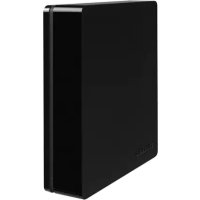
Canvio Desk - Desktop computer TOSHIBA - Free user manual and instructions
Find the device manual for free Canvio Desk TOSHIBA in PDF.



| Product Type | Desktop external hard drive |
| Disk Size | 3.5 inches |
| Interface | USB 3.0 (backward compatible with USB 2.0) |
| Power Supply | 12 V DC power adapter |
| Compatible Operating Systems | Windows Vista / 7 / 8 / 8.1, Mac OS X (Tiger, Leopard, Snow Leopard, Lion, Mountain Lion) |
| Pre-installed File System | NTFS |
| Package Contents | Hard drive, power adapter with interchangeable plugs, USB 3.0 cable, quick start guide, warranty booklet |
| Safety | Do not open the casing, avoid humidity, do not cover during use, disconnect before cleaning |
| Cleaning | Disconnect physically, use standard products, avoid any liquid |
| Repairability | Not user serviceable; contact Toshiba for assistance |
| Warranty | Visit Toshiba website for details |
Frequently Asked Questions - Canvio Desk TOSHIBA
User questions about Canvio Desk TOSHIBA
0 question about this device. Answer the ones you know or ask your own.
Ask a new question about this device
Download the instructions for your Desktop computer in PDF format for free! Find your manual Canvio Desk - TOSHIBA and take your electronic device back in hand. On this page are published all the documents necessary for the use of your device. Canvio Desk by TOSHIBA.
USER MANUAL Canvio Desk TOSHIBA
Safety Instructions 4
System Requirements 5
Installing the drive. 5
Installing and Removing the Replaceable Plugs 5
Connecting the drive to your computer 6
Dismount and disconnect the drive 7
Further Advise 7
Frequently Asked Questions 7
Troubleshooting 8
TOSHIBASupport 9
Regulatory statements 10
Introduction
Thank you for choosing our TOSHIBA Canvio Desk 3.5" Desktop Hard Disk Drive.
Please read this User's Manual carefully, as it contains all relevant information for installation, usage and maintenance of the drive, as well as security and safety advice.
In case it does not behave as expected, please refer to the "Frequently Asked Questions" section at the end of this manual.
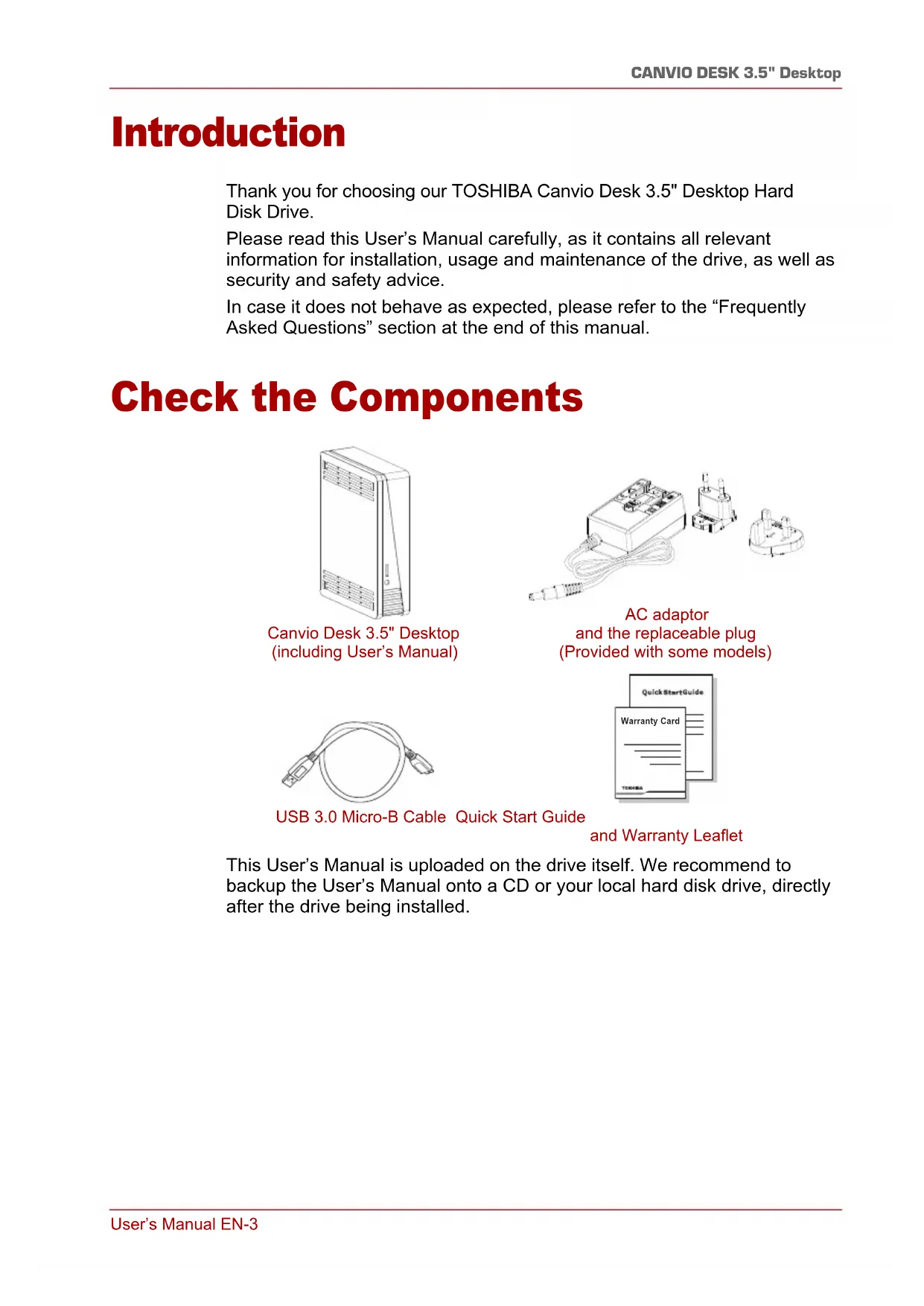
Check the Components

Canvio Desk 3.5" Desktop (including User's Manual)

AC adaptor and the replaceable plug (Provided with some models)

USB 3.0 Micro-B Cable Quick Start Guide

and Warranty Leaflet
This User's Manual is uploaded on the drive itself. We recommend to backup the User's Manual onto a CD or your local hard disk drive, directly after the drive being installed.
Safety Instructions
In order to avoid malfunction or damage of the drive, please carefully follow the precautions listed below.

WARNING
Make sure that you backup all your data on the drive, as Toshiba is not responsible for data corruption or data loss. Toshiba will not cover any data recovery cost.
Do not
open the enclosure or drive
disassemble the drive or parts of it
place liquids near or on the drive, as it may damage the drive, cause personal injury or may result in an electrical shock or fire
■ bump, drop or jar the drive
move the drive while operating, as data damage may happen
use other connectors than USB bus powered types
use other AC/DC adaptors than the one bundled with your drive,as otherwise your drive may be damaged
■ disconnect cables while operating. Please dismount the drive first!
expose the drive to temperatures outside the range of 5°C - 35°C while operating, and temperatures of -20°C - 60°C while switched off
expose the drive to wet or damp conditions
cover the drive during operation, as it may become overheated
place the drive close to hot appliances
And
make sure that the connectors will be inserted correctly
never use pressure for connecting the cables
check the polarity before connecting
- Immediately disconnect the drive from the power outlet and the host PC if
■ smoke or an unusual smell is coming from the drive enclosure
water has entered the drive enclosure or if it becomes wet
an object has entered the drive enclosure
the cable has been damaged (in such case replace the cable with a new one)
If the drive behaves not as expected or you have doubts about the electrical safety, please contact the TOSHIBA hotline or an authorised reseller immediately!
System Requirements
Windows Vista/Windows7/Windows8/Windows8.1
Mac OS X (Tiger®, Leopard®, SnowLeopard®, Lion®, Mountain Lion®)
CPU with 750 MHz or faster
10 MB system hard disk space
256 MB system memory
One free port of USB 3.0 or USB 2.0
NOTE
USB 3.0 is backward compatible with USB 2.0.
Use with Mac requires reformatting.
Installing the drive
Some information about bus-powered operation and the supplied USB cable:
Passive USB hubs or USB connectors like keyboards, mice or similar products cannot be used or connected to the drive.
Make sure that the connectors will be inserted correctly.
Never use pressure for connecting the cables. Check the polarity before connecting!
Installing and Removing the Replaceable Plugs
To install and remove the AC adapter replaceable plugs, see the illustrations below.


Connecting the drive to your computer
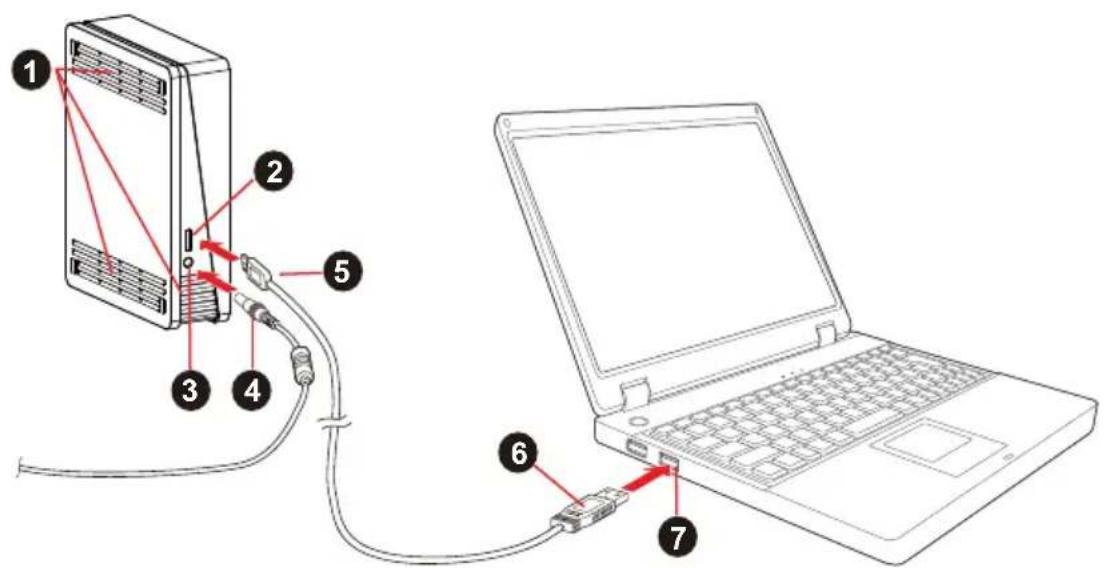
- Air Vent 5. USB 3.0 Type B micro connector
- USB 3.0 port 6. USB 3.0 standard Type A connector
- DC IN 12V Jack 7. USB 3.0 host port, backward compatible
-
DC output plug
-
Turn off your computer.
- Plug the AC adaptor's DC output plug into the DC IN 12V jack of the drive and the power cord into a live wall outlet.
- Plug the USB 3.0 Standard-A connector into a USB port of your host system or an active USB HUB.
NOTE
You may need USB 3.0 Express Card Host Controller for your computer if the computer doesn't have USB 3.0 port. You also can connect the device to USB 2.0 port of your computer, However the transfer rate will be downgraded to that of USB 2.0.
- Now, plug the USB 3.0 Type B connector into the corresponding port of the drive itself.
- Boot up your computer.
the Power/Data indicator light will illuminate
the drive will power up
the drive should mount and a new drive icon should appear in "My Computer"
Dismount and disconnect the drive
It is strongly recommended not to unplug the drive by just unplugging the cable connection as it may be that data is written to the drive at that time.
Such data will be lost and the drive may be damaged physically!
Please follow the steps below for a safe dismount of the drive (Windows).
- Click the "Hardware and Eject Media - icon"
A pop-up message box will appear listing the external devices connected to your computer.
- Select the TOSHIBA drive to eject.
After a few seconds, you will get the notification that it is now safe to remove the device. - Click "OK" and you can unplug the drive now.
Cleaning the drive case / enclosure
Before cleaning the drive, make sure that it's physically disconnected from the computer. We suggest to use standard products for cleaning it and to make sure that possible remaining liquid on the surface will be wiped off.
Further Advise
For any further action of normal operation such as renaming the drive, backup data, or file management, we suggest to read your computer's operation system user's manual.
Also for maintenance tasks such as defragmenting and optimisation we suggest to refer to the operating system user's manual.
We also strongly suggest having anti-virus software installed to protect your data against intended damage caused by virus or Trojan programs.
Frequently Asked Questions
Q: Do I need to format my drive after installation?
A: The drive is already formatted in NTFS file system by the manufacturer. For use with MS Windows/PC, no additional formatting is required. For full compatibility with Apple Mac operating systems, the drive should be re-formatted to HFS+ file system. Please consult your Mac's user's manual for instructions.
NOTE
Formatting a hard drive will delete all data stored on it. We advise to make a backup copy before proceeding with the formatting process.
Q: Do I need USB drivers for Windows Vista, Windows 7, 8, 8.1?
A: No, they are already available with your operating system.
Q: Can I boot my system from the drive?
A: No, because Windows does not support booting from external hard disk drives.
Q: Why doesn't the drive need a fan?
A: The drives are designed to have optimal heat dissipation, and therefore no fan is required. This results in a near silent operation.
Q: Why is the capacity of my drive (as shown in Windows) lower than the drives actual stated capacity?
A: This difference can be explained because of the different methods of calculating the capacity.
Hard drive manufacturers calculate on the decimal system, while the operating system calculates in the binary system.
Example decimal:
[ 1GB = 1,000MB = 1,000,000KB = 1,000,000,000 bytes ]
Example binary:
[ 1GB = 1,024MB = 1,048,576KB = 1,073,741,824 bytes ]
As a result, a 120GB (decimal) hard disk appears in Windows to have just 112GB (binary).
Q: Can I use my drive to copy an operating system from one computer to another?
A: No, you must follow the operating system supplier instructions for installation. A simple copy does not work.
Q: Does Toshiba offer a data recovery services?
A: Yes, Toshiba offers a Data Recovery Service for external hard drives. Please check our website www.toshiba-europe.com/services for further information about this service.
Troubleshooting
My computer does not recognize the disk drive at all.
Make sure all of your connections are secure.
If using an add-on card, make sure it is working properly and update the software/firmware.
Is it dangerous if the drive feels warm whilst in operation?
A: This is normal, and therefore not dangerous.
The drive gives me a "Device cannot start."
A: Two possible reasons. It is either a power problem and you should check the connections, or the drive has a malfunction and requires service.
I cannot see my drive in "My Computer", but it does appear in the Device Manager.
A: Follow these instructions:
- Right-click "My Computer".
- Select "Manage" in the pop-up menu.
- Select "Disk Management". You should see a list of available storage devices.
- Check whether your drive is listed.
- Right-click the right hand box and select "Delete Partition" in the pop-up menu.
- Right-click the box and select "Create New Partition" in the pop-up menu.
- Then select "Primary Partition" in the partition wizard window. Click next.
- A drive letter will be displayed, which you can change. Click next.
- Confirm to format the drive.
As I try to format the drive, I receive the message "Could not complete format".
A: This can be caused by formatting the drive with FAT file system. Try "NTFS" file system. This should solve the problem.
TOSHIBA Support
Need help?
Please contact TOSHIBA's hard drive and storage products support page: www.toshiba.eu/externalstorage/support
For warranty claims, please check: computers.toshiba.eu/options-warranty
Regulatory statements
CE Compliance
CE
This product is CE marked in accordance with the requirements of the applicable EU Directives.
Responsible for CE marking is Toshiba Europe GmbH, Hammfelddamm 8, 41460 Neuss, Germany. A copy of the official Declaration of Conformity can be obtained from following website: http://epps.toshiba-tec.com.
Working Environment
The Electromagnetic Compliance (EMC) of this product has been verified typically for this product category for a so called Residential, Commercial & Light Industry Environment. Any other working environment has not been verified by Toshiba and the use of this product in these working environments is maybe restricted or cannot be recommended. Possible consequences of the use of this product in non verified working environments can be: Disturbances of other products or of this product in the nearby surrounding area with temporarily malfunction or data loss/ corruption as result. Example of non verified working environments and related advices:
Industrial environment (e. g. where 3-phase 380V mains is being used mainly): Danger of disturbances of this product due to possible strong electromagnetic fields especially near to big machinery or power units.
Medical environment: The compliance to the Medical Product Directive has not been verified by Toshiba, therefore this product cannot be used as a medical product without further verification. The use in usual office environments e.g. in hospitals should be no problem if there is no restriction by the responsible administration.
Automotive environment: Please search the owner instructions of the related vehicle for advices regarding the use of this product (category).
■ Aviation environment: Please follow the instructions of the flight personnel regarding restrictions of use.
Additional Environments not Related to EMC
- Outdoor use: As a typical home/office equipment this product has no special resistance against ingress of moisture and is not strong shock proofed.
- Explosive atmosphere: The use of this product in such special working environment (Ex) is not allowed.
Following information is only valid for EU-member States:
REACH - Compliance Statement
The new European Union (EU) chemical regulation, REACH (Registration, Evaluation, Authorization and Restriction of Chemicals), entered into force on 1 June 2007.
Toshiba will meet all REACH requirements and is committed to provide our customers with information about the chemical substances in our products according to REACH regulation.
Disposal of products

The use of the symbol indicates that this product may not be treated as household waste. By ensuring this product is disposed of correctly, you will help prevent potential negative consequences for the environment and human health, which could otherwise be caused by inappropriate waste handling of this product. For more detailed information about recycling of this product, please contact your local city office, your household waste disposal service or the shop where you purchased the product.
The following information is valid only for Turkey:
Compliant with AEEE Regulation.
Notices
©2014 TOSHIBA Europe GmbH. All rights reserved.
TOSHIBA reserves the right to make technical changes. TOSHIBA assumes no liability for damages incurred directly or indirectly from errors, omissions or discrepancies between this product and the documentation.
The Toshiba name and its logos are registered trademarks of Toshiba. Other trademarks mentioned or appearing in this document are the property of their respective owners. Errors and omissions excepted.
Obsah
Uvod 2
www.toshiba.eu/externalstorage/support
www.toshiba.eu/externalstorage/support
1 GB = 1.024 MB = 1.048.576 KB = 1.073.741.824 byte
www.toshiba.eu/externalstorage/support
www.toshiba.eu/externalstorage/support
1 Gt = 1000 Mt = 1000000 kt = 1000000000 tavua
Binaarjärestelma:
1 Gt = 1024 Mt = 1048576 kt = 1073741824 tavua
1 Go = 1000 Mo = 1000000 Ko = 100000000 octets
Exemple binaire :
1 Go = 1 024 Mo = 1 048 576 Ko = 1 073 741 824 octets
www.toshiba.eu/externalstorage/support
www.toshiba.eu/externalstorage/support
Tia axiwoeic eyyunons, Etniokepheite tn dieuovon:
computers.toshiba.eu/options-warranty
www.toshiba.eu/externalstorage/support
U vezi popravaka u jamstvenom roku potražite:
computers.toshiba.eu/options-warranty
Regulativne izjave
CE sukladnost

Ovaj proizvod nosi CE oznaku sukladno zahtjevima važecih direktiva EZ. Toshiba Europe GmbH, Hammfelddamm 8, 41460 Neuss, Njemačka odgovorna je za CE oznake. Kopija službene Izjave o sukladnosti se moze pronać na ovoj internetskoj stranici: http://epps.toshiba-teg.com.
Radno okruženje
Elektromagnetska sukladnost (EMC) ovo proizvoda obično se verificira za kategoriju ovo proizvoda i vrijedi za takozvana stambena, komercijalna i lakoindustrijska okruženja. Sva druga okruženja nisu verificirana u Toshibi i upotreba ovo proizvoda u tim radnim okruženjima moze bitiograničena ili se ne preporučuje. Moguce posljedice korišenja ovo proizvoda u neverificiranim okruženjima mogu biti: Ometanje rada drugih uredaja ili ovo gureda u blizem okolnom području, posljedica Čega je povremeni neispravni rad ili gubitak/ostećenje podataka. Primjeri neverificiranih radnih okruženja i odgovarajuci savjeti:
Industrijska okolina (npr. tamo gdje se uglavnom koristi trofazna mreza od 380 V): opasnost za smetnje u radu uredaja zbog mogucih jakh elektromagnetskih polja, posebno u blizini velikh strojeva ili jedinica napajanja.
■ Medicinska okrużenja: Sukladnost s direktivom o direktivom o medicinskim proizvodima nice verificirana u Toshibi, te se stoga ovaj proizvod bez dalnjih verifikacja ne moze koristiti kao medicinski proizvod. Upotreba u uobićajenim uredskim okrużenjima, nth. u bolnicama ne predstavlja problem ak odgovarajuća administracja...,)... nije nametnula odgovarajućaograničenja.
Automobilska oprema: Molimo vas potražite savjete o upotrebi ovog proizvoda (kategorije) u vlasničkim uputama svakog pojedinog vozila.
Zrakoplovna oprema: Molimo vas da postujete upute koje cete dobiti od zrakoplovnog osoblja u vezi ograničenja uporabe.
www.toshiba.eu/externalstorage/support
www.toshiba.eu/externalstorage/support
www.toshiba.eu/externalstorage/support
Feilmeldingen Device cannot start (Kan/DD) vises.
www.toshiba.eu/externalstorage/support
For garantikrav, gà til computers.toshiba.eu/options-warranty
www.toshiba.eu/externalstorage/support
www.toshiba.eu/externalstorage/support
www.toshiba.eu/externalstorage/support
Za zahteve u vezi garancije pogledajte stranu: computers.toshiba.eu/options-warranty
Regulativne izjave
Usaglasenost sa znakom CE
Ovaj proizvod nosi oznaku CE u skladu sa zahtevima primenljive directivese EU. Odgovorna za oznaku CE je kompanija Toshiba Europe GmbH, Hammfelddamm 8, 41460 Neuss, Germany (Nemačka). Primerak zvanične Izjave o usaglasenosti možete preuzeti sa sledećeg veb sajta: http://epps.toshiba-tek.com.
Radno okruženje
Elektromagnetna usaglasenost (EMC) ovg proizvoda odobrena je tipicno za ovu kategoriju uredaja, za takozvano stambeno, komercijalno i neintezivno industrijsko okruženje. Svako drugo radno okruženje kompanija Toshiba ne odobrava, a upotreba ovg proizvoda u takvim radnim okruženjima要去 biti agraničena ili se ne要去 preporuciti. Moguce posledice upotrebe ovg proizvoda u neodobrenim radnim okruženjima mogu biti ometanja drugih proizvoda ili ovg proizvoda u okolnoj oblasti uz privremeni otkaz ili gubitak/ostećenje podataka kao rezultat. Primer neodobrenih radnih okruženja i saveta vezanih za njih:
Industrijsko okruženje (npr. gde se uglavnom koristi 3-fazno napajanje od 380V ): opasnost od smetnji kod ovog proizvoda usled mogučih snažnih elektromagnetnih polja, posebno u blizini velikih mašina ili strujnih ureăja.
■ Medicinsko okruženje: usaglasenost sa Direktivom za medicinske proizvode nije potvrde na strane kompanije Toshiba, stoga se ovaj proizvod ne moze koristiti u medicinske svrhe bez dodatne potvrde. Upotreba u uobičajenim kancelarijskim okruženjima, nth. u bolnicama, ne bi trebalo da predstavlja problem, ukolko ne postoje ograničenja od strane odgovorne administracije.
Automobilsko okrużenje: molimo pogledajte korisnička uputstva za dato vozilo za savete koji se odnose na upotrebu ovog proizvoda (kategorije).
Vazdušno okruženje: molimo sledite savete letačkog osoblja koji se odnose na ograničenja upotrebe.
Ostala okrużenja koja nisu vezana za EMC
Upotreba na otvorenom: kao tipična kućna/kancelarijska oprema, ovaj proizvod nema posebnu opcornost na prodor vlage i nje otporan na jak udar.
Eksplozivna atmosfera: upotreba ovog proizvoda u takvom specijalnom radnom okrużenju (Ex) hije dozvoljena.
Informacije koje slede vaze isključivo za korisnike u državama-članicama EU:
REACH - Izjava o usaglašenosti
Novi propis Evropske Unije (EU) o hemikalijama, REACH (Registration, Evaluation, Authorization and Restriction of Chemicals - registracija, procena, odobrenje iograničenje upotrebe hemikalija), stipio je na snagu 1. juna 2007.
Kompanija Toshiba ce zadovoljiti sve zahteve propisa REACH i posvećena je pružanju informacijsa svojim korisnicima o hemijskim supstancama u svojim proizvodima u skladu sa propisom REACH.
Odlaganje proizvoda na OTPad

Upotreba ovog symbola ukazuje na to da se ovaj proizvod ne sme smatrati OTPadom domacinstva. Time sto cete se pobrinuti da se proizvod odlozi pravilno na OTPad, sprecićete negativne posledice poŽivotnu sredinu i ljudsko zdravlje, koje bi u suprotnom izazvalo nepravalnrukovanje OTPadom ovog proizvoda. Više informacija u vezi s recikliranjem ovog proizvoda možete dobiti ukoliko se oblratite lokalnoj upravi, preduzeću koje odnosi vaš domaci OTPad ili prodavnici u kooj ste kupili ovaj proizvod.
Napomene
©2014 TOSHIBA Europe GmbH. Sva prava zadržana.
Kompanija, TOSHIBA" zadržava pravo da izvrši tehničke izmene.
Kompanija TOSHIBA ne preuzima nikakvu odgovornost za štetu koja direktno ili posredno moze nastati zbog grešaka, omaški ili neslaganja izmerodu proizvoda i dokumentacije.
Naziv Toshiba i njegovi logotipi su registrovane robne marke kompanije Toshiba. Ostale robne marke koje su spomenute ili se pojavljuju u dokumentu su vlasništro v NJiHovih vlasnika. Greške i propusti su isključeni.
Ornablenne
BVeJeHne 2
Поберы салоче komно entob 2
IpaBnnaTexnKn6e30nacHocTn 2
Tpe6obHnK cnCTeme. 4
YcTaHOBKa DnCKa 4
YctaHOBkaI CHrTne CMeHHbIX BnIOK 4
Iopknioye Hne dNcKa K KompbTepy. 5
Pa3MOHTnPOBaHne n OTKJIIOUeHne DnCKa 6
DOnonHnteBna HOpMaun 6
7
Bo3MOxHbIe npo6JIembln cnooc6blnxpeWeHnra 8
IopndepkKa TOSHIBA 9
3aBHeHnO COOTBeTCTBnH HopMaTnBbIM Tpe6OBaHnM. 10
В级以上
KpaTkoe pyKOBoDCTBO n rapaHTnHbI 6yKnTe
Hactoee PykoBocTBo NOIb3OBaTeTn 3anucaHo Ha cAm JecTKn DnCK. PeKOMeHnyem co3daTb pe3epBHyTO KOnHIO PykoBocCTBa IOnb3OBaTeTn Ha KOMNaKT-DnCKe Nn JOKaJIbHOM JecTKOM DnCKe Cpa3y Xe NocNe yCTaHOBKn 3TORO DNCKa.
ПравILA texнки 6e30pacHOCTN
Bo n36ekaHne hapuheHn B pa6ote dNcKa n ero noBpeKdEHHa CToPoco6IHOdaIte N3IOXeHHbI daJe e MepbI npedocTopOXHOCTN.
OCTOPOXHO!
I IepnoDnueckn co3daBaIte pe3epBbIe KOnn BCex DaHHbIX, HaxoJauXcra Ha dincke. Kopnpaunr Toshiba He Hecet OTBeTCTBeHHocTn 3a nopuy n noTePIO daHHbIX. Kopnpaunr Toshiba He KOMneHCnpyET paCXOdbI, CBraaHbIe C BOCCTaHOBNeHEm DaHHbIX.
He cneyuet:
OTKpbIbTaB KOpnyc IINCK;
pa3bnpaTb DnCK I erO Yactn;
pa3Meuatab XnKoCTn PaOM C DnCKOM N Ha DnCKe, NocKoBky 3To MOKeT npNBecTN K NOBpeJdeHIO DnCKa, NOlyueHIO TeJeChbIX NOBpeJdeHNI, NOPaJceHIO 3NeKtpnueckm TOKOM IIN NoXapy;
yapTb,poHrytN Tpactn DnCK;
I nepeMeaTb DnCK BO BpeM erO pa60tbi -3TO MOKeT pNBeCTN K IOBpeKdEHHIO DaHHbIX;
IcnoIb30BaTb Ipyrne pa3beMbI, KpOme IuHbI USB c npauei NITaHn;
I NCNoJIb3OBaTb HnKaKne dpyrHe aAnTepbI nepeMeHHoro/ IocToHnHO ToKa, KpOME BxOJaIeRo B KOMPNeKtauNIO DnCKa, B IpOTuBHom Cnyae BO3MOJHa NOLOMKa DnCKa;
OTCOeINHЯTb KaBeJIb BO BpeM pa6oTbI. ChaJaI dNcK Heo6xOJMo pa3MOHTnPoBaTb!
NODBepraTb DnCK BO3DeiCTBnIO TeMnepaTyp, BbIXOJaux 3a CneIyUoJHne Dnana3oHbI:5-35 ° C (pa60Ta), -20-60 ° C (BbIKJIuOeHHoe COCTOAHne);
I NOДВЕР RA TБ ДИСК BOЗДЕИ CTBNU BnAи CBIpOCTN;
HaKpbIbA Tb NcK Bo BpeM pa6Otbl BO n36eXaHne ero neperpeBa;
pa3MeaTb DnCK pIOM c ropyuMn np6opamn.
Kpome toro
Heo6xOdHMO CneIITb 3a npabNtBHOCTbIO NOLOKeHnA uTekepoB npn POKLIOUeHN;
3anpeuaeTcnpmeHbCnny npn noKnUoyHnn KaBenei;
I nepei noiknueHem Heo6xOIMo npOBepaTb nolpHOCTb.
www.toshiba.eu/externalstorage/support
www.toshiba.eu/externalstorage/support
www.toshiba.eu/externalstorage/support
Ak si chcete uplatnit naroK vyplyvajuci zo zaruky, pozrite si stranku: computers.toshiba.eu/options-warranty
www.toshiba.eu/externalstorage/support
Za garancijske zahevke obišcite: computers.toshiba.eu/options-warranty
Pravna izjava
Skladnost z oznako CE

www.toshiba.eu/externalstorage/support
Garanti talepleri ici lufen 山 adresi ziyaret edin: computers.toshiba.eu/options-warranty
TOSHIBA Canvio Desk 3.5 klll llll klll klll klll klll klll klll klll klll klll klll klll klll klll klll klll klll klll klll klll klll klll klll klll klll klll klll klll klll klll klll klll klll klll kell
#

Canvio Desk 3.5" Desktop (

22 jiall jll 100
jll lal lall
()

USB 3.0 Micro-B

aaii i 1
CD 15000000000000000000000000000000000000000000000000000000
aXuul
y
y j 1 y 1 1 1 1 1 1 1 1 1 1 1 1 1 1 1 1 1 1 1

L
a
Aio 1jg j
g jy aaiiie y i 1 g jy jnll l 1 1 1 1 1 1 1 1 1 1 1 1 1 1 1 1 1 1 1 1

1
山
USB2.0
a 1

1

y
jJn jS1 lslw
AiaiLwJgj

J 1
iKlll jai gai lalba biinai pni
Jg 1
ailllll llllll jlllll llllll llllll llllll
a
Jlll 4y j Jdall aLc 10
all
()
JyIyIyIyIyIyIyIyIyIyIyIyIyIyIyIyIyIyIyIyIyIyIyIyIyIyIyIyIyIyIyIy
1
pil
/Windows7/Windows8/Windows8.1
Windows Vista
X (Tiger, Leopard, SnowLeopard, Lion, Mountain Lion)
Mac OS
75
256
USB2.0 USB
USB2.0 USB3.0 Mac
J
12 111111111111111
s wslal g jzglal 10u USB Cuaa u USB ruiu y

K
1Jg
J 1
aaii aiee iie 1

J

B. USB 3.0
USB3.0Ag USB3.0
17 USB 2.0 USB 3.0
Jannal jllg
- α = 1 ②
12 1
ailll 1
USB USB 3.0 Standard-A
J 3.0 Express Card Host Controller
JU 2.0 JI JU UUB
USB2.0

AaBbBbBbBb USB 3.0 micro-B Bgogg
SΔOBC = SΔCOD + SΔBOC
Clll/AlIaI
1y
"My Computer"
山
i 1
1 1
.(Windows)
"Hardware ar
y
1 - TOSH
1000000000 = 1000000 = 1000 = 1
:
1073741824 = 1048576 = 1024 = 1
112 120 120
j 1
JyIyIyIyIyIyIyIyIyIyIyIyIyIyIyIyIyIyIy
iLullll 1jwJcLaoLwgi jai
Data Recovery Service
www.toshiba-europe.com/services
aodol oio jc lalglal no yjol
JSL
y
A
(1)
a
paii iiei ie 15 15
1ybi 1i jilj yjla
.(j)“Device cannot start"
J 2
a.o.15b1s
Device Manager My Computer
:
My Compute
4 - aaiial aaiial
- ."Disk Manage
aaii jzilj gajg j
- .
"Delete Partition" jjJgJgJgJgJgJgJgJg
"Create New Partition"
"Primary Partition" -Y
. "Could not complete format"
.FAT 1alal pbi bai jy
www.toshiba.eu/externalstorage/support
computers.toshiba.eu/options-warranty:
auii
CE
CE
: (Conformity
http://epps.toshiba-tec.com
Jai
EU Directives Cg Cg CE aag Cg Cg TOSHIBA Europe GmbH 1y Hammfelddamm 8,41460 Neuss Declaration of) gll
ylll lll ylll ylll (EMC) ylll (Residential, Commercial & Light Industry Environment) aill ( Residential, Commercial & Light Industry Environment)
all do 80


- Introduction
- Check the Components
- Safety Instructions
- WARNING
- System Requirements
- Installing the drive
- Installing and Removing the Replaceable Plugs
- Connecting the drive to your computer
- NOTE
- Dismount and disconnect the drive
- Such data will be lost and the drive may be damaged physically!
- Cleaning the drive case / enclosure
- Further Advise
- Frequently Asked Questions
- Troubleshooting
- TOSHIBA Support
- Need help?
- Regulatory statements
- CE Compliance
- CE
- Working Environment
- Additional Environments not Related to EMC
- Following information is only valid for EU-member States:
- REACH - Compliance Statement
- Disposal of products
- The following information is valid only for Turkey:
- Notices
- Obsah
- Regulativne izjave
- CE sukladnost
- Radno okruženje
- Usaglasenost sa znakom CE
- Ostala okrużenja koja nisu vezana za EMC
- Informacije koje slede vaze isključivo za korisnike u državama-članicama EU:
- REACH - Izjava o usaglašenosti
- Odlaganje proizvoda na OTPad
- Napomene
- Ornablenne
- В级以上
- ПравILA texнки 6e30pacHOCTN
- OCTOPOXHO!
- Pravna izjava
- Skladnost z oznako CE
- #
- aXuul
- pil
- J
- J 1
- 山
- JSL
- auii
Brand : TOSHIBA
Model : Canvio Desk
Category : Desktop computer