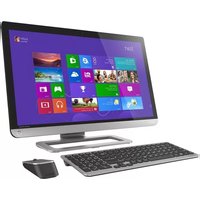
PX35T - Desktop computer TOSHIBA - Free user manual and instructions
Find the device manual for free PX35T TOSHIBA in PDF.


Pick your language and provide your email: we'll send you a specifically translated version.
| Product Type | Desktop Computer |
| Brand | Toshiba |
| Model | PX35T |
| Dimensions (H x W x D) | 435 x 185 x 445 mm (approx.) |
| Weight | 10 kg (approx.) |
| Power Supply | 300 W (typical) |
| Processor | Intel Core i5 or i7 (varies by configuration) |
| Memory (RAM) | 8 GB DDR4 (upgradable to 32 GB) |
| Storage | 1 TB HDD or 256 GB SSD (varies) |
| Operating System | Windows 10 Pro |
| Ports | USB 3.0, HDMI, VGA, Ethernet, Audio |
| Connectivity | Wi-Fi, Bluetooth |
| Primary Functions | Computing, data processing, internet browsing, software applications |
| Maintenance | Clean dust from vents monthly; ensure adequate airflow |
| Cleaning | Use a soft, dry cloth. Unplug before cleaning. Avoid liquids. |
| Safety | Keep away from water, heat sources. Use surge protector. |
| Spare Parts / Repairability | RAM, HDD/SSD, power supply, fan are user-replaceable. Use compatible parts. |
| General Information | Refer to user manual for detailed setup and troubleshooting. |
Frequently Asked Questions - PX35T TOSHIBA
How do I connect the Toshiba PX35T to a monitor?
Use the HDMI or VGA port on the back of the desktop. Connect one end to the computer and the other to your monitor, then ensure the monitor is set to the correct input source.
Can I upgrade the RAM on this desktop?
Yes, the memory is upgradable. Open the side panel and insert compatible DDR4 RAM modules into the available slots. The maximum supported capacity is 32 GB.
How do I clean the interior of my Toshiba PX35T?
Turn off and unplug the computer. Use compressed air to blow dust from the fans, heatsinks, and components. Avoid touching internal parts with your hands.
What should I do if the computer does not start?
Check the power cable connection and ensure the power switch is on. Try a different outlet. If still no power, the power supply may need replacement.
How do I connect to Wi-Fi?
Click the network icon in the taskbar, select your Wi-Fi network, and enter the password. Make sure the Wi-Fi antenna is properly attached at the back.
What is the recommended maintenance schedule?
Clean dust from vents and fans every 3 months. Run disk cleanup and defragmentation monthly. Update software and drivers regularly.
Can I use a wireless keyboard and mouse with this desktop?
Yes, the Toshiba PX35T supports Bluetooth and USB receivers. Pair the devices via Settings > Bluetooth & other devices or plug in the receiver.
How do I replace the hard drive?
Power off and unplug. Open the case, locate the hard drive bay, unscrew the drive, disconnect cables, and slide it out. Install the new drive and reconnect cables.
What is the warranty period for this desktop?
Toshiba typically offers a 1-year limited warranty for desktop computers. Check your purchase documentation or contact Toshiba support for details.
How do I perform a factory reset?
Go to Settings > Update & Security > Recovery. Select 'Reset this PC' and choose 'Remove everything'. Follow on-screen instructions. Backup important data first.
User questions about PX35T TOSHIBA
0 question about this device. Answer the ones you know or ask your own.
Ask a new question about this device
No questions yet. Be the first to ask one.
Download the instructions for your Desktop computer in PDF format for free! Find your manual PX35T - TOSHIBA and take your electronic device back in hand. On this page are published all the documents necessary for the use of your device. PX35T by TOSHIBA.
USER MANUAL PX35T TOSHIBA


Manual assistant
Powered by Anthropic
Waiting for your message
Product information
Brand : TOSHIBA
Model : PX35T
Category : Desktop computer