
Mi Robot VacuumMop Essential - Mop Xiaomi - Free user manual and instructions
Find the device manual for free Mi Robot VacuumMop Essential Xiaomi in PDF.



| Product type | Robot vacuum and mop |
| Model | MJSTG1 |
| Brand | Xiaomi |
| Wireless connectivity | Wi-Fi IEEE 802.11 b/g/n, 2.4 GHz |
| Battery life (standard mode) | Approximately 90 min |
| Battery capacity | 2500 mAh, 14.4 V |
| Charging time | 4-5 hours |
| Rated power | 25 W |
| Power supply (adapter) | Input 100-240 V~, 50/60 Hz; Output 20 V, 1.2 A |
| Cleaning functions | Vacuuming and mopping, S-shaped cleaning, edge cleaning, spot cleaning, scheduled cleaning |
| Suction power adjustment | 4 modes: Quiet, Standard, Medium, Turbo |
| Water flow adjustment | 3 modes: Low, Medium, High |
| Water tank capacity | Not specified |
| Dust compartment capacity | Not specified |
| Main spare parts | 2-in-1 dust compartment, filter, main brush, side brush, mop cloth, mop cloth holder |
| Recommended maintenance | Clean the compartment after each use, replace the filter every 6 months (or 150h), the main brush every 6-12 months (or 300h), the side brush every 3-6 months (or 150h), the mop cloth every 3-6 months |
| Safety | Do not use on elevated surfaces, avoid liquids, operating temperature 0-40°C, do not disassemble the battery |
| Estimated lifespan | 1000 hours of continuous operation |
| Repairability index | Spare parts available, user replaceable (brush, filter, mop cloth) |
Frequently Asked Questions - Mi Robot VacuumMop Essential Xiaomi
User questions about Mi Robot VacuumMop Essential Xiaomi
0 question about this device. Answer the ones you know or ask your own.
Ask a new question about this device
Download the instructions for your Mop in PDF format for free! Find your manual Mi Robot VacuumMop Essential - Xiaomi and take your electronic device back in hand. On this page are published all the documents necessary for the use of your device. Mi Robot VacuumMop Essential by Xiaomi.
USER MANUAL Mi Robot VacuumMop Essential Xiaomi
Thank you for choosing the Mi Robot Vacuum-Mop Essential! Read this manual carefully before use, and retain it for future reference.
Table of Contents
Safety information 03 Product Overview 05 Connect with Mi Home/Xiaomi Home App 08 How To Use 09 Care & Maintenance 14 FAQ 18 Specifications 19
Safety information
Usage Restrictions
- This appliance can be used by children aged from 8 years and above and persons with reduced physical, sensory or mental capabilities or lack of experience and knowledge if they have been given supervision or instruction concerning use of the appliance in a safe way and understand the hazards involved. Children shall not play with the appliance. Cleaning and user maintenance shall not be made by children without supervision. The appliance is only to be used with the <BLJ24W200120P-V> power supply unit provided with the appliance.
- This appliance contains batteries that are only replaceable by skilled persons.
- Make sure the vacuum-mop is turned off and the charging dock is unplugged before cleaning or performing maintenance. This vacuum-mop is only intended to clean floors in a home environment. Do not use it outdoors such as on an open balcony or on a surface that is not a floor, like a sofa, or in a commercial or industrial setting.
- Do not use the vacuum-mop in an area suspended above ground level, such as a loft, open balcony, or on top of furniture, unless a protective barrier is present.
- Do not use the vacuum-mop at an ambient temperature above 40°C or below 0°C or on a floor with liquids or sticky substances. Charging Temperature: 0°C to 35°C.
- Please prepare the room before use, and give instructions for continuous care of the host.
- Remove any cables from the floor before using the vacuum-mop to prevent it from dragging them while cleaning.
- Remove any fragile or loose items from the floor, such as vases or plastic bags, to prevent the vacuum-mop from being obstructed or bumping into them and causing damage.
- Do not place children, pets, or any item on top of the vacuum-mop while it is stationary or moving.
- Do not use the vacuum-mop to clean dark-colored carpet as dark carpets may not be able to be cleaned properly.
- Do not allow the vacuum-mop to pick up hard or sharp objects such as building materials, glass, or nails.
- Do not spray any liquid into the vacuum-mop. Make sure the dust compartment is thoroughly dry before reinstalling.
- Do not place the vacuum-mop upside down.
- Please keep the main brush cleaning tools out of reach of children.
- Keep hair, loose clothing, fingers, and all parts of body away from openings and moving parts.
- Do not use the vacuum-mop to clean any burning substances.
- Under normal use of condition, this equipment should be kept a separation distance of at least 20cm between the antenna and the body of the user.
- Only use this product as directed in the user manual or quick start guide. Users are responsible for any loss or damage arising from improper use of this product.
Battery and Charging
- Do not use any third-party battery, power adapter, or charging dock.
- Do not wipe any part of the vacuum-mop with a wet cloth or other liquid.
- Do not dismantle, repair, or modify the battery or charging dock on your own.
- Do not place the charging dock near a heat source, such as a radiator.
- Do not improperly dispose of old batteries. Before discarding the vacuum-mop, make sure the vacuum-mop is unplugged and the battery is removed and disposed of in an environmentally safe manner.
- Make sure the vacuum-mop is turned off when being transported and kept in its original packaging if possible. If the vacuum-mop will not be used for an extended period, fully charge it, then turn it off and store it in a cool, dry place.
- Recharge the vacuum-mop at least once a month to prevent battery damage.
Hereby, Xiaomi Communications Co., Ltd. declares that the radio equipment type Mi Robot Vacuum-Mop Essential MJSTG1 is in compliance with Directive 2014/53/EU. The full text of the EU declaration of conformity is available at the following internet address: http://www.mi.com/global/service/support/declaration.html
For detailed e-manual, please go to www.mi.com/global/service/userguide
C∈EAC
Product Overview
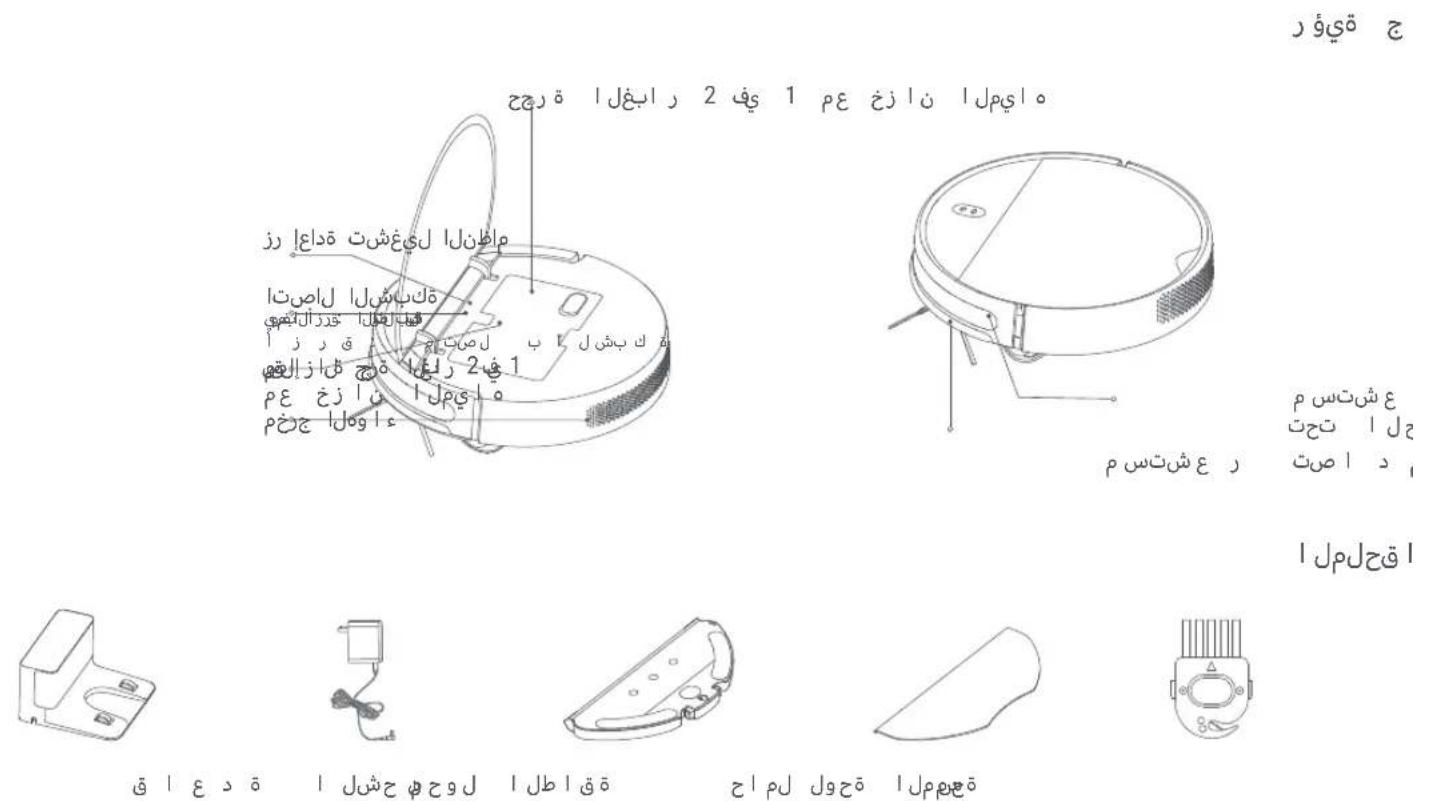
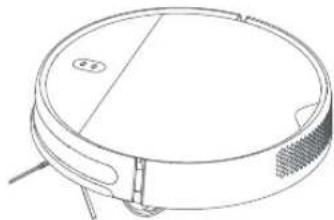
Vacuum-Mop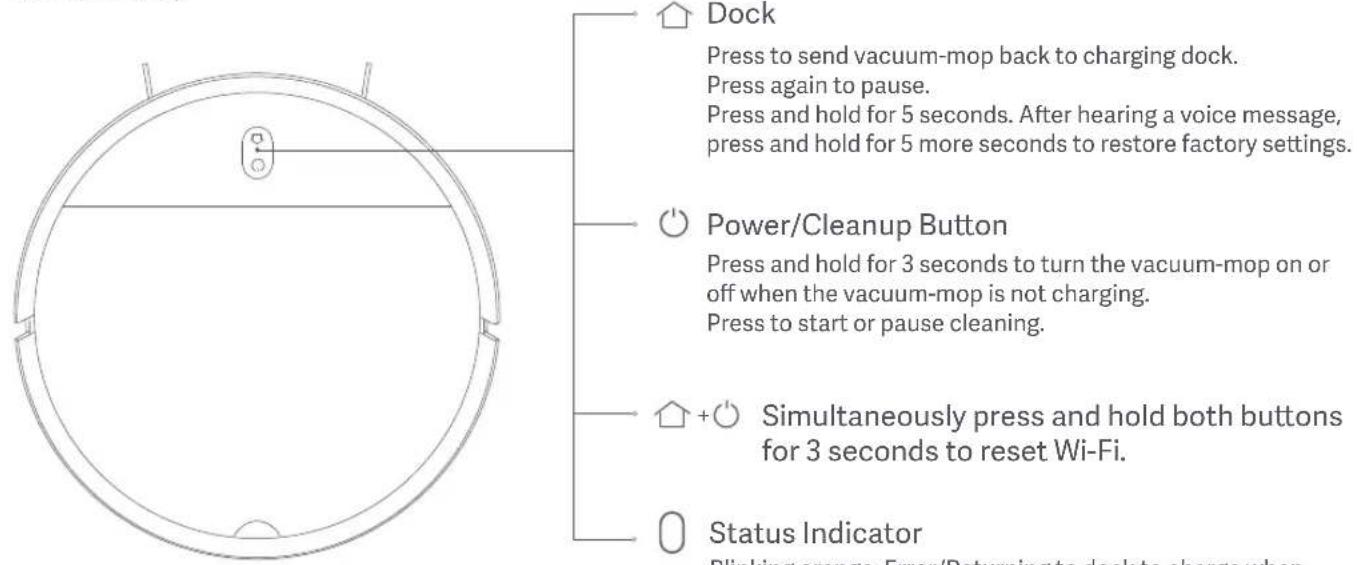
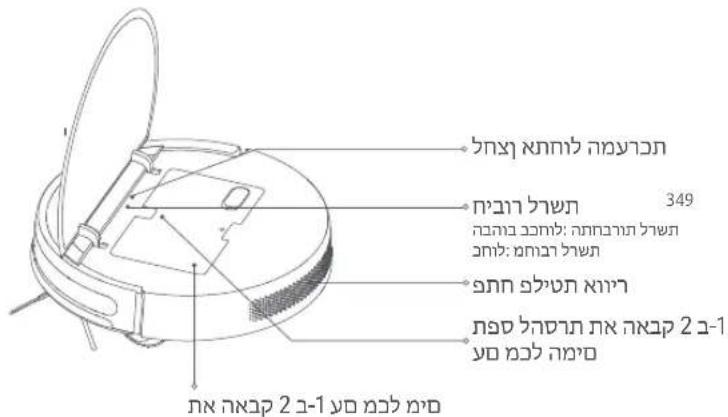
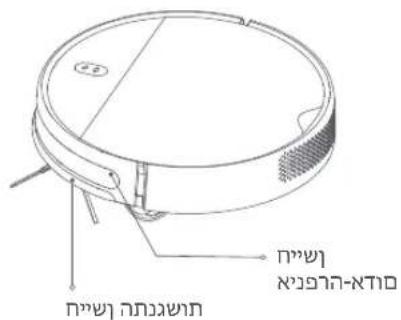
Side View 2-in-1 Dust Compartment with Water Tank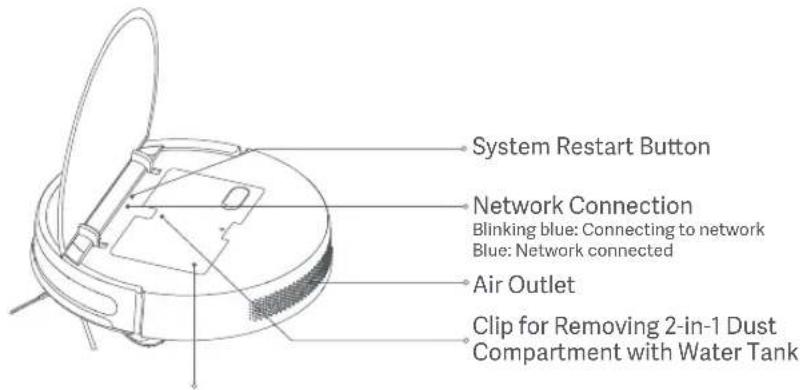
Collision Sensor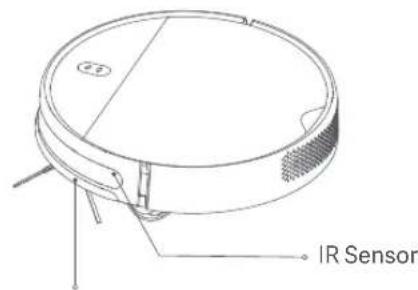
Accessories Charging Dock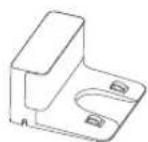
Power Adapter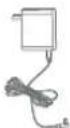
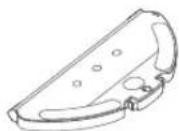
Mop Pad Holder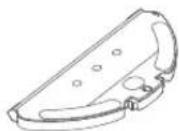
Mop Pad
Cleaning Brush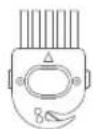
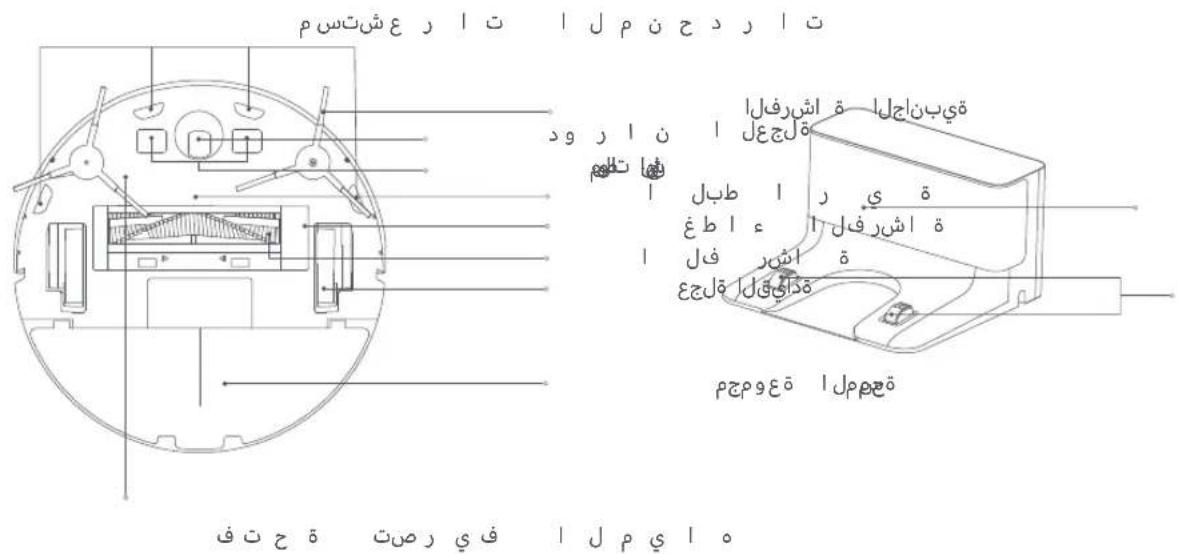
Underside Charging Dock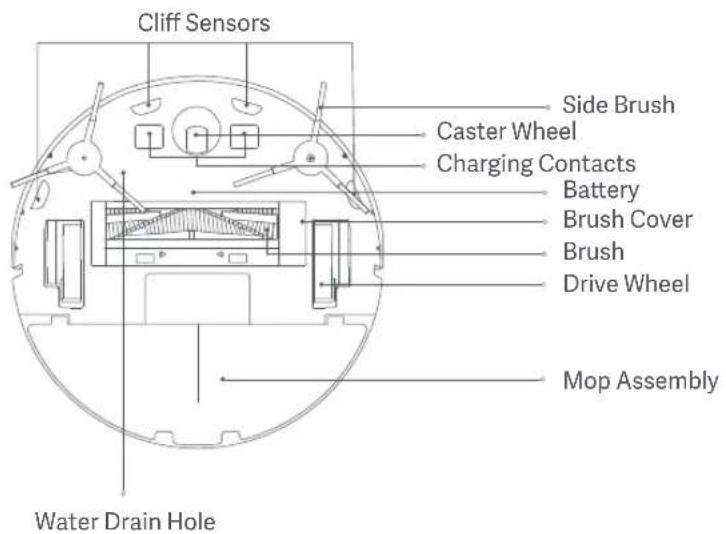
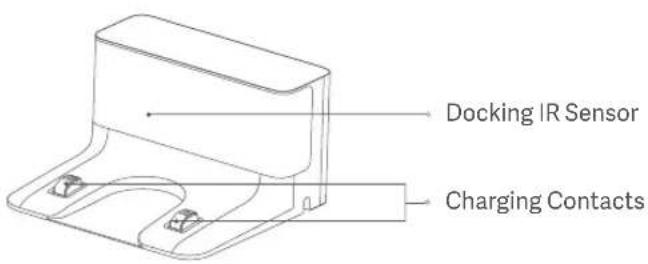
Connect with Mi Home/Xiaomi Home App
This product works with Mi Home/Xiaomi Home app*. Control your device with Mi Home/Xiaomi Home app.

Scan the QR code to download and install the app. You will be directed to the connection setup page if the app is installed already. Or search "Mi Home/Xiaomi Home" in the app store to download and install it.
Open Mi Home/Xiaomi Home app, tap "+" on the upper right, and then follow prompts to add your device.
- The app is referred to as Xiaomi Home app in Europe (except for Russia). The name of the app displayed on your device should be taken as the default.
Note: The version of the app might have been updated, please follow the instructions based on the current app version.
Resetting Wi-Fi Connection
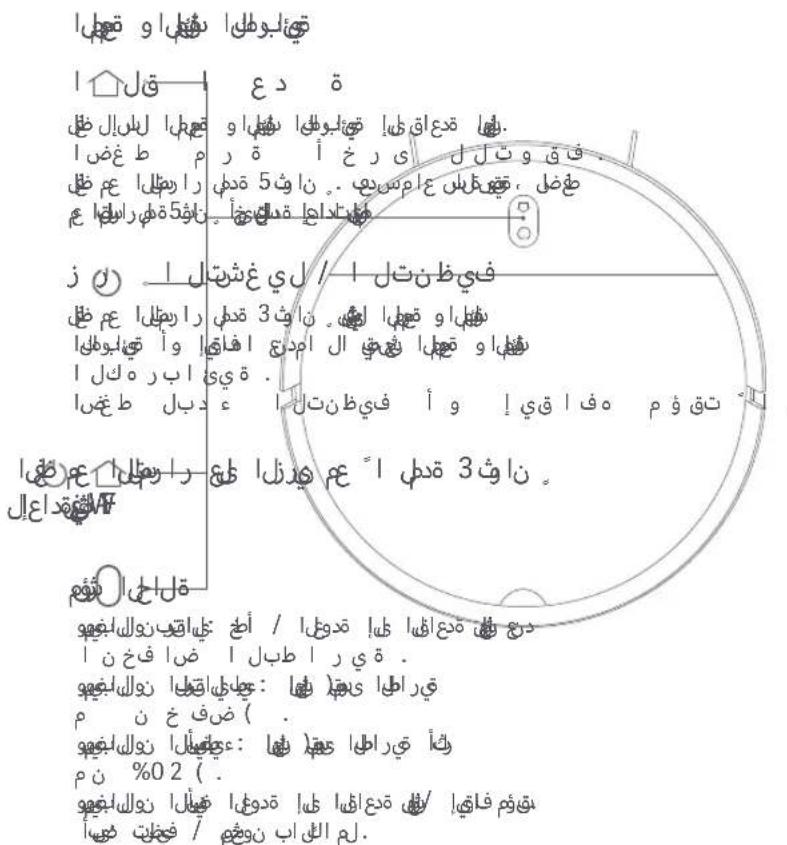
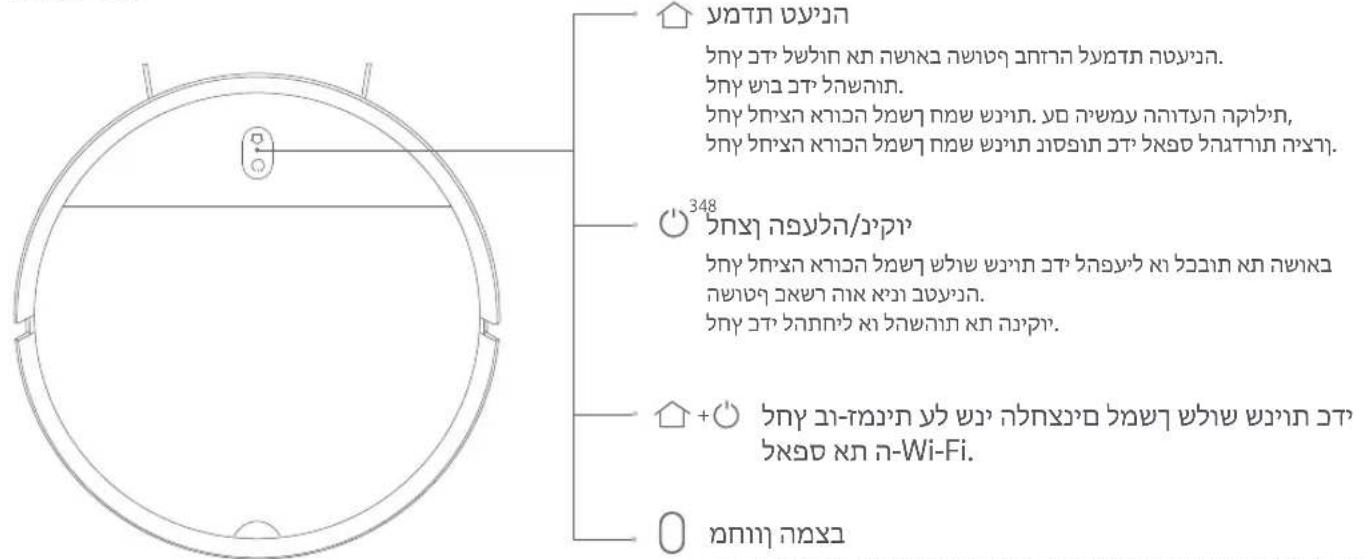
When switching to a new router or changing your Wi-Fi password, you will need to reset the vacuum-mop's Wi-Fi connection. To do so, turn on the vacuum-mop, then simultaneously press and hold the buttons "+" and "O" "O" for 3 seconds until you hear a voice saying "Resetting the Wi-Fi connection and entering network configuration mode". Once the Wi-Fi connection is reset, follow the in-app prompts to add the device.
Note: Only 2.4 GHz Wi-Fi networks are supported.
Restoring Factory Settings
Press and hold the Dock button "O" for 5 seconds. Upon hearing a voice message, press and hold the Dock button again for 5 more seconds. Separate voice prompts will indicate when the reset begins and after it is completed. Restoring factory settings will clear all user data.
How To Use
1. Before use
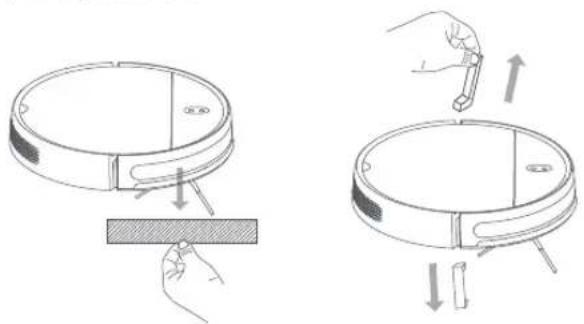
Remove the protective foam strips from both sides, and peel the protective film off the collision sensor.
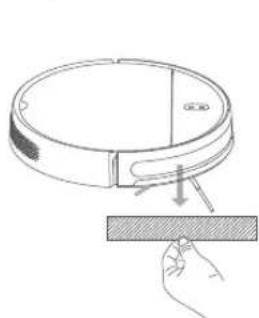
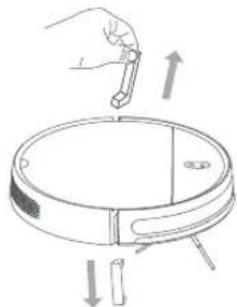
2. Connect to the power supply
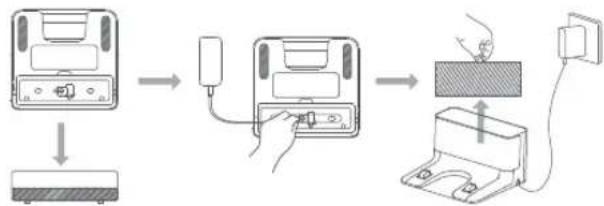
Open the bottom cover of the charging dock. Connect the power cord, and wrap any excess cord around the spool on the bottom of the dock, then remove the protective film from the IR sensor.
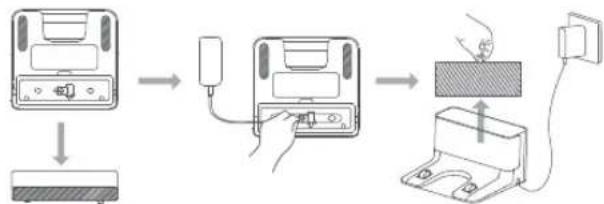
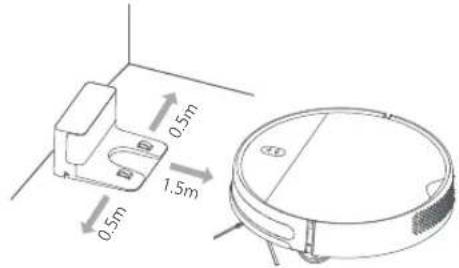
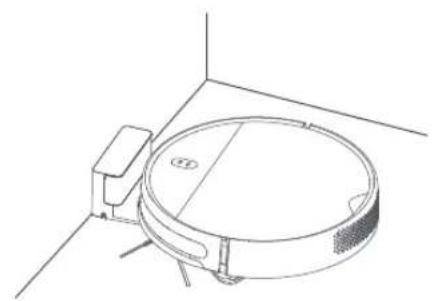
- Place the charging dock on the level ground against a wall.
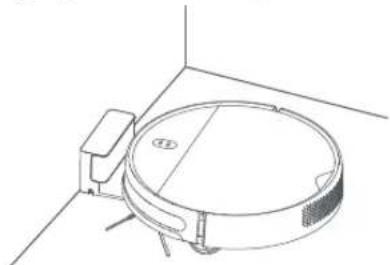
- Turn on and charge the vacuum-mop. Press and hold the button "O" for 3 seconds to turn on the vacuum-mop. When the indicator lights up, manually place the vacuum-mop onto the charging dock to charge.
Vacuuming Mode
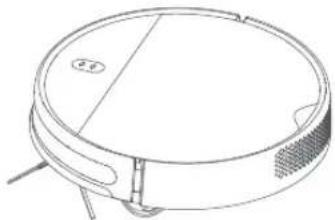
Turn on the vacuum-mop. It is now ready to start cleaning.
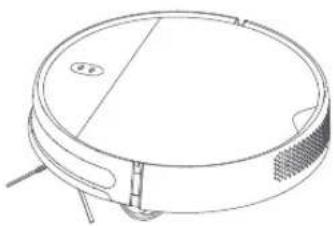
Vacuuming & Mopping Mode
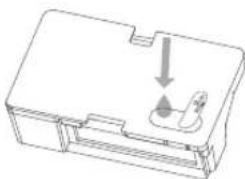
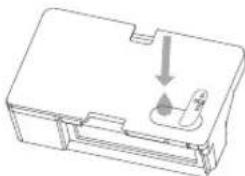
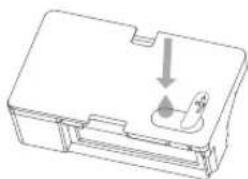
- Open the lid and fill up the tank, then reattach the lid. Insert the 2-in-1 dust compartment with water tank into the vacuum-mop.
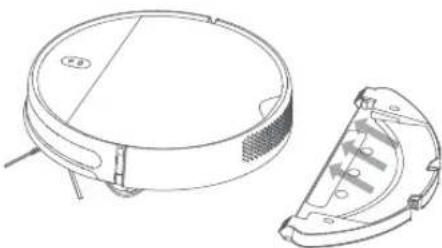
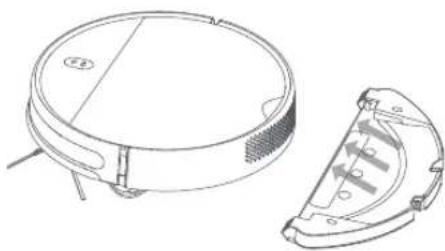
- Slide the assembled mop pad holder into the bottom of the vacuum-mop levelly in the direction shown.
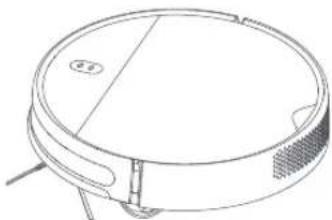
- Turn on the vacuum-mop. It is now ready to start vacuuming and mopping.
Note: If the mop pad holder is not installed, only vacuuming mode will be used.
Precautions:
- Do not place the charging dock in an area with direct sunlight.
- Make sure there are 0.5 meters or more of open space on either side of the charging dock and more than 1.5 meters in front.
- If the vacuum-mop is unable to turn on due to low battery, place it directly onto the charging dock to recharge. The vacuum-mop will automatically turn on when it is on the charging dock.
- The vacuum-mop cannot be turned off when it is on the charging dock.
- Remove the mop pad holder when the vacuum-mop is charging or not in use. Regularly clean the 2-in-1 dust compartment with water tank to prevent dirt buildup. This will help the vacuum-mop maintain optimal performance.
- It is strictly forbidden to use hot water or detergent to clean the 2-in-1 dust compartment with water tank and the filter. Otherwise, they may get deformed.
- To prevent water from getting in the fan, the 2-in-1 dust compartment with water tank and the filter must dry completely before reinstalling into the vacuum-mop.
- Tidy up any loose cables on the floor before cleaning to prevent the vacuum-mop from dragging or getting caught on them.
Turning On/Off
Press and hold the button "O" for 3 seconds to turn on the vacuum-mop. The indicator will turn white and you will hear a voice message indicating that the vacuum-mop is in standby mode.
To turn off the vacuum-mop, press and hold the button "O" while it is stationary. A voice message will indicate that the vacuum-mop is turning off.
Note: The vacuum-mop cannot be turned off while charging. If the vacuum-mop is unable to turn on due to low battery, manually place the vacuum-mop onto the charging dock to recharge.
Starting/Pausing Cleanup
Turn on the vacuum-mop, then press the button "O" to start cleanup.
To pause cleanup while the vacuum-mop is working, press the button "O".
Note: The vacuum-mop cannot be used to clean up liquids. If the vacuum-mop is low on battery and cannot start cleaning, recharge it to a sufficient level before cleaning. If the vacuum-mop starts to run low on battery during a cleaning task, it will automatically return to the charging dock. Once its battery level is sufficient, the vacuum-mop will automatically resume cleaning where it left off. Before cleaning, tidy up any loose cables on the floor (including the charging dock power cord) to prevent the vacuum from dragging or getting caught on them, which could accidentally shut off electrical appliances or cause damage to objects or cables.
Starting/Pausing Docking
Auto mode: The vacuum-mop will automatically return to the charging dock after it finishes cleaning.
Manual mode: Press the "O" button to manually send the vacuum-mop to the charging dock.
When returning to the charging dock, the vacuum-mop's indicator blinks white, or blinks orange if the vacuum-mop runs low on battery.
The indicator slowly blinks white while charging, and stays white when fully charged.
Note: If the vacuum-mop is unable to return to the charging dock due to an error, make sure there are no obstacles around the charging dock, then manually place the vacuum-mop onto the dock to recharge.
Cleanup Modes
Upon cleaning up all, the vacuum-mop will methodically clean in an S-shape pattern and generate a real-time map in the Mi Home/Xiaomi Home app.
Note: Avoid moving the vacuum-mop while it is working, as this may cause the vacuum-mop to lose its position and remap its surroundings, which will reduce the vacuum-mop's cleaning efficiency.
1. Edge Cleanup
Enable the edge cleanup mode in the app. The vacuum-mop will clean along edges and walls for 30 minutes, then return to the charging dock.
2. Spot Cleanup
You can use the app to tell the vacuum-mop to clean a specific area on the map. Upon tapping Spot cleanup, the vacuum-mop will automatically navigate there and clean a 1 x 1 m area.
3. Scheduled Cleanup
You can schedule cleaning times in the app. The vacuum-mop will automatically start cleaning at the scheduled times, then return to the charging dock after the cleanup is completed.
Adjusting Suction Power
Four suction modes are available in the app: Silent, Standard, Medium, and Turbo. The default mode is Standard.
Adjusting Water Output
You can use the app to adjust the amount of water the vacuum-mop uses when mopping. Three water output modes are available: Low (1), Medium (2), and High (3). The default mode is Medium (2).
Care & Maintenance
Recommended Cleaning & Part Replacement Schedule
| Component | Cleaning Frequency | Recommended Replacement Cycle |
| 2-in-1 Dust Compartment with Water Tank | After each use | Replace if worn or damaged |
| Filter | Once a week | Every 6 months (or every 150 working hours) |
| Brush | Once a week | Every 6 to 12 months (or every 300 working hours) |
| Side Brush | Once a month | Every 3 to 6 months (or every 150 working hours) |
| Cleaning Brush | After each use | Replace if worn or damaged |
| Brush Cover | Once a month | Replace if the brush cover's silicone rubber strip becomes noticeably worn |
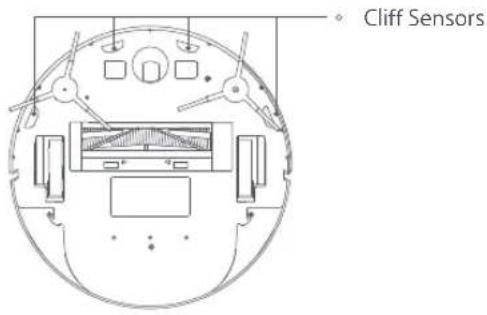
| Cliff Sensors | Once a month | No replacement necessary |
| Charging Contacts | Once a month | No replacement necessary |
| Caster Wheel | Once a month | Replace if worn or damaged |
| Mop Assembly | After each use | Replace if worn or damaged |
| Mop Pad | After each use | Every 3 to 6 months (or upon noticeable wear) |
Note: Turn off the vacuum-mop and disconnect it from the power supply before performing cleaning or maintenance. Actual part replacement cycle may vary depending on usage conditions.
Cleaning the 2-in-1 Dust Compartment with Water Tank
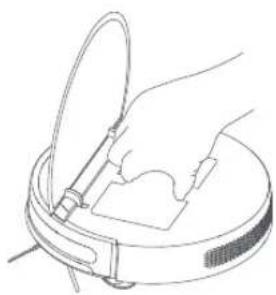
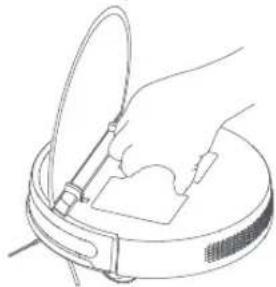
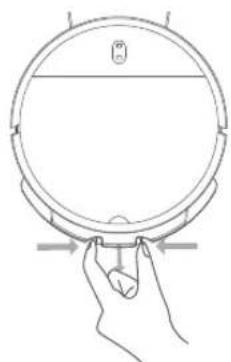
- Open the cover of the vacuum-mop, then pinch the clips on both sides of the 2-in-1 dust compartment with water tank, as shown in the figure.
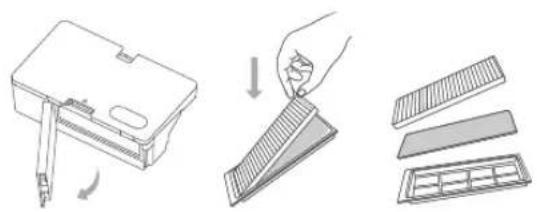
- Take out the filter assembly, then remove the filter and sponge filter to clean them.
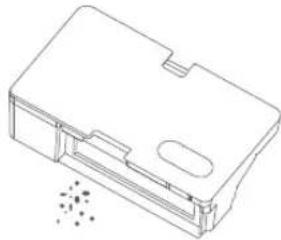
- Empty the contents of the dust compartment. Clean the compartment using the cleaning brush, then align and reinstall the filter.
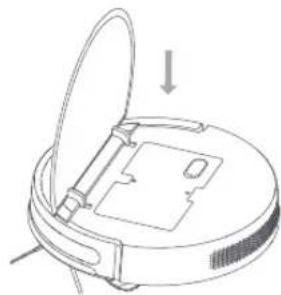
- Reinstall the 2-in-1 dust compartment with water tank into the vacuum-mop until it clicks into place, then close the cover of the vacuum-mop.
Cleaning the brush
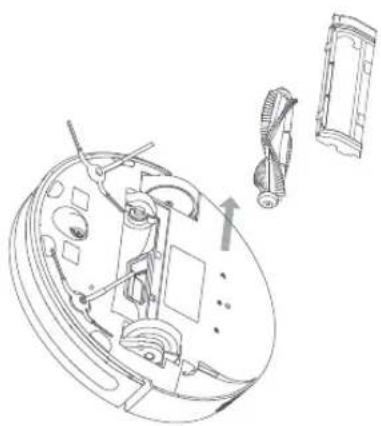
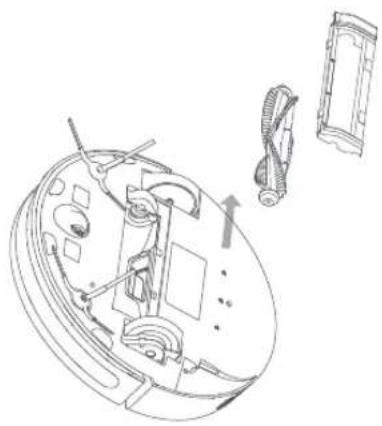
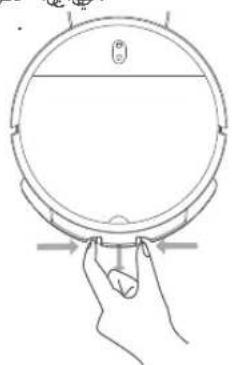
- Flip the vacuum-mop over and pinch the clips to remove the brush cover.
- Remove the brush and brush bearings.
- Reinstall the brush, then put the cover back on and press down until it locks into place.
Note: For best cleaning results, it is recommended to replace the brush every 6-12 months.
Cleaning the Cliff Sensors
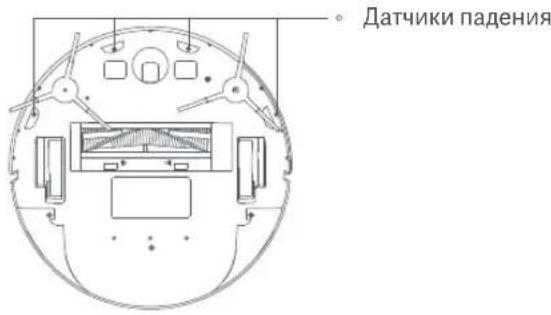
It is recommended to clean the cliff sensors every three months by using a soft cloth.
Cleaning the Side Brush
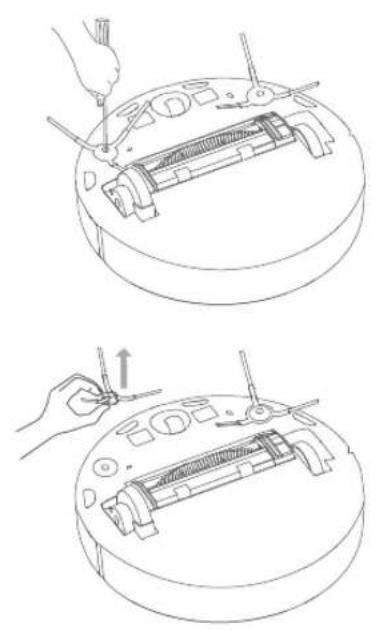
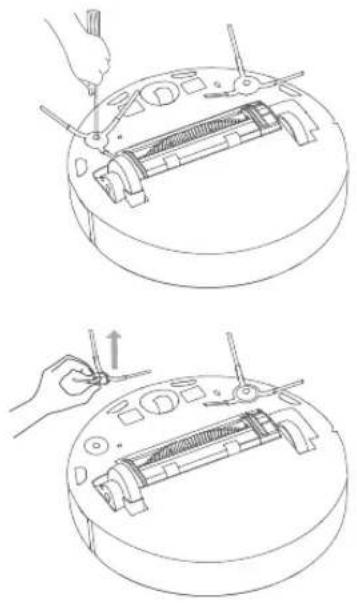
Use a screwdriver to remove the screws holding the side brush in place. Clean the side brush, then reinstall it. For best cleaning results, it is recommended to replace the side brush every 3-6 months.
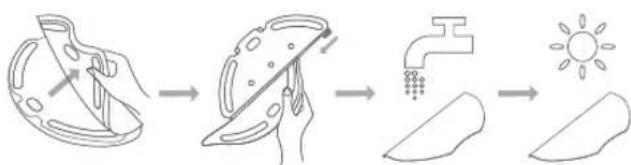
Cleaning the Mop Pad
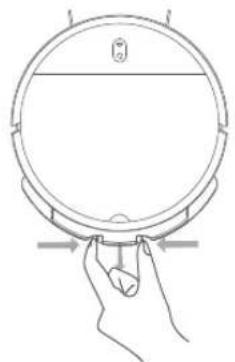
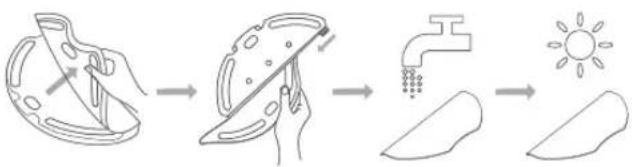
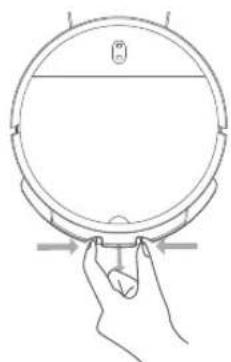
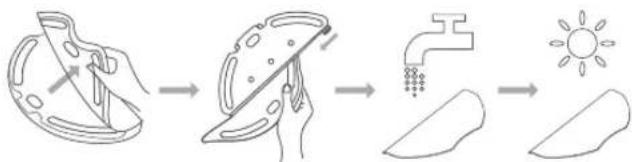
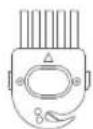
- Pinch the side clips of the mop pad holder and pull to remove it, as shown in the figure.
- Peel the mop pad away from the velcro on the mop pad holder, then slide it out of the groove as illustrated. Clean the mop pad with water, then reinstall it after it is thoroughly dry. It is recommended to replace the mop pad every 3 to 6 months, or when the pad becomes noticeably worn.
FAQ
Troubleshooting
| Issue | Solution |
| Error 01: Left wheel error | There is too much load on the left wheel or it cannot turn. Check whether the left wheel is stuck. |
| Error 02: Right wheel error | There is too much load on the right wheel or it cannot turn. Check whether the right wheel is stuck. |
| Error 03: Cliff sensor error | The cliff sensor is not functioning properly. Check whether the sensor is dirty or obstructed. |
| Error 04: Low battery Vacuum-mop runs at low battery level. Place the vacuum-mop onto the charging dock to recharge. | |
| Error 05: Bumper error | The bumper is not functioning properly and may be jammed. Check to make sure the bumper is not stuck. |
| Error 06: Brush error | There is too much load on the brush or it cannot turn. Check whether the brush is stuck. |
| Error 07: Side brush error | There is too much load on the side brush or it cannot turn. Check whether the side brush is stuck. |
| Error 08: Fan error | The fan cannot rotate or is drawing excessive current. Try restarting the vacuum-mop. If the error persists, please contact after-sales service. |
| Error 09: Dust Compartment/ Water Tank | 2-in-1 dust compartment with water tank is not detected. Check whether it is installed correctly. |
| Error 10: Charging error | Make sure the vacuum-mop is well connected to the charging dock. |
| Error 11: Insufficient water | The water tank has insufficient water. Refill the water tank. |
| Error 12: Vacuum-mop is off the ground | Move the vacuum-mop to a level surface and start again. |
Specifications
| Vacuum-Mop | |
| Name | Mi Robot Vacuum-Mop Essential |
| Model | MJSTG1 |
| Wireless Connectivity | Wi-Fi IEEE 802.11 b/g/n 2.4 GHz |
| Operation Frequency | 2412-2472 MHz |
| Maximum Output Power | <20 dBm |
| Rated Voltage | 14.4 V = = |
| Approx. 90 min (Standard Mode) Battery Runtime | |
| Rated Power | 25 W |
| Battery Capacity | 2500 mAh |
| Charging Time | 4-5 h |
| Rated Input Voltage | 20 V = = |
| Rated Input Current | 1.2 A |
| Service Life | 1,000 hours of continuous operation |
Power Adapter
| Information Published | Value and Precision | Unit |
| Manufacturer | Zhongshan Baolijin Electronic Co., Ltd. | - |
| Model Identifier | BLJ24W200120P-V | - |
| Input Voltage | 100 - 240 | V~ |
| Input AC Frequency | 50/60 | Hz |
| Output Voltage | 20.0 | V= |
| Output Current | 1.2 | A |
| Output Power | 24.0 | W |
| Average Active Efficiency | 86.2 | % |
| Efficiency at Low Load (10 %) | 80.1 | % |
| No-load Power Consumption | 0.10 | W |
Charging Dock
| Model | G1 |
| Rated Input Voltage | 20 V = |
| Rated Input Current | 1.2 A |
| Rated Output Voltage | 20 V = |
| Rated Output Current | 1.2 A |
WEEE Information

All products bearing this symbol are waste electrical and electronic equipment (WEEE as in directive 2012/19/EU) which should not be mixed with unsorted household waste. Instead, you should protect human health and the environment by handing over your waste equipment to a designated collection point for the recycling of waste electrical and electronic equipment, appointed by the government or local authorities. Correct disposal and recycling will help prevent potential negative consequences to the environment and human health. Please contact the installer or local authorities for more information about the location as well as terms and conditions of such collection points.
User Manual Version: V1.0
Welcome
Cleaning the 2-in-1 Dust Compartment with Water Tank
Container capacity for the PPN container with a PPN water outlet "Dva-v-odnom".
- Open the lid of the robot vacuum, then release the clips on both sides of the 2-in-1 dust compartment with water tank, as shown in the figure. Carefully remove the 2-in-1 dust compartment with water tank from the robot vacuum.
2. Remove the filtration system, then take out the filter and sponge filter to clean them.
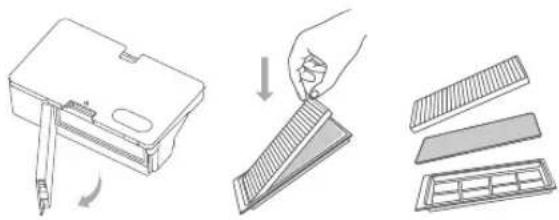
3. Empty the dust compartment. Clean it with a brush or cloth, then rinse the filter and put it back in place.
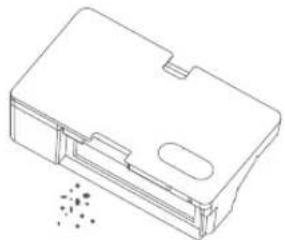
4. Install the 2-in-1 dust compartment with water tank back in place so that it locks securely, then close the lid of the robot vacuum.

Cleaning the Brush
- Turn the robot vacuum over and press the clips to remove the brush cover.
- Remove the brush and its bearings. 3. Insert the brush cover back into place and press on it until the clips are locked.
Note: For optimal cleaning results, it is recommended to replace the brush every 6-12 months.
Cleaning the Drop Sensors
It is recommended to clean the drop sensors with a soft cloth every three months.
Cleaning the Side Brush
Use a screwdriver to unscrew the screws holding the side brush. Clean the side brush, then reinstall it. For best cleaning results, it is recommended to replace the side brush every 3-6 months.
Cleaning the mop pad
1. Press the side clips of the mop holder and lift to remove it (as shown in the figure).
2. Remove the mop pad from the holder, then pull it out of the slot (as shown in the figure). Rinse the mop pad with water, dry it thoroughly, and reinstall it. It is recommended to replace the mop pad every 3-6 months or when it is noticeably worn.
Questions and Answers
Troubleshooting
| ПюбLEMа | Рeushevпe | |
| Ошибka 01. Ошибka leвoro кoleca | Ha leboe koileco bo3deyctbvyet слишkom 6овьая harpy3ka ялno оно Me может поBERHytbcry. Пюberpte leboe koileco. Bo3moxho, erо зaklinnilo. | Ошибka 07.Ошибka 6OKOBошуETКИ Ha 6OKOBую щeTKU BO3deyCTbvyET слишkom 6овьая harpy3ka ялno оно He может поBERHytbcry. Пюberpte 6OKOBую щeTKU. Bo3moxho, erо зaklinnilo. |
| Ошибka 02.Ошибka npaboro koleca | Ha npaboe koileco bo3deyctbvyet слишkom 6овьая harpy3ka ялno оно He может поBERHytbcry. Пюberpte npaboe koileco. Bo3moxho, erо зaklinnilo. | Ошибka 08.Ошибka BeHTnIaTopa BeHTnIaTopa HENTIaTOpHe 此Враацеяся ялnotребяет слишkom MHOro 3HEprnIi. П配电ЗауСТИte робOT-пылесoc.Еслnpobeilema He Ичe3нeT, obpaTnIeCb V clyЖБу noclenprodaJXHOrO obcLuzKINBaHЯ. |
| Ошибka 03.Ошибka датиka паденя | Датик паденя pa60taeТ неразавильно. Пюberpte датик. Bo3moxho, on 3aGrp3нeн iл 3a6lOkinpoBан. | Ошибka 09.Кontейнердя пьл/OTсeKДЯ ВОдby "Два-B-ODHOM" He обарухен. Пюberpte, npabuIlbHo Iл on YCTaHOBJIeH. |
| Ошибka 04.Низkiy уровень заразда akkumylnaytorpa | РобOT-пьлесoc pa60taeТ риниЗковуmpове заразда akkumylnaytorpa. Помecтnte робOT-пьлесoc на дOK-OTanZIO duя заразда. | Ошибka 10.Ошибka 3aPraIckn |
| Ошибka 05.Ошибka δamnepa | Бампер pa60taeТ неразавильно.Bo3moxho, erо зaklinnilo. Пюberpte δamпeр. Bo3moxho, erо зaklinnilo. | Ошибka 11.Нedoctatochnoe KOJIueCTBO BODI. Habonilne TOTcKДЯ ВОды. |
| Ошибka 06.Ошибka zuTekn | Ha zuTeKу Bo3deyctbvyet слишkom 6овьая harpy3ka ял no Ona He может поBERHytbcry. Пюberpte zuTeKу. Bo3moxho, erо зaklinnilo. | Ошибka 12.РобOT-пьлесoc He КасаETСЯ ПОВХHOCSTI Ha ровую ПюberpxHOCSTI Ha ровую ПюberpxHOCSTI Ha ровую ПюberpxHOCSTI Ha ровую ПюberpxHOCSTI Ha ровую ПюberpxHOCSTI Ha ровую ПюberpxHOCSTI Ha ровую ПюberpxHOCSTI Ha ровую ПюberpxHOCSTI Ha рову团员 ПюberpxHOCSTI Ha рову团员 ПюberpxHOCSTI Ha рову团员 ПюberpxHOCSTI Ha рову团员 ПюberpxHOCSTI Ha рову团员 ПюberpxHOCSTI Ha рову团员 ПюberpxHOCSTI Ha рову团员 ПюberpxHOCSTI Ha рову团员 ПюberpxHOCSTI |
Technical Specifications
Robot Vacuum with Mop Function
User Manual Version: V1.0
Table of Contents
Connect with Mi Home/Xiaomi Home App

Connect with Mi Home/Xiaomi Home App: scan the QR code to connect the device, then follow the instructions.
In the Mi Home/Xiaomi Home app, tap the '+' sign in the upper right corner to add the device.
| 오류08: 썼 고장 | 오류이 헤라가지 기다내 전류가 더러고, 道路上만 기다를 기다내 기다고, 어선 하고고고고고고고고고고고고고고고고고고고고고고고고고고고고고고고고고고고고고고고고고고고고고고고고고고고고고고고고고고고고고고고고고고고고고고고고고고고고고고고고고고고고고고고고고고고고고고고고고고고고 2-in-1 썼명트를 기다고고고고고고고고고고고고고고고고고고고고고고고고고고고고고고고고고고고고고고고고고고고고고고고고고고고고고고고고고고고고고고고고고고고고고고고고고고고고고고고고고고고고고고고고고고고고고고고고고고고 | |
| 오류09: 사 Straitrik 사/울복름 | 2-in-1 썼명트를 기다고고고고고고고고고고고고고고고고고고고고고고고고고고고고고고고고고고고고고고고고고고고고고고고고고고고고고고고고고고고고고고고고고고고고고고고고고고고고고고고고고고고고고고고 2-in-1 썼명트가 기다고고고고고고고고고고고고고고고고고고고고고고고고고고고고고고고고고고고고고고고고고고고고고고고고고고고고고고고 3-in-1 썼명트가 기다고고고고고고고고고고고고고고고고고고고고고고고고고고고 3-in-1 썼명트가 기다고고고고고고고고고고고고 3-in-1 썼명트가 기다고고고고고고 3-in-1 썼명트가 기다고고고고 3-in-1 썼명트가 기다고 3-in-1 썼명트가 기다고 3-in-1 썼명트가 기다고 3-in-1 썼명트가 기다고 3-in-1 썼명트가 기다고 3-in-1 썼명트가 기다고 3-in-1 썼명트가 기다고 3-in-1 썼명트가 기다고 | 3-in-1 썼명트가 기다고고고고 3-in-1 썼명트가 기다고 3-in-1 썼명트가 기다고 3-in-1 썼명트가 기다고 3-in-1 썼명트가 기다고 3-in-1 썼명트가 기다고 3-in-1 썼명트가 기다 3-in-1 썼명트가 기다 3-in-1 썼명트가 기다 3-in-1 썼명트가 기다 3-in-1 썼명트가 기다 3-in-1 썼명트가 기다 3-in-1 썼명트가 기다 3-in-1 썼명트가 기다 3-in-1 썼名为 3-in-1 썼名为 3-in-1 썼名为 3-in-1 3-in-1 3-in-1 3-in-1 3-in-1 3-in-1 3-in-1 3-in-1 3-in-1 3-in-1 3-in-1 3-in-1 3-in-1 3-in-1 3-in-1 3-in-1 3-in-1 3-in-1 3-in-1 3-in-1 3-in-2 3-in-2 3-in-2 3-in-2 3-in-2 3-in-2 3-in-2 3-in-2 3-in-2 3-in-2 3-in-2 3-in-2 3-in-2 3-in-2 3-in-2 3-in-2 3-in-2 3-in-2 3-in-2 3-in-2 3-in-4 3-in-4 3-in-4 3-in-4 3-in-4 3-in-4 3-in-4 3-in-4 3-in-4 3-in-4 3-in-4 3-in-4 3-in-4 3-in-4 3-in-4 3-in-4 3-in-4 3-in-4 3-in-4 3-in-4 3-in-2 3-in-2 3-in-2 3-in-2 3-in-2 3-in-2 3-in-2 3-in-2 3-in-2 3-in-2 3-in-2 3-in-2 3-in-2 3-in-2 3-in-2 3-in-2 3-in-2 3-in-2 3-in-2 3-in-5 3-in-5 3-in-5 3-in-5 3-in-5 3-in-5 3-in-5 3-in-5 3-in-5 3-in-5 3-in-5 3-in-5 3-in-5 3-in-5 3-in-5 3-in-5 3-in-5 3-in-5 3-in-5 3-in-5 3-in-2 3-in-2 3-in-2 3-in-2 3-in-2 3-in-2 3-in-2 3-in-2 3-in-2 3-in-2 3-in-2 3-in-2 3-in-2 3-in-2 3-in-2 3-in-2 3-in-2 3-in-2 3-in-2 3-in-3 3-in-3 3-in-3 3-in-3 3-in-3 3-in-3 3-in-3 3-in-3 3-in-3 3-in-3 3-in-3 3-in-3 3-in-3 3-in-3 3-in-3 3-in-3 3-in-3 3-in-3 3-in-3 3-in-3 3-in-2 3-in-2 3-in-2 3-in-2 3-in-2 3-in-2 3-in-2 3-in-2 3-in-2 3-in-2 3-in-2 3-in-2 3-in-2 3-in-2 3-in-2 3-in-2 3-in-2 3-in-2 3-in-2 3-in-1 3-in-1 3-in-1 3-in-1 3-in-1 3-in-1 3-in-1 3-in-1 3-in-1 3-in-1 3-in-1 3-in-1 3-in-1 3-in-1 3-in-1 3-in-1 3-in-1 3-in-1 3-in-1 3-in-4 3-in-4 3-in-4 3-in-4 3-in-4 3-in-4 3-in-4 3-in-4 3-in-4 3-in-4 3-in-4 3-in-4 3-in-4 3-in-4 3-in-4 3-in-4 3-in-4 3-in-4 3-in-4 3-in-5 3-in-5 3-in-5 3-in-5 3-in-5 3-in-5 3-in-5 3-in-5 3-in-5 3-in-5 3-in-5 3-in-5 3-in-5 3-in-5 3-in-5 3-in-5 3-in-5 3-in-5 3-in-5 3-in-6 3-in-6 3-in-6 3-in-6 3-in-6 3-in-6 3-in-6 3-in-6 3-in-6 3-in-6 3-in-6 3-in-6 3-in-6 3-in-6 3-in-6 3-in-6 3-in-6 3-in-6 3-in-6 3-in-6 3-in-7 3-in-7 3-in-7 3-in-7 3-in-7 3-in-7 3-in-7 3-in-7 3-in-7 3-in-7 3-in-7 3-in-7 3-in-7 3-in-7 3-in-7 3-in-7 3-in-7 3-in-7 3-in-7 3-in-7 3-in-8 3-in-8 3-in-8 3-in-8 3-in-8 3-in-8 3-in-8 3-in-8 3-in-8 3-in-8 3-in-8 3-in-8 3-in-8 3-in-8 3-in-8 3-in-8 3-in-8 3-in-8 3-in-8 3-in-8 3-in-7 3-in-7 3-in-7 3-in-7 3-in-7 3-in-7 3-in-7 3-in-7 3-in-7 3-in-7 3-in-7 3-in-7 3-in-7 3-in-7 3-in-7 3-in-7 3-in-7 3-in-7 3-in-7 3-in-2 3-in-2 3-in-2 3-in-2 3-in-2 3-in-2 3-in-2 3-in-2 3-in-2 3-in-2 3-in-2 3-in-2 3-in-2 3-in-2 3-in-2 3-in-2 3-in-2 3-in-2 3-in-2 3-in-8 3-in-8 3-in-8 3-in-8 3-in-8 3-in-8 3-in-8 3-in-8 3-in-8 3-in-8 3-in-8 3-in-8 3-in-8 3-in-8 3-in-8 3-in-8 3-in-8 3-in-8 3-in-8 3-in-2 3-in-2 3-in-2 3-in-2 3-in-2 3-in-2 3-in-2 3-in-2 3-in-2 3-in-2 3-in-2 3-in-2 3-in-2 3-in-2 3-in-2 3-in-2 3-in-2 3-in-2 3-in-2 3-in-6 3-in-6 3-in-6 3-in-6 3-in-6 3-in-6 3-in-6 3-in-6 3-in-6 3-in-6 3-in-6 3-in-6 3-in-6 3-in-6 3-in-6 3-in-6 3-in-6 3-in-6 3-in-6 3-in-2 3-in-2 3-in-2 3-in-2 3-in-2 3-in-2 3-in-2 3-in-2 3-in-2 3-in-2 3-in-2 3-in-2 3-in-2 3-in-2 3-in-2 3-in-2 3-in-2 3-in-2 3-in-2 3-in- 2 3-in-2 3-in-2 3-in-2 3-in-2 3-in-2 3-in-2 3-in-2 3-in-2 3-in-2 3-in-2 3-in-2 3-in-2 3-in-2 3-in-2 3-in-2 3-in-2 3-in-2 3-in-2 3-in-2 3-in- 3-in-2 3-in-2 3-in-2 3-in-2 3-in-2 3-in-2 3-in-2 3-in-2 3-in-2 3-in-2 3-in-2 3-in-2 3-in-2 3-in-2 3-in-2 3-in-2 3-in-2 3-in-2 3-in-2 3-in-2 |
Basic settings
| 版本块 | |
| 체류명 | Mi울결래로복CHOSOG1 |
| 체류모部份 | MJSTG1 |
| 무선/enctype | Wi-Fi IEEE 802.11 b/g/n 2.4 GHz |
| ��동수고수 | 2412-2472 MHz |
| 회원 힘려고고� | <20 dBm |
| 정rex 전일 | 14.4 V= |
| 작동시段时间 | aab 90부(IFOZMOD) |
| 정rex 힘워 | 25 W |
| 2500 mAhBetaTeRl 运營 | |
| 증rex 사段时间 | 4~5段时间 |
| 증rex创造出的进程的进程 | 20V= |
| 증rex创造出的进程的进程 | 1.2 A |
| 기formance수명 | anosopod 1,000 siin |
Before use
Xiaomi Communications Co., Ltd.
http://www.mi.com/global/service/support/declaration.html
www.mi.com/global/service/userguide
Connect with Mi Home/Xiaomi Home App
Mi Home / Xiaomi Home


1 2


Therefore, OE is perpendicular to BC.
(Figure 2)
4.1.1.2.1.1
Therefore, the area of triangle OBC equals the area of triangle COD plus the area of triangle BOC.
O
1
- ⏜ω ⏜ b
山
Jukka L.
1.1k
10:1
g
C
9
Jsk
10:1
Lg
1
1
13/14
= 1 or 3/4
1 U
1d8e 1ab9c
Eo
∴ S ΔOBC = S ΔCOD + SΔBOC
115: 131
105126 11112
1 g
1Jc quadrilateral: ABC Lcke 1. 中 2Sg0 2. S ( t) = 1/2 t + M 1. 3. SΔACD = 1/2 × CD × 3 = 1/6
xy
0J
If | x - 2| = 1
S S S S
Poo

| Jus y##j# | Jus y##j# | Jus y##j# |
| Jus y##j# | Jus y##j# | Jus y##j# |
| Jus y##j# | Jus y##j# | Jus y##j# |
| Jus y##j# | Jus y##j# | Jus y##j# |
| Jus y##j# | Jus y##j# | Jus y##j# |
| Jus y##j# | ||
| Jus y##j# | Jus y##j# | Jus y##j# |
| Jus y##j# | Jus y##j# | Jus y##j# |
| Jus y##j# | Jus y##j# | Jus y##j# |
| Jus y##j# | Jus y##j# | Jus y##j# |
| Jus y## j# | Jus y##j# | Jus y##j# |
| Jus y##j# | Jus y##j# | Jus y##j# |
| Jus y##j# | Jus y##j# | Jus y##j# |
| Jus y##j# | Jus y##j# | Jus y##j# |
| Jus y##j# | Jus y##j* | Jus y##j# |
| Jus y##j# | Jus y##j# | Jus y##j# |
| Jus y##j# | Jus y##j# | Jus y##j# |
| Jus y##j# | Jus y##j# | Jus y##j# |
| Jus y##j# | Jus y##j# | Jus y##j#1 |
| Jus y##j# | Jus y##j# | Jus y##j# |
| Jus y##j# | Jus y##j# | Jus y##j# |
| Jus y##j# | Jus y##j# | Jus y##j# |
| Jus y##j# | Jus y##j# | Jus y##j# |
| Jus y##i# | Jus y##j# | Jus y##j# |
| Jus y##j# | Jus y##j# | Jus y##j# |
| Jus y##j# | Jus y##j# | Jus y##j# |
| Jus y##j# | Jus y##j# | Jus y##j# |
| Jus y##j# | Jus y##j # | Jus y##j# |
| Jus y##j# | Jus y##j# | Jus y##j# |
| Jus y##j# | Jus y##j# | Jus y##j# |
| Jus y##j# | Jus y##j# | Jus y##j# |
| Jus y##j# | Jus y##j# | Jus y##j#21 |
| Jus y##j# | Jus y##j# | Jus y##j#21 |
| Jus y##j# | Jus y##j# | Jus y##j#21 |
| Jus y##j# | Jus y##j# | Jus y##j#21 |
| Jus y##j# | Jus y##j# | Jus y##j#22 |
| Jus y##j# | Jus y##j# | Jus y##j#22 |
| Jus y##j# | Jus y##j# | Jus y##j#23 |
| Jus y##j# | Jus y##j# | Jus y##j#24 |
| Jus y##j# | Jus y##j# | Jus y##j#25 |
| Jus y##j# | Jus y##j# | Jus y##j#26 |
| Jus y##j# | Jus y##j# | Jus y##j#27 |
| Jus y##j# | Jus y##j# | Jus y##j#28 |
| Jus y##j# | Jus y##j# | Jus y##j#29 |
| Jus y##j# | Jus y##j# | Jus y##j#30 |
| Jus y##j# | Jus y##j# | Jus y##j#31 |
| Jus y##j# | Jus y##j# | Jus y##j#32 |
Connect with Mi Home/Xiaomi Home App
Cleaning/Charging
Press and hold the power button for 3 seconds to turn the robot vacuum on or off when it is not charging. Press to start or pause cleaning.

Press and hold both buttons simultaneously for 3 seconds to reset Wi-Fi.
Status indicator
Glows orange: error/return to charging dock for charging (low battery).
Turn on the robot vacuum. You can start cleaning.
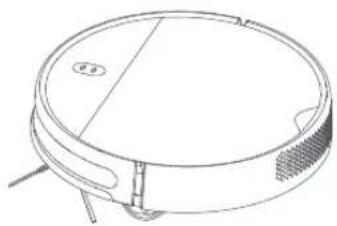
Dry cleaning mode
- Open the lid and fill the reservoir, then close the lid. Install the wet nozzle onto the reservoir "2B1" before using the robot vacuum.
2. Carefully insert the holder for the mop pad into the bottom part of the robot vacuum, as shown in the picture.
3. Turn on the robot vacuum. You can start cleaning with the wet mop.
Note. If you do not insert the holder for the mop pad, only the dry cleaning mode will be used.
Safety rules
- Do not place the docking station for charging in a place where it may be exposed to direct sunlight or heat sources. Keep a distance from walls (at least 0.5 m on the sides and 1.5 m in front).
- If the robot vacuum does not turn on due to low battery level, place it on the docking station to charge. The robot vacuum will automatically turn on during charging.
- The robot vacuum cannot be turned on while it is charging on the docking station. If the robot vacuum is charging and you do not want to use it, remove the mop pad holder.
- Regularly clean the wet nozzle and the reservoir "2B1" to prevent dirt buildup. This will ensure optimal productivity of the robot vacuum. It is strictly forbidden to use hot water or cleaning agents to clean the container with the reservoir and filter. Such actions may cause deformation.
- To prevent water from entering the fan, the container for the wet nozzle with the reservoir and filter must be completely dry before inserting them into the robot vacuum with the wet cleaning function.
- Before cleaning, remove all cables from the floor so that the robot vacuum does not pull them and get tangled.
Turning on/off
Press and hold the button for 3 seconds to turn on the robot vacuum. The indicator will light up white and you will hear a voice notification that the robot vacuum is in standby mode.
To turn off the robot vacuum, press and hold the button "O" when it is stationary. You will hear a voice notification that the robot vacuum is turning off.
Note. The robot vacuum cannot be turned on if the battery is low. If the robot vacuum does not turn on due to low battery, place it on the charging dock to charge.
Start/Stop Cleaning
To start the robot vacuum, press the button, then observe the robot.
To stop cleaning while the robot vacuum is working, press the button.
Note. Do not use the robot vacuum on wet surfaces. If the robot vacuum's battery is low, it may not be able to start cleaning. Follow the charging instructions. If the robot vacuum's battery is low, it will automatically return to the charging dock for charging. When the battery level is sufficient, the robot vacuum will automatically resume cleaning from where it stopped. Before cleaning, remove all obstacles (including power cords and small objects) from the floor. Do not let the robot vacuum get tangled. This may cause a fire hazard or damage to the device or cables.
Start/Stop Charging
Automatic mode: after cleaning, the robot vacuum will automatically return to the charging dock for charging.
Manual mode: press the button to manually send the robot vacuum back to the charging dock for charging.
After returning to the charging dock for charging, the indicator of the robot vacuum will blink red or orange if the battery is low.
After charging, the indicator will turn solid blue when the battery is fully charged.
Note. If the robot vacuum cannot return to the charging dock due to obstacles, check that there is enough space, then place it manually on the charging dock for charging.
Cleaning Mode
By default, the robot vacuum will clean according to the S-shaped pattern and generate a map in real-time mode in the Mi Home/Xiaomi Home app.
Note. Do not move the robot vacuum while it is working, otherwise it may lose its position and affect the map of the surrounding environment, reducing cleaning efficiency.
1. Cleaning
Turn on the cleaning mode by adding water to the tank. The robot vacuum will clean the floors and corners for 30 minutes, then return to the docking station for charging.
- Wet cleaning mode
Using the app, you can schedule the robot vacuum to clean a specific zone on the map. After the wet cleaning mode is turned off, the robot vacuum will automatically return to the set cleaning area with a wet mop of 1 x 1 m.
3. Scheduled cleaning
You can schedule cleaning times in the app. The robot vacuum will automatically start cleaning at the set time, and after finishing, it will return to the docking station for charging.
Adjusting suction power
The vacuum has four suction modes: quiet, standard, powerful, and turbo. The standard mode is set by default.
Adjusting water usage
You can adjust the amount of water used by the robot vacuum during wet cleaning. The available water usage modes are: low (1), medium (2), and high (3). The medium mode (2) is set by default.
Maintenance and care
Recommended cleaning and replacement of parts
1. Remove the dust tank and empty it, as shown in the illustration.
- Remove the sponge from the water tank, then pull it out of the slot. Rinse the sponge, dry it, and then reinstall it. It is recommended to replace the sponge every 3-6 months or when it is visibly worn.
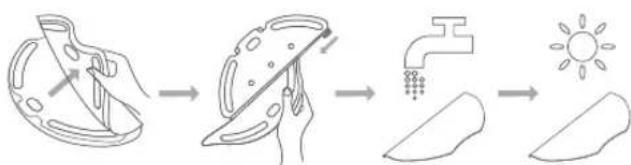
Expand the sponge
Troubleshooting
http://www.mi.com/global/service/support/declaration.html
Detailed electronic user guide can be found at www.mi.com/global/service/userguide
C∈EAC
Product Overview
Vacuum cleaner with mop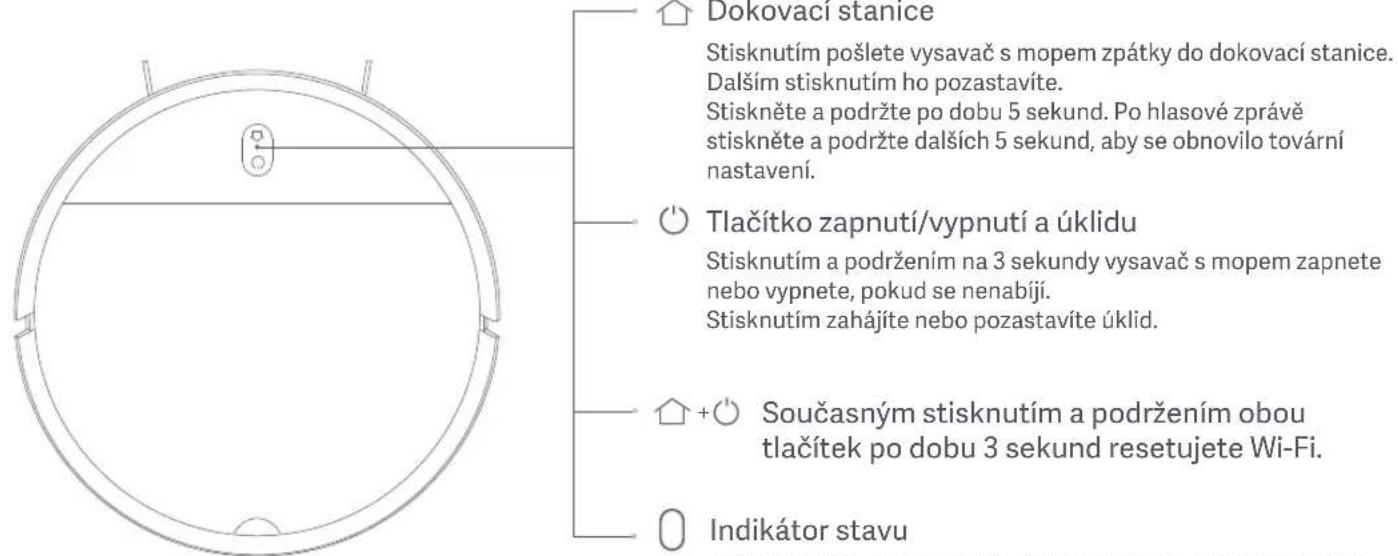
Repair and Wi-Fi connection
- 40°C to -0°C, ...
- 1
- 200
- 1 N
#
Xiaomi Communications Co., Ltd. 2014/53/EU.
http://www.mi.com/global/service/support/declaration.html
http://www.mi.com/global/service/userguide/
C∈EAC


Mi Home/Xiaomi Home
Mi Home/Xiaomi Home*. My Home/Xiaomi Home.

Mi Home/Xiaomi Home "+""
Xiaomi Home (nyn) nn nnnn nn nnnn nn nnnn nn nnnn
Wi-Fi
n-Wi-Fi, n-Wi-Fi, n-Wi-Fi, n-Wi-Fi, n-Wi-Fi, n-Wi-Fi, n-Wi-Fi, n-Wi-Fi, n-Wi-Fi, n-Wi-Fi, n-Wi-Fi, n-Wi-Fi, n-Wi-Fi, n-Wi-Fi, n-Wi-Fi, n-Wi-Fi, n-Wi-Fi, n-Wi-Fi, n-Wi-Fi, n-Wi-Fi, n-Wi-Fi,
Wi-Fi n2.4 GHz mwn
N
nynnnnnnnnnnnnnnnnnnnnnnnnnnnnnnnnnnnnnnnnnnnnnnnnnnnnnnnnnnnnnnnnnnnnnnnnnnnnnnnnnnnnnnnnnnnnnnnnnnnnnnnnnnnnn
#
1. 与
n nn nn nn nn nn nn nn nn nn nn nn nn nn nn nn nn nn nn nn nn nn nn nn nn nn nn nn nn nn nn nn nn nn nn nn nn nn nn nn nn nn nn nn nn nn nn nn nn nn nn nn nn nn nn nn nn nn nn nn nn nn nn nn nn nn nn nn nn nn nn nn nn nn nn nn nn nn nn nn nn nn nn nn nn nn nn nn nn nn nn nn nn nn nn nn nn nn nn nn nn
2.nanbnnpnn
nn nn nnnn nn nn nn nn nn nn nn nn nn nn nn nn nn nn nn nn nn nn nn nn nn nn nn nn nn nn nn nn nn nn nn nn nn nn nn nn nn nn nn nn nn nn nn nn nn nn nn nn nn nn nn nn nn nn nn nn nn nn nn nn nn nn nn nn nn nn nn nn nn nn nn nn nn nn nn nn nn nn nn nn nn nn nn nn nn nn nn nn nn nn nn nn nn nn nn nn nn
N NNNN NNNN NNNN NNNN NNNN NNNN NNNN
Mi Home/Xiaomi Home.
Manufactured by: Xiaomi Communications Co., Ltd.
Address: No.019, floor 9, building 6, yard 33, middle Xierqi Road, Haidian District, Beijing, P. R. China
For further information, please go to www.mi.com
Manufacturer: Xiaomi Communications Co., Ltd.
Address: No.019, 9th Floor, Building 6, 33 Xi'erqi Middle Road, Haidian District, Beijing, China
Manufacturer: Xiaomi Communications Co., Ltd.
Address: No.019, floor 9, building 6, yard 33, middle Xierqi Road, Haidian District, Beijing, China
Address: No.019, floor 9, building 6, yard 33, middle Xierqi Road, Haidian District, Beijing, China
Address: No.019, floor 9, building 6, yard 33, middle Xierqi Road, Haidian District, Beijing, China
Manufacturer: Xiaomi Communications Co., Ltd.
Address: No.019, floor 9, building 6, yard 33, middle Xierqi Road, Haidian District, Beijing, China
To obtain additional information, please visit the website www.mi.com
Manufacturer: Xiaomi Communications Co., Ltd.
Note: No.019, floor 9, building 6, yard 33, middle Xierqi Road, Haidian District, Beijing, China
Producer: Xiaomi Communications Co., Ltd.
Address: No.019, floor 9, building 6, yard 33, middle Xierqi Road, Haidian District, Beijing, China
For more information: www.mi.com
Manufacturer: Xiaomi Communications Co., Ltd.
Address: No.019, floor 9, building 6, yard 33, middle Xierqi Road, Haidian District, Beijing, People's Republic of China
Address: No.019, floor 9, building 6, yard 33, middle Xierqi Road, Haidian District, Beijing, People's Republic of China
For more information, visit www.mi.com
Manufacturer: Xiaomi Communications Co., Ltd.
Address: No.019, floor 9, building 6, yard 33, middle Xierqi Road, Haidian District, Beijing, P. R. China
For more information, please visit the website www.mi.com
Manufactured by: Xiaomi Communications Co., Ltd.
Address: No.019, floor 9, building 6, yard 33, middle Xierqi Road, Haidian District, Beijing, P. R. China
Address: No.019, floor 9, building 6, yard 33, middle Xierqi Road, Haidian District, Beijing, People's Republic of China
Xiaomi Communications Co., Ltd.
No.019, floor 9, building 6, yard 33, middle Xierqi Road, Haidian District, Beijing, China
For more information, visit www.mi.com
- TABLE OF CONTENTS
- SAFETY INFORMATION
- USAGE RESTRICTIONS
- BATTERY AND CHARGING
- PRODUCT OVERVIEW
- CONNECT WITH MI HOME/XIAOMI HOME APP
- RESETTING WI-FI CONNECTION
- RESTORING FACTORY SETTINGS
- HOW TO USE
- BEFORE USE
- CONNECT TO THE POWER SUPPLY
- VACUUMING MODE
- VACUUMING & MOPPING MODE
- PRECAUTIONS
- TURNING ON/OFF
- STARTING/PAUSING CLEANUP
- STARTING/PAUSING DOCKING
- CLEANUP MODES
- EDGE CLEANUP
- SPOT CLEANUP
- SCHEDULED CLEANUP
- ADJUSTING SUCTION POWER
- ADJUSTING WATER OUTPUT
- CARE & MAINTENANCE
- CLEANING THE 2-IN-1 DUST COMPARTMENT WITH WATER TANK
- CLEANING THE BRUSH
- CLEANING THE CLIFF SENSORS
- CLEANING THE SIDE BRUSH
- CLEANING THE MOP PAD
- FAQ
- SPECIFICATIONS
- WEEE INFORMATION
- WELCOME
- CLEANING THE DROP SENSORS
- QUESTIONS AND ANSWERS
- TECHNICAL SPECIFICATIONS
- CLEANING/CHARGING
- STATUS INDICATOR
- DRY CLEANING MODE
- SAFETY RULES
- START/STOP CLEANING
- START/STOP CHARGING
- CLEANING MODE
- ADJUSTING WATER USAGE
- MAINTENANCE AND CARE
- EXPAND THE SPONGE
- REPAIR AND WI-FI CONNECTION
- MI HOME/XIAOMI HOME
- WI-FI
- N
- 与
- NANBNNPNN
Brand : Xiaomi
Model : Mi Robot VacuumMop Essential
Category : Mop