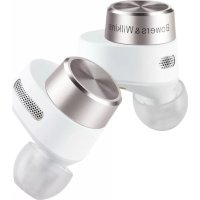
PI5 - Headphones BOWERS & WILKINS - Free user manual and instructions
Find the device manual for free PI5 BOWERS & WILKINS in PDF.



| Product type | True Wireless In-Ear Headphones |
| Brand | Bowers & Wilkins |
| Model | PI5 |
| Weight (per earbud) | 7 g |
| Weight (charging case) | 47 g |
| Battery life (earbuds with ANC) | Up to 4 hours |
| Total battery life with case | Up to 20 hours |
| Battery type | Rechargeable lithium-ion (earbuds and case) |
| Fast charging | 15 minutes for 2 hours of listening |
| Charging case | USB-C and wireless charging |
| Bluetooth connectivity | Bluetooth 5.0 with aptX Adaptive, SBC |
| Bluetooth profiles | A2DP v1.3.1, AVRCP v1.6.1, HFP v1.7.1, HSP v1.2, BLE GATT |
| Active Noise Cancellation (ANC) | Yes, with Adaptive Auto mode |
| Ambient Pass-Through mode | Yes, adjustable (High/Low/Off) via app |
| Wear sensors | Wear detection with auto pause/resume |
| Drivers | Dynamic 9.2 mm driver |
| Frequency response | 10 Hz - 20 kHz |
| Voice assistant | Yes (dedicated button on right earbud) |
| Companion app | Bowers & Wilkins Headphones (iOS/Android) |
| Cleaning and maintenance | Damp cloth, no chemicals |
| Factory reset | Button in case for 5 seconds (red LED) |
Frequently Asked Questions - PI5 BOWERS & WILKINS
User questions about PI5 BOWERS & WILKINS
0 question about this device. Answer the ones you know or ask your own.
Ask a new question about this device
Download the instructions for your Headphones in PDF format for free! Find your manual PI5 - BOWERS & WILKINS and take your electronic device back in hand. On this page are published all the documents necessary for the use of your device. PI5 by BOWERS & WILKINS.
USER MANUAL PI5 BOWERS & WILKINS
Welcome to Bowers & Wilkins and PI5
Thank you for choosing Bowers & Wilkins. When John Bowers first established our company, he did so in the belief that imaginative design, innovative engineering and advanced technology were keys that could unlock the enjoyment of audio in the home.
PI5 is a high performance in-ear headphone designed to deliver the highest quality mobile personal audio experience combined with the convenience of wireless operation and the serenity of noise-cancellation. This manual will tell you everything you need to know to get the most from your PI5 headphones.
Your Pi5 can play music streamed wirelessly from your mobile phone, tablet or computer via Bluetooth. Pi5 can also be used for wireless telephony.
PI5 Real World Listening features include our latest innovations in Noise Cancellation, Ambient Pass-Through and enhanced Wear Sensing technologies. Our latest generation noise cancellation feature was designed from the ground up with intelligent environment sensing capabilities, automatically selecting the appropriate type of noise cancellation best suited to your surrounding environment, its only goal is to deliver an uncompromised listening experience. Ambient Pass-Through enables external sounds, such as conversation or safety announcements, to be heard clearly without any need to remove the headphones. The Wear Sensing feature enables PI5 to respond naturally, pausing and resuming the music simply by lifting either earpiece on or off your ear. These features can be enabled and further customised via the Bowers & Wilkins Headphone App available for free on iOS and Android devices.
PI5 incorporates a rechargeable battery case. When fully charged, depending on the degree of Bluetooth, Noise Cancellation and Ambient Pass-Through use, the battery case can provide up to 20 hours of continuous wireless media streaming with noise cancellation enabled at average playback volume levels.
1. PI5 Carton Contents
PI5 Headphones with Ear Tips (M)
Charging Case
USB-C Charging Cable
Ear Tips (S/L)
Literature Pack
2. Getting to know your PI5
2.1 Switching Headphones On and Off
Switching On/Off
PI5 does not have a power control, instead the power management is automatic. Your PI5 earbuds will automatically charge when placed into the charging case, and will be ready to use when they are removed from the case.
When your earbuds are removed from the charging case, and not used for 5 minutes, they will enter a power saving mode. To exit power saving mode, start using the earbuds again by connecting your paired device, streaming audio or placing the earbuds into your ears.
2.2 Headphone Controls
Each earbud has a Multi-function button located on the top cap of the earbud, see Diagram 1. The Multi-function button controls are as follows:
Media Playback:
Function Action
| Play or pause | Press the Multi-function button once. |
| Play to next track | Press the Multi-function button twice in quick succession. |
| Play previous track | Press the Multi-function button three times in quick succession. |
Phone call functionality:
Function Action
| Answer call | Press the Multi-function button once with incoming call. |
| End call | When incoming call occurs, press the Multi-function button twice in quick succession. |
| Decline an incoming call | Press the Multi-function button twice in quick succession with incoming call. |
3. Intelligent Features
3.1 Noise Cancellation
Noise cancellation is a series of advanced technologies that aids in removing undesired noise from the surrounding environment.
PI5 features our latest innovations in noise cancellation, this includes intelligent sensing that adapts noise cancellation and tuning best suited to your surrounding environment. As your surroundings change, noise cancellation will auto adapt to complement your new environment.
The noise cancellation features is activated by pressing the left (L) earbud Multi-function button for 1 second, additional 1 second presses cycle through the modes: On, Auto or Off. See Diagram 2 for button location.
Mode Application
| On | Removes undesired noise from the surrounding environment. |
| Auto | Intelligently adapts noise cancellation best suited to your current environment. |
| Off Turns off the noise cancellation feature. | |
3.2 Voice Assistance
Voice Assistance is activated by pressing the right (R) earbud Multi-function button for 1 second. See Digram 2 for button location.
3.3 Ambient Pass-Through
PI5 features ambient pass-through which lets some external noise from the surrounding environment, such as safety announcements or conversations, to be heard without taking the headphones off.
Ambient pass-through can be enabled or disabled through Bowers & Wilkins headphone App. The level of ambient pass-through, High/Low/Off, can be adjusted to suite your needs through the App.
3.4 Wear Sensors
PI5 incorporate our latest enhanced wear detection sensors in both earbuds. The sensors enable intelligent battery conservation by entering power saving mode when removed from the ears. When worn again, PI5 automatically wakes and connects to the last connected Bluetooth device.
The sensors will also pause audio when the earbuds are removed from your ears. Playback will auto resume when the earbud is placed back in the ear. Auto resume has been further optimised so it is ready only when you are.
Wear sensor can be turned off from the Bowers & Wilkins Headphone App.
Note: Take special care when wearing your earphones, hair or accessories trapped between your ears and the earbuds may interfere with proximity sensing.
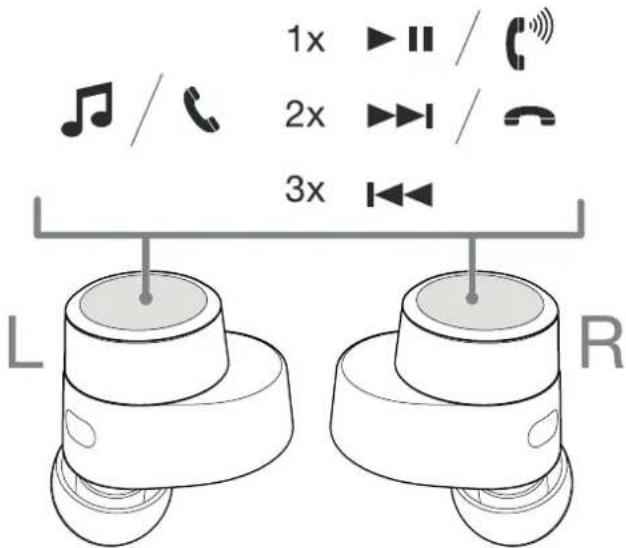
Diagram 1
Multi-function button
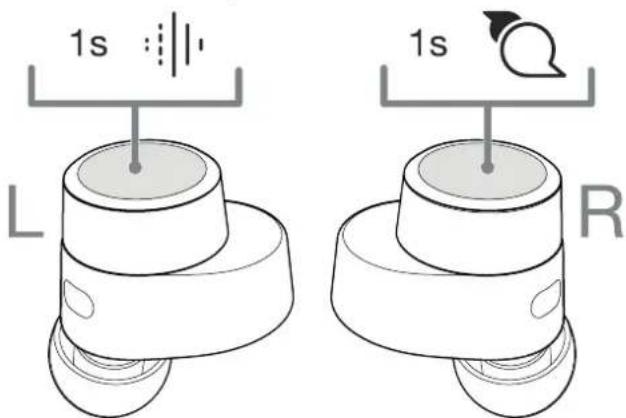
Noise Cancelling Voice Assistant
Diagram 2
Headphone controls
4. Stowing the Earbuds
When not in use, the Pi5 carbuds should be stored inside the charging case where they will be recharged ready for future use.
5. Battery Charging
PI5 ships with the case and earbud batteries partially charged and may be used immediately. For best practice we recommend fully charging the earbuds before first use. Please allow up to 3 hours for full charge.
To charge the P15 earbuds:
- Place the PI5 earbuds in the charging case.
- Close the charging case lid.
To charge the PI5 charging case:
- Use the supplied USB charging cable and connect the USB plug to a USB wall charger or a powered computer USB socket.
- Then connect the USB-C end to the charging case USB-C socket.
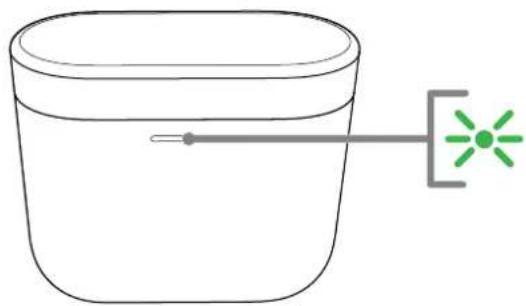
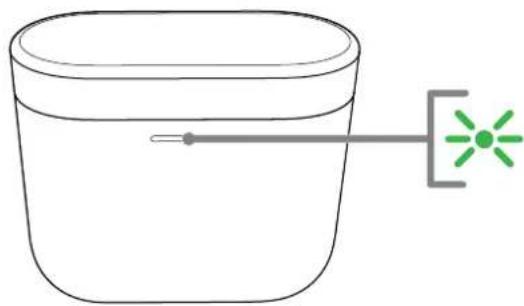
Note: During charging, the case indicator will blink green. When fully charged, the indicator will remain illuminated. The case can be charged with or without the earbuds being housed inside the case.
To charge the PI5 case with a wireless charging station:
- Place the charging case onto a wireless charging station.
- Ensure that the rear of the charging case is on the charging station (with the case indicator facing up).
Note: During charging, the case indicator will blink green. When fully charged, the indicator will remain illuminated.
5.1 Status Indicator
The status indicator is located on the front of the case. When the earbuds are placed in the case the LED provides information about the earbuds. When the earbuds are removed from the case the LED provides information on the charging case. See Diagram 3 for LED states.
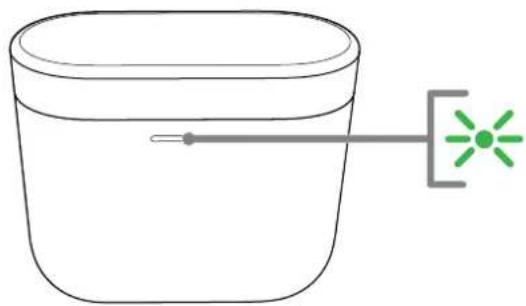
With the earbuds in the charging case
Illumination Operational state
| Green (case lid open) Earbud battery charge > 40% |
| Yellow (after power on) Earbud battery charge >20%, <40% |
| Red (after power on) Earbud battery charge <20% |
| Red (blinking) Earbud factory reset |
| Red (solid) Hardware reset / system crash |
| Blue (blinking) Pairing mode enabled |
| Blue (3 sec solid) Pairing successful |
With the earbuds removed from the charging case
Illumination Operational state
| Green (case lid open) Battery charging > 40% |
| Yellow (after power on) Battery charging >20%, <40% |
| Red (after power on) Battery charging <20% |
| Red (blinking) Factory reset |
| Red (solid) Hardware reset / system crash |
Diagram 3
Status indicator illuminations
6. Bluetooth Connectivity
6.1 Pairing
Your Pi5 earphones are designed to stream music wirelessly from Bluetooth audio devices, such as smartphones, tablets, or computers. To do so, the earphones and device must first be paired.
When you receive your P15 earphones they will be ready to pair to any Bluetooth audio device.
6.1.1 iOS System / Android System without Google FastPair.
- Download the Bowers & Wilkins Headphone App.
- Open the case lid, the case indicator will flash blue.
- Go to the Bluetooth pairing menu of your device and select the "Bowers & Wilkins P15" from the device list.
- The case indicator will change to solid blue to indicate pairing is successful.
- Open the Bowers & Wilkins app and add the headphones.
Note: Your earphones will automatically exit Bluetooth pairing mode if no device is paired within 5 minutes. If pairing fails, the indicator will rapid flash blue, please try pairing again.
6.1.2 Google FastPair (For Android System integrated with GFP Feature)
To add your headphones:
- Place the case no further than 10cm (4 inches) away from Android device (BT enabled) and open the P15 case lid.
- A GFP (Google FastPair) notification window will pop up showing "Bowers & Wilkins PI5 detected" and request to start the pairing process.
- Press "Notification" button on the window to enable the pairing, successful connection will be shown in GFP window.
- Once paired:
GFP window will direct you to the Google Play store to download and Install the Bowers & Wilkins App.
o L/R Earbud and case Battery Level can be seen on the GFP window
6.2 Disconnect from a Device
You can quickly disconnect PI5 from a device by putting the earbuds back to the case. Alternatively, you can manage connection in further detail using the Bowers & Wilkins Headphones app under Connections.
6.3 App features
The Bowers & Wilkins Headphones app provides extended setup and adjustments to features such as Noise Cancellation, Ambient Pass-Through, and Wear Sensors. The app also provides further customisations such as voice prompt, level of ambient pass-through, connection management, and headphones software updates. The app is available as a free download on iOS and Android devices.
To add your headphones:
- From your mobile device, download and install the Bowers & Wilkins Headphones app.
- Launch the app, then read and follow the instructions pertaining app notification and permissions.
- After reaching the main screen, simply tap + and following the in-app instructions.
6.4 Headphone Software Update
Bowers & Wilkins will occasionally make available software updates that refine and optimise the performance of your headphones or add new features.
The Bowers & Wilkins Headphones app will notify you when a software update is available, tap on the notification and follow the in-app instructions.
To pair to a subsequent device. See Diagram 4:
- Open the case lid with the earbuds placed inside the case.
- Press and hold the button inside the case for between 1 and 5 seconds, the case indicator will flash blue.
- Go to the Bluetooth pairing menu of your new device and select the "Bowers & Wilkins Pi5" from the device list.
- The case indicator will change to solid blue to indicate pairing is successful.
PI5 can remember up to 4 paired Bluetooth Devices. Repeat the above steps to pair more devices.
Note: Your earbuds will automatically exit Bluetooth pairing mode if no device is paired within 5 minutes. If pairing fails, the indicator will rapid flash blue, please try pairing again.
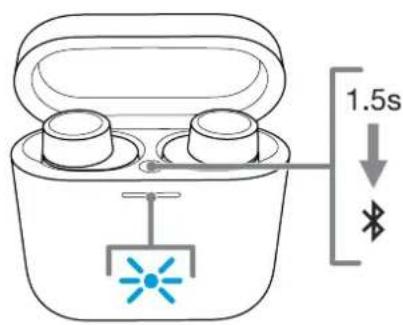
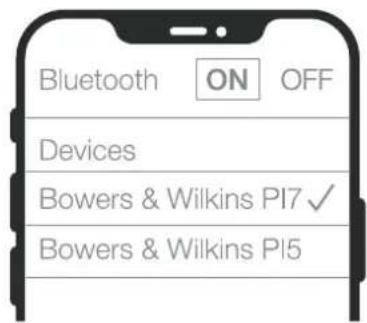
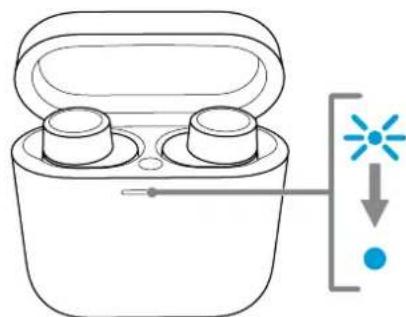
Diagram 4 Bluetooth pairing - subsequent device
7. Wearing Your Headphones
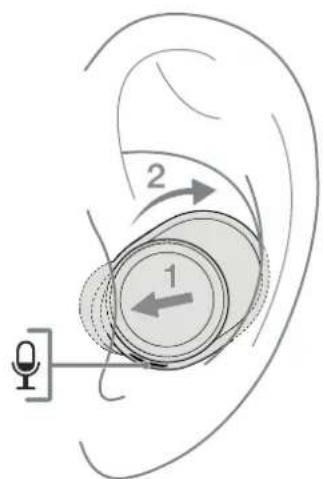
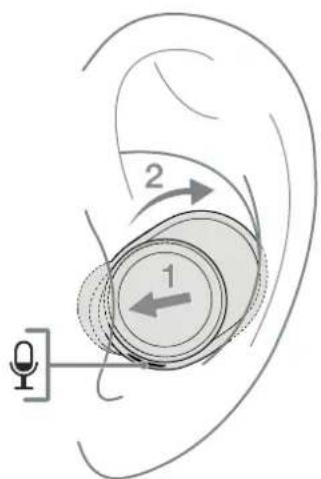
Wearing your headphones correctly will help ensure you get the best possible experience, see Diagram 5. Like many in-ear earphones, PI5 earbuds are designed to seal the ear canal in order to perform optimally. Ear tips come in three sizes (small medium and large). Finding the proper size for your ear is critical to obtaining a good seal and ensure PI5, and the advanced features such as Noise Cancellation, perform optimally.
- Identify the left and right earbud by finding the L and R identification located on the inner side on each earbud.
- Place the earbuds in your ear and twist the ear bud backwards slightly so that the tips engage comfortably with the opening of the ear canal.
- If the earbud tip feels to large or small try another size ear tip to ensure the best possible fit.
Note: To optimise call quality, please ensure the microphone located underneath the earbud is facing outward, see Diagram 5.
8. Reset/Troubleshooting
8.1 Factory Reset
You can clear the paired devise history and restore all setting to their defaults.
To factory reset the earbuds, open the charging case with the earbuds placed inside. Press and hold the button on the inside of the case for 5 seconds and release. The indicator on the case will turn red to indicate the reset.
NOTE: In the case of earbuds are not functioning properly, please perform a factory reset to resolve the issue.
8.2 Hard Reset
To hard reset the earbuds, open the case with the earbuds placed inside. Press and hold the button inside the case for 15 seconds until LED indicator goes off and illuminates in green to indicate completion of hard reset process.
NOTE: For a serious system crash (solid red LED light), please perform a hard reset.
9. Caring For Your Earphones
Your earbuds can be cleaned by a damp cloth and gently dabbing until clean. Do not use cleaning detergents, rubbing alcohol, or chemical cleaners/ polish, doing so may damage your earbuds
10. Service / Support
If you need help troubleshooting a specific problem or simply have a question you would like answered, please initially consult the Headphone support section of the Bowers & Wilkins website: www.bowerswilkins.com.
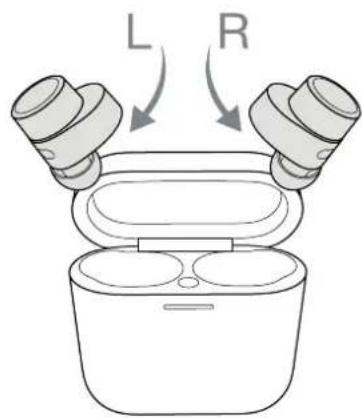
Diagram 5 Wearing your headphones
Specifications
Technical Features True Wireless technology
Bluetooth 5.0 with AptX technology
Auto ANC
Wireless and USB-C charging
Fast charging support
Bluetooth Codes AptX
AAC
SBC
Bluetooth Profiles A2DP v1.3.1
AVRCP v1.6.1
HFPv1.7.1
HSP v1.2
BLE GATT (Generic Attribute Profile)
Frequency Band Tx mode: 2402MHz to 2480MHZ, ISM Band,
Rx mode: 2402MHz to 2480MHz, ISM Band
RF output power < 10.0 dBm
Drive Units 9.2mm Dynamic Drive
Frequency Range 10Hz to 20kHz
Distortion (THD) <0.3% (1kHz/10mW)
Battery Life Up to 4 hours Bluetooth
Charging 15 minute charging = 2 hrs Bluetooth
Inputs Bluetooth
Weight 7g for earbuds, 47g for chargingcase
3.3 Mode Ambient Pass-Through
Distorsion < 0.3% (1 kHz/10 mW)
10. Service / Support
Distorsion (THD) <0'3% (1 kHz/10 mW)
Distortion (THD) <0.3% (1 kHz/10 mW)
Bluetooth-codecs AptX
AAC
SBC
Bluetooth-profielien A2DP y1.3.1
AVRCPv1.6.1
HFP v1.7.1
HSP v1.2
Rispostain frequency 10 Hz-20 kHz
Distorsione (THD) <0,3% (1k Hz/10 mW)
2.3HaKOMCTBOc HayuHnKaMn PI5
2.1 BkIIOueHHe/BoKIOueHHe HayuHKnOB
Bknquehne/8biknoueHne
PI5 HC NMCOT BUKKIOHATCIN, BMCOT 3T0O ynpabnHn HNTAHNEM npONCXOHT ABOMATUHECKn. BAHN HAYHNIKN PI5 ByDyABTOMATHeCKN 3apaxTaBc, KORDA HAXOPDTAR BAPDHOM YXNCn, N BYDy TROTOB K NCIOIIB3OBHHNO, KAK TOIKKO BIK INK BInHBeNE INK XeHNA.
EcnBbN3Bn7eKnHayuHKnN3HeXna H He nCnIb3yEtNkB TcHeHMe 5MHytO, OH AOTOMATNECKN HepEnyJt B pekHM sHepoc6peKeHN. TTo6bblBmN3TOro peKIMa,CHOBA HAHNTE cNIOI3OBAtbHayuHKN,IOJIIOHOH K HMM cONpKaEHKeHcyTOpCTBO,3aYcTMB CTpMnHrA yDINO NnPPOCTO BCTABW HAYuHKN BByU.
2.2 YnpaBHeHne HayuHnKaMn
KaXbHayuHnK UMeet MHOrOFOyHKUHOHaNbHyKOHNY, paONIOJEXEHUYo HA BepxHei KpBuIKe, CM.Diagram 1. MHOrOFOyHKUHOHaNbHaH KaONKa paboTeT cnoDyHMm Obpao30:
Bocnpom3eDeneMe dna:
ФункцнДeиCTBnE
CehocbHadeBaan HabyuHkoB MoXHOOTKIOHTBn npnoxchB Bowcrs & Wilkins Headphone App.
PpMueHne:6yIbTeBHMMaTeBhlipn
NcNl3b08AHm HAYUHMKOB, T.K. BONOCbl NkKAeNC
I5o akcceccyapb I5o ykpaewen, Nnabune
MeXy ABWMM YUAMM HAYUHNKMAM MOYT
NMcWbTa PaOte CCCHCOPOB PnDNNKCHN.
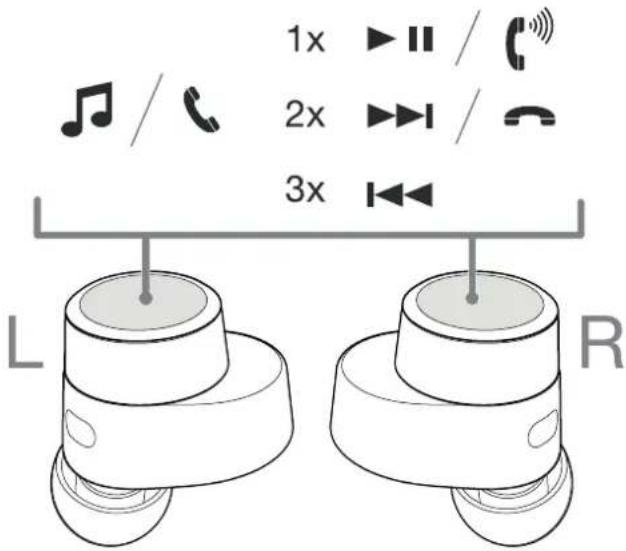
Diagram 1 MhorofyHKUHOHaJIbHRe KHOJa
UymonoabneneIrolocobaoccnteHT
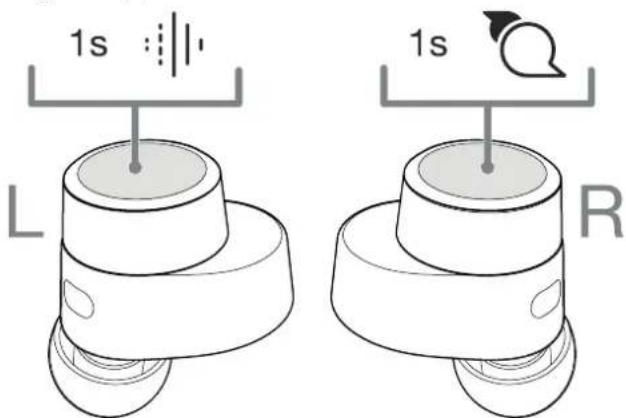
Diagram 2 Oprahbl npabneHn HayshNKOB
4. XpaHeHne HayuHnKOB
KoHa HayuHnK P16 He HcnoHbayIOrch,IX CnOeYET XpAHHTB B3aOH DHom 8xHe, TRe CHN 6yDyT NOJAAHAKATCB N ITOBOVITCH K INCNOHbOBAHINB 6ydyIeM.
5.3apraKaakymyTota
PI5 noCTABnTcR C qACTHNO 3apAKCHbIMN
akyymnyTAPM cXnx HAYuHKoB, MORYt bytB
cpaay xe NcIOB3OaBHb. OJHAKo dHnHuywae
ekCnIyataun Mbl pckOMeHdyem NOHOCThb3apAINb
hayuHKn nepeepnbim nocIb3OaBHcM.
Poxa/nycta, ydenne IM do 3acob nnoHnH
3apAyn
Yro6b3aepnHbHayuHnKn P15:
- PINOXINTE HAYWHNIKI PI5 B3apAHyHexon.
- 3akpoTe KpbuKy 3apnHoro yexna
Yro6b3aepn1b3apnnhnyexonPI5:
- MonnoBnyTe npnnaeMmU USB-KabenbAzaPikn INoJnKIOHMe USB-pa3bEMK HacteHOMy 3aparHOMy yctpoiCTBy USB nNKe KUSB-pa3bemy KOmnboTepe aNTaHMe.
- 3aTeM NOIOKIOHOTe KOHei USB-C kpaBemy USB-C zapdHoro yexha.
PnmeaHBe Boepm3apKINHnKATOp Yxna
bDyET MArTBe ZenEnbIMuBcTOM.PpN pNOHO
3apKne HnKATOp BdyET ropet NoCToHHO.
XeONMOxHO 3APKAtB KAc C HayUHNKAMM,
pa3MeueHHBM BHyTpHr HO, TAK N bEs HIX.
YTO6b3aepnTbapnHbIyexonPi5cnomoubIO 6ecnpoBOnHO3apnHO CTAHIN:
1.YCTAHOBATEaqrjduHyHexoHa6ecnpobdohy aqrjhyctahuHO.
2.Y6oHrTcB,HTOHOHbIKO3aPnHOrHOxHaHXoDITcH HOBepxHOCTnBcnpBOHOH3aPnHO CTAHm (pN aTOM VnDKkATOp dONKeH 6bIb HABcPY).
PIMMUEHb:Bo RDMs zAPRkXn HINDKATOP 8eXnla 6ydt MRTa 3cNtbn 5cTeOM. Pn pNOH 3zAPKxI 3OT I INDKATOp 6ydt 1oTeBIOCTHO
5.1 HdkaTop coCToHm
HnukatopcoTOnHHaPcIOHOHN HnueBbO CTOpOHe YexNa.KoRaHayuHKnHXoAoxoTaON BHytnp YexNa.CBtOuOLED Bbyaet HnΦOPMAuMo O HxK. KOrJa HauuHKn BByHTb3eXyNa.CbetoNODLED BByaet HnΦOPMaMIO O COToTHN 3apJHOrO YexNa. PaUuPpOBKa HnukaiuMnpBvEHaB Diagram 3.
KordaHayuHnKn HxOaTcR B3apAHHoYxJIe
CbeueHne HndkaTopa CoToHHne
7. Ka npabunbHO Hocntb Haywnk
PpabHbHOe HOeHne HuyuHKnOB HMOKcET BAM NOyHTb HauHUnne BnHeaTHNeO TnpocUyBnBaHn, CM.Diagram 5.KakMHOHe HuyuHKnBnKbAunu, BCTAHBe HauHUNK P15 uNoIb3yOHT repMeTna3uaQIO cnOxyBOcO KaHAn DnOTmAbHoN paoTo. YuHHe HAKoEHnKb6BAoBt Tpex paMaPeOB (MaHEbKe, cpeJeHn60BuH) Nocck NoXIOJouero Pa3Mepe Da BaWero yxa Meet pewakoee shaHene DnOnyeHNx Xopawero npnererHaN aByaHn Pi5, a Takke dno ONTmAbHoN paBoTa paCuipeHHbx FyHKn,TAKNX KAK WymOnoDaBHeHne.
- OpeIeIeIeIeIeIeIeIeIeIeIeIeIeIeIeIeIeIeIeIeIeIeIeIeIeIeIeIeIeIeIeIeIeIeIeIeIeIeIeIeIeIeIeIeIeIeIeIeIeIeI e I R, paonoloeHbE Ha BYTeHne I cTOPOHe KAKDO HAYWHKa.
- BToBbTe HAYuHnKIN ByuN nCnerKa NoepHnTe N HAaD, YTObI KOHmN yOoHo cOpnPKacAnCb C TOBcPemMeYUHO KAHana.
3.EcHn HAKoHeVHnK HAYuHnKa KaxetcCnUHKOM 60bnHMn HnKbHMn, nonpObye Tpyorin pAsMep,TObbl ObceHnBnHaHlyuYo nocaQy.
PnMCHHNC:IINOTNMM3aunKcOCTBa TneFONHHbXOBHKOByDteTec, YTO MKNPOpon, paoonnoenHbHIO NOHuyuHkOM, Opauen Hapxy, CM.Diagram 5.
8.C6poc/Yctpaehne HenoJaoK
8.1 C6poc K 3aBoDcKIM HAcTppoKaM
BbMoXeTeOCHNTB MCTOPNCOPNPAXENHYCTPOICTB NBOCTaHOBTB BCE HAcTPOKN NOYMONAHNO.
T06bcbpocntb3abOcKHe HactpoKn HauHnKOB,OTpkOHTeXeONI3ap4nKcHauHnKAMM,NOMUeHHBMN BYHTy. HAKmNTe N ydpxBaTeHNKOny HA BHYTpEHHe CTOpOHe KOpTyCaB TEHeHMe5 cekHy n 3aTeAT ONyCTtne.VHnKAtOP Ha KopnyCe3aOpRTC KpaChbMy, YkazBBAH cbpc.
PIMMEAHHE: Bcnyac, ccm hayuHnKHe nyHKUHOUYOT npBmblno, noXaNyCTa, BbONNHTE cbpoc K sABODCKM HAcTPOKaM, YTOsbI pCunl npObnemy.
8.2 XecTkni c6poc
TObBbHINHbXeCTKnCBPOc HAYHHKOB,
OTpkOteHcxonC HAYHHKAMN, NOMeHHBIMN BHYTpB.
HAXMNTuYdEKPbVAHc KHOXYBHTPnKOPyCaB
TeHeMe 15 CekyI, NOKa cBeIOIOHb HIIpKaTO
He IoracHET He aOpITc HIOBb ZeHehBM UeOtOM,
yksBaBa HA ZaepseHne Pnpccsca XeKTOKo CBOpa.
PVPMEYAHME: Pnp cepbeshom c6oe chctembl (NOCTOHRHPORPTBCHCBETQHOJ) NOXJIYMACT, BANIOHNHTE XECTMN C6OC.
9.YxOa 3a HayuHnKamn
BauH HauHHKMOXHOIPOTNAPbBnAKHO TKBHIO
N AKKyPATHO NpOMOKHYB,TO TEX NOP, NOKA CHN H
CTAHY CTHMB. He NcNOs3yHTcHCTUe CpcDCTBA/
CnPTJ NpOTnAPaHIN HA XMMHECKNE YCHTAHue/
NONpyKOHNcPcDCTBA -B PNOTNBHM ONUHAC ETO
MOXETPNBCCTKNOBPCXCHMHOHAYHVKOB.
10. CepBnc / PoiDpepKka
EcnBAMHyKHaNOMOuB a ycTpAHeHmN KOHKeTHoH npoBneMbI Nn pnoCTo y Bac cTb Bonpoc, Ha KToOpBbl BxOTeNsbl NoNTy-OBET, NOXAnyCTa, Chauana opaHTeCb kPasdyNoNDepkKn HayUHKnOB H Be6-CaIte Bowers & Wilkins: www.bowerswilkins.com.

Diagram 5 HoweHne HuyuHkoB
TexHueckne xapakTepcntKu
DocnHCTBa TexHONrMa True Wireless - noHHo 6ecippoBHOa
Texholorn Bluoteoh 5.0 c AptXAdaptive
LMymonoabnene-Auto ANC
3apKa 6ecnpoBnHa n cepes USB-C
NoepKa 6bictpo3apKn
BluetoothkoJeknAptX
AAC
SBC
Bluetooth npopwnu A2DPv1.3.1
AVRCPv1.6.1
HFP v1.7.1
HSPv1.2
BLE GATT (Generic Attribute Profile)
Dnana3OHaCToT CBA3N Tx pexm: 2402Mf-2480 Mf, ISM Band
Rx pexm: 2402 M u - 2480 M u, ISM Band
BbIXoHnAR MoUHOCr RF<10.0dBm
INHAMMKN 9.2-MMINHAMMK
DnanaohyactOT 10T-20K
MckaeHH(THD)<0.3%(1KΓ/10MBT)
BpempaobtoTtakKymyIaTopa 4acobc Bluetooth
Pn3apKa 15MH. sapaKu = 2aaca C Bluetooth
BxObl Bluetcoth,USB-C
PpnilaraembleaekceccaybI
Ka6eBb 20cm USB-C -USB-C
Bec
7rHayuHnK,47r3apnHbYexo
KaIomegaopioaTe Otnv Bowers & Wilkins kal to PI5
Zac euxapiotoue nou eunaleate tnv Bowers & Wilkins. O John Bowers 18puo Tnv etaipia mac me tnv nioiOnn otI n eufavtaoTn oxediaon, n kaivotoia oTnv avantuEeKai n EeAlymuevn TeXvoLoyia Ta nTav ta KLeiDi aou tha avoiay vouc kOouc anolauongtou nou oTo onti.
Illumination Operational state
Bluetooth 5.0, AptX Adaptive technological
Auto ANC
Vezetek nelkuli es USB-C toltes
Gyors totes tamogatas
Bluetooth kodekek AptX
AAC
SBC
Bluetooth profilok A2DP v1.3.1
AVRCPv1.6.1
HFP v1.7.1
HSP v1.2
BLE GATT (Generic Attribute Profile)
Frekyencia sáy Tx mód: 2402MHz - 480MHZ, ISM sáy
Rx mód: 2402MHz - 2480MHz, ISM sav
RF kimeno teljesitmeny < 10.0 dBm
Fast charging support
Kodeki Bluetooth AptX
AAC
SBC
Profile Bluetooth A2DP v1.3.1
AVRCPv1.6.1
HFP v1.7.1
HSP v1.2
BLE GATT (Generic Attribute Profile)
Bowers & Wilkins's PI5 to Manu Boree
| 재生育과 힘사 ster지 | 일다 기재 썸류를 편본에 고려는다. | |
| 다울만 썸產生 | 일다 기재 썸류를 편abile ethylene ethylene ethylene ethylene ethylene ethylene ethylene ethylene ethylene ethylene ethylene ethylene ethylene ethylene ethylene ethylene ethylene ethylene ethylene ethylene ethylene ethylene ethylene ethylene ethylene ethylene ethylene ethylene ethylene ethylene ethylene ethylene ethylene ethylene ethylene ethylene ethylene ethylene ethylene ethylene ethylene ethylene ethylene ethylene ethylene ethylene ethylene ethylene ethylene ethylene ylene ethylene ethylene ethylene ethylene ethylene ethylene ethylene ethylene ethylene ethylene ethylene ethylene ethylene ethylene ethylene ethylene ethylene ethylene ethylene ethylene ethylene ethylene ethylene ethylene ethylene ethylene ethylene ethylene ethylene ethylene ethylene ethylene ethylene ethylene ethylene ethylene ethylene ethylene ethylene ethylene ethylene ethylene ethylene ethylene ethylene ethylene ethylene ethylene ethylene 乙烯 乙烯 乙烯 乙烯 乙烯 乙烯 乙烯 乙烯 乙烯 乙烯 乙烯 乙烯 乙烯 乙烯 乙烯 乙烯 乙烯 乙烯 乙烯 乙烯 乙烯 乙烯 乙烯 乙烯 乙烯 乙烯 乙烯 乙烯 乙烯 乙烯 乙烯 乙烯 乙烯 乙烯 乙烯 乙烯 乙烯 乙烯 乙烯 乙烯 乙烯 乙烯 乙烯 乙烯 乙烯 乙烯 乙烯 乙烯 乙烯 乙烯 乙烯 乙烯 乙烯 乙烯 乙烯 乙烯 乙烯 乙烯 乙烯 乙烯 乙烯 乙烯 乙烯 乙烯 乙烯 | 일다 기재 썸류를 편abile ethylene ethylene ethylene ethylene ethylene ethylene ethylene ethylene ethylene ethylene ethylene ethylene ethylene ethylene ethylene ethylene ethylene ethylene ethylene ethylene ethylene ethylene ethylene ethylene ethylene ethylene ethylene ethylene ethylene ethylene ethylene ethylene ethylene ethylene ethylene ethylene ethylene ethylene ethylene ethylene ethylene ethylene 乙烯 乙烯 乙烯 乙烯 乙烯 乙烯 乙烯 乙烯 乙烯 乙烯 乙烯 乙烯 乙烯 乙烯 乙烯 乙烯 乙烯 乙烯 乙烯 乙烯 乙烯 乙烯 乙烯 乙烯 乙烯 乙烯 乙烯 乙烯 乙烯 乙烯 乙烯 乙烯 乙烯 乙烯 乙烯 乙烯 乙烯 乙烯 乙烯 乙烯 乙烯 乙烯 乙烯 乙烯 乙烯 乙烯 乙烯 乙烯 乙烯 ethylene ethylene ethylene ethylene ethylene ethylene ethylene ethylene ethylene ethylene ethylene ethylene ethylene ethylene ethylene ethylene ethylene ethylene ethylene ethylene ethylene ethylene ethylene ethylene ethylene ethylene ethylene ethylene ethylene ethylene ethylene ethylene ethylene ethylene ethylene ethylene ethylene ethylene ethylene ethylene ethylene ethylene ethylene ethylene ethylene ethylene ethylene ethylene ethylene ethylene 乙烯 乙烯 乙烯 乙烯 乙烯 乙烯 乙烯 乙烯 乙烯 乙烯 乙烯 乙烯 乙烯 乙烯 乙烯 乙烯 乙烯 乙烯 乙烯 乙烯 乙烯 乙烯 乙烯 乙烯 乙烯 乙烯 乙烯 乙烯 乙烯 乙烯 乙烯 乙烯 乙烯 乙烯 乙烯 乙烯 乙烯 乙烯 乙烯 乙烯 乙烯 乙烯 乙烯 乙烯 乙烯 乙烯 乙烯 乙烯 乙烯 ethylene |
粤
吉
| ON | 주본 힘공지에목지에목상품을 체러 기재다. |
| AUTO | CTX주본 힘공지에목지 썸작etic의고이지 체러 기재다. |
| OFF NO OH SH SH SH SH SH SH SH SH SH SH SH SH SH SH SH SH SH SH SH SH SH SH SH SH SH SH SH SH SH SH SH SH SH SH SH SH SH SH SH SH SH SH SH SH SH SH SH SH SH SH CH SH SH SH SH SH SH SH SH SH SH SH SH SH SH SH SH SH SH SH SH SH SH SH SH SH SH SH SH SH SH SH SH SH SH SH SH SH SH SH SH SH SH SH SH SH SH SH SH SH Sh SH SH SH SH SH SH SH SH SH SH SH SH SH SH SH SH SH SH SH SH SH SH SH SH SH SH SH SH SH SH SH SH SH SH SH SH SH SH SH SH SH SH SH SH SH SH SH SH SH S SH SH SH SH SH SH SH SH SH SH SH SH SH SH SH SH SH SH SH SH SH SH SH SH SH SH SH SH SH SH SH SH SH SH SH SH SH SH SH SH SH SH SH SH SH SH SH SH SH SM SH SH SH SH SH SH SH SH SH SH SH SH SH SH SH SH SH SH SH SH SH SH SH SH SH SH SH SH SH SH SH SH SH SH SH SH SH SH SH SH SH SH SH SH SH SH SH SH SH SC SH SH SH SH SH SH SH SH SH SH SH SH SH SH SH SH SH SH SH SH SH SH SH SH SH SH SH SH SH SH SH SH SH SH SH SH SH SH SH SH SH SH SH SH SH SH SH SH SH SF SF SF SF SF SF SF SF SF SF SF SF SF SF SF SF SF SF SF SF SF SF SF SF SF SF SF SF SF SF SF SF SF SF SF SF SF SF SF SF SF SF SF SF SF SF SF SF SF SF S SF SF SF SF SF SF SF SF SF SF SF SF SF SF SF SF SF SF SF SF SF SF SF SF SF SF SF SF SF SF SF SF SF SF SF SF SF SF SF SF SF SF SF SF SF SF SF SF SF SF S SF SF SF SF SF SF SF SF SF SF SF SF SF SF SF SF SF SF SF SF SF SF SF SF SF SF SF SF SF SF SF SF SF SF SF SF SF SF SF SF SF SF SF SF SF SF SF SF SF |
3.2 01A 01N
奉:聖言,聖言,聖言,聖言,聖言,聖言,聖言,聖言,聖言,聖言,聖言,聖言,聖言,聖言,聖言,聖言,聖言,聖言,聖言,聖言,聖言,聖言,聖言,聖言,聖言,聖言,聖言,聖言,聖言,聖言,聖言,聖言,聖言,聖言,
5.1.1.1
鑫首KIISS的上T 10000000000000000000000000000000000000000000000000000000000000000000000000000
1000
图
True Wireless technology
Bluetooth 5.0 with AptX technology
Auto ANC
Wireless/USB-C
今
AAC
SBC
A2DPv1.3
AVRCP v1.6.1
HFPv1.7.1
HSPv1.2
BLE GATT (Generic Attribute Profile)
李全口 2402MHz to 2480MHZ, ISM Band.
Rx 2402MHz to 2480MHz, ISM Band
RF 馮駅 10.0 dBm
迪拉伊德异9.2mm Dynamic Drive
孕卡多费10Hzto20kHz
THD<0.3%(1kHz/10mW)
田T
15
同
早20137g,