
TH388688 - Hi-Fi System THOMSON - Free user manual and instructions
Find the device manual for free TH388688 THOMSON in PDF.
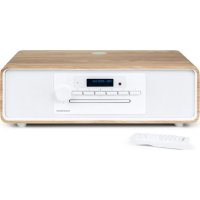



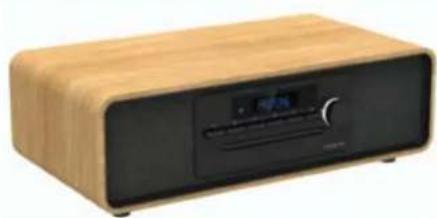
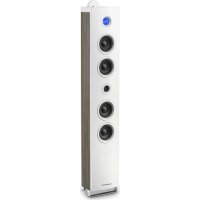
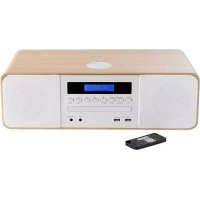
| Product Type | Hi-Fi System |
| Brand | Thomson |
| Model | TH388688 |
| Dimensions (W x H x D) | 430 x 220 x 135 mm |
| Power Supply | 100-230 V, 50/60 Hz |
| Power Consumption (standby) | 0.6 W |
| RMS Output Power | 10 W (2 x 5 W) |
| Peak Power | 30 W |
| Speaker Type | 3" (5 W) full-range x 2 |
| Speaker Impedance | 4 Ω |
| Frequency Response | 60 Hz - 20 kHz |
| Signal-to-Noise Ratio | ≥ 80 dB |
| Harmonic Distortion | < 1 % |
| Connectivity | Bluetooth 5.0, USB, AUX, RCA, DAB+, FM |
| Main Functions | CD player, DAB/FM radio, Bluetooth, USB, 10 W wireless charging, USB charging port 5V/1A |
| Remote Control | Yes |
| Wireless Charging | Yes (10 W) |
| Display | LCD |
| Antenna | Telescopic (FM/DAB) |
| Safety | Class 1 laser, auto shut-off, automatic standby |
| Care and Cleaning | Soft cloth, no abrasive cleaners |
| Spare Parts and Repairability | Contact Bigben Interactive technical support |
| General Information | Manufacturer: Bigben Interactive, 2-year warranty, Made in China |
Frequently Asked Questions - TH388688 THOMSON
User questions about TH388688 THOMSON
0 question about this device. Answer the ones you know or ask your own.
Ask a new question about this device
Download the instructions for your Hi-Fi System in PDF format for free! Find your manual TH388688 - THOMSON and take your electronic device back in hand. On this page are published all the documents necessary for the use of your device. TH388688 by THOMSON.
USER MANUAL TH388688 THOMSON
CLASS 1 LASER PRODUCT
CLASS 1 LASER PRODUCT
This product contains a low power laser device
CAUTION: INVISIBLE LASER RADIATION WHEN OPEN AND INTERLOCKS DEFEATED. AVOID EXPOSURE TO BEAM.

BELGIUM, customerservice@bigben-interactive.be
NETHERLANDS, customerservice@bigben-interactive.nl
SPAIN, soporte@meltronic.com
Tel: 937132625
ITALY, tecnico@metronic.com
Tel: 0294943691
www.bigben.eu
THOMSON
EN
MIC300IDABBT
MIC301IDABBT
CD / BLUETOOTH / FM / USB INPUT /
AUDIO/DAB
USER GUIDE
PLEASE READ THIS USER GUIDE CAREFULLY
| Getting started 22 | Use | 30 |
| Warnings and safety instructions 22 | Warning about batteries 37 | |
| What's in the box 25 | Technical specifications | 38 |
| Description of parts 25 | Protecting the environment | 39 |
| Remote control 28 | Additional information | 39 |
| Before starting 29 | Declaration of compliance | 40 |
Getting started
Take the device out of the box. Remove all the packaging from the product. Place the packaging inside the box or dispose of it safely in compliance with the waste sorting instructions shown on the outside.
Safety warning and notice
You must read and understand all the instructions before using this device. The warranty will not apply if damage is caused by failure to follow the instructions.
- Never remove the device casing.
- Never place this device on top of other electrical equipment.
- Protect the power cable from being stepped on or pinched, particularly at the plugs, sockets, and the point where it exits the device. Make sure that the power rating corresponds to the voltage shown on the rating plate at the rear of the device. Always pull the plug from the socket when disconnecting from the mains. Never pull on the cable. Ensure you have completed all the other connections before connecting the mains plug.
- Only use attachments/accessories that are recommended by the manufacturer.
- Entrust all device repairs to qualified repairers. Repair is needed when the device has been damaged in any fashion, and in particular:
- if the power cable is damaged;
- in the event of a liquid spill or objects being inserted into the device;
- if the device is exposed to rain or dampness;
- if the device does not operate normally;
or if the device has been dropped or impacted.
- The series panel is located on the bottom of the device.
- Never block the air vents.
- Make sure you have enough space for ventilation. Place the product on a stable surface.
- This device must be used in a moderate climate, away from direct sunlight, naked flames or sources of heat, heaters, cookers or any other devices (including amplifiers) that generate heat. Do not install near a heat source.
- The batteries (battery pack or inserted batteries) must not be exposed to excessive heat, such as sunshine, fire, etc.
- Always unplug the device before cleaning it. Never lubricate any part of this device. Clean it using a soft cloth. Do not use abrasive products or harsh cleaners.
- Ensure that you always have easy access to the power cable, plug or adapter to disconnect this device from the mains if necessary.
- Do not use this device near water. It must not be dripped on or splashed. Do not use this device in a damp or wet environment.
- Disconnect this device in the event of a storm, or if you intend not to use it for a long period of time.
- This device can be used by children aged 8 and over, and by persons with a physical or sensory disability, learning difficulties or a lack of experience and knowledge, provided they are supervised or have received instructions on the safe use of the device, and understand the risks involved. Children must not play with the device or power cable (risk of strangulation). Children must not clean or maintain the device without supervision.
- This device must only be supplied with very low safety voltage as indicated on the device.
- The battery should be removed from the device before disposal. The device must be disconnected from the power supply when removing the battery.
- The product must be at a minimal distance of 20 cm from the human body when working.
- Risk of suffocation: Small parts are not intended for children under 3 years old or for people with a tendency to put inedible objects in their mouths.
- This device is for household use only; do not use outdoors.

WARNING:
Class 1 Laser Product
CLASS 1 LASER PRODUCT
CLASS 1 LASER PRODUCT APPAREIL LASER DE CLASSES 1 PRODUCTO LASER DE CLASSES 1
This product contains a low power laser device
CAUTION: INVISIBLE LASER RADIATION WHEN OPEN AND INTERLOCKS DEFEATED. AVOID EXPOSURE TO BEAM.

Warning: do not touch the laser lens.
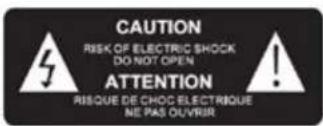

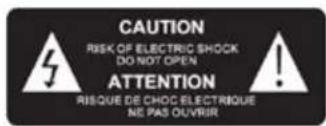
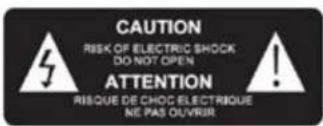
The lightning bolt symbol within an equilateral triangle alerts users to the presence of dangerous uninsulated voltages inside the device that may present a risk of electric shock.

The exclamation mark inside a triangle indicates the presence of important operating and maintenance (repair) instructions in the literature accompanying the device.
| Class II material | |
| Direct current | |
| Alternating current | |
| For Indoor use only |
Package contents
Check and identify the contents of your box:
- Main appliance, Remote control, AUX cable
- User manual
Description of parts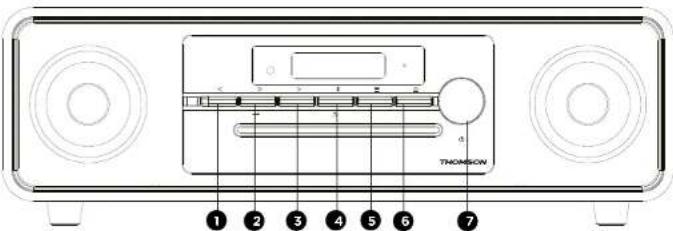
Controls
- < Previous
- Play → Input
- Next
- Bluetooth search
- Mode
- Stop CD/Eject CD
- Volume adjustment
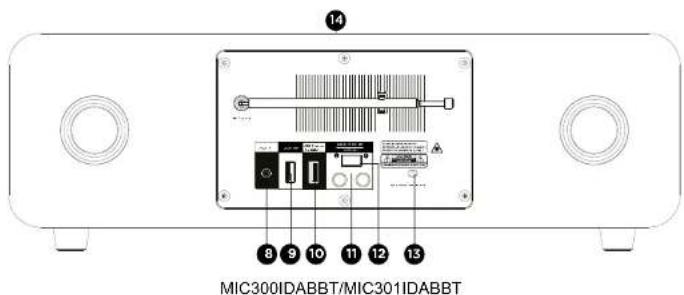
Input/Output
- Aux-in port
- USB reading port
- USB charging port 11. RCA output
- Speaker ON/OFF switch (to stop music from the built-in speaker of this product when you connect the AC output cable to an external audio amplifier).
- Mains charger
- Wireless charging
Control functions
- "<" button:
- Press and hold the button to fast rewind the track.
- Briefly press to return to the previous track.
- Go back through the saved radio stations in FM mode.
- Decrease the hours/minutes in the alarm/clock setting mode.
- “▶” and “→” buttons: Play/Enter
- Press once to start playback in Bluetooth, USB and CD mode.
- In FM mode, press and hold > for 2 seconds for the automatic FM search.
- In DAB mode, press and hold the button to launch the automatic DAB search.
- Press Enter to set the clock in standby mode.
- Press Enter for the FM or DAB menu settings.
- Next
- Press and hold the button to fast forward through the track.
- Briefly press to go to the next track.
- Switch to the next preset radio station in FM mode.
- Increase the number of hours or minutes in clock setting mode.
- " button: Return to the previous page in the settings menu.
- Use the "BT search" button to force the device search mode.
- "≡" button: Change the entry above.
- Press to open the clock/alarm settings mode in standby mode.
- Stop CD/Eject CD: Press once to stop CD playback.
- Press twice to eject the CD.
- Rotation: Press to turn the device on/off, turn to increase or decrease the audio volume.
Remote control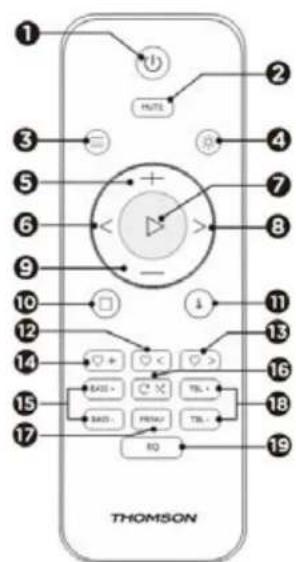
Remote control functions:
- ON/OFF
- Mute
- Mode
- Brightness dimmer
- Volume +
- Back (Previous track)
- Play/Pause/Enter
- Next (Next track)
- Volume
- Stop
- Info
- Previous saved station
- Next saved station
- Save current station
- Low +/-
- Repeat/Shuffle
- Menu
- Treble +/- (adjust the treble)
- Equaliser
Before starting
Position the device where you want it. Insert the plug into the electrical outlet and switch it on if necessary.
Mains power supply of the device: 230V 50Hz
Insert the mains plug into the wall socket (230 V).
Warning:
Before using the unit, check that the power supply is compatible with the 230V (50 Hz) rating of the unit. Do not plug or unplug the power cord with wet hands. When you are planning not to use the appliance for a prolonged period (holiday, etc.), disconnect the plug from the mains outlet. When you disconnect the plug from the power outlet, hold the end of the plug; do not pull on the cord to avoid electric shocks caused by the damaged cable.
Automatic standby
- When you are playing audio from a connected accessory, the micro sound system automatically goes into standby mode if:
- you don't press any buttons for 10 minutes; the connected accessory has not sent any audio data for 10 minutes.
Operation
- Press the POWER button to turn the device ON or OFF.
Adjust the volume with the remote control
- Press Volume + to increase the volume, press Volume - to lower the volume.
- Check the screen display, which should confirm the volume adjustment.
Mute function
- Press the MUTE button on the remote control. The volume is muted and the word "Mute" appears on the LCD screen. Press this button again to cancel the mute function.
Set the clock (in standby mode)
- Press once to "SET CLOCK", press to confirm and the "24H" symbol will flash.
- Press < or > to choose the 24hr or 12hr format, then press > to confirm.
- Press < or > to set the current time, press > to confirm and the minutes will flash.
- Press < or > to set the current minutes, press ▶ to confirm, and "SAVE YES" will flash.
- Press to save the time setting.
Set the alarm (in Standby mode)
- Once you have set the clock, you can set the alarm.
- "Alarm Setup" is displayed. Press the "▶" button to make your choice.
- Press < or > to set the current time, press > to confirm and the minutes will flash.
- Press < or > to set the current minutes and press > to confirm.
- Press < / > to adjust the alarm volume.
- Press < / > to select the alarm source (buzzer, DAB, FM, CD, USB) and press
- Press < / > to adjust the alarm duration. You can choose between 15, 30, 45 and 60 minutes. Press to confirm.
- Press < / > to save the alarm settings.
Use
DAB radio mode
Carefully deploy the telescopic aerial.
Press the POWER button to turn on the device, which will automatically switch to DAB mode.
Automatic search
- Press the ≡ button to select "DAB MODE" (if the device is not already in DAB mode). If this is the first time the device has been set to DAB mode, it will automatically begin an automatic search for available stations. (Once DAB mode has been used, the device will automatically select the station you were listening to before)
- Press the ▶| button to start the automatic search to find available stations. During the search, a progress bar will be displayed to indicate how the process is progressing.

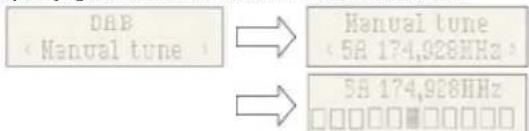
Manual search
- Press the ≡ button on the device to select "DAB MODE".
- Press the < or > button to select "Manual tune" and press the >| button to enter the service menu.
- Press < or > to select the station you want. The signal strength will be displayed.
- Press MENU to exit the search
- If no stations are found, make sure that the aerial is fully extended and test the reception by carrying out another automatic search in a different location.
DRC (Dynamic Range Control) function
DRC or Dynamic Range Control is a technology used to hear quiet sounds more clearly in a noisy environment.
- In DAB mode, press the < or > button to select "DRC". Press the >| button to display "..." at the top right of the screen.
- Press MENU to confirm this setting. The display will return to normal. DRC OFF - The DRC function is disabled, DRC processing will not take place. DRC LOW - The DRC level is set at half the output level. DRC HIGH - The DRC level is set at the full output level.
Prune (Cleaning, to remove the stations that are listed but no longer available)
In DAB mode, press < or > to display the "Prune" (cleaning) sub-menu. Press the ▶ / → button to choose the "Prune" (Cleaning) option.

System (DAB)
In DAB mode, press < or > to display the "System" sub-menu. Press the → button to enter the system settings sub-menu.
Language
Press → to browse the language selection; the default language is English; an * will appear on the selected language display.
Users can choose between "English", "Deutsch", "Italiano", "Français", "Nederlands", "Espanol", "Polski"

Factory Reset
Press → to restore default settings. If you want to perform a reset, press < or > to display "YES", then confirm. Your radio will be completely reset. All the presets and station lists will be erased.

SW Version (View the software version of the device)
Press → to view the software version of the DAB device. Press Menu or < . The display will return to normal. If no operation is undertaken, the display will return to normal after 30 seconds.

Preset
- Preset reminder
In DAB mode, press the + button. The "Preset reminder" symbol will appear, then you can press < / ~> to select the station stored in the preset memory. Press → to confirm this station. Please note: If you do not have any preset stations and press the preset button, "Empty preset" will appear on the screen.

- Storing preset stations
You can store your favourite DAB stations in the station preset memory. There are 50 presets in the radio's memory. The presets are stored in the radio in the event of a power cut.
The process for storing presets and using them to choose your stations is the same as in DAB mode: In DAB mode, select the required frequency range. Press < or > to choose the required station as mentioned previously. Press and hold + to choose the number of the required preset list, in which the station will be stored. Press > to confirm.

FM radio
Carefully extend the telescopic aerial to its full extent to get the best position.
For the FM version, please ensure that the Aerial cable is unwound and released to its full length.
Automatic search
- Press the button to select FM mode.
- Press and hold the ▸ button. The radio will scan the frequencies and stop automatically when it finds a station with a strong enough signal.
- The display updates after a few seconds. The screen shows the frequency of the station. If the signal is strong enough and the station signal contains RDS data, the radio name will be displayed.
- To find other stations, press and hold the ▸ button as before.
- To scan the FM band in reverse (high frequencies to low frequencies), press and hold the > button for 2 seconds.
- Once the end of the frequency range is reached, the device begins searching for frequencies again, starting from the other end of the range.
- Press + to display the preset radio stations
- Press < /> (on the main unit) or < /> (on the remote control) to select the stored station and start listening.

Manual search
- Press < or > (on the remote control) to choose the station. Every time you press the frequency adjustment button, the frequency increases or reduces by 50 kHz.
- Once you find a station you want to store, press and hold the + button and the store preset station symbol and station number will appear on the screen. Press < or > to choose the station and press ▸ to confirm and store the current station.
- Press + to display and listen to the radio station.
- Press < or > to choose the preset station to listen to the radio.
Menu
Search settings
In FM mode, press MENU, go to the FM settings menu, then press < / > to choose the station search settings, and press Enter to choose the sensitivity setting:
- All stations: ~15 dB

- Strong signal stations only: ~19 dB
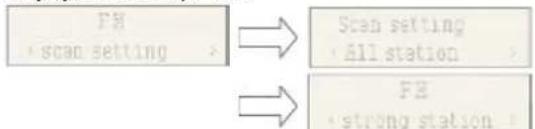
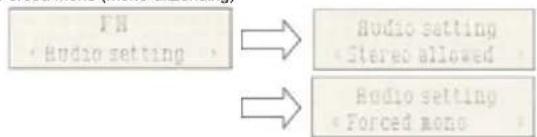
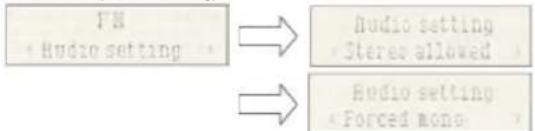
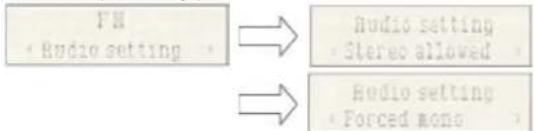
Audio settings
- Stereo allowed (stereo output):

- Forced mono (mono output)
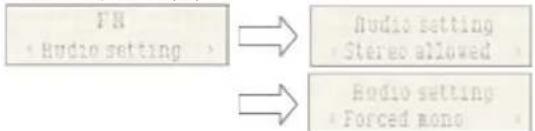
- System (FM system), same setting as DAB system.
PRESET
- Preset recall (choose station):
Press + to choose the station stored in the preset radio stations.

- Storing preset stations (choose station):
You can store your favourite FM stations in the station preset memory. There are 50 presets in the radio's memory. The presets are stored in the radio in the event of a power cut. The process for storing presets and using them to choose your stations is the same as in the DAB mode. In FM mode, select the required frequency range. Press < / > to view the stored stations. Press < or > to select the required station as described previously, then press and hold + to choose the preset number you want to store the station on. Press > to confirm.

Bluetooth mode
You need to carry out several steps to connect your mobile phone: 1. Activate Bluetooth on your mobile phone (refer to the instructions for your phone). 2. Push the POWER button to turn on the unit, then press the button repeatedly until the LCD screen displays "Bluetooth". It will then be ready to be paired automatically. 3. Using your mobile phone, search for the Bluetooth device called "MIC300". 4. Your mobile phone will detect "MIC300" and ask if you want to connect.
To connect, enter the password 0000 (if applicable). Once the connection is made, the "Connected" symbol will appear on the LCD screen.
Automatic connection with your smartphone
Pairing is only necessary when you first use the appliance with the phone. Once the device has been paired with the phone, it will connect to the appliance automatically when it is turned on and Bluetooth is activated on the phone. The next time you turn on the appliance, it will automatically connect to the mobile phone it was last connected to.
Press and hold the Bluetooth button to disconnect the Bluetooth function.
Playing from a Bluetooth device
Once Bluetooth has been paired, press the button to play. Press the < or > button to switch to the previous or next track. To pause or resume play, press the button again.
CD playback
Playing a compact disc (CD/MP3)
NOTE: Never touch the laser lens located inside the CD player. Clean the laser lens using a cleaning disk if it becomes dirty.
- Press the button repeatedly to select the CD function.
- Press the button to open the CD holder, insert the CD (with the printed side facing up), then press the button again.
- The CD will spin for a few seconds before automatically playing the first track.
- Press the ▸ button to temporarily stop play. Press the ▸ button to resume playback.
- Press the button to stop playback, and press the button to restart playback from the beginning.
Press twice to open the CD player.
Previous track < / Next track >
- Use the < and > buttons to move from one track to another, or to play a track in fast forward mode by pressing and holding the button.
- Press the < button once to listen to the start of the current track. Press it twice or more to listen to the previous tracks on the disk.
- Press the > button to listen to the next track on the disk.
- Press and hold the > button. The current track goes back to the previous track(s); when the disk has reached the required part of the track, release the button: normal play resumes.
- Press and hold the > button; the current track is fast-forwarded to the next track(s). When the disk has reached the required part of the track, release the button: normal play resumes.
Repeat function ⊇ ×
The button is used to repeat the same track or all the tracks of a CD.
- Press the button once during playback; The LCD screen displays "REP 1". The same track is repeated continuously.
- Press the button a second time to repeat all the tracks. The LCD screen displays "REP All".
- Press the button three times to start random playback. The screen will display "SHUFFLE".
- Press the button four times to start the intro playback. You will hear the first 10 seconds of each song and "INTRO" will appear on the screen.
- To cancel repeat play, press the button several times until "REP OFF" is displayed.
USB reader
Music playback via USB
This device was designed with the latest technical innovations in the field of USB. However, given the wide selection of USB storage devices available on the market, we cannot guarantee compatibility with every device. For this reason, in certain rare cases it may be difficult to go back to the previous song from a USB device. This is not a device malfunction.
- Press the button repeatedly until the screen displays "USB".
- Directly connect a USB storage drive to the USB port. The screen will quickly display the number of folders and then the total number of tracks. Playback will start automatically after a few seconds.
- The buttons work in the same way as for the CD player. Check out the aforementioned section on CDs.
NOTE:
- Always connect a USB storage drive directly to the USB port to avoid any malfunction.
- The USB port is not designed for charging external devices.
- Important: Change the device mode before removing the USB storage device.
Aux-in
Aux-in jack
- Press the ≡ button repeatedly to choose the Aux-in mode, and the screen will display "AUX-IN".
- Connect the Aux jack connection cord of your
- personal player (portable MP3 player, for example) to the Aux-in jack.
- Start playback from your personal player.
USB charging port (5V output)
The USB port is designed to charge external devices, such as a smartphone. Its output power is 5V 1.0 A
10W wireless charging
Simply put your QI wireless charging device onto the wireless charging area shown on top of the main unit and charging will start simply through contact. A red light will come on and flash in the event of a charging error.
Warning about batteries
This product contains one or more batteries.
- Use batteries correctly to prevent any injury or fire caused by a leak, overheating, explosion, erosion or other damage.
- Keep new and used batteries out of the reach of children or any vulnerable person. Stop using the device if the battery compartment does not close properly. If the liquid from an alkaline battery comes into contact with skin or eyes, rinse immediately with fresh water and consult a physician.
- If an alkaline battery leaks, clean the liquid with a cloth and replace the battery with a new one.
- Do not swallow batteries. If swallowed, a battery can cause severe internal burns in 2 hours and can cause death. If batteries are swallowed, contact a poison centre immediately and consult a physician.
- Use AA Ni-MH, alkaline or lithium batteries.
- Do not charge these batteries. Charging non-rechargeable batteries generates gas or heat emissions that can cause explosions or fires.
- Do not use different types of batteries or a mixture of new and old batteries.
- Insert the batteries according to the correct polarity (+ and -).
- Do not allow the same battery poles to be in contact.
- Remove spent batteries quickly. There is a risk of the battery exploding if it is not replaced or if the device is unused for a long period of time.
- Replace the battery with an identical or equivalent model.
- The batteries (or battery pack) must not be exposed to excessive heat, such as sunlight, fire, etc.
- Do not heat batteries or dispose of them in a fire or in water.
- Do not use metal pliers or metal objects such as the point of a pen or tweezers to remove batteries. Avoid deforming, crushing or piercing batteries.
- Do not disassemble the batteries.
- Cover the ends of the batteries with tape to prevent explosions and combustion when these are scrapped.
- Scrap batteries in an environmentally friendly way
- Do not dispose of batteries in ordinary household waste.
- When disposing of batteries, be sure to follow local disposal regulations.

BATTERY WARNING
KEEP OUT OF REACH OF CHILDREN Swallowing can lead to chemical burns, perforation of soft tissue, and death. Severe burns can occur within 2 hours of ingestion. Seek medical attention immediately.

Technical specifications
| Type | Technical specifications | Type | Technical specifications |
| Broadband loudspeaker | 3" (5W)*2 | Wireless frequency | 2,402 - 2,480 MHz |
| Peak power 30 W | FM frequency 88.8 - 108 MHz | ||
| RMS power 10 W | DAB frequency 174.928 - 239.200 MHz | ||
| Energy consumption | 0.6 W | Bluetooth version | 5.0 |
| Input power 100-2 | 30V, 50/60Hz | Transmission range | 10 m |
| Speaker resistance | 4 Ω | Maximum output power (EIRP) | 2.75 dBm |
| Speaker frequency | 60 Hz - 20 kHz Input/Output | DAB, CD, Bluetooth, Mains input, Mains output (RCA), USB | |
| S/B ratio ≥ 80dB | Distortion < 1 % | ||
| Bluetooth pairing name | MIC300 Dimensions 430 x 220 x 135 mm | ||
NB: the maximum connection distance is approximately 10 metres. Place your Bluetooth speaker as close as possible to the device to avoid any interference with the connection. The device may turn off in an environment with electrostatic discharge. The user must then recharge the battery and reset the device.
Environmental protection

Your product has been designed and manufactured using high-quality materials and components that can be recycled and reused. Attention should be drawn to the environmental aspects of battery disposal.
When the crossed-out wheelie bin symbol appears on a product, it means that the product is covered by European Directive 2002/96/EC. Please find out about the local sorting and collection system for electrical and electronic products. Please act according to local rules and do not dispose of your old products in your household waste. By ensuring this product is disposed of correctly, you are helping to prevent potentially negative consequences for the environment and human health.
Additional information
- When the device does not transmit audio output for a certain amount of time, it will automatically go into standby mode to save energy. It can then be switched back on using the power button
- If an incoming call is received while the MIC300 system is connected to your mobile phone during music playback, the music will immediately pause when you answer the call, and start again once the call is finished (depending on the mobile phone, playback may sometimes stay paused after the end of the call).
- The word Bluetooth, the brand and logo are registered trademarks owned by Bluetooth SIG, Inc., and any use of such marks by Bigben Interactive is under licence. All other brands and trade names are the property of their respective owners.
- THOMSON is a trademark of Talisman Brands, Inc. used under licence by Bigben Interactive.
- This product is manufactured and sold under the responsibility of Bigben Interactive.
- THOMSON and the THOMSON logo are trademarks operated under licence by Bigben Interactive – for more information: www.thomson-brand.com.
- All other products, services, corporate names, trademarks, trade names, and logos referenced herein are the property of their respective owners.
Declaration of conformity
- Bigben Interactive hereby declares that the MIC300-type radio equipment is in compliance with Directive 2014/53/EU. The full text of the EU declaration of conformity is available at the following internet address: https://www.bigben-interactive.co.uk/support/
Warranty
This product is guaranteed by Bigben for a period of 2 years from the date of purchase, except in countries of the European Economic Area, which offer a longer warranty period. We recommend that you keep your receipt for any claims. The warranty covers breakdowns due to defective material, a missing element or manufacturing defect. In this case, contact our technical support. For any problem with a defective product, contact your point of purchase with your receipt. The warranty does not cover problems of improper use.
Support
www.bigben-interactive.co.uk/support support@bigben.fr
Made in China
Manufactured by BIGBEN INTERACTIVE SA
- Rue de la Voyette
CRT2-FRETIN
CS 90414
59814 LESQUIN Cedex - France
www.bigben.eu

Manufacturer: Bigben Interactive FRANCE
- Rue de la Voyette, C.R.T. 2, Fretin,
CS90414-59814 Lesquin Cedex, France
BELGIUM, customerservice@bigben-interactive.be
NETHERLANDS customerservice@bigben-interactive.nl
SPAIN. saporte@metronic.com
Tel:937132625
ITALY tancino@metronic.com
TAHITI, TECHNOLOGY TEL:0796863691
www/bigben.eu
THOMSON
ES
MIC300IDABBT
MIC301IDABBT
CD / BLUETOOTH / FM / USB INPUT /
AUDIO/DAB
CLASS 1 LASER PRODUCT
CLASS 1 LASER PRODUCT APPAREIL LASER DE CLASSE 1 PRODUCTO LASER DE CLASE 1
CAUTION INVISIBLE LASER RADIATION WHEN OPEN AND INTERLOCKS DEFEATED. AVOID EXPOSURE TO BEAM

This product contains a low power laser device
BELGIQUE, customerservice@bigben-interactive.be
NEDERLAND customerservice@bigben-interactive.nl
ESPANA. saporte@metronic.com
Tel:937132625
ITALIJA tancino@metronic.com
TAHIA,TECHNOLOGYTEL:0796863691
www/bigben.eu
THOMSON
IT
MIC300IDABBT
MIC301IDABBT
CD/BLUETOOTH/FM/INGRESSO USB/ AUDIO/DAB
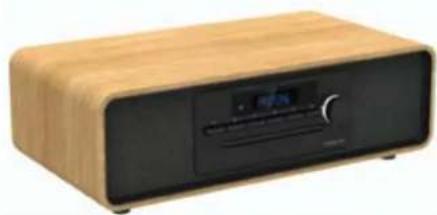
ISTRUZIONI PER L'USO
READ THIS MANUAL CAREFULLY
BEFORE OPERATING THE DEVICE AND KEEP IT
FOR FUTURE REFERENCE.
CLASS 1 LASER PRODUCT
CLASS 1 LASER PRODUCT
CAUTION INVISIBLE LASER RADIATION WHEN OPEN AND INTERLOCKS DEFEATED. AVOID EXPOSURE TO BEAM

This product contains a low power laser device
BELGIUM, customerservice@bigben-interactive.be
NETHERLANDS, customerservice@bigben-interactive.nl
SPAIN, saporte@meltronic.com
Tel:937132625
ITALY, tecnico@metronic.com
Tel:0294943691
www.bigben.eu
THOMSON
PT
MIC300IDABBT
MIC301IDABBT
CD / BLUETOOTH / FM / USB INPUT /
AUDIO/DAB
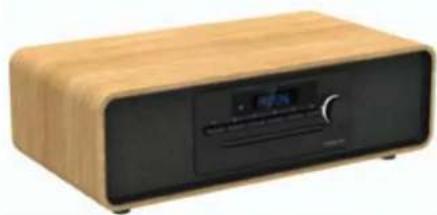
CLASS 1 LASER PRODUCT
CLASS 1 LASER PRODUCT APPAREL LASER DE CLASSES 1 PRODUCTO LASER DE CLASSES 1
This product contains a low power laser device
CAUTION INVASIBLE LASER RADIATION WHEN OPEN AND INTERLOCKS DEFEATED. AVOID EXPOSURE TO BEAM

BELGIQUE, customerservice@bigben-interactive.be
NEDERLAND customerservice@bigben-interactive.nl
ESPANA, saporte@metronic.com
Tel:937132625
CLASS 1 LASER PRODUCT
CLASS 1 LASER PRODUCT APPAREIL LASER DE CLASSES 1 PRODUCTO LASER DE CLASSES 1
This product contains a low power laser device
CAUTION: INVISIBLE LASER RADIATION WHEN OPEN AND INTERLOCKS DEFEATED. AVOID EXPOSURE TO BEAM.

BELGIUM, customerservice@bigben-interactive.be
NETHERLANDS, customerservice@bigben-interactive.nl
SPAIN, saporte@metronic.com Tel:027-814-657
Tel:937132625
ITALY, tecnico@metronic.com
Tel:0294943691
www.bigben.eu
THOMSON
NL
MIC300IDABBT
MIC301IDABBT
CD / BLUETOOTH / FM / USB INPUT /
AUDIO/DAB
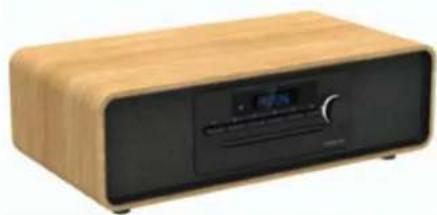
INSTRUCTIONS FOR USE
BEFORE USING THIS DEVICE,
READ THESE INSTRUCTIONS CAREFULLY AND KEEP
THEM FOR FUTURE REFERENCE.
CLASS 1 LASER PRODUCT
CLASS 1 LASER PRODUCT APPAREIL LASER DE CLASSE 1 PRODUCTO LASER DE CLASE 1
CAUTION: INVISIBLE LASER RADIATION WHEN OPEN AND INTERLOCKS DEFEATED. AVOID EXPOSURE TO BEAM.

This product contains a low power laser device
- Stereo allowed (stereo broadcast):

2. Forced mono (mono broadcast)
BELGIUM, customerservice@bigben-interactive.be
NETHERLANDS, customerservice@bigben-interactive.nl
SPAIN, saporte@meltronic.com
Tel: 937132625
ITALY, tecnico@metronic.com
Tel: 0294943691
www.bigben.eu
THOMSON
SV
MIC300IDABBT
MIC301IDABBT
CD / BLUETOOTH / FM / USB INPUT /
AUDIO/DAB
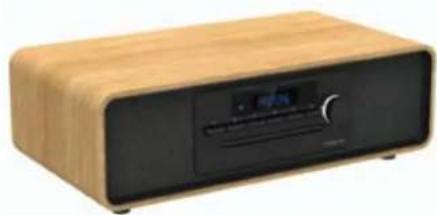
USER MANUAL
BEFORE USING THE DEVICE, READ THIS
USER MANUAL CAREFULLY AND KEEP IT
FOR FUTURE REFERENCE.
CLASS 1 LASER PRODUCT
CLASS 1 LASER PRODUCT APPAREL LASER DE CLASSES 1 PRODUCTO LASER DE CLASSES 1
This product contains a low power laser device
CAUTION INVISIBLE LASER RADIATION WHEN OPEN AND INTERLOCKS DEFEATED. AVOID EXPOSURE TO BEAM

Warning: do not touch the laser line.


Set to alarm (voltage)
- Stereo allowed (stereo transmission):

- Forced mono (mono transmission)
BELGIUM, customerservice@bigben-interactive.be
NETHERLANDS customerservice@bigben-interactive.nl
SPAIN. saporte@metronic.com
Tel: 937132625
ITALY. taccino@metronic.com
TRADE: (technological) Tel: 027 96 96 36 91
www.bigben.eu
THOMSON
FI
MIC300IDABBT
CD / BLUETOOTH / FM / USB CONNECTION / AUDIO / DAB
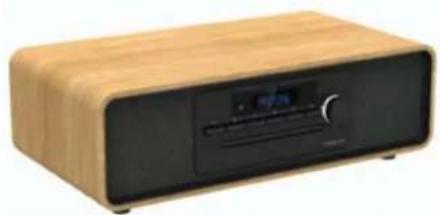
USER MANUAL
READ THIS USER MANUAL CAREFULLY
BEFORE USING THE DEVICE AND KEEP IT
FOR FUTURE USE.
CLASS 1 LASER PRODUCT
CLASS 1 LASER PRODUCT APPAREL LASER DE CLASSES 1 PRODUCTO LASER DE CLASSES 1
This product contains a low power laser device
CAUTION INVISIBLE LASER RADIATION WHEN OPEN AND INTERLOCKSE DEFEATED. AVOID EXPOSURE TO BEAM

- Stereo allowed (stereo broadcast):

- Forced mono (mono broadcast)
Its output power is 5 V 1.0 A
10 W wireless charging
BELGIUM, customerservice@bigben-interactive.be
NETHERLANDS, customerservice@bigben-interactive.nl
SPAIN, saporte@metronic.com Tel:027-814-657
Tel:937132625
ITALY, tecnico@metronic.com
Tel:0294943691
www/bigben.eu
THOMSON
DA
MIC300IDABBT
MIC301IDABBT
CD / BLUETOOTH / FM / USB-INPUT /
AUDIO / (DAB
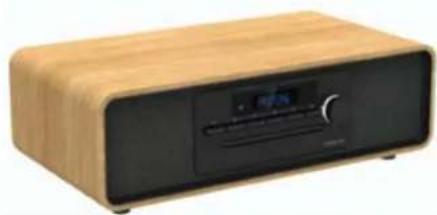
USER MANUAL
BEFORE USING THIS DEVICE, PLEASE READ
THIS USER MANUAL CAREFULLY
KEEP THIS FOR LATER USE.
CLASS 1 LASER PRODUCT
CLASS 1 LASER PRODUCT APPAREL LASER DE CLASSES 1 PRODUCTO LASER DE CLASSES 1
This product contains a low power laser device
CAUTION INVISIBLE LASER RADIATION WHEN OPEN AND INTERLOCKSE DFEATED.AVOID EXPOSURE TO BEAM

BELGIQUE, customerservice@bigben-interactive.be
NEDERLAND, customerservice@bigben-interactive.nl
ESPANA,saporte@metronic.com Tel:027-814-657
Te:937132625
ITALALI, tecnico@metronic.com
Tel:0294943691
www/bigben.eu
THOMSON
NO
MIC300IDABBT
MIC301IDABBT
CD / BLUETOOTH / FM / USB CONTACT /
AUDIO/DAB
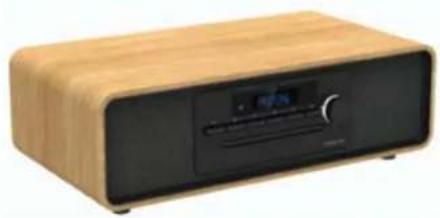
USER MANUAL
READ THIS USER MANUAL CAREFULLY BEFORE USING THE PRODUCT
AND KEEP IT AVAILABLE IN CASE YOU NEED IT AGAIN.
IF YOU NEED IT AGAIN.
CLASS 1 LASER PRODUCT
CLASS 1 LASER PRODUCT APPAREIL LASER DE CLASSE 1 PRODUCTO LASER DE CLASE 1
This product contains a low power laser device
CAUTION: INVISIBLE LASER RADIATION WHEN OPEN AND INTERLOCKS DEFEATED. AVOID EXPOSURE TO BEAM

BELGIUM, customerservice@bigben-interactive.be
NETHERLANDS customerservice@bigben-interactive.nl
SPAIN. saporte@metronic.com
Tel:937132625
THOMSON
CS
MIC300IDABBT
MIC301IDABBT
CD / BLUETOOTH / FM / USB INPUT /
AUDIO/DAB
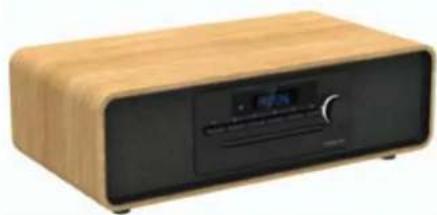
USER MANUAL
BEFORE USING THIS DEVICE, PLEASE READ THIS USER MANUAL CAREFULLY AND KEEP IT FOR FUTURE USE.
CLASS 1 LASER PRODUCT
CLASS 1 LASER PRODUCT APPAREL LASER DE CLASSES 1 PRODUCTO LASER DE CLASSES 1
CAUTION INVISIBLE LASER RADIATION WHEN OPEN AND INTERLOCKS DEFEATED. AVOID EXPOSURE TO BEAM

This product contains a low power laser device
Warning: do not touch the laser lens.

BELGIQUE, customerservice@bigben-interactive.be
NEDERLAND customerservice@bigben-interactive.nl
ESPANA, saporte@metronic.com
Tel:937132625
CLASS 1 LASER PRODUCT
CLASS 1 LASER PRODUCT APPAREIL LASER DE CLASSES 1 PRODUCTO LASER DE CLASSES 1
This product contains a low power laser device
CAUTION INVISIBLE LASER RADIATION WHEN OPEN AND INTERLOCKSE DFEATED. AVOID EXPOSURE TO BEAM

via Marconi 31, 20071 Vermezzo can Zeln (MI) Italy
EAPPROVE IN CHINE (MADE IN CHINA)
HOTLINE
CLASS 1 LASER PRODUCT
CLASS 1 LASER PRODUCT APPAREL LASER DE CLASSES 1 PRODUCTO LASER DE CLASSES 1
CAUTION INVASIBLE LASER RADIATION WHEN OPEN AND INTERLOCKS DEFEATED. AVOID EXPOSURE TO BEAM

This product contains a low power laser device
BELGIUM, customerservice@bigben-interactive.be
NETHERLANDS, customerservice@bigben-interactive.nl
SPAIN, soporte@metronic.com
Tel.: 937132625
- CLASS 1 LASER PRODUCT
- THOMSON
- USER GUIDE
- GETTING STARTED
- SAFETY WARNING AND NOTICE
- WARNING
- PACKAGE CONTENTS
- CONTROLS
- INPUT/OUTPUT
- CONTROL FUNCTIONS
- REMOTE CONTROL FUNCTIONS
- BEFORE STARTING
- AUTOMATIC STANDBY
- OPERATION
- ADJUST THE VOLUME WITH THE REMOTE CONTROL
- MUTE FUNCTION
- SET THE CLOCK (IN STANDBY MODE)
- SET THE ALARM (IN STANDBY MODE)
- USE
- DAB RADIO MODE
- AUTOMATIC SEARCH
- MANUAL SEARCH
- DRC (DYNAMIC RANGE CONTROL) FUNCTION
- PRUNE (CLEANING, TO REMOVE THE STATIONS THAT ARE LISTED BUT NO LONGER AVAILABLE)
- SYSTEM (DAB)
- LANGUAGE
- FACTORY RESET
- SW VERSION (VIEW THE SOFTWARE VERSION OF THE DEVICE)
- PRESET
- FM RADIO
- MENU
- SEARCH SETTINGS
- AUDIO SETTINGS
- BLUETOOTH MODE
- AUTOMATIC CONNECTION WITH YOUR SMARTPHONE
- CD PLAYBACK
- PREVIOUS TRACK < / NEXT TRACK
- REPEAT FUNCTION ⊇ ×
- USB READER
- NOTE
- AUX-IN
- USB CHARGING PORT (5V OUTPUT)
- W WIRELESS CHARGING
- WARNING ABOUT BATTERIES
- BATTERY WARNING
- ENVIRONMENTAL PROTECTION
- ADDITIONAL INFORMATION
- DECLARATION OF CONFORMITY
- WARRANTY
- CD/BLUETOOTH/FM/INGRESSO USB/ AUDIO/DAB
- ISTRUZIONI PER L'USO
- INSTRUCTIONS FOR USE
- FORCED MONO (MONO BROADCAST)
- USER MANUAL
- SET TO ALARM (VOLTAGE)
- CD / BLUETOOTH / FM / USB CONNECTION / AUDIO / DAB
- HOTLINE
Brand : THOMSON
Model : TH388688
Category : Hi-Fi System