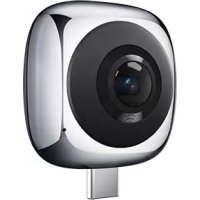
Envizion 360 Panoramic VR Camera - Digital Camera HUAWEI - Free user manual and instructions
Find the device manual for free Envizion 360 Panoramic VR Camera HUAWEI in PDF.



| Product Type | 360° Panoramic VR Digital Camera |
| Brand | Huawei |
| Model | Envizion 360 Panoramic VR Camera |
| Main Functions | 360° photo and video capture, virtual reality, Fish-eye, Crystal Ball Perspective, Little Planet modes, GIF creation, image and video editing |
| Power Supply | Via smartphone USB port (charging not specified) |
| Connectivity | USB Type-C (OTG) with smartphone |
| Required App | Huawei 360 Camera (available on Google Play) |
| Shooting Modes | Photo, video, 360° panorama, live view with gesture zoom |
| Editing | Cropping, panoramic conversion, GIF creation, video trimming |
| Sharing | Up to 9 photos or 1 video at a time via social networks, no mixing photos/videos |
| Firmware Update | Via app, requires device connected and sufficient battery |
| Status Indicators | Green: power on, initialization, standby; Red: failure, update (alternating green/red) |
| Operating Temperature | 0°C to +40°C |
| Storage Temperature | -20°C to +60°C |
| Maintenance and Cleaning | Use a soft, dry, clean cloth; the velvet pouch can be used to wipe the lens |
| Safety | Do not expose to water, dust, magnetic fields, flames, excessive heat; do not disassemble; keep out of reach of children |
| Box Contents | 360° camera, velvet pouch, quick start guide |
| Smartphone Compatibility | Smartphones with USB Type-C port supporting USB-OTG |
| Shooting Orientation | Vertical only (viewing and editing possible in landscape) |
| Battery | Built-in battery; does not turn on if <10%; notification on phone if insufficient |
| Recording Photos | Photos taken before disconnecting are saved; video interrupted but already recorded part is kept |
| Warranty | Factory warranty; any modification or disassembly voids it |
| Recycling | Do not dispose of with household waste; follow local regulations for WEEE |
Frequently Asked Questions - Envizion 360 Panoramic VR Camera HUAWEI
User questions about Envizion 360 Panoramic VR Camera HUAWEI
0 question about this device. Answer the ones you know or ask your own.
Ask a new question about this device
Download the instructions for your Digital Camera in PDF format for free! Find your manual Envizion 360 Panoramic VR Camera - HUAWEI and take your electronic device back in hand. On this page are published all the documents necessary for the use of your device. Envizion 360 Panoramic VR Camera by HUAWEI.
USER MANUAL Envizion 360 Panoramic VR Camera HUAWEI
HUAWE1360 Panoramic VR Camera
Quick Start Guide
KpaTKoe pyKOBOcTBO NOIb3OBaTeJIa
Check whether all items are included. The packaging box should contain the following items.
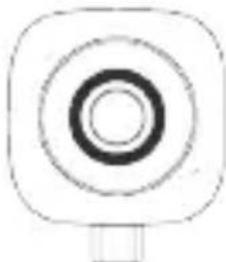
HUAWEI 360 Panoramic VR Camera x 1

Velvet camera bag x 1

Quick Start Guide x 1
If any items are damaged or missing, consult your local reseller.
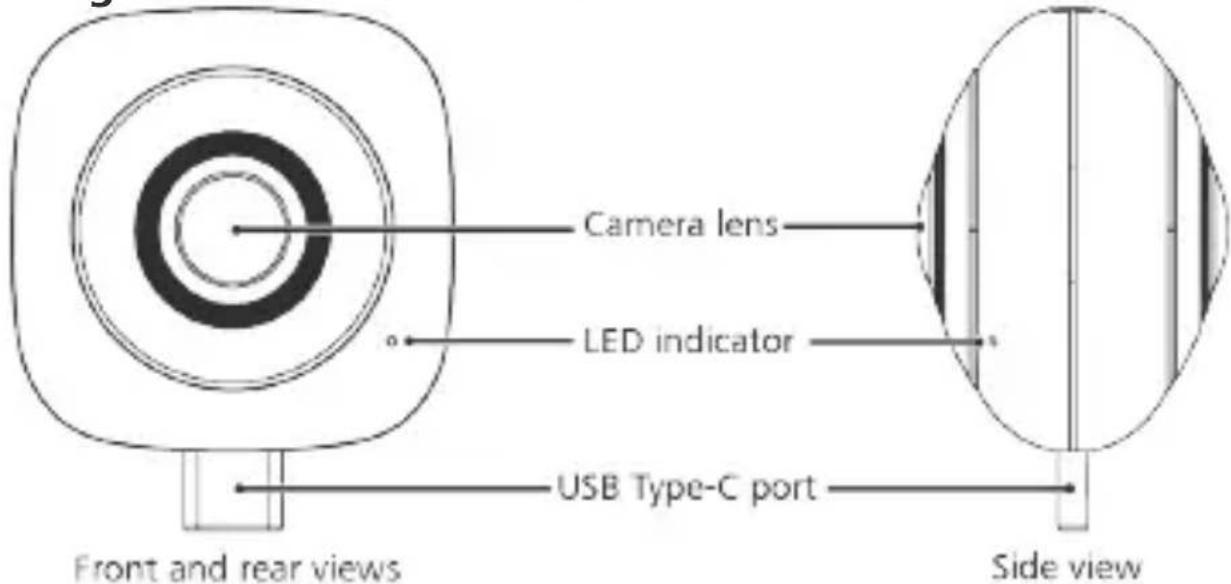
Getting to Know Your Camera
English
Downloading and Installing the App
-
Ensure your phone is connected to a mobile or Wi-Fi network.
-
Search for Huawei 360 Camera in Google Play to
download and install the app.

Connecting the Camera
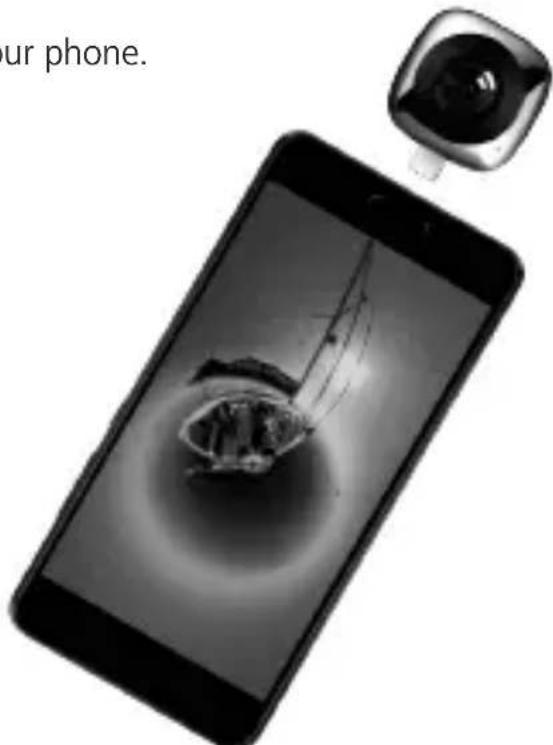
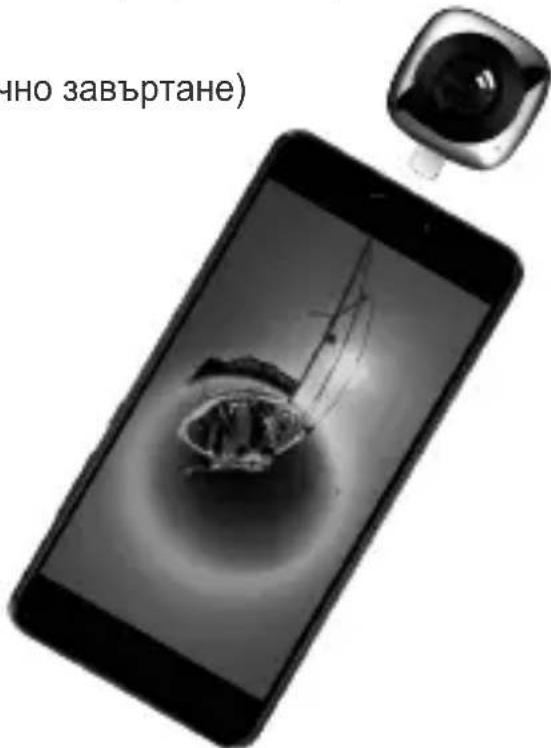
Connect the camera to the USB port on your smartphone and the camera will power on automatically.

Ensure that Auto-rotate is enabled on your phone.
Start Shooting
Once the camera is connected, go to the shooting screen to start taking photos and recording videos.
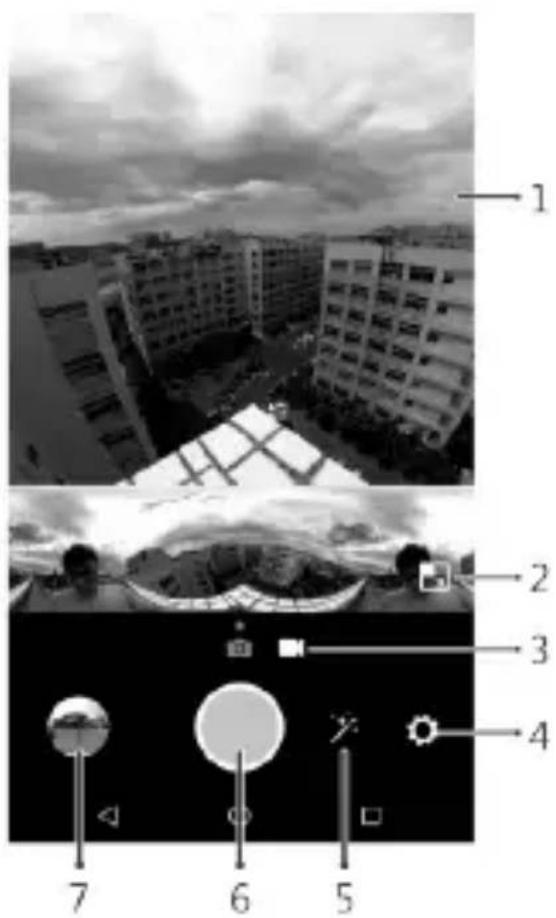
- Preview screen: Displays real-time 360^ images with a larger screen ratio. Use hand gestures to zoom in or out.
- Panorama preview: Displays real-time 360^ images in panorama mode. Zoom feature is not supported.
- Switching shooting modes: Drag or slide the screen left or right to switch between Camera mode and Video mode.
- Settings: Enables the Settings menu.
5.Special effects options: Enables the Filter menu.
6.Shutter button: Touch the shutter button to begin taking photos or recording videos. - Photo album thumbnail: Displays the most recent photos or videos in a particular gallery.
English
Browsing and Editing
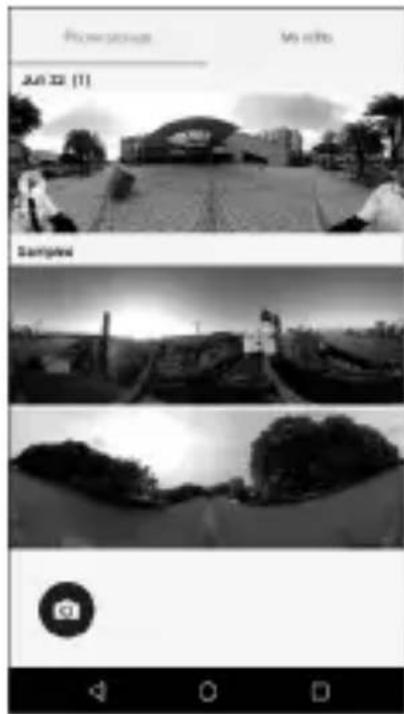
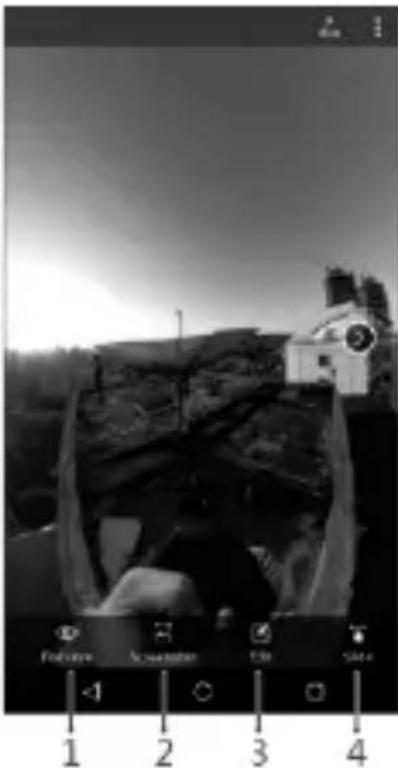
Touch to enter the photo gallery, then you can browse and edit the contents.
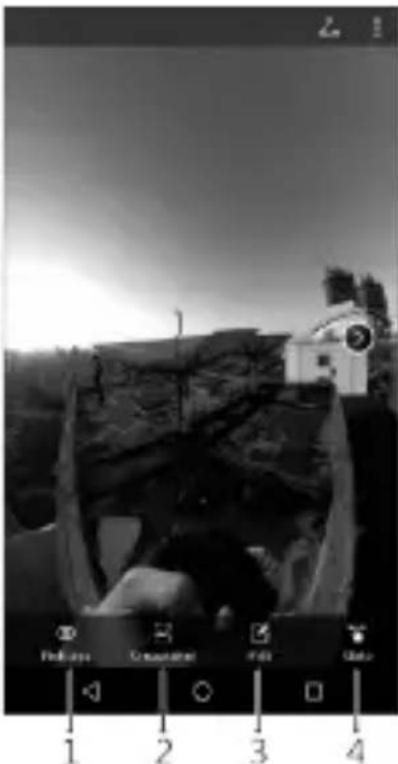
- Modes: You can cyclically switch between Fish-eye (O), Perspective (P), Crystall ball (C), and Little planet (A) mode. The Fish-eye mode is set by default.
- Screenshot: You can crop a screenshot from any angle.
- Edit: You can create GIF animations, convert panorama images, and crop videos.
- Viewing: You can switch between Slide, Gyroscope, and VR mode.
English
Sharing
Photo Sharing
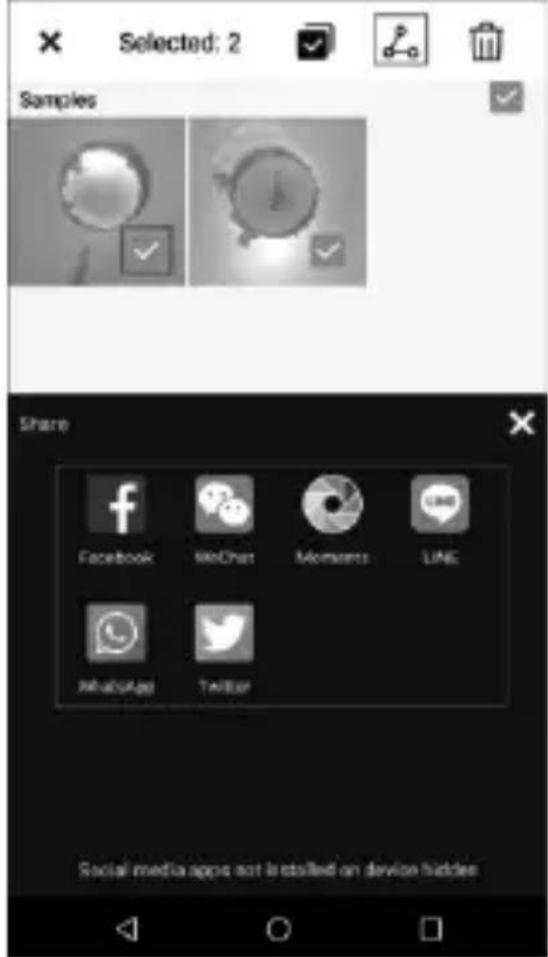
Go to the corresponding photo album, then touch and hold the thumbnails to share photos to social media.
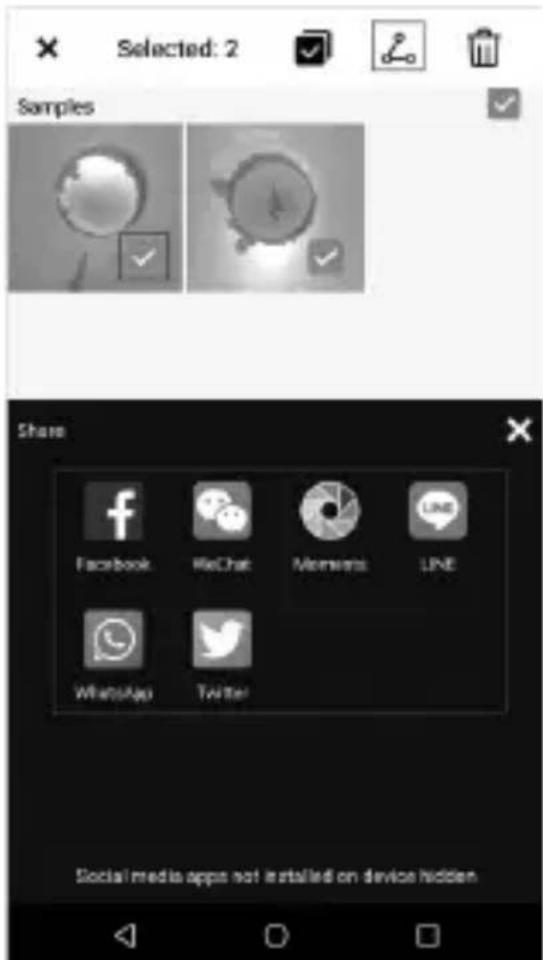
i You can share up to nine photos at once. If this number is exceeded, the error message "Share up to 9 photos" will be displayed.
English
Sharing Panorama Photos and Videos
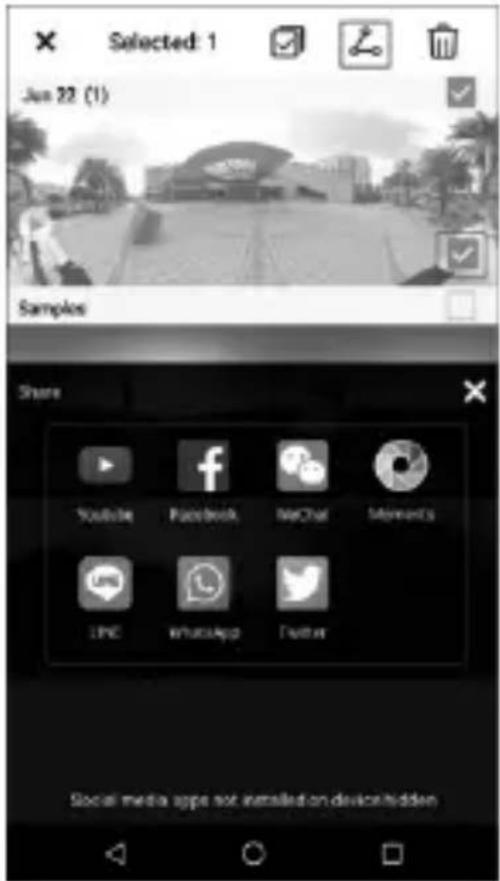
Go to the corresponding panorama photo and video album, then touch and hold the thumbnails to share the photos or videos to social media.
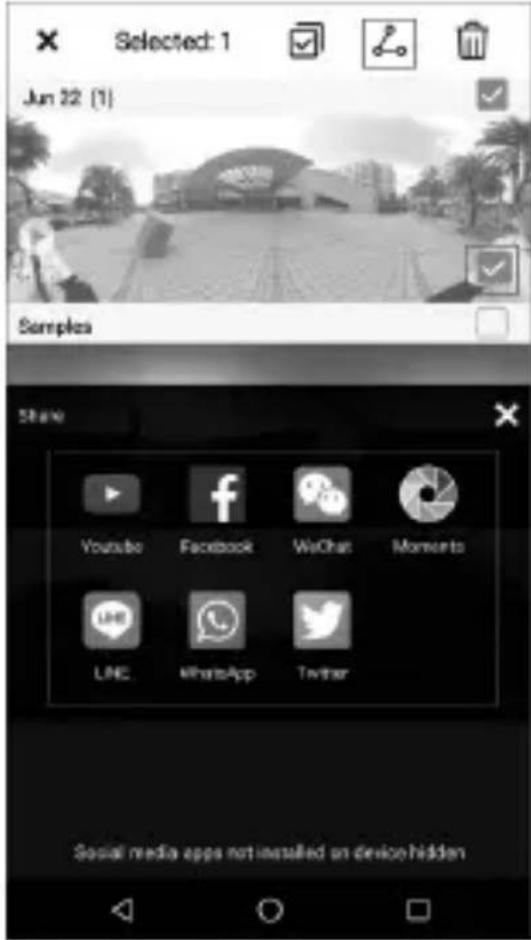
You can share up to nine photos or one video at once. If this number is exceeded, the error message "Share up to 9 photos" or "Share 1 video at a time" will be displayed.
You cannot share photos and videos at the same time. Otherwise, the error message "Unable to share photos/videos simultaneously" will be displayed.
English
System Update
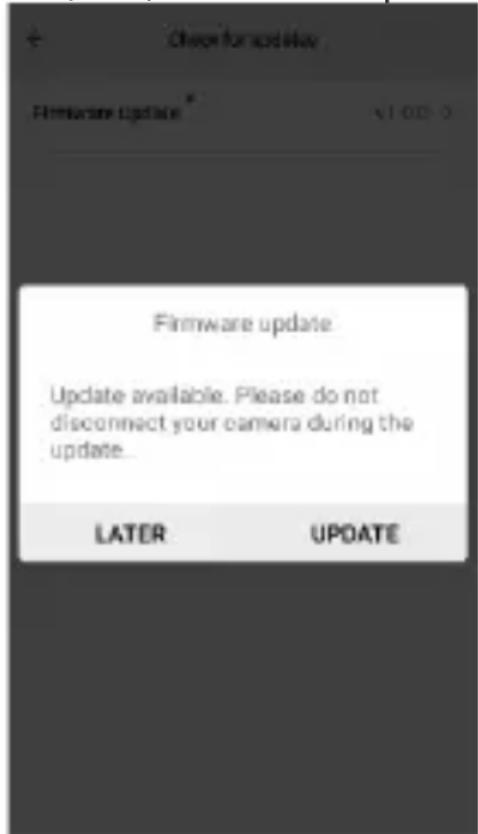
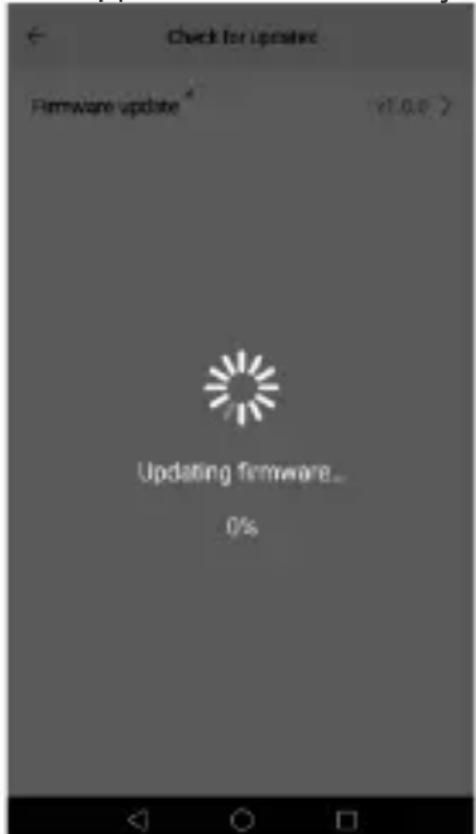
You can update the camera's system firmware. When updating, the camera must be connected to your phone. Therefore, ensure that your phone has sufficient battery power.
When a firmware update is available for download, the update information will appear in the app. TouchOK to update.
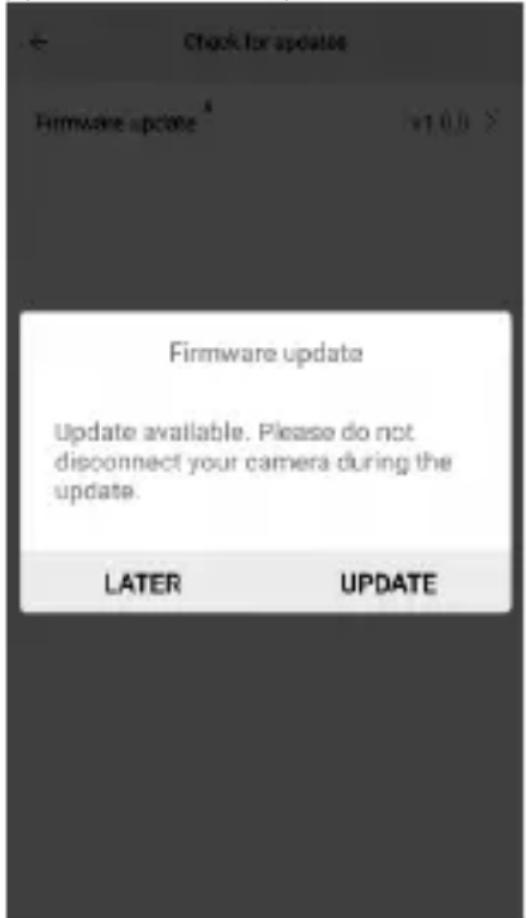
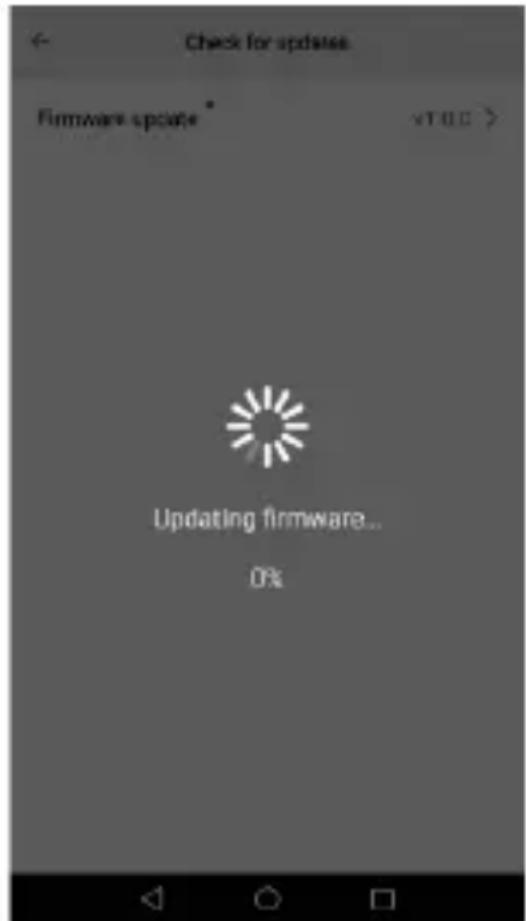
i Do not disconnect the camera from your phone during the update process. Otherwise, the update will fail. In this case, re-connect the camera to update.
English
Precautions
- After use, store the camera gently and avoid contact with hard objects to protect the camera lens.
- The camera's velvet bag can be used to wipe the camera lens. Wiping the camera lens before use can produce clearer images.
- This device only supports vertical screen operations. Photos and videos can only be taken in vertical orientation. You can view and edit them in horizontal view.
- To learn more about app operations, refer to the User Guide.
- If the battery power is less than 10% , the camera will not turn on properly. After the app launches, the phone screen will display an insufficient battery power notification.
- If the camera is disconnected during the photo shooting process, the photos taken will not be stored.
- If the camera is disconnected while a video is being recorded, the shooting will be canceled immediately, but the video captured before the disconnecting will still be stored on your phone.
- This device does not have built-in speakers. Therefore, there will be no sound during operations.
- This device is intended to be used with USB Type-C smartphones that support USB-OTG.
Indicator Description
| Camera Status | Color | Description |
| Turn on Green | Lights up green for 1 second, then starts the initialization. | |
| Initialize Green | Continues to flash green until the camera is turned on. | |
| Initialization failed | Red | Continues to flash red. |
English
| Camera Status | Color | Description |
| Standby Green | In Preview mode, the green light indicates that the camera is in standby. | |
| Taking pictures - | ||
| Shooting videos | - | |
| Store photos to smartphones | Green | Continues to flash green twice. |
| Firmware updating | Green/Red | Green and red lights flash alternately until the update is complete. |
Safety Information
Before you use the device, read the following precautions carefully to ensure optimal product performance and to avoid danger or violation of laws and regulations.
- Avoid using the device in dusty, damp, and dirty places, or near magnetic fields to avoid damaging the device's internal circuit.
- Avoid wrapping, sealing, and covering the device with towels or other items and avoid placing the device in closed environments, such as boxes.
- Avoid placing the device near heat or fire sources such as electric heaters, microwave ovens, water heaters, stove fire, candles, or other high-temperature environments.
- Avoid drying the device with microwaves, dryers, or other external heating equipment.
- Use a clean, dry cloth to wipe the device. Avoid using the device before cleaning and maintenance.
- Use the device at temperatures between 0^ + 40^ , and store the device and its accessories at temperatures between -20^ + 60^ .
- Store the device and its accessories in a cool, well-ventilated place with no direct sunlight.
English
-
This device is not a toy. Children should use the device under adult supervision. The device and its accessories may contain small parts. Keep them out of the reach of children. Children may unintentionally damage the device and its accessories, or swallow small parts and cause suffocation or other hazardous conditions.
-
Avoid disassembling or modifying the device and its accessories as this may void the factory warranty. If the device fails, consult the nearest authorized service center for assistance.
-
Avoid disposing this device and its accessories as ordinary household waste. Follow the local laws and regulations handled by this device and its accessories and support the recycling operation.
-
The device temperature may rise after running for a long period of time. Avoid direct contact if the device temperature gets too high. You may induce low-temperature burns, causing skin irritation or pigmentation.
-
Ensure that the device has cooled before attempting to remove the device from your phone after a long period of use.
-
This device is not waterproof or dustproof. Avoid submerging the device in water, and long-term exposure to high-temperature, high-humidity, and dusty environments.
Disposal and recycling information
The crossed-out wheeled-bin symbol on your product, battery, literature or packaging reminds you that all electronic products and batteries must be taken to separate waste collection points at the end of their working lives; they must not be disposed of in the normal waste stream with household garbage. It is the responsibility of the user to dispose of the equipment using a designated collection point or
service for separate recycling of waste electrical and electronic equipment (WEEE) and batteries according to local laws.
English
Proper collection and recycling of your equipment helps ensure electrical and electronic equipment (EEE) waste is recycled in a manner that conserves valuable materials and protects human health and the environment, improper handling, accidental breakage, damage, and/or improper recycling at the end of its life may be harmful for health and environment. For more information about where and how to drop off your EEE waste, please contact your local authorities, retailer or household waste disposal service or visit the website http://consumer.huawei.com/en/.
Reduction of hazardous substances
This device and any electrical accessories are compliant with local applicable rules on the restriction of the use of certain hazardous substances in electrical and electronic equipment, such as EU REACH, RoHS and Batteries (where included) regulations, etc. For declarations of conformity about REACH and RoHS, please visit our web site http://consumer.huawei.com/certification.
EU regulatory conformance
Statement
Hereby, Huawei Technologies Co., Ltd. declares that this device is in compliance with the essential requirements and other relevant provisions of Directives:
RoHS Directive 2011/65/EU
EMC Directive 2014/30/EU

FCC Statement
This equipment has been tested and found to comply with the limits for a Class B digital device, pursuant to Part 15 of the FCC Rules. These limits are designed to provide reasonable protection against harmful interference in a residential installation. This equipment generates, uses and can radiate radio frequency energy and, if not installed and used in accordance with the instructions, may cause harmful interference to radio communications. However, there is no guarantee that interference will not occur in a
English
particular installation. If this equipment does cause harmful interference to radio or television reception, which can be determined by turning the equipment off and on, the user is encouraged to try to correct the interference by one or more of the following measures:
--Reorient or relocate the receiving antenna.
--Increase the separation between the equipment and receiver.
--Connect the equipment into an outlet on a circuit different from that to which the receiver is connected.
--Consult the dealer or an experienced radio/TV technician for help.
This device complies with Part 15 of the FCC Rules. Operation is subject to the following two conditions: (1) this device may not cause harmful interference, and (2) this device must accept any interference received, including interference that may cause undesired operation.
Caution: Any changes or modifications to this device not expressly approved by Huawei Technologies Co., Ltd. for compliance could void the user's authority to operate the equipment.
IC Statement
This device complies with CAN ICES-3 (B)/NMB-3(B).
English
Legal Statement
Copyright © Huawei Technologies Co., Ltd. 2017. All rights reserved.
This document is for reference only. Nothing in this guide constitutes a warranty of any kind, express or implied.
Privacy protection
To understand how we protect your personal information, please visit http://consumer.huawei.com/privacy-policy and read our privacy policy.
All pictures and illustrations in this guide, including but not limited to the phone color, size, and display content, are for your reference only. The actual product may vary. Nothing in this guide constitutes a warranty of any kind, express or implied.
Please visit http://consumer.huawei.com/us/support/warranty-policy/index.htm for recent updated hotline and email address in your country or region.
For United States warranty card information, visit
http://consumer.huawei.com/us/support/warranty-policy/index.htm.
Cestina
Obsah baleni
iJ
REACH and RoHS J
http://consumer.huawei.com/certification
EU 根據 會所
##
http://consumer.huawei.com/us/support/warranty-policy/index.htm
http://consumer.huawei.com/us/support/warranty-policy/index.htm.
BebbBeTOBa cymka x 1 KpaTkoe pyKOBOCTBO noIb3OBaTeJx 1
EcnuTO-n6o n3 BblIepeueNCleHHoro OTCyTCTByeT nnIOBpeKdeHo, 6paTntecb B mara3nH, B KOTOpom 6bla npno6peTeHa kamepa.
3HaKOMCTBO C kamepoi
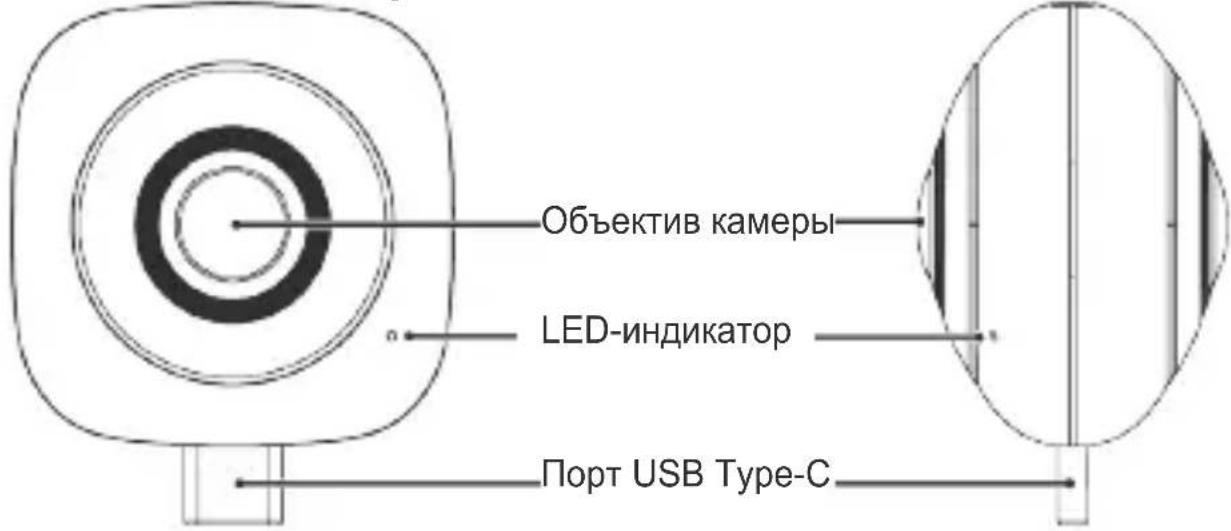
BnD cpeepi n c3aDi BnD c6oky
Pycckn
3arpy3ka n yctaHOBka npnloXeHna
Copyright © Huawei Technologies Co., Ltd. 2017. Bce npaba 3aunuehbl.
DaHbI DOKyMeHT HocNT CnpaBOUHbI XapaKTeP. IonoJxHaCToJIeO pyKOBoDCTBa He NOpda3yMeBaHT HnKaKx rapaHTn, ABhBIX ININ HeABHbIX.
3aunta NnHbIX daHHbIX
Mepbl, npHnMaemble kOMnHaHnei Huawei dIa3aunTbI Baunx IuHbIX daHHbIX, CM. Ha Be6-caTe http://consumer.huawei.com/privacy-policy uB noNTnke KOHndeHuaJIbHOCTN.
Bce n3o6paXeHn B daHHOM pyKOBOcTBe, BKJIoua CBET npa3Mep yCTpoiCTBa, a TAKKe n3o6paXeHn Ha 3KpaHe, npuBeJeHbI dIЯ cnpaBKn. Ppno6peTeHHbI pOdyKT MOKeT OTJNUaTbcr O T n3o6paXeHHOrO B daHHOM pyKOBOcTBe.
IOnoXeHnHaCTOaIero pyKOBoIDCTBa He IOppa3yMeBaIoT HNKaKnx rapaHTn, RHBbIX INI IN HeBbIX.
m = 311
nunnnnnaaannnnaananaananaananaananaananaananaananaananaananaananaananaananaananaananaananaananaananaananaananaananaananaananaananaananaananaananaananaananaananaananaananaananaananaananaananaananaananaananaananaananaananaananaananaananaananaananaananaananaananaananaanara (EEE)
2
/17777777777777777777777777777777777777777777
1
http://consumer.huawei.com/en/
T
yunnnn nn nnnnnnnnnnnnnnnnnnnnnnnnnnnnnnnnnnnnnnnnnnnnnnnnnnnnnnnnnnnnnnnnnnnnnnnnnnnnnnnnnnnnnnnnnnnnnnnnnnnnnnnnn
In
REACH, RoHS (n
REACH 10 RoHS http://consumer.huawei.com/certification
nunnnnnnnnnnnnnnnnnnnnnnnnnnnnnnnnnnnnnnnnnnnnnnnnnnnnnnnnnnnnnnnnnnnnnnnnnnnnnnnnnnnnnnnnnnnnnnnnnnnnnnnnnnnnnnnnnnnnnnn
Huawei Technologies Co., Ltd.
国
RoHS Directive 2011/65/EU
EMC Directive 2014/30/EU

FCC
http://consumer.huawei.com/us/support/warranty-policy/index.htm
Türkse
Paket iceriigi
Tum iceriigin dahil oldugunu teyit edin. Kutu iceriigi asagidaki ogelerden olusmalir.
HUAWEI 360 Panoramaik VR Kamera x 1
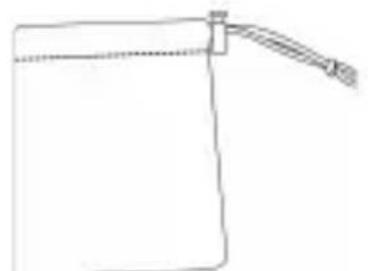
Yumusak kamera cantasi x1
n3TeTnIte nHCTaInpate npINOxKeHneTO.

CbpxeTe kamepata
Cbpxe Te kamepata KbM USB npota Ha Baunr cMapToOH n TJe Ce BkIoun ABOTMATUHO.
YBepTe ce, Ye Auto-rotate (ABTOMaTHUHO 3aBbptaHe) e aKTHBnPaHO Ha BaShnA TeJefoH.
3anouheTe da npaBNTe CHIMKn
CneI kato kamepata 6bJe cBbp3aHa, OTnTe Ha ekpaHa 3a 3aChemaHe, 3a da 3anOHTe Da npaBNTe CHIMKn I da 3anNCbATE BnDeo KJInNOBe.
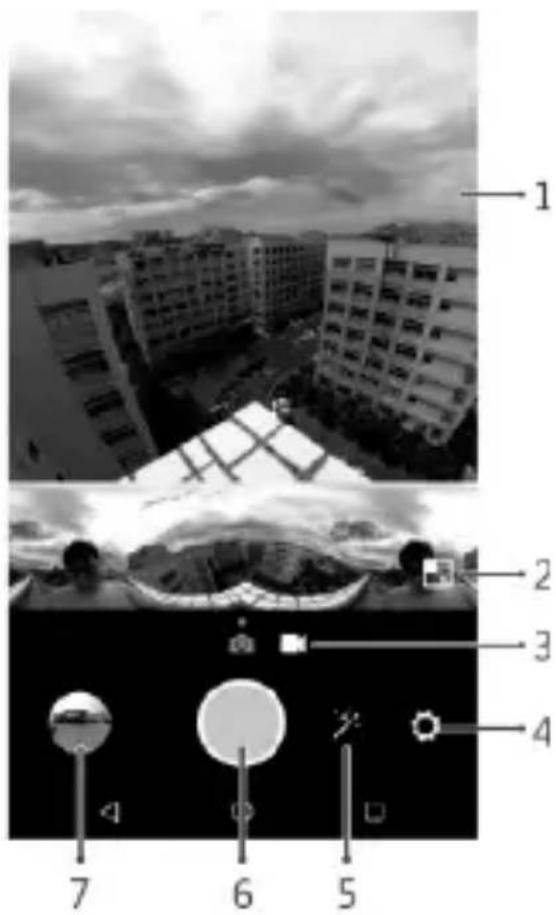
- Ekpan 3a npedBapnteH npereIe:
Ioka3Ba B peaHNo BpeMe 360^ n3o6paXeHnca No-ToJaMa pe3oJIoUcNHa ekpaHa.
I3noJ3BaIte XeCTOBe Cpbka 3a yBEnuBaHe IIn HAmJaBaHe. - Панорамен педварптелен перлед:
Ioka3Ba B peaHNO BpeMe 360^ n3o6paXeHnB NaHOpamEn peKm. FyHKuYra 3a yBeJIyuHe He ce noDbpxa.
3.Смяна Ha peжимITE Ha 3aChemaHe:
I3dbpnaTe nJIn pJIb3HeTe ekpaHa HaJIaBO nJIu HaJrCHO, 3a Da npemHHeTe MExdY peKIMKaMepa N BInDeO. - Hactpoyn: AKTNBnpa MeHIOTo
Settings (Hactpoien). - Onця 3a cneuaHn epeKtn: AKTbnpa MeHIOTo Filter (ФиТьр).
6.Бутон Ha 3aTbopa:ДOKOCHete 6yToHa Ha 3aTbopa,3aДа 3anOHTeДа npabNTe CHIMKINДАЗANCBATE BnDEo KInNOBE. - Мннathopa на ссоталбум: Кoka3Ba последнистения ChИМКИ ИПИ ВИДЕО КЛПЮBE в КOHкретна галерия.
Блгарский
Pa3rIeXdane n peDaKtnpaHe
Дokochete,за Да Влесе Вьв Фото railepenya,Cleд TOBa MOxete da pa3rlexdaTeи peDAkTnpaTe CBdBypKaHneTo.
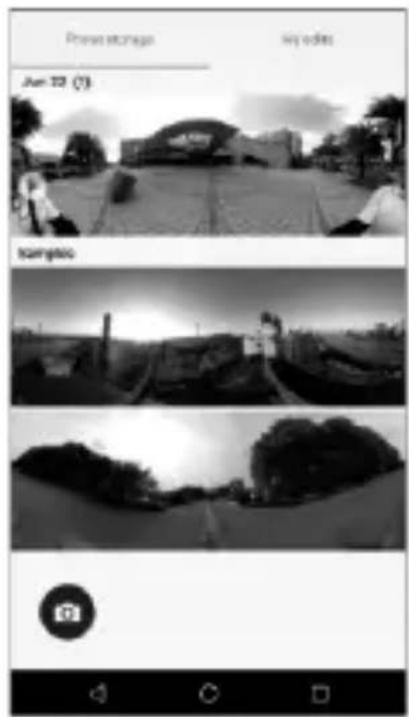
- Pekim: Moke Te da
IpeBknOuBaTe no pei MeKdy
pekIMn "Oko Ha pnb" (O),
"PepcneKTbA"
"KpnctaJIHo Kbl6o"(),n "AcTepond"().PexmblT "OkoHa pna"e 3aadaen no npda3bupahe. - CkpHwOT: Moxete da n3peXeTe cKpHwOT OT BCEKN bIbJI.
- PedaKun: MoKeTe Da cb3daBaTe GIF aHmuau, da KOHBePtnape NaHOpamHn 1306paXeHn I Da n3p3BaTe BnDeO KInIOBE.
4.Перлед:Можeteда npeвкючate Мexду ржим "Пьзганe", "Жирockon"и"VR".
Былгарский
CnoodeJne
CnoJeIHe Ha cHmKa
OTnTe B cBtBTHnA fOTo aIbym, CneT TOBa DOKoCHe T 3aApbXTe MHHaTHOpHTe, 3a Da CNOJeTAE CHMKN B COUaJIHNTe MeIN.
MozheTe Da CnoJeIaTe Do DeBET CHIMKn HabeHbX. Ako HaDbNtte To3n 6poi, Ie ce nokaxe cbo6uEHe 3a rpeXka "Share up to 9 photos" (CnoJeIeTe do 9 CHIMK).
Былгарскn
CnoJeIHe Ha naHOpamHn CHmKn I BnIeO KInIOBe
OTnndeTe BCbOTBeTHnaHopamEn foto n BnDeo aI6ym, cJeT TOBa DoKoCHeTe n 3aApbXTe MNHaTOpHTe, 3a Da CnoJeTRe CHmKn IIN BnDeo KInNOBE B COuNaJIHNTe MeDn.
Mozete da cnojeTte do DeBET CHIMKIN INe EINH BnDeO KInn HabeHbX. Ako NaBnIte To3n 6po, Ie ce nokaxe Cbo6ueHne 3a rpeoka "Share up to 9 photos" (CnoJeTe Do 9 ChIMKn) INn "Share 1 video at a time" (CnoJeTe camo no 1 BnDeo).
He moxeTe da cnoJeIaTe CHIMKn n Bndeo KInnoBe eHOBpeMeHHo. B
противен сныаи, ще се пokахе сьобшениTo "Unable to share photos/videossimultaneously" (HeBb3MOxHNo cnoideЯн He Na ChIMKn/Bndeo KInnoBeeDHOBpeMeHHO).
CnCTeMa aKtyaIIN3aIaIaI
Mokete da aktyaun3npatc cnctemHna bpmyep Ha kamepata. Korato aktyaun3npate, kamepata Tpr6ba da e Cbbp3aHa KbM TeJefoha BN.
CneIOBATEHNO ce yBepTe, ye 6atepnaHa TepeoHa Bn e CdoCTaTbUHO octaHaI 3apd.
Korato nma haHnUHa 3a n3TeTnHe aKtyaIn3aunHa hΦbpyepa, HhOpMaunTa 3a aKtyaIn3aunIe ce nOraBn B npINOxKeHneTo. DOKoCHete OK 3a aKtyaIn3aunIe.
Былгарскn
He n3KIOUBAIte KaMepaTa OT TeNeOHa CN NO BpeMe Ha npoceca no AKTuAn3aun. B npOTnBEH clyuA, AKTuAn3aunra Tna Hma da e ycneuHa. B TaKbB Cnyau, CBpXeTe OTHOBKamepaTa 3a AKTuAn3aun.
IpeDna3Hm MepKn
- Cnéi ynoTpe6a, cbxpaHЯBaIte kamepata BHNMaTeJHNO I N36raBaiTe KOHTaKT CTbbpDn npEdMeTI, 3a Da 3aUHTnte ObekTnBa Ha kamepata.
- Konpinyeha TOp6nUka Ha KaMepaTa MoKe Da Ce N3NoJ3Ba 3a N3bpcBaHe Ha obekTnBa N. N3bpcBaHTo Ha obekTnBa Ha KaMepaTa npEn ynoTe6a MoKe Da dae No-anchu N3o6paXeHHa.
CHIMKINBIDEOKNIOBEMOraTdaCeIpaBAYcMoBBBepTKKaJIHa opneHTaUra. MoKeTe da rna pa3rJekdaTe n peJaKTnupate B XOpN3OHTaJIHa opNeHTaUra.
3a da HayuTe NOBeue 3a pa6oTaTc npInOxHHeTo, BIXTe HapbUHnKa Ha notpeBnteJ. - Ako 3apядт Ha 6aTepyra e noi 10% , kamepaTa Hma da ce BknIOuH npabnIHO. Cnei kaTo npiloxeHneTo cTApTnpaHa TepeOHa Ie nokaxe N3BecTne 3a HeoCTaTbueH 3apR Ha 6aTepyra.
- Ako kamepata 6bnde n3KIOUeHa no BpeMe Ha npOceca Ha 3aChemaHe, HappaBeHnte CHIMKn Hma da 6bDat cbxpaHeH.
Ako kamepata 6bde n3knuyeHa no BpeMe Ha 3aHc Ha BnDeo KnIn, 3achemaHTo ige cnpe He3a6abHo, Ho BnDeo KnInbT, 3aHncaH Do MOMeHTa Ha n3KnUoyBaHe, ige Ce 3anaB TeJefoHa BN.
ToBa yCTpoIcTBO HЯMa BrpaIeHn TOHKOJOnHKn. CJIeIOBaTeJHo, HЯMa Da NMa 3ByK NO BpeMe Ha pa6Ota.
ToBa yctpoiCTBO e npeHa3NaueHo 3a ynoTpe6a c USB Type-C cMaprfoHn, noDlbpxaun USB-OT G.
3aunTaHaNoBepntelnoctT
3a da pa36epeTe kak 3aunTaBame Ba7aTa JnUHa INHΦopMaun, MoJ, nocTeTe http://consumer.huawei.com/privacy-policy n npoyeTe Ha7aTa "Ponntka Na nobepntelnoct".
Былгарскn
BcunKn CHmKn HJIIOCTpaun B HAcTOrIooTO pBKOBOCTBO, BKIOHTeJIHO, HO He cAmO CBeTbT I rOIeMHNaTa Ha TeJefoHa, N CbIbpxKaHHeTo Ha BNIMMaTa HOpMaun, ca camo 3a BaWe CBeDeHne. PeaHnraTnpOdyKT MoKe da ce pa3Jnuaba OT Tax, Hnso B HAcTOrIooTO pBKOBOCTBO He npedctabJIraBa KaKBaTO n Da e rapaHnna -n3pnuHa nnnoNpOpa36npaUace.
Mona, nocetete http://consumer.huawei.com/us/support/warranty-policy/index.htm 3a aktyannna ropeu telenoH n meyn aDPEC 3a BawaTa cTpaHa nn pernoH.
- HUAWE1360 Panoramic VR Camera
- Getting to Know Your Camera
- English
- Downloading and Installing the App
- Connecting the Camera
- Start Shooting
- Browsing and Editing
- Sharing
- Photo Sharing
- Sharing Panorama Photos and Videos
- System Update
- Precautions
- Safety Information
- Disposal and recycling information
- Reduction of hazardous substances
- EU regulatory conformance
- Statement
- FCC Statement
- IC Statement
- Legal Statement
- Privacy protection
- Cestina
- Obsah baleni
- EU 根據 會所
- ##
- 3HaKOMCTBO C kamepoi
- 3arpy3ka n yctaHOBka npnloXeHna
- 3aunta NnHbIX daHHbIX
- T
- nunnnnnnnnnnnnnnnnnnnnnnnnnnnnnnnnnnnnnnnnnnnnnnnnnnnnnnnnnnnnnnnnnnnnnnnnnnnnnnnnnnnnnnnnnnnnnnnnnnnnnnnnnnnnnnnnnnnnnnn
- FCC
- Paket iceriigi
- CbpxeTe kamepata
- 3anouheTe da npaBNTe CHIMKn
- Блгарский
- Pa3rIeXdane n peDaKtnpaHe
- CnoodeJne
- CnoJeIHe Ha cHmKa
- Былгарскn
- CnoJeIHe Ha naHOpamHn CHmKn I BnIeO KInIOBe
- CnCTeMa aKtyaIIN3aIaIaI
- IpeDna3Hm MepKn
- 3aunTaHaNoBepntelnoctT
Brand : HUAWEI
Model : Envizion 360 Panoramic VR Camera
Category : Digital Camera