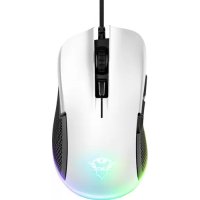
Celox GXT 165 - Mouse TRUST - Free user manual and instructions
Find the device manual for free Celox GXT 165 TRUST in PDF.



User questions about Celox GXT 165 TRUST
0 question about this device. Answer the ones you know or ask your own.
Ask a new question about this device
Download the instructions for your Mouse in PDF format for free! Find your manual Celox GXT 165 - TRUST and take your electronic device back in hand. On this page are published all the documents necessary for the use of your device. Celox GXT 165 by TRUST.
USER MANUAL Celox GXT 165 TRUST
GXT 165 Gaming Mouse - USER'S MANUAL
Trust
Index
| Language | Page |
| english | 2 |
| Deutsch | 1 |
| français | 1 |
| italiano | 1 |
| spanol | 4 |
| portugués | 7 |
| lederlands | 0 |
| dansk | 3 |
| kuomi | 6 |
| lorsk | 9 |
| ivenska | 2 |
| olski | 5 |
| besky | 8 |
| slovenčina | 1 |
| magyar | 4 |
| română | 7 |
| ílbárapcsn | 0 |
| ýccskn | 3 |
| íληνικà | 6 |
| Türkçë | 9 |
| Irvatski | 2 |
| lovenski | 5 |
| brasileiro | 8 |
| yipeline | 1 |
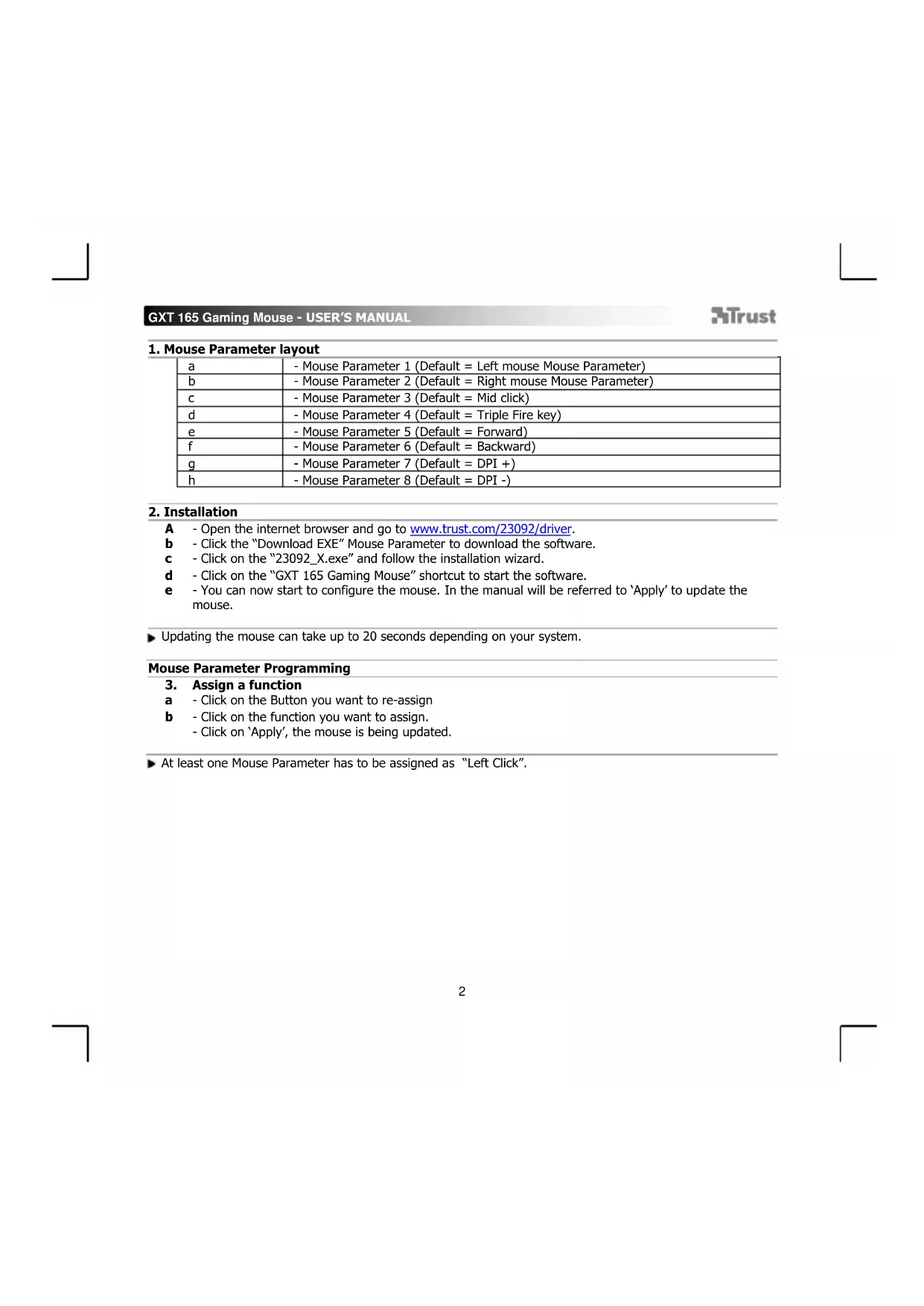
1. Mouse Parameter layout
| a | - Mouse Parameter 1 (Default = Left mouse Mouse Parameter) |
| b | - Mouse Parameter 2 (Default = Right mouse Mouse Parameter) |
| c | - Mouse Parameter 3 (Default = Mid click) |
| d | - Mouse Parameter 4 (Default = Triple Fire key) |
| e | - Mouse Parameter 5 (Default = Forward) |
| f | - Mouse Parameter 6 (Default = Backward) |
| g | - Mouse Parameter 7 (Default = DPI +) |
| h | - Mouse Parameter 8 (Default = DPI -) |
2. Installation
A - Open the internet browser and go to www.trust.com/23092/driver.
b - Click the "Download EXE" Mouse Parameter to download the software.
c - Click on the "23092 X.exe" and follow the installation wizard.
d - Click on the "GXT 165 Gaming Mouse" shortcut to start the software.
- You can now start to configure the mouse. In the manual will be referred to 'Apply' to update the mouse.
- Updating the mouse can take up to 20 seconds depending on your system.
Mouse Parameter Programming
- Assign a function
a - Click on the Button you want to re-assign
b - Click on the function you want to assign.
- Click on 'Apply', the mouse is being updated.
At least one Mouse Parameter has to be assigned as "Left Click".
GXT 165 Gaming Mouse - USER'S MANUAL
ATrust
Report rate & DPI settings
4. DPI setting
a - Click on the 'DPI Setting' tab.
b - Click on the checkbox next to the DPI number to enable or disable this DPI level.
c - Change the DPI level by dragging the respective bar.
- Click on 'Apply', the mouse is being updated.
Light Settings
5. Change the Light Lighting
a - Click on the 'Lighting' tab.
b - Change the light mode.
c - Change the animation speed.
d - Change the wave direction.
- Click on 'Apply', the mouse is being updated.
Other settings
6. Mouse Parameter
a - Click on the 'Mouse Parameter' tab.
b - Change the Acceleration, Windows pointer speed, Windows scroll speed or Windows doubleclick speed by dragging the respective cursor.
- Click on 'Apply', the mouse is being updated.
7. Polling Rate
a - Click on the 'Polling Rate' tab.
b - Change the Polling rate by clicking on the respective frequency.
- Click on 'Apply', the mouse is being updated.
Macro Settings
- Create a Macro (Store a sequence of keys in the software)
a - Click on the 'Macro Editor' button.
b - Click on 'New marco' to create a new macro.
c - Set the delay time between each action and/or the loop/repeat setting.
d - Click to start recording the macro. Now enter your preferred macro sequence.
e - Click to stop recording the macro. (max. 32 actions)
f - Click on Save'.
- The created macro is now available under the 'Macro' function.
To assign a macro follow step 3 of this manual.
Profile Settings
- Select, Save or Load a profile
a - Select one of the 3 profiles by clicking on the preferred profile.
b - Click on 'Export profile' to save a setup, Click on 'Import profile' to load a setup.
c - Enter a name for the mouse setup you want to save, or choose the preferred profile to load.
d - Click on 'Save' to save the setup, click on 'Open' to load the setup.
- Click on 'Apply' Your mouse setup is now saved or updated to your mouse.
a - Click on 'RESTORE' to reset the current profile to factory default.
b - Click on 'OK' to reset all profiles to factory default.
Report rate & DPI settings
4. DPI-innstilling
Setári report rate.si DPI
4. Setarea DPI
HaCtpoKn Ha CBeTJInHa
- CmHa Ha CBeTInHHn eΦeKT
a -LpaKHeTe Bbpy pa3dEn „Lighting".
b -CmeHeTe peKIma Ha CBETNIHaTa.
C - CmHa Ha ckopoCTTa Ha aHIMaIyraTa.
d -CmHa Ha NOCOKata Ha BbHata.
- Lpakhe Te Bpyx ,Apply",MnkaTa ce aKtyaHn3npa.
ApyrnnaactpoKn
- Mouse Parameter
a -LpaKHeTe Bbpxy pa3eJ „Mouse Parameter".
b - CmHa Ha yckopeHHe, ckOpCT Ha Windows noka3aneua, ckOpCT Ha npeBpTaHe Ha Windows nnckopocT Ha DBykpaTHo upaKaBaHe Ha Windows ype3 u3terIHe Ha cbOTBeTHnKypCop.
- LpakHeTe Bbpxy ,Apply",MmKkTa ce akTyamn3npa.
- Polling Rate
a -LpaKHeTe Bbpxy pa3en ,Polling Rate".
b - CmeheTe YecToTa Ha onpeChBaHe KaTo UpaKHe Bbpyc CbOTBeTHata YecToTa.
- LpakHeTe Bbpxy ,Apply",MmKkTa ce akTyamn3npa.
MaKpo NaCTpoKn
- Cb3daBaHe Ha Makpoc (3anaMetete nocieDobateHnOCT Ha KnaBnB B cofoyepa)
a -LpaKHeTe Bbpxy 6yToHa „Macro Editor" [MAKPOC].
b -IpaKHeTe Bbpxy ,New macro", 3a da Cb3daTe HOB MaKpoc.
C -3aJaTe BpeMe 3a 3a6abAne MeKdy BCaKO DeIcTBn I/IIH NaCTpoKa Ha ZKbJ/NOBTOpeHne.
d - PaKHeTe, 3a da cTapTnPaTe 3aHcHa MaKpoc. Cera BbBeTe NcKaHata OT Bac nocneobateHoct Ha MaKpoc.
e -LpakheTe,3a da cnpTe 3anca Ha MaKpoc.(MaKc.32 deNCTBnA)
f -UpaKHeTbBpxy"Save".
- Cb3daeHnT MaKpO e HaJIuH eBbФyHKnIra „Macro".
3a Da Ha3HaunTe MaKpOc, CneBaaTe CTbNka 3 Ha To3n HapbHnK.
HaetpoKn Ha npoΦn
- 36epete, 3ana3n nn 3apeyn npoФn
a -I36peTe eDINOT 3 Te npoФnla KaTO ppaKHeTbpxy npedNoHTaHnA.
b - UpaKHeTe "Export profile", 3a da 3ana3nte HacTpoiKaTa. UpaKHeTe Bbpxy "Import profile", 3a da 3apeDHTe HAcTpoiKa.
c -BbBeTe Me 3a HacTpoKata Ha MmKata, KOrTO NCKaTe Da 3anaaTe nn n36peTe 3a 3apeKaHe npednoHTAH npoHn.
d -SapKHeTe"Save",3a da 3ana3nte HactpoiKaTa. 1paKHeTe Bbpy,Open",3a da 3apeiTe HactpoiKa.
- LpakheBbpxy,Apply"→ Cera hactpoKaTa Ha MmKkata Bn e 3ana3eHa nn akTyan3npaHa B MnKkata.
- Bb3TaHOBRAHe Ha HAcTpoKn No nopa36npahe
a -LpaKHeTe Bbpxy ,RESTORE", 3a da hynnpate Tekyu npoФин KBM ФабрHuHte NaCtpoKN.
b -LpakheTe,OK"3a Da Hynipate BCnKn npoofnn KbM f6pnHHe NaCTPOKN.
1.Cxema KhoNOK
| a | - Khonka 1 (no умочаши = левая конка мыши) |
| b | - Khonka 2 (no умочаши = павая конка мыши) |
| c | - Khonka 3 (no умочаши = щелчok средень конков мыши) |
| d | - Khonka 4 (no умочаши = кльвши «Оrogen» Травною нажатnia) |
| e | - Khonka 5 (no умочаши = воред) |
| f | - Khonka 6 (no умочаши = назад) |
| g | - Khonka 7 (no умочаши = DPI +) |
| h | - Khonka 8 (no умочаши = DPI -) |
2.YctaHOBka
A - OTKpOTe Be6-6pay3ep i nepeiDnte no ccbInke www.trust.com/23092/driver.
b -Leknte Knonky Download EXE>ДЯЗагузkn nporpamMHoro o6ecnehenia.
c -LeKnTe faan «23092_X.exe» n cneyIte HCTpyKuym MaCTepa yctahOBKn.
d - LcJIKNHTe npIbIK «GXT 165 Gaming Mouse» dIa 3anycka nporpaMMHOro o6ecneHn.
e - Tenepb MoKHO Haatb HactpoKy MbIiB. BpyHOM pexIme Heo6xOIMo HaxaTb KhoNky «Apply» Dnra 06HOBJIeHnI npOrpaMMHoro 06ecneHnM MbIiN.
O6HOBHeHne nporpaMMHO o6ecneueHn MbIIM MOKeT 3aHrTb do 20 ckyHd B 3aBNCMOCTn OT BaWe CNTEmbl.
PporpaMnpoBaHne KHONoK
3. Ha3NaueHne FyHKU
a -HaxMnte KhoNky, KOtOpyIO Heo6xOIMOn nepeHa3HaHTb.
b -LJIeIKHnTe ΦyHKUHO, KOtOpYIO Heo6xOIMMO Ha3HaHTb.
- IIeJIKNHnTe «Apply», nporpaMMHOe 06cpeueHne MbluN 6yDet O6HOBJIeHO.
Kak MHHMMy, ODA KHOIIKa DOJIIXKa 6bITb Ha3HaueHa KaK «Left Click>.
GXT 165 Gaming Mouse - USER'S MANUAL
Trust
Yactota onpoca n napametpb DPI
4. NapaMeTpbl DPI
a -LeknTe BknaDky «DPI Setting>.
b -IeKHTe Ha fnaXoK Bo3ne Homepa DPI, yTo6bB BKnHouNTb nIN OTKnHouNTb daHHbI ypoBeHb DPI.
c -I3MeHHTe yPOBeHb DPI, nepTaunB COOTBeTCTBYUuIN NON3yHOK.
- LJIeKHTe «Apply», nporpaMMHoe oecneueHne Mbln 6ydt ObHOBHeNo.
NapaMetpbI NOCBETK
5. 3MeHeHne 3ΦΦeKToB nOcBcTeKN
a - 《KHTe Bkndky «Lighting».
b -N3MeHHTepeXnM NODCBeTKn.
c -N3MeHHTeCKOPOCTb aHIMaLIN.
d -ИЗменинту Наразьгеля ВОЛны.
- ⅢeIKNHtE «Apply», nporpamMHOe oecneueHHe Mblu 6ydt ObHOBNeHO.
Дугни napametpbI
6. Mouse Parameter
a - ΜεικηντεΒλλάκγ «Mouse Parameter»,
b -Измение усокене, скорость указаел� Windows, скорostь поркутkn Windows Ии скорoctь Двонoro щелчka Windows, nepetauub COOTBETCTBYUOuIN Kypcop.
- LJIeIKHnTe «Apply», nporpaMMHOe 06cneueHHe Mblu 6ydt O6HOBNeHO.
7. Polling Rate
a -LJIeKnHte BknaIky «Polling Rate».
b -I3MeHHTe yactOTy onpoca, Haxab Ha COOTBETCTBYIOU yactOTy.
- LJIeKHTe «Apply», nporpaMMHoe 06cneueHne Mblu 6yTe 06HOBHeHO.
NapaMeTpbMakpocOB
- Co3aHne MaKpOca (coXpaHeHne nocJeOBaTeBbOCTn KnaBn B nporpaMMHom o6ecneueHH)
a - LJIeKHTe KHONKy Macro Editor [«MAKPOCbl»].
b -New macro> dna co3daHnHOBOrO MaKpoca.
C - YctaHOBnTe BpeM 3aepKm Mekdy KaXdbm DeIcTBnEM n (NJH) HAcTpoNko Lkna/NoBTopa.
d -IeJIKNHTe,HTO6bHaHauaTb 3aNNcB MaKPOCa.Tenepb BBeINTe Tpe6yeMyIO NocJeIOBaTeNbHOCTb MaKPOCa.
e -Ieiknhte,TO6bIOCTaHOBtB3aHNCbMaKpOca.(MaKc.uaCNO deNCTBn-32)
f -UeKnTe «Save».
-Co3daHHbMakpocTepebdoctyneHnofdyHKuuei«Macro
Дянэзауня Мakрoca BbInOnHnTe 3 NaCTOgero pyKOBoDCTBa.
Napametpbipnpofo
- Bb6op, coxpaHne Hn 3aRpy3ka npoФnla
a -Bb6epnte oINH 3 npoΦnJIe, ξeJIKNyTpe6yEmbN Hx.
b - Μεικητε «Export profile» Ддя coхpaHEHЯ HabcpoeK. Μεικητε «Import profile» Ддя загуЗкн HabcpoeK.
c -BBeIte HMa HAcTpoE KMbIuN, KOToPbIe CneIyET COxpaHITb, IIN Bbl6epnTe Tpe6yeMbl npOfNlb dJIa 3arpy3Kn.
d - Μεικητε «Save»對於 coxpaheин Настpoeк; Μεικητε «Open»對於 загузк Настpoeк.
- UeKHTe «Apply» HAcTpoiKmMbIu6yDyT CoXpaHeHbI nnO6HOBnEhbl.
- BocctaHOBJIeHne Hactpoek no ymoJuaHHIO
a -LJIeKNHTe «RESTORE» dIra c6pOca TeKUeero npoΦnIa K npaMeTpam no yMOJuaHnIO.
b - 丛KHTe «OK» dIa c6pOca Bcex npoHJIe K npaMeTpam IO yMOJUHaHIO.