ManualGo.com
Laban GXT 188 - Mouse TRUST - Free user manual and instructions
Find the device manual for free Laban GXT 188 TRUST in PDF.



| Technical Features | Optical mouse, USB connectivity, 3200 DPI, 6 programmable buttons |
|---|---|
| Usage | Ideal for video games and daily use on PC |
| Maintenance and Repair | Regular cleaning recommended, no replaceable parts |
| Safety | Compliant with CE standards, safe to use on all types of surfaces |
| General Information | Compatible with Windows and Mac, ergonomic design, 1.8 m cable |
Frequently Asked Questions - Laban GXT 188 TRUST
Download the instructions for your Mouse in PDF format for free! Find your manual Laban GXT 188 - TRUST and take your electronic device back in hand. On this page are published all the documents necessary for the use of your device. Laban GXT 188 by TRUST.
USER MANUAL Laban GXT 188 TRUST
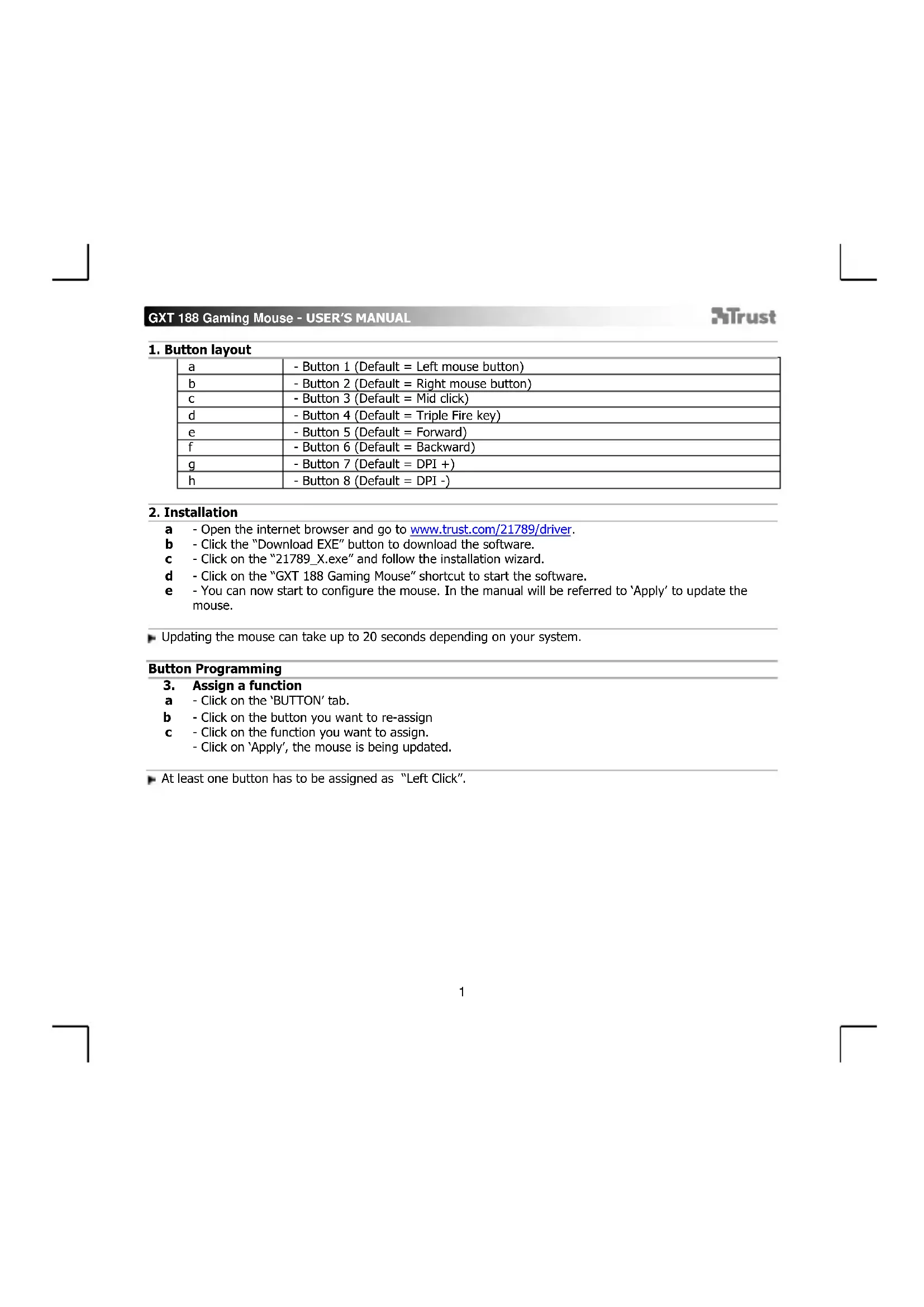
- Open the internet browser and go to www.trust.com/21789/driver. - Click the “Download EXE” button to download the software. - Click on the “21789_X.exe” and follow the installation wizard. - Click on the “GXT 188 Gaming Mouse” shortcut to start the software. - You can now start to configure the mouse. In the manual will be referred to ‘Apply’ to update the mouse. Updating the mouse can take up to 20 seconds depending on your system. Button Programming
Assign a function - Click on the ‘BUTTON’ tab. - Click on the button you want to re-assign - Click on the function you want to assign. - Click on ‘Apply’, the mouse is being updated. At least one button has to be assigned as “Left Click”.GXT 188 Gaming Mouse - USER’S MANUAL
Report rate & DPI settings
DPI setting - Click on the ‘PERFORMANCE’ tab. - Click on the checkbox next to the DPI number to enable or disable this DPI level. - Change the DPI level by dragging the respective bar. - Click on ‘Apply’, the mouse is being updated. LED colours indicate which DPI level is currently These indication colours cannot be changed; o GREEN = Level 1 o RED = Level 2 o BLUE = Level 3 o TURQOISE = Level 4 o PURPLE = Level 5
Other Settings - Click on the ‘BUTTON’ tab. - Change the Acceleration, Windows pointer speed, Windows scroll speed or Windows doubleclick speed by dragging the respective cursor. - Change the Polling rate by clicking on the respective frequency. - Click on ‘Apply’, the mouse is being updated.
Change the Light Effect - Click on the ‘EFFECT’ tab. - Change the light mode. - Change the colour by clicking the color box or; - Change the colour by dragging the Red, Green or Blue cursor. - Change the LED brightness level. - Change the animation speed. - Change the wave direction. - Click on ‘Apply’, the mouse is being updated. Light modes; o 7 Color Breath = multiple colours breathing o Full lighted = one solid colour o LED Off = disable LED o Breathing = one breathing colour o Wave = Rainbow wave effectsGXT 188 Gaming Mouse - USER’S MANUAL
Create a Macro (Store a sequence of keys in the software) - Go to the ‘BUTTON’ tab. - Click on a button and then on ‘MACRO MANAGER’. - Click on ‘NEW’ to create a new macro. - Fill in the name of the macro and click on ‘OK’. - Set the delay time between each action and/or the loop/repeat setting. - Click to start recording the macro. Now enter your preferred macro sequence. - Click to stop recording the macro. (max. 60 actions) - Click ‘OK’ to return to the ‘BUTTON’ tab. - The created macro is now available under the ‘MACRO’ function.
Select, Save or Load a profile - Select one of the 5 profiles by clicking on the preferred profile. - Click on ‘SAVE AS’ to save a setup, Click on ‘LOAD FILE’ to load a setup. - Enter a name for the mouse setup you want to save, or choose the prefered profile to load. - Click on ‘Save’ to save the setup, click on ‘Open’ to load the setup. - Click on ‘Apply’ Your mouse setup is now saved or updated to your mouse.
Restore default settings - Click on ‘RESTORE’ to reset the current profile to factory default. - Click on ‘RESET ALL’ to reset all profiles to factory default.GXT 188 Gaming Mouse - USER’S MANUAL
Report rate & DPI settings