
Rexx 22991 - Mouse TRUST - Free user manual and instructions
Find the device manual for free Rexx 22991 TRUST in PDF.



| Product type | Wired gaming mouse |
| Brand | Trust |
| Model | Rexx 22991 |
| Connectivity | Wired USB |
| Number of buttons | 6 programmable buttons |
| Sensor resolution (DPI) | 200 to 10,000 DPI adjustable in steps |
| Number of DPI steps | Up to 5 steps |
| Lighting | Customizable RGB (steady, breathing, blinking) |
| Configuration software | GXT 144 Gaming Mouse (download at trust.com/22991/driver) |
| Programmable functions | Key assignment, macros, profiles, sensitivity and scroll speed settings |
| Macros | Up to 60 actions per macro, delay recording |
| Profiles | Multiple profiles that can be saved, imported/exported |
| Dimensions (approx.) | Approximately 125 x 70 x 40 mm |
| Weight (approx.) | Approximately 150 g (with cable) |
| Power supply | Power via USB port |
| Supported operating systems | Windows (download specific driver) |
| Maintenance and cleaning | Unplug mouse before cleaning, use a soft slightly damp cloth |
| Repairability | Spare parts not supplied; contact technical support for repair |
| Warranty | See terms on Trust website |
Frequently Asked Questions - Rexx 22991 TRUST
User questions about Rexx 22991 TRUST
0 question about this device. Answer the ones you know or ask your own.
Ask a new question about this device
Download the instructions for your Mouse in PDF format for free! Find your manual Rexx 22991 - TRUST and take your electronic device back in hand. On this page are published all the documents necessary for the use of your device. Rexx 22991 by TRUST.
USER MANUAL Rexx 22991 TRUST
Frequently asked questions: www.trust.com/22991/faq

Trust


REXX
Gaming Mouse
GXT 144 Gaming Mouse - USER'S MANUAL
Trust
Index
| Language | Page |
| :nglish | 2 |
| :deutsch | 1 |
| :rançais | 0 |
| :taliano | 4 |
| :spanol | 8 |
| :Jederlands | 2 |
| 'olski | 6 |
| 'усский | 0 |
GXT 144 Gaming Mouse - USER'S MANUAL
Trust
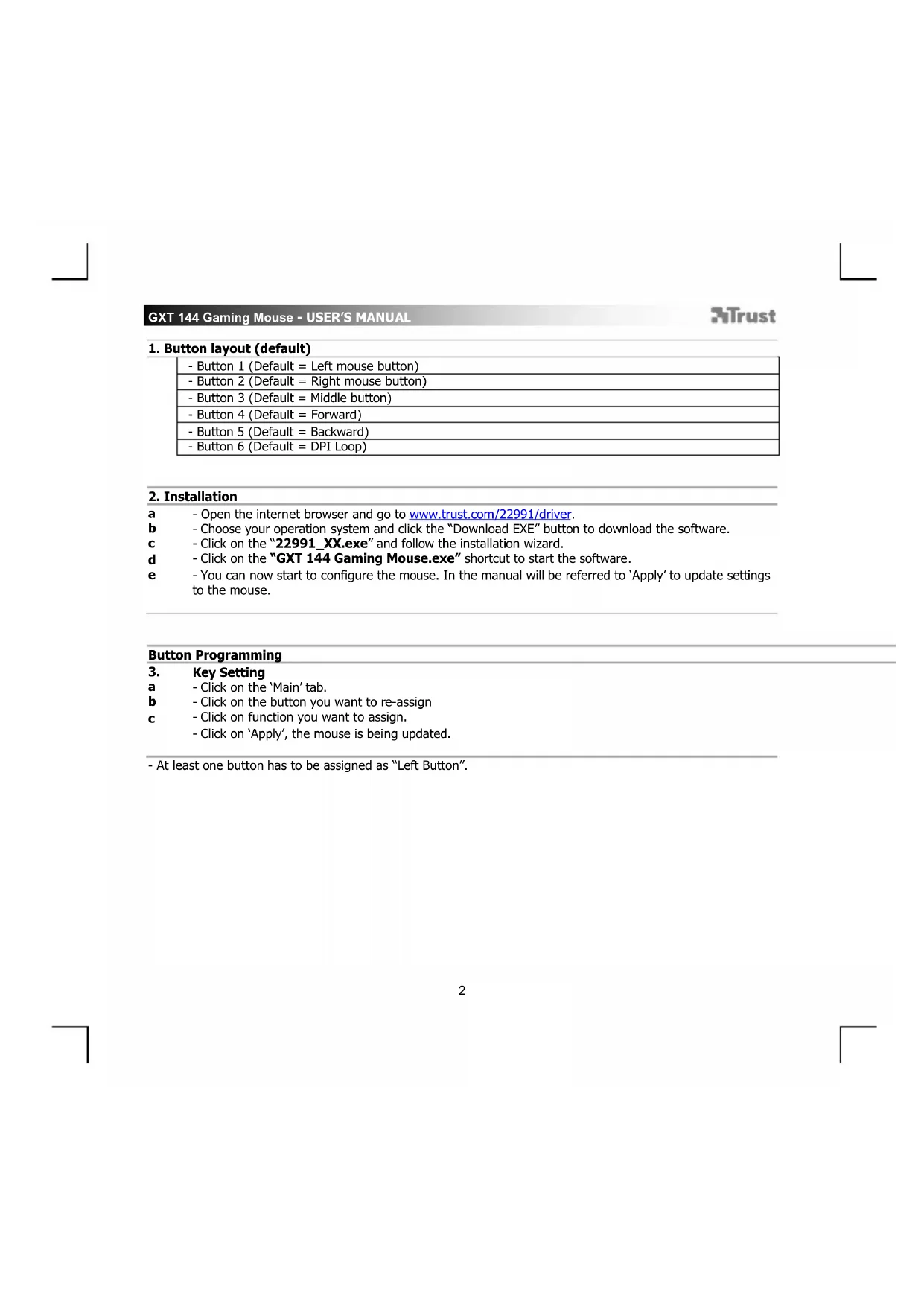
1. Button layout (default)
| - Button 1 (Default = Left mouse button) |
| - Button 2 (Default = Right mouse button) |
| - Button 3 (Default = Middle button) |
| - Button 4 (Default = Forward) |
| - Button 5 (Default = Backward) |
| - Button 6 (Default = DPI Loop) |
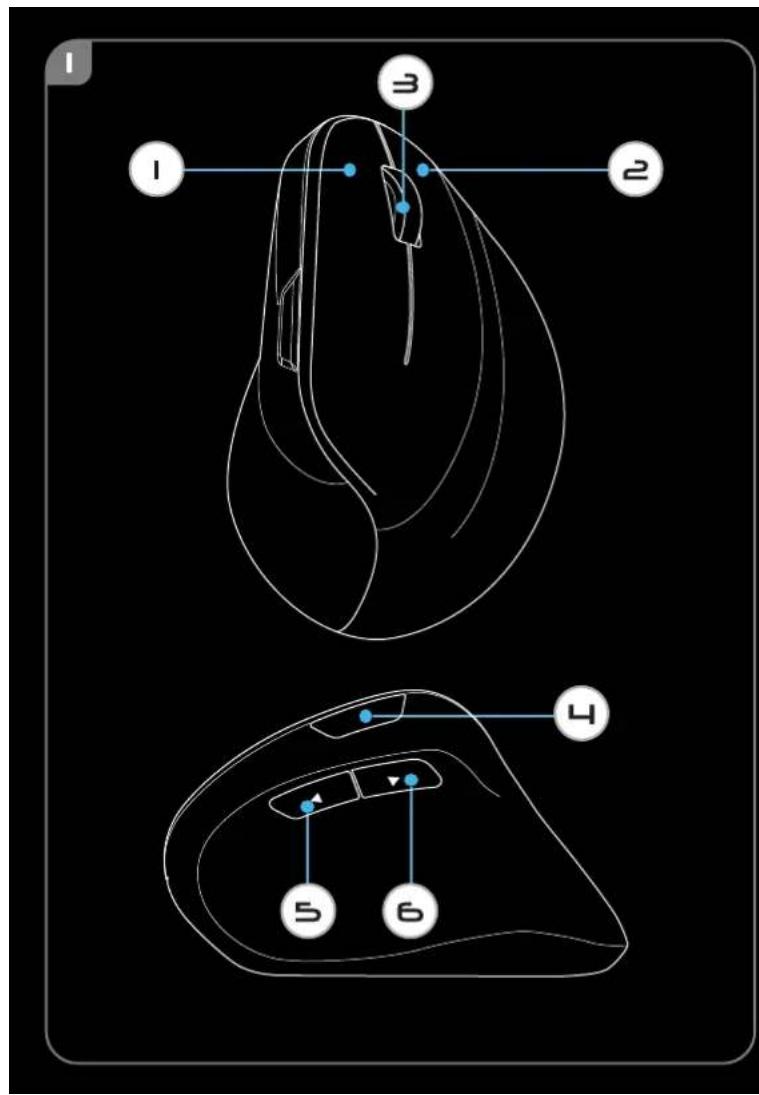
2. Installation
a - Open the internet browser and go to www.trust.com/22991/driver.
b - Choose your operation system and click the "Download EXE" button to download the software.
c - Click on the "22991_XX.exe" and follow the installation wizard.
d - Click on the "GXT 144 Gaming Mouse.exe" shortcut to start the software.
- You can now start to configure the mouse. In the manual will be referred to 'Apply' to update settings to the mouse.
Button Programming
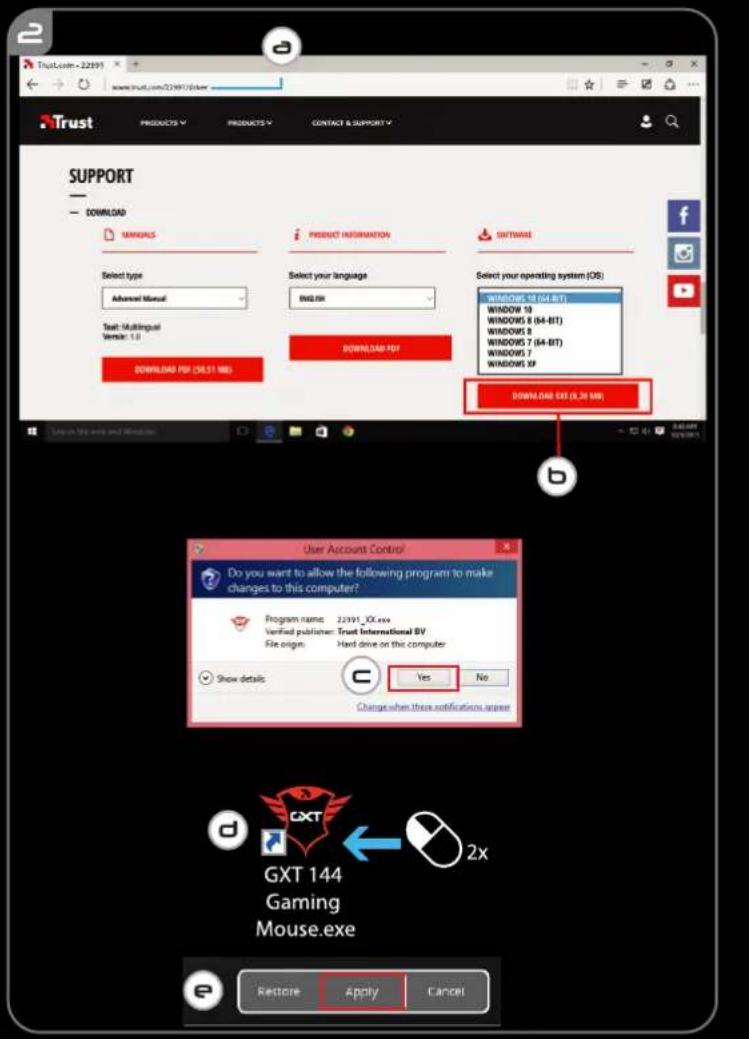
3. Key Setting
a - Click on the 'Main' tab.
b - Click on the button you want to re-assign
c - Click on function you want to assign.
- Click on 'Apply', the mouse is being updated.
- At least one button has to be assigned as "Left Button".
GXT 144 Gaming Mouse - USER'S MANUAL
Trust
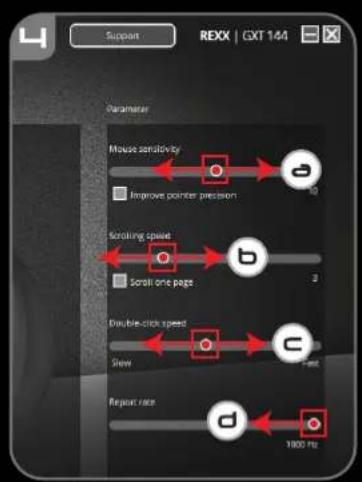
4. Mouse settings & report rate
a - Change the mouse sensitivity
b - Change the scrolling speed
c - Change the Double-click speed
d - Change the Report Rate
- Click on 'Apply', the mouse is being updated.
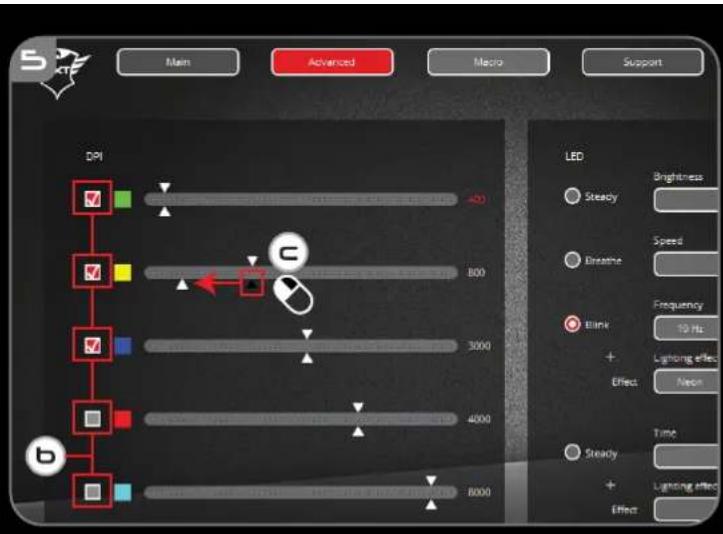
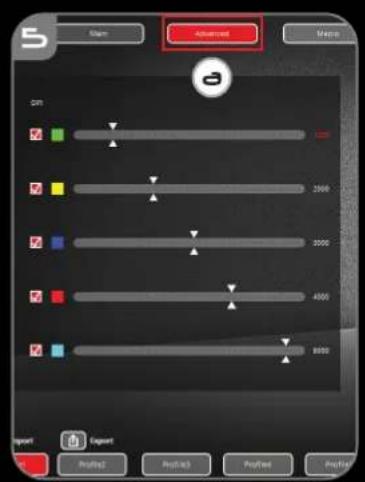
5. DPI Setting
a - Click on the 'Advanced' tab
b - Assign up to 5 DPI variables (Check/uncheck boxes).
c - Choose a DPI speed for each DPI setting (min 200 / max 10.000 DPI).
- Click on 'Apply', the mouse is being updated.
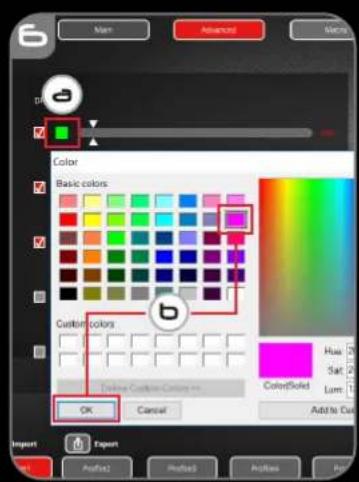
6. Custom color
a - Click on the color you want to change
b - Click the desired custom color and click on 'OK'
- Click on 'Apply', the mouse is being updated.
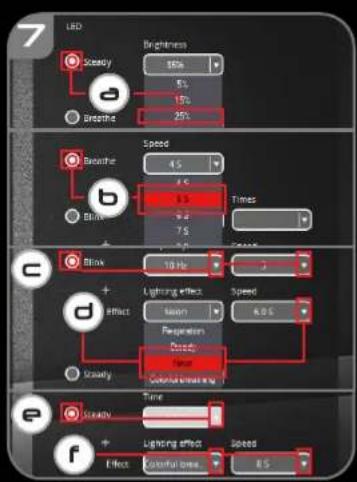
7. Light effects
a - Click on 'Steady' and change the brightness
b - Click on 'Breathe' and change the speed
c - Click on 'Blink' and change the frequency + times (when switching DPI the mouse will blink)
d - Change the lighting effect and change the speed
e - Click on 'Steady' and change the 'Time' (when pressing 'Apply' the mouse will light up for the selected time.
f - Change the effect and change the speed - Click on 'Apply', the mouse is being updated.
GXT 144 Gaming Mouse - USER'S MANUAL
Trust
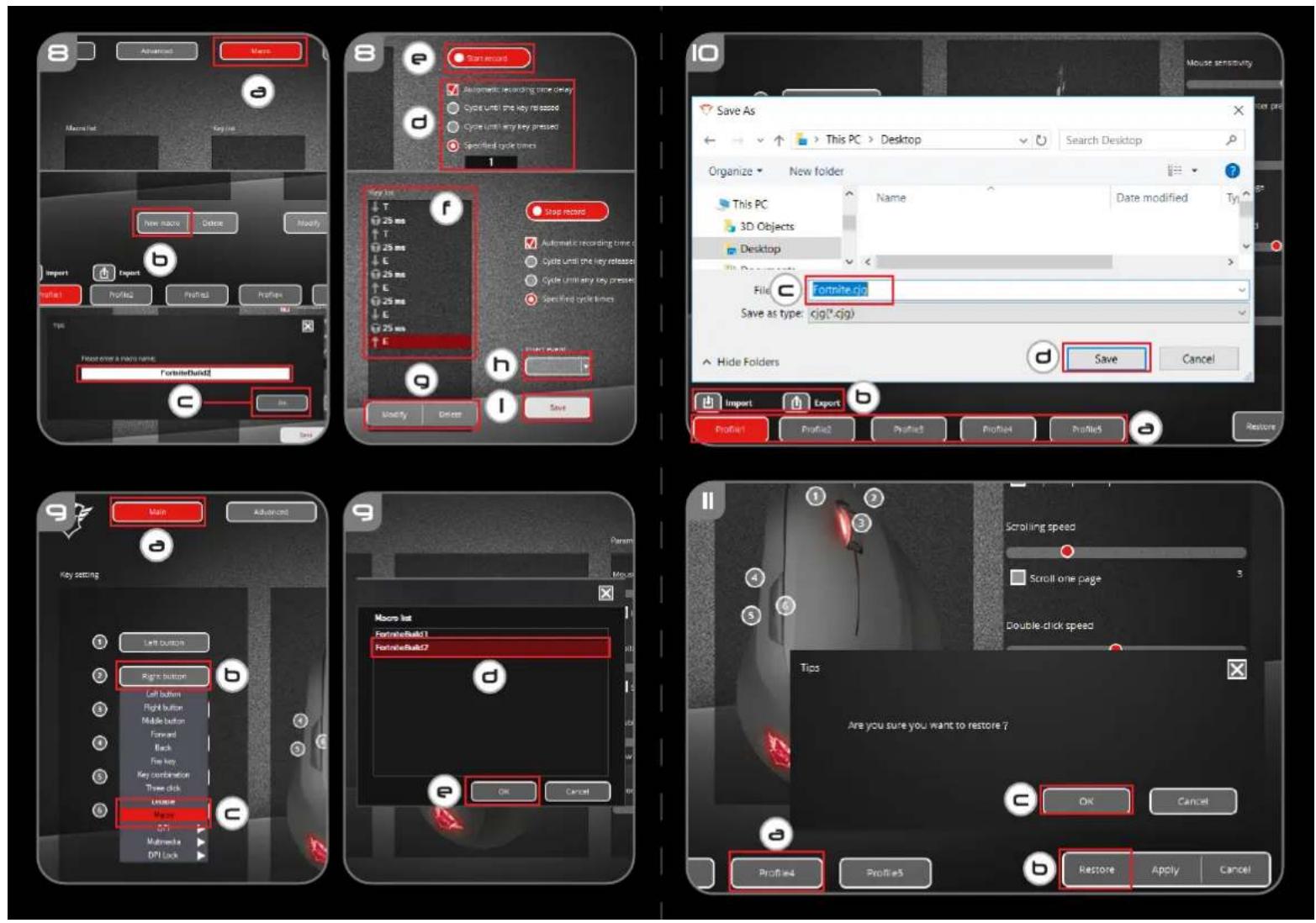
Macro Settings
- Create a Macro (Store a sequence of keys in the software)
a - Click on the 'Macro' tab
b - Click on the 'New macro' button
c - Enter Macro Name and click 'OK'
d - Choose to record the button delay and choose how the macro is executed
e - Click on 'Start record' to start recording the macro.
f - Now enter your preferred macro sequence (max. 60 actions)
g - Click on 'Stop Recording' to stop recording the macro
- Click on 'Insert event' to insert a mouse action
i - Click on 'Save' to save the macro.
- The next step shows how to assign your recorded macro.
Assign a Macro
- Assign a Macro (Store a sequence of keys in the software)
a - Click on the 'Main' tab
b - Click on the button you want to assign a macro to
c - Click on the function 'Macro'
d - Select your preferred macro.
e - Click on 'OK'.
- Click on 'Apply', the mouse is being updated.
GXT 144 Gaming Mouse - USER'S MANUAL
Trust
10. Save or Load Profiles
a - Choose the profile you want to save/load
b - Click on the 'Import' icon to load a setup, click on the 'Export' icon to save a setup
c - Enter the desired name for your setup, or search the previously saved setup.
d - Click on 'Save/Open' to save/load your setup
- Click on 'Apply', the mouse is being updated
11. Factory reset
a - Choose the profile you want to reset
b - Click on the 'Restore' button
c - Click on the 'OK' button to restore all settings to factory default
Trouble shooting
Problem
Solution
The software is not starting.
- Make sure the GXT 144 mouse is connected and try to start the software again.
The mouse is not being detected.
- Try another USB port, restart your PC and try again.
If your problem is not solved, please contact the help desk at www.trust.com/22991/faq.
www.trust.com/22991/faq.
- GXT 144 GAMING MOUSE - USER'S MANUAL
- TRUST
- BUTTON LAYOUT (DEFAULT)
- INSTALLATION
- BUTTON PROGRAMMING
- KEY SETTING
- MOUSE SETTINGS & REPORT RATE
- DPI SETTING
- CUSTOM COLOR
- LIGHT EFFECTS
- MACRO SETTINGS
- ASSIGN A MACRO
- SAVE OR LOAD PROFILES
- FACTORY RESET
- PROBLEM
- SOLUTION
- THE SOFTWARE IS NOT STARTING
- THE MOUSE IS NOT BEING DETECTED
Brand : TRUST
Model : Rexx 22991
Category : Mouse