
Zeebo GXT 121 - Mouse TRUST - Free user manual and instructions
Find the device manual for free Zeebo GXT 121 TRUST in PDF.



| Product type | Wired gaming mouse |
| Connectivity | Wired USB |
| Sensor | Optical |
| Resolution (DPI) | From 1200 to 3200 DPI, adjustable in steps |
| Number of buttons | 7 programmable buttons (including left, right, scroll wheel, side buttons, DPI+/-) |
| Scroll wheel | Scroll wheel with scroll or volume function |
| Lighting | Customizable RGB LED via software |
| Internal memory | No (settings are not saved in the mouse) |
| Software | GXT 121 Configuration Tool (downloadable from trust.com/23091/driver) |
| Compatible operating system | Windows (version specified on Trust website) |
| Macros | Macro recording and assignment (up to 108 entries) |
| Profiles | Multiple customizable profiles, import/export possible |
| Dimensions (approx.) | 125 × 75 × 40 mm |
| Weight (approx.) | 100 g |
| Cable length | Approximately 1.8 m |
| Power supply | USB (5V, 500 mA) |
| Maintenance | Clean with a soft, dry cloth. Avoid liquids. |
| Repairability | Spare parts not provided. In case of failure, contact Trust customer service. |
| Package contents | Zeebo GXT 121 mouse, user manual |
Frequently Asked Questions - Zeebo GXT 121 TRUST
User questions about Zeebo GXT 121 TRUST
0 question about this device. Answer the ones you know or ask your own.
Ask a new question about this device
Download the instructions for your Mouse in PDF format for free! Find your manual Zeebo GXT 121 - TRUST and take your electronic device back in hand. On this page are published all the documents necessary for the use of your device. Zeebo GXT 121 by TRUST.
USER MANUAL Zeebo GXT 121 TRUST
Frequently asked questions: www.trust.com/23091/faq

Trust
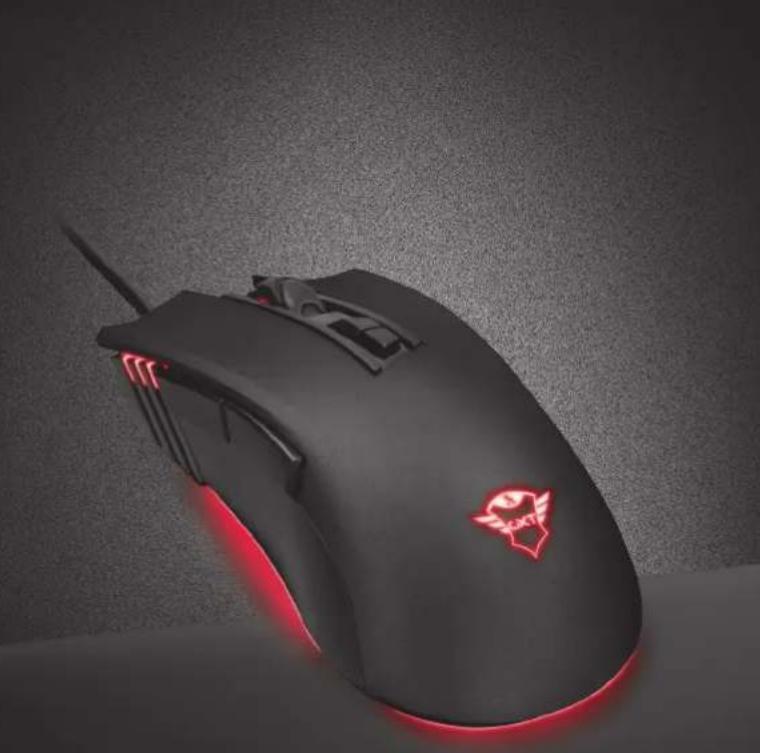

ZEEBO
Gaming Mouse
GXT 121 Gaming Mouse - USER'S MANUAL
Trust
Index
| Language | Page |
| english | 2 |
| Deutsch | 1 |
| Français | 0 |
| italiano | 4 |
| spaniol | 8 |
| lederlands | 2 |
| jolski | 6 |
| у检кni | 0 |
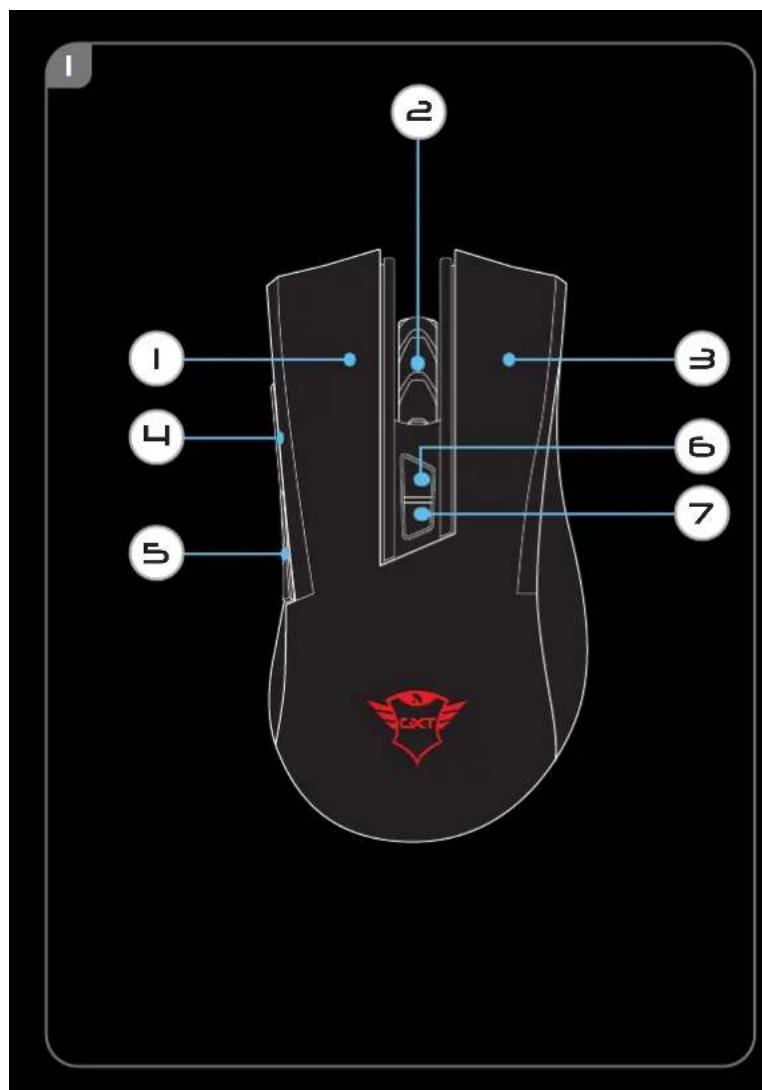
1. Button layout (default)
| - Button 1 (Default = Left mouse button) |
| - Button 2 (Default = Mid button) |
| - Button 3 (Default = Right mouse button) |
| - Button 4 (Default = Forward) |
| - Button 5 (Default = Back) |
| - Button 6 (Default = DPI+) |
| - Button 7 (Default = DPI-) |
Installation
-
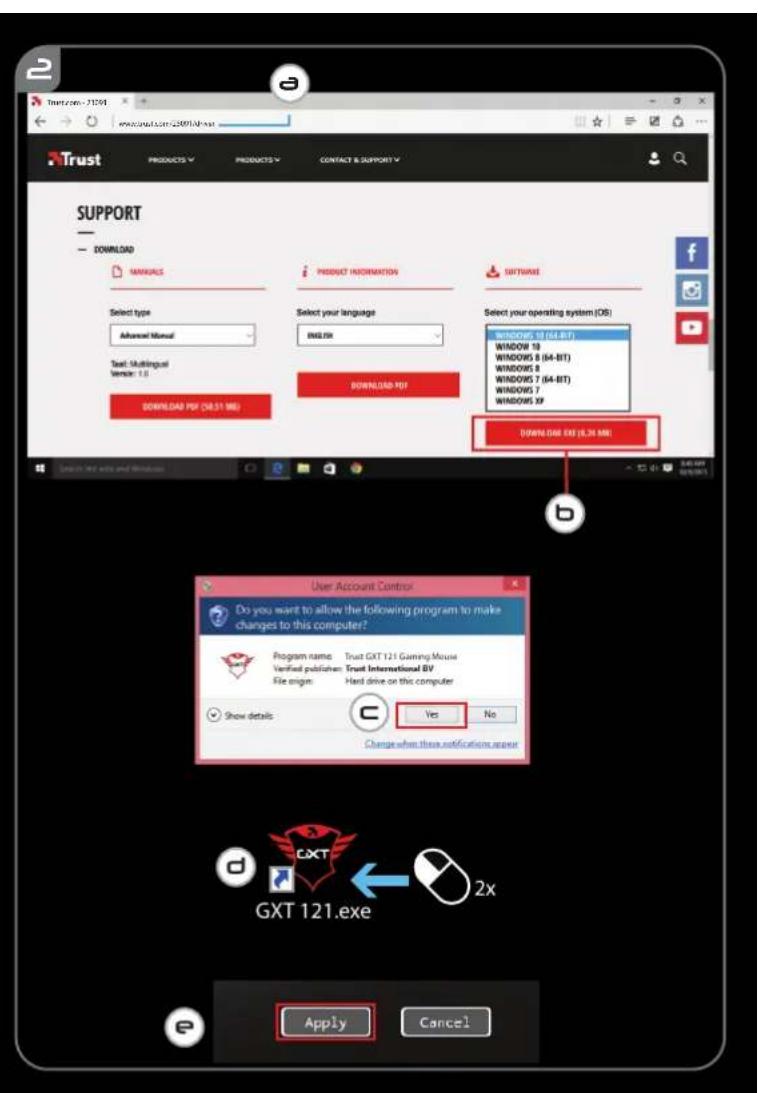
- Open the internet browser and go to www.trust.com/23091/driver.
- Choose your operation system and click the "Download EXE" button to download the software.
- Click on the "23091 XX.exe" and follow the installation wizard.
- Click on the "GXT 121.exe" shortcut to start the software.
- You can now start to configure the mouse. In the manual will be referred to 'Apply' to update settings to the mouse. Please note it can take approx. 10 seconds for the settings to be updated to the mouse.
Button Programming
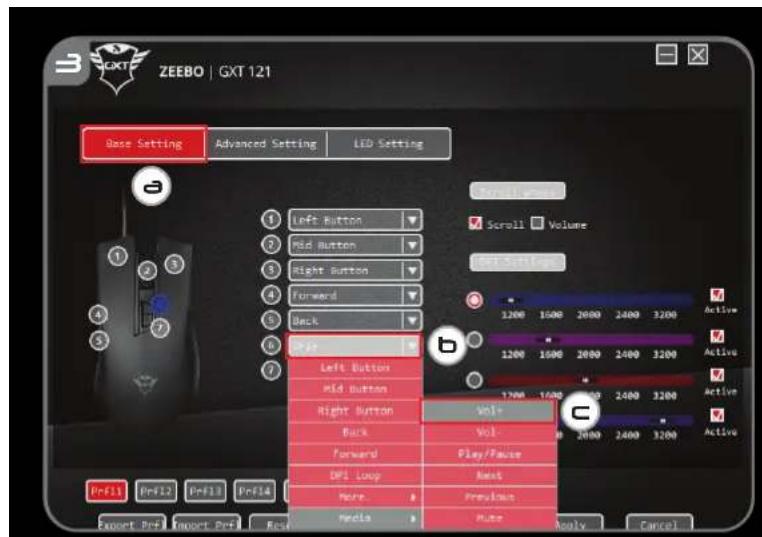
3. Key Setting
a - Click on 'Base Setting'.
b - Click on the key setting you want to re-assign.
c - Click on function you want to assign.
- Click on 'Apply', the mouse is being updated. (The selected key mode mode will be active)
GXT 121 Gaming Mouse - USER'S MANUAL
Trust
Scroll wheel setting, DPI settings & Light Effect
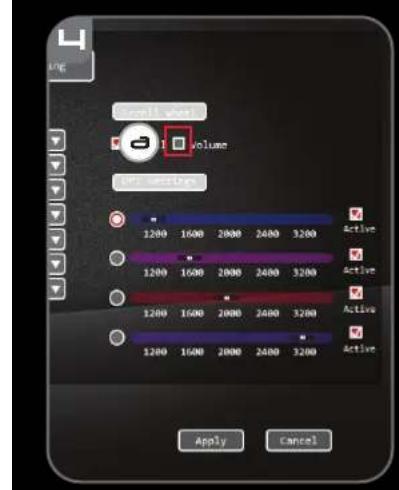
4. Scroll wheel setting
a. - Set scroll wheel function to 'scroll' or 'volume'.
- Click on 'Apply', the mouse is being updated.
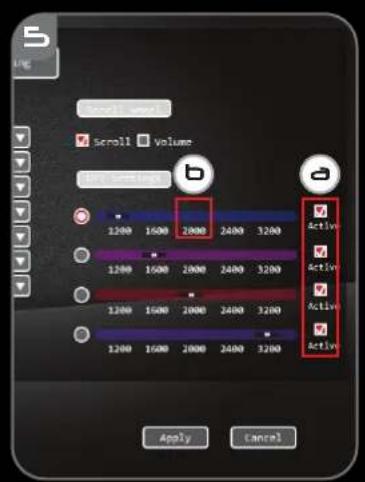
5. DPI Setting
a. Assign up to 4 DPI variables (Check/unchecked boxes).
b. - Click to adjust the DPI speed (min 1200 / max 3200).*
- Click on 'Apply', the mouse is being updated.
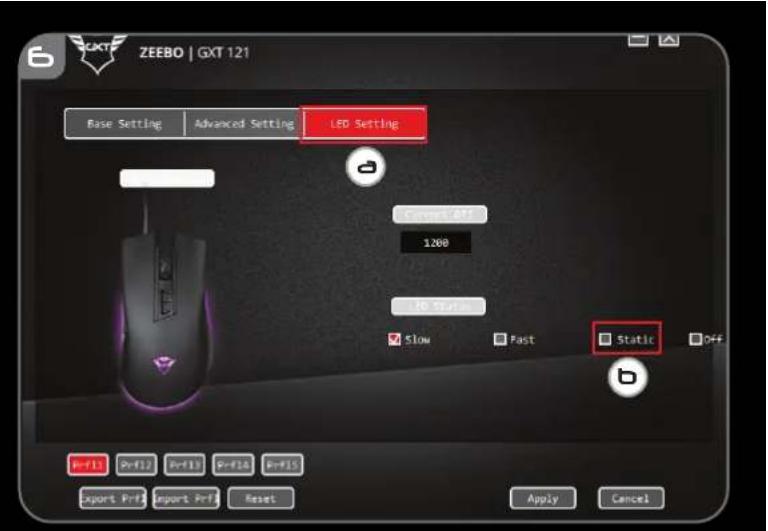
6. Light Effect
a. -Click on 'LED Setting'.
b. - To change the light effect, choose a LED Status.
- Click on 'Apply', the mouse is being updated.
GXT 121 Gaming Mouse - USER'S MANUAL
Trust
Mouse, Scroll & Double-click Speed
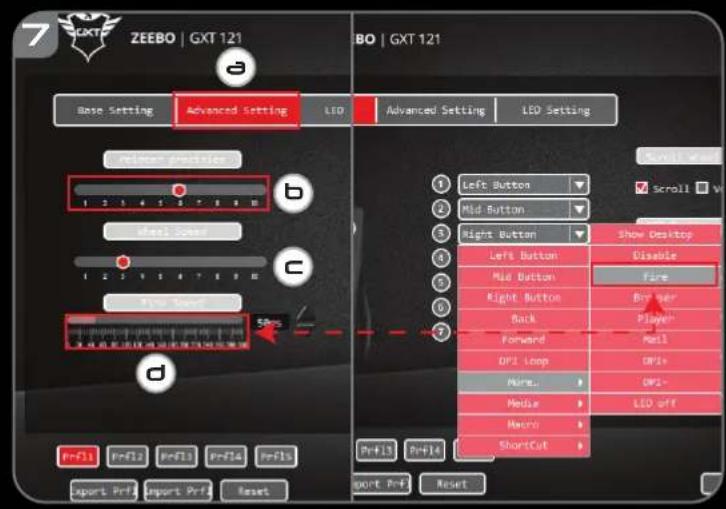
7.
a. -Click on the Advanced Settings'.
Mouse Speed
b. - Click on 1 (slow) to 10 (fast) to adjust windows mouse speed.
Scrolling Speed
c. - Click on 1 (slow) to 10 (fast) to adjust windows scrolling speed.
Fire Speed
d. - Click on a preferred fire speed, this is linked to the 'Fire' function.
- Click on 'Apply', the mouse is being updated.
Macro Settings
-
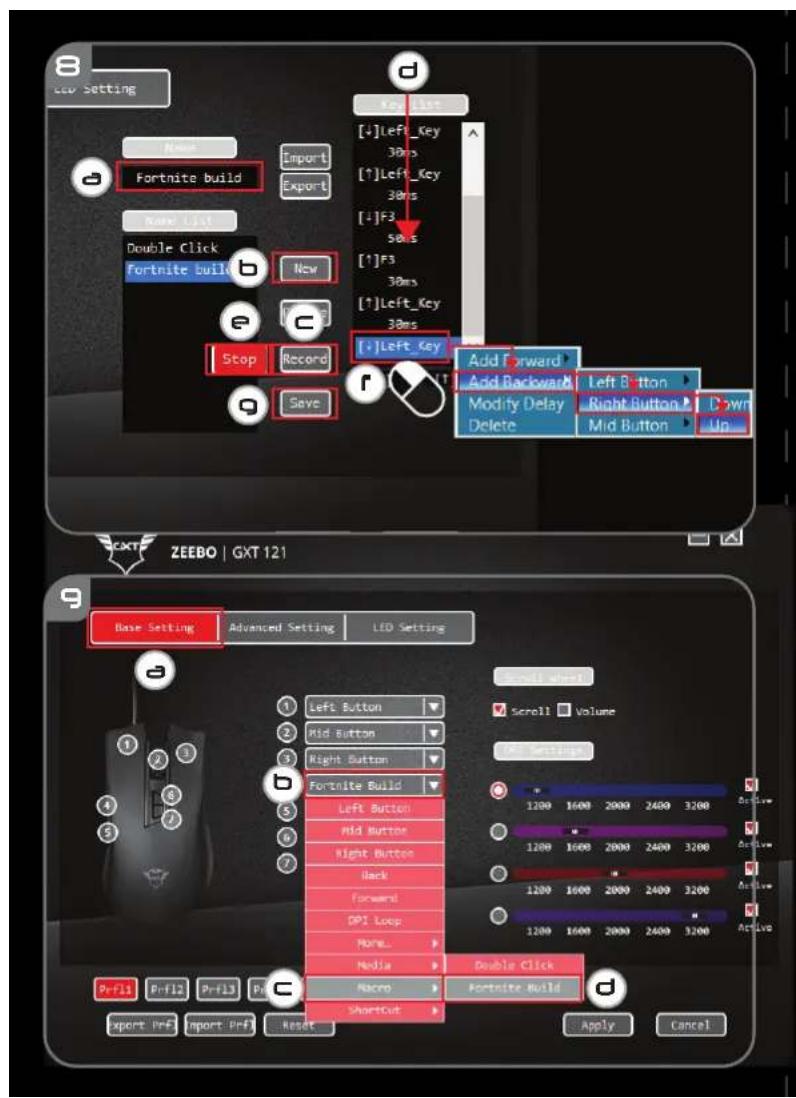
Create a Macro (Store a sequence of keys in the software)
a -Enter a Macro Name
b -Click on New
c - Click on 'Record' to start recording the macro.
d - Now enter your preferred macro sequence. (max. 108 key entries).
e - Click on 'Stop' to stop recording the macro.
f - Right click in the key list to add a mouse action, modify delay or delete a specific action.
g - Click on Save' to save the macro. -
The next step shows how to assign your recorded macro.
Assign a Macro
- Assign a Macro (Store a sequence of keys in the software)
a -Click on 'Basic Setting'.
b - Click on the key you want to assign a macro.
C - Click on 'Macro'.
d -Select your preferred macro.
- Click on 'Apply', the mouse is being updated.
GXT 121 Gaming Mouse - USER'S MANUAL
Trust
Profiles
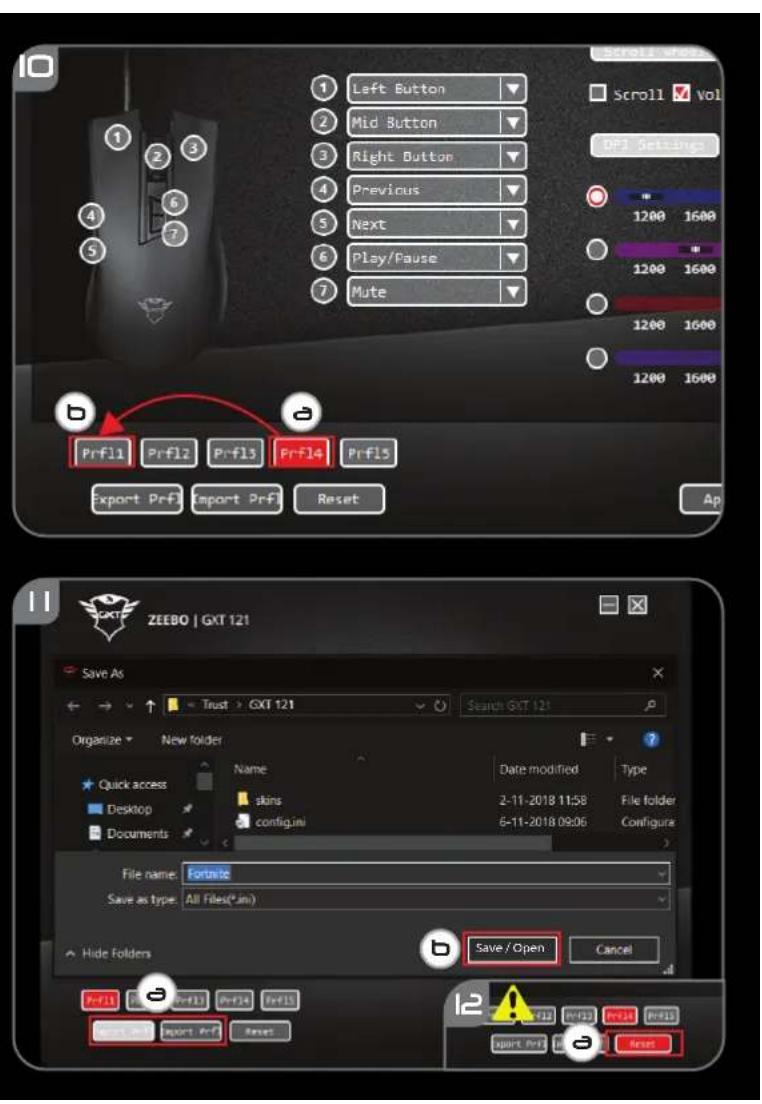
10. Change profiles
a - All settings changed are linked to the currently active profile.
b - Click on the profile you want to change to.
- Click on 'Apply', the mouse is being updated.
11. Import & Export profiles
Please note that Macros cannot be saved/loaded.
a - Click on 'Export Prfl' or 'Import Prfl' to save/load a profile.
b - Choose the location where you want to save/load the profile and click on 'Save'/'Open'.
- Click on 'Apply', the mouse is being updated.
12. Reset to factory default
Please note that resetting the mouse cannot be undone, all the changed settings will be lost. All macros made will be deleted from the software!
a - Click on 'Reset'. The mouse immediately resets to factory default.
Trouble shooting
Problem
Solution
The software is not starting.
- Make sure the GXT 121 mouse is connected and try to start the software again.
My settings are not saved to the mouse.
- The GXT 121 doesn't have onboard memory, all changed settings are lost when connecting the mouse to a different device.
If your problem is not solved, please contact the help desk at www.trust.com/23091/faq.
UTo6blCKaHaTb nporpaMMy.
c - 23091_XX.exe> n cIeDyIte HNCTpyKuIMaTepa yCTaHOBKn.
d - ⅢeKNHTe npblk «GXT 121.exe»ДЯЗауcka nporpaMMbI.
e -Teepb MoKHO HaaTaB HAcTpoiKy Mblu. B pyHOM pexmme Heo6xOmo HaKaTaB KOnkY (Apply) [「PpImeHTb]dIra 06HOBLeHnHaCtpoek Mblu. O6paTInTe BHNMaHne, YTO dIra 06HOBLeHnHaCtpoek Mblu nOTpe6byetc npIMepHo 10 cekyHd.
PporpammpoBaHne KhONOK
- HactpoKa KhoNok
a -IeKnTe Base Setting》[BaObA NaCTpoiKa].
b -IeKHTe HAcTPOkY KHOKN, KOtOpyIO Heo6xOIMO nepeHa3HaHTb.
C -IeKHTe FyHKUIO, KOtopyIO Heo6xOuMo Ha3HaHTb.
-
ⅢeIKNHtTe «Apply» [ПрИмЕнТь], пограмMHoe obecneueHneMbIи 6ydt O6HOBJIeHo. (BbI6paHHbI peKIM pa60tbl KhoNOK 6ydtakTINBeH).
-
KaK MInHMym OJHOH KONIke CJIeJeYeT Ha3HaunTB ΦyHKcIIO «Left Button» [JIeBaJ KOnIkaMbIu].
HacpoKa KOlecnKa npokpyKn, HactpoKn DPI nΦΦeKta noCBetKn
4. Hactpoika koleca npokpyTK
a. -3aainTe nIe Koneca npokpyTkn FyHKunIO «scroll» [npokpyTka] nIIN «volume» [rpomkoctb].
- LJIeKHeTe «Apply» [PpIMeHtB], npoPpAMMHOe o6ecneueHne Mbls 6yTeT O6HOBNeHo.
5. Hactpoikn DPI
a. - YctaHOBnTe do 4 nepemehhIx DPI (yCTaHOBnTE nIN CHIMnTe fnaKn B noJx).
b. -UeKHe, UTo6bI OTepyInpoBaTb ckOpocTb DPI (MnHmym 1200 / MaKcHmym 3200).*
- LJIeKHeTe «Apply» [PpIMeHHTb], npoPpAMMHOe o6ecneueHHe Mbln 6ydt O6HOBNeHO.
6. CBeTOBoi 3ΦΦeKT
a. -Leknte «LED Setting» [«HactpoKa cBetoIIOHOI IOCBETKN»].
b. -YtO6bI N3MeHnTb 3ΦΦeK T NOCDBeTK, BBiBepHTe CTAlyC BcTeOINoHDH NOCDBeTK.
- LJIeKHTe «Apply» [IpImeHntb], npOrpaMMHoe o6ecneueHHe MblSi 6ydt O6HOBNeHo.
GXT 121 Gaming Mouse - USER'S MANUAL
Trust
Mbiub,ckopocTb npokpyKn n BOHoro ueuka
7.
a. -UeKnTe «Adva Ckopoctb Mblu
b. -YTo6bI HAcTpoNTb CKOpOCTb MblIN B CnCTeMe Windows, HaxMnte Ha uΦpy: ot 1 (MeJneHHO) do 10 (6bICTpo).
CkopoocTb npokpyTkN
C. -TTo6bHaCTpOHTbCKOpOCTb npOKpyTKB CnCTeMe Windows, HaxMnte Ha cnΦpy: ot 1 (MeDneHHO) do 10 (6bICTpo).
Ckopoctb cTpeNb6bl
d. -Bb6epnte xenaeMyo CKOpocTb Ctpel6bl, OHa CBraHa C cyHKnei «Fire» [Ctpel6a].
-IIeJIKHnTe «Apply» [IpImeHntb], npOrpaMMHoe 06cneueHne Mblu 6ydt O6HOJIeHO.
NapameTpbl MaKpocOB
- C03dahne makpoca (coxpaehn e nocneobatebHOCTN KnaBn B nporpaMMHom o6ecneuehen)
a -BoiDInTe BpeKIM pa60Tb C MaKpocAMN
b -New[Hobby]
C -LJenKHeTe Record] [3aHnCb],uTo6bHaayaTb 3aHncMbKpOca.
d -Tenepb BBeDnTe Tpe6yEmyIO nocJeDoBaTeIbHOCtB DeNCTBm MaKpOcA. (MaKcmym 108 BBoOB KnaBn).
e -YTo6bI OCTaHOBnTb 3aNNcB MaKPOca, IeIKHnTe «Stop» [OCTaHOBnTb].
f -IeKHTpe npabO KhONKO Mbln No CnNCKy KnaBn, YTo6bl Do6aBnTb DeiCTBne MbHIn, N3MeHNTb 3aepkky nIy ydaNTb onpeJeHHoe DeiCTBne.
g -IeKHTe «Save» [CoXpaHnTb] nIa coXpaHeHMaKpOca.
06paHTe BHIMAHne, yTO MaKPOC HeJIb3R COxpaHHTb 3aRpy3NTb.
a -IeKnTe «Export Prfl» nnn «Import Prfl», 4to6bl coxpaHnt b nll 3arpy3nB npoHnB.
b -BbI6epnte MeTo, Kyda Bbl XOTnTe coXpaHnTb IIN 3aRpy3nTb npOuInb, n Haxmnte «Save/Open» [CoXpaHnTb/OTkpblb].
- LJIeKHTe «Apply» [IpImeHntb], nporpaMmHOe o6ceueHHe Mblu 6ydt O6HOBNeHO.
12. C6poCnTB HAcTpoiKn Do 3aBoDcKnX
O6paTne BHMaHHe, 7TO C6Poc HAcTpoek MblHn HEnb3a 6yDet OTMeHNtB, BCE N3MeHeHHbIe HAcTPOKn 6dyT yTePAHbI. Bce Co3daHHbIe MaKpocbI 6yDyT BbldaneHbI N3 nporpaMMbI!
a -IeKHTe «Reset» [C6pocntb].HacTpoiKnMbIuINcpa3yJxBeBepHyTCKaNCXoDhbIM3aBOdcknM.
UcTpaHHeH HeCnPaBHOCTe
Ipo6lema
PeweHne
NporpamMa He 3anyckaetc.
- Y6eIITecb, yTOMbIgB GXT 121 NOdkJIIOUeHa, I NOBOTOpIte 3aNyck nporpaMMbl.
Mon HactpoKn MbIuH He coXpaHJOTc.
- Y GXT 121 HET BCTPoehHNo nAmrTn, BCE N3MeHeHHbIe HaCTpoKIn TepaTOc pNIOKJIIOUeHHMbluN K dpyROMy yCTPOINCTBY.
EcnHcnpaBHOCTb yCTpaHNTb He ydaIocb, o6paTHTecb B cnyk6y TexHNuecko IIOdpeKKn: www.trust.com/23091/faq.
- Trust
- GXT 121 Gaming Mouse - USER'S MANUAL
- Button layout (default)
- Installation
- Button Programming
- Key Setting
- Scroll wheel setting, DPI settings & Light Effect
- Scroll wheel setting
- DPI Setting
- Light Effect
- Mouse, Scroll & Double-click Speed
- Mouse Speed
- Scrolling Speed
- Fire Speed
- Macro Settings
- Assign a Macro
- Profiles
- Change profiles
- Import & Export profiles
- Reset to factory default
- Problem
- Solution
- PporpammpoBaHne KhONOK
- HacpoKa KOlecnKa npokpyKn, HactpoKn DPI nΦΦeKta noCBetKn
- Hactpoika koleca npokpyTK
- Hactpoikn DPI
- CBeTOBoi 3ΦΦeKT
- Mbiub,ckopocTb npokpyKn n BOHoro ueuka
- CkopoocTb npokpyTkN
- Ckopoctb cTpeNb6bl
- NapameTpbl MaKpocOB
- C6poCnTB HAcTpoiKn Do 3aBoDcKnX
- Ipo6lema
- PeweHne
- NporpamMa He 3anyckaetc.
- Mon HactpoKn MbIuH He coXpaHJOTc.
Brand : TRUST
Model : Zeebo GXT 121
Category : Mouse