USER MANUAL Pi6 BOWERS & WILKINS
In-Ear True Wireless Earbuds User Manual
Welcome to Bowers & Wilkins and Pi6
Thank you for choosing Bowers & Wilkins. When John Bowers first established our company, he did so in the belief that imaginative design, innovative engineering and advanced technology were keys that could unlock the enjoyment of audio in the home.
Pi6 are high-performance in-ear true wireless earbuds designed to deliver the highest quality mobile personal audio experience combined with the convenience of wireless operation and the serenity of active noise cancellation. This manual will tell you everything you need to know to get the most from your Pi6 earbuds.
Your Pi6 can play music streamed wirelessly from your mobile phone, tablet or computer via Bluetooth. Pi6 can also be used for wireless telephony.
Pi6 features include our latest innovations in Active Noise Cancellation, Ambient Pass-Through and enhanced Wear Sensing technologies. Our latest generation noise cancellation was designed from the ground up to deliver an uncompromised listening experience. Ambient Pass-Through enables external sounds, such as conversation or safety announcements, to be heard clearly without any need to remove the earbuds. The Wear Sensing feature enables Pi6 to respond naturally, pausing and resuming the music simply by removing an earbud from your ear. These features can be enabled and further customised via the Bowers & Wilkins Music app, available for free on iOS and Android devices.
Pi6 incorporates a rechargeable case. When fully charged, the earbuds and charging case can provide up to 24 hours of wireless media playback at average playback volume levels.
1. Pi6 Carton Contents
Pi6 True Wireless Earbuds with medium ear tips
Extra small ear tip × 2
Smal1eartipx2
Large ear lip x 2
Charging case
USB-C charging cable
Literature Pack (including Quick Start Guide and
Safety & Warranty
2. Getting to Know Your Pi6
We recommend installing the Bowers & Wilkins
Music app on your iOS or Android device. This allows configuration of your earbuds and provides helpful hints and tips to make the most of your new earbuds.

bowerswilkins.com/downloadapp
2.1 Switching Earbuds On and Off
Pi6 power management is automatic. Your earbuds will be ready for use when removed from the charging case and will automatically enter standby and start charging when placed into the case.
If your earbuds are removed from the charging case and not used for 5 minutes, they will enter a power saving mode to preserve battery life. Simply tap both earbuds to wake them up (see section 2.2 below).
2.2 Earbud Controls
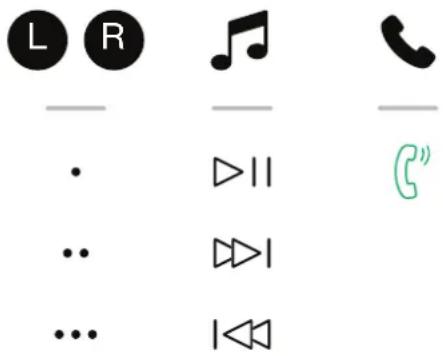
Each earbud has a touch-sensitive multi-function button area on the top face of each earbud; see Diagram 1.
2.3 Voice Assistance
Voice Assistance on your source device can be activated by tapping and holding the right (R) earbud multi-function button for 1 second. The Bowers & Wilkins Music app can be used to customise the multi-function button behaviour. Please refer to section 6 for details on using your earbuds with the Bowers & Wilkins Music app.
2.4 Active Noise Cancellation
Pi6 features an advanced Active Noise Cancellation (ANC) mode, which aids in significantly reducing undesired noise from the surrounding environment. The Pi6 earbuds use built-in microphones to pick up and cancel out ambient sound for a more comfortable listening experience while maintaining optimum sound quality.
Note: Noise cancellation requires a good seal between the earbuds and your ear canal for optimal performance.
Pi6 also features an ambient "Pass-Through" mode, which allows in some external sound from the surrounding environment, allowing safety announcements or conversations to be heard without the need to remove your earbuds.
Toggle between ANC and Pass-Through by tapping and holding the left (L) earbud multi-function button for 1 second. The Bowers & Wilkins Music app can be used to customise the multi-function button behaviour and adjust ANC and Pass-Through modes directly from your phone. Please refer to section 6 for details on using your earbuds with the Bowers & Wilkins Music app.
2.5 Wear Sensors
Pi6 incorporate our latest enhanced wear detection sensors in both earbuds. The sensors will pause audio when either earbud is removed from your ears. Playback will automatically resume when the earbuds are placed back in your ears.
The sensors also enable intelligent battery conservation by entering power saving mode when removed from your ears and left out of the charging case. Simply tap both earbuds to wake them up again.
The wear sensors can be enabled or disabled from the Bowers & Wilkins Music app. Please refer to section 6 for details on using your earbuds with the Bowers & Wilkins Music app.
Note: Take special care when wearing your earbuds. Hair or accessories trapped between your ears and the earbuds may interfere with wear sensor operation.
3. Stowing the Earbuds
When not in use, the Pi6 earbuds should be stored inside the charging case, where they will be recharged ready for future use.
4. Battery Charging
P16 ships with the charging case and earbud batteries partially charged and may be used immediately. However, we recommend fully charging the earbuds and case before first use and every 3 weeks to maintain battery health. Please allow up to 3 hours to fully charge.
To charge your Pi6 earbuds:
- Place the PI6 earbuds in the charging case.
- Close the charging case lid.
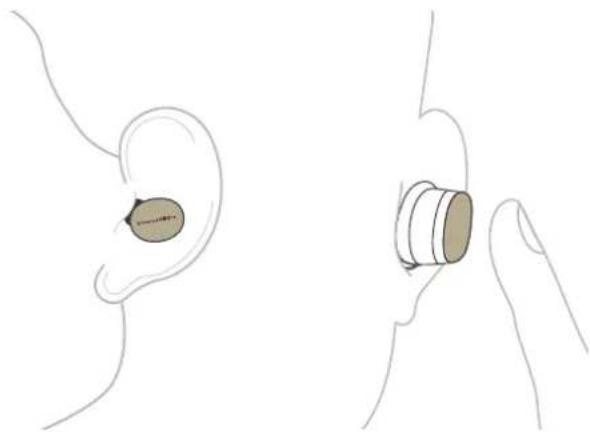
Diagram 1
Multi-function button location
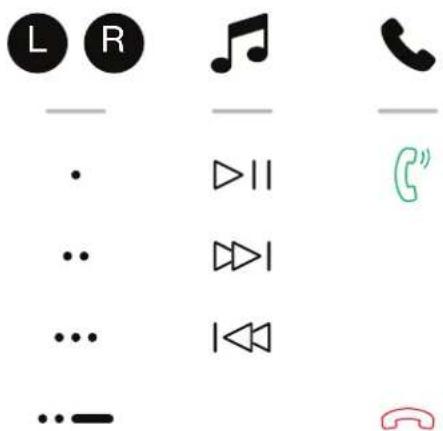
Diagram 2
Multi-function button functions
To charge the Pi6 charging case:
- Use the supplied USB charging cable and connect one end to a USB wall charger or a powered computer USB port.
- Connect the other end to the USB-C socket on the charging case.
Note: While charging, the case indicator LED will flash green. When fully charged, the LED will light solid green. The case can be charged with or without the earbuds inside the case.
Note: It is normal for the charging case to get warm during charging.
4.1 Status Indicator
The status indicator LED is located on the front of the charging case. When the case is opened the status LED will display the battery charge status of the earbuds (if they are in the case) or the charging case itself (if the earbuds are out of the case). The status LED is also used to display Bluetooth pairing mode and system status (e.g. firmware update).
Earbud battery levels can also be viewed in the Bowers & Wilkins Music app.
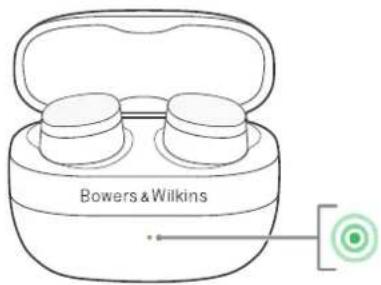
LED states with earbuds in the charging case and the lid open:
Illumination Operational state
Flashing Green Earbud battery charge >40%
Flashing Yellow Earbud battery charge between 20% and 40%
Flashing Red Earbud battery charge < 20%
Solid Red System error

Flashing Blue Bluetooth pairing mode enabled
Solid Blue (for 3 seconds)

both pairing successful
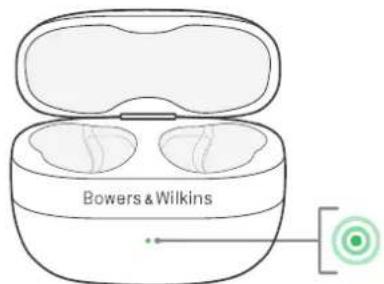
Status LED states with the earbuds removed from the charging case:
Illumination Operational state
Solid Green Case battery fully charged/trickle charging
Flashing Green Case battery charge >40%
Flashing Yellow Case battery charge between 20% and 40%
Flashing Red Case battery charge < 20%
Solid Red System error


<20%


5. Bluetooth Connectivity
We recommend adding your earbuds to the Bowers & Wilkins Music app. This allows you to configure your earbuds in detail and provides helpful hints and tips to make the most of your new earbuds. The app can also assist in pairing the earbuds to your source device for audio playback. Please refer to section 6 for details on using your earbuds with the Bowers & Wilkins Music app.
5.1 Pairing
Your Pi6 earbuds are designed to stream music wirelessly from Bluetooth audio devices, such as smartphones, tablets, or computers. To do so, the earbuds and source audio device must first be paired.
When you receive your Pi6 earbuds they will be ready to pair to any Bluetooth audio device. Simply open the charging case lid to enable Bluetooth pairing mode and start the pairing process. The case LED will flash blue to indicate pairing mode is enabled.
Note: The case LED will stop flashing blue if the buds are removed from the case during the pairing process, however the buds will remain in pairing mode.
To manually enable pairing mode (e.g. to pair a second device), tap & hold both earbuds simultaneously for 3 seconds. This can be performed with the earbuds in the charging case or when placed in your ears.
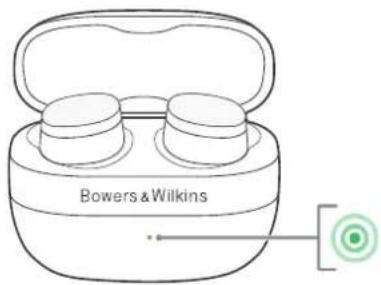
If the buds are in the case, the case LED will flash blue to indicate pairing mode has been enabled (see Diagram 4).
If the buds are worn, the buds will play a tone every 15 seconds to indicate pairing mode has been enabled (the charging case indicator will not flash blue in this scenario).
Note: To conserve power your earbuds will exit pairing mode if no device has been paired after 2 minutes.
Simply repeat the relevant steps below to pair subsequent devices.
5.1.1 Apple iPhone
We highly recommend installing the Bowers & Wilkins Music app, which will guide you through the pairing process, as well as allowing you to configure your earbuds in detail. Please refer to section 6 for details on using your earbuds with the Bowers & Wilkins Music app.
- Place the case and earbuds no further than 10 cm (4 inches) away from your source device and ensure its Bluetooth connection is enabled.
- Open the app and follow the instructions to link your earbuds to the app (refer to section 6 below if necessary).
-
During the process of connecting your earbuds to the app for the first time, you will be prompted to pair the earbuds as an audio accessory. Tap on the confirmation popup to complete the pairing process.
-
If the earbuds are in the case, the case LED will change to solid blue momentarily to indicate pairing is successful.
- If the earbuds are out of the case, they will play a tone to indicate pairing is successful.
To pair your Pi6 without using the Bowers & Wilkins Music app, follow the instructions in section 5.1.2 below.
5.1.2 Mac / PC / Android / Other Devices
To pair your earbuds:
- Place the case and earbuds no further than 10cm (4 inches) away from your source device and ensure its Bluetooth connection is enabled.
- Ensure the earbuds are in pairing mode (see section 5.1 above).
- Go to the Bluetooth pairing menu of your source device and select "P6" from the device list. If multiple devices are listed, select the one with the headphones icon.
- If the earbuds are in the case, the case LED will change to solid blue to indicate pairing is successful.
- If the earbuds are out of the case, they will play a tone to indicate pairing is successful.
Note: On Windows 10 devices your Pi6 will appear as two Bluetooth audio profiles; Stereo (default) and Hands-Free (for telephony). The Hands-Free profile will automatically be used when making or receiving a call (e.g. Teams, Skype, Zoom etc.). However, the system volume will remain controlling the previously selected device (Stereo profile by default). To change the volume of the earbuds while on a call, use the application volume control or ensure the system volume control is set to control the Hands-Free profile.
5.2 Disconnect from a Device
You can quickly disconnect Pi6 from a device by placing the earbuds back into the case and closing the lid. Alternatively, use your device's Bluetooth settings to select a new Bluetooth device or disable Bluetooth completely.
To stop Pi6 automatically connecting to your source device, the device must be deleted from the Pi6's paired devices list using the Bowers & Wilkins Music app; refer to section 6 below.
5.3 Multiple Bluetooth Connections
Pi6 supports multipoint and can be connected to two devices simultaneously. Simply repeat the relevant steps above to pair multiple devices. However, note that only one device at a time can play audio or make calls.
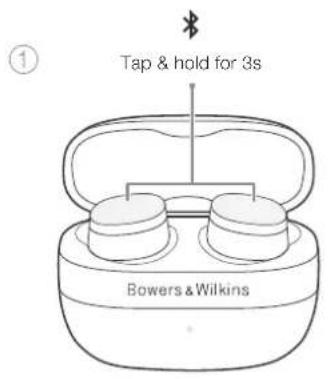
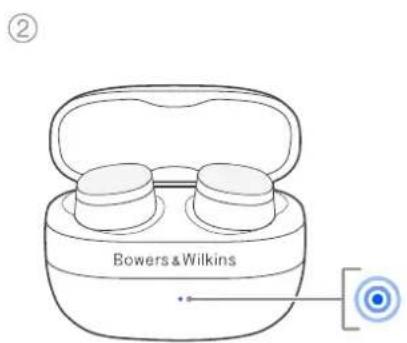
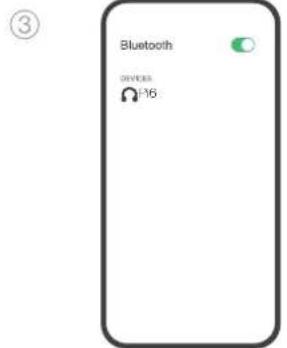
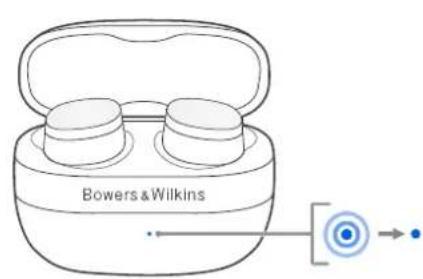
Diagram 4 Bluetooth pairing
To switch playback between two connected devices:
- Pause audio on the first device.
- Play audio from the second device and the earbuds will automatically switch over to this device.
When streaming audio, receiving a call on the second device will automatically pause playback on the first device and the call will be routed to your earbuds.
You can manage connections in further detail using the Bowers & Wilkins Music app.
6. Bowers & Wilkins Music App
The Bowers & Wilkins Music app is available for free on iOS and Android devices and provides extended setup and adjustments to features such as Active Noise Cancellation, Pass-Through and Wear Sensors. The app also provides further functions such as connection management and software updates.
To add your earbuds:
- From your Android or iOS device, download and install the Bowers & Wilkins Music app.

bowerswilkins.com/downloadapp
- Ensure your earbuds are powered on by opening the charging case or taking them out of the case.
- Open the app, then read and follow the instructions pertaining to app notifications and permissions.
- The app should detect your earbuds automatically and invite you to set up your earbuds; follow the in-app instructions to complete the setup process.
- If your earbuds are not detected automatically, navigate to the Settings page (icon), tap Add product and follow the in-app instructions.
6.1 Controlling Your Earbuds
Commonly used features of your earbuds are accessible directly on the homepage of the Bowers & Wilkins Music app, including battery status and environmental controls (Noiso Cancellation/Pass Through). Other settings can be adjusted from the Settings page. Tap the icon at the bottom of the screen to enter the Settings page then select your earbuds.
Environmental Controls
Set the desired Noise Cancellation and Pass-Through mode from the following options:
- Noise Cancelling On
Pass-Through On
- Noise Cancellation and Pass-Through Off
Advanced EQ
Use the sliders to customise the tone of your earbuds.
Connections
Tap PAIRED DEVICES to view more detailed connection settings, including currently connected devices and previously paired devices. To delete a device from the list, tap the device and select Remove device.
Device Management
Toggle Wear sensor on to enable intelligent playback control. Once enabled, remove an earbud to pause playback; place the earbud back in your ear to resume playback.
Rename product
Tap Rename product to choose a new Bluetooth name for your earbuds. Note that devices already paired with the earbuds may still reference the previous name.
6.2 Earbud Software Update
Bowers & Wilkins will occasionally make available software updates that refine and optimise the performance of your earbuds or add new features. We recommend installing updates whenever available to obtain the best experience with your earbuds.
The Bowers & Wilkins Music app will notify you when a software update is available. Follow the in-app instructions to perform the update.
7. Wearing Your Earbuds
Correctly wearing your earbuds will help ensure the best possible experience. Like many in-ear earbuds, Pi6 are designed to seal the ear canal in order to perform optimally. Four eartip sizes are provided: extra small, small, medium and large. The earbuds come pre-fitted with the medium eartips, the other sizes are located in the bottom of the Pi6 box. Finding the best size for each ear is critical to obtaining a good seal and ensuring the advanced features of Pi6, such as Active Noise Cancellation and superior audio performance, function optimally.
- Identify the left and right earbud by finding the L and R identification (located on the inner side of each earbud).
- Place each earbud in your ear and twist them backward slightly so that the tips engage comfortably with the opening of the ear canal.
- If the earbud tip feels too large or small, try another ear tip size to ensure the best fit. You may find that different sizes are required for each ear.
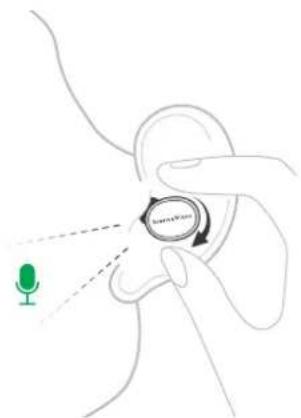
Each Pi6 earbud contains two microphones designed to optimise the pick-up of your voice during calls. As a general rule the Bowers & Wilkins logo on each earbud should be in alignment with your mouth, see Diagram 5. However, these microphones work together to provide excellent call quality for a range different wearing positions.
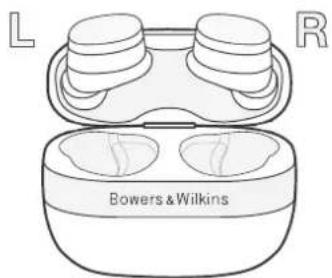
Diagram 5
Wearing your earbuds
8. Resetting/Troubleshooting
If your Pi6 earbuds or charging case stop working, try returning the earbuds to the charging case, closing the lid and charging the case from a USB power source until the LED turns solid green. If the earbuds/case remains unresponsive, try performing a hardware reboot as detailed in the next section.
8.1Reboot
To reboot the earbuds and charging case:
- Place the earbuds inside the case and close the lid.
- Press and hold the recessed button next to the USB socket for 8-10 seconds. Use an object with a rounded end such as a sim card removal tool to prevent damaging the charging case.
- The case LED may flash amber indicating Factory Reset mode (see below). Do not release the button until the case LED turns off. This will ensure a reboot is performed instead of a factory reset.
If a reboot does not resolve the issue, please try a factory reset; this is described in the next section.
8.2 Factory Reset
Factory reset can be used to clear the product's paired device history and restore all settings to their defaults. To factory reset the earbuds and charging case:
- Place the earbuds inside the case and close the lid.
- Press and hold the recessed button next to the USB socket for 3-5 seconds. Use an object with a rounded end such as a sim card removal tool to prevent damaging the charging case.
- Release the button when the case LED starts flashing amber.
- The case LED will turn solid amber to indicate the reset is in progress then green when the reset is complete.
Note that you will also need to delete the Pi6 from each device's Bluetooth pairing list and repair the Pi6 earbuds after resetting them; please refer to section 5.1 above for pairing instructions.
9. Caring For Your Earbuds
Your earbuds and charging case can be cleaned by a soft, clean, damp cloth and gently dabbing until clean. Do not use cleaning detergents, rubbing alcohol, or chemical cleaners/polish, doing so may damage your product.
10. Service/Support
If you need help troubleshooting a specific problem or simply have a question you would like answered, please initially consult the Headphones Support section of the Bowers & Wilkins website: www.bowerswilkins.com.
Specifications
Technical Features High performance DSP
True 24-bit audio connection
2 band customisable EQ
Bluetooth 5.4 with aptXTM Adaptive technology
Multipoint connectivity
Active Noise Cancellation (ANC)
USB-C charging
Fast charging support
Apple MFi Made For iPhone support
Wearing Style In-ear noise cancelling true wireless earbuds
Bluetooth Codes c aptX Adaptive
aptX Classic
AAC
SBC
Bluetooth Profiles A2DP v1.3.2
AVRCP v1.6.2
HFP v1.8
HSP v1.2
BLE GATT (Generic Attribute Profile)
Frequency Band Bluetooth Tx & Rx: 2402MHz - 2480MHz
RF Output Power < 15dBm
Microphones 3 per earbud for telephony and ANC
Drive Units 12mm Bio-cellulose
Battery Type Rechargeable Lithium-ion (earbuds and charging case)
Battery Life* and Charging Up to 8 hours for earbuds (with ANC on)
Additional 16 hours from charging case
Charge time = 2 hours
15 minute charge = 2 hours playback
*Testing performed using pre-production hardware and software paired with a
smartphone. Actual battery life differs based on device settings, environment, usage,
and additional factors.
Water Resistance Yes - IP54 (earbuds)
Inputs
Bluetooth
Accessories Extra Small /Small/Medium/Large ear tips
60cm USB-C to USB-C charging cable
Dimensions Charging case: 65mm w × 29mm d × 52mm (h)
Weight
Earbuds: 7 g (each)
Charging case: 46 g
The Bluetooth® word mark and logos are registered trademarks owned by Bluetooth SIG, Inc. and any use of such marks by B&W Group Ltd. is under license.
Apple, iPhone, and the Apple logo are trademarks of Apple Inc., registered in the U.S. and other
countries and regions. The trademark "iPhone" is used in Japan with a license from Aiphone K.K.
App Store is a service mark of Apple Inc., registered in the U.S. and other countries.
Android and Google Play are trademarks of Google LLC. Other trademarks and trade names are those of their respective owners.

bowerswilkins.com/downloadapp

bowerswilkins.com/downloadapp
6. Bowers & Wilkins Music App

bowerswilkins.com/downloadapp
Bowers & Wilkins Music
bowerswilkins.com/downloadapp
6. App Bowers & Wilkins Music

bowerswilkins.com/downloadapp
Characteristicas techniques
Bowers & Wilkins Music
bowerswilkins.com/downloadapp

bowerswilkins.com/downloadapp
Codes Bluetooth aptX Adaptive
aptX Classic
AAC
SBC
Perlis Bluetooth A2DP v1.3.2
AVRCP v1.6.2
HFP v1.8
HSP v1.2
BLE GATT (Perfil de Atributo Generico)
Banda de Frequencia Tx e Rx de Bluetooth: 2402 MHz - 2480 MHz
6. App Bowers & Wilkins Music

bowerswilkins.com/downloadapp
8.1 Rlavyio hardware
powerswiliDs.com/downloadapp

bowerswilkins.com/downloadapp
Bluetooth-codecs, aptX Adaptive
aptX Classic
AAC
SBC
Bluetooth-profielenA2DPv13.2
AVRCPv1.6.2
HFP v1.8
HSP v1.2
BLE GATT (Generic Attribute Profile)
Frequenieband,Bluetooth zende en ontyangen:2402 MHz-2480 MHz
RE-uitgangsvermögen<15dBm
bowerswilkins.com/downloadapp
diuopphiwnTwvakouotikwOacKai npexei
xpioueucuonoeickoumuoucya va
aEionouoTe nnpw ta vdaacakouotka.
2.1 Evpyooinn kai anevpyooinn twv akouotukwv
H diaxepion evpyeiaac twi Pi6 ivai autouatn. Ta akovotka oac ta eivai etouma yxa xpon otav apaueoov ant to thn knpfioangkai ta metaaboov automatae aeitoupyia avamovc kai a apxiouov va optiouv otav totoeetnoy uega ont hkn.
Eav ta akouotika aac aphiapeoov ano tn thnkn optianc kai dev xpnoumonoiouv eni 5 einnia Ta eetaouv oe tropo aeitoupyiac eoikovomanc evpeyia iia diatponn ta diapkeia cwc nnc mntatapiac. Atwac ayiyTe kai dou akouotika ia va ta apunviote (B, evotnta 2.2 napakatw).

bowerswilkins.com/downloadapp
- BeBaUBeTe OTo Ta akouotikac oac eivai evpyoToiIneva oAvoyovTac n TheKnΦopTnC n BApocVTac aTo n TheKn
3.AvoIe TmV eapouyn kai, stn ouvexia, diabaoote kai aokauohtane tic onyiesiou apovuTic Etoonueic nC eapouynkai ta dikaiwmuata.
4.H eapoyn 0 npert va evtoniae auotata ta akouotikac aac kai va oac cntnoel va tpuaiote.Akouohtote tic obnyie nou emuovicta otny eapoyy ia va oloknpoote tn diaikaa puoianc.
5.Av ta akouotika oac dev evtoniatouv autouata, Tepmynthe t on oel6a puoiaewv (ekovidio), patnote Add product (Pooohnpioivtoc) kai akolouhote tic odnyie nou eufavicovtau otnv epapoyn.
6.1EeYxocTuwakovotikwv
Oi I e e ,aeitoupyie,twakouotikuv
aacivai npoaaicne aetuoeiaac anyvapxuk
0e1daTNC eapayoyic Bowers &Wilkins Music,
ouptauabavovevnv Tc katadtaoc nC
mtatapiac kau vtupeiaalovtukv Eleyyuv
(EEoudetewon BopBou/Adieevon).OlAee
puoiiaei,muopoovvaipoaepooteuv ano tn
0e1daPuOioiei, Pnntote to ekovldio oTo katw
muoctnoovnc yia va eioeTheTe otse1d
PuOioiei kai, stn ouveeia, eIIAEte ta akouotka
ao.
Codec yiq Bluetooth aptX Adaptive
aptX Classic
AAC
SBC
PooPhi Bluetooth A2DP v1.3.2
AVRCPv1.6.2
HFP v1.8
HSP v1.2
BLE GATT (Generic Attribute Profile)
Ziyn muyorntuy, Bluetooth Tx & Rx: 2402MHz - 2480MHz
Lguc gEobouagdoyuyotny,15dBm
Mkoofwya 3va agouatiko yia nlaeowviga
Movdc6c odnyngnc Biokutapivn 12mm
Tunoc uataipiae Etavaopotlcoevn iovtwy aiiou (akoutikka kal thkn fopti
Auaokgia Zmc* kau footn unqaoja
EwC 8 wpc yia ta akouotikac (e eevpyoiojnevo to ANC)
BctpeaTe Pi6 ot Bowers & Wilkins
2.3HaKOMCTBOc HayuHnKaMu Pi6
Mby pekomehnyem
yCTaHOBNTb
PpnnnoxKeHne Bowers
& Wilkins Music
HaBaWe iOS mnn
Android yctpoonCTBO.

TOI NO3BONIT BAM powersWilkins.com/downloadapp DeTalbHO HAcTPOINTb HayuHnKIn N DaCT NOE3HbI COBETbI IN PekOMeHdauIN, TTObI MaKcMmaLBHO IN NCNOLTB0BATb.
2.1 BkIOueHHe/BbIKIOueHHe HayuHKnOB
UnpaBHeHne nHTaHnEM Pi6 ocYueCTbIeTcR
ABTomATuWeckn.HayuHKn rToobbl K
NCNoJIb3OBAHnIO Cp3y Nocle IN3BNeueHnN3
3apJdHorO cExna.KoJa IOnb3OBateJIb BCTabJIeT
HayuHKn B 3apJdHb Yexon, OHN ABtOMaTHueCKn
pePexoJrB pexmOxndHaHn H aHyHaiOT
3apJxAtbCn.
Ecnn nocne n3BneueHn 13 zapdHoro Yexna HayuHnKHe HcNOnb3yOToC B TeueHMe 5 MmHyT, OH npExxoT B pexM ekOHOMnn 6aTapei, T0b6b coxpaHnt bapd. DJIra BixOda n3 pexMa npOTo COCHNTeB dBYx HayuHKnOB (CM. pa3den 2.2 Hnxke).
2.2 npabneHne Haywnkamn
HaIueboBnopeXHOCTNaKaDOroHayUHnHa paCIOJoxeHa cEHcOpHna MHorOpyKuHOHaJIbHa 6nbAcbYnpaBHeHH,cm.Diagram1.
2.3 Fonocobon noomunik
ДлгakTnBaCmнrIongocBOrO nOMoUHnKaHa
BaAeMcYCTPOINCTBE HAKMMTe n UdEpxKbAte
MHOrOFOyHKUMOHaJIbHyIO KHOKNy Ha npaBOM
(R)HaunHnke B TeuHne 1 cekyHdbI.
MHorOFOyHKUMOHaJIbHyIO KHOKNy MoXHO HAcTPOINTB
BpnpnoKHeHn Bowers & Wilkins Music. NOpDop6Haa
NfOpMaJnO6 IncNoJIb3OBAHmHn HayuHnKOB C
pnpnoKHeHm Bowers & Wilkins Music npnbedeHa B
paadene 6.
2.4AKnBHOe yMOnoDaBHeHne
HayuHnKPi6 IMeIOT nepoobopexnM
AKTHBHOO WymonoadenHea (Active Noise
Cancellation,ANC),KotOpbni Nomoraet
BycTpaHEHN HeKeJateBHOrO yMa m3
OkpykaIOSeI cpebl. HayuHKn Pi6 uCnoJIb3yIOt
BCTPOEHN MeIKpOFOhbl dIy naBnBaHNi
NoadABHeH NOKpykaIOxN WymOB dIy 60nee
KOMΦOPTHORIO pocLnyBaHNa Pn coXpaHeHN
ONTMaHBO rKaueCTBa 3Byka.
PnpmeHne:IJIIOEoCNEeHnOOTMmAbHoH paboTb CNTeMbI UyMONoJaBHeNr TpeOyTec XopoOee npIneraeHne HayUHKnOB K CNYXOBMy KAHNY.
Y Pi6 TaKxe NmEeTcpeXnM"Pass-Through" KOTOpBn N03BOJnE T CbIuATb HEKOtOpBle BHeuHne 3ByKn, TaKne Ka pa3roBOpblnn O6bJIeHnno rPoMkoCBa3n,6e3 Heo6xoDnMoCTn CHMaTb HayuHKn.
InpeKIOeHm MExdy pexImaMn ANC n Pass-Through haxmnte uyepxabaiTe MHOrOfoYHKUHOHaJIbHy KOHNky HaJeBOM (L) HAYuHnke B TeueHne 1 cekHybl. PnploKeHne Bowers & Wilkins Music Moetc mCNoIb3oBaTbcra In HAcToPouKn MHOFOyHKUHOHaJIbHOH KOnKn I n peXmOB ANC n Pass-Through npma Ho Baawem Tetefohe. NpOpo6hna HfOpMaunr o6 IcNoIb3oBaHn HAYuHKnoc PnpnoHne Bowers & Wilkins Music npinBeDeHa bpaDene 6.
2.5 CencopbI cIeXeHn3aDnKHeHNM
B Pi6 ycTaHOBLeHbHaun HoBeHmWe, yUyWeHHbIe ceHCOpbl cLeKHeHn3a DnHexHnMn BnAdeJIbua, npuChem Ha 06oXn HayUnnKac. CenCOpbl npIOCTaHaBnNBAIoT ayDnO, ecnn Nolb3oBaTeIb nBnEkaet OOnn HayUnnN3 yxa. Korda oBa hayUnnKa 6yDyT ChOba BCTaBnHeB bYwn, BocPpON3BeHne HauHETcABTomATueckn.
CeHCopbTaKaKe NoMoraIoT 3KOHOMHTb 3apJd aKKyMnyTOpa, nepeBoDn HayuHKnB pexm 3KOHOMHn 3apJa C Manbl NOTpe6NeHem npn IN3BLeeHN HAYuHKnOB IN3 ue, eCIn npn 3Tom OHn HE BCTABNeHb IB 3apJnHbYexO. JnIByXoDa n3 peXnMa nPoCTO KcOHNTec bDyH HayuHKnOB.
CecnpblcneXeHn3aDbNKeHnMMoKHO BKNIOHTb N BkIIOHTb B pRIOXeHNBowers &Wilkins Music. NpOpoHnHΦopMaŋo6 cnONb3OBAHn HauNHKnOB c pNIOXeHmE Mowers & Wilkins Music npNbBeHa B pa3dene 6.
PnmuMeaHHe:CobIIOaIte octopoxHoctb npn HouWeHH NauuHKnOB. Pn nonaHaHN BOLOc nnu ykaWHeHH Mekdy uWAMN HauwHKAMn paBota daTuKOB cLeJeHHa MoXeT 6bItb HApUeHa.
3.XpaHHeHnHayuHnKOB
Ecnn HayuHnKPi6 He ncNpOb3yOTo,IX neo6xoJIMO noNoXtB 3aepdHbYcHexo, YTO6bI OHn 3apdUInCb for 6dyUeOncNpOBoAHn.
4.3apkaakkymnytopa
HayuHnKPi6c3apRnBbIM YexIOMIOCTaJIHOITcC 1 cAcTHUO 3apJeeHHbIM AKKyMylrTOPOm, IN MoxHO INONb3oBaTb cpzAye. Ondako IANHnyue paBOToCNOcO6HoCTN AKKyMylrTOpaKeNaTeBNo NnHOCTbO 3apJaaTb HayuHnKn IN yexOI nepeI nePBbIM INcNBo3OBAHMe IM KaxDbIe 3 HeJeIN. INra NnHOI 3apJaeKN Notpe6yETc DO 3acob
Дязардкн hayнковпб:
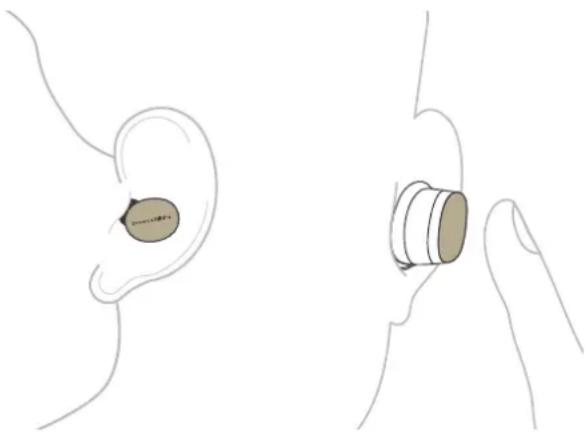
Diagram 1
PacnooxHeMHOrOfoHKuHaHbHoKHOKN
Diagram 2
Функи NMHorOункиоHaJIbHoi KHOKNI

- NomeCTnte HayHnKPi6BapdHbIyexon
2.3akpoTe KpbuKy 3apdHOro Yexna.
UHdkauPa6ooyee coctOarHne
3eH

AkkymyIaTOp qExna nonHocTbO 3apKeH / HnpepbBHaN no3apKa
Muraa3eeneha3apnakmyntopaeyna6onee 40%
MuraioaJxKeTaaKkymyIToPaeXnaO20%do40%
MuraioaKpaacHaa3apdakkymyTopauehnaMehee20%
KpaHna (noCToHHo) CnCTeMHra oH
Diagram 3
HnkauncaTatyca
5. Bluetooth-coeMHHeHne
Mby pekomehyem do6abntb haywnkn B npnojokHe Bowers & Wilkins Music.3to no3BOINT Bam DeTalbHO HaCTpoTb Haywnkn N daCT nOle3hble CoBtBn peKoMeHdaun, T0b6 MaKcIMMAHbHO nCNOJb3OBaTb BA WOn HO bie HAYWNKn. Bbl TaXke MoXeTe nCNoJIb3OBaTb npnojokHe dN cOpraKeHnry HAYWNKn C BA WmycToPocTBOM, T0b6bOCpno3BODNTb aydno. Iopno8HaNΦopMaio6 nCNoJIb3OBAHNHAYWNKn C pnpnoKeHnEM Bowers & Wilkins Music npnbedeHa bp3pe 6.
5.1 ConpaxeHne
HayuHnKn Pi6 npedHa3HaYeHb dna 6ecnpoBodno notoKOBo nepeaHn ayDnO c ycTpoiCB Bluetooth, TAKNX KAK cmapfOHObl, nlaHwetb Nn nepcoHabHbIe KOMNbOTepb. DTA3TOrHE06xOIMO CHaHaJbBIIOHNHTb CONPRKeHHe HAYuHKnOB uYCTPOBCTBa-NCOTHnKa.
Baun HaywnkPi6 roTobk K copjxehnco 1IObIM ayduoyctpoiCTBOM c yHKmnei Bluetooth. IpocTo oTKpOte KpbIuKy zapdHoro Yexna, Yo6bl aKtUNbPoBaT pexim copjxehnno IoTlueth, n HauHNTpeOpedpy copjxehnna. VndkaTop LED qExna HaueH T MNaTb CINHM UBeTom, Yka3bJaHa aKtUNBaUIO peXnMa copjxehnra.
PpmeHn: Hndkatopt LED qexna
pekpatmMgatb cHnnm CBTOM,ecnn
N3Bneh HayuHKnN 3ueXaLo BpEm
poeDpyb copxqHeHNHOHAYuHKn p
OTom OCTaHyTCB PEXNMe copxqHeHN.
ДявкIOUeHЯ pEXMAmCoPRAKeHЯ BpyHyO (HAnpIMep, YTO6bI NOKIIQUHTb BTOpoe yCTPOBCTO) HAKMNTE Ha Oba HayuHnka OHOBpeMeHHo N UyepKINBaTe HaxaTne B TeueHne 3 cekyHd. PnI aTOM HayuHKn MOryt HaxoDyBcK aK B 3aprHOM qxNle, TAK N 6bITb BCTABHeHb ByuN.
Ecnn HayuHnKn HaxoJrTcB YcxHe, INDnKaTop LEDyHexNa 6ydt Mrratb CnHmCBeToM, yka3bBaHa BkIoueHHb peKm cOpJxKeHna (CM.Diagram 4).
EaHuyuHKN BCTABHeB Byu, OHyD 6ydyT 3aDaTaB3ykoB CNHaJ KaKdIe 15 cekyHJ, yka3bBaH BA KluOeHHb peKIM cOpraKeHHA (B TAKOM Cnyae HnDKATOP zapArHO rXeHa He 6ydt Mnratb CnHM UBeTom).
PpmeHHe:Ecnn HauyHnKn He 6dyT cOpRaeHbCyCytOaTcBOMB TceHne2 MHyT, OH BblDyNt N3 pExnMa cOpRaeHnA JI3 EKOHOMM 3apra daKKyMyJrTOpa.
IINOPTO NOBTOPTE ONNCAHHbIE HNKe WArN.
5.1.1 Apple iPhone
Mbl pekomehyem yctahOBHT npnIOxHne Bowers & Wilkins Music, kOTOPoe nomoxet Bam BbINONHtB npoceDpy cnpRjEHNu HACPToB BaNn HayHnKn. NpOboHn AHOpMaun6 BCNOJb3OBAHn HayHnKOB C pnpIOXHeHM Bowers & Wilkins Music npNBedeHa B pa3dene 6.
-
PacnoIoxKeTHeXeONH HayuHnKnHa pacTaOHTHO He 6oee 10 cm (4 JIOHa) OT BAwero yCtpoNCTBa-NTOHTHnKa (CBKLIUChENHbIM Bluetooth).
-
OtkpoTe npnloXeHne n cneynte HNCTpyKUIMdIIO6bAJIeHnBAuNX HauJHKnOB b npnnOxHe (npn Heo6xoMnOCm CM.pa3en 6 HxKe).
3.Bnpoccepe npBoro noKnHooHnnaHayuHnKOB K npINOxKeHIO BaM TaKKe 6ydt npEpoXeHO BblNOJHb cnpjXeHne HauHnKOB BAeCTBe ayDnOaKcCecCyapa. Haxmte Ha BCnIbIAoUe OKHO npdTBePckdHn, YTObI 3abeepWntb npocce cnpjXeHn.
- Ecln Haywnikn BCTabIeHb B Yexon, INNdkatop LED Yexna 6ydet NoctoHoro ropeTb CnHm, yka3BaJha YcneHwoe cOpjxene HeycToiOCTB.
- EcnHayuHnKnHe BCTaBneHb B cExon, B Hx p3aDacTcR 3bOyKmCnHrA,Yka3bIaIOnn Ha yCnEhOe cOpJXKeHMe.

bowerswilkins.com/downloadapp
2.Y6eNTecb,YTOBaHnHayuHKN BKNIOueHebl. 1IaToroOTKpoTe3apHbIyexoINIIOCTaHbTe HayuHKN N3exHa.
- 3nyctIte npnloxHeM, zatEm npOHTaTe n cJeDyIte NHCtpyKUmR, kacaOuImcR yEdomHeN n pa3peUeHn npnloxHeHn.
4.ПиLOKeHHeДOLJHoABToMaTuYeCKn OnpEdeNtB BAuH HauWnHKn N npENoKNTb BAM HAcTPOuNt HayUHKn; CneJyTe NHCTpyKuYNB PnIONoXeHN, YTO6bI 3aBePwNtB npouecc HacTpOKn.
- EcIn Baun HaywnKn He pacno3HaOTcB ATOMATHECKN,NEpeINITHe HA cTpaHcy HAcTpoek (3HaOK),HAKMTE App product N CJeDyIte HNCTpyKUnm B pniloxeHN.
6.1ynpaBneHn HayuHnKaMn
Yacto nCnOnb3yEmbIe FyHKmBn BauNX HayuHKnOB
DocTynHe HEnOpCpeCTBeHN Ho TnaBHO CTpaHMe
npInOKeHH Bowers & Wilkins Music, BKIOUaH
coToTHNe AKKyMylTOpA IN KOHTPON OKpyKeHH
(Noise Cancellation/Pass-Through). Dpyrne
HaCtpoKIMoKO hO KpbITb Ha cTpaHMe HAcTpoE
Settings.HaXMMte Ha 3hAyOK B HNKeH Yeactn
3kpana, YTObbl NepeiTu Ha cTpaHUYacTpoE
Settings, 3aTeM BB6epTe Baun HayuHKn m3
cnicka.
KoHTpoJIb OkpyKeHn
YcTaHOBTe XeHaembI pexM Noise Cancelling n Pass-Through, bIbpaB cneyuOue onu:
8.C6poc K3aBODCKM HAcTpOyKaM/ YcTaPAHHeHEnCnPaBHOCTe
Ecnn HayuHnKn nn 3apdNbI qexon Pi6 He pa6oTaoT, nonpOboYte BCTaBnTb HauyHnKn B yexo, 3akpbTyB KpbUkny 3apdNtB qexon ot nctouHnKa nTuHaNry cepe3pa3bEm USB, noka uHnKnAtoP LED he 6byet noctoHHo ropetb 3eHeBm. EcnHuyHnKn/ExoHne 0tBeaAO tdaKe nocne nOnHo 3apdKn, nepe3arpy3nte ycToPcTBO, kak OnmCaHO B cJeNyOuem pa3dene.
8.1 Npepe3arpyka
Ipe3aRyKn HayuHKnOB n 3apdHorO qexla:
- BctabTe HayuHnKn BueXoJn 3aKpoTKe KpbIkwky.
2.HaxMTe u ydepXnBaIte HaxaToyTOJIeHHyIO KHOJky praOM c pa3beMOMUSB B TeUHe 8-10 C6xyND. NcOJIb3yTeINHCTpyMeHT C3aKpyIeHHbIM KOHcOM,HNpIMep KIOUd IINBLeueHnSIM-Kapt,BO IN36ExAHne NOBpeXeHn3apAHorOqExna.
- INHdkaTop LED Ha Yexhe Moxet ropetb
HHTapHBIM CBeTOM, Yka3bBaA Ha pexHM
c6pOca K 3aBOckMn HactPoYkAM (CM.HNXe).
He OTnyckaIte KHOky DoTex nop, NOKA
INHdkaTop LED Ha Yexhe He OTKlnouHTcR.
B TAKOM cnUyae 6ydet BblONHeHa
pepezarpy3ka, A He c6poc K 3aBOckMn
HACTPOYkAM.
Ecnn npo6nema He 6blya yctpaHeHa nocne nepe3aqrpy3kn, BInIOJHnIte c6pOc K aBODCKIM hAcTpoKam. PpoeEypa oNtcaHa B cNeDyUoTeM paDeJe.
8.2 C6poc K 3aBOckmHacTpoukam
BbMOKTe OOCTNtB OCTPNO COnPAJKeHHbIX yCTPOINCTB IN BOCCTAHOBNTB HAcTPOIKN DO 3ABODKCNX 3HAUEHNI NO YMOLNAHIO.
ДясбрcaHayuHnKOBиЗарногуЧлд
КЗавОСКИМНаCTpoиКAM:
1.BctabteHayuHnKnBueXoN3aKpoTe KpbIku.
2.HaKMte u ydepXnBaTe HaxaToI yToJIeHHyIO KHOIny pAOM c pa3bEMOM USB B TeUeHNHe 3-5 cekYnd. UcNoIb3ayTe INCTpyMeHT C3aKpyIeHbIM KOHcOm, HanpImep KIOU dny N3BLeueHnSIM-Kapt, BO n36ExAHne NOBpeXdEHHa3apJHo Horo Yexna.
3. OTnycntte KhoNky, KOrda HnHdkaTOp LED ha yexne HaHTeM MRtaB rHTapHBm UBeTom.
4. INHdkatop LED nepecTaHET MraTb ⅢaropntcraHTapbHM, yka3bBAH Ha BblnonHeHc6pOca Hactpoek K3aBODckMM. Korda c6poc Hactpoek 3aBePwNTc, INHdkatop N3MeHHT CBeHT a3eHbI.
O6paTnte BHHMaHne, YTO BaTakKee
noTpe6yeTcYdAnNTb Pi6 n3 cnNCKOB
copRjEHNbIX yCTPOiCTB BluTooth Ha BCex
BaWnXyCTpoiCTBax NOBtOPHO npOBectn
copRjEHeHne HayWNKOB Pi6 noCte c6poca
HaCTPoeK;cm. HNCTpyKuNN NO copRjEHNIO B
pa3Dene 5.1 Bblwe.
9.YxoJ3aHayuHnKamn
HayuHKn 3apdHbI yexoN MoXHO OuHaTaB MRAKOB BAnxHOJ YCTO TKAHbIO, AKKypaTHo IN npOTpAra. He nCOnb3yIne YCTaUne CpeDCTBa, npOTnpOHyB CNPT N XmMueckne OuyctntEn/ nonIpObn. TaKeine cpeDCTBa Moryt nobpeDnT b npOdyKT.
10.CepBnchoe 6cbnykBaHne/ Pndepkk
EcnnBAM TpebyTc NMOOuB PeweHnKOHKeTHoN pno6nMbI INy BAC Bo3NK BOpPoc,
PnocmBac BnAaHae O3HaKOMITbC Cpa3eJIOM PtooB JnBnAeJbEh HayuHKnOB Ha Be6- caIte Bowers & Wilkins: www.bowerswilkins.com.
Texnueckne xapakTepnctnkn
Texnueckne yHKunBbICOKOpON3BOJNTbHbD DSP
24-6HTHOe ayDnONoDKIOUQHeHne True
2-noocbHn HacTpaBaeMbI 3KBaIaI3ep
Bluetooth 5.4 c aДаNTиВноу ТхнОг ueptX
MHorotoeHoe NOKIOUOHeHne
AKTINBHOe yMOnoIaBHeHne (ANC)
3aepkaepe3USB-C
PondepkKa 6bictpo3aprKn
ПодерхkaApple MFi Made for iPhone
CTnIb HooHnra BecnpoBnHbIe HayuHKn-BknaDbIu n C wymonoaBHeHnem True Wireless
Bluetooth kondek npX Adaptive
aptX Classic
AAC
SBC
Bluetooth npoФинA2DPv1.3.2
AVRCPv1.6.2
HFP v1.8
HSP v1.2
BLE GATT (Generic Attribute Profile)
Dinaaohuactot Bluetooth Tx & Rx: 2402 Mμ - 2480 Mμ
BixOHaPy MoHocTb <15Dm
MnKpOoHbI 3 B HayuHnke Ia TeneoHn n ANC
DnHAMNk12MM,6noeIIOJIO3a
TnakkymyIopapnepe3apkaemblnHTn-nOHbH(hayuHNKUN3apdHbYexon)
Cpok paobtby 6batapee 63 no3apqKn 串 3apaKa Do 8 cacob nna HaywnkoB ( C BKNIOHnBIM ANC)
DOnonHnTeIbHbIe 16 yacOB ot 3apAnHO roexna
BpeMa3apAaKn=2yaca
15-MnHyTHa3apKa=2yacaBocnpOn3BeDeHnA
*UcnbTaHnnpoBOnnncb c nCnNoIb3ObaHnem npedepeinHoro o6OpdyobHaHn
I nporpaMMHOrO oBeecneueHH npn cnpjXeHH CO CMapTfoHOM.ΦaKTuieckn
cpoK pa6oTbAKKymyIaTOpaMOKeT MeHrTbcB 3aBnCmOCTu OT HAcTPOeK yCTpOJaCTBa,
OKpykaoue cnpebl, nCNOIb3OBaHnN DNOIINHTeNbHbIX qaKTOpO.B.
BodoctoKoctbJa-IP54(HayuHnKn)
BxOa
Bluetooth
Akceccyapbi
KaebnIaapAnkUSB-C-USB-C60cm
OueHb ManeHbKne / ManeHbKne / cpeHne / 6onbwne am6yiohpi
Pa3Mepbi
3apn65MM()x29MM(r)x52MM(B)
Bec
3apndhnyexon:46r
2.3 Hlasovy assistant
Hlasovho asistenta na zdrojovem zaifeni aktivujete klepnutim na pravo multifunkcnf tlaftko (R) na sluchatku a jeho podrzenim po dobu 1 sekundy. Chovani multifunkcnich tlaftek muzete pfizpusobit pomoci aplkace Bowers & Wilkins Music. Podrobnosti o pouzivani sluchatek s aplikaci Bowers & Wilkins Music najdete v casti 6.
2.4 Aktivni potlačeni hluku
Sluchatka Pi6 jsou vybavena povrochilym rezimem aktivnho potaclcn hluku (ANC), ktery pomnaVyrazne snizit nezadouci hlu z okolino prostrefo. Sluchatka Pi6 pouzivaj zabadovodn mikofory, ktere sinmaji a potacujcij okolni hlu pro co nejlepsi komfort poslechu pri zachovani optimini kvality zvuku.

bowerswilkins.com/downloadapp

bowerswikins.com/downloadapp

bowerswilkins.com/downloadapp
Bluetooth 5.4 aptXTM Adaptive technologiaval
Android. Umozliwia to
bowerswilkins.com/downloadapp

bowerswilkins.com/downloadapp

bowerswilkins.com/downloadapp

bowerswilkins.com/downloadapp
bowerswilkins.com/downloadapp
2.1開啟和關閉耳機

bowerswilkins.com/downloadapp
bowerswilkins.com/downloadapp
2.1 伊泰元的电源才元/才的切

bowerswilkins.com/downloadapp
Bowers & Wilkins's Pi6 du Mahehupu TseTgKsaHnD.
Bowers&Wilkins Music Co. Co. Co. Co. Co. Co. Co. Co. Co. Co. Co. Co. Co. Co. Co. Co. Co. Co. Co. Co. Co. Co. Co. Co. Co. Co. Co. Co. Co. Co. Co. Co. Co. Co. Co. Co. Co. Co. Co. Co. Co. Co. Co. Co. Co. Co. Co. Co. Co. Co. Co
I
二
导电电导
中
国

boworswillins.com/downloadapp
2.1 Iorbrn 0n/ Off
R是:当在上,0.001元。
iH 1
2.2 1
在中电电电电电电电电电电电电电电电电电电电电电电电电电电电电电电电电电电电电电电电电电电电电电电电电电电电电电电电电电电电电电电电电电电电电电电电电电电电电电电电电电电电电电电
2.3登录自
云樂()00H 电电电电电电电电电电电电电电电电电电电电电电电电电电电电电电电电电电电电电电电电电电电电电电电电电电电电电电电电电电电电电电电电电电电电电电电电电电电电电电电电电电电电电电电电电电电电电电电电电电电电
2.4 邮件编码:00100
F6 10
中:全电电电电电电电电电电电电电电电电电电电电电电电电电电电电电电电电电电电电电电电电电电电电电电电电电电电电电电电电电电电电电电电电电电电电电电电电电电电电电电电电电电电电电电电电电
P610 1
1 电电电电电电电电电电电电电电电电电电电电电电电电电电电电电电电电电电电电电电电电电电电电电电电电电电电电电电电电电电电电电电电电电电电电电电电电电电电电电电电电电电电电电电电电电电电电电电电电电电电电
2.5 钻穿金针刺刺
P6-1000000000000000000000000000000000000000000000000000000000000000000000000
中
Bowers & Wilkins Music 电电电电电电电电电电电电电电电电电电电电电电电电电电电电电电电电电电电电电电电电电电电电电电电电电电电电电电电电电电电电电电电电电电电电电电电电电电电电电电电电电电电电电电电电电电电电电电电电电电电电
中:010011111111111111111111111111
国
3. 1
P6130000000000000000000000000000000000000000000000000
4. 堵起拉 首页
HHTB HHTB HHTB HHTB HHTB HHTB HHTB HHTB HHTB HHTB HHTB HHTB HHTB HHTB HHTB HHTB HHTB HHTB HHTB HHTB HHTB HHTB HHTB HHTB HHTB HHTB HHTB HHTB HHTB HHTB HHTB HHTB HHTB HHTB H
中
社

bowerswikirrs.com/downloadapp
aptXAdaptive technologyBluetooth 5.4
E
阿日
USB-C系列
7.1.2.1.1
Apple MFi Mace For iPhone 5%
中
号
aptXCassC
SBC
号华早平早型A2D-1v1.3.2
AVCRy1.6.2
HPPv1.8
HSP v1.2
BLE GATT (Generic Attribute Profile)
P-2402M-248CM-2
RF各表不
中
F-012mm#0