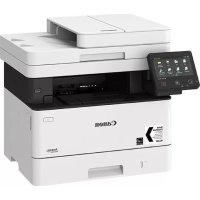
iSENSYS MF426dw - Printer CANON - Free user manual and instructions
Find the device manual for free iSENSYS MF426dw CANON in PDF.



| Product Type | Multifunction printer (print, copy, scan, optional fax) |
| Printing Technology | Monochrome Laser |
| Network Functions | Wi-Fi (2.4 GHz band), Wired Ethernet, USB 2.0 |
| Touchscreen | LCD screen (unspecified, estimated 5 inches) |
| Paper Supply | Paper cassette (standard capacity) + multipurpose tray |
| Duplex Printing | Automatic |
| Scanning | Color scanning, automatic document feeder (ADF) |
| Fax Function | Built-in (depending on model) |
| Toner Cartridge | Canon Cartridge 052 / 052 H |
| Print Speed | Up to 38 ppm (estimated) |
| Power Supply | 220-240 V, 50/60 Hz |
| Energy Consumption | Sleep and energy-saving mode |
| Maintenance and Cleaning | Clean with a damp cloth (water only); unplug before |
| Laser Safety | Class 1 (IEC 60825-1:2014) |
| Spare Parts | Toner cartridges, available for 7 years after end of marketing |
| General Information | Limited warranty; do not use counterfeit products |
Frequently Asked Questions - iSENSYS MF426dw CANON
User questions about iSENSYS MF426dw CANON
0 question about this device. Answer the ones you know or ask your own.
Ask a new question about this device
Download the instructions for your Printer in PDF format for free! Find your manual iSENSYS MF426dw - CANON and take your electronic device back in hand. On this page are published all the documents necessary for the use of your device. iSENSYS MF426dw by CANON.
USER MANUAL iSENSYS MF426dw CANON
Please read "Important Safety Instructions" before operating this product. After you finish reading this guide, store it in a safe place for future reference.
The information in this document is subject to change without notice.


canonical/oip-manual
Quick Setup
Getting Started
Please read "Important Safety Instructions" before operating this product. P140
After you finish reading this guide, store it in a safe place for future reference. The information in this document is subject to change without notice.
Mise en route
canon.com/oip-manual to read the User's Guide that describes all
functions of this machine.
Items Included with the Machine
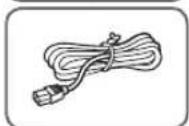
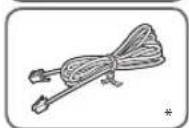
- This item may not be included depending on the model of the machine.
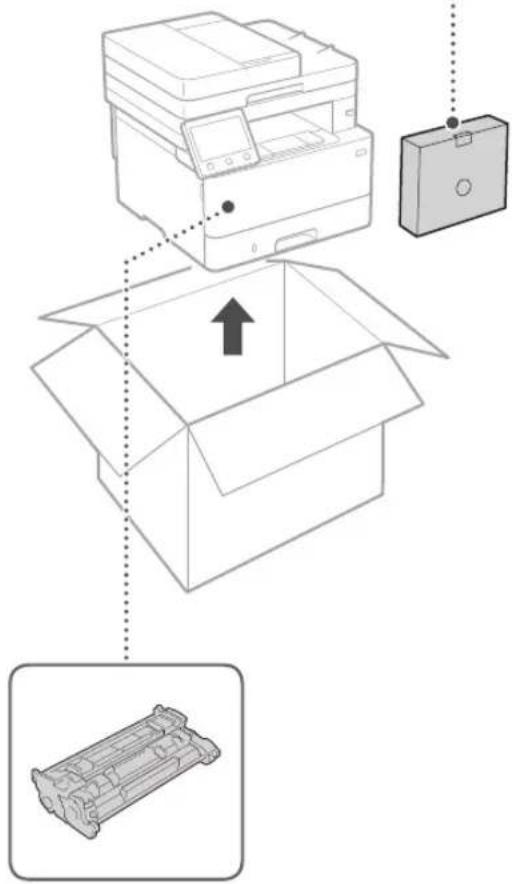
Toner cartridge (included with the machine)

Installing the Machine
Before starting the installation
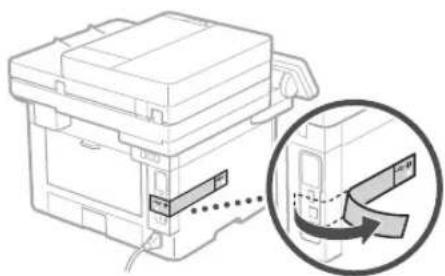
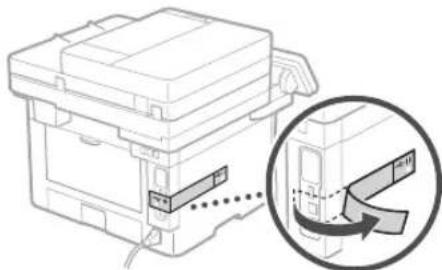
- Remove all of the tape.

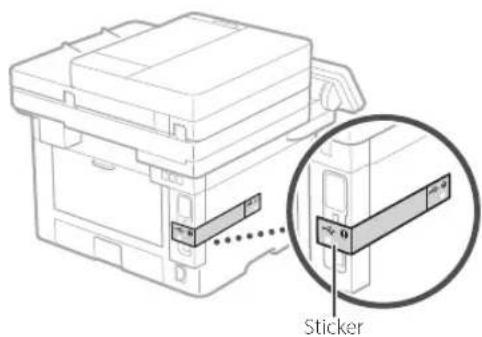
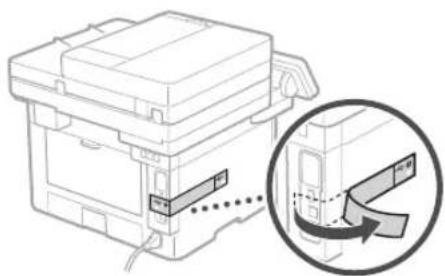
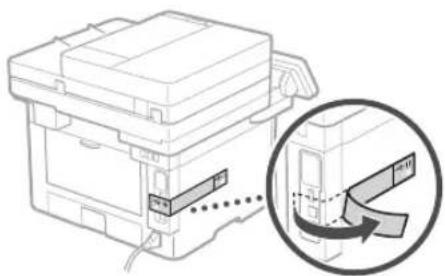
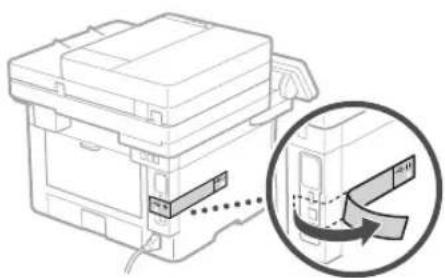
- Do not remove the sticker that covers the USB port.
Installation Requirements
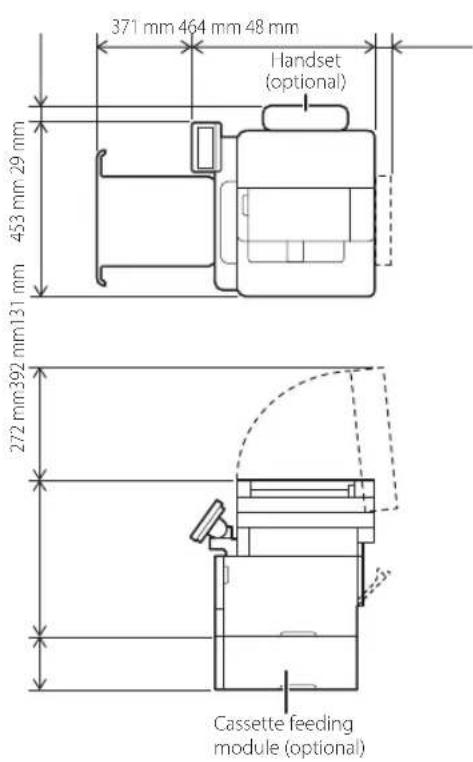
Provide a space of 100 mm or more around the machine.
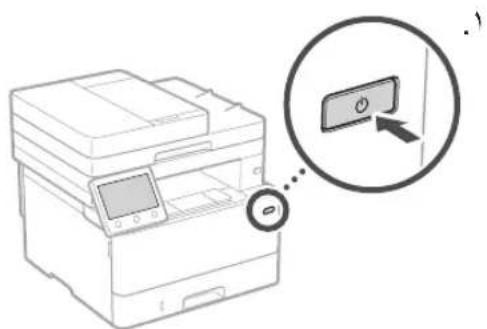
1
4
2
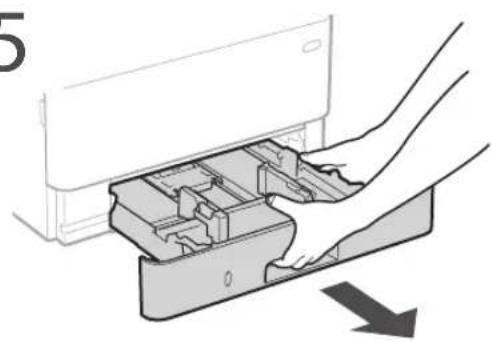
5
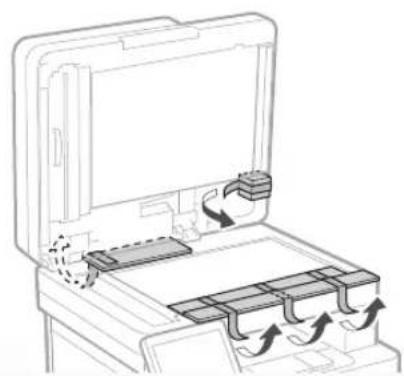
3
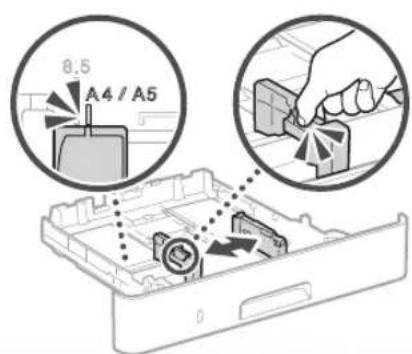
6
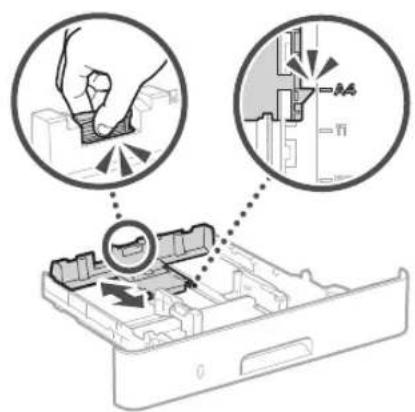
7
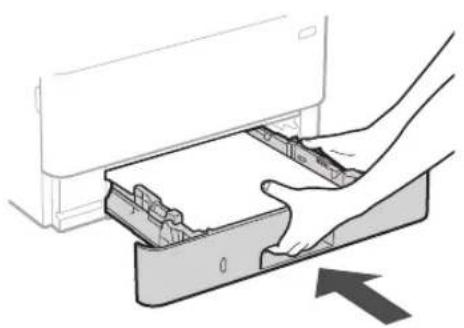
10

8
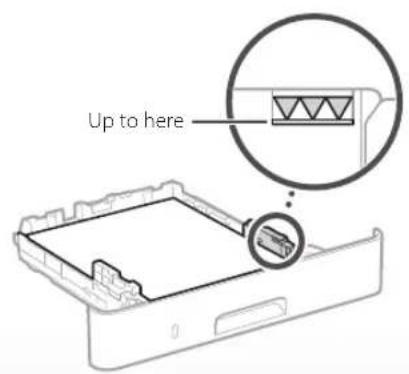
9
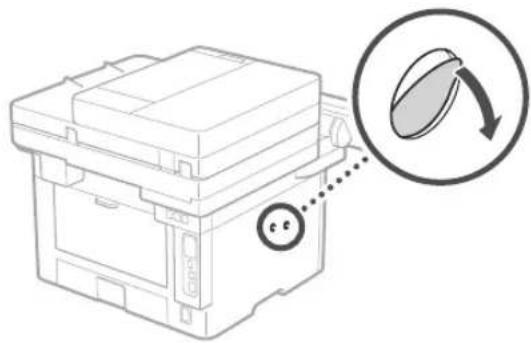
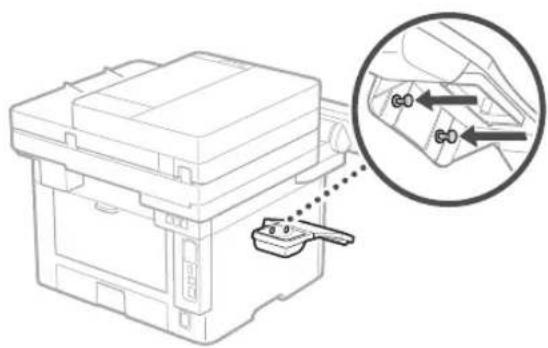
11 Attach the handset (optional).
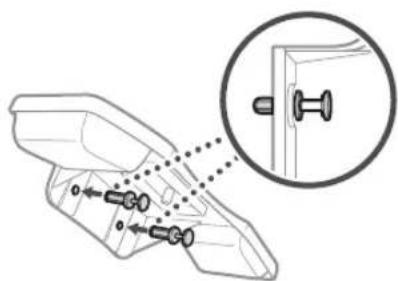
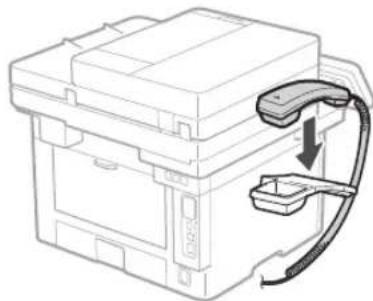
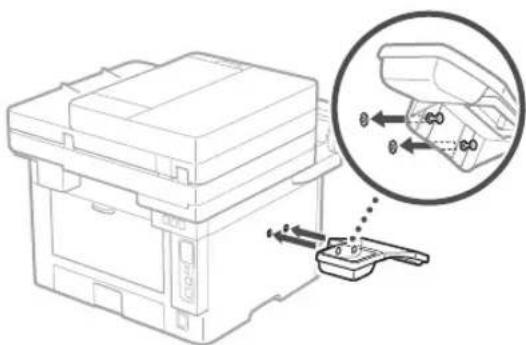
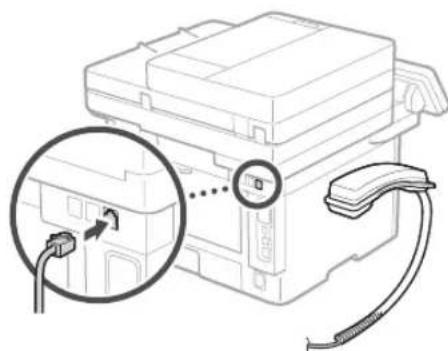
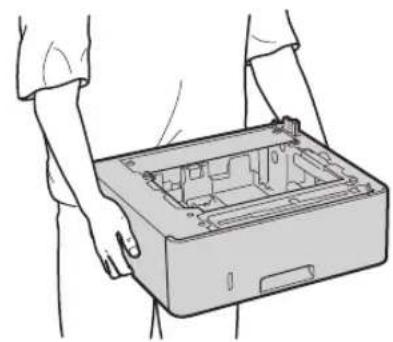
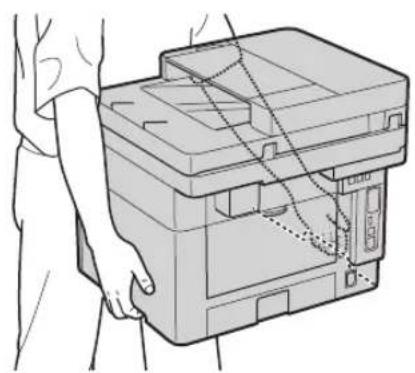
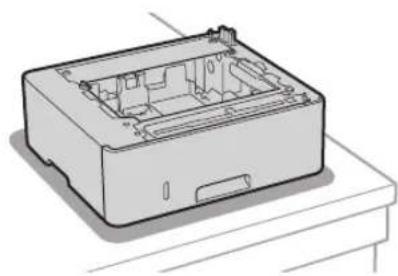
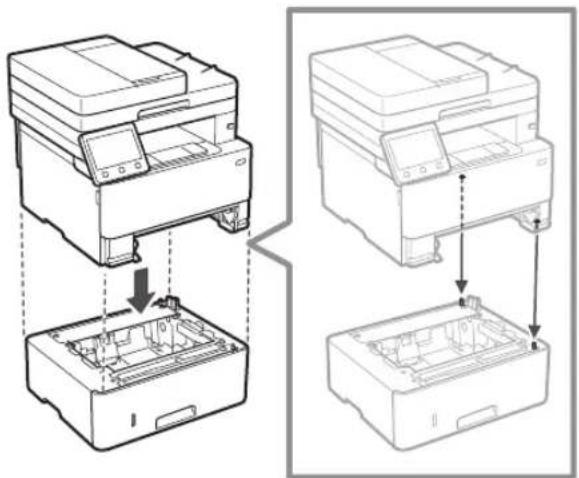
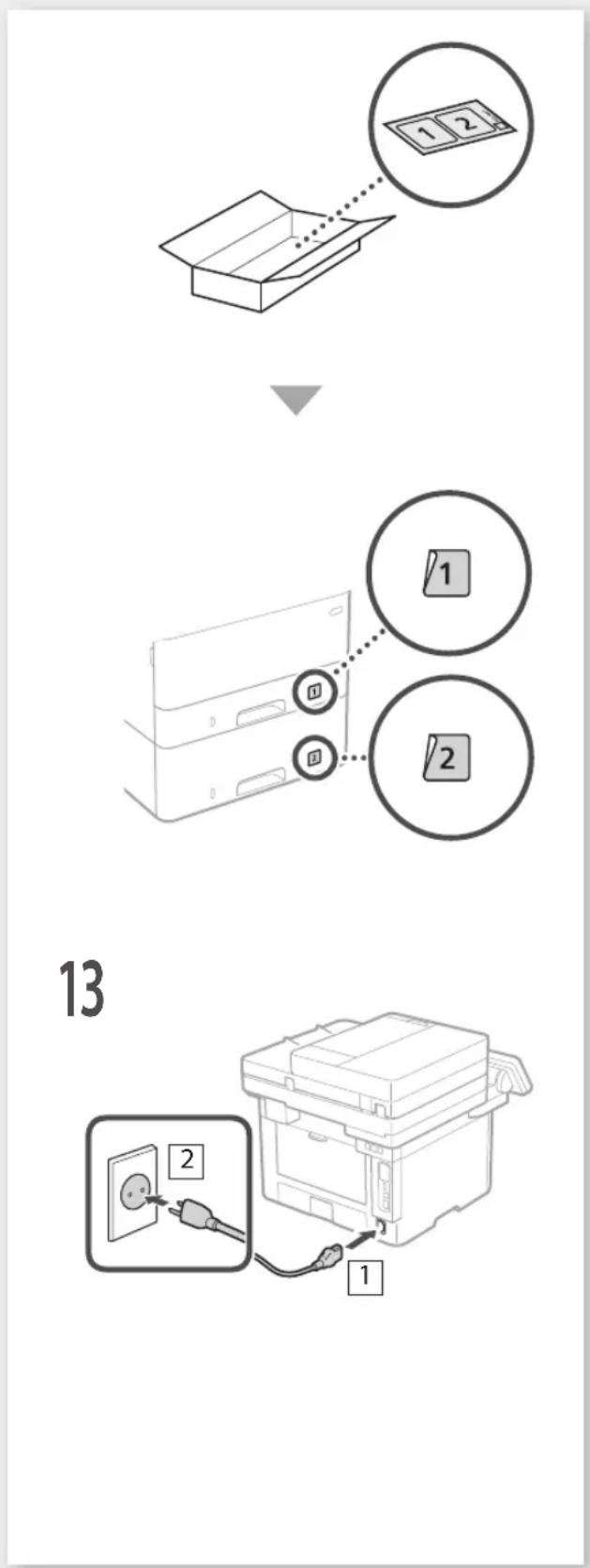
12 Install the cassette feeding module (optional).
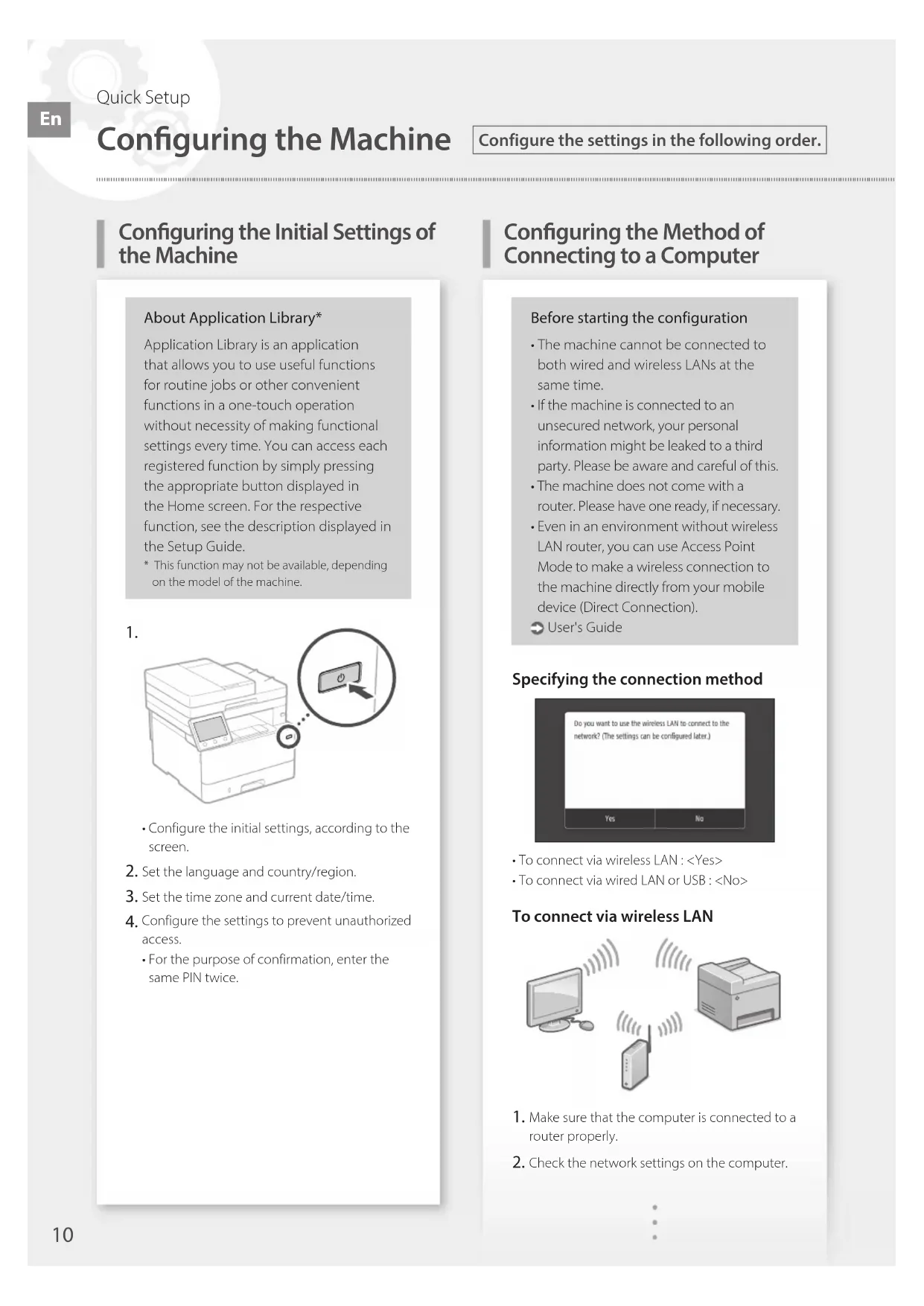
Configuring the Initial Settings of the Machine
About Application Library*
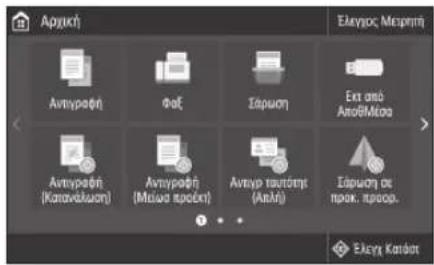
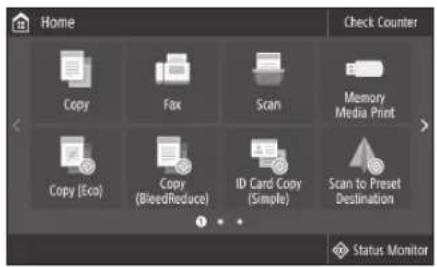
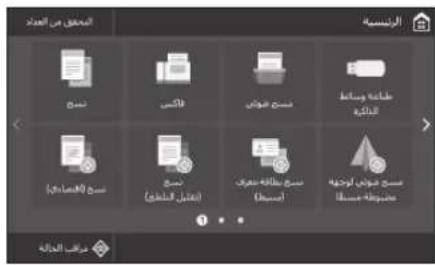
Application Library is an application that allows you to use useful functions for routine jobs or other convenient functions in a one-touch operation without necessity of making functional settings every time. You can access each registered function by simply pressing the appropriate button displayed in the Home screen. For the respective function, see the description displayed in the Setup Guide.
- This function may not be available, depending on the model of the machine.
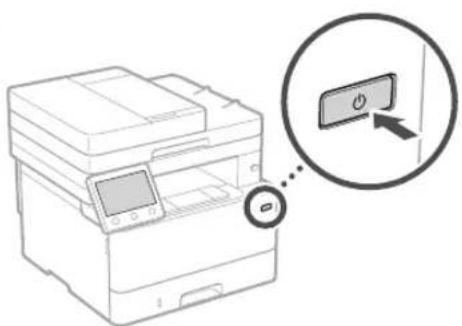
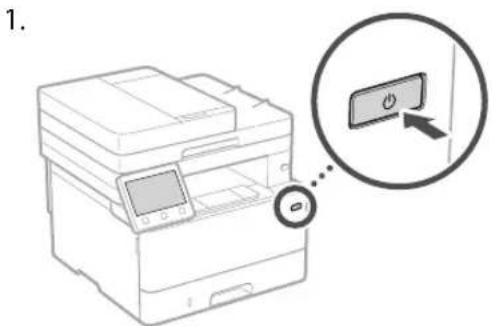
1.
-
Configure the initial settings, according to the screen.
-
Set the language and country/region.
- Set the time zone and current date/time.
- Configure the settings to prevent unauthorized access.
- For the purpose of confirmation, enter the same PIN twice.
Configuring the Method of Connecting to a Computer
Before starting the configuration
The machine cannot be connected to both wired and wireless LANs at the same time.
If the machine is connected to an unsecured network, your personal information might be leaked to a third party. Please be aware and careful of this.
The machine does not come with a router. Please have one ready, if necessary.
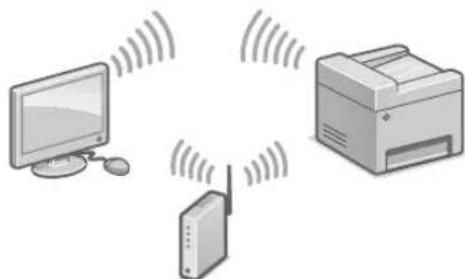
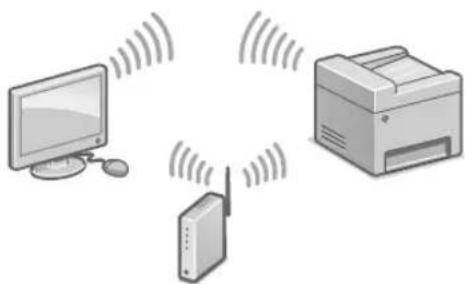
- Even in an environment without wireless LAN router, you can use Access Point Mode to make a wireless connection to the machine directly from your mobile device (Direct Connection).
User's Guide
Specifying the connection method
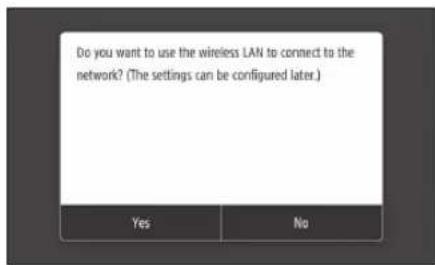
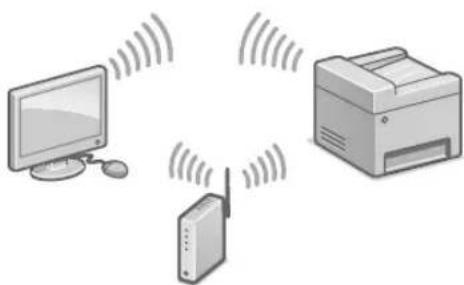
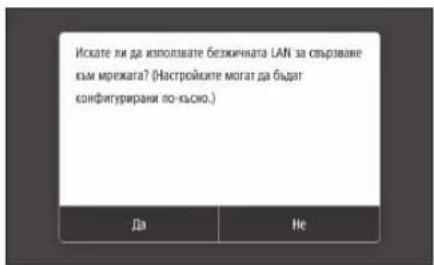
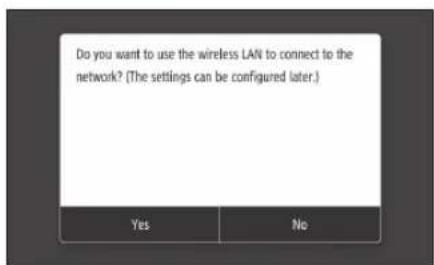
To connect via wireless LAN:
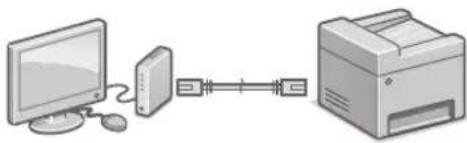
To connect via wired LAN or USB:
To connect via wireless LAN
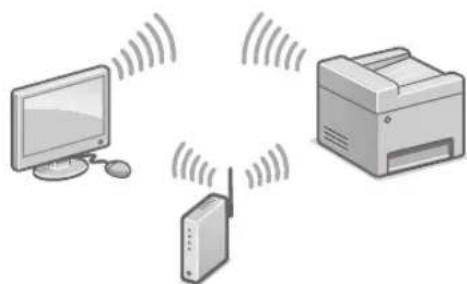
- Make sure that the computer is connected to a router properly.
-
Check the network settings on the computer.
-
Take note of the SSID and network key.
-
Check the label on the router. User's Guide
-
The setting operation is easier if the router is provided with a WPS mark. User's Guide
-
Set the access point and network key according to the screen below.
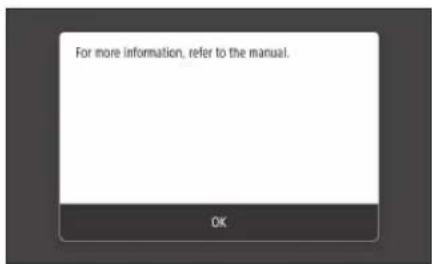
- Press OK>
- Press
. - Press
- Select the access point (SSID), and press
. - Enter a WEP key (network key), and press
. - Press
. - Wait until message
is displayed. -
Press
.
The IP address will be automatically configured in a few minutes. -
Install the driver and software.
P.12 "Installing the software"
Now you are finished with the configuration of the initial settings.
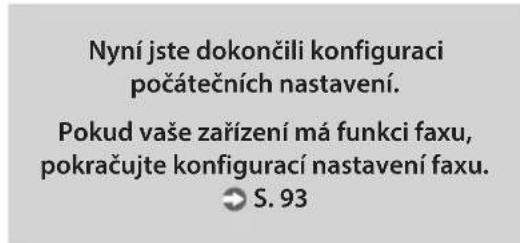
If your machine is provided with the fax function, proceed to configuring the fax settings. P.13
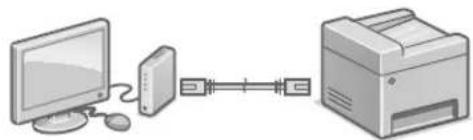
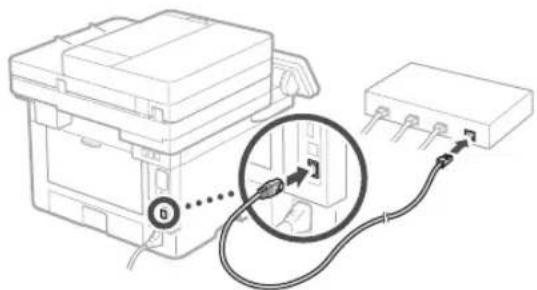
To connect via wired LAN
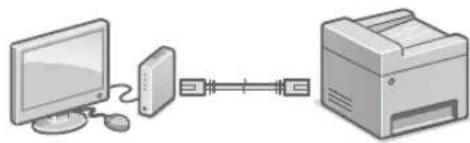
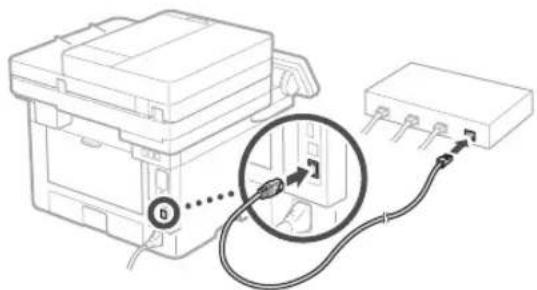
The machine does not come with a LAN cable. Please have one ready, if necessary.
- Make sure that the computer is connected to a router properly.
- Check the network settings on the computer.
- Connect the LAN cable.
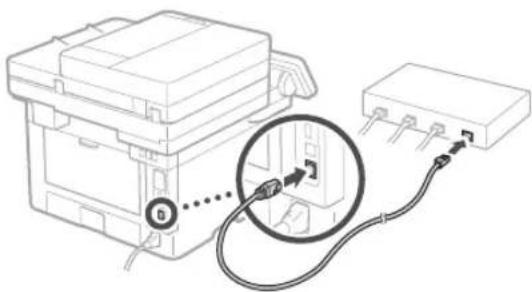
After connecting the cable, wait a few minutes (until the IP address is set automatically).
If a static IP address has been set on the computer, set the machine's IP address manually.
4.Install the driver and software. P.12"Installing the software
Now you are finished with the configuration of the initial settings.
If your machine is provided with the fax function, proceed to configuring the fax settings. P.13
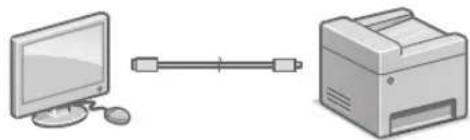
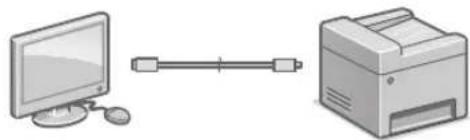
To connect via USB
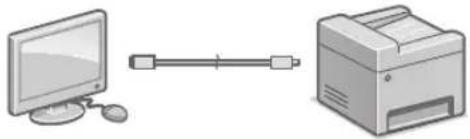
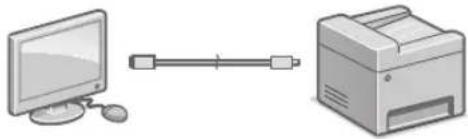
The machine does not come with a USB cable. Please have one ready, if necessary.
Make sure that the USB cable you use has the following mark.
- Do not connect the USB cable before installing the driver. If you did, disconnect the USB cable from the computer, close the dialog box, and then perform the following procedure from step 1.
- Install the driver and software.
P.12 "Installing the software"
- When a screen with instructions for connecting the USB cable to the machine is displayed, remove the sticker that covers the USB port.
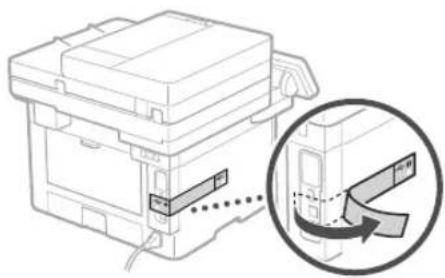
Now you are finished with the configuration of the initial settings.
If your machine is provided with the fax function, proceed to configuring the fax settings. P.13
Installing the software
The procedure described here is only applicable when your computer runs on the Windows OS. For more details on the software installation procedure, see the driver's manual.
- For the installation when your computer runs on the macOS, see the driver's manual.
- Your machine may not come with the driver for the macOS, depending on the time of purchase. New drivers are uploaded to the Canon website, and you can download and use the latest one.
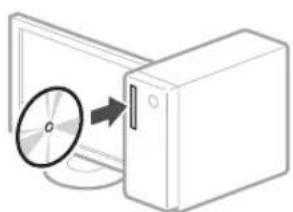
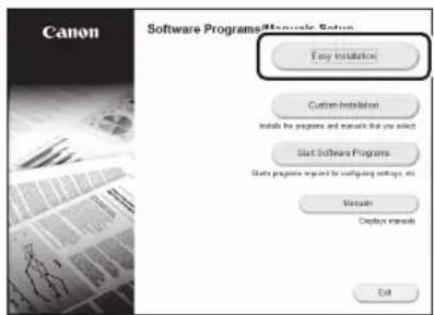
1.
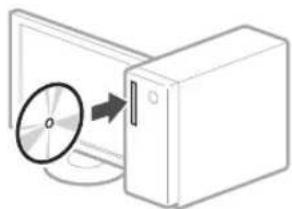
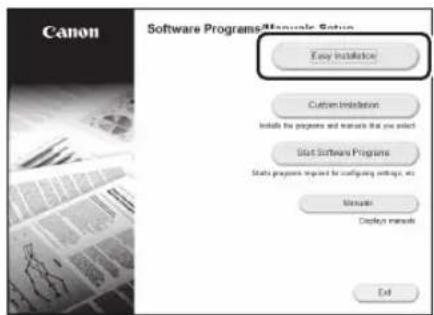
2.
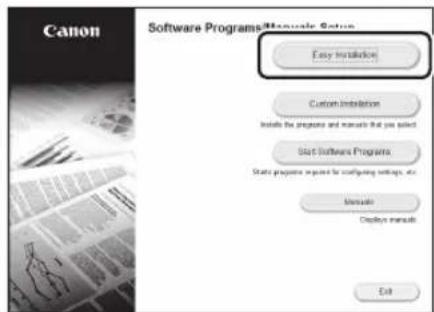
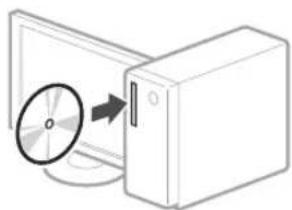
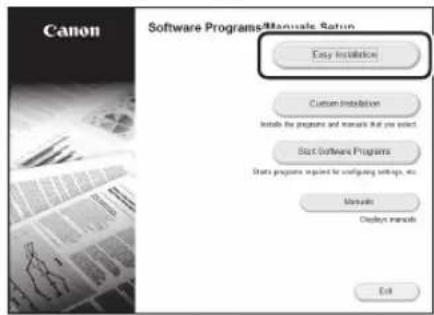
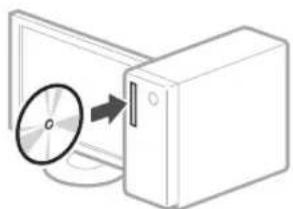
If the screen is not displayed properly, reinsert the CD-ROM/DVD-ROM or search for "D:\MInst.exe" on the Windows platform (This description assumes that "D:" is the CD-ROM/DVD-ROM drive name).
Using the scanner conveniently
Configuring the network settings with "Send Function Setting Tool" allows you to directly send scanned originals with e-mail or I-Fax or store them in a shared folder or on the FTP server.
In the screen displayed in step 2, select [Start Software Programs] [Send Function Setting Tool] to start the Send Function Setting Tool.
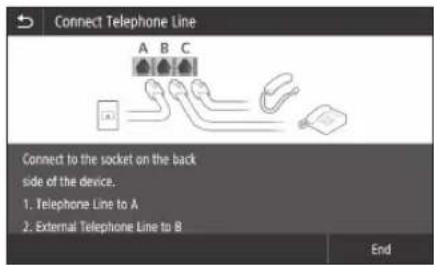
Configuring Fax Settings
Before starting the configuration
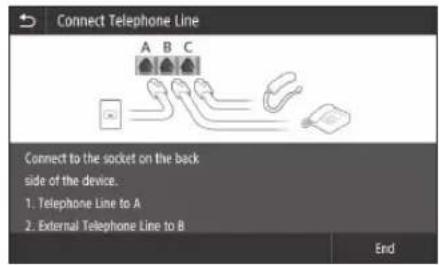
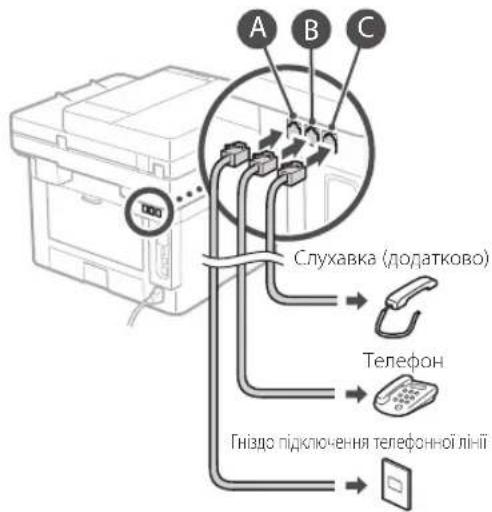
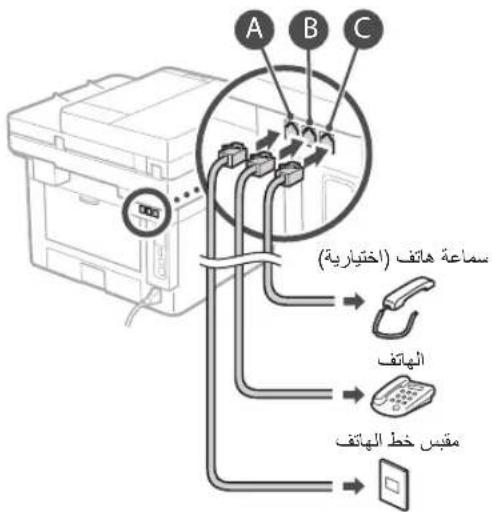
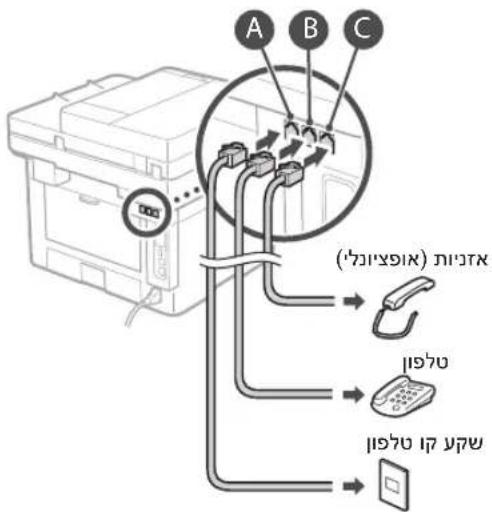
If your machine does not come with a telephone cable, have one ready, as necessary.
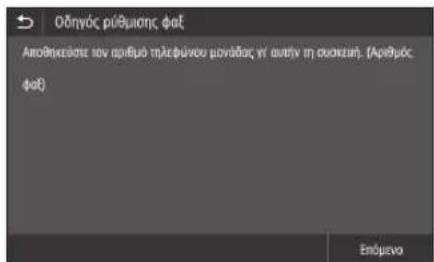
Configure the fax settings, according to the screen below.
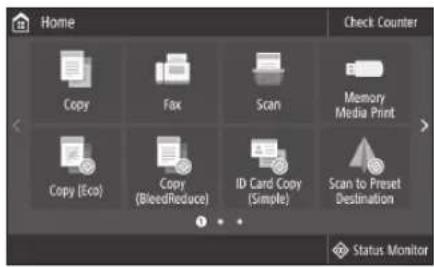
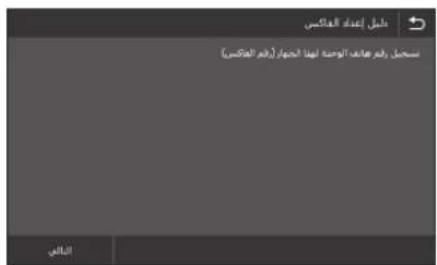
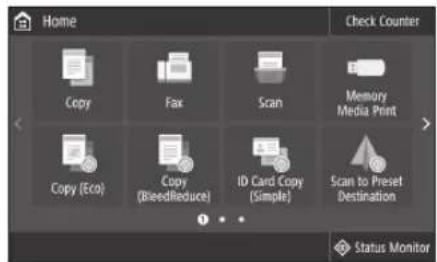
- Press <Fax> .
- Press
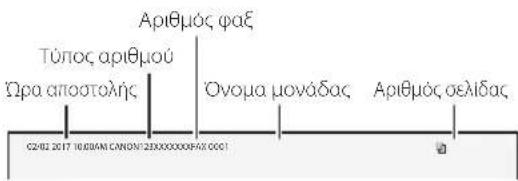
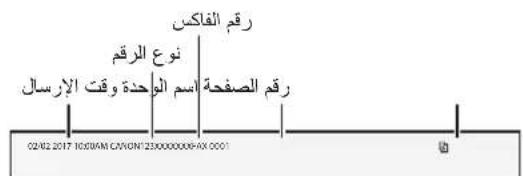
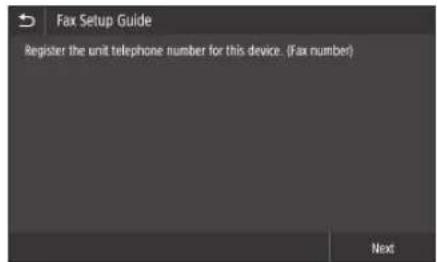
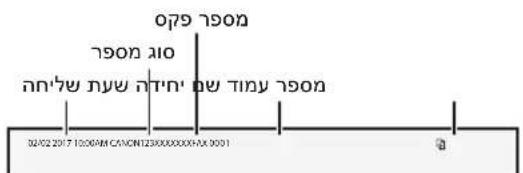
. - Register the machine's telephone number (fax number) and abbreviated user name.
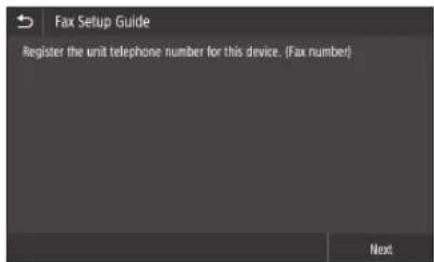
The information below will be printed at the top part of the paper output from the destination machine as sender information.
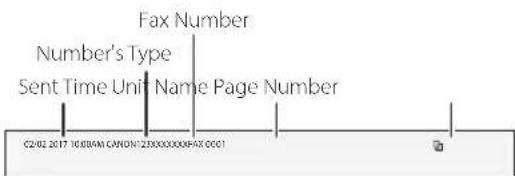
- Set the reception mode.
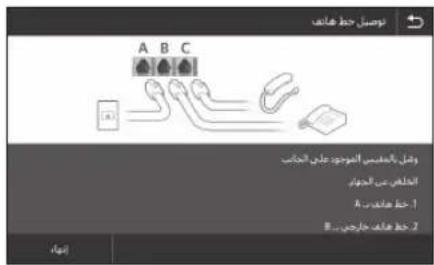
Make the setting by answering the questions on your purposes of using the fax function. - Connect to a telephone line.
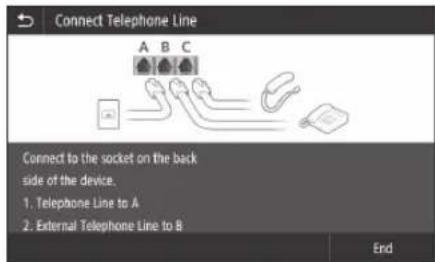
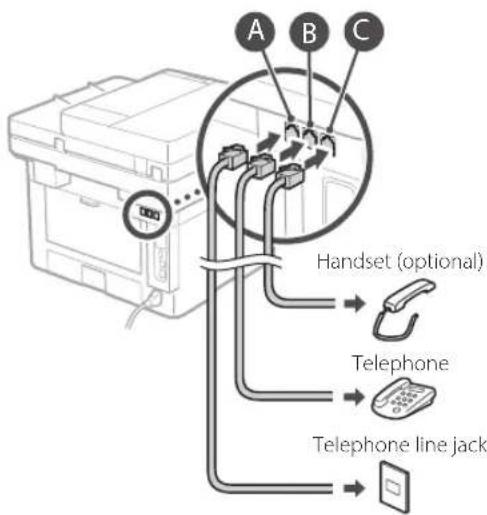
- Press
. - Press
.
Now you are finished with the configuration.
CAUTION!
When you load paper of a size other than A4, change the paper settings. Steps 5 and 6 in "Loading in the Paper Printer" on P.138
U's adequat de I'escanner
La configuracion de la xarxa amb la "Send Function Setting Tool" us permit enviar directamente originales escanejats per correu electronic o I-Fax o emmagatzemar-los en una carpeta comparta o al servidor FTP. A la Pantalla que apareix al pas 2, seleccione [Iniciar programari] [Send Function Setting Tool] per iniciai la Send Function Setting Tool.

△iauopawon twv puthetaewv paE
PpOToU apXiaTe Tn diaOpPomega
Av otu ookeuaia tou mxaavmaotc,ev
nepiauabavetai kaawio tnlambdaivknc
ypaunc, povtiote va npoungteite
eva.
Aiaopoppote Tpuoieic qoe oupovua e tic oyniec onv onov npakatw.
- NaHNOTe<ΦaE>
- NaTnOTe
. - KaataxwpioTe tv apiOoToNtEepawou (apoioc paE) Tnc ouakeunc kal to ouvtetumuevo ovopa xnoTn.
Oi napakaw npopopoe ctheta tuvovtai otnv kopupn tou eayou xaptiou ano to uxaavna ppoopoiou w o i npopopiec xnotn.
5.48 "Installation of softwares"
5.48 "Installation of softwaren"
Installation of softwares
- Verbinding makes via braadloos LAN:
- Verbinding makes via bedraad LAN of USB: <N
Verbinding makes via draadloos LAN
Verbinding makes via bedraad LAN
Ipeed Naayanom HacpoiKu
OndHOBpemEHoe NOKIIouHeNne annapata K npoBOHOHn 6ecnpoBOHOH cETAM HeBO3MOxHO.
- Ecnn annapat noKKnueH K Hebe3oNaChOn cTeN, Baa nepcoHaJIbHa NΦopMaun MoKeT nonactb K TpeTbIM Nuaam. TomHne 06 ToM n Co6IIOJaTe OCTOpXHOCTb.
MappyTu3aTOp He BXoNT B KOMnKeT noCTaBKn annapata. Pnp Heo6xoImocTu noIroTOBbTe erO 3apaHee.
JaKeBcpeE, B KOTopoN OTCyTCTByET MapuTy3aTOp 6ecnpoBOHO CTeH, MOxHO NcNoIb3OBAb TPEKIM TOHIN DOCTyna dna 6ecnpoBOHO NOKnIOueHn Kaannapaty HnnpMyC MoBnHoro YcTpoiCTBa (PpAmoe NoKnIOueHne).
PyKOBoDCTBO NOIb3ObaTeNa
yKa3aHne cnoc6a noKJIoueHn
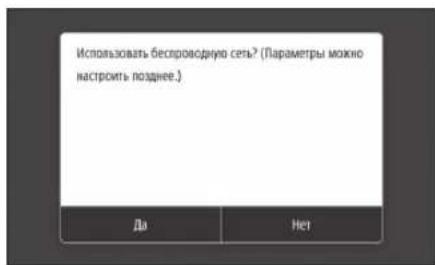
ДиpoKIOUeHINNo6ecnpoBdoHNOJokalbHOcTIN:
Длпюкнчснno npobodhoCnokanbHoi cetm nnu USB:
PoiKJIoueHne no 6ecnpoBoHOcHcTn
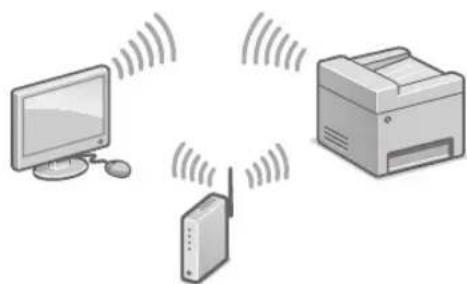
1.Y6eHNTecbBTOM,HTO KOMNbIOTep npabINbHO IOKJIIOUeH KMapuPyTu3aTOpY.
2.Поверпьтейнадсрочи сети на KMONBIOTepe.
- 3aHHnTe nIeHTnФkAtop SSID n KIOU cETN.
PpOBepeTbTe 3TuKeTky Ha MapuPyTu3aTope.
PykoBocTBo noJIb308aTeTn
Pa6ota no HactpoKe ynpouaetc,ecnHa MapuPyTu3aTope Imeetc 3HaOK WPS.
PykoBOCTBOIIOJIb3OBaTeJIa
4.3aainTeTOUYIOCTyIaN KIOUcTeIN B COOTBETCTBUN C 3KpaHOM,IPINBEEHbIM HIXe.
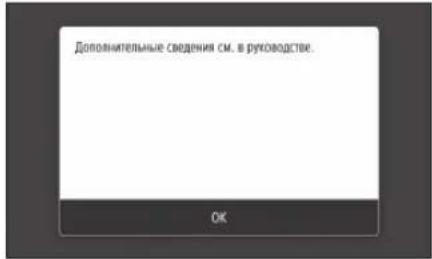
- HaKMITE OK>
- HaxmTe
- Haxmnte
. - Bb6epnte Touky DocTyna (SSID) n Haxmnte
.
5.BBeINTe KIOU WEP (KIOU cETn) n HaxMITE. - HαχMιTe<Дa>
-Дохдntecb oTo6paXeHn coo6ueHn<ПоdknIOUeHo.> - Haxmte<3akpbItb>.
- IP-aippec HactpansBaetc ABTomatueckn B TeceHHe HeCKoJIbKIN MInHyT.
5.YctaHOBtTe npaIBep nnporpaMMHoe 06ecneueHne.
Ctp.68《VctaHOBKa nporpaMMHOrO 06ecneueHn
Ipeed Naayamom HacpoiKN
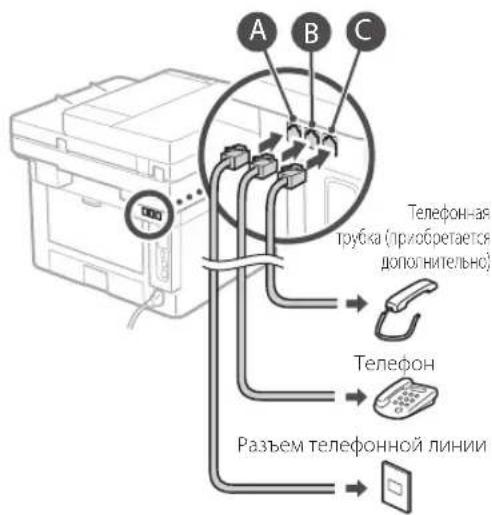
Ecn TelefoHHb Ka6eHb He BXoNT B KOMJIeK TnOCTaBKn aannapata, npn HEO6XoDMOCn IOnrTOOBt eero.
3aainTe HactpoKn 0akBa CootBcTBN C EkaHOM, npuBeHHbIM Hxke.
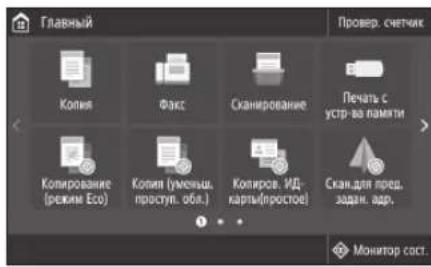
- HaxMMTe
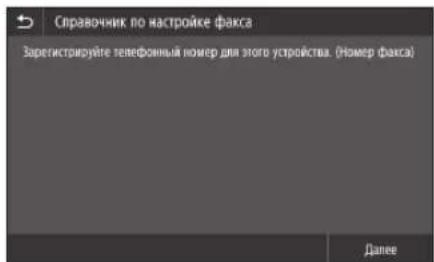
2.HaMMNTe - 3apernctpuyte HomeptenefoHa (Homep ka) annapata n cokpaueHHoe mna nonb3oBaTeTn.
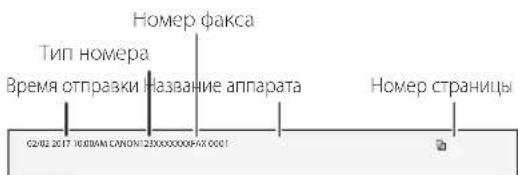
JaHbIe, npBBeHbIe HnKe, 6yDyt neaTaTbcra BBepy NcTa 6ymaru, BBIOIMORo Ha annapate NOnyHaTeN, KaueCTBe CBeHn O6 OTnpaBtene.
4.3aaine peximnpneMa.
JaHAcTpoKnOTBeTbTeHaBONpocbIOeJIAXNCIOJIb3OBAHHaKaCmMJIbHOHyHKUIN.
- NpoknHHTecb K TeneoHHOHINHIM

- Haxmnte < Koheu>.
- HaxMMTe<△a>
Tenepb HacTroponka 3aBepseHa.
BHIMAHVE!
Ipn 3aRpy3Ke 6ymar, fOpmat KOTopoI OTInuAeTcA O4, n3MeHnte HAcTPOKn 6ymar. 5Warn 5n 6Bpa3dene «3aRpy3Ka B KaCCety dJa 6ymar» Ha Ctp.278
HanaHTyBaHHa anapata
HanaStyBaHHЯ NOaTKOBnx napameTpib anapata
Ppo nporpamy Application Library (Bi6nioteka doatakiv)*
Application Library (bi6niTeKa doaTkiB) — ue nporpaMa, kka dae 3MOry OndHMMatNCKOM KnaBiWi BnKOpNCTOByBaTN KOpNCi fyHKuII Ira BnKOHaHHCTaHdApTHnx onepaui afo iHsi 3pyHi fyHKuII 6e3 Heo6xindocI opa3y HacptpoBAtn fyHKioHaJIbHi napametpn. Bi MoKeTe OTpIMATn Doctyn Io 6yNb-koI 3apeecTpObaHoI fyHKuII, IpocTo HATnCHyBm Ha Notpi6Hy KHOJky, kka BiIO6paXaETbcra Ha ekpaHrONOBHOro MeHIO. ONnc BiINOBiHOI fyHKuII BiIO6paXaETbcra y Poc6HNYk 3i BCTaHOBJIeHH.
LJyHKU MoKe ByTu HeOCTynHO 3aEnKHO BIMoeni anapata.
HaIaIyIteNoaTkoI npametpn BiINOBiINO do iHCTpyKui Haekpani.
2.YCTaHOBtMoBy Ta KpaHy/perioH.
3.YCTaHOBITbYacOBnIocIiNtOuHy DaTy/uaC.
4.Haawtyte napametpn dna 3anobiraHH HecaHKIOHOBAHOMO DOCTNY.
-ДЯ NiTBePAneHHBVeIb Toi Camn PINKOI DbiYi.
HanaWtUbaHHcNoco6y NiKJIoueHHaO KOMN'IOTepa
Ipeep noaTkom HajaTuBaHHa
Anapat He MoXHa BOdHouac NiikHouHTn Do Apotoboi Ta 6e3dpotoboi NokalbHOI Mepexi.
Kuo anapat niknoeHo do Heaxuhoi Mepeki, Baa ocobcta iOpmaia moKe notpaNTn do ctopOHix oci6. Bybte ybaXHi ta obepekhi.
Anapat noctaeta 6e3 MappytnaTopa. Iidrotyte noro 3a Heo6xihocti.
Habibkuo B cepedobuhi Hemae MapuytnaTopa 6e3npotoboI lokaibhoi Mepeki,MOKHa BnKOpncTaN peXm TOnKIO DOCTny Ira 6e3npotOBoro nIKNoueHHN Io anapata 6e3nocepEnbO 3 MobinbHor npucptoio (npame nIKNoeHH).
NocibNK KopncTyBaay
Bka3aHHcno6y niknoueHH
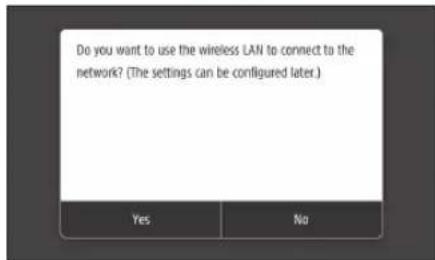
Ipeep nooyaTkom HanaWtyBaHH
Kapao anapat noctaactbca 63
TenefoHHoro ka6enio, nirote noro
3a Heo6xidnocti.
HanaTyIe napametpn fakcy BiNobiDn do iHCTpykui Ha ekpaHi.
- HatnchItb
(DaKc). - HATNCHTb
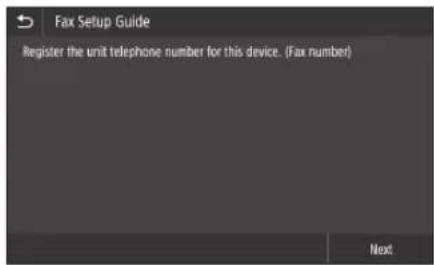
(HanaityBaTu 3apa3). - 3apectpynte Homep TenefoHy (Homep kky) anapaTa Ta ckopooyhe im'KOpncTybau.
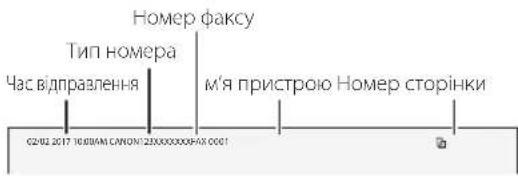
IhOpMaia,HaBeHeHa HnKue,6yde npkyBaTnca kHOpMaia npo BiinpaBnka y BepxHi qactnHi apKyua,Kn OTpIMyBaTmec anapaT pni3HaueHH.
-
Hanaityte pexim npinomy.
-
YCTaHOBITb napaMeTpN, BiINOBiDAKUH Ha 3aINTaHHI OIO MeTN BIKOPNCtAHH FyHKuI fakcy.
5.ПИКИСИТБ anapatdo TeLEФHNOI niHII.
- Hatnchitb kHONky
(3abepeuehna). - HatncHtB KNONy
(Tak).
HanaTyuBaHHa3aBepueHo.
YBATAI
Akuo BN 3aBaHTaxyeTe nanip 6iNbwo
φopMaTy, HIX A4, 3MiHiTb napaMeTp nanepy.
Kpokn 5i6 y po3di i «3aabaTaeHHy IIOtOK
Дяпару»Ha CToP.288
lerices sakotnejo iestatijumukonfiguresana
Par Application Library (Lietotnu biblioteka)*
Application Library (Lietotnu biblioteka)
ir lietotne, kas ar vienu pieskarienu lauj izmantot ikdienes darbiem noderigas funkcijas vai CITAS ertas fungcijas bez nepiecesamibas katru reizi pielagot fungciju iestatijumus. Katrai ierakstitajai fungcijai iespejams pieklut, vienkarsti nospiezot attiecigo sakuma ekrana redzamo pogu. Attiecigo fungciju apraksti ir sniegt "Ilestatisanas vedni".
S.92Instalace software
Pripojeni pres rozhrani USB
S.92Instalace software
Kdyz se zobrazi obrazovka pro priopojeni kabelu USBkzaifzeni,sejmete nalepku,terou je zakryt'port USB.
KoHΦnrgypnPaHe Ha MaShnHaTa
KoHpynpaTe HacptpoKnTe B cIeHNpaed.
KoHfIgypnPaHe Ha nbpBOHaayHnTe NaCTpOiKn Ha MaunHaTa
OTHOCHO Application Library (Bn6bnoteka c npnoxehna)*
Application Library (Библnotka c прложеня) e пложенie, koeto ВИ ПОЗВОЛBA ДА ИЗПОЛВATE ПОЕЗHI функци 3a pyTNHH 3aДАнгИ NIIpyrI удбн Функци C с endо дOKOCBaH 6e3 HeobxOДМСТ OT u3BbPшВаH На ФункциОнHLн HAcTpoКи BCEKn пьт. Можete Да NOЛЧITE ДocтБД ВсЯкap erNCTpnpaHa Функци, KaTO пpoctTo HATINCHETe NOxOДУSHN 6yTOH, ПОКAZAH Ha HauJIHЯ ekpaH. ВIXTe ОПИССАнETO, NOKAЗAOH B pБKOBOДСВOTO 3a HabTPOJka 3a CBOTBeTHa TФункци.
Ta3nФyHKJIMoKeJaHeHaHnHbBA 3aBNCIMOCTOTMOJenaHaMaunHnHaT。
KoHfpynpaTe npbPOHaaynHTe HAcTpoKu B cbOTBeTCTBne CekpaHa.
- 3aainTe e3nka n nbpkaBaTa/pernoHa.
- 3aatayacobnnoTkyata naTayac.
- KOnHpynpaTe HaCTpoKnte 3a npedotbpaTbaHe Ha HeynblHOMOeH DocTbn.
Cen notBbpxdeHne BBeDeTe DBA nTn eHH nCbPin Homep.
KoHfIpypIpaHe Ha MeToDa 3a CBbP3BaHe C KOMNIOTp
Ppei Da 3anoHete KOHpynpupaHTo
MaunHata He moKe da ce CBpKe eHOBpeMeHHo C Ka6eHa n 6e3KnHa LAN mpeKa.
Ako MaunHaTa e Cbbp3aHa c He3aunteta Mpeka, Baaata NnHa INΦopMaun MoKe Da n3teue do Tpea cTpaHa. Mon, bJeTe BHMATEHNI NO OTHOeHne Ha TOBa.
MaunHata He ce doCTaBc mMappyTu3aTOp, 3aTOBa NOIOTBETaKbB, Ako e Heo6xOmo.
IopnBcpea6e36e3KHeH LAN Mapuyn3atop MoKeTe da H3no3BaTe peKMHaTOyKa 3aIOCTbI,3aJaOCbueCTBnTe 6e3XnHb3Ka C MaunHata DnpeKTHO BAeTO MObHNOYCTPOINCTBO (NpeKTHa Bp3Ka).
PbKOBoDCTBOHaNoTpe6uTeia
IocuBaHe Ha MeToDa 3a Cbbp3BaHe
-3a na ce cBbpxKeTe uepe36e3xuueH LAN:
- 3a da ce cbpxkete ue3 ka6eien LAN nnn USB:
3a da ce cBbpxKeTe uepe3 6e3Kmueh LAN
1.YBepTeCe,YeKOMNIObPbTe npabuHOBcbp3Ah CMapwpyTN3aTOp.
2.ПpoBepeTe MpeXOBHTe HactponKn Ha KOMIOTbpa.
- Ot6JIeKeTe SSID nMpexKOBn KJIOH.
PpOBepeTe eTnKeTa Ha MapuPyTu3aTopa.
PbKOBOCTBOHaNtpeBnteJIa
HactpoKaTa e no-Necha, ako MapuTyNaT3aTOpBt e Cha6eH CMapKnipOBka 3a WPS. PbkOBOcTBO Ha Notpe6nten
4.3aainTe TOyKaTa 3a DOCTbI IN MPexKOBn KIOU B CbOTBETCBIE C EKpaHa NO-DOJY.
- HatncheTe OK>
- HatncheTe
- HatncheTe
4.ИзберетоукataЗдocтб(SSID)иНатисHTe.
5.BbBeTe WEP KIOU (MpeKOB KIOU) HATnCHETe - HatncheTe
-3aKeT,doKaTo ce nokaxe Cbo6eHneTo. - HatncheTe <3atbOpn>.
-IP aapecbT ue 6bJe aBTOMaTHUHO KOHnpynpaH CNeHRAKONKO MNHyTN.
5.Инталарпудраивераиcoфтуера.
Ctp.116,InHCTanipaHe Ha cofopepa"
Cnei noBBAhe Ha ekpaHa c HCTpykun 3a Cbpb3BaHe Ha USB ka6ena c MaunHata, oTcTaHete IeneHKata, NOKpmbua USB npTa.
CTOBA3aBbPbWA KOHnpynpaHeToHa nbpBOHaayJHNTe HaCTpOKn.
AkoBaWaTaMaWnHae cHa6DeHa CΦaKcΦyHKuH, nPoIbLnKeTe C KOHΦuRypuPaHe Ha HAcTpOuKuTe Ha ΦaKca. 忍 Ctp.117
HCTaJnpaHe Ha coΦTyepa
- Onicahata Tyk npoedpya e npinnoKma cmo korato KOMIObtpa60n c onepauonHa cnCTema Windows. 3a noipop6Hocn OTHOcH npouedypara 3a HCTanpaHe Ha coftyepa BIXTE pbKOBOCTBO 3a dpaiBepa.
-3a INCTaIIpaHe, KORATO KOMNIOBpBT pa6OTn C macOS, BIXTe pkoBOIDTO 3a npAIBepa.
BaWATA MaHnHa MoXe Da He Ce DoCTABc CpaBepa 3a macOS B 3abCmOCT OT BPemTo Ha NOKyIkaTa. Ha ye6caTtHa Canon peoBHO ce KaBt HOBn DpaBepn, Taka Ye MoKTe Da H3TErInTe Hau-HOBuN Da rTO V3NO7BATE.
1.
2.
Ako ekpaHbT He ce n3Bede npaBnH0, noCTaBeTe oTHOBO CD-ROM/DVD-ROM ncka nn noTbpceTe, D'MInst.exe" B nnaTphiOpMaTa Ha Windows. (ToBa onncAnHe npednonara, ye "D:" e HmEto Ha CD-ROM/DVD-ROM yctpoiCTBoto).
Ydo6Ho n3non3BaHe Ha cKehepa
KoHpynpaHeTo Ha MPekOBnTe HAcTpoKn C,Send Function Setting Tool"(INCTpymeT3a HAcTpoKa Ha ynkuiyTa 3a n3npaane) BN N03BOnBa DnpekTHo Da n3npaate cKaHnpuHn opunHaHN DOkymeHTn no ImEnI nn Upe3 INTEpHET-4acK nn da nn CxbpaHbATE B cnoJeHena NaKa nn HA FTP cbpbba. Ha ekpana, nokaan B CTbnka 2, n36epete [Start Software Programs] (CtaptupeHa coqTyepn nporpaM) [Send Function Setting Tool] (INCTpymeT3a HAcTpoKa Ha ynkuiyTa 3a n3npaane), 3a da CtapnpaTe Send Function Setting Tool (INCTpymeT3a HAcTpoKa Ha ynkuiyTa 3a n3npaane)

KoHΦnIpynpaHeHa NaCTpOJKeTe 3a ΦaKc
Yapilandirmayasciousness once
<>:USB,1
a a a a a a a a a a a a a a a a a a a a
iiaai jil ie abuui biai iie
J 1
12011 1
AaBll jIjBa aagaae g aegbll oae jaae
AaBaaBaaBaaBaaBaaBaaBaa
aaiiiaai ai gaiy aaii iaiy
ailll llll jll gai jll aaiiial laal
A
Jusu Jusu Jusu Jusu
aJill. lajrrs ie aie 15
.0gss
J 1
Aaiai Jaiayis
cic: 1stal aagbgsaagbll cils
100
ssssssss
piai wall lgl 1 gall cio kdo gao
WPS
aaii aaii ai 1
c0k > sk +
< u2 + u3 + u_4 > ① 当 x = 1 , y = 1 .
<1> (SSID)
aljll aayyie USB 1s ie ayall Jaiy
8 15
40111111111111111111111111111
1JU 1JU JU USB JU JU JU JU JU JU JU JU JU JU JU JU JU JU JU JU JU JU JU JU JU JU JU JU JU JU JU JU JU JU JU JU JU JU JU JU JU JU JU JU JU JU JU JU JU JU JU JU JU JU JUU
LJL JNJI 1
100
slll 1
.
aalalalalalalalalalalalalalalalalalalal
a
| x^ | = 1| x| · | r1^2 + r2^2 + r_3^2| ≤ 34| x| ^2
.
A

Aa Aaa aaa aaa aaa aaa
g 70 gglal
11A
S OBC = S COD + S_ BOC
y
.
aaii
< < 5( 3 > 0) is bi-iod.
| x^ | = 1| x| · | r1^2 + r2^2 + r_3^2| ≤ 34| x| ^2
(Stll)
jssglal . jssl 1s a 1s 1s 1s 1s 1s 1s
y
Jy
1 1
Lai jieji
12 paa sLALN 4 1jao jgi jai
S = S AOB + S OBQ + S_ QBX
jial jg gao elal lae cie bai ciu jiao
42
S OBC = S ABC + S_ BOC
iudui dui jigjol qo
154 1
LAN 45
Access Point Mode j
与 OA = 1 h = 2
J (SSID
.
1.2021年全国二卷
(SSID)
Next>
WEP 2
Aa:Jaa|J(acl)
① ( x,y) = ( ab,52y)
<.Connected> plu#
1
21
254 1j j j j j j
"Jj j j J
14 44
.
- Cuaol daiyue yuoyu jiyu lyolui
4y
149.00 C
jai
45 Cnol olaal Jg, Iaa Jy Dooa d 21j j 45
Jdale 5 (s) dR
macos 1000 macos
Canon 1
.
.
CD- 100000000000000000000000000000000000000000000000000000000000000000000000000000000000000000000"
jisw jjwl gosolai
Send Function" 1452345678901234567890123456789012345678901234567890123456789012345678901234567890123456789012345678901234567890
Start Software]
Send] (s) j j j j j j j j j j j j j j j j j j j j j j j j j j j j j j j j j j j j j j j j j j j j j j j j j j j j j j j j j jj jj jj jj jj jj jj jj jj jj jj jj jj jj jj jj jj jj jj jj jj jj jj jj jj jj jj jj jj jj jj jj
USB
S ACD = S COD + S_ CDA
USB USB 45 45 Jda Jiaabol
JU 1 JUUB
aaij jbj jj
"Jjj j
JSSS JSS SGLAALLRSGSAAS
USB
1 1
- Cua 4
4.2.1.3.
199.00 C
1 4
N. W. W. T. H. H. H. H. H. H. H. H. H. H. H. H. H. H. H. H. H. H. H. H. H. H. H. H. H. H. H. H. H. H. H. H. H. H. H. H. H. H. H. H. H. H. H. H. H. H. H. H. H. H.
nntnnn n 1
T#
.
LAN
Access Point Mode-1 unnnn
(n)
Tnn nn nnnn nn nn
.(w)n)
wnnnn7 n
nnannn now
(p)
(x7)
inx LAN nynnnn
1
.2
n nn nn nn nn nn nn nn nn nn nn nn nn nn nn nn nn nn nn nn nn nn nn nn nn nn nn nn nn nn nn nn nn nn nn nn nn nn nn nn nn nn nn nn nn nn nn nn nn nn nn nn nn nn nn nn nn nn nn nn nn nn nn nn nn nn nn nn nn nn nn nn nn nn nn nn nn nn nn nn nn nn nn nn nn nn nn nn nn nn
Application Library nix \* (nniuun nn)
(0000) Application Library' 77777777777777777777777777777777777777777777777777777777
n nn nnnnnnnnnnnnnnnnnn
.
nNnNnNn.2
.3
nnae ynn nnnn nn ney 4
.
PIN nixn n,
in LAN nynnnn

TAN LAN
.
nnnnnnnnnnnnnnn 1
.2
LAN-3
)n nnnn nn
(nununipinIP-nnn
Tn,ip IP nnnn nn
nTwnnIP-n nnnn
4
"nnnnnnn"132 tiny
ynnn nn no nno
nniin ninn
,079 n'pni y nn nn nn
.079n nntan myn nx yann
133 tiny C
n nn nn n nn SSID-n nn nn n nn 3
n nn nnnnnnnnnn
wnwnn
ynnn nn nnnn nnnn
wnwnn7 ntn .WPS nio
n nn nnnnnnnnnnnnnnnnnnnnnnnnnnnnnnnnnnnnnnnnnnnnnnnnnnnnnnnnnnnnnnnnnnnnnnnnnnnnnnnnnnnnnnnnnnnnnnnnnnnnnnnnnnnnnnnnn
. nunwn nn
.()
.(SSID nnnn)
(wnnnn)
(xan)
yyni (nnnnn) WEP nnon im .5
· (7n)
(1) 否否 & yn & . .6
. . . . . . . . . . . . . . . . . . . . . . . . . . . . . . . . . . . . . . . . . . . . . . . . . . . . . . . . . . . . . . . . . . . . . . . . . . . . . . . . . . . . naxin <. Connected> nytny ty jnnn ·
.(10)
n n nn nn nn nn nn IP-n nn
.0nnn nn nnnn nn n 5
"nnnnn" 132
w nn nn nn nn no ny
nniin ninn
079n 1
07n nnn nn nn yann
133 tiny
ninnnn
- Windows 7000 nnnn nn nnnn nn nnnnnnnnnnnnnnnnnnnnnnnnnnnnnnnnnnnnnnnnnnnnnnnnnnnnnnnnnnnnnnnnnnnnnnnnnnnnnnnnnnn
mnnnn
nnn nn n ,macOS .nnnnn
.
nn nn nn nn nn nn nn nn nn nn nn nn nn nn nn nn nn nn nn nn nn nn nn nn nn nn nn nn nn nn nn nn nn nn nn nn nn nn nn nn nn nn nn nn nn nn nn nn nn nn nn nn nn nn nn nn nn nn nn nn nn nn nn nn nn nn nn nn nn nn nn nn nn nn nn nn nn nn nn nn nn nn nn nn nn nn nn nn nn nn nn nn nn nn nn nn nn nn nn nn nn
macOS 'wnn nnynnnn nn
ytnnnn nn nnnnnnnnnnn
Tnnn,Canon wwnny
.own nn nn nn nn nn
.1
.2
wnnnn nn nnnnnnnnnnnnnnnnnnnnnnnnnnnnnnnnnnnnnnnnnnnnnnnnnnnnnnnnnnnnnnnnnnnnnnnnnnnnnnnnnnnnnnnnnnnnnnnnnnnnnnn
nwn CD-ROM/DVD-ROM-n n
nwn)Windows- :MInst.exe"
CD-ROM/DVD--n pnn nn "D:"
(1) u 2^n ROM
nno nnn
Start Software]n2,2yinyin yon1
Send] (nnnnnnnn [Programs
[Function Setting Tool
nynnnn nnnn nn nn nyohn (nnnn
USBn
"USB
nnnnnnnnnnnnnnnnnnnnnnnnnnnnnnnnnnnnnnnnnnnnnnnnnnnnnnnnnnnnnnnnnnnnnnnnnnnnnnnnnnnnnnnnnnnnnnnnnnnnnnnnnnn

711111 USB- n 70n
Kan nn on nn annnnn
USB- n nn nn
ynnn nn nnnn nn nnnn nn nnnn nn
17wn nn nn
1
"nnnnnnn"132 n
nnoonnnn nn non, nns USB-n
USB-n
w nn nn nn nn no ny
nnnnn
,07n
.07n nntan nn nn yann
133 tiny C
.4
y
079n 77192 77n 77n
1970 177 nannn .5
.(n)
(1) < > Yes > y_1 y means
nynnynnnoo
Innn
A4 6-15
438"nnn
nntan y nixnn ny 079
nynnnn nn nnnn 197
y 1970 ynn nn nn
.
ninn nnnn nn nnnn nn
yann
.079)
1909) won nn 1909 nn nn.3
.ynnn nnwnn nn (opn
yuyuynn09nyytn
nynnnnnnnnnnnnnnn
Quick
Operation

Quick Operation En
KpaTkoe pykoBoIDCTBO no 3KcnIyatauRu
Uk
Atrā lietošana Lv
Trumpa naudiojimo instrukcija Lt
Kiirtoimingud Et
Place the Original Properly
Remember before You Start Operation
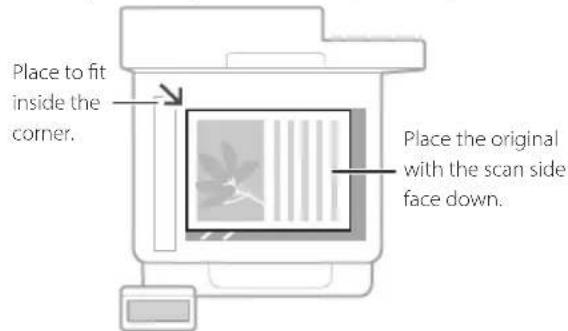
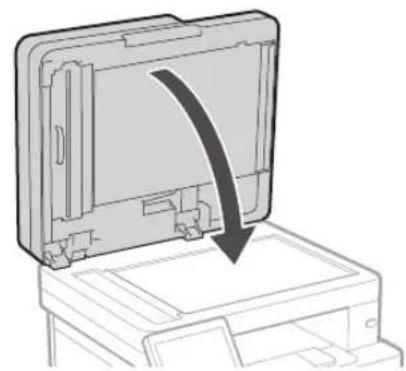
Place your original on the platen glass


Suitable for scanning book pages, magazine pages and newspaper clips.
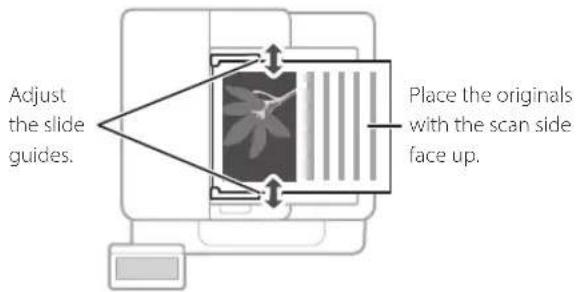
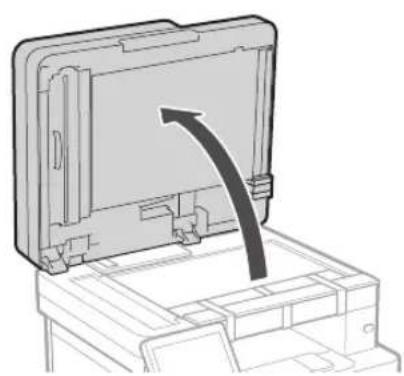
Place your originals into the feeder

Suitable for continuously scanning many pages of literature, quotation, etc.
Start the Operation from the Operation Panel
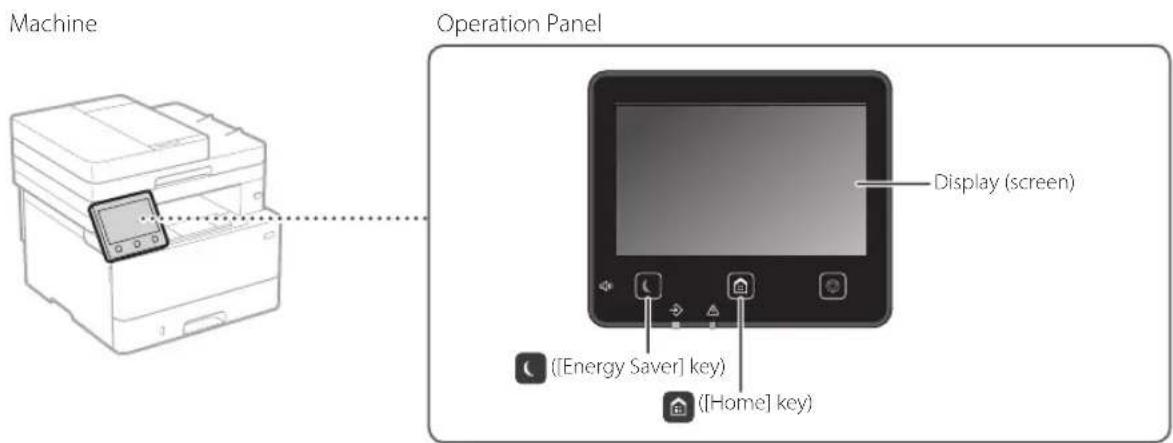

Scanning
- Place the original.
- Press , and select
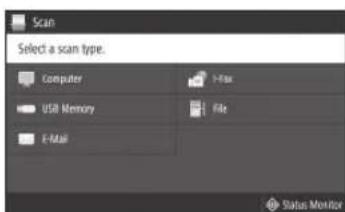
. - Select the type of scan, and enter the necessary information.
- Select
, .
Types of scan
Store in USB memory device
Send e-mail
Send to file server
To scan from a computer
MF Scan Utility
For details
"Scanning" in the User's Guide

Copying
- Place the original.
- Press , and then select < Copy>
- Specify the copy settings, as necessary.
- Enter the desired number of copies.
- Select
Useful copy settings
Non 1
2-Sided or 1-Sided
Enlarging or reducing
- Copying ID cards

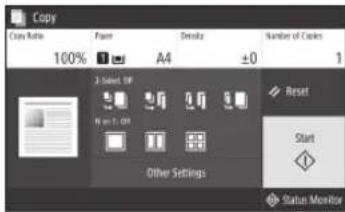
For details
"Copying" in the User's Guide

Faxing*
-
This function may not be available, depending on the model of the machine.
-
Place the original.
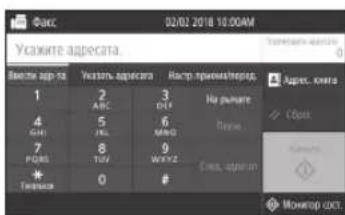
- Press , and select < Fax>.
- Enter the destination information.
- Specify the fax settings, as necessary.
- Select
.
Useful fax functions
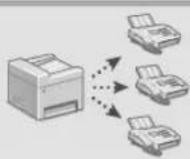
Sequential Broadcast
Memory Reception
PC Fax
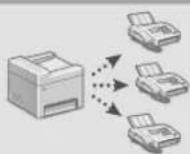
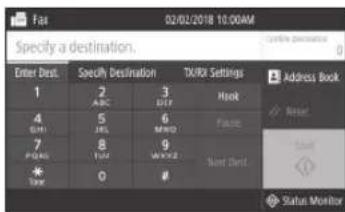
For details
"Faxing" in the User's Guide

Printing
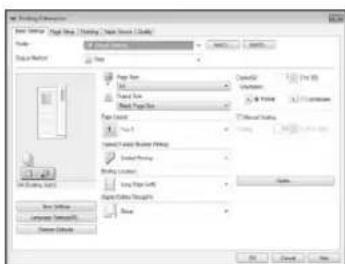
- Open the document to print, and select the print function of the application.
- Select the printer driver for the machine, and select [Preferences] or [Properties].
- Specify the paper size.
- Specify the paper source and paper type.
- Specify the print settings, as necessary.
- Select [OK].
- Select [Print] or [OK].
Useful print settings
2-sided
Non 1
■ Booklet Printing
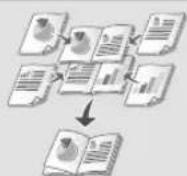
For details
"Printing"in the User's Guide
Loading in the Paper Drawer
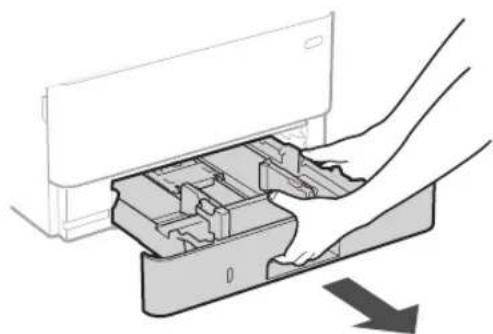
Pull out the paper drawer.
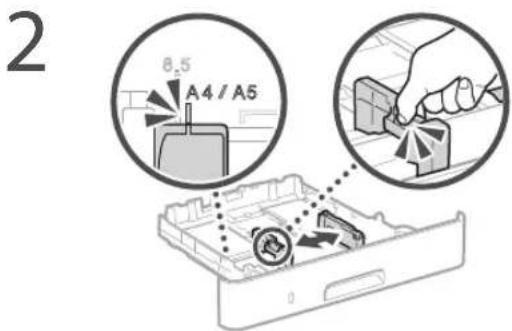
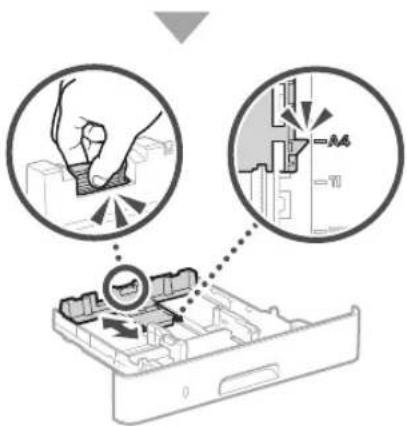
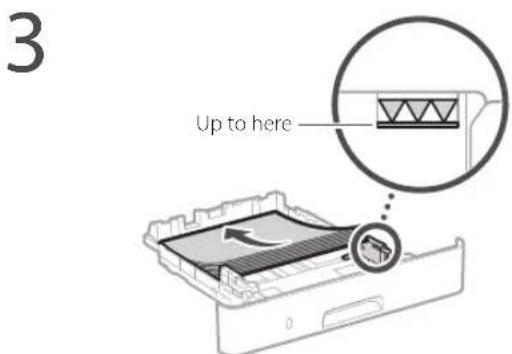
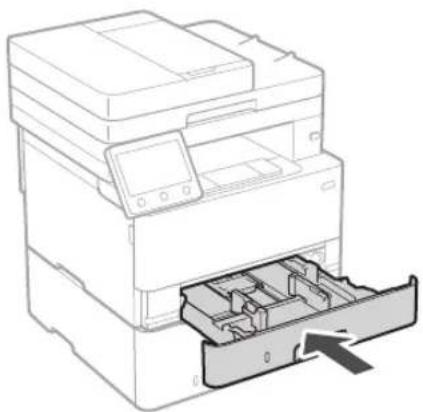
4 Insert the paper drawer into the machine.
If you load a different size or type of paper from the one before, make sure to change the settings.
5 Press nd select
6 Specify the size and type of paper, according to the screen.
Loading in the Multi-Purpose Tray
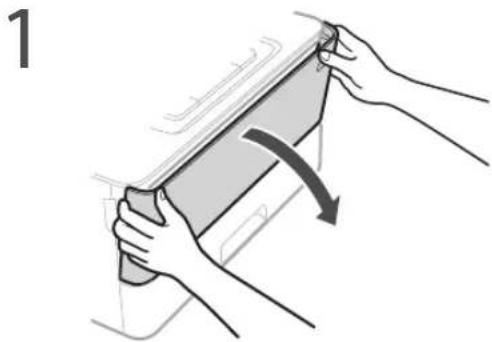
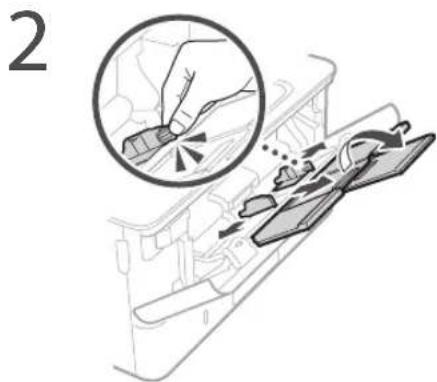
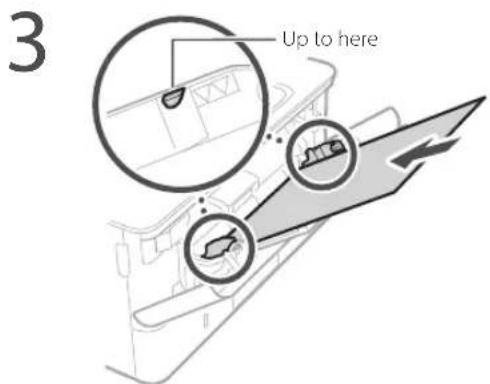
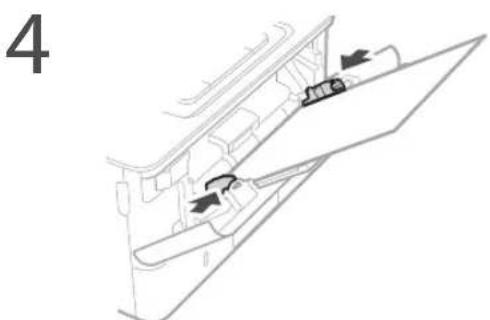
5 Specify the size and type of paper, according to the screen.
The Machine Does Not Seem to Work
Check the following.
Is the power turned ON?
Is the machine out of sleep mode?
If both the display and are not lit, press the power switch.
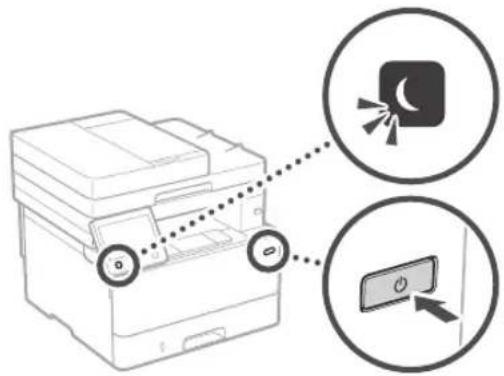
- Is the power cord connected correctly?
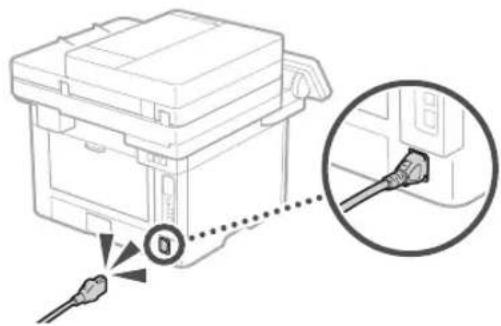
If the problem persists, see the User's Guide.
Paper Jams Have Occurred
Clear the paper jams, according to the on-screen instructions.
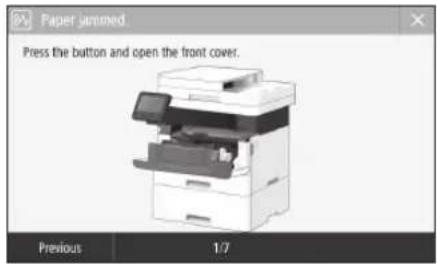
Replacing the Toner Cartridge
Replace the toner cartridge, according to the onscreen instructions.
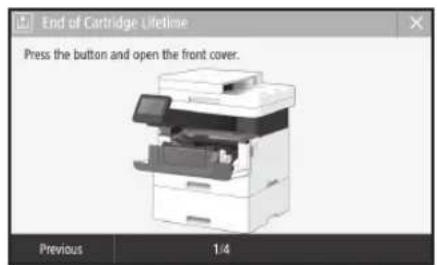
Model number of replacement toner cartridge
-Canon Cartridge 052
-Canon Cartridge 052H
Important Safety Instructions
This chapter describes important safety instructions for the prevention of injury to users of this machine and others, and damage to property. Read this chapter before using the machine, and follow the instructions to use the machine properly. Do not perform any operations not described in this manual. Canon will not be responsible for any damages resulting from operations not described in this manual, improper use, or repair or changes not performed by Canon or a third party authorized by Canon. Improper operation or use of this machine could result in personal injury and/or damage requiring extensive repair that may not be covered under your Limited Warranty.
WARNING
Indicates a warning concerning operations that may lead to death or injury to persons if not performed correctly. To use the machine safely, always pay attention to these warnings.
CAUTION
Indicates a caution concerning operations that may lead to injury to persons if not performed correctly. To use the machine safely, always pay attention to these cautions.
OIMPORTANT
Indicates operational requirements and restrictions. Be sure to read these items carefully to operate the machine correctly and avoid damage to the machine or property.
Installation
To use this machine safely and comfortably, carefully read the following precautions and install the machine in an appropriate location.
WARNING
Do not install in a location that may result in a fire or electrical shock
- A location where the ventilation slots are blocked (too close to walls, beds, sofas, rugs, or similar objects)
A damp or dusty location - A location exposed to direct sunlight or outdoors
A location subject to high temperatures
A location exposed to open flames
Near alcohol, paint thinners or other flammable substances
Other warnings
- Do not connect unapproved cables to this machine. Doing so may result in a fire or electrical shock.
- Do not place necklaces and other metal objects or containers filled with liquid on the machine. If foreign substances come in contact with electrical parts inside the machine, it may result in a fire or electrical shock.
- When installing and removing the optional accessories, be sure to turn OFF the power, unplug the power plug, and then disconnect all the interface cables and power cord from the machine. Otherwise, the power cord or interface cables may be damaged, resulting in a fire or electrical shock.
If any foreign substance falls into this machine, unplug the power plug from the AC power outlet and contact your local authorized Canon dealer.
CAUTION
Do not install in the following locations
The machine may drop or fall, resulting in injury.
An unstable location
A location exposed to vibrations
Other cautions
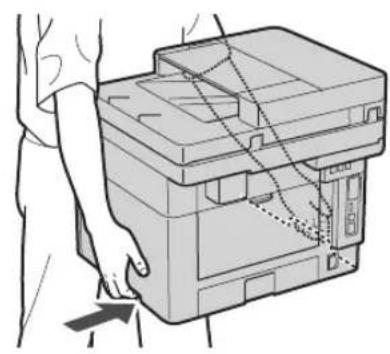
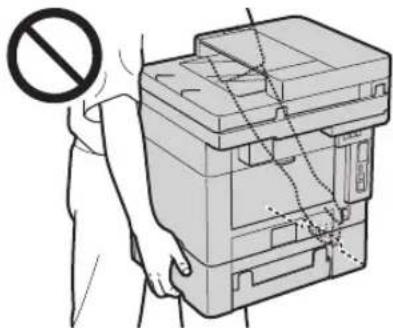
- When carrying this machine, follow the instructions in this manual. If carried improperly, it may fall, resulting in injury
- When installing this machine, be careful not to get your hands caught between the machine and the floor or walls. Doing so may result in injury.
Leveling feet (only for products with leveling feet)
Do not remove the machine's leveling feet after the machine has been installed, as this may cause the machine to fall or tip over, resulting in personal injury.
0IMPORTANT
Do not install in the following locations Doing so may result in damage to the machine.
- A location subject to temperature and humidity extremes, whether low or high
- A location subject to dramatic changes in temperature or humidity
- A location near equipment that generates magnetic or electromagnetic waves
A laboratory or location where chemical reactions occur
A location exposed to corrosive or toxic gases - A location that may warp from the weight of the machine or where the machine is liable to sink (a carpet, etc.)
Avoid poorly ventilated locations
This machine generates a slight amount of ozone and other emissions during normal use. These emissions are not harmful to health. However, they may be noticeable during extended use or long production runs in poorly ventilated rooms. To maintain a comfortable working environment, it is recommended that the room where the machine operates be appropriately ventilated. Also avoid locations where people would be exposed to emissions from the machine.
Do not install in a location where condensation occurs
Water droplets (condensation) may form inside the machine when the room where the machine is installed is heated rapidly, and when the machine is moved from a cool or dry location to a hot or humid location. Using the machine
under these conditions may result in paper jams, poor print quality, or damage to the machine. Let the machine adjust to the ambient temperature and humidity for at least 2 hours before use.
In altitudes of above sea level 3,000 m or higher
Machines with a hard disk may not operate properly when used at high altitudes of about 3,000 meters above sea level, or higher.
Connecting the Telephone Line (Only for Products with a Fax Function)
This machine conforms to a analog telephone line standard. The machine can be connected to the public switched telephone network (PSTN) only. If you connect the machine to a digital telephone line or a dedicated telephone line, it might impede proper operation of the machine and could be the cause of damage. Make sure to confirm a type of telephone line before connecting the machine. Contact your optical fiber line or IP telephone line service providers if you want to connect the machine to those telephone lines.
When using wireless LAN (only for products with a wireless LAN function)
Install the machine at a distance of 50 meters or less from the wireless LAN router.
- As far as possible, install in a location where communication is not blocked by intervening objects. The signal may be degraded when passing through walls or floors.
- Keep the machine as far as possible from digital cordless phones, microwave ovens, or other equipment that emits radio waves.
- Do not use near medical equipment. Radio waves emitted from this machine may interfere with medical equipment, which may result in malfunctions and accidents.
Power Supply
WARNING
Use only a power supply that meets the specified voltage requirements. Failure to do so may result in a fire or electrical shock.
Do not use power cords other than the one provided, as this may result in a fire or electrical shock.
The provided power cord is intended for use with this machine. Do not connect the power cord to other devices.
- Do not modify, pull, forcibly bend, or perform any other act that may damage the power cord. Do not place heavy objects on the power cord. Damaging the power cord may result in a fire or electrical shock.
- Do not plug in or unplug the power plug with wet hands, as this may result in an electrical shock.
- Do not use extension cords or multi-plug power strips with the machine. Doing so may result in a fire or electrical shock.
- Do not wrap the power cord or tie it in a knot, as this may result in a fire or electrical shock.
- Insert the power plug completely into the AC power outlet. Failure to do so may result in a fire or electrical shock.
- Remove the power plug completely from the AC power outlet during a thunder storm. Failure to do so may result in a fire, electrical shock, or damage to the machine.
Make sure that the power supply for the machine is safe, and has a steady voltage.
- Keep the power cord away from a heat source; failure to do this may cause the power cord coating to melt, resulting in a fire or electrical shock.
Avoid the following situations:
If excessive stress is applied to the connection part of the power cord, it may damage the power cord or the wires inside the machine may disconnect. This could result in a fire.
Connecting and disconnecting the power cord frequently.
- Tripping over the power cord.
The power cord is bent near the connection part, and continuous stress is being applied to the power outlet or the connection part.
Applying excessive force on the power plug.
CAUTION
- Install this machine near the power outlet and leave sufficient space around the power plug so that it can be unplugged easily in an emergency.
0IMPORTANT
When connecting power
-
Do not connect the power cord to an uninterrupted power source. Doing so may result in malfunction of or damage to the machine at power failure.
If you plug this machine into an AC power outlet with multiple sockets, do not use the remaining sockets to connect other devices. -
Do not connect the power cord to the auxiliary AC power outlet on a computer.
Other precautions
Electrical noise may cause this machine to malfunction or lose data.
Handling
WARNING
- Immediately unplug the power plug from the AC power outlet and contact an authorized Canon dealer if the machine makes an unusual noise, emits an unusual smell, or emits smoke or excessive heat. Continued use may result in a fire or electrical shock.
- Do not disassemble or modify this machine. There are high-voltage and high-temperature components inside the machine. Disassembly or modification may result in a fire or electrical shock.
- Place the machine where children will not come in contact with the power cord and other cables or gears and electrical parts inside the machine. Failure to do so may result in unexpected accidents.
Do not use flammable sprays near this machine. If flammable substances come into contact with electrical parts inside this machine, it may result in a fire or electrical shock. - When moving this machine, be sure to turn OFF the power of this machine, and then unplug the power plug and interface cables. Failure to do so may damage the power cord or interface cables, resulting in a fire or electrical shock.
- When plugging or unplugging a USB cable when the power plug is plugged into an AC power outlet, do not touch the metal part of the connector, as this may result in an electrical shock.
If you are using a cardiac pacemaker
This machine generates a low level magnetic flux and ultrasonic waves, if you use a cardiac pacemaker and feel abnormalities, please move away from this machine and consult your physician immediately.
CAUTION
- Do not place heavy objects on this machine as they may fall, resulting in injury.
- For your safety, please unplug the power cord if the machine will not be used for a long period of time.
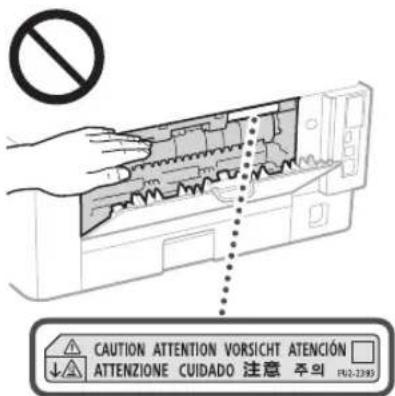
Use caution when opening and closing covers to avoid injury to your hands. - Keep hands and clothing away from the rollers in the output area. If the rollers catch your hands or clothing, this may result in personal injury.
The inside of the machine and the output slot are very hot during and immediately after use. Avoid contact with these areas to prevent burns. Also, printed paper may be hot immediately after being output, so use caution when handling it. Failure to do so may result in burns.
- Be careful not to drop a heavy object, such as a dictionary, on the platen glass. Doing so may damage the platen glass and result in injury.
- Do not carry the machine with any of the paper drawer or optional paper feeder installed. Otherwise, they may fall, resulting in injury.
Feeder (only for products with a feeder)
- Do not press down hard on the feeder when using the platen glass to make copies of thick books. Doing so may damage the platen glass and result in personal injury.
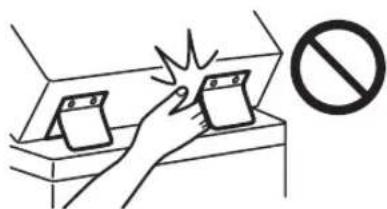
- Close the feeder gently to avoid catching your hands, as this may result in personal injury.
- Be careful not to put your hands or fingers into the feeder. Otherwise, you may be injured.
Finisher (only for products with a finisher)
- Do not place your hands in the part of the tray where stapling is performed (near the rollers), especially pay careful attention to the sharp staples, as this may result in personal injury.
Paper drawer (only for products with a paper drawer)
- Do not insert your hand into the machine while the paper drawer is removed, as this may result in personal injury.
Energy Saver key (only for products with an Energy Saver key)
- Press (Energy Saver) for safety when the machine will not be used for a long period of time, such as overnight. Also, turn OFF the main power switch, and disconnect the power cord for safety when the machine will not be used for an extended period of time, such as during consecutive holidays.
Laser Safety
This product is confirmed as a Class 1 laser product in IEC60825-1:2014 and EN60825-1:2014.
CLASS 1 LASER PRODUCT
LASER KLASSE 1
APPAREL A LASER DE CLASSE 1
APPARECCHIO LASER DI CLASSE 1
PRODUCTO LASER DE CLASE 1
APARELHO A LASER DE CLASSE 1
LUOKAN1 LASER-TUOTE
LASERPRODUKT KCLASS 1
The laser beam can be harmful to human bodies. Since radiation emitted inside the product is completely confined within protective housings and external covers, the laser beam cannot escape from the machine during any phase of user operation. Read the following remarks and instructions for safety.
- Never open covers other than those instructed in the manuals for this machine.
If the laser beam should escape and enter your eyes, exposure may cause damage to your eyes. - Use of controls, adjustments, or performance of procedures other than those specified in this manual may result in hazardous radiation exposure.
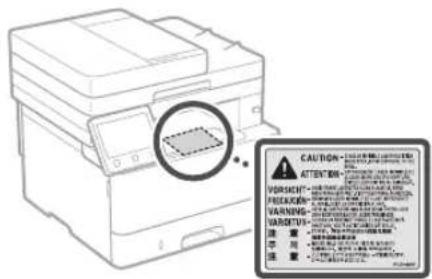
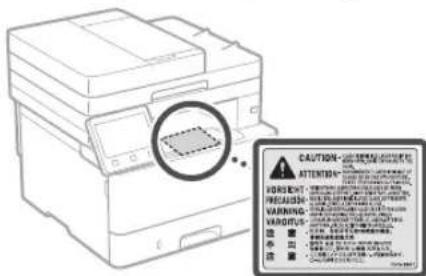
Laser Safety Label
0IMPORTANT
- Follow the instructions on the caution label attached to this machine.
- Do not subject the machine to strong shocks or vibration.
- Do not forcibly open and close doors, covers, and other parts. Doing so may result in damage to the machine.
- Do not turn the main power switch OFF or open the covers while the machine is in operation. This may result in paper jams.
- Use a modular cable that is shorter than 3 meters.
- Use a USB cable that is shorter than 3 meters.
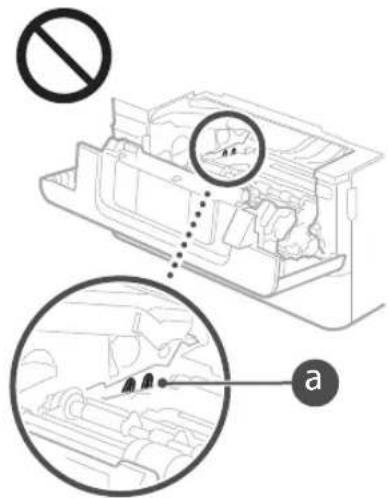
- Do not touch the contacts (a) inside the machine. Doing so may result in damage to the machine.
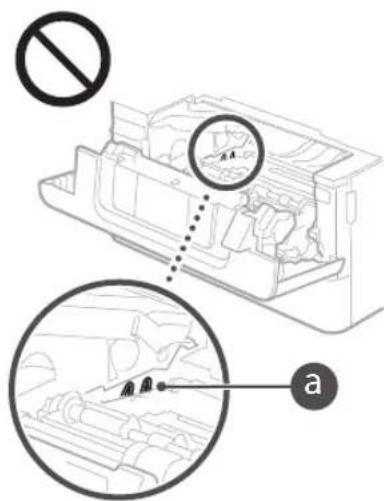
When transporting the machine
To prevent damage to the machine during transport, perform the following.
- Remove the toner cartridge.
- Securely pack the machine in the original box with packing materials.
Safety-Related Symbols
Power switch: "ON" position
Power switch: "OFF" position
Power switch:"STAND-BY" position
① Push-push switch "N" "OF"
Protective earthing terminal
Dangerous voltage inside. Do not open covers other than instructed.
CAUTION: Hot surface. Do not touch.
Class II equipment
Moving parts:Keep body parts away from moving parts
Some of symbols shown above may not be affixed depending on the product.
Maintenance and Inspections
Clean this machine periodically. If dust accumulates, the machine may not operate properly. When cleaning, be sure to observe the following. If a problem occurs during operation, see "Troubleshooting" in the User's Guide. If the problem cannot be resolved or you feel the machine requires an inspection, see "When a Problem Cannot Be Solved."
WARNING
- Before cleaning, turn OFF the power and unplug the power plug from the AC power outlet. Failure to do so may result in a fire or electrical shock.
- Unplug the power plug periodically and clean with a dry cloth to remove dust and grime. Accumulated dust may absorb humidity in the air and may result in a fire if it comes into contact with electricity.
- Use a damp, well wrung-out cloth to clean the machine. Dampen cleaning cloths with water only. Do not use alcohol, benzenes, paint thiners, or other flammable substances. Do not use tissue paper or paper towels. If these substances come into contact with electrical parts inside the machine, they may generate static electricity or result in a fire or electrical shock.
- Check the power cord and plug periodically for damage. Check the machine for rust, dents, scratches, cracks, or excessive heat generation. Use of poorly-maintained equipment may result in a fire or electrical shock.
CAUTION
The inside of the machine has high-temperature and high-voltage components. Touching these components may result in burns. Do not touch any part of the machine that is not indicated in the manual.
- When loading paper or removing jammed paper, be careful not to cut your hands with the edges of the paper.
Consumables
WARNING
- Do not dispose of used toner cartridges or the like in open flames. Also, do not store toner cartridges or paper in a location exposed to open flames. This may cause the toner to ignite, and result in burns or fire.
If you accidentally spill or scatter toner, carefully gather the toner particles together or wipe them up with a soft, damp cloth in a way that prevents inhalation. Never use a vacuum cleaner that does not have safeguards against dust explosions to clean up spilled toner. Doing so may cause a malfunction in the vacuum cleaner, or result in a dust explosion due to static discharge.
If you are using a cardiac pacemaker
- The toner cartridge generates a low level magnetic flux. If you are using a cardiac pacemaker and feel abnormalities, please move away from the toner cartridge and consult your physician immediately.
CAUTION
- Use caution not to inhale any toner. If you should inhale toner, consult a physician immediately.
- Use caution so that toner does not get into your eyes or mouth. If toner should get into your eyes or mouth, immediately wash with cold water and consult a physician.
- Use caution so that toner does not come into contact with your skin. If it should, wash with soap and cold water. If there is any irritation on your skin, consult a physician immediately.
- Keep the toner cartridges and other consumables out of the reach of small children. If toner is ingested, consult a physician or poison control center immediately.
- Do not disassemble or modify the toner cartridge or the like. Doing so may cause the toner to scatter.
- When removing the sealing tape from the toner cartridge, pull it out completely but without using excessive force. Doing otherwise may cause the toner to scatter.
0IMPORTANT
Handling the toner cartridge
- Be sure to hold the toner cartridge using the handle.
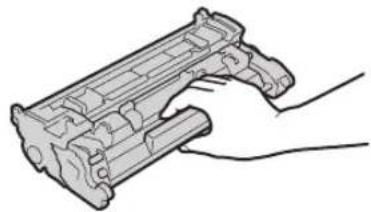
- Do not touch the toner cartridge memory (a) or the electrical contacts (b). To avoid scratching the surface of the drum inside the machine or exposing it to light, do not open the drum protective shutter (c).
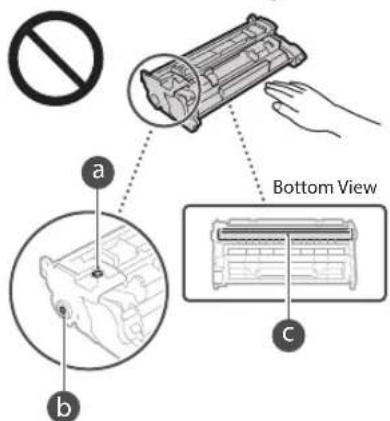
Except when necessary, do not take out the toner cartridge from the packing material or from this machine.
The toner cartridge is a magnetic product. Do not move it close to products susceptible to magnetism including floppy disks and disk drives. Doing so may result in data corruption.
Storing the toner cartridge
- Store in the following environment to ensure safe and satisfactory use. Storage temperature range: 0 to 35^ Storage humidity range: 35 to 85% RH (relative humidity/no condensation)*
- Store without opening until the toner cartridge is to be used.
- When removing the toner cartridge from this machine for storage, place the removed toner cartridge in the original packing material or wrap it with a thick cloth.
- When storing the toner cartridge, do not store it upright or upside down. The toner will solidify and may not return to its original condition even if it is shaken.
- Even within the storable humidity range, water droplets (condensation) may develop inside the toner cartridge if there is a difference of temperature inside and outside the toner cartridge. Condensation will adversely affect the print quality of toner cartridges.
Do not store the toner cartridge in the following locations
- Locations exposed to open flames
- Locations exposed to direct sunlight or bright light for five minutes or more
- Locations exposed to excessive salty air
- Locations where there are corrosive gases (i.e. aerosol sprays and ammonia)
- Locations subject to high temperature and high humidity
- Locations subject to dramatic changes in temperature and humidity where condensation may easily occur
- Locations with a large amount of dust
- Locations within the reach of children
Be careful of counterfeit toner cartridges
- Please be aware that there are counterfeit Canon toner cartridges in the marketplace. Use of counterfeit toner cartridge may result in poor print quality or machine performance. Canon is not responsible for any malfunction, accident or damage caused by the use of counterfeit toner cartridge. For more information, see canon.com/counterfeit.
Availability period of repairing parts and toner cartridges and the like
The repairing parts and toner cartridges and the like for the machine will be available for at least seven (7) years after production of this machine model has been discontinued.
Toner cartridge packing materials
- Save the packing materials for the toner cartridge. They are required when transporting this machine.
- The packing materials may be changed in form or placement, or may be added or removed without notice.
After you pull out the sealing tape from the toner cartridge, dispose of it in accordance with the applicable local regulations.
When disposing of a used toner cartridge or the like
- When discarding a toner cartridge or the like, place it in the original packing material to prevent toner from scattering from inside, and dispose of it in accordance with the applicable local regulations.
Notice
Product Name
Safety regulations require the product's name to be registered.
In some regions where this product is sold, the following name(s) in parentheses () may be registered instead.
MF429x/MF426dw(F173402)
MF428x/MF421dw(F173400)
EMC requirements of EC Directive
This equipment conforms with the essential EMC requirements of EC Directive. We declare that this product conforms with the EMC requirements of EC Directive at nominal mains input 230 V, 50 Hz although the rated input of the product is 220 to 240 V, 50/60 Hz. Use of shielded cable is necessary to comply with the technical EMC requirements of EC Directive.
EU WEEE and Battery Directives
You can see the WEEE and Battery Directives Information in the latest User's Guide (HTML manual) from the Canon website (canon.com/ oip-manual).
Wireless LAN Regulatory Information
Regulatory information for users in Jordan
MF429x/MF428x/MF426dw/MF421dw
includes approved Wireless LAN Module (Model name: Type1KA).
Contains Wireless LAN Module approved by TRC/LPD/2017/19
Regulatory information for users in UAE MF429x/MF428x/MF426dw/MF421dw includes approved Wireless LAN Module (Model name:Type1KA).
TRA
REGISTERED No: ER51217/17
DEALER No: DA0073692/11
RE Directive
(Only for European radio equipment)
RE Declaration of Conformity
English (EN) Hereby, Canon Inc. declares that this equipment is in compliance with Directive 2014/53/EU. The full text of the EU declaration of conformity is available at the following internet address: http://www.canon-europe.com/ce-documentation/Wireless LAN Specifications Frequency band(s):2412-2472MHz Maximum radio-frequency power: 15.9 dBm
Legal Limitations on the Usage of Your Product and the Use of Images
Using your product to scan, print or otherwise reproduce certain documents, and the use of such images as scanned, printed or otherwise reproduced by your product, may be prohibited by law and may result in criminal and/or civil liability. A non-exhaustive list of these documents is set forth below. This list is intended to be a guide only. If you are uncertain about the legality of using your product to scan, print or otherwise reproduce any particular document, and/or of the use of the images scanned, printed or otherwise reproduced, you should consult in advance with your legal advisor for guidance.
Paper Money
Travelers Checks
Money Orders
Food Stamps
Certificates of Deposit
Passports
Postage Stamps (canceled or uncanceled)
Immigration Papers
Identifying Badges or Insignias
- Internal Revenue Stamps (canceled or uncanceled)
- Selective Service or Draft Papers
Bonds or Other Certificates of Indebtedness
- Checks or Drafts Issued by Governmental Agencies
Stock Certificates
Motor Vehicle Licenses and Certificates of Title
Copyrighted Works/Works of Art without Permission of Copyright Owner
Disclaimers
The information in this document is subject to change without notice.
CANON INC. MAKES NO WARRANTY OF ANY KIND WITH REGARD TO THIS MATERIAL, EITHER EXPRESS OR IMplied, EXCEPT AS PROVIDED HEREIN, INCLUDING WITHOUT LIMITATION, THEREOF, WARRANTY AS TO MARKETABILITY, MERCHANTABILITY, FITNESS FOR A PARTICULAR PURPOSE OF USE, OR NON-INFRINGEMENT. CANON INC. SHALL NOT BE LIABLE FOR ANY DIRECT, INCIDENTAL, OR CONSEQUENTIAL DAMAGES OF ANY NATURE, OR LOSSES OR EXPENSES RESULTING FROM THE USE OF THIS MATERIAL.
About This Manual
Keys and Buttons Used in This Manual
The following symbols and key names are a few examples of how keys to be pressed are expressed in this manual.
Operation panel keys: [Key icon] Example:
- Display:
- Buttons and items on the computer display: [Preferences]
Illustrations and Displays Used in This Manual Illustrations and displays used in this manual are which of MF429x unless specified.
Trademarks
Mac is a trademark of Apple Inc.
Microsoft, Windows, Windows Vista, Windows Server, Internet Explorer, Excel, and PowerPoint are either registered trademarks or trademarks of Microsoft Corporation in the United States and/or other countries.
Other product and company names herein may be the trademarks of their respective owners.
Third Party Software
This Canon product (the "PRODUCT") includes third-party software modules. Use and distribution of these software modules, including any updates of such software modules (collectively, the "SOFTWARE") are subject to license conditions (1) through (9) below.
(1) You agree that you will comply with any applicable export control laws, restrictions or regulations of the countries involved in the event that this PRODUCT including the SOFTWARE is shipped, transferred or exported into any country.
(2) Rights holders of the SOFTWARE retain in all respects the title, ownership and intellectual property rights in and to the SOFTWARE. Except as expressly provided herein, no license or right, expressed or implied, is hereby conveyed or granted by rights holders of the SOFTWARE to you for any intellectual property of rights holders of the SOFTWARE.
(3) You may use the SOFTWARE solely for use with the PRODUCT.
(4) You may not assign, sub license, market, distribute, or transfer the SOFTWARE to any third party without prior written consent of rights holders of the SOFTWARE.
(5) Notwithstanding the foregoing, you may transfer the SOFTWARE only when (a) you assign all of your rights to the PRODUCT and all rights and obligations under the license conditions to transferee and (b) such transferee agrees to be bound by all these conditions.
(6) You may not decompile, reverse engineer, disassemble or otherwise reduce the code of the SOFTWARE to human readable form.
(7) You may not modify, adapt, translate, rent, lease or loan the SOFTWARE or create derivative works based on the SOFTWARE.
(8) You are not entitled to remove or make separate copies of the SOFTWARE from the PRODUCT.
(9) The human-readable portion (the source code) of the SOFTWARE is not licensed to you.
Notwithstanding (1) through (9) above, the PRODUCT includes third-party software modules accompanying the other license conditions, and these software modules are subject to the other license conditions.
Please refer to the other license conditions of third-party software modules described in Appendix of Manual for the corresponding the PRODUCT. This Manual is available at http://canon.com/oip-manual.
By using the PRODUCT, you shall be deemed to have agreed to all applicable license conditions. If you do not agree to these license conditions, please contact your service representative.
V_170601
Memo
En
CLASS 1 LASER PRODUCT
LASER KLASSE 1
APPAREL A LASER DE CLASSE 1
APPARECCHIO LASER DI CLASSE 1
PRODUCTO LASER DE CLASE 1
APARELHO ALASER DE CLASSE 1
LUOKAN1 LASER-TUOTE
LASERPRODUKT KCLASS 1
Regulatory information for users in Jordan
MF429x / MF428x / MF426dw / MF421dw
includes approved Wireless LAN Module (Model name: Type1KA)
Contains Wireless LAN Module approved by TRC/ LPD/2017/19
Regulatory information for users in UAE MF429x/MF428x/MF426dw/MF421dw includes approved Wireless LAN Module (Model name:Type1KA).
TRA
REGISTERED No: ER51217/17
DEALER No: DA0073692/11
RE Directive
(Only for European radio equipment)
RE Declaration of Conformity
English (EN) Hereby, Canon Inc. declares that this equipment is in compliance with Directive 2014/53/EU.
The full text of the EU declaration of conformity is available at the following internet address: http://www.canon-europe.com/ce-documentation Wireless LAN Specifications Frequency band(s):2412-2472MHz Maximum radio-frequency power: 15.9 dBm
CLASS 1 LASER PRODUCT
LASER KLASSE 1
APPAREIL A LASER DE CLASSE 1
APPARECCHIO LASER DI CLASSE 1
PRODUCTO LASER DE CLASE 1
APARELHO A LASER DE CLASSE 1
LUOKAN 1 LASER-TUOTE
LASERPRODUKT KCLASS 1
Regulatory information for users in Jordan
MF429x / MF428x / MF426dw / MF421dw
includes approved Wireless LAN Module (Model name: Type1KA).
Contains Wireless LAN Module approved by TRC/LPD/2017/19
Regulatory information for users in UAE
MF429x/MF428x/MF426dw/MF421dw includes approved Wireless LAN Module (Model name:Type1KA).
TRA
REGISTERED No: ER51217/17
DEALER No: DA0073692/11
RE Directive
(Only for European radio equipment)
RE Declaration of Conformity
English (EN) Hereby, Canon Inc. declares that this equipment is in compliance with Directive 2014/53/FU.
The full text of the EU declaration of conformity is available at the following internet address: http://www.canon-europe.com/ce-documentation Wireless LAN Specifications Frequency band(s):2412-2472MHz Maximum radio-frequency power: 15.9 dBm
Czech (CS) Timto spolecnost Canon Inc. prohlasje, ze toto zafrzeni je v souladu se smernici 2014/53/EU.
Uplne zneni EU prohlasei o shode je k dispozici na tefo internetové adrese:
http://www.canon-europe.com/ce-documentation
Technické udaje bezdratovi LAN
Pâsmo(a) frevence: 2412-2472 MHz
Maximalni vykon radiové frevence: 15.9 dBm
CLASS 1 LASER PRODUCT
LASER KLASSE 1
APPAREL A LASER DE CLASSE 1 APPARECCHIO LASER DI CLASSE 1
PRODUCTO LASER DE CLASE 1
APARELHO A LASER DE CLASSE 1
LUOKAN 1 LASER-TUOTE
LASERPRODUKT KCLASS 1
Regulatory information for users in Jordan
MF429x / MF428x / MF426dw / MF421dw
includes approved Wireless LAN Module (Model name: Type1KA).
Contains Wireless LAN Module approved by TRC/ LPD/2017/19
Regulatory information for users in UAE MF429x/MF428x/MF426dw/MF421dw includes approved Wireless LAN Module (Model name:Type1KA).
TRA
REGISTERED No: ER51217/17
DEALER No: DA0073692/11
RE Directive
(Only for European radio equipment)
RE Declaration of Conformity
English (EN) Hereby, Canon Inc. declares that this equipment is in compliance with Directive 2014/53/EU. The full text of the EU declaration of conformity is available at the following internet address: http://www.canon-europe.com/ce-documentation/Wireless LAN Specifications Frequency band(s):2412-2472MHz Maximum radio-frequency power: 15.9 dBm
Czech (CS) Timto spelecnost Canon Inc. prohlasej, ze toto zafrzeni je v souladu se smemic 2014/53/EU. Uplne zneni EU prohlaseni o shode je k dispozici na teto internetové adrese: http://www.canon-europe.com/ce-documentation Technicke udaje bezdratovi LAN Pasma(a) frekence: 2412-2472 MHz Maximáni vykon radiové frekvence: 15.9 dBm
Danish (DA) Hermed erklaerer Canon Inc., at dette udstyr er i overensstemmelse med direktiv 2014/53/EU. EU-overensstemmelseserklaeringens fulde tekst kan findes pa falgende internetadresse: http://www.canon-europe.com/ce-documentation Tradios LAN specifikationer Frekvensband: 2412-2472 MHz Maks. radio frekvenseffekt: 15,9 dBm
CLASS 1 LASER PRODUCT
LASER KLASSE 1
APPAREL A LASER DE CLASSE 1
APPARECCHIO LASER DI CLASSE 1
PRODUCTO LASER DE CLASE
APARELHO A LASER DE CLASSE 1
LUOKAN1LASER-TUOTE
LASERPRODUKT KCLASS 1
Regulatory information for users in Jordan
MF429x / MF428x / MF426dw / MF421dw
includes approved Wireless LAN Module (Model name: Type1KA).
Contains Wireless LAN Module approved by TRC/ LPD/2017/19
Regulatory information for users in UAE MF429x/MF428x/MF426dw/MF421dw includes approved Wireless LAN Module (Model name:Type1KA).
TRA
REGISTERED No: ER51217/17
DEALER No: DA0073692/11
RE Directive
(Only for European radio equipment)
RE Declaration of Conformity
English (EN) Hereby, Canon Inc. declares that this equipment is in compliance with Directive 2014/53/EU.
The full text of the EU declaration of conformity is available at the following internet address: http://www.canon-europe.com/ce-documentation Wireless LAN Specifications
Frequency band(s):2412-2472MHz
Maximum radio-frequency power: 15.9 dBm
CLASS 1 LASER PRODUCT
LASER KLASSE 1
APPAREIL A LASER DE CLASSE 1
APPARECCHIO LASER DI CLASSE 1
PRODUCTO LASER DE CLASE 1
APARELHO A LASER DE CLASSE 1
LUOKAN 1 LASER-TUOTE
LASERPRODUKT KCLASS 1
Regulatory information for users in Jordan
MF429x / MF428x / MF426dw / MF421dw
includes approved Wireless LAN Module (Model name: Type1KA).
Contains Wireless LAN Module approved by TRC, LPD/2017/19
Regulatory information for users in UAE MF429x/MF428x/MF426dw/MF421dw includes approved Wireless LAN Module (Model name:Type1KA).
TRA
REGISTERED No: ER51217/17
DEALER No: DA0073692/11
RE Directive
(Only for European radio equipment)
RE Declaration of Conformity
English (EN) Hereby, Canon Inc. declares that this equipment is in compliance with Directive 2014/53/EU. The full text of the EU declaration of conformity is available at the following internet address: http://www.canon-europe.com/ce-documentation Wireless LAN Specifications Frequency band(s):2412-2472MHz Maximum radio-frequency power: 15.9 dBm
Czech (CS) Timto spelecnost Canon Inc. prohlasej, ze toto zaifenje v souladu se smemici 2014/53/FU. Uplne zneni FU prohlaseni o shode je k dispozici na teo internetové adrese: http://www.canon-europe.com/ce-documentation Technické udaje bezdrátové LAN Pásmo(a) frekcvence:2412-2472 MHz Maximálny fon kárové frekvence: 15.9 dBm
CLASS 1 LASER PRODUCT
LASER KLASSE 1
APPAREL A LASER DE CLASSE 1
APPARECCHIO LASER DI CLASSE 1
PRODUCTO LASER DE CLASE 1
APARELHO A LASER DE CLASSE 1
LUOKAN1LASERTUQTE
LASERPRODUKT KCLASS 1
Regulatory information for users in Jordan
MF429x / MF428x / MF426dw / MF421dw
includes approved Wireless LAN Module (Model name: Type1KA).
Contains Wireless LAN Module approved by TRC/LPD/2017/19
Regulatory information for users in UAE MF429x/MF428x/MF426dw/MF421dw includes approved Wireless LAN Module (Model name:Type1KA).
TRA
REGISTERED No: ER51217/17
DEALER No: DA0073692/11
RE Directive
(Only for European radio equipment)
RE Declaration of Conformity
English (EN) Hereby, Canon Inc. declares that this equipment is in compliance with Directive 2014/53/EU. The full text of the EU declaration of conformity is available at the following internet address: http://www.canon-europe.com/ce-documentation Wireless LAN Specifications Frequency band(s):2412-2472MHz Maximum radio-frequency power: 15.9 dBm
CLASS 1 LASER PRODUCT
LASER KLASSE 1
APPAREIL A LASER DE CLASSE 1
APPARECCHIO LASER DI CLASSE 1
PRODUCTO LASER DE CLASE 1
APARELHO A LASER DE CLASSE 1
LUOKAN1 LASER-TUOTE
LASERPRODUKT KLASST
Regulatory information for users in Jordan
MF429x / MF428x / MF426dw / MF421dw
includes approved Wireless LAN Module (Model name: Type1KA).
Contains Wireless LAN Module approved by TRC/LPD/2017/19
Regulatory information for users in UAE MF429x/MF428x/MF426dw/MF421dw includes approved Wireless LAN Module (Model name:Type1KA).
TRA
REGISTERED No: ER51217/17
DEALER No: DA0073692/11
RE Directive
(Only for European radio equipment)
RE Declaration of Conformity
English (EN) Hereby, Canon Inc. declares that this equipment is in compliance with Directive 2014/53/EU. The full text of the EU declaration of conformity is available at the following internet address: http://www.canon-europe.com/ce-documentation/Wireless LAN Specifications Frequency band(s):2412-2472MHz Maximum radio-frequency power: 15.9 dBm
Czech (CS) Timto spelecnost Canon Inc. prohlasej, ze toto zaifenje v souladu se smemici 2014/53/EU. Uplne zneni EU prohlaseni o shode je k dispozici na teto internetové adrese: http://www.canon-europe.com/ce-documentation Technicke udaje bezdratovi LAN Pasma(a) frekcvence:2412-2472 MHz Maximaliy kon radiove frekvence:15.9 dBm
Danish (DA) Hermed erklærer Canon Inc., at dette udstyr er i overensstemmelse med direktiv 2014/53/EU. EU-overensstemmelseserklaeringens fulde tekst kan findes pa falgende internetadresse: http://www.canon-europe.com/ce-documentation Tradios LAN specifikationer Frekvensband: 2412-2472 MHz Maks. radio frekvenseffekt: 15.9 dBm
CLASS 1 LASER PRODUCT
LASER KLASSE 1
APPARELÀ LASER DE CLASSE 1
APPARECCHIO LASER DI CLASSE 1
PRODUCTO LASER DE CLASE
APARELHO A LASER DE CLASSE 1
LUOKAN 1 LASER-TUOTE
LASERPRODUKT KCLASS 1
Papáρτημα
H akiva laeepu opei va eivai eniiaaic yia to avpwnio oua. Epoov n aktivobaia nou ekueta iTO eawteriko tou poiovtoc nepipicietai evtoc, Tuv npoataeukw nepiunaukaiuv kai vew eotepikw kaumutaw, n aktivobaia laeepd ve eEaebei an t ouakeun kata n diapkeia tnc aeoupyiac, ta tvn aoapeia oac, diaqote iic, akoouae napaypaouc kai akoouhote tic obnyiec.
Noté umy aoiyete kaoumuata daa ano autau nno npoBλenovta oia exyepidia yia autn th ouakeun.
Eav n akiva laeep biapuykei kai epdei oe 1n e ta ma oac, n keeon autn evexetai va pokaalee iabn ta ma oac.
Hxian xipntniov kui pouieuv n ekean evpeiyov diaopepitikow andu autec nau npypapovtal oto napov evexepidio, evexetai va odnyoe ie ekdeon oe enkiivv anktivoBolia.
Piavikda aopalaeacaktiovoloiaaieCep
O\SHMANTIKO
AkoouOHTe TIO cbnyIEc OTNV ETIKETA npoUaocn NOU EAVI KOANJeuN OTN OOUKEUN
Mny ekTeTe Tn oukeun ae xupa Xtummuata n kpaagouuc.
Mny avoivokalevete noptakia,kaumuata kai aaaa ecapntua aokwvtac utepBoikovaujn. Mnpel va npoknBt Bn otoukeun
Mny kxeivete Tov diaokonn nieitoupylac kuiy ovoiyete ta kaupmuata otav n ouakeun eivai oe keitoupyia. Mintope va npokanboev eJIOAKc xaptiou.
Xpniponoiote eva anoanwuevo kaawio μe μnkoc ikpotepo ano 3 μetpa.
Xpnooionoiote kawio USB μe nkoic μikpotoepo an3 tpa.
Mny ayyiete tic etaepc ( poto eawtepiok Tnc ouakeunic Mnpei va npoknoei BiaBn otuoukeun.
Kata t n 1eapopatnc oakeunc
Tia va anopuyete 3a3n trc ouakeunc kata tn metapopa, npoeite ota Efc.
ApaepoeTnV Kaaetypapitn.
- SUOKEUAOTI IN OUKEUN ATN APXIKI OUKEUAOIA xPNOIOIOLOVTC TO UAIKA OUKOEUAOIC.
Regulatory information for users in Jordan
MF429x / MF428x / MF426dw / MF421dw
includes approved Wireless LAN Module (Model name: Type1KA).
Contains Wireless LAN Module approved by TRC/ LPD/2017/19
Regulatory information for users in UAE MF429x/MF428x/MF426dw/MF421dw includes approved Wireless LAN Module (Model name:Type1KA).
TRA
REGISTERED No: ER51217/17
DEALER No: DA0073692/11
RE Directive
(Only for European radio equipment)
RE Declaration of Conformity
English (EN) Hereby, Canon Inc. declares that this equipment is in compliance with Directive 2014/53/EU.
The full text of the EU declaration of conformity is available at the following internet address: http://www.canon-europe.com/ce-documentation Wireless LAN Specifications Frequency band(s):2412-2472MHz Maximum radio-frequency power: 15.9 dBm
Eikovc Kai obovec nou xpnoioiouvtai ot npov Exyeipidio
OIEKVEc, KAI OBOVEC, NOU XPOIIOIOUVT AOIIAPOV EYEIXIDIO IPOEPOVTAI ANTO MF429x, EKTOC AV OPETAI DIAPOPETIA.
EuTopiKa 2nmuTa
CLASS 1 LASER PRODUCT
LASER KLASSE 1
APPAREL A LASER DE CLASSE 1
APPARECCHIO LASER DI CLASSE 1
PRODUCTO LASER DE CLASE 1
APARELHO A LASER DE CLASSE 1
LUOKAN 1 LASER-TUOTE
LASERPRODUKT KCLASS 1
Under transport of maskinen
Gor falgende, hvis du vil undg at beskadige maskinen under transport.
Regulatory information for users in Jordan
MF429x/MF428x/MF426dw/MF421dw
includes approved Wireless LAN Module (Model name:Type1KA)
Contains Wireless LAN Module approved by TRC/LPD/2017/19
Regulatory information for users in UAE MF429x/MF428x/MF426dw/MF421dw includes approved Wireless LAN Module (Model name:Type1KA).
TRA
REGISTERED No: ER51217/17
DEALER No: DA0073692/11
RE Directive
(Only for European radio equipment)
RE Declaration of Conformity
English (EN) Hereby, Canon Inc. declares that this equipment is in compliance with Directive 2014/53/EU. The full text of the EU declaration of conformity is available at the following internet address: http://www.canon-europe.com/ce-documentation Wireless LAN Specifications Frequency band(s):2412-2472MHz Maximum radio-frequency power: 15.9 dBm
Czech (CS) Timto spelecnost Canon Inc. prohlasej, ze toto zafrzeni je v souladu se smemici 2014/53/EU. Üplne zneni EU prohlaseni o shodje je k dispozici na teo internetové adrese: http://www.canon-europe.com/ce-documentation Technické udaje bezdratovi LAN Pâsmo(a) frekcvence: 2412-2472 MHz Maximáni vykon radiové frekvence: 15.9 dBm
Danish (DA) Hermed erklærer Canon Inc, at dette udsty er i overensstemmelse med direktiv 2014/53/EU. EU-overensstemmelseserklaeringens fulde tekst kan vindes pa falgende internetadresse; http://www.canon-europe.com/ce-documentation Trads LAN specoficationer Frekvensbänd:2412-2472 MHz Maks, radio-frekvenseffekt:15.9 dBm
Vanafeen computer scanner
MF Scan Utility
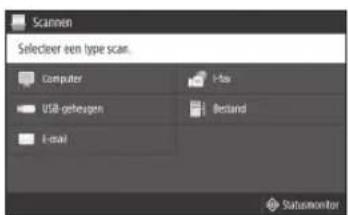
Voormeerinformationie
"Scannen" in de
CLASS 1 LASER PRODUCT
LASER KLASSE 1
APPAREL A LASER DE CLASSE 1
APPARECCHIO LASER DI CLASSE 1
PRODUCTO LASER DE CLASE 1
APARELHO A LASER DE CLASSE 1
LUOKAN1 LASER-TUOTE
LASERPRODUKT KCLASS 1
Regulatory information for users in Jordan
MF429x/MF428x/MF426dw/MF421dw includes approved Wireless LAN Module (Model name:Type1KA). Contains Wireless LAN Module approved by TRC/ LPD/2017/19
Regulatory information for users in UAE
MF429x/MF428x/MF426dw/MF421dw includes approved Wireless LAN Module (Model name:Type1KA).
TRA
REGISTERED No: ER51217/17
DEALER No: DA0073692/11
RE Directive
(Only for European radio equipment)
RE Declaration of Conformity
English (EN) Hereby, Canon Inc. declares that this equipment is in compliance with Directive 2014/53/EU.
The full text of the EU declaration of conformity is available at the following internet address: http://www.canon-europe.com/ce-documentation Wireless LAN Specifications
Frequency band(s):2412-2472MHz
Maximum radio-frequency power: 15.9 dBm
Czech (CS) Timto spolecnost Canon Inc. prohlasje, ze toto zafrzeni je v souladu se smemicj 2014/53/FU.
Uplne znenei EU prohlasei o shode je k dispozici na teo internetové adrese:
http://www.canon-europe.com/ce-documentation Technicke udaje bezdratov LAN
Pásmo(a) frevence: 2412-2472 MHz
Maximálni vykon radióve frevence: 15.9 dBm
CLASS 1 LASER PRODUCT
LASER KLASSE 1
APPAREL A LASER DE CLASSE 1
APPARECCHIO LASER DI CLASSE 1
PRODUCTO LASER DE CLASE
APARELHO A LASER DE CLASSE 1
LUOKAN 1 LASER-TUOTE
LASERPRODUKT KCLASS 1
Laserstralen kan vaere skadelig for messnesker. Da straling som strales inni produkt skjer innenfor et beskyttet kabinett og eksterne deskler, kan ikke laserstralen komme ut fra maskinen mens brukeren benyttter den. Les folgende merknader og instruktjoner for sikkernet.
Regulatory information for users in Jordan
MF429x/MF428x/MF426dw/MF421dw includes approved Wireless LAN Module (Model name:Type1KA).
Contains Wireless LAN Module approved by TRC/ LPD/2017/19
Regulatory information for users in UAE
MF429x/MF428x/MF426dw/MF421dw includes approved Wireless LAN Module (Model name:Type1KA).
TRA
REGISTERED No: ER51217/17
DEALER No: DA0073692/11
RE Directive
(Only for European radio equipment)
RE Declaration of Conformity
English (EN) Hereby, Canon Inc. declares that this equipment is in compliance with Directive 2014/53/EU.
The full text of the EU declaration of conformity is available at the following internet address: http://www.canon-europe.com/ce-documentation/Wireless LAN Specifications
Frequency band(s):2412-2472MHz Maximum radio-frequency power: 15.9 dBm
CLASS 1 LASER PRODUCT
LASER KLASSE 1
APPAREL A LASER DE CLASSE 1
APPARECCHIO LASER DI CLASSE 1
PRODUCTO LASER DE CLASE
APARELHO A LASER DE CLASSE 1
LUOKAN 1 LASER-TUOTE
LASERPRODUKT KCLASS 1
Regulatory information for users in Jordan
MF429x / MF428x / MF426dw / MF421dw
includes approved Wireless LAN Module (Model name: Type1KA).
Contains Wireless LAN Module approved by TRC, LPD/2017/19
Regulatory information for users in UAE MF429x/MF428x/MF426dw/MF421dw includes approved Wireless LAN Module (Model name:Type1KA).
TRA
REGISTERED No: ER51217/17
DEALER No: DA0073692/11
RE Directive
(Only for European radio equipment)
RE Declaration of Conformity
English (EN) Hereby, Canon Inc. declares that this equipment is in compliance with Directive 2014/53/EU. The full text of the EU declaration of conformity is available at the following internet address: http://www.canon-europe.com/ce-documentation Wireless LAN Specifications Frequency band(s):2412-2472MHz Maximum radio-frequency power: 15.9 dBm
CLASS 1 LASER PRODUCT
LASER KLASSE 1
APPAREL A LASER DE CLASSE 1
APPARECCHIO LASER DI CLASSE 1
PRODUCTOLASFRDECLASE1
APARELHO A LASER DE CLASSE 1
LUOKAN 1 LASER-TUOTE
LASERPRODUKT KCLASS 1
Regulatory information for users in Jordan
MF429x / MF428x / MF426dw / MF421dw
includes approved Wireless LAN Module (Model name: Type1KA).
Contains Wireless LAN Module approved by TRC/ LPD/2017/19
Regulatory information for users in UAE MF429x/MF428x/MF426dw/MF421dw includes approved Wireless LAN Module (Model name:Type1KA).
TRA
REGISTERED No: ER51217/17
DEALER No: DA0073692/11
RE Directive
(Only for European radio equipment)
RE Declaration of Conformity
English (EN) Hereby, Canon Inc. declares that this equipment is in compliance with Directive 2014/53/EU. The full text of the EU declaration of conformity is available at the following internet address: http://www.canon-europe.com/ce-documentation Wireless LAN Specifications Frequency band(s):2412-2472MHz Maximum radio-frequency power: 15.9 dBm
PykoBcTBe Nnbl30BaTeMa

KoNiPoBaHne
1.YCTaHOBtEOpHnHaI.
2. Haxmte a 3aTe M bI6epnte
3.YkaxnteTppe6yembleHaCTpoKKn KOnnpoBaHnA.
4. BBeInTe Tpe6yEmoe YmCNo KOnn.
5. BbIepeTe
Pone3HbIe HAcTpOuKn KOINPOBaHn
NHah
2-CTOPOHHeIIN1-CTOPOHHeE
yBennneHn nn yMeHbWeHne
KoNupOBaHne IV-KapT

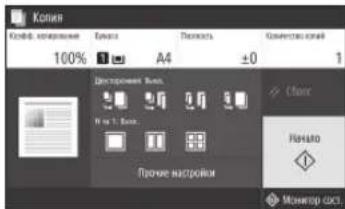
Pdpo6Hee

《KoNipOBaHnE》B
PykoBODCTBe nolb3OBaTeNa

DaKc*
1.YctaHOBNTOpunHnHn.
2.HaKMnTeBbIbEpnte<ΦaKc>
3. BBeInTe INHOpMaIuO O nOnyHaTeNe.
4.Ykaxnte Tpe6yembe HactpoKn paKa.
5. BbIepeTe
Pone3HbIe yHKnN aKa
IocneioBaTeBHa paCblnKa
PnemB namrTb
■PK-φaKc
Pdpo6Hee

«ФАКѻ Рукововский
101b30BATEA

OTneuTaBHe
- OtkpoIte DOKyMeHT dIa neaTn N BbIepeIte FyHKUIO neaTn B npuJIOKeHHN.
- Bb6epnte npaBep npnHTepa dna annpapa, 3aTeM Bb6epnte [HacptpoKn] nnn [CboiCTBa].
3.Ykaxnte fopmatbymaru.
4.YkakKteNCTouHnKbymaHnNTuNbymaHn. - YkaKnte Tpe6yEmbIe HAcTpOuKn NeaTn.
- BbIepeHte [OK].
- BbIepeHTe [IeuaTb] nn [OK].
Pone3HbIe HacTpoKn neaytN
2-CTOPOHHRA
NHa1
-NeuTaB 6poWIOp
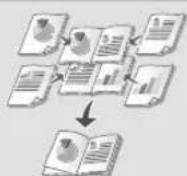
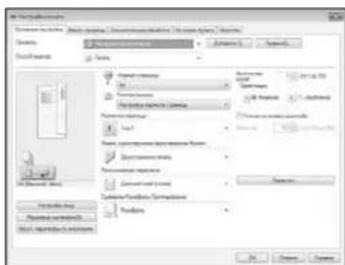
Pdpo6Hee

《OTNeHaTbHe》B
PykoOoCTBe NIOb3OBaTeJIa
3arpy3ka B kaccety dny 6ymarn
1 BbDnHbTe kaccety dny 6ymar.
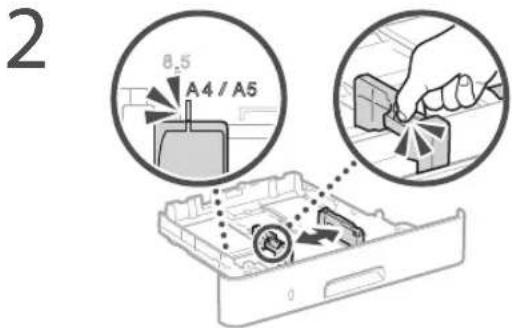
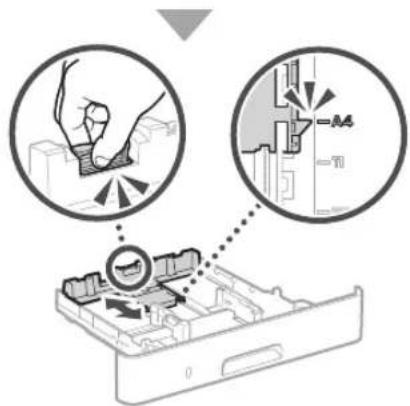
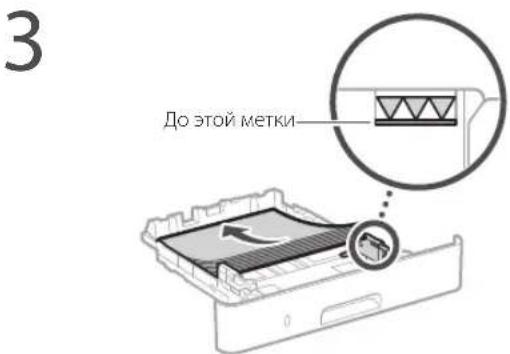
4 YcTaHOBnTe Kaccety dIy 6ymaN Bannapat.
Ecnn fopmat nnn TnN 6ymaHn OTnnaIOTcR O T fOpMaT nn TnPa paHee nCnONb3OBaBwee C6ymaHn, o83aTeNbHO n3MeHIne HAcTPOkN.
HaKMTe Bb6epnte
6 yKaJnte fOpMaT n TnI 6ymaHn B COOTBETCTBnC 3KpaHOM.
3arpy3ka B yHnBepcaJIbHbI JNOTOK
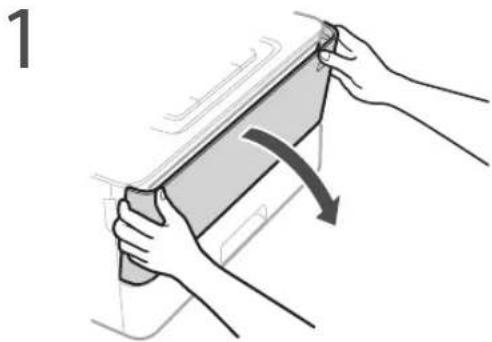
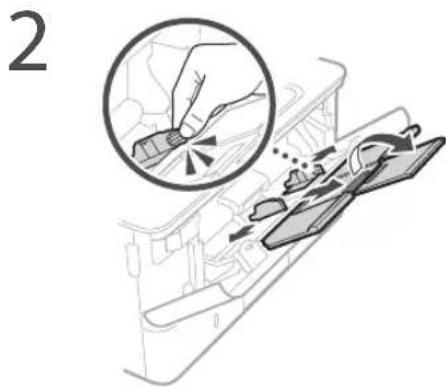
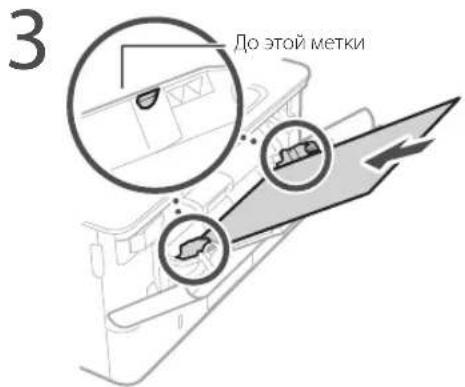
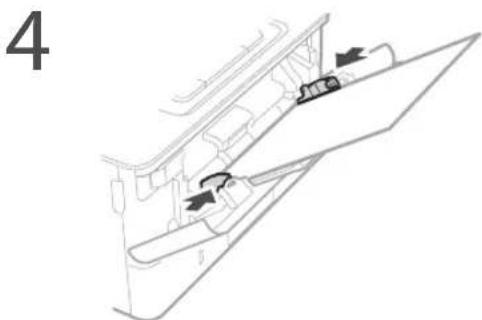
5 YkaKnteΦopMaT N TnBymaN B COOTBETCTBnC 3KpaHOM.
Annapat He pa6otaet 3amrae 6ymara
PpOBepeTcneJeuoe.
BknIOueHO nn nHTaHne?
- Bышен пи annapat n3 сpenero pekma?
Ecn nncnne HnHnKatop BbIKIOeHbl, HaxMNTe BbIKIOuATenBnTaNHn.
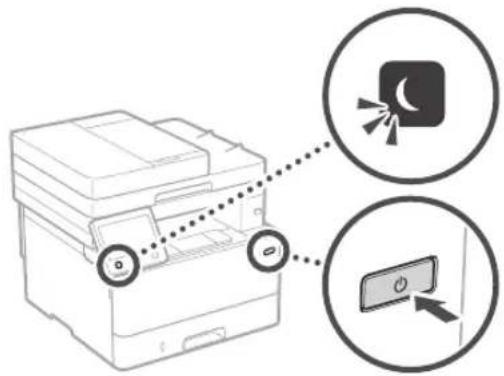
PpabnIbHOJINIOKJIIOUeH Ka6eJb NITaHn?
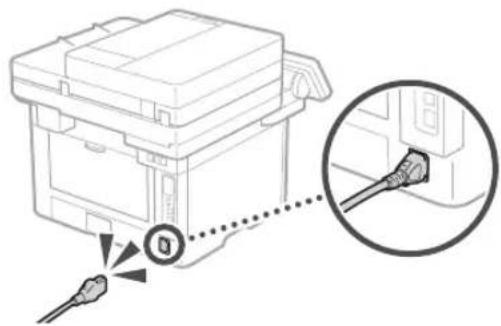
Ecn npo6nema He yctpaHeHa, cm. PykoBoCTBO nOJIb3OBaTeIa.
YctpaHITe 3amTne 6ymaru B COOTBETCTBN C HCTpyKUAMn Ha kpaHe.
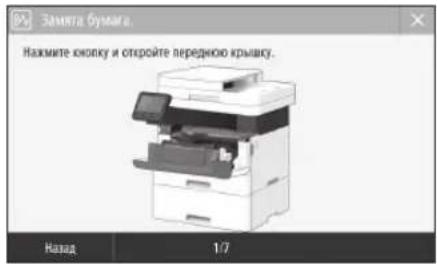
3aMeHa KapTpIa cToHepom
3aMeHnTe KapTpIck C ToHepOM B COOTBeTCTBm C INHCTpyKUIMN Ha kpaHe.
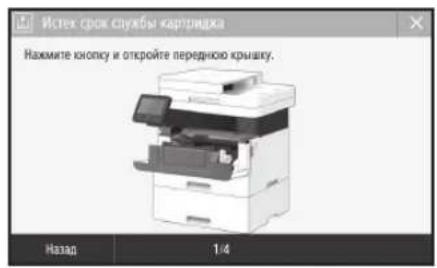
Homep Moen 3anachoro KaptpnJaC Tohepm
-Canon Cartridge 052
-Canon Cartridge 052H
Приложения
BaxkhbIe yka3aHnnoTexhNke 6e3ONaCHOCTn
B 3OM pa3dJIe npBcEHeBb BaKbHbe yKa3AHn HIO
coBIOeHIO texHKn6 BeOaNacHOCTN, KOtOpBE
NOMOTIbckATrpaMPOBaHN
nonbOBeTne3TOr annapata n Dpyrnx IIOdey
a TaKke npCn NMyUeCTBa. PpOHTte daHHbI
pa3DnpePepdHaONm CNoIb3oBaHN annapTa
n CLeNyTe pnpBcEDHbIM 3DeCb IHCTpyKUaYAM.
He BblONHIIte KaKxN-1NO DeCTBn, ONCaHMe
KOTOpBX OTCyTCTByET B HAcToAueM pyKOBOdCTBE.
Canon He Hecet OTBeTCTBeHHOCTn 3a IIOble
NoBpeXDEHn, BO3NKUme BCNECTBNe
OCyUeCTBHeN DECTBn, HE YKa3aHHbx B
HACToIeM pyKOBOdCTBe, HeHaJNeXaUeRo
ICNoB3oBaHN yCTPoIeCTBa INI NPOBedeHn
peMOHTbNx pa60n IBheCEHn IM3MeHEHn
TpEBMM JINCAmN oPraHn3aUNMn, He
IAIBHOUMNCIpeDCTABNTeLAMm Canon INI Hne
mIEOuIMM ATOPI3aunN KOMNaHmN Canon.
HecobIOeHne INCTpyKUm NO cNOJb3oBaHN
daHHOro anapata MoKet npBcEtN K TpaBMe
n (IN) NoBpeXDEHIO, TpeBIOUeM
DOporOToaUeR pEmOHTA, HA KOtOpB MOKeT He
pacnpoCTpaHrtbCg ORpaHUnEHHa rapaHTn.
OCTOPXHO
Copepnnpnypexnne 60 nepaunnx, KOTOBB B CNYae HENPABUNBOI BbIOJIHEHNMOY TIPNEBCTK TPABME NIN IINBEHNIKOJEN. DIIIBE3OJIACHO EKKTIpyATAAN annapata BCERda obaPauate BHIMAHNE Ha 3TN npdynpexdHn.
BHIMAHHE
Coepnnt npdpnpexdHne 06 onepaunx, KOTOpB B CUYae HnpeAINbHOI BInOJIHeHHN MOYr PnVBcT N TpaBMam IIOeJ. JnBe3oNaChOH kCnIyataaII annapata Bcerda O6paauTe BHNMaHne Ha 3TN npdpnpexdHne.
OBAKHO
CopeKHTpe6BaHnIOAeKnIyatauIN OOrpAHHeHn. BHMATEbHO 03hAKOMtBc C3TMMNIOLOKeHmM BJENX HAnEJaAeJe EKnIPYtaaun anapata NBOH6eKaHne NOBPEKDeHn Anapata NnN MMyecCTBa.
YcTaHOBKa
Длгбетонснуубнгкгпаци annapata CnqyET BHMATEbHo O3HAKOMITbcC npBBeHbIMN HIXe MepaM npedocptopoxkHOCTN yctaHOBTb annpATB npneHemOMIJI HeroMeCTe.
A OCTOPXHO
YeCTaHbNBAteYcTPOIcTB BoMeTe C BbICOKIM PnCKOM BO3rOpAHm INI NopAkeHN 3JIeKTPnueCKIM TOKOM.
MeCTO,Re3aKpbTbBcHTINRAUHIOHBle OTBcPTNA (CNIHKOM6N3KO KCTEHAM, KOBATAM, DnBaHAM, KOBpAM NOXOKIM 06bektAm).
BnaJHoe nIaJIbJIeHHo NOMEueHHe. MeCto, NOBepKeHHo BO3dECTBIO pRc CONHeuHHOrO C8eTa, INI HAI OTKPbOtTOB 03J
MecTo, noBbepeXeHHoe Bo3deIcTBIO BbICOKNX TemnepaTyp.
MeTOB6n30KpTOrOrH
PraOM CO CnIPTOM, pACTBOPHTJIAMIM IN DpymN IeKOBOCnIaMeHIOUIMCA BueECTBaM.
Ipoue npeynpekxden
He noCoeHHaTe KaHHOMy annapaTy HecepTnHcHbHOBAAHbIe KAbEMn HecobJIeHene ITO rpeBoaHmro MoXeT npBecTN KnoKAp ny nnpaxeHIO 3JIeKTPueckm TOKOM.
He nomeaie Ha annapat 6pactb npytne MetaIIINueCKNe PpeMeTb Nm EMKCTN BcOIO. KOHTK IOCTOPOHNX BEUcEETB C 3JIeKTPuVECKMn KOMIOHEHTAMN BHUTN yCTPOJCTBa MoKeT CTb NpnuHoi BO3ROPaHn HnnpaxEHn 3IeKTPueeCKM TOKOM.
YCTAHABINBAIyADIAIPOONIHITBHBIE npHnAIDEXHIOCTH,He3a6yDte BbIKNIOHTb NITAHHE,OTCOEHNHTBNIKHyUHypaNtAHNOr OPTa3TKi,A3TEMOTCOEHNHTB BCE nHTpepeCHBE KaEBN NUIpNHTAHNOr OT annapata.B npoTnBHOM Cnyueae BO3MOXHO NOBpeKJeHVE WHPa NITAHNII INN hTpepeChBX KaEBEn, YTO MOKeT pNBeCTN KNOXAPy IIN NopApkeHENO 3NEkTPuWeckn TOKOM.
EcnBvCTpoCTBO nonaIOT HnOPOHbIEBeueCTBa,OTKJIOHTe SHyp nTahnO3JEKTpuecko po3eKn O6paTtEcB KMeTHOMy yonHMOOHHOHOMy dinepy Canon.
BHIMAHME
He yctaHaBnBaIte yCTpoiCTBO Byka3aHHbIX HNKe MeCTax.
YCTPOINCTBOMOKETyNACTb,HTOPNPUBeETK TpaBME.
- HeyctOuHIBaNOBepxHOCTb.
- MecTo, noDBePxeHHoe Bn6paun.
PpOue MepeI ppeoctopoxHocTn
- Pn nepemeeHnn DaHHoro yCTPOINCTBa cnEynTe HNCTpyKlYAM, npuBedeHNbIM 3 NaTcToaEM pyKOBOCTBe. Pn HnPaNNbHom nepemeeHnn ycPoINCTBO MoKeT yNaCTb, TTO npuBedeT K TpABMe.
-Пиустановке усточы n36beraite 3aцileмнелей рук Мькду усточы CBOM N NOM NIN CTeHAM. 3TO MOKET ПИВECTN K TpaMaM.
BbipabHnBaioJne HOxKn (TOnbKO nI npOdyKTOB, KOTOpbe IMN OCHaJeHbI)
BbpaBHnBaOuHne HOKKn DOnKnBtOCTaTbCnHa annapate nocne erO yCTAHOBKn. B npoTINBOM cnYae ycTpoiCtBO MOKeT ynactb HnNn HApKeHnTbC, YTO MOKeT npNBecT N TpaBMe non30aBtEn.
OBAKHO
He yctHaBnBaIte yCTpoiCTBO Byka3aHHbIX HNKe MeCTax.
TOMOKETnpBecTN KIOBpeKdeHIO yCTPOCTBA.
- MecTa C BbCOKO NIN HN3KO TemnepaIpyoNIN BIAHXHOCTbK.
MecTa, noDBepKeHHbIe pe3KMM npepanaTAMnHepatypblnnBnAaxHOCTN.
-MecTaB6n3nO6OpyDobAHn,co3dAoJero
MaHTHtBie HINN 3NeKtpOMaHTHtBle BOJHbI.
JaobopatopnNdpyrne MeCTa, Tpe npOxCoxoT XMMMueCKne peaku.
MecTa, NOBepKeHHbE BO3DeHCTBNIO
pa3beDaioux IN TOKCHHbIX Ra3OB.
MecTa, KOtopBc MOrTy DeOpMnPoBaTbCn NO
MACCOYcTPOCTBAuNrReyctPOIcTBO
MOKeT OceCb (HaPmep, Ha KoBpe nT. n.)
I36eraaTe MeCT yCTaHOBKn C nIOXoI BeHTnJIaUne.
BoBpEMNcNoIb3OBAHIN3To yCTPOINCTBO
TReHepnpyET O3OH INpyTe Bb6PocB 8 MaIbIX
OBbEmAX. OHNe HRe BnIHTOC ONAChBIMN D
3IOPOBBa. Te Me MeHee Bb6PocB MoYrCTaTb
OUYTMbIMN B TceHne NITInbHO
NCIOIb3OBAHN B IIOXo IPOBeTPNBaEMBX
PiomeueHNx. IIIN NOpeJkaHN KOMΦOpTHbx
YCIOBNI pa6OTb peKOMeHNyETC O6eCNEHTB
BEHTNIJIKNIOmeEHN, B KOtOPOM YCTaHOBNI
AnIcapat. TaKke CIEyET N66erATb MecT, B KOtOpBX
JIOni HAIOeONe NOBepKeHb BO3dEINCTBNO
Bb6PocOB yCTPOINCTBA.
He yctaHaBnBaIte yCTpoiCtBO B MeTe C NOBbIeHHoKOHDeHcauNei
PnHTEHCNBOMOGBPeBE NOMEeHNA,B KOTOPOM yCTAHOBNEHOYCTPOINCTBO,aTAKXE B CNYAHXIpeMeEeHNyYCTPOINCTBAU CpeBcI C 60one pOxNAdHbIM HIN cyXHM BO3YOM B NOMeHNeC Boene BbcKOaKempeAtypoin HIN NOBbHEHHbIM YPOBHE BnAAKHOHTB BYTPOINCTBA MOrT ObpaBaTcR KaJIIN BOdI (KOHJeHcAT).NCnoJIb3ObaHne YCTPOINCTBA B NoDObHbIX yCNOBIAHX MoKET PnBcETN K aAMTNIO ByMaH, nIOXMy KaeCTBy NeaTHn HIN NOBpeJNeHIO yCTPOINCTBA.IpeH NaHApOM 3KcIyIaTaN IyCTPOINCTBO DOnKHO B TeChHe N MeHee dByx cAcOB aJaITnPOBaTbCA K TEMepaType IN BnaXHOCTN OKpyKaioWe CpeH.
Ja Cpei Ha BbCote 3000 MetpoB n 6oJbwe HAd yPoBHeM MOpA
YCTPOINBACJCKKIMDJKCMOPIPAOBATB HePABINHHO HbICOTEOKOIO300MPTPOB 6bnueHaDPoBNHEMOPN.
IpKIOUeHNe K TepeOHHOIN HINNN (TOnbKO IJn npOyKTOB, OCHaueHHbIX yHKuENE fAKCIMNUHBOCB3N)
3TOT annapat COOTBETCTByET CTAndapty
aHANOROBO TELEFOHHO NINHN. 3TOT annapat
MOKET 6bITb NOKNIOEH TOLKB KO TENEFOHHO
cTeN oBSeI ONNoB3oBAHn (TCON). NoKNIOeHHe
annapata K uVFPoOBu INN bIDeneHHO
TELEFOHHO NINHN MOKET HApUHTB ero paobTy
n pInBeCTN K NOBPExDeHHIO. PpeXde Yem
NOKNIOuATb annapat K TENEFOHHO NINHN,
npoBepbte ee TIN. Ecnbl Bx XOTNe TNOKNIOHTB
annapat K ONTOBONOKOHN NINHN INN
IP-TENEFOHHN, oOpATNECB K NoCTaBIMKAM
COOTBETCTByOuNX yCNYT.
PnncnoIb3oBaHm6ecnpoBHOJIOKALbHOcTeN (TolbKO npoDyKTOB, OCSaehHHx yHKuue NpOKnIOeHENK 6ecnpoBOHOJIOKALbHOcTeN)
- YctahOBNTyeCTPOINCTBOHa paaccToHN He 60nee 50 MetpoB OT 6ecnpoBDHOro MapuPyTH3aTopa.
YCTAHOBNTe yCTPOINCTBO MecTe, Tge CBA3b He 6ydt HApTuAaB DpyTHe OBeKtBu (ECNnTO BO3MOXHO).MoUHOCb CInHaNoMxET 3HAHTenbHoNaTaPpN pPOOXKeHNupe3 CTehblnnnoI.
YcTaHOBnTe yCtpoICTBO KaM MoKHO daJIbIe O T uΦpObIX BeCnpoBOnHbIX TeNeΦoHOB, MKnPoBIOHbIX Neey N dpyrOro 6OpyDobAHIN, RABNIOUeROCA NCTOCHNKOM PAaIOBIOH.
HeNIOJIb3yIte annapat pIOMc MednHCKMOBOpDobAHMe.PaIOBOHbI, MIIyAeMbIe anapATOM,MOrT COzABaTb NOMEXINpaObTOb MEINHCKORO OBOpDobAHRA,HTO MOKET PIPBECTK N IOBpeDeHNIO HNEcHaCTHOmyCnyAo.
IcToHnK nTaHnA
OCTOPXHO
IcnoB3yTe TOnbKO TONTOCHNK NtTaHnK KOTOpBorOteBaHcTpeBOaBHnM K HApJxHeHIO.Heco6IoJeHne3ToRn pAbaNlMA MoKeT CtaB npHnHO B0rOpaHnN nnpaxeHHNEkTpUHeckmTOKOM.
He cnoBnye dpyne uHpyb nHTAHN KpOme uHypa, BXoDIIeero B KOMnNEK npHTepa, TaK KaT OTo MoXeT CTaT bnpuHHOB BO3ropaH Nn NopaxEHN 3NeKtpueckm TOKOM.
BxOaIIN B KOMNNEKT UHP NITAHIN PnepHaHaeH DnHcNtOBaHnT OJIbKO C daHHm annapatom. He noKJUaTe 3OT WHyP nITAHIN K Jpyrnny UCTPOBCTBaM
He H3MeHnIe, He TnHTe, He CTbAte Hn He deOpMpyTe KAKIM-NIO INHM BEDyIM K nonOMke Cnooc6om WHyp NITAHN. He CTaBBte TaKeJIbe PpeMetbHa WHyp NITAHN. NobpeXdHne UHPa NITAHN MOKET npINBcTc NK OKnApY INN NOpaKeHIO 3NEKTPuueckmTOKOM.
He BCTABNITe WTENCENb Hypa NITAHINB PO3ETKY H He INBNEKAITE ERO MOKpbIMI PYKAMN -ETO MOKETPnBeCTTN KnopaeKENO ANEKTpueeCKAM TOKOM.
He nIb3yIe yHnHtBHe IHyhpy HnYnnHInHEn C Heckonblkmm POcETKaMn CdaHHm ycPoIcBOM.HecoNIOJeHne 2TOro Tpe6OBaHHMOKET PnPBecNT K NOxApy NnnpaKeHNO ENEKTPOUeCKHM TOKOM.
He CbopaunBaIte HHP NHTAHH, He 3aB3bBAIe EIO B3EJI, TAK KAK 30 MOKET npBECTN KBO3RpaHIO NIN NOPaXEHIO 3NEKTPNCIMTOKOM.
BctabnIte wencenb hypa nHTAHIN B posety cetn nepemehHOro TOKa noHIOCTbIO. HecobioeHene bTO npabuMa MoKET CTbT npunHOB30PoraHnn Nnopaxhenn 2neKTpueckmTOKOM.
NonHocTbO OTOcoeHNHnTe WtencEnb Hypa nHTAHN OTOPOEeKcCEN NEPeMeHHORo TOKa BO BPEMa rpo3bl HeBbONHHeNE 3TOrO npAINa MoKeT cTAb PnPHOH BO3rOpAHN, NOPaKeHHN 3NeKTPNeCKM TOKOM INN NOBpeKeHHN YCTPONCTBA.
YbneTcB,HTOCTHNNK NITAHNAI ainnapata paabaetctabnHHe NoNDBpeKe Hepenadam HanprkEHHa
He noDBeprainuHypnTAHNHarpeBy. HecobIOeHHe 3rO TpeBOaHnMOKET npINBECTK TOMY,TO NOKpBTMe UHpya nHTAHN ONNAbITc,3To MOKeT cTaTb npINHHOB BOrPApHnI INo NapXeHn ENEKTPOECKM TOKOM.
U36eaiTe cneyuoxnx ciTuayn:
EcnnpmeHnB Hpe3MepHy Cny K 6bactn CoedneHnA hpyaPiTahnn,3TO MOKET npBeCTN KERO NOBPEkDHeNIO NIK OTOeHNHO pOBoO BHTpy annapata.3TO MOKET CTbPpHHNOB830PogAHy
HACTOE NOCoENHEHNE NOTCOENHNTUHNHPaNITAHIN;
-3a#e5aHHe UHypaNHTAHY;
cHbHn Hhpya nTahnB O3ne erO
HACn, KOTOPaB BCTABNRETCB PO3eKY, N
PPOADJIKHTEnbHOE NPMHEHHe CnLYK
2NEkTPuecko P03eK EHN CAAHn HHPa
NTAHn, KOTOPaB BCTABNReTCB PO3eKY;
-IPMHEHHe VJIINHn CnLYK WITENCIO
Hhpya NTAHn.
BHIMAHME
PaMeCTe annapat prDom C ceteBOI pOsetKIO, octaBIO DOCTAOHO MecTA BOKpy IITcENI HHPa NHTAHN, YTObSI ERO MOxHO 6blIO JERKO BbEPHyTB CnYae ABAPINHO cnTyauH.
OBAKHO
PnnoKnHueHHn 3eKtponntaHn
He nooknouaTe uHyp nHTAHN K NCTOUYKBCNEpeboHOro nHTAHN.3To MOKeTnpBecTN K NOBpeKdEHNO yCTpoiCTBa HApUeHHIO paobTu CNTEmblJNEKTPOCHABKHeH
EcnIyCTPOINTOIOKNIOHcHO Kpo3eKcETN nepEMEHNOTO TOKA C HECKOBKIMMTHEaAMn, HeNCIOJIb3yTe DpyrIgHE3daIINOIOKNIOHcHNIPOOHXYCTPOINCTB.
He nocknoayte hhyp nitaHnK BCNOMORATEBHOPOZETKE CEN NpeMeHHORO
TOKaHaKOMNbIeTepe.
PpOueH MepbI npEoCTOpoxHOCTn
3neKtpnueckn NOMEXM MGYT npYBeCTN K HENONIAKAM B paOte yCTpOHTBa NIN NOTepe DaHHbIX.
06paueHne cannapaTOM
AOCTOPXHO
He3aMeIINTeBHOOTcoeMHInTe HHP
HITAHNOr OT po3EKnIObpaTntecb K
yOnHOMOeHHOMy DmNEpy Canon,ecnn
YCTPOCTBO N3dEeTHo6bUHbN IWM,
BByJETeHepAAbbHbN 3aIax MmN DbM NIM
Upe3MePHO HalpeBaEtC. PpOOnJIkeHne
EKCHUYATAuCN B TAKNX YcIOBvAX MOKeT CTaB
IIpNCHHO BO3rOpAHnN INI NopakHeH
EJEKTDVueCKM TOKOM
HeHbC BHCOKM HnpaJpe pa3bpapte annapat He nIbtaTecb YTO-1N6o N3MeHNTB bero yCTpoCTBe. BHypn HaxOaTcra Tropnue KOMNOHEHM. Pa36Op nONbTKa N3MeHNTb ycTPOcTBO annapata MOrTy pnpBeCTn K NOXApy mnn npopaeHHIO 3NeKtpnueckm TOKOM.
PaMeCTe yctpoCTBO TaK,HTO6bI HHP nTAHNA,KaEBNnDpyrNE BHYTpEHHne E 3NeKTpueeCKNE KOMIOHcHTb HAXOJIINCb BHe DocraeMaOCTn DTeR. HeBbONHeHne 3TorO ycOBNa MoKeT PnBeCt N HeCHaCTHbM CnyuaAM.
He pactbnaIte bOINn yCTpoNCTBa NERKOBOCnnaMeHNOUneC BSeueCTBa.KoHTAK NERKOBOCnnaMeHNOUncB BeueCTB C3NEKTPNueCKMN KOMTOHEHTAMN BHyTPN YCTPOCTBA MOKeT CTaTB npuHHoB BO3ropaHn INI npaXeHn 3NEKTPNueCKM TOKOM
- Pn nepemeeHm yctpoiCTBa oBaaTeNbHO BbIKIOHTe nepeKIOUaTeN NITAHN, 3aTeM OTcOeHNHTe WtncEnb IHypa NITAHN INIHTepfchbl KAbenn. B npOTNBOM CNYae BO3MOXHO IOBpeJeHHe WHypa NITAHN INI INTepfchbl KAbenn, YTO MOKeT PpINBcTNI K Bo3OPaHNO INI NOpAkeHKn ENEKTPueckm TOKOM.
IIOcoeHHHNIOTCOeHHHKA6eNBUSB, KOrJa 7tTeNCEb Ka6eN IITaHIN BCTaBHeN B PO3ETKY CEN NEPEMEHOR TOKa, He npKacaiTecb KMTaJIINueCckOuACTn THe3a, TaK KaK 3TO MOKeT PnABcEKN KnpaKeHN 3NEKTPyueCKN TMOKoM
PnncnoB3OBAHnKapDIOCTmmyIToPa
TOT annapat co3daet cnaoe marHnTHoe none nIyIbpaBbKObIe BONHI. Ecnn Bb HcNpOByete KAPINOCTMUYIop N yCBCTBYe HEKOTOpBe HApuyEHHero paobTo, OTOINITE OT annapata NHeMeDNeHHo ObpaNTecb K BPaY.
BHIMAHHE
He knaIte Ha yctpoCTBO TaeJIbIe npedMeTb, TaK KaO OH MOrTy UInactb n npINBECTK TpaBME.
BueJAX CO6CTBeHHoB 6eONaHocHTOcoEHNrte HHP NITAHNOT 3NEKTPoCeTH,ecn aannapat He nCnIb3yETc B TeEHNE DnTcRO BPEMeH.
BybTe octopoknI npO ktpm n 3aKpTm KpbweK, YTOBHe TpaMPOBaT pyKn.
I36eAte KOHTa pyK nOeKdb C BAIIKAMN B O6NaTc BbOda. IOnJaHHe pyK mIg OeKdb MeKdy BAIIKAMM MoKeT pNBeCt N KIOYeHNO TpABMbI.
B npouecce n cpa3y jke noocpe pabotb BnytpenHne KOMnoHEHTn N obnactb BoKpyr BbBOHO rO NOkA YCTPONCTBa OCHEB TOpAHyHe He npKacaiTcB K STIM obnactm, 106bH He nOnyHtB OOKn. KpOme TOrO, OTNeHataHHa Bymara cpa3y noCle BbIOa MoKeT bTb RopHEn, NoToTMy OpaAsaTecb C HEn aKKypaTHo. B npOTNBHom CNYae MOXHO nONyHtB OOKn.
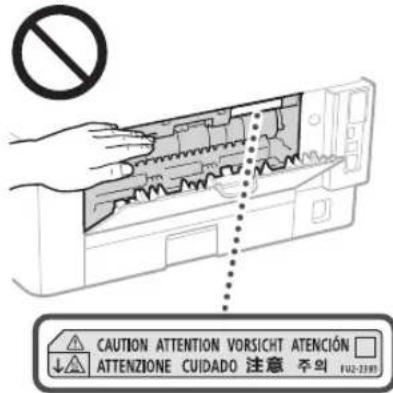
CnneTte 3a Tem, TToBb He yponHb Ha CTKeN0 2KcNOHPOBAHIN TAXeNB INpeMET, HAnpIMep CnoBap.3TO MOxET PnBeCTN K NOBpeKdEHHIO CTKe NkCNOHPOBAHIN TpaBMAM.
HepeHocTe annapat CytahOBnEHbIMKaCCaTAMnIyBmarnnNpOnJHITeBHbMycTpOCTBMnOdaA. BnpOTNBOMCnyaeOHMOrYBnAcBnNpPBrCeNTK TpABMe.
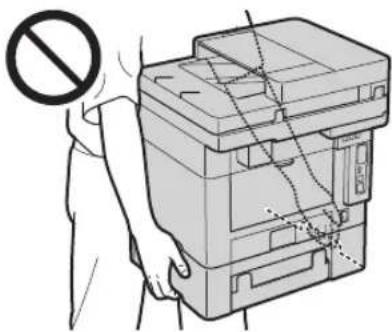
UCTPOICTBO NODAHn (TOnbKO IJN PNOyKTOB, KOTOPbIE OCHaIeHbI UCTPOINCTBOM NODAH)
PnKONPOBAHINTOCTbIXKINGCOCTeKNa 3KNOHPOBAAHNEHAXNMAITE Ha YCTPOICTBO NDAQCNMIKOMCNIbHO.3To MOKeTNPiBeCTN K NOBpExDEHIOCTeKNa 3KNOHPOBAAHINTPaBMAM
3akpsB8yCTPOCTBO NOaH,co6nOaHTe octopoxHOHeTbOBe HnpWMeMTb NaIbU HHeNOHYtB TADMY.
He nmeuIe pykN nn pJIbU B yCTPOINBOIOaH.NTO MOKET PnBECTN TpaMe.
Приложения
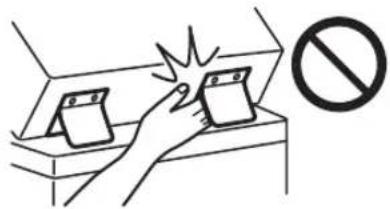
ΦnHnIepe(ToIbKO IJI npOyKTOB, KOToPbIe OCHaUeHbI ΦnHnIepeom)
He nmeuAte pyK B Ty aCtB Notka, rde
BbONnHaeTc CUnBaHne (PdOM C pOnHKAMN).
Bydtbe OocO octopoxHbC OCTpHMn
CKpENKAM, TAK KAK OHN MOrTy HAeCTN
TPABMY.
Kacceta dny bymaru (Tonbko dny yctpoiCTB, KOtOpblc oChauenbl kacceto dny bymaru)
He nomeeaTe pyKn Bannapat, KOrda KaCCeta Iy6ymar n3BneheHa. 2TO MoXeT PnBecT N TpaMe.
CLASS 1 LASER PRODUCT
LASER KLASSE 1
APPAREL A LASER DE CLASSE 1
APPARECCHIO LASER DI CLASSE 1
PRODUCTO LASER DE CLASE
APARELHO A LASER DE CLASSE 1
LUOKAN 1 LASER-TUOTE
LASERPRODUKT KCLASS 1
Ja3epHbI Nyu MoKet 6bItb OnaceH dIa3IopOBBa
yoeBeka. NockOblky H3nyeHne, reHepePpyEmoe
BHyTpAnnapTa, NonHOCTbIO N3OnIpOBAHO
3aHTbIMN KOxyAMN BHEUHNM KpbUKMn,
Ja3epHbI Nyu He MOrT PaCpOcTpaHrTBcH
annapaHa KaKOM-N6o 3tane erO EKnPyataun
nonb3OBatelem.CnedyTe HnKepePiBeEHBM
yKa3AHm No coBIOdeHNTO TexHHK
be3oNaCHOT.
Hn K Boem Cnyhae He OTKpbaiTKe KaKHe-NIOO KpIbIK annpapa, NOMMO yKa3aHHbIX B DaHHOM PYKOBOCTBE.
- PpOHHKHOBHeHnaePHOro HnyHuHn HApHyN yero KOHTaK T rHaaMm MOKeT HaHeCTn yuepe6 3epHIn.
IcnoB3oBaHne HCTpyMeHOB npabHeHHN HAcTPOKa N EKCTUYATAUHN Annapata C HApuyHeHMe IpnBteHeHHbX B HactoHcE pyKOABCTBe HCTpyKuMOrI pVBeCTN K BO3dEChTBNO ONACCHO INJyHeHH.
HaKneKa no Texnke 6e3oNaChocTn npu 06paueHnn cna3epom
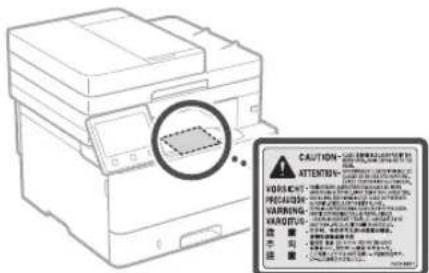
BAXKHO
CndyTe ykaaHnMa HA KaNeKe C npdynpexdneHm, npKppeHHoN K yCTPOINCTBY.
He noDBeprainannaparCNbHm MexaHueckn Harpy3kam nB6paun.
HeOTKpsBaTeH He 3AkpsBaTe DBePbU, KpIuKn INPOOYE KOMIOHEHTBC IINPMHeHMeCNB.3TO MOKeTIPNBECTN KIOBpeXeHNOYcypoACTBa.
He OTKIOUaIe NITAHnE HrO KpBbAte KpIbIK BO 8PbMa pa60bl yCTpoHCTBa.3IO MOKET PIPBcETN K 3AMTNI6 ByMn.
IcnoB3yntMoJyHbHbKabeJINHOI MeHbwe 3 METPOB.
IcnoB3yTe USB-KabEnb nnHcMnBHe 3 MeTPOB.
He kacaiTecb KOHTaKToB (7)BHyTpIn anapata.3TO MOKeT npIeBcTn K nobpekeHIO annapata.
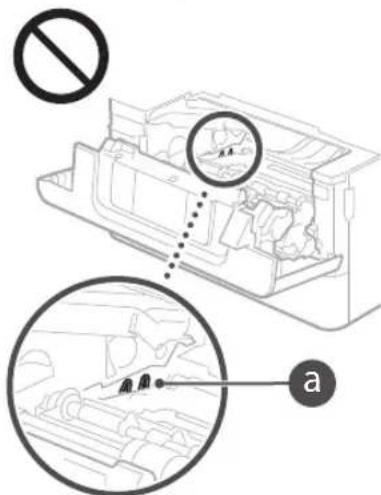
PtpaHcnpTnpoBKe yctpoNCTBa
IINPepoTpaueHnnopeKHeHyycpOCTBa BO Bpme TpaCnpTOPOBKn BuONHInTe CneJeUooie.
IbAneKKeIe KApTpNdk CToHepOM. HAdekHo ynakyTe yCtpoCTBO B opINHaJIbHyIO KOpOky CynaKOBOHHBMMAtePmAnAM.
3NaKn, CBA3aHHbIe Cco6JIIOJeHNEM texHKn 6e30NaCHOCTN
IpeeknouateiBnTuHn:nonoKeHne《BKn.
Ipeeknoquatb nHTaHn: noIOKeHne
Pepeknoquatienb nHTaHn:nonoKeHne 《OxndHnE
Ba paa HaxmTe nepeknouateNB BKn.» AByKn.
3aunTHaKJIeMa3a3eMHeHn
BHytpnOnaHoe HanpaXeHne.He OTKpbBaIte KpbIaKN, KpOMeTex, YTOyKa3aHb B INCHpyKUIN.
BHIMMAHVE!Topaay noBepxHocTb.He npKacatbcra.
OobopyoBaHne KnaCa II
PnDmKhBteyactn.He npHbMxAaTe yactn Ta K DmXyUIMCAyACTM
HeKOTOpBie H3yKa3aHHbIX BblIe CmBBOIOB MOrTy OTCyTCTBOBaTb Ha ONpeJeEHbIX yCTpoIcTBax.
Texnueckoe 6cbnykBaHne nOCMToPbI
BbnoHnIte nepoDnuecky uNCTky annapata.
PnHaKoJIeHnPi NnAn nAnapat MoKeT pa6OtaB
HeaIIeJeaUIM Oba3OM.Bo BpeM uNCTKn
PnpIepKnaBteCb cIeNouXipRnPaBn. PpN
BO3NaKHOBeHn Ipo6NeB aP6ote Cm. pAaen
HOIB3OBATEE, ECln np6NeMy HeBO3MOKHO
ycpaHTb CAMOCToTEnHo N annapat
Heo6xOIMO OcmOpTeB, O3HaKOMbTeC b
pa3dennoE
AOCTOPXHO
IpeedOCHKOOTKIOHHTeTIaHHeNTOcoeINHHTUHPITANAHrOTPOe3KNIEPemEHORToKa.Hec6nHOHEeToroIpaBIMMOXETCTbPNHNOBOB3OPaHNNIINOPaKeHHAJIKTPNueCKMTOKOM.
- PepnoDnueckn OTcoeHNHnTe UHyp NHTAHn H OuHnAaTe WTeNcEnb CyXoY TKAHbO Dn ydaENHnbN HrpAs.HakONBuaCn rpa3b MOKET BNTHBaTb BNrYn B03dyxa nBOCnNAmeHnTc npn COnpNKOCHOHN C 3NEKTPNCTBOM.
JINH ONUCTKANAPATAHCNOB3yHTE BNAKHYO XPOIIO OTKaTUYTKaHB.CMAUBAbTKaHBJN ONUCTKN Heo6xOIMOToJIbKO B0Je. He NCONOB3yIte CnPT,BeHN,PACTBOPITEN KpACKN JpyrNE JERKOBcINaMEnHEQIIece BueeCTBa.He NcONb3yIte 6ymaxhIE caIepTKN INOTeHc. Ecn tN BeueCTBa BCTYIRB PEAKUIO C KOHTAKTMNI INI INEKTPuNECKMM NaCIMM BVHTPny UCTPOINCTBA, OHMOYTR PnBECTN K COZDAHIO CTATNUeCKORO 3NEKTPNUECTBA INI INPnBecTN K BO3ROPAAHIO INI NopAXEHIO 3NEKTPuVECKM TOKOM.
IpeoDnueckn npOBepaTne Hpy nHTAHn H
HtencbHa OTCyTCTBnE NobpeKeHn.
PiobepaTe annapaHa OTCyTCTBnE
pKaBAuHNb, BMTN, LapAaHH, TpeuHH
Upe3MePHoro BbIeHeNnTEnnA.
NcNoJIb3OaBHnObOpdyOaHnA, KOTOpoe He
O6CnyHbAIOTc DOJXHbIM O6pa3OM, MOKet
npINBeCTnK NoxApy HnnpaxeHIO
3NEKTPyaCheKm TOKOM.
BHIMAHHE
HeKToPbIe KOMNoHEThBHyTpAnnapaTa CnHbHO HArpeBaOTc INHxOAdTcN OIN BvCOKIM HaNpRKeHMc.KoHTaKT CAtmM KOMNoHEHTAMMOXETnpBeCTN KoxOrMa. He npKAcAteChK qACTmAnnapa,He NepeuCHeHHbIM BJaHHOM pyKOBoQCTBE.
PnI 3aIpyzke ybMnHnnYcTpaHeHHn 3aMmTHyBbTeOctOpoxKnH, YTObHe nope3aBpyKoKpA bMyarn.
PacxOaHbIe MaTePnaJIbI
AOCTOPXHO
He6pocaine OtpabotAHbIe Kaptprnckn c ToHEPOM BOTKpbTBI OOrHb.KPome TOrO, He xpaHHTe KAPTPnDkC TOHEPOm Nm 6yMaRy B MeCTax,NOBepKeHHBX BO3EChTBIO OTKpBTORo ORH.3TO MOxET PnBecTN K BOCnIaMeHENIO ToHepaN,KAK CnEcdTBme, K NOYueHENIO OOKOB NNN BO3HNKHOBeHENIO NoXapA.
PnCnyaHOMpaccbnaHmTOhepa octopoxHOco6epHTeYactuBToTHepaNN COPTpeHXMFKOBAAKHOTKaHbIO,HE BbIXaERHO.HB KcOEM Cnyae He HcNOnb3yTe 1nC6opa npocbinaHoro TOhepa NbIeoc, He O6OpyDobAHbH3aunToT O B3pBaNbIN. B pOtnBbOM CNYae BO3MOXHO NOBPexdHne nbIeoccaHbBpBbBbBbBAHHB CTATnueckm P3PdAOM
PnncnoB3OBaHnnKapdnoCTmmyTota
Kaptpnck c Tohepom co3aet cnaoe MaHTHHeO None. EcnBb MCnonbEyTe KApNIOCTMmYIHTOp n UyBcByeTe HeKOTOpble HApUHEH erpoabot, OToNDte OT KaTprnka c ToHePOM n HEmEJIeHHO 6bpAInTECb K BpaHy.
BHIMAHME
I36eaiTe BbIXaHnToHepe.BcnyaeeroBbIXaHnHEMePeHHO ObpaTteCb Kbpay.
A 136e9aTe nonaaHnra Tohepa B rna3a Hn pot. Cnyae nnonaHnra Tohepa B rna3a Hn pot HmepneHIO npomoe INX XoJIOH IOBOIO IV oObaTneB K BPvU.
He donyckaiTe nonadaHn Tohepa Ha KoxhHbe nokpoBb. B cnyae ero nonadHn Ha Koxy npomOte ee xoIoHOI BOcI C MblOM. Pn HAnu paDpaKeHn Koxn HeMeJeHHO 6bpntecb K bpay.
XpaHNTe KapTnIcN CToHEpOM IpyrHe paXOHNbIe MATEpNlB B MeCTax, HeIOCTyINbIX nIaTeH. B cnyae nporntabIBaHn TOhepa HEmedHeHO o6paTneCk K BPaY NIN B TOKCKONORIHeckN CEHTP.
He pa3bpaTne Kaptnpck Tc ToHepom IN CXKMOKOMNOHEHTBn Hn NmMeHnTe NKOHCTpykUIO.BnpOTnBHOM Cnyae ToHep MOKETnpocBnATbCn.
Ydann3aunthyneHTyH3KapTpndka c TOHEPOM, BbTTBnBaIte ee NIOHOCTbO, HO He npknabaiTe ypezmepeHoe ycInne. B npTNBHOM Cnyae ToHEp Mokei npocbnatbch.
BAKHO
06pa6oTka KapTpIa cToHepom
- UeepKBAa KApTpNJc TOnHePOM, 063aTeBbHO BePntcB 3a erO pyKy.
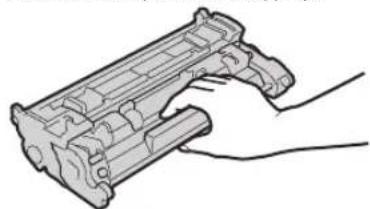
He npKaacaiTecb KycTpOciTBy nAMrN (a)nnnEeKtpueckm KOHTaKTM (b)kaptpnXcTaHepom.Bo 36exAHne NOBaeHHa capanHH NaOBepxHOCTn BapabHa BHytpnAnnpata HIN BO3dJeCTBn HA Hee CBeTa He OTKpbBaIte 3auHTHyo Utopxy BapabHa (c).
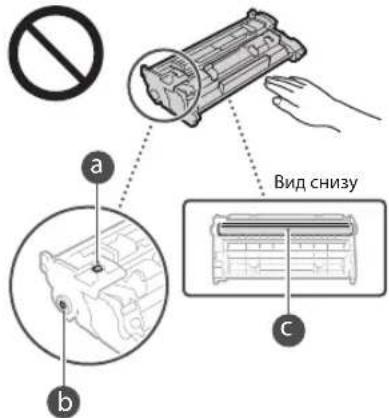
He 3BnekaTe KApTpuKCTOHePOMn3 ynaKOBouHOro MaTePnana mNn n3 annpaTa 6e3 HeooxOmoCTn.
KaptpnIXCToHepOMRnRETCMaHHTHBIM 3NIDNEHM.He npBnKaHreeroKINDEHMM, 4yBCTBNTeBLHBM K MArHeTmMy,B TOM NcIE K TIKKMnJXeCTKMMDnCKAM.BpOTNBHM CNYae BO3MOXHO NOBpeXJHEnaHaHHbIX.
XpaHHeHne KapTpndka CTohepOM
XpaHnTe KapTpIaK BnpBBeDeHHbIX HnKe ycnoaXnn O6ecneHEny emy 6e3oNaCHOr nHaJIeKaJero MCNOB3OBAHN. dnaNaoOH Tempepatyp nn xpaHeHn:0-35°C dnaNaoOH BlAnHOCTn nn XpaHn:OT 35% do 85% oTHOCHTelBHOH BlAnHOCTn (6e3 KOHJeHCauu)
XpaHnTe KapTpIaJx,OTKpbYyIaKOBky TOJIbKO nepei cMbIM NcIOJIb3ObaHNEM.
-ПиИЗВЛЕЧЕНМΚΑРТРДЖСTOHEPOMИЗΤΟАПAPATAДЯХРАЕнHAHomeaJIteИЗВЛЕЧЕНБΚΑРТРДЖИСХОДΗΥΙΝΑΚΟΒΟΥΗΜΑΡΕΝΑΙΝΙΝΟБΕΝΥΤΕEROПЛOTHΚΤΑΗΟ.
He xpaHnTe KapTpIaK BepTnKaIbHOM INnnepeBepHYToM COCToAHN.3TO npuBedeT KOTBePdeBaHIO ToHa, nero hCXoJHAR KOHCnCTeHm MOKeT He BOCCTaHOBtCBaXe NoCNE BCTPxRbAHA.
JaXe npxpaHeHnB npenEnax DOnyctmOrO
Dnana30Ha BnaJXHOCTN KaNN BObl
(KoHJeHCaT) MOrY O6pa3O8BaBbTaBC BHyTpN
KapTpNJa PnPa3NHue TEMNEpatyp BHyTpN
CHAPyKn KapTpNJaC TOHEpOM.
KoHDeCaunn OKa3BaET HeraTINBHOe
BO3dIeCTBe Ha KaHeCTBO KapTpJKe C
TOHEpOM.
He xpaHnTe KapTpnuX C ToHepOM B nepeuCneHHbX HnHex MeCTax:
B6n30KpbTOOrOHa
B MECTA, NOBEPXEHHbX Bo3eJCTBIO npMORO COHNEHcOBcEBa HpyrTO RpKORo CbTa, 60ee NnMHyT;
PnIOBbIeHHHO KOHcHTpaCm CONe B BC3dyx;
B MeCtax, noDBepxHbix Bo3eIcTBIO pa3beiaounx ra3OB (a3p03oNn aMMnK);
I0aB3eJCTBnEM BbCOKN TemnepaTpy INOBbUeHHoB BnXHOCTN
B MeCTax CpeKMMI nepeNaAMN TemepaTyb INBnaXHOCTn,IPINBOADHMMK BO3HNKHOBEHHO KOHeHcata;
B6n3nCKoNNeHn nBn;
BMeCTax,DOCTyINHbIXJINIaTei;
I36eraTe nCnObl3OBaHnnoDdEhBbIX
KapTpudjKe C ToHepom
B npdae BCTpeaioTc KaTpniKn C TOHepOM, AINIOUeNcnoDekkAM KApTpiKJKe CanOn. NcnoIbOBAHne NOdEJIbHIX KaTpriKJKe moKet npBeCTn K yXuDuHIO KaueCTBa neaHTnn paOboY cTPOINCTBa. KomHaHm CanOn He Hecet OTBeCTBEHOCTn 3a KaKHe-NoG HeNoJaKn, HEcHAcTHBe CnyAH nn Uyep6, AnIOUeNcpe3yblTaOM MCNOIb3OBaHn NOIeJIbHOrO KaTpniKa C ToHepOM.
DiononHnreBHeCbeHeMc. HBe6-ctpaHne canon.com/counterfeit
IepnoHannu3aNaChbix TaTei n KapTnDke C ToHePOM, a TaKKe IpoUx paXoNbIX MaTePnaNoB
3aacnblcactnnkaptnpnckntopepm, a TAKKNE PPOUne pacxOHNbte MATEPnAINB dnn annapata 6yuyT HAXODITCB HANHNN B TeueHnno MeHbIe Mepe CEMN (7)NET Nocie CHTNI C PON3BOCTBA daHHoN MOeIN annapata.
YnakoBouHbIe MaTePnaJbI KapTpuaToHepa
CoXpaHnTe ynaKOBOuHbme MaTePnAaBnIa KaTpNJaC ToHepOM. OHn Notpe6yIOcra npi TpaHCnpToPiPoBe annapata.
KoHecTBo,foPmaHpa3MeueHne ynaKOBOuHbIX MaTePnAIOB MOrTy N3MeHrTaBC 6eIpeBaIepTeBHorO yBeOnMJIeHN.
BbTHyBaunTHyIeHTN3KAPTpNDJAC TOHEPOM,ytINHNPyIe ee B COOTBECTBNC nPnIMEHMbIMMEChbIMH HOPMaTNBAAM.
Pn ytni3aunncnoB3oBaHoroKaTpnpJka CTOHEPOMN CXOXKNX KOMNOHEHTOB
- YTNIN3pya KapTpndk CTOHepOM CXOXHE C HMM KOMNHOHTbI, NOMEuaTe VX BHCXODHBn yNAKOBOHyB MaTepeMaB O N36ExaHHe IPOCSIIHNA HO Hepa NOTPABIARe Ha YTNIN3auoB CooBtCTBn C PpMMeHMMBM MECTHBMHOPMATBaAM.
PpmeaHne
Ha3BaHnE n3denn
BcE1X6301nACHOH3eNEdoJHKo 6bTb 3aprrntpnpoBaHO.
BHEKOTOPHXCTPAHx paccnoctpaHeHH3eHNBA BMECTOOPHAnHbHO H3BaHmMOyT 6bTb 3aprrntpnpoBaHbCJeYIOuHnHa3BaHnY, ykA3AHHbE B KpyTbX CkoBxAk.
MF429x/MF426dw(F173402) MF428x/MF421dw(F173400)
Tpe6oBaHnEMC DnpeKtBbE EC
DaHHOe O6OpUOBAHHe yOOBnetBOPnET OCHOBHM Tpe6oBAHmNo 3MC DupeKTHB EC. MblYTBepXdaem,HTO daHHOe n3dennie COOTBCTByeTpe6oBAHmNo 3MC,ykazAHbHM B DnIpeKTHBE EC,pnHOMHHaBHOM BXODHOM HapnpKeHHN 230 B N acToTe 50 Tc, xotra DnaNa3OHpaOHXx XpakTePcTnK DaHHoro H3JENH COCTAHTeOT 220 NO 240 B,50/60 Tc. DIOECEHNN COOTBCTBnTexHHecKIM Tpe6oBAHm No 3MC DupeKTHB EC Tpe6yetcN INTOJIbBOHAHE eKaPAHPOBAHHO Ka6EIN.
HopMaTHBHa HΦOpMaZnno NcNoIb3OBAHnIO 6eCnpoBoDHOJOKaJIbHOJ CTeN
Regulatory information for users in Jordan
MF429x / MF428x / MF426dw / MF421dw
Includes approved Wireless LAN Module (Model name: Type1KA).
Contains Wireless LAN Module approved by TRC/LPD/2017/19
Regulatory information for users in UAE
MF429x/MF428x/MF426dw/MF421dw includes approved Wireless LAN Module (Model name:Type1KA).
TRA
REGISTERED No: ER51217/17
DEALER No: DA0073692/11
RE Directive
(Only for European radio equipment)
RE Declaration of Conformity
English (EN) Hereby, Canon Inc. declares that this equipment is in compliance with Directive 2014/53/EU.
The full text of the EU declaration of conformity is available at the following internet address: http://www.canon-europe.com/ce-documentation Wireless LAN Specifications Frequency band(s):2412-2472MHz Maximum radio-frequency power: 15.9 dBm
Приложения
P1xOuNTb DnA CkAHyBaHHA CTOpIHOK KHNKOK, KYPHAnIB Ira3eTHNX BnIP3OK.
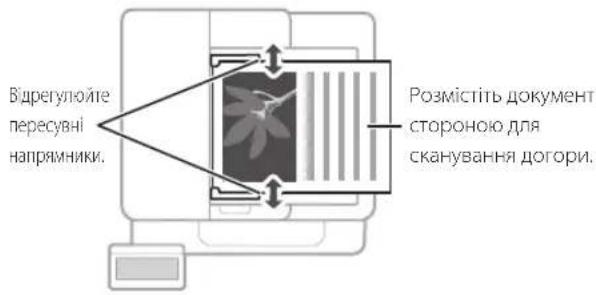
PozmiCiTb opuRiHaNn B npncTpoi Ina nOdaBaHHa DOkymeHTB


PiXoHbIbI
HepepeBHOrO cKaHyBaHHa
BeNkoIKiNbKoCTiCTOpIHOK
DpyKOBAHmMaTePianB,
LiHOBx npOno3uTouo.
PouaToK po6OTn 3 naHeni kepyBaHHa
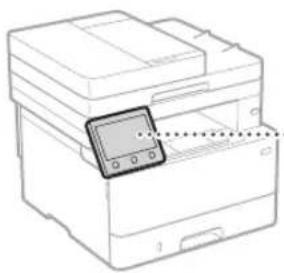
Anapat
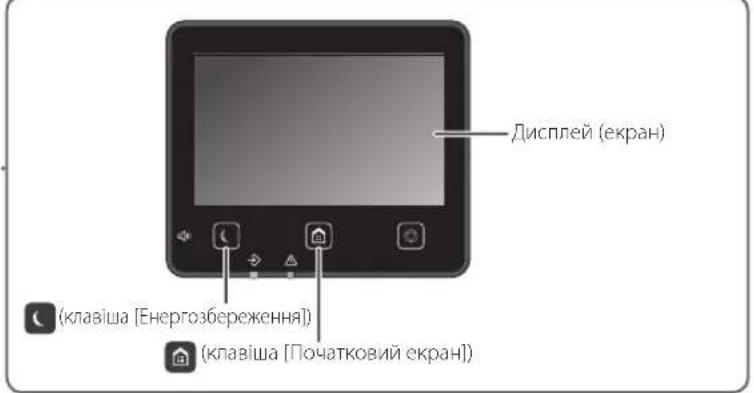
Pahenb KepyBaHHa

CkaHyBaHHa
- Noknaiditb opriHaHbHn DOKyMeHT.
- HatncHtB knaBiy i Bn6epiB
(CkaHybaHHa). - Bn6epiB Tn CkAHyBaHHa Ta BBeIb Heo6xjHy iHΦopMaJIO.
- Bùnèpírìb
(Πyck), (Πyck — kɔnjip).
Ttinn cKaHyBaHHa
36epexeHHHa
3ana'MrTOBvBaIbHm npctpi USB
HadcnnaHHn eNeKToHNOI NOItoIO
HaCnnaHnHaΦaINOBn cepBep
CkaHyBaHHa 3 KOMN'IOTepa
MF Scan Utility
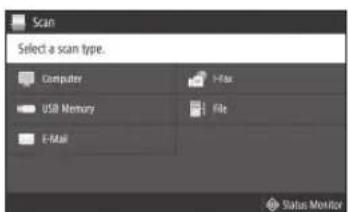
IodatKoby iHΦopMaio DnB. B po3di
«CkaHbHaHHa»B Noci6Hnky KOpncTyBaHa

KonioBaHHa
- PoklaTb opriHaBn DOKyMeHt.
- Hatncihitb knabiuy i 3n6epitb
(KoniobaHHa). - 3a Heo6xijHocti Bkaxitb npametpn koniobaHHA.
4.BeinitbHeo6xinHyKInbkicTB konii.
5.Bu6epiB nyHKT(Nyck).
Kopnci napametpn koniobaHH
Kibka ctopiHOK Ha 1 apKywi
ДвocToPOHHi a6o OdHocToPOHHi DpyK
36iibweHHa6o3MeHweHH
KoniobHnDOKyMeHTiB

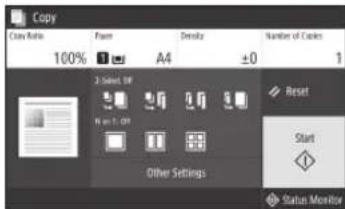
IodatKoby iHΦopMaUIO nIB.B po3di
KoioBaHHy y Noci6Hky KOpntyBaay

Qakc*
*LHpyHKJIO MoKe 6yTN HeOCTynHO 3aJeKHO BID MoEi anapaTa.
- POKJadTb opriHaJIbHnI DOKyMeHT.
- Hatncitb KnaBiuy i Bn6epiB
(DaKc).
3.BeItbHOpMaio npnpn3HaenH.
4.3a Heo6xijnHocTi BkaxiTb npaMeTpnp aKcy.
5.Bu6epiB nyHKT(Nyck).
Kopnci fynkci faky
IocniIOBHe nepeDaBaHHa
OtpmaHnB nam'rtb
IpeepaabaHpaKcibyepe3KOM'IOTeP
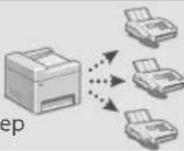
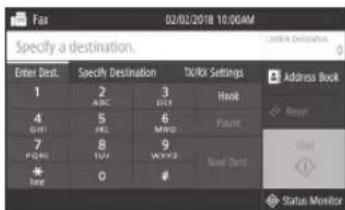
IodatKoby iHΦopMaUIO nVB.B po3di
«Фakc» y Noci6Hnky KOpNCTyBaVa

Друк
- BjdkpnTe DOKymEnT dIa Dpyky Ta Bn6epiB fynKciio npyky nporpaMn.
- Bn6epiB dpaBep npntepa dna anapata, a notim Bn6epiB nyHKT [HaCtpoIOBaHH] a6o [BnactuBOcTI].
- Ykaxitb fopmat nanepy.
- Ykakitb JxkepeNo nTn nanepy.
5.3a Heo6xijHocTi Bkaxitb npamEtpn npky. - HatnchItb KhoNkY [OK].
- HATNCHITb KONky [Dpyk] a60 [OK].
Kopnci napametpn npky
■ДВОТОРОНHI
Kibka ctopiHOK Ha 1 apkyu
Dpyk6powpy
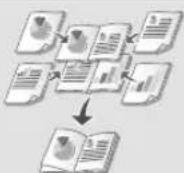
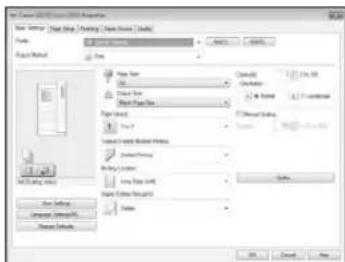
1 BntarHitb Notok gnnapepy.
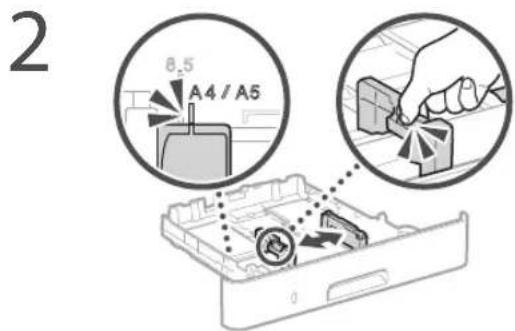
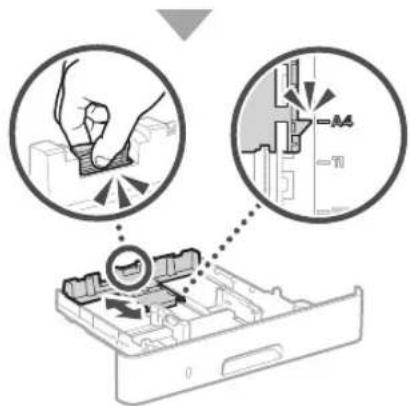
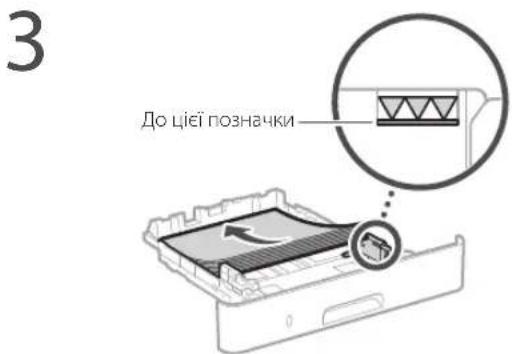
4 BcTaBTe IOTOK nIa Ianaepy B anapat.
Kkuo 3abaHTaxyETbcra nanip iHoro po3mipy a60 Tnny, HIX Do cboRo, o6OB'3KOBO 3MInItb napametpn.
5 HATNCiHbKnabIiy 6eepiB nyHKT
Bkajitb po3mip i tnn nanepy BiinobiDn do IHctpyKui Ha ekpaHi.
3aBaHTaXeHHЯ panepyВ 6araToCuIbOBm loTOK
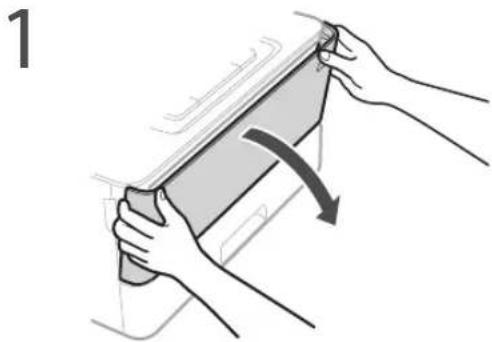
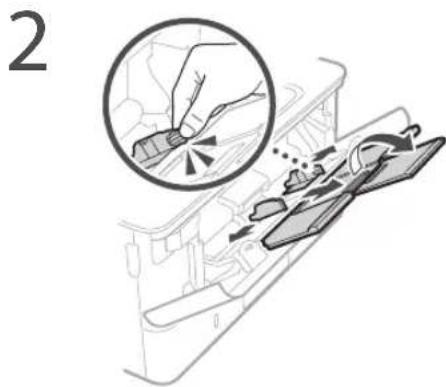
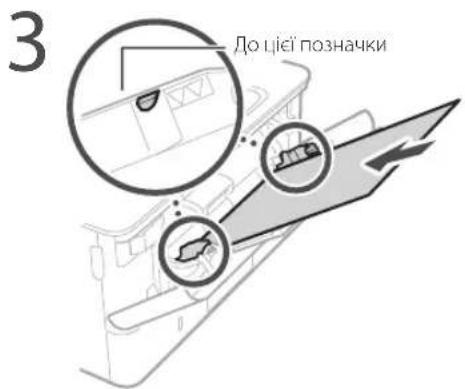
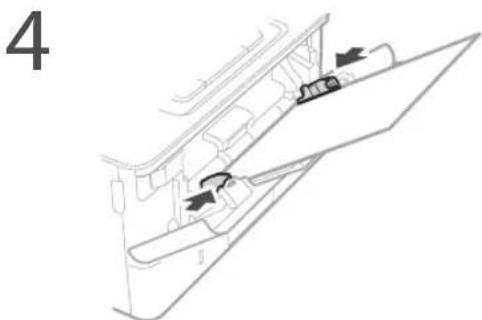
Bkajibpo3mip itn nanepy BiinobiHO do IHctpyKui Ha ekpaHi.
Anapat He npaioe 3actpraHHn panepy
IpepeBipTe HacTyHHe.
- YIyIMKHeHO XINBnEHH?
- Yu BUBeDeno anapaT 3 pekmmy chy?
KIO DnCnne Ta iHnKaTOp He CbITbCa, HATNCHTb NpeMnKaJxNBJeHH.
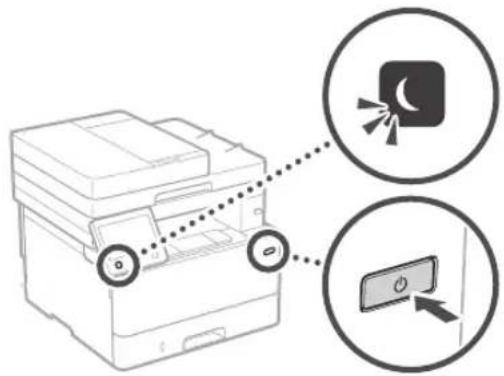
- Yu npabunbHO NiDKNIOHHyJXNBHeHH?
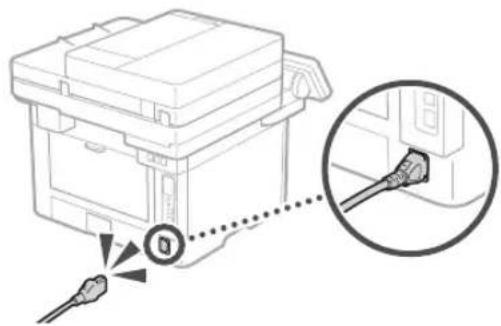
Kpno npo6nema 3annwaeTbcra, nB. Noci6HKn Kopntybaa.
YcHybTe 3aCpTaHnHa napey BiINoBIDHO do iHCTpyKui Ha ekpaHi.
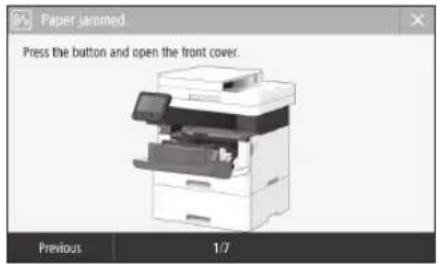
3amHa KapTpndka i3 TohepOM
3amHITb KapTpnuK i3 TohepOM BiINOBiDHO do IHCTpykui Ha ekpaHI.
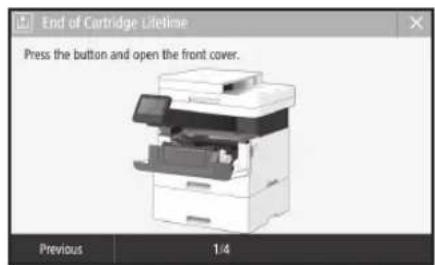
Homep moeni kaptpnjka i3 Tohepor Ha 3amHy
-Canon Cartridge 052
- Canon Cartridge 052 H
ДодаТOK
Baxklnbi iHctpyku3i3Texhik6e3nekn
Ycbomyo po3diHabeJeHo BaxJbIi HcTpyKu3
Texnki 6e3neKn, 10doIOMOxyb 3aIO6ITN
TPaBMyBaHHIO KOPNCYBaUB 1bOro anapata N
IHnxoc, a TAKOX noKoKoJxHIO MaHa. Iep
HIX BkOpNCTOBvBaTN anapat, O3HaOMTeC 3 cIM
pOzIDINOM IODTRPMUYTECB IHCTpyKu, 106
HaJIekHM UHNOM BkOpNCTOBvBaTN anapat. He
BVKOHYe XoJDNHX onepaui, kI He oNcaHO b
bOmyo nOc6Hky, KomHa Canon He Hece
BIDNOBIdaNbHOCTI 3a XoJHi NoKoJxHeHH,
cPnUChENi BKOHaHHM Onpaui, npo AKe
HeDbEeB C bOMy nOc6Hky, HcnpaBnBHOIO
Ecknlyatauio, pemOHToM abo 3MiHAMi,
3dIChHeHHMn HE KOMNaHIEo Canon abo TpeBoIO
ctopoHOIO, ynoBHObaXeHOIO KOMNaHIEo Canon.
HenpaBnBHa eKcNpyataua 1bOro anapata MoKe
pnna3eCTn IO TpaBMyBaHH Ta/ab0
noKoJxHeHH, 10 noTpe6ByBatmte TpNBanrO
peMOHTy, Ha JIK MOnKe He noWpiPoBaTmcr DIn
OBMeXeHOI rapaHTII.
A NOIPEJXEHH
I03Haae nonepdkeHHCTOCOBHO onepaui,kiMOxyb npv3Bcctn JIO TpaBMyBaHH B paiix HenpabnIbHor BO KBOHaHH. 3 MeTOO 63neHOrO BIKOPCTaHH anapata 3aBXJIM 3BaXaJIte Ha li nonepdkeHHH.
A yBABA
I03Haay 3actepexehnCTOCOBHO
Oepaui, kki MoKytb npBBeCTN DO
tpaMyBaHH B pasiix HnPaBnBHO
BnKoHaHH. 3 MeTOIO 6e3NeHOrO
BnKOpNCtAHn anapata 3aKaKn 3aKaJte Ha
Li 3actepexehnH.
OBAXJIINBO
PnHae pOaKBI BmOtn Ta oMeKeHHa YBaXho npoHTaTe UI NIOKeHHa DnA 3a6eNeHHa PpAbHoIpoToa nApata TaYNHKeHHNOrO HecnpabHOCTi a60 NowKOxHeHH MaHa.
YCTaHOBJIeHHJ
Ia 3aTeHbO Ta 3pyHOro BnKOpCTaHH
anapata YbaKaHOb O3HaHomTecb I3
3aTepeKeHHMa HauKHe Ta BCTaHOBt b anapat y
BiNDOBHOMy Micu.
A NOPEPEDXEHH
He BCTAHOBHIOHTe anapat yMiCiJ,JeIHOro
pO60a MoKe Ipn3BcTeN DoNoKexi a6o
BpaKeHH eJeKTPNiUHM CTpyOMM, 3OKpeMa:
yMiCui,DieILOKYOTCBEBAHTNIIUIHITOBPO (HaTOBIOJIbKOIOCTIH,JIIKO,DINBAHIBKINIMIBTAIHNXIOIDOHNXIPEDMETIB)
yBONORHXaO3aANNEHIXMICJX;
yMiCi,kyDiNOTpannncnpamecoHnHe npOMHHa,abOHaBOpi;
yMICJxI3BnCOKIOTeMnepaTPOIO;
- npopyi3 BiikpntIM BORHeM;
nopyu3aikorolenp03HHKAMU INHIMNJIeKO3aMMCTMIMpeOBINHAM.
HwiponepeJxehn
He niknouaTe do uboro anapata HepekomeHDoBaHI KaBeni. Lle moxne np3Bectn do noKexi abo ypaKeHH enEeKtpuHMM CTpyMOM.
He knapitb Ha anapat HamncTa, Hui MetaneSi npdeMeTn abo MiCTKocti 3 pIDHNO. KOHTAK CTOPOHIX peOOBIN 3 eNEKTPNHIMI DeTALMNI BCEpeHHI anapa TMOke npN3BcTNI do NoKeXi abo ypaKeHH eneKTPnHIM CTpyMOM.
YCTaHOBIOIOUy Ta BIDANIOOy IODAtKOBE
0bnaHnHH,OBOB'3KOBO BVMKHTb KINBEHNH,
BVNTHb UTencNb I BIKNIOOTb Yci
iTEPpeCHi KaBenI Ta HHP KINBEHNH BID
anapata.Hakue HHP KINBEHNH a6o
iTEPpeCHi KaBenI MoKyTb NOIKODITNC,IO
MOKe Ipn3BecTI NO NOKEXI a6O ypaKeHNH
eEKeTpNCHMCTpyMOM.
AaBnapat noppanna cTPOHnpeoBNHa, BnnMItb wntncB WHypaXnBHeH3 pOeTKn MpeKx 3mHHoro CTpyMyTa 3BePHITBC Da MoICcEBO TNOBHOBaxHoTOnepa Canon.
YBARA
He BCTaHOBIOIe anapaTy 3a3HaueHnx HIXKcE MIC4X
Anapat MOKc BnAcTb AGOpeEePKHyTmCA, CnPHuHbWtPaBMyBaHHr, RkIIO IRO BCTAHOBHTI:
- HaeHecTiiKII NOBepxH;
-ymicui nid dieo cnilbHex bibpaui.
Inui3actepexeHHH
PnHac nepeheceHHy boro anapata
DOnmMyTea HcTpykui yBbomy noci6HNY.
Ypaai HehaneKHoro nepeheceHHra anapat
MOKe Bnactn Inp3BcTeN Do TpaBMyBaHH.
IiuiuBCTaHOBNEHHUbOAnapata6yDBe 0ebeepKHI,UIo6 He 3auEEMNTpykMIM K anapatom Ta iipnroko abo cTtAmu. Lc Moke npin3Bctn JO TpaBMyBAHH.
PeryIOBaNbHI HIXKNI (TINbKNI INB Bnpo6IB i3 perYIOBAbNHMH HIXKaMn)
He 3HImaIte peryIbBnHi HixKn nicn BCTaHOJIeHHAnapata, OCKINbKn BIIMoKe Bnactn ao IpepeBepHyTcN, npni3BIBuN IO TpaMByaHH.
OBAKJINBO
He BCTaHOBIOIe anapaTy 3a3HaueHnx HIXKc Mic4x
(ue moKe npu3BeCTn Do nouKoJKeHHa anapata):
MICRU 3Dyke BUCOKO YN Dyke HN3bKO TEMNepaTPOKIN PBHEM BONORCTI;
MICU, DE MOKJIINBI p3KI KOINBAHHI TEMNepaTyPN HONBOJOROCTI;
nopyu 36bnaHaHHa,IO BnnpmHIOe MaHTHIy ENEeKpMaHHTHI XBNI;
y na6opatopiax npnpiuieHHnx,de BidyabotbcximHipeakui;
yMiCiJ,DeBNoBITpiHARBI KOpO3iHi YU TOKcNHi rA3n;
Ha NOBepxHx, IIO MOKyTb JeOpMyBaTnCBAIBOO anapata, afo HA NOBepxHx,Je MoKINBE npocijdaHH anapata (Hanpknlan, KINIM TOIO).
HeBCTAHOBJIIOte anapat y noraHO npoBITPOBAHINnpIMIeHHX
PiJc3BnauHOro BkOpNCTaHnue anapat
BnuIHe He3aHuY KInbKtIb O3OHy IHuNX
peOvHN. Li peOvHN 63neNeHn 3dOpOB'a
PiPoBe BnKnUu nxpeOaN Me8ytn
OCoBnBO NOMITHO NiJc TpNBanIO
BnKOpNCTaHHn anapata a60 Ioro EKCTUYATAJI B
noraHO npOBitPbOBAHnx npMlueHNx. Uo6
3a6e3neHTn 3pyHe pOboe cepeDobuie,
peKomeHDoBaHO HaneHXm YHNOm npOBtPbOBAtu
npMIiEHN, de BCTaHOBnEO anapat. TaKox cnid
yHkATn MlCb, De Ha IIOe MoKe
noNNIOBPAuTc Dn peOvBNH, Aki BUniINc anapat.
He BCTaHOBnIOte anapaTy npMIMeHHI,de YTbOIOETbcKOHDeHcAT
Kuio TemnepatypnpmMieHH,De BCTaHOBNEHO anapat, uNDKO CHAE BVOCNX N03HauOK abo KIO anapat nepeHocHTN 3XOJNOHORO CHyCUXO MICB TneI ABO OBO RNTME CICE BCEPENHI anapata MOKyTB YTBOPKOBATNC KparlI BOIN (KoHcHcat).PeYbTATOM BNKOpNCTAHNA anapata B TAKNX yMOBAX MOKE CTATN 3MHNAHN PAIEpy, nORAJA XIKCTDpyky a6o IOUKDKeHH ANAPATA. Paped BNKOpNCTAHNM daTe anapaty npncTOcyBATNC do TMnepatypn Ta BONrOCTI HABKNHbOro CEpeOBNua npOTROM npnHaMH2 rOHN.
He bctahOBIOIte anapat Ha BENIKI BNCOTI (3000 metpiB HAD pIBHem MOpA a6o Bnue).
Ha Benikin BnCOTI (3000 Metpi HAD pIBHem MOpA abo Bnue) anapatn 3 KOpCTKIM DICKOM MOkyTb npaObaTn HEKOpEKTHO.
Плкюechн TepehoHoi NiH(TINbKn DnBnpo6i3yHKiE0fakcy)
Lle anapat biaodbae ctaHapTam ahanorobnX
TepeOHnX nIH. Lle anapat moXHa
niKIOHTaINbKn DO KOMyTOBaHOI TepeOHHO
MepeK3aRaIbHOrO KopcTyBaHHo (PSTN).KIO
niKIOHTn anapat do IuPPOBOI abo cneuaJIbHO
TepeOHHOI NII, Ie MoKE 3abaJITn HIO
HanekHMoy fynkuioHyBaHHIO abo npuBecTrn Do
noIKoPKeHHo.ObOB'AKOBO nepeBipTe TIN
TepeOHHOI NII II nepei nkiKIOUeHNHM Do Hei
anapata.RkIo nortpHo niiKIOUHTNCdo liX
TepeOHnX NiIH,3eepHITCBdo NoCTaayIbHKIB
NoCytOTBOIOKOHOHIO NIHI abo NiHl IP
TeneoHII.
BnKOpNCaHn6e3IpOToBOI JokalbHOI MepeXi (TINbKn DnN BnPo6iB 3 yHKciEIO 6e3IpOToBOI JokalbHOI MepeXi)
YcTaHOBKNe anapat Ha BIDCTaHI DO 50 M BID Mapuytnbataopa 6e3npTOBOI JOKaJIbHOI MepeKI.
3aMOKNIBOCI BCTAHOBIOIte anapay Myicux, de CTOPOHNI npedMeTn He 6NOKYIOB 38'3OK. CnHAN MoKe cna6HyTN, npoxOJyN KpIb CTINH NINIOGN.
TpmaTe anapat kAmora daJIi BID UHOpOBHX 63dpOTOBHX TeneoHBI, MlKpOxBnBObNX neey u HIOO o6NaHaHH, IO BINPOMIHOC padiXbNI.
He BnKOpNCTOByIte anapat Nobn3y MeHnHOo 0bnJHaHN. PaoXbNI, XiBnPOMIHcOe anapat, MoKyTB HeaTINBO BnBnBaTn Ha MeDnHcE ObnJHaHN, 0o MoKe npIn3BeCtIO No ITO HeCnpabHocTi a60 HeuacnXn BnauKIB.
JKepeNoXnBHeHH
ANIOPEJKEHHA
BnKopncTObyIte NmUe Te dKepeNo KINBHeHH, HAnpyra JAKO BINOBDAc BK3aHIM BMMOrAM. KaIO cyo He 3pObHTN, MoXe CTaTcA noKex a bO ypaKeHH eNeKTPuHIM CTpyOM.
He BnKOpncTobYte HuiuHHypn 3aMictb Hhypa JxJbEHH3 KOMIIeKtI NOCTaKN, OCKINKUc ME MOE IpiN3BctDIO IOKeKcIy UypaeHHe EJEKTPNCHM CTpyMn.
HaanHn HHP XNBHeHH np3HaYeHO nBnKOpNCTAHH 3UIM anapatoM.He npEHyTe hHP XNBHeHH do iHnx npCtpoIB.
He MoNphiKyIte, He TaHITb, CnHbHO He 3rHnAHTe UHPX KINBNEHHa THe BIKOHyIte HMM6yDb-ki IHIi DII, kMIOKxTy Ioro NOIKoNDt. He CTabe HAUP XINBNEHH BAKKi npEMeTn. NlOWKpKeHHN UHPa XINBNEHH MOXE PnI3BecTH Do NoXekj ABO ypaKeHH ENEKTPuHIM CTpyMOM.
He bctabnIte Ta He BnMaIte ITeNCenb 13 po3eKIMOKPIMyPykAM,CKINBkyLe MOKe np3BcTNO ypaXeHHH enEKTPNHMM CTpYMOM.
He BnKOpNCTOByTe 3 UMM anapatom HhypnoTIOBbYbAuyu npo3ranybua XINHEH3 KIIbKOM po3eKAMn. Lc moKe npnBecTe do noXeJxaboypaxehHH enektpnHm CTpyMOM.
He3aB'3yIreUHypKJbIeHHyBy301OckilbkNcMoKe IpN3BcETnIONoXeKlYypakEHHEnkTpNHMMCTPymOM.
NobHICHOCTABINIEWTENCIELUHypa XnBHeHHA B PO3ETKY MEPEKIMHHOROTCPyM. Rkso yoro He 3pOBNMOKE CTATNCA NOxekKa aOy paxKeHHENEeKTPuHMM CTyOMM.
PINHRCp03NOBHCTIOBIMaTeWITcEnbUHHpyKaMBeHNH3po3eKN.JIKIOuIbOHe3POBNTM,MOKe CTaTCA NOXeka,YpaKeHHENEKeTpMHCMCTpyMOM aOBO NOKoKHeHHAnapata.
IpekoHaiTeca,IOJKepeoXnBHeHH anapataBe3neueHa Ta MaE CTabibHy Hanpyy.
TpmaTe Hyp KnBHeHH NoaI Bd DkepeNa Tepa;KIO OIO BIMORO 3HexYbAT, CE MoKE npN3BcTNO pO3nnabHeHH I0NAHoro NOKpTTA hypa, IO MOKe CTaTI pNnHOIO NOkExJI YpaKaEHn EneKTPnHHM CTpyOM.
3anobiraaTe HabeHnHxue CnTuaym.
KJIO do 3cHbBbHOt cHnH HHPa
XNBENHH 3AcTOCyBaTN HAdMIPHe 3cHnH, CE
MOKe OyMOBHTN NIOKoDxHEHH SHyPA
XNBENHH aO npOoCm BcepeHNi anapata
MOKyTB po3cHATnC. Lc MoKe npN3BeCTn Do
NOKexk
-actepnpnEHaHH Ta BiD'HaHHH Hhypa XMBNEHH.
-HepeunIOBAAHuepe3 HpyKMBHeHH.
3nHHHH hhypaJXnBHeHH No6nn3y 3cHyBaBH0fAcTHnT TaPmBAHn TCKHa poEeKy a6o 3cHyBaBHy AcTHNy.
-3actocybaHHH HdMipHOI CINIO IO WtenceHnHypaXKMBHeHH
A yBATA
YcTaHOBIOIeue anapat nobn3y enEKTNUHOT PO3ETKN,3aIIuAOKN DOCTAHIN 06c8 BRbHOrnpocTopy,io63a Notpe6n IBNDKO BnHATNI TcncBbHypa KINBEHHR 3PO3eTK.
BAXJINBO
πiKnIOueHHXuBneHH
He npvndHyntuHpyKnBneHHnDnKepePena 63nepebpHoro eneKtpoxnBneHH. Lie moke np3BcTn Do HeanExHOyHKUohyBaHH n nnonomKn anapata B pasi 300x HnBnEHn.
Ypa3iNkMIOHHeHAnapataD0po3ETK MpeKl 3MIHHORO CTpyM 3 KINbKOa FTHdAMn He BNKOpNCBOyIe Cf H3da IaBIMKHeHHI HnHNPnAJIH.
He npueHyneu Huyp KINBHeHHa dooataKOBoi pozetKN Mepexi 3MiHOrO CTpyMy HA KOMTIOTepi.
Hw3acTepeKHi 3axOu
EeKtpnHnepeWKOIMMOKyTbPn3BcTeNdo HecnpaBHOCTI anapata NHTpTaN daHNX.
NoBOnKeHHa
AIOIPEPEDKHH
POMITINHADMHPHe HarpBaHHAnapata 60DIM,HE3BnHm3aNax NmUWM BIDHBOr,HERAHO BNIMtB WTeNCenbI3po3eTK Ta3BepHtBCrdoBNOHBoXeHoHO DInepaCanon.1OpaNBWe BnKOpNCTAHMOKe npn3eCTNo noxekl abo ypaxeHH enektpnHMM CTpymOM
He po3bpaTae Ha MeoHfkyte anapat. YcepeHHI anapata c detani, kni nepe6ybaIOb nBVCKIO HAnpyrOio ao p03irpiI do BICOKIX TemepaTyp. Po3bpanha 3MIHEHNH ANAPATA MOxyTB Pn3BCTN IOKEXJ abO ypaKeHNH EeEETPmHm CTPymOM
- Po3auyne anapat y Micui, y Akomy DIn He 3Moxytb dItatnnc DO uHpya KmJIeHNH HINHX Ka6enB abo BHytriHix mexAHImiE I enektpnHxdeTaeJe. HeDoptnmaHHu CJI E BNMOI MoKe pinnBaeeCTN Do HenepeBdauHEn
HeuacnX BnnaKIB.
He Kopnctyteaierko3aMmactHm
aeop01Mn no6m3y anapata.Keio
eKo3aMnIcT peObHHN nOpPAnrTa H
eneKtpnHi dTeani BCEpeDnHn anapata,ue
MeKne np3BecnToNo Noxkei ao ypaKeHH
eneKtpnHIM CTpyMOM.
IpepepeheceHHAM anapataO6oB'3KOBBO BIMKHTb KINBEHNApanata, a TQiBIIMtI HTEppeCHi Kaeni Ta IITENCEJI 0p3eTKI. RaIO He BIKOHATU JI DI, MOKH NoIKoNTI UHypo HINBEHNO AIO HTEppeiChi Kaeni, yHaCNIOK YTO PO MOKE CTATNC NOKeKa a6o
BpaKeHHH eNkTPnHm CTpyMOM
PnEHyOa 60BIDcHyoN Kaben USB, KOIN HYP KJABNEHH NIKKIOHe DO pOeTKN MEpeKl 3MIHHORO CTpyMy, He TopKaIteCn MetaneBoi YactmN 3cHyBaHa, OckInbKn Ce MOKe CnpuHNHTN ypaKeHH eEnkTpHIM CTyVMOM.
Kkuo BnKOpNCToBcYbC KaPdIOCTmMyTAP
Ley anapat yTBOpIO cnaKm MaTHHn notIK yIbtpaBcyKOBI XBNi. RkUO BN KOPcYCTecra KapIOCTHMyTATOpOM iBIDyBaTe noripueHH camONoyTT y npoueci pOBoTN 3 anapaTom, BiDIIITb BiD HbOro Ta HeraHO 3BepHITbCdo IJIkaP.
YBATA
He cTaBte BaXk npEmTe Ha anapat, ockInbKn
BCHMOKytbBnactN,PN3B1NIO TpaBM.
Jaao anapat He BnKOpncToByBaTmMeTbca npaTOrmpaIbnoroOyacy,3MpkybaHb 6e3neKnCnBnHnATUTeNcBbHypa XbneHnAnapata.
ObepexHo BIKKpnaIte Ta3aKpyBaIte KpnIKN,IO6 He TpaBMyBaTpyKn.
TpmaIe pykn nOgR nOanl BIN pONKIBB
OBnacti BVBeDenH. IOTpanNNHHpyk ABO
Oyry B pONKN MOKe npNBeCTu DTo TineChnx
TPaBM.
BHytriHnHaCTHHnAnapataM BvBIDHnIOTOK dyke rapaHnPiuc BkOpNCTAHn TaBip4sy nCnHbOro. Uo6 yHKnHYtnOnikB, yHknKaHTe KOHTAKTy 3uMMn AcTnHAMn.Kpim TOrO, Opa3y nCnBvBeHeHPO3pyKIBMOxYb6yTN rapaHn, ToK NOBoBTEc3 HMMn oBepexHo. HeoBepexHCTb MoKe npINBecTeNoonIK
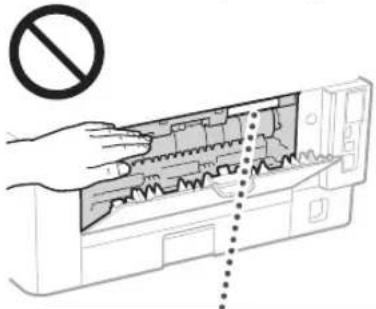

CAUTION ATTENTION VORSIGHT ATENION ATTENZION CUIDADO 注意:
Bybte obepekhi,io6 He BnyctnHa CKno eknohyBaHHaBKKI npEmT,HaPnKnAd CNoBHK. LcMoKe NOIKoNDtNCKNO eknohyBaHHa TaCpinyHHT TpaBMyBaHHA
He nepeHocbte anapat 3i BCTaHOBNEHMIMIOTKAMM Dnna napey dOdaTkoBMnnpNCTpOMn noDaaHHn napey.BoHN MOkytbBNactTa npN3BecTNIO TpaBM.
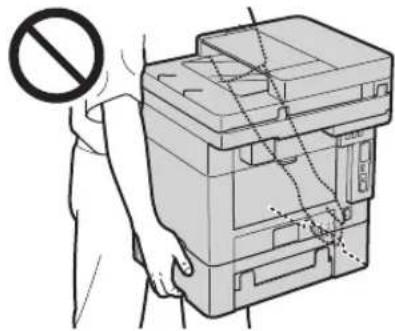
CLASS 1 LASER PRODUCT
LASER KLASSE 1
APPAREL A LASER DE CLASSE 1
APPARECCHIO LASER DI CLASSE 1
PRODUCTO LASER DE CLASE 1
APARELHO A LASER DE CLASSE 1
LUOKAN1LASER-TUOTE
LASERPRODUKT KCLASS 1
ДодаТOK
Ja3epHn npomihb Moke 3aDaTn KkOJnIOcbKOMy oprAhMMy. OcklbKnBnPOMIH03aHb BCEpeHHI BpOBy NOBHCTIOPOHnHaETCBaXNCIM KOpYcOM Ta 3OBHIHIMNOKPHTAM, Ja3epHn npomihb He MoKeIPOHNKHy n HAcOBHni NacSyb-KoI cAII pOBoi, PpoHnrae HabeJeHnXe Ne pPmIKn IHcIpyuJI 3 texHKn Be3neK.
HikonHeBicKpBaIte naHeli,kaio ce He BkazHo 8 noc6HnKaX do ybOro anapata.
JaepnPiomHbBnueHa0BnI nptpanntbOHI,IOrOIOMOKe NOKODT 3ip.
BnKopnCTaHHoprAHI KepyBaHH, peryIATOpIB aOo BnKoHaHH HonepauiH, He ONmCaHNx y IbOMy NociHky, MoXe npNBeCTn Do He63neHOro Na3epHOro ONpOMHeHH.
EtkeKa 3 npabnam6e3neKn iD cac po60Tu 3 na3epom
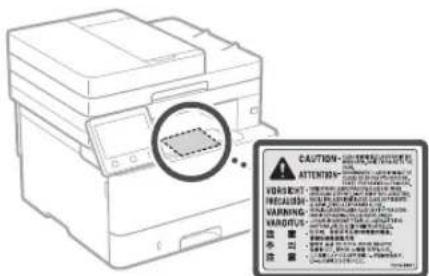
BAXJNBO
Dotpmytecbhctpykui,uo3aHaehiHa HAKneu3 nonepdxKeHHM,po3taowbaHn Ha ybomy anapati.
- He nipdaabaTe anapaT ctpycam a6o biopaulli.
He HamaraTecn CnNOMiB BIDKpNBaT Ta 3aKnBaTN DBepra, KpnNk T a Huiu cactHn. Lle Moe npnsBeCTn Do nOswKoXeHHA anapata.
He BIMMKAITE rONOBHNIpeMNAKU KINBNEHHaTa He BiKPNBaIte KPNKIN,DOKN anapat npauo. Lc moKe cnpuHNHT 3MNHAHH naepy.
BukopncOByntMoynbHnKaebIbdoKHHIO MeHne 3 MetpiB.
BnKOpNCTOByTe USB-Ka6eIb DOBXHIO MeHSe 3 MetpiB.
He TopkaTecn KOHTaKtIB (BcepeHni anapata. Lc MoKe npu3BeCTn Do Ioro noWKoDxEHHA.
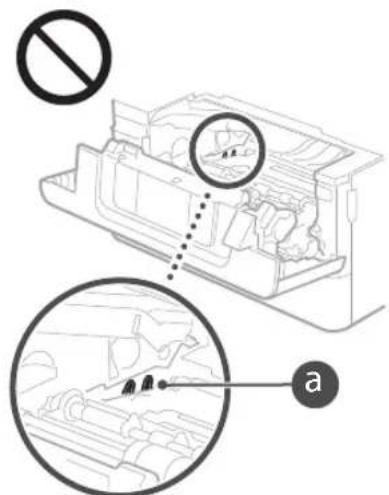
IiJyTpaHcnpTyBaHHa anapata
1063anobirn nookoeHHno anapata nHac TpaHcnpTyBaHHBkoKaHte HabeDeHi Hxue ⅡI.
BntaHHTb Kaptpnix i3 TohepoM.
HadiinHO 3aropHb anapat y nakybaIbHI MATEPIAM NOKNAdITb Ioro B Kopo6ky 3 KOMIIeKTIy NOCTaHaHH.
CmboJn, nob'3aHi 3 TexhikoO 6e3neKn
IepemKau KINBHeHHIOJIOKeHHA《YbIMK》
OpeemkaqKbJIeHHA:OIOxkeHHBIMK.
NepemKau KINBHeHHHIOIOKeHHH«Pe oukyBaHH
KhONKOBN nepemKaH BIMK.
3axiaHa KneMa 3aemeHHH
He6e3neuHaHnpyraBcepeiHi.He
BiiKpmbTe KpuuKn,HaHcHe Hcyno BkaaiBok.
YBATAIrapaHnOBepxHaHETopkata
06nHaHnKnaCyI
Pyxomi yactHH:TPMmaTe yactHH Tina noani bD pyxomux actHH
ДeнкI 3a3aHcHEnx Bnue CmBONIB MOKyTb He BkA3yBaTmCn3 aJnxHO BiBnPo6y.
Texhiye 06cnyroByaHHaTa orn
NepioHNOuCTbTe anapat. Ra
HaKoHNyETBCnI, anapat Moke He npaIOBATn
HanExkHM uHHOM. PiaCuaeHHe
DOTOnMyTEcra HabeDEHNHXue HcTpyKuJ.
KaIO nIac poBOTu BnHKe He npobema, DVB.
PoaINg UcyHHeHnOanok> y NocibHky
KOpKyBaA. RaIO BAM He bDanoc BpHiHTn
npobemye ABO BN BneBHeJI, Oo anapat Notpebyc
cepBICHO 6cbNyroByBaHH, DVB. PoZdIn Kxoo
npobemye He bDanoc BpHiHTn
IIOPEEDKEHHA
Ipeed noaTkom uuHHe BmKHTb KINBENHH Ta BNIMtB wENTcEJI b Hpya KINBENHH 3 pOeTKn MEpeKl 3MHHO rCTpyM. RkUo cBoRo He 3pObNTu, MoKe CTaTnca NOXeka aBO ypaKeHH eNEKTPnHMM CTpyOM.
CacBicacyBnIMMaTeUttencEnb3po3eTK Ta BnHapraTe CYXIO TKAHNOIO NIN I6pyN HAKOnuHEnHnnNOrnHaEBONORY3NoBITPA, IAKoBIHBCTyIbB DIO3ENKTPKIOO,MOKe CTATNC NOXEXKa.
OuHuaTe anapat BonoIO do6pe BnKpyHeIO TKAHHIO.3BOAnOxyIte 10 TKAHHy Iaue BoIO. He BnKOpNCToByte cNPT,6eH3OI,p03HHNKnTA HuiJ IeKo3aMnCTi peOBHN. He BnKOpNCToBYte KOCMeTNNHn npip aObo npepoBI pyHNIk. Raio pceOBHN NotpanpTa Ha enektpnHi detani BCEpedHI anapata,BOHMOkyT yBOPNT CTaNTHy enektpnHy,IO MOKe CTONHn NOnKExy Hya ypaKeHHn ENEKTPNHm CTpyOM.
Perynepno nepebiphe Te Hpy XnaneHn Ta 1tncbe Ha HnBHCb NnKoJKeHb. IpebpHne anapat Ha Hnajmiphe HarpibAHn ABO HnABHCTb ipx,3aay6nHn,NOpRnHn, TpiuHn. BnKOpNtAHn ObaadHaHHB nIoraHO mTcHIOXe npINBeCTn Do noXeKl aOypaKeHH eNEkTpNHm CTpyMOM.
yBARA
YcepeHHI anapata e Detani, kI nepebyaHToB nID BnCkoIO HanpyrO a0o p3irp1i do BnCOKIX Tmepnatyp. RaKO TopKNyTcN cHX Detanen, MoKyTB BNHNkyOniIK.He TOPKaIIEcT Nx TactH Anapata, KI He
NO3HaHeHOBbOMyNOCi6HNKy.
3aabahtaxybaTn npip nBIMATN 3imTn npip cnD yke opekHo,0b He npisatnyknpaMn apkyuib.
BntpaHi MaTepiAn
IIONEPEIXEHH
He KnilaIte BIKOPnCTaHI KAPrnpK3TOHEpOM ToOyBIDKPITN BOHOb.TAKOK He 3epiAITE KAPrnpK3 TOHEpOM Hn npip y Micx Nobn3y BiKpTOro BoHIO. Ie moKe CTIPINHHTM 3aMaHnHn II pnn3BeCTn Do oPiKIB a60 IOKeki.
AkuToTHeBnAnAdKoBo po3nnnncBcA 60
po3cnnabC,ObepekHo 36epiB uH 31ptiB
po3cnnahn npopook BCNOHO MKOIO
TKAHNOHO, yHkAIOUy BnXaHH. HIKON He
npuBpaTe POcnnnH Tope nNococm, y
KOMy He nepeBaueHo 3anoBHXx 3axOIB
pOnTo Bn6yix NnIy.Le MoKe np3BeCTn Do
HeCnpABHooTnNNOCoc ABO BVbxy NnY B
pe3ynbTaI CTaTHHO rpo3pdy.
KIO BIKOPNCTOByETbKa KapIOCTmMyIaTOp
Kaptpnck 3 Tohepom yTbOIOc cna6kn MArTHHNIOTIK JIIO Bu KOPMCTyTeCb KApIOCTmMyTAToPOM I BIDyBaTe nOriPiueHHa CamOnooyTTN y PPOUCi POBOI 3 KapTpnnkem 3 ToHEpOM, BINJITb BIB HbOro Ta HerAHO 3BepHtBCa Do Nkapa.
YBARA
- Bydte obepekhi, u6 He bInxHm nopooch Tohepa. Ako ce stano, HeraHo 3eepHtbcn do nikapn.
Bdybte oobepkhi,io6 Tohe He NotpannB do Oeyi potoBoI npopKHHNI. RkuO ue CTanoC, heraiHO npomNte ix XonoAoHO BDOIO Ta 3eepHbcrdo JIkapn.
BybTe 06eKHI,IO6 ToHep He NotpannHa
uKpy. RkUo Ue CTALOC,3MNTe Ioro
XOIOHO BDOIO 3 MNOOM. Y pa3 IOBn
CIMITOMIB IOppaHEHHaIKPN HerAHO
3BepHtbcdoNikapr.
36epiraTe KapriuXi 3 ToHepom Ta Hui BnpatHi MATEPIA Hi Micx, HeOCTynHX nI dIte. Y pa3i KOBtAHRe ToHepa HeraiHO 3BepHitbc Do Nkapra a60 TokCNKONorIHOro CEHTpy.
He po36mpaTe Ta He moDnphiKyIte KapTpuNk3 ToHepom 6yB-ky IHy qactHy anapata. Lc moKe npu3BecTH Do po3cnnaHHaTohepa.
3HIMAOHN 3axnCHy CTpUky 3 KapTpnpka 3 TOHEPOM, NOBHCTO BHTRHTIb II, an He DOKNADAE HApMHPINX 3cynb. IHaKJIe ToHE MOKe POscnATICr.
BAXJINBO
NobJKeHH3KapTpIaXeM i3 ToHepom
- O6ob83koBO TpMaIe KaTpynk 13.ToHepom 3a pyky.
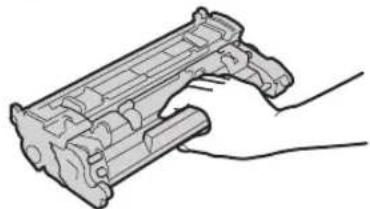
He TopkaTeca Ynna Nam'Ati KapTpndka 3 TohepOM (a) abo enektpmHx KOHTAKTIB (b).Lio6 3ao6BTHN noRl noPAnHH Ha nobEpxHi 6ap6aHa BCEpeHH anapata a60 BnBy CBtHa, He BiKpBaIe 3axNCHY 3acyBky 6apa6aHa (c).
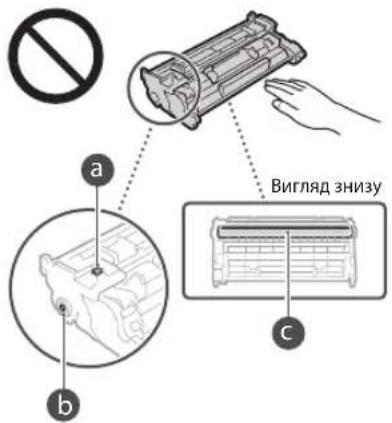
He BnmaTe KaptnkI3 tohepom 3 ynakobkn a6o anapara 6e notpe6n.
Kaptpnix 13 Tohepom Mae MaHHTHI
bactIOBcTI. He poatauOByTe IHO Ro 6n3ko
DO bVPOIB, yTINBnx Do MaHTHoro NOI,
3OKPema DO NICKET I NCKOBQID. Lc MoKE
Pn3BecTn DO NNIKOJDKENHH DaHNX.
36epirahnHa Kaptpnka 3 Tohepom
-ДгбeэнHOrуpe3yIbTaTnBHorBnKOpNCTAHHЯЗepiraTe 3a3HaHcHOMHyHxue cepedobu.ⅡlanaoTH Temneparpyn 3eepiraHHa: BiD 0do 35^ /ⅡlanaoH Bonorocri 3eepiraHHa: BiD 35do 85% BiiHOCHOI Bonorocri (6e3 yTBOpEHnKoHDECATy)*
HeBikpmbaIeKaptpkiz3tohepmdo no BnKOpucHHa.
BnMaKoN 3 anapata KapTnpix 13 ToHepom
JINI 36epiHaH, nokJaITb BnHnTNI
KapTpIX 13 ToHepOM y NAKET I KOMNKeTIy
NoCTaAHnA 603arOpHtB NOrO B 8 TJIbHy
TKAHNY.
PnHac 36epirihna Kaptprpka 3 Tohepm He CTae NOro Beprakbno ABO Doropn DHom. Tohep 3aTbePn, nCnO rro HOpMaBHe BIKOPuCTAHN IORO MOKe CTaTHHEMOXINBAM HabtIb nCnA CTOpyBaHH.
Habt3a ymoB 36epiraHH B peKOMHeOBaHOmy iianaoHBOIoroCTI BCEpNDi KaTprNkA 3 TOHEPOM MOxytb YTBoPbOBAuCA KpanBI NOu (KOHHeCaT) uepe3 piHNIO TeMnepaTyPi BCEpNDH IOBNI KAPTRNkKa. KOHDeHCauHERaTHBO BNINBaE HaIKCTDpyKy KaTprNkA 3 TOHEPOM.
He 36epiraute Kaptpnix i3 Tohepom y TaKnx MIC4X:
nopyi 3BjdkpumM BORHeM
yMICJX,kyDNnotpANHIOB npMICOHnPOMEHABOACKPabeCBITNO (NPOTAROMIaHnab6GInbueXBINN)
yMicqx,Je nobITpNpeHacnuehe cONAM;
yMICx,de Nobitprn HacuHcKOp3iHMMr3aMn (Ha 3pa3ok aepo30nl iAmaky);
yMICJxI3BnCOKIOTEMpepaTPOI Ta BnCOKIO BONOTIO
TAM, DE MOKINBI p3KI KOINBAHIN TEMNepaTyPmBONIOCTI TaJeKO YTBOPIOCTbCRA KOHNCHCAT;
-ydyke3aHHHeHHMICUAX;
yMICJAX,DOCTYTHNXDIN DIITE.
OctepiraTecra nippo6neHux Kaptpnixi3 TOHEPOM
Pam'raTae, yo npodaxy HnBn iipob6k nfpmoNX kaptpuiKIB 3 TOhepOM Canon. BinkopuctaHH NippoBHeHORO KaptpuaKa 3 TOHEPOM MoKe InpaBcTeN DO noripuHHe HKOci DpyKy a60 WbUKnKDii Anapata. KomnaHCanon He Hece BiIOBlaIbHOCTi 3x KOHHeCpiBaHOcti, HeuacHI BnAKn A60 36HTKN, Xe HACNIOM BinkopuctaHH NippoBHeHORO KaptpnuKa 3 ToHEpOM, DoknDi BIDomocTi DVB, y canon.com/counterfeit.
DocynHicb 3anachnx Detanei, Kaptpnixib i3 TOHEPOM Ta IHuNX po3xIHIN MATEPIANB
3aIacHI dai ta kaptpnjki 3 Tohepm nIu IIO TO anapata MOXHa 6yJe pnuDabtn npotrO mnpnHMI cEMN (7) pokB NICN pnpHHENHBNPOBHNTBa uieMcden apata.
PakybaIbHI mateipian kaptpndka 3 Tohepor
36epiraIte ynaKOBky KaptpnJa3 ToHepom.BoHa 3naOobTcBn NiHac TpaHcnpTyBaHHaapanapa.
PakybanbHI matepiMMOkytb MatPi3Hy
fOpMy Ta po3aUbaHH,doabatncn H
BuaTACn6e3 nonepdxeHH.
3HABIM 3axnHy CTpUky 3 KapTpUka 3 TOHEPOM, YTNlIByte II BiNIOBINOHO DO YHHORO MICUEBOrO 3aKHOJADCTBA.
Ytni3aui BnKOpNCTaHOro KapTpNiJa 3 TOHEpOM TaIHuNX KOMPNEKToIouNX
RIO BNI BPIIINN BIKHHTN KAPTPNIX 13 TOHEPOOMTOIO, NOMCITIB NOTO OPVIIHANBY YNAKOBKY,IOO BYNKHNYP0CSINAHNTOHEPA, IYTNWJYE NTIOBIOHIOHOHNHORO MICUEBOI 3AOKHOABCTBA.
PpMItka
Ha3Ba npOdykTy
BiiinioHIO IO npabnTexhIK6e3neKnoTpiHO 3apeectpyBatn H3By npOkyTKy,
Ydeeknx periohax npoayk npOyTKy HATOMictb MOke 6ytn 3apeectpoBaHo Taki Ha3Bn (Bdykkax);
MF429x/MF426dw(F173402) MF428x/MF421dw(F173400)
BmOrn do eneKtpomarHITHO cymicHOCT BiNobIDHO do DnpeKtNB in
LepnpictpBilnoBlae rnoOBHM BMORAMdo
eNktpomarHHTOH cyMICOCT DpeKTBN CC.Mn
ofoiunho nTBePkyEMo, 0o ceu Bnip6
BIDNOBIAE BUMORA mIo OeTKpOMARHHTOH
cymiHOCT BIDNOBIOHO DneKpMnEC, yKJ
3a3aHcHo, 0o 3aHcHHeHH HOMHaHbHOI BXdHOI
HAnpyMaae CTAHOBn230B,aactotn-50Tt
XOa HOMHaHbHI NOKa3HNK cTpyMy Ha BXoJI dJI
IbOro BnOBy cTAHOBn720-240B,50/60Tt.
BnKOpNCaTHNA EKPahOBaHOro KaBenIO e
HeobxHIOY yMOBOO 31HIO 3 BmOramNo
eNkTPomarHHTOH cyMICOCT, BnKJaJeHIMM B
DpeKNTBC
HopmatnBha iHΦopmaizu do 6e3dpoTOBOI IokaIbHOI MepeXi
Regulatory information for users in Jordan
MF429x / MF428x / MF426dw / MF421dw
Includes approved Wireless LAN Module (Model name: Type1KA).
Contains Wireless LAN Module approved by TRC/ LPD/2017/19
Regulatory information for users in UAE MF429x/MF428x/MF426dw/MF421dw includes approved Wireless LAN Module (Model name:Type1KA).
TRA
REGISTERED No: ER51217/17
DEALER No: DA0073692/11
RE Directive
(Only for European radio equipment)
RE Declaration of Conformity
English (EN) Hereby, Canon Inc. declares that this equipment is in compliance with Directive 2014/53/EU.
The full text of the EU declaration of conformity is available at the following internet address: http://www.canon-europe.com/ce-documentation Wireless LAN Specifications Frequency band(s):2412-2472MHz Maximum radio-frequency power: 15.9 dBm
Indicates a warning concerning operations that may lead to death or injury to persons if not performed correctly. To use the machine safely, always pay attention to these warnings.
UZMANIBUI!
Norada bridinajumu par daribbam, kuru neparela izpilde var Izraisit traumas. Lai ekartas lietosana butu drosa, vienmer pleversiet uzmanibu smi bridinajumiem.
SVARIGI!
Norada aierices daribubu salistatas prasibas un ierobezejumus. Laikartas daribaba butu parela un lai nerastos iekartas vaipasa bojalumi, uzmanigi izlasiet sos punktus.
Uzstadiisana
Lai so iekartu lietoturo dresi un erti, rupigi izlasiet talak noradito informaciju par piesardzibas pasakumiem un uzstadiet iekartu piemerotavieta.
ABRIDINAJUMS
CLASS 1 LASER PRODUCT
LASER KLASSE 1
APPAREL A LASER DE CLASSE 1
APPARECCHIO LASER DI CLASSE 1
PRODUCTO LASER DE CLASE
APARELHO A LASER DE CLASSE 1
LUOKAN 1 LASER-TUOTE
LASERPRODUKT KCLASS 1
Lāzera stars var but kaitigs cilveka kermenim. Ta ka produkta iekspuse izstarotà radiacija ir pilnigi ierobeżota ar aizsargkorpus un ar arejiem väkiem, lāzera stars nevar noklut arpus iekartas jebkura lietosanas posma. Drośbas noluka izlasiet talak dotas piezmes un instrukcjas.
Nekad neatveriet vakus, kas nav noraditi sajai lietoşanas instrukcij.
Ja lazera stars tomer iekjust acis, tas var tikt bojatas.
Vadibas ieriCu IzmantoSana, pielagojumu veiksana vai proceduru Izpilde, kas atskiras no Saja rokasgrama minetas, var izraisit bistamu radiacijas starojumu.
Regulatory information for users in Jordan
MF429x/MF428x/MF426dw/MF421dw
includes approved Wireless LAN Module (Model name:Type1KA)
Contains Wireless LAN Module approved by TRC/ LPD/2017/19
Regulatory information for users in UAE MF429x/MF428x/MF426dw/MF421dw includes approved Wireless LAN Module (Model name:Type1KA).
TRA
REGISTERED No: ER51217/17
DEALER No: DA0073692/11
RE Directive
(Only for European radio equipment)
RE Declaration of Conformity
English (EN) Hereby, Canon Inc. declares that this equipment is in compliance with Directive 2014/53/EU.
The full text of the EU declaration of conformity is available at the following internet address: http://www.canon-europe.com/ce-documentation Wireless LAN Specifications Frequency band(s):2412-2472MHz Maximum radio-frequency power: 15.9 dBm
Prijungiant priemaitinimo
- Nejunkite maitinimo laldo prie nepertraukiamo maitinimo saltinio. Prijungc, sutrikus maitinimui, galite sutrikdyti aparato darba arba ji sugadinti.
- Jei Ši aparata jungiate prie kintamosios sroves maitinimo saltinio su kelais lizdais, likusi Žlzdu nenaudokite kitiems Jrenginiams prijungti.
- Nejunkite maitinimo laido j papidomakompuietye esantj kintamosios sroves Izda.
Kitos atsargumo priemonés
Del elektros triuksmis aparatas gali sugesti ar galima prarasti duomenis.
Naudojimas
ISPEJIMAS
Jei aparatas skeidzia nejprastagarsa, skinda nejprastas kvapas, ijo ruksta dumai ar jauiiamas karstis, nedelsdami atjunkite maitinimo laido kistuka nuo kintamosios sroves maitinimo lizdo ir kirepkites igaliotaji "Canon" platintota. Jei naudosite toliau, gali kiti gaisras arba istkti elektrtos smugis.
Aparato nearlykite ar kitaip nekeiskite. Aparato viduje yra aukstos jtampos ir aukstos temperatos komponenty. Ardant ar modihkuojant aparata, gali kilti gaisras arba iistikti elektros smugis.
Aparata pastatyka taip, kad vaikai negaletu pasiekti maitinimo laido ir kitu kabeliu ar jrangos bei vidiniu elektriniu daiu. To nepaisant gali ivyki nelaimingu atslikimu.
Salia aparato nenaudokite degiuju purskalu. Degiosos medziagos, patekusios ant aparato vidu de esanci eigletrini daliq, gali sukelti gaisra arba elektros smugj.
- Kai judinate aparata, butinai ISJUNKITE aparato maitinimajadastraikite maitinimo laido kistuka ir atjunkite sasajs kabelius. Jeito neatliksite, galite apgadinti maitinimo laida ar sasajs kabelius, todel gali kiti gaisras arba iStktki elektros smuqis.
Prijungdami arba atjungdami USB kabel, kai mainitimo laido kistukas yra ikiastas j kintamosios sroves elektros Izda, nelieskite jungties metalines dalies, nes gali istikti elektros smugis.
Jei naudojate sirdies stimulatoriu
CLASS 1 LASER PRODUCT
LASER KLASSE 1
APPAREL ALASER DE CLASSE 1
APPARECCHIO LASER DI CLASSE 1
PRODUCTO LASER DE CLASE 1
APARELHO A LASER DE CLASSE 1
LUOKAN 1 LASER-TUOTE
LASERPRODUKT KCLASS 1
Lazerio spindulys gali buti kenksmingas zmoniu kunui. Gaminio viduje sklearnidzama spinduliuotye rya visikai apribota apsauginiais korpusais ir isorinialis dangcials, todel lazerio spindulys negali prasiskverbi i jrenginio jokiu normalaus jo naudojimo etapu.Del saugumo perskaltykite zeniau pateiktas pastabas ir nurodymus.
Regulatory information for users in Jordan
MF429x / MF428x / MF426dw / MF421dw
includes approved Wireless LAN Module (Model name: Type1KA).
Contains Wireless LAN Module approved by TRCA LPD/2017/19
Regulatory information for users in UAE MF429x/MF428x/MF426dw/MF421dw includes approved Wireless LAN Module (Model name:Type1KA).
TRA
REGISTERED No: ER51217/17
DEALER No: DA0073692/11
RE Directive
(Only for European radio equipment)
RE Declaration of Conformity
English (EN) Hereby, Canon Inc. declares that this equipment is in compliance with Directive 2014/53/EU.
The full text of the EU declaration of conformity is available at the following internet address: http://www.canon-europe.com/ce-documentation Wireless LAN Specifications Frequency band(s):2412-2472MHz Maximum radio-frequency power: 15.9 dBm
CLASS 1 LASER PRODUCT
LASER KLASSE 1
APPAREL A LASER DE CLASSE 1
APPARECCHIO LASER DI CLASSE 1
PRODUCTO LASER DE CLASE
APARELHO A LASER DE CLASSE 1
LUOKAN 1 LASER-TUOTE
LASERPRODUKT KCLASS 1
Regulatory information for users in Jordan
MF429x/MF428x/MF426dw/MF421dw
includes approved Wireless LAN Module (Model name:Type1KA).
Contains Wireless LAN Module approved by IRC, LPD/2017/19
Regulatory information for users in UAE MF429x/MF428x/MF426dw/MF421dw includes approved Wireless LAN Module (Model name:Type1KA).
TRA
REGISTERED No: ER51217/17
DEALER No: DA0073692/11
RE Directive
(Only for European radio equipment)
RE Declaration of Conformity
English (EN) Hereby, Canon Inc. declares that this equipment is in compliance with Directive 2014/53/EU. The full text of the EU declaration of conformity is available at the following internet address: http://www.canon-europe.com/ce-documentation Wireless LAN Specifications Frequency band(s):2412-2472MHz Maximum radio-frequency power: 15.9 dBm
CLASS 1 LASER PRODUCT
LASER KLASSE 1
APPAREL A LASER DE CLASSE 1
APPARECCHIO LASER DI CLASSE 1
PRODUCTO LASER DE CLASE 1
APARELHO A LASER DE CLASSE 1
LUOKAN1LASER-TJOTE
LASERPRODUKT KCLASS 1
Regulatory information for users in Jordan
MI429x / MI428x / MI426dw / MI421dw
includes approved Wireless LAN Module (Model name: Type1KA).
Contains Wireless LAN Module approved by TRC/ LPD/2017/19
Regulatory information for users in UAE MF429x/MF428x/MF426dw/MF421dw includes approved Wireless LAN Module (Model name:Type1KA).
TRA
REGISTERED No: ER51217/17
DEALER No: DA0073692/11
RE Directive
(Only for European radio equipment)
RE Declaration of Conformity
English (EN) Hereby, Canon Inc. declares that this equipment is in compliance with Directive 2014/53/EU.
The full text of the EU declaration of conformity is available at the following internet address: http://www.canon-europe.com/ce-documentation Wireless LAN Specifications
Frequency band(s):2412-2472MHz Maximum radio-frequency power: 15.9 dBm
CLASS 1 LASER PRODUCT
LASER KLASSE 1
APPAREL A LASER DE CLASSE 1
APPARECCHIO LASER DI CLASSE 1
PRODUCTO LASER DE CLASE
APARELHO A LASER DE CLASSE 1
LUOKAN 1 LASER-TUOTE
LASERPRODUKT KCLASS 1
Regulatory information for users in Jordan
MF429x / MF428x / MF426dw / MF421dw includes approved Wireless LAN Module (Model name: Type1KA).
Contains Wireless LAN Module approved by TRC/ LPD/2017/19
Regulatory information for users in UAE MF429x/MF428x/MF426dw/MF421dw includes approved Wireless LAN Module (name:Type1KA).
TRA
REGISTERED No: ER51217/17
DEALER No: DA0073692/11
RE Directive
(Only for European radio equipment)
RE Declaration of Conformity
English (EN) Hereby, Canon Inc. declares that this equipment is in compliance with Directive 2014/53/FU.
The full text of the EU declaration of conformity is available at the following internet address: http://www.canon-europe.com/ce-documentation Wireless LAN Specifications Frequency band(s):2412-2472MHz Maximum radio-frequency power: 15.9 dBm
Czech (CS) Timto spelecnost Canon Inc. prohlasej, ze toto zafrzeni je v souladu se smernici 2014/53/EU. Uplnezneni EU prohlaseni o shode je k dispozici na teo internetové adrese: http://www.canon-europe.com/ce-documentation Technické udaje bezdratovi LAN Pâsmo(a) frekcvence: 2412-2472 MHz Maximáni vykon radiové frekvence: 15.9 dBm
CLASS 1 LASER PRODUCT
LASER KLASSE 1
APPAREL A LASER DE CLASSE 1
APPARECCHIO LASER DI CLASSE 1
PRODUCTO LASER DE CLASE
APARELHO A LASER DE CLASSE 1
LUOKAN 1 LASER-TUOTE
LASERPRODUKT KCLASS 1
Regulatory information for users in Jordan
MF429x/MF428x/MF426dw/MF421dw
includes approved Wireless LAN Module (Model name:Type1KA)
Contains Wireless LAN Module approved by TRC/LPD/2017/19
Regulatory information for users in UAE MF429x/MF428x/MF426dw/MF421dw includes approved Wireless LAN Module (Model name:Type1KA).
TRA
REGISTERED No: ER51217/17
DEALER No: DA0073692/11
RE Directive
(Only for European radio equipment)
RE Declaration of Conformity
English (EN) Hereby, Canon Inc. declares that this equipment is in compliance with Directive 2014/53/EU. The full text of the EU declaration of conformity is available at the following internet address: http://www.canon-europe.com/ce-documentation Wireless LAN Specifications Frequency band(s):2412-2472MHz Maximum radio-frequency power: 15.9 dBm
Czech (CS) Timto spelecnost Canon Inc. prohlasej, ze toto zaifen je v souladu se smemicf 2014/53/EU. Uplne zneni EU prohlasej o shode je k dispozici na teo internetove adrese: http://www.canon-europe.com/ce-documentation Technicke udaje bezdratové LAN Pasma(a) frekcvence: 2412-2472 MHz Maximaliy vkon radiove frekvence: 15.9 dBm
CLASS 1 LASER PRODUCT
LASER KLASSE 1
APPAREL A LASER DE CLASSE 1
APPARECCHIO LASER DI CLASSE 1
PRODUCTO LASEF DE CLASE 1
APARELHO ALASER DE CLASSE 1
LUOKAN1 LASER-TUOTE
LASERPRODUKT KCLASS 1
Regulatory information for users in Jordan
MI 429x / MI 428x / MI 426dw / MI 421dw
includes approved Wireless LAN Module (Model name: Type1KA).
Contains Wireless LAN Module approved by TRC/ LPD/2017/19
Regulatory information for users in UAE MF429x/MF428x/MF426dw/MF421dw includes approved Wireless LAN Module (Model name:Type1KA).
TRA
REGISTERED No: ER51217/17
DEALER No: DA0073692/11
RE Directive
(Only for European radio equipment)
RE Declaration of Conformity
English (EN) Hereby, Canon Inc. declares that this equipment is in compliance with Directive 2014/53/EU. The full text of the EU declaration of conformity is available at the following internet address: http://www.canon-europe.com/ce-documentation Wireless LAN Specifications Frequency band(s):2412-2472MHz Maximum radio-frequency power: 15.9 dBm
CLASS 1 LASER PRODUCT
LASER KLASSE 1
APPAREL A LASER DE CLASSE 1
APPARECCHIO LASER DI CLASSE 1
PRODUCTOLASERDECLASE1 APARELHO LASERDECLASSES
LUOKAN 1 LASER-TUOTE
LASERPRODUKT KCLASS 1
Laserska zraka moze biti stetna za ljudsko tijelo. Buduci da je radijacija koja se emittia unutar uredaja u potpunosti zatvorena zaistinim kuciştima i vanjskimPoklopcima, laserska zraka ne moze izaci iz uredaja tijekom neke od faza upotrebe pisaça.Procitaje sljeedeć napomeni i uputevezane uz sigurnost.
Nikada ne otvarajtePoklopce koji nisunavedeni u priučniku za ovaj urežaj.
Izlaganje laserskoj zraci moze davesti do ozljede ociju.
Koristenje kontrola, prilagodavanje ili Izvravanje postupaka koji nisu u skladu s ovm uputama moze uzrokovati izlaganje opasnom zaarenju.
Naljepnica s informacijama o sigurnosti lasera
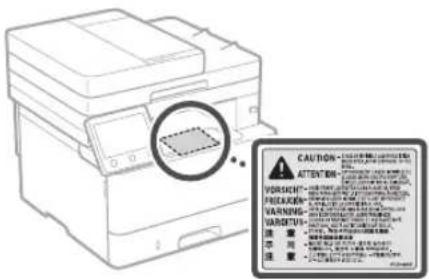
OVAZNO
Slijedite upute na naljepnici upozorenja koja se nalazi na ovom uredaju.
Nemoje izlagati uredaj snaznim udarima ili vibracijama.
Nemojte na silu otvarati niti zatvarati vrata, plokcepi drug dijelove.To moze dovesti o ocstecenja ureda.
Nemoje iskjučivati glavni prekidač napajania ni otvarati plokopce dok je uredaj aktivan. To može dovesti do zaglavljivanja papira.
Koristite modularni kabel dug najvise 3 m.
Koristite USB kabel dug hajvise 3 m.
- Ne dodirujte kontakte spremnika tonera ( 4 jer biste mogli ostetiti uredaj.
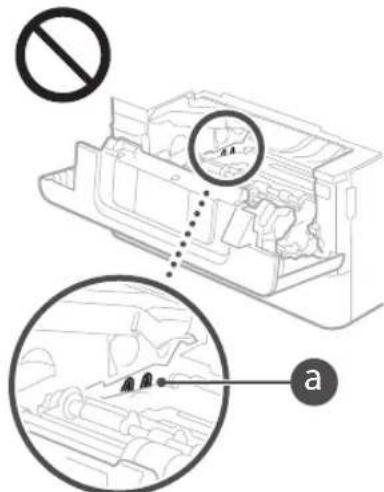
Dodatak
Prijenos uredaja
Da biste sprijecili ostecenje ureda jtijekom transporte, ucinite slejedece.
- Izvadite spremnik tonera.
- Crsto zapakirajte uredaj u originalnu kutiju s materijalima za pakiranje.
Simboli gezani uz sigurnost
Prekida napajanja:pozaj,Ukljuceno
Prekida napajan: položaj, sključeno
Prekidać napajanja: polożaj.Stanje pripravnosti
Gumb klijenuo" Iskenuo"
Terminal za zašitutuzemljenjem
Opasni napon unutar kuciesta. Nemojte otvaratiPoklopce za koje se to ne trazi.
OPREZ:vrucapovrsina.Nedodirujte.
Opremaklasell
Rotirajuci djelovi: nemoje biti u blizini rotirajuci dijelova.
Ovisno o proizvodu, neki gore navedeni simboli nece biti prikazani na njemu.
Regulatory information for users in Jordan
MF429x/MF428x/MF426dw/MF421dw
includes approved Wireless LAN Module (Model name: Type1KA).
Contains Wireless LAN Module approved by TRC/LPD/2017/19
Regulatory information for users in UAE
MF429x/MF428x/MF426dw/MF421dw includes approved Wireless LAN Module (Model name:Type1KA).
TRA
REGISTERED No: ER51217/17
DEALER No: DA0073692/11
RE Directive
(Only for European radio equipment)
RE Declaration of Conformity
English (EN) Hereby, Canon Inc. declares that this equipment is in compliance with Directive 2014/53/EU.
The full text of the EU declaration of conformity is available at the following internet address: http://www.canon-europe.com/ce-documentation Wireless LAN Specifications Frequency band(s):2412-2472MHz Maximum radio-frequency power: 15.9 dBm
CLASS 1 LASER PRODUCT
LASER KLASSE 1
APPAREL ALASER DE CLASSE 1
APPARECCHIO LASER DI CLASSE 1
PRODUCTO LASER DE CLASE
APARELHO A LASER DE CLASSE 1
LUOKAN1 LASER-TUOTE
LASERPRODUKT KCLASS 1
Regulatory information for users in Jordan
MF429x / MF428x / MF426dw / MF421dw
includes approved Wireless LAN Module (Model name: Type1KA).
Contains Wireless LAN Module approved by TRC/ LPD/2017/19
Regulatory information for users in UAE MF429x/MF428x/MF426dw/MF421dw includes approved Wireless LAN Module (Model name:Type1KA).
TRA
REGISTERED No: ER51217/17
DEALER No: DA0073692/11
RE Directive
(Only for European radio equipment)
RE Declaration of Conformity
English (EN) Hereby, Canon Inc. declares that this equipment is in compliance with Directive 2014/53/EU. The full text of the EU declaration of conformity is available at the following internet address: http://www.canon-europe.com/ce-documentation Wireless LAN Specifications Frequency band(s):2412-2472MHz Maximum radio-frequency power: 15.9dBm
CLASS 1 LASER PRODUCT
LASER KLASSE 1
APPAREIL A LASER DE CLASSE 1
APPARECCHIO LASER DI CLASSE 1
PRODUCTO LASER DE CLASE
APARELHO A LASER DE CLASSE1
LUOKAN 1 LASER-TUOTE
LASERPRODUKT KCLASS 1
Regulatory information for users in Jordan
MF429x/MF428x/MF426dw/MF421dw includes approved Wireless LAN Module (Model name:Type1KA). Contains Wireless LAN Module approved by TRC/ LPD/2017/19
Regulatory information for users in UAE
MF429x/MF428x/MF426dw/MF421dw includes approved Wireless LAN Module (Model name:Type1KA).
TRA
REGISTERED No: ER51217/17
DEALER No: DA0073692/11
RE Directive
(Only for European radio equipment)
RE Declaration of Conformity
English (EN) Hereby, Canon Inc. declares that this equipment is in compliance with Directive 2014/53/EU. The full text of the EU declaration of conformity is available at the following internet address: http://www.canon-europe.com/ce-documentation/Wireless LAN Specifications Frequency band(s):2412-2472MHz Maximum radio-frequency power: 15.9 dBm
Czech (CS) Timto spelecnost Canon Inc. prohlasej, ze toto zafrzeni je v souladu se smemicf 2014/53/FU. Uplne zneni FU prohlaseni o shode je k dispozici na teo internetové adrese: http://www.canon-europe.com/ce-documentation Technicke udaje bezdratové LAN Pasma(a) frekcvence:2412-2472 MHz Maximaliy kon radiovoc frekvence:15.9 dBm
Danish (DA) Hermed erklærer Canon Inc., at dette udstyr er i overensstemmelse med direktiv 2014/53/EU. EU-overensstemmelseserklaeringens fulde tekst kan vindes pa falgende internetadresse: http://www.canon-europe.com/ce-documentation Trads LAN specoficationer Frekvensband: 2412-2472 MHz Maks. radio-frekvenseffekt: 15.9 dBm
CKaHpaHeBpbKOBoCTBOTO Ha nortpe6nten

KoIPaHe
- NocTaBeTeOpuRnHaJIHHaJOKyMeHrT.
- HatncheTe n 36pepeKoipane>.
- Nocouete Heo6xOIMnTe HAcTpoKn 3a KOnnpaHe.
4.BbBeJeTeKeJaan6poiKoJn. - V36epete
.
Pone3Hn HacTpoKn 3a KOnnpaHe
Bp.B1
2-CTpaHHO mnn 1-CTpaHHO
YrrolmBaHe mCmaIbAHe
KoNupaHe Ha NkapTu

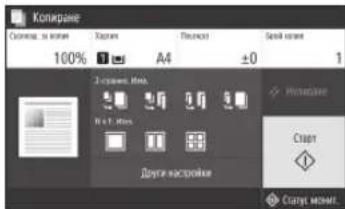
3a noDpo6HocTn
Koipapae"BpbkoBOCTBOTo Ha nontpe6nteJ

Pa6ota c φaKc*
TAsnFyHKUNMOKeJaHeHaHAnHHaB3aBNCIMOCOTMOneHaMaHINHATA.
- NocTaBeTe opunHaJIHnI JOKyMeHT.
- HataChTeH u36pepeTe<ΦaKc>
- BbBene HeHΦopMaunraTa 3a MeToHa3HaueHHe.
- Nocouete Heo6xOJumITE HAcTPOKn Ha akca.
- V36epete
.
Pone3HnΦaKcΦyHKuIN
IocneIOBaTeHNO 3NbYBaHe
PnneMaHe BnaMeTTa
KoMnIOTbpeHΦaKc
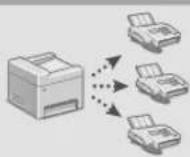
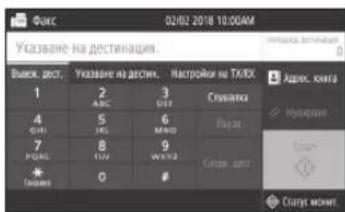
3a noDpo6HocTn
_ Pa60Ta c a k c^
pbkoBOcTBOToHa noTpe6nte

OTneyaTbaHe
- OToBopeTe DOKyMeHtA, KOITo ige ce pa3neuATBa, n I36peTe fYHKnraTa 3a neuT Ha npInoXeHHeTO.
2.ИЗбете Драиьета на пинета 3a Maшнота, слд Което ИЗбетe [Прелноцпаня ]и [Свовства]. - Nocoetye pa3mepa Ha xaptnya.
- Nocouyete n3touhNka nTnHa hXapTnTa.
- NocoueTe Heo6xOJIMnTe HaCTpoKu 3a neuT.
- N36pepe [OK].
7.Изберетe [Пуат]ин [OK].
Pone3Hn HacTPOKn 3a neua
2-ctpaHHo
5p.B1
NechatHa6poWypn
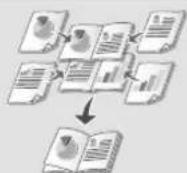

3a noDpo6HocTn
OTNeuATBaHe"B pkoBOcTBOTO HnOTpe6nta
3apekdaheHa xapTna
3apeKdaneByeKMeJKeTo 3a xapTna
1 13dpnaTe yekmedjKeTo 3a xaptnia.
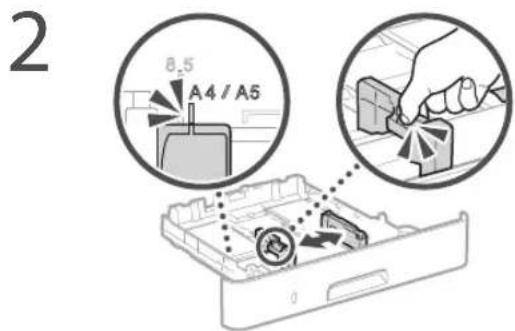
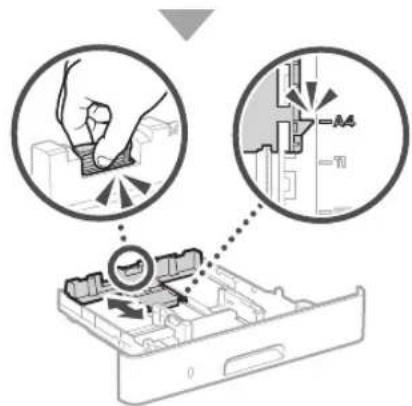
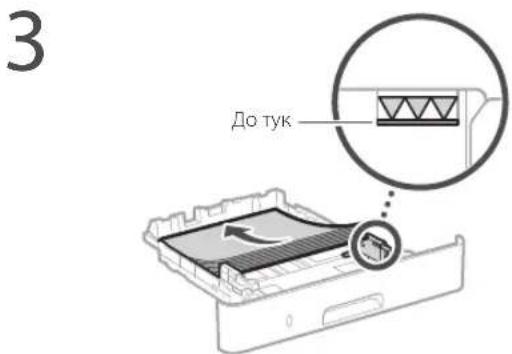
4 BkapaTeYeKeMeJKeTo3aXapTnB MaunHata.
Ako 3apekdaTe pa3nueH pa3Mep nIIN TnXPaTnO TnpEnHnTe, Tp6Ba Da npomehnte NaCTPOIKNTe.
5 Hatae n36epete
6 Iocouhe pa3mepa n Tnna Ha xaptnnTa cnopeed ekpaHa.
3apekdahe B MHOROyHKUHOHaHaTa NOCTaBka
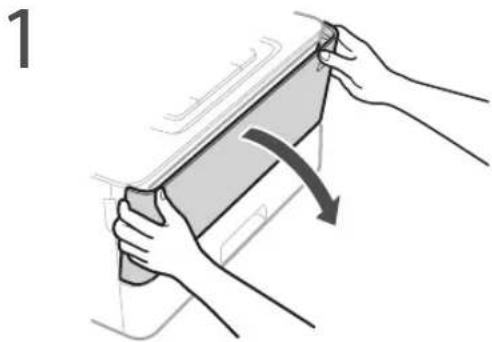
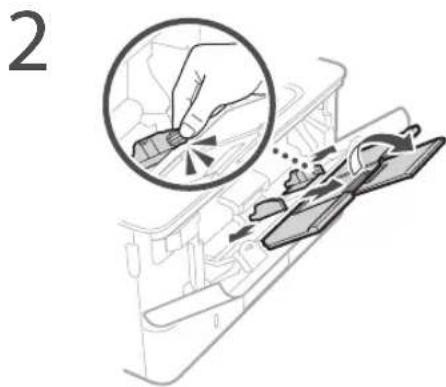

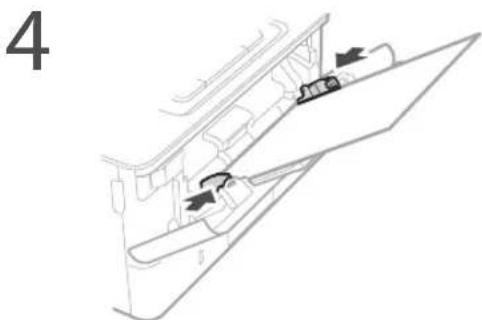
5 Iocouete pa3mepa n TnHa xapTnTa cnopeedekpaHa.
Ako Bb3HnKHe npo6JeM
3a noDpo6HocTn
OTCTpaHbAHe Ha HEn3PpABHOCTn" B pBkoBOdCTBOTO Ha Notpe6ntela
I3rIeKda,YeMaunHaTa He pa6OTn
PpOBepeTe CneIHOTo.
3axpaHbAHeTO BkIOueHO n e?
MaunHata n3Jra3na nn e oT cna pekm?
AkoDnCnIeTHeCBETHaTNCHeTe npEKBIOUbaTeHa BKNIOUBAHe.
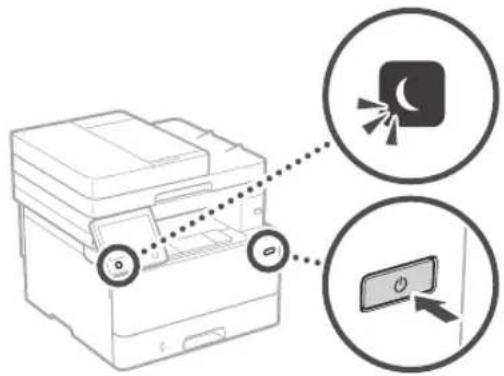
3axpaHbauNTKa6enCBbp3aHnE npabuHNo?
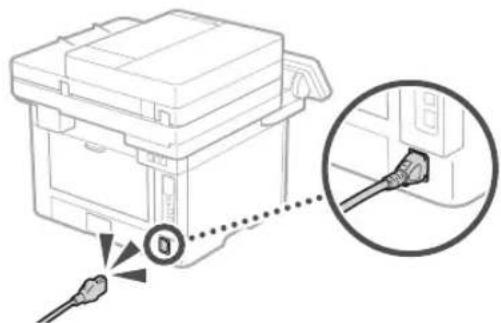
Ako npo6nembT npoBnkaBa, BnKTe pkoBOOCTBOTO Ha Notpe6nten.
Bb3HnKHaNo e 3acJaHe ha xapTna
OTCTpaHete 3aceHaIata xaptni cnopei HnCTpyKuInTe Ha ekpaHa.
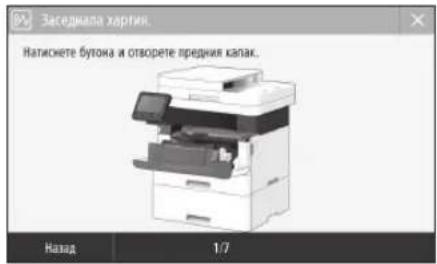
ПомmaHa ha Tohep kacetata
IopmeheToHepKacetataCnopeiHCTpykunTe HaekpHa.
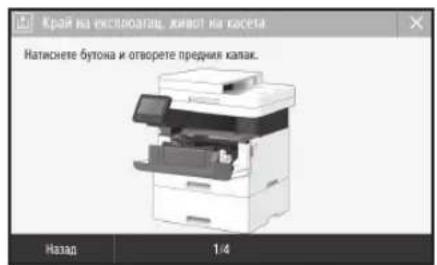
Homep Ha Moen Ha ToHep KaceTa 3a NoMnHa
-Canon Cartridge 052
-Canon Cartridge 052H
Bg
Приложения
Baxkn nHcTpkykun 3a 6e30napoCT
Ta3n TbA BcBbPka BaxKn HNCTpyKuH 3a
Be3oIacHOCT C cJen npedotBpaTBAHe Ha
HapAnBaHN HA NIO3BaMHTe TOBA yCTPOECTBO
HIN dpyrN Nua, KaKTO H NaOBpeDN HA
HmUyCETBO. IpOuyTe Ta3n rna3, npDeN da
H3NO3BaTE yCTPOECTBO, H nCNEBaHTe
YkazAHnraT3 a npabunHa yNoTpe6a. He
npedpneMaTe DeCTBn, KOtO He ca ONcaHN
B TOBA pKBODCTBO.Canon He Hocn
OTROBOPHOCT 3a 1eTN, npUnHEnoT O nOpauN,
KOtO He Ca ONCAHN B TOBA pKBODCTBO, OT
HenpabInHa yNoTpe6a NnO t PemOHn/
npomEH, KOtO He Ca N3BbPseHn OT Canon Nn
OT Tpeta CTpHa, YbNHomOSeHa OT Canon.
HenpabInHOto 60pabeHene Nn IN3noN3BaHe Ha
Ta3n MaunHa MoKe Da npUnHn HapaRbAHe N/
Hn NOBpeDa, INsCKBaUa UNocteH pMeHT,
KOtO Da He Ce NOKpBa OT BaUata OTrpaHueHa
rapaHCn.
APPEyIPEKJEHNE
IpynypeKHeHc, Cb03aHoC onepaHn, KOIO npHn HnnpAynHO n3bNHEHne MOrA daNoBepaTIO HApAhaBeHn cMbpt.3aJa hNOJ3BaTe 6eONACHO MaunHata,BnHAn cbJIOdaBaiTe TnpynypeKHeHn.
BHIMAHNEI
IpeDynpKdHHe 3a BHMMaHne OTHOCHO
onepaunu, KOITPO npn Hnepaunho
NIIbHHeHMe MOrT JaIOBeaT Jo
HapaHaBaHe.3a Da NIOJBAte 6eONacHO
MaauHata,BHAnrCbIOJaBaTe Te3n
IpeDynpKdHHeHn
OBAXHO!
Nocouba N3CKBAAHNTA NOrpAHueHHATA 3a pabota. Ipoyetete Te3n cactn BHIMATEHO, 3a da paobOTte npabINHO C MaIIHNHaT, KaKTO n 3a I36eHTe HeN3npABHOCTN B HcN INMMyIeCTBEHNIETM.
UHCTaIInpahe
3a da ⅢnoBATE ToBa yCTPOINCTBO 6eONACHO yDobHO, PPOETe BHNMATeHNO CNEBaUNTE MEPKN 3a 6eONACHO INHCTAIIpaIte yCTPOINCTBO TOpOXOIMCTO.
APNEUYPPEKDEHNE
He nHCTaIpaIte yCTpoIcTBOTo Ha MCTO, KbTeTo MoKeJa npEiN3BnKa NOKap IIN TOKOB yIap
Macto, KJIeTe BoHeTnAuaHOnHne TbOpR Ca 6KnKpaHn (IpeKaJIeHO bN3O do CTeHN, JIeTaJ, IuBAnH, KINIMN INpDyI NIO6Hn)
BiaXHOINIpaWHO MACTO
MACTO Cnpka CbHcEBA CBETINHa HnHaOTKPvTO
MRCTO,INIOXeHO HA BVCOKN TEMpePaTpy
MRCTOBNI3OCTDOOTKPNITOrbH
5n30do cnpT,pa3peuNTeTea 3a6oanpyr3anaNIMBEeCTBa
Дугни р dedурждени.
He Cb3Ba3aIte HeoobpeHn Ka6eN KbM ToBa yctpoiCTBO. Toba MoKe Da DoBeE do NOKap uNtTOK yUpd.
He noctabnIte Bbpxy ycToxBTO KOJIetaN I npTyMTeAHH NpeMeTn HHTO CbJIObe, nblHn C TeuHOCTn. Pte KOnKTaH Na YUJIN Tena C eEeKTPeCKnTn PaCTN BycToXpCtBOTo M0Ke Da B3HNKHe NoXap NII TOKOB Unap.
PnMOHTIpaHe HINOTCTpaHBAHe HaONbHINTeHInTe PnHaJNKeHcTn Ce yBepaHBe,ye enektpo3axpaHbaHeTo e N3KIOUeHO,IVBaKaJte IeIencena,ChE KOeTO pa3eHNHBAite BCuKN INTEppeCnH Ka6eN IN 3axpaHbauinKa6en OT MaunHata.B nPTOBEN CNYa3xpaHbauinr Ka6en INn INTEppeCnHtKe Ka6en MoKe Jda ce IOBpeJr, KOeTo DaIOBedeIO IOXapmNIO TOKOByap.
AkoBvctpoixCTBOI ONaJIHe YyJIO TnIO, NkHIOUeTe UENCeNA OT KOHTaKtA IN Ce CbPjKeTe C MeTHINyIbIHOMoUeH TbProBuCa Ha Canon.
BHIMAHHEI!
He nHctaInpaIte Ha MeCTaTa no-dony
YcTpoIcTBOTMOJKe Da naHe N da npuHn HapaHaBaHe.
HeCTa6HnHaOCHOBa
MaCTo,3IOXeHOHaBbpaun
DpyrTOyKn3aBHHMaHHe
-
PnHOCHe Ha MaunHata CneBaIte HNCTpyKuNTB TOBA pkbOKoDcTBO.AKO MaunHata Ce Hocn HenpaBnHO, TTo MokE da NaHe N DaIOBcNe NO HapAHaBaHe.
-
PnHCTaHaPeHa MaHHTaTa 6bTeBHHMATEHNJa He 3aXBaHETe pHeTe CNMeXy MaHHTaHa N Oda NcTHeN. TObaMOKe Ja NOBeJe No HapaHBaHe.
HnBeInpauin KpaueTa (cAmO 3a npOdykTn C HnBeInpauin KpaueTa)
He CBAIyIe HINBENPauNte KpaYeta Ha yCTPOIcTBOTo, CJIaKato YcTPOIcTBOTo e 6HIO MOHTnPAHO,TbI KATO TOBA Moke Da npuHNi NuaHe NIn Pneo6pUaHe Na HcyTPOIcTBOTo, KOTo Da JIOBede Jo nepcoHaJHo HapaHbAHe.
OBAKHO!
He nHCTaIpaIte Ha MeCTaT aNo-dOly ToBa MoKe Da IOBeDe Do NOBpeDa BVcTpoCTBOTO.
MRCTO,HaKoETOdaHMAKpaHNOHNCKINN
BNCOKI TEMNepaTyPn IN BnaXHOCT
MACTO Cpe3KN INPOMEH B TEMNepatypara NINBnXHOCTTA
MACTOBJIN3OCTDOYpeNiKONTON3NBvBATMaHTHNIENEKNTPOMaHTHNI BbIHIN
Ja6opatopnIN MACTo, KbTeO npOTnHAT XMMNHN peAKHNI
MACTO,IVIOXKeHO HA KOpO3NBHN IIN TOKCHHrTa3OBe
IbOxHOCTKoTOMoKe Da ce OfHe NOJ TeKcTTa Ha yCtPoNCTBOTo,IMN KbTeTO MoKeJaNoTBe (KnIMn Jp.)
H36raBaiTe MeCTa CIOwA BeHTnlaua
IIO BPEMe HA HOPMaHHaTa Cn pa60Ta
yCTPOINCTBOTo rHeepnpa MaNk NOKUeCTBa 03OH
HIp. Te3n Emcnn He ca BpeHN 3a 3npABTe. Te
O6aBe MoKeJa cTaNATabeneKmim Pn
PpOblKInTeHa YNtOpE6a NIN DlbIr
PiOnBDOCTBeH LKbII Ha MeCta C Noia
BeHTNaua. 3a da Ocnpyre Do6pa paoTHa
cPe, e npenopbChteHO CTa, B KOto paoTb
YCTPOINCTBOTo, da ce IpOBetPraBo6pe. CbuO
Taka H36BaBae MeCta, KbTeo Xopata 6nXa 6nN
H3IOKeHn HA EMCNN OT yCTPOINCTBOTo.
He uHCTaIpaIte Ha MeCTa, B KOITo mHa KOHDeH3
BbB BbTpewHocCTHa yctpoiCTBOTo M0xE da ce NOB8r BOHN KAIKN (KOHDeH), KORATO CTaTAta, B KORTo e HcTaNipAHO, ce 3aTOnNBA6p3O n KORATO yCTPOICTBOTe CnpEMeCTBa O XnAaHO NnC CyXO HA TOnIO NnBnAaHO MATo. NtON3BaHeTO Ha yCTPOICTBOTo np TaKINBA YcNOIBM MoMe Da IOBedeNo 3acJaDaHE Ha xapTnA, noIo KaeeCTBO Ha NeuAT Nn NobpeHa yCTpoICTBO.To
OctabeTe yCTPOINCTBOTo Na ce aAnTnpa KbM TempePaTypTa N BnAaXHoCTTa Hb OKoJHaTa CpeJa HanMaNko 2 Yaca npEnyIyNoTpe6a.
PnBnOcHnAOTNOBHeOT3000MeTpHaN MOpCKTo paBnIe
Bb3MOxHO ycTPOCTBaTc TBpD NCK Da He pab08T npABVHNO, aKo CE nON3BaT Ha BnCOuHa NoBue oT 3000 MeTpHa HApocKTo paBNHUE.
Cbbp3BaHe Ha TeneoHnHaTaNHHa (cAmO 3a npOyKIn C yHKnna 3a paKc)
Toba yctpoiCTBO OTOBapra Ha cTaHapra 3a aHaIOIORA TELEFOHHA NINHA. YcTOPOCTBO TMOKe Da Ce Cbbp3Ba cAmo KbM Np6NnHata KOMTynpyema TELOFOHHA MPexa (PSTN). Ako CbBpKTe YEcTOPTBOTo KbM dInrntAHa TELEOHHA NINN CNEUANH ATELEFOHHA LNNH, TOBA MOKe Da IINppeuHa NpApBnIHATA paBota Ha yCTPOCTBO To MOKe Da IINpHuH NOBPeA. IpOBePBaaTE TINHa TeneFOHHA LNNH, INPeDn Da CbPb3BATE YcTOPTBOTo. CbBpKTe Ce C BaWNTe DOCTaBuHn Ha ycLytn Pne3 DnboOpHTNH NIN IP TELEFOHH NINHN, AOKNkATE Da CbBpKTe YEcTOPTBOTo KbM TaKABa TELEFOHH NINHN.
Ako n3no3BaTe 6e3xMnHa LAN mpeka (cAmO 3a npodykTn C fynKu7a 3e6xMnHa LAN mpeka)
- INCTaIpaIte yctpoIcTBoTaHa pa3ToHHe 50 MeTpA NnN No-MaKo OT Be3KuHnA LAN MapuPyTu3AtOp.
JIOKOKOTO e Bb3MOXHO, INCTaIIpaIte Ha MACTO, KJIeTO KOMYHIAKUraTa He e 6IIOKpHa oT oBeKTn. CInHaJIbT MoKe Ja 6bJe BLOuWe Hpi nPi pEmHHaBaHe Ipe3 CTeH NIN etAKH.
NocapaneceyctpoBTOaekokoto ce Moke No-daneyeOT6e3xHNNuΦpOBN TeeneoHHMKNPOBbHOBnFpyHNdpyro 06opdyBahe,KeToHnBba padIOBbHn
He n3no3BaIe 8 bI3oCT Do MeIuHcKo OOBpyBaIe. PAnIOBbHITe, n3bYBaHn OT TOBA yCtpoiCTBO, MoKe Da npUHHAT CmUeHN B MeUNIHCKOTO oOBpyBaHc, KOTo MOKe Da NobeDe Do HnPaBnHa paBoTa H HeuactHn CnyuaH.
3axpaHbHe
APTEUYIPKDEHNE
ИЗнорБаite calmo nToCHnHa 3axpaHbAHe, KONTO OTROBAPr Ha NocOeHHTe INCKBaHn 3a HApEKeHne. HecnaBaHTo Ha ToBa INCKBaHMe Moke Da doBeDe Do noKap INI TOKOByap.
He 3n03aTe 3axpaHbauN Ka6en, pa3nHmOT DCCTABEHNA B KOMNKeTA, 3aUTO TOBa MoKe Da npEnu3Bka NOKap INI TKOB ynap.
IpeoctabeHHTaXpaHBAuK Kaben e npednhaueh 3a paOToC TOA yCTPOiCTBO. He cbbp3BaIte 3xaPbHBAuN Kaben C pytny yctpoiCTBa.
He moiPhiupaIte, He IbpiAte, He OrbBaTe CnHIO He N3BbpWbaTe DpyTo DeCTBne, KOETo MOKe Da NOpeDn 3axpaHbAsn KaBen. He NoctabTne TeKKn npdeMeTN BbPxy 3xpaHbAsn KaBen. NobpeDeHNr 3axpaHbAsn KaBen MoKe da npnNnNoXapn TOKOB yAp.
He BKnIOuBaiTe H He MKNIOUaTe IeNcena C MOKPN pue, 3a da He npedn3BnKaTe TKOB ydp.
- He BkIOuBAIte YcTPOIeCTBO T yDblNKtENm INn pa3knOHTENr Toa MoKe Na doBeJe Do nokap INn TOKOp YdAp.
He yBnBaIte H He Bp3BaIte Ha Bb3e 3axpaHbAaIIaK6e, Tb KaTO TOBa MoKe Da npedn3BnKa NoXap NnTOKOB yIap.
Bkaapte uencena dokpaie B eektpnckckn KOHTAK. HecnaBaHeta HO TaBA NcKBaHE MOXe da DOBede do NOxap unu TOKOB yap.
IIO BPEMe Ha rpbMOTeBmHb bpyn H3K1N0uBAIte IJncEeA O KOHaKTa. HecnaBaHcTo Ha ToBa N3CKBaHe MoKeJa IOBene IIO nOkaP, kOko yap nn NobpeHa YcTPOICBOTO.
YBepete CE,Ye enektpo3axpaHBaHeto KbM yctpoiCBTO e63onacHO uYe mHa NOCTOHHHO HANPEXHEJIe.
ДрькгдханвьшпкбдгдгггггггггггггггггггггgИЗТОЧИКНЯТСОППИHA,АКО He RO HANPABNTeKABeBtMOKEJCECECTONNINaIppeIN3BKNaNOxap ININ KbCO CbeDInHHe.
1368raBaiTe CneHnTe CnTuauN:
Ako Bbpx CyBbP3BaUata Ha 3axpaHbuaa Ka6e Ce npINOKn TcIAM HATNCK, ToBa MoKe Da noapeu Ka6ena uIN npOBODHnTE B MaunHATA MoKe Da ce nKIOuAT, ToBa MoKe da IOBene DO noKap.
-ueCTO BKNIOHBAHe H3KNOBaHe Ha 3axpaHbuaaKa6en.
-Perbbahe Ha 3axpaHbuaaKa6en.
-OrBaHa He 3aXpaHbAaN Ka6en 6n3o Do nactTa 3a CbP3aHe, KAKTo N npnAnaHe Ha npOdbNtTeH eTnCK kEm EeKTPnueckn KONTAK Nn HcTAA 3a CbP3aHe.
-ynpaXHHBAHcHa npckomcpHO rIIMa Cnna Bbpyu cncnla.
BHIMAHUEI
HCTaHPaTe yctpoCTBOTo 6n3o Do eKETPcNECKn KOHT, KATO OKJIO cencena Tp6Ba Da NMA DCtAeHNO npocTpaHCTBO, 3a da MoKeJa Ce nKIOHO JIECHO Hn HeOxOIMOC1.
OBAXHO!
PnBKNIOU4BaHe KbM 3axpaHBAHTo
He BkIOuBaIte 3axpaHbauN K6enB HnpeKbcBcAem NToTHNik Ha 3axpaHbAe,ToBa MoKeJa IOBeDe Do HeN3PpABHOCTM NIN NOpeDa BVCTPOCTBOTo PnCnPAHe Ha TOKa.
Ako BKNIOHTe YCTPOINCTBOTo B pAKNHOHTen C HKOJIO RHE3DA,He BKNIOUBAIne DpyuY cTPOINCTBa BOCTAHIne FHE3DA.
He kIIOUaBte 3axpaHbuaN Ka6en BdoJIbHIeTINHe enEKTpuueckn KOHTAHTK HOMKNIOTbp.
Dpyn npedna3Hm Mepkn
EneKtpuecknIyM MoKeJa IIOBHeJe Do TpeuKnBa paOToTa Ha yCTpoNCTBOTo INn Do 3aYb6aHa daHn.
BopabeHecyctpoNCTBOTo
APDEUYPPEKDEHNE
He3abHn H3KnIOeTe 1IeCena O T KOHTAKa I ce CbPKeTe C yTbHMOuEN TbpROBeu Ha Canon, Ako yCTpOuCTBOTo B3NpOn3BekJa HeoBuHa N3ByU,OTenr HeoBuHaMnPiu3Ma, IIyueK uNl PpeKoMePeHa ToiHa. Ako npOdbknte Ja N3No13BaTe yCTPOuCTBOTo, MNa OAnCHOCT O IOxap NnTOKOB ynap.
He pa3IIO6BaIte H He MoIINHpIaIte ToBa yCTPOICBO.B Hero IMA KOMIOHEHTIO BUCOKO HanpeKeHMe I C BUCOKA TEMpeParypa. Pa3IIO6BAHETo MIM MOINHcHpaHETo Ha yCTPOIECTBOToMOKe Da IOBede Do NOXap INN TOKOB yAp.
IIOCTABETyCPTPOCTBOTo HA MCTO, KbTeTO 3aXpaHbAuaT N DpyrTe Ka6eni, KaTO INMEXAHUHTe ENEKTPuueCKNte CaTn, CaDAneue OT DoCTbNa HA Deca. Hecna3BaHeTo HA TOBA HcckBaHe MoKe J daOpBe do HEoayKaBHa HcuaCTH CNyAa.
He 3n03aTe 3anlanm CnpoeB 6nOCT Do yctpoNCTBOTo. PnKoHTA H 3anlanm BeueCTBa C eEeKTpueeckte qactn B yctPOCTBOTo MOKe Da Bb3HKnke Nokap INI TOKOVByap
- PnpaHa npmeCTBaTe yctpoiCTBTO, HnpeMeHHo N3KIOHcTe 3axpaHbAHeTo n CneI TOBA OKaHTe 3axpaHbAaNn INIHTepoeChnTE KaBen. HeCnBaBHTo Ha ToBA N3CKBaHe MoKe Da IOBeE Do NOBPeDa B 3axpaHbAaNn INI INIHTepoeChnTE KaBen n OTAM -do NoXapn IIN TOKOB yAp.
Korato BKNIOBATE NIN N3KNIOBATE USB Ka6eJa,doKATO UENCEJIte BKNIOUH BENEKTPnueCKN KOHTAKI,He DOKOCBAITE MeTAnHata Yact Ha KOHEKTOPA 3aTO TO TOBMOke Da npEINBkA TOKOY ynap.
Ako n3no13BaTe neiCmeKbP
Toba yCTPOINCTBO rHeepnpa cnao MaHHTHO nolne uYNTPA3BkyKOBu B5yHN. Ako nON3BaTe neCMeIKbp nNoVcTBATE HeoBuHaHN CMITOMn, ceOTdaneuey oTCTPOINCTBOTo N He3a6aHNO CE KOHCytNtPaune CnEkap.
A BHIMAHNE!
He noctabaIte bbypxy yctpoCTBOTO texknpedMetn, KOnTO npn npdaHe MOKe da npHnHHT HapaHaBaHe.
OrcbopaxHn3a6e0nacHOCT N3KIOVABteIeNcenaTcOT KOHTKaT,AKO HMa JiaNIOIN3BATEYCTPOMCTBOIbIO BpEMe.
OtBapnnte n 3aTbapnnte kana nte BHMMATEHO,3aJa He HapaHnTe pueTe cn.
- Na3ete pblcete nipexnnte cn ot poknite Ha n3xoJa, Ako polknite 3axBaHaT pclte Wn npexnnte Bn, TOBa Moke da IOBee Do HapaHBAHe.
BbtpuehoCTaHaYcTPOCTBOToNnXOHNATCJOT3aXapTNCA MHORO TOpEunNo Bpeme HaPabota NmKo CneT TOBA.He DOKOCBAITEeHuaCTNa,3a Da He Ce VrOropTE.OCBENTOBaPA3NeuTaHataXapTNMOxJa e TOpEuaHeNocpeCTBeHo CneI N3N3aHETo CNOTnpINHTepa,TakaYe BHIMABAite,KORATO B3emate.B npOTnEBn Cnyau MoxJa da ceN3ropTE.
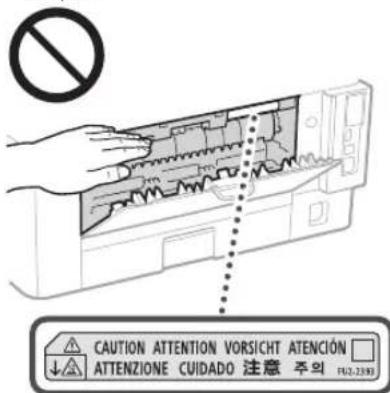
BHHMaaIe Da He Hn3nyckate TeKKn npEmTeH, KaTo HAnpImeppeNiuBbPxy KOnIPHO tCKNo. Toba Moke da NobpeKoNpHOTc TBKIO Na IpEa3BkaHaPaHaBAHe.
He Hocete MaunHata C NoctabeHo YekMeJKe 3a XapTn INI DIOJIbINIEHIO YcToPOCTBO 3a NOdaBaHe HaXapTn. Te Moke Da IINaDHaT, KOeTO Da IIpNCHIn HapaHbaHe.
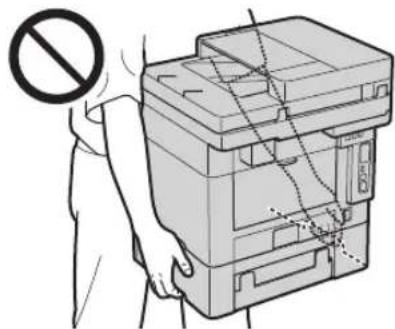
Ipoaaso yctpoiCTBO (cAmO 3a npoaytn C noaaso yctpoiCTBO)
HeHaNckaIte CnHIO NOaBaUToC yCTPOINCTBO,AKO NIOANBATe CTbKnOTo 3a DOKMyMeHTN 3a KOINPAe OTE DE6eHN KHInr. ToBa MoKe Da NoBepEn CTbKnOTo 3a DOKMyMeHTN AIN IOBede Do NepcoHaHn HapaHBAHe.
3aTBapHHe NoDaBauIOTyCTPOcTBO BHNMaTeHNO, 3a DaN36BerHETe npuHnBaHe Ha pbueTe, Tb Kato TOBA Moke da DoBepe Do nepccCHAnHO HapaHaBaHe.
BnMabaiTe da He noCTaBte pbcete nnin npbCTne Cn BnoDaasaOy yctpoiCTBO.B npOTINBE CNyau MoKe da ce HapAHite.
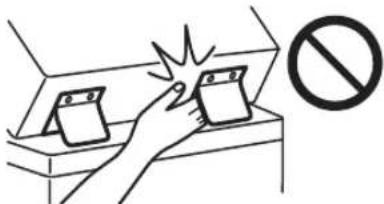
ΦHnHbP (cAmO 3a npOyKtn cΦHnHbP)
He nocTabaIte pbcTe cB yactTa H Ta TabaT KaTe 0e N3BbpWb3AxBaaHae C TeNooD (6n3o Do BAaLHTe),OCoBeHO BHHMaBaIte 3a OCTPra TEnOo, Tb KaTO ToBa MoKe da NObeDe do nepcoHaHO HapAHBaHe.
Kaceta 3a xaptnn (cmo 3a npoyn C Kaceta 3a xaptnn)
He bxaHte pkaTc nBvctpoCTBTO,doKATO Kacetata 3a xaptnE cBAIeHa,TbKaT0ToBA MoKe da NoepcoHAnHO HapaHBAHe.
Bytoh"PiecteHa eheprna"(cmo 3a npOdykTN Cbytoh "PiecteHa eheprna")
Haiche Tte (IecTe Ha eepnna) 3a
6eONACHOCT, aKO yCPOCTBOTo HMA Da CE
HNOBBA 3a DbTg NepOOn OT BpEMe, HAp.
HOJIeM. CbUo Taka NKnOHTe KIOHa
rAbaHOTo 3axpaHbAne PaKaHete
eNEKTPnueckNk KaEi, 3a Da rapaHTpe
6eONACHOCTTa, aKO MaunHata HMa Da Ce
HNOBBA 3a No-tpDblKInTeH NepOOn OT
BpEMe, HAp. Ipe3 Ipa3HNHdH.
Be3onacnoCT Ha Ia3epHo 60pydBaHc
ToBa yctpOaIcBO e nOtBbDcHo KaTo na3epeH npOyKr Knac 1 BIEC60825-1:2014 nEN60825-1:2014.
CLASS 1 LASER PRODUCT
LASER KLASSE 1
APPAREL A LASER DE CLASSE 1
APPARECCHIO LASER DI CLASSE 1
PRODUCTO LASER DE CLASE
APARELHO A LASER DE CLASSE 1
LUOKAN 1 LASER-TUOTE
LASERPRODUKT KCLASS 1
Приложения
Ja3epHTo IbHeHMe MoKe Da e BpeHIO 3a
OBeuKTo TnO. Tb Kato paAuaNtA, KOTo Ce
M3bHaOTBbTpEHHocTt Ha npodykTa, ce
OrpaHnUba HantbIHO OT 3aIIHTHnTE KOPyCn
BbHIHnTe Kaaui, Ja3epHnT JbH He MoKe da
HnIEe N3bBvYcTpoHCTBOTo, JOKATO
HotpeBnTeH N3BbPwBa pa3nnHn Onepaunu.
PiPoTeTe 3aBenexKnTe n HnCtpyKn 3a
Be3oNaChOc Hn DoJy.
Hikora HEOTBAPRNEIpyrKANACUOCBEONCAHNTBpkoBOcTBATA3aTOBAyCTPOCTBO.
Ako naepnnt bcyceOTKIOHNOCBETOHTE BTOBA MOKe DaTynyBpeN.
ИзнорьанeroHa cpecTBA3aураленHe, NaCTPOMKUNHIMNtBnHEHe Ha npOeDpyn, paJINHHTO NOCQUEHNE TTOBa pKBOBODTBO, MOKHe DaNoBede Do OAnCHO N3raHHe Ha 06bBaHe.
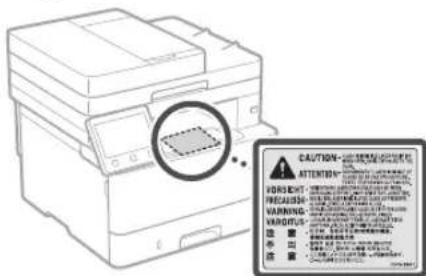
ETIKET3a6e3oNaCHOCHTHaJa3epHo 06OpYDaHe
BAXHO!
CnpeynpntenHnEtnKetBbpyx yctpOCTBO.
- Pn3eTe yctpojCTBTOOT CINH ydpu IN Bn6paun.
He OTBaPAnTe H He 3aTbapnTe Cbc Cnla BpaTuKnTe, KaNaIte Nnn npyn cactn. Toba MoKe Da IOBede Do NOBpeDa BycToPOJCTBOTO.
He 3KIOBaTe KIOVA 3raIaBHOTo 3axpaHbAe He OteBapAte KaNAUITE,doKATO yCTPOCTBOTo paBOTn. Toba Moke da npedmBnka 3acdahe Ha xaptni.
-ИЗПОЛТВАМЕ мodyн eкбeн, кoДTo e no-KbC ot 3metpa.
-ИЗпольваши USВ ka6eн, коюTo e no-Kbc ot 3 MEtpa.
HeDOKOBaIe KOHTAKTITe (BbB BbTpewHOCTTa Ha MaunHata.ToBa MoKe Da DO3eJe Do NOBPeHa MaunHata.
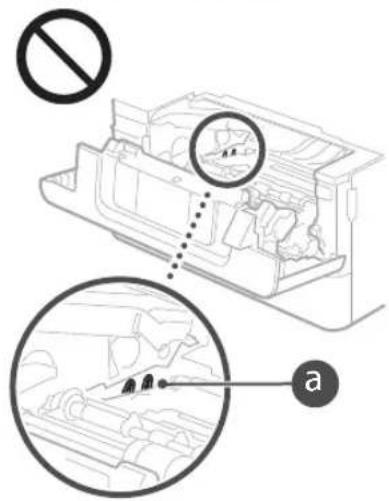
PtpaHcnpOpTnpaHaMaMnHaTa
3aJa npedotbpatntne nobpeeta Ha MaunHata no BpemeHa TpaHcnpotmpaHe, HapapBeTe CIEJHO.
- N3BaTeToHepKacetata.
OIIAKOBaIe HajekHO MaunHata 8 OpiHJAHATA Kytna CIOIAKOBbHHTe MATEPAHJI.
CMBOJI, CbBp3aHn C6e30NaCHOCCTTa
KIOHbAbaXpaHbAHeto:PiO3nIaB"BKn.
KnouHa3axpaHbAHeTOPiOzUyIN"V3KnI
KIOUHa3xpaHbAheTo:Piouzua"CTeH6a
① KnIOU CHATNCKAHe "Kn." "VII."
3aunTeH 3aemBaau TepMnHa
OnacHO HanpeXeHne BbBtpeuHocTa.He OTBapAaTe DaTyKaNaUOCBeHnocOeHte.
BHIMAHHE! Topeu noBbpxHocHe DOKOCBATe.
回 O6bpydBaHcOTKnacI
BnKeeHcCtHnPiTeTcHCTHe H TANOTOTANBKEHHTeCeHCTN
HAKONOTNOKAZAHHTNENo-ROPECNMBONMOKe Da He Ca NoCTaBeHN CNOpeN PPOyKTA.
PpBkKa npoФnakTnka
NoctBaIte yCTpoCTBTO nepnoDnHO. Ako ce HATpyna npax, yCTpoCTBOTo MOKe da He paobtn npabnHO.Korato NoCTBaTe, Hnpemeho cnaBaHTe CnHIO.To Bb3HNHe npOBem NO BpeMe Ha pabota, Bk.OTcpanhaBe Ha HEN3npaBHocTN BpbKOBOCTBOHa Ntpe6nTEnA. Ako npOebmEt He MoKe Da Bbde O TcpanEHnn CMrTaTe, Ye CYTOPTCBTO Da NCKBa NpOEBKa, Bx. Ako npOebmEt He MoKe Da 6De O TcpanEh."
A PDEUYIPEKJDEHNE
- Ppeu NoCTBaHe N3KIOHcTe 3axpaHbaHeto H3BaIeTe Iencena OT KOHTAKTa. HecnaBaHTo Ha TOBa N3CKBaHcMoKe da DoBeJe Do NoKap UIN ToKOB ynap.
- NepnuDnHOn H3BaJdAte UeIcena OTOKTaTn INOuCTBaNTe CbC Cyxa Kbpna, 3a daOTCTpAHNTe npaxTa HecNtOTnTE.HATpyaHnT paxMa cncocHoCTTa DaNOfIIbua Bnara ot B3dNyxa, KoTo MoKe JaNoBeJe Do noKap npN KOtA T C
eNEKtpnueCTBO. - POnuHCTBaIte yCTPOJCTBOTo C BnAaKaHa, DOpBe H3ueDeHa Kbpna. HABNaKHaBaIte Kbpnata cAmo C BoJa. He 3PON3BaIte aIKoxon, BeH3N, p3peiTEn 3a 608 nnn npytn 3anaHIMBeeCTBa. He 3N0N3BaITe caNFekn nnDOMaKInhCKaXptnA. Ako NoOobHb WeBcctBa Nn MaTePnAnBn3at B KOHTAK C eNEKTPnueckite Yactn B yCTPOJCTBOTo, TE MOxE Da TReHepnPAT CTaTHNO ENEKTPnueCTBO Nn Da IpEIN3BnKAt NOKAP Nm TOKOB yIap.
PpOBepaBaepeoBHO3aXpaHbuaaKabEn mIeNcena 3aIOpeJa.PpOBepaBaTe MaunHata 3a pXka, BmIb6HaTHnI, dPacKOTnH,NyKHATNVH NIpEkoMePHo HApyBaHe, HIOJI3BaHTo Ha HeOpOpe NOdIPkAHO O6OpYBaHe MoKe da DoBSeJe DO nOKap MIn TCKOB YdAp.
BHIMAHHEI
BbTpBe yctpoCTB0To HMa KOMIOHENTNC BnCOKa TEMIEPATpy N IOI BnCOKO HanpeKHeH. OOKoCBaHTo Ha Te3N KOMIOHENTN MoKe Da NOBeDe Do IINrApHn. He DOKocBaTe KOTo N da e cact Ha yCTPOCTBOTO, KOTo HE nOcoOeHa B PbKOBOCTBOTO.
Korato 3apeXdaTe xapTnI INI OCTpaHbATE 3aceHnla xapTnI, BHMmabAte da He ce nopexke IIO p6oBeTe Ha JInCTOBete.
KOHcymATUBN
A INPEDyIIPKJEHNE
He 3xBpHnTe HnOJIbAHn ToHep KacETn HnIOIO6Hn B OTKPNI IaAMuN.OCBeH TOBa HAcXpaHBAe ToHep KacETn HnXaptna Ha MCTo, INIOKEnHO AOTKPNT OBr.HToBaMOKe Da pnnHn3anaIbAhe HtoHepa n da opeDe Do NtapnHn Hn NoKap.
Ako HeBONHOpaHeTe EN paCnneTe ToHep, BHIMATEHO C6bepete Hactnnte Ha Tohepa Hn rN 36bpWte C Meka BnAkhna Kpna No HAUYH, KOITo PpeOToPbTaRA BnWBAHTo MM. B NkKaBcnya He hNpON3BaIte npaxocMykaKa, KOITo HE pInTeXaba NPedNa3H MEXAH3Mn CpeuY npaxOBH EKCNIO3vN, 3a NOCTBaHETO Ha paJNT TOEP. B npTBeH Cyayae Bb3MOxHo npaxocMykaKaKaTa Da cNoBpeDn N da Bb3HKnE npaxoBA ECKNIO3nnpaDn ENEKTPOCTaTHo Pa3peKJaHe.
Ako n3no3BaTe neiCMeKbP
ToHep KaceTaTReHePnpa Cna6o MaHHTHO none.AKo IANON3BaTe neCmEeBp n NOuyBCTBaTe HeoBuAHn CMNTOMn, ce OTJAEyETe ot ToHep KaceTaHa He3a6abHO Ce KOHCytIpaIe Cnekap.
ABHIMAHUEI
BbTeTeBHMMATEHnDaHe BmWATE TOHEp.AKcnyaHNO BmWATE ToHEp,ce KOHCytnpaiTe He3abAno BnKAp.
BnMabaiTe B OHTe nn yCTaTa BN da He nonaHHe TOHEAp. Ako CnyaHIO B OHTte nn yCTaTa BN nonaHIO TOpE, He3a6aBHO HMMIte CbC CTyDHa BOnA H Ce KOHCytnpaJIte C nekap.
BHIMABAHTeKoKaTaBnDaHeBnEeBKOHTAKC TOHep.BcIyauHa KOHTAKMmNITcBCCanyHnCTyDHaBOJa.AKOImaHnKaKBNpa3npa3HeHnIO KOsKaTaBn,He3a6BaHOce KOHCytIpaTne CJIeKAp.
CbxpaHbAte Kacertne CToHep npyTne KOHCyMaTnB Daneu OT DoCTbna Ha MaJki Deua. Pnp NOrbnBaHe HToHep He3abABHo Ce KOcynTnpaTe C nekapnn C nceHtp npotn 0TpaaHHn.
He pa3rno6bnae Hne moDnHpuapTe Tohep Kacetata nnnpocBn enemEnTo. Toba MoKeJa npEduBkaP a4cnBnaHe Ha Tohepa.
Korato oTcpaHRABe ynnbTHnTeHaTa neHTa OT ToHep KaceTata, n3dPnAte HaBnHO, Ho 6e3 npnaIae Ha npekomepHa cina. B npOtnBEH CnyaH ToHept Moke da ce pa3une.
OBAXHO!
Pa60Ta C ToHep KaceTaTa
-ДрбкTe roHep Kacetata 3a ДрбЖkata.
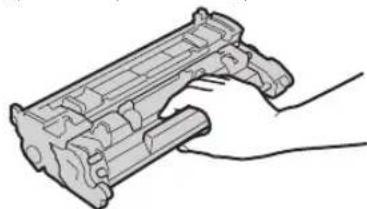
HeDOKCBaTe NaMeTTa Ha ToHep KaceTaTa (a) ININ ENEKTPMueCKNTe KOHTAKTn (b)3a DaN6BerHeTe HApPacKBaHe Ha NOBbpXHOCTTa HA bapaaba B MaINHaTAt INN NINrAraHETo My HA CBETnHa, He OTBapRte 3aUNTHmR 3aTbOp HA bapaaba (c).
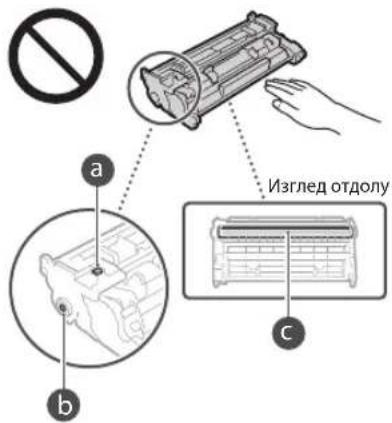
He 3aBaaTae ToHep Kacetata OTOAKOBuHMaTePnAInOT Ta3n MaHHa,OCBEH AKO TOBA He E HeOEOXdMIO.
Tohep KaceTa e MaHHTeH npOyKt. He ro nPnBnKaaBte Jo pOdyKt, NOaTINBn Ha MaHcTeNbM, KaTO fONIO NDCKOe Hn IN DCKOBy yCPOXCTBa. TOBa MoKe Ja NOBeDe Do NOBpeDa Ha JAAHNTE.
CbxpaHeHne Ha TOHeP KaceTaTa
CbxpaHbAeB CnEHNATA CpeDa 3a Da cnHyprte be3cnonachna HnadeXnHa ynoTpeBa. dIinaJaoHn Taemepatypata 3a CbxpaeHeNc: 0do 35°C
Jnana3OH BaJNACHO7IpaCbpaHeHc:35 0o85% OTHOCHTINHaBNAKOT (OTHOCHTINHa BNAKOT/6e3 KOJIeH3aJIy)
CbxpaHbAaBte BHeoTbOpeHO cbCTOBHMe DO MOMHTA, KATO TOHep Kacetata Jc Ce N3101383.
PnN3BaKaJaHe Ha ToHep Kacetata OT MaunHaTc Cuen CBxpaHEnHe, NoCTabeTe N3BaJeHATA ToHep Kaceta BOpTNHaHINr ONaKOBbUeH MaepnAn NmN aObnIte Cde6ena Kpna.
Pn CbXpaHHe Ha Toep KaceTata He
CbXpaHbAaIe B NpApbe HIN M6bphato
NoToxHHe. TopeBt Ue Ce BTbPdN M MoKe
Ja He CE BpBe H NpBoHaanHOTo CN
CbCTOHe, DOpn Ako Ce pa3KnTn.
IOpnB DOnyCTMmHnHa BnA3OH Ha BnAkhOCT npn CbXpaHeHne, BbB BbTpEHHOCCTHa ToHep Kacetata MoKeJa Ce OpbzayBt BoHN KaNnU (KoHdEHaun, Ako HMa paNkA B TeMnpaTpya BbTpe N3BbN ToHep Kacetata. KOHeHaZaUnrTaJe NoNBeH He6NaOrpnrTHo HA KaHeCTBOTo HA NeHr Ha ToHep KaceITte.
He cbxpanraBte TOHep Kacetata Ha cneHNMeCTA
MeTa, n3NOKeHn Ha OTKpTN nnambucn
MeCTa,INIOXeHnHa DnIPeKTHa CnBHyEba CBETNnHa INIAPKa CBETNnHa 3aNETMnHTN INI NOBcE
MecTa,INIOKEnBb3DyxC BnCOKO CbDbpkaHHe Ha con
Mecta, KbTeo NMA KOPO3BHN r3OBE (HaNP. aepo30Hn CNpeOBe nAMOHK)
Mecta,INIOKENHABNCOKATEMNEpApaB BnCOKa BlAnHOCT
Mecra, nIOJKeHn HA TcIeH NpOMeH B TemNepaTpya nBnAKnHOCTa, KbTeo MocKe IeCHO Da Bb3HKe HKOHe3uaJI
MeCTa CROJMA KOJIINHecTBO npax
MecTa,IOCTbHn3aJeua
BbTe BHMMaTeHn C HeOpuHaHn ToHep KacETn
B3eMeTe NOD BHIMAHHe,Ye Ha Na3apa ce npednart HeOpRINHANHToHEp KacETn Canon. HIOIINBAHe ToHa HeOpRINHAnHToHEp KacETn MOHe JIA IOBeJe DOIIOIO KAueCTBO Ha Nechat NIM BNOIeHApabOta HA MaunHata.Canon He HocN OTROBOPHOCT 3a HAKAKBN HENIIpaBHOCHT,3IOIOJIyKIM IIOBpei,IPNCHNEHOT INIOIIBaHETo Ha HeOpRINHAnHToHEp KacETn. 3a NOBEe INoPMAZnBnKte canon.com/ counterfeit.
IpeNoHa HAnuHocT Ha pe3epBn qactn n ToHeP KacTeN NIO6HN
PeepaHHe TaCn ToHep KacTeNte HIOO6Hn KOHCyMaTbBn 3a MaINHata ce Ca HANHHaNoHE CeEM (7)roHNCHIe IpeKpaTaBaHe Ha IpoN3BOcTBOTO Ha CBoTBeTHMaMOnE MaINHa
OnakobbHm MaTePnAnn 3a ToHeP KaceTaTa
3anaTe onakobuHInTe Maepnain 3a Tohep Kacetata. Te ca Heo6xOmm npn TpaHCnpTupaHe Ha TaB MaunHa.
- OnakobbHIne MaTeepnAn MoTat Da 6bDat npoMeHHNo fOpMa nn NoNooKeHne nnMorat Da 6bDat NObaBHNnn PpeMaxBaHN 6c3 nped3aeCTne.
CnKATOHbPnATEyNbTHHTENHATAJIeHTAOTTOHEPCKacetata,INXbPneteJIeHTATAB Cb0TBeCTBNEC PpIIOXMMITE MeCTHNApe6n.
Pn n3XbPnaHe Ha n3No13BaHa ToHep KacTa Hnn NDO6HN KOHCyMaTUN
PnIN3XbBpHHeHaTOheKacTaNNIIOO6HNOKCHyMaTIBN,TNIOCTABeB NOHNHAJIINOAIAKOBbEHMaTePnA,3aJa IpeD0BpaNTPe pCnBaHToHaTOhePaBB BbTpEuHcCTTa,N3XbBpIeB CpNIIOXMMTEMeCTHnHapeBn
Benzkka
ImeHa npOdyKT
Cb6pa3Ho pa3npoe6nte 3a 6e0nacHc07 IMero H npOyKa Tp6Ba da 6Bae pErnCTPpAHO. B HAOKON OT PAHOHTE,8 KOnTO ce npOdaBA npOyKST, e B3MOxHO CNEHOTo IMHe (A) BCKo6 () da /ca pernctpupao(H) BMEcTO TOBA.
MF429x/MF426dw(F173402)
MF428x/MF421dw(F173400)
N3NCKBaHn 3a eNeKTpomarHnTHa
CbBMeCTIMOCT(EMC)HaInpeKtNbTaEC
Toba yCTPOINCTBO OTTOBAPHa OCHOBHHTe
N3NKCBAHNA 3a ENEKTPOMAHTHNA CbMBCTMUMOCT
(EMC) Ha NIPeKTHBATA Ha EC,JeKnapnApMe, He
To3N npOyKT OTTOBAPHa N3NKCBAHNTA 3a
ENEKTPOMAHTHNA CbMBCTMUMOCT (EMC) Ha
dIPeKTHBATA Ha EC pRi HOMHAnHO 3axpaHBAIO
HaIPeKeHMe 230V,50Hz,BbIPeKnYe
3axpaHBAIoTO HAPeKHeHNO CTIEJIAfKaIHa e
OT 220Vdo40V,50/60Hz.3a NOKpBaHa Ha
TEXHueCKNTe N3NKCBAHNA 3a ENEKTPOMAHTHHA
CbMBCTMUMOCT (EMC) Ha NIPeKTHBATA Ha EC e
Heo6xOIMo N3NoJ3BaHETO Ha ekpaHpaH Ka6en.
DnpeKtnBa NVEEO n DnpeKtnBa 3a 6atepn Ha EC
Mokete Ta BnDInTe HOpMaUNa3a NpEeKtBnTa 3a NYEOOuNpEeKtBnTa 3a batePN B NaHOBOTO pBkoBOcTbO Ha notpe6ntela (HTML pBkoBOcTbO)OT ye6 caTa Ha Canon (canon. com/oip-manual).
PerynaTopha HhOpMaun3a 6e3KnHn LAN mpexn
Regulatory information for users in Jordan
MF429x / MF428x / MF426dw / MF421dw
includes approved Wireless LAN Module (Model name: Type1KA).
Contains Wireless LAN Module approved by TRC/ LPD/2017/19
Regulatory information for users in UAE MF429x/MF428x/MF426dw/MF421dw includes approved Wireless LAN Module (Model name:Type1KA).
TRA
REGISTERED No: ER51217/17
DEALER No: DA0073692/11
RE Directive
(Only for European radio equipment)
RE Declaration of Conformity
English (EN) Hereby, Canon Inc. declares that this equipment is in compliance with Directive 2014/53/EU.
The full text of the EU declaration of conformity is available at the following internet address: http://www.canon-europe.com/ce-documentation Wireless LAN Specifications Frequency band(s):2412-2472MHz Maximum radio-frequency power: 15.9 dBm
PpabHnOrpaHnueHn3aN3no3BaHeToHa npOyKTA Ha N3o6paKeHnTa
N3non3BaHeTo Ha yctpoCTBOTo 3a cKaHnpaHe,OTne4aTaBe HIN NO Dpyr HauHH pePpOdyuPaHaHE HA HIKON DOkyMeHTN INIIO13BaHeTO HaCKaHpaHN,OTne4aTaHn HIN NO Dpyr HauHHpePpOdyuPaHN Ype3y CypOCTBOTo
N3o6paKaeHn MOKeJa e 3a6paHEno OT 3aKaHO nDa NODeXn HA KpMmHaHNO H/INr rpaXdAnckc
cbdeHO npceCebBAHe. No-dony e daDeH
HeuHerpataTeH CNCSBk HA Te3n DOkyMeHTN.
To3n CnncbEe npedHaHaHn Da bDe camo
OpneHTPOBbueH. Ako He CTe CnryPHN B
3aKOHHTO INIO13BaHe Ht TOBa YcTOOINCTBO 3a
CKaHpaHe,OTne4aTaBe HIN NO Dpyr HauHH pePpOdyuPaHHe HAOKHpeTEN DOkyMeHT N/INn
3a INIO13BaHETo HA cKaHnpaHInTE,OTne4aTaHInTE
INlNo Dpyr HauHH pePpOdyuPaHn
N3o6paKaeHn, ppeBapTeHn Ce KOHCytNTpaInTe C kOPICT.
BaHKHOTN
-ПБТПИЕСКИЕКОBE
-ⅡnaTeKHHapeKdHaHn
KynoH3a xpaHa
CeptnnKATn 3a dno3nT
- Nacnpotn
-Пошсн Марки(BaIMINИNHeBaIMINH)
-IMMrgpaunOHnDOKyMeHTN
IeHTnHmUpaa3HaKINnnEmoenn
MapKn3aHaHbU(BaNnDnNNHeBaNnDn)
-OKyMeHTn Ha BOeHHOCnyKeuN HApOpHn
-Obnirauu nn npyn ydoctobepenna 3a n
YekoeHnnnnaTeKHN3anOBedn,IN3daeHNOOT bPkaBHn areHUN
- yOCTOBepeHn3aakuH
-OKyMeHTHa aBtOMO6Hn HOTapnaHHn aKTOBE
Tbop63auiHcA bTOpCko npab0/ Ipom3BedeHHa N3KycBTO 6e3 paPpeHne OI pntExaTeHn Ha aTbOpCKTo npabO
Декларачи
HΦOPMaJRA B TO3N JOKyMEHT NpOJIeKHa npOMHa63 npedpaTeJIHO npDeynpeXJeHne.
CANON INC. HE IIOEMA HIKAKBA
TAPAHILOHII OTTOBOPHOCT C OTIEH HA
TO3N JOKYMEHT, IPRKA NIN KOCBEHA,
OCBEH KA3AHOTO TYK, BKJIOHNTIHO, BE3
OTPAHHEHRA, N OTTYK TAPAHLHN 3A
IPODABAEMOCT, TOIHOCHT N OPENDENEHA
TOTPEBNTICKA LJI NIN CPELUH
HAPUJABAHETO HA KAKBTO N DA E
IATEHT. CANON INC. HE IIOEMA
OTTOBOPHOCT 3A KAKBTO N DA E IPEKN,
CJJUYAHNI NIOCTIBAUH N IETN OT
KAKBTO N DA E BINI N 3A YBN N
PA3XOJIN B P3YJITAT HA N1013BAHETO HA
TO3N JOKYMEHT.
OTHOCHO TOBa pBkoBOdCTBO
KnaBmN 6yToHn, n3NoJ3BaHn B TOBa pkoBOCTBO
CMBOHTNE HAIMMEHOBAHNTA Ha BYTOH, NOCOCHENNoDy, Ca npMep 3a HauHa, IIO-KoIto ce O3HaabaBt B ToBa pKOBODCTBO BYTOHTNE,KOITO Tp86Ba Da H3N0N3Bate.
- ByToHn Ha paBoTHnaHaHeN: [Key icon] (VkoHa Ha byToH)
PnIMeP:
-Диспнeй:<3адайтdeecTNHaUNIaNTa.>
ByToHn H elemEnTH Ha DCNnEe HA KOMTIObpa: [PpeNoHTaHH]
HactoanipnoyHa Canon (PPOyKT) BKNIOBa COFTyePHN MOyIN OT TpeTN CtpAHN N3NOBAAHTo n pa3npOCTpaHEHneto Ha Te3N COFTyePHN MOyIN, BKNIOHTeHNO BCaKaKBn AkyAaUN HA TaKINBA COFTyePHN MOyIN (0606ueHo - "COOTYE" 3aBcN ot yCNoBnTA oT (1) do (9) no-dony.
(1) CbIaNCHnCTeJa cna3BaTe npINIOKIMNTe 3aKaONHa KOHTpon Ha INHOCA,3aBpaHNTe IN pa3npope6bnte Ha 3aHNTEpecoBaHNTe CTpaHN, Bcnuay Ye To3n IPOJyKT, BKIOUbau COOTYPA, e TpaHCnOpTnpaH, npexBpIen Hm IN3HeceH Bpyra CTpaHA.
(2)Питекате Na npabata Ha COФТУЕPA 3ana3BaT BbB BCaK OTOHOWEHne npabata Bbyx 3aIJIbANeTo, co6CTBeHocCTa N HINTEKTeYAIHATA co6CTBeHOC T BbNHa COФТУЕPA.Cn3KnIOUeHne Ha n3pIVuO npedoctaHEtO ToYkHKaKbBnIeH3nnpaBO,NpivHNoNnOpa3bOpapaoCe,He BNce npedoctaBNnDabaOT npITekateneHa npabata Ha COФTYEPA 3a KaKaBoTaNo Da e HINTEKTeYAHNA Co6CTBeHocHT NaNTekatetNEHa npabata Ha COΦTYEPA.
(3) MoxKeTe Da n3non3BaTe COΦTYEPA eINHCTBeHo 3aeEHO C IPOJYKTA.
(4) HamaTe npaBo Da Bb3nArate, noDmueHnPaTe, npOABate, paInpocTpaHBAte INn npExBpIraTE COOTYEPA HA TpeTn CtpAni Be3 npEpaBapTeHIO NcMeHO cbfnaCe OT npTeKaeTeHHe Ha npBaHa COOTYEPA.
(5) Bbnpekn ropecnomeHaToTO MOKeTe da npexBpnaTe COOTYEPA cmo Korato (a) Bb3naraTe BCNKn CBOH npBaBA BpXy IPODyKTA n BCNKn npaba N 3aBnKeHn no NmueH3NOHNHTe YcNOBn HA NOyHuTEn i (6) NOyHuTEnT Ce cbFnacn Da ce O6BpKe C BCNKn YCNOBn.
(6) HMaTe npaBo da JeKoMnNnPapte, nDnaraTe Ha o6paTHO KOHCTpyuPAhe, neaeCm6BnPaTe nnNo npyr HauHn Da nBnUaTe KOnHa COOTYEPA Do npdxoJua 3a qeTeHe ot Oboek foPma.
(7) Hmate npabo da npomehe, aannpate, npebeXdare, 3aemate, otdaabe TnHaem nn Haaem COFTYEPA nn da cb3abate PON3BOHIN pOdyKTN Bb3 OCHOBA Ha COFTYEPA.
(8) HamaTe npaBO da npemaxBate COOTYEPA OT PNOYKTA uHn da My npabte OTeDENH KONIN.
(9) Harnate nuien3a yacTa oT COΦTYEPA, noXoDnla 3a qTeHe oT OBeK (kOHa N3TOHnKa).
Be3 TOBa Da e B yUbP6 Ha NocOeHToB ToTKn (1) Do (9) no-rope, PPODyKTbT BkIIOuBa coFyepHn MOyJN OOT TpeTn CTpaHn 3aeJHO C JpyTN IueHNHO YCOBNN H Te3n COFyepHn MOyJN Ca oEkt Ha DpyTne IueHNHO YCOBNN. O6pbuiate Ce KbM DpyTne IueHNHO YCOBNN HA coFyepHn Meyn HA TpeTn CTpaHn, ONiCAHN B PpNIJOKeHNeTO Ha pbKOBOCTBO Tc BcOTBeTHN PPODyKT. HactoHtO pKOBODCTBO e Ha pa3noIOKeHne Ha aDPEC http://canon.com/oip-manual.
Upe3 ynoTpe6aba H IPOdyKTA ue ce npme,
ue CTE cbfnaChn BCuukn PpIIOKMM
LIeH3N0HHYcNOBn. Ako He CTe cbfnaChn C
Te3n LIeH3N0HHYcNOBn. Ce CBpKeTe C
BaIIaH cepBIneH pndCTabINen.
V_170601
CLASS 1 LASER PRODUCT
LASER KLASSE 1
APPAREL A LASER DE CLASSE 1
APPARECCHIO LASER DI CLASSE 1
PRODUCTOLASERDECLASE1
APARELHO A LASER DE CLASSE 1
LUOKAN 1 LASER-TUOTE
LASERPRODUKT KCLASS 1
Regulatory information for users in Jordan
MF429x / MF428x / MF426dw / MF421dw
includes approved Wireless LAN Module (Model name: Type1KA).
Contains Wireless LAN Module approved by TRC/ LPD/2017/19
Regulatory information for users in UAE MF429x/MF428x/MF426dw/MF421dw includes approved Wireless LAN Module (Model name: Type1KA).
TRA
REGISTERED No: ER51217/17
DEALER No: DA0073692/11
RE Directive
(Only for European radio equipment)
RE Declaration of Conformity
English (EN) Hereby, Canon Inc. declares that this equipment is in compliance with Directive 2014/53/FU.
The full text of the EU declaration of conformity is available at the following internet address: http://www.canon-europe.com/ce-documentation Wireless LAN Specifications
Frequency band(s):2412-2472MHz Maximum radio-frequency power: 15.9 dBm
Czech (CS) Timto spelecnost Canon Inc. prohlasje, ze toto zarizeni je v souladu se smemici 2014/53/EU.
Uplne zneni EU prohlasei o shode je k dispozici na teo internetové adrese:
http://www.canon-europe.com/ce-documentation Technicke udaje bezdratov LAN
Pásmo(a) frekvence: 2412-2472 MHz
Maximálniý výkon rádiove frekvence: 15.9 dBm
jaiwail gaiil caiill waiia 1gail caiin jaiyall jaii yie aaiyai
J 1
aaii iiaai jie jie
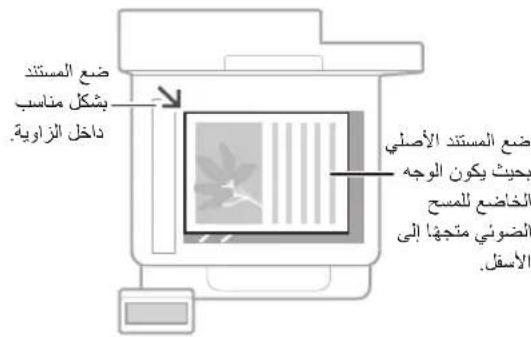


Cnaal gailall 111
Cuaaag aalg
J 1
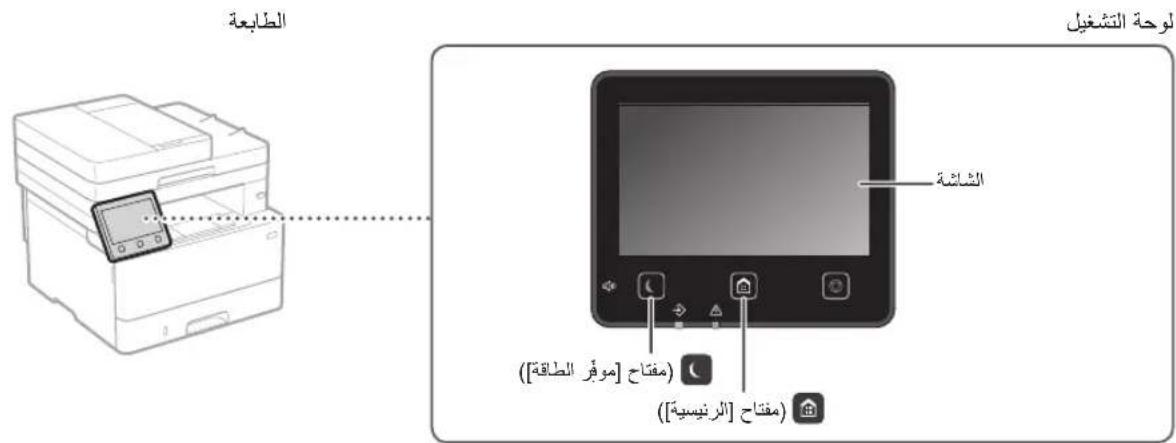
gaii

<2yj>
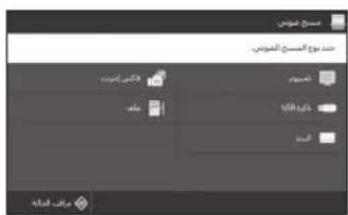
JSSSII JSSSII JSSSII MF Scan Utility
gaiall gaii USBs113 j42 0j211 1 111 111 111
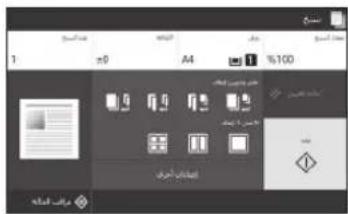
#

1
<1>
Aeall 1
0.02jdi jll 1
< 0 即 2 .

ool
- N
215435 5 1
jiao 5 jie
a#
Aaalall jia aaiy
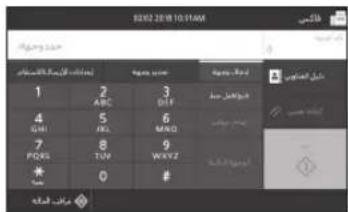
\*

1
aalalal aolal alalal alalal alalal alalal
[calu] 1 [duaill] 12345678901123456789011234567890112345678901123456789011234567890112345678901123456789011234567890112345678901
4
- 85
aalall aalall 122
12( 12) ,0 = 2,7
( 12j) ( 4 - k) = 0
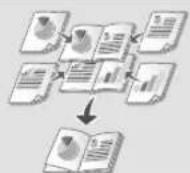
ai = 12( ai + a_i)
S OBC = S AOB + S_ BOC
- SCN
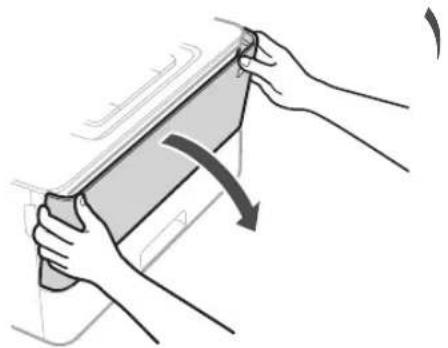
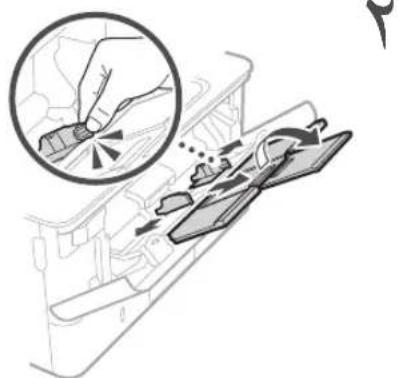
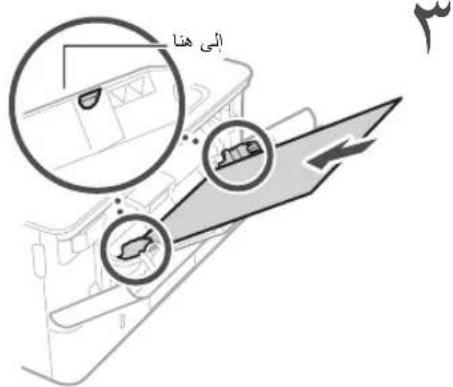
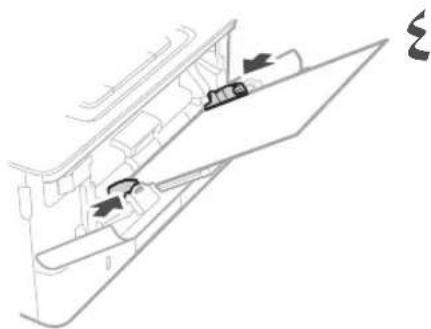
a
2
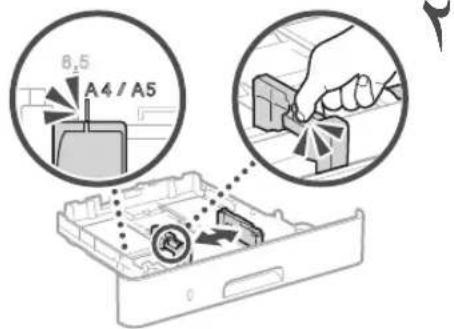

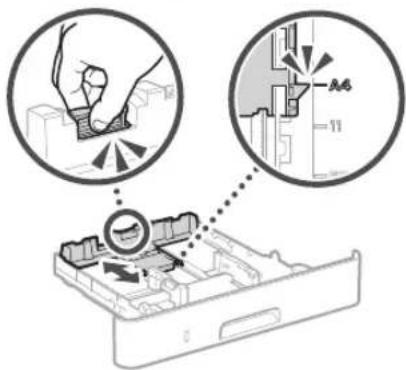
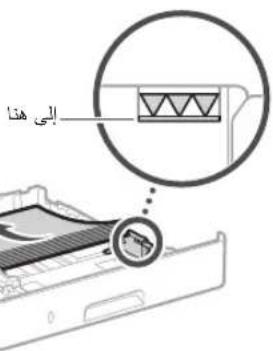
aaii

g 1
< 3( 2,5) ( 1,2) > : 22, c b.b.

a 1
1
Jaa 8 aai j
aaiiie iie aiee iie eae ee eae eae eae eae eae eae eae eae eae eae eae eae eae eae eae eae eae eae eae eae eae eae eae eae eae eae eae eae eae eae eae eae eae eae eae eae eae eae
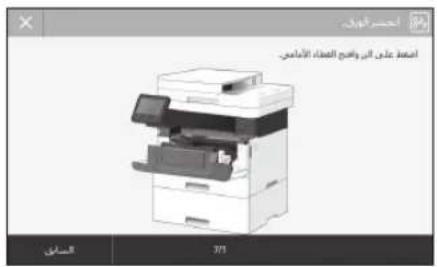
9.1.11 8
Jgssu
jie 1e jie 1e jie
2
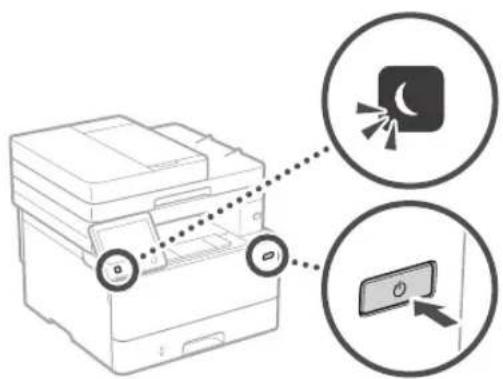
J
aiee eae eee eee
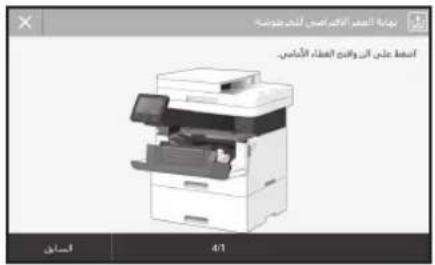
Jusu Juaa aalal
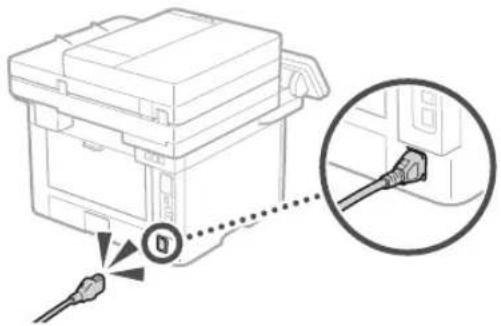
aall aabj jba
Canon Cartridge 052
Canon Cartridge 052 H
pssssssssssssssssssssssss
jusil (s) aysuul aylaal asyul plasul sse (aia ayluuaylaaylaayl ayduy Juaa y
jia 0 a jie jie jie jie jie jie jie jie jie jie jie jie jie jie jie jie jie jie jie jie jie jie jie jie jie jie jie jie jie jie jie jie jie
LAN
12
y
1 1
11 1
y
j 1
e 1000
aalbail jda
y 1
y
A
a 2j jai aai
- j s s s all
Laiuui xiaoy jsh liy jai Lao
aalal alal aalal
y
A
Ciknally jia jiall gao jj 11
p 1
yj 1
Canon 1
1
a 1
Canon
1
a 1
aalal 1
1 1
a a a a a a a a a a a a a a a
jai jai gai jie jie jie jie jie jie jie jie jie jie jie jie jie jie jie jie jie jie jie jie jie jie jie jie jie jie jie
y
a 1
1
Jauuuii
i j 1
0
01
i 1
Cslal all j jll 1
y 1
J 1
y
4.4.4.5
J 1
eai j 1
(
juiu juii juii
jll 1y j
i 1
S
jua 1
Jaii jaiil al gai
1
·gj 1
·
y
paaa aae 8e eae
y j 1
y
L
aal 1
a
·
j j j j j j j j j j j j j j j j j j j j j j j j j j j j j j j j j j j j j j j
.Canon
- 1
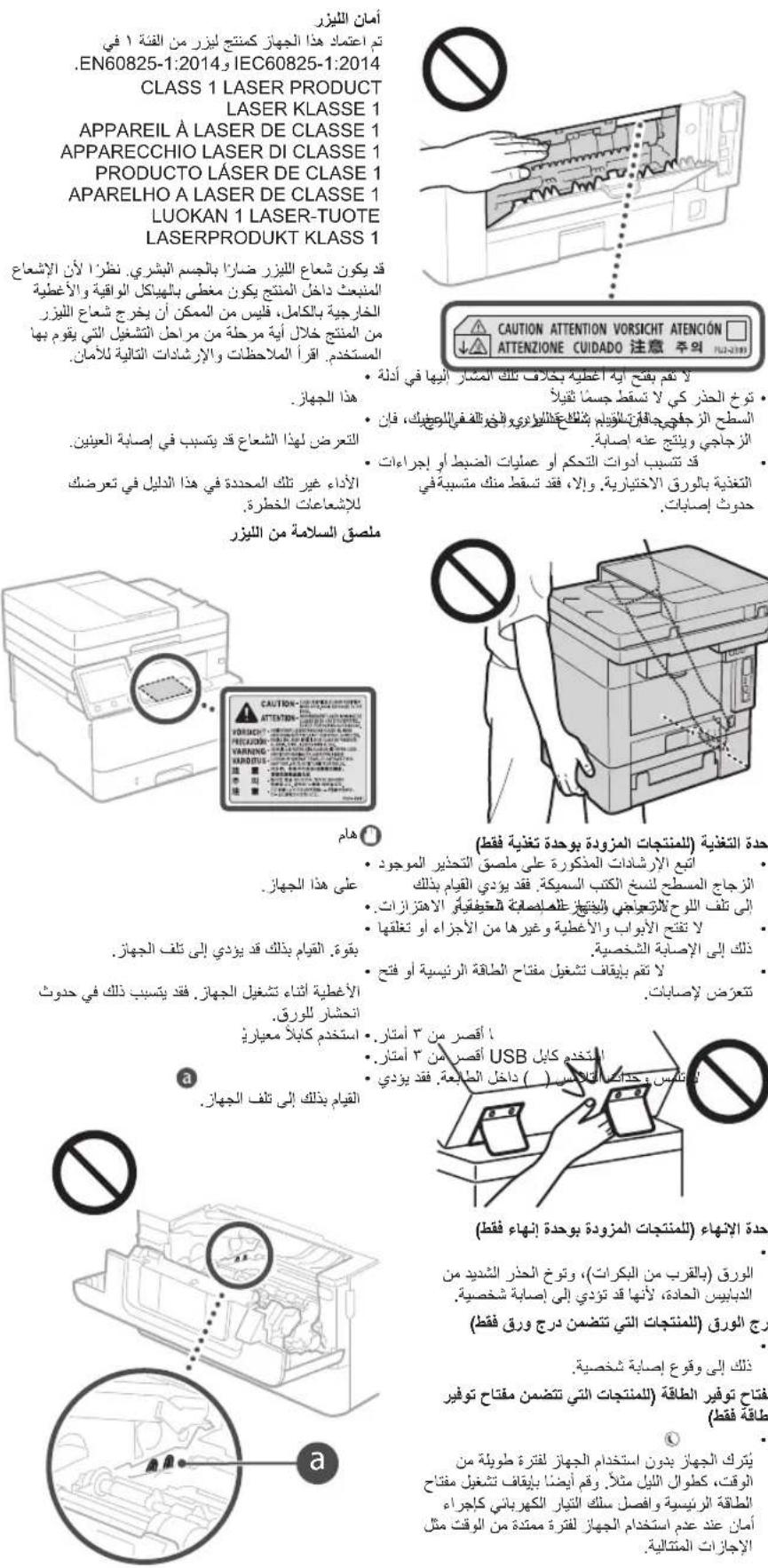
a a a a a a a a a a a a a a a a a a a a a a a a a a a a a a a a a a a a a a a a a a a
i 1
j
cuii jiu liu jiu jiu ci 151
jai jia jia jia jia jia jia jia jia jia jia
jill 15
j 1
yla jai yjai jia jia jia
.
21 ≤ gnan( 1 a1 < a2) ≤ 21
g
a. a. a. a. a. a. a. a. a.
()ON
.
()OFF 20
(1) STAND-BY 4.0000
4
1
- 世界地理
1
jaiiE jiuu:
a 1
j 1 j 1 j 1 j 1 j 1 j
Regulatory information for users in Jordan
MF429x / MF428x / MF426dw / MF421dw includes approved Wireless LAN Module (Model name: Type1KA). Contains Wireless LAN Module approved by TRC/LPD/2017/19
Regulatory information for users in UAE MF429x / MF428x / MF426dw / MF421dw includes approved Wireless LAN Module (Model name: Type1KA).
TRA
REGISTERED No: ER51217/17
DEALER No: DA0073692/11
RE Directive
(Only for European radio equipment) RE Declaration of Conformity
English (EN) Hereby, Canon Inc. declares that this equipment is in compliance with Directive 2014/53/EU. The full text of the EU declaration of conformity is available at the following internet address: http://www.canon-europe.com/ce-documentation/Wireless LAN Specifications Frequency band(s):2412-2472MHz Maximum radio-frequency power: 15.9 dBm
jai jz jia (sla Jaaal jss 1 jz jz jz jz
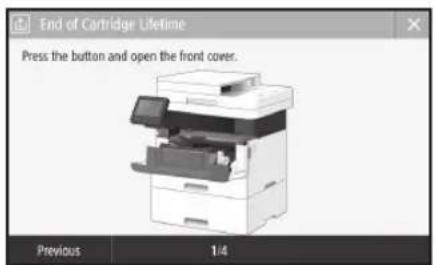
Canon Cartridge 052 Canon Cartridge 052 H
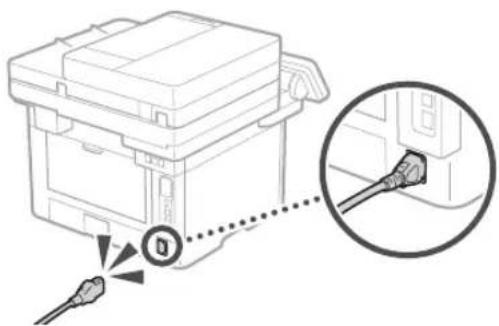
Slaal aaiis ay aaiy aaiiaaai 1iinss
JANL LAN LAL
LAN
paae 10000000000000000000000000000000000000000000
1 1 1 1 1 1 1 1 1 1 1 1 1 1 1 1 1 1 1 1 1 1 1 1 1 1 1 1 1 1 1 1 1 1 1 1 1 1 1 1 1 1 1 1 1 1 1 1 1 1
21s 24
aaii iaiy i 1000000000000000000000000000000000000000000000000
J 1
1
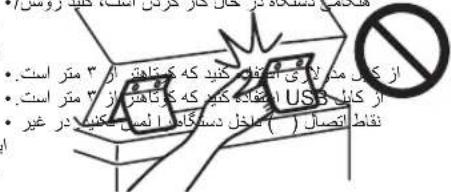
51.25( 2 - 2) = 12 × 10% = 12
()"OFF"
"STAND-BY" Cuaa:aaia
ON"DFE"s
1
A
1
Saa aee 1 j 2 j 3 4
ii 0i i 1
| x,y| = 1,| z| = 2,
J 1 J 1 1 1 1 1 1 1 1 1 1 1 1 1 1 1 1 1 1 1 1 1 1 1 1 1 1 1 1 1 1 1 1 1 1 1 1 1 1 1 1 1 1 1 1 1 1 1 1 1 1 0
#
4ab = 1,2b = 9
15 1y jy yj yj yj yj yj yj yj yj yj yj yj yj yj yj yj yj yj yj yj yj yj yj yj yj yj yj yj yj yj yj yj yj yj yj yj yj
Regulatory information for users in Jordan
MF429x / MF428x / MF426dw / MF421dw includes approved Wireless LAN Module (Model name: Type1KA).
Contains Wireless LAN Module approved by TRC/LPD/2017/19
Regulatory information for users in UAE MF429x / MF428x / MF426dw / MF421dw includes approved Wireless LAN Module (Model name: Type1KA).
TRA
REGISTERED No: ER51217/17
DEALER No: DA0073692/11
RE Directive (Only for European radio equipment) RE Declaration of Conformity
English (EN) Hereby, Canon Inc. declares that this equipment is in compliance with Directive 2014/53/EU. The full text of the EU declaration of conformity is available at the following internet address: http://www.canon-europe.com/ce-documentation/Wireless LAN Specifications Frequency band(s):2412-2472MHz Maximum radio-frequency power: 15.9 dBm
jie jia jai jai jia jia jia jia (Y)
ydyj yj jj jj jj jjj jjj jjj jjj
j 45
y 1
j j j j j j j j j j j j j j j j j j j j j j j j j j j j j j j j j j j j j j j j
y
aai ai jyjlaai ay jy
jol jai jil jil jil jil jil
S木弟形 COBD = S COD + S_ BDO
()
a 1 j j j j j j j j j j
j 1 j j j j j j j j j j j j j j
y j 1 y j y j j j j j j j j j j j j j j j j j j j j j j j j j j j j j j j j j j
J
a, b, c, d, e, f, g, h, i, j, k, l, m, n, o, p, q, r, s, t, u, v, w, x, y, z
j()4
yj j 1000
()yduai
A
Software
2
SOSWARE
y 202 p1 y o jol
S SOFTWARE j
j j j j s 4
J 1
()
Software
"Jusaa" juiy juy jss (9) (1) siae
j j j j j j j j j j j j j j j j j j j j j j j j j j j j j j j j j j j j j j j j j j j j
jao jao jao jao jao jao jao jao jao jao
.
aai jai jai jai jai jai jai jai jai jai
a 1
jla jaa jaa Jaa Jaa Jaa Jaa
http://canon.com/oip-manual
jui 1 jia i jai jai jai
j 1 j 1 j 1 j 1 j
yai ciia 1ai yai lalai
V_170601
aalil gol jol alil 1jg jgl
J 1
J. Textual integral declaration: Use of sigmoid matrices
este,disponibla jumatparea adresa internet:
http://www.canon-europe.com/csdocumentation
Spcificati wireless LAN
Benzi de freventa: 2412-2472 MHz
Putere maxima a freventei radio: 15.9 dBm
nhynn n nn hynn nx nn
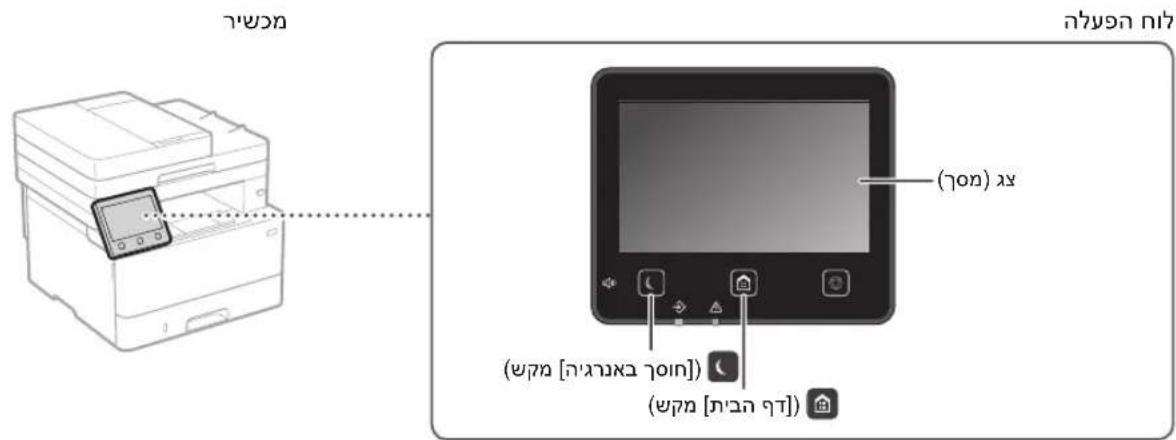
nno

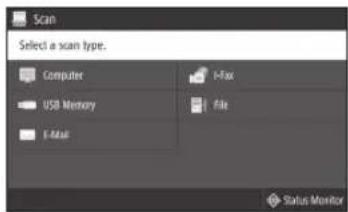
D. D. D. D. D. D. D. D. D. D. D. D. D. D. D. D. D. D. D. D. D. D. D. D. D. D. D. D. D. D. D. D. D. D. D. D. D. D. D. D. D. D. D. D. D. D. D. D. D. D. D.
nX TIN X OYIN YOYIN 17
yynnnynnn yynnnn nn nnnnnnnnnnnnnnnnnnnnnnnnnnnnnnnnnnnnnnnnnnnnnnnnnnnnnnnnnnnnnnnnnnnnnnnnnnnnnnnnnnnnnnnnnnnnnnnnnnnnnnnnnnnnnnnnnnnnnnnnn
n790
n nnnn nn
nnnnnnnnnnnnnnnnnnnnnnnnnnnnnnnnnnnnnnnnnnnnnnnnnnnnnnnnnnnnnnnnnnnnnnnnnnnnnnnnnnnnnnnnnnnnnnnnnnnnnnnnnnnnn
yannnnn nn nnnnnnnnnnnnnnnnnnnnnnnnnnnnnnnnnnnnnnnnnnnnnnnnnnnnnnnnnnnnnnnnnnnnnnnnnnnnnnnnnnnnnnnnnnnnnnnnnnnnnnnnnnn
n 1
n 1
nnnnnn
n77777777777777777777777777777777
1 1
y
y
ynnn nnnn nn nnnn nnnnnnnnnnnnnnnnnnnnnnnnnnnnnnnnnnnnnnnnnnnnnnnnnnnnnnnnnnnnnnnnnnnnnnnnnnnnnnnnnnnnnnnnnnnnnnnnnnnnnnnnnnnnnnnnnnnnnnnnn
n nn nnnnnnnnnnnnnnnnnnnnnnnnnnnnnnnnnnnnnnnnnnnnnnnnnnnnnnnnnnnnnnnnnnnnnnnnnnnnnnnnnnnnnnnnnnnnnnnnnnnnnnnnnnnnnnnnnnnnnnnnnnnnnnnnnnnnn
nirn 50 nnnn nn nnnn nn nnnn nn nnnn nn nnnn nn nnnn nn nnnn nn nnnn nn nnnn nn nnnn nn nnnn nn nnnn nn nnnn nn nnnn nn nnnn nn nnnn nn nnnn nn nnnn nn nnnn nn nnnn nn nnnn nn nnnn nn nnnn nn nnnn nn nnnn nn nnnn
D
·17
(nnnnnnnnnnnnnnnnnnnnnnnnnnnnnnnnnnnnnnnnnnnnnnnnnnnnnnnnnnnnnnnnnnnnnnnnnnnnnnnnnnnnnnnnnnnnnnnnnnnnnnnnnnnnnnnnnnnnnnn
nnn nnnn nn nnnn nnnn nnnn nnnn nnnn nnnn nnnn nnnn nnnn nnnn nnnn nnnn nnnn nnnn nnnn nnnn nnnn nnnn nnnn nnnn nnnn nnnn nnnn nnnn nnnn nnnn nnnn nnnn nnnn nnnn nnnn nnnn nnnn nnnn nn
nnnnnnnnnnnnnnnnnnnnnnnnnnnnnnnnnnnnnnnnnnnnnnnnnnnnnnnnnnnnnnnnnnnnnnnnnnnnnnnnnnnnnnnnnnnnnnnnnnnnnnnnnnnnn
·n
107911111111111111111
1 1
nnn nn nnnnnnnnnnnnnnnnnnnnnnnnnnnnnnnnnnnnnnnnnnnnnnnnnnnnnnnnnnnnnnnnnnnnnnnnnnnnnnnnnnnnnnnnnnnnnnnnnnnnnnnnnnnnnnnnn
100 100 100 100 100 100 100 100 100 100 100 100 100 100 100 100 100 100 100 100 100 100 100 100 100 100
3000 3000 3000
1970 1970 1970 1970 1970 1970 1970 1970 1970 1970 1970 1970 1970 1970 1970 1970 1970 1970 1970 1970 1970
nannnnn
nnnnnnn nn nnnn nn nnnn nn nnnn nn nnnn nn nnnn nn nnnn nn nnnn nn nnnn nn nnnn nn nnnn nn nnnn nn nnnn nn nnnn nn nnnn nn nnnn nn nnnn nn nnnn nn nnnn nn nnnn nn nnnn nn nnnn nn nnnn nn nnnn nn nnnn nn nnnn nn
ywnn nn nynnnny
NININININ
y
n nnnn nn nnnn nnnn nnnn nnnn nnnn nnnn nnnn nnnn nnnn nnnn nnnn nnnn nnnn nnnn nnnn nnnn nnnn nnnn nnnn nnnn nnnn nnnn nnnn nnnn nnnn nnnn nnnn nnnn nnnn nnnn nnnn nnnn nnnn nnnn nn
1
y
·
y
1
#
y jn nn nnnnnnnnnnnnnnnnnnnnnnnnnnnnnnnnnnnnnnnnnnnnnnnnnnnnnnnnnnnnnnnnnnnnnnnnnnnnnnnnnnnnnnnnnnnnnnnnnnnnnnnnnnnnnnn
mnnA
nnnnn
wnnnn nn nnnn nn nnnn
nnnnnnnnnnnnnnnnnnnnnnnnnnnnnnnnnnnnnnnnnnnnnnnnnnnnnnnnnnnnnnnnnnnnnnnnnnnnnnnnnnnnnnnnnnnnnnnnnnnnnnnnnnnnnnnnn

AC-nnnny
PQ = PQ = PQ = 2 QEBM + BMC
X7X P'02D X D N D 7X, D'10D 7X
12
Class II T1Y
yipn nynnnn nn
·177777
.
·,nnnnnnnnnnnnnnnnnnn
( xt^2 - x) t + xt^2 = 0 ( t > 0且t 1)
Pn"70nn nn D9 1nn n
nnn nn nnnn nn nnnn nn
nna nna nna nna nna nna nna nna nna nna nna nna nna nna nna nna nna nna nna nna nna nna nna nna nna nna nna nna nna nna nna nna nna nna nna nna nna nna
unnnn nn nynnnn
yun nnxuyin yynnnnyn7
n7 7
.
mua
n nn n nn nn nn nn nn nn nn nn nn nn nn nn nn nn nn nn nn nn nn nn nn nn nn nn nn nn nn nn nn nn nn nn nn nn nn nn nn nn nn nn nn nn nn nn nn nn nn nn nn nn nn nn nn nn nn nn nn nn nn nn nn nn nn nn nn nn nn nn nn nn nn nn nn nn nn nn nn nn nn nn nn nn nn nn nn nn nn nn nn nn nn nn nn nn nn nn nn nn nn nn
nannnnn n 17
-7y97 y9
7777777777777777777777777777777777777
n nnnn nn nnnn nn nnnn nn nnnn nn nnnn nn
mun ynnn nn on
·17
y
y 77n, nna, nna nnwn
nwnnnn nn nnnn nn nnnn
n nn nnnn nn nnnn nnnn
an nn nn nn nn nn nn nn
IN 10000000
nwnnn
-ynxdy7y9
D
DIN IN DTO, NIOY, N199
n 1
nannnnn nnnn
nnty
Regulatory information for users in Jordan
MF429x / MF428x / MF426dw / MF421dw includes approved Wireless LAN Module (Model name: Type1KA). Contains Wireless LAN Module approved by TRC/LPD/2017/19
Regulatory information for users in UAE MF429x / MF428x / MF426dw / MF421dw includes approved Wireless LAN Module (Model name: Type1KA).
TRA
REGISTERED No: ER51217/17
DEALER No: DA0073692/11
RE Directive (Only for European radio equipment) RE Declaration of Conformity
English (EN) Hereby, Canon Inc. declares that this equipment is in compliance with Directive 2014/53/EU. The full text of the EU declaration of conformity is available at the following internet address: http://www.canon-europe.com/ce-documentation Wireless LAN Specifications Frequency band(s):2412-2472MHz Maximum radio-frequency power: 15.9 dBm
nwn nwnn nn nnnn nn (4)
ynnn nn yynn nynn
.
ywnynn,ynnnn (5)
nnn (x) : nn nnn
nnnnnnnnnnnnnnnnnnnnnnnnnnnnnnnnnnnnnnnnnnnnnnnnnnnnnnnnnnnnnnnnnnnnnnnnnnnnnnnnnnn
y
77 77 77 77 77 77 77 77 77 77 77 77 77 77
.177n
nno nnnn nn nn nn (6)
yipn nnnn nn nnnn
.
,
INNNNN NNNN INNNN
.0000
in nnnnnnn nn nnnn nn nnnn (8)
nnnnnnnnnnnnnnnnnnnnnnnnnnnnnnnnnnnnnnnnnnnnnnnnnnnnnnnnnnnnnnnnnnnnnnnnnnnnnnnnnnnnnnnnnnnnnnnnnnnnnnnnnnnnnnnnnnnnn
nnn nn n nn (9)
- 17777777 (77777)
(9)(1)
Nn nn nnnnnnnnnnnnnnnnnnnnnnnnnnnnnnnnnnnnnnnnnnnnnnnnnnnnnnnnnnnnnnnnnnnnnnnnnnnnnnnnnnnnnnnnnnnnnnnnnnn
n7 1997 777 777 777
1
n nn nnnnnnnnnnnnnnnnnnnnnnnnnnnnnnnnnnnnnnnnnnnnnnnnnnnnnnnnnnnnnnnnnnnnnnnnnnnnnnnnnnnnnnnnnnnnn
Tn y n9012 nn nn nn
Tn Tn nn nn nn nn
ninn
http://canon.com/oip-manual
n nn nnnn nnnnnnnnnnnnnnnnnnnnnnnnnnnnnnnnnnnnnnnnnnnnnnnnnnnnnnnnnnnnnnnnnnnnnnnnnnnnnnnnnnnnnnnnnnnnnnnnn
wnn nn nnnnnnn
nnon n77 09nn yu uynyinn
Slovak (SK) Spolocnost' Canon Inc. tymto vyhlasuje, ze toto zariadenie je v sulade so smemicou 2014/53/EU.
Bulgarian (BG) C HacToaIto Canon Inc.
Tnappa,he Tgba CbopbKeHne e B
CBOBTBCTBNG.C HypeKTUBA 2014/53/EC.
000000000000000000000000000000000000000000000000
GbOTBETCTBMEMOEJaCeHAMEHaCJedHn
INININININ INI INNININININININININININININININININININININININININININININININININININININININININININININININININININININININININ
1316 27 1981 00000000000000000000000000000000000000000000000000000000000000
Cnwnhawaaang na bezayannata LAN
ChenmikpikaNan de 63142472 MHz
Tectotha JieHra(II).2412-2472 MH
MaKcImaHa paIIOueCToTHa MOUHocT: 15.9
dBm
ninnnn
non
30-2, Shimomaruku 3-chome, Ohta-ku, Tokyo 146-8501, Japan
One Canon Park, Melville, NY 11747, U.S.A.
CANON EUROPA N.V.
Bovenkerkerweg 59, 1185 XB Amstelveen, The Netherlands
2F Jinbao Building No.89, Jinbao Street, Dongcheng District, Beijing 100005, PRC
CANON SINGAPORE PTE LTD
1 Fusionopolis Place, #15-10, Galaxis, Singapore 138522
CANON AUSTRALIA PTY LTD
Building A, The Park Estate, 5 Talavera Road, Macquarie Park, NSW 2113, Australia
CANON GLOBAL WORLDWIDE SITES
http://www.canon.com/