SASDVRPIR10 - Surveillance Camera KONIG - Free user manual and instructions
Find the device manual for free SASDVRPIR10 KONIG in PDF.



User questions about SASDVRPIR10 KONIG
0 question about this device. Answer the ones you know or ask your own.
Ask a new question about this device
Download the instructions for your Surveillance Camera in PDF format for free! Find your manual SASDVRPIR10 - KONIG and take your electronic device back in hand. On this page are published all the documents necessary for the use of your device. SASDVRPIR10 by KONIG.
USER MANUAL SASDVRPIR10 KONIG
MANUAL DE USO (p. 27)
MANUAL (p. 32)
HASZNÁLATI UTMUTATO (o.37)
KÄYTTOOHJE (s. 42)
Motion Detector with Camera


KONIG
ENGLISH
Introduction
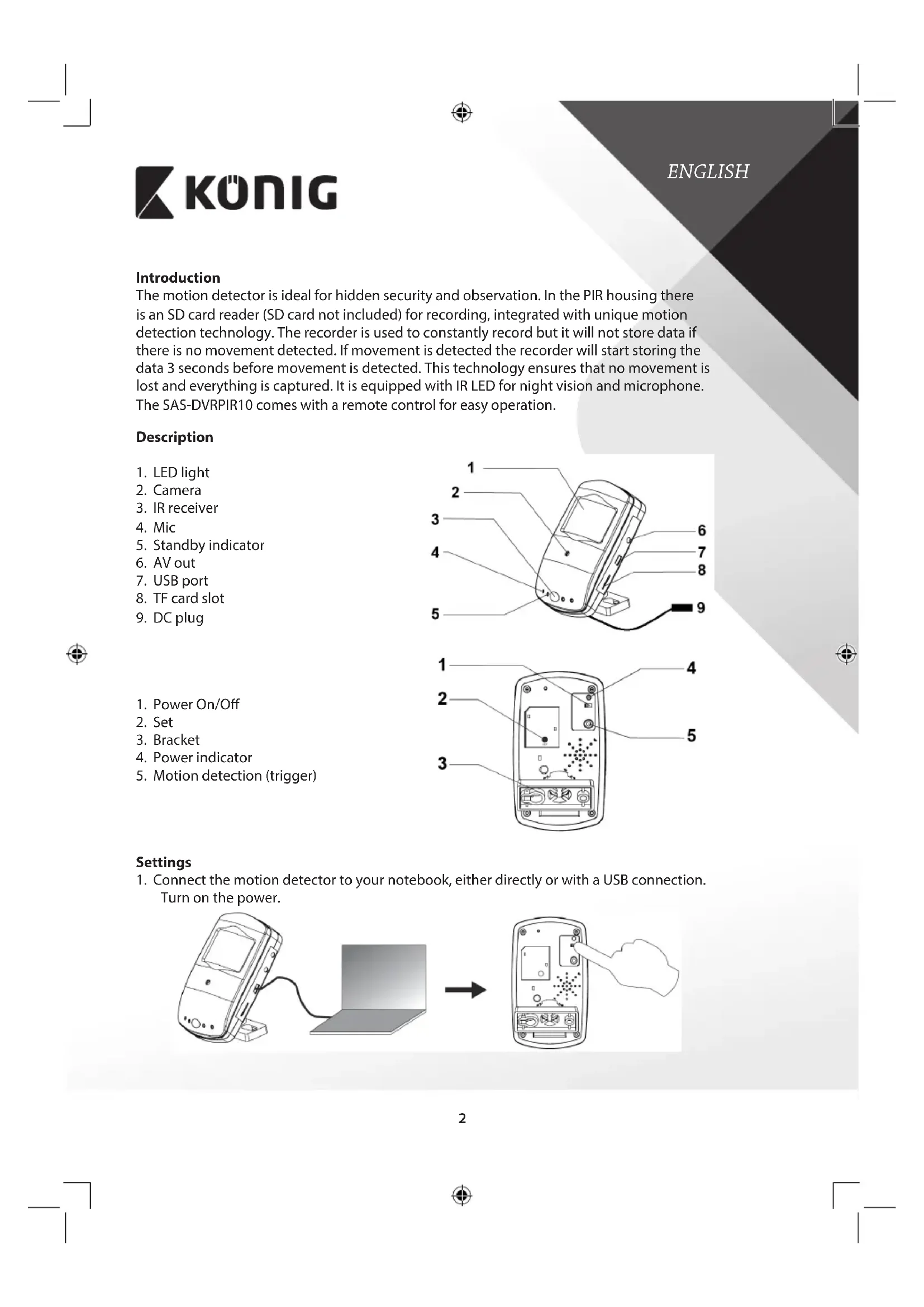
The motion detector is ideal for hidden security and observation. In the PIR housing there is an SD card reader (SD card not included) for recording, integrated with unique motion detection technology. The recorder is used to constantly record but it will not store data if there is no movement detected. If movement is detected the recorder will start storing the data 3 seconds before movement is detected. This technology ensures that no movement is lost and everything is captured. It is equipped with IR LED for night vision and microphone. The SAS-DVRPIR10 comes with a remote control for easy operation.
Description
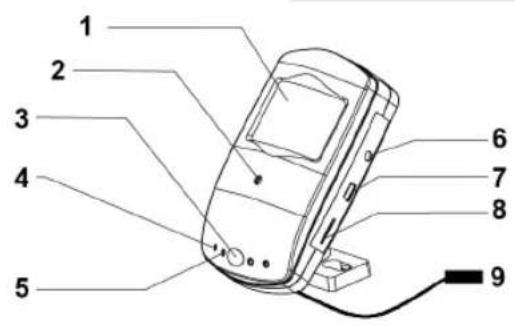
- LED light
- Camera
- IR receiver
- Mic
- Standby indicator
- AV out
- USB port
- TF card slot
- DC plug
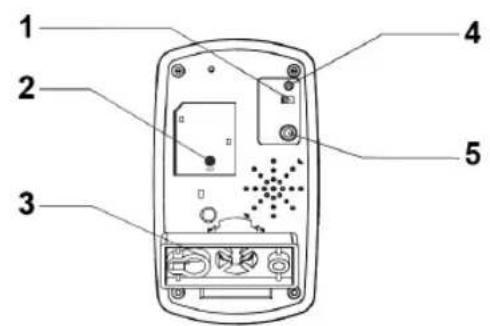
- Power On/Off
- Set
- Bracket
- Power indicator
- Motion detection (trigger)
Settings
- Connect the motion detector to your notebook, either directly or with a USB connection. Turn on the power.
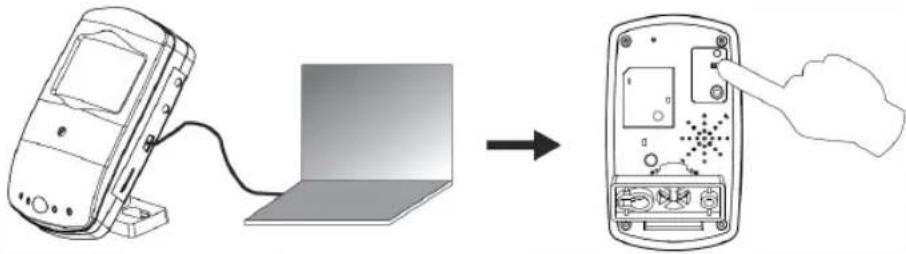
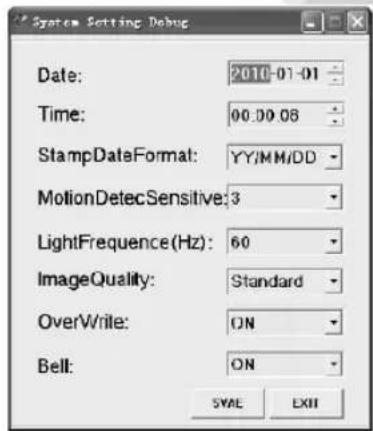
- Open the folder and select DvXSet.exe to enter the settings.
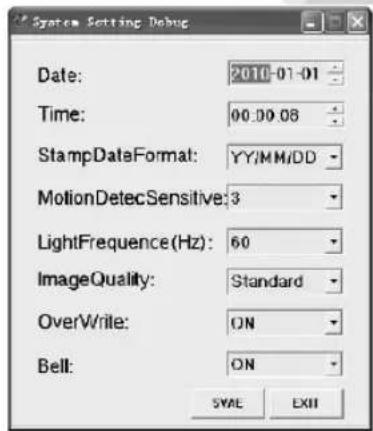
- Date: Click on the year, month and date to set. Use the up and down arrow button to adjust the settings.
- Time: Click on the hour, minute and second to set. Use the up and down arrow button to adjust the settings.
- Stamp Date Format: Select YY/MM/DD, DD/MM/YY or MM/DD/YY. Use the arrow down button to adjust the settings.
Motion Detection Sensitivity: Select the sensitivity of the motion detector from 1 to 5. Use the arrow down button to adjust the setting. (5 is the most sensitive setting, 3 is recommended).
Light Frequency (Hz): Select the light frequency for your country. For example, 50Hz for Europe; 60Hz for United States. Use the arrow down button to select. - Image Quality: Select the recording quality, High-HD, Standard or Low VGA. Use the arrow down button to select.
OverWrite: If the SD card must be overwritten when it is full, then select ON. If overwritten is not preferred, then select OFF. Use the arrow down button to select. - Bell: When you want to hear a peep sound, press the button on the remote control or motion detector, then select ON. If not, then select OFF. Use the arrow down button to select.
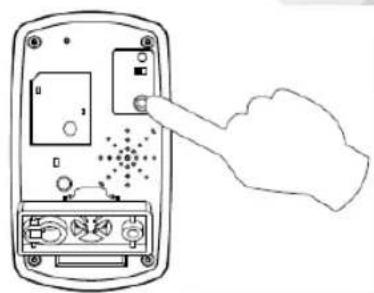
- After adjusting all settings, click on SAVE and then press the SET button on the back side of the camera for 3 to 5 seconds to store the settings in the motion detector.
Operation
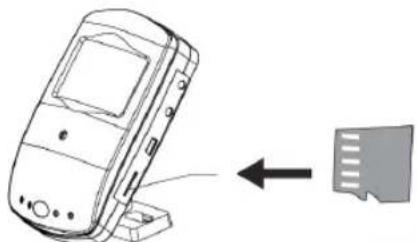
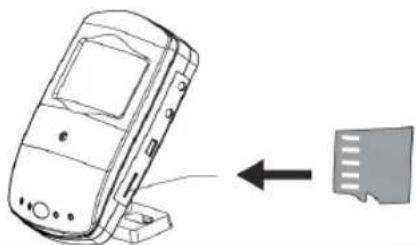
- Insert a Micro SD Card (max. 32 GB).
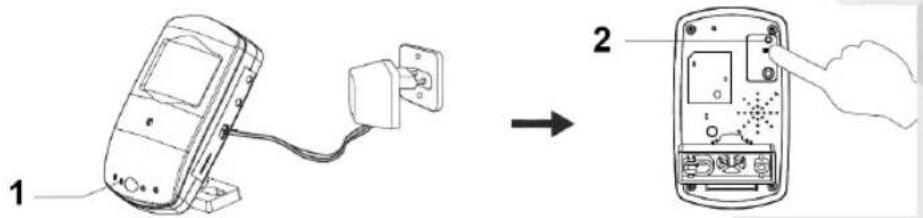
- Insert the power supply into DC plug of the DC cable. Switch the power on. The power and standby indicator light up.
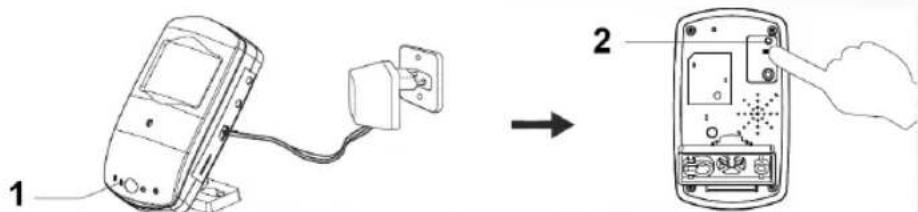
- Power indicator 2. Standby indicator

König
-
For operation on the motion detector itself (otherwise use the remote control), press the trigger button. When motion is detected, the standby indicator flashes once and goes out. To end the function, press the trigger button again. The standby indicator will light up again.
-
The motion detector can also be operated by the remote control.
A: Start manual recording (motion detection is disabled and the motion detector will record constantly until the stop button is pressed)
B: Stop manual recording
C: Enable motion detection
D: Disable motion detection
ENGLISH
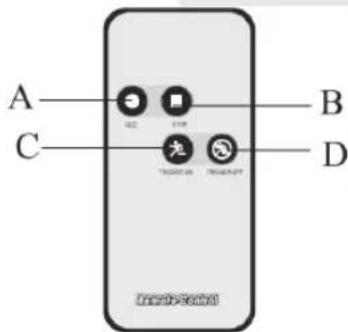

Note: The remote control has infrared transmission, which prompts you to point the remote control towards the motion detector for operating.
- The motion detector can be connected directly to a monitor or TV for live view or playback function. Use the AV cable to connect.
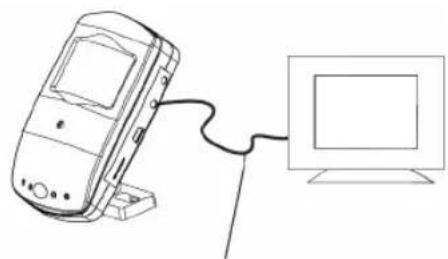
AV Line
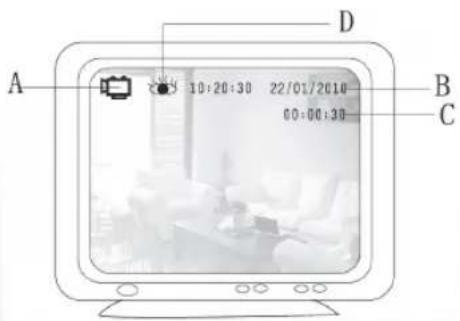
When connected to a monitor or TV, the following indicators can be shown on the screen.
A: The motion detector is recording
B: Present time and date
C: Recording time
D: Motion detection

KONIG
ENGLISH
- For playback or file transfer, connect the motion detector with the USB cable to a computer or notebook. Switch on the motion detector. Open the folder to view files. Open folder VIDEO to playback the recordings or copy/delete files (play back of files using a player that supports AVI files).
- The motion detector starts to record 3 seconds before motion is detected and 15 seconds after the last detection with a minimum of 18 seconds of recording. When motion is continually detected, the motion detector will record constantly. The recording time of any single file should not exceed 15 minutes.
Specifications
Resolution: 1280 × 720
Video format: AVI/D1/VGA 30 fps with audio
- Camera lens: 3mm
Supported SD card: Maximum 32 GB
Video file size: 35 MB/min
USB port: 2.0
AVout:3.5mm
Pre recording time: 3 Seconds
Distance remote control: 10 Meters
Night vision range: 8 Meters
Power supply: 6 V, 800 mA
Dimensions: 103 × 60 × 29.5 ~mm

CAUTION
DO NOT OPEN

Safety precautions:
To reduce risk of electric shock, this product should ONLY be opened by an authorized technician when service is required.
Disconnect the product from mains and other equipment if a problem should occur.
Do not expose the product to water or moisture.
Maintenance:
Clean only with a dry cloth.
Do not use cleaning solvents or abrasives.
Warranty:
No guarantee or liability can be accepted for any changes and modifications of the product or damage caused due to incorrect use of this product.
General
Designs and specifications are subject to change without notice. All logos, brands and product names are trademarks or registered trademarks of their respective holders and are hereby recognized as such.
Keep this manual and packaging for future reference.
Disposal:

This product is marked with this symbol. It means that used electrical and electronic products should not be mixed with general household waste. There is a separate collections system for these products.
This product has been manufactured and supplied in compliance with all relevant regulations and directives, valid for all member states of the European Union. It also complies to all applicable specifications and regulations in the country of sales.
Formal documentation is available upon request. This includes, but is not limited to: Declaration of Conformity (and product identity), Material Safety Data Sheet, product test report.
Please contact our customer service desk for support:
via website: http://www.nedis.com/en-us/contact/contact-form.htm
via e-mail: service@nedis.com
via telephone: +31 (0)73-5993965 (during office hours)
NEDIS B.V., De Tweeling 28, 5215 MC 's-Hertogenbosch, THE NETHERLANDS
Einleitung
Time:HaXMMTe Yacbl, MHNyTbN CeKHyNbI INx yCTaHOBKn.ДЯ NaHcTpoKN npaMeTpOB NcNoJIb3yIte KHOKN Co CTepeJIkAMN BBePx N BHn3.
Stamp Date Format: Bb6epnte YY/MM/DD, DD/MM/YY mnn MM/DD/YY. nna hactpoyn napametpoBncnoj3yute KhoNky co cTePKoB Bn3.
Motion Detection Sensitivity: Bb6epnte yBCTBNTeNbHOCTb 06hApUxKeHnA DnXKeHnA O T 1 do 5. Дян HabTPOKnnapaMeTPOB nCpONb3yInTe KNONKY CO CTpeNKoB BHN3. (5 —эTO cMbI BBICOKN yPoBeHb yBCTBNTeNbHOCTn, peKOMeHnyETcR ycTaHaBnBaTb yPoBeHb 3).
Light Frequency (Hz): Bb6epnte onTne cyactOty, nCnoB3yEmyOB BaWei cTpaHe. Hanpimep, 50 Tn EbpOnbl, 60 Tn CWA. Nn Bb6opa nCnoB3yIte KhoNky co cTpeKoB Hn3.
Image Quality: Bb6epnte KaeeCTBO 3aNNs, BbICOKoe HD, cTaHdapTHoe Hn3Koe VGA. IJIy Bbl6opa nCNoJb3yIte KhoNky CO cTpeNkoB BHN3.
OverWrite: Ecnn Tpe6yeTc BblnoHnHb nepe3aHncb KapTb SD npu ee 3anonHeHH, HaxmTe ON. Ecnn nepe3aHncb He Tpe6yeTc, Bbl6epnte OFF. DnB Bbl6opa nCnoJb3yIte KHOJIky co CTEpIKoB BHN3.
Bell: EcnBbXOTnTe, YTO6bI npHaxaTn KHONoK BOCpOn3BODnC3 ByKOBoCnHaN HnyIbTe Dy nn DeTeKTope DnHexeHn, Bbl6epnTe ON. B npOTNBHom Cnyae Bbl6epnTe OFF. IyBaIbOpa nCNOB3yIne KHOInky Co cTpeJIKoB BHn3.
Iocne BbInonHeHnBcex HacTpoek HaxMnte SAVE n ydepxkBaTe KhoNky SET ha 3aHNe CTOpOHe KaMepbl B TeueHne 3-5 ceKynd Iyra coxpaHHeHn Ha cTpoek Ha deTeKTope DnHexHn.
3knnyataua
- BctaBbTe KapTy namrtn micro SD (MaKc. 32 Γb).
- NpoknHouHte uTekep Ka6eI noctoHHoro ToKa K nCTOuHky nHTaHn. BkHouHte nHTaHne. 3arOpntc HndkaTop nHTaHn npexmApoxndaHn.

König
PYCCKH