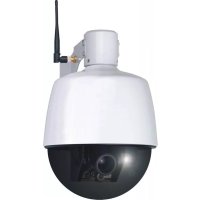
C904IP.2 - Surveillance Camera SMARTWARES - Free user manual and instructions
Find the device manual for free C904IP.2 SMARTWARES in PDF.



User questions about C904IP.2 SMARTWARES
0 question about this device. Answer the ones you know or ask your own.
Ask a new question about this device
Download the instructions for your Surveillance Camera in PDF format for free! Find your manual C904IP.2 - SMARTWARES and take your electronic device back in hand. On this page are published all the documents necessary for the use of your device. C904IP.2 by SMARTWARES.
USER MANUAL C904IP.2 SMARTWARES
outdoor pan & tilt IP camera
GB WIFI NETWORKCAMERA
DE WIFI NETZWERK-KAMERA
PL BEZPRZEWODOWA KAMERA IP
NL WIFI NETWERKCAMERA
FR CAMERA EN RESEAU WIFI
ES CAMARA IP WIFI
TR IP AGI KAMERASI
Thank you for your purchase of the C904IP.2 network camera. We recommend that you carefully read this manual before use in order to use your camera as quickly and easily as possible.
You can find the illustrations from this manual prior to this chapter.
| smartwares safety & lighting b.v. | NL:0900-2088888 lokaal tarief |
| BE:070-233031 lokaal tarief | |
| F:0825 560 650 15ct/min | |
| Broekakkerweg 15 5126 BD Gilze The Netherlands | DE:+49 (0) 1805 010762 14Ct./Min. dt. Festnetz, Mobil max. 42Ct./Min |
| UK:+44 (0) 845 230 1231 | |
| www.smartwares.eu | ES:+34 938427589 |
1. Preventive measures and safety instructions
1.1. Safety symbols used
A Warning! A warning indicates the risk of (serious) damage to the user or the product if the user does not carry out the procedures with care.
Please note! A comment makes the user aware of possible problems.
Tip: A tip makes the user aware of convenient functions and additional options.
1.1.1. Notifications
A Warning! Do not install the product in any place that might be exposed to extreme heat or cold.
Warning! Before beginning assembly, check to make sure there are no electrical wires or water pipes running through the wall where you want to drill.
A Warning! By removing the plug from the power outlet, you immediately cut off power to the product; then contact the Smartwares service desk when:
- the product's hardware components are open, drilled through, damp or have suffered a hard fall;
the adapter's power cable is frayed or open, so that the metal is showing;
the adapter housing is damaged;
the adapter has come in contact with moisture or liquid;
the glass of the camera is cracked or broken;
Warning! It is not permitted to open the product yourself or to have it opened, neither is it permitted to repair the product yourself or to have it repaired. This will void the warranties. Please let any maintenance be carried out by certified maintenance personnel.
A Warning! Only use original accessories from the manufacturer.
A Warning! Keep the product out of reach of children.
A Warning! Disconnect the device from all power sources before cleaning it.
A Warning! Use a clean, dry cloth to clean the product.
Warning! Do not use any abrasive agents, corrosive cleaning products or any substances that contain bleach or solvents to clean the product.
Warning! Remove the adapter from the power outlet during storms, lightning and whenever the product will not be used for a longer period of time.
Please note! Install the product as indicated in this manual. If in doubt, consult a recognised technician and always take account of local installation codes and regulations.
Please note! The camera should be kept out of direct sunlight.
Please note! Do not point the camera at bushes, tree branches or other moving objects.
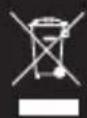
Please note! The product must not be discarded as unsorted municipal waste, it must be disposed of separately.
Please note! Find out about the options in your region for disposing of the product after use. Do not throw away electrical appliances or components, but see whether the product (components) can be turned in, recycled or reused.
Please note! Wireless systems can be affected by interference from wireless telephones, microwave ovens and other wireless devices that operate in the 2.4 GHz range. Keep the product at least 3 metres away from any possible sources of interference during installation and operation.
Please note! The camera is not able to view through glass at night. Keep this in mind when positioning it.
2. Intended use
The C904IP.2 is a security camera that makes it possible to view surveillance images via a local network, an Internet connection or the "ELRO Install" App on your smartphone. The C904IP.2 can be connected either through an Ethernet cable or a Wi-Fi connection.
The camera can make video recordings during the day.
Two electrical rotary shafts let you rotate the camera 355 degrees remotely. You can also choose for this to be done fully automatically.
The camera is also fitted with motion detection and a circuit can be established using the I/O port.
3. Technical specifications
3.1. General product specifications
Sensor: 1/4" Colour CMOS Sensor
Resolution: 640 × 480 pixels (300k pixels)
Lens: 4-9 mm
Optical zoom: 3x
Camera range: 355 degrees horizontal, 90 degrees vertical
Minimal brightness: 0.5Lux
Video compression: MJPEG
Images per second: 15fps(VGA), 30fps(QVGA)
Power source: 230VAC/5VDC/2A Adapter
Energy consumption: 5W (Max.)
Temperature: -10^ 40^ (14°F~104°F)
Minimal system requirements:
CPU: 2.0 GHZ or higher
Memory: 256 MB or higher
Video card: 64 MB or higher
Supported OS: Windows 98/ME/2000/XP/Vista/7/8
Supported browsers: IE6.0-10.0, Firefox, Safari, Google Chrome
Supported mobile OS: iOS 4.3 and higher / Android 2.1 and higher
Certification: CE, FCC, RoHS, R&TTE
Warranty: Limited 3-year warranty
3.2. Main component parts
- Software CD-ROM
- Removable antenna
- 4 assembly screws and plugs
- User's manual
- Ethernet cable
- C904IP.2 camera
- DC supply
3.3. Connections ②
- Antenna port
- DC connection
- Audio jack (output)
- Ethernet port
- I/O port
- Audio jack (input)
- Reset button
4. Camera installation
4.1. Connecting the camera
- Unscrew the dome of the camera ③. Next, remove the packaging material ④ and screw the dome back on.
Screw the antenna into the antenna port 5 - Connect the adapter cable to the DC connection of the camera. ⑥ Then insert the adapter plug into the power outlet.
- Connect the included ethernet cable to the network port of the camera ⑦ Connect the other end of the ethernet cable to your router. The green LED on the ethernet port will light up when the camera is connected to the network.
You can now operate your IP Camera using your smartphone or PC. Go to section 4.2 for use with smartphone and go to section 4.3 for installation on your PC.
4.2. Settings for smartphone use
Attention! To use the "ELRO INSTALL" App, you need a smartphone with internet access.
To set up your camera using Android, go to section 4.2.1.. To set up your camera using iOS, go to section 4.2.2..
4.2.1. Android
Download the App: "Elro Install" via Google Play and install it.
Start the App. The start screen of the app appears.
- Press the "Click here to add camera" option. The "Add camera" menu appears.
- Press the "Scan" button. Next, scan the QR code on the bottom of your camera. You can also choose to manually enter the code behind "UID". You can find this code under the QR code on your IP camera.
Next, enter the code: 000000 after "Security code". (M3)
After "Name" enter the name you want to assign to the camera.
Then press the "OK" button.
Your camera has been added to your phone and will appear on the start screen of your App. On this you can see if the camera is connected (ONLINE) or if it is not connected (OFFLINE).
4.2.2. iOS
Download the App "Elro Install" from the App Store and install it.
- Start the App. The start screen of the app appears.
Press "Add camera".53 The "Add camera" menu appears. (5)
Press the "QR code" button. Next, scan the QR code at the bottom of your camera.
- You can also choose to manually enter the code of your camera. To do this, press the "Add" button. Next, enter the code of your camera behind "UID". You can find this code under the QR code on your IP camera.
Next, enter the code behind "Password": 000000. (3)
After "Name" enter the name you want to assign to the camera.
Then press the "Save" button.
Your camera has now been added to your App and will appear on the home screen of your App. Here you can see if the camera is connected ONLINE) or not connected (OFFLINE).
4.2.3. General
For instructions on placing your camera go to section 4.6.
- For instructions on using your camera with the App go to chapter 5.
4.3. Install your camera on your PC
- Insert the included CD-ROM into your computer.
- Launch "IPCamSetup.exe" from the CD-ROM.
- Go through the installation by double clicking on "Next".
- Complete the installation by clicking on "Restart computer".
The IP camera tool is now installed on your computer. You will find the shortcut on your desktop.
Please note! Do not remove this shortcut! You will have to re-install the IP camera tool if you do.
4.4. Linking to your camera
Please note! To be able to use the IP camera's full functionality, you have to use Internet Explorer 6 or higher (32 bit) and select ActiveX Mode. It is not possible to create audio or video recordings in other web browsers.
Please note! If you opt for the ActiveX mode there is a possibility that you will not have any picture yet. If this is the case, perform the following steps:
In Internet Explorer, go to: Tools->Internet options->Security settings ->Custom level
- Change the deactivated options to "Questions" under the ActiveX control elements and insertion applications. If the "Questions" option is not available, tick "Activate". See also: E F G
Tip: if you wish to use a different web browser than the standard browser, copy the link from the open browser to a browser of your choice.
- Start the IP Camera Tool via the "IP camera tool" shortcut on your desktop. The IP camera tool automatically searches for the IP camera(s) connected to your network.
A window opens A This window displays all your IP cameras. If no cameras are connected, the window will remain empty.
- Double click on the camera you want to use. In your standard web browser, an identification window will open up asking for your user name.
- For the user name, enter "admin" and click on "sign in". You do not need to enter a password.
A menu will open B. You can choose from the following options:
ActiveX Mode: Internet Explorer
Server Push Mode: Safari, Firefox and Google Chrome
VLC Mode: Internet Explorer, Safari, Firefox, Google Chrome and Opera
Please note! You have to download the VLC player for VLC Mode.
Sign in mobile phone: Access with a mobile browser
- Click on "Sign In" under the option that applies to your web browser.
You are now logged in to the Network Camera browser screen. You can manage your camera and camera settings via this screen. (see chapter 6)
4.5. Linking to your camera wirelessly
Please note! In order to set up a wireless connection, your camera must be linked to your network via the included ethernet cable during set-up.
Please note! You need a wireless router in order to establish a wireless connection with your camera.
Please note! If your router is password protected, you will need to know the password.
- In the Network Camera browser screen click on the "Network" tab. A list of settings will appear
- Select the Wireless Lan Settings: the Wireless Lan Settings screen will appear.
- Double-click on "scan" in the Wireless Lan Settings screen. A list of available wireless networks will appear.
- Click on your wireless network.
If you do not require a password for your wireless network, just click on 'submit' after this. - If your wireless network does require a password, you will need to enter your password after "Share Key" or "key1", depending on the encryption.
- Click on 'submit' after this.
The camera restarts automatically when you click 'submit'. This takes approximately 30 seconds.
- Close your browser and camera tool after the computer has restarted.
- Remove the network cable from the camera.
- Open the IP camera tool and click on your camera's address. You can now operate your camera wirelessly.
- If your camera is not in the camera tool window, right click on the tool window, then press the "refresh camera list" option.
4.6. Camera installation
Please note! Make sure that the camera functions properly in the chosen location before starting installation.
- Attach the bracket of the camera to the wall using 4 screws supplied (8).
Please note! If the surface is too hard for the screws (stone/concrete), you will need to drill holes and use the screw plugs which are included.
5. Managing your camera using your smartphone
Make sure your camera(s) is/are connected to your smartphone via the ELRO INSTALL App (see section 4.1 and 4.2).
5.1. You can view your camera image on your Android smartphone
-
On the initial screen of the App press the camera you want to manage. The camera picture appears on your smartphone.
-
Swipe your finger across the screen to zoom in and out and to move the camera image.
Attention! If you do not have a picture it is possible that your wireless connection is not fast enough. In that case change the resolution of your camera image (see section 5.1.1)
The camera screen provides a number of options:
- Press the "Snapshot" button to make a snapshot of your camera image.
- Press the "mute/listen/speak" button to adjust your sound settings.
5.1.1. Changing the settings of your camera on your Android smartphone
- On the start screen of your App press the arrow button next to the camera you want to manage. A menu with options opens.
- Press the "Edit camera" button and then the "Advanced settings" button. The "Advanced settings" window opens. In the "Advanced settings" window you can change a number of properties of the camera.
The main functions are described below:
Modify security code Adjust the code of your camera. The default code is: 000000.
Video Quality: Adjust the resolution of your camera. If you have a slow wireless connection, change this setting to a lower setting.
5.2. Viewing your camera image on your iPhone
- On the initial screen of the App press the camera you want to manage. The camera picture appears on your smartphone.
- Swipe your finger across the screen to zoom in and out and to move the camera image.
Attention! If you do not have a picture it is possible that your wireless connection is not fast enough. In that case change the resolution of your camera image (see section 5.2.1.)
The camera screen provides a number of options:
- Press the "Snapshot" button to make a snapshot of your camera image.
Press the "mute/listen/speak" button to adjust your sound settings.
5.2.1. Changing the settings of your camera on your iPhone
- On the start screen of your App press the arrow button next to the camera you want to manage. A menu with options opens.
In the "Advanced settings" window you can change a number of properties of the camera.
The main functions are described below:
Security code: Adjust the code of your camera here. The default code is: 000000.
Video Quality: Adjust the resolution of your camera. If you have a slow wireless connection, change this setting to a lower setting.
6. Managing your camera using your PC
To be able to manage your camera from your PC, you need to be logged in to the "Network Camera" browser screen with the aid of your web browser (see section 4.4). This screen contains the camera's control panel a number of tabs a channel overview a settings menu for the camera and the control panel that you use to determine the rotation of the camera.
6.1. Camera control panel
You can use the control panel when you have selected the "live video" tab. This control panel provides the following options:
Play: Press "Play" to view your camera images live.
Stop: Press "Stop" to stop the live streaming of your camera.
images.
Record: Press "Record" to make a recording. Press record again to
stop recording.
Please note! To be able to make recordings, you have to indicate where to save the recordings in the "Other" tab. This is explained in section 6.2.3.
Audio: Click on "Audio" to activate the sound. Click on audio
again to turn the sound off.
Please note! To use the "Audio" function, you need to connect a microphone to the microphone jack of the camera.
Talk: Press "Talk" to talk via a loudspeaker connected to the
camera.
Please note! To use the "Talk" function, you need to connect a loudspeaker to the audio output of the camera.
6.2. Tabs
The tabs offer many different options for managing your camera(s). This manual covers the most important functions. If you would like to know more about specific settings, we advise you to consult the manual on the CD-ROM.
6.2.1. Live video
Click on the live video tab to view images from the set camera.
6.2.2. Network
Wireless Lan settings: This lets you set the wireless access to your camera. You
can find more information in section 4.5 H
DDNS Service settings: This lets you make your camera accessible via the
Internet. Consult the manual on the CD-ROM for more information about this.
6.2.3. Other
Please note! Before you can save recordings in Windows 7, 8 or Vista, you need to make the following security setting changes in Internet Explorer. While changing these settings, make sure that the Network Camera screen is open in Internet Explorer.
- Go to: Tools -> Internet Options -> Security -> Trusted Sites J -> Sites K
- On the screen, turn off the Server Verification option (https:). Then click "Add".
- Restart Internet Explorer.
Path settings: Under the "Path settings" option, select where you want
to save the recordings that your camera makes ①
6.3. The camera's channel overview
With the channel overview you have the option to view images from multiple connected cameras simultaneously.
6.4. Camera menu settings (C4)
You can adjust the camera's image settings using this menu: resolution, image speed, clarity and contrast.
6.5. Camera rotation control panel 5 9
The camera's control panel lets you adjust the camera angle both manually and automatically.
6.5.1. Manually adjusting the camera angle
Use the arrow buttons to rotate the camera in any direction of your choice.
6.5.2. Automatically adjusting the camera angle
- Press the horizontal patrol button to automatically rotate the camera horizontally.
6.5.3. Manually zooming in and out
- Use the "+" button to zoom in and the "-" button to zoom out.
7. Cleaning and maintenance
Warning! Disconnect the device from all power sources before cleaning it.
The devices are maintenance-free, so do not open them. Opening the device will void the warranty. Only clean the outside of the devices with a soft, dry cloth or brush
8. Environment and disposal
- The symbol on the material, accessories or packaging indicates that this product may not be discarded as household waste. Dispos of the equipment through a recycling centre that handles electronics and electrical appliances within the EU and in other European countries which use separate collection systems for used electronics and electrical appliances. By disposing of the equipment in the
proper way, you will be helping to prevent possible risks to the environment and public health, which might otherwise be caused by improper handling of the discarded equipment. Recycling of materials contributes to the conservation of natural resources. Therefore, please do not dispose of your old electronics and electrical appliances via household waste.
9. Warranty
A limited 3 year warranty applies to this device. To view the warranty terms please go to: www.smartwares.eu.
CE, FCC, RoHS, R&TTE
Gwarancja:
Certifications: CE, FCC, RoHS, R&TTE
3.3. Raccordements ②
ActiveX Mode: Internet Explorer
Server Push Mode: Safari, Firefox a Google Chrome
VLC Mode: Internet Explorer, Safari, Firefox, Google Chrome a Opera
Upozorneni! Pro VLC Mode je nutno stahnout si VLC player.
CE, FCC, RoHS, R&TTE
Garancia:
Meghatarozott 3-ves garancia
ActiveX Mode: Internet Explorer
Server Push Mode: Safari, Firefox es Google Chrome
VLC Mode: Internet Explorer, Safari, Firefox, Google Chrome es Opera
Certificate: CE, FCC, RoHS, R&TTE
ActiveX Mode: Internet Explorer
Server Push Mode: Safari, Firefox 山 Google Chrome
VLC Mode: Internet Explorer, Safari, Firefox, Google Chrome 山 Opera
ActiveX Mode: Internet Explorer
Server Push Mode: Safari, Firefox i Google Chrome
VLC Mode: Internet Explorer, Safari, Firefox, Google Chrome i Opera
Napomena! Preuzmite VLC player za VLC Mode.
Prijavi mobilni uredaj: Pristup sa mobilnim preglednikom
- Kliknite na "Sign In" u opcjiji koja se odnosi na vaš web preglednik.
Sada ste prijavljeni u preglednik Mrežne Kamere Putem ovog preglednika mozete upravljati kamerom i postavkama kamere. (pogledajte poglavje 6)
4.5. Bežićno povezivanje na vašu kameru
Napomena! Za uspostavljanje beziene veze tijekom podesenja, kameru treba povezati na mrezu pomocu prilozenog ethernet kabela.
4. Camera installation
ActiveX Mode: Internet Explorer
Server Push Mode: Safari, Firefox e Google Chrome
EC DECLARATION OF CONFORMITY
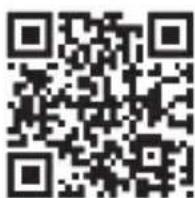
GB Smartwares hereby declares that the device complies with the essential requirements and other relevant provisions of Directive 1999/5/EC. Go to www.elro.eu for the declaration of conformity or scan the QR code.
D Hiermit erklart Smartwares, dass sich das Gerät in Übereinstimmung mit den grundlegenden Anforderungen und den übrigen einschlängigen Bestimmungen der Richtlinie 1999/5/EG befindet. Die Konformitätserkräfung finden Sie auf www.elro.eu oder scannen Sie den QR-Code.
NL Hier bij verklaart Smartwares dat het toestel in overeenstemming is met de essentiele eisen en de andere relevante bepalingen vanrichtlijn 1999/5/EG. Ga waar www.elro.eu voor het document van conformiteit of scan de QR code.
F Par la presente Smartwares declare que l'appareil est conforme aux exigences essentielles et aux autres dispositions pertinentes de la directive 1999/5/CE. Pour le document de conformité, visitez www.elro.eu ou scannez le code QR.
PL Niniejsym Smartwares oswiadz, ze wroj es zgodny z zaadniczymi wymogami oraz pozostalym stosownymi. postanowieniami Dyrektywy 1999/5/WE. Certyfikat zgodnosci moza povrac ze strony www.eiro.u, lub ceskanowac kod QR. W celu povrania deklaraci zgodnosci przyddo du wirtryny www.eiro.u lub ceskanuj cod QR.
Por medio de la presente Smartwares declar que el equipo cumple con los requisitos esenciales y cualesquiera otheras dispositions aplicables o exigibles de la Directiva 1999/5/CE. Para ver el documento de conformidad, visite www.elro.eu o digitalice el #: QR.
GR Me to napov n Smartwares denov eoi n ouokuei evai ouupuvn te cngauvtke anarpoieic kai tic aee cxetikc biataeic nC oyniaac 1999/5/EG. IyvaiveTe OTo www.elro.eu yia to eyypapo ooumoppwonn apawote tvkowko QR.
CZ Smartwares timto prohlasej, ze toto zaifzeni odpovida zakladnim pozadavkum a dalsim ustanovenim smernice 1999/5/ES. Dokument o shodne jajdete na strance www.elro.eu nebo k nemu prjejetete naskenovanim QR kódu.
H A Smartwares ezennel kijelenti, hagy a keszülk megfelel az 1999/5/EK irányelvek alapvető kovetelményinek és más vonahtko z elirasainak. Lepjen tovabb a www.elro.eu oldrala a megfeleloségi nyilatkozathoz, vagy szkennelje be a QR kodot.
RO Smartwares declarar prin prezenta ciechipamentul se aflina n conformitate cu cerintele esenteia s alte prevederi relevante ale Direitevei 1999/5/CE. Pentru declaraatia de conformitate mergetla www.elro.eu sau scana t codul QR.
TR Isbu belge ile Smartwares bu cihazin 1999/5/EC Direktfinin temel gereklilkerine ve diger ilgili hukumlinerine uygun oldugun bayan eder. Uygunjuk belgesi icin www.elro.eu adresine gadin veya QR kodunu tarayin.
HR Smartwares ovime izjavljupe da uredaj udovoljava svim osnovnim zahtjevima i ostalim relevantnim odredbama direktive 1999/5/EZ. Dokument o sukladnosti potrazite na www.elro.eu ili skinerajte QR k od.
Smartwares dichiara con la presente che l'apparecchio è conforme alle esigenze essenziali e alle altre disposizioni pertinenti della direttiva 1999/5/CE. Per il documento di conformità, visitare www.ero.eu o esguire lo scan del codice QR.
smartwares Smartwares Safety & Lighting B.V. P.O.Box 117-5126 ZJ Gilze -The Netherlands Broekakkerweg 15-5126 BD Gilze -The Netherlands T +31 161 455 363 F +31 161 452 991 W www.smartwares.eu
Authorized representative: Mr. Ad Netten
Quality Manager
Date:01.02.2013
QR code


R&TTE APPROVED
C904IP.2-2,4GHz
3 YEAR
smartwares
safety & lighting b.v.
Broekakkerweg 15
5126BDGilze
The Netherlands
www.smartwares.eu
NL:0900-2088888 lokaal tarief
BE:070-233031 loka tarif
F:0825560650
DE:+49(0)1805010762