Cylo - Docking station TRUST - Free user manual and instructions
Find the device manual for free Cylo TRUST in PDF.



| Product Type | Bluetooth Speaker / Docking Station |
| Brand | Trust |
| Model | Cylo |
| Power Supply | Rechargeable battery via USB (5V, 500mA) |
| Charging Time | Approximately 3 hours |
| Battery Life | Not specified, estimated 4-6 hours |
| Connectivity | Bluetooth, 3.5 mm audio input |
| Bluetooth Range | Up to 10 m (ideal conditions) |
| Main Functions | Play/pause, volume control, Bluetooth pairing, answer/hands-free calls |
| LED Indicator | Flashing blue/red in pairing mode, solid blue in Bluetooth mode, green in audio input mode |
| Controls | Volume + button, volume - button, play/pause button, power switch |
| Compatibility | iPad/iPhone, Android, Windows, Mac |
| Package Contents | Speaker, 3.5 mm audio cable, USB charging cable |
| Care and Cleaning | Wipe with a soft, dry cloth. Do not use abrasive products. |
| Safety | Do not expose to water or extreme temperatures. Use only with the supplied charger. |
| Spare Parts and Repairability | Not available individually. In case of failure, contact technical support. |
Frequently Asked Questions - Cylo TRUST
User questions about Cylo TRUST
0 question about this device. Answer the ones you know or ask your own.
Ask a new question about this device
Download the instructions for your Docking station in PDF format for free! Find your manual Cylo - TRUST and take your electronic device back in hand. On this page are published all the documents necessary for the use of your device. Cylo by TRUST.
USER MANUAL Cylo TRUST
www.trust.com/19274/faq
3Trust
Quick Installation Guide
Cyto Wireless Mini Bluetooth Speaker
Package contents P
Trust
Wireless Mini Bluetooth Speaker - USER'S MANUAL
| Index | |||
| Language | page | ||
| English | 2 | ||
| Deutsch | 6 | ||
| Français | 10 | ||
| Itallano | 14 | ||
| Espanol | 18 | ||
| Portugues | 22 | ||
| Nederlands | 26 | ||
| Dansk | 30 | ||
| Suomi | 34 | ||
| Norsk | 38 | ||
| Svenska | 42 | ||
| Polski | 46 | ||
| Česky | 50 | ||
| Slovenčina | 54 | ||
| Magyar | 58 | ||
| România | 62 | ||
| Бulgariatskii | 66 | ||
| Руccskii | 70 | ||
| Еλλυκά | 74 | ||
| Türkce | 78 | ||
| Hrvatski | 82 | ||
| Slovenski | 86 | ||
| C | р taxi | 90 | |
Wireless Mini Bluetooth Speaker - USER'S MANUAL
Trust
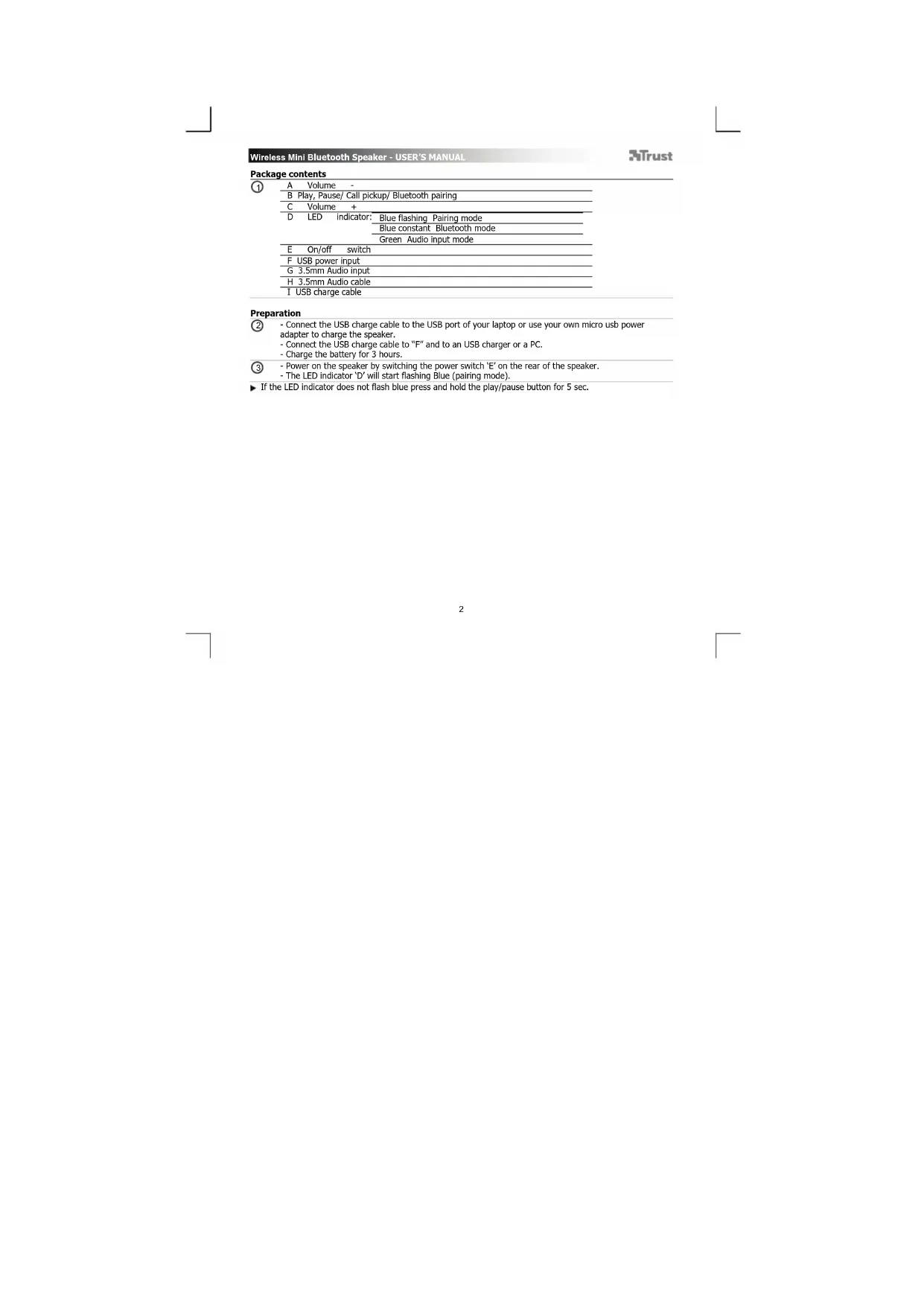
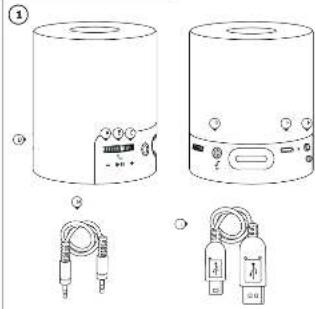
Package contents
| A Volume - | |
| B Play, Pause/ Call pickup/ Bluetooth pairing | |
| C Volume + | |
| D LED indicator: Blue flashing Pairing mode | |
| Blue constant Bluetooth mode | |
| Green Audio input mode | |
| E On/off switch | |
| F USB power input | |
| G 3.5mm Audio input | |
| H 3.5mm Audio cable | |
| I USB charge cable |
Preparation
-
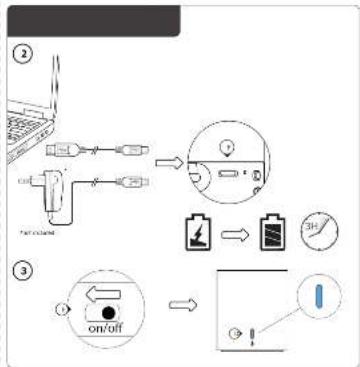
Connect the USB charge cable to the USB port of your laptop or use your own micro usb power adapter to charge the speaker.
-
Connect the USB charge cable to "F" and to an USB charger or a PC.
-
Charge the battery for 3 hours.
-
Power on the speaker by switching the power switch 'E' on the rear of the speaker.
-
The LED indicator 'D' will start flashing Blue (pairing mode).
If the LED indicator does not flash blue press and hold the play/pause button for 5 sec.
Wireless Mini Bluetooth Speaker - USER'S MANUAL
Trust
Standard Configuration
iPad/ iPhone
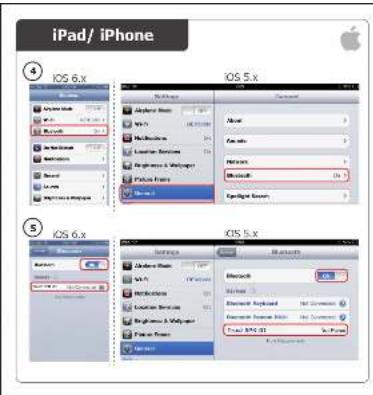
- Go to 'Settings'.
-
Go to the 'General' set.
-
Go to 'Bluetooth'.
- Make sure that Bluetooth is on.
- Select 'Trust SPK-01' in the list of Bluetooth devices. (make sure the speaker is in pairing mode)
When the device status is 'connected', your device is ready to use.
Android
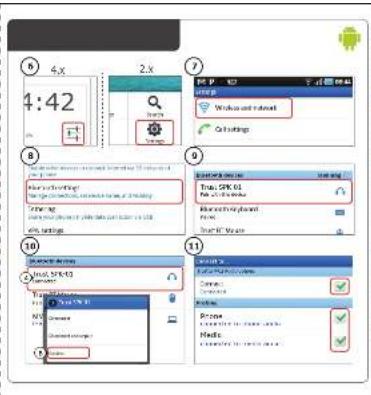
6 Go to Settings
For Android 4.0 systems the settings button can be found under the clock.
Go to 'Wireless and network'.
Go to 'Bluetooth settings' and press 'search for devices' if needed.
Select 'Trust SPK-01' in the list of Bluetooth devices (make sure the speaker is in pairing mode).
Press and hold 'Trust SPK-01' to go to the options menu of the wireless audio device.
11 Make sure that the device is 'Connected' and the 'Media' profile is selected.
Your device is ready to use.
Windows 7 / Vista / XP
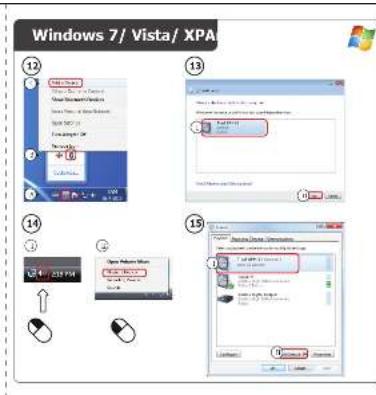
12 A. Open the taskbar Icons.
B. Click on the Bluetooth icon.
C. Click on 'Add a device'.
13 Select Trust SPK-01' in the list of Bluetooth devices (make sure the speaker is in pairing mode). When the device is successfully added, your device is ready to use.
14 - Right click the speaker icon in the taskbar.
- Open the 'Playback devices'.
- Set the 'Trust SPK-01' device as your default device.
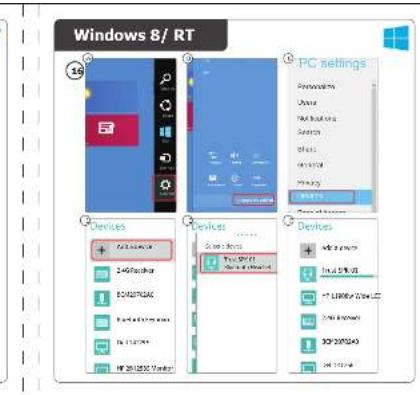
Windows 8
16 A. Open the settings bar and click on 'Settings'.
(Do to the top right op the screen or press 'Windows key + C' for the settings bar)
B. Click on 'Change PC settings'.
C. Click on 'Devices'.
D. Click on 'Add a device'.
E. Select 'Trust SPK-01'.
F. Wait until the Cylo is completely installed.
Wireless Mini Bluetooth Speaker - USER'S MANUAL
Trust
Configuration on an Apple Mac system
- Click on the Bluetooth icon in the taskbar.
- Make sure Bluetooth is on.
- Go to 'set up Bluetooth device...'
- Select 'Trust SPK-01' in the list of Bluetooth devices (make sure the device is in pairing mode).
- Click on 'Continue'
Your device is now ready to use.
Advanced Controls
Volume control (A.C)
Play/Pause/Call pickup/Bluetooth pairing (B)
Press the play/pause button. To pause or play music.
When receiving a phone call press this button to answer the call.
Press the volume + / - to regulate the volume.
Trouble shooting
| Problem | Solution |
| Can't connect the BT speaker to my device | - Make sure that the BT speaker is powered on and not in standby mode. See step 3.- Make sure that the BT speaker is in paring mode. Press and hold the play/pause button for 5 sec. to activate the pairing mode.- Move the BT speaker closer to your audio source (maximum distance 10m under ideal circumstances)- Repeat the standard configuration steps for your device (Ipad/IPhone, Android, Windows, Mac).- The speaker can only be paired with one device simultaneously.- If a passcode is requested. Use '0000'. |
| No Sound | - Make sure that Bluetooth is enabled on your device.- When using Bluetooth, make sure that there is no audio cable connected to the 3.5mm audio input.- Repeat the standard configuration steps for your device. (Ipad/IPhone, Android, Windows, Mac) |
| Distorted Sound | - Your BT speaker is too far from your device (maximum distance 10m under ideal circumstances).- Charge the speaker- If you are using the product around large metal surfaces, remove the metal surface or move you product away from the metal surface.- Walls and Floors drastically reduce the range of the product. Move the BT speaker closer to your audio source.- Move the BT speaker away from other wireless devices (like Wireless network routers, mouse and keyboard). |
| Sound volume is low | - Check the volume setting of your device. (Tablet, Smartphone, PC) |
If your problem is not solved, please contact the helpdesk at www.trust.com/19274/faq
Disclaimer:
Apparatus shall not be exposed to dripping or splashing and no objects filled with liquids, such as vases, shall be placed on the apparatus.
Where the mains plug or an appliance coupler is used as the disconnect device, the disconnect device shall remain readily operable.
Wireless Mini Bluetooth Speaker - USER'S MANUAL
Trust
Lieferumfang
Configuration standard iPad/iPhone
Andare a 'Wireless rete'
7 Gaaar 'Wireless and network' [Draadloos & netwerk]
Ga narr 'Bluetooth settings' [Bluetooth-installingen] en druk indien nodig op "find nearby devices"
[apparaten in de buurt vinder
Ako CBeToaHIOHNrT HnNkATOp He Mrra B CnHbO.HaTHcHeTe 3aDpBxTe 6yToHa Bb3npOn3BexKaHe/nay3a
Wireless Mini Bluetooth Speaker - USER'S MANUAL
Trust
CTaHdapTha KOHpypaunr
iPad/iPhone
4 -Пемпенет Кьm,Settings" ["Hасторкn". -Пемпенет Кьm Hасторкn,General" ["O6up". -Пемпенет Кьm,Bluethout" ["Bleuthout"]
5 -Yeberpe ce,чeBluetooth e BkIOhen. -I36epet,Trust SPK-01" ot cIncibka Ha Bluetooth uctpoCTBa. (yBepeTe ce,чe bncokorobopitetae e B pOKHM CBOVBaHC) Korato cbToHHToHa yCTpoCTBtOe ,paired" [CBbP3aHO], BaIeTo YoCTpoCTBo e roTOBO 3a yontopeBa.
Android
6 PnemHHete KHM,Settings" [HactpOHN]. 3a CxCTeMH Android 4.0,byTOHb3 3a Settings [HactpOHN] MoKeJa a bSyBe HAMEpeH IOA yacOBHNs.
7 PnemHHete KBM, Wireless and network"[BzEzKHNu HneKn].
8 PnemHHete KHM,Bluetooth settings" [Bluetooth HactpOKN] n Ako e Heo6XIOIMO HATcHETe ,find nearby device" [OTKPNY cTPOiCtBO B 6hNocT].
9 Izbepete,Trust SPK-01" ot cnIbKa c Bluetooth yctpoiCTBa. (yBepete ce, ye BHCOKOROBOpInTeR e poxm CdoBBAhe)
10 HATcHETe u 3dpbXte,Trust SPK-01",3a da npemHHete kM MeHOTo COniunn Ha 6eZKHNHOto ayd yctpoiCTBO.
11 YepeTe Ce,ue yctpoiCTBoTo e „Connected"[CbpaHO] n ue e h6pan and the npocin „Media" [MeDNIA]. Baweto yctpoiCTBO e roToBO 3a yonotpeBA.
Windows 7 / Vista / XP
12 A. Otbopete IKOHHTe HAn IeHTaTa CbC 3aDaHn. B. Uppkhtete NcKoHata BluTooth. C. Uppakhtete BByx,Add a device" [JIO6abN yCTpoiCTBO".
13 -Ise6peT,Trust SPK-01"OT cInCbKa HbIeTooth yCTpoiCTBa. (yBepeTe ce, Ye BnCOKOrOBOpOtnen e B pexmM CDBoBAHe) Korato yCTpoiCTBOTo e do6abeHo yCTneHnO, To e rTOBO 3a YIOTpe6a.
14 -UppkHTe C DecnB bTyOn BByxIKOHATA HbICOKoROBOpITen B JIeHTa Cb 3aDaHn. OToPopeT,Playback devices" [JPiNeBek yCTpoiCTBa".
15 -3aJaIte „Trust SPK-01" Kato yCTpoiCTBO no noDpa3HpaHe.
Windows 8
10 A. Otbopete neHTATA c HacTroPKNu upaKaHETe Ha "Settings" [HacTroPKNu]. (IpeMHHETe KbM rOpHNHe dcehen bbl Na hekpHa Nn HATChETe KnaBsh Windows + C"3a OTbapHne Ha neHTATA c HacTroPKNu.) B. UpaKaHETe bPxv "Change PC settings" [cMaHa h PC hacTroPKNu]. C. UpaKaHETe bPxv Devices" [UyCTpoTCTBa]. D. UpaKaHETe bPxv Add a device" [Dio6aBm yctPoTCTBO". E. INa6ePeTe, Trust SPK-01". F. INa6aKaHte Dokato He ce nHctanlapa n3zauNo.
KoHpyaHa cHcTeMa Apple Mac
UpaKHeTe Bpyx IIOHATA BoothB 1nCrtata C3aadau. Ybepete Ce ye Bluetooth eBknOeH. PImemHe KUM "Set up Bluetooth device" [HaTpoKa Ha Bluetooth yctpoCTBa] U6pePete TRsP-01" ot cncbKa ha Bluetooth yctpoCTBa. (ybpete ce,ye ycexHM Ha cboBahe) UpaKHeTe BpXy,Continue" [IPObIbnK].
Cera yctpoictboto Bn e rotoBo 3a ynotpe6a.
Pa3uHpeHo ynpaBHeHne
B3nptnoBxekDahe/Naaya/O6bKaHeOeTTOBOP/BiueothC5p3BaAe(B) HATNHCTe 6yToHa B3nptnoBxekDaHe/ Naaya.3a Da NOCTABINE Naaya HA MyNkATA.
PnH nonyuaBaHe Ha TenefoHHo O6bKaHe, HATNHCTe To3h 6yToH, 3a da OTBOBOPte.
YnpaJIbNEHc Chnata Ha 3bYa (A,C) HATNHCTe Cnna Ha 3bYa (A,C)
OTcPaHbAHe Ha HeH3npaBHOCTn
| Пироблим 發шениe | |
| He moraда CBурka BT BHCOKOROBOPITELA KBM KOETо усточьо | -Уberете ce, ч. BT BSCOKOROBOPITELA вCBОВАЕ. Натисные и заимпточесы BTЗПОИЗБЕДАСЕТАЗа 35ССК.,даactivating the text of the text of the text of the text of the text of the text of the text of the text of the text of the text of the text of the text of the text of the text of the text of the text of the text of the text of the text of the text of the text of the text of the text of the text of the text of the text of the text of the text of the text of the text of the text of the text of the text of the text of Мел_STUMHOTAO радосточьдам�ялгYNUCOBNY e 10 M) -ИзгIMBAне на Вьтшейата Namet на BSCOKOROBOPITELA. (Натисные и заимпточесы CBурka BTSCOKOROBOPITELA KBM KOETо ИсточьоCTBGO. -Уberете ce, ч. BT BSCOKOROBOPITELA вCBLOЧENH ИЕВ Новотерete CTынITOЯ за STANДАТSHA KONФIHYPURAДАЗа BAWETo усточьо.(IPad/IPhone,Android,Windows,Mac) -ВSCOKOROBOPITELA може за SFDE сбОEH EdINOBPEMEHNO сamo c едно усточьо. -Уberете ce, ч. BT BSCOKOROBOPITELA вCBLOЧENH ИЕВ Новотерete CTынITOЯ BAWEК3. -Уberете ce, ч. BlueleothnakTNKINHAN ha BAWETo YCSTPOCTBO. -Когато ИЗПОЛЗВATE Bluetooth ce уberете, ч. НЯма CBp3AN AHДIO Кабел KM 3,5 MM aydno BXDA. -Повototуе CTынITOЯ за STANДАТSHA KONФIHYPURAДAZa BAWETo усточьо.(IPad/IPhone,Android,Windows,Mac) -ВSCOKOROBOPITELA вCBLOCHINI OMOI TOLEMI MEТALNII NOBpXHOCTHN, OTcPAnETe METAINHITNE NOBpXHOCTHN IRII Пореметete пordукta Далаче о ТХ. -СтенITE ИМЕТАКITE ДAPCTMHNO HAMAJLВAT obxBATA Na пordукta. Пореметete BT BSCOKOROBOPITELA NO-BILNIO до CBО aydno ИЗПОЛЗВATE pordукta OKOLO TOLEMI MEТALNII NOBpXHOCTHN, OTcPAnETe METAINHITNE NOBpXHOCTHN IRII Пореметete пordукta Далачe о ТХ. -СтенITE ИМЕТАКITE ДAPCTMHNO HAMAJLВAT obxBATA Na пordукta. Пореметete BT BSCOKOROBOPITELA NO-BILNIO до CBО aydno ИЗПОЛЗВATE pordукta OKOLO TOLEMI MEТALNII NOBpXHOCTHN. -Уberете ce, ч. BT BSCOKOROBOPITELA вCBLOЧENH -Пореметete на CBОПКАТа з сима на CBурka на усточьо.TВОТС. |
CnataHa3BykaeHncka
Ako npo6nemBn He e pa3peweH, Mo7a CbpxKeTe ce c Cnyk6aTa 3a noDp8kKa Ha
www.trust.com/19274/faq
Wireless Mini Bluetooth Speaker - USER'S MANUAL
Trust
CopeKHMoe ynaKOBKn
CTaHapTHa KOnHmRpyaun
iPad/iPhone
4 -ПелейкиK«Settings》[«Раламетрam»]. -ПелейкиК«General》[«ОБшим паламетрam»].-ПелейкиК«Bluetooth》[«Bluetooth»].
5 -Y6detaTcB,HTOBluetooth BkHouen. -Вьберпe《Trust SPK-01》ИЗ сніcka Bluetooth-yctpoiCTB.(Y6detaTcB,HTO KOnIOHKn HaxoIaTcB pOxIMN OIOKNIOUChnA.) Именею coToTHMia yctpoiCTBaHa «paired》[「IOdkNIOHEno]O3HaHaET,TO OHO TOTOBOK IcnoIbOAnHnO.
OnepaHnHaCnTeMa Android
6 NpeiK K [Napametpam].
B O npaHnHbX CHTeMaX Android 4.0 KhoHnka [Setaing] [Napametpy] paclnoLooxeha noa hcamn.
7 NpeiK K Wireless and network] [EecnpoBDOMHY cTeBOMy nOdkIOUChHO].
9 NpeiK K [BluTooth settings] [HaCTpoKAM Bluetooth] n pRn Heo6DIOMOCTn Haxatb fInd nearby devices] [POnck pacIoIOJoxHHb x BbIMn yCtpoCTB].
9 BbEpIte [Trust SPK-01] n ChnCKa Bluetooth-yctpoCTB. (YbEdntec, tO KOLOHN HaxoTcR a peKIMe NOkIOUChHnA).
11 Haxmte u YdepKmbaIte [Trust SPK-01], YTObI nepeTI K MHeO npaMeTPOB BoCnpoBDIOHOr oaymoCTOB.
11 UbeINTe, yTOy CToPoCTBO [Connected] [IIOKnIOUHO] n bBpaH npoPmbls [Media] [MeDa]. UcTPOCTBO rOTOB K HcTIOB3O8BHNO.
OnepaHnHaCmTeMa Windows 7 / Vista / XP
12 A.OTKpbTb 3nauKn nahenn 3adau. B. LJIeNHyTB 3naHock Bluteoth. C. UeKnHyTB «Add a device» [«Iobabntb yctpoiCTBO»].
13 -Bb6BeHepr «Trust SPK-01» m3 cnnKa Bluetooth-ycTPOBCTB. (Y6eDInTeC, YTO KOLOHKn HaxoAITcBA B peknme nocknoenHa.) Ecny yctpoiCTBO ycneuHO doBaBHeO, Oho rTOBo K HcTNOBtBOaHNo.
14 -UeIKhTyb npabO hONKO MmHn 3NaOH K KOLOH Kn Ha naHEn 3adaq. OTKpbTb «Playback devices» [«YcTPOBCTBa BocnpOnBEdenHa]
15 -YctaONBtB «Trust SPK-01» kak yctpoiCTBO no YMOnuHNo.
Windows 8
A. OTKpbTb naHEnb HAcTpOeK nIeKNHyTB KOnkny Settings] [HAcTpOeKn].
B. WENKHYb KHOHNYK YChange PC settings 串 [W3MeHeHHe HAcTpoek NK]
Ecnnpo6nema He yctpaHcHa, 06paauaiTecb CnpaBOuHyO cyjK6y www.trust.com/19274/fag
Wireless Mini Bluetooth Speaker - USER'S MANUAL
Trust
Nepiexoyemaoukeuaia
- 3Trust
- Wireless Mini Bluetooth Speaker - USER'S MANUAL
- Trust
- Package contents
- Preparation
- Standard Configuration
- Android
- Windows 7 / Vista / XP
- Windows 8
- Configuration on an Apple Mac system
- Advanced Controls
- Disclaimer:
- Lieferumfang
- Configuration standard iPad/iPhone
- CTaHdapTha KOHpypaunr
- iPad/iPhone
- KoHpyaHa cHcTeMa Apple Mac
- Pa3uHpeHo ynpaBHeHne
- CopeKHMoe ynaKOBKn
- CTaHapTHa KOnHmRpyaun
- OnepaHnHaCnTeMa Android
- OnepaHnHaCmTeMa Windows 7 / Vista / XP
- Nepiexoyemaoukeuaia
Brand : TRUST
Model : Cylo
Category : Docking station