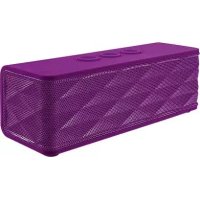
Jukebar - Docking station TRUST - Free user manual and instructions
Find the device manual for free Jukebar TRUST in PDF.



| Brand | Trust |
| Model | Jukebar |
| Product type | Bluetooth speaker / Docking station |
| Connectivity | Bluetooth |
| Power supply | Rechargeable battery, charges via micro USB port |
| Charging time | 3 hours |
| Bluetooth range | Up to 10 meters (in ideal conditions) |
| Controls | Volume +/-, Play/Pause, call buttons |
| LED indicator | Blue (pairing), red (pairing mode) |
| Main functions | Play/Pause, volume control, answer calls, Bluetooth pairing |
| Compatibility | iPad/iPhone, Android, Windows, Mac |
| Package contents | Speaker, micro USB cable (not shown) |
| Maintenance and cleaning | Clean with a soft dry cloth, avoid moisture |
| Safety | Do not expose to water, keep away from metal surfaces and other wireless devices |
| Spare parts and repairability | Micro USB cable included; technical support at trust.com/19275/faq |
| General information | Manual available in multiple languages; default Bluetooth password: 0000 |
Frequently Asked Questions - Jukebar TRUST
User questions about Jukebar TRUST
0 question about this device. Answer the ones you know or ask your own.
Ask a new question about this device
Download the instructions for your Docking station in PDF format for free! Find your manual Jukebar - TRUST and take your electronic device back in hand. On this page are published all the documents necessary for the use of your device. Jukebar by TRUST.
USER MANUAL Jukebar TRUST
www.trust.com/19275/faq
Trust

Quick Installation Guide Jukebar Wireless Speaker
Bluetooth Speaker - USER'S MANUAL
Trust
| Language | page | ||
| English | 2 | ||
| Deutsch | 6 | ||
| Françals | 10 | ||
| Italiano | 14 | ||
| Español | 18 | ||
| Português | 22 | ||
| Nederlands | 26 | ||
| Dansk | 30 | ||
| Suomi | 34 | ||
| Norsk | 38 | ||
| Svenska | 42 | ||
| Polski | 46 | ||
| Česky | 50 | ||
| Slovenčina | 54 | ||
| Magyar | 58 | ||
| Română | 62 | ||
| Български | 66 | ||
| Русский | 70 | ||
| Еллгункі | 74 | ||
| Türkçe | 78 | ||
| Hrvatski | 82 | ||
| Slovenski | 86 | ||
| С рпски | 90 | ||
Bluetooth Speaker - USER'S MANUAL
Trust
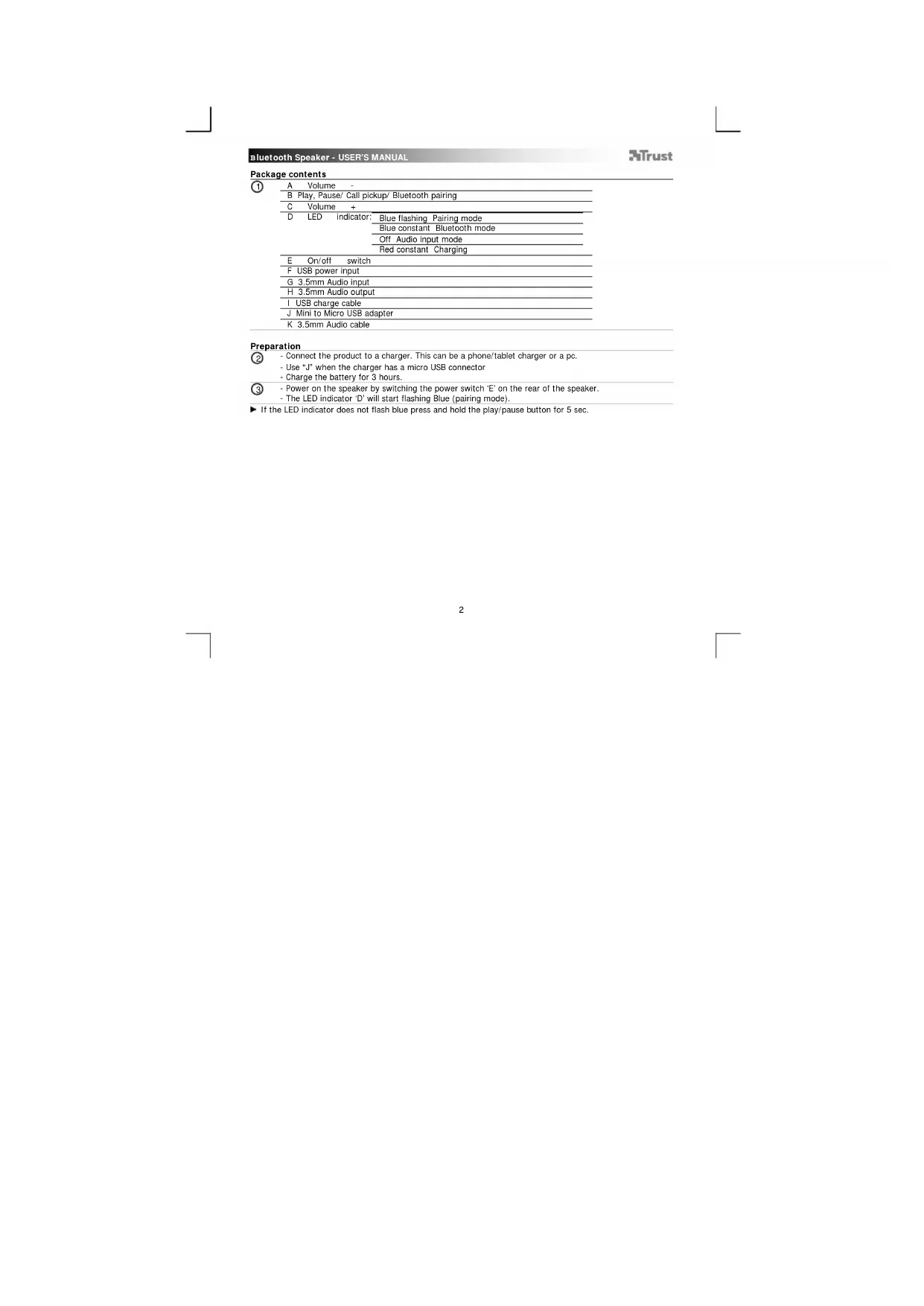
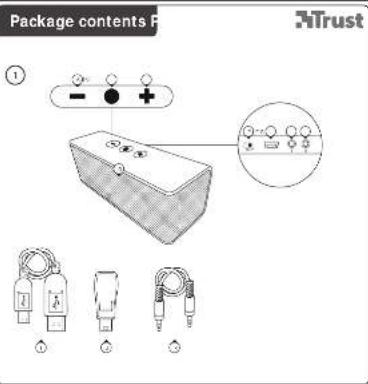
Package contents
| A Volume - | |
| B Play, Pause/ Call pickup/ Bluetooth pairing | |
| C Volume + | |
| D LED indicator: Blue flashing Pairing mode | |
| Blue constant Bluetooth mode | |
| Off Audio input mode | |
| Red constant Charging | |
| E On/off switch | |
| F USB power input | |
| G 3.5mm Audio input | |
| H 3.5mm Audio output | |
| I USB charge cable | |
| J Mini to Micro USB adapter | |
| K 3.5mm Audio cable |
Preparation
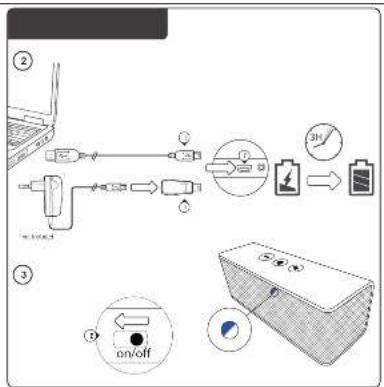
② - Connect the product to a charger. This can be a phone/tablet charger or a pc.
- Use "J" when the charger has a micro USB connector
- Charge the battery for 3 hours.
- Power on the speaker by switching the power switch 'E' on the rear of the speaker.
- The LED indicator 'D' will start flashing Blue (pairling mode).
▶ If the LED indicator does not flash blue press and hold the play/pause button for 5 sec.
Bluetooth Speaker - USER'S MANUAL
Trust
Standard Configuration
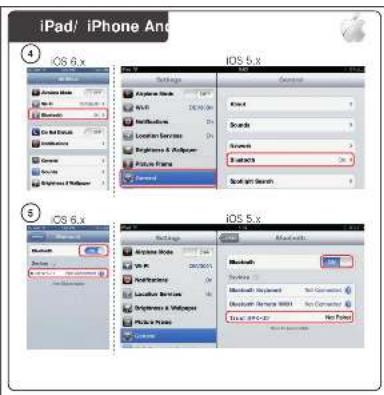
iPad/ iPhone
④
- Go to 'Settings'
- Go to the 'General' settings.
- Go to 'Bluetooth'.
⑤
- Make sure that Bluetooth is on.
- Select 'Trust SPK-02' in the list of Bluetooth devices. (make sure the speaker is in pairing mode) When the device status is 'connected', your device is ready to use.
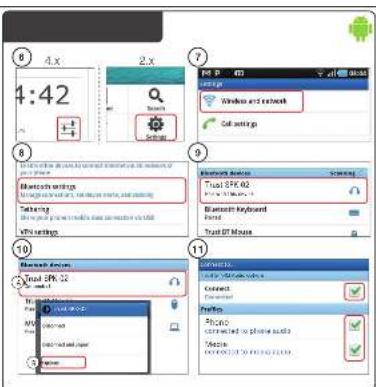
Android
⑥
Go to 'Settings'.
For Android 4.0 systems the settings button can be found under the clock.
⑦
Go to 'Wireless and network'.
⑧
Go to 'Bluetooth settings' and press 'search for devices' if needed.
⑨
Select 'Trust SPK-02' in the list of Bluetooth devices (make sure the speaker is in pairing mode).
10
Press and hold 'Trust SPK-02' to go to the options menu of the wireless audio device.
⑪
ke sure that the device is 'Connected' and the 'Media' profile is selected.
Your device is ready to use.
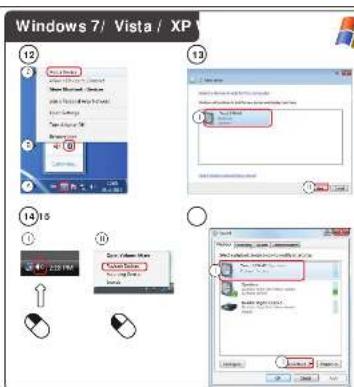
Windows 7 / Vista / XP
⑫
Open the taskbar icons.
B. Click on the Bluetooth icon.
C. Click on 'Add a device'.
⑬
- Select 'Trust SPK-02' in the list of Bluetooth devices (make sure the speaker is in pairing mode).
When the device is successfully added, your device is ready to use.
⑭
ght click the speaker icon in the taskbar.
- Open the 'Playback devices'.
15
- Set the 'Trust SPK-02' device as your default device.
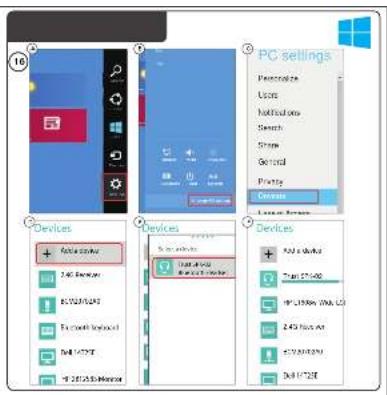
Windows 8
16
Open the settings bar and click on 'Settings'.
(Go to the top right op the screen or press 'Windows key + C' for the settings bar)
B. Click on 'Change PC settings'.
C. Click on 'Devices'
D. Click on 'Add a device'.
E. Select 'Trust SPK-02'.
F. Wait until the Jukebar is completely installed.
Bluetooth Speaker - USER'S MANUAL
Trust
Configuration on an Apple Mac system
- Click on the Bluetooth icon in the taskbar.
- Make sure Bluetooth is on.
- Go to 'set up Bluetooth device...'
- Select 'Trust SPK-02' in the list of Bluetooth devices (make sure the device is in pairing mode).
- Click on 'Continue'.
Your device is now ready to use.
Advanced Controls
Play/ Pause/Call pickup/Bluetooth pairing (B)
Press the play/pause button. To pause or play music.
When receiving a phone call press this button to answer the call.
Volume control (A,C)
Press the volume +/- to regulate the volume.
Bluetooth Speaker - USER'S MANUAL
Trust
Trouble shooting
| Problem | Solution |
| Can't connect the BT speaker to my device | - Make sure that the BT speaker is powered on and not in standby mode. See step 3.- Make sure that the BT speaker is in paring mode. Press and hold the play/pause button for 5 sec. to activate the pairing mode.- Move the BT speaker closer to your audio source (maximum distance 10m under ideal circumstances)- Repeat the standard configuration steps for your device (iPad/iPhone, Android, Windows, Mac).- The speaker can only be paired with one device simultaneously.- If a passcode is requested. Use '0000'. |
| No Sound | - Make sure that Bluetooth is enabled on your device.- When using Bluetooth, make sure that there is no audio cable connected to the 3.5mm audio input.- Repeat the standard configuration steps for your device. (iPad/iPhone, Android, Windows, Mac) |
| Distorted Sound | - Your BT speaker is too far from your device (maximum distance 10m under ideal circumstances).- Charge the speaker- If you are using the product around large metal surfaces, remove the metal surface or move you product away from the metal surface.- Walls and Floors drastically reduce the range of the product. Move the BT speaker closer to your audio source.- Move the BT speaker away from other wireless devices (like Wireless network routers, mouse and keyboard). |
| Sound volume is low | - Check the volume setting of your device. (Tablet, Smartphone, PC) |
If your problem is not solved, please contact the helpdesk at www.trust.com/19275/faq
Disclaimer:
Apparatus shall not be exposed to dripping or splashing and no objects filled with liquids, such as vases, shall be placed on the apparatus.
Where the mains plug or an appliance coupler is used as the disconnect device, the disconnect device shall remain readily operable.
Bluetooth Speaker - USER'S MANUAL
Trust
Lieferumfang
Andare a 'Wireless e rete'

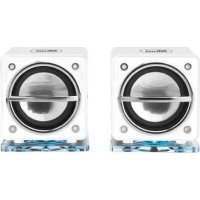
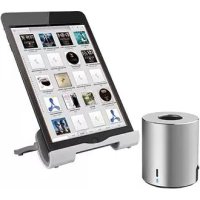
Brand : TRUST
Model : Jukebar
Category : Docking station