
SR 4337 IP - Cd player/recorder AEG - Free user manual and instructions
Find the device manual for free SR 4337 IP AEG in PDF.
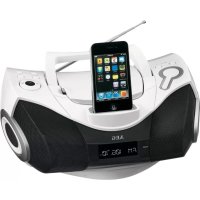



| Product type | CD player/recorder with radio and iPod/iPhone docking station |
| Brand | AEG |
| Model | SR 4337 IP |
| Net weight | 2.00 kg |
| Mains power | 220-240 V~ 50 Hz, 15 W |
| Battery operation | 8 batteries 1.5 V type UM2/R14 (not supplied) |
| Output power | 80 W PMPO |
| Radio frequency range | FM 87.5 - 108.0 MHz |
| iPod/iPhone compatibility | Yes, docking station with charging |
| Supported CD formats | Audio CD, CD-R, CD-RW, MP3 |
| Playback functions | Play, pause, search, skip, repeat, random, intro, programming |
| Preset equalizer | Classic, Rock, Pop, Jazz, Flat (EQ) |
| Timer | Sleep (10-90 min), programmable on/off timer |
| Auxiliary input | AUX IN socket (3.5 mm) at rear |
| Remote control | Infrared, range up to 5 m, batteries R03 AAA (not supplied) |
| Antenna | FM telescopic antenna |
| Display | LCD screen |
| Cleaning | Soft, slightly damp cloth, unplug before |
| Safety | Class 1 laser, do not open, avoid moisture |
| Repairability | Entrust to an expert, no user-serviceable parts |
| General information | Compliant with EC directives, Made for iPod/iPhone |
Frequently Asked Questions - SR 4337 IP AEG
User questions about SR 4337 IP AEG
0 question about this device. Answer the ones you know or ask your own.
Ask a new question about this device
Download the instructions for your Cd player/recorder in PDF format for free! Find your manual SR 4337 IP - AEG and take your electronic device back in hand. On this page are published all the documents necessary for the use of your device. SR 4337 IP by AEG.
USER MANUAL SR 4337 IP AEG
iPhone and iPod are trademarks of Apple Inc., registered in the USA and other countries.
PERFECT IN FORM AND FUNCTION
AEG
ENGLISH
Contents
Overview of controls . . . . . . . . . . . . . . . . . . . . . . . . . . . . . . . . . . . . . . . . . . . . . . . . . . . . . . . . . . . . . . .
Location of Controls . page 3
User manual page 47
Technical Specifications . page 53
Disposal/Meaning of the "Dustbin" Symbol ..... page 53
POLISH
Table of contents
Location of controls. page 3
User manual... page 69
Technical specifications page 75
Contents
Location of Controls page 3
User Manual page 76
Technical Specifications page 82
Location of Controls
Installation/Introduction
AM = morning, PM = afternoon.
General Safety Guidelines
Before using this device, carefully read this user manual and keep it together with the Warranty Certificate, cashier receipt and if possible, the original package inclusive its interior packing. If you hand on the device to any third person, include the user manual as well.
- To avoid the risk of fire or electric shock, do not expose the device to rain or humidity. Do not operate near water (e.g. in bathrooms, swimming pools and wet basements).
- The unit is designed solely for private use and its intended purpose. This unit is not designed for commercial use.
- Only connect to a standard wall outlet. Make sure the voltage indicated on the device is in conformity with the voltage of the outlet.
- If using external adapters, please observe correct polarity and voltage. Insert batteries properly.
- When installing the device, do not cover any of the ventilation openings.
- Never open the enclosure of the device. Improper repairs may cause significant hazards to the user. In case the device or the mains cable are damaged, do not operate the device and have it repaired by an expert. Regularly check the mains cable for damage.
- In order to avoid hazards, a damaged mains cable must be replaced with an equivalent cable by the manufacturer, our customer service or any other specialist.
- If you do not use the device for a longer period of time, please unplug the device and remove the batteries.
These symbols may be found on the device and are intended as warnings:
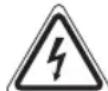
The lightning flash is intended to alert the user to the presence of dangerous voltage within the device.

The exclamation mark is intended to alert the user to the presence of important operating and maintenance instructions accompanying this device.
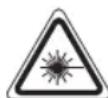
Products with this symbol operate with a "Class 1 Laser" for scanning the CD. The built-in safety switches are intended to prevent the user from being exposed to the dangerous laser beam not visible to the eye when opening the CD compartment.
These safety switches must not be bypassed or altered; otherwise there is a risk of being exposed to the laser beam.
Children and disabled persons
- For the safety of your children, keep any packing parts (plastic bags, cartilage, Styrofoam etc.) out of their reach.

WARNING!
Don't let small children play with foils for danger of suffocation!
- This device is not intended for use by persons (including children) with reduced physical, sensory or mental capabilities, or lack of experience and/or knowledge unless they have been given supervision or instructions concerning the use of the device by a person responsible for their safety. Supervise children to ensure they do not play with the device.
Symbols in this user manual
Important notes for your safety are marked distinctively. Pay absolute attention to them to avoid accidents and damage to the device.

WARNING:
Warns of dangers for your health and indicates potential risks of injury.

CAUTION:
Indicates potential dangers for the device or other objects.

NOTE:
Highlights tips and information for you.
Special safety guidelines
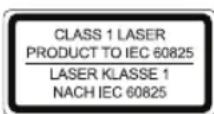
This device operates with a Class 1 laser.
Overview of the components
1 Telescopic antenna 2 Handle 3 CD compartment 4 STANDBY button (standby/power) 5 CLOCK button (clock) 6 FUNCTION (function switch) 7 STOP button 8 /bursts (search forward/backwards) 9 Button (play/pause) 10 Clip for opening the CD compartment (OPEN/CLOSE) 11 Docking port 12 VOLUME + / - (volume) buttons 13 Speaker 14 LCD display 15 Battery compartment 16 POWER indicator light 17 IR sensor for the remote control
Rear view (not shown)
AUX IN connection
AC~ mains supply
Remote control
1 CLOCK button 2 MUTE button 3 PRE-DN/PRE-UP buttons (radio station memory) 4 SNOOZE button 5 INTRO button 6 MEMORY button 7 RAND button (random playback) 8 INFO button 9 button (search forward)
回 button (search backwards)
10 VOLUME +/- buttons 11 FUNCTION (function switch) 12 MENU UP button (iPod/iPhone menu navigation) 13 ENTER button (confirmation) 14 MENU DN button (iPod/iPhone menu navigation) 15 EQ button 16 MENU button
17 (play/pause) button 18 STOP button 19 REPEAT button 20 MONO/ST button 21 FOLDER +/- buttons (up/down, album) 22 SLEEP button 23 TIMER button 24 STANDBY button
Installation/Introduction
- Read the manual thoroughly before operating the device!
- Select a suitable location for the device. Suitable locations are dry, even and anti-slip surfaces on which you may operate the device easily.
- Make sure there is proper ventilation for the device!
- Remove, if necessary, the protection sheet from the display.
Power supply
- Connect the supplied mains cable (see battery compartment (15), if necessary) to a correctly installed power outlet 230V / 50Hz and the power connection AC ~ on the back of the device.
- Make sure the voltage is in conformity with the rating plate.
- The saved time will be lost as soon as the power is disconnected.
Battery Operation (Batteries not supplied)
- Open the cover of the battery compartment (15) on the bottom.
- Insert the 8 batteries type UM 2/R14 1.5 V. Observe the correct polarity (see bottom of battery compartment)!
- Close the battery compartment.
Should the device not be used for long periods, remove the batteries to prevent any "leakage".
NOTE:
- If a mains cable is connected, the batteries are automatically switched off.
- During battery operation, the rechargeable battery of a connected iPod/iPhone will not be charged.
CAUTION:
- Different battery types or new and used batteries must not be used together.
- Do not dispose of batteries with your household trash. Please hand them over at authorized collection points or return them to your dealer.
WARNING:
Do not expose batteries to heat or direct sunlight. Never throw batteries into fire. Danger of explosion!
Batteries of remote control (Batteries not included)
- Open the cover of the battery compartment on the rear side of the remote control.
- Insert 2 x R03 "AAA" 1.5 V batteries. Please observe correct polarity (see bottom of battery compartment)!
- If you do not use the remote control for a longer period of time, please remove the batteries in order to avoid "leakage" of battery acid.
CAUTION:
- Different battery types or new and used batteries must not be used together.
- Do not dispose of batteries with your household trash. Please hand over at authorized collection points or return to your dealer.
WARNING:
Do not expose batteries to heat or direct sunlight. Never throw batteries into fire. Danger of explosion!
Setting the clock (during standby mode)
- Briefly hold down the CLOCK button (5/1). The display will show "24 HOUR".
- Use the H/A buttons (8/9) to select between 24-hour and 12-hour display setting. Confirm with CLOCK.
NOTE: The 12-hour setting will result in the following display AM = morning, PM = afternoon.
- Use the ▶ button to set the hours. Confirm with CLOCK.
- Use buttons to set the minutes.
- Press CLOCK again in order to save the time settings.
Transport securing device of CD compartment
- Open the CD compartment (3) by pulling the cover with the clip (10) upwards.
- Remove, if present, the transport securing device from the CD player before starting operation.
- Close the CD compartment again.
iPod/iPhone Compatibility
Due to the large variety of iPod and iPhone models and generations on the market, full compatibility cannot be guaranteed. Before connecting your iPod/iPhone, ensure that it has a compatible interface.
Full compatibility of the remote functions also cannot be guaranteed. Operate your iPod/iPhone as normal, while it sits in the docking station.
NOTE:
Depending on the software version of your iPhone the following error message may be displayed: "This accessory was not developed for iPhone use. It is possible that noise occurs and signal strength is reduced."
In this case press "OK".
General operation
NOTE:
Some buttons you will find on both the device and the remote control.
Buttons with the same name result in the same functions.
STANDBY (4/24)
Press STANDBY button to switch the device into standby mode. The POWER indicator light (16) lights up. Press this button again to turn on the device.
Volume (12/10)
Adjust to your preferred volume level. The display will show "VOL" and a number. This will equal to the set volume of "VOL MAX" or "VOL MIN".
Infrared remote control
Wireless operation from a distance of up to 5 meters. If this range gets less, please change the batteries. Make sure there are no obstacles between the remote control and the sensor (17) on the device during operation.
AUX IN jack (Back of Device)
Connect analogue playback devices. When connecting to this jack you may also listen to the audio of other devices, such as MP3 or CD players etc., via the speakers.
- Please connect the external device via a 3.5 mm plug jack to the AUX IN jack.
- Now use the FUNCTION button (6/11) to select AUX mode.
- Via the speakers you will listen to the audio of the external device; use the VOLUME +/- buttons (12/10) to adjust the volume. The CD buttons are not active.
- For further functions please refer to the user manual of the external audio device.
NOTE:
Set the volume of the external device to a proper audible level.
Listening to the radio
- Repeatedly press the FUNCTION button (6/11) until the display shows "TUNER".
- Use the buttons (8/9) to tune in the desired station.
- The FM.ST control lamp ((ST)) (in the display) will light up when the selected station is received with stereo quality. If reception is too poor and the station experiences static, the control lamp will flicker. For FM stations you may use MONO/ST button (20 on the remote) to switch between MONO and STEREO reception. In case of poor reception we recommend switching to MONO mode.
Saving/Selecting Stations
- When you have found the desired station, press the MEMORY button (6 on remote). MEMORY will light up in the display and the memory position will flash.
- For choosing the memory position, please press PRE-UP/DN button (3 on the remote).
- Press MEMORY to save the settings.
To select a stored station, please press PRE-UP or PRE-DN button
Music Playback from iPod/iPhone
(iPod/iPhone not supplied)
- Press the FUNCTION button (6/11) repeatedly, until "NO IPOD" appears in the display.
- If an adapter has been supplied with your iPod, put it onto the dock connector. You can only ensure that the iPod fits correctly into the iPod port if the adapter is plugged in.
- Insert your iPod/iPhone into the dock.
CAUTION:
Make sure that your iPod/iPhone is plugged upright into the port. Do not bend or tilt the iPod/iPhone whilst it is plugged into the port. This may cause damage to the dock or the iPod/iPhone.
- Depending on the iPod/iPhone Model, firstly release the button lock and start playing music if necessary with the ▸ button (9/17).
ENGLISH
- Follow your iPod/iPhone manual for further use of the controls.
CAUTION:
Stop playback before connecting the iPod/iPhone, otherwise the iPod/iPhone could become damaged.
NOTE:
- If necessary, you can change the audio settings of your iPod/iPhone in order to achieve optimum sound.
- If you have an incoming call when playing back music with the iPhone docked, then playback stops and you can hear the ring tone. Take the iPhone out of the device in order to accept the call.
iPod/iPhone Charging
Your iPod/iPhone battery is charged as soon as the iPod/iPhone is docked. To do this, the unit must be connected to the mains.
NOTE:
- If the slot adapter has been supplied with your iPod, use it to ensure that your iPod fits correctly.
- Not all iPod/iPhone generations support the charge mode.
- The duration of the charging process depends on the iPod/iPhone which is used and its operating condition. We do not recommend charging during battery operation, since doing so will run down the batteries quicker.
Playing CDs/MP3
This is how to play a CD
- Repeatedly press FUNCTION button (6/11) until the display shows "CD".
- Open the CD compartment (3) by pulling the cover with the clip (10) upwards.
- Insert the audio CD onto the conical spindle with the label facing upwards, so that it snaps into place mechanically. Then close the CD compartment cover again.
4. AUDIO CD:
"READING" briefly appears on the display, then "TOTAL", the number of titles and total playback time. The playback starts from the first title on the CD. The current song, the elapsed playback time and the ▶ symbol are displayed.
CD in MP3 format:
"READING" briefly appears on the display, then "TOTAL", "MP3", the number of titles and folders (FOLDER). The playback starts from the first track and from the first folder. The current song (TRACK), the elapsed playback time, "MP3" and the ▶ symbol are displayed. Use the FOLDER + or FOLDER - buttons (21 on the remote) to select the individual folders.
- To remove a CD press the STOP button (7/18), open the CD compartment and carefully take out the CD.
Always keep the CD door closed.
NOTE:
- When playing CD in MP3 format containing folders, the display will show 01 for the first track of the new folder when switching to another folder.
- If a disc is not properly or not at all inserted, "READING" will light up and the display will show "NO DISC".
- Playback of CDs created by the user cannot be guaranteed due to the variety of available software and CD media equipments.
Description of the Operating Buttons
II (9/17)
You may temporarily stop playback and start again. The elapsed playback time flashes and the symbol "I" is displayed. Pressing the button again will continue playback from the same position.
8/9
During playback of an audio CD, of a CD in MP3 format, or in the IPOD mode.
With the button you may skip to the next or next but one track, etc. Press and hold this button to quickly search music (sound will be muted).
You may operate the button as follows:
Press 1x = Starts current track again from the beginning.
Press 2x = Skips back to previous track.
Press 3x = Plays track prior to that, etc. Press and hold this button to quickly search music (sound will be muted).
During radio mode:
Tune the desired radio station.
STOP (7/18)
The CD or the song stops.
ENTER (13 on remote)
In IPOD mode:
Press this button to activate a function or to display the next menu.
MENU (16 on remote)
In IPOD mode:
Press this button to open the iPod/iPhone menu or to return to the previous menu.
NOTE:
For this function, the music app must have been already started.
MENUP/MENU DN.12/14 on remote
In IPOD mode:
Press this button to browse the iPod/iPhone menu upwards or downwards.
MUTE (2 on the remote)
Quickly turn off the sound. "MUTE" will flash in the display. To cancel this function, press MUTE again.
EQ (15 on the remote)
(Preset equalizer function). There are different sound modes available (CLASSIC, ROCK, POP, JAZZ, FLAT).
NOTE: During iPod/iPhone playback, if necessary, you can change the EQ settings of your iPod/iPhone in order to achieve optimum sound.
MONO/ST (20 on the remote)
During FM radio mode:
Switch between STEREO and MONO.
INFO (8 on the remote)
During playback of CD in MP3 format:
Stored ID-3 tag information will be shown as banner in the display. Press this button again to disable the function.
INTRO (5 on remote)
Each title of the CD will be played for 10 seconds. Press this button again to disable the function.
REPEAT (19 on the remote)
Press 1x: (REPEAT 1 lights up) The current track will be repeated entirely.
Press 2x: (REPEAT ALL lights up) The complete CD will be repeated entirely.
Press 3x: All functions will be canceled. Normal playback will be continued.
Only for CDs in MP3 format:
Press 1x: The current track will be repeated continuously (The display will show REPEAT 1).
Press 2x: The entire CD will be repeated continuously (REPEAT ALL is displayed)
Press 3x: The selected folder of the MP3 CD will be repeated continuously (the display will show REPEAT ALBUM). Use FOLDER +/- buttons (21 on the remote) to select the individual folders.
Press 4x: The function will be deactivated and the CD will be played in normal mode.
RAND (6 on remote)
The display will show "RANDOM" and the number of the track that will be played first. All tracks will be played consecutively in random order.
FOLDER +/- (21 on the remote)
CD in MP3 format:
Press these buttons during playback to switch one folder up or down. The display shortly shows a message, e.g. FOLDER 02. Then the system automatically starts playback of the MP3 CD. When pressing the buttons during stop mode, the message will also shortly be shown in the display. Then press >> II to start playback.
PRE-UP/PRE-DN (3 on remote)
During radio mode:
Select a stored radio station.
SLEEP (8 on the remote)
When the device is switched on, you can set the time after which the device will turn into standby mode; set the time in 10 minutes intervals from 90 to 10 minutes. Repeatedly press this button until the display shows the desired time. When the function is activated, the display will show the symbol "SLEEP". The device will turn off automatically after the preset time.
To display the remaining time, please press SLEEP button. You may still reduce the time or deactivate the function afterwards.
TIMER (23 on the remote)
You may program the device for it to turn off and on again after a certain preset time.
- Use STANDBY button to switch into standby mode. The POWER indicator light (16) lights).
- Press TIMER button until the display shows "ON TIME".
- Now you can use the buttons (8/9) to set the hours and minutes for switching on or off, the power on mode and the power on volume. Always confirm your input with the TIMER button. The setting that currently needs to be adjusted flashes on the display.
i NOTE:
If no button is activated within the following 10 seconds, the device switches back into standby mode without saving the input.
- After selecting the power on volume, press the TIMER button again. The device will switch into standby mode.
After reaching the set time, the device is switched on in the selected mode. The volume slowly increases to the selected volume.
Press TIMER to deactivate the timer function. "TIMER" will disappear from the display.
SNOOZE (4 on remote)
If the device was powered on via the timer, this function can be delayed for about 9 minutes with the SNOOZE button. After 9 minutes, the device will be switched on again.
CLOCK (5/1)
To set the clock.
When you press this button, the time will be displayed briefly.
MEMORY (6 on remote)
To save the stations and to set the programmed playback.
Program Playback
Program playback in desired sequence. (only in CD mode).
- Press STOP button (8/14).
- Press MEMORY button (6 on the remote). The display will show "00 P01" ("track" P "memory position") and MEMORY. Use the buttons (7/14) to select the desired track and press MEMORY buttons again. The display will change to memory position P02.
For CDs in MP3 format:
Folder "F00" next to P01, flashes on the display. First, select the desired folder with the buttons FOLDER + / - (21 on remote). For confirmation, press the MEMORY button. T00 is displayed.
- Use the buttons to select the next track and press MEMORY/CLOCK again. Repeat the steps until you have selected all tracks.

NOTE:
If the memory capacity of the programmable title is reached, "PROGFULL" will be displayed.
- Press the button (9/17). Playback starts. The display will show the first selected track number. Also use this button to temporarily stop playback.
- Press STOP button once to stop playback. The memory will be kept.
- For repeated playback of the programmes, press the ▶ button.
- To delete memory, press the STOP button twice. MEMORY will no longer be displayed.
The device will stop automatically after all stored tracks have been played. The program sequence will be kept in the memory until you switch to another mode, remove the CD from the compartment, or switch off the device.
It is possible to combine program playback with the REPEAT function. After programming and starting playback, press the REPEAT button (13 on the remote) up to three times; the functions can be applied as described under "REPEAT".
Playback of music files in MP3 format
This device allows the playback of music files in MP3 format. The device furthermore supports the common CD types: CD, CD-RW, and CD-R.
Your device can play MP3 CDs. These are compressed CDs that can store up to 200 tracks. Your device automatically recognizes MP3 discs (the display will show the total number of tracks and folders). Please refer to the chapter "Playing CD/MP3" for playback of such CDs. You may program tracks as already described under "Program playback".
Please note:
There are many burning and compressing methods, as well as differences in the quality of CDs and burnt CDs.
Furthermore, the music industry does not apply fixed standards (copy protection).
For that reason, there might, in rare cases, occur problems when playing CDs and MP3 discs. That is not a malfunction of this device.
Cleaning and maintenance
- Disconnect the mains plug before cleaning.
- You may wipe off external stains using a slightly damp cloth without any additives.
Troubleshooting
| Symptoms | Course Solution | |
| CD can not be played back. | CD is not inserted or inserted incorrectly. | Ensure that the disc is inserted with the label facing upwards. |
| Batteries too weak. | Insert new batteries or operate the device with the mains lead. | |
| CD jumps during playback. | Check the disc for fingerprints, dirt or scratches. | Check the disc for fingerprints, dirt or scratches. |
| The unit does not work. | The unit is blocked and "hangs". | Disconnect the mains plug for approximately 5 seconds. Then switch the unit back on. |
Technical Specifications
Model: SR 4337 iP
Voltage supply: 220-240 V~ 50 Hz
Battery operation: 8 x 1.5 V Type UM2/R14
Output power: 80 W PMPO
Power consumption: 15 W
Protection class:
Net weight: 2.00 kg
Radio:
Frequency ranges: VHF/FM 87.5 ~ 108.0 MHz
Specifications are subject to change!
This device complies with all current CE directives, such as electromagnetic compatibility and low voltage directive and is manufactured according to the latest safety regulations.
"Made for iPod" and "Made for iPhone" mean that an electronic accessory has been designed to connect specifically to iPod or iPhone and has been certified by the developer to meet Apple performance standards. Apple is not responsible for the operation of this device or its compliance with safety and regulators standards.
Disposal/Meaning of the "Wheelie Bin" Symbol
Take care of our environment, do not dispose of electrical appliances via the household waste.
Dispose of obsolete or defective electrical appliances via municipal collection points.
Please help to avoid potential environmental and health impacts through improper waste disposal.
You contribute to recycling and other forms of utilization of old electric and electronic appliances.
Your municipality provides you with information about collecting points.
During prolonged non-use, remove the batteries to prevent leakage.
NOTE.
If the cable is damaged, the device automatically switches off. After replacing the battery, the iPod/iPhone device may not charge.

WARNING.
Do not use batteries of different types or new and old batteries together. Do not dispose of batteries with household waste. Return them to a special collection point or to the store.

RECYCLING.
Do not leave batteries in a hot place or in direct sunlight. Never put batteries in water. There is a risk of explosion!
Batteries for remote control
(batteries not included)
Open the battery compartment cover on the back of the remote control. Insert two "AAA" 1.5V batteries. Observe correct polarity (see the diagram inside the battery compartment)! If the remote control is not used for a long period, remove the batteries to prevent leakage.

WARNING.
Do not connect batteries of different types or new and old batteries. Do not use batteries together with household waste. Dispose of them at a special collection point or return them to the dealer.

WARNING.
Do not place batteries in a hot place or in direct sunlight. Never throw batteries into water. There is a risk of explosion!
Setting the clock (in the clock setting mode)
- Briefly press the CLOCK key (5/1). The display will show "24 HOUR".
- Use the keys to select the 24-hour or 12-hour display mode. Confirm the selection using the CLOCK key.
NOTE: If the 12-hour mode is set, the display will show: AM=before noon, PM=after noon.
- Use the keys to set the hour. Confirm the selection using the CLOCK key.
- Use the keys to set the minutes.
- Press the CLOCK key again to save the time setting.
Protective cover for the compact disc player during transport
Open the compact disc player cover (3) by pulling the latch (10) upward. Remove the protective cover before transporting, if you have it, from the compact disc player before using it. Close the compact disc player cover again.
Compatibility with iPod/iPhone
Due to the wide variety of iPod and iPhone models available in stores, full compatibility is not guaranteed. Before connecting your iPod/iPhone, check its compatibility with this device.
Full compatibility of the remote control functions cannot be guaranteed either. If necessary, for the iPod/iPhone to work normally, connect it to the docking station.

NOTE.
Depending on the software version installed on the iPhone, the following permissions may be selected.
These accessories are intended for use with the iPhone.
Use may lead to damage and weakening of the signal.
Press the OK button to confirm everything.
General information about the device operation

NOTE.
These buttons can be found both on the device and on the remote control.
Buttons with the same names perform the same functions.
STANDBY (4/24)
Press the STANDBY button to switch the device to standby mode. The POWER indicator (16) lights up. To turn on the device, press the button again.
Volume (12/10)
You can adjust the volume level. The "VOL" indicator and number are displayed on the screen. This indicates that the volume is set in the range from "VOL MAX" to "VOL MIN".
Remote control
Works via wireless connection at a distance of up to 5 meters. If the distance starts to change, replace the batteries. Make sure that during use, there is no obstruction between the remote control and the sensor (17) on the device.
AUX IN jack (rear side)
Listening to external devices. With the help of this jack you can listen to sound from other devices, for example, from a radio program or from CD players through the headphones.
1. Connect the external device through the 3.5 mm AUX IN jack. 2. Using the FUNCTION button (6/11), select the AUX mode. 3. Through the headphones you can listen to sound from external devices; adjust the volume with the VOLUME +/- buttons (12/10). The CD player buttons are disabled. 4. For details about other functions, see the user manual of the external audio device.
NOTE.
Set the volume of the external device to a moderate level.
Listening to the radio
- Press the FUNCTION button (6/11) several times until "TUNER" appears on the screen.
- Set the desired station using the buttons
- The FM.ST indicator ((ST)) (on the screen) lights up when a station is received in stereo mode. If the signal is weak and the station is received with interference, the indicator will blink. For FM stations, you can use the MONO/ST button (20 on the remote control) to switch between MONO and STEREO modes. In case of weak signal reception, it is recommended to switch to MONO mode.
Storing radio stations
- When the desired station is found, press the MEMORY button (on the remote control). The MEMORY indicator appears on the screen and the memory position will blink.
- To select a memory position, press the PRE-UP/DN button (3 on the remote control).
72
UKRAINIAN
- To save the setting, press the MEMORY button.
To return to the saved station, press the PRE-UP or PRE-DN button.
Playback of music from iPod/iPhone
(iPod/iPhone is not included in the package)
- Press the FUNCTION button (6/11), and the indicator "NO IPOD" should not appear on the display.
- To connect an iPod, use the adapter, insert it into the panel from the set. The iPod can be installed with the top or bottom in the iPod slot only when the adapter is connected. 3. Connect the iPod/iPhone to the dock.

WARNING.
Make sure the iPod/iPhone is installed vertically in the slot. Do not press or push the iPod/iPhone when connecting it to the dock. This may damage the dock or the iPod/iPhone.
- Before connecting the iPod/iPhone, first remove the button lock and start music playback, if necessary, by pressing button II (9/17).
- For information on using the control elements, refer to the iPod/iPhone user manual.

WARNING.
Stop playback before disconnecting the iPod/iPhone, otherwise the iPod/iPhone may be damaged.

NOTE.
- It is possible to adjust the sound parameters of the iPod/iPhone for optimal sound quality.
- If the iPhone is connected to the dock and during music playback an incoming call arrives, playback stops and the ringtone sounds. To answer the call, remove the iPhone from the device.
Charging the iPod/iPhone
Charging the battery of your iPod/iPhone using the included power adapter. To do this, connect the iPod/iPhone to the power outlet.

NOTE.
- Before connecting your iPod to the charger, make sure to use it properly. Not all iPod/iPhone models support the charging mode. Charging should be done according to the instructions for using the iPod/iPhone. It is not recommended to charge the device while it is in use; otherwise, the battery life will be reduced.
Playback from CD/MP3
About playback from CDs
- Press the FUNCTION button (6/11) several times until the "CD" indicator appears on the display.
- Open the CD compartment lid (3) by lifting the lid and pulling it (10) forward.
- Insert the audio CD into the CD compartment with the label side facing up. Close the CD compartment lid.
- AUDIO CD
For a short time, the display will show "READING", then "TOTAL", the number of tracks, and the total playback time. Playback starts from the first track on the CD. Information about the current melody, playback time in minutes, and the symbol

CD in MP3 format
For a short time, the display will show "READING", then "TOTAL", MP3, the number of tracks and folders (FOLDER). Playback starts from the first track of the first folder. Information about the current track, playback time in minutes, "MP3" and the symbol for selecting a folder can be done using the FOLDER + or FOLDER - buttons (21) on the remote control.
- To remove the CD, press the STOP button (7/18), open the CD compartment lid, and carefully remove the CD.
Keep the CD compartment lid closed.
NOTE.
Playback of a compact disc in MP3 format. Small folders, on the screen will display the indication "01" of the first folder and its contents. If the disc is not installed correctly or not installed at all, the "READING" message will appear, and then the "NO DISC" indication will be displayed on the screen. Playback of a compact disc created by the user is not guaranteed due to the presence of various available software for compact discs.
Description of control buttons
II (9/17)
Allows you to pause playback for a while and resume it again. The elapsed playback time flashes and is displayed with the symbol "II".
Pressing the button again allows you to continue playback from the same place.
(8/9)
MONO/ST (20 on the remote control)
FM radio mode
INFO (8 on the remote control)
Playback of a compact disc in MP3 format
The saved information will be displayed on the screen. Press the button once more to turn off this function.
INTRO (5 on the remote control)
The beginning of the track on the compact disc will be played for 10 seconds. Press the button once more to turn off this function.
REPEAT (19 on the remote control)
1 press: (REPEAT 1 appears) the current track will be repeated continuously. 2 presses: (REPEAT ALL appears) the entire content of the compact disc will be repeated. 3 presses: all functions will be canceled. Normal playback will continue.
TilbknIJIa KOMnAKT-DnCKiB y MP3-OpMaTI
1 HATNCHEHHA: 6e3nepepeBHO 6yde NOBTOPOBAITcB NOTOHa DopiKka (Ha ekpani 6yde BiIO6paKaTnCn Ra No3HaKa REPEAT 1). 2 HATNCHEHRA: 6yde BIKOHaHO 6e3nepePBHe BiTBopeHHBAcBOro BMicty NnCKa (BiIObpaKaεTbcraIHnkaia REPEAT ALL). 3 HATNCHEHH: 6e3nepepeBHO 6yde NOBTOPOBAHcB Bn6paHa nanka Ha KOMNAKT-DNCKy MP3 (Ha ekpani 6yde BINO6paKaTcB iHNKauin REPEAT ALBUM). Bn6patn neBHy naKy MoJHa 3a DonomoroIO KNONOK FOLDER +/- (21ha nyIbTi DnCTaHuiHoro KepyBaHH). 4 HATNCHEHH: yHKUH 6yDe BIMKHeHO i BMICT KOMnKT-DnCKa 6yDe BiTbOpHOBaTcB y 3BvauHoMy peHNMI.
RAND (6 ha nylti dntaHIO Horo KepyBaHHa)
Ha ekpaH iBIO6pa3nTbCnO3NaUka "RANDOM" i HOMep IopiKKN, Ra 6yDe BIBTBOpHOBaTncB nepuO. Bci DopiXKn 6yDytB BiTBOpHOBaTncb y DOBInh nocniobHOcti.
FOLDER + / - (21 Na nyblti iNCTaHIOI KepyBaHHA)
KOMnakT-Dnck y MP3-fOpMaTi
HaTNCHeHHH uHX KHOHOK nID yac BiITBOpEHn H03BOJnE nepeHTn Ha ONDy NaKv BROPy a6o BHN3. Ha ekpani Ha DeKnYac 3'ABNTbC NOIOMHeHH, HAnpHKnA FOLDER 02. Toi CnCTema ABOTMauHO PO3NoOHe BIITBOpEHn 3 KOMnKT-DnCKa MP3. NObIOMHeHH TAKoX 3'ABNTbCn HA KOPOTKn Yac Ha ekpani, RaIO HoTCHNY KHOHKn B peKmI 3ynHKn. ToDi HATNCHtB KHONky, Uo6 pO3NouATn BiITBOpEHn.
PRE-UP/PRE-DN (3 Ha nylti nctaHoro KepyBaHHa)
Pexmm radio
Mozhna Bn6patn 36pepekehy paioctanuio.
SLEEP (8 ha nybti dctaunHoro KepybaHH)
Ku npctpiy yBIMKHeHO, MOKHa BCTaHOHTn qac, nicra 36iry Koro npctpi nepeide B pexm OuyiKaBaHH; BCTaHOItb cac i3 10-Tx xBUNHHM INTEpBAHOM y diaa3oHi Bid 90 do 10 XBNH. NobTropHo HATNcKaIte UO KNOpKy, DOnOKn Ha ekpani He BiO6pa3ntbc NotPi6Hn qac. Rku OyHKuHO yBIMKHeHO, Ha ekpani 6yde BiO6paKaHtncs3aOHok "SLEEP". Pnctpii BIMKHETCB ABTOMAHO NICRA 36iry BCTaHOJIeHO Yacy.
D03B0HNE 3aPnOprpamByaTn npncptni TAK, uo BIN BmKHeTBcra I yBMKHETbC3HOBY nCIAI 36iHy hanepeBCTaHOBJeHO racy.
- 3a DOnOMOrOIO KHOJIKN STANDBYnepeiTb y peKIM OHIkyBaHH. 3acBITnbC iHnKaTOp POWER (16).
- HatackaTe KhoNky TIMER, donokn Ha ekpaHi He BiO-6pa3ntbca iHdkauia "ON TIME".
The device can be used for both manual and automatic operation. To set the automatic operation, press the TIMER button. The set time will be displayed on the screen.
NOTE.
If within 10 seconds no button is pressed, the device will return to standby mode without saving the entered data.
After selecting the operating mode, press the TIMER button again. The device will enter standby mode.
When the set time arrives, the device will turn on in the selected mode. The intensity will gradually increase to the set level.
To turn off the timer function, press the "TIMER" button until it disappears from the screen.
SNOOZE (4th button on the remote control)
When the device is turned on with the timer, the function can be delayed by 9 minutes using the SNOOZE button. After 9 minutes, the device will turn on again.
CLOCK (5/1)
Setting the clock.
Press the button on the screen to set the time.
Set the time.
MEMORY (6th button on the remote control)
Saves the current settings and programmed repetitions.
Programming repetitions.
3anporpamyte BiTbOpEHn y notpi6Hni nocnIOBHOCTi.(Nue BpeKMI BiTbOpEHn 3 KOMNaKT-DnCKa).
- HatnchItb KHONKY STOP (8/14).
- HaTnchHb KhONKy MEMORY (6Ha nyIbTi DnCTaHcHIO HOr KepyBaHH).Ha ekpani 6ynde BiO6paKaHTncb NOBIOMJIeHN Hr "00 P01"(DopIXKaP"noLOKeHH naM'ITi) i MEMORY. 3a DonomoroKo KhoNOK(7/14) BnBepitb NotpiHy dOpIKky i 3HOBy HaTnchHb KhoNkY MEMORY. NoLoKeHH naM'ATi Ha ekpani 3mHnTbc HA P02.
UHHeHH Ta o6cnyroByBaHH
Ipeed TmR KYNCTHTN pncpti, BiD'eHaHte wTekep KINBNEHH. ПлЯМн ha 30BhiHn noBepxHi moKHa BInTePn 3a Do-nOMoroTo BOIoroI raHupkN 6e3 6yDb-RAKnx peOBoH nIyUeHHn.
YcyHeHH HeDolikIB
BnxiHa notyKHiCTb: 80BT (MaKcImaJIbHa notyKHiCTb BxixHOrO CnHany)
CnoKunBaHHJXnBHeHH: 15 Bt
Klac 3axHcy:
Bara HeTo: 2,00 KpAio:
VHF/FM 87,5\~108,0 M
TexhihixapaKtepncTNMOKytb6ytn3mHHeHI!
Lepnpipti ceptnphiKOBaHO BiNobIDHO Do dIOuOH HOpM PC, HanpNKlaH Hopm eIeKTPomarHITHO CYMICHO i Hn3bKOi Hanpyr, i cKoHCTpyNoBAHO BiNobIDHO DO OCTAHIX xapaKTepeNtIK i3TexHikn 6e3neKn.
I03NaUKn "Made for iPod" i "Made for iPhone" 03NaUaHOb, loeNEKtpoHHe 6bno BnroTOBNeHO dna NiKIOueHHcame do iPod a60 iPhone iix ceTpNfIKOBaHO Bnpo6HnKOM 1Odo BiNIOBIDHOCTi cTahdaptAm po6To KOMnHaII Apple. Apple He Hece BiNIOBIDANbHOCTi 3a p6OTo npCTpOu HIO NOBIIDHicTB cTahdaptAm I HopMaM 6e3neKN.
06uhe npabnla texhkn 6e3oNaChocTu
Before using the device, please read this manual carefully. Keep it, along with the warranty card, cash receipt, and, if possible, the original packaging, including its internal elements. If the device is transferred to third parties, this manual must be provided with it.
- To avoid the risk of fire or electric shock, do not expose the device to rain or moisture. Do not use the device near water (for example, in bathrooms, swimming pools, or in damp basements). The product is intended for household use only; it is not intended for commercial purposes. Connect the device only to a standard household outlet. Check that the voltage indicated on the device matches the outlet voltage.
- When using external adapters, please observe the correct polarity and voltage. Insert the batteries correctly.
- When installing the device, do not cover any ventilation openings. Never open the device casing. Incorrect repair can lead to serious injury to the user. If the device or the power cord is damaged, do not use the device; have it repaired by a qualified specialist. Regularly check the power cord for damage.
- To avoid risks, a damaged power cord must be replaced by the manufacturer, a service center, or a similarly qualified specialist.
- If you do not use the device for an extended period, please disconnect it from the power supply and remove the batteries.
The following symbols may be indicated on the device and are intended for warnings:
The exclamation mark is intended to warn the user about the presence of dangerous voltage in the device.

The exclamation mark is intended to warn the user about the presence of important instructions for operation and maintenance that accompany the device.
Products with this symbol operate with a "Class 1 laser" for scanning CDs. Built-in protective switches are designed to prevent the user from being exposed to invisible laser radiation when opening the CD compartment.
Persons with limited capabilities
For child safety reasons, keep all packaging elements (plastic bags, cardboard, and insulating materials, etc.) out of the reach of children.

WARNING!
Do not allow children to play with the film. Danger of suffocation!
This device is not intended for use by persons (including children) with reduced physical, sensory, or mental capabilities, or lack of experience and/or knowledge, unless they are supervised by a person responsible for their safety or have received instructions on the use of the device. Ensure that children do not use the device as a toy.
CHMBONbI B DAHHOM pyKOBOcTBe NOJIb3OBaTeN
BaKhBie yka3aHn, kacaiouneCBAeB 6e0anachOCTN,OTMe-eyHbI OcO6o.Bo n36eKaHHe HecuactbIX clyuae B IOBpeKeHnYyctPoiCTBa opaauTe Ha Hnx Oco6oe BHMaHne.

IPEJYIPHEKJEHNE:
PpeDynpKdHne 6 onaCHOCTn DnIg3doPoBbY, yKa3bBaET Ha BO3MOKHOCTb NOBpeKdHn.

BHIMAHHE:
IopTeHnAaBHaonacHocTbIyCtpoNCTBaIINDpynx npedMetOB.

ПРИМЕЧАнЯ:
CobetbH HNΦOpMaunIaBac.
Oc06bIe HNCTpyKuHn PO 6e3OnaCHOCTn
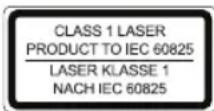
JaHHoe yctpoCTBo pa60taeC Jnapeom Knacca 1.
PacnoJIOKeHne 3JeMeHTOB
1 Teneckonnueckar aHTeHHa 2 PyuKa 3OTcekCD 4 KhoNka STANDBY (peKIM OxHuaHn/ntTaHne) 5 KhoNka CLOCK (yacbl) 6 FUNCTION (pepeeknoateIb yHKcui) 7 KhoNkA STOP 8 KhoNKn /thepeMOTka Bnepe/na3a)
9 Khonka (dnpoun3BedeHne/nay3a) 10 YUKO DnO TOKpbTnO OTCeKa KOMnAaT-DnCka (OPEN/ CLOSE) 11 DOK nopr 12 KhonKn VOLUME +/- (rpoMkoctb) 13 FrpomKorOBopntJIb 14KKdncnnne 15 BaTapeHbI OTeK 16 INdikatop POWER 17 NK daTchN dIaNCTaHcHOnHO ynpabNeHHA
Bn c3aHn (He noka3aH)
CoeHHeHEAUX IN
Station control unit
1 CLOCK button (clock) 2 MUTE button (mute) 3 PRE-DN/PRE-UP button (preset radio stations) 4 SNOOZE button 5 INTRO button 6 MEMORY button (memory) 7 RAND button (random playback) 8 INFO button 9 button (forward skip) button (backward skip) 10 VOLUME +/- button (volume) 11 FUNCTION (function switch) 12 MENU UP button (iPod/iPhone navigation menu) 13 ENTER button (confirmation) 14 MENU DN button (iPod/iPhone navigation menu) 15 EQ button 16 MENU button 17 Play/Pause button 18 STOP button 19 REPEAT button (repeat) 20 MONO/ST button 21 FOLDER +/- button (up/down, position in album) 22 SLEEP button 23 TIMER button 24 STANDBY button
Installation/Connection
- Read the instructions completely before using the device!
- Choose a suitable location for the device. A suitable location is a dry, flat, and non-slip surface on which you can use the device without any problems.
- Make sure that proper ventilation of the device is ensured!
- If necessary, remove the protective film from the display.
Power supply
Insert the power cord plug, included in the delivery set (if applicable, see battery compartment (15)), into a proper 230 V/50 Hz outlet, and the other end of the cord into the AC~ socket on the back of the device. - Check that the voltage matches the rating plate. - When disconnecting from the power supply, the saved time settings are immediately reset.
Battery operation (batteries not included)
- Open the battery compartment cover (15) on the bottom of the device. Insert 8 batteries of type UM 2/R14, 1.5 V. When inserting the batteries, observe the correct polarity (see markings on the bottom of the battery compartment)! Close the battery compartment.
If the device is not used for a long time, remove the batteries from it, as they may leak.
Note:
- When the power cord is connected, battery operation is automatically switched off.
- Batteries and chargers, rechargeable batteries for iPod/iPhone do not charge.
WARNING:
Do not mix different types of batteries or old and new batteries. Do not throw used batteries into household trash. Please take them to an authorized collection point or return them to your dealer.
CAUTION:
Do not expose batteries to heat or direct sunlight. Never throw batteries into fire.
Danger of explosion!
Compatibility with iPod/iPhone
Due to the wide variety of iPod and iPhone models and generations on the market, full compatibility is not guaranteed. Before connecting your iPod/iPhone, make sure the interface is compatible.
Full compatibility with the remote control is guaranteed. Control your iPod/iPhone in the usual way after inserting it into the docking port.
NOTE:
Full compatibility with the remote control is not guaranteed. Control your iPod/iPhone in the usual way after inserting it into the docking port. This accessory is not intended for this iPhone. Noise and reduced signal level may occur. In this case, press the OK button.
General operating instructions
NOTE:
Some buttons are located on the device itself, as well as on the remote control. Buttons with the same name have the same functions.
STANDBY (4/24)
Press the STANDBY button to switch the device to standby mode. The POWER indicator (16) will turn off. Press this button again to switch the device on.
Volume (12/10)
Adjust the volume to the desired level. The display will show "VOL" and a number. It corresponds to the set volume in the range from "VOL MAX" to "VOL MIN".
Infrared remote control
Wireless operation from a distance of up to 5 meters. If the distance decreases, please replace the batteries. Check that there are no obstacles between the remote control and the sensor (17) on the device during operation of the device.
AUX IN (device input)
Switch off the analog device before playback. By connecting to this jack, you can also listen to audio from other devices, such as MP3 or CD players, etc., through the speakers.
- Please connect the external device via the 3.5 mm jack to the AUX IN jack.
- Now use the FUNCTION button (6/11) to select the AUX mode.
- Through the speakers you will hear the audio from the external device; use the VOLUME +/- buttons (12/10) to adjust the volume. The CD button is not active. For more information on other functions, please refer to the user manual of the external audio device.
NOTE:
Set the volume of the external device to the desired level.
Radio operation
- Press the FUNCTION button (6/11) several times until "TUNER" appears on the display.
- Use the buttons (8/9) to tune to the desired station.
- The control lamp FM.ST((ST)) (on the display) lights up when the selected station is being received in stereo quality. If the reception quality is very low, interference may affect the station, and the control lamp will blink. For FM stations, you can also use the MONO/ST button (20 on the remote control) to switch between MONO and STEREO reception. In case of weak reception, we recommend switching to MONO mode.
Saving/Selecting radio stations
- After you have tuned in to a desired station, press the MEMORY button (6 on the remote control). The MEMORY indicator will light up on the display, and the memory position will blink. 5. To select a memory position, press the PREUP/DN button (3 on the remote control).
- Press MEMORY to save the parameters.
To select a station that has been saved in memory, press the PRE-UP or PRE-DN button.
Playing music from iPod/iPhone
(iPod/iPhone is not included)
- Press the FUNCTION button (6/11) until "NO IPOD" appears on the display.
- If your iPod comes with a dock adapter, attach it to the dock connector. If you use an adapter, correctly connect the iPod to the dock connector.
- Insert your iPod/iPhone into the dock connector.

CAUTION:
Make sure your iPod/iPhone is correctly inserted into the dock connector. Do not bend or tilt the iPod/iPhone when inserting it into the dock connector. You may damage the dock connector or the iPod/iPhone.
- Depending on the iPod/iPhone model, if necessary, first release the button lock, then start music playback and the dock (9/17). To control the iPod/iPhone, use its manual.

CAUTION:
Stop playback before disconnecting the iPod/iPhone, otherwise the iPod/iPhone may be damaged.

NOTE:
- If necessary, you can change the audio settings of the iPod/iPhone to achieve optimal sound. In case of an incoming call during music playback from the iPhone, playback stops and you will hear the call signal. Disconnect the iPhone from the device to answer the incoming call.
Charging the iPod/iPhone
The iPod/iPhone battery charges when connected to the dock connector. For this, the device must be plugged into a wall outlet.
NOTE:
- If an adapter is included with the iPod, use it to ensure proper connection of the iPod. Not all iPod/iPhone generations support the charging mode. The charging process duration depends on the specific iPod/iPhone and its operating state.
- If the device operates on batteries, it is not recommended to charge them at this time, as they will discharge faster.
Playing CD/MP3
How to play a CD
- Press the FUNCTION button (6/11) several times until "CD" appears on the display.
- Open the CD compartment (3) by pulling the tab (10) and lifting the lid upward.
- Place the audio CD on the conical spindle, pressing it down so that it snaps into place. Then close the CD compartment.
4. Audio CD:
On the display, "READING" appears briefly, then the word "TOTAL" with the number of tracks and total playing time. Playback starts from the first track on the CD. The display shows the current track, time elapsed since the start of playback, and the symbol
CD in MP3 format:
When the disc is loaded, "READING" will be displayed briefly, then the word "TOTAL", "MP3", the number of folders and tracks (FOLDER). Playback will start from the first track of the first folder. The current track (TRACK), the time elapsed since the start of playback, "MP3" and the symbol ■ will be displayed. Use the FOLDER + or FOLDER - buttons (21 on the remote control) to select specific folders.
- To remove the disc from the player, press the STOP button (7/18), open the disc compartment, and carefully take out the disc.
Always keep the CD door closed.
NOTE
- When playing MP3 CDs that contain folders, the display will show the folder name for the first track of each folder when switching to that folder.
- If the disc is inserted incorrectly or not inserted at all, "READING" will light up and "NO DISC" will be shown on the display. Playback of user-created CDs cannot be guaranteed due to the variety of CD recording software available on the market.
Button descriptions
II (9/17)
Press to temporarily stop playback; press again to resume. The elapsed time will flash on the display and the symbol II will appear. When the button is pressed again, playback resumes from the same point.
(8/9)
During playback of an audio CD, if it is in MP3 format, press the PREV button.
With this button you can skip to the next track or chapter. Press and hold this button for fast forward (sound will be muted).
You can control the button as follows:
Press once = playback of the current track starts from the beginning.
Press twice = skip to the previous track.
Press 3 times = repeat the track, previous track, etc. Press and hold this button for fast forward of music (the sound will be muted).
During radio mode:
Tune to any radio station.
STOP (7/18)
Stop the disc or song.
ENTER (13 on the remote control)
During IPOD:
Press this button to activate the function or display the following menu on the display.
MENU (16 on the remote control)
During IPOD:
Press this button to open the iPod/iPhone menu, or return to the previous menu.
NOTE:
To perform this function, the music application must already be launched.
MENUP/MENU DN.12/14 on the remote control
During IPOD:
Press the button repeatedly to navigate through the menu on iPod/iPhone up and down.
MUTE (2 on the remote control)
Quickly mutes the sound. "MUTE" will appear on the display. To cancel this function, press MUTE again.
EQ (15 on the remote control)
(Press the equalizer button). Different sound presets are available (CLASSIC, ROCK, POP, JAZZ, FLAT).
NOTE: During playback from iPod/iPhone
If necessary, you can change the equalizer (EQ) settings for iPod/iPhone to achieve optimal sound.
MONO/ST (20 on the remote control)
During playback:
Switches between STEREO and MONO.
INFO (8 on the remote control)
During playback of CD in MP3 format:
The saved ID3 tag information will be displayed as a banner on the display. Press the button again to turn off this function.
INTRO (5 on the remote control)
Each track of the CD will be played for 10 seconds. Press the button again to turn off this function.
REPEAT (19 on the remote control)
Press 1 time: (REPEAT 1 appears) The current track will be played repeatedly.
Press 2 times: (REPEAT ALL appears) The entire CD will be played repeatedly.
Press 3 times: All functions will be disabled. The standard playback mode will be restored.
Only for CDs in MP3 format:
Press 1 time: The current track will be played repeatedly (the REPEAT 1 indicator will appear on the display).
Press 2 times: The entire disc will be played repeatedly (REPEAT ALL will appear on the display).
Press 3 times: The selected MP3 CD track will be played repeatedly (REPEAT ALBUM will appear on the display). Use the FOLDER +/- buttons (21 on the remote control) to select individual folders.
Press 4 times: The function will be disabled and CD playback will return to normal mode.
RAND (6 on the remote control)
The display will show "RANDOM" and the track that will be played first. All tracks will be played one after another in random order.
FOLDER + / - (21 on the remote control)
CD in MP3 format:
Press these buttons in playback mode to move one folder up or down. A message will briefly appear on the display. For example, FOLDER 02. Then the system will automatically start playing the MP3 CD. When pressing the buttons in stop mode, a message will also briefly appear on the display. Then press ▶ to start playback.
PRE-UP/PRE-DN (3 on the remote control)
By time
Enter the time set into the remote control.
SLEEP (8 on the remote control)
When the device is on, you can set the time after which the device will go into standby mode; set the time in 10-minute intervals from 90 to 10 minutes. Press this key several times until the desired time appears on the display. When this function is activated, the symbol "SLEEP" appears on the display. The device will turn off automatically after the set time has elapsed.
To display the remaining time, please press the SLEEP key. You can also reduce the time or turn off this function.
TIMER (23 on the remote control)
You can program the device to turn off and then on after a certain set time.
- Use the STANDBY key to switch to standby mode. The POWER indicator (16) will light up.
- Press the TIMER key until "ON TIME" appears on the display.
Now you can use the keys (8/9) to set the hours and minutes for turning on or off, the mode, and the volume for turning on. Always confirm your selection with the TIMER key. The setting currently being adjusted will flash on the display.
NOTES:
If within the next 10 seconds no function is activated, the device will switch back to standby mode without saving the settings.
There are many types of CD recordings, as well as CDs of varying quality and recorded CDs.
Moreover, the music industry does not use consistent standards (copy protection).
For this reason, in some cases problems may occur when playing CDs or MP3 discs. This is not a malfunction of the device.
Cleaning and Maintenance
- Disconnect the power cord before cleaning. You can wipe the exterior with a slightly damp cloth without any cleaning agents.
Troubleshooting
Radio: Frequency range: VHF/FM 87.5~108.0 MHz
Changes may be made without prior notice!
This device complies with all current EU directives, such as electromagnetic compatibility and low voltage; it has been manufactured in accordance with the latest safety regulations.
The labels "Made for iPod" and "Made for iPhone" mean that this electronic accessory has been designed and specifically tested for iPod and iPhone and has been certified by the developer in accordance with Apple's manufacturing standards. Apple is not responsible for the operation of this device or its compliance with safety and regulatory standards.
-
1
-
1
-
1
WARRANTY CARD
Garantiebewijs · Carte de garantie · Certificato di garanzia · Tarjeta de garantía · Cartão de garantia · Guarantee card · Garantikort · Karta gwarancyjna · Garancia lap · Гарантийный ТАЛОН · Гарантийная карточка
SR 4337 iP
24 months guarantee according to guarantee declaration
Purchase date, dealer stamp, signature

- ENGLISH
- CONTENTS
- POLISH
- TABLE OF CONTENTS
- INSTALLATION/INTRODUCTION
- GENERAL SAFETY GUIDELINES
- WARNING
- SYMBOLS IN THIS USER MANUAL
- CAUTION
- NOTE
- SPECIAL SAFETY GUIDELINES
- OVERVIEW OF THE COMPONENTS
- REMOTE CONTROL
- POWER SUPPLY
- BATTERY OPERATION (BATTERIES NOT SUPPLIED)
- BATTERIES OF REMOTE CONTROL (BATTERIES NOT INCLUDED)
- SETTING THE CLOCK (DURING STANDBY MODE)
- IPOD/IPHONE COMPATIBILITY
- GENERAL OPERATION
- STANDBY (4/24)
- VOLUME (12/10)
- INFRARED REMOTE CONTROL
- AUX IN JACK (BACK OF DEVICE)
- LISTENING TO THE RADIO
- SAVING/SELECTING STATIONS
- MUSIC PLAYBACK FROM IPOD/IPHONE
- IPOD/IPHONE CHARGING
- PLAYING CDS/MP
- THIS IS HOW TO PLAY A CD
- AUDIO CD
- CD IN MP3 FORMAT
- DESCRIPTION OF THE OPERATING BUTTONS
- II (9/17)
- STOP (7/18)
- ENTER (13 ON REMOTE)
- MENU (16 ON REMOTE)
- I NOTE
- SNOOZE (4 ON REMOTE)
- CLOCK (5/1)
- MEMORY (6 ON REMOTE)
- PROGRAM PLAYBACK
- FOR CDS IN MP3 FORMAT
- PLAYBACK OF MUSIC FILES IN MP3 FORMAT
- PLEASE NOTE
- CLEANING AND MAINTENANCE
- TECHNICAL SPECIFICATIONS
- DISPOSAL/MEANING OF THE "WHEELIE BIN" SYMBOL
- RECYCLING
- BATTERIES FOR REMOTE CONTROL
- SETTING THE CLOCK (IN THE CLOCK SETTING MODE)
- PROTECTIVE COVER FOR THE COMPACT DISC PLAYER DURING TRANSPORT
- COMPATIBILITY WITH IPOD/IPHONE
- GENERAL INFORMATION ABOUT THE DEVICE OPERATION
- AUX IN JACK (REAR SIDE)
- STORING RADIO STATIONS
- UKRAINIAN
- PLAYBACK OF MUSIC FROM IPOD/IPHONE
- CHARGING THE IPOD/IPHONE
- PLAYBACK FROM CD/MP
- ABOUT PLAYBACK FROM CDS
- DESCRIPTION OF CONTROL BUTTONS
- (8/9)
- MONO/ST (20 ON THE REMOTE CONTROL)
- INFO (8 ON THE REMOTE CONTROL)
- INTRO (5 ON THE REMOTE CONTROL)
- REPEAT (19 ON THE REMOTE CONTROL)
- RAND (6 HA NYLTI DNTAHIO HORO KEPYBAHHA)
- FOLDER + / - (21 NA NYBLTI INCTAHIOI KEPYBAHHA)
- PRE-UP/PRE-DN (3 HA NYLTI NCTAHORO KEPYBAHHA)
- SLEEP (8 HA NYBTI DCTAUNHORO KEPYBAHH)
- SNOOZE (4TH BUTTON ON THE REMOTE CONTROL)
- MEMORY (6TH BUTTON ON THE REMOTE CONTROL)
- PROGRAMMING REPETITIONS
- UHHEHH TA O6CNYROBYBAHH
- UHE NPABNLA TEXHKN 6E3ONACHOCTU
- PERSONS WITH LIMITED CAPABILITIES
- CHMBONBI B DAHHOM PYKOBOCTBE NOJIB3OBATEN
- IPEJYIPHEKJEHNE
- BHIMAHHE
- ПРИМЕЧАНЯ
- OC06BIE HNCTPYKUHN PO 6E3ONACHOCTN
- PACNOJIOKEHNE 3JEMEHTOB
- STATION CONTROL UNIT
- INSTALLATION/CONNECTION
- BATTERY OPERATION (BATTERIES NOT INCLUDED)
- GENERAL OPERATING INSTRUCTIONS
- AUX IN (DEVICE INPUT)
- RADIO OPERATION
- SAVING/SELECTING RADIO STATIONS
- PLAYING MUSIC FROM IPOD/IPHONE
- PLAYING CD/MP
- HOW TO PLAY A CD
- BUTTON DESCRIPTIONS
- RAND (6 ON THE REMOTE CONTROL)
- FOLDER + / - (21 ON THE REMOTE CONTROL)
- PRE-UP/PRE-DN (3 ON THE REMOTE CONTROL)
- SLEEP (8 ON THE REMOTE CONTROL)
- TIMER (23 ON THE REMOTE CONTROL)
- NOTES
- WARRANTY CARD
- SR 4337 IP
Brand : AEG
Model : SR 4337 IP
Category : Cd player/recorder