
Inpulse 200 MK2 - USB controller HERCULES - Free user manual and instructions
Find the device manual for free Inpulse 200 MK2 HERCULES in PDF.



| Product type | USB DJ Controller |
| Brand | Hercules |
| Model | Inpulse 200 MK2 |
| Power supply | USB bus-powered |
| Connectivity | USB-B 2.0, 2 RCA outputs (Master), 1 headphone jack 3.5 mm |
| Compatible software | DJUCED, Serato DJ Lite (license included) |
| Number of decks | 2 |
| Jog wheels | 2 with Vinyl mode (scratch) and Beatmatch Guide function |
| Performance pads | 4 pads with Hot Cue, Stems, FX, Sampler modes |
| Faders | 2 volume faders, 1 crossfader, 2 tempo faders |
| Equalization | 2-band (High, Low) per deck |
| Filter | 1 high-pass/low-pass filter per deck |
| Sound card | Integrated multi-channel 24-bit / 44.1 kHz, Master and headphone output |
| Special functions | Beatmatch Guide (TEMPO and BEAT ALIGN visual guides), Suggestion Assistant (DJUCED), loops, Hot Cue, Stems |
| System compatibility | Windows 10/11, macOS |
| Maintenance | Clean with a soft dry cloth. Do not use abrasive cleaners or solvents. |
| Safety | Do not expose to moisture, liquids, or extreme temperatures. Use on a stable surface. |
| Box contents | Controller, Hercules/Serato/DJUCED stickers, warranty flyer |
| Warranty | 2 years (according to applicable law) |
Frequently Asked Questions - Inpulse 200 MK2 HERCULES
User questions about Inpulse 200 MK2 HERCULES
0 question about this device. Answer the ones you know or ask your own.
Ask a new question about this device
Download the instructions for your USB controller in PDF format for free! Find your manual Inpulse 200 MK2 - HERCULES and take your electronic device back in hand. On this page are published all the documents necessary for the use of your device. Inpulse 200 MK2 by HERCULES.
USER MANUAL Inpulse 200 MK2 HERCULES
Overview 7
Decks 8
Mixing 18
Connectors. 26
- INSTALLATION 27
Connections 27
Downloading the software 29
DJUCED 29
Serato DJ Lite 32
Master output for speakers (output 1-2).....42
Headphones output (output 3-4) 43
7. COMPATIBILITY 44
USB Audio / USB MIDI 44
ASIO and Windows® control panel .....44
Firmware update. 47
8. DEMO MODE 48
9. FAQs 49
DJCONTROL INPUT 200 MK2
Hercules DJControl Impulse 200 MK2 is a full-featured controller designed for getting started DJing thanks to dedicated features, video tutorials and integration with the DJUCED® and Serato DJ Lite software.

Hercules DJControl Impulse 200 MK2 includes a license for Serato DJ Lite, not a license for Serato DJ Pro. If you install Serato DJ Pro instead of Serato DJ Lite, Serato DJ Pro will work with your DJControl Impulse 200 MK2 for the duration of a trial period. At the end of this trial period, if you want to continue using Serato DJ Pro, you must purchase a Serato DJ Pro license.
1. Box contents
- Hercules DJControl Inpulse 200 MK2
- Hercules, Serato and DJUCED® stickers
- Warranty flyer
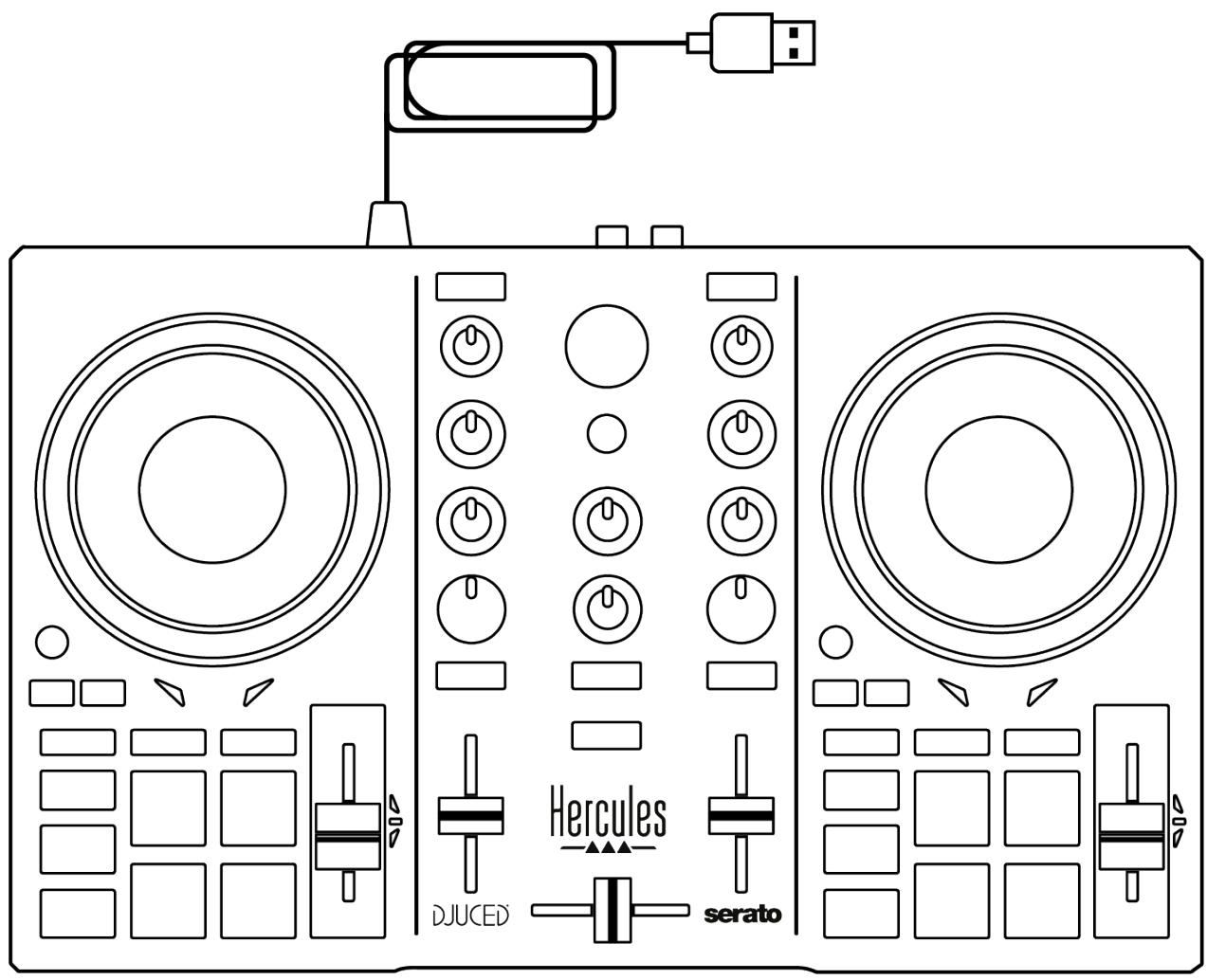

You can remove the protective film covering the VU meter on the Hercules DJControl Inpulse 200 MK2 controller. You can also leave the protective film in place, as it does not affect the use of the VU meter.
2. Technical specifications
System requirements:
- DJUCED®:
https://www.djuced.com/downloaddjuced/
- Serato DJ Lite:
https://serato.com/dj/lite/downloads?systemrequirements#system-requirements
Master output for speakers (output 1-2) via two RCA connectors:
- Maximum output power = 5 dBU @ 1 kΩ
- THD+N @1 kHz < 0.01%
- Resolution = 24-bit
- Sample rate = 44.1 kHz
Headphones output (output 3-4) via one 3.5 mm stereo mini-jack connector:
- Maximum output power = 5 dBU for 32 @ 1 kHz
- THD+N @1kHz < 0.017%
- Resolution = 24-bit
- Sample rate = 44.1 kHz
3. Features
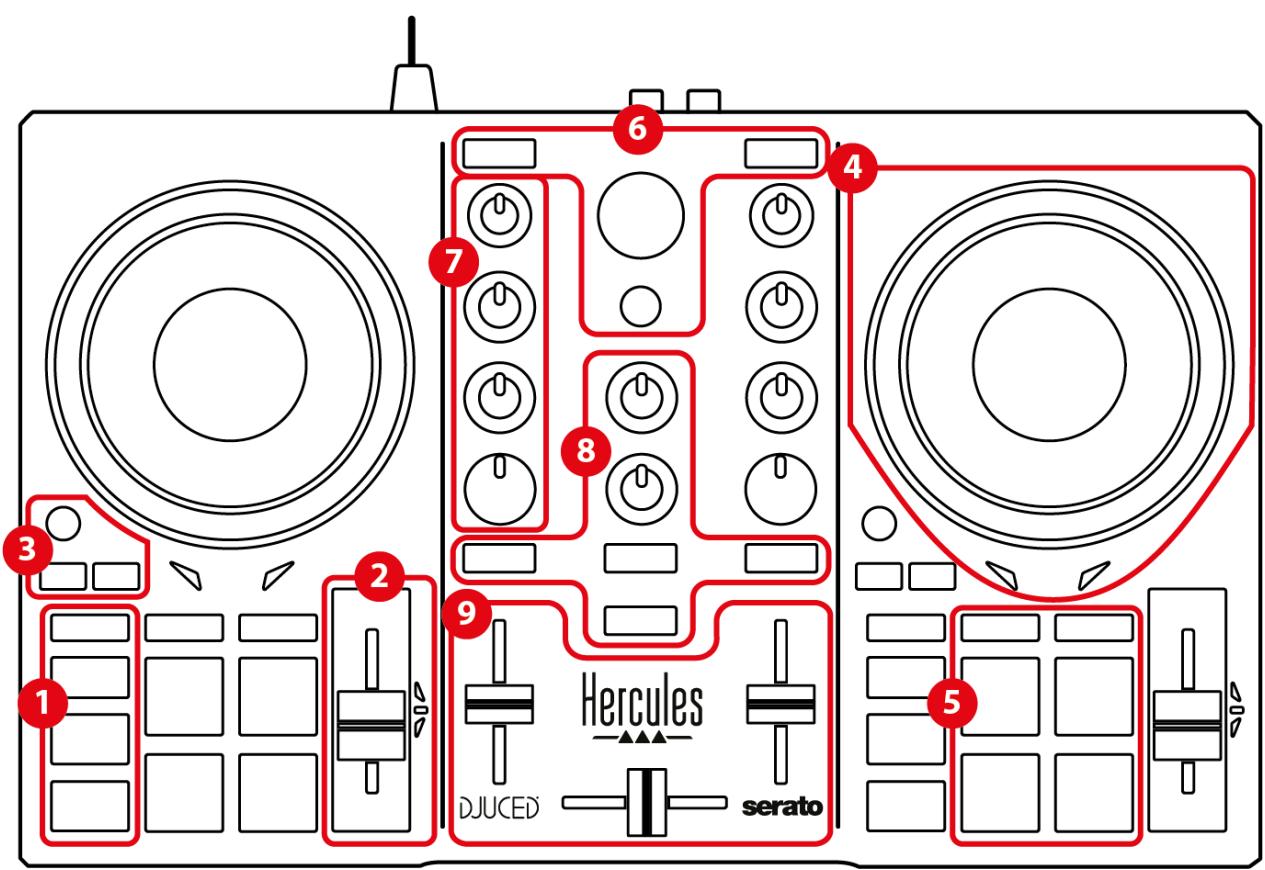
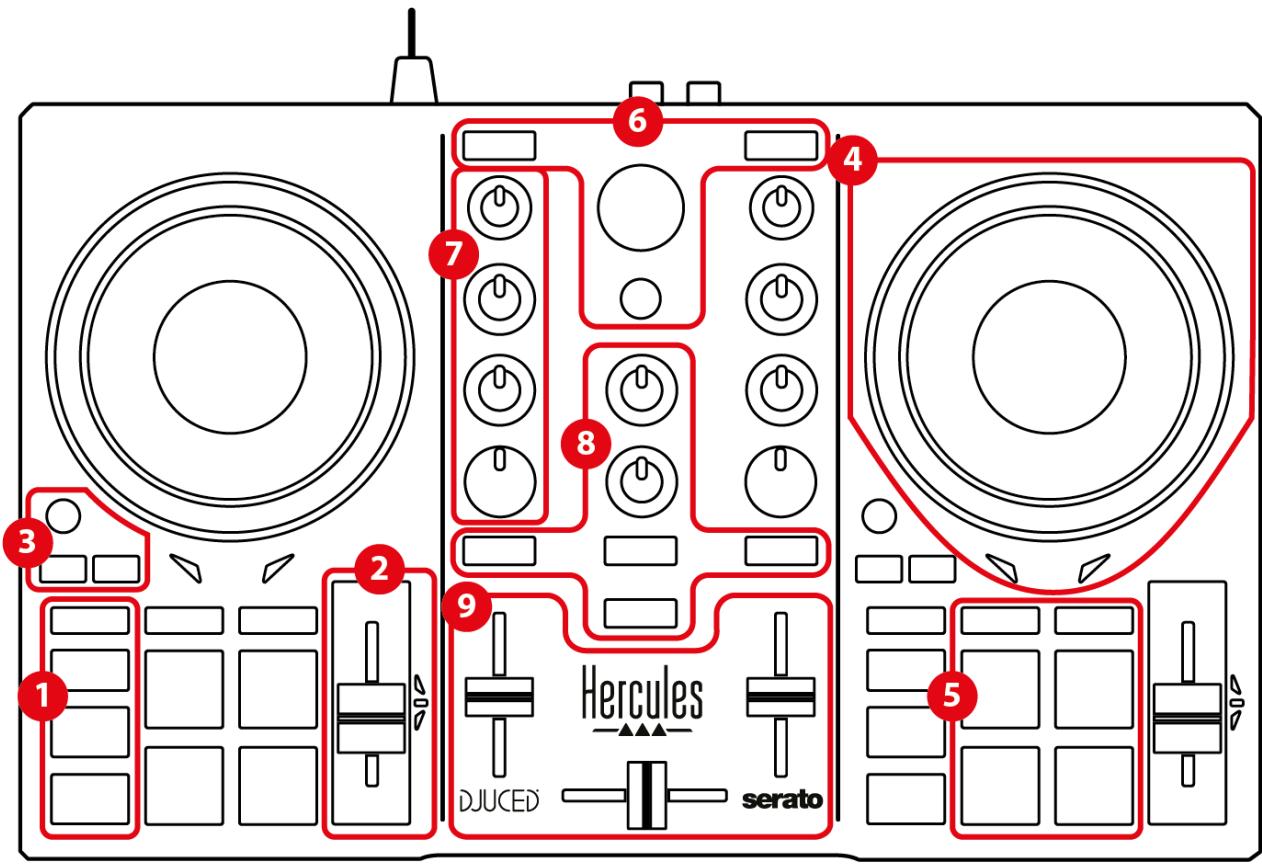
Overview
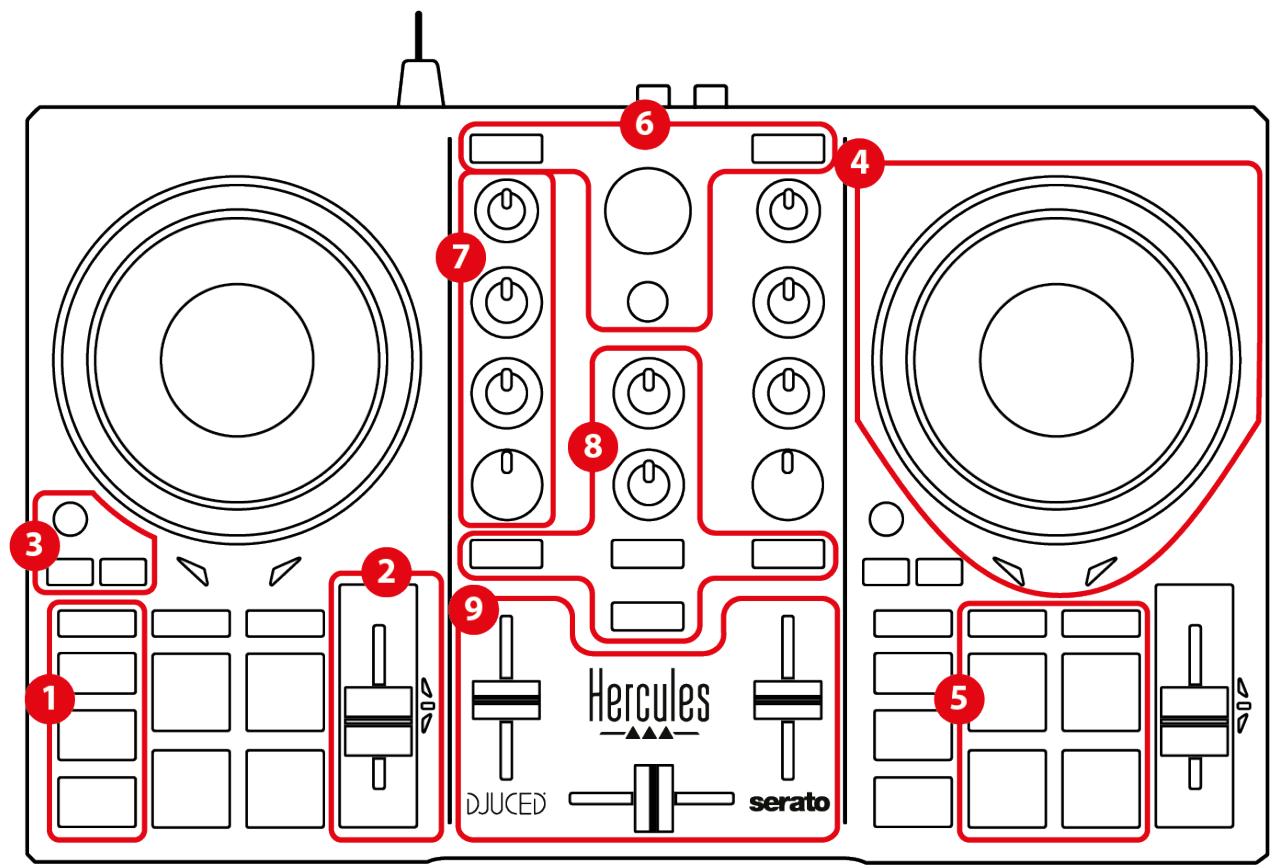
- Transport buttons (Play, Cue, Sync, Shift)
- Tempo fader (Pitch fader)
- Loop controls (Loop)
- Jog wheel
- Pads and modes
- Track selection controls (Browser, Load, Assist./Prep.)
- Mixing section (Gain, EQ, Filter)
- Monitoring, volumes (Master and Headphones) and Beatmatch Guide
- Mixer (Crossfader, volume faders)
Decks
1. Transport buttons
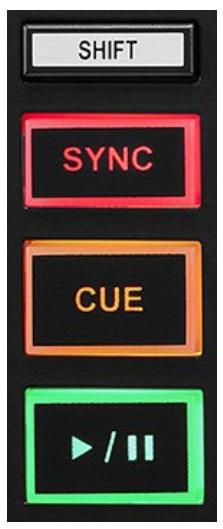
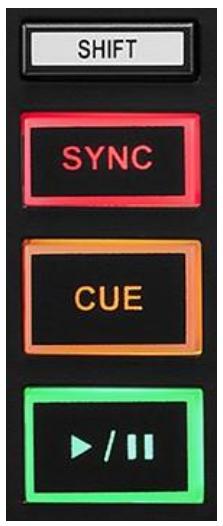
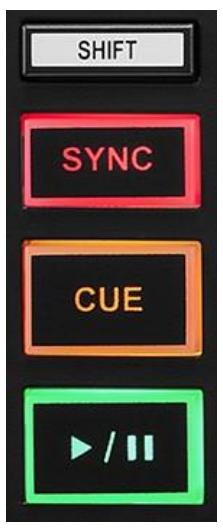
SHIFT: combined control. For example:
- SHIFT + 1/2 : enables a loop by choosing the in point.
- SHIFT + LOOP: enables Vinyl (Scratch) mode.
SYNC: enables or disables automatic synchronization of the BPM (beats per minute) values of two tracks.
- SHIFT + SYNC:
○ In DJUCED®: makes the deck the master synchronization (Master Sync) deck.
○ In Serato DJ Lite: disables synchronization on the deck.
CUE: inserts a Cue point in the track to identify a specific instant, or moves the deck playhead to the Cue point's position.
- Track paused: inserts a Cue point at the spot where the track is stopped.
- Track playing: stops playback of the track and moves the deck playhead to the Cue point.
• In DJUCED®, if no Cue point has been defined, pressing Cue stops playback and places a Cue point at the playhead's location.
In Serato DJ Lite, if no Cue point has been defined, pressing CUE stops playback and places a Cue point at the beginning of the track.
- CUE + PLAY: moves the playhead to the Cue point and plays the track from that point.
- SHIFT + CUE:
In DJUCED®: moves the playhead to the start of the track, and stops playback.
○ In Serato DJ Lite: moves the playhead to the start of the track, and starts playback.
Play/Pause: plays or pauses the track.
- SHIFT + PLAY: in Serato DJ Lite, moves the playhead to the Cue point and plays the track from this marker.
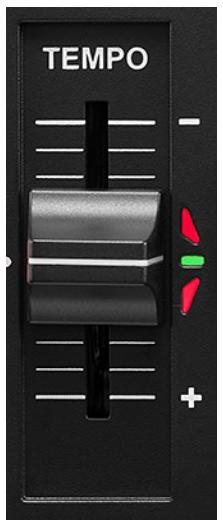
2. Tempo fader
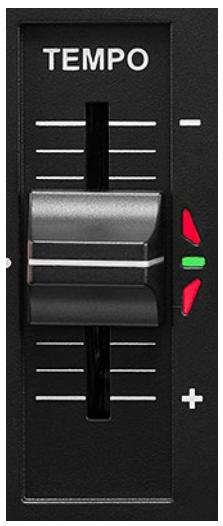
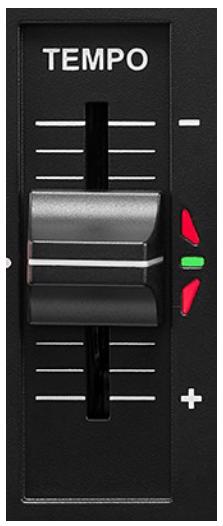
Tempo fader: sets the track's playback speed by adjusting the number of BPM.
- Move up: slows down the track.
- Move down: speeds up the track.
- Tempo fader in the middle: the track's original speed. The green LED is lit up.
When the Beatmatch Guide function is enabled, the TEMPO visual guides indicate whether you need to move the tempo fader up or down, in order to slow down or speed up the track. When the two red arrows are off, the tempo on that deck is identical to the tempo on the other deck.
For more information on the Beatmatch Guide function, please read the Beatmatch Guide section on page 22.
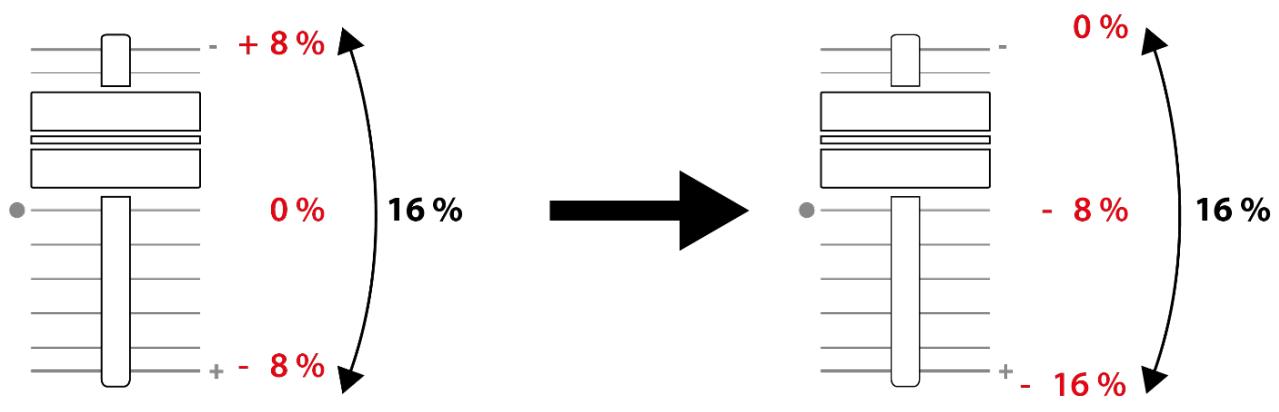
In Serato DJ Lite and Serato DJ Pro, when Sync mode is enabled, pressing SHIFT and moving the tempo fader at the same time lets you move the tempo fader's values while maintaining the amplitude.
For example, with a tempo scale of ± 8% , or 16% amplitude, you can move the tempo fader's values to cover from 0% (maximum) to -16% (minimum), which still results in 16% amplitude, with -8% in the center.
3. Loop controls
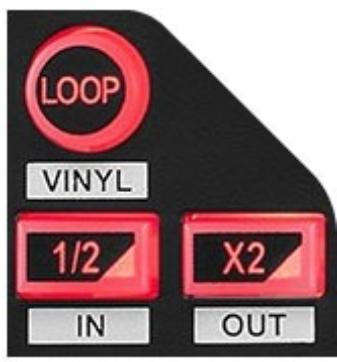
LOOP: enables or disables playback of the loop.
12 / X2 : divides by two or multiplies by two the size of the active loop.
- SHIFT + 12 (LOOP IN): enables a loop by choosing the in point.
- SHIFT + X2 (LOOP OUT): enables a loop by choosing the out point.
When the loop is active:
- SHIFT + 12 : turn the jog wheel to move the start of the loop. To set this start of the loop, press SHIFT + 12 again.
- SHIFT + X2: turn the jog wheel to move the end of the loop. To set this end of the loop, press SHIFT + X2 again.
To exit the loop, press LOOP.
4. Jog wheel
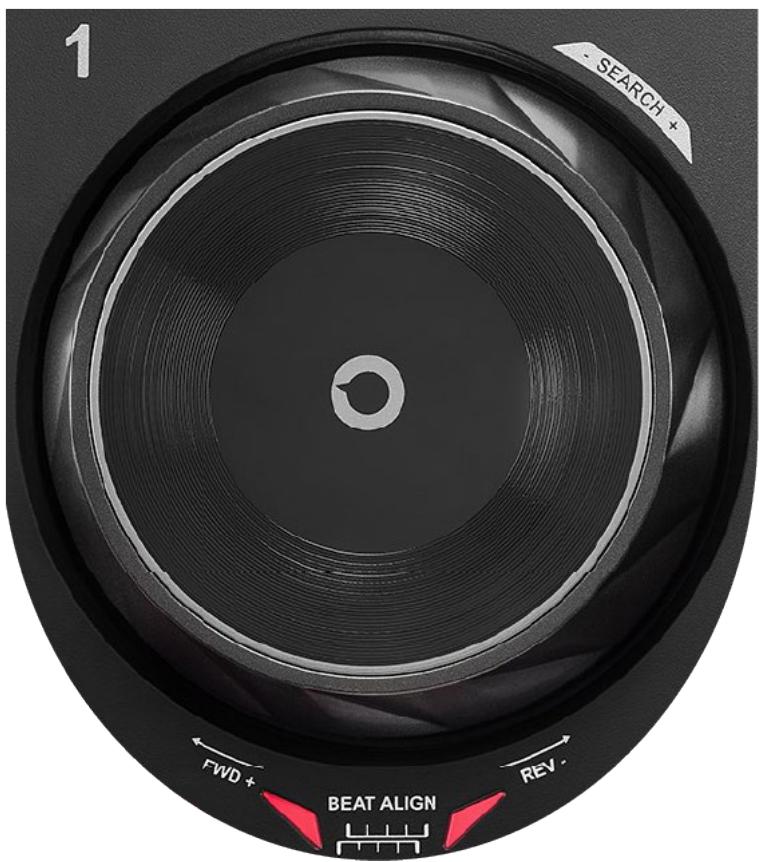
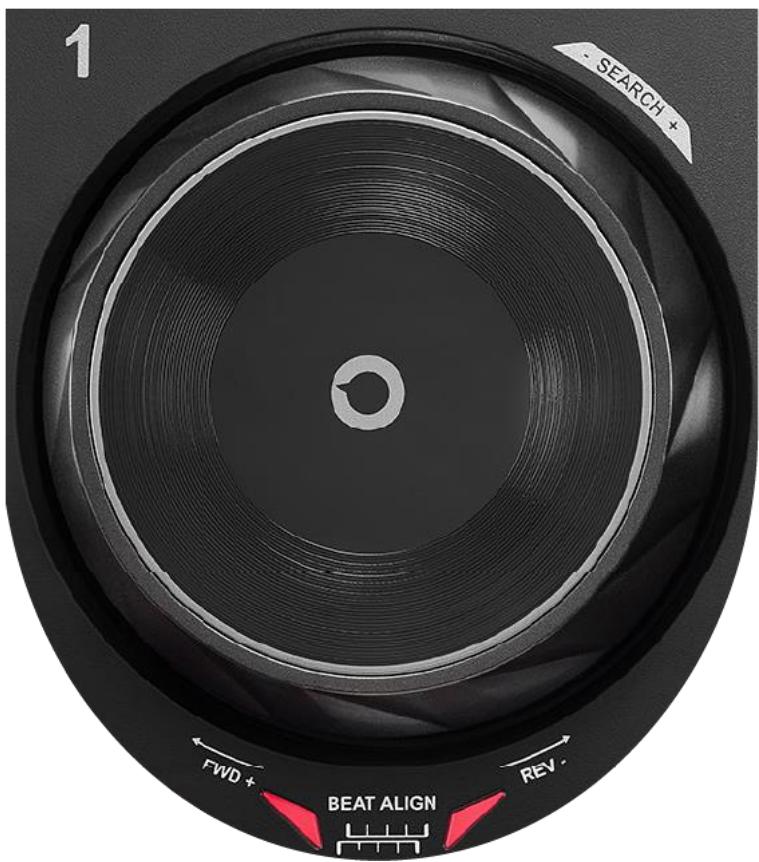
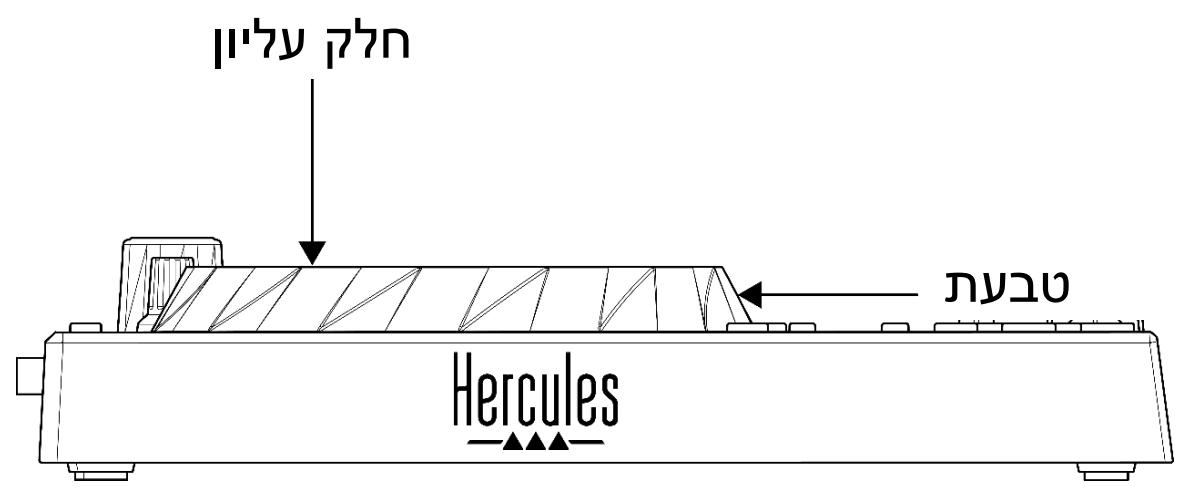
Jog wheel: lets you move within the track, modify the track's playback, and scratch.
When the Beatmatch Guide function is enabled, the BEAT ALIGN visual guides indicate the direction in which you need to turn the ring (i.e. the edge) of the jog wheel in order to align the beat grids of the two tracks. When the two red arrows are off, the beat grids are aligned.
For more information on the Beatmatch Guide function, please read the Beatmatch Guide section on page 22.
The action carried out depends on three criteria:
- Vinyl (Scratch) mode enabled or disabled;
- track playing or paused;
- the spot where you are touching the jog wheel (top or ring).
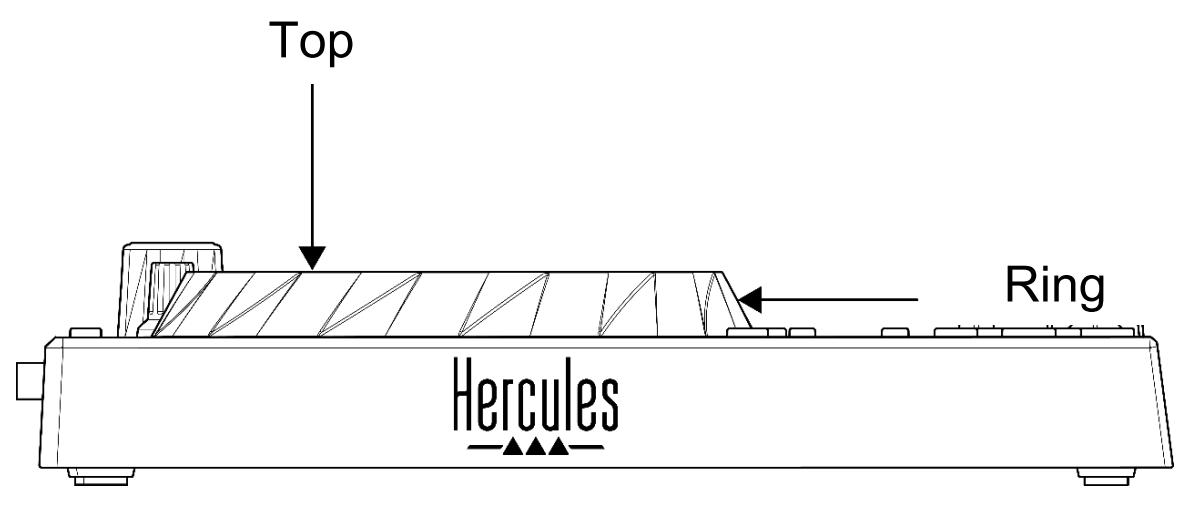
To enable Vinyl (Scratch) mode, press SHIFT and LOOP at the same time. To make sure that Vinyl mode is enabled, press SHIFT. The LOOP button is lit up.
Actions of the jog wheels with Serato DJ Lite and Serato DJ Pro:
| Vinyl mode | Play/Pause | Jog wheel | SHIFT button |
| Scratching | |||
| Enabled | Play | Top | - |
| Enabled | Pause | Top | - |
| Disabled | Pause | Top | - |
| Speed up or slow down playback | |||
| Disabled | Play | Top or ring | - |
| Move slowly within the track | |||
| Disabled | Pause | Ring | - |
| Move quickly within the track | |||
| Enabled | Play | Top or ring | Press and hold |
| Enabled | Pause | Top or ring | Press and hold |
| Disabled | Play | Top or ring | Press and hold |
| Disabled | Pause | Top or ring | Press and hold |
Actions of the jog wheels with DJUCED®:
| Vinyl mode | Play/Pause | Jog wheel | SHIFT button |
| Scratching | |||
| Enabled | Play | Top | - |
| Enabled | Pause | Top or ring | - |
| Speed up or slow down playback | |||
| Enabled | Play | Ring | - |
| Disabled | Play | Top or ring | - |
| Move quickly within the track | |||
| Disabled | Pause | Top | - |
| Move very quickly within the track | |||
| Enabled | Play | Ring | Press and hold |
| Enabled | Pause | Ring | Press and hold |
| Disabled | Play | Ring | Press and hold |
DJUCED
5. Pads and modes
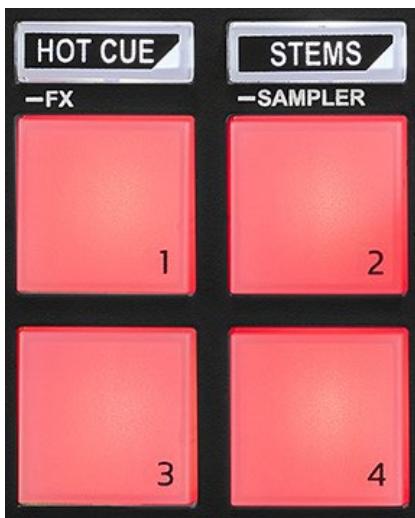
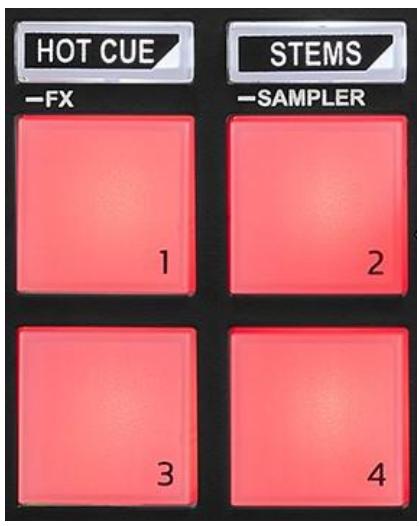
Mode buttons: let you enable up to four modes.
To enable a main mode, press HOT CUE or STEMS.
To enable a secondary mode (FX and SAMPLER), simultaneously press SHIFT and HOT CUE or STEMS. The mode button flashes.
For more information about the different modes with DJUCED®, Serato DJ Lite and Serato DJ Pro, please read the Modes and pads section on page 34.
Performance pads: a pad performs an action.
Mixing
6. Track selection controls

LOAD*: loads the selected track on the destination deck. In DJUCED®, collapses or expands folders.
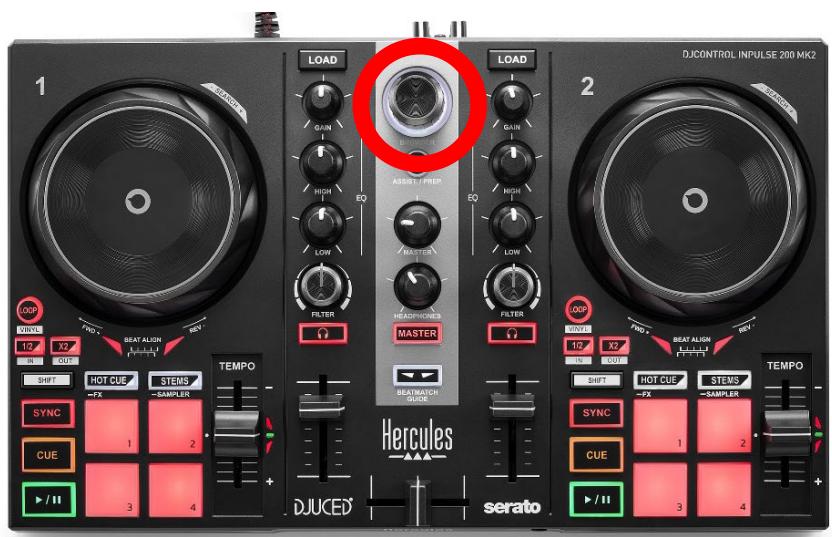
BROWSER encoder: lets you browse through your music library by turning the encoder to the left (up) or to the right (down).
Press the encoder to select folders and files.
In DJUCED®, press SHIFT and the encoder to return to the root of your music library.
*The functionality is identical on decks 1 and 2.
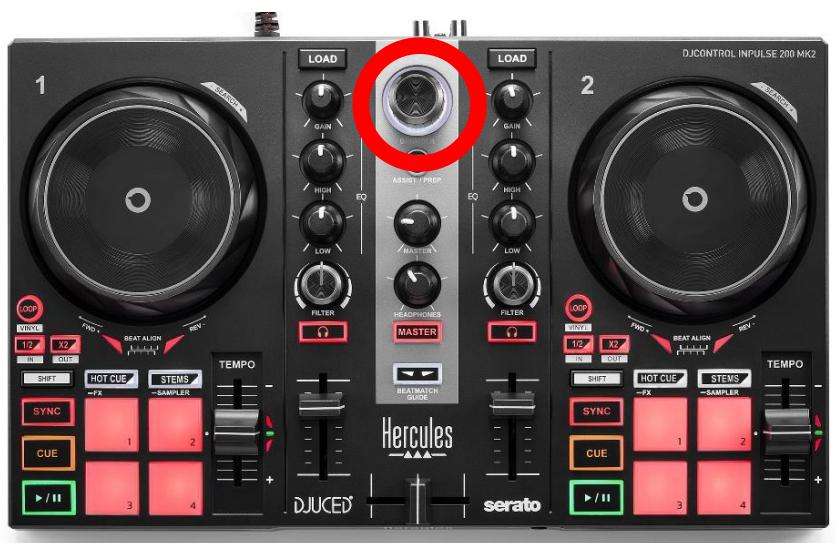
Illuminated ring:
- In DJUCED®, shows the energy level of the master track for the tempo.
- In Serato DJ Lite, shows the rhythm. The light flashes to the beat of the track.
ASSIST./PREP.:
- In DJUCED®, displays the panel suggesting the best upcoming tracks for your mix.
Press ASSIST./PREP. and turn the encoder to adjust the energy level of the tracks being suggested.
- In Serato DJ Lite, adds the track currently being played to the Prepare list.
7. Mixing section
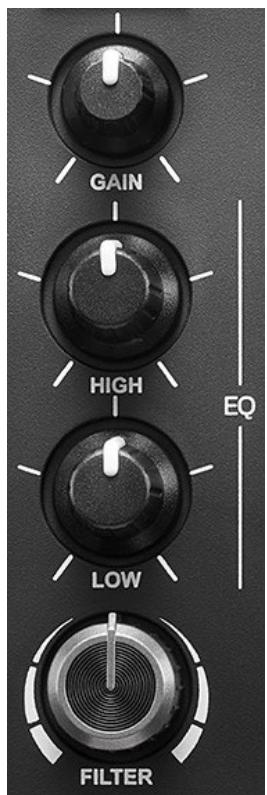
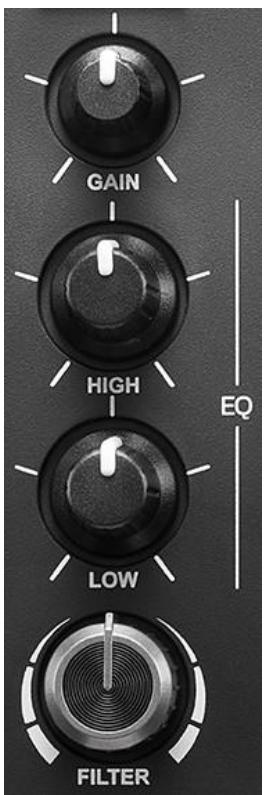
GAIN knob*: adjusts the gain (i.e. the volume level before the volume fader).
2-band equalizer (EQ)*: controls the intensity of the EQ. A knob is associated with each band: HIGH and LOW.
FILTER knob*: adjusts the frequency of the dual filter (high-pass and low-pass).
*The functionality is identical on decks 1 and 2.
8. Monitoring, volume and Beatmatch Guide
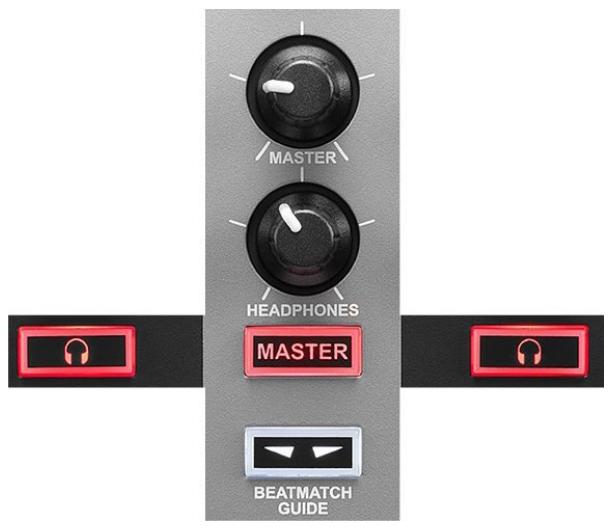
MASTER volume: adjusts the volume of the mix being played on your speakers.
HEADPHONES volume: adjusts the volume of the headphones output.
Monitoring: selects the sound source played on your headphones.
- ^* : plays the sound from deck 1 or deck 2.
- MASTER: plays the sound of the mix being played out loud for the audience.
*The functionality is identical on decks 1 and 2.
BEATMATCH GUIDE: enables or disables the light guides to adjust the tempo and align the beat grids of the two tracks. There are four red arrows per deck.

DJUCED® defines one of the decks as the master synchronization (Master Sync) deck, and the other as the slave deck. The red arrows only light up on the slave deck, as this deck follows the tempo of the master synchronization deck.
Serato DJ Lite does not define a master synchronization deck. The red arrows light up on both decks.
- TEMPO visual guides: if one of the two red arrows located to the right of a tempo fader is lit up, this means that the tempo (i.e. number of beats per minute) of the track being played on this deck is different than the tempo of the other deck.
The arrows indicate the direction in which you need to move the tempo fader in order to adjust the tempo of the track being played to match the tempo on the other deck.
-
Top arrow lit up: move the tempo fader up. This will slow down the tempo.
• Bottom arrow lit up: move the tempo fader down. This will speed up the tempo.
• Arrows not lit up: the deck's tempo is identical to the tempo of the other deck. -
BEAT ALIGN visual guides: if one of the two red arrows located below a jog wheel is lit up, this means that the beats of the track being played on this deck are not aligned with the beats of the other deck.
The arrows indicate the direction in which you need to turn the jog wheel in order to align the beats of the track being played with the beats of the other deck.
○ Left arrow lit up: turn the jog wheel clockwise. This speeds up the playback speed.
○ Right arrow lit up: turn the jog wheel counterclockwise. This slows down the playback speed.
○ Arrows not lit up: the deck's beats are aligned with the beats of the other deck.
9. Mixer
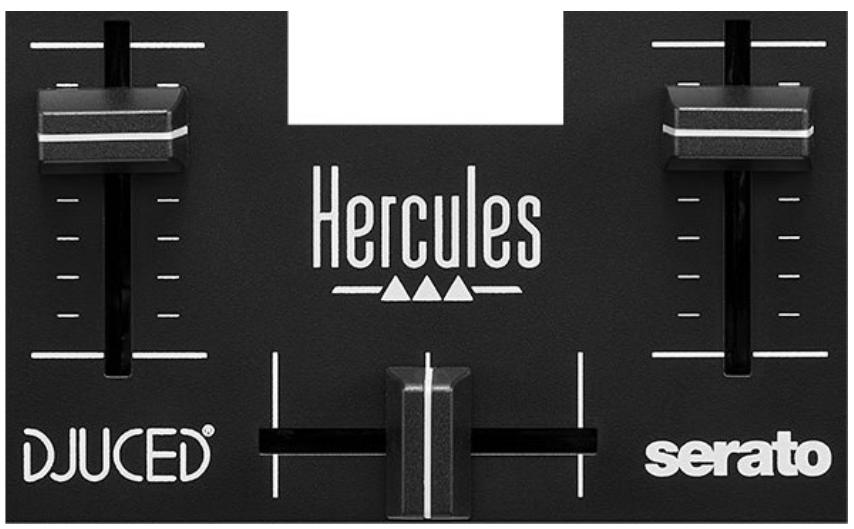
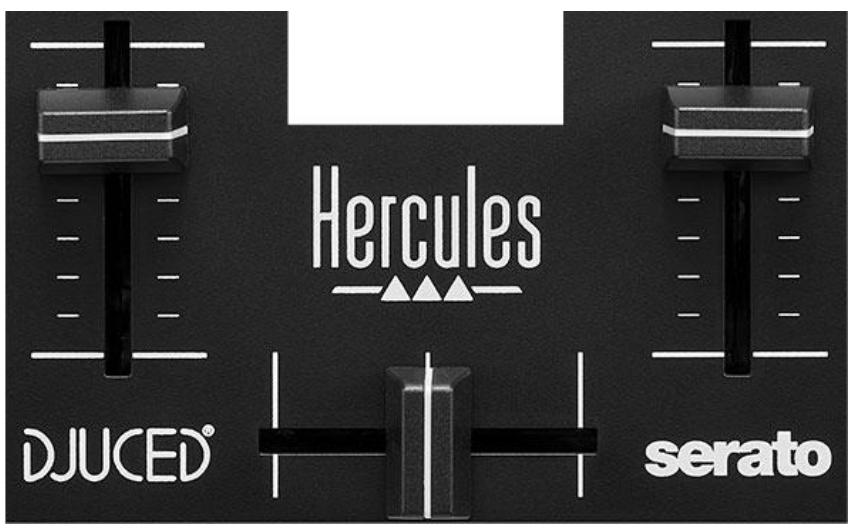
Volume fader*: adjusts the deck's volume.
Crossfader: lets you make a transition between two tracks by increasing the volume of one of the decks, while decreasing the volume of the other deck.
- Crossfader all the way to the left: you only hear the track on deck 1.
- Crossfader all the way to the right: you only hear the track on deck 2.
- Crossfader in the middle: you hear the tracks on both decks 1 and 2 at the same time.
*The functionality is identical on decks 1 and 2.
Connectors
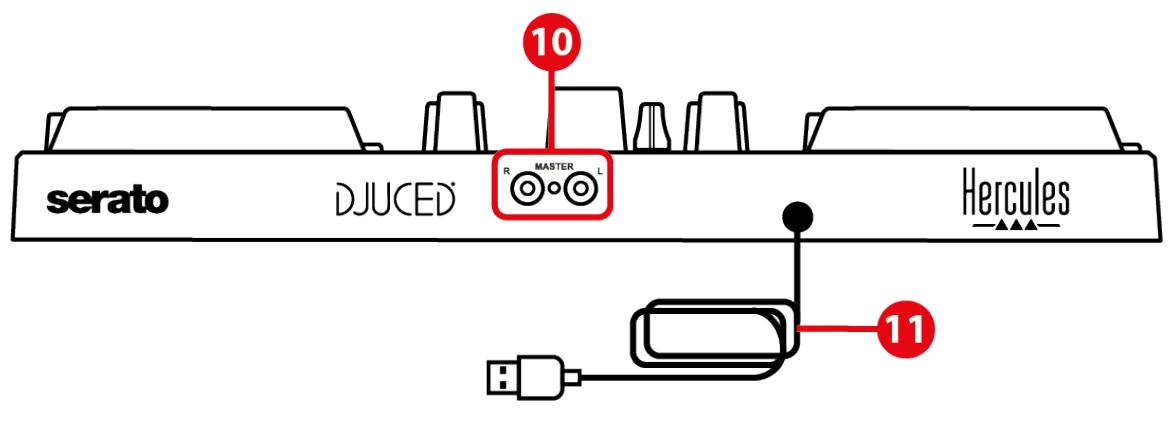
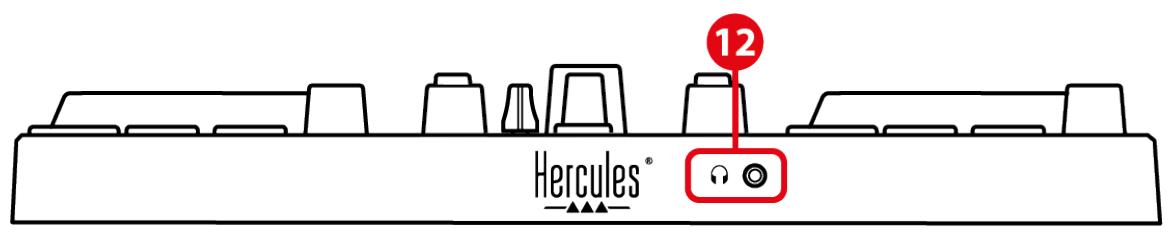
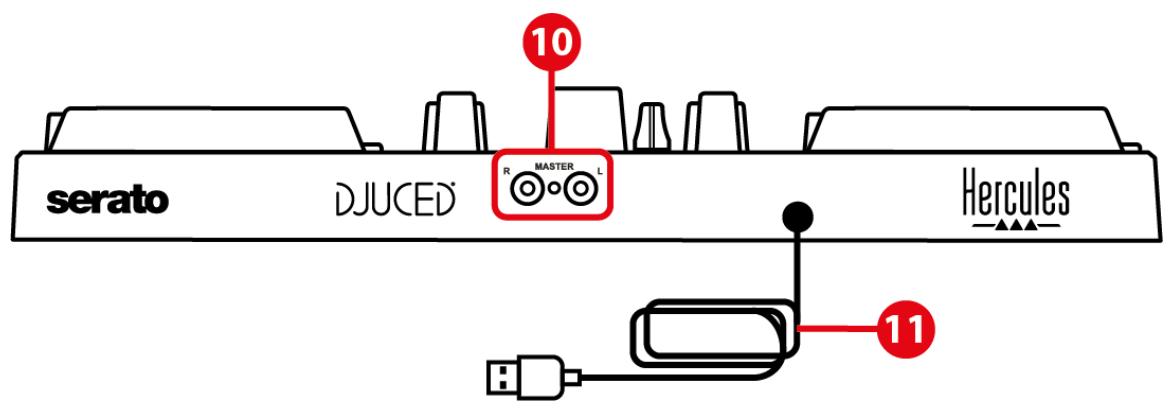
- Master output for speakers (output 1-2)
- USB-B 2.0 cable
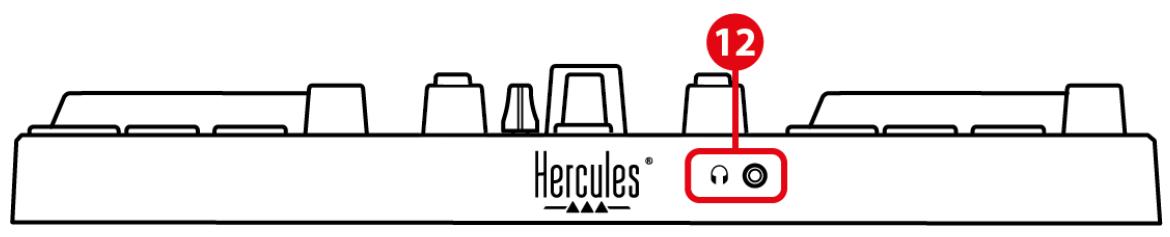
- Headphones output (output 3-4)
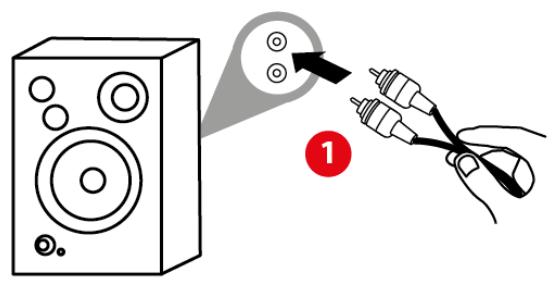
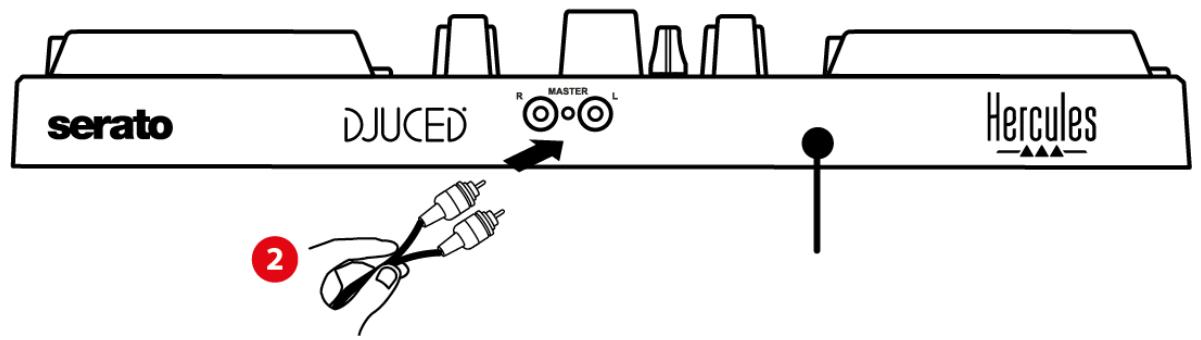
Master output for speakers (output 1-2): lets you connect active speakers.
Format: 2 x RCA (Cinch)
USB-B 2.0 cable: lets you connect the controller to a computer.
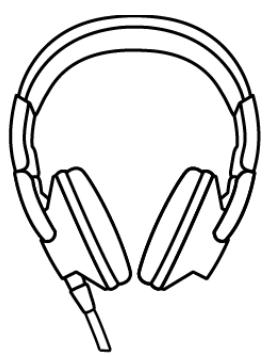
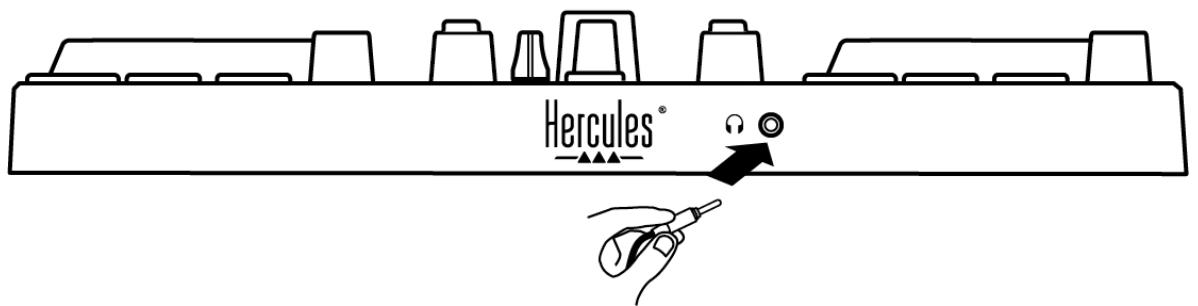
Headphones output (output 3-4): lets you connect headphones in order to monitor tracks.
Format: 3.5 mm stereo mini-jack connector
4. Installation
Connections
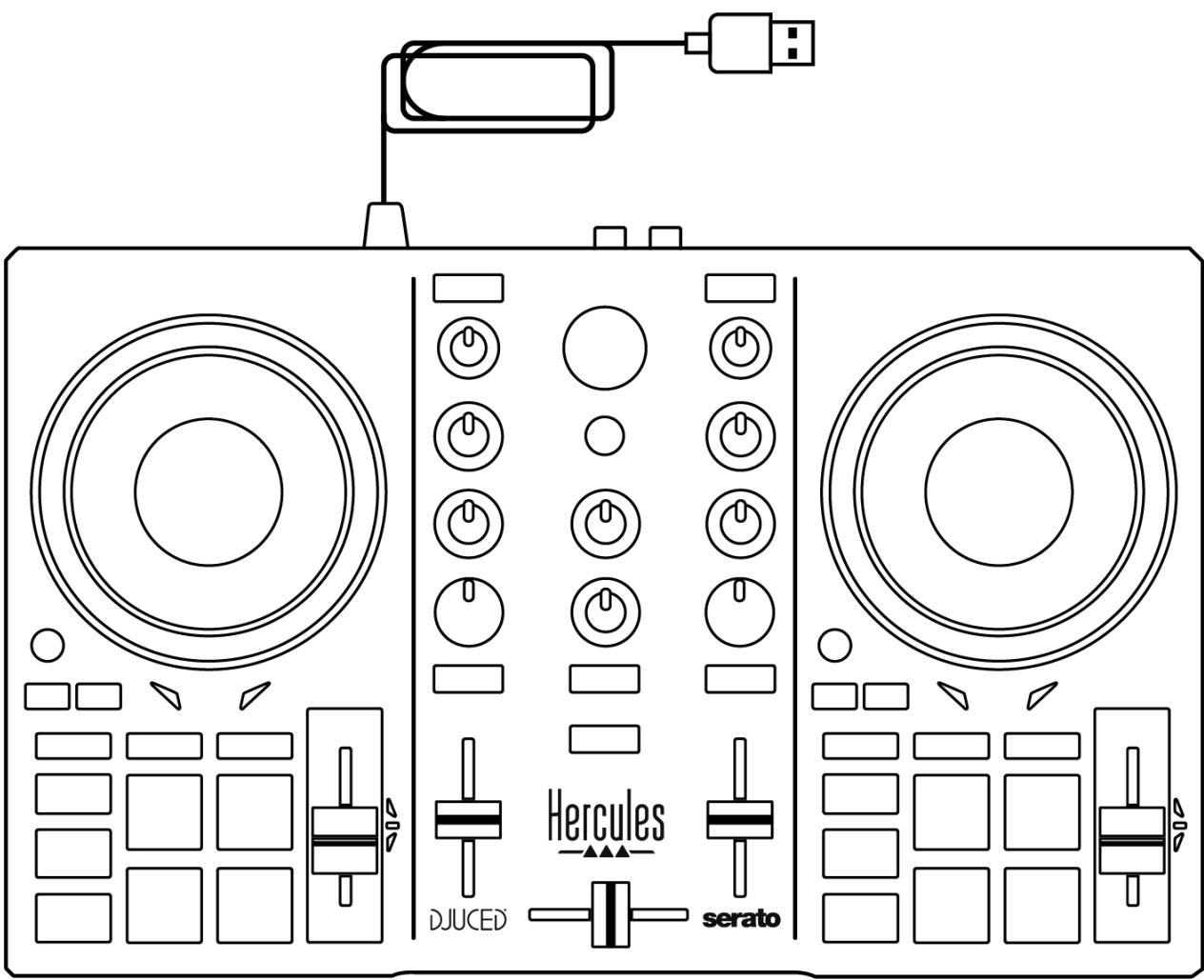
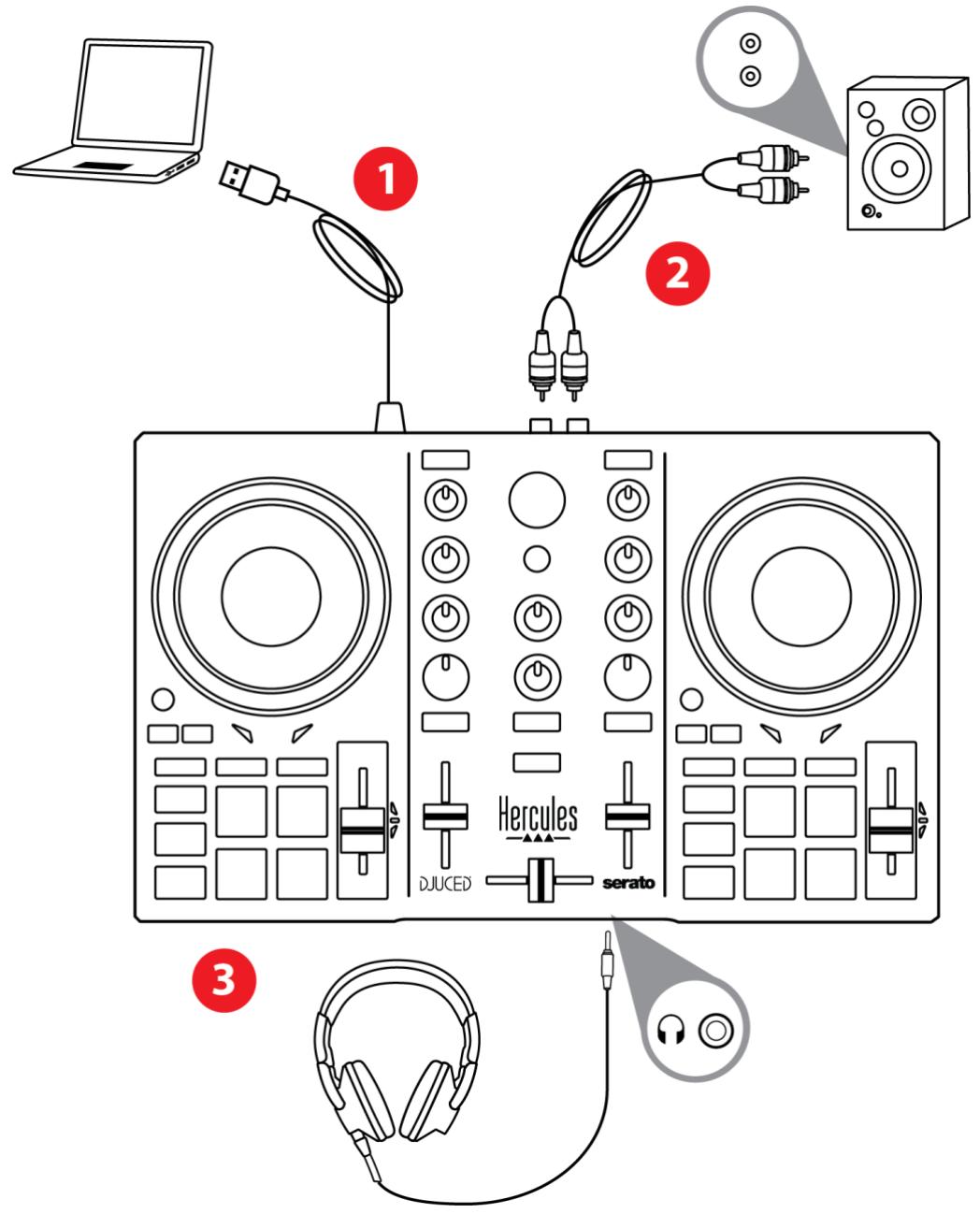
- Connect the DJControl Inpulse 200 MK2 controller to your computer with the USB cable.
- Connect the inputs on your active speakers to the speaker outputs on DJControl Inpulse 200 MK2 (2 RCA).
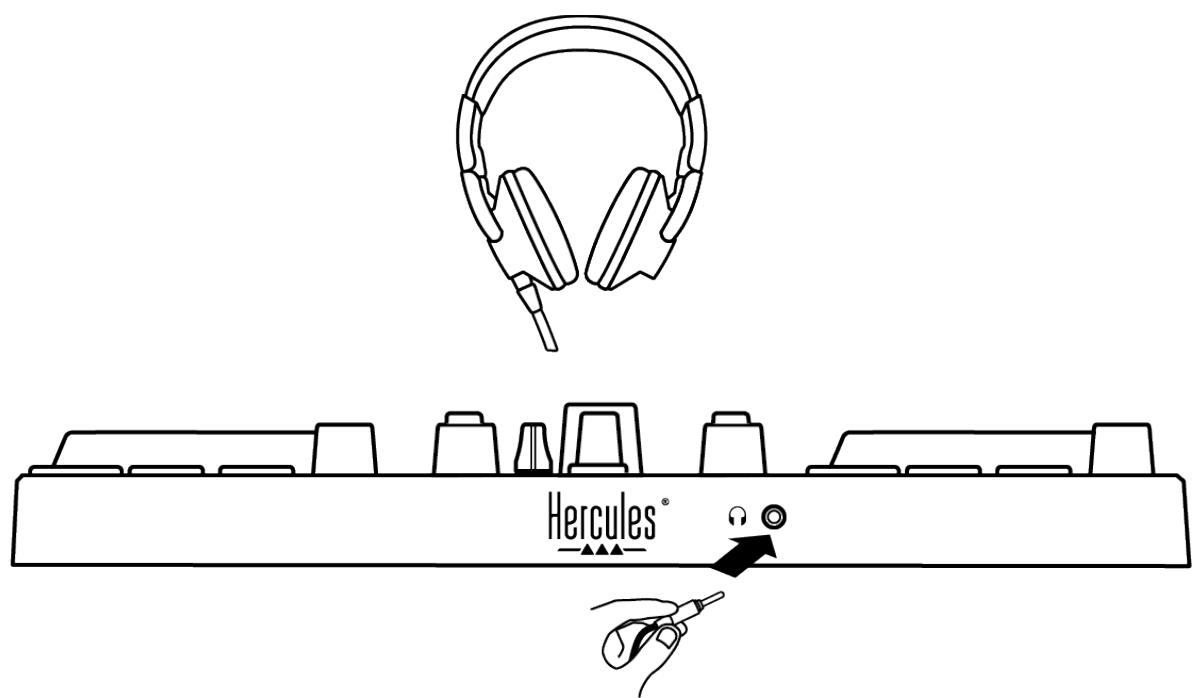
- Connect your headphones to the 3.5 mm stereo mini-jack connector at the front of DJControl Inpulse 200 MK2.
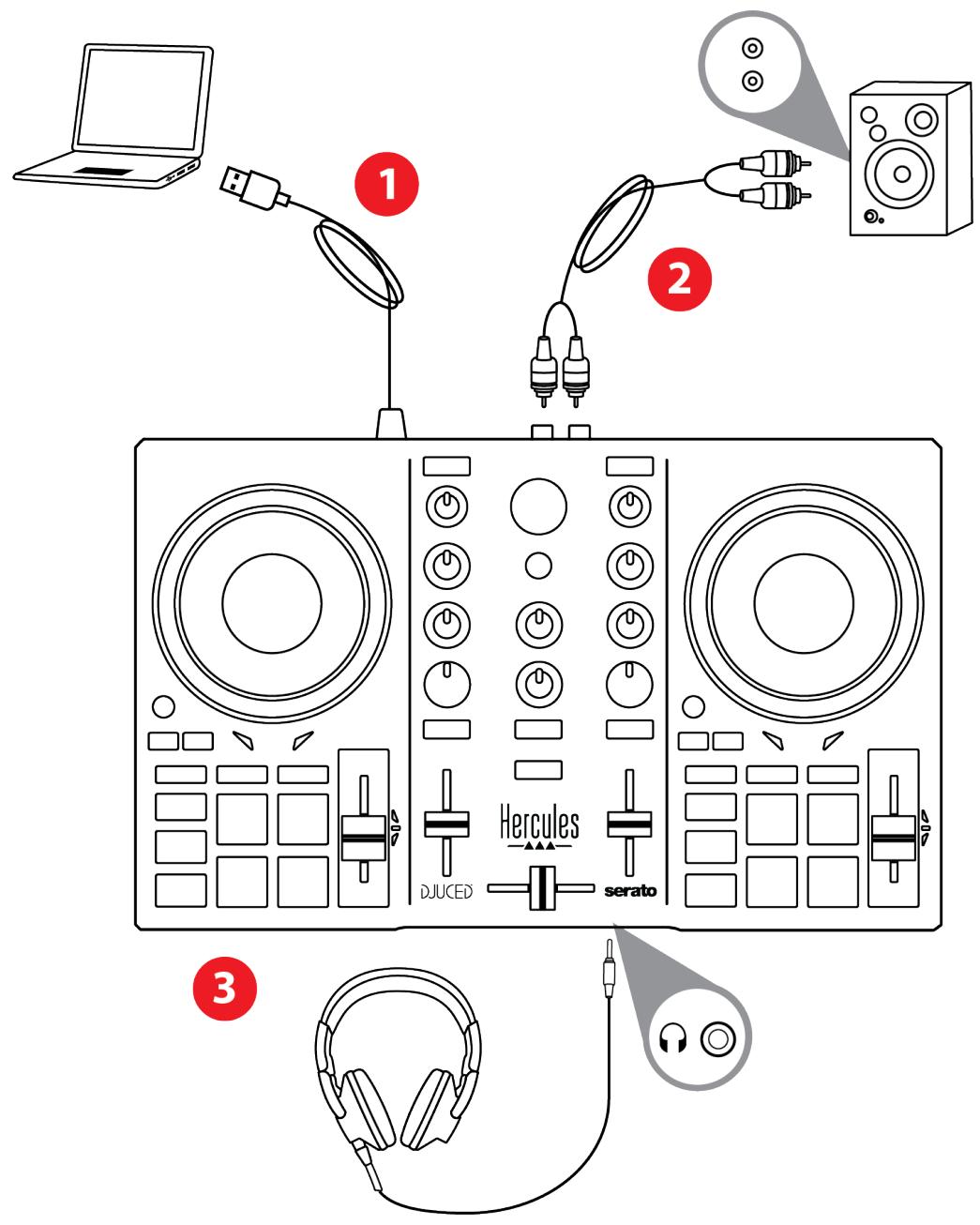

An LED illumination sequence, called Vegas Mode, starts up each time you connect the device to your computer. Vegas Mode takes place in four phases, allowing it to light up all of the LEDs and display different possible colors for the multicolored backlit energy ring.
Downloading the software
DJUCED®
- Please visit: https://www.djuced.com/hercules.
- Download and install DJUCED®.
- Please visit:
https://support.hercules.com/product/djcontrolin pulse200mk2/.
- Download and install the driver pack for your computer's operating system.
macOS®: HDJC Series Mac
Windows®: HDJC Series PC
Windows® requires that you install the drivers in order to use DJControl Inpulse 200 MK2 in ASIO mode, which reduces the latency compared to WASAPI mode and is generally more stable.
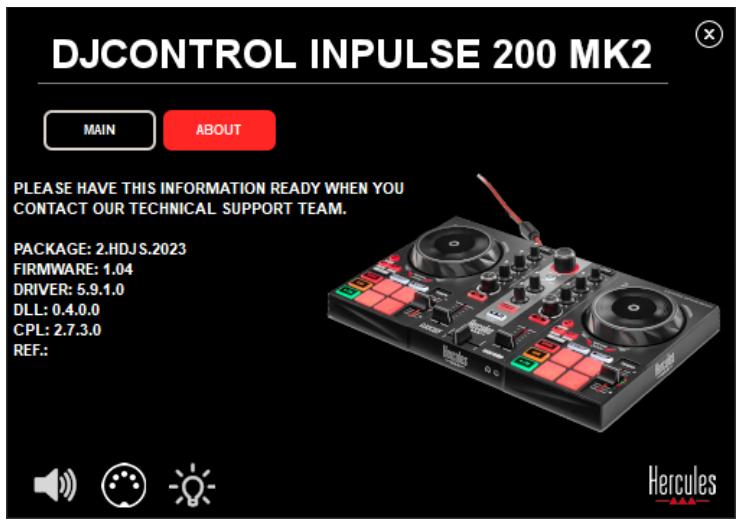
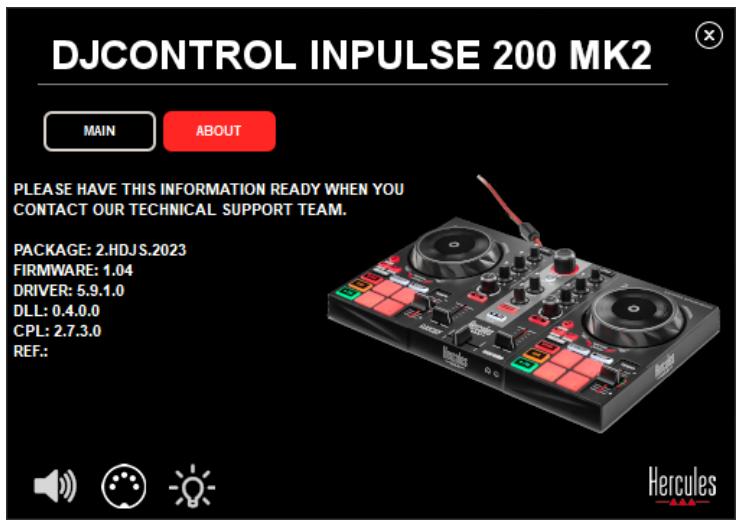
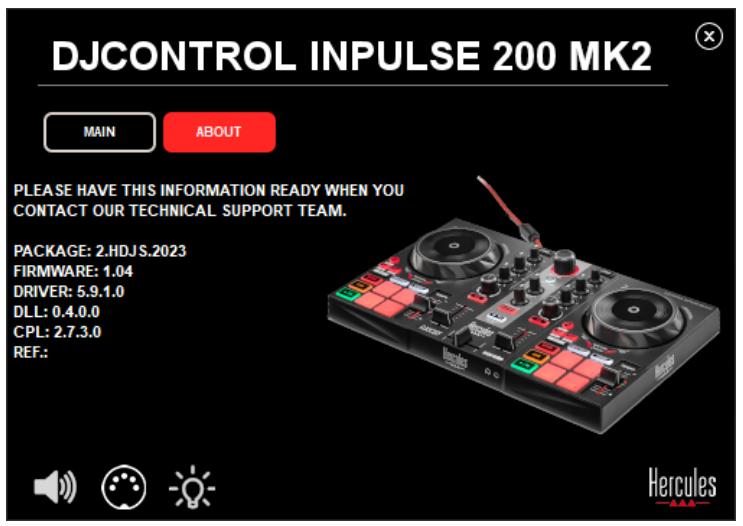
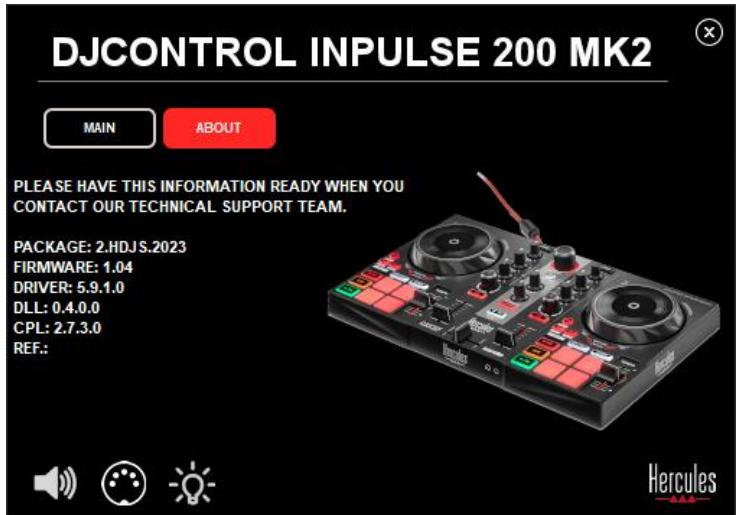
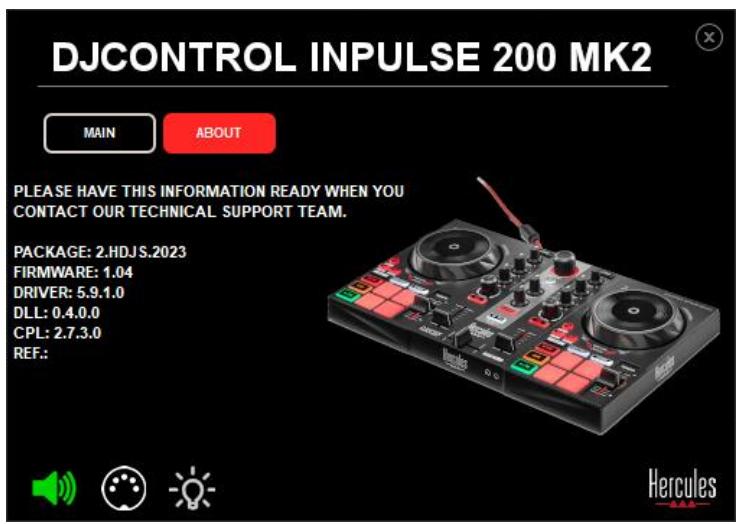
The drivers also let you test your DJControl Inpulse 200 MK2 and verify the firmware version in both Windows® and macOS®.
- Launch the DJUCED® software. A window appears, indicating that your product has been successfully detected and is ready to use.


When you run the software for the first time, DJUCED® guides you through connecting your headphones and active speakers (or lets you use the speakers built into your computer, if you don’t have external active speakers). Follow the on-screen information step by step before getting started.
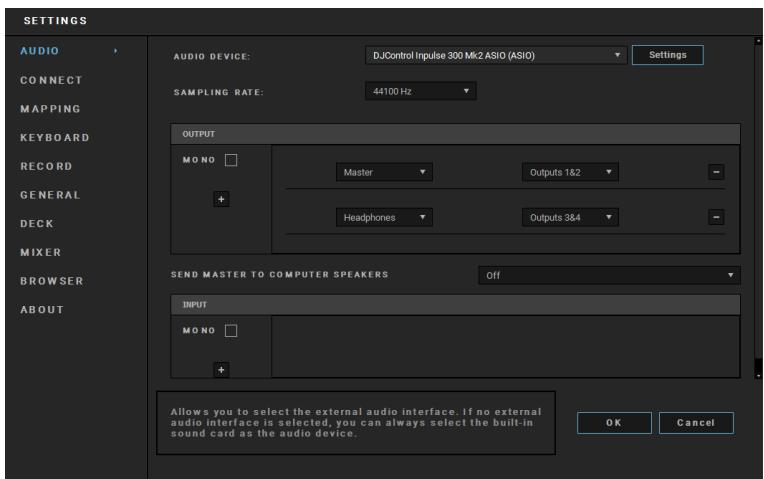
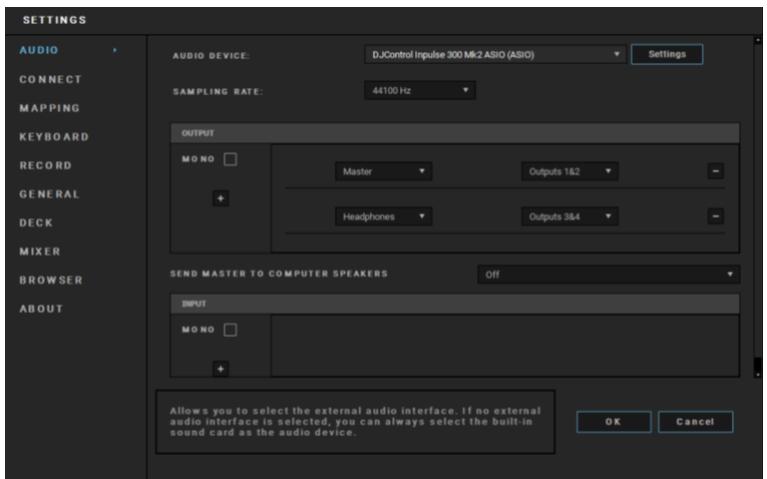
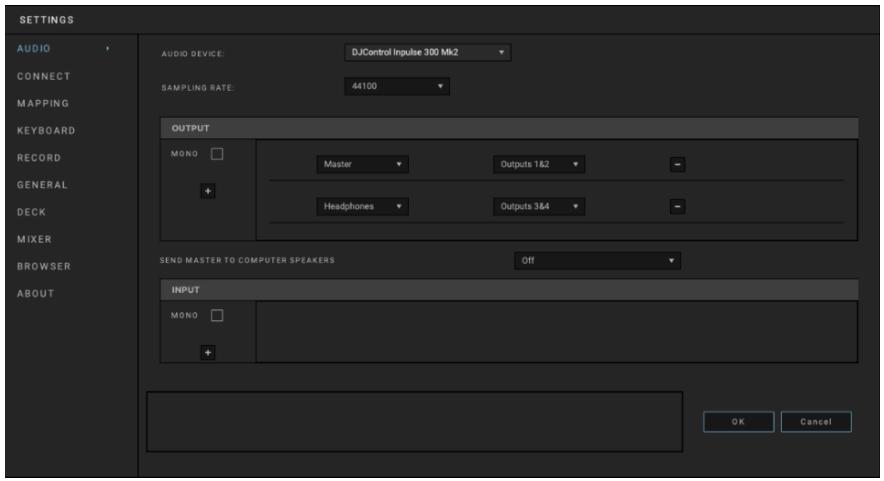
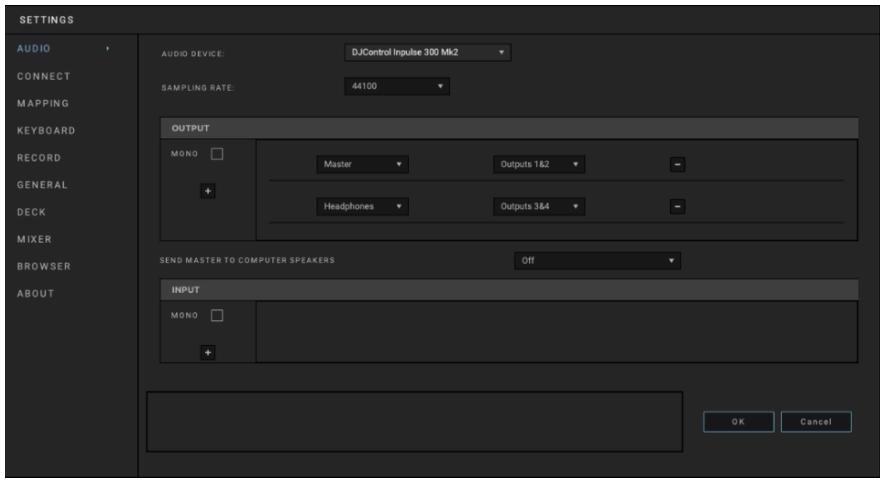
Audio settings:
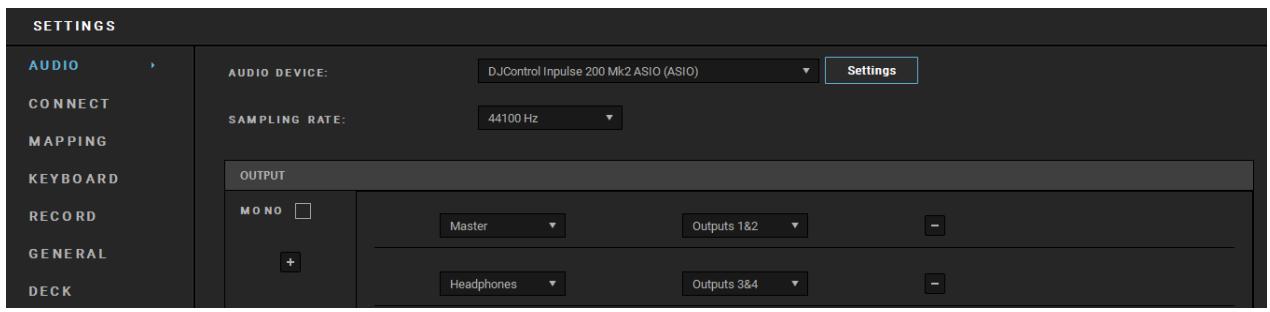
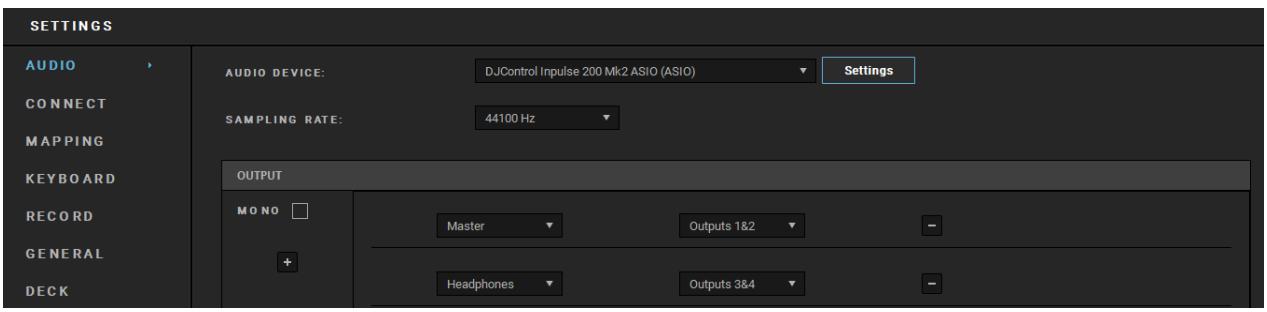
In DJUCED®, to modify the sound card settings, click the gear wheel icon in the upper right-hand part of the screen. The Settings menu is displayed.
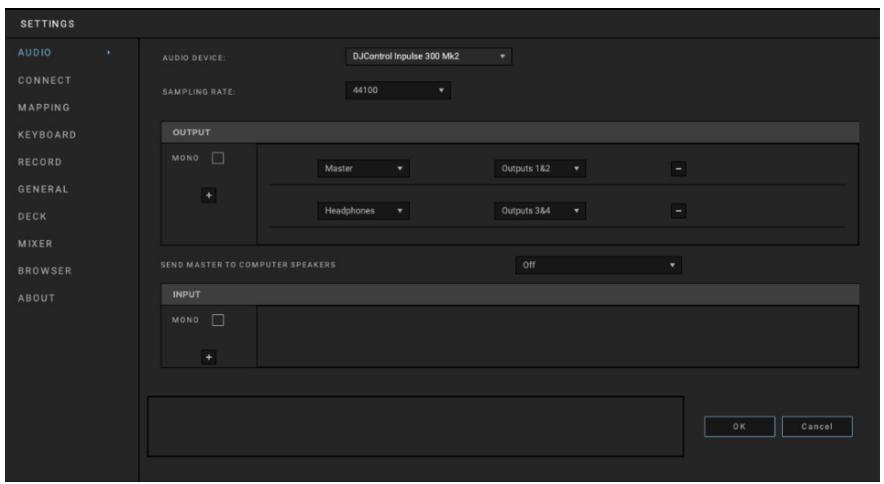
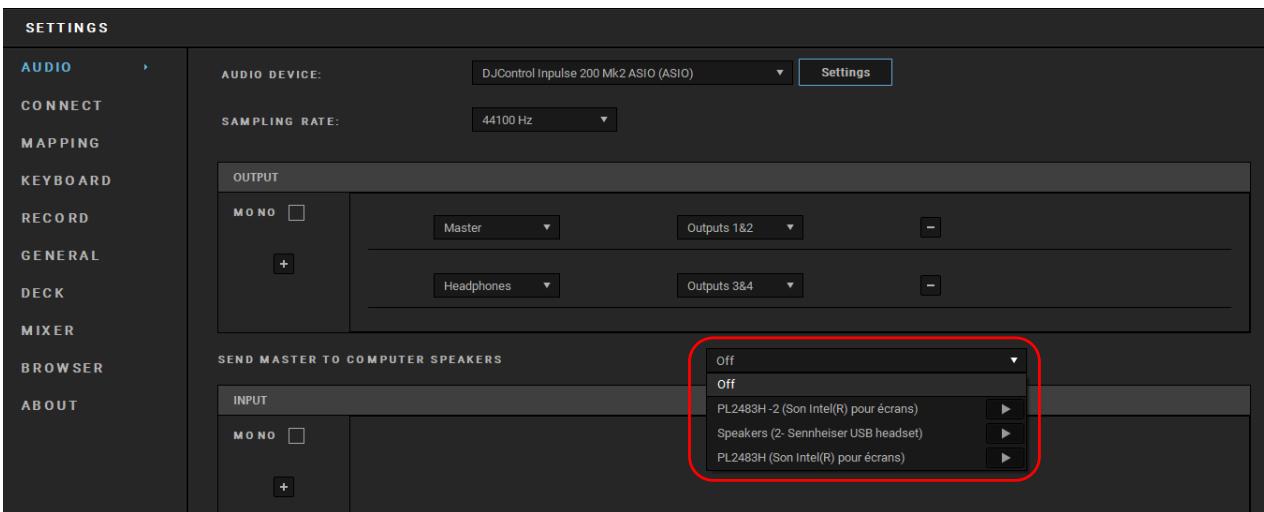
Select the Audio tab to choose the sound card, and assign the outputs for headphones and speakers.
The standard setup for Windows® is as follows:
-
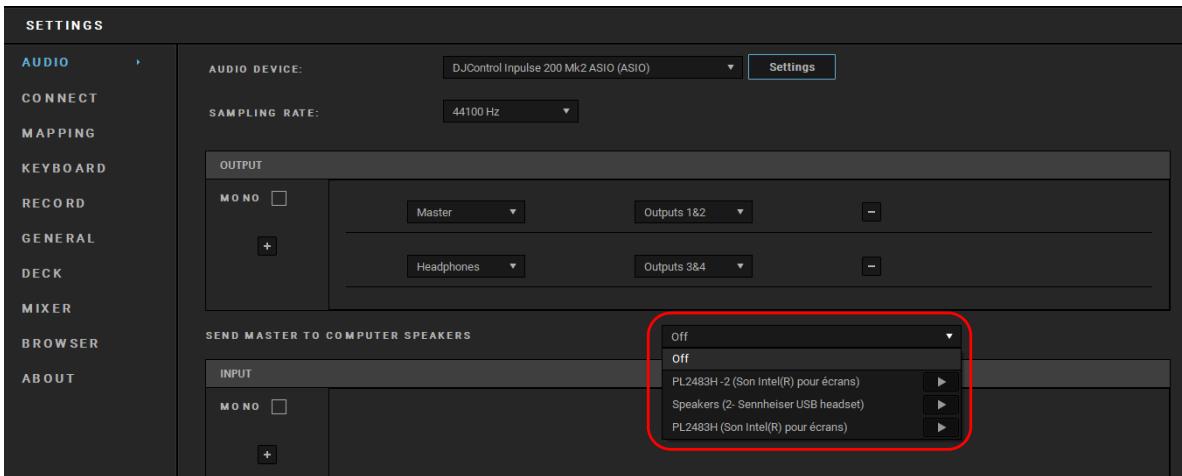
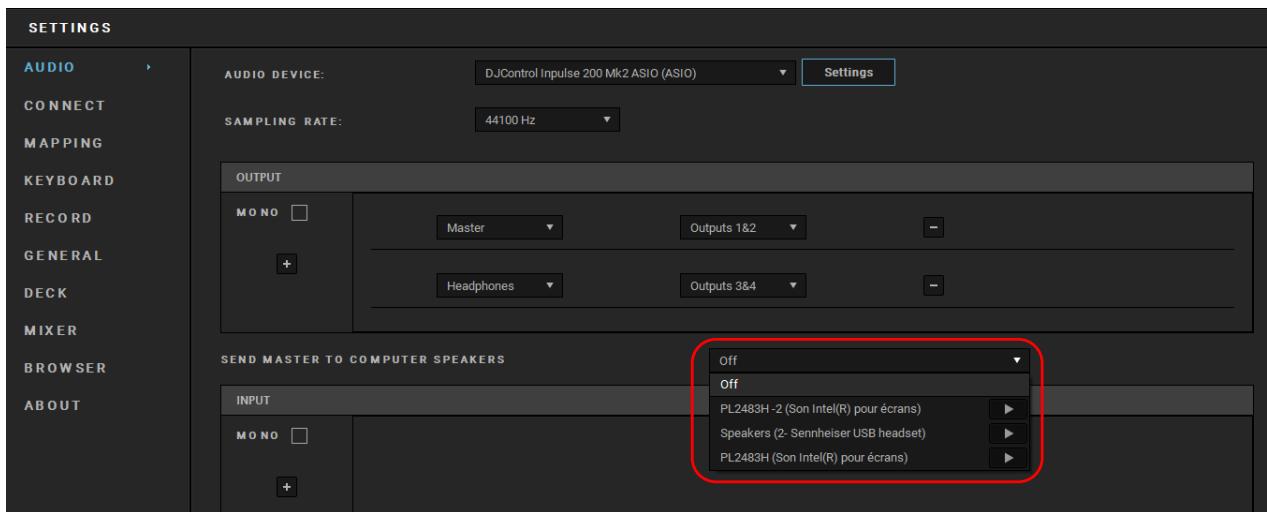
Audio device: DJControl Inpulse 200 MK2 ASIO (ASIO)
-
Output:
○ Master: Outputs 1&2
○ Headphones: Outputs 3&4
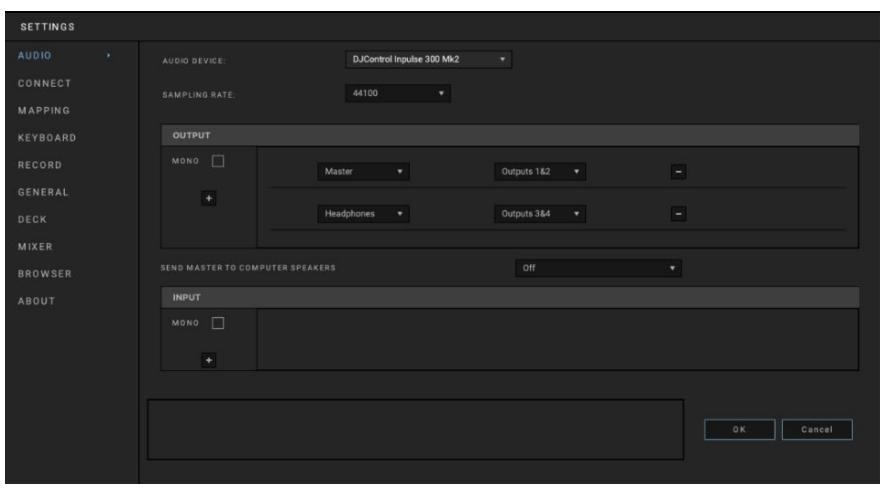
The standard setup for macOS® is as follows:
- Audio device: DJControl Inpulse 200 MK2
- Output:
○ Master: Outputs 1&2
○ Headphones: Outputs 3&4

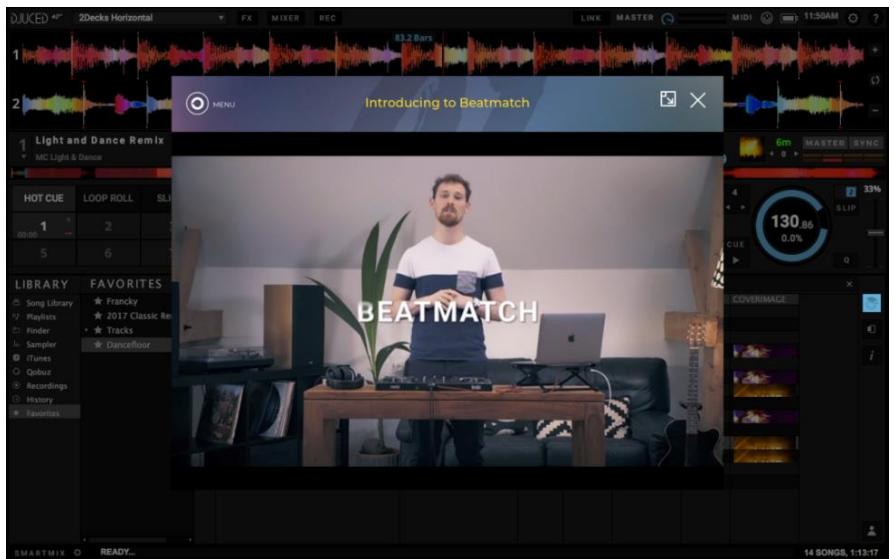
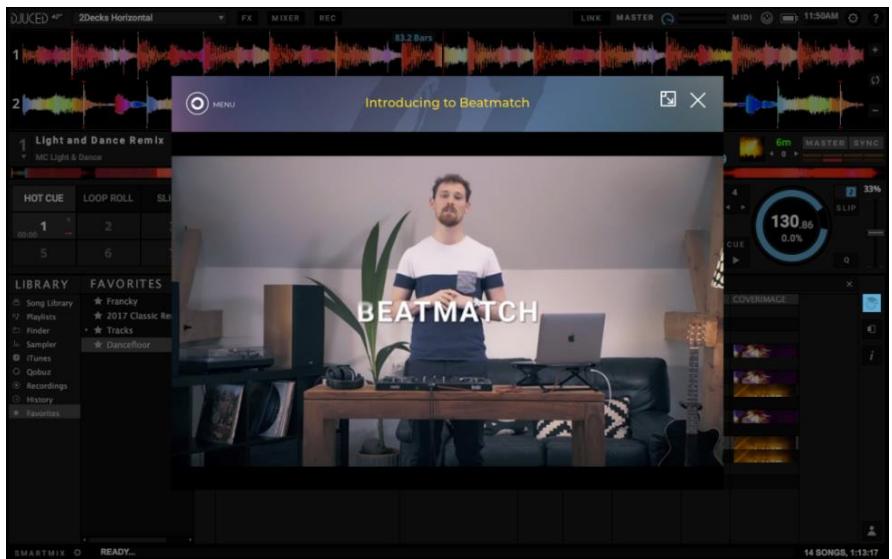
Follow the Hercules DJ Academy tutorials integrated into DJUCED®, which you can access by clicking the icon.
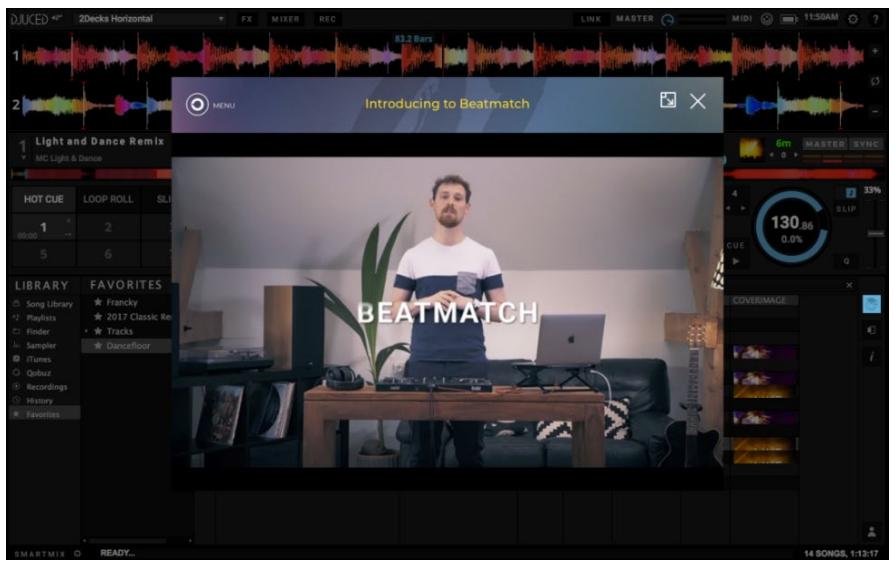
The tutorials are also available here, on the DJUCED® YouTube channel.
Serato DJ Lite
- Please visit: https://serato.com/dj/lite/downloads.
- Download and install Serato DJ Lite.
- Please visit:
https://support.HERCULES.com/product/djcontrolin pulse200mk2/.
- Download and install the driver pack for your computer's operating system.
macOS®: HDJC Series Mac
Windows®: HDJC Series PC
Windows® requires that you install the drivers in order to use DJControl Inpulse 200 MK2 in ASIO mode, which reduces the latency compared to WASAPI mode and is generally more stable.
The drivers also let you test your DJControl Inpulse 200 MK2 and verify the firmware version in both Windows® and macOS®.

Hercules DJControl Impulse 200 MK2 includes a license for Serato DJ Lite, not a license for Serato DJ Pro. If you install Serato DJ Pro instead of Serato DJ Lite, Serato DJ Pro will work with your DJControl Impulse 200 MK2 for the duration of a trial period. At the end of this trial period, if you want to continue using Serato DJ Pro, you must purchase a Serato DJ Pro license.
5. Livening up your mix
There are different ways to liven up your mix.
Modes and pads
The pads
Pads 1 to 4 carry out the actions corresponding to the mode currently enabled.
The modes enabled on the pads are the following:
| Modes | DJUCED® / Serato DJ Lite / Serato DJ Pro** |
| 1 | Hot Cue |
| 2 | Stems |
| 3 | FX |
| 4 | Sampler |
**Serato DJ Pro license not included.
Hot Cue mode
A Hot Cue point is a marker (like a bookmark) that you can place in a track to easily locate this moment in the track again, and instantly return to it afterwards.
Four Hot Cue points can be set per track.
- To access Hot Cue mode, press HOT CUE. The HOT CUE button's light stays lit up.
- To set a Hot Cue point, press a pad.
- To play the track from a Hot Cue point, press the corresponding pad.
- To remove a Hot Cue point, press SHIFT and the pad at the same time.
Stems mode
Stems mode lets you separate a track into four different parts (vocals and instruments), called “stems”.
- To access Stems mode, press STEMS. The STEMS button's light stays lit up.
- Pads 1 to 4 are each associated with a stem. To stop playing a stem, press the corresponding pad. The pad's light turns off.
- To resume playing the stem, press the corresponding pad. The pad lights up.
Stems:
| Deck 1 / Deck 2 | Stem |
| Pad 1 | Vocals |
| Pad 2 | Melody |
| Pad 3 | Bass |
| Pad 4 | Drums |
FX mode
FX mode lets you control the effects on the pads. An effect is sometimes a filter or a combination of filters applied to a track to modify its sound (echo, reverb...).
In DJUCED®, the pads control the effects rack's effects. To display the effects rack, click FX.
In Serato DJ Lite and Serato DJ Pro, the pads control four effects that cannot be modified. These effects are not in the Serato DJ effects racks, and consequently you do not see the action of the pads in the software.
-
To access FX mode, press SHIFT and HOT CUE at the same time. The HOT CUE button flashes.
-
To carry out an action, press a pad.
Possible actions:
| Deck 1 / Deck 2 | DJUCED® | Serato DJ Lite |
| Pad 1 | Effect 1 of the rack | Echo |
| Pad 2 | Effect 2 of the rack | Flanger |
| Pad 3 | Effect 3 of the rack | Reverb |
| Pad 4 | Displays/ hides the effects rack | Repeater |
Sampler mode
A sample is a short sound played over the track that is currently playing: it can be played either once or in repetition.
In DJUCED®, pads 1 to 4 let you play the four samples found on the first line of the multilayer sampler.
To display the multilayer sampler, select 2Decks Horizontal + 2 Samplers in the drop-down menu in the upper left-hand part of the screen in DJUCED®.
In Serato DJ Lite, pads 1 to 4 let you play a sample.
To display the samples panel, click in Serato DJ Lite.
- To access Sampler mode, press SHIFT and STEMS at the same time. The STEMS button flashes.
- To play a sample, press a pad.
- To stop playing a sample, press SHIFT and the corresponding pad at the same time.
Scratching
Scratching consists of producing a sound effect from a track, by turning the jog wheel.
- To enable the scratch function, press SHIFT and LOOP at the same time.
In order to ensure that the scratch function (Vinyl mode) is enabled, press SHIFT. The LOOP button is lit up.
- Place your index finger on top of the jog wheel and make small, quick movements to the right and to the left.
You can repeat this scratch multiple times to create a rhythm.
Filters
Adjustment of the track's filter lets you attenuate certain frequencies.
- Attenuate the high frequencies (known as a low-pass filter or high-cut filter): turn the filter knob (FILTER) to the left.
- Attenuate the low frequencies (known as a high-pass filter or low-cut filter): turn the filter knob (FILTER) to the right.
6. Multichannel sound card
The product includes a built-in multichannel sound card, allowing you to play your mix on speakers for the audience (Master output for speakers) and monitor the next track that you're preparing on your headphones (headphones output).
Master output for speakers (output 1-2)
Your active speakers should be connected to the Master output for speakers located at the back of your product.
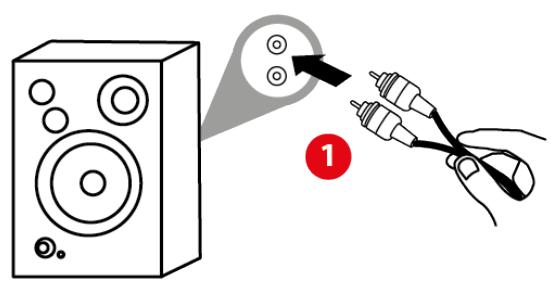
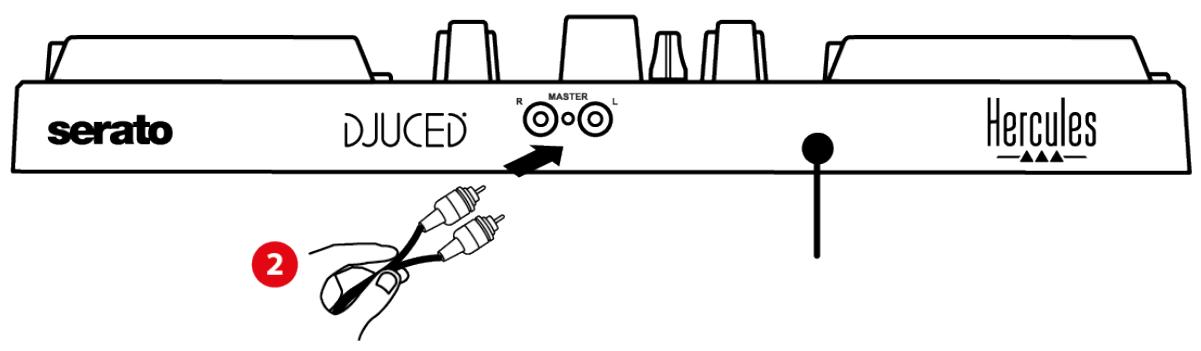
Headphones output (output 3-4)
Your headphones should be connected to the headphones output located at the front of your product.
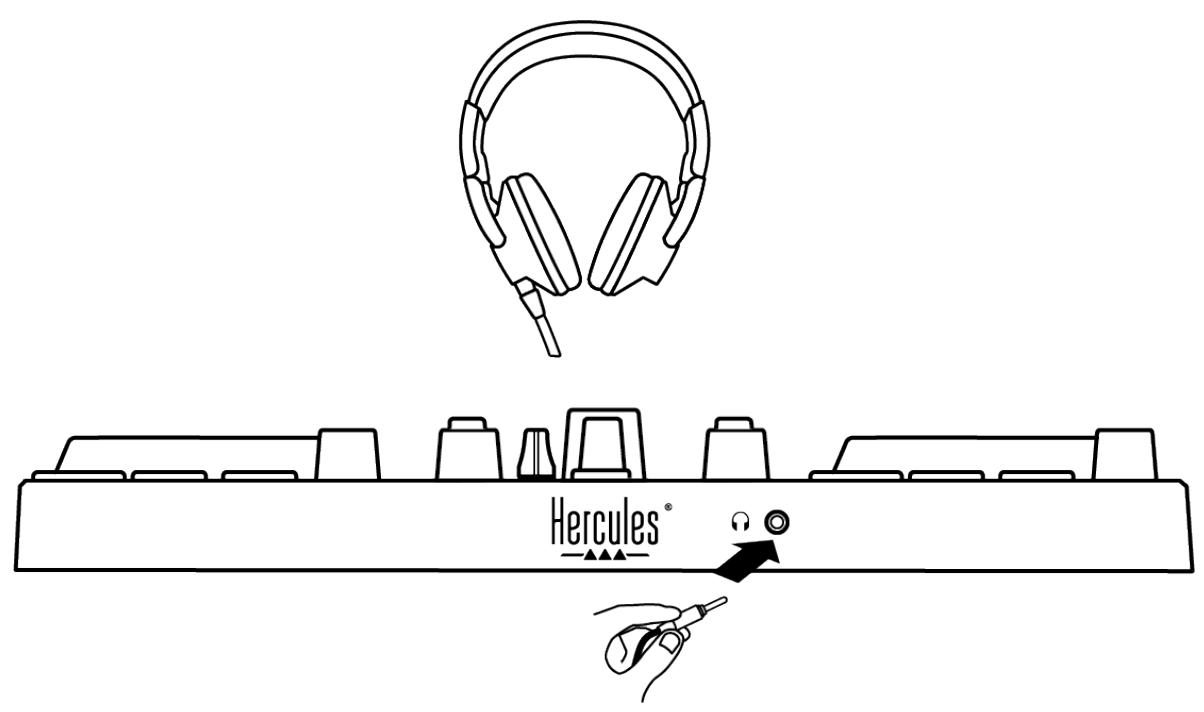
By default, each time your product is connected, the headphones output is assigned to output 3-4 so that it can work with all DJing software available on the market — including DJUCED® and Serato DJ Lite, in particular.
However, if you wish to use your product's headphones output to listen to music on your computer using iTunes, for example, you must route output 1-2 to the headphones output. To do this, press the MASTER button.
7. Compatibility
USB Audio / USB MIDI
This product is Plug & Play and can work without drivers on any PC or Mac, as it complies with the USB Audio and USB MIDI standards.
ASIO and Windows® control panel
To use the DJControl Inpulse 200 MK2 controller with Serato DJ Lite, you must install the ASIO drivers. The ASIO drivers are available here:
https://support.HERCULES.com/product/djcontrolinputse200mk2/.
If you are using DJUCED®, you can also download the ASIO drivers in order to take advantage of lower latency on your PC.
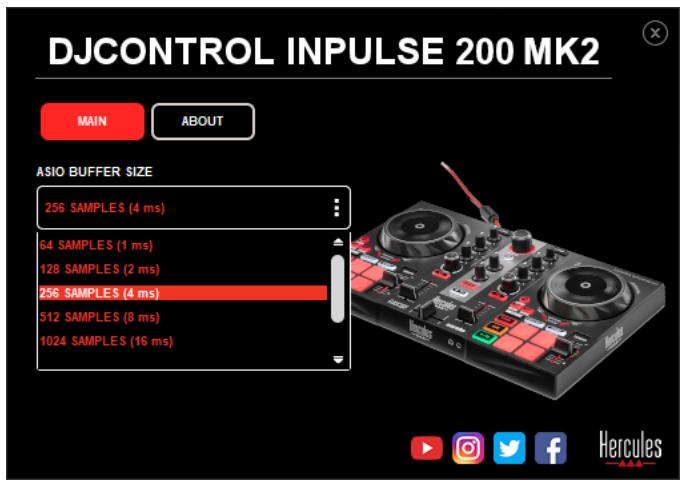
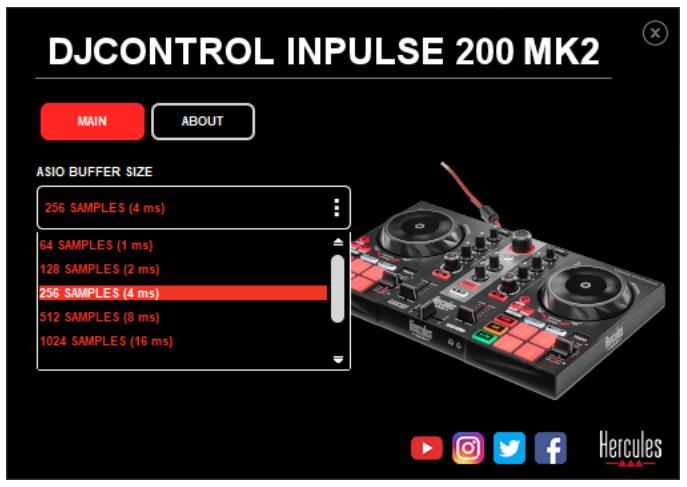
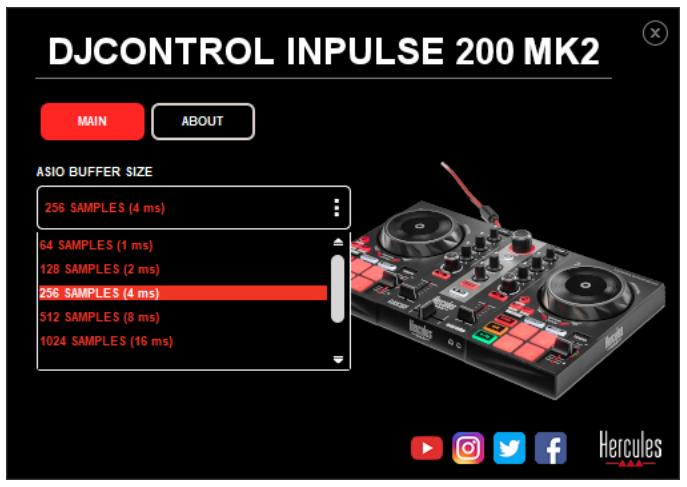
The ASIO drivers come with a control panel accessible in the taskbar on PC, or in the C:\Program Files\DJHERCULESMIX\Audio\DJ Console Series\ directory. This panel lets you adjust the ASIO buffer size, and thus the latency.
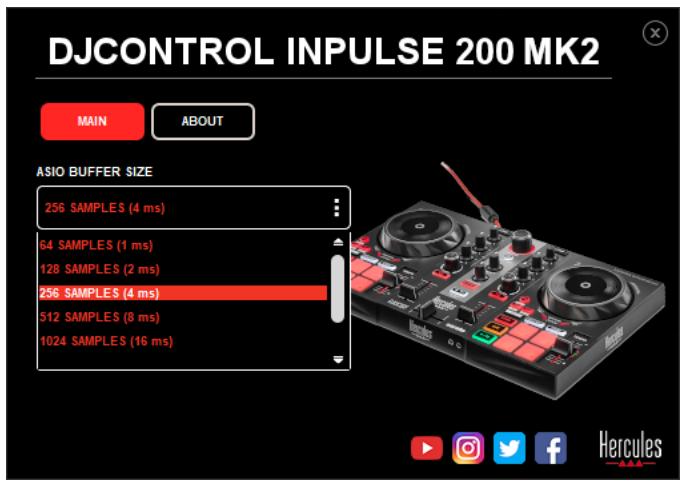
To adjust the ASIO settings:
- Set the ASIO buffer size to 4 or 8 ms.
- Start up your software (e.g.: DJUCED®) and select the DJControl Inpulse 200 Mk2 ASIO driver:
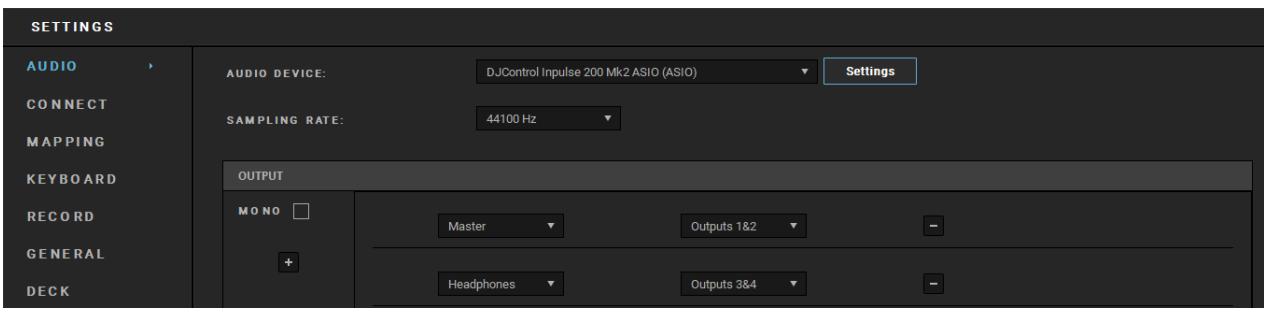
Once the software begins using the ASIO driver, the ASIO settings can no longer be modified in the control panel. This is perfectly normal, and indicates that the ASIO driver is in use.
Use your software and listen for any artifacts, audio glitches (clicks, pops) and latency problems: should any of these issues arise, you will need to adjust the buffer sizes accordingly.
Close your software and adjust your ASIO buffer by one value at a time:
- Reduce the buffer size to reduce latency.
- Increase the buffer size if you notice glitches or artifacts in the audio.
You will need to repeat this procedure until you find the optimal buffer size for your system.
The drivers are available here:
https://support.HERCULES.com/product/djcontrolinputse200mk2/.
Firmware update
Your product features an automatic firmware update mode. This requires installing the Hercules drivers and following the on-screen instructions. The firmware update will occur automatically.
The drivers are available here:
https://support.HERCULES.com/product/djcontrolinputse200mk2/.
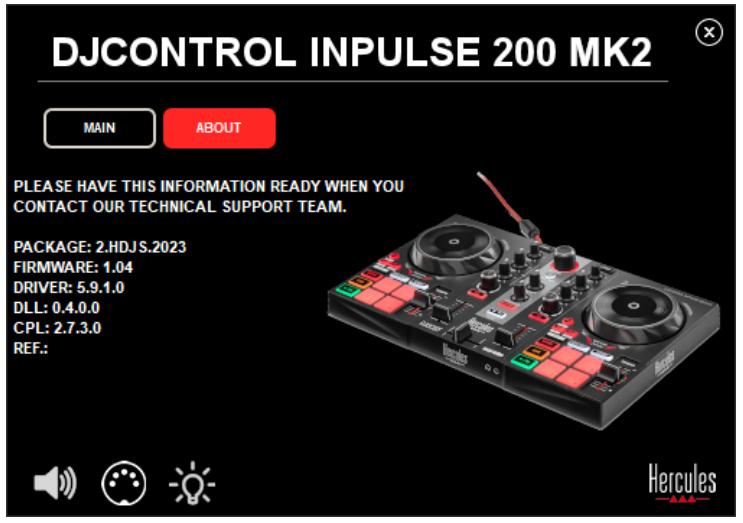
The control panel also allows you to access this information and display the driver versions installed on your computer in the ABOUT tab. Have this information ready if you need to contact Hercules' technical support.
8. Demo mode
This mode is available when you connect your product to a USB power supply, and is used in-store, in particular. In this case, the product is not operational but is in demo mode: a demo sequence lighting up the controller's different lights keeps repeating itself.
9. FAQs
1. No sound is coming out of my headphones.
Make sure that you have connected your headphones at the front of the product, as your product is equipped with a multichannel sound card preconfigured to work with DJUCED® and Serato DJ Lite.
By default, the two monitoring buttons are enabled when the software is first launched. You can then select either deck that you want to listen to on your headphones, or use the MASTER button to listen to the results of your mix.
2. The sound on my headphones is distorted.
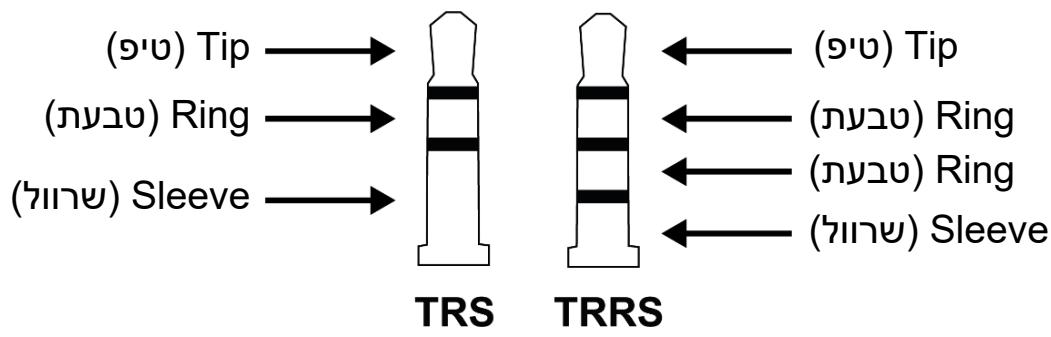
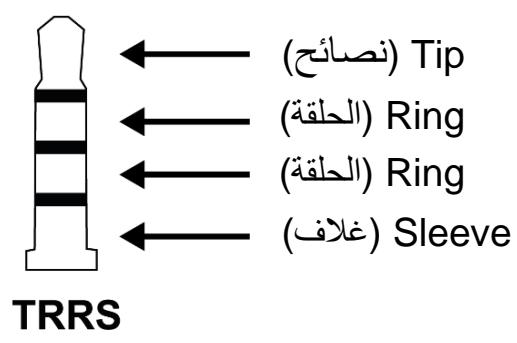
Make sure that your headphones feature a TRS connector (standard headphones) and not a TRRS connector (headphones + microphone).
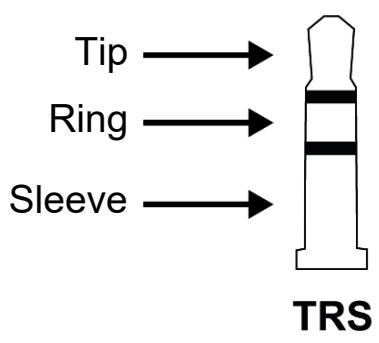
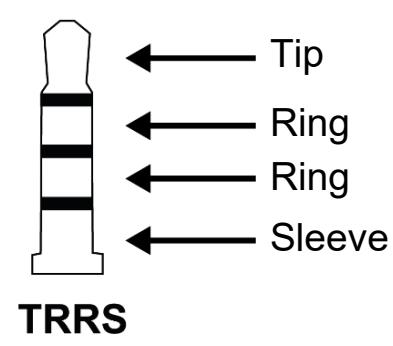
TRRS connectors are not compatible with the DJControl Impulse 200 MK2 controller.
3. No sound is coming out of my speakers.
Make sure that you have connected your speakers to the RCA connectors at the back of the product, as your product is equipped with a multichannel sound card preconfigured to work with DJUCED® and Serato DJ Lite.
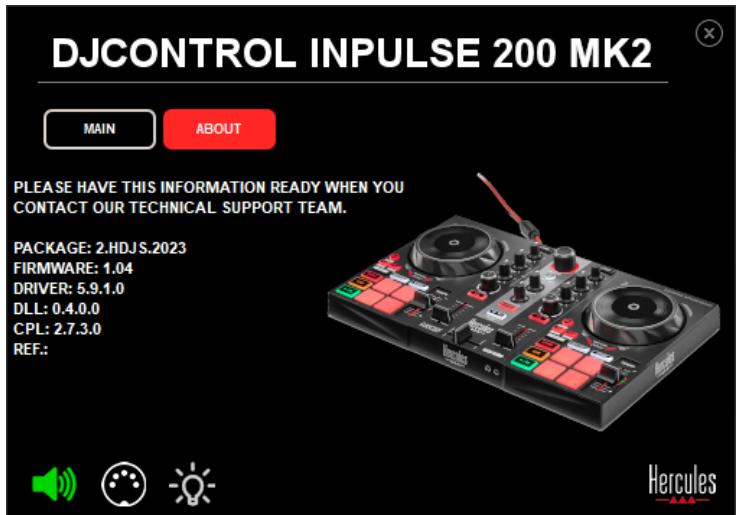
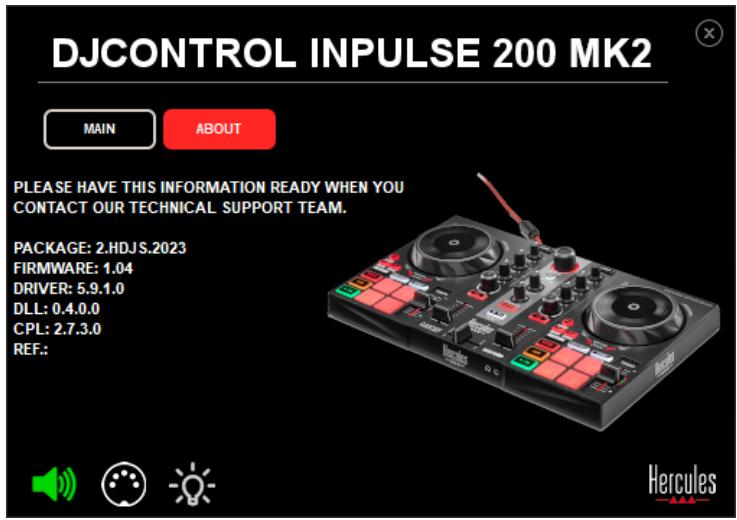
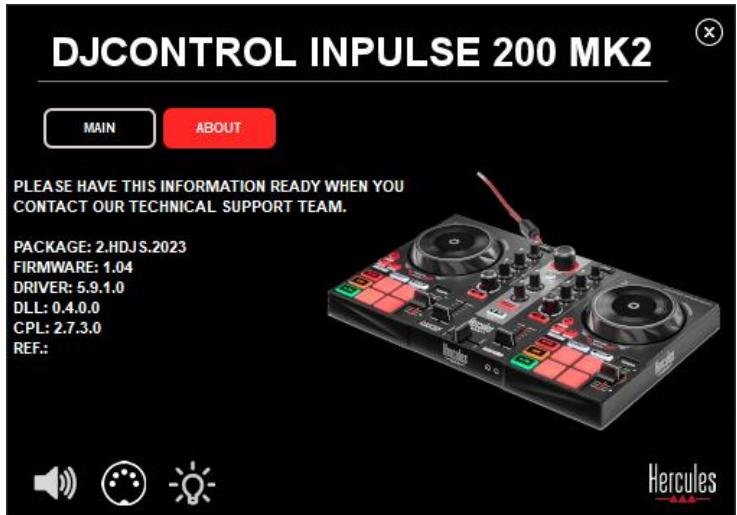
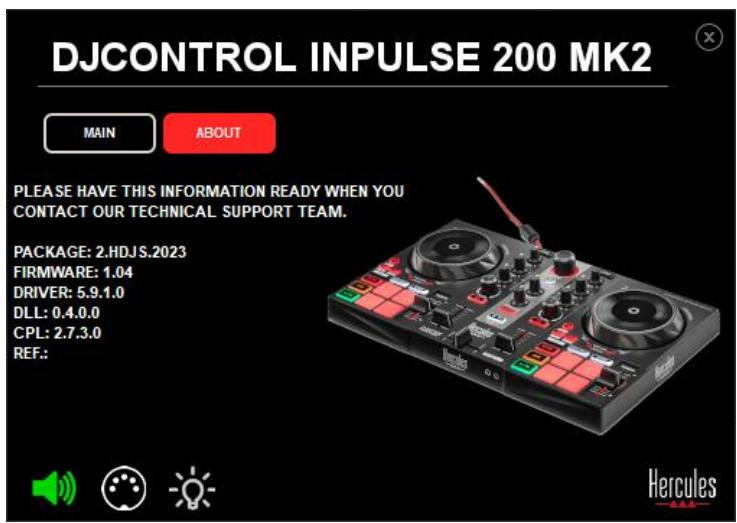
In order to test (without using DJ software) whether the audio interface of the DJControl Inpulse 200 MK2 controller is producing sound, you can display the DJ controller's control panel. Click the ABOUT tab, and then click the speaker icon. The icon turns green when sound is being played.
4. No sound is coming out of my laptop computer speakers.
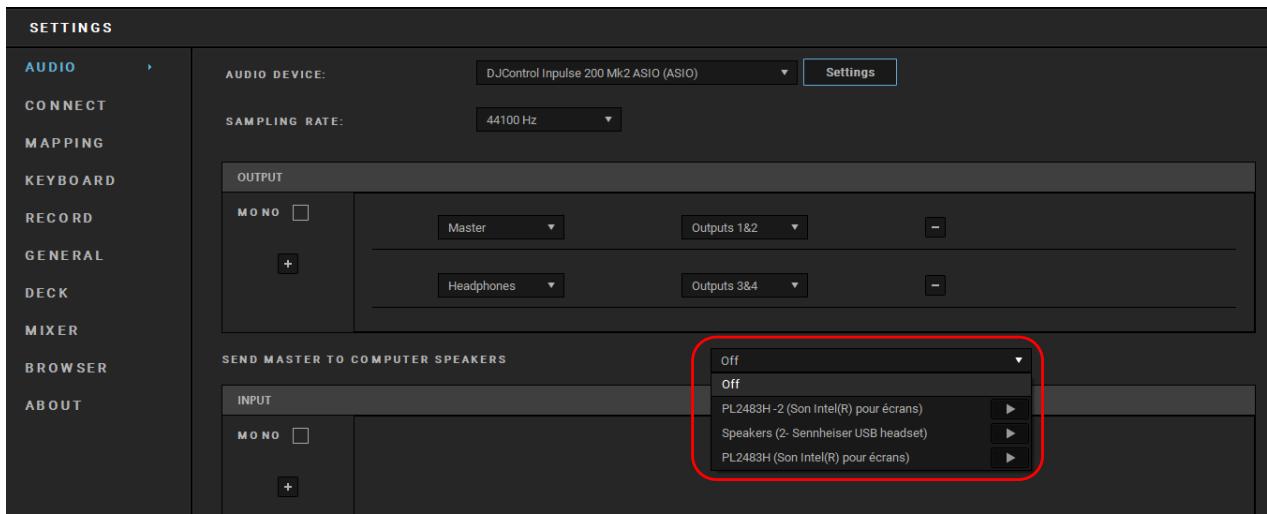
Your product is equipped with a preconfigured multichannel sound card. If you want to use the speakers built into your laptop computer:
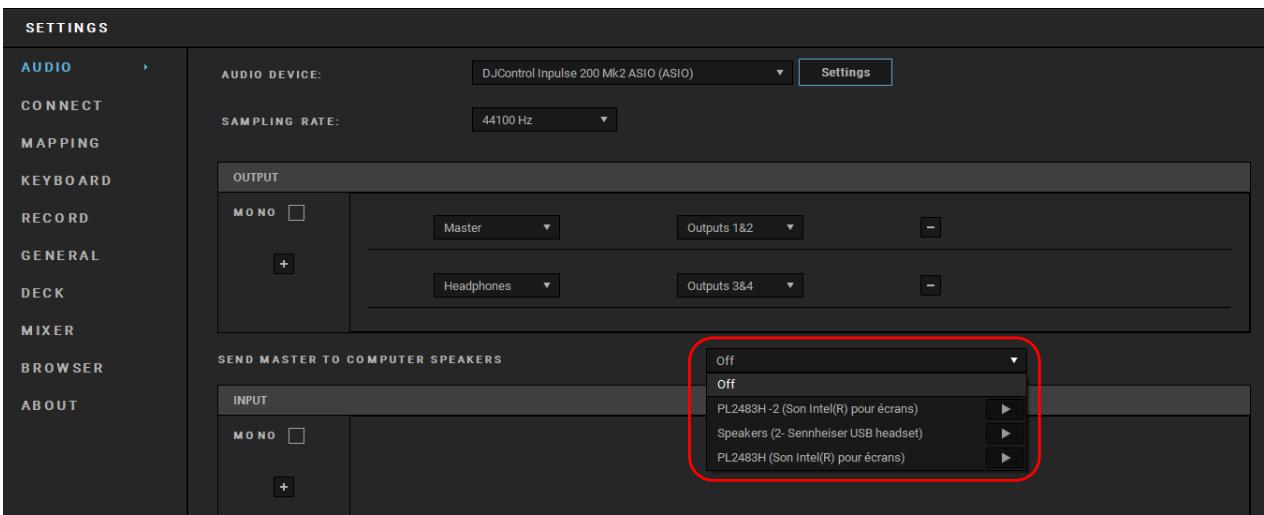
- In DJUCED®, access the settings and tick the SEND MASTER TO COMPUTER SPEAKERS option.
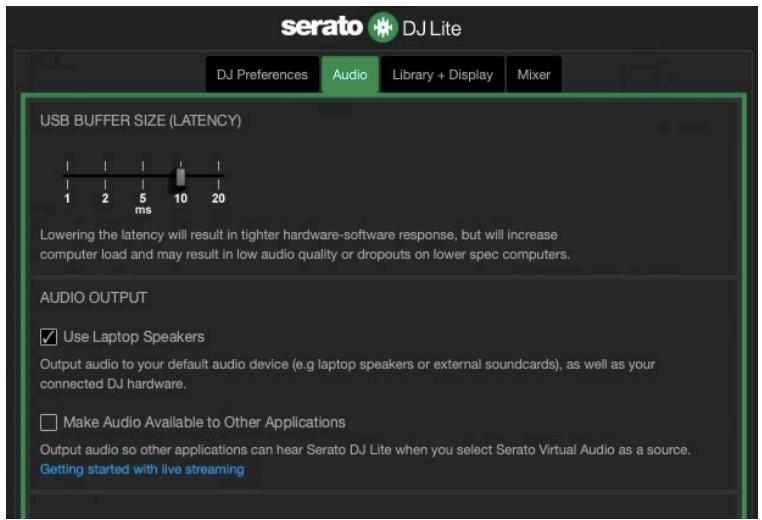
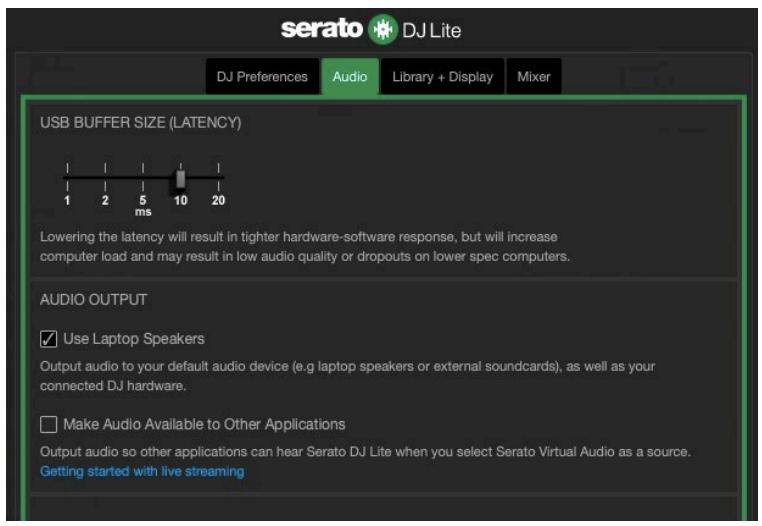
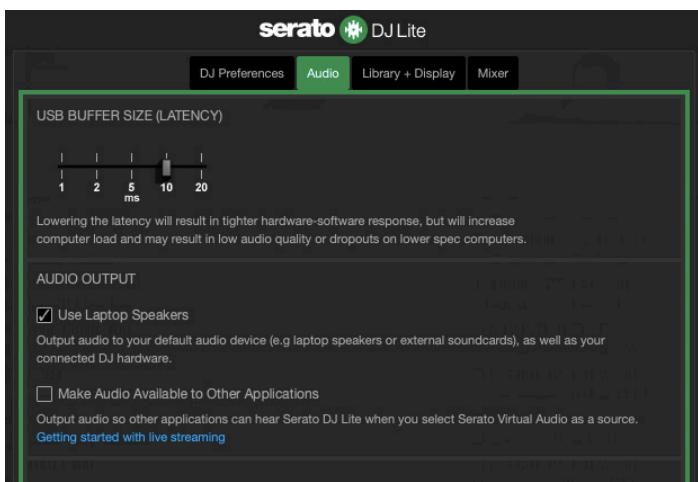
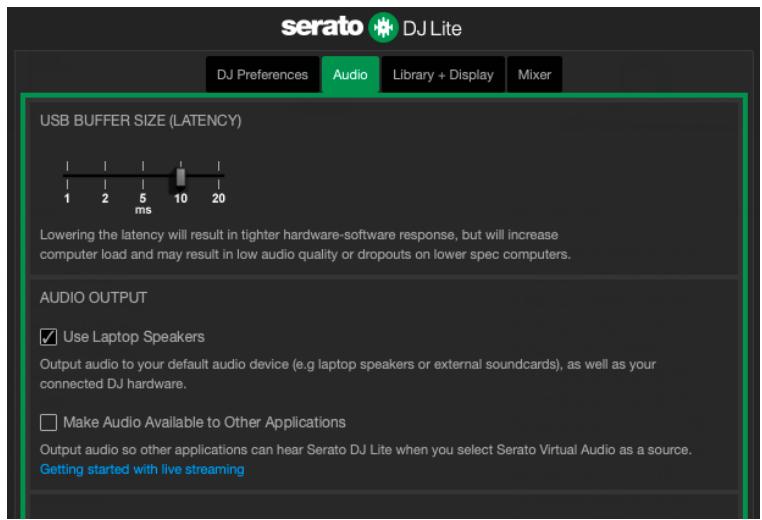
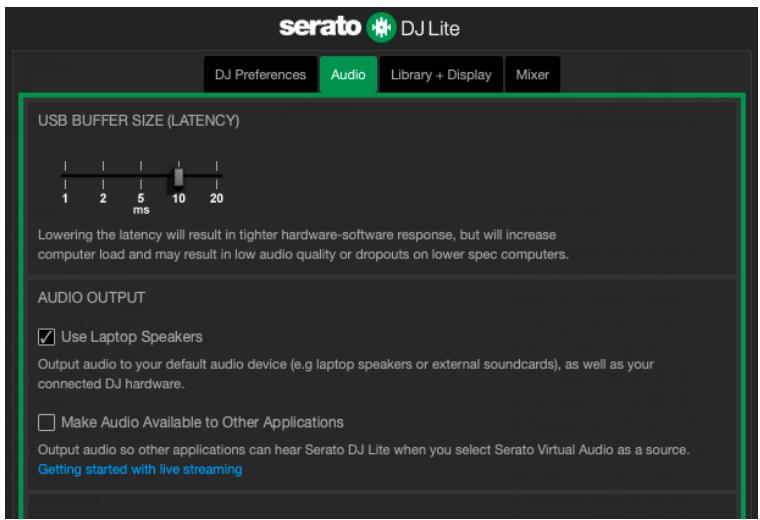
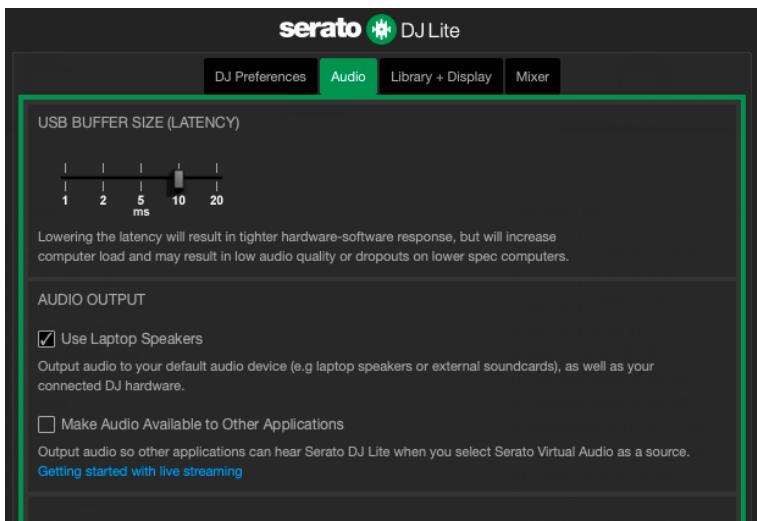
- In Serato DJ Lite, access the settings, open the Audio tab and tick the Use Laptop Speakers option.
5. No sound is coming out of my headphones, or my laptop computer speakers.
By default, the sound comes from the Master output for speakers, and the headphones output. It is therefore normal that no sound is coming out of your laptop computer.
If you want to use the speakers built into your laptop computer:
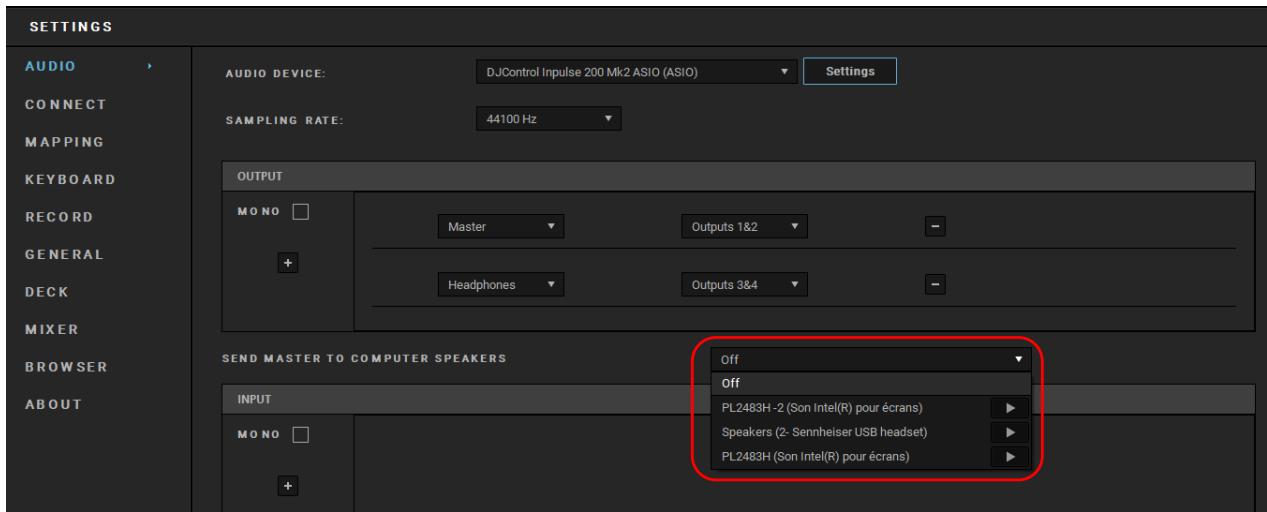
- In DJUCED®, access the settings and tick the SEND MASTER TO COMPUTER SPEAKERS option. You must connect your headphones to the DJControl Inpulse 200 MK2 controller.
- In Serato DJ Lite, access the settings, open the Audio tab and tick the Use Laptop Speakers option. You must connect your headphones to the DJControl Inpulse 200 MK2 controller.
In order to test (without using DJ software) whether the audio interface of the DJControl Inpulse 200 MK2 controller is producing sound, you can display the DJ controller's control panel. Click the ABOUT tab, and then click the speaker icon. The icon turns green when sound is being played.
6. I can’t connect my multimedia speakers to my DJControl Inpulse 200 MK2.
If your speakers' connectors differ from the connector on DJControl Inpulse 200 MK2, you can use a dual RCA to 3.5 mm mini-jack adapter (not included) or any other adapter format corresponding to your speakers.
You can also connect your speakers to the headphones output and route output 1-2 to output 3-4 by pressing the MASTER button.
7. Is the DJControl Impulse 200 MK2 controller compatible with an iPad or iPhone?
No, the DJControl Inpulse 200 MK2 controller is not compatible with an iPad or iPhone. It only works with a PC or Mac.
Hercules
TECHNICAL SUPPORT
https://support.hercules.com



Trademarks
Intel® and Intel Core™ are trademarks or registered trademarks of Intel Corporation.
Microsoft® Windows® 10/11 is a registered trademark or trademark of Microsoft Corporation in the U.S. and/or in other countries.
Mac® and macOS® are trademarks of Apple Inc., registered in the U.S. and other countries.
Serato, Serato DJ Lite and Serato DJ Pro are registered trademarks of Serato Audio Research Limited.
The DJUCED® brand and DJUCED®s graphic elements are the property of Guillemot Corporation.
ASIO is a trademark of Steinberg Media Technologies GmbH.
All other trademarks and trade names are hereby acknowledged in this document and are the property of their respective owners. Illustrations not binding. Contents, designs and specifications in this document are subject to change without notice and may vary from one country to another.
Copyright
No part of this manual may be reproduced, summarized, transmitted, transcribed, stored in a retrieval system, or translated into any language or computer language, in any form or by any means, electronic, mechanical, magnetic, manual, via photocopying, recording, or other, without the express written consent of Guillemot Corporation S.A.
DJUCED® and Serato DJ Lite End
User License Agreement
Please read the License Agreement displayed during installation of DJUCED® and Serato DJ Lite carefully.
DJCONTROL INPUT 200 MK2
Les pads. 34
Mode Hot Cue 35
Mode Stems 36
Mode FX. 37
Mode Sampler 39
Le scratch. 40
Les filtrres 41
https://www.djuced.com/telecharger/?lang=fr
- Serato DJ Lite :
https://serato.com/dj/lite/downloads?systemrequirements#system-requirements (en anglais)
https://www.djuced.com/telecharger/?lang=fr.
https://support.hercules.com/product/djcontrolin pulse200mk2/.
○ macOS®: HDJC Series Mac
Windows®: HDJC Series PC
○ macOS®: HDJC Series Mac
Windows®: HDJC Series PC
https://support.HERCULES.com/product/djcontrolinputse200mk2/.
https://support.HERCULES.com/product/djcontrolinputse200mk2/.
https://support.HERCULES.com/product/djcontrolinputse200mk2/.
https://www.djuced.com/downloaddjuced/ (in Englisch)
- Serato DJ Lite:
https://serato.com/dj/lite/downloads?systemrequirements#system-requirements (in Englisch)
https://support.hercules.com/product/djcontrolin pulse200mk2/.
macOS®: HDJC Series Mac
Windows®: HDJC Series PC
https://support.HERCULES.com/product/djcontrollin pulse200mk2/.
macOS®: HDJC Series Mac
Windows®: HDJC Series PC
https://support.HERCULES.com/product/djcontrolinputse200mk2/.
https://support.HERCULES.com/product/djcontrolinputse200mk2/.
https://www.djuced.com/downloaddjuced/
(in het Engels)
- Serato DJ Lite:
https://serato.com/dj/lite/downloads?systemrequirements#system-requirements (in het Engels)
De software downloaden
DJUCED®
macOS®: HDJC Series Mac
Windows®: HDJC Series PC
https://support.HERCULES.com/product/djcontrollin pulse200mk2/.
macOS®: HDJC Series Mac
Windows®: HDJC Series PC
| Deck 1 / deck 2 | Stem |
| Pad 1 | Zang |
| Pad 2 | Melodie |
| Pad 3 | Bas |
| Pad 4 | Drums |
FX-modus
https://support.HERCULES.com/product/djcontrolinputse200mk2/.
https://support.HERCULES.com/product/djcontrolinputse200mk2/.
Firmware-update
https://support.HERCULES.com/product/djcontrolinputse200mk2/.
https://www.djuced.com/downloaddjuced/ (in inglese)
- Serato DJ Lite:
https://serato.com/dj/lite/downloads?systemrequirements#system-requirements (in inglese)
https://support.HERCULES.com/product/djcontrollin pulse200mk2/.
macOS®: HDJC Series Mac
Windows®: HDJC Series PC
https://support.HERCULES.com/product/djcontrollin pulse200mk2/.
macOS®: HDJC Series Mac
Windows®: HDJC Series PC
https://support.HERCULES.com/product/djcontrolinputse200mk2/.
https://support.HERCULES.com/product/djcontrolinputse200mk2/.
https://support.HERCULES.com/product/djcontrolinputse200mk2/.
macOS®: HDJC Series Mac
Windows®: HDJC Series PC
https://support.HERCULES.com/product/djcontrollin pulse200mk2/.
macOS®: HDJC Series Mac
Windows®: HDJC Series PC
https://support.HERCULES.com/product/djcontrolinputse200mk2/.
https://support.HERCULES.com/product/djcontrolinputse200mk2/.
https://support.HERCULES.com/product/djcontrolinputse200mk2/.
macOS®: HDJC Series Mac
Windows®: HDJC Series PC
https://support.hercules.com/product/djcontrolin pulse200mk2/.
macOS®: HDJC Series Mac
Windows®: HDJC Series PC
https://support.HERCULES.com/product/djcontrolinputse200mk2/.
https://support.HERCULES.com/product/djcontrolinputse200mk2/.
https://support.HERCULES.com/product/djcontrolinputse200mk2/.
O poinel de controlo también lhe permite aceder a esta informacao e visualizar as versoes dos controladores instalados no seu computador no separator ABOUT (ACERCA DE). Tenha esta informacao consigo caso necessite de contactar o suporte técnico da Hercules.
8. Modo Demo
https://www.djuced.com/downloaddjuced/
(Ha aHJIInCKOM y3bIKe)
- Serato DJ Lite:
https://serato.com/dj/lite/downloads?systemreq
uirements#system-requirements (Ha aHrJIiNCKOM y3bIKe)
BocnpoN3BeJeHne nIe CTaBNT TpeK Ha pay3y.
- SHIFT + PLAY: B Serato DJ Lite посяает курсор Воспpon3ВeДЕня BTOчКу Cueи Воспpon3ВODИТ TpeK C эТOTO mapkepa.
2. Φeύθερ memna
LOAD* 3a rgykaeT BbI6paHHbI TpeK Ha
COOTBETCTByHouIyO DeKy.
B DJUCED® — CBOPaUNBaETи pa3BOPaUNBaET пankn.
MeiNaTeKy, NOBOPaUNBa pyUKy BJIeBO (Bbl
BEATMATCH GUIDE BKJIIOUaET IJIN BbIKJIIOUaET
CBETOBbIe NOdCKa3KN, NOMOraUoIne HacTpaINBaTb Temn cHxPOHN3InPoBAtB CeTKn pNTMOB dByx TpeKOB. Ha KaJdoi DeKe eCTb YeTbIpe KpacHbIe CTrpeJIKN.

DJUCED® onpeidelaet odHy n3 DeK kaK BeDyUO DeKy cInxpoHn3aUu (Master Sync), a npuyu — KaK BeDomyo DeKy. KpacHbIe cTpeIKN 3aRopaIoTcra ToIbKO Ha BeDOMoN DeKe, TaK KaK 3Ta DeKa cIeDyET TemPy BeDyUeJ DeKn cINxpoHn3aUu.
Serato DJ Lite He onpeidelaet Beyuoyu Keky cnHxpoHn3aun. KpaChbIe cTpeIKN 3aRopaOTcra Ha oBeux deKax.
-Визуалыные подама зкг TemPO: ecn Ondha n3 DBvX KpaChbIX cTpeLOK, paCNoJoxeHHbIX cnpaBa OT peRyJIaTOPa TemNa,CBeITTCs, 3TO O3Haayet, YTO TemN (T.e. KOJIInueCTBO yIapOB B MInHyTu) TpeKa, BOCpON3BODIMOrO Ha dAnHOn DeKe, OTJIInuAeTc8 OT TemPa dpyroI DeKn.
Стpeлкуka3ыВаюТ наразвленье,В КOTOPMHyЖнОперemeшаТь рчКу Фeйдар,ЧTOбblCOглacOBaTB Temn BOCрpon3ВODиMOrO TpeKa CTeМПOM Ha дру罗ДеKe.
○ Ecπn CBeTntcB BepxHЯ CTrpeIka, HuxHo cDvHytb pyuKy ΦeIepa BBepx. 3To I03BOJNT 3aMeIITb Temn.
○ Ecπn CBETNTcHnXnYa CTpeJIka, HxKHO cDvHytb pyuKy ΦeIepa Bn3. 3To I03BOJNT yCKOpHTb Temn.
O Ecnn CtrpeIkn He CBeTЯTcay, 3TO O3Haayaet, UTO TeMn DeKn COBnaJaAeT C TeMnOM dpyroJ deKn.
-Визуалынbieпodiumса3kn BEAT ALIGN: ecn CBETNTbCЯ OДнa ИЗ ДВУХ КраСьIX CTpeLOK, paCNoIожЕнны IX ПОд ДЖОROM, эTO O3NaчаeT, YTO CETka рNTMOВ ТpeKa, BOCnPoN3ВODIMOTO Ha эTOй DeKe, He сIHxpoHn3ИрOBaHBi C CETKOJ рNTMOB dpyroДeКи.
https://www.djuced.com/hercules
(Ha aHrJIInCKOM y3bIKe).
https://support.hercules.com/product/djcontrolin pulse200mk2/.
4.СkaаиTe n yctaHOBInTe PaKeT dpaIbepOB ДЯ onepaцnoHNo CnCTeMbI BaSeero KOMNbHTepa.
○ macOS®: HDJC Series Mac
Windows®: HDJC Series PC
Ha komlbioTepeOC Windows Heo6xodmo yCTaHOBnTB dpaBepbl, YTObI NcNoIb3OBaTb KOHTpOJIeP DJControl Inpulse 200 MK2 B peKIme ASIO, KOTOpBI CNJkaET 3aIepkky (B cpaBHeHIn C peKIMOM WASAPI) n B ueIOM OTIIuAeTc8 BoJIee BBICOKO CTa6nJIbHOCTbIO.
ДраиВеры ТаЖе ДaIOT ВaM BO3MOжHOCьпрOTeСТИРОВаТь КоHTpoЛпЕР DJControl Inpulse 200 MK2 И поверпь ВерсИО пPoшИВКИ КаК Ha KOMпьЮTepe c Windows®, ТаК И Нa KOMпьЮTepe c macOS®.
5.ОткpoIte npniloJxHne DJUCED®.ПЯВNTcЯ OKHO, yka3bIBaIOuSee,чTOBaIe yCTpoIcTBO yCpeShHO o6napyKeHo n rOTOBOKИСПОЛьЗOBaHnIO.


https://serato.com/dj/lite/downloads
(Ha aHrJIInCKOM y3bIKe).
2.Сkaчайтустановпу serato DJ Lite.
3.ОткpoIte cTpaHnUy
https://support.hercules.com/product/djcontrolin pulse200mk2/.
4.СkaаиTe n yctaHOBInTe PaKeT dpaIbepOB ДлЯОпетацноHнОсNTeMbl Baшero KOMNbIOTepa.
macOS®: HDJC Series Mac
Windows®: HDJC Series PC
Ha komlbIOpTeP c OC Windows® Heo6xOdImo yCTaHOBnTB IpaBbepbl, YTO6bl NcNoJIb3OBaTb KOHTpOJIpe DJControl Inpulse 200 MK2 B peJIMe ASIO, KOTOpBI CHnKaeT 3aIepKky (B cpaBHeHIn C peJIMOM WASAPI) n B ceIOM OTnUaETc8 6OJIee BBICOKO CTa6NlBHoCTbIO.
Bo3MOxHbIe DeiCTBnIa:
BbIMOxTeIOBTOPTbTakOcKpeTuHeCKoJIbKO pa3,HTo6blC03daTbPNTM.
ΦuNbmpbI
BbIXoD间隙 HayushuKOB (8bIXoD 3-4)
Hayshnkn HxKHO NOdkJIOuatab K BbIXOy 0, paCnoJIOXeHHOMy Ha nepeDHe CTOPOHe yCTpOiCTBa.
https://support.HERCULES.com/product/djcontrolinputse200mk2/
Ecni Bbl nCnoIb3yeTe DJUCED®, Bbl TaKxe MOxete 3aRpy3nTb dpaBvepbl ASIO — 3TO NOMOxET CHN3nTb 3aJepkky.
BmecTe c dpaBepamn ASIO yCTaHaBnBaetcnaHeIb ynpaBJIeHnra — ee MOxHo NaHTn B paHeJIu 3aDauch Ha PIK nIi B paNKe C:\Program
Files\DJHERCULESMIX\Audio\DJ Console Series. 3Tапанель пОЗВОЛЯЕТ настpoINь рaЗмер 6уфера ASIO n, с前列腺ателвно, зашику.
https://support.HERCULES.com/product/djcontrolinputse200mk2/
OboBJIeHue npoWuEku
ПрошИВka KOHTрОЛлера OБНовЯETсЯ АВТOMATЧЕСК.Дпя 3ТOrO HeOBxODIMO yCTaHOBITb ДраиВерь I HerculesI BыПОЛНИТь ИНСТPyKци Na эКранe. OБНовЛеHne ПрошИВКИ ПрОИЗОДeТ aВТOMATЧЕСК.
https://support.HERCULES.com/product/djcontrolinputse200mk2/
Ha nanei ynpaBJeHnMaOx HcKHe IocMoTeb
HHoopMaun O6 UcTpoIcTBe N BepCnIO dpaBepOB,
yCTaHOBJIeHNbIX Ha KOMpbIoTepe- dIpy 3TOrO HyXHo
peeyTu Ha BkPaJky ABOUT (OB YCTPOIcTBE).
BybTe rOTobbl coo6uNTb 3Tu IHoOpMaun, ecn BaM
Heo6xoJIMo CBra3aTbcra Co cIyXboj TexHnuecko
noDpeJkN Hercules.
EcII Bbl XOTIe IcNoJIb3OBaTb DnHaMnKIn, BCTpoEHHbIE B HOyT6yK, CdelaIte CJIeDyUoJee:
TEXHnueCKa IODePjKKA
https://support.hercules.com

Toprobles Mapkn
Intel® n Intel Core™яВяЮТсЯperгИСТрпюВьIMTOВаРнIM3нakамn Intel Corporation.
co6CTBeHHOCbIO IX BlaeIbueB. IJIIOCTpaun MOryT He
COOTBETCTBOBaTb BHeUHEmy BVdU INI ΦyHKzIaM KOHKpeTHoro N3deJIIA.
CopejkaHne DOKymeHTaIIN, KOHCTpyKzIy I TeXHnueckne
XapakTepeNCTnK IN3dJIeNMAgTy 6bITb IN3MeHeHbI 6e3 npEaBapNTbHOyBEdOMJIeHnI 3aBnCtOT KaJDoI OTJeNbHOcTpaHbI.
АВТОРСКЕnpаВа
HnkaKaJ yacTb 3TOrO ryKOBoDcTba He MoXeT 6bITb BocnpOn3BeDeHa, o6o6uHa, npeDaHa, npePncsHa, coXpaHeHa B nOiCKOBoB cnCTeMe nI IapeVeDeHa Ha IIO6o J3bIK nIIN KOMpbOTepHbI Y3bIK, B IIO6o JopMe nIIN IIO6bIM cNoOC6oM, 3JIeKTPoHHbIM, MExaHnueckm, MaHnTHbIM, pyHbIM, NocpeDcTBOM 0TOKOpOBaHnA, 3aPiCn nIIn Hoe, 6e3 YBHO rNcMbEmHo corlaSry Kopnpaun Guillemot Corporation S.A.
DJUCED® n Serato DJ Lite —
Лицен3ионhoe COглашени C
KoHeuHbIM NOIb3OBaTeJIeM
https://www.djuced.com/downloaddjuced/
(v angličtině)
- Serato DJ Lite:
https://serato.com/dj/lite/downloads?systemrequirements#system-requirements (v angličtině)
macOS®: HDJC Series Mac
Windows®: HDJC Series PC
macOS®: HDJC Series Mac
Windows®: HDJC Series PC
https://support.HERCULES.com/product/djcontrolinputse200mk2/.
https://support.HERCULES.com/product/djcontrolinputse200mk2/.
https://support.HERCULES.com/product/djcontrolinputse200mk2/.
https://serato.com/dj/lite/downloads?systemrequirements#system-requirements (ingilizce)
○ macOS®: HDJC Series Mac
Windows®: HDJC Series PC
https://support.hercules.com/product/djcontrolin pulse200mk2/ (ingilizce).
macOS®: HDJC Series Mac
Windows®: HDJC Series PC
https://support.HERCULES.com/product/djcontrolinputse200mk2/.
https://support.HERCULES.com/product/djcontrolinputse200mk2/.
Donanim yazilimiGPCellemesi
https://support.HERCULES.com/product/djcontrolinputse200mk2/.
https://www.djuced.com/downloaddjuced/
https://serato.com/dj/lite/downloads?systemreq
https://www.djuced.com/hercules
(wjureku
angielskim).
macOS®: HDJC Series Mac
Windows®: HDJC Series PC
macOS®: HDJC Series Mac
Windows®: HDJC Series PC
https://support.HERCULES.com/product/djcontrolinputse200mk2/.
https://support.HERCULES.com/product/djcontrolinputse200mk2/.
Aktualizacja
oprogramavia
sprzętowego
https://support.HERCULES.com/product/djcontrolinputse200mk2/.
macOS®: HDJC Series Mac
Windows®: HDJC Series PC
-
Audio device (才一徴才徴はス): DJControl Inpulse 200 MK2
-
Output (出力):
○ Master: Outputs 1&2
○ Headphones: Outputs 3&4

https://support.HERcules.com/product/djcontrolinpulse
200mk2/ (英語の).
macOS: HDJC Series Mac
Windows®: HDJC Series PC
https://support.HERCULES.com/product/djcontrolinputse200 mk2/
https://support.HERCULES.com/product/djcontrolinputse200
mk2/
アムウエのアドデト
https://support.HERCULES.com/product/djcontrolinputse200 mk2/.
https://support.HERCULES.com



商標
https://www.djuced.com/downloaddjuced/
(英語版)
- Serato DJ Lite :
https://serato.com/dj/lite/downloads?systemreq
macOS®:HDJC Series Mac
Windows®:HDJC Series PC
macOS®:HDJC Series Mac
Windows®:HDJC Series PC
https://support.HERCULES.com/product/djcontrolinputse200mk2/.
https://support.HERCULES.com/product/djcontrolinputse200mk2/.
軻體更新
https://support.HERCULES.com/product/djcontrolinputse200mk2/.
https://www.djuced.com/downloaddjuced/
(英语版)
- Serato DJ Lite:
https://serato.com/dj/lite/downloads?systemrequirements#system-requirements (英语版)
macOS®:HDJC Series Mac
Windows®:HDJC Series PC
macOS®:HDJC Series Mac
Windows®:HDJC Series PC
8
TeKr(Decks) 9
21
K#E 29
- 31
31
S#E3e/04/2017.33
DJUCED 33
Serato DJ Lite 37
- 钮位的产生与控制 ..... 39
MoeJ 39
πH 39
Hot Cue 40
Stems 41
FX 旦旦 42
Sampler 44
sKra. 46
E 47
- 大中塗部の人間の… 48
SII/Kit/ogMaster 1-2) 48
49 - 历史
USB Audio / USB MIDI 50
ASIO 'Windows® Kontrahorung ..... 50
PfJ/0/10/0/3 54 - 55
- FAQ 56
DJCONTROL INPUT 200 MK2
Hercules DJControl Inpulse 200 MK2는본 기formance을 간증, Proto/Rücklagen Serato DJ Lite/Serato DJ Lite/Serato DJ Lite/Serato DJ Lite/Serato DJ Lite/Serato DJ Lite/Serato DJ Lite/Serato DJ Lite/Serato DJ Lite/Serato DJ Lite/Serato DJ Lite/Serato DJ Lite/Serato DJ Lite/Serato DJ Lite/Serato DJ Lite/Serato DJ Lite/Serato DJ Lite/Serato DJ Lite/Serato DJ Lite/Serato DJ Lite/Serato DJ Lite/SERATO DJLite/SERATO DJLite/SERATO DJLite/SERATO DJLite/SERATO DJLite/SERATO DJLite/SERATO DJLite/SERATO DJLite/SERATO DJLite/SERATO DJLite/SERATO DJLite/SERATO DJLite/SERATO DJLite/SERATO DJLite/SERATO DJLite/SERATO DJLite/SERATO DJLite/SERATO DJLite/SERATO DJLite/SERATO DJLite/SERATO DJlite/SERATO DJlite/SERATO DJlite/SERATO DJlite/SERATO DJlite/SERATO DJlite/SERATO DJlite/SERATO DJlite/SERATO DJlite/SERATO DJlite/SERATO DJlite/SERATO DJlite/SERATO DJlite/SERATO DJlite/SERATO DJlite/SERATO DJlite/SERATO DJlite/SERATO DJlite/SERATO DJlite/SERATO DJlite/SERATO DJyte/SERATO DJyte/SERATO DJyte/SERATO DJyte/SERATO DJyte/SERATO DJyte/SERATO DJyte/SERATO DJyte/SERATO DJyte/SERATO DJyte/SERATO DJyte/SERATO DJyte/SERATO DJyte/SERATO DJyte/SERATO DJyte/SERATO DJyte/SERATO DJyte/SERATO DJyte/SERATO DJyte/SERATO DJyte/SERATO DJfte/SERATO DJfte/SERATO DJfte/SERATO DJfte/SERATO DJfte/SERATO DJfte/SERATO DJfte/SERATO DJfte/SERATO DJfte/SERATO DJfte/SERATO DJfte/SERATO DJfte/SERATO DJfte/SERATO DJfte/SERATO DJfte/SERATO DJfte/SERATO DJfte/SERATO DJfte/SERATO DJfte/SERATO DJfte/SERATO DJyte/SERATO DJyte/SERATO DJyte/SERATO DJyte/SERATO DJyte/SERATO DJyte/SERATO DJyte/SERATO DJyte/SERATO DJyte/SERATO DJyte/SERATO DJyte/SERATO DJyte/SERATO DJyte/SERATO DJyte/SERATO DJyte/SERATO DJyte/SERATO DJyte/SERATO DJyte/SERATO DJyte/SERATO DJteSERSRTO/SEVERTION

MlTe sAeHn aueen eae HgHt
quelquee 1
2. 기捨 사랑
SisTtEgU SaH:
- DJUCED®:
https://www.djuced.com/downloaddjected/ (img src)
- Serato DJ Lite:
https://serato.com/dj/lite/downloads?systemrequirements#system-requirements (English)
2.개의 RCA 친 nevertheless을通過스ophile應用마斯터 죹려。(성려 1-2):
- SHIFT + PLAY: Serato DJ Lite에서는 힠이해드를 Cue icosinlo 10000000000000000000000000000000000000000000000000000000000000000000000000000000000000000000000000000
2. 田王 O/CH
https://support.hercules.com/product/djcontrolin pulse200mk2/ (ng)
macOS®: HDJC Series Mac
Windows®: HDJC Series PC
Windows® 200 MK2 那麼,ASIO 伺服伺服伺服伺服伺服伺服伺服伺服伺服伺服伺服伺服伺服伺服伺服伺服伺服伺服伺服伺服伺服伺服伺服伺服伺服伺服伺服伺服伺服伺服伺服伺服伺服伺服伺服伺服伺服伺服伺服伺服伺服伺服伺服伺服伺服伺服伺服伺服伺服伺服伺服伺服伺服伺服伺服伺服伺服伺服伺服伺服伺服伺服伺服伺服伺服伺服伺服伺服伺服伺服伺服伺服伺服伺服伺服伺服伺服伺服伺服伺服伺服伺服伺服伺服伺服伺服伺服伺服伺服伺服伺服伺服伺服伺服伺服伺服伺服伺服伺服伺服
https://serato.com/dj/lite/downloads (img src).
https://support.hercules.com/product/djcontrolin pulse200mk2/ (ng)
macOS®: HDJC Series Mac
Windows®: HDJC Series PC
Trunk of the purllet to 1.000000000000000000000000000000000000000000000000000000000000000000000000000000000000
https://support.HERCULES.com/product/djcontrolinputse200mk2/.
https://support.HERCULES.com/product/djcontrolinputse200mk2/.
脚部/0- 1
https://support.HERCULES.com/product/djcontrolinputse200mk2/.
Johannsen, 1980.
Johannsen, 1980.
Johannsen, 1980.
Johannsen, 1980.
Johannsen, 1980.
Johannsen, 1980.
Johannsen, 1980.
Johannsen, 1980.
8.
i. 10000000000000000000000000000000000000000000000000000000000000000000000000000000000000000000000000000
9. FAQ
1. 連連連連連連連連連連連連連連連連連連連連連連連連連
4. 貌唇 甜开E/ Sπ/HTH 21
Lfo
戸譜焉是馬R組成的多中,者人道卡德告
- DJUCED®店は言, 皆定要 田 送
MASTER TO COMPUTER SPEAKERS (叶斯専禪
CouTer SFlKro 1
- Serato DJ Lite ellers, 佳期,
Audio(오리오)
<|im_start|>assistant Audio(오리오) <|im_start|>assistant Audio(오리오) <|im_start|>assistant Audio(오리오) <|im_start|>assistant Audio(오리오) <|im_start|>assistant Audio(오리오) <|im_start|>assistant Audio(오리오) <|im_start|>assistant Audio(오리오) <|im_start|>assistant Audio(오리오) <|im_start|>assistant Audio(오리오) <|im_start|>assistant Audio(오리오) <|im_start|>assistant Audio(오리오)
Speakers(ト連ophile)
INNEHÄLLSFÖRTECKNING
- INNEHÄLL I FÖRPACKINGEN 5
- TEKNISKA SPECifikATIONER 6
- FUNKTIONER 7
Översikt. 7
Däck (Decks) 8
Mixing. 18
Kontakter 26
4. INSTALLATION 27
Anslutningar. 27
Ladda ner programvaran 29
DJUCED 29
Serato DJ Lite 32
5. LIVA UPP DIN MIX 34
Lagen och pads 34
Pads 34
Hot Cue-laget. 35
Stems-laget 36
FX-laget 37
Sampler-laget 39
Scratcha 40
Filter. 41
- FLERKANALIGT LJUDKORT 42
Master-utgang for högtalare (utgang 1-2) ..42
Hörlursutgang (utgang 3-4) 43 - KOMPATIBILITET 44
USB Audio / USB MIDI 44
ASIO och Kontrollpanelen i Windows®......44
Firmwareupppatering 47 - DEMOLAGE 48
- FAQs 49
DJCONTROL INPUT 200 MK2
https://www.djuced.com/downloaddjuced/
(på engelska)
- Serato DJ Lite:
https://serato.com/dj/lite/downloads?systemreq
uirements#system-requirements
(på engelska)
macOS®: HDJC Series Mac
Windows®: HDJC Series PC
macOS®: HDJC Series Mac
Windows®: HDJC Series PC
https://support.HERCULES.com/product/djcontrolinputse200mk2/.
https://support.HERCULES.com/product/djcontrolinputse200mk2/.
Firmwareupppdating
https://support.HERCULES.com/product/djcontrolinputse200mk2/.
- LAATIKON SISÄLTÖ 5
- TEKNISET TIEDOT 6
- OMINAISUDET 7
macOS®: HDJC Series Mac
Windows®: HDJC Series PC
https://serato.com/dj/lite/downloads
(englanniksi).
○ macOS®: HDJC Series Mac
Windows®: HDJC Series PC
| Dekki 1 / dekki 2 | Stem |
| Esityspainike 1 | Laulu |
| Esityspainike 2 | Melodia |
| Esityspainike 3 | Basso |
| Esityspainike 4 | Rummut |
FX-tila
https://support.HERCULES.com/product/djcontrolinputse200mk2/.
https://support.HERCULES.com/product/djcontrolinputse200mk2/.
https://support.HERCULES.com/product/djcontrolinputse200mk2/.
https://www.djuced.com/downloaddjuced/
https://serato.com/dj/lite/downloads?systemreq
uirements#system-requirements (v Anglickom jazyku)
- Navšťíve: https://www.djuced.com/hercules
https://support.HERCULES.com/product/djcontrolinp
ulse200mk2/ (in Anglickom jazyku).
- Stiahnite a nainstalujte balik ovladacov pre
https://support.HERCULES.com/product/djcontrolinputse200mk2/.
https://support.HERCULES.com/product/djcontrolinputse200mk2/.
https://support.HERCULES.com/product/djcontrolinputse200mk2/.
https://www.djuced.com/downloaddjuced/ (angolul)
- Serato DJ Lite:
https://serato.com/dj/lite/downloads?systemrequirements#system-requirements (angolul)
macOS®: HDJC Series Mac
Windows®: HDJC Series PC
macOS®: HDJC Series Mac
Windows®: HDJC Series PC
https://support.HERCULES.com/product/djcontrolinputse200mk2/.
Firmware frissité
https://support.HERCULES.com/product/djcontrolinputse200mk2/.
JINNNN NNNNNI INTNNNN ,NITY
.Serato DJ Lite-I DJUCED®

Serato γγγγγγγγγγγγγγγγγγγγγγγγγγγγγγγγγγγγγγγγγγγγγγγγγγγγγγγγγγγγγγγγγγγγγγγγγγγγγγγγγγγγγγγγγγγγγγγγγγγγγgammaHercules DJControl Inpulse 200 MK2 Serato γκ γκκκκκκκκκκκκκκκκκκκκκκκκκκκκκκκκκκκκκκκκκκκκκκκκκκκκκκκκκκκκκκκκκκκκκκκκκκκκκκκκκκκκκκκκκκκκκκκκκκκκ κ.Serato DJ Pro γενηνινηνινηνινηνινηνινηνινηνινηνινηνινηνινηνινηνινηνινηνινηνινηνινηνινηνινηνινηνινηνινηνινηνινηνινηνινην1. Serato DJ Pro γενηνινηνινηνινηνινηνινηνινηνινηνινηνινηνινηνινηνινηνινηνινηνινηνινηνινηνινηνινηνινηνινηνινηνινη

nynnnn .1
Hercules DJControl Impulse 200 MK2 –
DJUCED®-1 Serato ,Hercules 🇪ιρητη -
NINX NUII 17y -

VU-n nn noonn noo nnnn nn nnnn .Hercules DJControl Inpulse 200 MK2 wun nn ywn nn nwn diwn ,nwn nn nnnn nn
.VU-n Tn

.2
:ynn
:DJUCED® -
https://www.djuced.com/downloaddjuced/
()
:Serato DJ Lite –
https://serato.com/dj/lite/downloads?systemreq
(π'λκ) uirements#system-requirements
:RCA nnnn nn (1-2 nxix) Master nxix
5 dBU @ 1 kΩ = ∫ n n x y y 90n -
THD+N @ 1 kHz<0.01% -
24 = -
kHz 44.1 = nπλT x -
NIOO yu-n w TnX nn (3-4 Nx) nTIN Nx
:n"n 3.5
32Ω@1kHzny5dBU=nnn90n
THD+N @ 1kHz < 0.017% -
24 = n
kHz 44.1 = nπλT x -

.3
n#
(Shift ,Sync ,Cue ,Play) 1
(Pitch Fader) 1900.2
(Loop) 917 79 .3
λλ 4
D'xyD'T9 .5
(Assist./Prep. ,Load ,Browser) ngn .6
(Filter ,EQ ,Gain) .7
Beatmatch -I (Ntixi Master) 7nNxiy ,.8
Guide
(volume faders ,Crossfader) .9

(Decks) n! 7!
0790170 1
:SHIFT
. n o n n n n n n n n n n n n n n n n n n n n n n n n n n n n n n n n n n n n n n n n n n n n n n n n n n n n n n n n n n n n n n n n n n
.(Scratch) Vinyl : LOOP + SHIFT -
BPM 1y uunin n nnyn :SYNC
.
:SYNC + SHIFT -
INON INN INN NIN :DJUCED®-O
.(Master Sync) ∪ ∩
. :Serato DJ Lite-

IN,990 ynnn Cue nqin:CUE -n nniy nn n nn nn .Cue
TNTNNTNNTNNTNNTNNTNNTNNTNNTNNTNNTN
D'NTN D'YNW .YIN N YN IN OXN T ,INON
.
X2+SHIFT - 1n7,9n nnnn nn nnnn
.X2 + SHIFT
.LOOP yin7 won ,n nn n
y n nn nnnn ,nynx nnnn nnnn :nna
nXn nn nnnn ,nynn Beatmatch Guide nnnn nn nnnn nnnn nnnn nnnn nnnn nnnn nnnn nnnn nnnn nnnn nnnn nnnn nnnn nnnn nnnn nnnn nnnn nnnn nnnn nnnn nnnn nnnn nnnn nnnn nnnn nnnn nnnn nnnn nnnn nnnn nnnn nnnn nnnn nnnn nn nn nn nn nn nn nn nn nn nn nn nn nn nn nn nn nn nn nn nn nn nn nn nn nn nn nn nn nn nn nn nn nn nn nn nn nn nn nn nn nn nn nn nn nn nn nn nn nn nn nn nn nn nn nn nn nn nn nn nn nn nn nn nn nn nn nn nn nn nn nn nn nn nn nn nn nn nn nn nn nn nn nn nn nn nn nn nn nn nn nn nn.
y nn n x n ,Beatmatch Guide ynnn .22 nnu Beatmatch Guide

:
;nain ix hyin (Scratch) Vinyl -
nwnin nnnnny
n (top) n
.((ring)
Shift yin (Scratch) Vinyl nn yyyny n ,Vinyl nn nn nn loop .Xn LOOP .SHIFT

Serato DJ y Serato DJ Lite y nn nn nn
:Pro
| Shift | Shunt | Vinyl | Vinyl |
| O | |||
| - | ||yyn | | | yyn |
| - | ||yyn | ynyn | yyn |
| - | ||yyn | ynyn | ynyn |
| N | |||
| - | IN ||yyn | | | ynyn |
| N | |||
| N | |||
| - | ynyn | ynyn | ynyn |
| N | |||
| N | |||
| N | |||
| N | |||
| N | |||
| N | |||
| N | |||
| N | |||
| Shift | ### | ### | Vinyl |
| ### | |||
| - | ### | ### | ### |
| - | ### | ### | ### |
| ### | |||
| - | ### | ### | ### |
| - | ### | ### | ### |
| ### | |||
| - | ### | ### | ### |
| ### | |||
| ### | |||
| ### | |||
| ### | |||
| ### | |||
| ### | |||
| ### | |||
DJUCED
.
.STEMS IN HOT CUE yin7y,ynn nn nnnn nnnn nn nnnn nn nnnn nn nnnn nn nnnn nn nnnn nn nnnn nn nnnn nn nnnn nn nnnn nn nnnn nn nnnn nn nnnn nn nnnn nn nnnn nn nnnn nn nnnn nn nnnn nn nnnn nn nnnn nn nnnn nn nnnn nn nnnn nn nnnn nn nnnn nn nnnn nee. STEMS IN HOT CUE -1 SHIFT
DINN TNN :TEMPO W NIKIIN -
WNTN WIN ,XIN 19007 INN DITN
TNTN WU (NTH NINON ,N)
. WTN WY KYN NNI
19007 INN YTN YTN INN
19007 INN YTN INN
T W IONOW NNT W I ONN : TIT YNN O
.

BEAT ALIGN 100000000000000000000000000000000000000000000000000000000000000000000000000000
Tn nn n nn nn :*DIII T
T-7y,niYn nU 1yn yX7 u9xN :T9-017
.
ywn 1 nynn nn nnnn nn nnnn nn nnnn nn nnnn
Jynu 2 nynynn nn nnnn nn T-017 - -nynu 2-1 1 nynnnn nn:ynnx T-017
.
(1-2 nX'Y) D'pN'Y Master nX'.10
USB-B 2.0 72.11
(3-4 nX'Y) nTnN'Y'.12
D'17n7 nn7 nn9nn : (1-2 nnX) D'17n7 Master nnX
.07y9
(Cinch) RCA x 2 : unni
.
2017 TnTIN n7 nnXn :(3-4 nx'x) nTIN nx'
.
n"n 3.5 n'00 y1y-n nn:nn
https://www.djuced.com/hercules : 1
.()
.DJUCED® nx nnnn 2
:JNnJ7yX.3
https://support.hercules.com/product/djcontrolin
.(n) pulse200mk2/
nynnn nn nnn nn nn nn nn 4
ynnn nn nnnnnnnnnnn
HDJC Series Mac :macOS®
HDJC Series PC :Windows®
wnnnn nn nn nn nn nn nn nn nn nn nn nn nn nn nn nn nn nn nn nn nn nn nn nn nn nn nn nn nn nn nn nn nn nn nn nn nn nn nn nn nn nn nn nn nn nn nn nn nn nn nn nn nn nn nn nn nn nn nn nn nn nn nn nn nn nn nn nn nn nn nn nn nn nn nn nn nn nn nn nn nn nn nn nn nn nn nn nn nn nn nn nn nn nn nn nn nn nn nn nn nn
n nn ASIO nn DJControl Inpulse 200 MK2-
PAXI,ONWJN WASAPI Xn7 nXuun nn
.
DJControl
- nnnn nnnaa nnnn nnnn Inpulse 200 MK2
.macOS®-Windows®
nynnn nn y .DJUCED® nnn nn 5
.


DJUCED, nnnn nn nnnn nn nnnn nn nnnn nn nnnn nn nnnn nn nnnn nn nnnn nn nnnn nn nnnn nn nnnn nn nnnn nn nnnn nn nnnn nn nnnn nn nnnn nn nnnn nn nnnn nn nnnn nn nnnn nn nnnn nn nnnn nn nnnn nn nnnn nn nnnn nn nnnn nnnn nn nnnn nn nnnn nn nnnn nn nnnn nn nnnn nn nnnn nn nnnn nn nnnn nn nnnn nn nnnn nn nnnn nn nnnn nn nnnn nn nnnn nn nnnn nn nnnn nn nnnn nn nnnn nn nnnn nn nnnn nn nnnn nn nnnn nn nnnn nn nnnn
:
DUCED 一 _ 1 nnnn nn no . (nn) Settings n
:Windows® nnnnnn nn
DJControl Inpulse :(ynu 1nn) Audio device - 200 MK2 ASIO (ASIO)
: ( ^^) Output -
Outputs 1&2 :Master o
Outputs 3&4 :Headphones o

:macOS® nnnn nn nnnn nn
DJControl Inpulse :(yww pnn) Audio device -
200 MK2
: ( ^^) Output -
Outputs 1&2 :Master o
Outputs 3&4 :Headphones ○

non
Hercules DJ Academy w nnnn 97 ywD jny nn nn nn nn nn nn nn nn nn nn nn nn nn nn nn nn nn nn nn nn nn nn nn nn nn nn nn nn nn nn nn nn nn nn nn nn nn nn nn nn nn nn nn nn nn nn nn nn nn nn nn nn nn nn nn nn nn nn nn nn nn nn nn nn nn nn nn nn nn nn nn nn nn nn nn nn nn nn nn nn nn nn nn nn nn nn nn nn nn nn nn nn nn nn nn nn nn gn nnnn
YouTube
.DJUCED
https://serato.com/dj/lite/downloads :J1
.()
.Serato DJ Lite nnnn nn.2
:JNn 3
https://support.hercules.com/product/djcontrolin
.(n) pulse200mk2/
Tnyiynu nn nnnn nn nn nn nn nn.4
unnnn nn nnnnnnnnnnn
HDJC Series Mac :macOS®
HDJC Series PC :Windows®
wnnnn nn nn nn nn nn nn nn nn nn nn nn nn nn nn nn nn nn nn nn nn nn nn nn nn nn nn nn nn nn nn nn nn nn nn nn nn nn nn nn nn nn nn nn nn nn nn nn nn nn nn nn nn nn nn nn nn nn nn nn nn nn nn nn nn nn nn nn nn nn nn nn nn nn nn nn nn nn nn nn nn nn nn nn nn nn nn nn nn nn nn nn nn nn nn nn nn nn nn nn nn
n nn ASIO nn DJControl Inpulse 200 MK2-
PAXI,ONWJN WASAPI XnXnun nnnnn
.
DJControl 1
- nnnn nn nn nn nnnn Inpulse 200 MK2
.macOS®-Windows®

Hercules DJControl Inpulse 200 MK2 .Serato DJ Pro y Serato DJ Lite Serato DJ ,Serato DJ Lite y Serato DJ Pro y Serato DJ Control Inpulse 200 MK2 y Serato Pro - y Serato DJ Control Inpulse y Serato DJ Pro .Serato DJ Pro y Serato DJ Pro
D'T9I D'yn
D'IT9
yinnn nn nnnnnnnnnn 4 ty 1 .n
:0792 yin n nn nn
| **Serato DJ Pro / Serato DJ Lite / DJUCED® | ### |
| Hot Cue | 1 |
| Stems | 2 |
| FX | 3 |
| Sampler | 4 |
. Serato DJ Pro JI'W' 7D x7**
nivn7 nno (nnno) no Hot Cue nTn Tn 17n7 nny nn n nn n nn .n nn
.HOT CUE 1
HOT CUE ,Hot Cue 1
HOT CUE
.79 y iyn7 ,Hot Cue nTjTn7 .2
TOn yixn ,Hot Cue nipnn nn 3
.
-109n SHIFr Hy n7 ,Hot Cue nTnOn7 .4
.
"stems" (n)
STEMS STEMS 1
J097 T. dion stem-7 4 ty 1 d9nn nn .2
Tn y iXn .dXnn Tn y Yin7 u ,dion stem
.
.17T9n
:Stems
STEMS SHIFT, Sampler 1
STEMS
.2
SHIFT y nnt-ynn7 u,nnr nnny 3
DINNNTINyI
y 10
.
LOOP SHIFT yin7 w'ynon nynx nyon7.1
.
Vx, (Vinyl xn) yin 'ynon n'9w NT17 T
. loop .SHIFT yin
,an y nn n nn nn nn 2
.
y
.
DOIN IN DIOIN N 9) DIOIN DTOIN INN -
. (FILTER) n nn nn nn nn nn nn nn nn nn nn nn nn nn nn nn nn nn nn nn nn nn nn nn nn nn nn nn nn nn nn nn nn nn nn nn nn nn nn nn nn nn nn nn nn nn nn nn nn nn nn nn nn nn nn nn nn nn nn nn nn nn nn nn nn nn nn nn nn nn nn nn nn nn nn nn nn nn nn nn nn nn
DOIN IN D'INJAN JYUN 079) D'INJAN D'TNIN IN NNN -
. (FILTER) n nn nn nn nn nn nn nn nn nn nn nn nn nn nn nn nn nn nn nn nn nn nn nn nn nn nn nn nn nn nn nn nn nn nn nn nn nn nn nn nn nn nn nn nn nn nn nn nn nn nn nn nn nn nn nn nn nn nn nn nn nn nn nn nn nn nn nn nn nn nn nn nn nn nn nn nn

.6
Nn nn,nnn nn nnnnnnnnnnnnnnnnnnnnnnnnnnnnnnnnnnnnnnnnnnnnnnnnnnnnnnnnnnnnnnnnnnnnnnnnnnnnnnnnnnnnnnnnnnnnnnnnnnnnnnnnnnnnnnnnnnnnnnnnnnnnnnnnnnnnnnnnnnnnnnnnn.
TINNNN NNNNNN NNNNNN NNNNNN NNNNNN NNNNNN NNNNNN NNNNNN NNNNNN NNNNNN NNNNNN NNNNNN NNNNNN NNNNNN NNNNNN NNNNNN NNNNNN NNNNNN NNNNNN NNNNNN NNNNNN NNNNNN NNNNNN NNNNNN NNNNNN NNNNNN N NNNNN NNNNNN NNNNNN NNNNNN NNNNNN NNNNNN NNNNNN NNNNNN NNNNNN NNNNNN NNNNNN NNNNNN NNNNNN NNNNNN NNNNNN NNNNNN NNNNNN NNNNNN N NNNNN N NN
USB MIDI / USB Audio
ywn yioni,(ynon-0) Plug & Play nwn nn nn nnnn nn nwn nn ,Mac IX PC nn nn nn nn nn .USB MIDI nn USB Audio nn nn nn
Windows® w n nn nhi ASIO
DJ DJControl Inpulse 200 MK2 wnnn .ASIO w nn n ,Serato DJ Lite
https://support.HERCULES.com/product/djcontrolinput se200mk2/
n nn n nn nn nn nn nn nn nn nn nn nn nn nn nn nn nn nn nn nn nn nn nn nn nn nn nn nn nn nn nn nn nn nn nn nn nn nn nn nn nn nn nn nn nn nn nn nn nn nn nn nn nn nn nn nn nn nn nn nn nn nn nn nn nn nn nn nn nn nn nn nn nn nn nn nn nn nn nn nn nn nn nn nn nn nn nn nn nn nn nn nn nn nn nn nn nn nn nn nn nn nn gnnnn gnnnn gnnnn gnnnn gnnnn gnnnn gnnnn gnnnn gnnnn gnnnn gnnnn gnnnn gnnnn gnnnn gnnnn gnnnn gnnnn gnnnn gnnnn gnnnn gnnnn gnnnn gnnnn gnnnn gnnnn gnnnn gnnnn gnnnn gnnnn gnnnn gnnnn gnnnn gnnnn gnnnn gonnnn gnnnn gnnnn gnnnn gnnnn gnnnn gnnnn gnnnn gnnnn gnnnn gnnnn gnnnn gnnnn gnnnn gnnnn gnnnn gnnnn gnnnn gnennn gnnnn gnnnn gnnnn gnnnn gnnnn gnnnn gnnnn gnnnn gnnnn gnnnn gnnnn gn
n nn n nn nn nn nn nn nn nn nn nn nn nn nn nn nn nn nn nn nn nn nn nn nn nn nn nn nn nn nn nn nn nn nn nn nn nn nn nn nn nn nn nn nn nn nn nn nn nn nn nn nn nn nn nn nn nn nn nn nn nn nn nn nn nn nn nn nn nn nn nn nn nn nn nn nn nn nn
C:\Program 901 ,wnnnn
n7n .Files\DJHERCULESMIX\Audio\DJ Console Series\
nunnn nn n 1,ASIO nnnnnnnn

:ASIO nntan p7
.8 ms 4-ASIO w y n nn n - nn (DJUCED®:wn) nn nn nn nn nn nn nn nn nn nn nn nn nn nn nn nn nn nn nn nn nn nn nn nn nn nn nn nn nn nn nn nn nn nn nn nn nn nn nn nn nn nn nn nn nn nn nn nn nn nn nn nn nn nn nn nn nn nn nn nn nn nn nn nn nn nn nn nn nn nn nn nn nn nn nn nn nn nn nn nn nn nn nn nn nn nn nn nn nn nn nn nn nn nn nn nn nn nn nn nn gnnnn gnnnn gnnnn gnnnn gnnnn gnnnn gnnnn gnnnn gnnnn gnnnn gnnnn gnnnn gnnnn gnnnn gnnnn gnnnn gnnnn gnnnn gnnnn gnnnn gnnnn gnnnn gnnnn gnnnn gnnnn gnnnn gnnnn gnnnn gnnnn gnnnn gnnnn gnnnn gnnnn gnnnn
ASIO nn nn nn nn nn nn nn nn nn nn nn nn nn nn nn nn nn nn nn nn nn nn nn nn nn nn nn nn nn nn nn nn nn nn nn nn nn nn nn nn nn nn nn nn nn nn nn nn nn nn nn nn nn nn nn nn nn nn nn nn nn nn nn nn nn nn nn nn nn nn nn nn nn nn nn nn nn nn nn nn nn nn nn nn nn nn nn nn nn nn nn nn nn nn nn nn nn nn nn nn

WONNTTNTNNTNNNNNN NNIYIN (OIXN,NI) YN W N7D 079N NNXNIN PNNN
ASIO 700
.1777777777777777777777777777
n nn nnnnnnnnnnnnnnnnnnnnnnnnnnnnnnnnnnnnnnnnnnnnnnnnnnnnnnnnnnnnnnnnnnnnnnnnnnnnnnnnnnnnnnnnnnnnnnnnnnnnnnnnnnnnnnnnnnnnnnnnnnnnn
: https://support.hercules.com/product/djcontrolinput pulse200 mk2/
Nn nn nnnn .onnnn nn nnnn .Hercules nn nn nn nn nn nn nn nn nn nn nn nn nn nn nn nn nn nn nn nn nn nn nn nn nn nn nn nn nn nn nn nn nn nn nn nn nn nn nn nn nn nn nn nn nn nn nn nn nn nn nn nn nn nn nn nn nn nn nn nn nn nn nn nn nn nn nn nn nn nn nn nn nn nn nn nn nn nn nn nn nn nn nn nn nn nn nn.
JIN DINTDIN
https://support.HERCULES.com/product/djcontrolinputse200mk2/
JIOXJN JYIINJYIINJYIINJYIINJYIINJYIINJYIINJYIINJYIINJYIINJYIINJYIINJYIINJYIINJYIINJYIINJYIINJYIINJYIINJYIINJYIINJYIINJYIINJYIINJYIINJYIIN
.USB nnnn nn nnnnnnnnnnnn nnnn nnnn nnnn nnnn nnnn nnnn nnnn nnnn nnnn nnnn nnnn nnnn nnnn nnnn nnnn nnnn nnnn nnnn nnnn nnnn nnnn nnnn nnnn nnnn nnnn nnnn nnnn nnnn nnnn nnnn nnnn nnnn nnnn nannn nnnn nnnn nnnn nnnn nnnn nnnn nnnn nnnn nnnn nnnn nnnn nnnn nnnn nnnn nnnn nnnn nnnn nnnn nnnn nnnn nnnn nnnn nnnn nnnn nnnn nnnn nnnn nnnn nnnn nnnn nnnn nnnn nnn
nixi 9
.1
Dwn ,Xinn nn Tn nn nnnn nn nnnn nn nnnn nn
.Serato DJ Lite nvi DJUCED
n nn nnn nn nn nn nn nn nn nn nn nn nn nn nn nn nn nn nn nn nn nn nn nn nn nn nn nn nn nn nn nn nn nn nn nn nn nn nn nn nn nn nn nn nn nn nn nn nn nn nn nn nn nn nn nn nn nn nn nn nn nn nn nn nn nn nn nn nn nn nn nn nn nn nn nn nn nn nn nn nn nn nn nn nn
DyN 17u nn nn nnnn nn nn nn nn nn nn nn nn nn nn nn nn nn nn nn nn nn nn nn nn nn nn nn nn nn nn nn nn nn nn nn nn nn nn nn nn nn nn nn nn nn nn nn nn nn nn nn nn nn nn nn nn nn nn nn nn nn nn nn nn nn nn nn nn nn nn nn nn nn nn nn nn nn nn nn nn nn nn nn nn nn nn nn nn nn nn nn nn nn nn nn nn nn nn
MSTER
.07nn Jixin

.2
(π) TRS (π) TRS. (π) TRS
DJControl Inpulse TRRS .200 MK2
, RCA- n nnn nnnn nn nnnn nn nnnn nn nnnn nn nnnn nn nnnn nn nnnn nn nnnn nn nnnn nn nnnn nn nnnn nn nnnn nn nnnn nn nnnn nn nnnn nn nnnn nn nnnn nn nnnn nn nnnn nn nnnn nn nnnn nn nnnn nn nnnn nn nnnn nn nnnn nn nnnn nn nnnnn nn nnnn nn nnnn nn nnnn nn nnnn nn nnnn nn nnnn nn nnnn nn nnnn nn nnnn nn nnnn nn nnnn nn nnnn nn nnnn nn nnnn nn nnnn nn nnnn nn nnnn nn nnnn nn nnnn nn nnnn nn nnnn nn nnnn nn nnnn nn nnnn nn nannn nn nannn nn nannn nn nannn nn nannn nn nannn nn nannn nn nannn nn nannn nn nannn nn nannn nn nannn nn
yynnn nn (n-tn nnnn) T 7
x, TIO DJControl Inpulse 200 MK2
y pnn . . .n nn n nn n nn n nn n nn n no y npnn (nTIN) ABOUT nOON , TIO JNN

W Dn nn TIOO DIY X7 .4
XUNUNN
wnnnn nn nnnnnnnnnnnnnnnnnnnnn
:nnnnn nn nnnn nn
nwn nn n nohnn nn nn ,DJUCED® - -SEND MASTER TO COMPUTER SPEAKERS .(wnnn nn nn nn nn)
n n n 7 ,n nn n nn nn nn nn nn nn nn nn nn nn nn nn nn nn nn nn nn nn nn nn nn nn nn nn nn nn nn nn nn nn nn nn nn nn nn nn nn nn nn nn nn nn nn nn nn nn nn nn nn nn nn nn nn nn nn nn nn nn nn nn nn nn nn nn nn nn nn nn nn nn nn nn nn nn nn nn nn nn nn nn nn nn nn nn nn nn nn nn nn nn nn nn nn nn nn nn nn nn nn nn
Use Laptop निदोन न्योति (यनु) Audio नितोति
(wnnn nn) Speakers

W Dn nn TIOO DIY X7 .5
JITIXIN IX XUN JUNN
https://www.djuced.com/downloaddjuced/
(yjy1y)
:Serato DJ Lite –
https://serato.com/dj/lite/downloads?systemreq
(依依依依依依依依依依依依依依依依依依依依依依依依依依依依依依依依依依依依依依依依依依依依依依依依依依依依依依依依依依依依依依依依依依依依依依依依依依依依依依依依依
:RCA (2-1 2
5 dBU @ 1 kΩ = ∫jz ∫L
THD+N @ 1 kHz<0.01% -
24 = 女儿
44,1 = 1
3,5 4-3 4
32Ω@1kHzJ5dBU=
ai a ai
THD+N @ 1 kHz < 0.017% -
24 = 11 & - - & .
44,1 = 4

.3
iolo 0
(Shift Sync Cue Play)
(Pitch fader) 2
(Loop) Loop _i = 1^n1i!_j = 1^m - i1j! .3
.4
5
,Load ,Browser)
(Assist./Prep.
(Filter ,EQ ,Gain) .7
g (wJ Master) 8
Beatmatch Guide
(volume faders ,Crossfader) 9

(Decks)
.1
:Shift
.12
.(Scratch) Vinyl :LOOP + SHIFT -
()BPM 1
. 12 b
: SYNC + SHIFT -
JUUCED
.(Master Sync)
. 1500 :Serato DJ Lite 出

LOOP&SHIFT (Scratch) Vinyl
Jr. SHIFT Vinyl .LOOP
:Serato DJ Pro& Serato DJ Lite
Serato DJ Lite - . (J) Prepare

eJalpa .7
.()
(2-1) (2009) Lefkiewicz Master 10
USB-B 2.0 J1s.11
(4-3) 12
Kra: (2-1) Master
a
(Cinch) RCA x 2 :J
. 1:USB-B 2.0
:(4-3)
1
3,5 1

.4
DJControl Inpulse 200 MK2 wJ.1
.USB
J 2
(RCA 2) DJControl Inpulse 200 MK2
3,5 3.3
.DJControl Inpulse 200 MK2 mnnn

JLVEGAS Mode LED 1000000000000000000000000000000000000000000000000000000000000000000000000000000

1
(1) https://www.djuced.com/hercules
.4 DJUCED* 2
.3
https://support.hercules.com/product/djcontrolin
. pulse200mk2/
J 4
HDJC Series Mac :macOS®
HDJC Series PC :Windows®
DJControl Windows
ASIO Inpulse 200 MK2
WASAPI
DJControl Inpulse 200
Windows® 111111111111111111111111111111111111111111111111111111111111111111111
.macOS®
JUUCED.5
1


JUUCED DJUCED 8 JUUCED 8
:
:JyI yI macOS® pIi I yI
DJControl Inpulse :( ) Audio device -
200 MK2
:() Output -
Outputs 1&2 :Master o
Outputs 3&4 :Headphones ○

Hercules DJ Academy no aiaaiaiaiaiaiaiaiaiaiaiaiaiaiaiaiaiaiaiaiaiaiaiaiaiaiaiaiaiaiaiaiaiaiaiaiaiaiaiaiaiaiaiaiaiaiaiaiaiaiaiaiaiaiaiaiaiaiaiaiaiaiaiaiaiaiaiaiaiaiaiaiaiaiaiaiaiaiaiaiaiaiaiaiaiaiaiaiaia
A
.YouTube DCJUCED 1iLia

Serato DJ Lite
https://serato.com/dj/lite/downloads
(4) 1,2,3 , 4,5 , 6
Serato DJ Lite 2
:Jz.3
https://support.HERcules.com/product/djcontrolin
.() pulse200mk2/
J 4
HDJC Series Mac :macOS®
HDJC Series PC :Windows®
L J W J W J W J W J W J W J W J W J W J W J W J W J W J W J W J W J W J W J W J W J W J W J W J W J W J W J W J W J W J W J W J W J W J W J W J W J W J W J W J W J W J W J W J W J W J W J W J W J W J W JWJWJWJWJWJWJWJWJWJWJWJWJWJWJWJWJWJWJWJWJWJWJWJWJWJWJWJWJWJWJWJWJWJWJWJWJWJWJWJWJWJWJWJWJWJWJWJWJWJWJW
.ple 1e JI WAsAPI 200 MK2 JL Windows® .macOS®

Hercules DJControl Inpulse 200 MK2
Serato DJ Pro Lbnag Serato DJ Lite Serato DJ Serato DJ Lite Serato DJ Pro
DJ Serato DJ Lite serato DJ Pro
DJ Control Inpulse 200 MK2 Pro
J
Serato DJ Pro Sg Serato DJ Pro

5
sIjJzJgJgJgJgJgJgJgJgJgJgJgJgJgJgJgJgJgJgJgJgJgJgJgJgJgJgJgJgJgJgJgJgJgJgJgJgJgJgJgJgJgJgJgJgJgJgJgJgJgJgJ
4 1 n
:
| Serato DJ Pro** / Serato DJ Lite / DJUCED® | الإستعمال |
| Hot Cue | 1 |
| Stems | 2 |
| FX | 3 |
| Sampler | 4 |
Serato DJ Pro **

Hot Cue
Baaal g Lg 5iky (Aajjall J) Hc Hot Cue abai.
Hot Cue
Hot Cue Hot Cue
. HOT CUE
Hot Cue 2
Hot Cue 3
.4

) 1 1 1 1 1 1 1 1 1 1 1 1 1 1 1 1 1 1 1 1 1 1 1 1 1 1 1
."stems" (Lg
J. STEMS 1Stems J.1
. STEMS
stem 4 1 2
a a a a a a a a a a a a a a a
.3
:Stems
STEMS,SHIFT ,Sampler 1
.STEMS
.
3
4

e 1000
.
LOOP,SHIFT 1
. SHIFT (Vinyl)
.LOOP
2
J 1
1
i
-
.(FILTER)
-
.(FILTER)

.6
Jz jz Jz 133 333 333 333 333 333 333 333 333 333 333 333 333 333 333 333 333 333 333 333 333 333 333 333 333 333 000000000000000000000000000000000000000000000000000000000000000000000000000000
(2-1) Master
Mster 1

(4-3)
ioll sola 1
iJ 1
4-3 2
Serato DJ Lite, DJUCED - -
.
jlll lalil jlll lclaw jg
iTunes 1
2-1 2
.
USB MIDI / USB Audio
J 1 1 1 1 1 1 1 1 1 1 1 1 1 1 1 1 1 1 1 1 1 1 1 1 1 1 1 1 1 1 1 1
.USB MIDI, USB Audio
Windows® ASIO
Serato DJ DJControl Inpulse 200 MK2
:ASIO .ASIO https://support.hercules.com/product/djcontrolinputse200
mk2/
ASIO JJIJIJIJIJIJIJIJIJIJIJIJIJIJIJIJIJIJIJIJIJIJIJIJIJIJIJIJIJIJIJIJIJIJIJIJIJIJIJIJIJIJIJIJIJIJIJIJIJIJIJIJIJIJIJIJIJIJIJIJIJIJIJIJIJIJIJIJIJIJIJIJIJIJIJIJIJIJIJIJIJIJIJIJIJIJIJIJIJIJIJIJIJIJIJIJIJIJIJIJIJIJIJ
J 1
paae aee eae ee eae eae eae eae eae eae eae eae eae eae eae eae eae eae eae eae eae eae eae eae eae eae eae eae eae eae eae eae eae eae eae eae eae eae eae eae eae eae eae eae eae eae eae eae eae eae eae eae eae eae e ae
C:\Program
.Files\DJHERCULESMIX\Audio\DJ Console Series\
AIO 1
A
ASIO
ms 8 4 ASIO
JUUCED 日 _ 山 J
:DJControl Inpulse 200 Mk2 ASIO
AIO 1 1 1 1 1 1 1 1 1 1 1 1 1 1 1 1 1 1 1 1 1
ASIO

i 1 1 1 1 1 1 1 1 1 1 1 1 1 1 1 1 1 1 1 1 1 1 1 1 1 1 1 1 1 1 1 1
https://support.HERCULES.com/product/djcontrolinputse200 mk2/

A B A B A A A A A A A A A A A A A A A A A A A A A A A A A A A A A A A A A A A A A A A A A A A A A A A A A A A A A A A A A A A A A A A A A A A A A A A A A A A A A A A A A A A A A A A A A A A
Hercules

.8
I 1111111111111111111111111111111111111111111

.9
.1
i i 1 1 1 1 1 1 1 1 1 1 1 1 1 1 1 1 1 1 1 1 1 1 1 1
.Serato DJ Lite, DJUCED®
siky. JgJgJgJgJgJgJgJgJgJgJgJgJgJgJgJgJgJgJgJgJgJgJgJgJgJgJgJgJgJgJgJgJgJgJgJgJgJgJgJgJgJgJgJgJgJgJgJgJgJgJg
.

.2
) TRS Jg jy j k y j 1
.(+)TRRS (

DJControl Impulse TRRS
.200 MK2

.3
dJg Jg 1J (DJ jn Dj) J
J
DJControl Inpulse 200 MK2
J
ABOUT .DJ
.
J
J
J

.4
.
aai i 1i .
1
SEND DJUCED
) MASTERTO COMPUTER SPEAKERS
MASTER
JSeRato DJ Lite -
) Use Laptop Speakers (A) Audio
(1) 1,2,3 , 4,5,6 , 7,8

J J J J J J J J J J J J J J J J J J J J J J J J J J J J J J J J J J J J J J J J J J
Jaaal Jgssll ClcLau
Mster
j 1 j 1 j 1 j 1 j 1 j 1 j 1 j 1 j 1 j 1 j 1 j 1 j 1 j 1 j 1 j 1 j 1 j 1 j 1 j 1 j 1 j 1 j 1 j 1 j 1 j 1 j 1 j 1 j 1 j 1 j 1 j 1 j 1 j 1 j
1
J 1
中
SEND
(الشرم) MASTER TO COMPUTER SPEAKERS
J 11 11 11 11 11 11 11 11 11 11 11 11 11 11 11 11 11 11 11 11 11 11 11 11 11 11 11 11 11 1
.DJControl Impulse 200 MK2

SeRato DJ Lite -
(
Use Laptop Speakers (Audio
sbliae .DJControl Inpulse 200 MK2
Audio Research Limited
Guillemot DJUCED 一 _ 一 DJUCED
. Corporation
Steinberg Media Technologies GmbH ASIO
45 100000000000000000000000000000000000000000000
y
1
J 1 J 1 J 1 J 1 J 1 J 1 J 1 J 1 J 1 J 1 J 1 J 1 J 1 J 1 J 1 J 1 J 1 J 1 J 1 J 1 J 1 J 1 J 1 J 1 J 1 J 1 J 1 J 1 J 1 J 1 J 1 J 1 J 1 J 1 J
.Guillemot Corporation S.A.

i 1
Serato DJ Lite® DJUCED®
Serato DJ Lite, DJUCED
i
- COMPATIBILITY 44
- DEMO MODE 48
- FAQs 49
- DJCONTROL INPUT 200 MK2
- Box contents
- Technical specifications
- Features
- Overview
- Decks
- Transport buttons
- Tempo fader
- Loop controls
- Jog wheel
- Actions of the jog wheels with DJUCED®:
- DJUCED
- Pads and modes
- Mixing
- Track selection controls
- Illuminated ring:
- ASSIST./PREP.:
- Mixing section
- Monitoring, volume and Beatmatch Guide
- Mixer
- Connectors
- Installation
- Connections
- Downloading the software
- DJUCED®
- Audio settings:
- Serato DJ Lite
- Livening up your mix
- Modes and pads
- The pads
- Hot Cue mode
- Stems mode
- FX mode
- Sampler mode
- Scratching
- Filters
- Multichannel sound card
- Master output for speakers (output 1-2)
- Headphones output (output 3-4)
- Compatibility
- USB Audio / USB MIDI
- ASIO and Windows® control panel
- Firmware update
- Demo mode
- FAQs
- No sound is coming out of my headphones.
- The sound on my headphones is distorted.
- No sound is coming out of my speakers.
- No sound is coming out of my laptop computer speakers.
- No sound is coming out of my headphones, or my laptop computer speakers.
- I can’t connect my multimedia speakers to my DJControl Inpulse 200 MK2.
- Is the DJControl Impulse 200 MK2 controller compatible with an iPad or iPhone?
- Hercules
- Trademarks
- Copyright
- DJUCED® and Serato DJ Lite End
- User License Agreement
- De software downloaden
- FX-modus
- Firmware-update
- Modo Demo
- Φeύθερ memna
- BEATMATCH GUIDE BKJIIOUaET IJIN BbIKJIIOUaET
- https://support.hercules.com/product/djcontrolin pulse200mk2/.
- ΦuNbmpbI
- BbIXoD间隙 HayushuKOB (8bIXoD 3-4)
- OboBJIeHue npoWuEku
- Toprobles Mapkn
- АВТОРСКЕnpаВа
- DJUCED® n Serato DJ Lite —
- Лицен3ионhoe COглашени C
- KoHeuHbIM NOIb3OBaTeJIeM
- Donanim yazilimiGPCellemesi
- Aktualizacja
- oprogramavia
- sprzętowego
- アムウエのアドデト
- 商標
- 軻體更新
- 기捨 사랑
- 田王 O/CH
- 脚部/0- 1
- 8.
- FAQ
- 連連連連連連連連連連連連連連連連連連連連連連連連連
- 貌唇 甜开E/ Sπ/HTH 21
- Lfo
- INNEHÄLLSFÖRTECKNING
- Firmwareupppdating
- FX-tila
- Firmware frissité
- nynnnn .1
- .2
- Serato DJ y Serato DJ Lite y nn nn nn
- .6
- USB MIDI / USB Audio
- Windows® w n nn nhi ASIO
- nixi 9
- .1
- W Dn nn TIOO DIY X7 .4
- XUNUNN
- W Dn nn TIOO DIY X7 .5
- JITIXIN IX XUN JUNN
- https://serato.com/dj/lite/downloads?systemreq
- (依依依依依依依依依依依依依依依依依依依依依依依依依依依依依依依依依依依依依依依依依依依依依依依依依依依依依依依依依依依依依依依依依依依依依依依依依依依依依依依依依
- (Decks)
- https://support.hercules.com/product/djcontrolin
- (2-1) Master
- (4-3)
- Windows® ASIO
- .8
- .3
- Serato DJ Lite® DJUCED®
Brand : HERCULES
Model : Inpulse 200 MK2
Category : USB controller