
INPULSE 300 MK2 - USB controller HERCULES - Free user manual and instructions
Find the device manual for free INPULSE 300 MK2 HERCULES in PDF.



| Product type | USB DJ controller |
| Brand | Hercules |
| Model | DJControl Inpulse 300 MK2 |
| Dimensions (approx.) | 348 x 178 x 53 mm |
| Weight (approx.) | 1.5 kg |
| Power supply | USB bus-powered (USB-A to USB-B cable included) |
| Master output | 2 x RCA, 24-bit / 44 kHz |
| Headphone output | 3.5 mm stereo jack, 24-bit / 44 kHz |
| Compatible software | DJUCED® (included), Serato DJ Lite (license included), Serato DJ Pro (trial) |
| Main features | Jog wheels, performance pads (8 modes), volume faders and crossfader, 3-band equalizer, filter, effects, Beatmatch Guide, loops, hot cues, slicer, sampler |
| Connections | 1 USB-B 2.0 port, 2 RCA outputs (Master), 1 headphone output (3.5 mm jack), 1 proprietary extension port |
| Demo mode | Yes (Vegas Mode at power on) |
| Firmware update | Automatic via Hercules drivers |
| System compatibility | Windows® 10/11, macOS® (Plug & Play USB Audio/MIDI) |
| Maintenance and cleaning | Use a soft, dry cloth. Avoid moisture and abrasive products. |
| Spare parts and repairability | Contact Hercules technical support |
| Warranty | See included warranty flyer |
Frequently Asked Questions - INPULSE 300 MK2 HERCULES
User questions about INPULSE 300 MK2 HERCULES
0 question about this device. Answer the ones you know or ask your own.
Ask a new question about this device
Download the instructions for your USB controller in PDF format for free! Find your manual INPULSE 300 MK2 - HERCULES and take your electronic device back in hand. On this page are published all the documents necessary for the use of your device. INPULSE 300 MK2 by HERCULES.
USER MANUAL INPULSE 300 MK2 HERCULES
Overview 7
Decks. 8
Mixing 21
Connectors 29
- INSTALLATION 30
Connections 30
Downloading the software 32
DJUCED 32
Serato DJ Lite 35
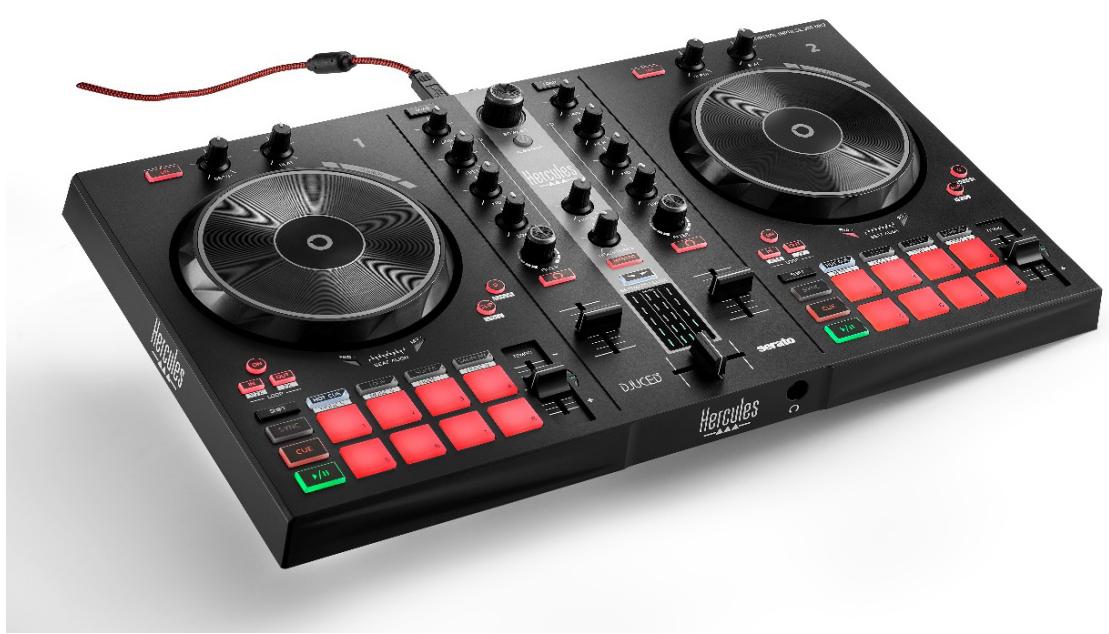
Hercules DJControl Inpulse 300 MK2 is a full-featured controller designed to make it easy to learn how to mix thanks to dedicated features, video tutorials and integration with the DJUCED® and Serato DJ Lite software.

Hercules DJControl Impulse 300 MK2 includes a license for Serato DJ Lite, not a license for Serato DJ Pro. If you install Serato DJ Pro instead of Serato DJ Lite, Serato DJ Pro will work with your DJControl Impulse 300 MK2 for the duration of a trial period. At the end of this trial period, if you want to continue using Serato DJ Pro, you must purchase a Serato DJ Pro license.
1. Box contents
- Hercules DJControl Inpulse 300 MK2
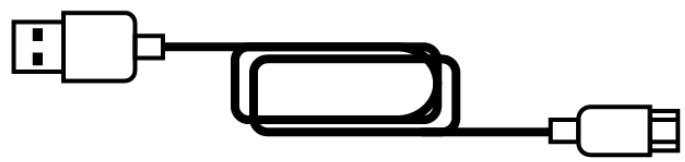
- Braided power cable (USB-A - USB-B)
- Hercules, Serato and DJUCED® stickers
- Warranty flyer
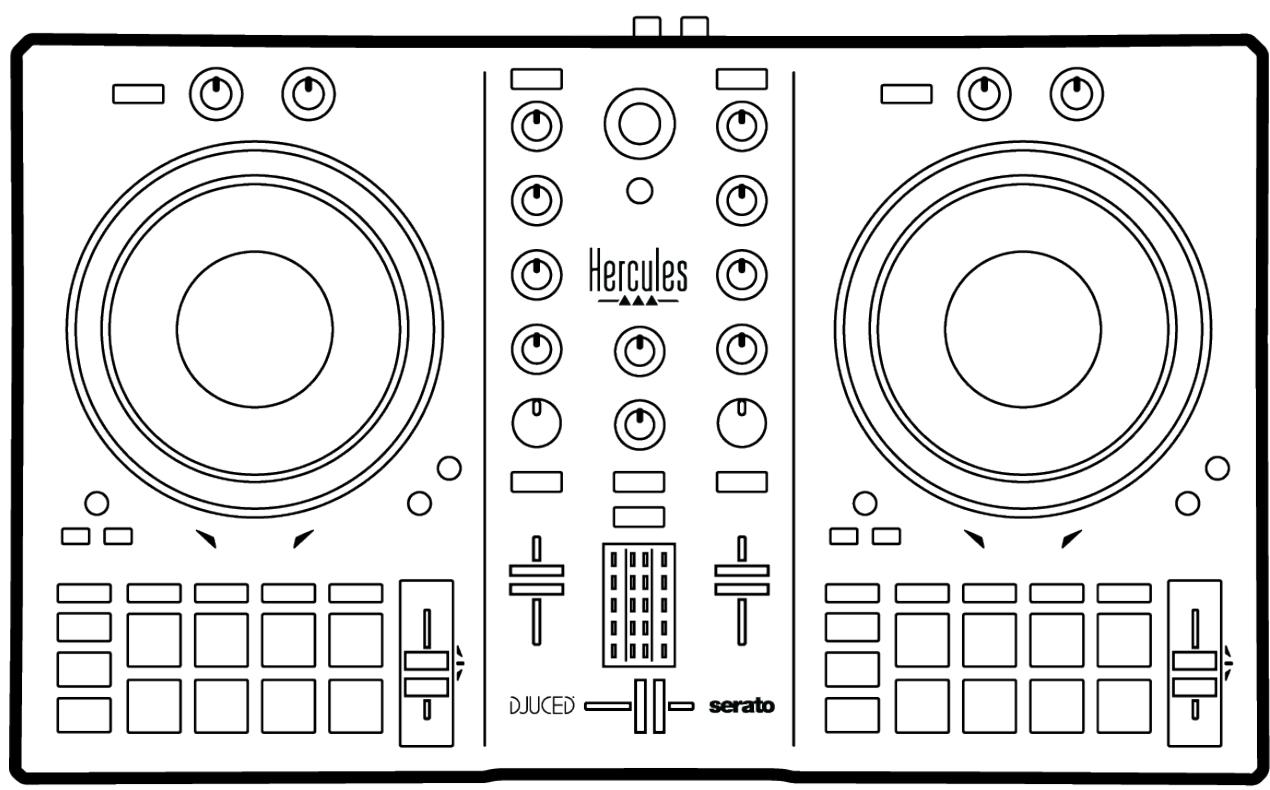

You can remove the protective film covering the VU meter on the Hercules DJControl Inpulse 300 MK2 controller. You can also leave the protective film in place, as it does not affect the use of the VU meter.
2. Technical specifications
System requirements:
- DJUCED®:
https://www.djuced.com/downloaddjuced/ (in English)
- Serato DJ Lite:
https://serato.com/dj/lite/downloads?systemrequirements#system-requirements (in English)
Master output for speakers (output 1-2) via two RCA connectors:
- Maximum output power = 5 dBU @ 1 kΩ
- THD+N @ 1 kHz < 0.01%
- Resolution = 24-bit
- Sample rate = 44 kHz
Headphones output (output 3-4) via one 1 / 8” / 3.5 mm stereo mini- jack connector:
- Maximum output power = 5 dBU for 32 Ω @ 1 kHz
- THD+N @ 1 kHz < 0.017%
- Resolution = 24-bit
- Sample rate = 44 kHz
3. Features
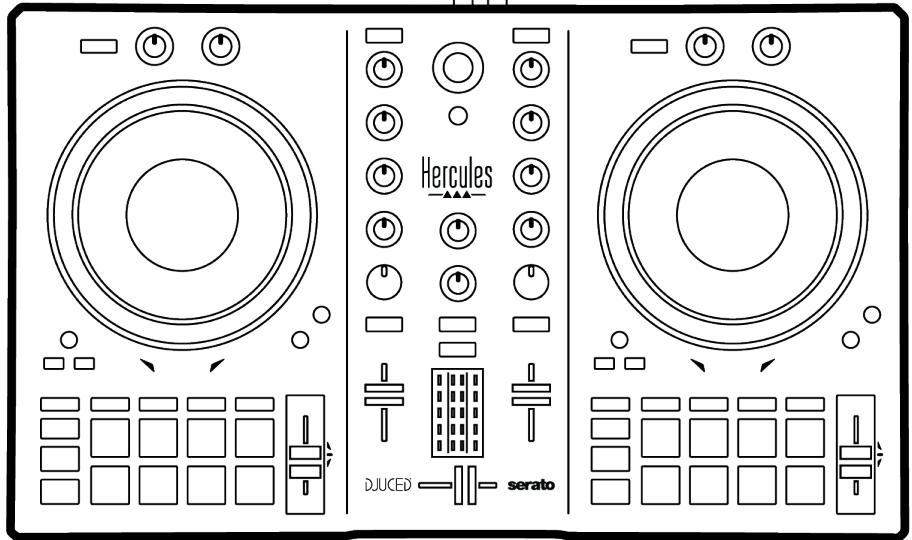
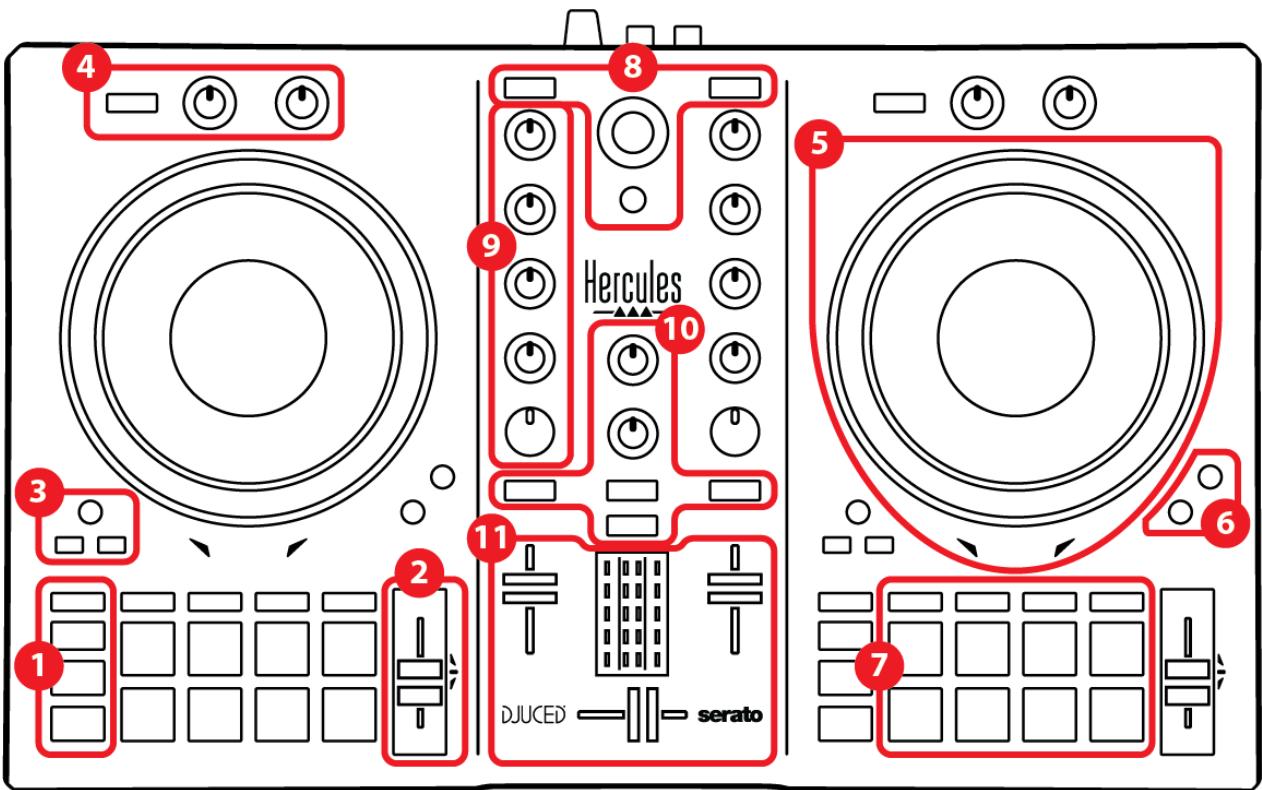
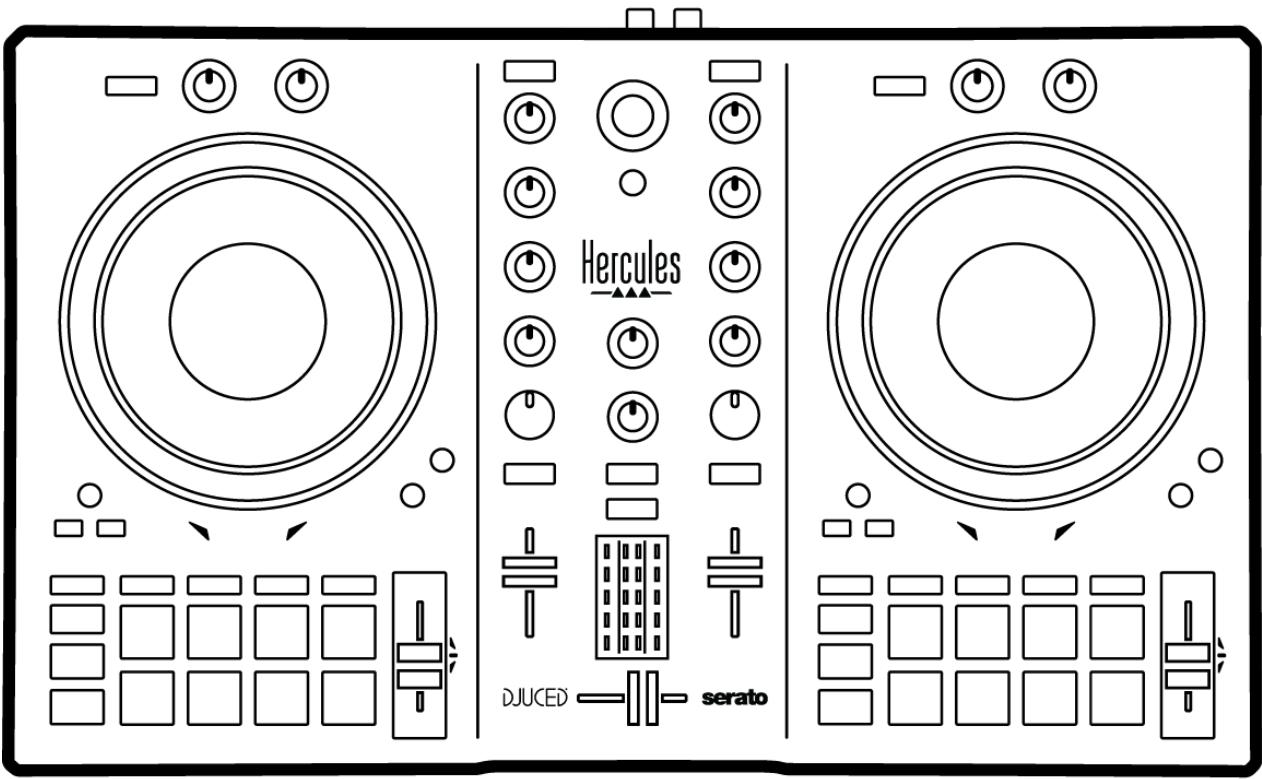
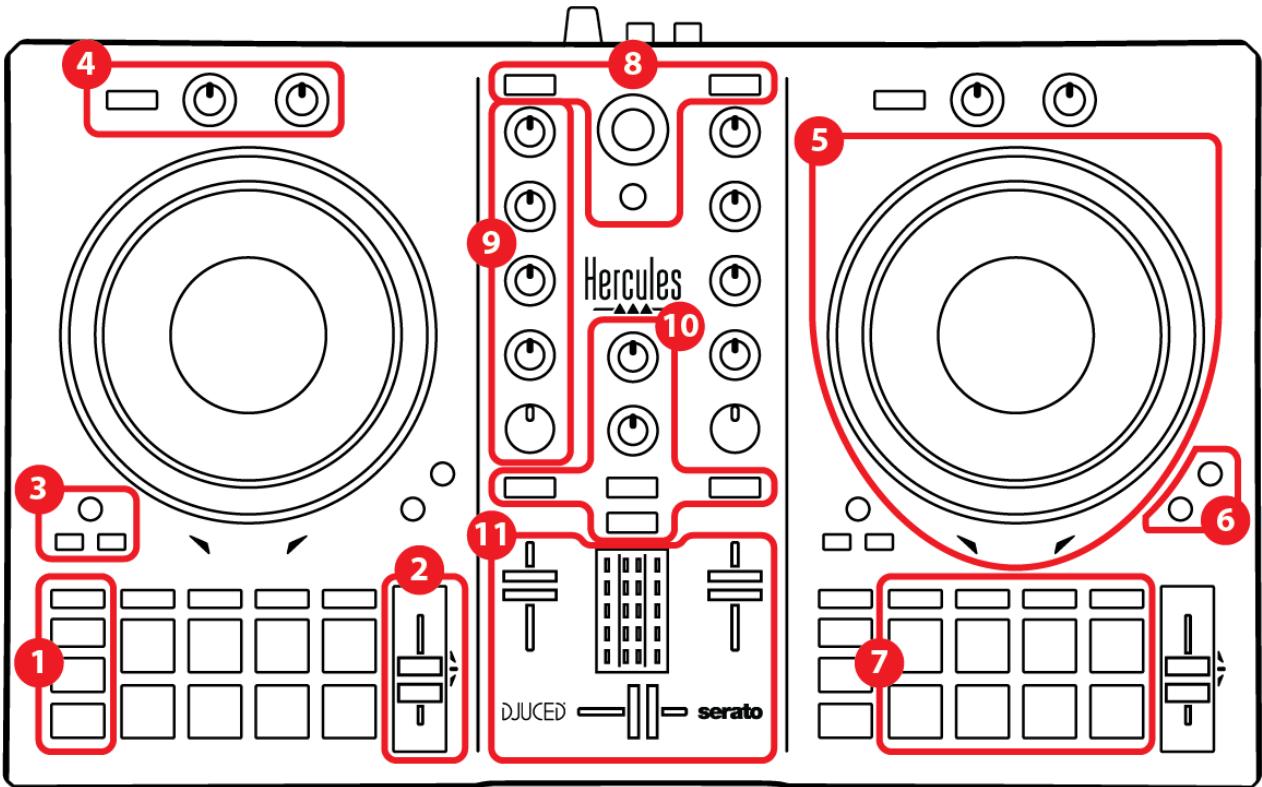
Overview
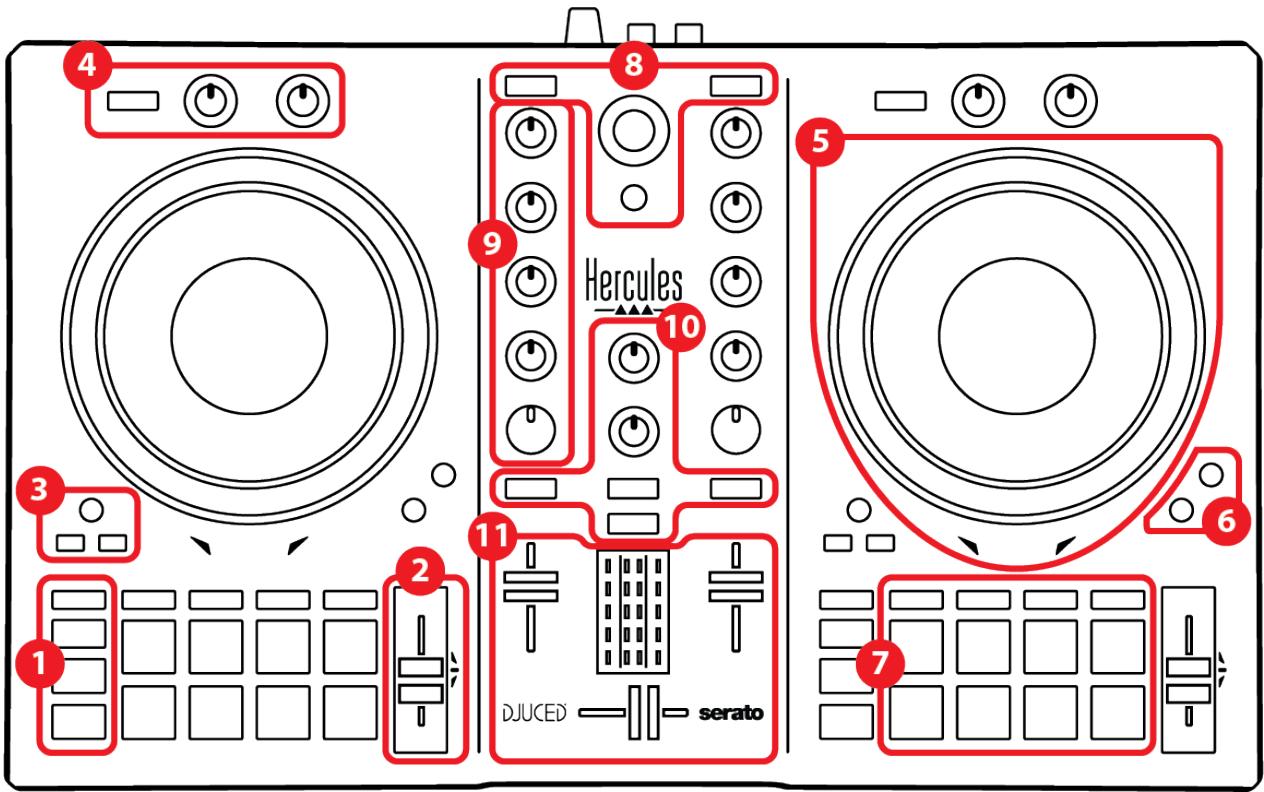
- Transport buttons
- Tempo fader
- Loop controls
- Effects
- Jog wheel
6.Playback modes - Pads and modes
- Track selection controls
- Mixing section
- Monitoring, volume and Beatmatch Guide
- Mixer
Decks
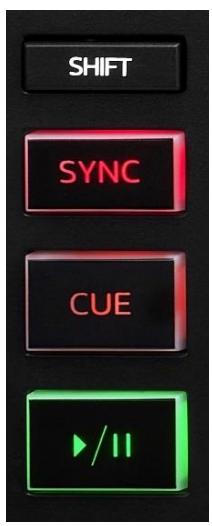
1. Transport buttons
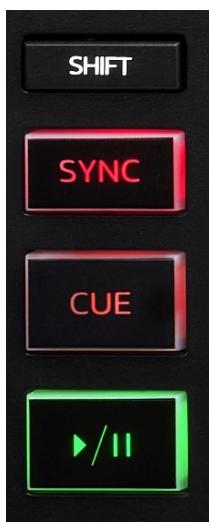
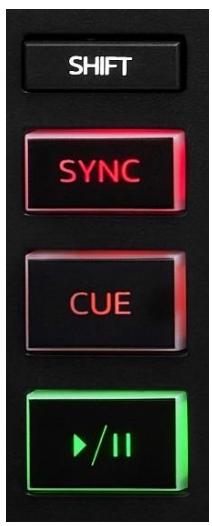
SHIFT: combined control. For example:
- SHIFT + IN: divides the length of the loop by two.
- SHIFT + FX ON: changes the effect selected in the list.
SYNC: enables or disables automatic synchronization of the BPM (beats per minute) values of two tracks.
- SHIFT + SYNC:
○ In DJUCED®: makes the deck the master synchronization (Master Sync) deck.
○ In Serato DJ Lite: disables synchronization on the deck.
CUE: inserts a Cue point in the track to identify a specific instant, or moves the deck playhead to the Cue point's position.
- Track paused: inserts a Cue point at the spot where the track is stopped.
- Track playing: stops playback of the track and moves the deck playhead to the Cue point.
If no Cue point has been defined, pressing CUE stops playback and places a Cue point at the playhead's location.
- CUE + PLAY: in DJUCED®, moves the playhead to the Cue point and plays the track from that point.
- SHIFT + CUE:
In DJUCED®: moves the playhead to the start of the track, and stops playback.
In Serato DJ Lite: moves the playhead to the start of the track, and starts playback.
Play/Pause: plays or pauses the track.
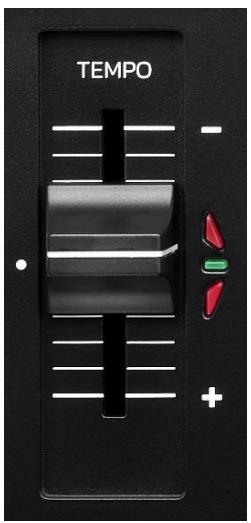
2. Tempo fader
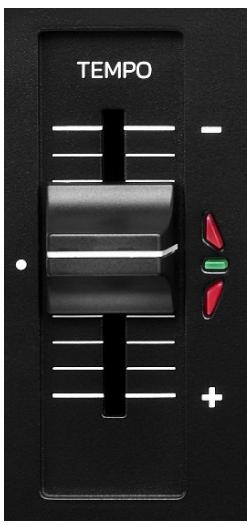
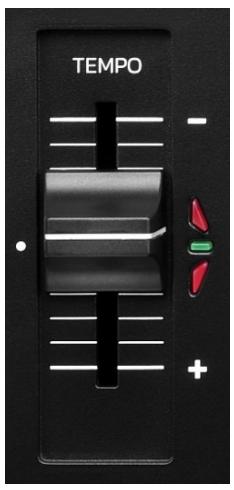
Tempo fader: sets the track's playback speed by adjusting the number of BPM.
- Move up: slows down the track.
- Move down: speeds up the track.
- Tempo fader in the middle: the track's original speed. The green LED is lit up.
When the Beatmatch Guide function is enabled, the TEMPO visual guides indicate whether you need to move the tempo fader up or down, in order to slow down or speed up the track. When the two red arrows are off, the tempo on that deck is identical to the tempo on the other deck.
For more information on the Beatmatch Guide function, please read the Beatmatch Guide section on page 25.
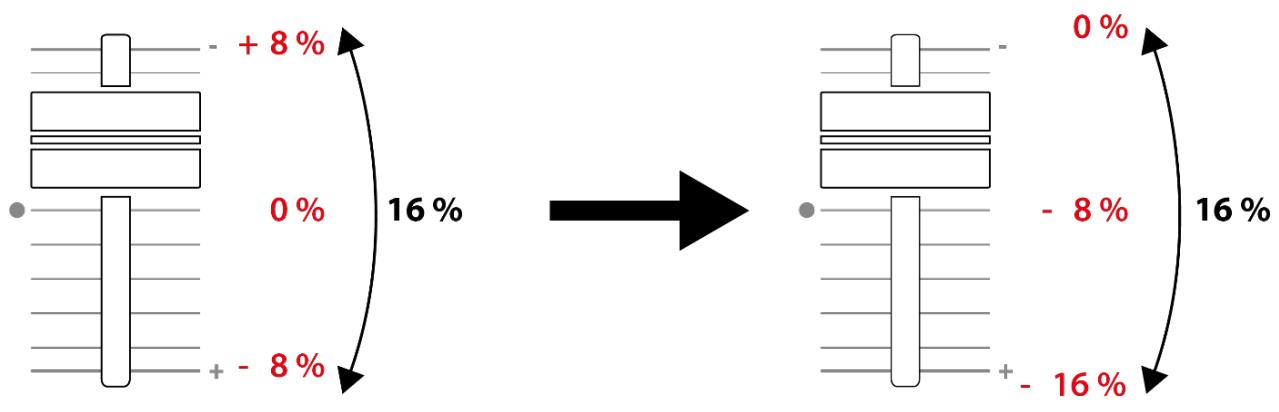
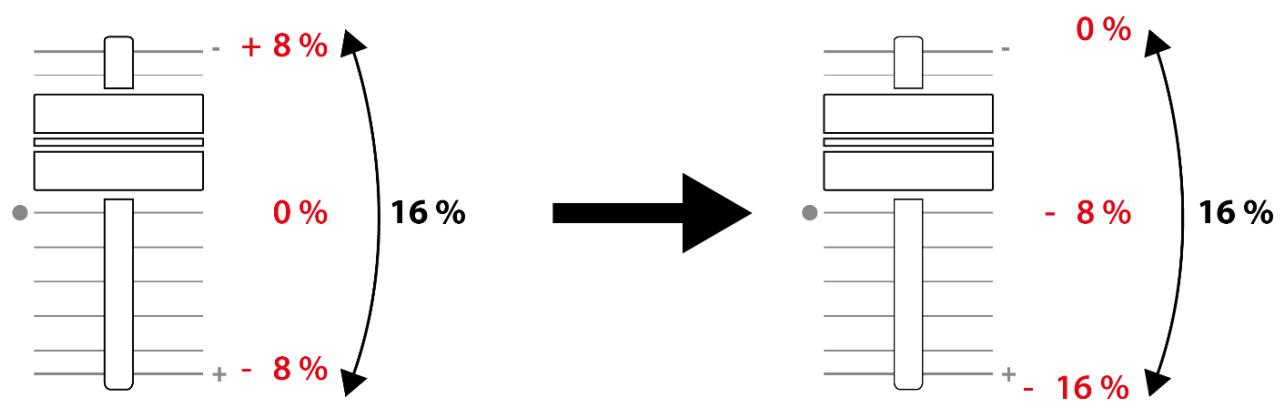
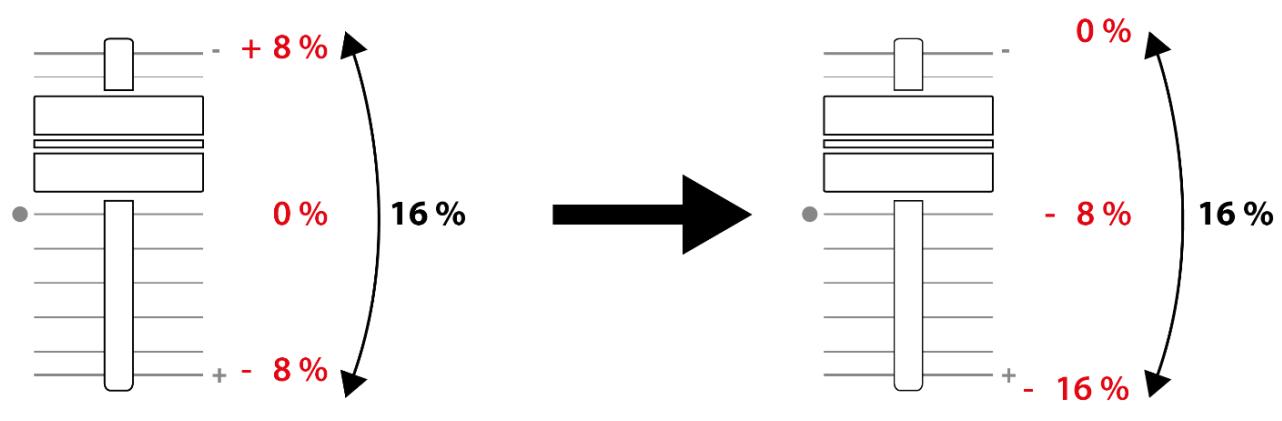
In Serato DJ Lite and Serato DJ Pro, when Sync mode is enabled, pressing SHIFT and moving the tempo fader at the same time lets you move the tempo fader's values while maintaining the amplitude.
For example, with a tempo scale of ± 8% , or 16% amplitude, you can move the tempo fader's values to cover from 0% (maximum) to -16% (minimum), which still results in 16% amplitude, with -8% in the center.
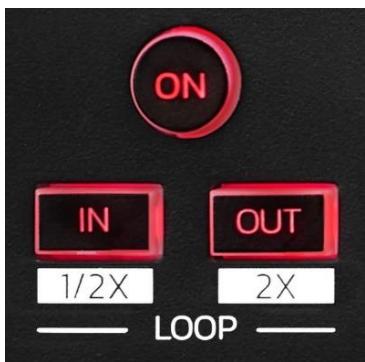
3. Loop controls
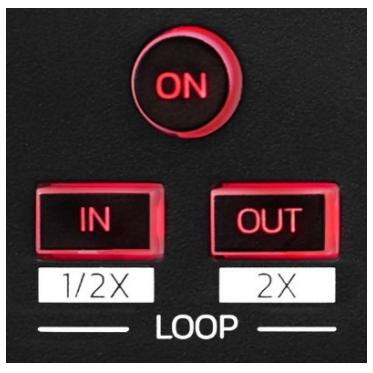
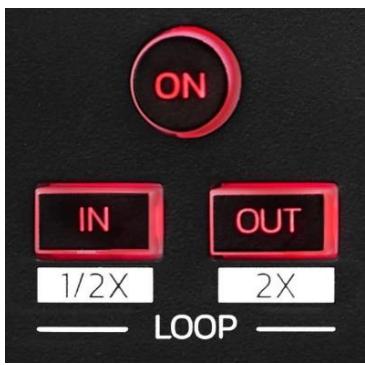
LOOP ON: enables or disables playback of the loop.
IN/OUT: enables a loop by choosing the in point (IN) and the out point (OUT).
- SHIFT + IN: divides the size of the active loop by two.
- SHIFT + OUT: multiplies the size of the active loop by two.
When the loop is active (i.e. enabled):
- Press IN (the button flashes) and turn the jog wheel to move the start of the loop.
- Press OUT (the button flashes) and turn the jog wheel to move the end of the loop.
To exit the loop, press LOOP ON.
4. Effects
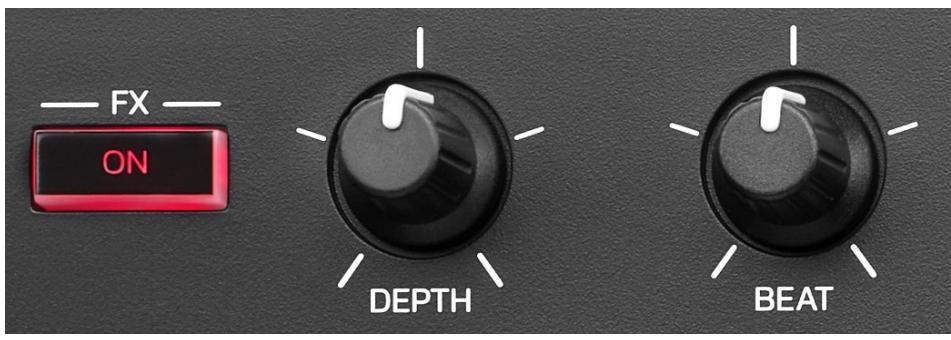
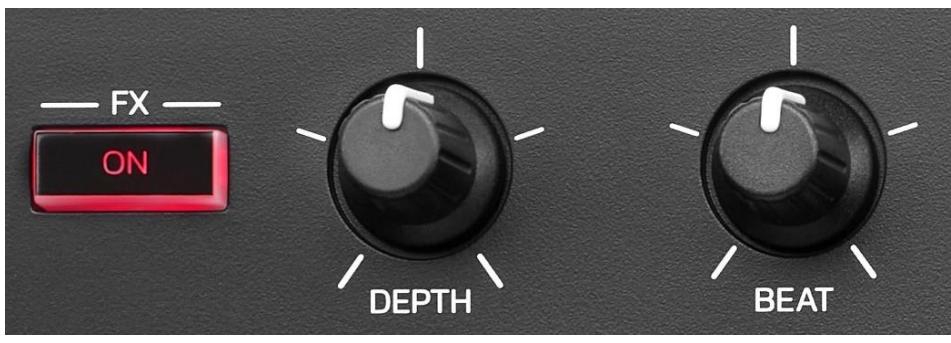
Effects rack: manages the effect on the deck.
- FX ON button: enables or disables the effect.
- DEPTH knob: adjusts the intensity of the effect.
- BEAT knob: adjusts the duration of the effect's cycle synchronized to the music.
- SHIFT + FX ON: changes the effect selected in the list.
To display the effects rack:
- In DJUCED®: click FX.
- In Serato DJ Lite: click FX.
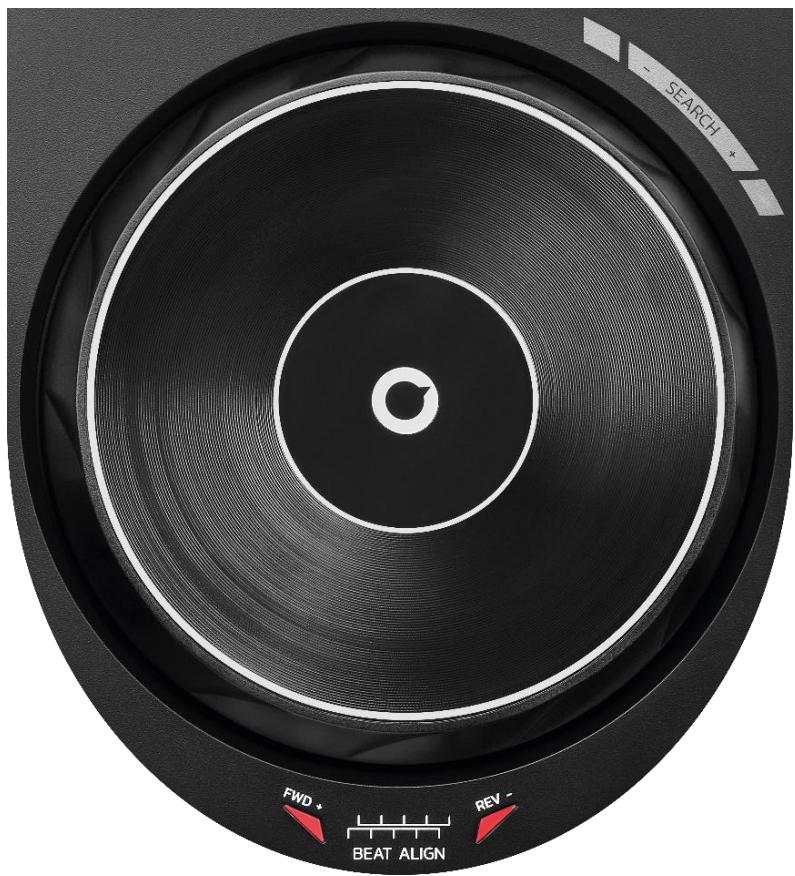
5. Jog wheel
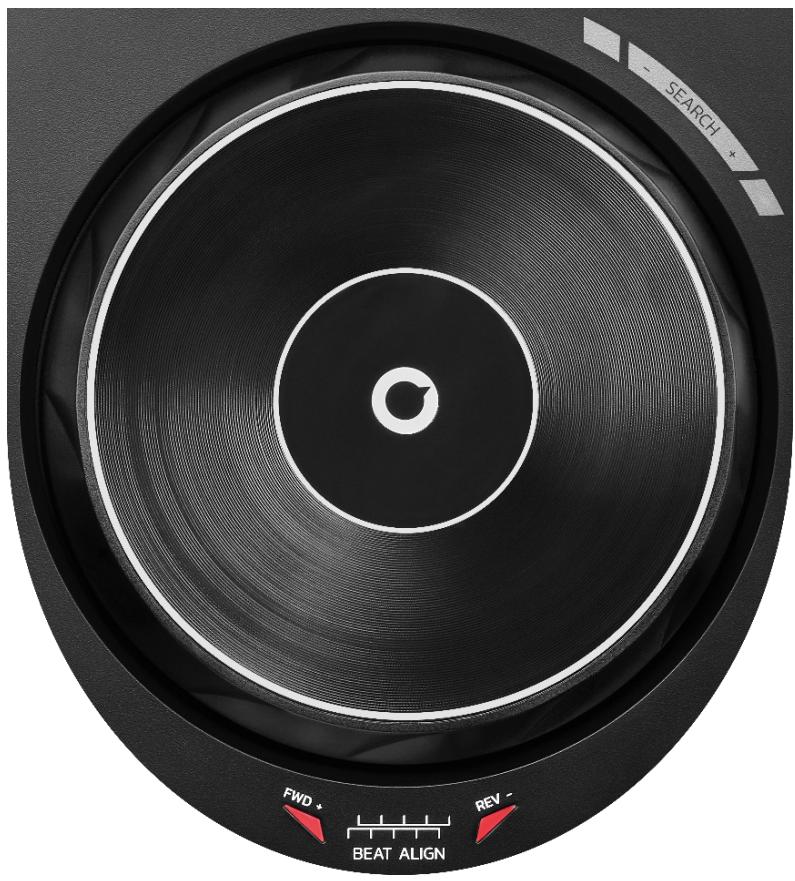
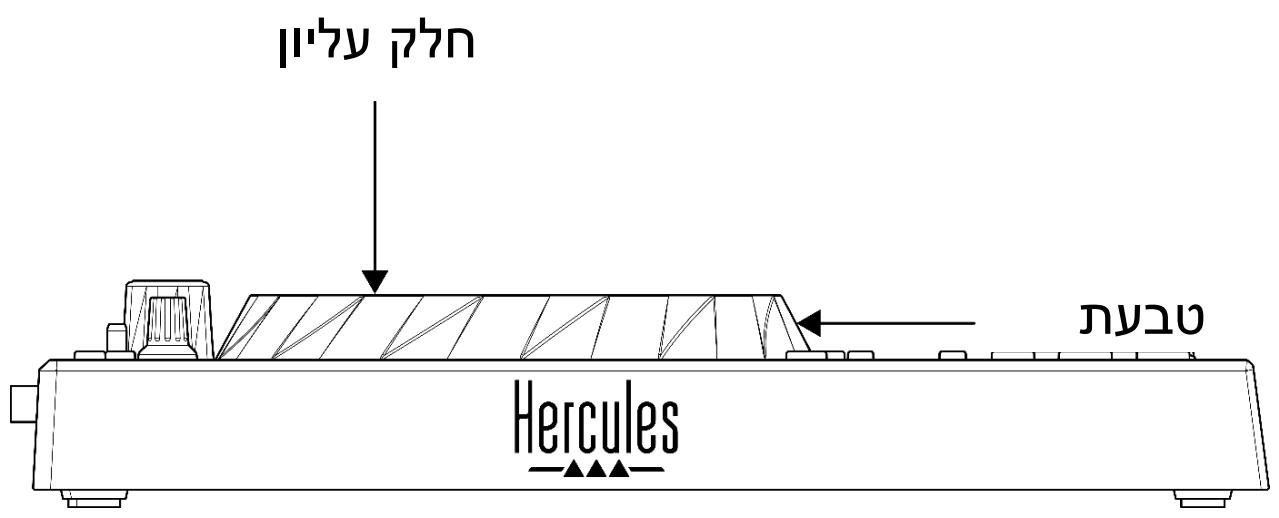
Jog wheel: lets you move within the track, modify the track's playback, and scratch.
When the Beatmatch Guide function is enabled, the BEAT ALIGN visual guides indicate the direction in which you need to turn the ring (i.e. the edge) of the jog wheel in order to align the beat grids of the two tracks. When the two red arrows are off, the beat grids are aligned.
For more information on the Beatmatch Guide function, please read the Beatmatch Guide section on page 25.
The action carried out depends on three criteria:
- Vinyl (Scratch) mode enabled or disabled;
- track playing or paused;
- the spot where you are touching the jog wheel.
To enable Vinyl (Scratch) mode, press SHIFT and SLIP at the same time. To make sure that Vinyl mode is enabled, press SHIFT. The SLIP button is lit up.
Actions of the jog wheels with Serato DJ Lite and Serato DJ Pro:
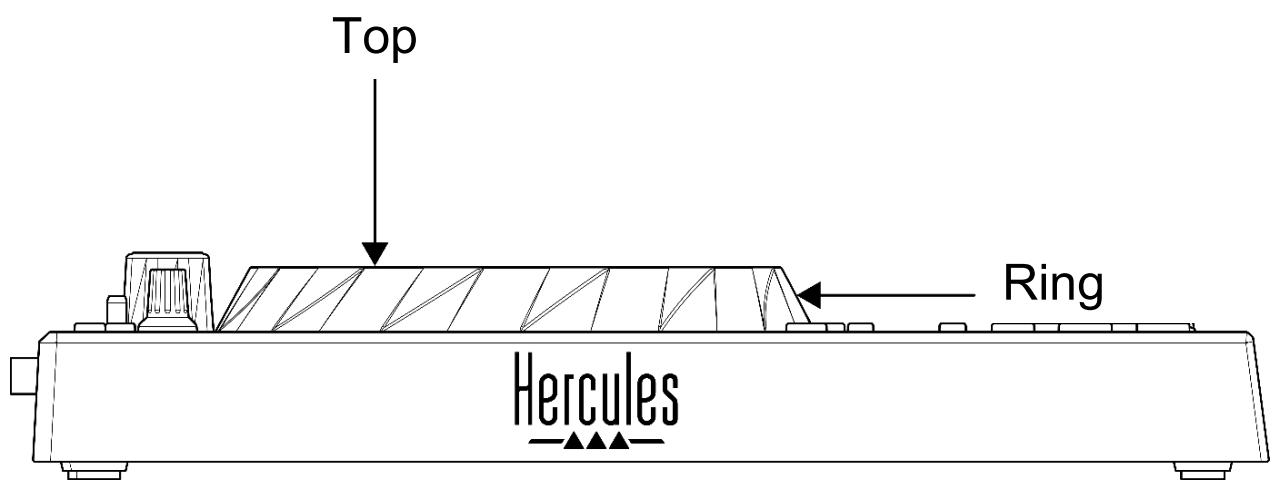
| Vinyl mode | Play/Pause | Jog wheel | SHIFT button |
| Enabled | Play | Top | - |
| Scratching | |||
| Enabled | Play | Ring | - |
| Speed up or slow down playback | |||
| Enabled | Pause | Top | Press and hold |
| Move quickly within the track | |||
| Enabled | Pause | Ring | - |
| Move slowly within the track | |||
| Disabled | Play | Top | - |
| Speed up or slow down playback | |||
| Disabled | Play | Ring | - |
| Speed up or slow down playback | |||
| Disabled | Pause | Top | Press and hold |
| Move quickly within the track | |||
Actions of the jog wheels with DJUCED®:
DJUCED
| Vinyl mode | Play/Pause | Jog wheel | SHIFT button |
| Enabled | Play | Top | - |
| Scratching | |||
| Enabled | Play | Ring | - |
| Speed up or slow down playback | |||
| Enabled | Pause | Top | Press and hold |
| Move very quickly within the track | |||
| Enabled | Pause | Ring | Press and hold |
| Move very quickly within the track | |||
| Disabled | Play | Top | - |
| Speed up or slow down playback | |||
| Disabled | Play | Ring | - |
| Speed up or slow down playback | |||
| Disabled | Pause | Top | - |
| Move quickly within the track | |||
| Disabled | Pause | Top | Press and hold |
| Move very quickly within the track | |||
6. Playback modes
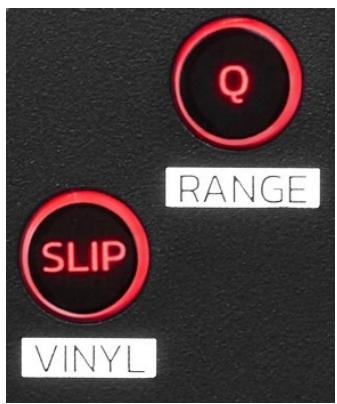
Q: enables or disables Quantize mode. Quantization lets you apply an action on the next beat in the grid (play the track, place a Cue point, start a loop...).
- SHIFT + Q: lets you change the tempo scale.
In DJUCED®: ± 6% , ± 8% , ± 10% , ± 12% , ± 16% , ± 20% , ± 25% , ± 33% , ± 50% , ± 100% .
In Serato DJ Lite: ± 8% , ± 16% , ± 50% .

Serato DJ Lite does not feature Quantize mode.
Serato DJ Pro features Quantize mode.
SLIP: enables or disables Slip mode. In Slip mode, the deck playhead continues to advance in the background when you apply an effect or a loop, place a Cue point, or when you use the jog wheels. When you stop applying an effect, playback resumes from the point where the track would be if it had kept playing.

Serato DJ Lite does not feature Slip mode. Serato DJ Pro features Slip mode.
7. Pads and modes
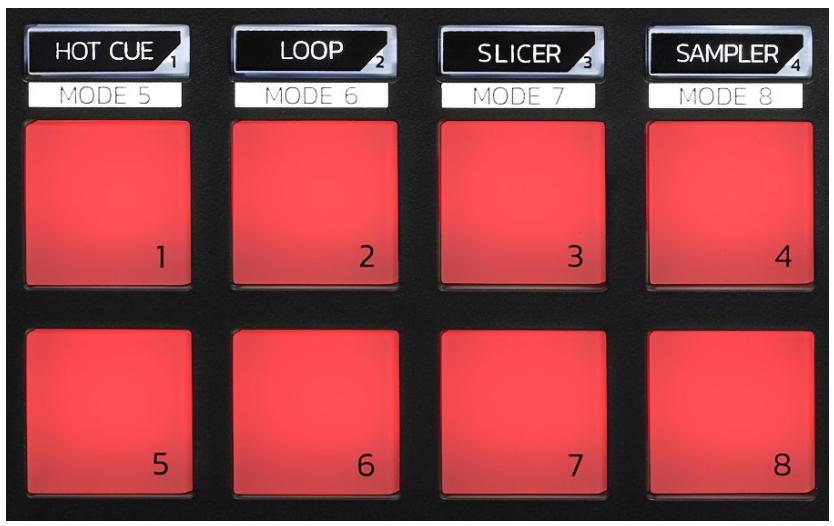
Mode buttons: lets you enable up to eight modes.
To enable a main mode, press HOT CUE, LOOP, SLICER or SAMPLER.
To enable a secondary mode (MODE 5, MODE 6, MODE 7 and MODE 8), simultaneously press SHIFT and HOT CUE, LOOP, SLICER or SAMPLER. The mode button flashes.
The modes enabled on the pads vary according to the software being used.
For more information about the different modes with DJUCED®, Serato DJ Lite and Serato DJ Pro, please read the Modes and pads section on page 37.
Performance pads: a pad performs an action.
Mixing
8. Track selection controls
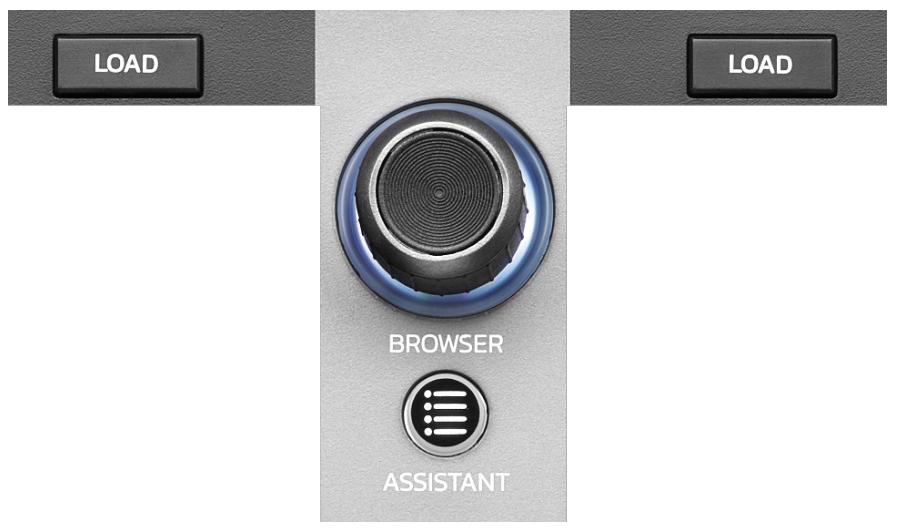
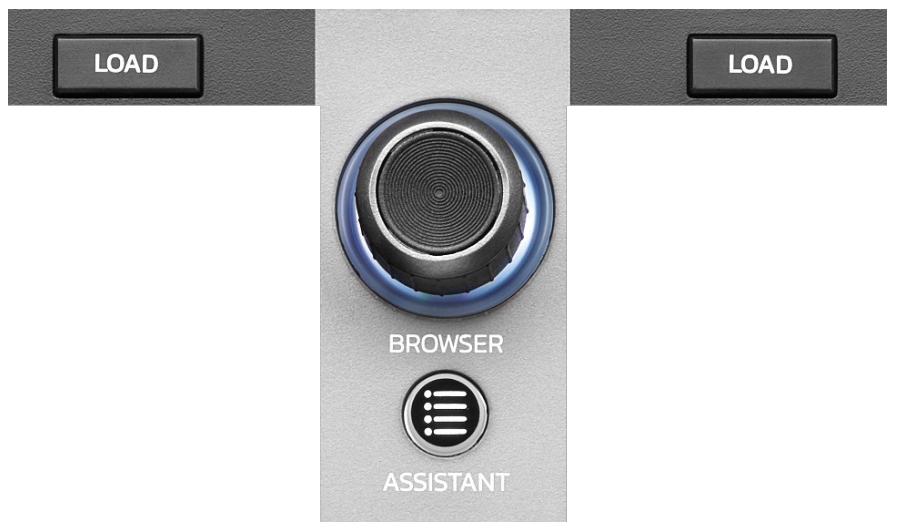
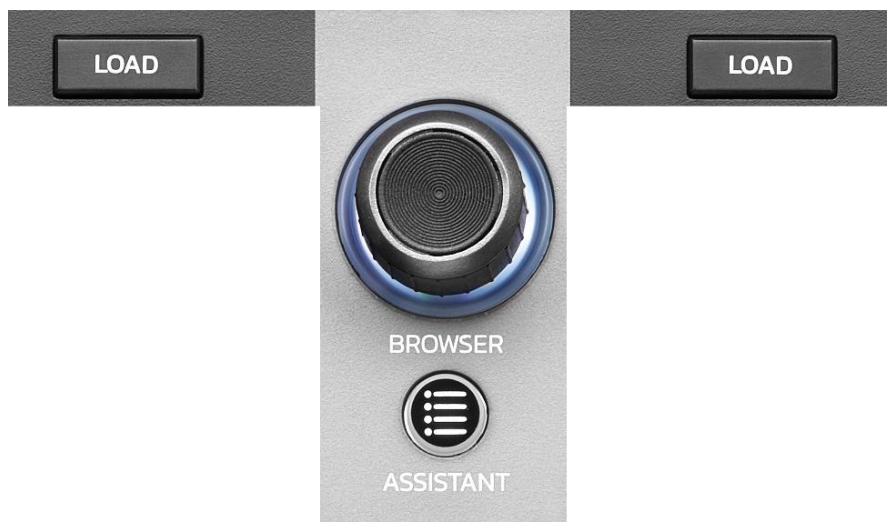
LOAD*: loads the selected track on the destination deck. In DJUCED®, collapses or expands folders.
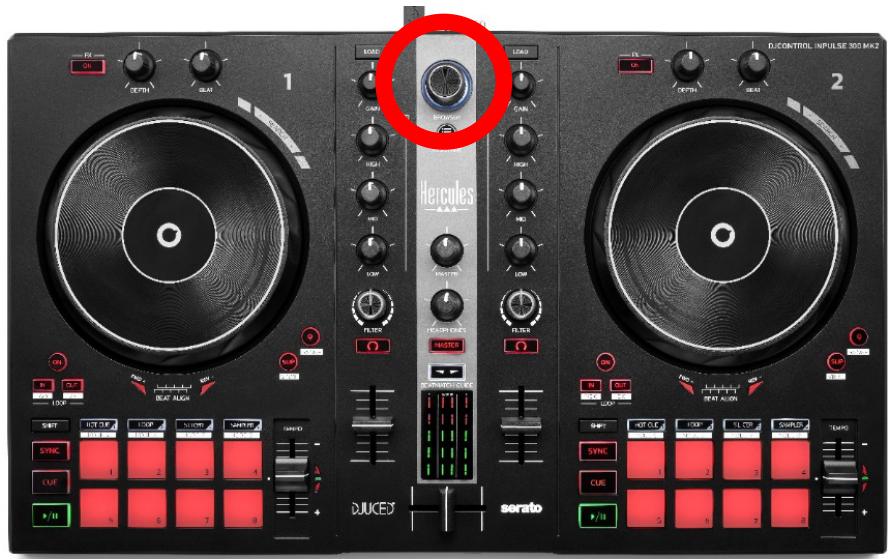
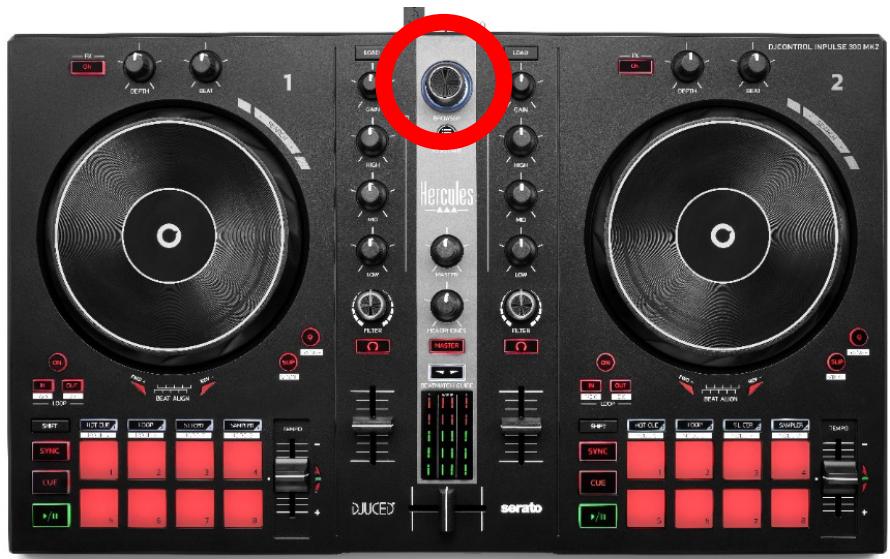
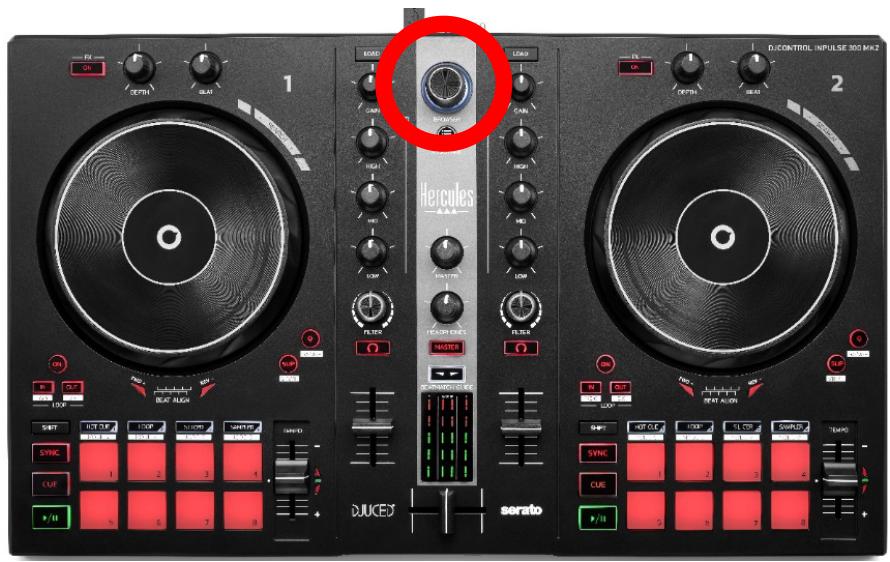
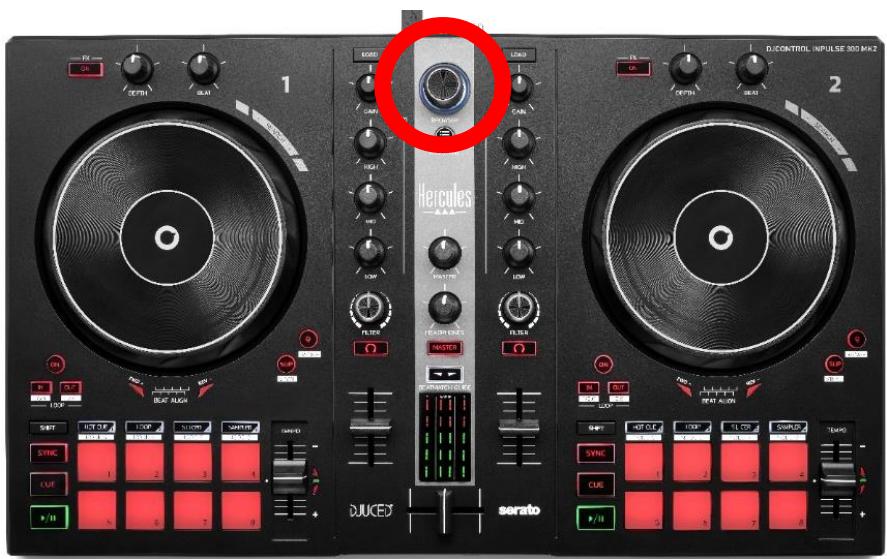
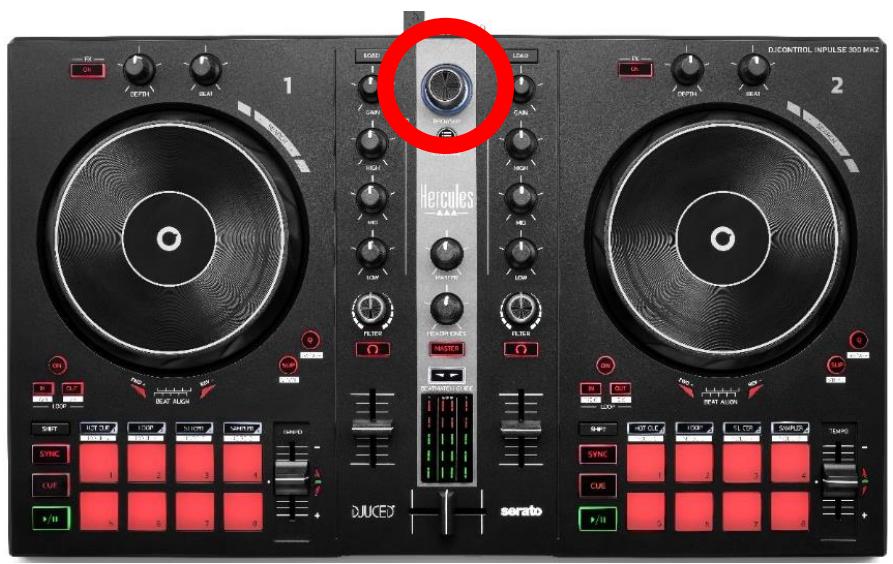
BROWSER encoder: lets you browse through your music library by turning the encoder to the left (up) or to the right (down).
Press the encoder to select folders and files.
In DJUCED®, press SHIFT and the encoder to return to the root of your music library.
*The functionality is identical on decks 1 and 2.
Illuminated ring:
- In DJUCED®, shows the energy level of the master track for the tempo.
- In Serato DJ Lite, shows the rhythm. The light flashes to the beat of the track.
ASSISTANT:
- In DJUCED®, displays the panel suggesting the best upcoming tracks for your mix.
Press ASSISTANT and turn the encoder to adjust the energy level of the tracks being suggested.
- In Serato DJ Lite, adds the track currently being played to the Prepare list.
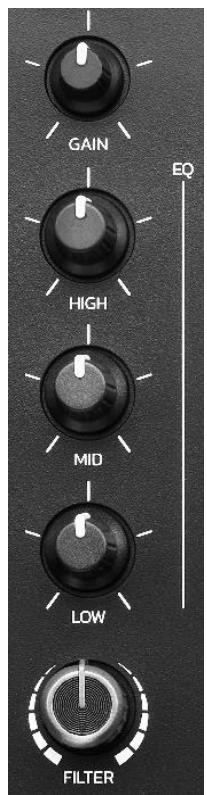
9. Mixing section
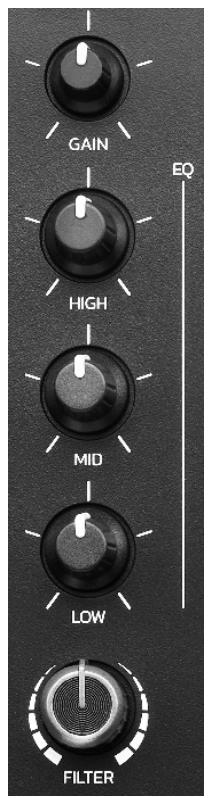
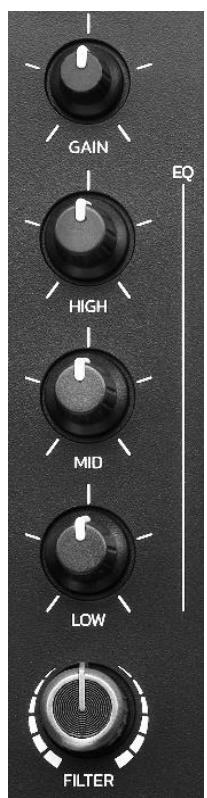
GAIN knob*: adjusts the gain (i.e. the volume level before the volume fader).
3-band equalizer (EQ)*: controls the intensity of the EQ. A knob is associated with each band: HIGH, MID and LOW.
FILTER knob*: adjusts the frequency of the dual filter (high-pass and low-pass).
*The functionality is identical on decks 1 and 2.
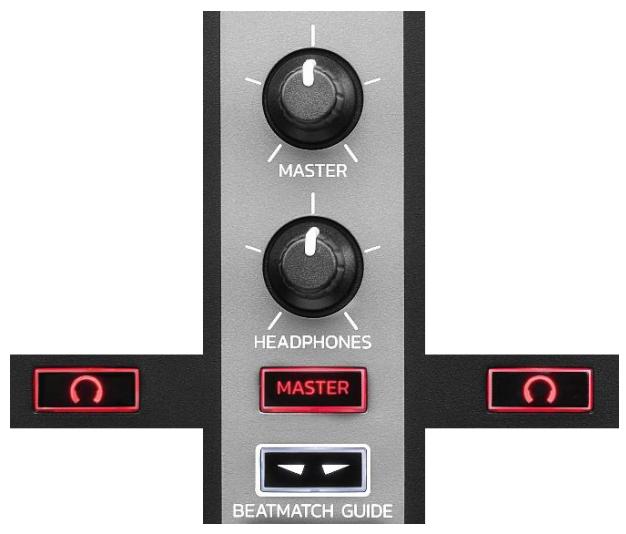
10. Monitoring, volume and Beatmatch Guide
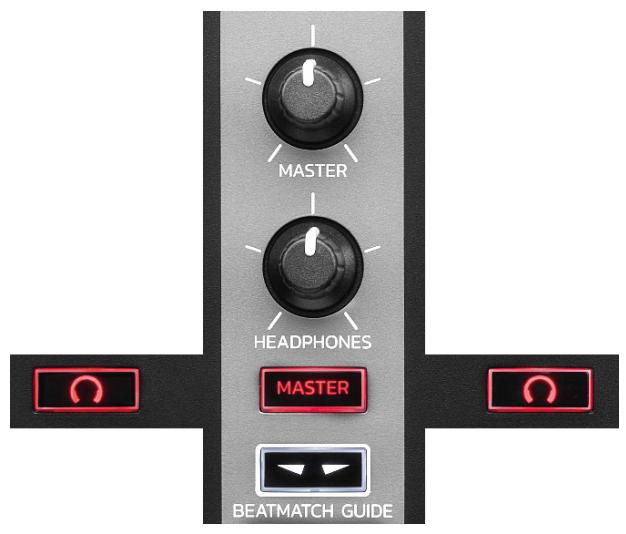
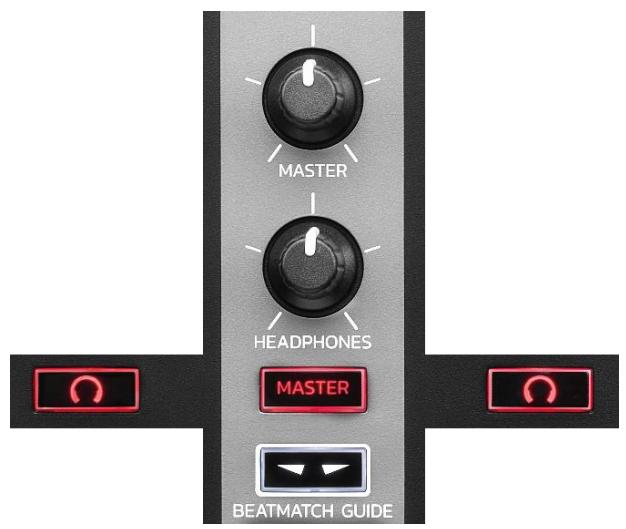
MASTER volume: adjusts the volume of the mix being played on your speakers.
HEADPHONES volume: adjusts the volume of the headphones output.
Monitoring: selects the sound source played on your headphones.
- ^* : plays the sound from deck 1 or deck 2.
- MASTER: plays the sound of the mix being played out loud for the audience.
*The functionality is identical on decks 1 and 2.
BEATMATCH GUIDE: enables or disables the light guides to adjust the tempo and align the beat grids of the two tracks. There are four red arrows per deck.

DJUCED® defines one of the decks as the master synchronization (Master Sync) deck, and the other as the slave deck. The red arrows only light up on the slave deck, as this deck follows the tempo of the master synchronization deck.
Serato DJ Lite does not define a master synchronization deck. The red arrows light up on both decks.
- TEMPO visual guides: if one of the two red arrows located to the right of a tempo fader is lit up, this means that the tempo (i.e. number of beats per minute) of the track being played on this deck is different than the tempo of the other deck.
The arrows indicate the direction in which you need to move the tempo fader in order to adjust the tempo of the track being played to match the tempo on the other deck.
-
Top arrow lit up: move the tempo fader up. This will slow down the tempo.
• Bottom arrow lit up: move the tempo fader down. This will speed up the tempo.
• Arrows not lit up: the deck's tempo is identical to the tempo of the master synchronization deck. -
BEAT ALIGN visual guides: if one of the two red arrows located below a jog wheel is lit up, this means that the beats of the track being played on this deck are not aligned with the beats of the other deck.
The arrows indicate the direction in which you need to turn the jog wheel in order to align the beats of the track being played with the beats of the other deck.
○ Left arrow lit up: turn the jog wheel clockwise. This speeds up the playback speed.
○ Right arrow lit up: turn the jog wheel counterclockwise. This slows down the playback speed.
○ Arrows not lit up: the deck's beats are aligned with the beats of the master synchronization deck.
11. Mixer
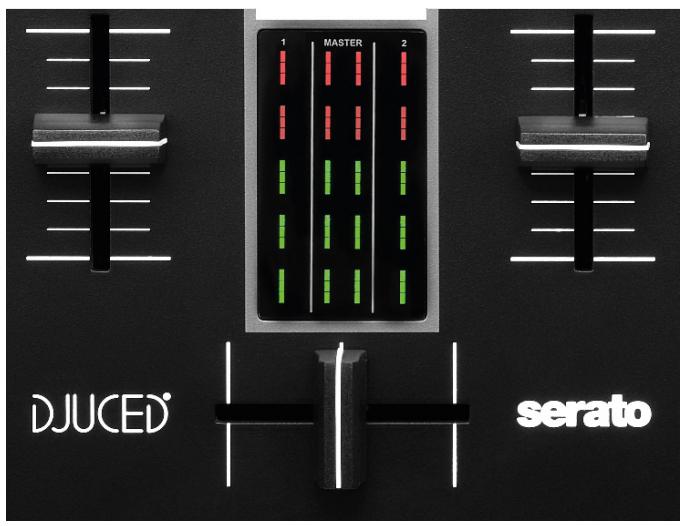
Volume fader*: adjusts the deck's volume.
VU meter: displays the level of the audio signal of decks 1 and 2, along with that of the Master output for speakers.
Crossfader: lets you make a transition between two tracks by increasing the volume of one of the decks, while decreasing the volume of the other deck.
- Crossfader all the way to the left: you only hear the track on deck 1.
- Crossfader all the way to the right: you only hear the track on deck 2.
- Crossfader in the middle: you hear the tracks on both decks 1 and 2 at the same time.
*The functionality is identical on decks 1 and 2.
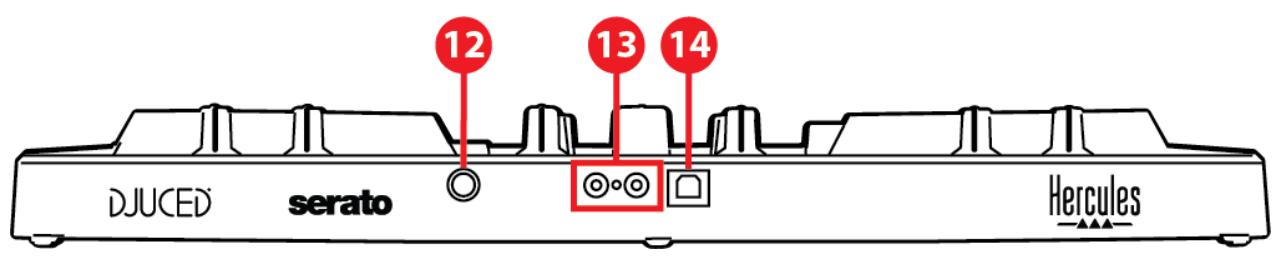
Connectors
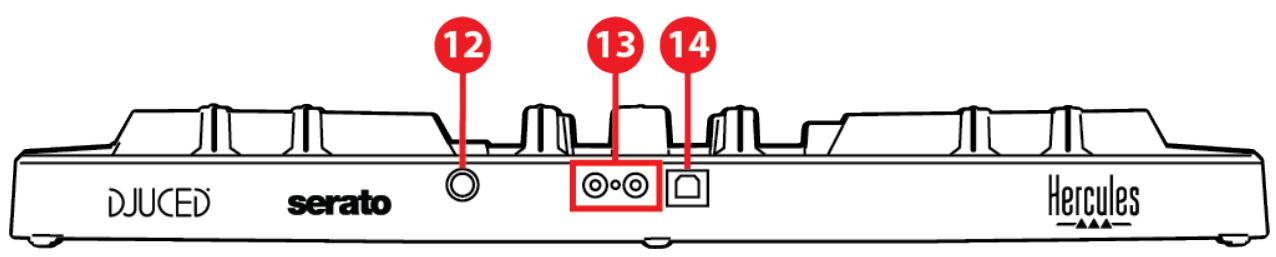

- Proprietary Hercules expansion port
- Master output for speakers (output 1-2)
- USB-B 2.0 port
- Headphones output (output 3-4)
Expansion port: lets you connect additional accessories.
Master output for speakers (output 1-2): lets you connect active speakers.
Format: 2 x RCA (Cinch)
USB-B 2.0 port: lets you connect the controller to a computer.
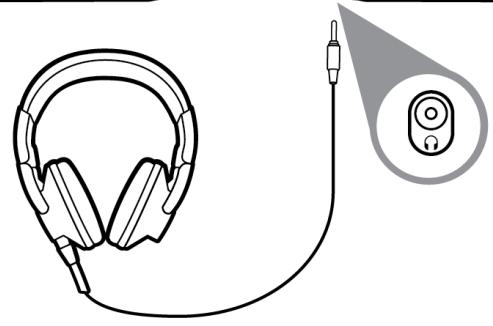
Headphones output (output 3-4): lets you connect headphones in order to monitor tracks.
Format: 1/8” / 3.5 mm stereo mini-jack connector
4. Installation
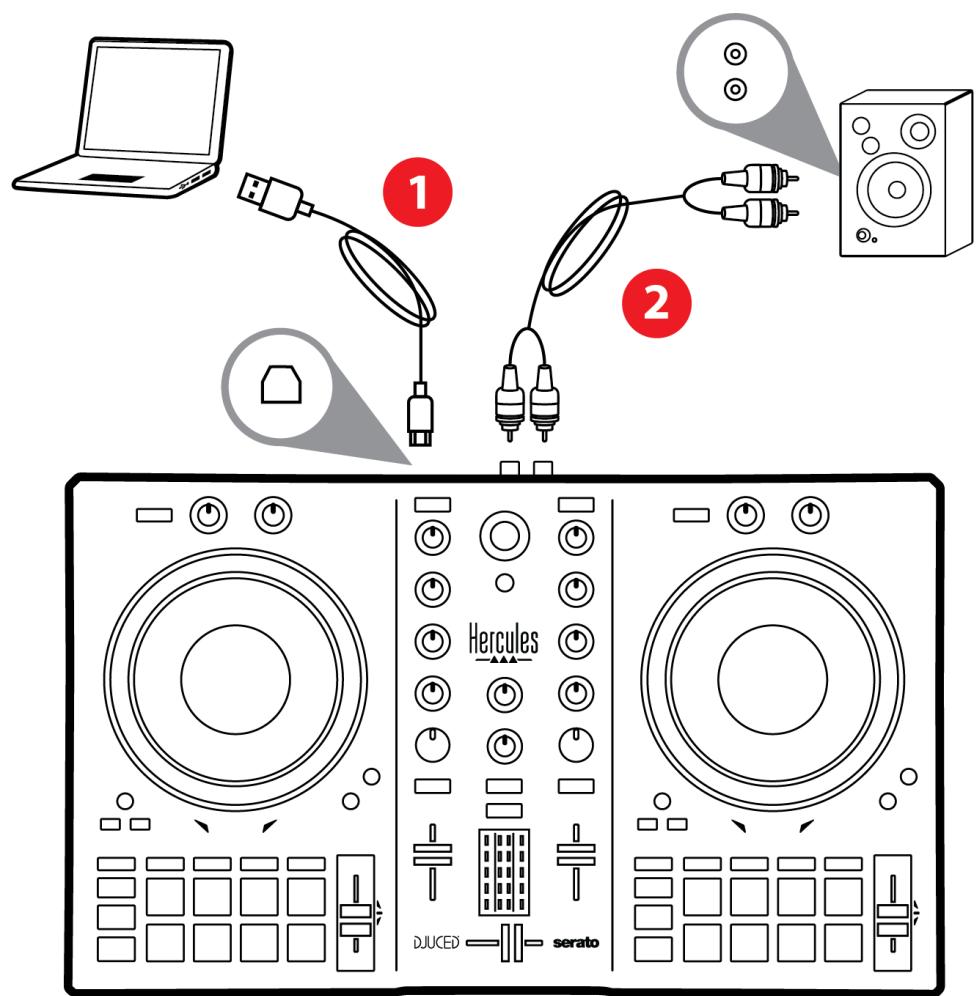
Connections
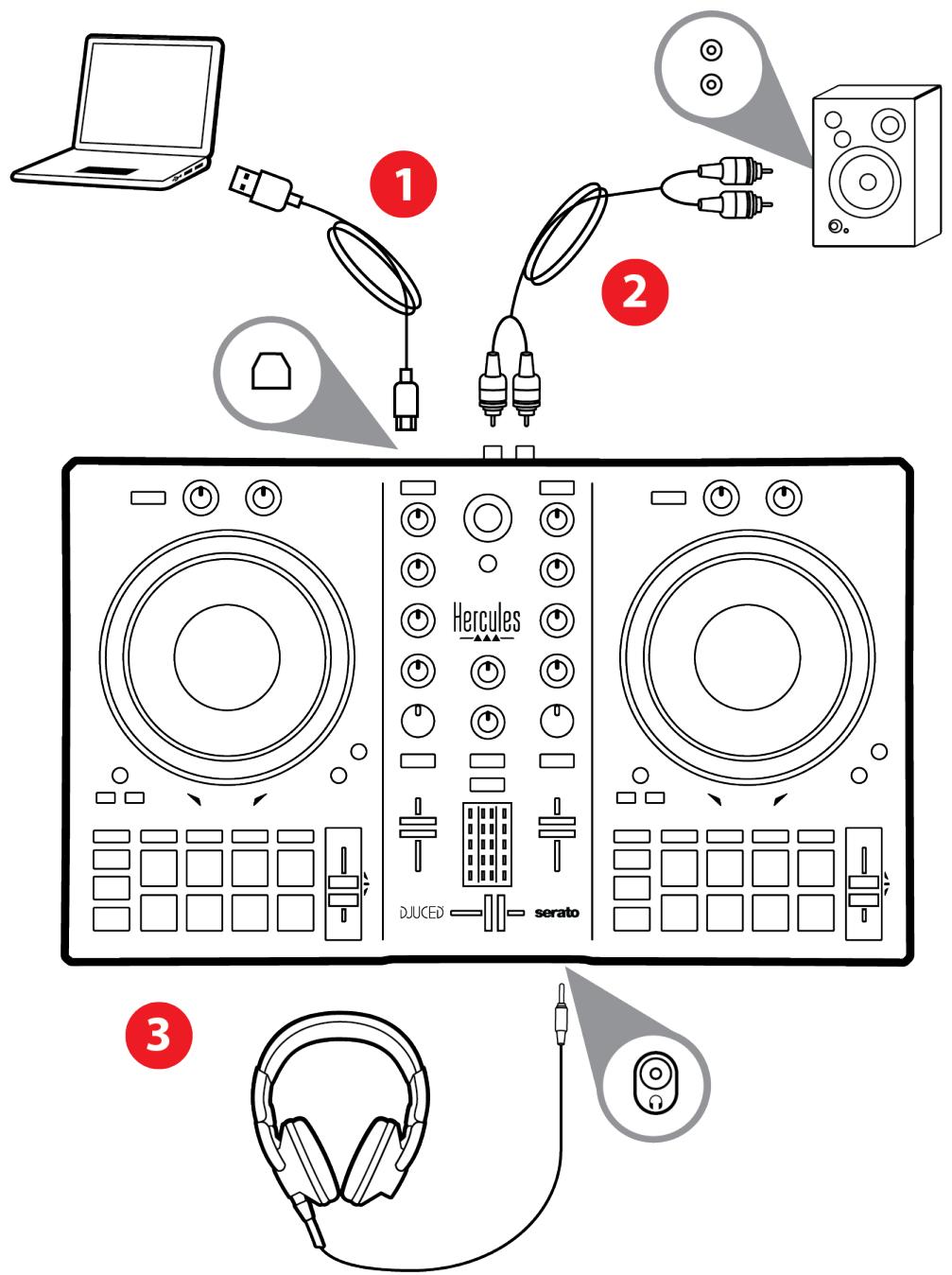
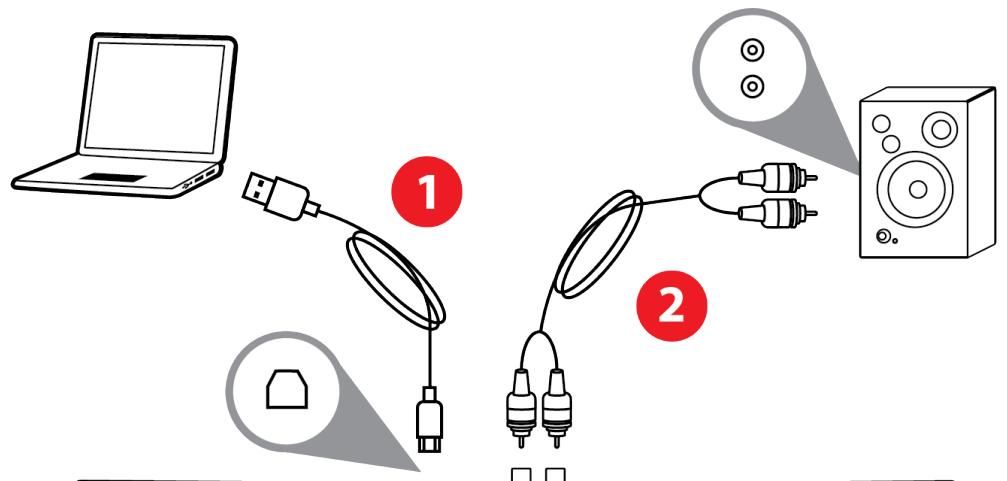
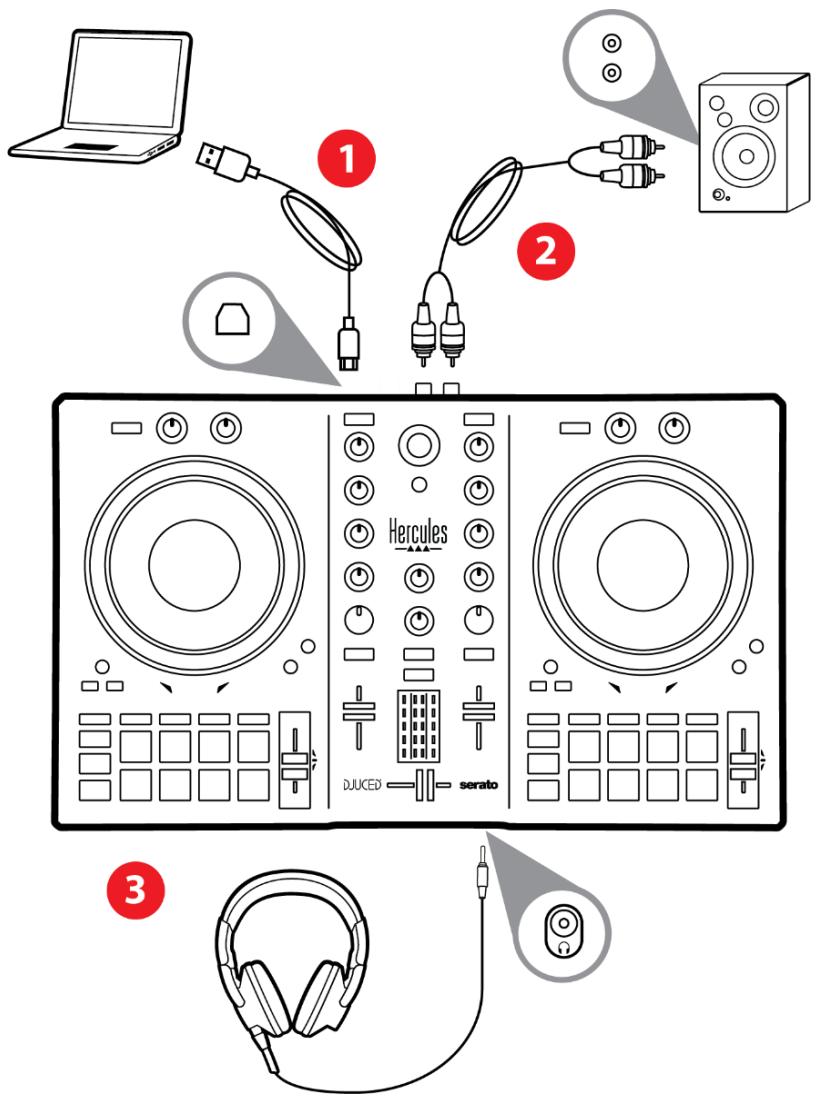
- Connect the DJControl Inpulse 300 MK2 controller to your computer with the USB cable.
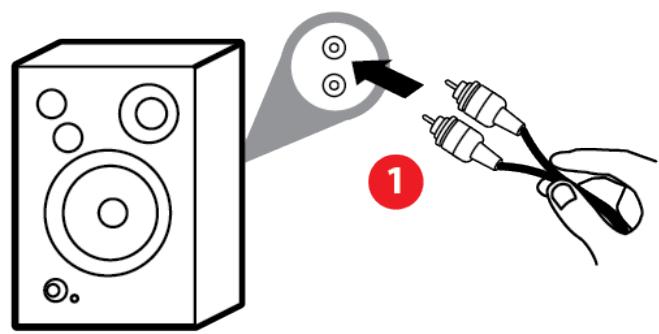
- Connect the inputs on your active speakers to the speaker outputs on DJControl Inpulse 300 MK2 (2 RCA).
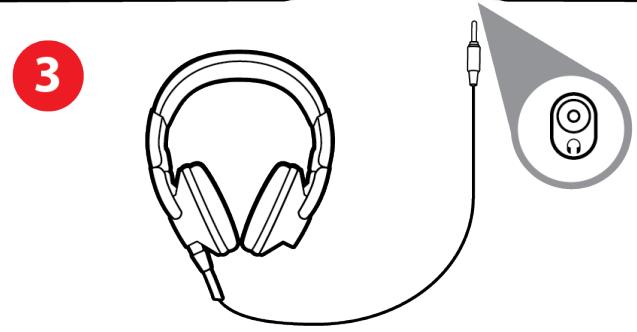
- Connect your headphones to the 1 / 8" / 3.5 mm stereo mini- jack connector at the front of DJControl Impulse 300 MK2.

An LED illumination sequence, called Vegas Mode, starts up each time you connect the device to your computer. Vegas Mode takes place in four phases, allowing it to light up all of the LEDs and display different possible colors for the multicolored backlit energy ring.
Downloading the software
DJUCED®
- Please visit: https://www.djuced.com/hercules (in English).
- Download and install DJUCED®.
- Please visit:
https://support.hercules.com/product/djcontrolin pulse300mk2/ (in English).
- Download and install the driver pack for your computer's operating system.
macOS: HDJCSeries Mac
Windows®: HDJCSeries PC
Windows® requires that you install the drivers in order to use DJControl Inpulse 300 MK2 in ASIO mode, which reduces the latency compared to WASAPI mode and is generally more stable.
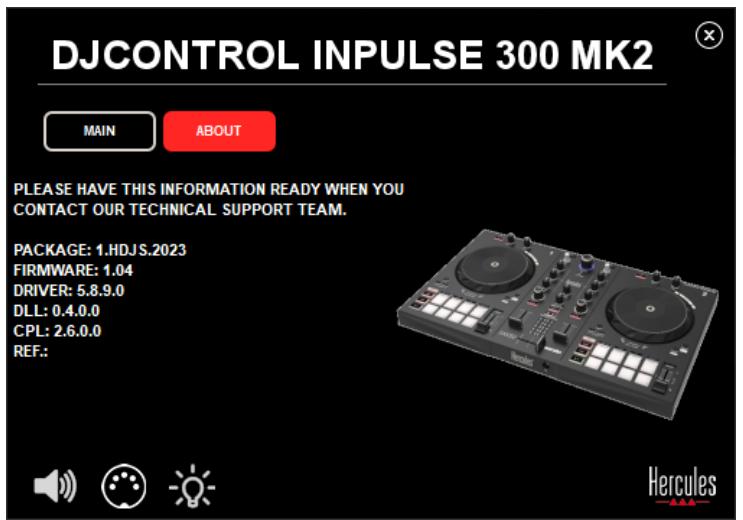
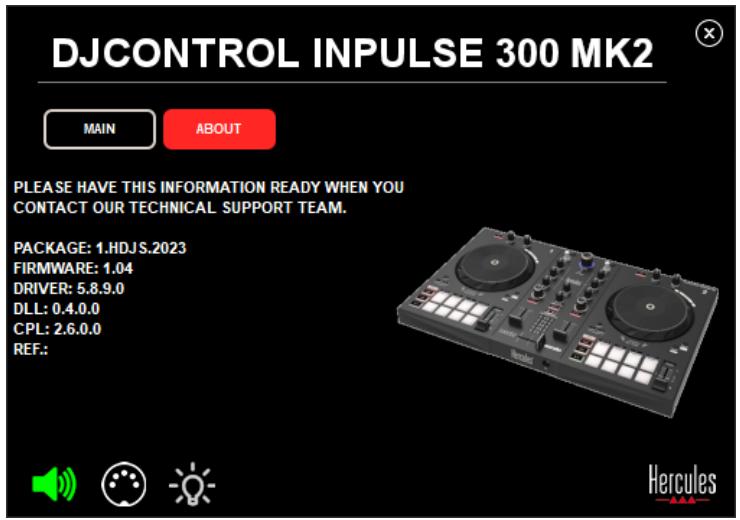
The drivers also let you test your DJControl Inpulse 300 MK2 and verify the firmware version in both Windows® and macOS®.
- Launch the DJUCED® software. A window appears, indicating that your product has been successfully detected and is ready to use.


When you run the software for the first time, DJUCED® guides you through connecting your headphones and active speakers (or lets you use the speakers built into your computer, if you don’t have external active speakers). Follow the on-screen information step by step before getting started.
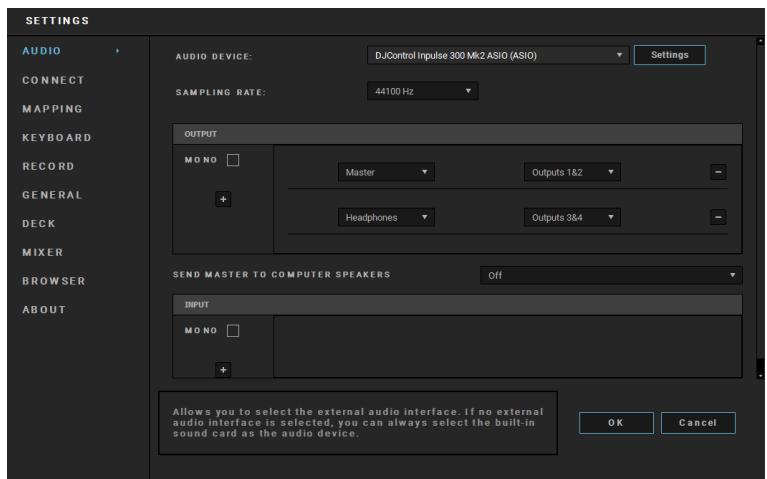
Audio settings :
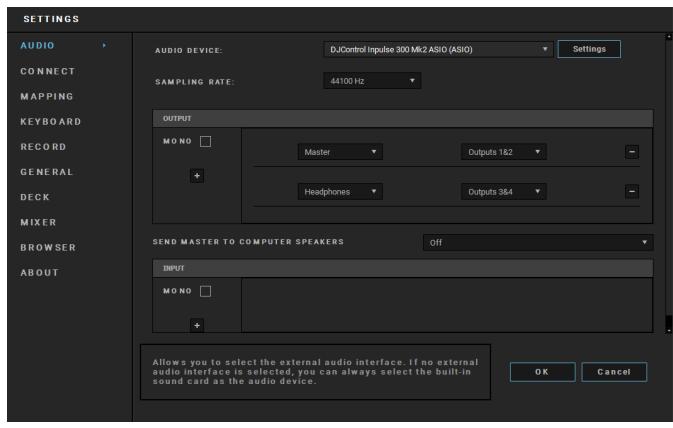
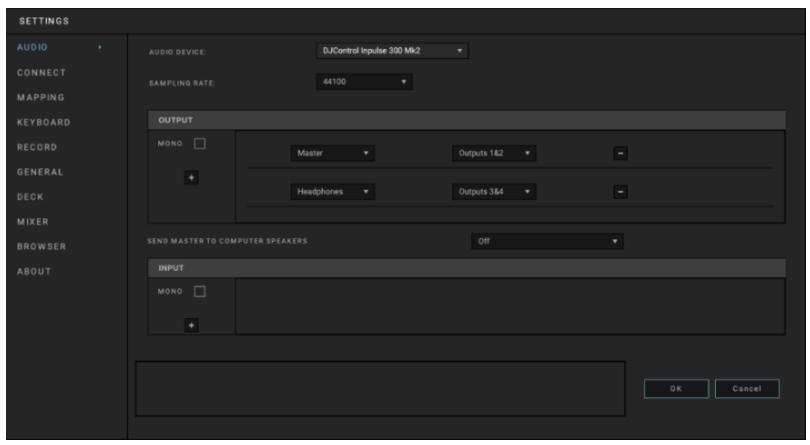
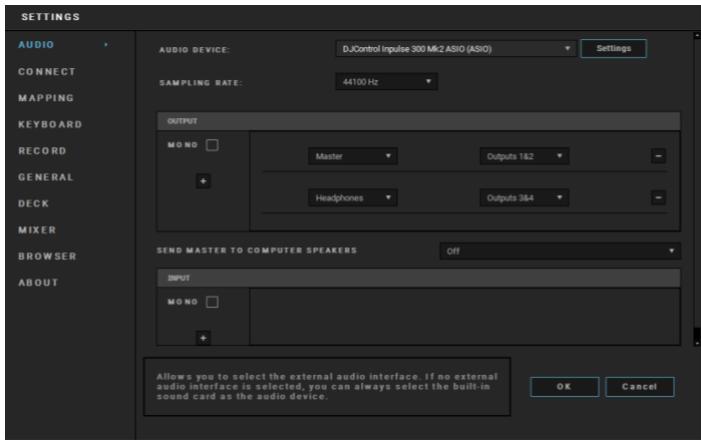
To modify the sound card settings, click the gear wheel icon in the upper right-hand part of the screen. The Settings menu is displayed.
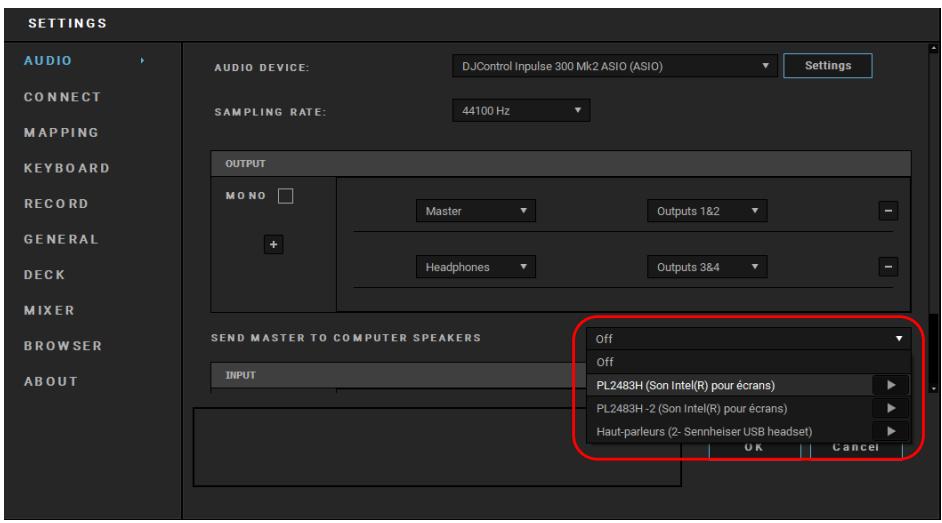
Select the Audio tab to choose the sound card, and assign the outputs for headphones and speakers.
The standard setup for Windows® is as follows:
- Audio device: DJControl Inpulse 300 MK2 ASIO (ASIO)
- Output:
○ Master: Outputs 1&2
○ Headphones: Outputs 3&4
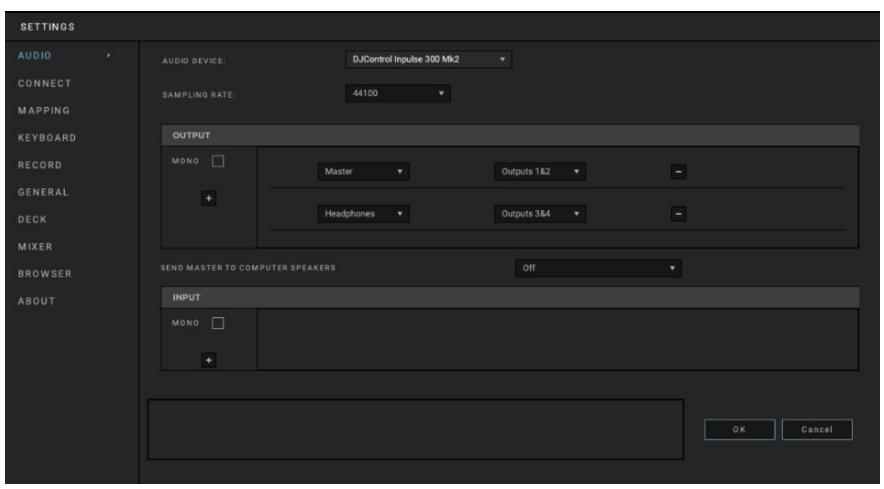
The standard setup for macOS® is as follows:
- Audio device: DJControl Inpulse 300 MK2
- Output:
○ Master: Outputs 1&2
○ Headphones: Outputs 3&4

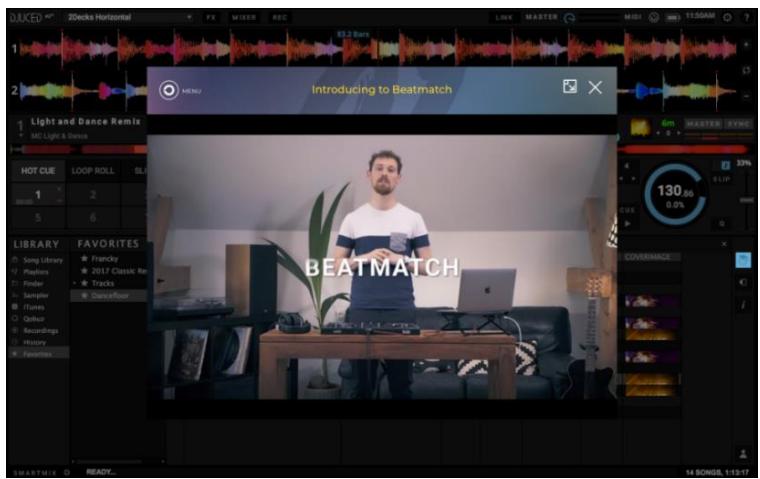
Follow the Hercules DJ Academy tutorials integrated into DJUCED®, which you can access by clicking the icon.
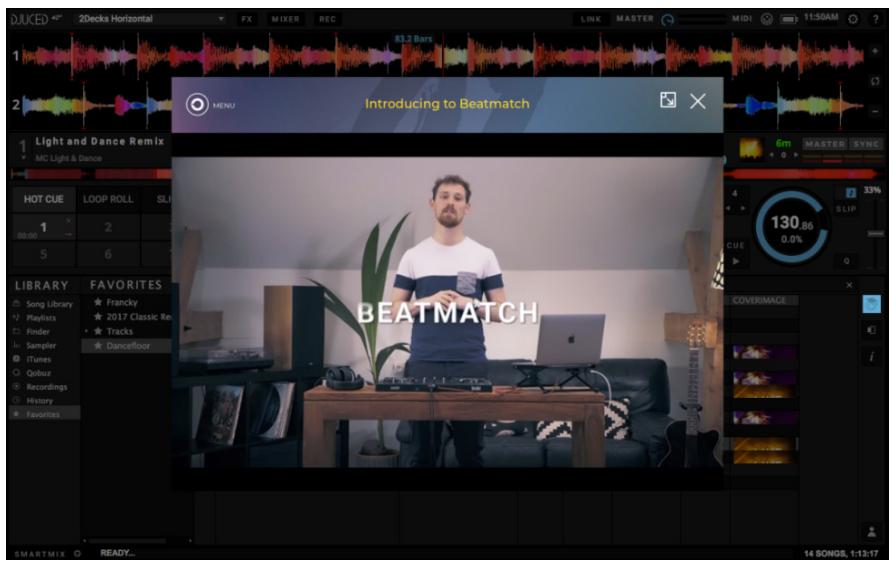
The tutorials are also available here, on the Hercules DJ YouTube channel.
Serato DJ Lite
- Please visit: https://serato.com/dj/lite/downloads (in English).
- Download and install Serato DJ Lite.
- Please visit:
https://support.hercules.com/product/djcontrolin pulse300mk2/ (in English).
- Download and install the driver pack for your computer's operating system.
macOS®: HDJCSeries Mac
Windows®: HDJCSeries PC
Windows® requires that you install the drivers in order to use DJControl Inpulse 300 MK2 in ASIO mode, which reduces the latency compared to WASAPI mode and is generally more stable.
The drivers also let you test your DJControl Inpulse 300 MK2 and verify the firmware version in both Windows® and macOS®.

Hercules DJControl Impulse 300 MK2 includes a license for Serato DJ Lite, not a license for Serato DJ Pro. If you install Serato DJ Pro instead of Serato DJ Lite, Serato DJ Pro will work with your DJControl Impulse 300 MK2 for the duration of a trial period. At the end of this trial period, if you want to continue using Serato DJ Pro, you must purchase a Serato DJ Pro license.
5. Livening up your mix
There are different ways to liven up your mix.
Modes and pads
The pads
In DJUCED®, pads 1 to 8 carry out the actions corresponding to the mode currently enabled.
In Serato DJ Lite, pads 1 to 4 carry out the actions corresponding to the mode currently enabled. Pads 5 to 8 carry out the following actions:
- Pad 5: Reverse (reverse playback)
- Pad 6: rewind
- Pad 7: fast forward
- Pad 8: Censor. This action lets you play the track in reverse while the pad is held down. Once the pad is released, playback resumes from the point where the track would be if it had kept playing normally. This can be used to mask explicit language in a song.
The modes enabled on the pads vary according to the software being used:
| Modes | DJUCED® | Serato DJ Lite | Serato DJ Pro** |
| 1 | Hot Cue | Hot Cue | Hot Cue |
| 2 | Loop | Auto Loop | Auto Loop |
| 3 | Slicer | Stems | Stems |
| 4 | Sampler | Sampler | Sampler |
| 5 | TonePlay | - | Pitch Play |
| 6 | FX | - | Loop Roll |
| 7 | Slicer Loop | - | Manual Loop |
| 8 | BeatJump | Scratch Banks | Scratch Banks |
**Serato DJ Pro license not included.
Hot Cue mode
A Hot Cue point is a marker (like a bookmark) that you can place in a track to easily locate this moment in the track again, and instantly return to it afterwards.
In DJUCED®, eight Hot Cue points can be set per track.
In Serato DJ Lite, four Hot Cue points can be set per track.
In Serato DJ Pro, eight Hot Cue points can be set per track.
- To access Hot Cue mode, press HOT CUE. The HOT CUE button's light stays lit up.
- To set a Hot Cue point, press a pad.
- To play the track from a Hot Cue point, press the corresponding pad.
- To remove a Hot Cue point, press SHIFT and the pad at the same time.
Loop mode
A loop is a part of the track that is played repeatedly.
- To access Loop mode, press LOOP. The LOOP button's light stays lit up.
In DJUCED®:
- To apply a loop, press and hold a pad.
- To disable a loop, release the corresponding pad.
In Serato DJ Lite:
- To apply a loop, press a pad.
- To disable a loop, press the corresponding pad.
Loop length:
| Deck 1 / Deck 2 | DJUCED® | Serato DJ Lite |
| Pad 1 | 1/16 of a beat | 1 beat |
| Pad 2 | 1⁄8 of a beat | 2 beats |
| Pad 3 | 1⁄4 of a beat | 4 beats |
| Pad 4 | 1⁄2 of a beat | 8 beats |
| Pad 5 | 1 beat | - |
| Pad 6 | 2 beats | - |
| Pad 7 | 4 beats | - |
| Pad 8 | 8 beats | - |

In DJUCED®, the deck playhead continues to advance in the background when you apply a loop. When you disable the loop, playback resumes from the point where the track would be if it had kept playing.
Slicer mode

Slicer mode is only available with DJUCED®.
In DJUCED®, Slicer mode lets you slice the active loop into eight sections. The loop moves throughout the track.
- To access Slicer mode, press SLICER. The SLICER button's light stays lit up.
- To play a section as a loop, press and hold a pad.
- To stop playing a section, release the corresponding pad.
Stems mode

Stems mode is only available with Serato DJ Lite.
In Serato DJ Lite, Stems mode lets you separate a track into four different parts (vocals and instruments), called "stems".
- To access Stems mode, press SLICER. The SLICER button's light stays lit up.
- Pads 1 to 4 are each associated with a stem. To stop playing a stem, press the corresponding pad. The pad's light turns off.
- To resume playing the stem, press the corresponding pad. The pad lights up.
Stems:
| Deck 1 / Deck 2 | Stem |
| Pad 1 | Vocals |
| Pad 2 | Melody |
| Pad 3 | Bass |
| Pad 4 | Drums |
Sampler mode
A sample is a short sound played over the track that is currently playing: it can be played either once or in repetition.
In DJUCED®, pads 1 to 8 let you play the eight samples found on the first two lines of the multilayer sampler.
To display the multilayer sampler, select 2Decks Horizontal + 2 Samplers in the drop-down menu in the upper left-hand part of the screen in DJUCED®.
In Serato DJ Lite, pads 1 to 4 let you play a sample.
To display the samples panel, click in Serato DJ Lite.
- To access Sampler mode, press SAMPLER. The SAMPLER button's light stays lit up.
- To play a sample, press a pad.
- To stop playing a sample, press SHIFT and the corresponding pad at the same time.
Mode 5

Serato DJ Lite does not feature mode 5 (TonePlay).
Serato DJ Pro, in conjunction with the Pitch 'n Time plugin, offers a Pitch Play mode which works using the same principle as TonePlay mode.
In DJUCED®, mode 5 corresponds to TonePlay mode. This mode lets you replay a Hot Cue point in different tones.
- Enable Hot Cue mode, then select a Hot Cue point.
- To access mode 5, press SHIFT and HOT CUE at the same time. The HOT CUE button flashes.
- To modify the tone of a Hot Cue point, press one of pads 2 to 8.
- To return to the original tone, press pad 1.
Modifying the tone:
| Deck 1 / Deck 2 | Tone |
| Pad 1 | Original tone |
| Pad 2 | + 1 |
| Pad 3 | + 2 |
| Pad 4 | + 3 |
| Pad 5 | - 1 |
| Pad 6 | - 2 |
| Pad 7 | - 3 |
| Pad 8 | - 4 |

Serato DJ Lite does not feature mode 6.
In DJUCED®, mode 6 offers an additional mode for controlling the effects rack.
An effect is sometimes a filter or a combination of filters applied to a track to modify its sound (echo, reverb...).
- To access mode 6, press SHIFT and LOOP at the same time. The LOOP button flashes.
- To carry out an action, press a pad.
Possible actions:
| Deck 1 / Deck 2 | Effects |
| Pad 1 | Effect 1 of the rack |
| Pad 2 | Effect 2 of the rack |
| Pad 3 | Effect 3 of the rack |
| Pad 4 | Displays/ hides the effects rack |
| Pad 5 | Changes effect 1 in the rack |
| Pad 6 | Changes effect 2 in the rack |
| Pad 7 | Changes effect 3 in the rack |
| Pad 8 | - |
Mode 7

Serato DJ Lite does not feature mode 7.
In DJUCED®, mode 7 corresponds to Slicer Loop mode. This mode lets you slice the active loop into eight sections. Contrary to Slicer mode, the active loop remains looping in this mode.
- To access mode 7, press SHIFT and SLICER at the same time. The SLICER button flashes.
- To play a section as a loop, press and hold a pad.
- To stop playing a section, release the corresponding pad.

In DJUCED®, mode 8 corresponds to BeatJump mode. In Serato DJ Lite and Serato DJ Pro, mode 8 corresponds to Scratch Banks mode.
In DJUCED®, mode 8 corresponds to BeatJump mode. This mode lets you make a precise jump in the track.
- To access mode 8 (BeatJump), press SHIFT and SAMPLER at the same time. The SAMPLER button flashes.
- To make a jump, press a pad.
Length of the jump:
| Deck 1 / Deck 2 | Jump |
| Pad 1 | Go back 1 beat |
| Pad 2 | Go forward 1 beat |
| Pad 3 | Go back 2 beats |
| Pad 4 | Go forward 2 beats |
| Pad 5 | Go back 4 beats |
| Pad 6 | Go forward 4 beats |
| Pad 7 | Go back 8 beats |
| Pad 8 | Go forward 8 beats |
In Serato DJ Lite and Serato DJ Pro, mode 8 corresponds to Scratch Banks mode. This mode lets you instantly load a scratch sample onto the deck to scratch on the jog wheel in place of the track that's currently playing, and then quickly return to the track that's currently playing.
To display the scratch samples panel, click in Serato DJ Lite.
- To access mode 8 (Scratch Banks), press SHIFT and SAMPLER at the same time. The SAMPLER button flashes.
- To play a scratch sample, press a pad.
- To stop playing a scratch sample and return to the track that had been playing previously, press SHIFT and the corresponding pad at the same time.
Samples:
| Deck 1 / Deck 2 | Sample |
| Pad 1 | Ahh! |
| Pad 2 | Hey You! |
| Pad 3 | Oww! |
| Pad 4 | Yeah! |
Scratching
Scratching consists of producing a sound effect from a track, by turning the jog wheel.
- To enable the scratch function, press SHIFT and SLIP at the same time.
In order to ensure that the scratch function (Vinyl mode) is enabled, press SHIFT. The SLIP button is lit up.
- Place your index finger on top of the jog wheel and make small, quick movements to the right and to the left.
You can repeat this scratch multiple times to create a rhythm.
Filters
Adjustment of the track's filter lets you attenuate certain frequencies.
- Attenuate the high frequencies (known as a low-pass filter or high-cut filter): turn the filter knob (FILTER) to the left.
- Attenuate the low frequencies (known as a high-pass filter or low-cut filter): turn the filter knob (FILTER) to the right.
6. Multichannel sound card
The product includes a built-in multichannel sound card, allowing you to play your mix on speakers for the audience (Master output for speakers) and monitor the next track that you're preparing on your headphones (headphones output).
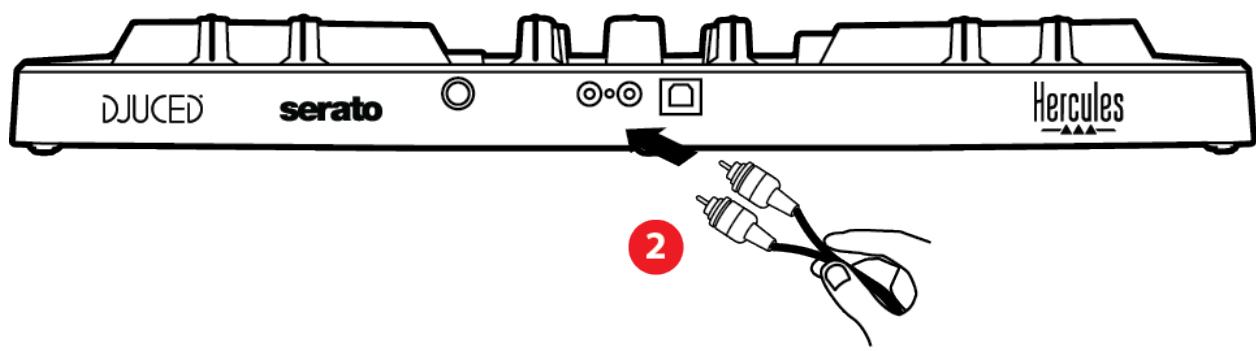
Master output for speakers (output 1-2)
Your active speakers should be connected to the Master output for speakers located at the back of your product.
Headphones output (output 3-4)
Your headphones should be connected to the headphones output located at the front of your product.
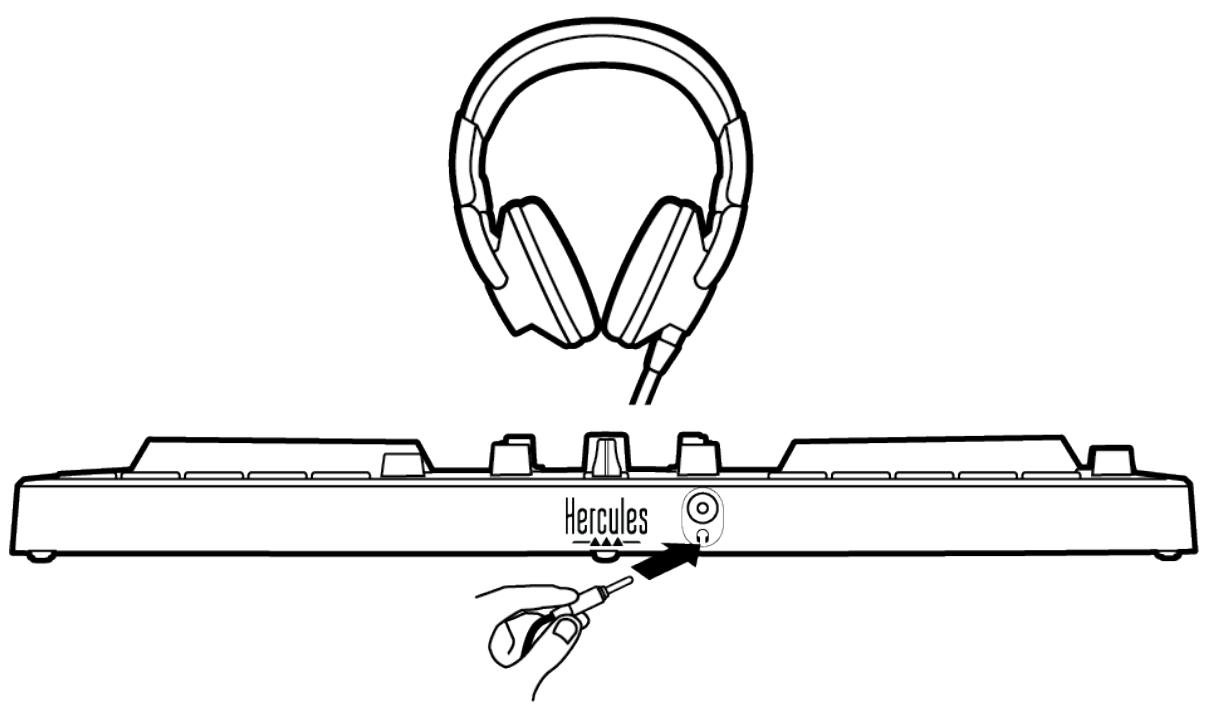
By default, each time your product is connected, the headphones output is assigned to output 3-4 so that it can work with all DJing software available on the market — including DJUCED® and Serato DJ Lite, in particular.
However, if you wish to use your product's headphones output to listen to music on your computer using iTunes, for example, you must route output 1-2 to the headphones output. To do this, press the MASTER button.
7. Compatibility
USB Audio / USB MIDI
This product is Plug & Play and can work without drivers on any PC or Mac, as it complies with the USB Audio and USB MIDI standards.
ASIO and Windows® control panel
To use the DJControl Inpulse 300 MK2 controller with Serato DJ Lite, you must install the ASIO drivers. The ASIO drivers are available here:
https://support.HERCULES.com//product/djcontrolinputse300mk2/.
If you are using DJUCED®, you can also download the ASIO drivers in order to take advantage of lower latency on your PC.
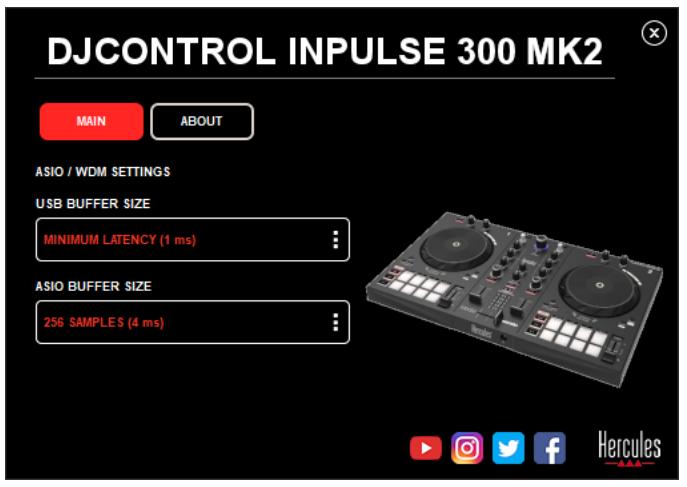
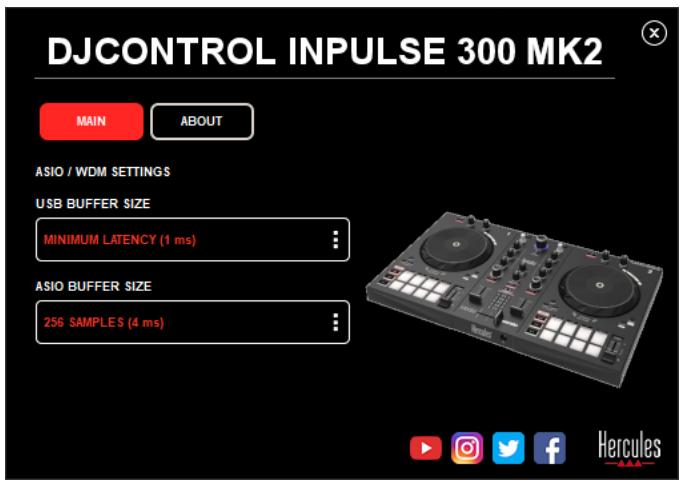
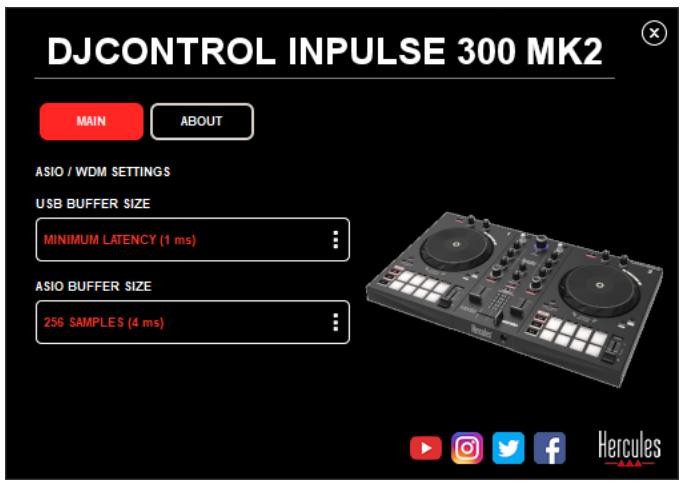
The ASIO drivers come with a control panel accessible in the taskbar on PC, or in the C:\Program Files\DJHERCULESMIX\Audio\DJ Console Series\ directory. This panel lets you adjust the different ASIO settings including the buffer sizes and the latency.
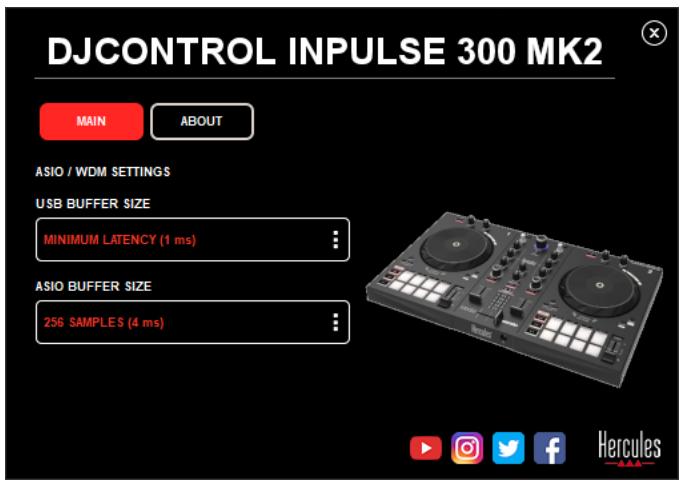
To adjust the ASIO settings:
- Set the USB buffer size to 1 ms.
- Set the ASIO buffer size to 4 or 8 ms.
- Start up your software (e.g.: DJUCED®) and select the DJControl Inpulse 300 Mk2 ASIO driver:
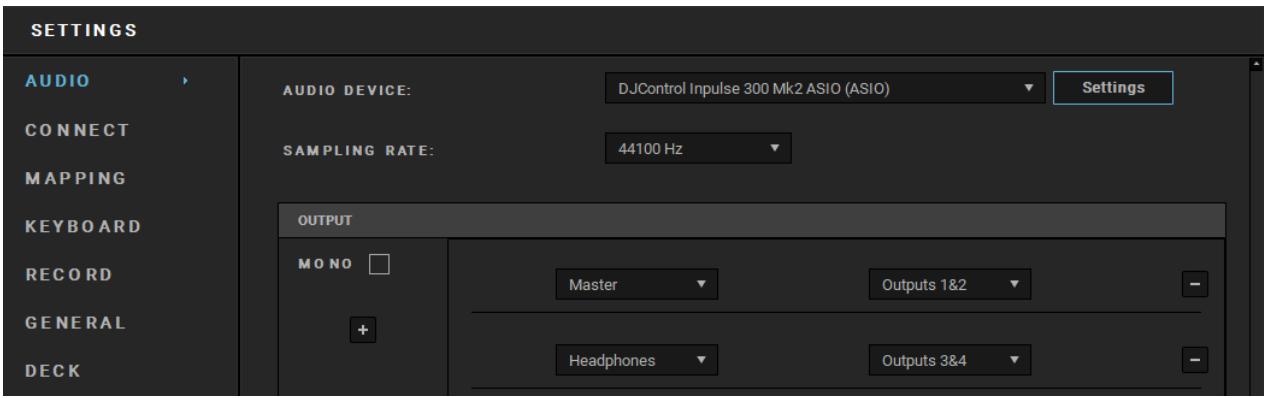
Once the software begins using the ASIO driver, the ASIO settings can no longer be modified in the control panel. This is perfectly normal, and indicates that the ASIO driver is in use.
Use your software and listen for any artifacts, audio glitches (clicks, pops) and latency problems: should any of these issues arise, you will need to adjust the buffer sizes accordingly.
Close your software and adjust your ASIO buffer by one value at a time:
- Reduce the buffer size to reduce latency.
- Increase the buffer size if you notice glitches or artifacts in the audio.
You will need to repeat this procedure until you find the optimal buffer size for your system.
The drivers are available here:
https://support.HERCULES.com//product/djcontrolinputse300mk2/.
Firmware update
Your product features an automatic firmware update mode. This requires installing the Hercules drivers and following the on-screen instructions. The firmware update will occur automatically.
The drivers are available here:
https://support.HERCULES.com//product/djcontrolinputse300mk2/.
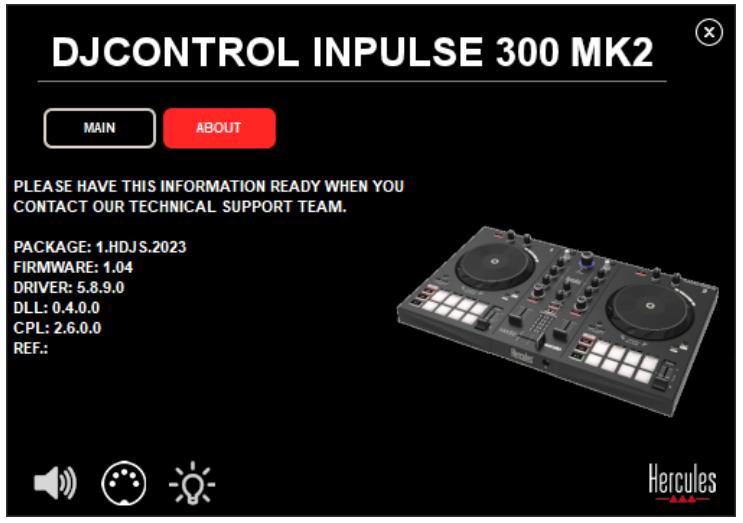
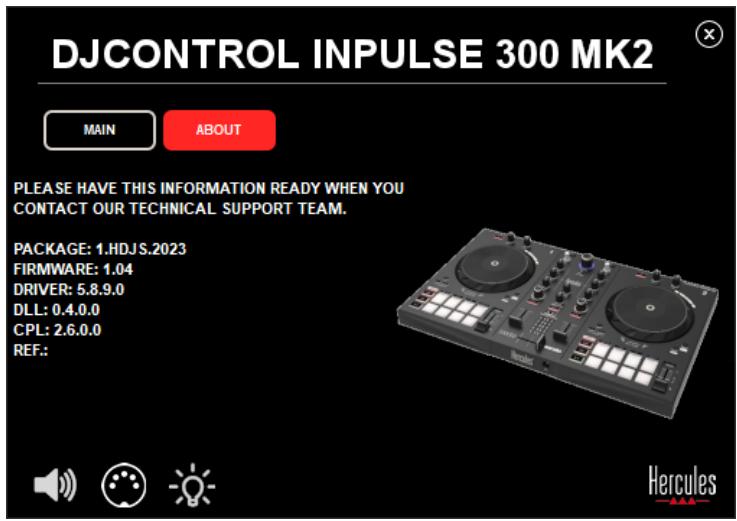
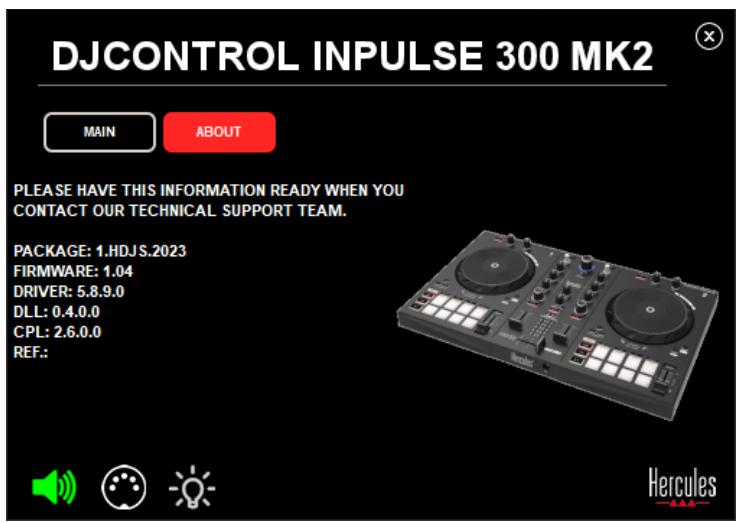
The control panel also allows you to access this information and display the driver versions installed on your computer in the ABOUT tab. Have this information ready if you need to contact Hercules' technical support.
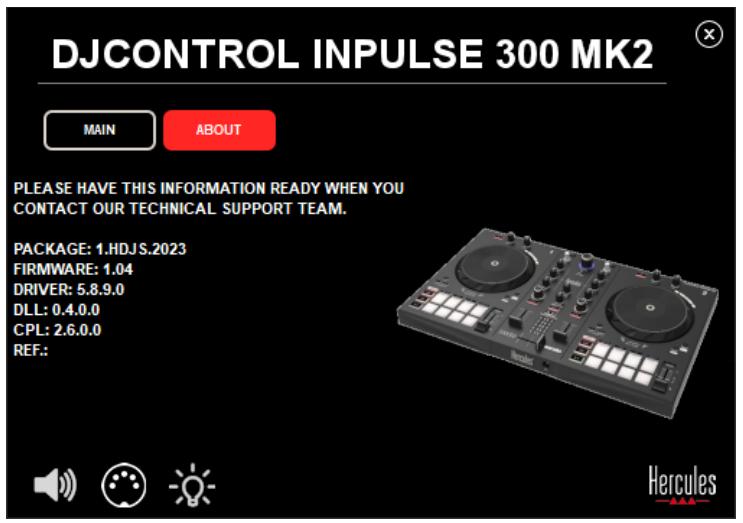
8. Demo mode
This mode is available when you connect your product to a USB power supply, and is used in-store, in particular. In this case, the product is not operational but is in demo mode: a demo sequence lighting up the controller's different lights keeps repeating itself.
9. FAQs
1. No sound is coming out of my headphones.
Make sure that you have connected your headphones at the front of the product, as your product is equipped with a multichannel sound card preconfigured to work with DJUCED® and Serato DJ Lite.
By default, the two monitoring buttons are enabled when the software is first launched. You can then select either deck that you want to listen to on your headphones, or use the MASTER button to listen to the results of your mix.
2. The sound on my headphones is distorted.
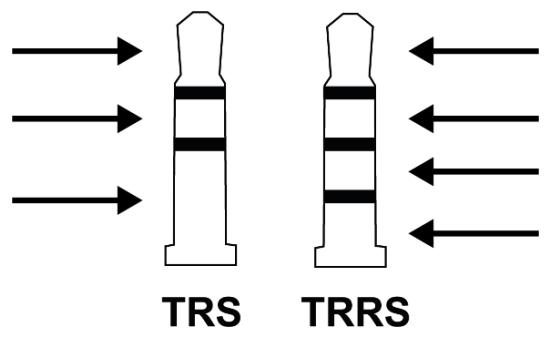
Make sure that your headphones feature a TRS connector (standard headphones) and not a TRRS connector (headphones + microphone).
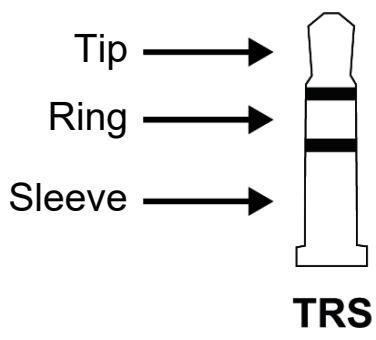
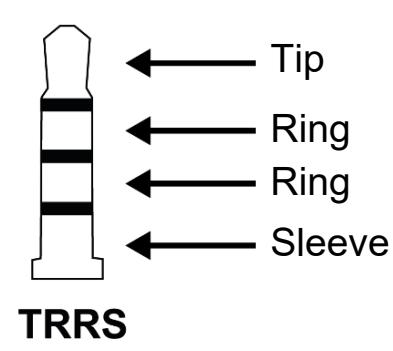
TRRS connectors are not compatible with the DJControl Impulse 300 MK2 controller.
3. No sound is coming out of my speakers.
Make sure that you have connected your speakers to the RCA connectors at the back of the product, as your product is equipped with a multichannel sound card preconfigured to work with DJUCED® and Serato DJ Lite.
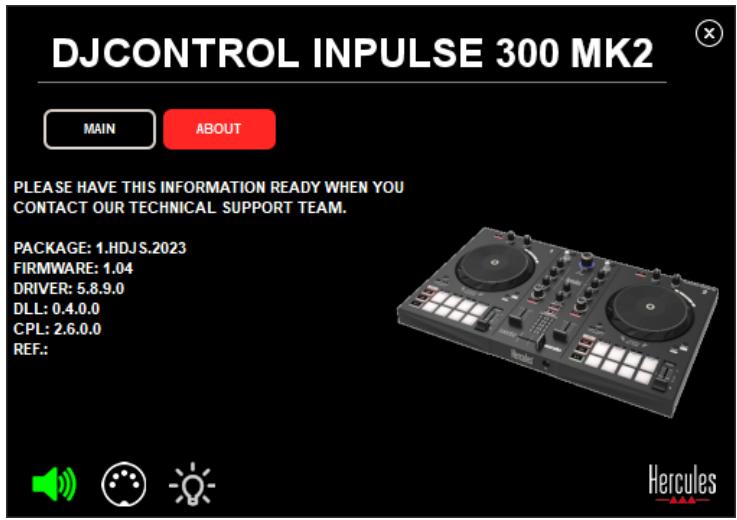
In order to test (without using DJ software) whether the audio interface of the DJControl Inpulse 300 MK2 controller is producing sound, you can display the DJ controller's control panel. Click the ABOUT tab, and then click the speaker icon. The icon turns green when sound is being played.
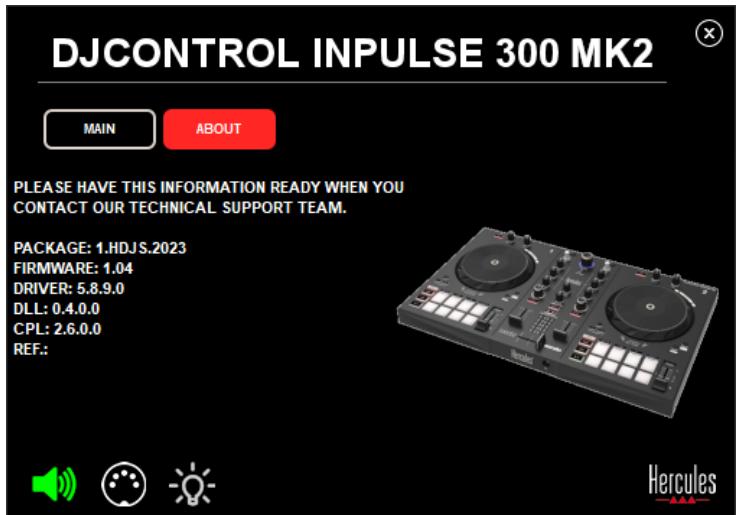
4. No sound is coming out of my laptop computer speakers.
Your product is equipped with a preconfigured multichannel sound card. If you want to use the speakers built into your laptop computer:
- In DJUCED®, access the settings and tick the SEND MASTER TO COMPUTER SPEAKERS option.
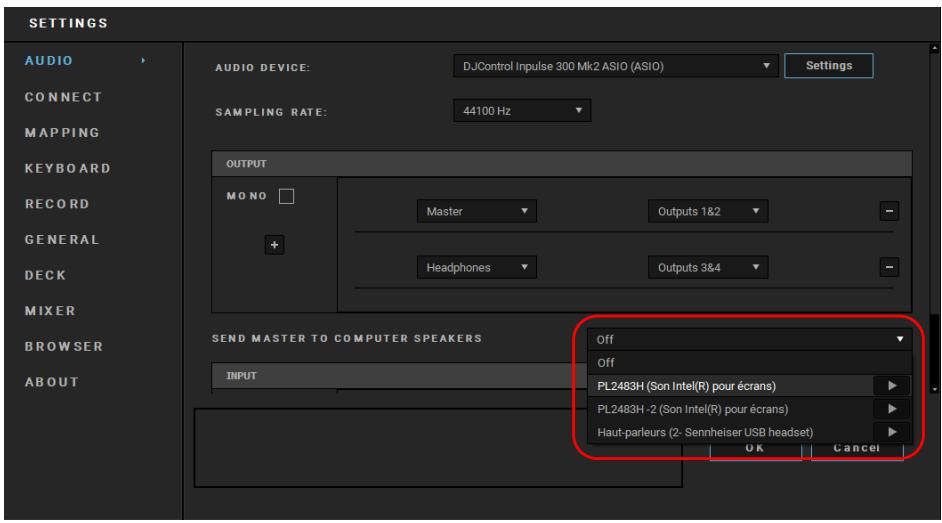
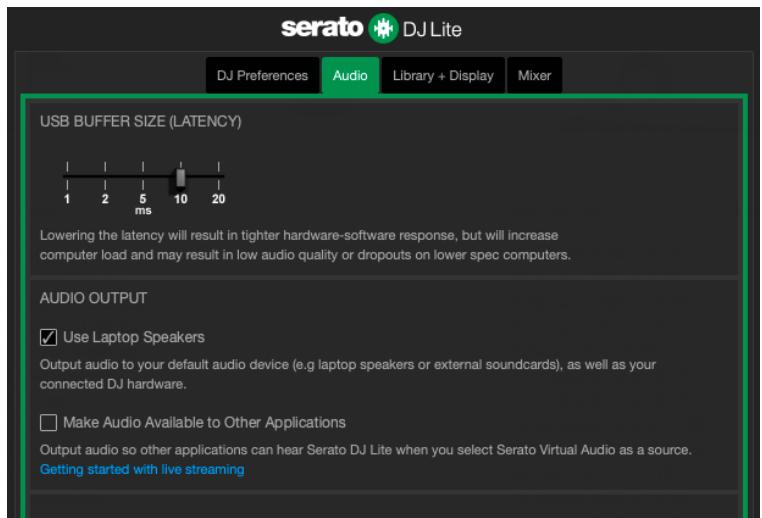
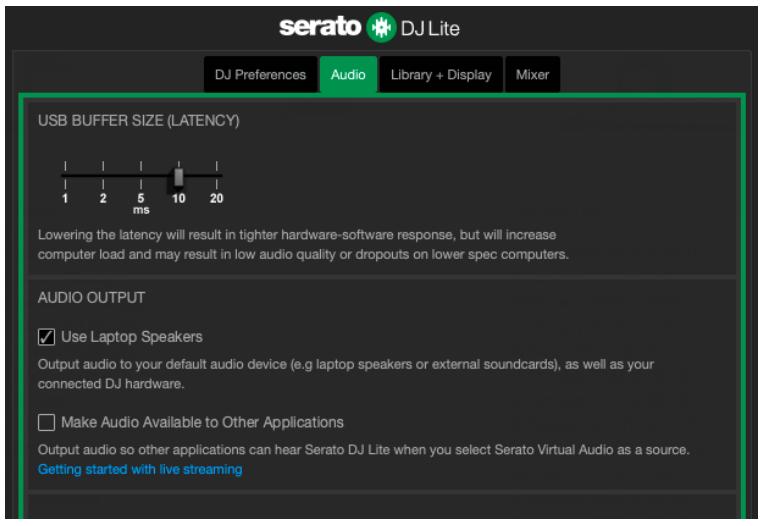
- In Serato DJ Lite, access the settings, open the Audio tab and tick the Use Laptop Speakers option.
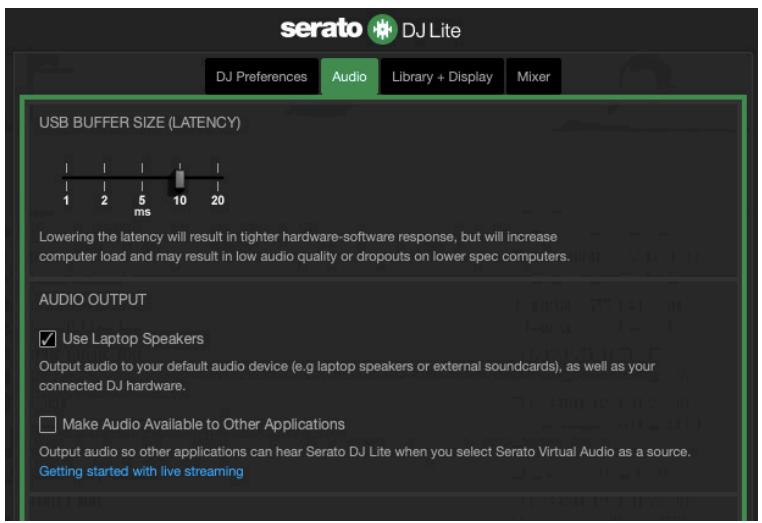
5. No sound is coming out of my headphones, or my laptop computer speakers.
By default, the sound comes from the Master output for speakers, and the headphones output. It is therefore normal that no sound is coming out of your laptop computer.
If you want to use the speakers built into your laptop computer:
- In DJUCED®, access the settings and tick the SEND MASTER TO COMPUTER SPEAKERS option. You must connect your headphones to the DJControl Inpulse 300 MK2 controller.
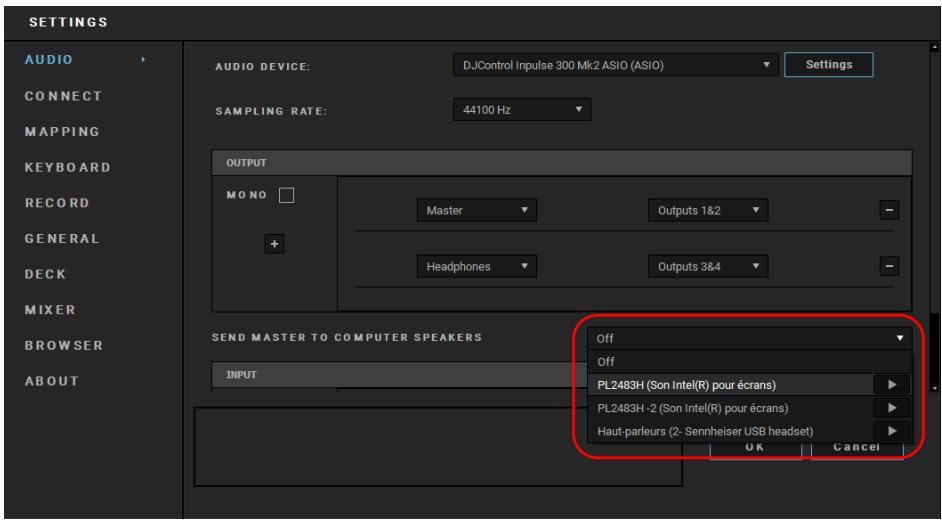
- In Serato DJ Lite, access the settings, open the Audio tab and tick the Use Laptop Speakers option. You must connect your headphones to the DJControl Inpulse 300 MK2 controller.
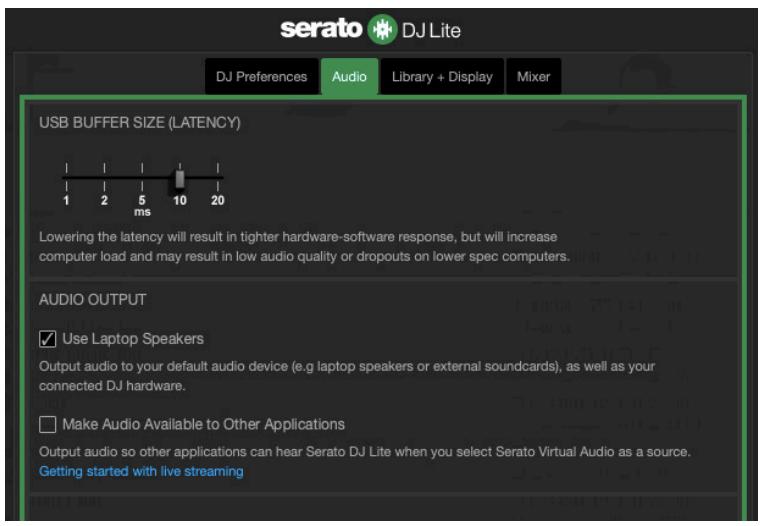
In order to test (without using DJ software) whether the audio interface of the DJControl Inpulse 300 MK2 controller is producing sound, you can display the DJ controller's control panel. Click the ABOUT tab, and then click the speaker icon. The icon turns green when sound is being played.
6. I can't connect my multimedia speakers to my DJControl Inpulse 300 MK2.
If your speakers’ connectors differ from the connector on the DJControl Inpulse 300 MK2, you can use a dual RCA to 1 / 8” / 3.5 mm mini- jack adapter (not included) or any other adapter format corresponding to your speakers.
You can also connect your speakers to the headphones output and route output 1-2 to output 3-4 by pressing the MASTER button.
7. Is the DJControl Impulse 300 MK2 controller compatible with an iPad or iPhone?
No, the DJControl Inpulse 300 MK2 controller is not compatible with an iPad or iPhone. It only works with a PC or Mac.
Hercules
TECHNICAL SUPPORT
https://support.hercules.com



Trademarks
Intel® and Intel Core™ are trademarks or registered trademarks of Intel Corporation.
Microsoft® Windows® 10/11 is a registered trademark or trademark of Microsoft Corporation in the U.S. and/or in other countries.
Mac® and macOS® are trademarks of Apple Inc., registered in the U.S. and other countries.
Serato, Serato DJ Lite and Serato DJ Pro are registered trademarks of Serato Audio Research Limited.
The DJUCED® brand and DJUCED®'s graphic elements are the property of Guillemot Corporation.
ASIO is a trademark of Steinberg Media Technologies GmbH.
All other trademarks and trade names are hereby acknowledged in this document and are the property of their respective owners. Illustrations not binding. Contents, designs and specifications in this document are subject to change without notice and may vary from one country to another.
Copyright
No part of this manual may be reproduced, summarized, transmitted, transcribed, stored in a retrieval system, or translated into any language or computer language, in any form or by any means, electronic, mechanical, magnetic, manual, via photocopying, recording, or other, without the express written consent of Guillemot Corporation S.A.
DJUCED® and Serato DJ Lite End
User License Agreement
Please read the License Agreement displayed during installation of DJUCED® and Serato DJ Lite carefully.
DJCONTROL INPUT 300 MK2
Dans DJUCED®: ± 6%, ± 8%, ± 10%, ± 12%, ± 16%, ± 20%, ± 25%, ± 33%, ± 50%, ± 100%.
Dans Serato DJ Lite : ± 8 %, ± 16 %, ± 50 %.

https://support.HERCULES.com//product/djcontrolinputse300mk2/.
https://www.djuced.com/downloaddjuced/ (in Englisch)
- Serato DJ Lite:
https://serato.com/dj/lite/downloads?systemrequirements#system-requirements (in Englisch)
https://support.HERCULES.com/product/djcontrolinputse300mk2/.
https://support.HERCULES.com/product/djcontrolinputse300mk2/.
https://www.djuced.com/downloaddjuced/
(in het Engels)
- Serato DJ Lite:
https://serato.com/dj/lite/downloads?systemrequirements#system-requirements (in het Engels)
De software downloaden
DJUCED®
| Deck 1 / deck 2 | Stem |
| Pad 1 | Zang |
| Pad 2 | Melodie |
| Pad 3 | Bas |
| Pad 4 | Drums |
Sampler-modus
| Deck 1 / deck 2 | Sample |
| Pad 1 | Ahh! |
| Pad 2 | Hey You! |
| Pad 3 | Oww! |
| Pad 4 | Yeah! |
Scratchen
https://support.HERCULES.com/product/djcontrolinputse300mk2/.
https://support.HERCULES.com/product/djcontrolinputse300mk2/.
Firmware-update
https://support.HERCULES.com/product/djcontrolinputse300mk2/.
https://www.djuced.com/downloaddjuced/ (in inglese)
- Serato DJ Lite:
https://serato.com/dj/lite/downloads?systemrequirements#system-requirements (in inglese)
https://support.hercules.com/product/djcontrolin pulse300mk2/ (in inglese).
https://support.hercules.com/product/djcontrolin pulse300mk2/ (in inglese).
https://support.HERCULES.com/product/djcontrolinputse300mk2/.
https://support.HERCULES.com/product/djcontrolinputse300mk2/.
https://support.HERCULES.com/product/djcontrolinputse300mk2/.
https://support.HERCULES.com/product/djcontrolinputse300mk2/.
https://support.HERCULES.com/product/djcontrolinputse300mk2/.
• No DJUCED®: ±6%, ±8%, ±10%, ±12%, ±16%, ±20%, ±25%, ±33%, ±50%, ±100%.
No Serato DJ Lite: ± 8% , ± 16% , ± 50% .

| Deck 1 / Deck 2 | Ammo |
| Pad 1 | Ahh! |
| Pad 2 | Hey You! |
| Pad 3 | Oww! |
| Pad 4 | Yeah! |
Fazer scratch
https://support.HERCULES.com/product/djcontrolinputse300mk2/.
https://support.HERCULES.com/product/djcontrolinputse300mk2/.
https://support.HERCULES.com/product/djcontrolinputse300mk2/.
O poinel de controlo también lhe permite aceder a esta informacao e visualizar as versoes dos controladores instalados no seu computador no separator ABOUT (ACERCA DE). Tenha esta informacao consigo caso necessite de contactar o suporte técnico da Hercules.
8. Modo Demo
PykoBoDCTBO NOIb3OBaTeJa
Оглавлиейне
- COIDEPJKIMOE KOPOBKN 5
- TEXHnueCKne XAPAKTEPNUCTnKNI.....6
3.Функци.. 7
Ouua uHopmaue. 7
Ieku 8
CbeedeHue mpeko8 21
Pa3beMbI 29
4. YCTAHOBKA. 30
IodKJIouyeHue 30
Сkaуванue пpo2paMMH020
obecneueHua 32
DJUCED 32
Serato DJ Lite 36
5. TBOPUECKA PABOTA C MUKCAMN.....38
Pexkmbi u nədbi. 38
πəθbl 38
Pexum Hot Cue 40
Pexum Loop 41
Pexum Slicer. 43
PexumStems 44
Pexum Sampler 45
Pexum 5. 46
Pexum 6. 48
Pexum 7. 49
Pexum 8. 50
CkpemuHa 52
ΦuIbmpbl 53
- MHOΓOKAHJIbHЯ 3BYKOBa KAPTA.54
https://www.djuced.com/downloaddjuced/
(Ha aHrIiNCKOM y3bIKe)
- Serato DJ Lite:
https://serato.com/dj/lite/downloads?systemreq
uirements#system-requirements (Ha aHrJIiCKOM y3bIKe)
EcnTouka Cue eue He co3daHa, To KhoNka CUE octaHbIbAeT BOCpOu3BedeHne
yctaHaBnBaet toky Cue B MeCTe paCNoJoxeHnKycpcopa BocnpOn3VeJeHn.
- CUE + PLAY — BПриложени DJUCED®
Bocnpo3BeJeHne nIe CTaBNT TpeK Ha pay3y.
2. Φeύθερ memna
Фeйдер Temma yctaHaBnBaet CKOpocTb BOCpOIN3VeIeHnA TpeKa, perguInpya YncNo BPM.
- Escln PoiBnHyTb peRyIaTOp BBepx, Temn 3amEJIaETcra.
- Ecnn IOdBnHyTb Bn3, Temn yckopraetcra.
- EcIи ФeIdep cTOnT nOcepeDInHe, To TpeK BOCIpON3BOIDITcC nCXoDHOCKOpocTbIO. Pprn 3TOM CBETITc8eJIeHbI CBeToDIOd.
KoГdaФункцЯ Beatmatch Guide BKNIOUyeHa, Bn3yaJIbHbIe noDcKa3Kn TEMPO noka3bIBaIoT, HuxHo JIn CMeCTnTb peRyJrAToP TeMna BBePx IIN BHN3, YTO6bl 3aMeIITb IIN yCKOpHTb TpeK. EcIn KpaChbIe INdIKaTOPbI BΦOpMe cTpeJOK He CBETaTcY, 3TO O3NaUaEt, YTO Ha oBeIx DeKax TpeKn BOCpOu3BOJaTcY C OdINHaKOBbIM TEMNOM.
• B DJUCED®: ±6%, ±8%, ±10%, ±12%, ±16%, ±20%, ±25%, ±33%, ±50%, ±100%.
B Serato DJ Lite: ± 8% , ± 16% , ± 50% .

B Serato DJ Lite HeT yHKcIN dNcKpeTn3aCIN.
KhoIKN peXIMOB I03BOJRAH T NcIOJIb3OBAtB (BkJIIOUaTb IN BbIKJIIOUaTb) Do BOcBMn peXIMOB.
LOAD* 3a rgykaet BbI6paHhbI TpeK Ha
COOTBETCTByIOUyIO DeKy.
B DJUCED® — CBopaunBaet n pa3BopaunBaet NaPkN.
3нкodep BROWSER 03BOJЯET npocMaTpNBaTb
MeiNaTeKy, IOBOPaUINBaI pyuKy BJIeBO (Bbl
BEATMATCH GUIDE BKJIIOUaET IJI IN BbIKJIIOUaET
CBETOBbIe NOdCKa3KN, NOMOraUoIne HacTpaINBaTb Temn cHxPOHn3InPoBAtB CeTKn pNTMOB dByx TpeKOB. Ha KaJdoi DeKe eCTb YeTbIpe KpacHbIe CTrpeJIKN.

DJUCED® onpeidelaet odHy n3 DeK kaK BeDyUO DeKy cInxpoHn3aUu (Master Sync), a npuyu — KaK BeDomyo DeKy. KpacHbIe cTpeIKN 3aRopaIoTcra ToIbKO Ha BeDOMoN DeKe, TaK KaK 3Ta DeKa cIeDyET TemPy BeDyUeJ DeKn cINxpoHn3aUu.
Serato DJ Lite He onpeidelaet Beyuoyu Keky cnHxpoHn3aun. KpaChbIe cTpeIKN 3aRopaOTcra Ha oBeux deKax.
-Визуалыные подама зкг TemPO: ecn Ondha n3 DBvX KpaChbIX cTpeJOK, paCNoJoxeHHbIX cnpaBa OT peRyJIaTOPa TemNa, CBETITcY, 3TO O3Haayet, YTO TemN (T.e. KOJIInueCTBO yIapOB B MInHyTu) TpeKa, BOCpON3BODIMOrO Ha dAnHOn DeKe, OTJIInuAeTcY OT TemPa dpyroJ DeKn.
BbIXoJdJIa HayshnKOB (BbIXoJ 3-4) n03BOJЯeT
ПОДКЛЮЧИТьHayшнки Ддя MOHITOPИНга TpeKOB.
ΦopMaT: cTepeopa3bEm MmHn-Джек 3,5 MM
4. yctahobka
Подключehue
1.ПодклочиTe KOnтpoлпeР DJControl Inpulse 300 MK2ΚΚOMьЮТерус помоцью USB-кавеля.
2. Повлочи Te aKTHBьe KOLOHК K BbIXOДaM KoIohok Ha DJControl Inpulse 300 MK2 (2 RCA).
3. Повлочины hayшнки Кстео-разьему Мнджек (3,5 MM) на переден стороноюконтроллера DJControl Inpulse 300 MK2.

При Кождом подключени устpoиства К komпьтepy 3ауньается CBETODиODная посВETka B peжиме Vegas Mode, кOTOPЯ пOKa3ыВаeТ распОJOжЕни CBETODиODOB. Ржим Vegas Mode npoxoДNTВЧтбipe Фa3bl: Ha ySTpoINCTBe BKЛЮЧА�ТСЯ BCE CBETODиODbl I BCE BO3MOЖнBLE ζВETA KOЛьца, ПOKa3bIBAUOSeRo зHeprnIO Tpeka.
CkayuBaHue
npo2paMMHO2O
ObeecpeHua
DJUCED®
- Řtrkpoǐte
CTpaHnUy
https://www.djuced.com/hercules
(Ha
aHrJIiNCKOMra3bIKe).
https://serato.com/dj/lite/downloads
(Ha
aHrJIiNCKOMra3bIKe).
2.Сkaчайтустановпу serato DJ Lite.
3. ПосмOTРе мATEрпьlaHa саTe
https://support.hercules.com/product/djcontrolin pulse300mk2/ (на заIGNИСКOMяз Ike).
4.СkaаиTe n yctaHOBInTe PaKeT dpaIbepOB ДлЯ onepaцnoHNo CnCTeMbI BaUeRo KOMNbIOTepa.
macOS®: HDJCSeries Mac
Windows®: HDJCSeries PC
Ha komlbotep c OC Windows® Heo6xodmo yctaHOBTb dpaBepbl, YTO6bl NcNoIb3OBaTb KOHTpOJIpe DJControl Inpulse 300 MK2 B peJMe ASIO, KOTOpBI CNIXaET 3aIepjKy (B cpaBHeHnC peJIMOM WASAPI) n B ZeIOM OTIIuHaETc8 6OJIeBbICOKOCTaBbHOCTbIO.
B Serato DJ Lite He npeducmoTpeH peKIM 5 (TonePlay).
Serato DJ Pro B coyeTaHn c pIaIInHom Pitch'n Time n03B0JЯeT noIb3OBAtbcya peXIMOM Pitch Play, KOTOpbI pa6oTaE T NO TOMy Je npINcIpy, yTo n peXIM TonePlay.
BbIMOxTeIOBTOPTbTakOcKpeTuHeCKoJIbKO pa3,HTo6blC03daTbPNTM.
ΦuNbmpbI
https://support.HERCULES.com/product/djcontrolinputse300mk2/.
Ecni Bbl nCnoIb3yeTe DJUCED®, Bbl TAKKe MoKTe 3aRpy3nTb dpaBvepbl ASIO — 3TO NOMOKeT CHN3nTb 3aDerePxxkU.
BmecTe c dpaBepamn ASIO yCTaHaBJIbAeTcra NaHeIb ynpaBJIeHnra — ee MoJHo HaITn B paHeIi 3aJa Ha PC nIi B panKe C:\Program Files\DJHERCULESMIX\ Audio\DJ Console Series\. C nomOuTo 3Toi PaHeIi MOxHO HacTpaINBaTb pa3JIuHbIe npaMeTpbl ASIO, BKJIouy a3Mep 6yΦepa n 3aJeRkky.
https://support.HERCULES.com/product/djcontrolinputse300mk2/.
OboBJIeHue npoWuEku
ПюшИВka KOHTPOrJIpepa OБнOBЛЯETcЯ aBTOMaTNUeCKN.ДЯэТOrO Heo6xODIMO yCTaHOBITb ДраиВеры HerculesI BbIPOJHITb INHcTpPyKcIN Ha 3KpaHe. OБнOBЛeHneПюшИВКИ ПюИЗОДeТ aBTOMaTNUeCKN.
https://support.HERCULES.com/product/djcontrolinputse300mk2/.
Ha nanei ynpaBJeHnMaOxKHO TaKKe IocMOrpeTb HnΦopMaIHO o6 uCTpoIcTBe N BepCnIO dpaIBepOB, UCTaHOBJIeHHbIX Ha KOMpbIOTepe —ДЯ 3TOrO HJXHO nepeiTu Ha BkPaIky ABOUT (OB YCTPOIcTBE). BydTe rOtOBbl COo6uNTb 3Tu INΦopMaIuO, ecNn Bam Heo6xOJIMO CBra3aTbCS Co cIyJbOi TEXHnuecko IoadepjKn Hercules.
EcII Bbl XOTIe IcNoJIb3OBaTb DnHaMnKIn, BCTpoEHHbIE B HOyT6yK, cIeJaIte CJIeDyUoJee:
6. He polyucaemcnoeknoucmb
MylbmuMeuHbIe
KOLHku
DJControl Inpulse 300 MK2.
Ecni pa3bembl Baushx KOLOHOK OTInuaOTcra OT pa3bemOB Ha DJControl Inpulse 300 MK2, Bbl mojete NcnoIb3OBAtB nepexoDnK c dBvX RCA Ha 3,5 MM MmHn-IXeK (He BXoINT B KOMPKeT) IIN IIO6OJ dpyroJ nepexoDnK, COOTBETCTByUoNi opMaTy Baushx KOJHOHOK.
BbI TaKKe MoXeTe IODKJIIOUHTb KOJIOHKn K BbIXOyДЯ HayShnKOBи HappaBNTb BbIXoD 1-2 Na BbIXoD 3-4, NaXaB KHOIpKy MASTER.
7. СобrecмUM ЛУ Коньрлелер DJControl Inpulse 300 MK2 c iPad u iPhone?
HeT, DJControl Inpulse 300 MK2 He COBMeCTnM Hn C iPad, Hn c iPhone. Oh pa6oTaET TOnbko C PK nIi Mac.
Hercules

TEXHnueCKa IODePjKKA
https://support.hercules.com

Toprobles Mapkn
Intel® n Intel Core™яВяЮТсЯperгИСТрпюВьимTOВарHBIMN 3нakамn Intel Corporation.
co6CTBeHHOCTbIO IX BnaJeIbueB. IJIIOCTpaun MOryT He
COOTBETCTBOBaTb BHeUHEmy BVdU INI ΦyHKzIaM KOHKpeTHOrO I3JeJIa.
CopejkaHne DOKymeHTaIIN, KOHcTpYkIIN I TeXHnueckne
XapakTepeNCTIKN N3dJIeNIA MOyT 6bITb N3MeHeHbI 6e3 npedBapNTbHoro yBeDOMJIeHnI N 3aBnCraT OT KaJDoI OTDeJIbHOcTpaHbI.
АВТОРСКЕnpаВа
HnkaKaJ yacTb 3TOrO ryKOBoDcTba He MoXeT 6bITb BocnpOn3BeDeHa, o6o6uHa, npeDaHa, npePncsHa, coXpaHeHa B nOiCKOBoB cnCTeMe nn npeVeDeHa Ha IIO6o J3bIK nIIN KOMNbHTepHbI Y3bIK, B IIO6o JopMe nn IIO6bIM cNoCo6oM, 3JIeKTPoHHbIM, MExaHnueckm, MaHnTHbIM, pyHbIM, NocpeDcTBOM 0TOKOpOBaHnA, 3aPiCn nn Hoe, 6e3 YBHO rNcMbEmHo corlaSny Kopnpaun Guillemot Corporation S.A.
DJUCED® n Serato DJ Lite —ЛицензinoHhoe coГашени
C KOHeuHbIM NOJIb3OBaTeJEm
https://www.djuced.com/downloaddjuced/
(v angličtině)
- Serato DJ Lite:
https://serato.com/dj/lite/downloads?systemrequirements#system-requirements (v angličtině)
https://serato.com/dj/lite/downloads
(v angličtině).
https://support.HERCULES.com/product/djcontrolinputse300mk2/.
https://support.HERCULES.com/product/djcontrolinputse300mk2/.
https://support.HERCULES.com/product/djcontrolinputse300mk2/.
https://serato.com/dj/lite/downloads?systemrequirements#system-requirements (Ingilizce)
https://support.hercules.com/product/djcontrolin pulse300mk2/ (lngilizce).
| Deck 1 / Deck 2 | DJUCED® | Serato DJ Lite |
| Ped 1 | Bir beat'in | 1 beat |
| Ped 2 | Bir beat'in 1/8'i | 2 beat |
| Ped 3 | ¼ beat | 4 beat |
| Ped 4 | ½ beat | 8 beat |
| Ped 5 | 1 beat | - |
| Ped 6 | 2 beat | - |
| Ped 7 | 4 beat | - |
| Ped 8 | 8 beat | - |

| Deck 1 / Deck 2 | Ton |
| Ped 1 | Original ton |
| Ped 2 | + 1 |
| Ped 3 | + 2 |
| Ped 4 | + 3 |
| Ped 5 | - 1 |
| Ped 6 | - 2 |
| Ped 7 | - 3 |
| Ped 8 | - 4 |

| Deck 1 / Deck 2 | Sample |
| Ped 1 | Ahh! |
| Ped 2 | Hey You! |
| Ped 3 | Oww! |
| Ped 4 | Yeah! |
Scratch atma
https://support.HERCULES.com/product/djcontrolinputse300mk2/.
https://support.HERCULES.com/product/djcontrolinputse300mk2/.
Donanim yazilimiGPCellemesi
https://support.HERCULES.com/product/djcontrolinputse300mk2/.
https://www.djuced.com/downloaddjuced/
(w发展格局 angielskim)
- Serato DJ Lite:
https://serato.com/dj/lite/downloads?systemreq
W programie Serato DJ Lite:
https://support.HERCULES.com/product/djcontrolinputse300mk2/.
https://support.HERCULES.com/product/djcontrolinputse300mk2/.
Aktualizacja
oprogramavia
sprzętowego
https://support.HERCULES.com/product/djcontrolinputse300mk2/.
- DJUCED®: https://www.djuced.com/downloadduced/ (英語の駅)
- Serato DJ Lite: https://serato.com/dj/lite/downloads?systemrequirements#system-requirements (英语のみ)
-
Audio device (才一徴才徴)/DjControl Inpulse 300 MK2 ASIO (ASIO)
-
Output (出力):
○ Master: Outputs 1&2
○ Headphones: Outputs 3&4
https://support.HERCULES.com/product/djcontrolinputse300 mk2/
アムウエのアドデト
https://support.HERCULES.com/product/djcontrolinputse300 mk2/
https://www.djuced.com/downloaddjuced/
(英語版)
- Serato DJ Lite :
https://serato.com/dj/lite/downloads?systemreq
https://support.HERCULES.com/product/djcontrolinputse300mk2/.
https://support.HERCULES.com/product/djcontrolinputse300mk2/.
軻體更新
https://support.HERCULES.com/product/djcontrolinputse300mk2/.
https://www.djuced.com/downloaddjuced/
(英语版)
- Serato DJ Lite:
https://serato.com/dj/lite/downloads?systemreq
- DJUCED®: https://www.djuced.com/downloadaddjuced/ (영어)
- Serato DJ Lite: https://serato.com/dj/lite/downloads?systemrequirements#system REQUIREMENTS
2.2.2.2.2.2.2.2.2.2.2.2.2.2.2.2.2.2.2.2.2.2.2.2.2.2.2.2.2.2.2.2.2.2.2.2.2.2.2.2.2.2.2.2.2.2.2.2.2.2.2 1-3
- 壳内 5 dBU @ 1 kΩ
- THD+N @ 1 kHz < 0.01%
- 品種電動機 = 24小時電
- 生成 44 kHz
3.5 mm SsTeReO MniK KKTer 1 GaeH HehDnE
CtR(3-4):
• DJUCED®旗舰店: ±6%, ±8%, ±10%, ±12%, ±16%, ±20%, ±25%, ±33%, ±50%, ±100%.
Serato DJ Lite: ±8%, ±16%, ±50%.

enacted by the successful use of a hot current.
<|im_start|>assistant <|im_start|>assistant DJUCED®, Serato DJ Lite, Serato DJ Pro 的다양한모드에
<|im_start|>assistant <|im_start|>assistant <|im_start|>assistant DJUCED®, Serato DJ Lite, Serato DJ Pro 的다양한모드에
<|im_start|>assistant <|im_start|>assistant DJUCED®, Serato DJ Lite, Serato DJ Pro 的다양한모드에
<|im_start|>assistant DJUCED®, Serato DJ Lite, Serato DJ Pro 的다양한모드에
<|im_start|>assistant DJUCED®, Serato DJ Lite, Serato DJ Pro 的다양한모徴
<|im_start|>assistant DJUCED®, Serato DJ Lite, Serato DJ Pro 的다양한모徴
<|im_start|>assistant DJUCED®, Serato DJ Lite, Serato DJ Pro 的다양한모徴
<|im_start|>assistant DJUCED®, Serato DJ Lite, Serato DJ Pro 的다양한모徴
<|im_start|>assistant DJUCED®, Serato DJ Lite, Serato DJ Pro 的다양한모徉
<|im_start|>assistant DJUCED®, Serato DJ Lite, Serato DJ Pro 的다양한모徉
<|im_start|>assistant DJUCED®, Serato DJ Lite, Serato DJ Pro 的다양한모徉
<|im_start|>assistant DJUCED®, Serato DJ Lite, Serato DJ Pro 的다양한모徉
<|im_start|>assistant DJUCED®, Serato DJ Lite, Serato DJ Pro 的다양한모徴
<|im_start|>assistant DJUCED®, Serato DJ Lite, Serato DJ Pro 的다양한모徉
<|im_start|>assistant DJUCED®, Serato DJ Lite, Serato DJ Pro 的다양한모徉
<|im_start|>assistant DJUCED®, Serato DJ Lite, Serato DJ Pro 的다양한모徴
<|im_start|>assistant DJUCED®, Serato DJ Lite, Serato DJ Pro 的다양한모徴
<|im_start|>assistant DJUCED®, Serato DJ Lite, Serato DJ Pro 的다양한모徉
<|im_start|>assistant DJUCED®, Serato DJ Lite, Serato DJ Pro 的다양한모徴
<|im_start|>assistant DJUCED®, Serato DJ Lite, Serato DJ Pro 的다양한모徉
<|im_start|>assistant DJUCED®, Serato DJ Lite, Serato DJ Pro 的다양한모徴
<|im_start|>assistant DJUCED®, Serato DJ Lite, Serato DJ Pro 的다양한모徴
<|im_start|>assistant DJUCED®, Serato DJ Lite, Serato DJ Pro 的다양한모徴
<|im_start|>assistant DJUCED®, Serato DJ Lite, Serato DJ Pro 的다양한모徵
<|im_start|>assistant DJUCED®, Serato DJ Lite, Serato DJ Pro 的다양한모徴
<|im_start|>assistant DJUCED®, Serato DJ Lite, Serato DJ Pro 的다양한모徴
<|im_start|>assistant DJUCED®, Serato DJ Lite, Serato DJ Pro 的다양한모徴
<|im_start|>assistant DJUCED®, Serato DJ Lite, Serato DJ Pro 的다양한모徃
<|im_start|>assistant DJUCED®, Serato DJ Lite, Serato DJ Pro 的다양한모徃
<|im_start|>assistant DJUCED®, Serato DJ Lite, Serato DJ Pro 的다양한모徃
<|im_start|>assistant DJUCED®, Serato DJ Lite, Serato DJ Pro 的다양한모徃
<|im_start|>assistant DJUCED®, Serato DJ Lite, Serato DJ Pro 的다양한모徴
<|im_start|>assistant DJUCED®, Serato DJ Lite, Serato DJ Pro 的다양한모徴
<|im_start|>assistant DJUCED®, Serato DJ Lite, Serato DJ Pro 的다양한모徴
<|im_start|>assistant DJUCED®, Serato DJ Lite, Serato DJ Pro 的다양한모很
<|im_start|>assistant DJUCED®, Serato DJ Lite, Serato DJ Pro 的다양한모徃
<|im_start|>assistant DJUCED®, Serato DJ Lite, Serato DJ Pro 的다양한모徃
<|im_start|>assistant DJUCED®, Serato DJ Lite, Serato DJ Pro 的다양한모徃
<|im_start|>assistant DJUCED®, Serato DJ Lite, Serato DJ Pro 的다양한모徉
<|im_start|>assistant
DJUCED®, Serato DJ Lite, Serato DJ Pro 的다양한모徉
印元通:印德:印德为动作,
默
8. 連隊詠達誠誠
- ^* : De3 1 ?t?n De3 2 o sRiRiRiRiRiRiRiRiRiRiRiRiRiRiRiRiRiRiRiRiRiRiRiRiRiRiRiRiRiRiRiRiRiRiRiRiRiRiRiRiRiRiRiRiRiRiRiRiRiRiR1
- MASTER: 巫奨이들을수.INIGENGEJAGONはILINNINGEINIKS SOKRIITKAKSEHAPNGI.
^*0/ 1

爆 量 器 品 品 ^ * : DeKJJJFJFJFJFJFJFJFJFJFJFJFJFJFJFJFJFJFJFJFJFJFJFJFJFJFJFJFJFJFJFJFJFJF
→ → → → → → → → → → → → → → → → → → → → → → → → → → → → → → → → → → → → → → → → → → → → → → → → → → →
SFOEOTD
DJUCED®
https://support.hercules.com/product/djcontrolinput pulse 300mk2/ (ng)
https://serato.com/dj/lite/downloads (img src).
https://support.hercules.com/product/djcontrolinput pulse 300mk2/ (영어).
Slicer icos DJUCED®eepan J.
https://support.HERCULES.com/product/djcontrolinput pulse300mk2/.
DJ Console Series\ フリクトリーロに有关な。It is the answer to be the answer.
KoJiMfIeRtFJ 1
ASIO 陳詠 程詠 此句:
SofrT ASIO Tnaiu H.
https://support.HERCULES.com/product/djcontrolinputse300 mk2/.
脚部/0- 1
Jeaoe 1. .Hercules 1.
TralaiRnDnDnDnDnDnDnDnDnDnDnDnDnDnDnDnDnDnDnDnDnDnDnDnDnDnDnDnDnDnDnDnDnDnDnDnDnDnDnDnDnDnDnDnDnDnDnDnDnDnDn
https://support.hercules.com/product/djcontrolinputse300 mk2/.
Corporation of the sunn
https://www.djuced.com/downloaddjuced/
(
:Serato DJ Lite –
https://serato.com/dj/lite/downloads?systemrequirements#system-requirements
(4)
:RCA 2-1
5 dBU @ 1 kΩ = ∫|r| dV |A|dB|G|dY|dI|
THD+N @ 1 kHz<0.01% -
24 = ab
44
4-3 2
3.5
32Ω@1kHzJ5dBU=
THD+N @ 1 kHz< 0.017% -
24
44 = 42
jai j 1
2
J 3
.4
.5
J 6
g 7
8
zjai .9
Beatmatch Guide, 10
zj11

.1
:Shift
.1n :IN + SHIFT -
:FX ON + SHIFT -
()BPM 1
.
:SYNC + SHIFT -
:DJUCED@
.(Master Sync)
.000000000000000000000000000000000000000000000000000000000000000000

Cue CUE
Cue 1
Cue 1
J 1
.Cue 1
CUE Cue
J 1
!DJUCED:PLAY+CUE-
a baiil sllj no baoall Juy Gue abai
:CUE + SHIFT -
JUCE:DJUCED
1
:Serato DJ Lite 一
1
1

2
. BPM 12c Jb bai jiee ie jw bui:egy
$$ \therefore \frac {b _ {1 2}}{a} = \frac {b _ {1 3}}{a} = \frac {c}{d} $$
$$ \cdot \frac {}{} \frac {}{} \frac {}{} \frac {}{} \frac {}{} \frac {}{} \frac {}{} \frac {}{} \frac {}{} \frac {}{} \frac {}{} \frac {}{} \frac {}{} \frac {}{} \frac {}{} \frac {}{} \frac {}{} \frac {}{} \frac {}{} \frac {}{} \frac {}{} \frac {}{} \frac {}{} \frac {}{} \frac {}{} \frac {}{1} $$
$$ \begin{array}{l} c _ {i} \cdot \frac {1}{2} \cdot \frac {1}{2} \cdot \frac {1}{2} \cdot \frac {1}{2} \cdot \frac {1}{2} \cdot \frac {1}{2} \cdot \frac {1}{2} \cdot \frac {1}{2} \cdot \frac {1}{2} \ \therefore \dot {z} = \frac {1}{2} z _ {1} + \frac {1}{2} z _ {2} \ \end{array} $$
TEMPO Beatmatch Guide
1
1 1 1
1
Beatmatch Guide
.25 Beatmatch Guide

Serato DJ Prog Serato DJ Lite g f l y 1y SHIFT b j 2 Sync 1000
8 8+ 8 8+ 8+ 8+ 8+ 8+ 8+ 8+ 8+ 8+ 8+ 8+ 8+ 8+ 8+ 8+ 8+ 8+ 8+ 8+ 8+ 8+ 8+ 8+ 8+ 8+ 8+ 8+ 8+ 8+ 8+
16- 1 (
.8- .16

J.3
LOOP ON
IN) JIJI IJIJIJIJIJIJIJIJIJIJIJIJIJIJIJIJIJIJIJIJIJIJIJIJIJIJIJIJIJIJIJIJIJIJIJIJIJIJIJIJIJIJIJIJIJIJIJIJIJIJIJIJIJIJIJIJIJIJIJIJIJIJIJIJIJIJIJIJIJIJIJIJIJIJIJIJIJ
. (OUT)
.1n+SHIFT-
JUULI JILL:OUT+SHIFT-
.
()
aiee eae aee eae eae eae eae eae eae eae eae eae eae eae
. 1
aiee aee eae (r j) OUT 1c b
. 1
JCK Jgll gll jshift 1DJCED
sll
.291 1
. 1000000000000000000000000000000000000000000000000000000000000000000000000000000000
:ASSISTANT
JdDUCED 1
aIbIgssssssssssssssssssssssssssssssssssssssssssssssssssssssssssssssssssssssssssssssssssssssssssssssssssssssssssssssssssssssssssssssss
aJ 1 1 1 1 1 1 1 1 1 1 1 1 1 1 1 1 1 1 1 1 1 1 1 1 1 1 1 1 1 1 1 1 1 1 1 1 1 1 1 1 1 1 1 1

jai .9
GAIN
(
J .EQ * (EQ)
.LOWMIDHIGH:
J 1
(い)
.291 1 JJJ

Beatmatch Guide w
MASTER
1
a a a a a a a a a a a a a a a a a a a a a a a a a a a a a a a a a a a a a a a a a a a a
.
yI yI yI yI yI yI yI yI yI yI yI yI yI yI yI yI yI yI yI
.
1
1
JALI 1
1
e 1
.
J 1:BEAT ALIGN -
.
(2-1) (2-1) (2-1) (2-1) (2-1) (2-1) (2-1) (2-1) (2-1) (2-1) (2-1) (2-1) (2-1) (2-1) (2-1) (2-1) (2-1) (2-1)
USB-B 2.0 .14
(4-3) (all) 15
i
J:2-1 200 Master
.
(Cinch) RCA 2 :J
.
:(4-3)
eal
3.5 1
DJControl Inpulse 300 MK2 w
.USB
a 2
2) DJControl Inpulse 300 MK2 df a c
.(RCA
Jogw y aolll wll claw Jg.3
Joo 3.5 000
.DJControl Inpulse 300 MK2

JL JLL Vegas Mode LED 1n JLAS Vegas Mode JLo .JLo JLo JLo JLo JLo JLo JLo JLo JLo JLo JLo JLo JLo JLo JLo JLo JLo JLo JLo JLo JLo JLo JLo JLo JLo JLo JLo JLo JLo JLo JLo JLo JLo JLo JLo JLo JLo JLo JLo JLo JLo JLo JLo JLo JLo JLo JLo JLo JLo JLo JLo
命题
e
1
(1) https://www.djuced.com/hercules
.DJUCED® w jz.2
3
https://support.hercules.com/product/djcontrolin
. (a) pulse300mk2/
j 4
1
HDJCSeries Mac :macOS®
HDJCSeries PC :Windows®
Jn Jn Jn Jn Jn Jn Jn Jn
ASIO DJControl Inpulse 300 MK2
JWASAPI 1
.
DJControl Inpulse 300
MK2
macOS®Windows®
JUUCED.5
J DUCED 5 J L J J J J J J J J J J J J J J J J J J J J J J J J J J J J J J J J J J J J J J J J J J J J J J J J J J J J J J J J J J J J J J J J J J J J J J J J J J J J J J J J J
G 11111111111111111111111111111111111111111111111111111
DJControl Inpulse :( ) Audio device -
300 MK2
: (z) Output -
Outputs 1&2 :Master o
Outputs 3&4 :Headphones o

Hercules DJ Academy 1
JUUCED

i j a i
Hercules DJ lia Lia
YouTube
https://serato.com/dj/lite/downloads
(4) 1,2,3,4 1,2,3,4
.Serato DJ Lite 2
:J3
https://support.HERcules.com/product/djcontrolin
.(yj) pulse300mk2/
j 4
.
HDJCSeries Mac :macOS®
HDJCSeries PC :Windows®
Jn Jn Jn Jn Jn Jn Jn Jn
ASIO DJControl Inpulse 300 MK2
JWASAPI 1
.
DJControl Inpulse 300
MK2
.macOS®, Windows®

J Hercules DJControl Inpulse 300 MK2 .Serato DJ Pro J serato DJ Lite Serato DJ Serato DJ Lite Serato DJ Pro .Serato DJ Serato DJ Lite Serato DJ Pro .Serato DJ Serato DJ Lite Serato DJ Pro .Serato DJ Serato DJ Lite Serato DJ Pro .Serato DJ Serato DJ Lite Serato DJ Pro .Serato DJ Serato DJ Lite Serato DJ Pro .Serato DJ Serato DJ Lite Serato DJ Pro .Serato DJ Serato DJ Lite Serato DJ Pro .Serato DJ Serato DJ Lite Serato DJ Pro .Serato DJ Seroto DJ Lite Seroto DJ Pro .Seroto DJ Seroto DJ Lite Seroto DJ Pro .Seroto DJ Seroto DJ Lite Seroto DJ Pro .Seroto DJ Seroto DJ Lite Seroto DJ Pro .Seroto DJ Seroto DJ Lite Seroto DJ Pro .Seroto DJ Seroto DJ Lite Seroto DJ Pro .Seroto DJ Seroto DJ Lite Seroto DJ Pro .Seroto DJ Seroto DJ Lite Seroto DJ Pro .Seroto DJ Seroto DJ Lite Seroto DJ Pro .Seroto DJ SerotoDJLite Seroto DJ Pro .Seroto DJ Seroto DJ Lite Seroto DJ Pro .Seroto DJ Seroto DJ Lite Seroto DJ Pro .Seroto DJ Seroto DJ Lite Seroto DJ Pro .Seroto DJ Seroto DJ Lite Seroto DJ Pro .Seroto DJ Seroto DJ Lite Seroto DJ Pro .Seroto DJ Seroto DJ Lite Seroto DJ Pro .Seroto DJ Seroto DJ Lite Seroto DJ Pro .Seroto DJ Seroto DJ Lite Seroto DJ pro.

5
1
8 1 1 DJUCED
4 1 Serato DJ Lite
8 5 n Jn
$$ \left(\sum_ {i = 1} ^ {n} \sum_ {j = 1} ^ {m _ {i j}}\right) R e v e r s e: 5 \quad i, j, m _ {i j} - $$
$$ e ^ {j \cdot j}: 6 \cdot a _ {0} - $$
$$ \therefore 7 \mathrm {亿} \mathrm {g l l} - $$
Censor :8
aaggln lndg aagll glbail slil jslal oljy
i j 1
J 1
Hot Cue Blai Jn DJUCED
Hot Cue bai jn Serato DJ Lite
Hot Cue bai jn Serato DJ Pro
Hot Cue Hot Cue
. HOT CUE
Hot Cue 2
Hot Cue 3
Shift Hot Cue 4
.
1
J.LOOP .Loop 1
LOOP
:DJUCED
.
.3
:Serato DJ Lite
.
aIlaal aagll glc biaol oJka Jbaill.3
S四边形 AOBC = S ABC + S_ AOB
. Serato DJ Lite Stems
Stems Serato DJ Lite ."stems" (wJg)
SLICER Stems 1
SLICER
J. .stem 4 1 J.2
. 1 1 1 1 1 1 1 1 1 1 1 1 1 1 1 1 1 1 1 1 1 1 1 1 1 1 1 1 1 1 1 1 1 1 1
c. 1.3
.
:Stems
Slicer Loop 7 DUCED 品 Slicer Loop
SLICER&SHIFT 67 1
SLICER
2
.3

. BeatJump 8 DJUCED Serato DJ Pro Serato DJ Lite .Scratch Banks
BeJ .BeatJump 8DJUCED
1
SHIFT (BeatJump) 8 1
.SAMPLER
.
:dd
J J J J J J J J J J J J J J J J J J J J J J J J J J J J J J J J J J J J J J J J J J J J J J J J J J J J J J J J J J J J J J
.SAMPLER
.
3
a
1,2,3
https://support.HERcules.com/product/djcontrolinput
.se300mk2/
ASIO JJJJJJJJJJJJJJJJJJJJJJJJJJJJJJJJJJJJJJJJJJJJJJJJJJJJJJJJJJJJJJJJJJJJJJJJJJJJJJJJJJJJJJJJJJJJJJJJJJJJJJJJJJJJJJJJJJJJJJJJJJJJJJJJJJJJJJJJJJJJJJJJJJJJJJJJJJJJJJJJJJJJJJJJJJJJJJJJJJJJJJJJJJJJJJJJJJJ
J 1
J 1
C:\Program
.Files\DJHERCULESMIX\Audio\DJ Console Series\
A
a
:ASIO
.1 ms USB J 1
.8 ms 4 ASIO
https://support.HERCULES.com/product/djcontrolinput
.se300mk2/

I 1 1 1 1 1 1 1 1 1 1 1 1 1 1 1 1 1 1 1 1 1 1 1 1 1 1 1 1 1 1 1 1 1 1 1 1 1 1 1 1 1
i
https://support.HERCULES.com/product/djcontrolinput
.se300mk2/
J 1 J 1 J 1 J 1 J 1 J 1 J 1 J 1 J 1 J 1 J 1 J 1 J 1 J 1 J 1 J 1 J 1 J 1 J 1 J 1 J 1 J 1 J 1 J 1 J 1 J 1 J 1 J 1 J 1 J 1 J 1 J 1 J 1 J 1 J
Hercules

8
USB 4aB jI Jg Dc IJy BjF y
ylll. g y g y gl y jal lal
y: y g y g y k jk jk jk jk jk jk jk jk jk jk jk jk jk jk jk jk jk jk jk jk jk jk jk jk jk jk jk jk jk jk jk jk jk jk jk jk jk jk jk jk jk jk jk jk jk jk jk jk jk jk j

.9
.1
i 1 1 1 1 1 1 1 1 1 1 1 1 1 1 1 1 1 1 1 1 1 1 1 1 1 1 1 1 1
.Serato DJ Lite, DJUCED®
J 1 J 1 J 1 J 1 J 1 J 1 J 1 J 1 J 1
MASTER JJJ 1
.

.2
eclaw) TRS Jg jz b aal
.(+)TRRS 1
(2) Tip
(4) Ring
(2) Sleeve
(ω) Tip
(边) Ring
(4) Ring
(Jr) Sleeve
DJControl Impulse
.300 MK2

.3
RCA 2000
Ggaiiiae
. Serato DJ Lite & DJUCED
dJg 1 JI J (DJ jn J) J
J
Dj
J
ABOUT .DJ J
J
J
J
J
J
J
J
J
J
J
J
J
J
J
J
J
J
J
J
J
J
J
J

.4
.
1 1
J 1
JU 1 JUUCED
SEND MASTER TO COMPUTER SPEAKERS
.(MSTER
e 1 1 1 1 1 1 1 1 1 1 1 1 1 1 1 1 1 1 1 1 1 1 1
Use Laptop (A) Audio
. (Joo) Joo

J J J J J J J J J J J J J J J J J J J J J J J J J J J J J J J J J J J J J J J J J J J J J
Jaaal jssll lclaw
Mster
Jn Jn Jn Jn Jn Jn Jn Jn Jn Jn Jn Jn
1
Jg 1
原不等式成立
JUDCD
SEND MASTER TO COMPUTER SPEAKERS
J .(J)
.DJControl Impulse 300 MK2

eXg . 10000000000000000000000000000000000000000000000000000000000000000000000000000 - Use Laptop . . . . . . . . . . . . . . . . . . . . . . . . . . . . . . . . . . . . . . . . . . . . . . . . . . . . . . . . . . . . . . . . . . . . . . . . . . . . . . . . . . . . . . . . . . . . . . . 2. Audio 3. Speakers DJControl 4. Speakers DJControl 5. Speakers DJControl 6. Speakers DJControl 7. Speakers DJControl 8. Speakers DJControl 9. Speakers DJControl 10. Speakers DJControl 11. Speakers DJControl 12. Speakers DJControl 13. Speakers DJControl 14. Speakers DJControl 15. Speakers DJControl 16. Speakers DJControl 17. Speakers DJControl 18. Speakers DJControl 19. Speakers DJControl 20. Speakers DJControl 21. Speakers DJControl 22. Speakers DJControl 23. Speakers DJControl 24. Speakers DJControl 25. Speakers DJControl 26. Speakers DJControl 27. Speakers DJControl 28. Speakers DJControl 29. Speakers DJControl 30. Speakers DJControl 31. Speakers DJControl 32. Speakers DJControl 33. Speakers DJControl 34. Speakers DJControl 35. Speakers DJControl 36. Speakers DJControl 37. Speakers DJControl 38. Speakers DJControl 39. Speakers DJControl 40. Speakers DJControl 41. Speakers DJControl 42. Speakers DJControl 43. Speakers DJControl 44. Speakers DJControl 45. Speakers DJControl 46. Speakers DJControl 47. Speakers DJControl 48. Speakers DJControl 49. Speakers DJControl 50. Speakers DJControl 51. Speakers DJControl 52. Speakers DJControl 53. Speakers DJControl 54. Speakers DJControl 55. Speakers DJControl 56. Speakers DJControl 57. Speakers DJControl 58. Speakers DJControl 59. Speakers DJControl 60. Speakers DJControl 61. Speakers DJControl 62. Speakers DJControl 63. Speakers DJControl 64. Speakers DJControl 65. Speakers DJControl 66. Speakers DJControl 67. Speakers DJControl 68. Speakers DJControl 69. Speakers DJControl 70. Speakers DJControl 71. Speakers DJControl 72. Speakers DJControl 73. Speakers DJControl 74. Speakers DJControl 75. Speakers DJControl 76. Speakers DJControl 77. Speakers DJControl 78. Speakers DJControl 79. Speakers DJControl 80. Speakers DJControl 81. Speakers DJControl 82. Speakers DJControl 83. Speakers DJControl 84. Speakers DJControl 85. Speakers DJControl 86. Speakers DJControl 87. Speakers DJControl 88. Speakers DJControl 89. Speakers DJControl 90. Speakers DJControl 91. Speakers DJControl 92. Speakers DJControl 93. Speakers DJControl 94. Speakers DJControl 95. Speakers DJControl 96. Speakers DJControl 97. Speakers DJControl 98. Speakers DJCONTROL : Inpulse 300 MK2
dJg Jg 1J (DJ jn J) J
J Dj
Dj
ABOUT .DJ J.
J
J
J
J
J
J
J
J
J
J
J
J
J
J
J
J
J
J
J
J

.DJControl Impulse 300 MK2 勺
i 1
RCA DJ Control Inpulse 300 MK2
J 3.5 Jg
1
i 1
j 4-3 2-1 j
.MASTER
DJControl Inpulse 7
iPhone iPad 300 MK2
DJControl Inpulse 300 MK2
J iPhone iPad j
.Mac j
Hercules
a
https://support.hercules.com




a
Intel Corporation 1e 1 1 1 1 1 1 1 1 1 1 1 1 1 1 1 1 1 1 1 1 1 1 1 1 1 1 1 1 1 1 1 1 1 1 1 1 1 1 1 1
Microsoft Microsoft 10/11
Corporation
Apple Inc. 452367890000000000000000000000000000000000000000000000000000000000000000000
.5
Serato Audio Serato DJ Pro, Serato DJ Lite, Serato
. Research Limited
Guillemot DJUCED DJUCED
. Corporation
Steinberg Media Technologies GmbH ASIO
a a a a a a a a a a a a a a a a a a a a a a a a a a a a a a a a a a a a a
1 1
INNEHÄLLSFÖRTECKNING
- INNEHÄLL I FÖRPACKINGEN 5
- TEKNISKA SPECifikATIONER 6
- FUNKTIONER 7
Översikt. 7
Dack. 8
Mixing. 21
Kontakter 29
- INSTALLATION 30
Anslutningar. 30
Ladda ner programvaran 32
DJUCED 32
Serato DJ Lite 35
- LIVA UPP DIN MIX 37
https://www.djuced.com/downloaddjuced/
(på engelska)
- Serato DJ Lite:
https://serato.com/dj/lite/downloads?systemrequirements#system-requirements (på engelska)
https://support.HERCULES.com/product/djcontrolinputse300mk2/.
https://support.HERCULES.com/product/djcontrolinputse300mk2/.
Firmwareupppdating
https://support.HERCULES.com/product/djcontrolinputse300mk2/.
- LAATIKON SISÄLTÖ 5
- TEKNISET TIEDOT 6
- OMINAISUDET 7
https://serato.com/dj/lite/downloads
(englanniksi).
| Dekki 1 / dekki 2 | Stem |
| Esityspainike 1 | Laulu |
| Esityspainike 2 | Melodia |
| Esityspainike 3 | Basso |
| Esityspainike 4 | Rummut |
Sampler-tila
| Dekki 1 / dekki 2 | Sample |
| Esityspainike 1 | Ahh! |
| Esityspainike 2 | Hey You! |
| Esityspainike 3 | Oww! |
| Esityspainike 4 | Yeah! |
Skrätsöys
https://support.HERCULES.com/product/djcontrolinputse300mk2/.
https://support.HERCULES.com/product/djcontrolinputse300mk2/.
https://support.HERCULES.com/product/djcontrolinputse300mk2/.
https://www.djuced.com/downloaddjuced/
https://serato.com/dj/lite/downloads?systemreq
uirements#system-requirements (v Anglickom jazyku)
https://support.HERCULES.com/product/djcontrolinputse300mk2/.
https://support.HERCULES.com/product/djcontrolinputse300mk2/.
https://support.HERCULES.com/product/djcontrolinputse300mk2/.
https://www.djuced.com/downloaddjuced/ (angolul)
- Serato DJ Lite:
https://serato.com/dj/lite/downloads?systemrequirements#system-requirements (angolul)
https://support.HERCULES.com/product/djcontrolinputse300mk2/.
Firmware frissités
https://support.HERCULES.com/product/djcontrolinputse300mk2/.
-
6
-
(1-2 nx'x') n'jntnMaster nx'xy
- (3-4 nX'Y) nTnX'Y
56 7.
56 USB MIDI/USB Audio
56.......Windows® w n nn ASIO
59.
60. 8.
- 9.
DJCONTROL INPUT 300 MK2
Hercules DJControl Inpulse 300 MK2 007 Tn y n ,n n .Serato DJ Lite-1 DJUCED

Hercules DJControl Impulse 300 MK2 .Serato DJ Pro y ,Serato DJ Lite Serato DJ ,Serato DJ Lite y Serato DJ Pro y serato DJ Pro y serato DJ Control Impulse 300 MK2 y y serato Pro y serato y seratoDJ Pro y Serato DJ Pro

πππ 1
Hercules DJControl Impulse 300 MK2 –
(USB-A - USB-B) yipn
DJUCED®-1 Serato ,Hercules ŋɪŋʌŋn -
nNxuH -

VU-n nn noonnnn nno nn
Hercules DJControl Inpulse 300 MK2
yun Xnui Dwn ,injnaon 0o nn
VU-n Tn uin uyn

.2
:JyN N
:DJUCED® -
https://www.djuced.com/downloaddjuced/
()
:Serato DJ Lite –
https://serato.com/dj/lite/downloads?systemreq
(ŋ'λκ) uirements#system-requirements
:RCA nnnn nn (1-2 nx'Y) 7nMaster
$$ 5 \mathrm {d B U} @ 1 \mathrm {k} \Omega = ^ {\prime \prime} \neg \neg \neg \neg \neg \neg \neg \neg \neg \neg - $$
$$ \mathrm {THD} + \mathrm {N} @ 1 \mathrm {kHz} < 0.01 \% - $$
$$ \text {n i} ^ {\prime} \text {o} 2 4 = \text {n i} ^ {\prime} \text {i} ^ {\prime} \text {i} ^ {\prime} - $$
$$ \mathrm {k H z} 4 4 = \neg \neg \neg \neg \neg \neg \neg - $$
yU-n TnN nn (3-4 nX) nTIN N
:n"n 3.5 1x'voo
32Ω@1kHz 5dBU = 90n
$$ \mathrm {THD} + \mathrm {N} @ 1 \mathrm {kHz} < 0.017 \% - $$
$$ \text {n i} ^ {\prime} \text {o} 2 4 = \text {n i} ^ {\prime} \text {h i n} - $$
$$ \mathrm {k H z} 4 4 = \neg \neg \neg \neg \neg \neg - $$

3
n77777
019070 1
19n7T"9 .2
917 79 .3
D'079X .4
λλ .5
yynyn .6
D'xy1 D't9 .7
nynnnn .8
.9
Beatmatch Guide-1 7nviy,iv.10
n.11
:Shift
.1n+SHIFT-
nnu 79nn nn n nn :FX ON + SHIFT -
.
BPM y u uuiu IN o nn :SYNC
. nivni n u w (n77 nniy9)
:SYNC + SHIFT -
INON T'INN INN NIN :DJUCED®-O
.(Master Sync) W
TINONN NINJUN :Serato DJ Lite-
.

IX,990 yn n Tny Cue nTqoin:CUE nTg u Dn nn nn nn nn nn nn
.Cue-n
nynn Cue ntn qoin :nnn -
.
N 1 ,n nn n nn nn nn -
.Cue-n nTIP7n 7ynynn TIT
CUE y n, Cue nTnNnNnNn
TINN IN NINN TEN NIN NIN TEMPO W NINN
N N YNN IN ONN T ,INONNTN
1907 nTn nn 190n ,D'NTN D'nnu
.
,Beatmatch Guide n19n y qoyn
.25 Tny Beatmatch Guide

, yin Sync , Serato DJ Pro- Serato DJ Lite- nXnI nNnI nNnI nNnI nNnI nNnI nNnI nNnI nNnI .(Amplitude) nnxiy
16 % 7w nxxiy ix ,±8% w 19n o70,7n7 0 % w niiu 10oiv g iinun y w dynn x tny ,nxy 16% n ( m ) -16% ty (dinopn) .-8% w

3
.
noynnnn nn nnnn nn nnnn nn nnnn nn nnnn nn nnnn nn nnnn nn nnnn nn nnnn nn nnnn nn nnnn nn nnnn nn nnnn nn nnnn nn nnnn nn nnnn nn nnnn nn nnnn nn nnnn nn nnnn nn nnnn nn nnnn nn nnnn nn nnnn nn nnnn nn nnnn nn
.(OUT) nXn nn (IN)
.ynn nn nnnn :IN + SHIFT -
yogn nn n nn n:OUT+SHIFT-
: (yin) y9 n
yNIOH (nnn nn) IN yin7 w9X -
.17n nn7 nny7 T ,ai'an
NIOI (nnn nn) OUT yinw -
.17n qo7 n y7 T ,n 77
.LOOP ON yin7yox,ihnnn

.4
.7T D'079Xn N nyn :D'079Xn NTny
.079n nn nwn IN yon :FX ON 1n90 -
.079nn nnXy nn pion :DEPTH -
O79nn nn nn nn nn nn nn nn :BEAT -
.
nwn nn nnn :FX ON + SHIFT -
.
D79NNTN Nx
.FX :DJUCED-
.FX :Serato DJ Lite- -
ynnn nn nnnn nn nnnnnnnnnnnnnnnnnnnnnnnnnnnnnnnnnnnnnnnnnnnnnnnnnnnnnnnnnnnnnnnnnnnnnnnnnnnnnnnnnnnnnnnnnnnnnnnnnnnnnnnnnnnnnnn
JINNN, NYSIN Beatmatch Guide 19N W JN IN BEAT ALIGN W NITIN TAN W (N7N, N7) N7N NIO .N7N N (OIO) N7N NIO .N7N .N7N .N7N .N7N .N7N .N7N .N7N .N7N .N7N .N7N .N7N .N7N .N7N .N7N .N7N .N7N .N7N .N7N .N7N .N7N .N7N .N7N .N7N .N7N .N7N .N7
7nn nn 1n ,Beatmatch Guide nyn y 001y .25 Tny Beatmatch Guide y

:
;naun IN yin (Scratch) Vinyl -
nnuin IN nnn nyix
n -
y nnt- yin7 ,(Scratch) Vinyl nn nynn .
Vn ,Vinyl nn nynnn nTSLIP nI SHIFT SLIP nONn .SHIFT yin7

, HOT CUE yi SHIFT yin-yn (MODE 8
.
n nn n 197 nn nn nn nn nn nn
.
Serato DJ Lite ,DJUCED® Μγινησανγγονγγ
.38 TIny D'91 D'yn y n, Serato DJ Pro-
.
. 日 ^ 日 Load .JUNN IN YIIN ,DJUCED
T-7y nTINn N901 "y yoxn:BROWSER TITn .(non) nNIX (yn) nxny on nn
JON JINON YIN SHIFT YIN DUCED
.2-1 1 o'77n n r Tj79nn*
:JINXIN N

JN JNJN NNNN ,DJUCED- - .
7 1111111111111111111111111111111111111111111
:ASSISTANT
JYXn N YXu nnN Xnn ,DJUCED- - .yOo n nnXnn nnXn
INONN NIOI ASSISTANT yin7y
JyNn nn nnnnnnnnnnnnnnnnnnnnnnnnnnnnnnnnnnnnnnnnnnnnnnnnnnnnnnnnnnnnnnnnnnnnnnnnnnnnnnnnnnnnnnnnnnnnnnnnnnnnnnnnnnnnn
.
Jnnn nn nN ,Serato DJ Lite- -
. (n) Prepare n'w' n'
n nn n ,n) nnn nn :*GAIN . (n nn nn nn nn
.EQ-n nviy uiv:*(EQ) dTn mnn 3 dy T"17N .LOW-IMID,HIGH.
yun) tonponn nn nnnn nn: *FILTER .
.2-1 1 o'7n nn Tj79nn*
MSTER
NIN JIN NIN JIN PIIHN :HEADPHONES 1IITI
JINIXI JIN'U TIXON INN DINI IINI
.2Tn1 Tn TIXON Nx IaN:*O Onn TIXON nx 7nMSTER .
.2-1 1 a'7Tn nTn nn*

TnU IION ,NUN N T DITN DIN
.
Dyinn .Nn Nnn Serato DJ Lite
.

Dyinn nn Tnx Dx :NITTEMPO nnn -
Tn 1907 nnt
.7n nnxiv nx pion :*D11 T"9
v,2-1 1 ywn nX w nnynn Xyn:VU Tn
. D'Im Master-n Jxixy U
T-yy ,nivny nuy 1yyn yxyn nn :T'9-017
Tn nn nnnnnnnnnnnnnnnnnnnnnnnnnnnnnnnnnnnnnnnnnnnnnnnnnnnnnnnnnnnnnnnnnnnnnnnnnnnnnnnnnnnnnnnnnnn
.
1 7T Nn nn n nn nn nn nn nn nn nn nn nn nn nn nn nn nn nn nn nn nn nn nn nn nn nn nn nn nn nn nn nn nn nn nn nn nn nn nn nn nn nn nn nn nn nn nn nn nn nn nn nn nn nn nn nn nn nn nn nn nn nn nn nn nn nn nn nn nn nn nn nn nn nn nn nn nn nn nn nn nn nn nn nn nn nn nn nn nn nn nn nn nn nn nn nn nn nn nn nn nn nn nn
.ynnu
.ynw2 nnyiynn nn:nnn qion ty T9-017
-1 2-1 1 n nn:ynnT9-0n7
.
.2-1 1 o'7n nn Tj79nn*

7

Hercules 12
(1-2 nix) 7 Master nx.13
USB-B 2.0 y17u.14
(3-4 nX'y') nntix nx'y'.15
.
n7 w9n :(1-2 nX) 7n7 Master nnX
.07y9 0717n7
(Cinch 1) RCA x 2 :un
.
TINN 7n7 nwn :(3-4 nx'x) nTIN Nx'
.
n"n 3.5 i'00 y-nn nn
DJControl Impulse 300 MK2 ナリViJIN JN INAN.1
.USB-n nnnn
yyn ynn nn (n) nnn nn.2
DJControl Impulse - (01901X) 7
(RCA 2) 300 MK2
n"3.5 1x700 y7y-7nn nn7 nnn nn.3
.DJControl Impulse 300 MK2 w n T
3

(OKI XIN) Vegas Mode XIN, NINN YNN KINVEGAS .UNNN NINN INNNY DNO NN NNNN NNNNNNNNNNNNNNNNNNNNNNNNNNNNNNNNNNNNNNNNNNNNNNNNNNNNNNNNNNNNNNNNNNNNNNNNNNNNNNNNNNNNNNNNNNNNNNNNNNNNNNNNNNNNNNN
JINN NINN NINN DY JYXN
https://support.hercules.com/product/djcontrolin
.(n) pulse300mk2/
Tynn nn nnn nn nn nn nn nn.4
ynnn nn nnnnnnnnnnn
HDJCSeries Mac :macOS®
HDJCSeries PC :Windows®
Windows®-2
DJControl Inpulse 300 MK2-wnwn
, WASAPI nonn nn ,ASIO
.
DJControl nTn nn nn nn nn
- nnnn nn nox n xInh Inpulse 300 MK2
macOS®-Windows®
"ynn yDJUCED 5
.


DJControl Inpulse :(ynu n) Audio device -
(ASIO) 300 MK2 ASIO
: ( ^^) Output -
Outputs 1&2 :Master o
Outputs 3&4 :Headphones ○
:macOS® nnnnnn nn
DJControl Impulse :(ynu n) Audio device -
300 MK2
: ( ^^) Output -
Outputs 1&2 :Master o
Outputs 3&4 :Headphones ○
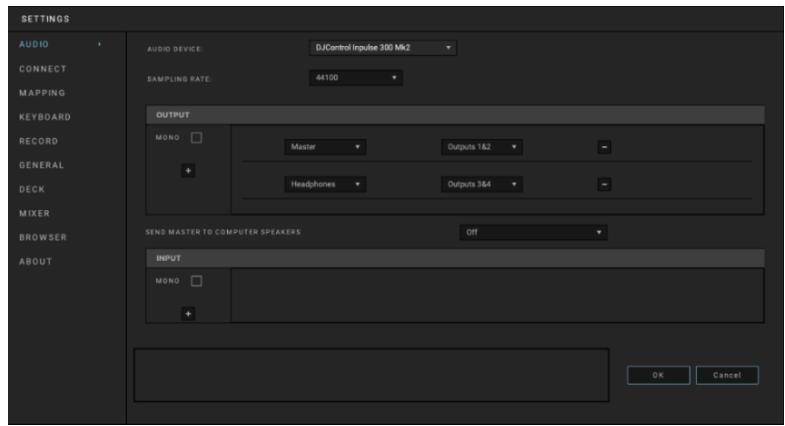

(ηνακα) https://serato.com/dj/lite/downloads
.Serato DJ Lite 1111111.2
:JNxJ7 3
https://support.HERcules.com/product/djcontrolin
. (n'λκ) pulse300mk2/
nynnn nn nnnnnnnnnnnnnn.4
Jnnn nn nnnnnnnnnnn
HDJCSeries Mac :macOS®
HDJCSeries PC :Windows®
Windows®-2
DJControl Inpulse 300 MK2-wnwn
, WASAPI nonn nn ,ASIO
.
DJControl nTn nn nn nn nn
- nnnn nn nna nn nnnn Inpulse 300 MK2
.macOS®-Windows®

Hercules DJControl Inpulse 300 MK2 .Serato DJ Pro y Serato DJ Lite Serato DJ ,Serato DJ Lite y Serato DJ Pro y Serato DJ Pro y Serato DJ Control Inpulse 300 MK2 y y Serato Pro y Serato y Serato DJ Pro y Serato DJ Pro-y
.5
.
737
n nn n nn nn nn nn 8 ty 1 DUCED- .nnnnnnnn
nivyn n 4 ty 1 T9 ,Serato DJ Lite- n 8 ty 5 T9 .ninn nn
(ngn) Reverse :5 79 -
nINX nyn:6T9-
n79-
n nn n nn nn nn .Censor :8 T9 - ,Tn nn nn nn nn nn .Tn nn nn nn nn .n nn nn nn nn nn nn nn nn nn nn nn nn nn nn nn nn nn nn nn nn nn nn nn nn nn nn nn nn nn nn nn nn nn nn nn nn nn nn nn nn nn nn nn nn nn nn nn nn nn nn nn nn nn nn nn nn nn nn nn nn nn nn nn nn nn nn nn nn nn nn nn nn nn nn nn nn nn nn nn nn nn nn nn nn nn.

n nn nnn nn nn nn nn nn nn nn
:D'Unnun
| Serato DJ **Pro | Serato DJ Lite | DJUCED® | ### |
| Hot Cue | Hot Cue | Hot Cue | 1 |
| Auto Loop | Auto Loop | Loop | 2 |
| Stems | Stems | Slicer | 3 |
| Sampler | Sampler | Sampler | 4 |
| Pitch Play | - | TonePlay | 5 |
| Loop Roll | - | FX | 6 |
| Manual Loop | - | Slicer Loop | 7 |
| Scratch Banks | Scratch Banks | BeatJump | 8 |
. Serato DJ Pro J'uy' yD x7**
HOT Cue nTn nn nnnnnnnnnnnnnnnnnnnnnnnnnnnnnnnnnnnnnnnnnnnnnnnnnnnnnnnnnnnnnnnnnnnnnnnnnnnnnnnnnnnnnnnnnnnnnnnnnnnnnnnnnnnnnnnnnnnnnnnnnnnnnnnnnnnnn
Hot ntiipnwn nn nnnn ,DJUCED- .Cue
NITIy NnNnNnNnN, Serato DJ Lite- .Hot Cue
NITIy NnNnNnNnNnN, Serato DJ Pro- .Hot Cue
HOT CUE ,Hot Cue 1
HOT CUE
.79 y iyn7 ,Hot Cue nTnTn7 T2
TOn y IyN,Hot Cue nIpyn nyixn 3
.
TOn SHIFT y Iyn7 ,Hot Cue nTn nn7 T.4
.
i
.LOOP y yin77 Loop 77777.1
.777 7 u n loop nnon ..2
:DJUCED®-
Tnx y noinn n'yn7 yin7 u,ion 97 d
DT9n
.4
:Serato DJ Lite- 🇷
.79 y yin7 w ,n7 nu7 T2
.0nn nn yin7 ,n n 3
:17 7IX
| Serato DJ | DJUCED® | 2 万千瓦/1 万千瓦 |
| הכלהה | ||
| הכלה | | |
| | 2 万千瓦 | |
| | ||
| | ||
| ⁄⁄ | 3 万千瓦 | |
| | ||
| | ||
| - | | |
| - | | |
| - | | |
| - | 8 | 7 万千瓦 |

DJUCED- 17

.DJUCED® y n Slicer xyn
yynn nn onnn Slicer nn ,DJUCED-
.
n .SLICER y yin7 ,Slicer nn 1
.777 7'wn'SLICER
nwn nn yin7 w, non yo7 2
DTN TNX
.0nnn nn n nnw7 w, ywnn nnyny7 T3

.Serato DJ Lite y n T Stems
Stems ,Serato DJ Lite- 1
,(n) n" "st ."stems"
.SLICER y yin7 w,Stems 1
.777 77 SLICER 77
TOn stem-7 4 T1 1 nn
.
.
Tn y yinw ,stem-n nn nn7 10.3
.7T" T9n .D'Xnn
:Stems
JINN IN JNN D9 NIN IJN:JINN
nwn nn 8 ty 1 n ,DJUCED
non nn nnnn nn nnnnnnnnn
.
n nn nnnnnnnnnnnnnnnnnnnnnnnnnnnnnnnnnnnnnnnnnnnnnnnnnnnnnnnnnnnnnnnnnnnnnnnnnnnnnnnnnnnnnnnnnnnnnnnnnnnnnnnnnnnnn
n nn nn 2Decks Horizontal + 2 Samplers
.DJUCED- 一 _ 1 onn y nyn nn
.
Serato - 7y pynn nnX ,nnn nnnn nnN
.DJ Lite
JIN9.5AMPLER y xn7,Sampler nn7 1
.77777777777777777777777777777777777777
.79 y iyn7 ,nnt 12
y nnt- yin7 w ,nT y nn 3
.

.(TonePlay) 5 xn nn Serato DJ Lite n ,Pitch 'n Time qoinn y ,Serato DJ Pro n nnn P Pitch Play .TonePlay
TonePlay 5DUCED-Hot Cue Hot Cue
Hot nTn nn np nn,Hot Cue nn nn 1.1 .Cue
SHIFT y nnt-yn7 ,5 2 .2 .nHOT CUE .HOT CUE
Hot Cue 103 .8 2 7
.1 T y yin7 4
:JUH
| ΠΟ | 2 π/1 π |
| πηνηνιρού | 1 τθ |
| + 1 | 2 τθ |
| + 2 | 3 τθ |
| + 3 | 4 τθ |
| - 1 | 5 τθ |
| - 2 | 6 τθ |
| - 3 | 7 τθ |
| - 4 | 8 τθ |

.7 xn nn Serato DJ Lite
n .Slicer Loop 7 ,DJUCED- n .
ySHIFT y nnr-ynn7 ,7 1
SLICER SLICER
nwn nn yinw w, non yop 2
DTN TNX 7y
.0nnn nn nnnn 1, yip 3

Serato - .BeatJump 8 ,DJUCED®-Scratch ,Serato DJ Pro- DJ Lite. Banks
n .BeatJump 7 8 ,DJUCED- .
y nnt- yin7 (BeatJump) 8 ny1 .1
. n n' S A M P L E R non .S A M P L E R y i SH I F T
. n n' T N x y in7 u ,y97 .2
:
| הכלה | 2 万千瓦/1 |
| הכלה��הה | |
| הכlegeהה | |
| | |
| | |
| | |
| |

8 Serato DJ Pro- Serato DJ Lite- yno n no nn .Scratch Banks
Jynnn nn nnnn nn nnnn 7 n,nynnnnn -y ynnn nn nnnn ,ynnnn nn nnnn .Serato DJ Lite
-[-yin7y, (Scratch Banks) 8 yn7 yy.1
SAMPLEER non.SAMPLER yI SHIFT ynnr .
.0Tn TnX yin7 u,yno nnt 12
yNnYyN0nnT 3
SHIFT y nnt-ynn7 u,DTI nnny
.0xnn Tn
:
N NNN,NNN NNNN (Mster) 10nnn nn. .
(1-2 πχγγ) Master πχγγ
Master Nx y 0y n nn
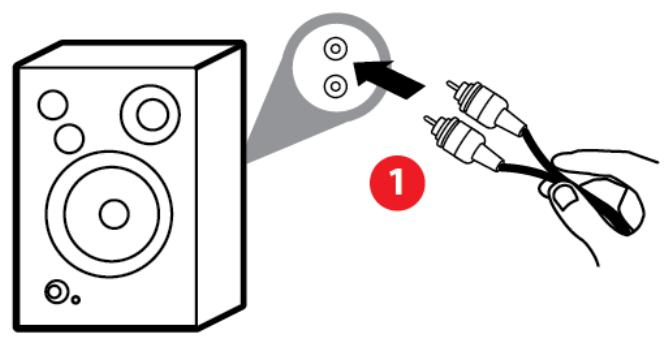
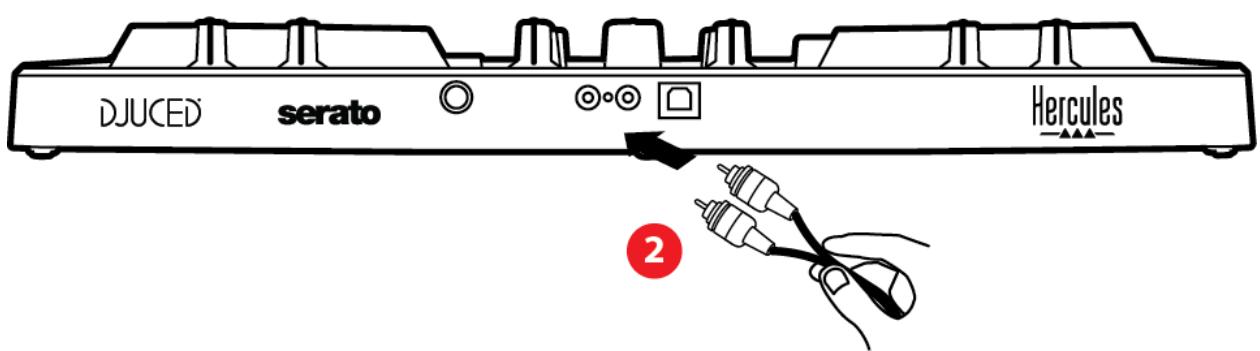
TnNynn 0 nnn nnynnnnnnnnn
.
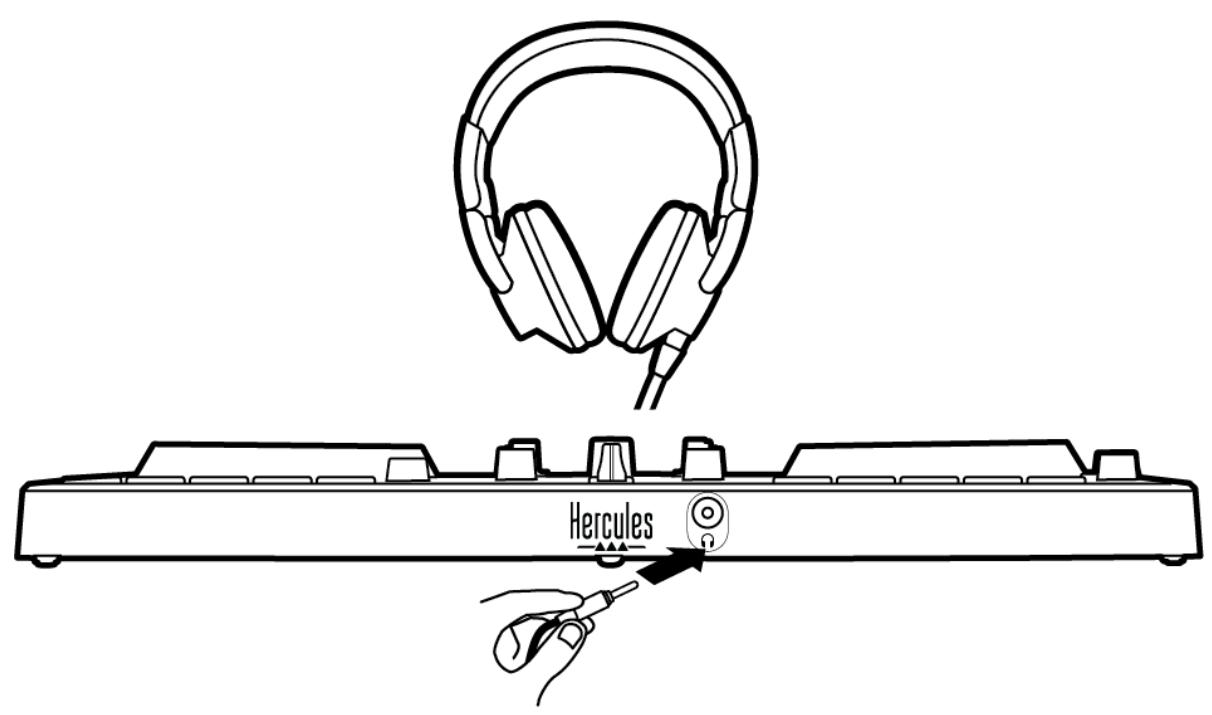
N, xnn nn nn n y 7nn
n nn n nn n nn n nn n nn n nn n nn n nn n nn n nn n nn n nn n nn n nn n nn n nn n nn n nn n nn n nn n nn n nn n nn n nn n nn n nn n nn n nn n nn n nn n nn n nn n nn n nn n nn n nn n nn n nn n nn n nn n nn n nn n nn n nn n nn n nn n nn n nn n nn
Serato -1 DJUCED® du TnInI — nnnn nn "λ-Γn
.DJ Lite
Xn nn nnnnnnnnnnnnnnnnnnnnnnnnnnnnnnnnnnnnnnnnnnnnnnnnnnnnnnnnnnnnnnnnnnnnnnnnnnnnnnnnnnnnnnnnnnnnnnnnnnnnnnnnnnnnnnnnnnnnnnnnnnnnnnn
T, nai7 ,iTunes nnnnn
y yin77 u' , 1-2 x
.MASTER 1
USB MIDI/USB Audio
JIONi,(yon-o) Plug & Play nnnnnn nnDiun ,Mac IX PC uann nn nn nn .USB MIDI 1 USB Audio nn nn nn nn
https://support.HERCULES.com/product/djcontrolinput.se300mk2/
n nn n nn nn nn nn nn nn nn nn nn nn nn nn nn nn nn nn nn nn nn nn nn nn nn nn nn nn nn nn nn nn nn nn nn nn nn nn nn nn nn nn nn nn nn nn nn nn nn nn nn nn nn nn nn nn nn nn nn nn nn nn nn nn nn nn nn nn nn nn nn nn nn nn nn nn nn nn nn nn nn nn nn nn nn nn nn nn nn nn nn nn nn nn nn nn nn nn nn nn nn nn gnnnn gnnnn gnnnn gnnnn gnnnn gnnnn gnnnn gnnnn gnnnn gnnnn gnnnn gnnnn gnnnn gnnnn gnnnn gnnnn gnnnn gnnnn gnnnn gnnnn gnnnn gnnnn gnnnn gnnnn gnnnn gnnnn gnnnn gnnnn gnnnn gnnnn gnnnn gnnnn gnnnn gnnnn gonnnn gnnnn gnnnn gnnnn gnnnn gnnnn gnnnn gnnnn gnnnn gnnnn gnnnn gnnnn gnnnn gnnnn gnnnn gnnnn gnennn gnnnn gnnnn gnnnn gnnnn gnnnn gnnnn gnnnn gnnnn gnnnn gnnnn gnnnn gnnnn gnnnn gnnnn gnnnn gnnnn gnnnn gnnnn gn
17W ,n n7 D y dYn ASIO 7u nn nn nnnn nnnn n n ,PC- nnnnnnnnnn nn C:\Program Files\DJHERCULESMIX\Audio\DJ Console n ,nIw ASIO nTn pNn nn .Series\ .nunn nn nn nn

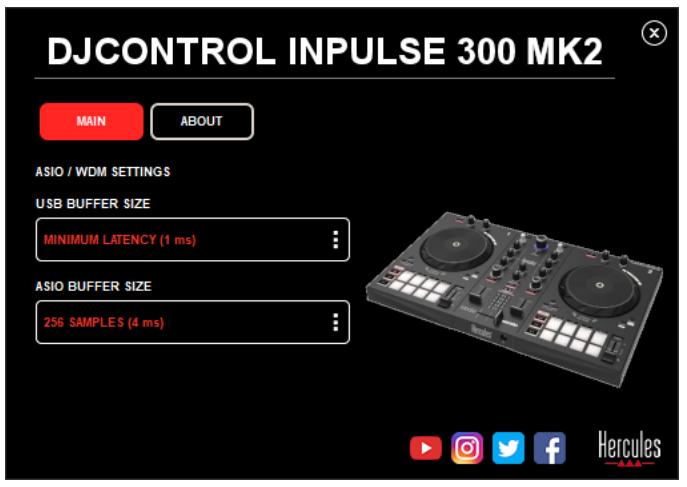
:ASIO nntan pD
https://support.HERCULES.com/product/djcontrolinput
.se300mk2/
JINONX N X N N N N N N N N N N N N N N N N N N N N N N N N N N N N N N N N N N N N N N N N N N N N N N N N N N N N N N N N N N N N N N N N N N N N N N N N N N N N N N. (NITIX)
.Hercules y nn
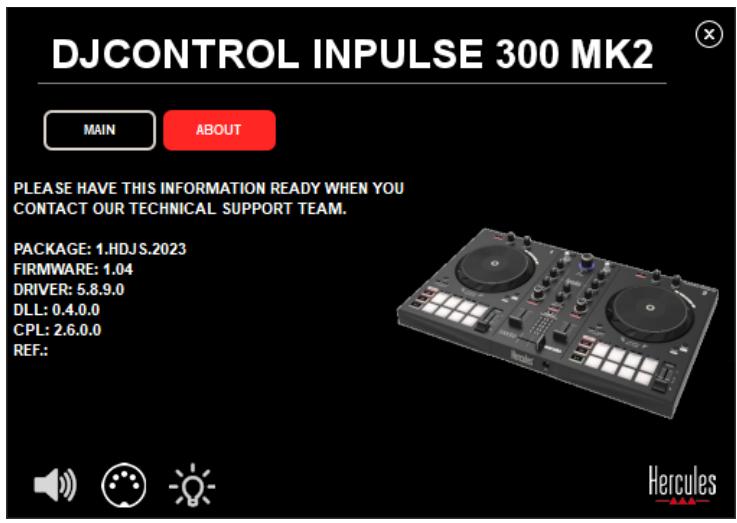
n nn nnnnnnnnnnnnnnnnnnnnnnnnnnnnnnnnnnnnnnnnnnnnnnnnnnnnnnnnnnnnnnnnnnnnnnnnnnnnnnnnnnnnnnnnnnnnnnnnnnnnnnnnnnnnnnnnnnnnnnnnnnnnnnnnnnnnnnnnnnnnnnnnnnnnnnnnn
9
.1
DHN,INN 7N INN NINN NINN NINN
.Serato DJ Lite nyi DJUCED® ny
N NIN, INTNNNN N NINY ,Serato DJ Lite- Use ININNNN N NOH (ynu) Audio nO'wnnnnnn nnnnnnn) Laptop Speakers DJControl .NINNNN N NINN N NINN .(Nn) .Inpulse 300 MK2
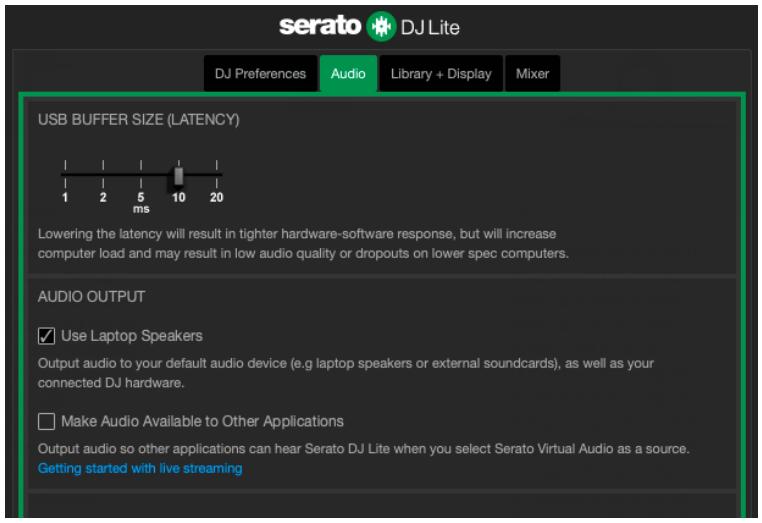
ywn nn n (n-tnnnnnn7) T,TOO DJControl Inpulse 300 MK2 hnni7 w .n nn n n n n n n n n n n n n n n n n n n n n n n n n n n n n n n n n n n n n.
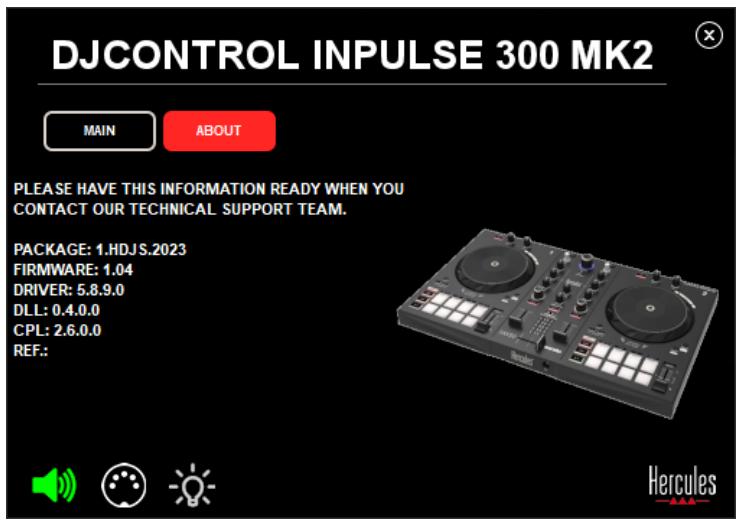

-7 777777 7777 777777 x7 .6
.DJControl Impulse 300 MK2
DJControl w nnnnn nn nnnn
RCA-n 190 nn nn nn nn nn nn nn nn nn nn nn nn nn nn nn nn nn nn nn nn nn nn nn nn nn nn nn nn nn nn nn nn nn nn nn nn nn nn nn nn nn nn nn nn nn nn nn nn nn nn nn nn nn nn nn nn nn nn nn nn nn nn nn nn nn nn nn nn nn nn nn nn nn nn nn nn nn nn nn nn nn nn nn nn nn nn nn nn nn nn nn nn nn nn nn nn nn nn nn nn
nX nn n9 1N (77 x7) n"n 3.5 yu-n?
.
X 1
.MASTER nongn y nxn7,3-4 nx1-2 nx

DJControl Impulse 7
?iPhone-» iPad-» 300 MK2
- DJControl Inpulse 300 MK2 ,
. Mac iX PC iunn y iX iX .iPhone-7 iX iPad
Intel 日 non nnon nnon n Intel CoreTM-1 Intel
. Corporation
Microsoft Windows 10/11
Corporation
"nnn nn nnnn,Apple Inc. on macos"Mac
Audio Research Limited
Guillemot w dJUCED DJUCED
. Corporation
Steinberg Media Technologies GmbH w non ASIO
ywn nn nnnn nn nn nn nn nn nn nn nn nn nn nn nn nn nn nn nn nn nn nn nn nn nn nn nn nn nn nn nn nn nn nn nn nn nn nn nn nn nn nn nn nn nn nn nn nn nn nn nn nn nn nn nn nn nn nn nn nn nn nn nn nn nn nn nn nn nn nn nn nn nn nn nn nn nn nn nn nn nn nn nn nn
.7 7 7 7 7 7 7 7 7 7
n nn nnnn nn nnnn nn nnnn nn nnnn nn nnnn nn nnnn nn nnnn nn nnnn nn nnnn nn nnnn nn nnnn nn nnnn nn nnnn nn nnnn nn nnnn nn nnnn nn nnnn nn nnnn nn nnnn nn nnnn nn nnnn nn nnnn nn nnnn nn nnnn nn nnnn nn nannn nn nnnn nn nnnn nn nnnn nn nnnn nn nnnn nn nnnn nn nnnn nn nnnn nn nnnn nn nnnn nn nnnn nn nnnn nn nnnn nn nnnn nn nnnn nn nnnn nn nnnn nn nnnn nn nnnn nn nnnn nn nnnn nn nnnn nn nnnn nn nnnn nn nennn nn nnnn nn nnnn nn nnnn nn nnnn nn nnnn nn nnnn nn nnnn nn nnnn nn nnnn nn nnnn nn nnnn nn nnnn nn nnnn nn nnnn nn nnnn nn nnnn nn
.Serato DJ Lite 念 DJUCED*
- Box contents
- Technical specifications
- Features
- Overview
- Decks
- Transport buttons
- Tempo fader
- Loop controls
- Effects
- Jog wheel
- Actions of the jog wheels with DJUCED®:
- Playback modes
- Pads and modes
- Mixing
- Track selection controls
- Illuminated ring:
- ASSISTANT:
- Mixing section
- Monitoring, volume and Beatmatch Guide
- Mixer
- Connectors
- Installation
- Connections
- Downloading the software
- DJUCED®
- Audio settings :
- Serato DJ Lite
- Livening up your mix
- Modes and pads
- The pads
- Hot Cue mode
- Loop mode
- Slicer mode
- Stems mode
- Sampler mode
- Mode 5
- Mode 7
- Scratching
- Filters
- Multichannel sound card
- Master output for speakers (output 1-2)
- Headphones output (output 3-4)
- Compatibility
- USB Audio / USB MIDI
- ASIO and Windows® control panel
- Firmware update
- Demo mode
- FAQs
- No sound is coming out of my headphones.
- The sound on my headphones is distorted.
- No sound is coming out of my speakers.
- No sound is coming out of my laptop computer speakers.
- No sound is coming out of my headphones, or my laptop computer speakers.
- I can't connect my multimedia speakers to my DJControl Inpulse 300 MK2.
- Is the DJControl Impulse 300 MK2 controller compatible with an iPad or iPhone?
- Trademarks
- Copyright
- DJUCED® and Serato DJ Lite End
- User License Agreement
- DJCONTROL INPUT 300 MK2
- De software downloaden
- Sampler-modus
- Scratchen
- Firmware-update
- Fazer scratch
- Modo Demo
- PykoBoDCTBO NOIb3OBaTeJa
- Оглавлиейне
- Φeύθερ memna
- BbIXoJdJIa HayshnKOB (BbIXoJ 3-4) n03BOJЯeT
- yctahobka
- Подключehue
- CkayuBaHue
- npo2paMMHO2O
- ObeecpeHua
- ΦuNbmpbI
- OboBJIeHue npoWuEku
- He polyucaemcnoeknoucmb
- MylbmuMeuHbIe
- KOLHku
- DJControl Inpulse 300 MK2.
- СобrecмUM ЛУ Коньрлелер DJControl Inpulse 300 MK2 c iPad u iPhone?
- Toprobles Mapkn
- АВТОРСКЕnpаВа
- DJUCED® n Serato DJ Lite —ЛицензinoHhoe coГашени
- C KOHeuHbIM NOJIb3OBaTeJEm
- Scratch atma
- Donanim yazilimiGPCellemesi
- Aktualizacja
- oprogramavia
- sprzętowego
- アムウエのアドデト
- 軻體更新
- 默
- 連隊詠達誠誠
- SFOEOTD
- 脚部/0- 1
- https://serato.com/dj/lite/downloads?systemrequirements#system-requirements
- :ASSISTANT
- Beatmatch Guide w
- 5
- 8
- .9
- .1
- .2
- .3
- .DJControl Impulse 300 MK2 勺
- a
- INNEHÄLLSFÖRTECKNING
- Firmwareupppdating
- Sampler-tila
- Skrätsöys
- Firmware frissités
- πππ 1
- .5
- (1-2 πχγγ) Master πχγγ
- USB MIDI/USB Audio
- 9
- .DJControl Impulse 300 MK2
Brand : HERCULES
Model : INPULSE 300 MK2
Category : USB controller