
BLUEPOINT - Remote control DICOTA - Free user manual and instructions
Find the device manual for free BLUEPOINT DICOTA in PDF.

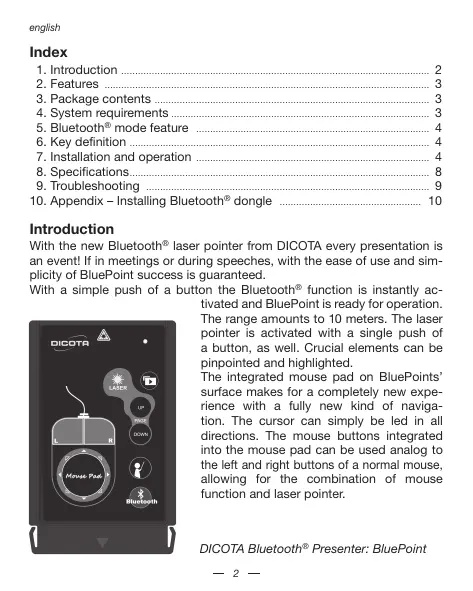


| Brand | DICOTA |
| Model | BLUEPOINT |
| Product type | Bluetooth presentation remote with laser pointer and mouse function |
| Bluetooth technology | Version 2.0, class II |
| Range | Up to 10 meters (open space) |
| Frequency | 2.4 GHz ~ 2.4835 GHz |
| Dimensions | 86 x 53.8 x 4.9 mm |
| Weight | Less than 25 g (including battery) |
| Power supply | 1 CR2032 lithium coin cell battery |
| Main functions | Laser pointer, mouse with 8 direction keys, PowerPoint quick start button, Bluetooth activation |
| Compatible operating systems | Windows XP SP2 or later, Vista; 64 MB RAM recommended |
| Connection | Bluetooth HID (built-in or external receiver) |
| Delivery contents | BluePoint remote, CD-ROM with driver, 1 CR2032 battery |
| Maintenance and cleaning | Clean with a soft, dry cloth. Remove the battery if not used for an extended period. |
| Safety | Do not point the laser at eyes. Keep out of reach of children. Do not aim at reflective surfaces. |
| Warranty | 2 years (see conditions at www.dicota.com) |
| After-sales service | Contact the retailer or info@dicota.com |
| Certifications | CE, FCC, BQB |
Frequently Asked Questions - BLUEPOINT DICOTA
User questions about BLUEPOINT DICOTA
0 question about this device. Answer the ones you know or ask your own.
Ask a new question about this device
Download the instructions for your Remote control in PDF format for free! Find your manual BLUEPOINT - DICOTA and take your electronic device back in hand. On this page are published all the documents necessary for the use of your device. BLUEPOINT by DICOTA.
USER MANUAL BLUEPOINT DICOTA
Ultra-Slimline Bluetooth® presenter with laser pointer & mouse function. 2
deutsch
Bedienungsanleitung
- Introduction 2
- Features 3
- Package contents 3
- System requirements 3
- Bluetooth® mode feature 4
6.Key definition 4 - Installation and operation 4
- Specifications 8
- Troubleshooting 9
- Appendix - Installing Bluetooth® dongle 10
Introduction
With the new Bluetooth® laser pointer from DICOTA every presentation is an event! If in meetings or during speeches, with the ease of use and simplicity of BluePoint success is guaranteed.
With a simple push of a button the Bluetooth® function is instantly ac-
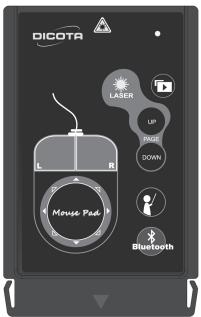
tivated and BluePoint is ready for operation. The range amounts to 10 meters. The laser pointer is activated with a single push of a button, as well. Crucial elements can be pinpointed and highlighted.
The integrated mouse pad on BluePoints surface makes for a completely new experience with a fully new kind of navigation. The cursor can simply be led in all directions. The mouse buttons integrated into the mouse pad can be used analog to the left and right buttons of a normal mouse, allowing for the combination of mouse function and laser pointer.
DICOTA Bluetooth® Presenter: BluePoint
BluePoint also features a PowerPoint hot button, with which presentations can be started without delay.
In case BluePoint is not in use, the laser pointer can easily be stowed in the PCMCIA slot of the Notebook thanks to its unusual, ultra-flat design. The attractive design, the simple handling via Plug & Play and the sensible functions make BluePoint an essential companion for every presentation.
Features:
- Innovative design of omni-directional BluePoint for performing a perfect presentation.
- Bluetooth® version 2.0 class II technology, up to 10 meter operation range.
- New mouse navigating experience by integrated mouse pad.
- Built-in laser pointer can catch audience attention during presentation.
- Ultra compact design for storing in your notebook's PCMCIA slot securely.
- Presentation hotkey allows you to start the prepared PowerPoint file conveniently.
Package contents:
- Bluetooth® Presenter BluePoint
CD-ROM driver - Coin Type Lithium battery CR2032 x 1
System requirements:
- Built in Bluetooth® wireless technology (PC) or external dongle with Bluetooth® wireless technology
- Bluetooth® profile need to support HID minimum
- Microsoft® Windows® XP SP2, Vista
64 MB RAM recommended - CD-ROM drive or DVD-ROM drive
Mode feature:

- Press connection button
3 sec to go into pairing mode
From pairing mode to sleep mode: 3 mins
From active mode to idle mode: 0.5 sec
From idle mode to sleep mode: 10 mins - LED fast flash in pairing mode or when the button is kept pressing (except laser button)
- LED flash 1 time per tick in idle mode
- LED stop flash in sleep mode
Key definition:
| LASER | Laser Point | DOWN | Page down |
| Enter Power Point slide show | Open prepared Power Point file | ||
| UP | Page up | Bluetooth | Device pairing |
Installation and operation:
When BluePoint isn't in use, please take off the battery for saving power.
1. Installation of battery
Open the back cover of Presenter and insert a Coin Type CR2032 Lithium battery with the diagram outside the battery chamber.
2.Installing CD-ROM
Place the value software CD into your CD-ROM drive or DVD-ROM drive and execute Setup.exe file on CD. The installation will be started after you double-click it. Please follow the instruction to finalize the installation.
3. Power on the function of Bluetooth® wireless technology
Power on the function of Bluetooth® wireless technology if your Notebook builds in a receiver with Bluetooth® wireless technology, or insert your dongle with Bluetooth® wireless technology and power on the Bluetooth® wireless technology function.
4. Use application to do Bluetooth® auto-pair with presenter
The application will execute automatically after installation.
1) Click the button on the remote control for 3-5 seconds. The Blue LED indicator will fast flash when BluePoint paring with your computer. Make sure you are in pairing mode. From pairing mode to sleeping mode is only 3 minutes.
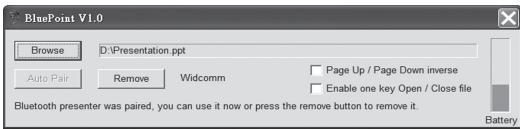
2) Open application by double click the "BluePoint" icon on system tray.

3) Click the "Auto Pair" button to do Bluetooth® auto-pair.
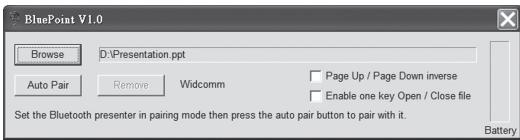
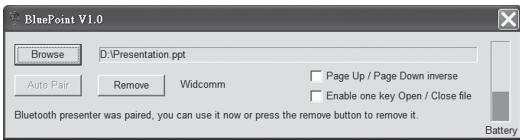
4) You also can remove the Bluetooth® pairing by clicking "Remove" button after doing Bluetooth® auto-pair, if necessary.
5. How to call a prepared file
*If you give presentations often, the following steps would be very useful for you.
1) Open application by double click the "BluePoint" icon on system tray.

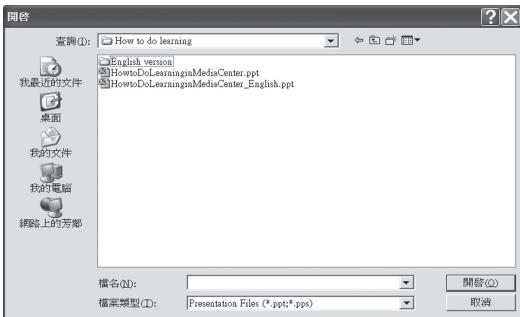
2) Click the "Browse" button and select the file that you prepared.
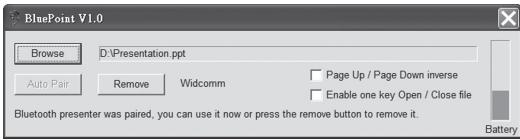
3) Then press Open button for program location setting. (The path & file name is an example, for your reference only.)
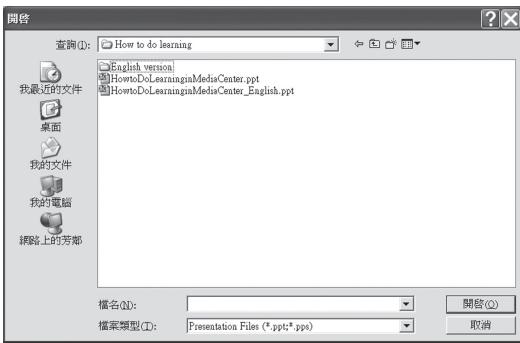
4) Next time when you press the

key on the presenter, the file
you set in the path will be opened directly.
6. Other options and battery status
1) Enable "Page Up / Page Down inverse" function to inverse Page Up and Page Down buttons.
2) Enable "Enable one key Open/Close file" function then the key not only can open the file you set, but also close the file.
3) The battery status is shown on application and "BluePoint" will show a warning when the battery is low.
Note: (Mouse function using guide)
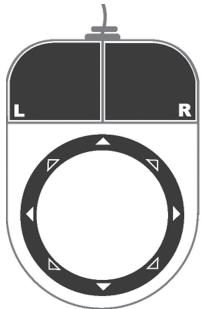
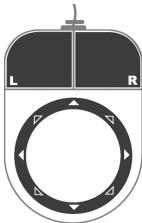
The mouse function operation is different with a "touch pad". You may see it as a "8-directional buttons" on the mouse pad. With them, you can move the cursor easily.

similar to mouse Left-Key

similar to mouse Right-Key
8-directional buttons on mouse pad as the following figure:
Specifications:
| Item | Description |
| Standard | Bluetooth® wireless technology specification version 2.0 compatible |
| Frequency Band | 2.4 GHz~2.4835 GHz unlicensed ISM Band |
| Output Power | 0.25 mW~2.5 mW (Bluetooth® Power Class II) |
| Range | up to 10 meters (free space) |
| Battery | CR 2032 |
| Operating voltage | 3.2 V~2.8 V |
| Dimension | 86 x 53.8 x 4.9 mm |
| Weight | <25 g (including battery) |
| Certification Approval | CE, FCC, BQB |

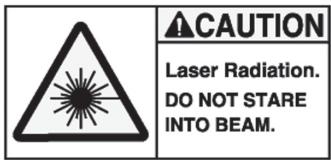
Warning!
- Do not allow minors to use the laser point unsupervised. Laser point is not a toy.
- Avoid direct eye exposure.
- Never shine the laser point at anyone. The laser point is designed to illustrate inanimate objects.
- Do not point the laser point at any mirror-like surfaces.
A reflected beam can act like a direct beam on the eye.
Trouble shooting:
| Question | Analysis | Solution |
| BluePoint doesn't work. | ·No battery on the presenter, battery died, or un-correct battery installation. ·Fail in the pairing process. ·The computer cannot find the device. ·Un-correct BLUEPOINT installation. | ·Check battery and its installation. ·Run the function of Bluetooth® wireless technology on your PC/Notebook. If your PC/Notebook doesn't bundle with any receiver with Bluetooth® wireless technology, please plug on a dongle with Blue-tooth® wireless technology. ·Searching and pairing the device by following manual "Installation and Operation". ·Uninstall and re-install by following manual "Installation and Operation". |
| BluePoint irregular reaction | ·BluePoint application doesn't activate. ·It doesn't work after press buttons due to the computer software is not working. ·Your computer can't match with the Bluetooth device. | ·Activate bundled application by following "Installation and Operation". |
| The "Auto Pair" button of BluePoint UI is always enabled after pairing. | ·The driver of Bluetooth® dongle is provided by IVT. | ·You can still use BluePoint normally even if UI doesn't show correctly. |
Notice:
Before use it, please activate the software by BluePoint Presenter first. If not use for a long time, please take out the battery from battery chamber.
Status:
Changing the battery doesn't affect the pairing process. If you want to pair a device with Bluetooth® wireless technology, you have to push the button with Bluetooth® wireless technology and follow the step 2.
Appendix - Installing Bluetooth® Dongle:
Bluetooth® dongle is an optional device if your PC doesn't build in Bluetooth. It is easy for you to install it. If the dongle has its own driver, please install it first. Then plug it into the USB port in your computer. If the dongle has no extra driver, it will be detected by the operating system automatically, and use Microsoft standard driver.
Before you use it, please make sure your computer follow those system requirements as bellow:
- Make sure the system is at least Windows® XP Service pack 2 or above.
- After installing the dongle and software, please restart the computer to ensure all the functions work correctly.
This device complies with Part 15 of the FCC Rules. Operation is subject to the following two conditions:
- This device may not cause harmful interference.
- This device must accept any interference received, including interference that may cause undesired operation.
Disclaimer:
Information in this document is subject to change without notice. The manufacturer does not make any representations or warranties (implied or otherwise) regarding the accuracy and completeness of this document and shall in no event be liable for any loss of profit or any commercial damage, including but not limited to special, incidental, consequential, or other damage. No part of this document may be reproduced or transmitted in any form by any means, electronic or mechanical, including photocopying, recording or information recording and retrieval systems without the express written permission of the manufacturer.
Customer service:
If you encounter any problem with your BluePoint, please contact our local subsidiary, partner or dealer, or send us your inquiry to info@dicota.com.
2 years warranty. Please find the complete text in our guarantee on the internet: www.dicota.com.
All the products and software mentioned above are registered trademarks of their respective owners. Errors and omissions excepted.

N4029


This symbol (crossed out bin wheelee symbol according to WEEE Directive 2002/96/EC and Battery Directive 2006/66/EC) indicates separate collection of waste electrical and electronic equipment as well as batteries in the EU countries. Please do not throw the equipment respectively the batteries into the domestic refuse. Please use the return and collection systems available in your country for the disposal.
Inhalt
Enable one key Open / Close file
Set the Bluetooth presenter in pairing mode then press the auto pair button to pair with it.
Battery
4) Béni MOXÉTE TAOKÉ OTMENHITB napbHbI pEKHM BluTeoth® KINKHNYBa H kONKY "Remove/YdAnHbT"nocSe OcUeCTBnEHNA ABTOMATueHECKORO cnapBAHnBu Bluteoth®,ecmI STO HYNKHO.

BluePoint V1.0
Browse
D:Presentation.ppt
Auto Pair
Remove
Widcomm

Page Up / Page Down inverse

Enable one key Open / Close file
Bluetooth presenter was paired, you can use it now or press the remove button to remove it.
Battery
5. KaK BbI3BaTb NOrTOBJIeHHbI ΦaII
Ebny Bnto npobodntpeeshtauin, Tcnokyuoune wan6bnyT OeHN NOPE3bHMn IaB Bac.
1)OTKPOJI pRNIOKENHE NOCPEDCTBOM DoIHOFO KNKA NO NIKTORPAMME "BluePoint" B C SHTEMNO Bnoactn.

2) KlnkHne Ha kONky "Nckatb' N bbl6epnt faan, KOtpor Bbl noqTOnTOBnHN.
3) 3aTeM HAKMITE KHOHONY "OtKpBbT" Jnla NACTPOKIM MeCTA HAXOKDEHNA nporpaMMbl. (HnPnMp, TOnbKO IANI BAAeJ OPENHTAUNC, 3TO MOKET 6bIty NapmOpDcTNu nNIMF (Pain).
4CneIyUoiu pa3, KOJaDa Bbl HauKMeTe KHOkiy Ha DEMOHCTpTope, cpa3y OTKpoeTcAaII, KOtOpBb Bbl HAcTPOUNB PyTN DoCTyna.
6.Почи BO3MOXHOCTH NO BbIbOpy n CTaTyc 6aTapeiKn
1)Pa3peWHTe ΦyHKIaIOU «PepExoD CTpaHua BBePx / CtpaHua BnH3» Ia nTO, YTObIy nepeXoOJMb Mekjdy KhoNkAmi CtpaHua BBePx N CtpaHua BnH3.
2)Pa3peuHTe yHKcHIO «Pa3peuNTb OdHy KOnKy OTKpbTb/3aKpbTb
ФдиТ.TAKTOБЛКИWAJI KOTOBП БИДАДIN,H0I3

The ToIbko OTKpbIBana faui, na ero.
3) Czaty 6aatarkehno kozakha n ha npinoKhenok, a BluePoint 6ydet nokaz3bBaTb npdunpyKeJedme o hNkOaI zapArjKe 6aatarpeHn.
PpIMeuaHHe: (PykoBOcTBo no pa6Ote c cyHKnei MbIiN)
Pa607a dyHnKmMbHn npn IcnoIbOBAHN TaHpa Da Dpyra. Ha KOBpKe Mbln ect8 8 HaprabIooNx KhoNok.Cnx NOMouB IO BAM 6ydt ydo6o nepeMeuBaT Kypocd.

COOTBECTCYBET NEBOI KNAIBIN MIIYBI

COOTBECTBETYEPABNOKJIABNI MIIIN
8 HanpaBJIaOJIXKHOONOK HA KOBpKe Mbln KaK Ha cnEyDpoem 3Mo6paxKeHHm:
Cneunphkaun:
| Пунник | ОпUCанUE |
| Стандир | Совмостмь со слетцфіказиій бсрповіноку Текногим Bluetooth®-версия 2.0 |
| Полоча часот | 2,4 ГД~2,4835 ГД пооча не liши龟зірова на ISM |
| Мошноctь на БыхODE | 0,25 MBT~2,5 MBT (Клісс мошноctи Bluetooth II) |
| Диапазон | do 10 мет探测 (сбобodиhoe постранстBO) |
| Батарейka | CR 2032 |
| Равочee habржениe | 3,2 B ~ 2,8 B |
| Размер | 86 x 53,8 x 4,9 MM |
| Вес | <25 r (Вмесе с сbatарейков) |
| Утberжdenіе сертофікатов | CE, FCC, BQB |

BHHMaHHe!
- He no3b0jIe TdEMT noJIb3oBaTcBna3ePHoN yka3Koi 6e3 npmCtPnA. Ta3eepNa yka3Ka - 3To He nRpyuKa.
- He hampablaIe npraMo B rna3a.
- HNkoJda He CBeTne Ia3epHoi yka3kOHa JxHbOro YenOBeka. Ia3epHna yka3Ka npedHa3NaHe nIynnIOCTpaunnHexNbBbx 06bKtOB.
- He npabnne TaepHyu yka3ky Ha 3epKaIbHbIe NobePxHOCTN. OTPaKeHHbIyu MyoKet OKa3TaB Bo3dEJIcTBNe PnpMOrO IyHa a Baun rna3a.

CAUTION
Laser Radiation. DO NOT STARE INTO BEAM.
BbIcHHe N IcnpaBneHne HeNoJaOK:
Declaration of Conformity
We, DICOTA GmbH, declare that the following product(s)
Model Name: BluePoint
Article No.: Z20418Z
Type of equipment: Bluetooth presenter
which has(have) been tested and found in conformity with the following harmonized European standards,
EMC: EN 301 489-17:V1.2.1 (2002-08)
EN 301 489-1:V1.5.1 (2004-11)
RF: EN 300 328:V1.6.1 (2004-11)
Laser Safety: EN 60825-1:1994+A1:2002+A2:2001
Electrical Safety: EN 60950-1:2001+A11:2004
And therefore comply with the essential requirements and provisions of the following Directives of the European Parliament and European Council:
R&TTE Directive 1999/5/EC
This document is the property of DICOTA GmbH, and it is not transferable.

Bernd Klinsmann
Chief Executive Officer (CEO)
Date: 22 Sep 2008