
BLUELIGHT - Computer accessory DICOTA - Free user manual and instructions
Find the device manual for free BLUELIGHT DICOTA in PDF.

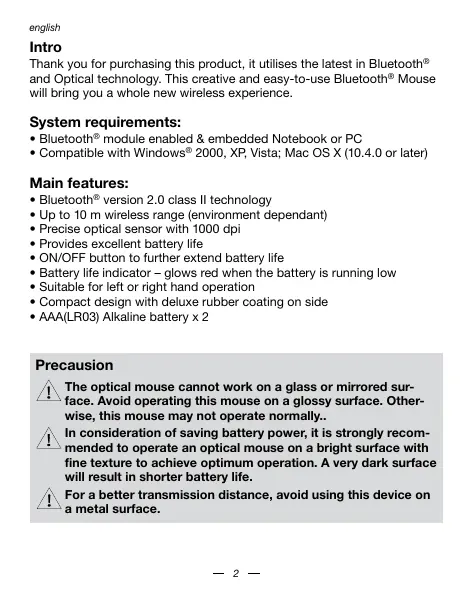


| Product Type | Bluetooth Optical Mouse |
| Brand | DICOTA |
| Model | BLUELIGHT |
| Connection Technology | Bluetooth 2.0 Class II |
| Wireless Range | Up to 10 meters (depending on environment) |
| Sensor Type | High-precision Optical |
| Sensor Resolution | 1000 dpi |
| Power Source | 2 AAA alkaline batteries (LR03) |
| Battery Life | Enhanced by sleep mode and power saving |
| Low Battery Indicator | Bright red LED |
| On/Off Button | Yes, under the mouse |
| System Compatibility | Windows 2000, XP, Vista; Mac OS X 10.4.0 or later |
| Ergonomics | Designed for right and left-handed users |
| Surface Coating | Luxurious with rubber side grips |
| Design | Compact and portable |
| Approximate Dimensions | 100 x 60 x 35 mm (estimated) |
| Approximate Weight | Approximately 100 g (with batteries) |
| Care and Cleaning | Clean with a soft, dry cloth. Avoid liquids. |
| Safety and Environment | Complies with WEEE and battery directives. Do not dispose of with household waste. |
| Spare Parts and Repairability | Batteries replaceable. Mouse not user-serviceable. Contact customer service. |
| Warranty | 2 years |
| After-Sales Service | info@dicota.com or local retailer |
Frequently Asked Questions - BLUELIGHT DICOTA
User questions about BLUELIGHT DICOTA
0 question about this device. Answer the ones you know or ask your own.
Ask a new question about this device
Download the instructions for your Computer accessory in PDF format for free! Find your manual BLUELIGHT - DICOTA and take your electronic device back in hand. On this page are published all the documents necessary for the use of your device. BLUELIGHT by DICOTA.
USER MANUAL BLUELIGHT DICOTA
Thank you for purchasing this product, it utilises the latest in Bluetooth® and Optical technology. This creative and easy-to-use Bluetooth® Mouse will bring you a whole new wireless experience.
System requirements:
- Bluetooth® module enabled & embedded Notebook or PC
- Compatible with Windows® 2000, XP, Vista; Mac OS X (10.4.0 or later)
Main features:
- Bluetooth® version 2.0 class II technology
- Up to 10m wireless range (environment dependant)
- Precise optical sensor with 1000 dpi
- Provides excellent battery life
- ON/OFF button to further extend battery life
- Battery life indicator - glows red when the battery is running low
- Suitable for left or right hand operation
- Compact design with deluxe rubber coating on side
- AAA(LR03) Alkaline battery x 2
Precausion

The optical mouse cannot work on a glass or mirrored surface. Avoid operating this mouse on a glossy surface. Otherwise, this mouse may not operate normally..

In consideration of saving battery power, it is strongly recommended to operate an optical mouse on a bright surface with fine texture to achieve optimum operation. A very dark surface will result in shorter battery life.

For a better transmission distance, avoid using this device on a metal surface.
Installation guide
Step 1: Inserting batteries
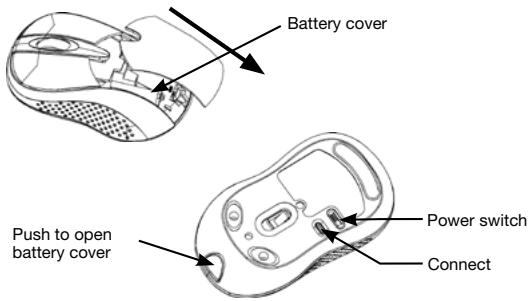
- Remove the battery cover by holding the mouse with the scrolling wheel towards you, and using your thumb to push out the battery cover along the direction indicated by the bold arrow.
- Insert two AAA alkaline batteries (please refer to the diagram above for the polarity of batteries).
- Carefully slide the battery cover back in the direction opposite to that stated in procedure 1.
- Please see the bottom of the mouse, power switch must be in the "ON" position. The optical sensor will be flashing.
Step 2: Connecting "BlueLight"
- Before installation, please make sure Bluetooth® module is enabled properly.
- Please press "Connect" button on the back of mouse before starting the pairing.
A: Match on Widcomm
- Double click the icon again
- Double click the icon again
- Double click the icon again
- Double click the icon again
- Double click the icon again
- Double click the icon again

"My Bluetooth Place" pops up;
Bluetooth Setup Guide". In the Setup Guide
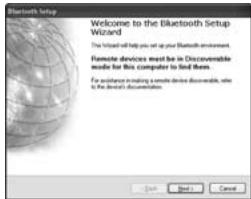
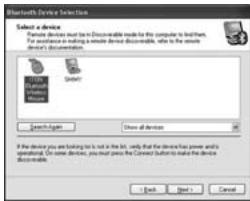
- Wait until the system found the mouse, select "Mouse", click "Next".
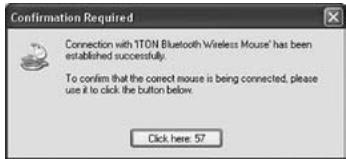
- After a few seconds, click "Click here" in the pop-up program of "Confirmation Required", now you can use your mouse.
Note:
If unused for more than 10 minutes, the mouse will change to battery saving mode. In this case double click the left button to reactivate the mouse. Once connected, after you remove the dongle or turn off the computer, double clicking the left button will reactivate the mouse.
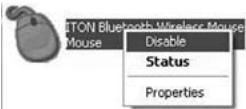
Also, if you press the Connect Button inadvertently or some other disconnection occurs during use, please reconnect the mouse. If this is not available, please open the Bluetooth Dongle Software window, delete or disconnect the mouse (as the picture shows), then reconnect.
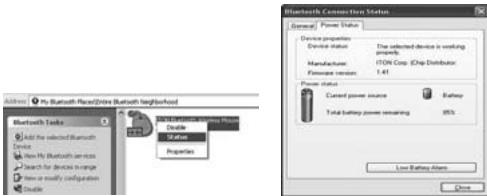
If you are using the Widcomm Bluetooth® Software, click the right button of the mouse and select "Status", then you can check the power status of the batteries and setup alarm for shortage of battery.
B: Match on Microsoft built-in software
- Make sure that the Bluetooth® function has been activated in your Notebook or PC. Double click the Bluetooth icon on the Task Bar or in the Control Panel, open the "Bluetooth Management" window, click "Add", and tick on "facility is ready for searching", click "Next".
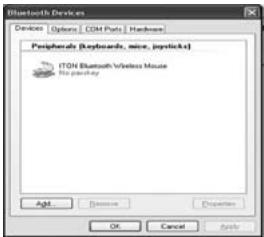
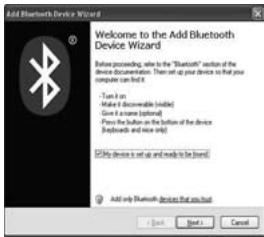
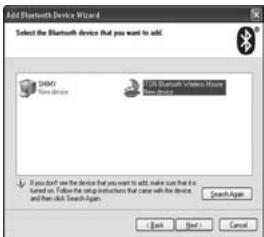
- Wait until mouse is found, select it, then click "Next".
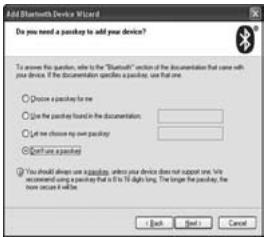
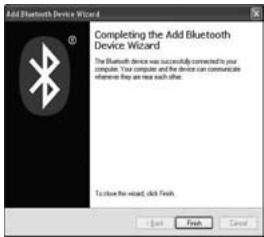
- Select "Don't use a passkey", click "Next", the system will install the new device automatically.
C: Match on IVT Software
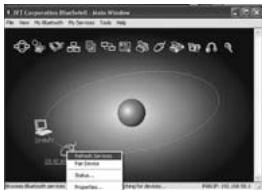
- Make sure that the Bluetooth® function is active. Double click the Bluetooth® icon, open the Management window, select "Bluetooth Device Discovery" in menu "My Bluetooth" or click the orange button in the middle of window.
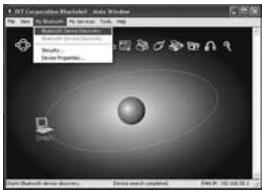
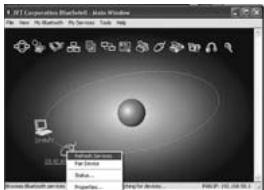
- After searching, select mouse icon, right click and select "Refresh Service".
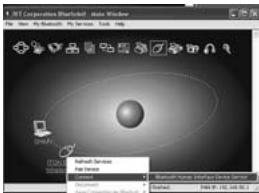
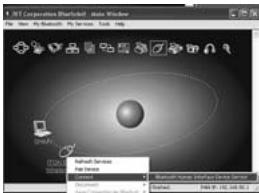
- Select mouse icon again, right click and select "Connect" and "Bluetooth Input Service", the system will auto install the HID facility. After that you can use your Bluetooth® Mouse at ease.
Smart power saving function
When the product is not used after 3 seconds, it will be entered into idle mode. After 10 mins, it will be entered into power saving mode.
If you want to reactivate the device, please press left-click.
For long lasting power, it's recommended to turn off the product when it's finished to use.
Disclaimer:
Information in this document is subject to change without notice. The manufacturer does not make any representations or warranties (implied or otherwise) regarding the accuracy and completeness of this document and shall in no event be liable for any loss of profit or any commercial damage, including but not limited to special, incidental, consequential, or other damage. No part of this document may be reproduced or transmitted in any form by any means, electronic or mechanical, including photocopying, recording or information recording and retrieval systems without the express written permission of the manufacturer.
Customer service:
If you encounter any problem with your Bright, please contact our local subsidiary, partner or dealer, or send us your inquiry to info@dicota.com.
2 years warranty. Please find the complete text in our guarantee on the internet: www.dicota.com.
All the products and software mentioned above are registered trademarks of their respective owners. Errors and omissions excepted


This symbol (crossed out bin wheelie symbol according to WEEE Directive 2002/96/EC and Battery Directive 2006/66/EC) indicates separate collection of waste electrical and electronic equipment as well as batteries in the EU countries. Please do not throw the equipment respectively the batteries into the domestic refuse. Please use the return and collection systems available in your country for the disposal.
Intro
C:YctaHObKaHa coΦTBepe IVT
1.Y6eINTEcB, YTOФункIMЯ Bluetooth® haxoJNTcB aKtMbHOM coCTOHN.ДБaKbIy IeKNKHTe NO 3aHuKy Bluetooth®, OKTKoPte OkHO npYabEHNsO6O3aHbTe I'OniCK yCToPojCTBA Bleuoth® M MeHO «MoI Bleuoth»ИИ NII UeKNHITNe NO opAŋKHeBKO KNOKB E CJIHTpe OKHa.
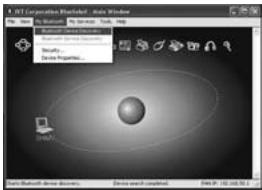
- Iocne noNcKa, OTMeBte 3aHOK mblsiu, ZIeKNHite n o npabOy KnaBnue H bblBePnt MeHO《O6bOnltBa》
- Choba OTMteBte 3HaOK MbI, ueKINHe NO npabO BKnAbWne n Bb6epte «IOnoCoeDInHbTe», a noTOM «BXoD oCbNjXmbHnriu Bluetooth», ciStema ATOtOMaTneCKn yCTaHOBNT FyKhUIO HID. PocLe 3TOBO Bbl Mokete C yIbOcBtOM NpIb30BaBtCB MybIbO Bluetooth®.
For a better transmission distance, avoid using this device on a metal surface.
Beallitasi utmutató
Declaration of Conformity
We, DICOTA GmbH, declare that the following product(s)
Model Name: BlueLight
Article No.: Z 22648 Z (Titanic)
Z 22638 Z (White)
Type of equipment: Bluetooth® Optical Mouse
which has(have) been tested and found in conformity with the following harmonized European standards,
R&TTE: EN 301489-3.V1.6.1:2005
EN301489-17:V1.3.2:2007
EN 300 328:V1.7.1:2006
EN50371:2002
And therefore comply with the essential requirements and provisions of the following Directives of the European Parliament and European Council:
R&TTE Directive 1999/5/EC (2008)
This document is the property of DICOTA GmbH, and it is not transferable.


Bernd Klinsmann
Chief Executive Officer (CEO)
Date: 9 Apr 2009
- SYSTEM REQUIREMENTS
- MAIN FEATURES
- PRECAUSION
- INSTALLATION GUIDE
- STEP 1: INSERTING BATTERIES
- STEP 2: CONNECTING "BLUELIGHT
- A: MATCH ON WIDCOMM
- NOTE
- B: MATCH ON MICROSOFT BUILT-IN SOFTWARE
- C: MATCH ON IVT SOFTWARE
- SMART POWER SAVING FUNCTION
- DISCLAIMER
- CUSTOMER SERVICE
- INTRO
- C:YCTAHOBKAHA COΦTBEPE IVT
- BEALLITASI UTMUTATÓ
- DECLARATION OF CONFORMITY
Brand : DICOTA
Model : BLUELIGHT
Category : Computer accessory