
B&W ZEPPELIN - Wireless Speaker B&W - Free user manual and instructions
Find the device manual for free B&W ZEPPELIN B&W in PDF.



| Product Type | Wireless speaker (iPod/iPhone docking station) |
| Brand | B&W (Bowers & Wilkins) |
| Model | Zeppelin |
| Dimensions (approx.) | Width: 60 cm, Height: 20 cm, Depth: 20 cm |
| Weight (approx.) | 5 kg |
| Power supply | AC 100-240 V, 50/60 Hz (power cable supplied) |
| Power consumption | Standby: < 1 W; operation: variable depending on volume |
| Speakers | 3-way: 2 tweeters, 2 midranges, 1 central woofer |
| Amplification | Digital, high efficiency |
| Audio inputs | 3.5 mm AUX jack (analog and optical); 30-pin iPod/iPhone dock |
| Video outputs | S-Video and composite (for compatible iPod/iPhone) |
| Connectivity | USB port (for firmware updates) |
| Remote control | Infrared (CR2032 battery supplied) |
| Compatible iPod/iPhone | iPod (3rd gen to classic), iPod touch, iPhone (1G to 4) – see groups A to E |
| Main functions | iPod/iPhone playback, auxiliary source, bass adjustment, video output, firmware update |
| Care and cleaning | Grille: brush or vacuum; surfaces: soft lint-free cloth; avoid abrasive or acidic products |
| Safety | Do not use the cradle as a handle; unplug to disconnect power completely; do not remove the grilles |
| Spare parts and repairability | Not specified by the manufacturer; contact B&W customer service or authorized dealer |
| General information | Design by Native Design (London); "Made for iPod" certified; conforms to RoHS and WEEE |
Frequently Asked Questions - B&W ZEPPELIN B&W
User questions about B&W ZEPPELIN B&W
0 question about this device. Answer the ones you know or ask your own.
Ask a new question about this device
Download the instructions for your Wireless Speaker in PDF format for free! Find your manual B&W ZEPPELIN - B&W and take your electronic device back in hand. On this page are published all the documents necessary for the use of your device. B&W ZEPPELIN by B&W.
USER MANUAL B&W ZEPPELIN B&W
Thank you for purchasing Zeppelin and welcome to B&W Bowers & Wilkins.
The iPod® and iPhone™ are great music sources on the move, but when you're at home or in the office, or you want to share your music with friends and family, earphones are not convenient. There are many products on the market that allow you to dock your iPod or iPhone and hear your favourite music without earphones, but it's usually a choice between hi-fi separates with their bulk and trailing wires or one-box solutions that don't do justice to the player's capabilities.
Zeppelin is different. It's a one-box product with the Bowers & Wilkins name. That means you'll experience impact and clarity, involving spatial qualities most often missing when listening through headphones or less-capable loudspeaker systems. And it's 'Made for iPod', which means that Apple Inc. has certified it for seamless use with today's most popular music source.
With its airship-inspired shape, distinctively styled by Native Design, London, Zeppelin is simple and intuitive to use. But before you immerse yourself in its great sound, please take a moment to read through this manual. You should also familiarise yourself with the safety instructions supplied with the product.
Unlike most other one-piece iPod docking devices, Zeppelin incorporates a full 3-way stereo speaker system. Left and right channels have individual midrange and tweeter drivers, while the bass of both is handled by a single central bass driver. Together with the efficient and cool running switching amplifier, this ensures extremely high quality, room filling sound.
The unique universal support bracket securely holds all compatible iPods/iPhones without adaptors or adjustment and gives the user freedom to operate the player's own controls as easily as if it were in the hand.
Video iPods and iPhones benefit from Zeppelin's video output sockets, allowing the user to transfer images to a television.
Additional music sources such as MP3 players, portable CD players and laptops may be played through Zeppelin using the AUX socket at the rear. Both analogue and digital connections are supported by the same socket.
There are different hardware versions of Zeppelin, which may be identified by referring to the serial number label (see page 5 for location), and there are some differences in operation.
This manual applies to all versions of Zeppelin, but assumes that the software has been upgraded to version 2.1. It supersedes any printed manual supplied with the product and any previous on-line versions.
iPod/iPhone compatibility
Group A (AUX analogue/digital mini jack input socket)

iPod
1st + 2nd generation

iPod shuffle
4th generation

iPod shuffle
3rd generation

iPod shuffle
2nd generation

iPod shuffle
1st generation
Group C (Spring-loaded iPod/iPhone connector port)

iPod mini

iPod
4th generation
Group D (Spring-loaded iPod/iPhone connector port)

iPod classic

iPod
5th generation (video)

iPod nano
4th generation (video)

iPod nano
rd generation (video)

iPod nano
nd generation (aluminum)

iPod nano
1st generation

iPod nano
5th generati (video came

iPod nano
6th generation
Group E (Spring-loaded iPod/iPhone connector port)

iPhone 4

iPhone 3GS

iPhone 3G

iPhone

iPod touch

iPod touch
3rd generation

iPod touch

iPod touch
2nd generation
1st generation
We have separated the different types of iPod/ iPhone into groups, which we will use throughout the manual to describe differences in the way the various models interact with Zeppelin.
Use this table to identify which group your iPod/ iPhone belongs to.
Group A models lack the standard 30-pin socket and will not dock with Zeppelin at all. Although the iPod 3rd generation of Group B has the 30-pin socket, Zeppelin cannot charge it because it requires Firewire® and Zeppelin supports only the latest USB charging. There are also software conflicts between this iPod and Zeppelin software v.2.0 and later. However, you can play these models through Zeppelin by connecting their headphone output to Zeppelin's AUX socket. See the section Connecting a second source.
To ensure maximum functionality, we recommend you keep your iPod/iPhone software up to date. Check for upgrades in iTunes.
Zeppelinins with serial number beginning Z-2 are 'Works with iPhone' certified. Earlier versions are not and, when you dock an iPhone on these, a message pops up on the screen asking if you wish to switch to Airplane Mode. There are no major noise interference issues between these Zeppelin versions and the iPhone, so press the No button and continue operation. Refer to page 5 for the location of the serial number label.
There are differences in the video and streaming operation of Group E devices, depending on the hardware version of Zeppelin and its software. Please refer to the sections Outputting video and Streaming content from the Internet.
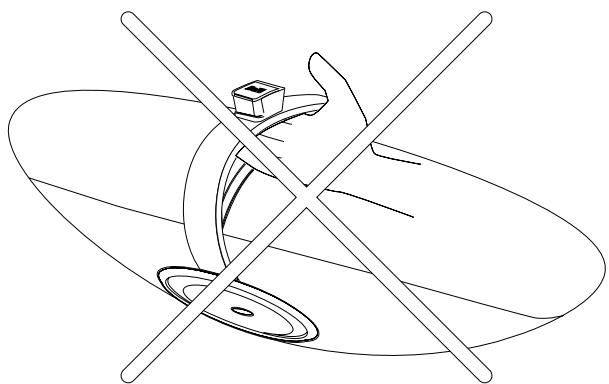
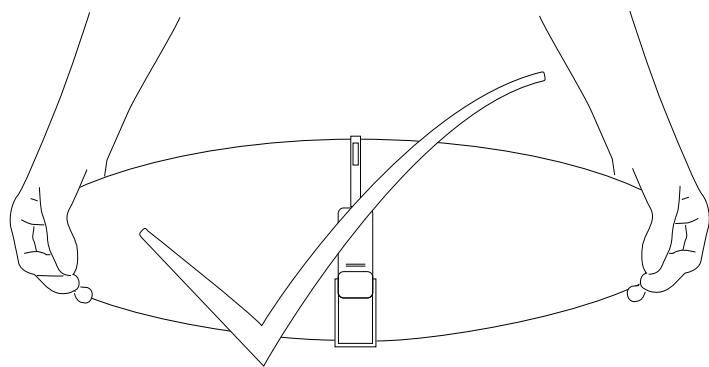
Correct handling
When lifting Zeppelin, use two hands on the body. Never use the iPod support bracket as a handle.
A tour of Zeppelin
Although Zeppelin is exceptionally easy to use, please spend a few moments getting to know where its controls and connectors are and what they do.
Zeppelin is shown with the grilles removed so you can see what's behind. Do not try to remove the grilles. They are deliberately difficult to get off to limit access and avoid damage to exposed drivers.
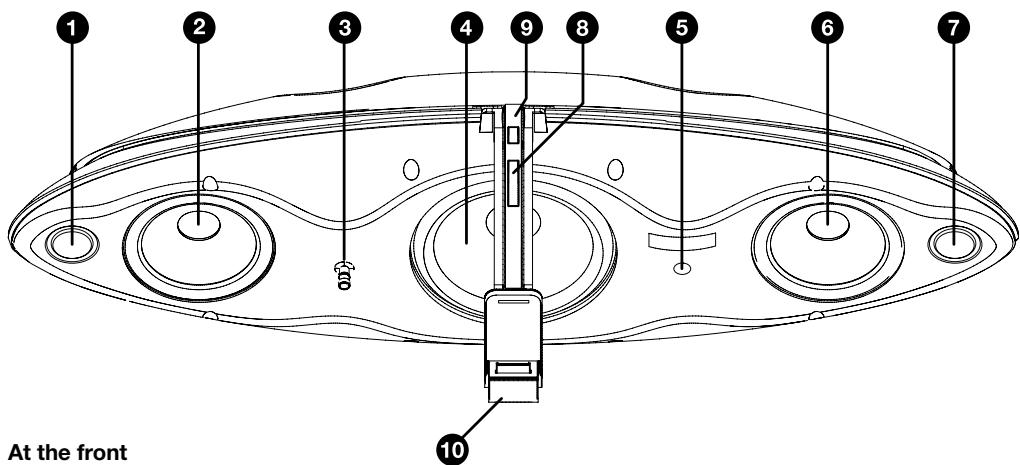
1 Left channel tweeter
2 Left channel midrange driver
3 Multicolour status LED.
4 Bass driver
5 Infrared remote control receiver.
6 Right channel midrange driver
7 Right channel tweeter
8 Volume up/down rocker button
9 Combined on/standby and source selector button
10 Spring-loaded iPod/iPhone connector port
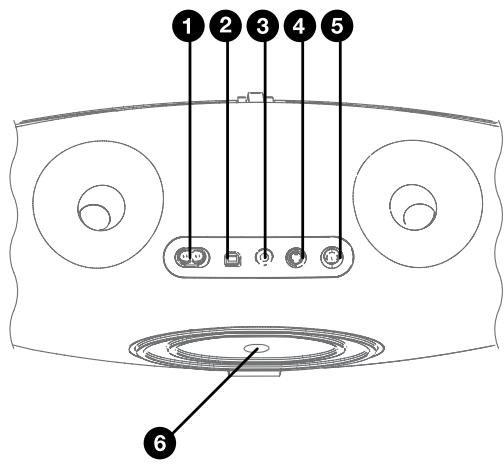
At the back
1 Power input socket
2 USB slave socket for software updates to Zeppelin
3 AUX analogue/digital mini jack input socket
4 S-Video output socket
5 Composite video output socket
6 Serial number label
Turning on the remote control
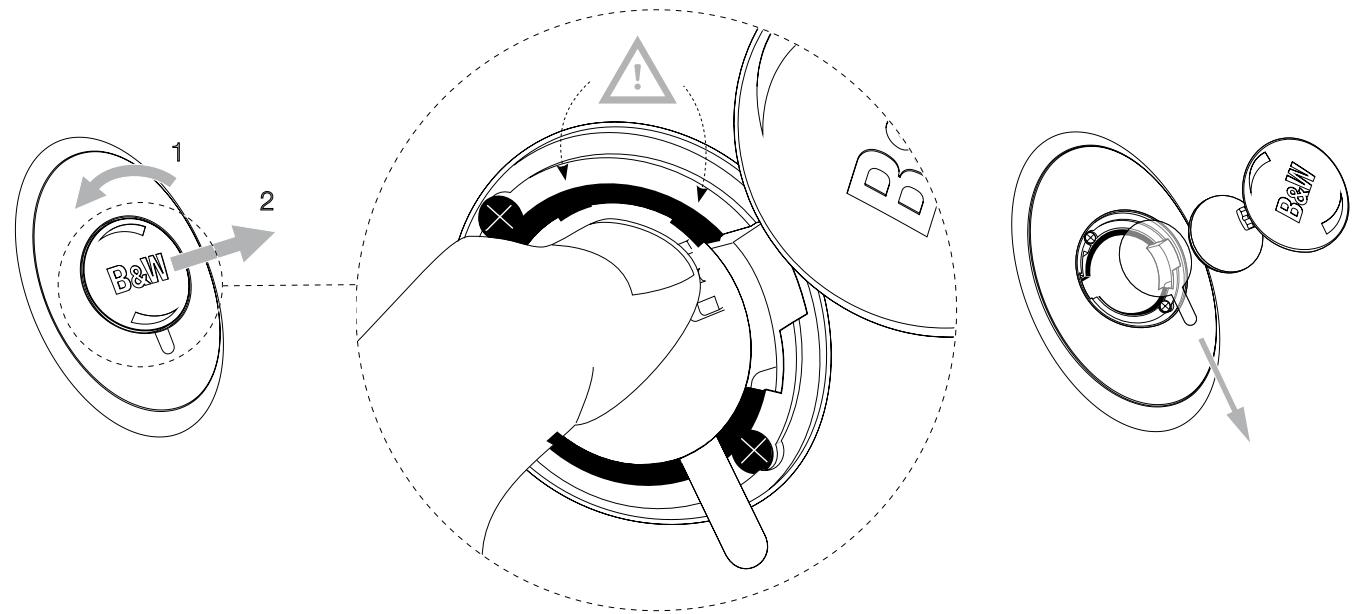
Before using the remote handset for the first time, you must remove the clear plastic insulating tab that prevents the battery draining.
Rotate the battery cover anticlockwise 1/8 full turn and remove.
Release the battery. Press down on the edge of the battery between the two black lugs and the opposite side next to the metal spring will flip up.
Remove and discard the insulator.
Replace the battery, first locating one side under the small lugs opposite the metal spring.
Replace the cover.
Setting up
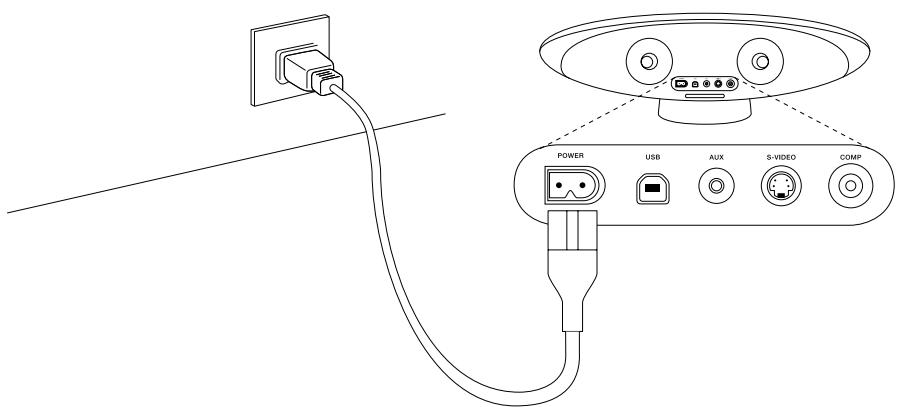
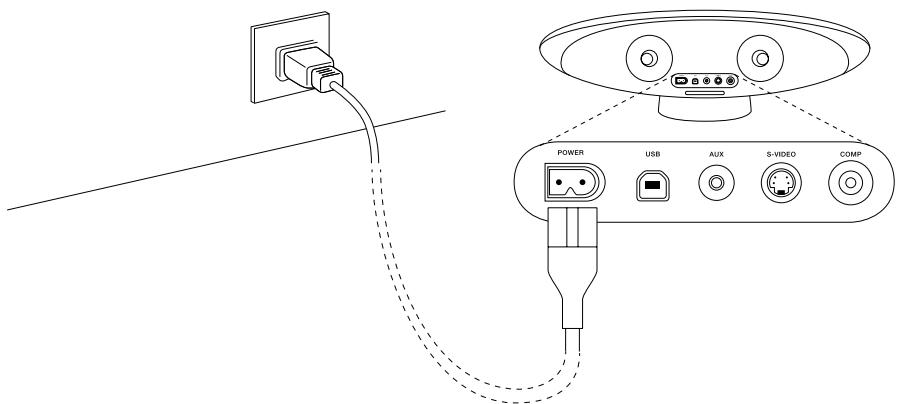
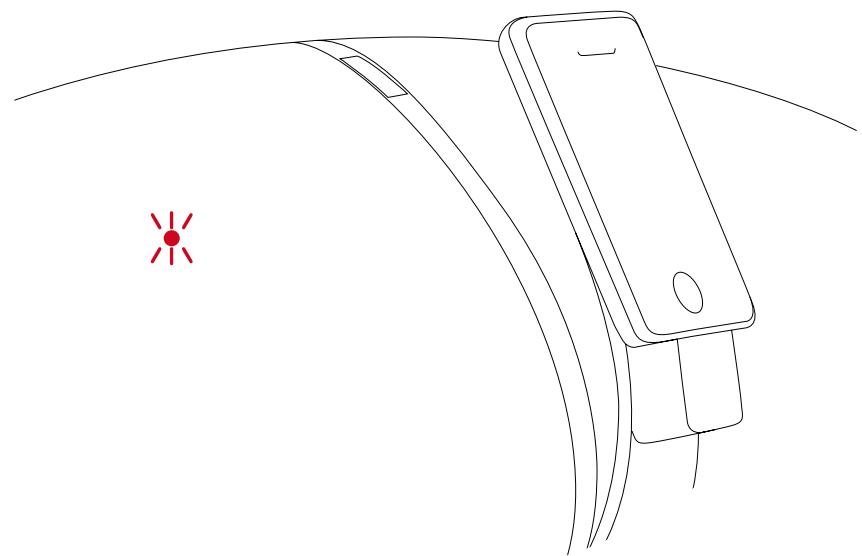
Connect Zeppelin to the power supply. When plugged in, Zeppelin will go through a system check for a couple of seconds, during which it will not accept commands, and then assume standby mode. In standby, the LED at the front will glow red.
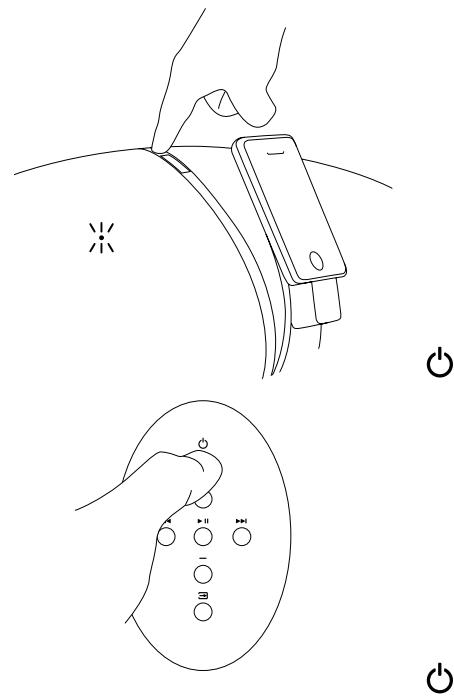
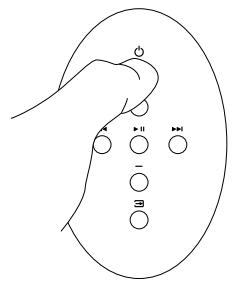
To turn Zeppelin fully on, press the button, either on the remote handset or on Zeppelin itself. When fully on, the LED colour will depend on the selected source - blue for iPod/iPhone or green for a second source plugged into the AUX socket.
To totally disconnect Zeppelin from the power supply, you will have to remove the plug from or switch off the wall outlet.
Docking an iPod/iPhone
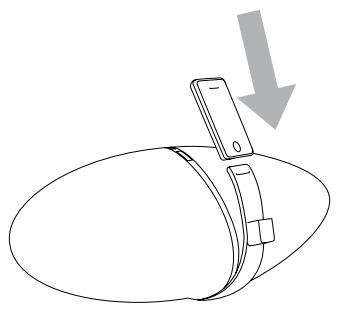
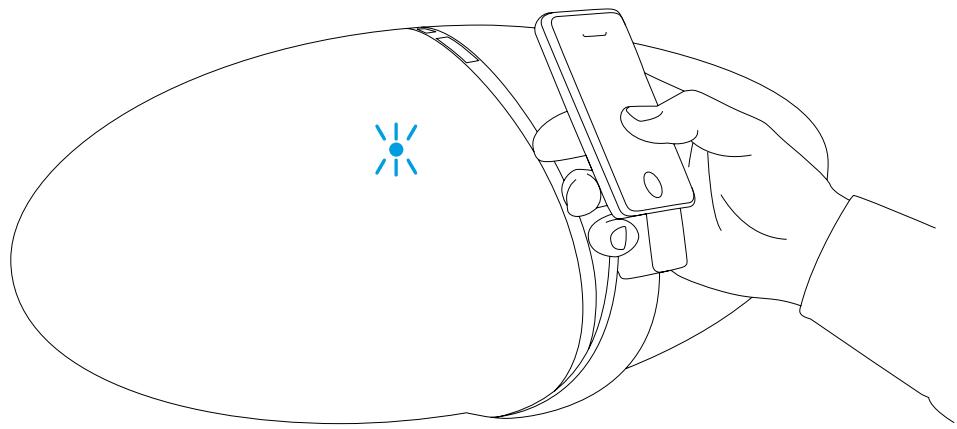
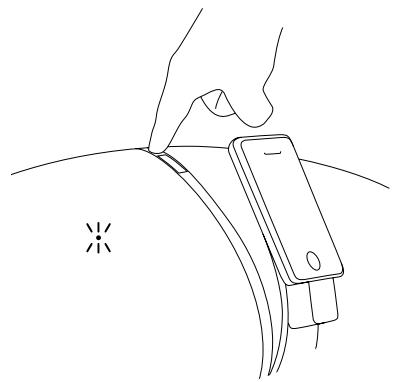
To dock your iPod/iPhone, simply angle it, locate the long socket over the connector on the support bracket and push down fully.
The spring-loaded design automatically adjusts for all models and causes the iPod/iPhone to rest on the back support.
There's plenty of room to get your hand round the back of the support to operate the player's own controls in the normal way. Note that, because the socket in the base of 1st, 2nd and 4th generation nanos is offset to one side, they will not sit centrally on the support bracket.
As soon as you dock your iPod/iPhone, Zeppelin automatically selects it as the source. If Zeppelin is in standby, it will automatically turn itself fully on without you having to press either 0 button. The LED will glow yellow for a couple of seconds while the amplifier initialises and then turn to blue when Zeppelin is ready to play.
If your iPod/iPhone was turned off or in pause mode when you docked it, it will end up in paused mode. If it was playing, it will continue to play.
All the time your iPod/iPhone is docked and Zeppelin is plugged into the power supply, your iPod/iPhone will charge (except for Group A and Group B devices). If that's all you want it to do, put Zeppelin into standby to reduce power consumption using the button, either on Zeppelin or on the remote handset.
If you remove your iPod/iPhone while it is the selected source, Zeppelin will automatically go into standby after 5 minutes to reduce power consumption.
Controlling the volume
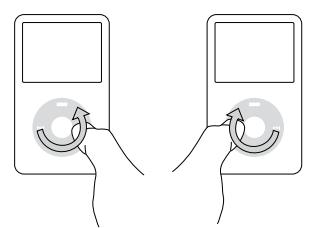
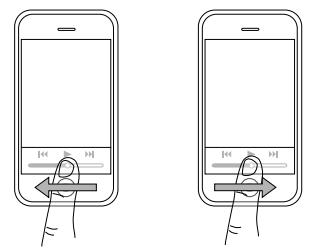
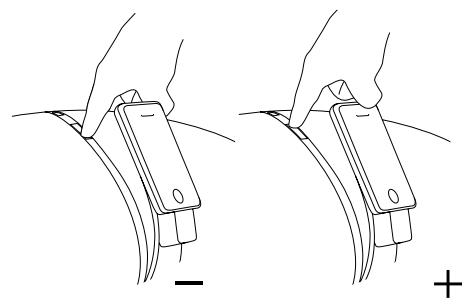
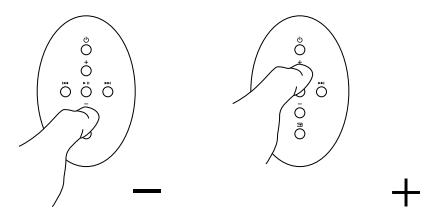
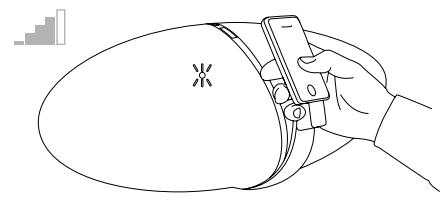
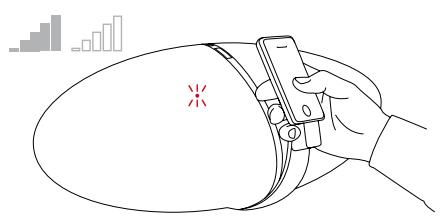
There are three ways to adjust Zeppelin's volume.
If your iPod/iPhone is docked, and it is a Group D or Group E device, its own volume control can be used to alter Zeppelin's volume level, which is also displayed on the iPod/iPhone's screen.
For the touch screen of devices in Group E, use the slider volume control at the bottom of the screen. For Group D iPods, use the click wheel.
When using the volume control of a docked iPod/iPhone, its own internal volume level is not affected, but is retained at its original level for when you remove the iPod/iPhone and go back to using headphones.
The click wheel and display of Group B and Group C iPods will not function in this way.
On Zeppelin itself, press on the upper section of the long button, marked + to increase the volume and the lower section, marked - to decrease it
On the remote, press the + button to increase the volume and the - button to decrease it.
In both cases, a short press will make a small change, or you can press and hold to ramp up or down.
As you alter the volume level, Zeppelin's LED will flash. As you approach the maximum level, the LED will turn white. Once you reach either the maximum or minimum level, the LED will turn red.
Navigating tracks on your iPod/iPhone
If you are close to Zeppelin, it is easy to use the navigation controls on your iPod/iPhone as normal.
However, for distant operation, the play/pause, forward and back controls that you are familiar with on your iPod/iPhone are duplicated on Zeppelin's remote handset.
All the controls on your iPod/iPhone continue to work as normal. If you press Play on your iPod/iPhone while it is docked, Zeppelin will automatically select it as the source.
For complex operations, such as selecting a playlist, you will need to be close to Zeppelin in order to read the iPod/iPhone's screen. Zeppelin's design makes it so easy to use the iPod/iPhone's own controls that there is no need for these operations to be duplicated on the remote handset. As a consequence, Zeppelin's remote handset has deliberately been kept simple.
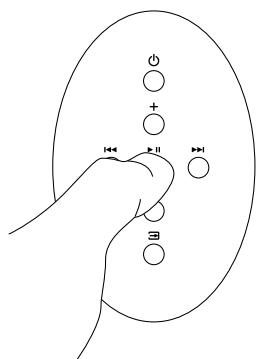

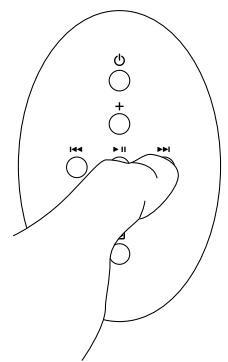
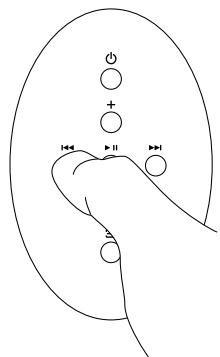
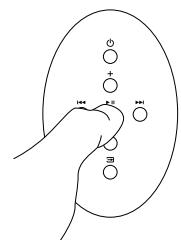
Just as on the iPod/iPhone, the button toggles between play and pause.
If you are playing a second source through Zeppelin's AUX socket, the play/pause button toggles mute on and off.
A single press on the button moves you to the start of the next track. Press and hold to fast forward through the current track.
This button has no effect when playing a second source through Zeppelin's AUX socket.

A single press on the button moves you to the start of the current track. A double press takes you to the start of the previous track. Press and hold to fast reverse through the current track.
This button has no effect when playing a second source through Zeppelin's AUX socket.
Outputting video
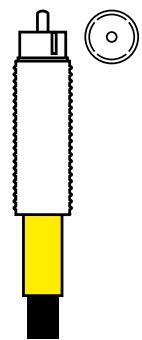
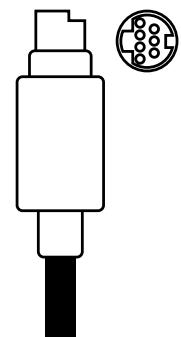
If you want to feed images from a video iPod or iPhone to your television, use either an S-video or composite video cable between Zeppelin and your set. If you have a choice, S-video offers slightly better quality.
If your iPod/iPhone is already playing a video as you dock it, the picture may not automatically transfer to the TV screen. In that case, stop the video, go back a step in the iPod/iPhone's menu, re-select the video and start it again.
When you play a video on devices in Group E, Zeppelin software (except v.2.0) forces the video content to be routed out to its S-VIDEO and COMP sockets for display on a TV and the picture may not be viewed on the iPhone/touch screen.
Note: Zeppelin software v.2.0 allows the operation of the pop-up message "Display on TV? Yes/No", but was superseded due to a bug in Apple iPhone/touch software v.3.0 that can cause the iPhone/touch to freeze if the pop-up is allowed.
With other video iPods, you can set the video output state on the iPod itself (Video > Settings > TV Out >) to be always displayed on the iPods screen (Off), or always output to a TV (On), or to pop up a choice message (Ask).
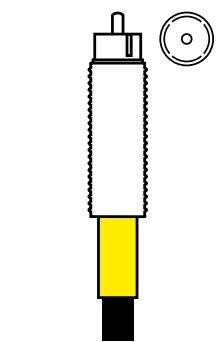
Composite video cable
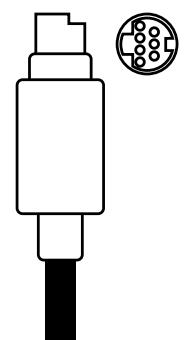
S-video cable
Note: 4th generation nanos display some video content only at right angles on their own screen.
Zeppelin with serial numbers beginning with Z-0 and having the originally installed software will not output video from Group E devices. To enable video output with these devices, upgrade Zeppelin's software on our web site www.bowers-wilkins.com
Download the Zeppelin Connectivity Guide from our web site for more details.
Streaming content from the internet
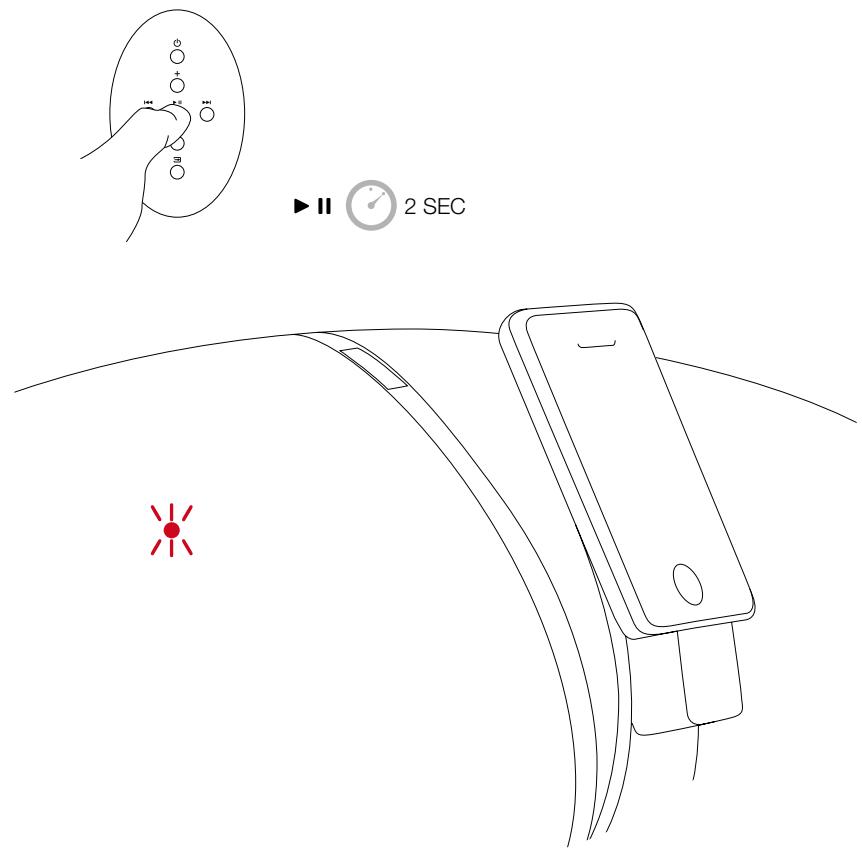
The devices of Group E - iPod touch and iPhone can connect to the Internet and stream both video and audio content. While streaming, their iPod function is paused and Zeppelin's LED will slowly flash blue. In this state Zeppelin's with serial numbers starting Z-0 and with the original software installed mute their amplifier and the streamed audio content will not be heard.
To enable streamed content to be heard via this Zeppelin version, first upgrade the software, which you can access from the Zeppelin page of our web site www.bowers-wilkins.com. The later software by default will still mute-on-pause with Z-0 models, but this may be defeated by first placing Zeppelin into standby (when the LED will glow red). Press and hold the remote's play/pause button until the LED blinks (approximately 2 seconds). A single off/on indicates that the mute-on-pause has been defeated and streamed audio may be heard. A double off/on/off/on indicates that mute-on-pause has been restored.
Zeppelin with serial numbers starting with Z-1 or higher will stream Internet content as delivered.
When streaming from the Internet (eg from YouTube), the play/pause, forward and back buttons of Zeppelin's remote will not duplicate the on-screen controls of the touch/iPhone. Pressing the remote's play button will cause the current iPod-stored audio/video file to start playing.
Connecting a second source

You can connect a second source to Zeppelin using the AUX socket at the rear, which accepts both analogue and digital signals. Zeppelin will automatically know which type it is receiving.
Analogue sources will need a 2-core coaxial cable terminated at the Zeppelin end by a mini stereo jack plug, just like the plug used for your iPod headphones. The plug required at the other end will depend on the source.
If the source is an early generation iPod, shuffle, MP3 player, laptop computer or portable CD player, the output will probably be from a headphone socket and the same style mini jack will be needed. If the source has its own volume control, set it to approximately 75% full scale.
If the source has a line output - a standard 'stacking' CD player, for example - you will probably need two RCA Phono plugs at the source end. If the source has its own volume control, set it to approximately 90% full scale.
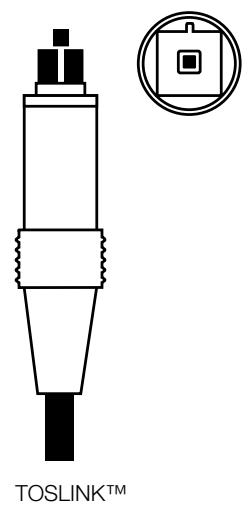
Sources with an optical digital output use a fibre-optic cable, sometimes called a TOSLINK™. The standard TOSLINK™ termination has a stubby, block-ended shape, but some devices, including Zeppelin, Apple Macintosh®, Apple TV® and Apple Airport Express®, use an optical mini jack plug. These optical mini jacks have the same outline shape as the analogue version, but have no black stripes and have a clear tip for the light to pass through.
Download the Zeppelin Connectivity Guide from our web site for more information.
Playback from a second source
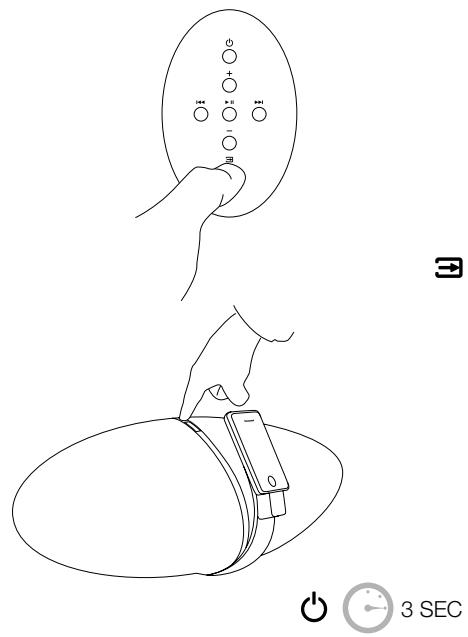
You can switch between the iPod/iPhone and a second (AUX) source by using the button on the remote handset or by pressing and holding the combination button on the top of Zeppelin itself. See the tables below for details.
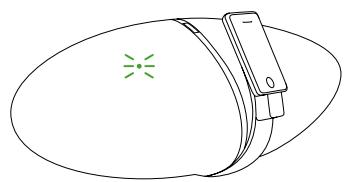
When AUX is selected, Zeppelin's LED glows green.
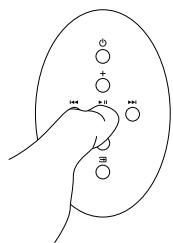

The play/pause button on Zeppelin's remote handset toggles mute on and off. The fast forward and fast reverse buttons have no effect.
If Zeppelin is manually switched to standby and on again, it automatically selects the last used source. If that source is no longer connected, Zeppelin will switch to the alternative. If no source at all is connected, Zeppelin will return to standby after 5 minutes. Your iPod/iPhone only overrides source selection as it is docked or if you press its own Play button while it is docked.
Remote handset summary
| Button | Action | Effect |
| ○ | Press once when Zeppelin in standby | Zeppelin turns on and selects last used source. See also section Playback from a second source. |
| Press once when Zeppelin on | Zeppelin goes to standby. A docked iPod/iPhone is paused and turned off. | |
| + | Press once | Volume increases by small increment. |
| Press and hold | Volume ramps up and LED flashes. White LED indicates approaching maximum volume. Red LED indicates maximum level. | |
| - | Press once | Volume decreases by small decrement. |
| Press and hold | Volume ramps down and LED flashes. Red LED indicates minimum level. | |
| ► II | Press once | Toggle play/pause (if iPod/iPhone is source) Toggle mute on/off (if AUX is source) |
| ► I | Press once | Go to start of next track (no effect for AUX) |
| Press and hold | Scan forward through current track (no effect for AUX) | |
| ← | Press once | Go to start of current track (no effect for AUX) |
| Press twice | Go to start of previous track (no effect for AUX) | |
| Press and hold | Scan backwards through current track (no effect for AUX) | |
| ∃ | Press once | Toggle between iPod/iPhone and AUX. If AUX selected, a docked iPod/iPhone will pause. If iPod/iPhone selected, it will play. If no alternative source is connected, a red LED indicates invalid command. |
LED signal summary
| LED state | Meaning |
| Steady red | Zeppelin in standby |
| Steady yellow | Zeppelin powering up from standby (2 sec) |
| Steady blue | Zeppelin on, iPod/iPhone selected |
| Steady green | Zeppelin on, AUX selected |
| Slow flashing blue | iPod is paused (Group D & E devices only) |
| Slow flashing green | AUX is muted |
| Rapid flashing blue | Volume changing, iPod/iPhone selected |
| Rapid flashing green | Volume changing, AUX selected |
| Rapid flashing white | Volume approaching maximum |
| Rapid flashing red | Volume at maximum or minimum |
| Single off/on blue or green | Acknowledge valid button command |
| Single flash red | Command not available |
| Continuously flashing red | Warning - if no button is being pressed, there is a system fault |
Taking calls on an iPhone
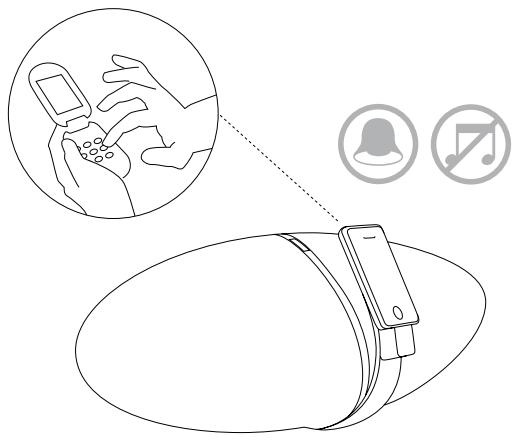
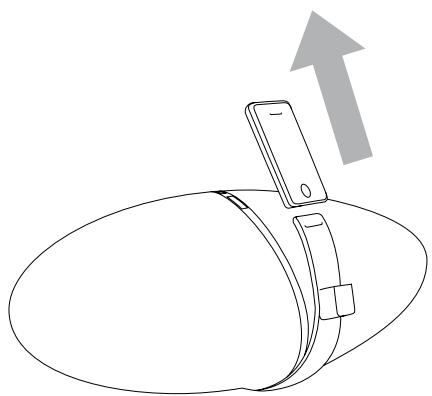
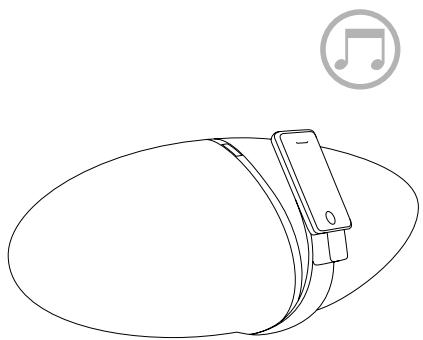
If you have an incoming call while the iPhone is docked, the iPhone will ring through Zeppelin and mute the music.
The iPhone does not send call audio to the 30-pin docking connector, so you cannot hear the caller through Zeppelin.
To take the call you can either remove the iPhone from Zeppelin and replace it when the call is finished or leave it docked and turn on the iPhone's internal Speaker to use it as a speakerphone.
If you were playing music when the call came in, it will resume playing when you terminate the call and the iPhone is docked.
Adjusting the sound
If you place Zeppelin with its back against a wall, the bass level is boosted, and more so if it is in a corner. Zeppelin's own bass output may be adjusted to compensate.
When you dock a Group D iPod into Zeppelin, an extra item called Speakers appears in its top-level menu. If you select this option and then choose Tone Control, you will get a list of Bass level options.
With Group E devices, tap the Settings icon on the touch screen. The Speakers item is added to the list, but is hidden below the bottom of the screen. Stroke the list upwards with your finger to reveal the hidden items on the list.
In the default position, Bass 0, the balance is adjusted for when Zeppelin is on an open table.
Bass -1 lowers the bass to match a single wall and Bass -2 a corner. Personal preference is important too, so we provide extra settings at each end, Bass +1 and Bass -3. Choose whichever sounds best to you. The change happens as soon as you highlight the option.
The selected EQ setting is retained for any other iPod you dock and to any second source connected to the AUX input. So, if you have an earlier model iPod, you can still adjust Zeppelin's bass by borrowing a Group D or E device and it will remain set for other models.
When using Zeppelin, we recommend that you turn off any EQ in the iPod/iPhone itself (Settings > iPod > Music EQ > Off for iPhone, Settings > Music > EQ > Off for touch or Settings > EQ > Off for other iPods).
Cleaning Zeppelin
Use a clothes brush or vacuum cleaner with nozzle attachment to clean the grille cloth. Wipe other surfaces with a clean lint-free cloth. If you wish to use a cleaning agent, apply it onto the cleaning cloth, not directly onto the product. Test a small area first, as some cleaning products may damage some of the surfaces. Avoid products that are abrasive, or contain acid, alkali or anti-bacterial agents.
Upgrading Zeppelin software
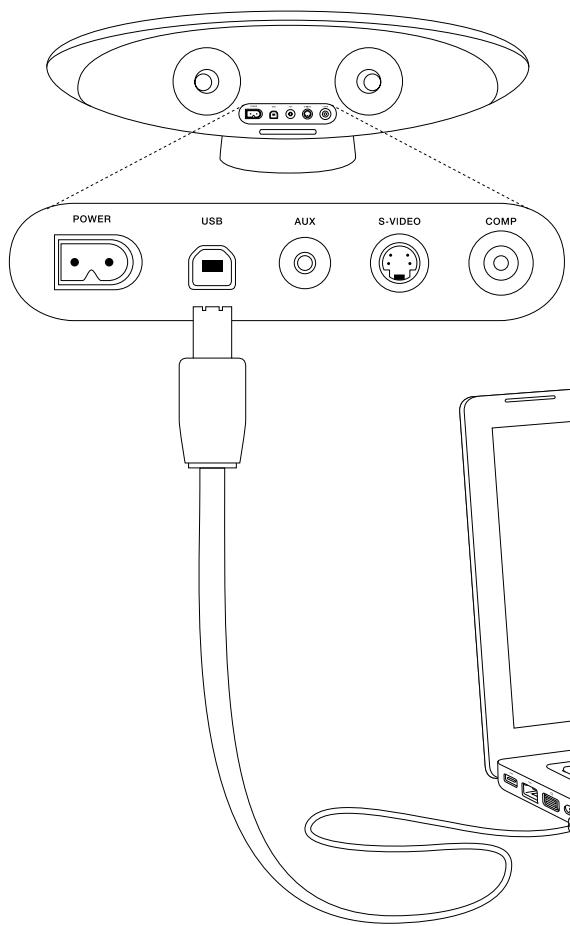
From time to time it may be necessary to update Zeppelin's software. Upgrades and instructions on how to install them will be posted on our web site: www.bowers-wilkins.com
To install upgrades, you will need to connect Zeppelin to a USB output on your computer using a standard USB device cable. This is the same type of cable that is used to connect USB printers, for example. If Zeppelin's current software version is 1.3 or later, you can display the version number on the screen of a docked iPod/iPhone of Group D or Group E.
For devices in Group E, navigate
Settings > General > About and scroll to the bottom of the page.
For 1st and 2nd generation nanos and 5th generation iPod, navigate Settings > About and scroll to the bottom of the page.
For 3rd and 4th generation nanos and classic, navigate Settings > About and tab to the 4th page using the track forward or back buttons, either on the iPod or Zeppelin's remote.
Environmental information
All B&W products are designed to comply with international directives on the Restriction of Hazardous Substances (RoHS) in electrical and electronic equipment and the disposal of Waste Electrical and Electronic Equipment (WEEE).
These symbols indicate compliance and that the products must be appropriately recycled or processed in accordance with these directives. Consult your local waste disposal authority for guidance.

Troubleshooting
If Zeppelin does not perform as expected, there may be nothing intrinsically wrong. Check through this table for possible remedial action.
Additional topics are covered in the Zeppelin FAQ section of our web site: www.bowers-wilkins.com
A continually flashing red LED indicates a system fault.
Before calling for assistance first try rebooting Zeppelin by disconnecting it from the power supply for a minimum of 5 seconds and reconnecting.
| Symptom | Possible cause |
| No LED | Power cord not properly plugged in or damaged. (UK, Ireland or Hong Kong only) Fuse blown in fused plug of power cord. Internal fault. Consult your dealer. Upgrade iPod/iPhone software |
| No sound from any source | Volume set to minimum |
| No sound on iPod/iPhone source only | iPod/iPhone not in play mode. |
| No sound on AUX source only | Zeppelin muted. AUX cable not properly connected or damaged. |
| AUX source takes several seconds to sound | Poor compatibility between TOSLINK™ cable and optical mini jack cable adaptor/converter. Dirty TOSLINK™ cable ends. Clean as recommended by cable manufacturer. |
| Track up/down commands do not work | Upgrade iPod/iPhone software. |
| Cannot control volume from iPod/iPhone interface | Upgrade iPod/iPhone software. (Group D & E devices only) |
| Speakers menu item does not appear when iPod/iPhone docked | Upgrade iPod/iPhone software. (Group D & E devices only) |
| Buttons on remote do not work. Zeppelin buttons OK | Infrared receiver on Zeppelin obscured. Battery not correctly seated. Battery insulating tab not removed. Battery needs replacing |
Troubleshooting continued
| Symptom | Possible cause |
| iPod does not respond to Zeppelin commands | iPod/iPhone badly seated on connector. Dirty or worn contacts. |
| Buttons on Zeppelin do not work. Remote OK. | Dirty or worn contacts. Consult your dealer. |
| Cannot output video images to TV | Upgrade Zeppelin software. |
| Cannot display video images on the touch screen of a Group E device | Upgrade Zeppelin software |
| Cannot hear audio streamed from Internet | Upgrade Zeppelin software. |
| iPod/iPhone back light will not re-brighten | Re-boot iPod/iPhone and upgrade Zeppelin software. |
| iPod/iPhone alarm does not sound when docked | Upgrade Zeppelin software. |
| Source change between iPod/iPhone and AUX not reliable | Upgrade Zeppelin software. |
| iPod/iPhone freezes | Search “How to reset iPod” on the Internet. If caused by a known conflict between Zeppelin software v.2.0 and iPhone/touch software v.3.0, upgrade Zeppelin software. |
Introduction
1st + 2nd generation

iPod shuffle
4th generation

iPod shuffle
3rd generation

iPod shuffle
2nd generation

iPod shuffle
1st generation
5th generation (video)

iPod nano
4th generation (video)

iPod nano
d generatio (video)

iPod nano
nd generation (aluminum)

iPod nano
1st generation

iPod nano
5th generation (video camera

iPod nano
6th generation
Cable video composite
Cable S-Video
Compatibilities iPod/iPhone
Grupo A (Minitoma de entradaanalógica/digital AUX)

iPod
1^a + 2^a generación

iPod shuffle
4^a generación

iPod shuffle
3^a generación

iPod shuffle
2^a generación

iPod shuffle
1^a generación
Grupo B (Minitoma de entradaanalógica/digital AUX)

iPod
3^a generación

iPod touch 4th generation

iPod touch 3rd generation

iPod touch 2nd generation

iPod touch 1st generation
1st + 2nd generation

iPod shuffle
4th generation

iPod shuffle
3rd generation

iPod shuffle
2nd generation

iPod shuffle
1st generation
Group B (Ahaorobby/uzpboBpoBpa3bem mini jack dIy BXoJa AUX)

iPod
3rd generation
5th generation (video)

iPod nano
4th generation (video)

iPod nano
genera (video)

iPod nano
nd generation (aluminum)

iPod nano
1st generation

iPod nano
5th generation (video camera)

iPod nano
6th generation
Generation 2nd generation

iPod touch

iPod touch
1st generation
Mbypeuynpa36nbpa3nhe Tnblipod/Phone Ha rpynbl,06o3NaeHnKOTopbIX MbldAaeIncnoB3yEm NO BceINHCTpykUIMDnOINCaHnOTInHBr INBx B3aImOMeJCTBNc Zeppelin.
Icnno3ynte Tabiny, npBBeEHHyo HnKe, YTo6bl
OpneJenTb, K kaKo rpynnE OTHocITc BaU iPod/iPhone.
Xota npeepb iPod 3-ro NOKOENHRA B rpynE B ImeHT
30-KoHTaKTbHb pa3bEm, Zeppelin He MoKET NOp3apKaTaB
nx, T.K. dNr 3TOr Tpe6yeTc Ka6JIb Firewire, a Zeppelin
NoDepKINBaET ToIbKO 3apAky Uepe3 NocJeHNBE Bercm
USB. IMeETc TaKke IprpAMMbH b KOHfMkT MExJy IIO
dNra TAKnx iPod u IIO dNra Zeppelin Bercm v2.0 n6Oonee
No3DNHX. OHaKo Bbl MoKTe BOCPOnBDOITb 3aNtCn
C 3TNx MoDeE yPe3 Zeppelin, CoeINHb IN BbIXoH na
HayuHnKn c pa3bEMOM AUX Ha Zeppelin. Cm. pa3deJ
YcTaHOBka N HacTpOiKa
IpoCoeINHTe Zeppelin K nctOuHky pntaHn. Iocne npKnIOUeHn, Zeppelin B TeueHne HeckoJIbKnx CeKyHnpOBoINT cNCTeMHyIO npOBepKy n He BOCpNIHmaeT KOMaHdbI, a 3aTeM nepExoJNT B pexIM OxNiDaHn standby. B pexIme standby, LED INdkaTop ha nepeDne H naHeJI CBeTITc KaChbIM.


Длп понoro BKЛючени Zeppelin,在жмte Ha Khonky BKЛ,лбо на пьtle,лбо на hemCAMOM. Пп поном BKЛючени,цет LED Иndикатopa 3aBnCIT OT ВьбраHHORO nCTOHNka -СИНДдг IPod илз зелень -дг ввторо nCTOHNka, nodklJOUeHHORO K pa3bemy AUX.
PnIncNoJIb3OBAHmI pERyJIaTOpA rpoMkoCTn
pIpcIbIKoBaHOrO iPod/iPhone,ero co6cTeBHeHHbI
BHTypeHHnI pERyJIaTOpR pOMKoCTn He 3aTparnBaETcR, a
OCTaETC H NxCxODHom yPoBHe,N BOCCTaHaBJIBaETcR,
KoJa CHImMaTe iPod/iPhone c pa3bema M Bo3BpaJaaTeCe b K
IpcOcLyuINBaHmIO uee3 HayuHnIKi.
Koneco npokpykn n dinnnei npeepo Pod n rpynn Group B n Group C He byet pabotb TaKIM Jx o6pa30M.
Ha camom Zeppelin, haxmnte Ha BepxHIOU qacTbДINHHO KNOpKN, NOMEeHNHyIO 3NaKOM “+”ДЯ yBEnIeHnRA rPOMKoCTN INJN HIXHIOU qAcTb, NOMEeHNHyIO 3NaKOM“-”ДЯ ee yMeHbSeHnA.
Ha npIbTe, HaxMnte Ha KhoNkY ^ 一 DnIyBvEJIuHEnHrPOMKoCTn INn Ha KhoNkY ^ 一 DnIe ee yMeHbSeHn.
B 060nx cnyaax KpaTHe HaaKtne npmboNT K He60bIshOmy n3MeHEnHIO, a npDoJIoxnTeHHOe HauKtme-K NocTepeHHOMy pIaNbHOMy HapactaHIO uNII CNHXeHNIO.
B xOJe n3MeHEnI rPOMKoCTn CBToDnOd LED Ha Zeppelin 6yDeT MIRATb. EcNI Bbl np6bn3mTEcb K MaKcImaJIbHOMy yPoBnIO, CBToDnOd LED 3arOpNTc8 6eJIbIM CBeTom. KaK TOnbKO Bbl DoCTNRHeTe MaKcIMyMa IJIu MNHmMya, CBToDnOd LED 3arOpNTc KpaChbIM CBETOM.
BbIBoD BnIeO CnHaJIOB
Ecni Bby XOHTe IOnaTb N3o6paXeHne c nIeepa iPod nnni
iPhone ha TeLeBn3Op, IcNoJIb3yIte IIn6o KOMnO3nTHbI,
In6o S-video Ka6ebI, dIra coEmlHeHna ZepeLIn c TB.
Ecni eCTb BO3MOxHocTb BbIbopa, To S-video oBeCneHt
IyUWee KaueCTBO I3o6paXeHnI.
EcnBaa iPod/iPhone yye BocpOn3BovJi BInDeo, KOrDa bbl cTaNn pncTBbIKOBbBaTb ero, I306paXeHne MoKeT He Bo3NHKHyTb ABTomAtuYeCKn Ha TV 3kPaHe. B TaKOM CnyaHe, OCTaHOBtBe BInDeo, BEPHNTecb Ha OIN Hwar B MeHIO iPod/iPhone, BHOBb BbIbepTe BInDeo n 3aNyCTtNe BOCpOn3BvEHne eue pa3.
Korda bbl npourpbBaTe BnDeo Ha yctpoCTbax rpynnb E, IIO Zeppelin (Kpome Bercn v.2.0) HanpaBnRe T BnDeo KOHTeH Na bblxOHDhle pa3beMbS-S-VIDEO n COMP dIra nokaka hA TV n3obpaXeHne MoKTe He 6blt BnDHO ha 3kpahe iPhone/touch
ПиMuYeHHe: ПО Zeppelin Bercn v.2.0 no3BoJrTe BbIbOuTb BCIIbIaUoSe coo6eHne "Display on TV? Yes/No", Ho daJIbSe 6bokpyetc rN-3a oUIn6Kn B npOrpaMMHom o6ceNeHm Apple iPhone/ touch Bercn v.3.0, KOTopra MoKeT npBIOuTb K noDbVcAHHo iPhone/touch, ecn pa3peSeHn BbIbO BcIIbIbAOuXs coo6eHn.
Ha nprynx MoIeIax BnIeO iPod-OB, Bbl MOKeTe 3aIaTb pexIM BbIOa BnIeO Ha cAMOM PIIeepe iPod (B MeHIO: Video > Settings >TV Out >), t.e. CdEaTb TaK, TTo6bI OHO BcERda demOHCTpRuBaIocb Ha 3kPaHe iPod (Off), IIn6o BcERda nepePraBIAIOcb Ha 3kpaTneTeBvIzOpa TV (On), nInn Jx, TTo6bI BCINlbAINO npedloXeHne Bb6paTb pexIM (Ask).
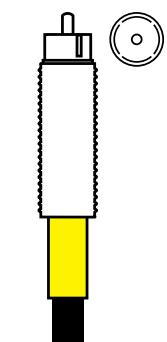
KOMN03HTbIy BnDeo Ka6eJIb
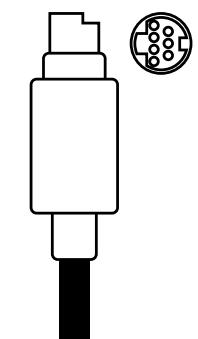
S-video kaebelb
Korda Bb6paH BXoAUX CBeToIOuLED 3aRopaetc3eIeHbIM CBETOM.
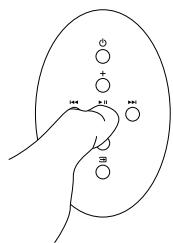
KhONka play/pause ha nyIbTe Zeppelin BkIIOuaET n BvIKIOuAeT nprrnyuSeHne 3Byka Mute. KhONkn 6bICTpoi nepemOTKn BnpeNd Ha3aD He DeiCTBlyOT.
Ecn Zeppelin BpyHyu nepeBeDen B pexm standby, a NOTOM BKIOUeH ONIb, OH ABTomATNUeCKN Bblpaet NocJeHN I3 IcTOUHKOB. Ecn 3OT IcTOHKn 6Oee He NoCoeHNHe, Zeppelin nepeKIOUHTcna Ha aJIbTerHaTINBHy. Ecn Hn OIN IN cTOHKn He noCoeHNHe, Zeppelin uepe3 5 MInyT BepHETcB Pexm OxNiDaHn staNDby. BaW iPod/iPhone noDMHeT bIbpaHnBn IcTOHKn, ecn Bbl coCTbIKyTe ero n HaxMeTe Ha hem KhoNky Play. 190
ObnapyxekHe n yctpaHene HeNCnpaBHOCTeI
Дахе ecn Zeppelin He pa6oTaet, KaK OxuIaIocb, BNoJIne MoKET OKa3aTbc7, ChTo OH nCnpaBeH. I03Tomy, npexJe Yem obpaaTbc7 3a NOMOuH, O3HaKOMbTeEc b C 3Toi Ta6nuei.
1st + 2nd generation

iPod shuffle
4th generation

iPod shuffle
3rd generation

iPod shuffle
2nd generation

iPod shuffle
1st generation

iPod
5th generation (video)

iPod nano
4th generation (video)

iPod nano
d generation (video)

iPod nano
nd generation (aluminum)

iPod nano
1st generation

iPod nano
5th generation (video camera)

iPod nano
6th generation
Skupina E (Odpruzeny konektor pro iPod/iPhone)

iPhone 4

iPhone 3GS

iPhone 3G

iPhone

iPod touch

iPod touch

Generation 2nd generation
iPod touch

iPod touch
1st generation
1st + 2nd generation

iPod shuffle
4th generation

iPod shuffle
3rd generation

iPod shuffle
2nd generation

iPod shuffle
1st generation
5th generation (video)

iPod nano
4th generation (video)

iPod nano
d generative (video)

iPod nano
nd generation (aluminum)

iPod nano
1st generation

iPod nano
5th generation (video camera

iPod nano
6th generation
1st + 2nd generation

iPod shuffle
4th generation

iPod shuffle
3rd generation

iPod shuffle
2nd generation

iPod shuffle
1st generation
5th generation (video)

iPod nano
4th generation (video)

iPod nano
d generation 2nd generation (video) (aluminum)

iPod nano
Generation 1st generation (hum)

iPod nano
1st generation

iPod nano
5th generation 6th generation (video camera)
1st + 2nd generation

iPod shuffle
4th generation

iPod shuffle
3rd generation

iPod shuffle
2nd generation

iPod shuffle
1st generation
5th generation (video)

iPod nano
4th generation (video)

iPod nano
3rd generation (video)

iPod nano
nd generation (aluminum)

iPod nano
1st generation

iPod nano
5th generation (video camera

iPod nano
6th generation
E组(弹簧式iPod/iPhone连接座)

iPhone 4

iPhone 3GS

iPhone 3G

iPhone

iPod touch

iPod touch
neration

iPod touch

iPod touch
1st ge

1st + 2nd generation

iPod shuffle
4th generation

iPod shuffle
3rd generation

iPod shuffle
2nd generation

iPod shuffle
1st generation
B組(AUX類比/數位微型插頭輸入插座)

iPod
3rd generation
C組(彈簧式iPod/iPhone連接座)

iPod mini

iPod
4th generation
D組(彈簧式iPod/iPhone連接座)

iPod classic

iPod
5th generation (video)

iPod nano
4th generation (video)

iPod nano
3rd generation (video)

iPod nano
nd generation (aluminum)

iPod nano
1st generation

iPod nano
5th generation (video camera

iPod nano
6th generation
E組(彈簧式iPod/iPhone連接座)

iPhone 4

iPhone 3GS

iPhone 3G

iPhone

iPod touch

iPod touch

iPod touch
2nd generation

iPod touch
1st generation
1st + 2nd generation

iPod shuffle
4th generation

iPod shuffle
3rd generation

iPod shuffle
2nd generation

iPod shuffle
1st generation
glulbB(AUXA口/日尔用三入端子)

iPod
3rd generation

iPod
5th generation (video)

iPod nano
4th generation (video)

iPod nano
d generation (video)

iPod nano
nd generation (aluminum)

iPod nano
1st generation

iPod nano
5th generation (video camera)

iPod nano
th generation
glul E (sPnE式iPod/iPhonecKoT一

iPhone 4

iPhone 3GS

iPhone 3G

iPhone

iPod touch

iPod touch
neration

iPod touch

iPod touch
2nd generation
1st generation
GLULP#DGLURPCiPodoKoHIOO 0
Bowers & Wilkins Zeppelin to conjugate to the same.
1st + 2nd generation

iPod shuffle
4th generation

iPod shuffle
3rd generation

iPod shuffle
2nd generation

iPod shuffle
1st generation
B. プム (AUX ビングル)

iPod
3rd generation

iPod
5th generation (video)

iPod nano
4th generation (video)

iPod nano

1 generation 2nd generation (video) aluminum)
iPod nano


iPod nano
1st generation

iPod nano
5th generation (video camera)

iPod nano
6th generation
E. 二(sFpIeRiP iPod/iPhone eKnkiT Eo

iPhone 4

iPhone 3GS

iPhone 3G

iPhone

eration 3rd ge

ouch

iPod touch
2nd generation

iPod touch
1st generation
Before the establishment of a new connection, we will first introduce some basic concepts. We will use these concepts to establish a connection between a user and a device.
intertelletierkntt

2s
D. 《Pod》 Zeppelin 《歌》
"Speakers" 那是“特殊的音乐”
The band was formed in 1980.
The band was originally formed as a rock band in 1980.
The band was originally formed as a rock band in 1980.
Zeppelin将正常使用时的iPod/iPhone框架的
MOS用EQ将跳转到页面上(iPhone:Settings iPod Music EQ Off,touch:Settings Music EQ Off,其iPod:Settings EQ Off).
异志
藏SAUHJWJWJWJWJWJWJWJWJWJWJWJWJWJWJWJWJWJWJWJWJWJWJWJWJWJWJWJWJWJWJWJWJWJWJWJWJWJWJWJWJWJWJWJWJWJWJWJWJWJWJ
Worthing West Sussex
BN11 2BH England
T+44(0)1903221800
F +44 (0) 1903 221801
info@bwgroup.com
www.bowers-wilkins.com
B&W Group (UK Sales)
T+44(0)1903221500
Euksales@bwgroup.com
B&W Group North America
T +1 978 664 2870
E marketing@bwgroupusa.com
B&W Group Asia
T+85234729300
E info@bwgroup.hk
iPod, Macintosh, Airport Express, Apple TV and
Firewire are trademarks of Apple Inc. registered
in the US and other countries. iPhone and Shuffle
are trademarks of Apple Inc. TOSLINK is a trademark
of Toshiba Corporation. Zeppelin is a trademark of
B&W Group Ltd.




- iPod/iPhone compatibility
- Correct handling
- A tour of Zeppelin
- At the back
- Turning on the remote control
- Setting up
- Docking an iPod/iPhone
- Controlling the volume
- Navigating tracks on your iPod/iPhone
- Outputting video
- Streaming content from the internet
- Connecting a second source
- Playback from a second source
- Remote handset summary
- LED signal summary
- Taking calls on an iPhone
- Adjusting the sound
- Cleaning Zeppelin
- Upgrading Zeppelin software
- Environmental information
- Troubleshooting
- A continually flashing red LED indicates a system fault.
- Troubleshooting continued
- Introduction
- Compatibilities iPod/iPhone
- YcTaHOBka N HacTpOiKa
- BbIBoD BnIeO CnHaJIOB
- ObnapyxekHe n yctpaHene HeNCnpaBHOCTeI
- Skupina E (Odpruzeny konektor pro iPod/iPhone)
- E组(弹簧式iPod/iPhone连接座)
- B組(AUX類比/數位微型插頭輸入插座)
- C組(彈簧式iPod/iPhone連接座)
- D組(彈簧式iPod/iPhone連接座)
- E組(彈簧式iPod/iPhone連接座)
- intertelletierkntt
- 异志
Brand : B&W
Model : B&W ZEPPELIN
Category : Wireless Speaker