
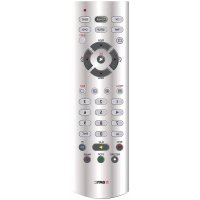
H420 - Remote control EMTEC - Free user manual and instructions
Find the device manual for free H420 EMTEC in PDF.



| Product type | Universal remote control |
| Brand | EMTEC |
| Model | H420 |
| Number of controllable devices | Up to 2 devices (TV and VCR/DVD/SAT) |
| Power supply | 1 CR2032 battery (3V) |
| Battery type | Lithium CR2032 |
| Infrared range | Approximately 8 meters (estimated) |
| Dimensions (L x W x H) | Approximately 200 x 50 x 25 mm (estimated) |
| Weight | Approximately 80 g (with battery, estimated) |
| Code library | Preprogrammed for most brands |
| Programming methods | Manual code entry, manual search, automatic search |
| Keys | Power, Mute, Volume +/-, Prog +/-, numeric keys, transport keys (play, pause, stop, forward, reverse), color keys (teletext), Info, A/V, SETUP, TV/AUX, etc. |
| Indicator light | Operation and programming LED |
| Volume control function | Global or per device mode (configurable) |
| Mute function | Yes |
| Teletext function | Yes (dedicated keys) |
| Recording function | Yes (for VCR, double press) |
| Compatibility | TV, VCR, DVD, SAT, etc. |
| Maintenance | Clean with a soft, dry cloth. Do not use chemicals. |
| Safety | Do not expose to moisture, high temperatures, vibrations. Keep out of reach of children. Batteries: do not short-circuit, do not dispose of in fire. Observe polarity. |
| Battery disposal | Do not dispose of with household waste. Return to a collection point. |
| Warranty | Not specified in the manual |
Frequently Asked Questions - H420 EMTEC
User questions about H420 EMTEC
0 question about this device. Answer the ones you know or ask your own.
Ask a new question about this device
Download the instructions for your Remote control in PDF format for free! Find your manual H420 - EMTEC and take your electronic device back in hand. On this page are published all the documents necessary for the use of your device. H420 by EMTEC.
USER MANUAL H420 EMTEC
General Security Note
Technical manipulations of the product or any changes to the product are forbidden, because of security and approval issues.
Please take care to set up the device correctly - consult your user guide. Children should use the device only under adult supervision.
Avoid the following :
- strong mechanical wear and tear
high temperature
strong vibrations
high humidity
Please also respect the additional security notes in the various user guide chapters. For questions not covered from the user guide please contact our technical hotline or another specialist.
To ensure correct set up please read the manual and security notes carefully.
Battery change :
The device may only be used with CR2032 battery - never try to connect to another power supply. When inserting battery be sure the right polarity is used. Remove the battery when the device is not used for a long period. Make sure that the batteries are not short circuited and are not disposed in fire (danger of explosion). Batteries do not belong in children hands. Don't let batteries lay around openly - they might be swallowed by children or animals. If this happens see a doctor immediately.
Leaking or damaged batteries can upon contact with skin cause burning or acid damage - if necessary use suitable gloves.
Please dispose of batteries in accordance with local by laws.
Contents
1) Introduction
2) Put in the batteries
3) Functions of the key
4) Programming of the TV, VCR, DVD and SAT mode
5) Manual code search
6) Automatic code search
7) Identifying codes found
8) Default Volume Control for satellite
9) Troubleshooting
1) Introduction
The 2 in 1 Universal Remote Control is designed to control up to 2 devices (TV, VCR). The 2 in 1 Universal Remote Control contains a library of codes that are pre-programmed into the remote control. This library covers nearly all the audio video products on the market today.
2) Put in the batteries (always use NEW CR2032 batteries)
- Open the cover on the back of the 2 in 1 Universal Remote Control.
- Insert CR2032 battery, verify that they are placed correctly with the + on the battery in the same position as marked inside the battery compartment.
3) Functions of the keys
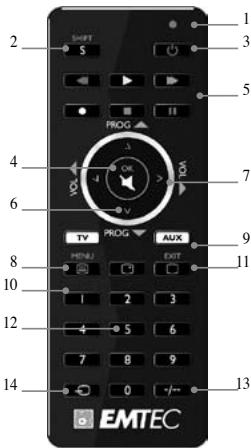
[1] LED indicator: The indicator light flashes when the remote is operating or lights continuously while you are programming the remote.
[2] S: Allows you to program your remote before the first use. Allows you also to access secondary functions such as Menu, Exit, etc... Press and release the Shift key, press then the function key you want.
[3] POWER: Allows you to switch off the last selected appliance.
[4] Mute: Allows you to turn on/off the sound. You can control the «Mute» function of your TV even when you are in AUX mode. No need to select the TV mode.
S + Mute: OK key, confirms the selection.
[5] Play, FF, Stop, Rew, Pause:
In VCR & DVD mode: These buttons work the same way as in your original remotes.
In TV mode: Fast text function (coloured keys).
REC (record): This key works the same way as the one on your original remote for your VCR. In order to avoid a mistake you have to press this key twice to activate this feature.
[6]PROG+:/
TV, VCR or SAT mode: select the next or the previous channel. DVD mode: select the next or previous chapter.
S + PROG + / - : menu navigation keys, allow you to navigate up and down into the menu of your appliances.
[7] Volume +/- : Allows you to control the volume. You can control the volume of your TV even when you are in VCR, DVD or SAT mode. No need to select the TV mode.
S + Volume +/-: menu navigation keys, allow you to navigate left and right into the menu of your appliances.
[8] Teletext ON: Start/stop Teletext.
S + Teletext ON: Menu ON.
[9] TV, AUX: These keys allow you to select the appliance you wish to control.
[10] INFO: Displays information of the selected appliance.
[11]Teletext OFF: Stop Teletext. S + Teletext OFF: Exit Menu.
[12] Numeric keys 0 - 9: Work the same way as your original remote.
[13]--: If you are in programming mode - automatic code search- you can confirm the code of the device you want to control. In connection with the numeric keys, this button allows you with some equipment to select directly channels higher than 9.
[14] A/V: Selection of an external source (SCART input).
4) Programming your TV and AUX modes
Note: You can dedicate any appliance (TV, DVD, SAT...) to the AUX key: you just need to enter the 4 digit code (found in the code book) of the appliance, i.e. a DVD code under the AUX key. In any case, follow the steps below:
- Make sure your equipment is switched on (for example TV).
- Press and hold the S (2) key until the LED indicator (1) lights continuously. Release the S key.
- Press and release the mode key (9) of the device you want to control (for example TV).
- Enter the 4 digit code (12) from the Code Book. The LED (1) turns off after the last digit is entered. If you entered a wrong code the LED blinks for 3 seconds and then goes off. You have to repeat from step 2.
- Point the remote in the direction of your TV and press the POWER button (3). Your device should turn off. Check other functions (for example for a VCR: FF or REW etc.). If certain functions are not responding this indicates that the entered code is not the correct one. In that case repeat the above procedure with the next corresponding code of your brand.
- Repeat this procedure from step 1 for the other equipment you want to control (TV, VCR, DVD, SAT)
5) Manual code search
If your equipment (TV, SAT etc...) does not respond, try the other codes for your brand. If it still doesn't respond, try the Code Search method.
Note: As you can dedicate any appliance (TV, DVD, SAT...) to the AUX keys you need first to enter any 4 digit code for the kind of appliance you wish to control (found in the code book), i.e.: If you want to program a SAT under the AUX key, enter any SAT code found in the code book and then follow the steps below:
1, Make sure your equipment is switched on. If not switch it on manually.
2. Press and hold S (2) until the LED indicator lights (1) steadily. Release S key.
3. Press the mode key (9) that matches the equipment you want to control (for example TV).
4. Press PROG + (6) repeatedly until the PROG changes. If you step past the correct code use PROG - (6) to go back to the right code.
5. When the equipment you want to control reacts press - / - (13) to confirm the code. That's all.
Note: If your equipment doesn't have PROG +, you can use PLAY (VCR or DVD) (5) or POWER (3) key.
The search starts after the last registered code. If that was 0030, the search starts at 0031 until the last possible code and then goes from 0000 to 0029.
Note: if certain functions of your equipment can't be controlled you have to find a different code for your brand.
6) Automatic code search
When searching an unknown code, you can step through the library automatically (AutoSearch). When your equipment responds, you can stop the searching process and store the code you found.
Note: As you can dedicate any appliance (TV, DVD, SAT...) to the AUX key, you need first to enter any 4 digit code for the kind of appliance you wish to control (found in the code book, i.e.: If you want to program a SAT under the AUX key, enter any SAT code found in the code book and then follow the steps below:
- Turn on the device you want to control.
- Press and hold S (2) until the LED indicator (1) lights steadily. Release S button.
- Press the mode button (3) that matches the equipment you wish to control. The LED (1) blinks once.
- Press PROG+ (6) once. After a few seconds the remote starts stepping through the code library (fast search, 1 code per second). When the device responds, you can press PROG+ (6) to switch to slow search (1 code per 3 seconds). You can step back by pressing PROG- (6) (you can step forward by pressing PROG+ (6) in case you went too far back). As soon as the device responds again, press the -/ - key (13) to store the code you found.
7) Identifying codes found using the search procedure
-
Press and hold S (2) until the LED indicator (1) lights steadily. Release S key.
-
Press the mode key (9) for the equipment you want to identify (TV or AUX). The LED blinks once.
3, Press again S. The LED blinks once. - To identify the first digit press each number button from 0 - 9 (12) until the LED blinks. The number you pressed is the first digit of the code.
- Press each number key from 0 - 9 as above to find the second and third digit.
6, Press each number key from 0 - 9 as above to find the fourth digit. When the fourth digit has been found the LED will go off. Don't forget to write down the code on the label of the battery compartment.
8) Volume Control
Adjustment of ALL volume controls under a specific mode
You can program the remote control so that the volume and mute keys control a specific device (the volume control must exist on the corresponding device). E.g. control of TV sound in TV mode and AUX mode.
- Press and hold S (2) until the LED indicator (1) lights steadily. Release S.
- Press and hold MUTE (4) until the LED (1) blinks once. Release MUTE.
- Press once on the mode key (TV or AUX) corresponding to the device whose volume will always be controlled by the VOL (7) and MUTE (4) keys.
- Press the MUTE (4) key once.
Adjustment of the volume controls for EACH mode.
You can program the remote control so that the volume control is functional for each mode selected (the volume control must exist on the corresponding device). E.g., control of the television set sound in TV mode, control of the sound of the appliance programmed under the AUX button in AUX mode.
- Press and hold S (2) until the LED indicator (1) lights steadily. Release S.
- Press and hold MUTE (4) until the LED (1) blinks once. Release MUTE.
- Press once on the mode key (TV, AUX) corresponding to the device whose volume will always be controlled by the VOL (7) and MUTE (4) keys.
- Press the VOL-(7) key once.
- Press the MUTE (4) key once.
9) Problems and troubleshooting
The remote doesn't work or loses codes entered
Confirm with your original remote that the equipment works correctly.
Make sure that you have pressed the corresponding mode key of the equipment or device that you want to control.
If the listed code does not work, try the AUTOSEARCH method or enter the next code of that brand.
To find the corresponding code for your equipment use the automatic search.
Check that the batteries have the correct polarity position.
The programming of the remote requires 2 CR2032 batteries (new). If the remote loses codes within a few days/weeks the problem can be solved by using 2 new batteries from the same brand.
If the LED is lit permanently, in general it will be necessary to replace the batteries.
Important:
The 2 in 1 Universal Remote Control must be used only in the way described in this instruction manual and may not be used for a purpose not intended.
CONSIGNES DE SECURITE
[5] Play, FF, Stop, Rew, Pause:
SHIFT + Teletext OFF: Menu AUS.
[8] Teletext ON: Encender/apagar el teletexto.
SHIFT + Teletext ON: Conexión del menu.
S + Teletext ON (AAN): Menu ON (AAN).
[5] Play, FF, Stop, Rew, Pause:
[5] Play, FF, Stop, Rew, Pause:
S + Teletext ON: Menyn PÅ
[9] TV, VCR, DVD, SAT: Med dessa knappar kan du valja vilken apparat du vill styra.
[10] INFO: Visar den valda apparatusens information.
[11] Teletext OFF: Stäng av text-TV.
S + Teletext OFF: Lämna menyn.
[5] Play, FF, Stop, Rew, Pause:
In modurile VCR s DVD: Aeoste tese fonctioneazla fel ca si cele de pe telecomenze til.
In modul TV: Functia de text rapid (taste colorate).
REc (record - inegistrare): Ceasest tastus fuctuancez la fel ca de pe telecomanda originala a aparatului VCR. Percut a evita gresile taste ttreubie apasate da doul ori pertu a activa functia.
[6] PROG +/-
[5] Play, FF, Stop, Rew, Pause:
IJIPOPAMMBOHANNAI PyNTA TpeBcY2C 2CR2032AAA (HOBJX).EclNI PyNTA TepeT KOTd B TceHHIE HecNOKJIH NCHJNEHLN, pno6JIeMO MNOH peHHT c NMOHIO BTOHb SBaTeapeK ToH Ke mae
EcHn CbToHOIO rOHT IOCToHHTO, To, KaK IpaBnIO, Tpe6yTec 3aMeHa 6aTaapeek.
Baxkhbte 3ameaHnHa:
YHNBecapbIy HnJIpy IET hAHTAHIOHOU npAUYBENI 2 I cIeay TcHNO3OBaT ToLKo CnOc6OM, OHNcAHM B HtCtPyKuIN, ZIaPJIeAeTcRcHNO3BOATRc ERO bHHxJdEAE.
Obsah
[5] Play, FF, Stop, Rew, Pause:
[6] PROG + / - (IPOIPTPAMMA + / -
- GENERAL SECURITY NOTE
- BATTERY CHANGE
- CONTENTS
- INTRODUCTION
- PUT IN THE BATTERIES (ALWAYS USE NEW CR2032 BATTERIES)
- FUNCTIONS OF THE KEYS
- PROGRAMMING YOUR TV AND AUX MODES
- MANUAL CODE SEARCH
- AUTOMATIC CODE SEARCH
- IDENTIFYING CODES FOUND USING THE SEARCH PROCEDURE
- VOLUME CONTROL
- PROBLEMS AND TROUBLESHOOTING
- IMPORTANT
- CONSIGNES DE SECURITE
- BAXKHBTE 3AMEAHNHA
- OBSAH
Brand : EMTEC
Model : H420
Category : Remote control