
EKCOH180 - Remote control EMTEC - Free user manual and instructions
Find the device manual for free EKCOH180 EMTEC in PDF.

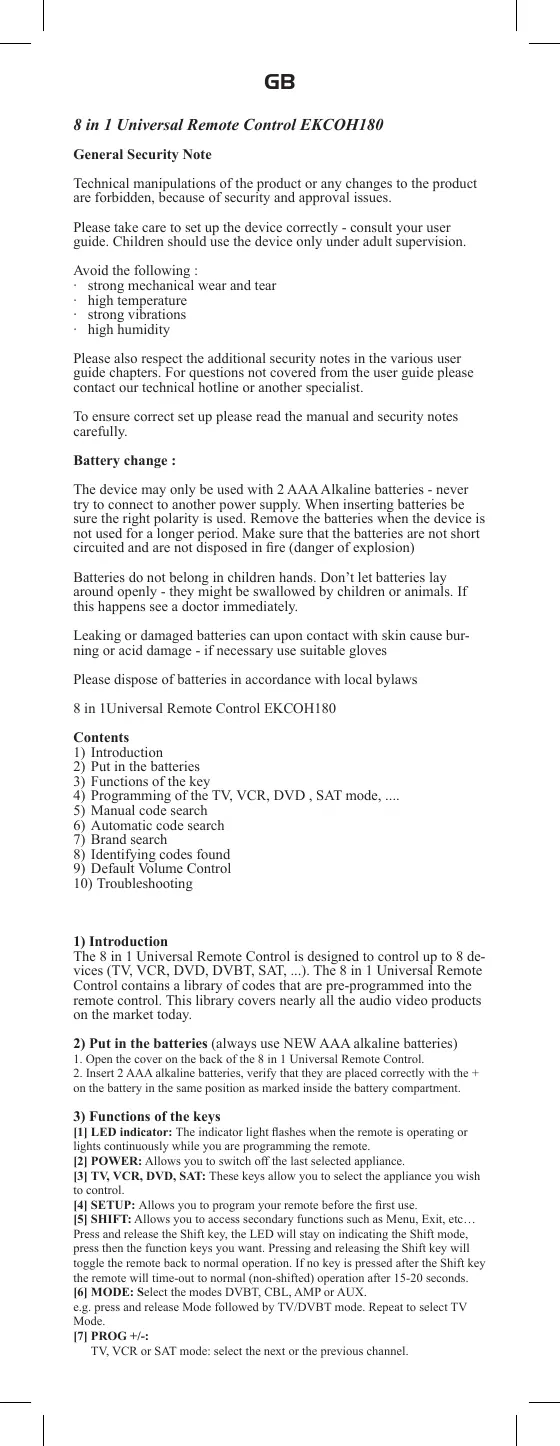


| Brand | EMTEC |
| Model | EKCOH180 |
| Product type | Universal remote control 8 in 1 |
| Power supply | 2 alkaline LR03 (AAA) batteries |
| Approximate dimensions | 20 × 5 × 2 cm |
| Approximate weight (with batteries) | 100 g |
| Main functions | Control TV, VCR, DVD, SAT, DVBT, CBL, AMP, AUX; built-in code library; manual, automatic and by brand programming; configurable volume control |
| Infrared range | Approximately 8 meters |
| Number of keys | Approximately 30 keys |
| Care and cleaning | Clean with a soft dry cloth. Do not use abrasive products or solvents. |
| Safety | Do not expose to moisture, vibrations, high temperatures or shocks. Remove batteries if not used for a long time. Keep out of reach of children. |
| Spare parts and repairability | Batteries are the only replaceable parts. No internal repairs possible by the user. |
| General information | Preprogrammed universal remote control for most brands. LED indicator for programming. SHIFT key for secondary functions. |
Frequently Asked Questions - EKCOH180 EMTEC
User questions about EKCOH180 EMTEC
0 question about this device. Answer the ones you know or ask your own.
Ask a new question about this device
Download the instructions for your Remote control in PDF format for free! Find your manual EKCOH180 - EMTEC and take your electronic device back in hand. On this page are published all the documents necessary for the use of your device. EKCOH180 by EMTEC.
USER MANUAL EKCOH180 EMTEC
| French |
| English |
| Deutch |
| Spanish |
| Italian |
| Czech |
| Greek |
| Hungarian |
| Dutch Polish Portuguese Romanian Russian Slovak Swedish Ukranean |
FR
General Security Note
Technical manipulations of the product or any changes to the product are forbidden, because of security and approval issues.
Please take care to set up the device correctly - consult your user guide. Children should use the device only under adult supervision.
Avoid the following :
- strong mechanical wear and tear
high temperature
strong vibrations
high humidity
Please also respect the additional security notes in the various user guide chapters. For questions not covered from the user guide please contact our technical hotline or another specialist.
To ensure correct set up please read the manual and security notes carefully.
Battery change :
The device may only be used with 2 AAA Alkaline batteries - never try to connect to another power supply. When inserting batteries be sure the right polarity is used. Remove the batteries when the device is not used for a longer period. Make sure that the batteries are not short circuited and are not disposed in fire (danger of explosion)
Batteries do not belong in children hands. Don't let batteries lay around openly - they might be swallowed by children or animals. If this happens see a doctor immediately.
Leaking or damaged batteries can upon contact with skin cause burning or acid damage - if necessary use suitable gloves
Please dispose of batteries in accordance with local bylaws
8 in 1Universal Remote Control EKCOH180
Contents
1) Introduction
2) Put in the batteries
3) Functions of the key
4) Programming of the TV, VCR, DVD, SAT mode, ....
5) Manual code search
6) Automatic code search
7) Brand search
8) Identifying codes found
9) Default Volume Control
10) Troubleshooting
1) Introduction
The 8 in 1 Universal Remote Control is designed to control up to 8 devices (TV, VCR, DVD, DVBT, SAT, ...). The 8 in 1 Universal Remote Control contains a library of codes that are pre-programmed into the remote control. This library covers nearly all the audio video products on the market today.
2) Put in the batteries (always use NEW AAA alkaline batteries)
- Open the cover on the back of the 8 in 1 Universal Remote Control.
- Insert 2 AAA alkaline batteries, verify that they are placed correctly with the + on the battery in the same position as marked inside the battery compartment.
3) Functions of the keys
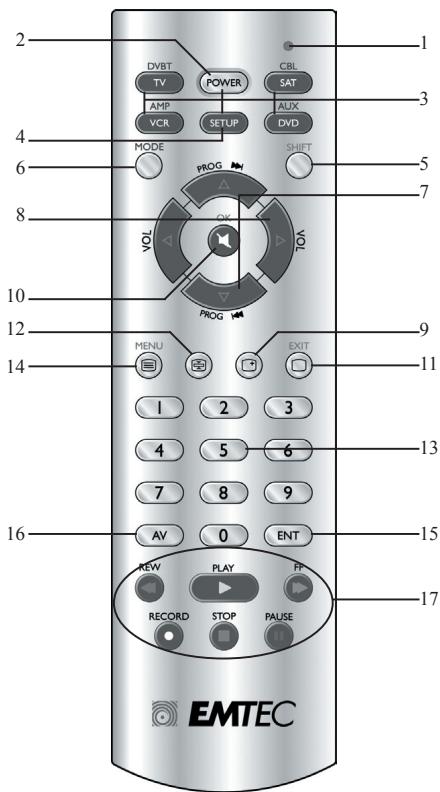
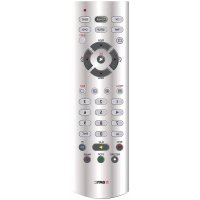
[1] LED indicator: The indicator light flashes when the remote is operating or lights continuously while you are programming the remote.
[2] POWER: Allows you to switch off the last selected appliance.
[3] TV, VCR, DVD, SAT: These keys allow you to select the appliance you wish to control.
[4] SETUP: Allows you to program your remote before the first use.
[5] SHIFT: Allows you to access secondary functions such as Menu, Exit, etc... Press and release the Shift key, the LED will stay on indicating the Shift mode, press then the function keys you want. Pressing and releasing the Shift key will toggle the remote back to normal operation. If no key is pressed after the Shift key the remote will time-out to normal (non-shifted) operation after 15-20 seconds.
[6] MODE: Select the modes DVBT, CBL, AMP or AUX.
e.g. press and release Mode followed by TV/DVBT mode. Repeat to select TV Mode.
[7] PROG + / -
TV, VCR or SAT mode: select the next or the previous channel.
GB
DVD mode: select the next or previous chapter.
SHIFT + PROG +/-: menu navigation keys, allow you to navigate up and down into the menu of your appliances.
[8] Volume +/-: Allows you to control the volume. You can control the volume of your TV even when you are in VCR, DVD or SAT mode. No need to select the TV mode.
SHIFT + Volume +/-: menu navigation keys, allow you to navigate left and right into the menu of your appliances.
[9] INFO: Displays information of the selected appliance.
[10] Mute: Allows you to turn on/off the sound. You can control the «Mute» function of your TV even when you are in VCR, DVD or SAT mode. No need to select the TV mode.
SHIFT + Mute: OK key, confirms the selection.
[11] Teletext OFF:
TV mode: Stop Teletext.
SHIFT + Teletext OFF: Exit Menu.
[12] Teletext Hold: Stop page change in Teletext mode.
[13] Numeric keys 0 - 9: Work the same way as your original remote.
[14] Teletext ON:
TV mode: Start/stop Teletext.
SHIFT + Teletext ON: Menu ON.
[15] ENT: If you are in programming mode - automatic code search- you can confirm the code of the device you want to control. In connection with the numeric keys, this button allows you with some equipment to select directly channels higher than 9.
[16] A/V: Selection of an external source (SCART input).
[17] Play, FF, Stop, Rew, Pause:
In VCR & DVD mode: These buttons work the same way as in your original remotes.
In TV mode: Fast text function (coloured keys).
REC (record): This key works the same way as the one on your original remote for your VCR. In order to avoid a mistake you have to press this key twice to activate this feature.
4) Programming your TV, VCR, DVD, DVBT or SAT modes Note: You can dedicate any appliance (TV, DVD, SAT...) to the VCR, DVD, or SAT keys: you just need to enter the 4 digit code (found in the code book) of the appliance, i.e. a VCR code under the SAT key. In any case, follow the steps below:
-
Make sure your equipment is switched on (for example TV).
-
Press and hold the SETUP (4) key until the LED indicator (1) lights continuously. Release the SETUP key.
-
Press and release the mode key (3) of the device you want to control (for example TV). Press first the Mode key (6) for DVBT, CBL, AMP and AUX
-
Enter the 4 digit code (13) from the Code Book. The LED (1) turns off after the last digit is entered. If you entered a wrong code the LED blinks for 3 seconds and then goes off. You have to repeat from step 2.
-
Point the remote in the direction of your TV and press the POWER button (2). Your device should turn off. Check other functions (for example for a VCR: FF or REW etc.). If certain functions are not responding this indicates that the entered code is not the correct one. In that case repeat the above procedure with the next corresponding code of your brand.
-
Repeat this procedure from step 1 for the other equipment you want to control (TV, VCR, DVD, SAT)
5) Manual code search
If your equipment (TV, SAT etc...) does not respond, try the other codes for your brand. If it still doesn't respond, try the Code Search method.
Note: As you can dedicate any appliance (TV, DVD, SAT...) to the VCR, DVD or SAT keys, you need first to enter any 4 digit code for the kind of appliance you wish to control (found in the code book), i.e.: If you want to program a SAT under the VCR key, enter any SAT code found in the code book and then follow the steps below:
-
Make sure your equipment is switched on. If not switch it on manually.
-
Press and hold SETUP (4) until the LED indicator lights steadily. Release SETUP
-
Press the mode key (3) that matches the equipment you want to control (for example TV). Press first the Mode key (6) for DVBT, CBL, AMP and AUX programing.
-
Press PROG + (7) repeatedly until the PROG changes. If you step past the correct code use PROG - (7) to go back to the right code.
-
When the equipment you want to control reacts press ENT (15) to confirm the code. That's all.
Note: If your equipment doesn't have PROG +, you can use PLAY (VCR or DVD) (17) or POWER (2) key.
The search starts after the last registered code. If that was 0030, the search starts at 0031 until the last possible code and then goes from 0000 to 0029.
Note: if certain functions of your equipment can't be controlled you have to find a different code for your brand.
GB
6) Automatic code search
When searching an unknown code, you can step through the library automatically (AutoSearch). When your equipment responds, you can stop the searching process and store the code you found. Note: As you can dedicate any appliance (TV, DVD, SAT...) to the VCR, DVD or SAT keys, you need first to enter any 4 digit code for the kind of appliance you wish to control (found in the code book, i.e.: If you want to program a SAT under the VCR key, enter any SAT code found in the code book and then follow the steps below:
- Turn on the device you want to control.
- Press and hold SETUP (4) until the LED indicator (1) lights steadily. Release SETUP button.
- Press the mode key (3) that matches the equipment you want to control (for example TV). Press first the Mode key (6) for DVBT, CBL, AMP and AUX
- Press PROG+ (7) once. After a few seconds the remote starts stepping through the code library (fast search, 1 code per second). When the device responds, you can press PROG+ (7) to switch to slow search (1 code per 3 seconds). You can step back by pressing PROG- (7) (you can step forward by pressing PROG+ (7) in case you went too far back). As soon as the device responds again, press the -ENT key (15) to store the code you found.
7) Brand search
If your brand is listed hereafter, you have the possibility to use the brand search method (faster than the «manual» and the «automatic code search»):
BRAND CODE
| Philips/Radiola | 1 |
| Sony/Panasonic/JVC/Sharp Akai/Toshiba/Daewoo | 2 |
| Thomson/Brandt | 3 |
| Telefunken/Saba/Normende | 4 |
| Grundig/Blaupunkt | 5 |
| Nokia/ITT | 6 |
- Turn on the device you want to control.
- Press and hold SETUP (4) until the LED indicator (1) lights steadily. Release SETUP button.
- Press and release the mode key (3) of the device you want to control (for example TV). Press first the Mode (6) key for DVBT, CBL, AMP and AUX.
- Enter the code corresponding to your brand, point the 8 in 1 Universal Remote Control in the direction of your equipment, press once only PROG+ (7) continue to point the 8 in 1 Universal Remote Control at your equipment until the equipment changes channel. (The remote control sends an IR signal every second. So please wait until your equipment reacts). When your equipment does react, press on the key ENT (15) to confirm. If accidentally you miss the code, you can stop the autosearch by pressing PROG - (7) and by repeatedly pressing this key return to the right code. Press ENT (15) to confirm.
8) Identifying codes found using the search procedure
- Press and hold SETUP (4) until the LED indicator (1) lights steadily. Release SETUP.
- Press the mode key (4) for the equipment you want to identify (TV, VCR, DVD or SAT). The LED blinks once. Note: press and release Mode key for DVBT, CBL, AMP and AUX programing.
- Press again SETUP. The LED blinks once.
- To identify the first digit press each number button from 0 - 9 (13) until the LED blinks. The number you pressed is the first digit of the code.
- Press each number key from 0 - 9 as above to find the second and third digit.
- Press each number key from 0 - 9 as above to find the fourth digit. When the fourth digit has been found the LED will go off. Don't forget to write down the code on the label of the battery compartment.
9) Volume Control
Adjustment of ALL volume controls under a specific mode You can program the remote control so that the volume and mute keys control a specific device (the volume control must exist on the corresponding device). E.g. control of TV sound in TV mode, VCR mode, DVBT mode or SAT mode.
- Press and hold SETUP (4) until the LED indicator (1) lights steadily. Release SETUP.
- Press and hold MUTE (10) until the LED (1) blinks once. Release MUTE.
- Press once on the mode key (TV, SAT, ...) corresponding to the device whose volume will always be controlled by the VOL (8) and MUTE (10) keys.
- Press the MUTE (10) key once.
Adjustment of the volume controls for EACH mode.
You can program the remote control so that the volume control is functional for each mode selected (the volume control must exist on the corresponding device). E.g. control of the television set sound in TV mode, control of the SAT receiver sound in SAT mode,...
GB
- Press and hold SETUP (4) until the LED indicator (1) lights steadily. Release SETUP.
- Press and hold MUTE (10) until the LED (1) blinks once. Release MUTE.
- Press once on the mode key (TV, VCR, ...) corresponding to the device whose volume will always be controlled by the VOL (8) and MUTE (10) keys.
- Press the VOL-(8) key once.
- Press the MUTE (10) key once.
10) Problems and troubleshooting
The remote doesn't work or loses codes entered
- Confirm with your original remote that the equipment works correctly.
Make sure that you have pressed the corresponding mode key of the equipment or device that you want to control.
- If the listed code does not work, try the AUTOSEARCH method or enter the next code of that brand.
To find the corresponding code for your equipment use the automatic search.
- Check that the batteries have the correct polarity position.
The programming of the remote requires 2 AAA alkaline batteries (new). If the remote loses codes within a few days/weeks the problem can be solved by using 2 new batteries from the same brand.
- If the LED is lit permanently, in general it will be necessary to replace the batteries.
Important:
The 8 in 1 Universal Remote Control must be used only in the way described in this instruction manual and may not be used for a purpose not intended.
DE
SHIFT + Teletext OFF: Menu AUS.
[17] Play, FF, Stop, Rew, Pause
[17] Play, FF, Stop, Rew, Pause:
Telefunken/Saba/Normende
Grundig/Blaupunkt
Nokia/ ITT
TV mode: Vypne Teletext.
SHIFT + Teletext OFF: Vystup z nabidky.
TV mode: Spusti/vypne teletext.
SHIFT + Teletext ON: Spustí nabidku.
[17] Play, FF, Stop, Rew, Pause:
[7] PROG + / - (IPOIPTPAMMA + / -
[11] Teletext OFF (ANENEPTO Tŋλεκειμεν):
SHIFT + Teletext OFF: 'E\xo8o α π α to M\vovou.
[11] Teletekt off (UIT):
TV mode: Stop teletekst.
TV mode: Start/stop teletekst.
SHIFT + Teletekt ON(AAN): Menu ON (AAN).
[17] Play, FF, Stop, Rew, Pause:
[17] Play, FF, Stop, Rew, Pause:
Mod TV: Oprire Teletext.
SHIFT + Teletext OFF: Iesire din menu.
[12] Teletext Hold: Oprirea schimbarii paginii in modul teletext.
[13] Taste numerice 0-9: Se folosesc la fel ca la telecomenzile originale.
[14] Teletext ON:
[17] Play, FF, Stop, Rew, Pause:
[7] PROG +/-: (IPOIPTPAMMA)
PekmTV,VCR HIN SAT:Bb6op cIeIyIOIero HIN IpeBbIyIero KaHaJa.
PekHM DVD: Bb6op cIeIyIooero HIN IpeIbIyIero 3HIN3Oda.
SHIFT + PROG +/-: HABHRAIINOHbIe KJIaBHIIN MEHIO; IIO3BOJIAOT
IepeMeaTbcB BBeP H BHN3 IO MeHIO yCTPOiCTB.
[8] Volume + /-(TpOMKoc7b) IIO3B0JIeT UyPABJITb TpOMKOCTbO. MoXHO yIpyabJIbT bPcOKtboTeJIeBH3Opa BpekhMe VCR, DVD HIN SAT.He hyKHO bIbOHpBT pekhm TV.
SHIFT+Volume+:/:HABHraIOHHbIeKJIaBbHIIMMeHIO;IO3BOJIAHOT
IepeMeaTbCBAIEBOH BnPpABOIO MEHIO yCTpoiCTB.
[11] Teletext OFF: (TeiIeKeKt BbIKJI.)
PexHM TV:OctaHOB TEJETEKCTA.
SHIFT + Teletext OFF: BbIXoJn 3 MeHIO.
[12] Teletext Hold: (YaepkaHHe TeIeTeKcta) OctaHOB cEmHa cTpaHHB bPeKHMc TeIeTeKcta.
[13]UncIobBeKJIaBHHIN0-9:Pa6OtaIOT Tak JKe, KaK NaHaOpHrHAnbHOM\PiNbHe.
[14] Teletext ON: (TeJIeTeKcT BKJI.)
PekHM TV: 3aIyck/OCTAHOB TeJeTeKcTa.
SHIFT + Teletext ON: MeHIO BKJIIOUEHO.
[15] ENT: ECTN Bb HAXOIIHTeBc B PEKHM NpORPAMMPOBAHIN - ABOTMAHueCkHN KOI JNOHCa - MOKHOI NOITBEPDNTB KOJ YTOPTOJICTBa, KOTOPMBAb XOTNHYE npABJIbTb. B COCTAHIN C NUCIOBbIMN KIAJIbHIaAMTHa STa KHOJIKA IOBOJIaET c NMOIIOU OpeIeJIeHOrO O6OpyIOBANHn INaPmYIO BbHpaTb KANAJIb c HOMEOPM 60JIee 9.
[16] A/V: (Aydno/Bndeo) Bb6op BHeHHeRo HcToHnKa (BxOJ SCART).
[17] Play (BocnpoH3BeJeHHe), FF (IpeMeOTka BnepeJI), Stop (CToI), Rew
(IIepemotka Ha3aД), Pause (Iay3a):
BpeKHMAX VCRi DVD:ENTKHONIK pa60taHOT TAK KE, KAK HA opHTHHbHNbIyIbTak.
BpeKHMe TV: γ η η η η η η η η η η η η η η η η η η η η η η η (OKpaIIeHHbE KJIaBHIN).
REC (3aHbC): 3Ta KlaBHa 6paOaTaT kKa, KaN Takaa KlaBHaHa naOpHnHaJIbHom NpIbte BNJeOMeaHrntfoHa.Bo H36eKaHHe OiH6KnH yHKnHOhakat 3Tu KlaBHaII BdAcbJI IaB KBrNoCHeyIaHnnOyHKnHi
IyJIbT He pa6oTaET HIN TepaET BVeEeHNbIe KOJIbI.
IpoBpe b c nmoHIOOprnHaJIbHO rIbTa, YTOyCTBO 6paOtaTepaBnHO.
Y6eJIntecb, TTO BtI HauKaJIH COOTBETCTBYUIOJI KABJIHNI EPKMHaO6OByDABOHJI HN IY TcPOHTBACTO,KOTOpBM BtI XOHTHE YINPAJBIyT.
EcnI nepeHcJIeHNbEs KIOJI He naObaTAnOT, nONo6yJIe cINOCB ABTOIONGCA HNI BVEHnTe cJeIyoUHmK OJ 3TOn MapKn.
Дияпонка COBTETCTBTOIeGO KoJa BANHero 6ObpyOBaHHaN HcNOJI3yIte ABOTMAHTCheKIN KIOHcK.
- IpoBepbTe IIpaBnIbHocTb IOJIaRHOCTN 6aTaapeek.
[6] MODE: press and release the Mode key to reach mode DVBT, CBL, AMP and AUX1.
[7] PROG + / -
Rezim TV, VCR aleo SAT: vyperie nasledujcu aleo prechodzajuci kanal. DVD rezim: vyperie nasledujcu aleo prechodzajuci kapitolu.
SHIFT + PROG + / - z navigacne tlaeidla ponuk yam umoznia navigovat nahor a nadol v ponušev sachariadi.
[8] Hlasistost + / - Vam umožni ovladat' hlasitost', Mózete ovladat' hlasitost' vasho TV, a to aj v pripade, ked ste v rezeime VCR, DVD alebo SAT. Nemusite vybrat' rezim TV.
SHIFT + Hlasistost / - navigacne tlaeidla ponuky vam umoznia navigovat dofava a doprava v pounke vaich zariaideni.
SHIFT + Teletext ON: Menyn PÅ:
[15] ENT: Om du befinner dig i programmeringslaget – automatisk kodsökning - kan du bekräfta koden für apparaten som du vill styra. I anslutting till numme-krapparna kan du medenna knapp på vissa apparater direktvalja kanaler som ar högre øn 9.
[17] Play, FF, Stop, Rew, Pause:
PekHM TV, VCR a60 SAT: nepeKJIHOeHHI noHactYnHOrO a60 nonepEHHorO KAHJy.
PekHM DVD: IpeekIIOueHHn IIO HAcTyINHOro a60 IOnpeeINbOro po3diIy.
SHIFT + PROG +/-: KlabiiH habiraMeHIO. I03BOJIe nepexoHTN BROPY
BHH3 B MEnIO npHJIaIbI.
[8] RynHicb (Volume) + / - :ДоЗВлгСКОПИΥВATи RунICTь. РIBeHb RунHocTi VTV MOnKHa peDaRyBath B pEKMax VCR, DVD a60 SAT. IpeKeJIIOHaTHcB b pEKM TV HE nToPioHNo.
SHIFT + Mute: KlaBiiHa OK - nTBepeKeHHn Bn60py.
[11] TeJereKcT BHKJI. (Teletext OFF):
PekHM TV: BiKJIIOHHT TeIeTeKCT.
SHIFT + Teletext OFF: Buxi3 MeHIO.
[12]3atPbMkA TeIeTeKcRy (Teletext Hold): 3yHnHAc 3mHy cTropiHb BpeKHMI TeIeTeKcR.
[14] TeJereKcT BKJI. (Teletext ON):
PexHM TV: BkJIOueHHBbKJIIOueHH TeJIeTeKCTY.
SHIFT + Teletext ON: BkJIOueHHMaMeHIO.
[15] BBOJ(ENT):Як bio В рекhamи рогрamyBaHnн 3 abTomathnoHoro noiuyk KoiJIb, В мokette пптбердго КОл рсго, Ию Вхчete кOTroIIOBAr. Ппн БИКРСТану 3ифрманн KMJIaIIIMn, Ия KMJIaIIHaДОnomaracПряmo PereHTIdo KaHaiJIb, Ию МогНь Homeр 6iIbIe HIX9.
[16] A/V: Bn6ip 30BnHbIbIbIbIbIbIbIbIbIbIbIbIbIbIbIbIbIbIbIbIbIbIbIbIbIbIbIbIbIbIbIbIbIbIbIbIbIbIbIbIbIbIbIbIbIbIbIbIbIbIb
[17]BijdtbopeHHy (Play), IpeMOTyBAHNH BnepEe (FF), CToN (Stop), IpeMOTyBAHNH haa3d (Rew), IIpya (Pause):
BpeKHMVCRTaDVDII KhoHNHpIaIOOTb TAKOK JaOpRIHaJIbHX pIyHbTA qIIXVCNIAJIaIB.
BpeKmI TV: ΦyHKsij IIBNdkoro TeKCTy (KoJIbOpoi KJIaIbii)
3aHnC (REC): II KlaBiiPi npiaIObT bakoK kA hoOpTHAlbHOMy IyIbI rdo BaHIO npHcTePO VCR. IIo6 3ano6iTH nOMHIOK, hATNCHTI IO KlaBIIHy D8Vl, IIo6 AKTHyBATHIO qHyKnHIO.
4) IIporpamyBaHHpejKmIB TV, VCR, DVD Ta SAT
Ybarga: Bylb kyni npila (TV, DVD, SAT...) BN Mokete Ha3aunTH Ha KJIaIII VCR, DVD a60 SAT: BAM TiIbKn NpTio6HO BcEChT 4-iiΦpOBH Koi (3naIitb B KHN3i KO1IB) PnHApIy, HapnPKIaI KOI VCR IIN KONK SNAT. B IIcOMy BnIaIky, CII dyIte NaCTyIHIM KpOKAM:
-
IpepeBipre ⅢO6 npHJaδ 6yB BKJIOueHn (HapnKJaTV).
-
Hattichit Ta trpmaite klaibiyu TUPSET (4) noki hndkaatop (1) ne nohne noctiro rohpit. Bldnyntchk klaibiyu SETUP.
-
Hattichnitzb. Ta Bldynctt bKlaBiiuy peKHMy (2)IJIa IIpHcTPOO, kJHIN BxOHOTe KOHTPOIIoAHBT (HapHKlAaT VD).
-
BBeITIT 4-IIIΦpOBH (13) KOI 3 KHINH KOJIB. IHINKAtOP (1) BHKJHOHTbC8 IICJIY BBEIDHNI OCTAHBIOLI HPHN. JIKIO BH BVEIIH HeBIPHN KOJ, IHINKAtOP 6yIDE MHATIH POTrAROM 3 cekyH,I, a nTIM nOTyXHE. B TAKOMy pasi i NobTOpHTb BCE 3 kPOK 2.
-
Habeitb IIyIbT B HanpMky TV Ta HattchHtB KlaBiIiy JKBJIeHHPOwER
(2). (II) Princhrto IIIOHNBEH BHKOHTHc. IIEpeBTEI iHIΦyHKII (HANPHKIAJ IJIY VCR: IEPEMOTKA BNEPEF FF a60 hA3AI REW TA iHIJI). JIKUO IeKJI KfYHKII He npaIOIOHT, Iue O3HaauE, IIO BVEdEHN KOJ e HIXOOITB. TAKOMBy BnHAJIky NIOPTOBTb PPOUcIpy 3HOBY BHKOPHCTOBYOUH BIDIOBIINH KOI DJIg 6pEHy DAIBORO pnpLIADy.
9 (13),doKH He MHTHe HIIHkATOp. IuHpa, uO Bn HATNCHyH, He nepiHa HINHpA kOJyI.
- HatncKaie Tnnpoi KlaBii 0-9 kO nHcAno Bnue, iio6 3aHtI npTy ta tptyo nHpy.
- Hatnckai TeKxHy KJIaHiu BYI 0 Do 9 AK OIIHcAo HIIue, IIO6 3aIHTn YteBepr ty IyFpy KoJI HiYteBepr ty IyFpy 6ye 3aIHeIo, IIINAtokporace. He 3abJyIbe 3aIIHCaTH KOHa IApIHKy, IOI 3NaXOJIITbE Ha B1ICiY for 8bapTe.
Iylt He npaioe a6o BtpnB KoH, 06 yIO BBeHO
IpeBipre 3 opHtihbHOrO IIbIbTy, 00 npiaIpaIoo BIPHO. IpeBipre, 00 BN HATCHHyIN BIDIOHBy KJIaIBy peKHMy IIN pIeTPOO NH OblaHaHHNA, 00 BN XoHTe KOHTPOBATH.
JAKIO KO He npaIOO, cnpo6yIte MeTOI ABTOIOIIIVKY a6o BBEJIb TACTNUHNOK OJI 0B6pHa.
- FR
- GENERAL SECURITY NOTE
- BATTERY CHANGE
- CONTENTS
- INTRODUCTION
- FUNCTIONS OF THE KEYS
- GB
- MANUAL CODE SEARCH
- AUTOMATIC CODE SEARCH
- BRAND SEARCH
- BRAND CODE
- IDENTIFYING CODES FOUND USING THE SEARCH PROCEDURE
- VOLUME CONTROL
- PROBLEMS AND TROUBLESHOOTING
- IMPORTANT
- DE
- IIPORPAMYBAHHPEJKMIB TV, VCR, DVD TA SAT
Brand : EMTEC
Model : EKCOH180
Category : Remote control