
GoBook - E-reader Yarvik - Free user manual and instructions
Find the device manual for free GoBook Yarvik in PDF.


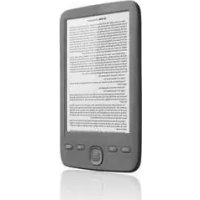
| Product Type | E-reader |
| Brand | Yarvik |
| Model | GoBook |
| Screen Size | 7 inches |
| Weight | Approximately 200 g |
| Power Source | Rechargeable battery |
| Battery Charging | Via USB cable |
| File Transfer | USB Mass Storage (acts as a USB drive) |
| Supported Memory | Internal memory and MicroSD card (up to 32 GB) |
| Main Functions | E-book reader, music player, video player, photo viewer, voice recorder, file explorer, dictionary, calculator, search, settings |
| Audio Playback | Music and audiobooks via built-in speaker or headphones |
| Bookmarking | Up to 5 bookmarks per book |
| Screen Rotation | Portrait to landscape |
| Zoom Levels | Multiple font size settings |
| Language Support | Multiple system languages (via settings) |
| Cleaning Instruction | Use a slightly damp cotton cloth; avoid cleaning agents |
| Safety Warnings | Do not disassemble; avoid extreme temperatures, moisture, dust, magnetic fields; use only approved accessories |
| Warranty | 2 years from purchase date (defects in materials or workmanship) |
Frequently Asked Questions - GoBook Yarvik
User questions about GoBook Yarvik
0 question about this device. Answer the ones you know or ask your own.
Ask a new question about this device
Download the instructions for your E-reader in PDF format for free! Find your manual GoBook - Yarvik and take your electronic device back in hand. On this page are published all the documents necessary for the use of your device. GoBook by Yarvik.
USER MANUAL GoBook Yarvik
- Prior to first use 3
- GoBook start screen 3
- Browser history 5
- eBook 5
- Reading an eBook 6
- Zoom in/out 7
- Rotate screen 7
- Bookmarking a page 7
- Music 8
- Video 8
- Photo 8
- Record 8
- Explorer 9
- Settings 9
- Dictionary 10
- Search 10
- Calculator 10
-
Warranty Statement 11
-
Transferring files to your GoBook 11
1 PRIOR TO FIRST USE
Dear user,
Thank you for purchasing our product.
To ensure you a quick and convenient use of your new Yarvik GoBook E-Reader, please read these instructions carefully prior to use.
We hope you will absolutely enjoy your Yarvik GoBook E-Reader for the longest time possible!
Please note:
- Your Yarvik GoBook E-Reader is a high precision electronic product, do not try to disassemble the GoBook, as this will void your warranty and may result in malfunctioning of the device;
- Avoid strong beating of or to the product;
- Avoid using the GoBook E-Reader in a high or low temperature environment, or in any environment where the device can get in contact with moisture, dust or magnetic fields;
- Do not expose the GoBook E-Reader to strong sunlight for an extended period of time;
- Using connected headphones on the GoBook E-Reader for too long and/or setting the audio volume up too high when using headphones may cause serious hearing damage;
- Do not cross the road, drive a motor vehicle or bicycle while using the GoBook E-Reader with headphones to avoid traffic accidents;
- Only use permitted batteries, chargers and accessories with your Yarvik GoBook E-Reader. The use of any other products with the GoBook E-Reader can be dangerous and may violate the warranty regulations;
- Only use a slightly wet cotton cloth to clean the GoBook E-Reader, and only use water to wetten the cotton cloth. The GoBook E-Reader should not be cleaned with any sort of (glass) cleaning aid.
You may go ahead and use your Yarvik GoBook E-Reader right out of the box, without charging the battery first.
It is best for the battery to first run on the charge left in it, and to be fully recharged once it's completely drained for the first time.
If the GoBook E-Reader isn't switching on right out of the box, the battery is already completely drained and you should of course recharge it first.
2 GOBOOK START SCREEN
When you have swichted on your Yarvik GoBook E-Reader, you will see the main start screen of the E-Reader.
The start screen contains all 10 functions of the E-Reader.
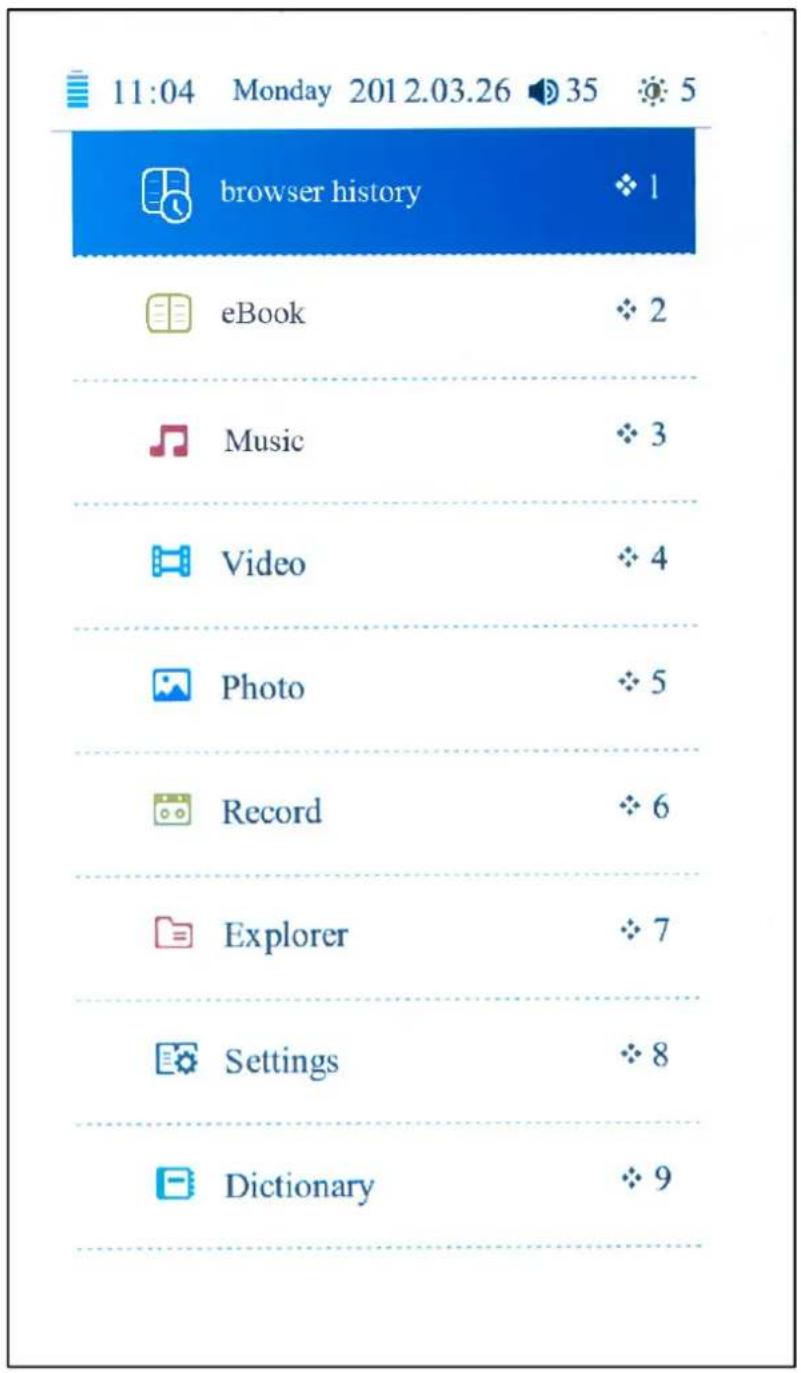
You can operate the start screen by pressing the page scrolling buttons, using the directional pad (center M key for selection), or by just pressing the number standing behind the corresponding function on screen.
This is essentially how to entire E-Reader can be operated.
You can always return to the start screen by pressing the back button

3 BROWSER HISTORY
The browser history shows you a chronological list of all files you have been recently opening on your GoBook E-Reader.
4 EBOOK
The eBook option in the start screen opens the file browser, filtering and showing compatible eBooks only.
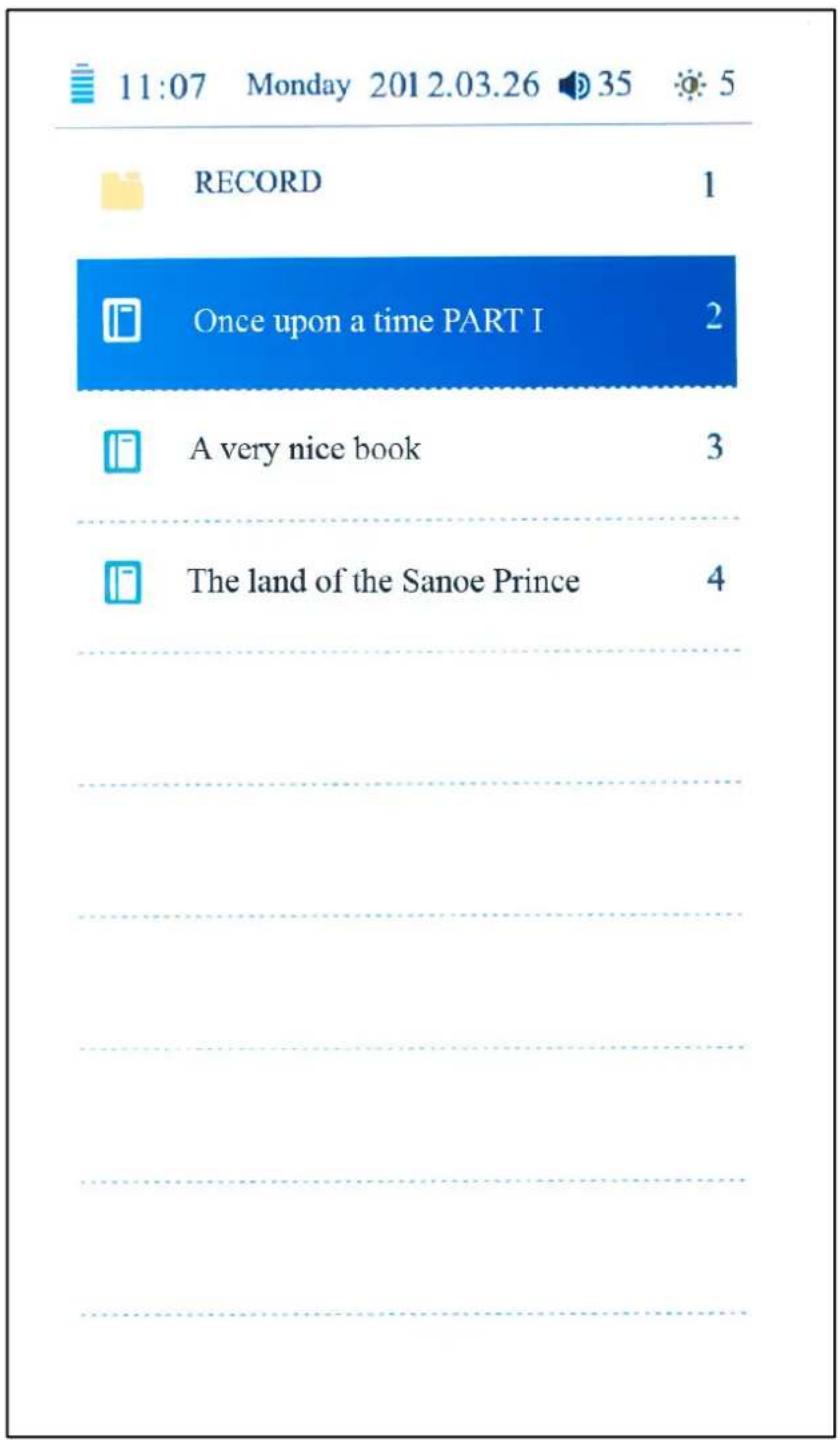
Here you can use the page scrolling buttons, directional pad and the number keys again to navigate through the list or to open a book file.
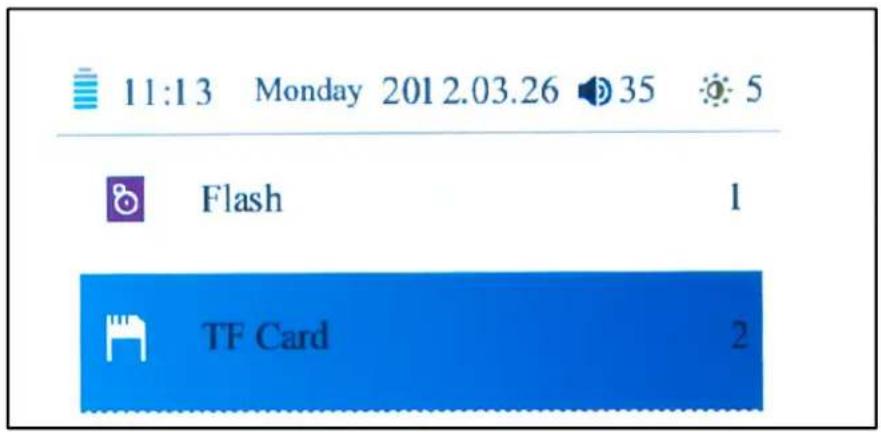
NOTE: When a MicroSD card is inserted, you will first have to choose the memory location of the book you want to open:
5 READING AN EBOOK
While reading an eBook, you can use the page scrolling buttons and the
directional pad to navigate to the next/previous page.
To quickly jump to any page number while reading, press the M key to open the menu and select Page Jump. The Page Jump window will appear:
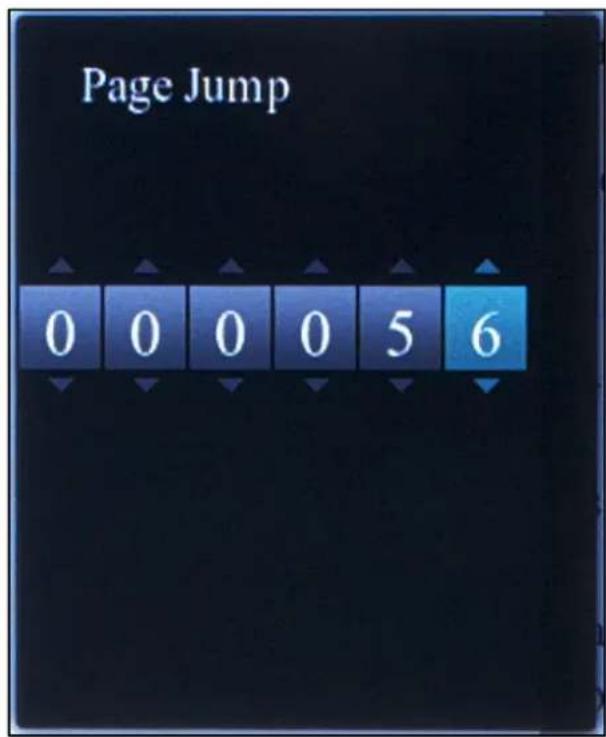
Use the number keys to enter the desired page number and confirm by pressing the M key again.
When reading eBooks (not documents) you can also directly type in a page number using the number keys, followed by the M key.
6 ZOOM IN/OUT
To increase/decrease the font size of your book/document, use the zoom button to switch between the different zoom levels.
7 ROTATE SCREEN
You can rotate the screen from portrait (vertical) to landscape (horizontal) mode by pressing the rotate button .
8 BOOKMARKING A PAGE
While reading a book, press the M button to open the menu and select Bookmark.
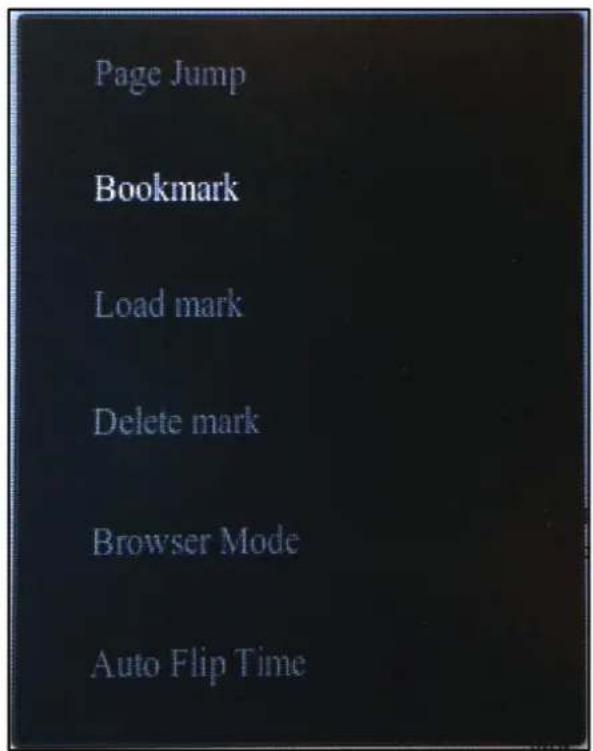
The bookmark menu will open, having 5 bookmark slots per book. Choose an empty slot and press the M to save the bookmark.
When you want to continue reading another time, you can load the bookmark(s) again by pressing the M key to open the menu and to select Load mark.
9 MUSIC
Filters and shows compatible music files and/or audio books.
Use the page scrolling buttons, or the directional pad (center M key for selection) to operate the music player.
10 VIDEO
Filters and shows compatible video.
Use the page scrolling buttons, or the directional pad (center M key for selection) to operate the video player.
11 PHOTO
Filters and shows compatible picture files.
Use the page scrolling buttons, or the directional pad (center M key for selection) to operate the picture viewer.
12 RECORD
Record is the voice recorder of your Yarvik GoBook E-Reader.
Press the M key to change the recording volume and quality (low rate or high rate).
To start recording press the play/pause button ▶II←
To save a finished recoding, press the back button.
To playback your recordings, select Music in the start screen of your Yarvik GoBook E-Reader (see chapter 8 in this manual).
Select the option Record (menu option 7) in the Music Player to view the list with all
saved recording files. Use the page scrolling buttons, or the directional

pad for selection and press the center M key to playback a recording.
13
EXPLORER
The file explorer of the Yarvik GoBook E-Reader. It's much like every part of your E-Reader, but shows all files on the memory at once, rather than filtering it only for e.g. eBooks when opening the eBook part in the start screen.
All compatible file types can be opened right from within the Explorer.
NOTE: When a MicroSD card is inserted, you will first have to choose what memory you want to show in the Explorer for file browsing.

14
SETTINGS
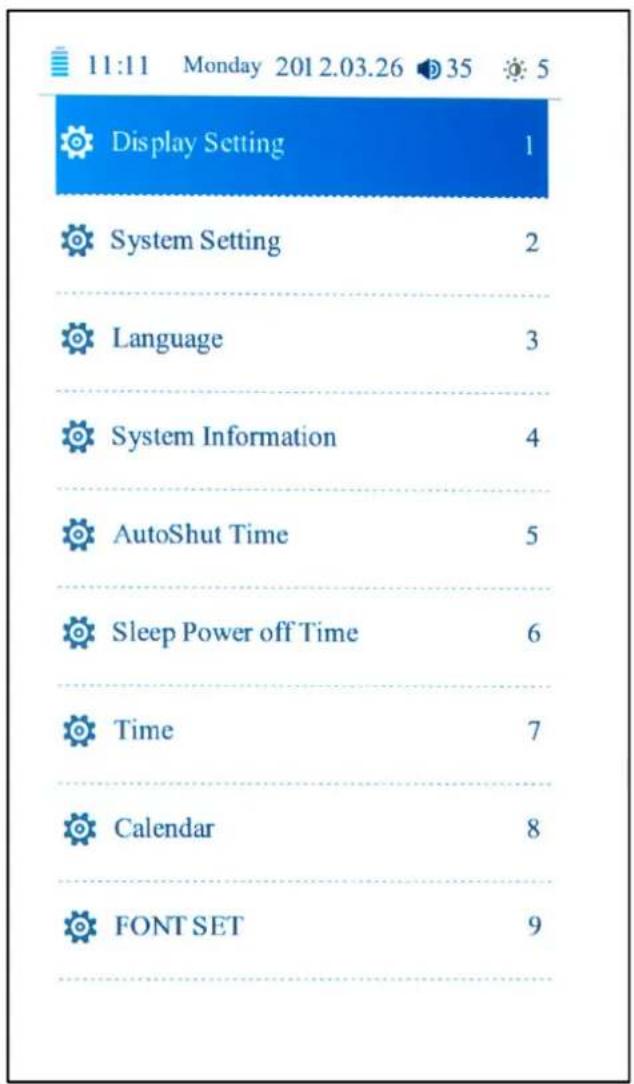
The Settings option in the start screen of your Yarvik GoBook E-Reader opens the settings menu.
Here you can setup your GoBook E-Reader to your liking, e.g. by adjusting the display brightness, the date and time and by changing the system language. The 8th option in the settings menu displays a basic Calendar.
Use the page scrolling buttons, or
the directional pad (center M key for selection) to operate the settings menu.
15 DICTIONARY
An English-only dictionary function of your Yarvik GoBook E-Reader.
To enter a word for lookup, use the directional pad to highlight the keys of the onscreen keyboard and press the center M key for input.
To lookup the entered word, press the back button to hide the keyboard and press the center M key to view the results.
To lookup another word, press the back button again.
16 SEARCH
The central search function of your Yarvik GoBook E-Reader.
Use the alphanumerical buttons to display the letters of your search, e.g. de 5 button will show you the letters J, K and L.

Use the directional pad to highlight the required letter and press the center M key to confirm input.
Matching file names are showed immediately, and can be opened using the
directional pad again.
17 CALCULATOR
The calculator function of your Yarvik GoBook E-Reader.
Use the directional pad to highlight the keys of the calculator and press the center M key to confirm input.
18
TRANSFERRING FILES TO YOUR GOBOOK
Connect the provided USB cable to your computer and the Yarvik GoBook E-Reader. The display of your GoBook will show the USB connection screen:

The GoBook E-Reader is now in USB connection mode and can be accessed as a standard USB Mass Storage Device (e.g. like a USB pen drive) in your computer's file system, so that you can copy files between your GoBook E-Reader and your computer.
When a MicroSD card is inserted in your GoBook E-Reader, the MicroSD memory will be available as a separate disk drive in your computer's file system.
19
WARRANTY STATEMENT
Yarvik warrants that the product purchased by Customer shall be free from defects in workmanship or materials for a period of 2 years from the date of purchase by Customer. If, at any time during the warranty period, the product has a defect in workmanship or material, Customer should return the product to the dealer where the product has been purchased. Dealer shall repair or replace it (at Yarvik's sole option) within a reasonable period of time. An original invoice is required as proof of the purchase date. Yarvik's option with respect to this matter shall be final.
This warranty does not cover defects or malfunctions resulting from software transfers, misuse, abusive operation, tampering, negligence, improper use, insufficient care or any act beyond the control of Yarvik.
YARVIK
EBR070 GoBook E-Reader 7"
BEDIENUNGSANLEITUNG
DEUTSCH
SEITE
5 LESEN EINES E-BOOKS
natural_image
Close-up of a USB flash drive component with metallic body and connector (no visible text or symbols)11 PHOTO (FOTOGRAFÍAS)
natural_image
Exterior view of a USB flash drive (no text or symbols visible on the device body)2 STARTSKÆRM I GOBOOK
natural_image
Exterior view of a USB flash drive (no text or symbols visible on the device body)natural_image
Exterior view of a USB flash drive (no text or symbols visible on the device body)1 INNAN DET FÖRSTA ANVÄNDANDET
Kära användare,
System Setting 2
Language 3
System Information 4
AutoShut Time 5
Sleep Power off Time 6
Time 7
Calendar 8
FONT SET 9
15 DICTIONARY (SANAKIRJA)
4 ELEKTRONICKÁ KNIHA
We hope you will absolutely enjoy your Yarvik GoBook E-Reader for the longest time possible!
NEZABUDNITE PROSÍM:
2 APXIKH OONH TOY GOBOOK
Otvorit će se izbornik za označavanje stranica s 5 mjesta za označavanje po knjizi. Odaberite prazno mjesto i pritisnite M za spremanje označene stranice. Kada želite da nastavite čitati drugi put, možete učitati označene stranice ponovnim pritiskom na tipku M da otvorite izbornik i odaberete Load mark (Učitaj označenu stranicu).
9 GLAZBA

- PRIOR TO FIRST USE
- Please note:
- GOBOOK START SCREEN
- BROWSER HISTORY
- EBOOK
- READING AN EBOOK
- ZOOM IN/OUT
- ROTATE SCREEN
- BOOKMARKING A PAGE
- MUSIC
- VIDEO
- PHOTO
- RECORD
- 13
- EXPLORER
- 14
- SETTINGS
- DICTIONARY
- SEARCH
- CALCULATOR
- 18
- TRANSFERRING FILES TO YOUR GOBOOK
- 19
- WARRANTY STATEMENT
- YARVIK
- EBR070 GoBook E-Reader 7"
- BEDIENUNGSANLEITUNG
- DEUTSCH
- LESEN EINES E-BOOKS
- PHOTO (FOTOGRAFÍAS)
- STARTSKÆRM I GOBOOK
- INNAN DET FÖRSTA ANVÄNDANDET
- DICTIONARY (SANAKIRJA)
- ELEKTRONICKÁ KNIHA
- NEZABUDNITE PROSÍM:
- APXIKH OONH TOY GOBOOK
- GLAZBA
Brand : Yarvik
Model : GoBook
Category : E-reader