
R980 4K - Caméra auto Navitel - Free user manual and instructions
Find the device manual for free R980 4K Navitel in PDF.


| Product Type | Dash Camera (DVR) |
| Display | 3-inch IPS touchscreen, 854x480 pixels |
| Camera Sensor | Sony 415, 4K resolution |
| Video Resolution | 3840 × 2160 (4K) |
| Recording Format | TS (Transport Stream) |
| Viewing Angle | 140° |
| Lens | 7-layer glass with IR filter |
| Storage | MicroSD card, up to 128 GB (Class U3 or higher) |
| Power Input | 5V, 2.5A via USB-C port |
| Supercapacitor | 3.3 F (for safe file closure on power loss) |
| Connectivity | Wi-Fi 802.11 b/g/n, GPS |
| Microphone & Speaker | Built-in |
| Loop Recording | Yes (selectable clip duration) |
| G-Sensor | Yes (automatically locks video on impact) |
| Parking Monitor | Yes (impact detection and time-lapse; requires NAVITEL SMART BOX MAX) |
| Speed & Camera Alerts | Yes (GPS-based, with overspeed permission setting) |
| Mobile App | Navitel DVR Center (iOS, Android, AppGallery) |
| Operating Temperature | -10°C to +60°C (storage: -20°C to +80°C) |
| Language Support | Multiple: English, Czech, German, Hungarian, Polish, Russian, etc. |
| Package Contents | DVR, car charger, windscreen holder, card reader, microfiber cloth, electrostatic film, user manual, warranty card |
Frequently Asked Questions - R980 4K Navitel
User questions about R980 4K Navitel
0 question about this device. Answer the ones you know or ask your own.
Ask a new question about this device
Download the instructions for your Caméra auto in PDF format for free! Find your manual R980 4K - Navitel and take your electronic device back in hand. On this page are published all the documents necessary for the use of your device. R980 4K by Navitel.
USER MANUAL R980 4K Navitel
Vnější vzhled
Funkce zařízení
Google Play
App Store AppGallery

Google Play

App Store AppGallery
Seadme skeem
Google Play
App Store AppGallery
Thank you for purchasing this NAVITEL® product.
NAVITEL R980 4K is a multifunctional high-definition DVR with many functions and features that are described in this User Manual. Please read the manual carefully before using the device and keep it for future reference.
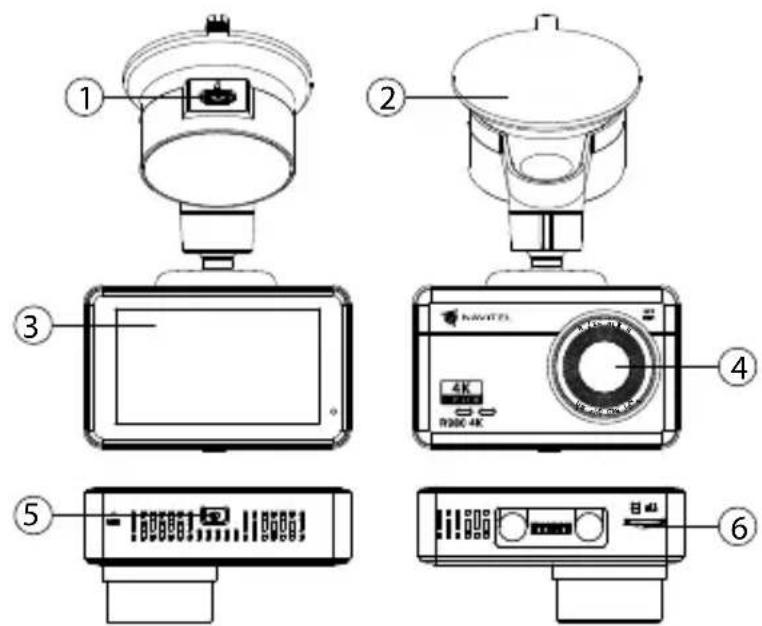
Device layout
- USB-C charging port
- Windscreen holder
- Touchscreen
- Lens
- Power button
- Memory card slot
Package contents
• DVR NAVITEL R980 4K
• Car charger 12/24 V
• Windscreen holder
- Card reader
- Microfiber cloth
- Electrostatic film
- User manual
• Warranty card - Gift voucher
Specifications
| Processor MSTAR SSC8629Q | |
| Display 3", 854x480, IPS, touchscreen | |
| Camera Sony 415 (4K) | |
| Recording format TS | |
| Video resolution 3840 × 2160 | |
| View angle 140° | |
| Lens 7-layer glass + IR layer | |
| Storage MicroSD card | |
| MicroSD card capacity Max. 128 GB | |
| Charging port USB-C | |
| Superkapacitor 3.3 F | |
| Power 5 V, 2.5 A | |
| Wi-Fi Yes | |
| Microphone/speaker Yes | |
| GPS-alert Cameras/Warnings/Speed | |
| Language | Czech,Deutsch,Estonian,English,Hungarian,Latvian,Lithuanian,Polish,Romanian,Russian,Slovak,Ukrainian |
Note: the package, appearance, specifications that do not change the overall functionality of the device may be changed by the manufacturer without prior notice.
Installation
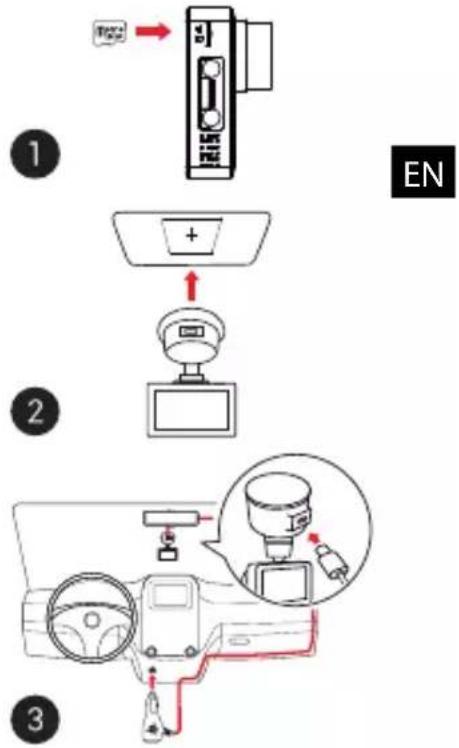
- Put the microSD card into the DVR. Use a high-speed SD card (Class U3 or above); capacity should be within 8-128 GB.

- To avoid malfunctions of the DVR and / or SD-card, don't insert and remove SD-card during DVR operation.
-
Before using a microSD card, please format it inside the DVR to avoid data errors. For formatting the SD-card in Menu mode select Format SD-card and confirm it.
-
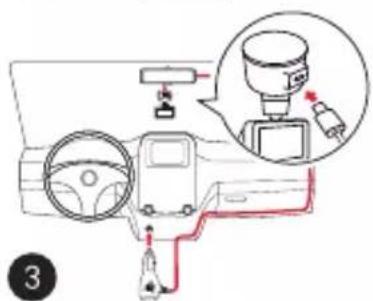
Stick the electrostatic film on the windshield and fix the DVR over it with the mount.
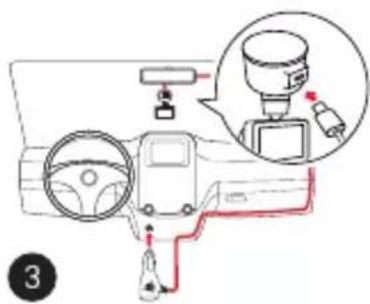
- Connect the car charger to the cigarette lighter socket.
- Connect the car charger to the DVR USB-C port.
- Adjust the camera position.
- Turn on the power, make sure the device is installed correctly. If the device is installed correctly, the indicator will light up. The device will turn on and start recording video.
Precautions
- Use only the original charger adapter. Using another adapter may negatively affect the device's battery. Use accessories only approved by manufacturer.
- Permissible ambient temperature in operating mode: -10 to +60 °C. Storage temperature: -20 to +80 °C. Relative humidity: 5% to 90% without condensation (25 °C).
- Put the device away from fire sources to avoid explosion or fire.
- Do not expose the device to physical impacts.
- Avoid contacting the device with sources of electromagnetic radiation.
- Keep the lens clean. Do not use chemicals or detergents to clean the product; always turn off the device before cleaning.
- Strictly follow the laws and regulatory acts of the region where the device is used. This device can not be used for illegal purposes.
- Do not disassemble or repair device by yourself. In case of device failure, contact the service center.
Device functions
| Format SD-card | Formatting a microSD card in the DVR is necessary for the correct operation of the device. Before using a microSD card or in case of data error, please format the microSD card. For formatting the SD-card in Menu mode select Format SD-card and confirm it. |
| Record | Connect the device to an external power supply and it will start recording automatically. Press the OK button to stop recording. Press OK again to record another video. Each video will be saved automatically. |
| Loop recording | This feature allows you to save a video as a set of files given in the duration menu. If the memory card runs out of space, the unprotected files will be overwritten in the order in which they were created. |
| Record audio Record | video with or without sound. |
| Stamp This function | adds date stamp to the record. |
| LCD OFF | The device can automatically shut off the screen to reduce power consumption; time interval can be set in the Screen Saver menu. |
| G-sensor If the vehicle is hit by something, the DVR will automatically lock the current video. | |
| Parking monitor* | In parking mode, the user has access to the following modes: impact control and continuous time-lapse recording.Parking mode - impact control is based on the operation of the G-sensor: when it is triggered, an emergency file is written.Parking mode - continuous time-lapse recording. Records video continuously at a user-defined frame rate. |
| GPS location | Device can show longitude, latitude and other information on your current location. Go to Settings -> GPS Status to check GPS dates. Press On in the GPS Stamp option to add GPS information to your files. |
| APP support | You can see and share your videos and photos, taken by DVR, in your mobile phone through special app. The app is connecting via Wi-Fi network and should be installed on your mobile phone. |
| Perm.excess | Select an overspeed permission in the settings in the range from -5 to +25 km/h in increments of 5 km/h. If you exceed the set non-fined threshold, you will hear a sound notification. |
Note: the built-in power source is only for turning off the device correctly when the power is turned off; for the full operation of the device in any of the modes, a constant power connection is required.

* Note: The mode is available only when the DVR is connected to a permanent power supply through a device that prevents excessive battery discharge - NAVITEL SMART BOX MAX.
NAVITEL s.r.o. hereby declares that the device NAVITEL R980 4K is compatible with the European directive RED 2014/53/EU. The full text of Declaration of conformity is available at the following internet address: www.navitel.cz/en/declaration_of_conformity/r980-4k.
Navitel DVR Center app installation
- Download and install Navitel DVR Center to your cell phone or tablet, follow your mobile device instructions. You can download application by scanning QR code in DVR's Menu (App QR Code) with your cell phone.
- Turn on a Wi-Fi in DVR's Menu (Wi-Fi) and in your mobile device settings.
- Run the app. Choose your DVR in the list. The DVR's information is in DVR's Menu (Wi-Fi Navitel).
- Connect your mobile device to the DVR through Wi-Fi. If necessary use the password. You can change it in DVR's Menu (Wi-Fi password).
-
Using the Navitel DVR Center you can:
-
update DVR's firmware;
• control DVR functions in Settings menu: configure parking mode, impact sensor, video mode and format your SD card; - save, view, delete and send videos and photos as well as watch DVR's video in real time on the mobile device screen.
Google Play
App Store AppGallery
Digital Speed & Camera Info
The Digital speed feature is used to display time and vehicle speed calculated with the help of GPS signal [1]. Modes:
- Speed – current speed is displayed constantly [B],
- Speed + time - current speed [B] and time [C] are displayed.
The Camera info feature notifies the driver about cameras and warnings (hereinafter – Cameras) along the way. When you turn on the Camera info, the current speed and time are displayed. With the approach to the nearest camera the following information is displayed [2]:
- current speed [B],
- camera type [D],
• dynamic progress bar indicating approach to the nearest camera [E],
• distance to the camera [F].
All information is displayed on a black screen.
In Record mode (REC), ●REC or ● are displayed [A].
If the vehicle is still, 0 is displayed.
If there is no GPS-signal, - - - [3] is displayed.
Note. A weak GPS signal may be caused by bad weather conditions and other external factors. Please consult your vehicle speedometer.


[1] [2] [3]
Bevezetés
Tisztelt Ügyfelünk!
Eszköz elrendezése
Funkciók
Google Play
App Store AppGallery

Google Play
App Store AppGallery
lerīces funkcijas
Google Play
App Store AppGallery

Wygląd Zewnętrzny
natural_image
QR code with a green circular logo in the center (no readable text or symbols)Google Play
App Store AppGallery

Funcții dispozitiv
Google Play
App Store AppGallery
Внешний вид
Google Play
App Store AppGallery
Vonkajší vzhľad
- Nabíjací port USB-C
- Držiak na čelné sklo
- Dotyková obrazovka
- Objektív
- Tlačidlo napájania
- Slot na pamätovú kartu
Obsah balenia
Google Play
App Store AppGallery
Функції пристрою
Google Play
App Store AppGallery
UA


Brand : Navitel
Model : R980 4K
Category : Caméra auto