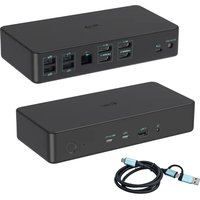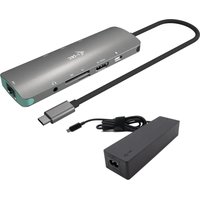
C31NANOLANPD100 - Docking station i-TEC - Free user manual and instructions
Find the device manual for free C31NANOLANPD100 i-TEC in PDF.


| Product type | USB-C Docking Station |
| Brand | i-TEC |
| Model | C31NANOLANPD100 |
| Dimensions | 130 x 43 x 15 mm |
| Weight | 85 g |
| Power supply | Via USB bus (without external adapter) or via USB-C Power Delivery port (profile 4, max 100W) |
| Video ports | 1x HDMI 4K (max resolution 3840x2160 / 60 Hz) |
| USB-A ports | 3x USB-A 3.0 (up to 5 Gbps) |
| Ethernet port | 1x GLAN RJ-45 (10/100/1000 Mbps) |
| USB-C PD port | 1x USB-C Power Delivery (input for host charging, max 100W) |
| Audio | 1x combo audio jack 3.5 mm (headphone and microphone) |
| Card readers | 1x SD, 1x microSD |
| Built-in cable | USB-C cable 10 cm |
| LAN chipset | Realtek RTL8153B |
| Compatible operating systems | Windows 10 32/64 bit, macOS, Chrome OS, Android 6+ (requires USB-C with DisplayPort Alt Mode or Thunderbolt 3) |
| Display modes | Extend, Mirror, Primary screen |
| Supported colors | 16 / 32 bits |
| Device charging | Yes, via USB-A ports (and USB-C PD if adapter is connected) |
| Maintenance and cleaning | Unplug before cleaning; use a soft dry cloth; avoid liquids and aerosols |
| Safety | Do not expose to humidity, extreme temperatures; flat surface; do not obstruct ventilation |
| Spare parts and repairability | Contact i-TEC support; no user-serviceable parts |
| General information | Detailed manual available at www.i-tec.cz/fr/ ; support@itecproduct.com |
Frequently Asked Questions - C31NANOLANPD100 i-TEC
User questions about C31NANOLANPD100 i-TEC
0 question about this device. Answer the ones you know or ask your own.
Ask a new question about this device
Download the instructions for your Docking station in PDF format for free! Find your manual C31NANOLANPD100 - i-TEC and take your electronic device back in hand. On this page are published all the documents necessary for the use of your device. C31NANOLANPD100 by i-TEC.
USER MANUAL C31NANOLANPD100 i-TEC
EN Please read the entire instruction manual carefully. Detailed manual is available on our website www.i-tec.cz/en/ in the tab „Manuals, drivers". In case of any issues, please contact our technical support at: support@itecproduct.com
DECLARATION OF CONFORMITY. 47-48
FCC 49
www.i-tec.cz/en
INTRODUCTION
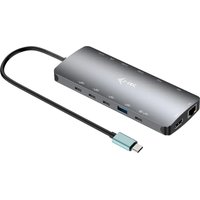
Thank you for purchasing the i-tec docking station, our product allows you to connect your favourite devices via a single USB-C connector to a laptop, tablet or smartphone with a USB-C port. It offers 1x HDMI 4K port, 3x USB-A 3.0 port, 1x Ethernet GLAN RJ-45 port, 1x USB-C Power Delivery, 1x Combo audio jack (headphones and microphone) 1x SD card reader, 1x MicroSD card reader.
PACKAGE CONTENTS
- i-tec USB C Docking Station with cable (10 cm)
Quick Start
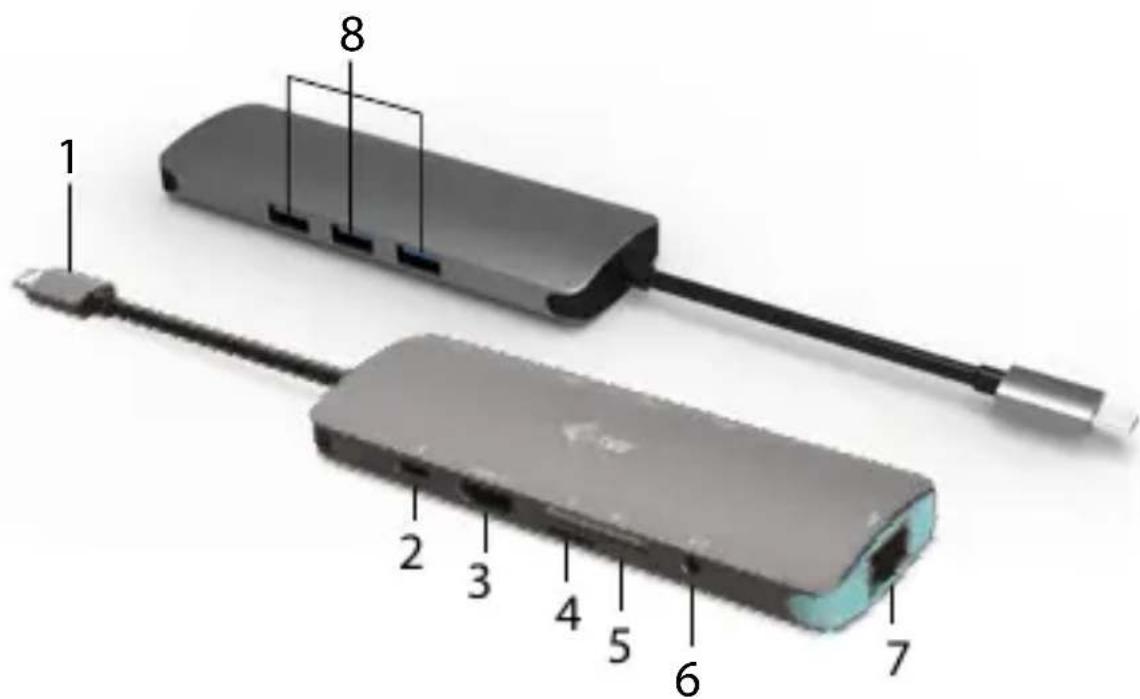
DOCKING STATION DESCRIPTION
- Integrated cable with USB-C connector
- USB-C Power Delivery Port - for charging the notebook, tablet or smartphone supporting Power Delivery technology. To this port, you can plug the original or universal AC power adapter equipped with a USB-C connector to ensure continuous charging of your notebook, tablet, or smartphone while working. Disconnecting the USB-C adapter will restart the docking station and will disconnect and reconnect all connected devices.
- HDMI port
- MicroSD card reader
- SD card reader
-
3.5 mm Combo Audio Jack (2.1 CH)
-
Ethernet GLAN RJ-45 port - for Ethernet network / router / switch / HUB and Internet connection
- 3x USB-A 3.0 port - for connecting the USB devices
SPECIFICATION
- Graphic interface: 1x HDMI, max. resolution 4K/60 Hz Mode: Extend, Mirror and Primary Display
- Supported colors 16 / 32 bi
- 3x USB 3.0 A port for connecting the USB 3.1/3.0/2.0 devices and for the high-speed data transfer up to 5 Gbps
- 1x USB-C Power Delivery - Power Delivery with the profile 4 (max.100W) for charging laptops, tablets or smartphones with support for Power Delivery. To this port you can connect an original or a universal AC power adapter with USB-C connector, it ensures the constant charging of your laptop, tablet or smartphone during your work.
- 1x Ethernet GLAN RJ-45 port for fast network and Internet access with Gigabit Ethernet connection, it supports speeds of 10 / 100 / 1000 Mbps
- 1x integrated USB-C 3.1 cable for connecting the docking station to laptop, tablet or smartphone
- Powered through USB bus (no power adapter is needed) or through USB-C PD
- Chipset: RTL8153B (LAN)
- OS: Requires USB-C interface with „DisplayPort Alternate Mode" and „Power Delivery" support (not all devices / systems with USB-C interface support this as standard) or Thunderbolt 3 port - Windows 10 32/64bit, Mac OS X, Chrome OS and Android 6 (Google) with Intel Broadwell Processor and R51 and higher
- Product dimensions: 130 × 43 × 15 mm
Product weight: 85 g
SYSTEM REQUIREMENTS
Hardware requirements: Requires USB-C interface with „DisplayPort Alternate Mode" and „Power Delivery" support (not all devices / systems with USB-C interface support this as standard) or Thunderbolt 3 port
Operating system: Windows 10 32/64bit, Mac OS X, Google (Chrome OS and Android 6 and higher) with latest updates
DRIVER INSTALLATION
Windows 10 32/64bit: After connection, the drivers for the docking
station are installed automatically on the system. Before installation make sure that your system has installed the latest drivers for your device and updated BIOS.
Mac OS X: Installation of the drivers in Mac OS X is automatic. Before installation make sure that your Mac has installed the latest OS for your device.
CONNECTING A HDMI MONITOR
The docking station is equipped with 1x HDMI 4K Ultra HD port for the connection of an external monitor or beamer with a HDMI interface. For displaying your images you can use a modern plasma or LCD monitors and TVs. The graphic chip, which is the heart of the docking station, supports up to 4K resolution 3840x2160/30Hz. Connect the monitor to the docking station using a highquality HDMI cable. During installation of an additional monitor the screen of the notebook or tablet can flicker which is a standard condition.
CONNECTING TO THE LAN
You can use the GL AN RJ-45 port for connecting the Ethernet to a router/ switch and to the internet, it supports speeds of 10 / 100 / 1000 Mbps.
CONNECTING USB DEVICES
You can use USB 3.0 ports for connecting your keyboard, mouse, external hard drive, printer and other devices or you can use it for connecting a USB HUB, which will give you more free USB ports.
CHARGING
The docking station supports charging of USB mobile devices, such as smart phones, e-book readers, multimedia players, navigation devices, and tablets. Simply connect the device that you want to charge using the original cable to the USB port of the docking station. If the device is not charged, connect the original USB-C power adapter to the USB-C Power Delivery port of the docking station.
CHARGING THROUGH POWER DELIVERY
HP Folio G1, Dell XPS13, Acer UX390, MacBook Pro 2016, Chromebook Pixels or Windows 10 devices with USB-C port and power delivery support and power adapter up to 100W. The docking station offers USB-C Power Delivery, designed for energizing of the connected "parent" device using the original power adapter and for charging of devices connected through the USB ports.
Important: Disconnecting the USB-C adapter will restart the docking station and will disconnect and reconnect all connected devices.
SAFETY INSTRUCTIONS
- Do not expose to extreme temperatures and air humidity.
- Use the device on flat surfaces - you will prevent it from slipping and falling to the ground.
- Save the user manual for a possible use later.
In cooperation with the service department:
- Check functionality after falling to water or to the ground.
- Check functionality when the cover is broken.
- Send the device back if it does not work in accordance with the user manual.
FREQUENTLY ASKED QUESTIONS
Available on our website www.i-tec.cz/en on the "FAQ" tab of this product.
EINLEITUNG
CASTO KLADENE OTÁZKY
This equipment is marked with the above recycling symbol. It means that at the end of the life of the equipment you must dispose of it separately at an appropriate collection point and not place it in the normal domestic unsorted waste stream. This wil benefit the environment for all. (European Union only)
DEUTSCH
This equipment has been tested and found to comply within the limits of a Class B digital device pursuant to Part 15 of the FCC Rules. These limits are designed to provide reasonable protection against harmful interference in a residential installation.
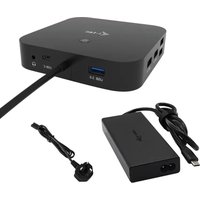
i-tec Universal Charger USB-C PD 3.0 100 W
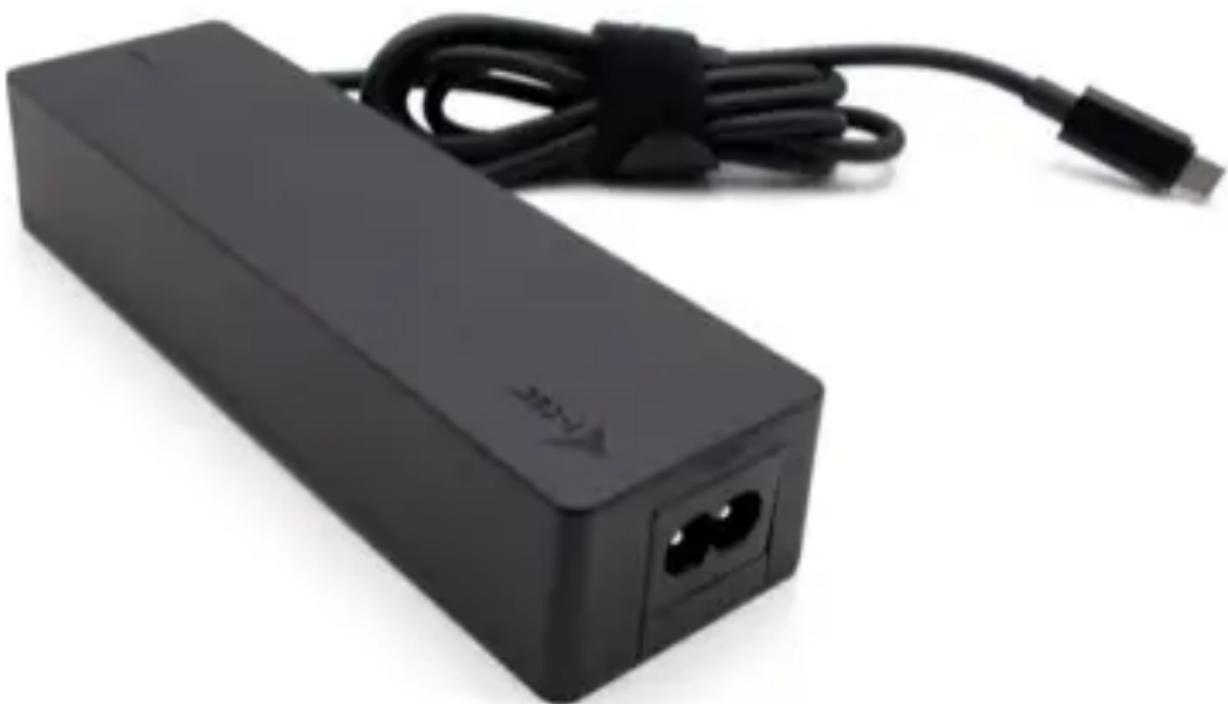
User guide • Gebrauchsanweisung • Mode d'emploi Manual de instrucciones • Manuale • Uživotelská príručka Instrukcje obslugi • Uživotel'ská príručka
- Vartotojo vadovas Handleiding - Användarhandbok - Guia do'utilizar
EN Please read the entire instruction manual carefully. Detailed manual is available on our website www.i-tec.pro/en/ in the tab „Manuals, drivers". In case of any issues, please contact our technical support at: support@itecproduct.com
Declaration of Conformity. 68-69
FCC. 70
DESCRIPTION
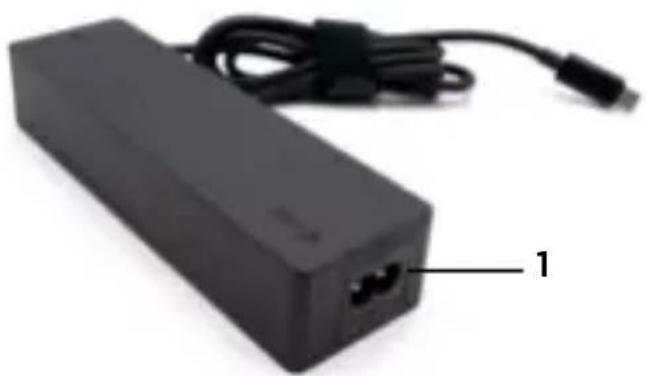
Back side:
- Power input
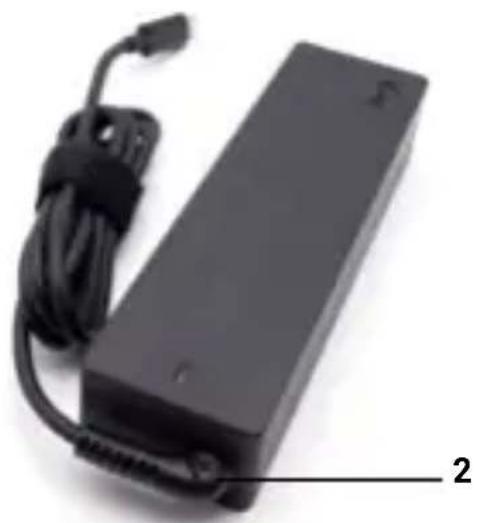
Front side:
- USB-C Built-in Charging cable
Top side:
- Power LED indication

CONTENTS
i-tec Universal Charger USB-C PD 3.0 100W
- AC Power Cable (150 cm)
- USB-C power supply cable (100 cm)
Quick Start
SPECIFICATIONS
- Input voltage AC 100-240V, 50-60 Hz, max. 1.8A
Output power (max): 100 W
Eciency: more than 89% - USB-C output voltage: DC 5V / 9V / 12V / 15V / 20V
- USB-C output current: max. 5 A
- Protection against: current overload, overvoltage, short circuit and overheating.
- Operating values: 0^ - 30^
- Relative humidity: 5% - 90% .
Product dimensions: 162 × 45 × 30 ~mm
Product weight: 310g
USING THE POWER ADAPTER
Connecting the universal adapter to the device:
- Connect the adapter to the 110/230V mains, using the supplied cable.
- Connect the USB-C cable to the USB-C port of the product that you want to charge.
SAFETY INSTRUCTIONS FOR USING THE CHARGE HUB
General safety instructions
- Follow these safety guidelines to prevent possible damage to your computer and ensure your own safety. Unless otherwise noted, all procedures in this document assume that you have read the safety information that came with your computer. Place the device on a hard, level surface. Leave approximately 10 cm of clearance on all vented sides to allow air to flow for proper ventilation. Restricting airflow may damage the equipment or cause a fire.
2 Do not stack the devices or place them so close together that they are exposed to recirculation or preheated air. - Check that nothing is lying on the cables and that the cables are positioned so that they cannot be tripped over or stepped on.
4 Make sure all cables are connected to the appropriate connectors. Some connectors look similar and can be easily confused (for example, do not plug the phone cable into the power connector). - Do not place the appliance in an enclosed wall unit or on a soft fabric surface such as a bed, sofa or carpet.
- Keep the equipment away from heat sources.
- Keep the equipment away from extremely high or low temperatures so that it can operate within its operating range.
-
Do not insert any objects into the vents or openings of the appliance. Failure to do so may result in fire or electric shock due to short-circuiting of internal components.
-
Do not use the device in a humid environment, such as near a hot tub, sink, swimming pool, or in a damp basement.
- Do not use mains powered equipment during a storm. Battery-powered devices can be used if all cables are disconnected.
- Avoid contact of liquids and food with the device.
- Before cleaning the device, unplug it from the electrical outlet. Clean the device with a soft cloth dampened with water. Do not use liquid or aerosol products that may contain flammable substances.
- To avoid the potential risk of electric shock, do not connect or disconnect any cables or perform maintenance or reconfigure the equipment during a storm.
- Before touching docking station components, ground yourself with a grounding bracelet or regularly touch an unpainted metal surface, such as the metal part on the back of the computer. While working, touch the unpainted metal surface regularly to remove any static electricity that could damage internal components.
- When disconnecting the cable, pull on the connector or handle, not the cable itself. Some cables have connectors with latches or screws that must be loosened before disconnecting the cable. When disconnecting cables, hold them straight to avoid bending the pins. When connecting cables, make sure that the ports and connectors are properly rotated and aligned.
General safety instructions regarding power supply
- Before connecting the device to an electrical outlet, check the rated voltage and make sure that the required voltage and frequency match the available power source.
- Make sure that the computer, monitor, and connected devices have the proper rated electrical power to operate with the power adapter connected in your area.
- If the power cord is damaged, do not plug it into an electrical outlet.
- To avoid electric shock, plug the power cords of the equipment into properly grounded electrical outlets. If the equipment is equipped with a three-prong power cord, do not use adapter plugs that bypass the grounding function or remove the grounding element from the plug or adapter.
- When using an extension power cord, make sure that the total rated power of the products connected to it does not exceed the rated current of the extension cord.
- If you must use an extension cord or splitter, make sure that the extension cord or splitter is connected to a power outlet and not to another extension cord or splitter. The extension cord or splitter must be designed for grounded plugs and plugged into a grounded outlet.
-
If you are using a splitter with multiple sockets, be careful when plugging the power cord into the splitter. Some splitters may allow the plug to be connected incorrectly. Incorrectly connecting the power plug can cause permanent damage to the equipment and may also cause a risk of electric shock or fire. Make sure that the grounding tip of the power plug is inserted into the grounding contact of the splitter.
-
When unplugging the device from the power outlet, pull the plug, not the cable.
- Use only a power adapter supplied by i-tech technologies s.r.o. approved for use with this device. Use of any other power adapter may cause fire or explosion.
- If you are using the power adapter to power your computer or charge your battery, place it in a ventilated area, such as on top of a desk or on the floor. Do not cover the power adapter with paper or other objects that may reduce cooling. Do not use the power adapter in its carrying case.
- The power adapter may become hot during normal operation of the docking station or computer.
- Be careful when handling the adapter during or immediately after operation.
- We recommend placing the adapter on the floor or table so that the indicator light is visible. This way you will know right away when the adapter shuts down due to external influences. If for some reason the green light goes out, unplug the power cord from the outlet for 10 seconds and then plug it back in.
- Never use a power adapter that shows signs of damage or excessive wear
FREQUENTLY ASKED QUESTIONS
Available on our website www.i-tec.pro under "FAQ" for this product
GLOSSARY OF TERMS
Interface / port / connector / input / slot - the place where two devices are physically connected.
Controller - a semiconductor component (called a chipset) in a notebook/tablet that ensures the operation of some from the ports.
Thunderbolt™ - is a fast hardware interface that allows you to connect devices (peripherals) to your computer via an expansion bus. Thunderbolt combines PCI-Express and DisplayPort into a serial data interface. It allows daisy chaining of up to 6 additional Thunderbolt™ devices, with Thunderbolt™ 3/4 transfer rates of up to 40Gbit/s.
USB-C / USB Type-C / USB4 / Thunderbolt™ 3/4 - is a symmetrical connector Allows faster charging, power, dual-role (not only host, but also guest), support for alternative modes - Alt Mode (DisplayPort, MHL, Thunderbolt 3, Power Delivery) and error notification via Billboard device.
USB-C Power Delivery (USB-C PD) - optional feature of the USB-C connector. Connector with this support can both charge and be charged, and supports loads from 10W to 240W
USB 3.2 / 3.1 / 3.0 / 2.0 - standard for USB interface / port for connecting various USB devices. Various USB devices can be connected to the docking station or adapter using USB Type-A interface the USB Type B port is used to connect the docking station or adapter to a laptop/tablet.
HDMI/Display Port - A standard for a digital graphics interface/port used to connect monitors and other graphic display devices.
LAN (Local Area Network) - local area network, now the most common is the so-called Ethernet, which is used by The docking station achieves theoretical transfer rates of up to 2.5 Gbit/s.
Audio - a term for an audio input (microphone) or output device (headphones/speakers).
BESCHREIBUNG
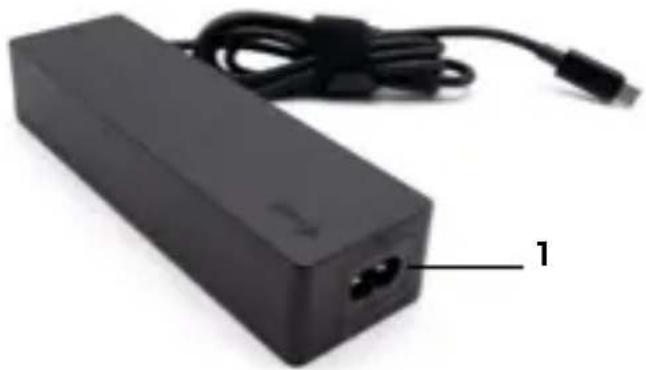
HintereSeite:
- Stromeingang
Vorderseite:
QUESTIONS FREQUEMMENT POSÉES
CASTO KLADENE OTÁZKY
CASTO KLADENE OTÁZKY
K disposzicii na našej webovej stránke www.i-tec.pro v Časti "FAQ" pre除去 produit
SLOVNIK POJMOV
This equipment is marked with the above recycling symbol. It means that at the end of the life of the equipment you must dispose of it separately at an appropriate collection point and not place it in the normal domestic unsorted waste stream. This will benefit the environment for all. (European Union only)
DEUTSCH
709 00 Ostrava - Marianske Hory, Czech Republic
declares that this product / erklärt hiermit, dass das Produkt / déclare que ce produit / déclarque que este produit / dichiarare che il seguente prodotto / tímto prohlasuje,Že vyrobek / tymto prehlasuje,Že vyrobok / deklarujé,Že produit / šiuo pareiskia, kad gaminys / verklaart hierbij dat het product / fösakrar attenna produit / déclarque que este produits
Product, Bezeichnung, Le prénom, Producto, Prodotto, Název, Názov, Nazwa, Gaminys, Naam, Produkt, Produktó: i-tec Universal Charger USB-C PD 3.0 100W
Model, Modell, Modèle, Modelo, Modello, Model, Model, Model, Modelis, Model, Modell, Modelo: CHARGER-C100W
Determination, Bestimmung, La détermination, Determinación, Determinazione, Určeni, Určenie, Opcje, Ustatymas, Doel, Fastställande, Determinação:
Product is intended for use as an accessory for PCs. / Das Produkt ist für die Verwendung als Zubehör für PCs bestimmt. / Le produit est destiné à être utilisé comme accessoire pour les PC. / El produit está destinado a utiliserse como accesorio para PC. / Il prodotto è destinato all'uso come accesario per PC. / Vyrobek je urcen k pouziti jako prisluosenstvi k PC. / Vyrobok je urceny na pouzitie ak o prisluosenstvo pre PC. / Produkt jest przyznac zony do uzytku jako akcesorium do komputerów PC. / Produktas skirtas naudoti kaip asmeniniu kompiuteriu priedas. / Product is bedoeld voor gebruik als accessoire voor pc's. / Produkten ar avsedd for anvandning som PC-tillbehör. / O Produkta destina-se a ser Utilizzato como accesorio para PCs.
We declare under our sole responsibility that the above named product is in conformity with the following European Union directives:
This equipment has been tested and found to comply within the limits of a Class B digital device pursuant to Part 15 of the FCC Rules. These limits are designed to provide reasonable protection against harmful interference in a residential installation.
www.i-tec.cz/en/