USER MANUAL RVCLS144AB HISENSE
ROBOT VACUUM
CLEANER
RVCLS144AB HSN
INSTRUCTION MANUAL
| ●ROCKET MANAGEMENT COMPANY | ●ROCKET HOLDINGS | ●ROCKET APP RATING | ●ROCKET EQUITY CORPANCY | ●PUBSLEY & COOKING | ●ROCKET SYSTEMS |
| ●ASPARATION SERVICES COMPANY | ●STANDARD OFFIC | ●PUBSLEY & COOKING | ●ASPARATION REACH | ●PUBSLEY & COOKING | ●ROCKET DEVELOPMENT |
| ●WALANCE COMPANY INC | ●WALANCE COMPANY | | | | |
| | | | | |
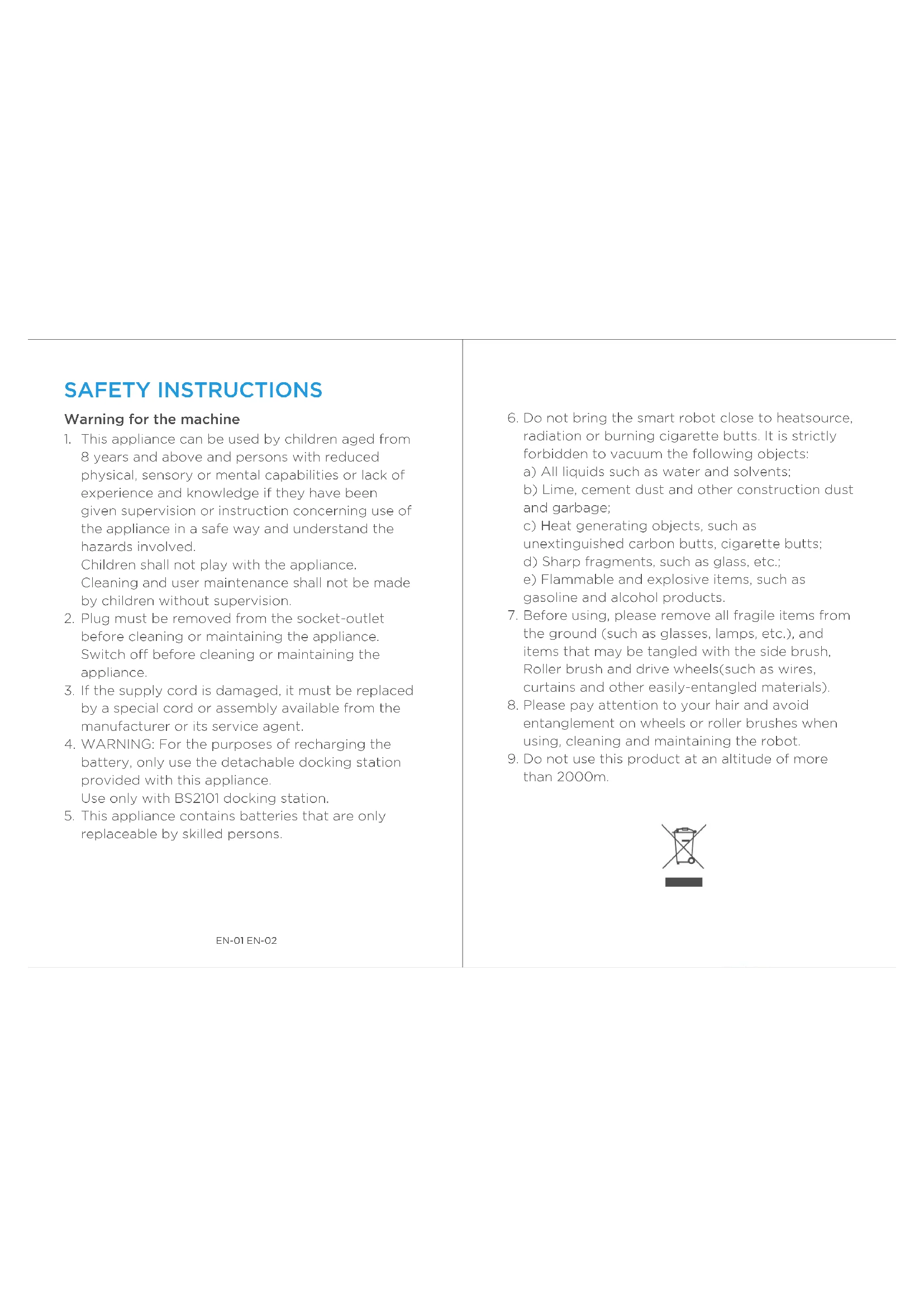
SAFETY INSTRUCTIONS
Warning for the machine
- This appliance can be used by children aged from 8 years and above and persons with reduced physical, sensory or mental capabilities or lack of experience and knowledge if they have been given supervision or instruction concerning use of the appliance in a safe way and understand the hazards involved.
Children shall not play with the appliance.
Cleaning and user maintenance shall not be made by children without supervision.
- Plug must be removed from the socket-outlet before cleaning or maintaining the appliance. Switch off before cleaning or maintaining the appliance.
- If the supply cord is damaged, it must be replaced by a special cord or assembly available from the manufacturer or its service agent.
- WARNING: For the purposes of recharging the battery, only use the detachable docking station provided with this appliance.
Use only with BS2101 docking station.
-
This appliance contains batteries that are only replaceable by skilled persons.
-
Do not bring the smart robot close to heatsource, radiation or burning cigarette butts. It is strictly forbidden to vacuum the following objects:
a) All liquids such as water and solvents;
b) Lime, cement dust and other construction dust and garbage;
c) Heat generating objects, such as unextinguished carbon butts, cigarette butts;
d) Sharp fragments, such as glass, etc.;
e) Flammable and explosive items, such as gasoline and alcohol products.
- Before using, please remove all fragile items from the ground (such as glasses, lamps, etc.), and items that may be tangled with the side brush, Roller brush and drive wheels(such as wires, curtains and other easily-entangled materials).
- Please pay attention to your hair and avoid entanglement on wheels or roller brushes when using, cleaning and maintaining the robot.
- Do not use this product at an altitude of more than 2000m.

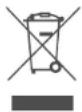
- Correct Disposal of this product.
This marking indicates that this product should not be disposed with other household wastes throughout the EU. To prevent possible harm to the environment or human health from uncontrolled waste disposal, recycle it responsibly to promote the sustainable reuse of material resources. To return your used device, please use the return and collection systems or contact the retailer where the product was purchased. They can take this product for environmental safe recycling.
- Warranty Information
The manufacturer provides warranty in accordance with the legislation of the customer's own country of residence, with a minimum of 1 year (Germany: 2 years), starting from the date on which the appliance is sold to the end user. The warranty only covers defects in material or workmanship.
The repairs under warranty may only be carried out by an authorized service centre. When making a claim under the warranty, the original bill of purchase (with purchase date) must be submitted. The warranty will not apply in cases of:
a) Normal wear and tear
EN-03 EN-04
b) Incorrect use, e.g. overloading of the appliance, use of non-approved accessories
c) Use of force, damage caused by external influences
d) Damage caused by non-observance of the user manual, e.g. connection to an unsuitable mains supply or non-compliance with the installation instructions
e) Partially or completely dismantled appliances
-
WIFI:2400-2483.5MHz, MAX POWRE:20dBm, BLUETOOTH MAX POWR:10dBm
To satisfy RF exposure requirements, a separation distance of 20 cm or more should be maintained between the antenna of this device and persons during device operation. To ensure compliance, operations at closer than this distance is not recommended.
-
CLASS 1 LASER PRODUCT
INVISIBLE LASER RADIATION
(Note: Laser classified to Class 1 according to IEC 60825-1:2014)
Warning for docking station
-
"IMPORTANT SAFETY INSTRUCTIONS - SAVE THESE INSTRUCTIONS" and "DANGER - TO REDUCE THE RISK OF FIRE OR ELECTRIC SHOCK, CAREFULLY FOLLOW THESE INSTRUCTIONS".
-
This appliance can be used by children aged from 8 years and above and persons with reduced physical, sensory or mental capabilities or lack of experience and knowledge if they have been given supervision or instruction concerning use of the appliance in a safe way and understand the hazards involved.
Children shall not play with the appliance.
Cleaning and user maintenance shall not be made by children without supervision.
-
Plug must be removed from the socket-outlet before cleaning or maintaining the appliance. Switch off before cleaning or maintaining the appliance.
-
If the supply cord is damaged, it must be replaced by a special cord or assembly available from the manufacturer or its service agent.
-
Docking base is only applicable to the product RVCLS144AB.
(Battery pack type: Li-ion, DC 14.4 V, 5200 mAh)
The Docking base will automatically start charging after Robot Vacuum Cleaner returned to the base.
EN-05 EN-06
- Warning: The battery charger(Docking station) is not intended to charge non-rechargeable batteries.
- CAUTION: In order to avoid a hazard due to inadvertent resetting of the thermal cut-out, this appliance must not be supplied through an external switching device, such as a timer, or connected to a circuit that is regularly switched on and off by the utility.
Warning for battery
- The product must be powered off before removing the battery;
- Please note that do not disassemble the battery by yourself.
- If you need to replace it, please contact the after-sales service center.
- Please dispose of used battery according to local laws and regulations
- Do not dismantle, open or shred the battery.
- Do not expose batteries to heat or fire. Avoid storage in direct sunlight.
- Do not short-circuit a battery.
- Do not store batteries haphazardly in a box or drawer where they may short-circuit each other or be short-circuited by other metal objects.
-
Do not subject batteries to mechanical shock.
-
In the event of a leaking, do not allow the liquid to come in contact with the skin or eyes. If contact has been made, wash the affected area with copious amounts of water and seek medical advice.
| [symbol IEC 60417-5957(2004-12)] | for indoor use only |
| [symbol ISO 7000-0790(2004-01)] | read operator's manual |
| [symbol IEC 60417-5031(2002-10)] | direct current |
| time-lag miniature fuse-link where X is the symbol for the time/current characteristic as given in IEC 60127 |
| [symbol IEC 60417-5032(2002-10)] | alternating current |
| [symbol IEC 60417-5172(2003-02)] | class II equipment |
EN-07 EN-08
- Do not use any charger other than that specifically provided for use with the equipment.
- Do not use any battery which is not designed for use with the equipment.
- Do not mix different manufacture, capacity, size or type within a device.
- Keep batteries out of the reach of children.
- Seek medical advice immediately if the battery has been swallowed.
- Keep batteries clean and dry.
- Do not leave a battery on prolonged charge when not in use.
- After extended periods of storage, it may be necessary to charge and discharge the batteries several times to obtain maximum performance.
- The batteries give their best performance when they are operated at normal room temperature (20 °C ± 5 °C).
- Retain the original product literature for future reference.
- The battery may be irreversibly damaged if the battery is in low power for a long time. It is recommended that the battery retain sufficient power before storage.
TECHNICAL DATA
- Product Model: RVCLS144AB
- Host Charging Voltage: 16.9 V =
- Host Rated Voltage: 14.4 V =
- Host Rated Power: 55 W
- Docking Station Model: BS2101
- Docking Station Input: 220-240V\~,50-60Hz,765W
- Docking Station Output: 16.9V = .2A
- Battery Model: BP14452F
- Battery Rated Voltage: 14.4V
- Battery Capacity: 5200mAh 74.88Wh
- Charging Limit Voltage: 16.8V ---
INTRODUCTION
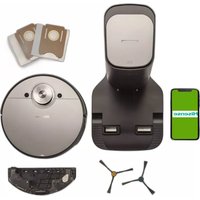
Included accessories

EN-09 EN-10
Overview of main unit
Front view (with the cover not opened)
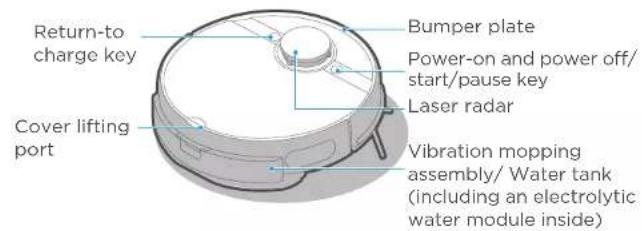

Bottom view

Parts introduction of dust collector station
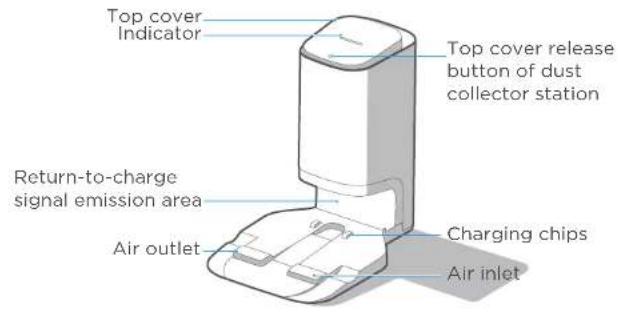

EN-11 EN-12
INSTALLATION
Installation of dust collector station
- Place the dust collector station against the wall on a hard floor.
- Place the dust collector station in an area with Wi-Fi coverage, ensuring stable networking of main unit and good functional experience of its App.

! Cautions
Avoid direct sunlight.1.
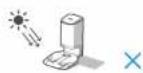
- Prevent putting the station on carpets or soft surfaces.

Store the power cord.5.

-
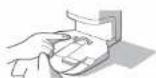
Keep the charging chips of the dust collector station dry and neat, and clean and wipe them regularly.
-
Do not cover the signal emission area of the dust collector station with stickers or other objects.
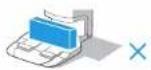
Ensure the charging area is dry.4.

- If there are other cleaner charging stations in your room, please store them before using the dust collector station.

Use guide for vibration mop assembly
- Renessvtheheurtubbemptagk and pull to remove.

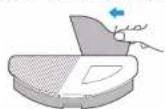
- Audherence vibration rags for vibration mopping to the bottom of the vibration mopping assembly by aligning it along the middle seam, and you can clean/replace it by simply peeling it off.
Special rag for vibration mopping

Cautions
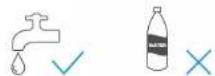
- Roll into the acid kwarsthimgupncopolar, water instead of purified water.
2
and fill the tank with water to the MAX line.

4
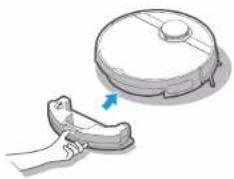
mopping assembly in the main unit until a "click" sound is heard.
2.
laundry detergent, cleaning agents, disinfectants, hand sanitizers, unknown oily liquids, and alkaline substances.

EN-13 EN-14
- Do mott fulse the aamlo pithghot function on floor carpets.

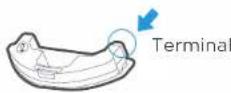
- Keep the step to walk dry-olong clean before pushing in the vibration mopping assembly.
4.
water to prevent its distortion at high temperature.

6.
can be adjusted in the App.
Installation of side brushes
- By keeping the side brush color consistent with the side brush slots on the base of the main unit, push the side brush into the slot directly until a "click" sound is heard.

2.
turn the robot's bottom upwards, and grasp the side brush by its rubber-coating leg (take care not to pull on hair bundles of the side brush with brute force) with your two hands to pull it off.

Robot charging
Before first use, put robot on the station closely, and make sure robot is in charging status for first use, then start robot.
For future use, robot can automatically goes to the charging base when cleaning is finished.

Instructions prior to use
- Prior to startup, clear away sundries on the floor, and remove easily falling, fragile, valuable, and possibly hazardous items.
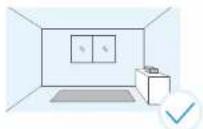
- Use relevant objects to block the robot, or establish a virtual wall in the App.
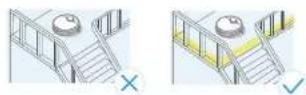
- If there is an area that does not need cleaning or may trap the robot, you can add a prohibited area or virtual wall at the appropriate location in the map of the App, to prevent the robot from entering specific areas.

Cautions
- If the robot cannot be charged, check whether the charging chips on the robot's bottom are blocked by fair bundles of left and right side brushes.
If yes, manually rotate relevant side brush to eliminate such blockage.

EN-15 EN-16
- When putting the robot in the charging station to charge, it will turn on automatically (recommended practices).
- Long press " 🔊" for 3 seconds, the power indicator flashes, the robot sounds a chord voice, and the power indicator is continuously on, indicating the robot is powered on successfully.
Start the cleaning
- During the standby mode, briefly press " 🔊" for 1 second, and the robot starts to clean the whole room.
- If you want to mop the floor, it is required to confirm that the vibration mopping assembly is installed properly.
Pause the cleaning
During the cleaning, briefly press " 🔊" for 1 second, and the robot pauses the cleaning and enters its standby status.
Return to charge
- When the robot returns to charge after completion of the cleaning, the return-to-charge indicator is continuously red. When the robot returns to charge due to low battery level, the return-to-charge indicator flashes.
- ① During the standby mode, briefly press " 🔊" for 1 second, and the robot starts to return to charge.
② During the cleaning, briefly press " 🔊" for 1 second, and the robot pauses the cleaning; then briefly press " 🔊" for 1 second, and the robot starts to return to charge.
- In case of special conditions (such as depleted battery, stuck robot etc.), the main unit may not return to charge automatically. Please manually place the main unit back to its charge station to charge.
Troubleshooting
When the robot fails, the power indicator flashes quickly. Briefly press " 🔒" for 1 second to eliminate the fault.
- Fast Connect: When robot is under powered-off status, long press " 🔊" for 3 seconds.
The connection will automatically complete after robot turned on. A sound of "Di-du" means connected successfully.
- Connect Manually: When robot is under powered-on status, long press " 🔊" and " 🔗" for 3 seconds at the same time. If connected successfully, a "Di-du" sound will be heard and station indicator light will flicker 3 times.
Power off
- Long press " 🔊" for 3 seconds, and the power indicator starts to flash.
- The robot sounds a chord voice, and the power indicator is off, indicating the robot is powered off successfully.

Cautions
- The robot is not permissible to start the cleaning due to low battery level, please charge the robot before starting the cleaning.
2.
charge automatically during the cleaning in case of low battery level, and then return to its interruption point to proceed after being fully charged.

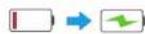
- During the charging of the sleep power indicator flashes slowly, and becomes continuously on after completion of the charging.
4.
mode after being standby for more than 10 minutes, and in this mode, pressing any key on the robot will awaken it.


- The robot cannot be powered off when being located in the charging station, and if you need to power it off, remove it from the station.
EN-17 EN-18
Dust Collection MethodsConnect Robot to Station
1. Setting of dust collection time and frequency:
Dust collection settings can be changed on the ConnectLife Robot app.
The dust collection length can be set from 6 to 14 seconds. The dust collection frequency can be set 1 time, 3 times or 5 times after cleaning.

2. Auto Dust Collection:
The dust collection station will start to work automatically when the robot returns to the dust collection station as it reaches the scheduled cleaning times.
3. Manual Dust Collection:
When the cleaning is finished, the robot can be returned to the dust collector station manually. Dust collection will automatically start when the robot reaches the scheduled cleaning times.
4. Manual Dust Collection through APP:
When the robot returns to the charging station, press "Manual dust collection" to start dust collection.
NOTE: To extend the life of motor, dust collector station will progressively increase the power. It is normal to hear the sound louder during the collection.
Status indicators of the main unit Status indicators of the dust collector station
| Indications Status Solutions | |
| Standby indicator is continuously on. | Robot is standby, cleaning, and return-to-charge after completion of cleaning. | / |
| Standby indicator is off. | Sleep/shut down. | / |
| Standby indicator flashes quickly. | Robot is faulty. | See Troubleshooting (Page 16) for fault solutions |
| Standby indicator flashes slowly. | Robot is charging. | / |
| Return-to-charge indicator is continuously on. | Robot is return-to-charge after completion of cleaning. | / |
| Return-to-charge indicator flashes. | Robot is return-to-charge due to low battery level. | / |
| Return-to-charge indicator is off. | Robot is standby/cleaning/charging. | / |
| WiFi indicator is off. | Robot is not network paired or disconnected from the network. | / |
| WiFi indicator flashes slowly. | Robot is waiting for network pairing. | / |
| Wi-Fi indicator flashes quickly. | Robot is networking. | / |
| WiFi indicator is continuously on. | Robot shows normal connection with the network. | / |
| Electrolytic water indicator is on. | Electrolytic water module is operating. | / |
| Electrolytic water indicator is off. | Electrolytic water module does not start. | / |
EN-19 EN-20
| Indications Status Solutions | |
| Off | Dust collector station is not powered. | / |
| Dust collector station is standby. | / |
| White indicator is continuously on. | Dust collector station has been powered for a while. | / |
| Robot returns to the dust collector station, starting to collect dust automatically. | / |
| Dust collector station is collecting dust. | / |
| Red indicator is continuously on. | Dust bag is full. | Please replace it with a new dust bag. |
| Red indicator flashes. | Dust bag is not installed in place or dust collector station is not tightly covered with its top cover. | Install the dust bag and close the top cover tightly. |
Using App
NOTE:
If your home Wi-Fi name or password is changed, you will need to re-establish connection with your robot vacuum.
- App supports iOS 9.0 and above, Android 6.0 and above phone system versions, but Pad device is not accepted. Generally, the phone system version may be checked by clicking "Settings-About Mobile Phone" in the mobile phone.
- This model does not support WEP encrypted router.
- The network accessing configuration of the cleaner requires Wi-Fi network of 2.4GHz frequency range, 5 GHz frequency range is not currently compatible.
- Do not configure network accessing under the charging state.
- Wi-Fi is mandatory for network accessing configuration of the cleaner, once the network accessing is configured successfully, App may be operated in Wi-Fi/2G/3G/4G network environment and the cleaner may be controlled remotely.
-
If your home WIFI password is changed, the cleaner will be displayed off-line.
-
If others want to use App to operate same cleaner, they need be invited on App by the device owner by sharing the device to the new user's account (on the condition that the invitee has downloaded App and registered an account).
- The device will be removed from the former device owner's device list if a new account owner connects the device successfully.
- Once the robot is configured successfully network accessing, the following operations will result in clearance of Wi-Fi settings and secondary network accessing configuration is required; Long press the network accessing configuration key on the device over 3 seconds and after a tick sound is heard, all Wi-Fi information will be cleared.
Pairing Robot with Mobile Phone App
- Ensure mobile phone is connected to your home Wi-Fi. Provide yourself a password from your Wi-Fi.
- Download ConnectLife Robot app and register your robot following two steps:
a) Scan QR code or search for the ConnectLife Robot APP in the Apple app store (https://www.apple.com/app-store/) or Google play store (https://play.google.com/store/apps) than download it.

Google Play Store

Apple store
b) Open the app, Sign Up and create your personal account following instructions on screen.

EN-21 EN-22
- Add your robot to your app from available devices by pressing "Add device" or "+" symbol.
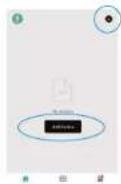
- If your phone has Bluetooth ON device might pop up for you in upper part of screen (lower LEFT picture) where you select it and follow instruction on APP. In case of manual adding robot find Small Home Appliances in tab on the LEFT and then choose Robot Vacuum (Wi-Fi). Find it with scrolling down possible devices (lower RIGHT picture).

- Follow additional instruction for finishing this pairing.
DAILY MAINTENANCE AND SERVICE
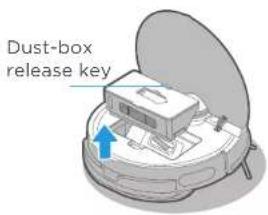
Maintenance of dust box (cleanup as required)
- Restvec the dust box
Pinch the dust box with
your two fingers, and
press the dust box
release key with another
hand to remove the box.
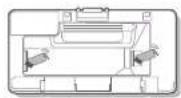
- Remove the filter assembly according to text prompts on the filter assembly.

- Clean dust from the dust collection port of the dust box.
2.
dust box, and remove dust from the box.

- Clean the dust box, filter assembly, and filter cotton; after cleaning and drying completely, re-install them, and close the rear cover, check whether it is installed in place; (Both of the dust box and the filter assembly can be washed with water).

EN-23 EN-24
Maintenance of vibration mopping assembly (weekly cleaning recommended)
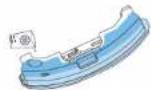
- Press the button on tank and pull to remove.

- Pull off the water inlet/outlet plug from the tank to drain all water in the tank; wipe the tank surface with a piece of clean rag, not cleaning the vibration tank with water.

- Dry the vibration mopping assembly and the special rag for vibration mopping.

- For vibration tank, please note that the pad cannot be removed, just remove mop cloth, and wash it for next use.
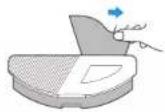
Clean the rag.4.
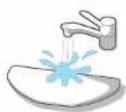
- Clean up water scales regularly according to operating instructions. Fill the tank with water to the MAX line, add 5g citric acid to soak for 30 minutes, then pour out the water and clean again with new water.
Repeat the above cleaning procedures for heavy scales. During the cleaning, do not energize the tank.
- Ushemethoid of cyan ingated above the dust box.

2
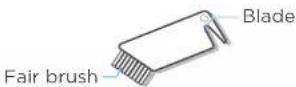
brush:
① Cut the hair on the roller brush with the blade.
② Brush away the cut hair with the fair brush.
Maintenance of roller brush (weekly cleaning recommended)
- Clean the roller units upside its down, keep your hand at the upper notch of the roller brush cover, then press down to remove the cover and pull it out, and lift the right side of the roller brush to remove it.
2
cover with a cleaning brush or soft cloth.


- Wash the roller brush with water and dry it.

EN-25 EN-26
- After completion of the cleaning, push the end cover back to the brush body.
- Install the brush body in the brush chamber in the direction as illustrated.
- Push and snap the roller brush cover to the robot.

Cleaning of wheels (weekly cleaning recommended)
Turn the drive wheels forward and backwards to remove foreign matters from them. Clean them with the cleaning tool or soft cloth and remove hair or foreign matters.

Cleaning of side brushes (weekly cleaning recommended)
- Remove side brushes.
- Dispose of dust adhered to the side brushes.

Cleaning of sensor and spring chips (weekly cleaning recommended)

Replacement of dust bag for the dust collector station (monthly replacement recommended)


EN-27 EN-28
Maintenance of base for the dust collector station (cleaning as required)
Screw off the screws for the air duct cover to remove the cover

FAULTS SOLUTION FOR MAIN UNIT AND ITS APP
| Fault description Possible causes Solutions |
| Main unit will not charge. | 1. Placemtain mashdents inefrigbent contact with charging chips. | 1. of the dust collector station, and press the return-to-charge key. |
| Main unit will not return to charge. | 1. The dust collector station is positioned improperly. | Soo Page 12 in the manual.1. |
| Main unit stuck. | 1. The main unit is entangled and stuck by sundries on the floor, such as wires.2. Side brushes and the roller brush are stuck, and the robot cannot travel normally.3. The chassis of the main unit is stuck by obstacles. | 1. Clean up the scattered wires and other sundries on the floor.2. Clean up sundries by which the roller brush/side brushes are stuck, and place the main unit on a flat floor to start it.3. Clean relevant area or establish a prohibited area after cleaning up obstacles. |
| Fault description | Possible causes Solutions |
| Main unit does not complete the cleaning but returns to charge. | 1. Firearmable misestablished to its lower battery level. | 1. charge. |
| Cleaning not as scheduled. | 1. Scheduled cleanings have been cancelled.2. The main unit is in DND (Do Not Disturb) mode. | 1. Reschedule.2. Close the DND mode or adjust the DND time period. |
| Main unit does not operate. | 1. Flueled function unit on a wheel is suspended. | 1. flat floor to start it. |
| Main unit back off. | 1. The navigation module protection cover is stuck.2. There are obstacles in front of the robot.3. The bumper plate is stuck.4. The anti-drop sensor is covered by dust. | 1. Tap the protection cover to remove foreign matters.2. Clean away the front obstacles.3. Tap the bumper plate to remove foreign matters.4. Clean away dust from the lens surface of the anti-drop sensor. |
| Main unit gives no voices. | 1. Voice is set as mute or low volume. | Turn up the volume.1. |
| The robot reminds that the password is not correct. | 1. Disconnect the Wi-Fi button until. Wi-Fi is not correct and it causes the robot fails to connect to the internet. | a "beep" sound is heard, then input the password to connect to the internet. |
| It costs too much time in the first step of Wi-Fi connection, and it directly shows failing to connect. | 1. Fail to connect the Bluetooth. | 1. Reset the Bluetooth.2. Restart the robot.3. Long press the Wi-Fi button to restart the net connection. |
| It costs too much time in the second step of Wi-Fi connection, and it directly shows failing to connect. | 1. Check whether network is not properly connected.2. The robot is too far from the router and it receives weak signal.3. The devices accessed to the router are over limitation.4. Wi-Fi passwords contains special characters, such as spaces or punctuations. | 1. Reconnect the robot to the Wi-Fi.2. Put robot closer to the router while connecting.3. Use the hotspot of your phone to connect the robot. If it works, please reduce the number of the users accessed to the router or increase the number of router and try again.4. Reset your Wi-Fi password avoiding to use the special characters. |
Fault description Possible causes Solutions
EN-29 EN-30
| Fault description Possible causes Solutions |
| It costs too much time in the third step of Wi-Fi connection, and it shows failing to connect. | 1. Fail to bind the account.2. Network signal is unstable. | 1. Re-login the APP.2. When the network signal is good, long press the Wi-Fi button to restart the connection. |
| APP shows lost connections. | 1. Your mobile is not connected to the network properly.2. Your router does not operate normally.3. Your robotic cleaner is not power-on.4. Wi-Fi configuration of the robot is cleared.5. The Wi-Fi password is modified or the network is changed | 1. Reconnect the mobile to your network.2. Restart your router.3. Turn on the power switch of the robotic cleaner.4. Add a new appliance to the APP.5. After the robot is started, long press the network-pairing key for 3 seconds until a "beep" sound is heard.6. Re-add the robot according to operating guidelines on your mobile. |
| APP operations get delayed responses. | 1. The network is busy.2. Your mobile receives poor Wi-Fi signals.3. The network bandwidth is not enough. | 1. Restart the router, and reduce the number of users having access to it.2. Check the settings of your mobile.3. Increase the network bandwidth. |
| Main unit does not collect dust automatically after it returns to the dust collector station. | 1. Dust bag is full.2. The top cover of the dust collector station is not closed.3. The dust bag is not inserted to the end. | 1. Replace it with a new dust bag, see more details on Page 27.2. Close the top cover tightly.3. Insert the dust bag to the end. |
| After completion of dust collection, waste in the dust box is not collected in the dust collector station. | 1. Air ducts of the dust collector station are plugged by foreign matters. | 1. Clean the air ducts of the dust collector station. |
| Waste leaks from the main unit during its operations. | 1. The dust collection port of the dust box is stuck by foreign matters. | 1. Clean away foreign matters from the dust collection port. |
See error reminding of the APP for more fault solutions
SIGURNOSNE UPUTE
Upozorenje za uređaj
- Djeca, starija od osam godina, kao i osobe smanjenih fizičkih, osjetilnih ili umnih sposobnosti ili osobe s nedostatkom znanja i iskustva, smiju koristiti uređaj isključivo pod odgovarajućim nadzorom, odnosno ako su upoznate sa sigurnom uporabom uređaja, i ako razumiju opasnosti koje su povezane s uporabom uređaja.
Nemojte dopustiti djeci da se igraju uređajem. Djeca ne smiju čistiti ili održavati uređaj bez nadzora odgovorne osobe.
- Prije čišćenja ili održavanja uređaja, izvadite utikač iz utičnice. Prije čišćenja ili održavanja, isključite uređaj.
- Ako je kabel napajanja oštećen, treba ga zamijeniti posebnim kabelom ili kompletom dostupnim od proizvođača ili njegovog servisera.
- UPOZORENJE: Za punjenje baterije koristite samo odvojivu priključnu stanicu isporučenu s ovim uređajem.
Koristite samo s priključnom stanicom BS2101.
-
Ovaj uređaj sadržava baterije koje mogu zamijeniti samo kvalificirane osobe.
-
Robotski usisavač ne smije biti blizu izvora topline, radijacije ili opušaka cigareta. Strogo je zabranjeno usisavati sljedeće predmete:
1) Sve tekućine kao što su voda i otapala;
2) Vapno, cementnu prašinu i drugu građevinsku prašinu i smeće;
3) Predmete koji proizvode toplinu, kao što su neugašeni komadi ugljika, opušci cigareta;
4) Oštre dijelove, kao što je staklo, itd.:
5) Zapaljive i eksplozivne predmete, kao što su benzin i alkoholni proizvodi.
- Prije uporabe uklonite sve krhke predmete s poda (kao što su naočale, svjetiljke itd.) i predmete koji se mogu zapetljati u bočnu četku, rotirajuću četku i pogonske kotače (kao što su kabeli, zavjese i drugi materijali koji se mogu lako zapetljati).
- Pazite da se kosa ne zapetlja u kotače ili rotirajuće četke pri uporabi, čišćenju i održavanju robotskog usisavača.
- Nemojte koristiti ovaj proizvod na visini većoj od 2000 m.
Mjere opreza
Mjere opreza
Upute prije uporabe
- Prije uključivanja, uklonite različite predmete s poda te predmete koji su osjetljivi, vrijedni, eventualno opasni i koji mogu lako pasti.

- Koristite relevantne predmete kako biste blokirali robotski usisavač ili uspostavili virtualni zid u aplikaciji.

- Očistite spremnik za prašinu, sklop filtra i vatu filtra; nakon potpunog čišćenja i sušenja, ponovno ih postavite i zatvorite stražnji poklopac, provjerite jesu li postavljeni na mjesto; (I spremnik za prašinu i sklop filtra mogu se oprati vodom).

Spremnik Vata Sklop filtra
za prašinu filtra

HR-23 HR-24
- Operite rotirajuću četku vodom i osušite je.
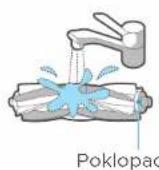
HR-25 HR-26
Čišćenje kotača (preporučuje se tjedno čišćenje)
Čišćenje bočnih četki (preporučuje se tjedno čišćenje)
- Uklonite bočne četke.
- Očistite prašinu koja se nalijepila na bočne četke.

Čišćenje senzora i opružnih čipova (preporučuje se tjedno čišćenje)

ES-11 ES-12
INSTALACIÓN
! Precauciones

Precauciones
Limpie la malla del
filtro
Instale la bolsa de polvo Cierre la cubierta
2

PL-27 PL-28

Внимание!

Внимание!
If your home Wi-Fi name or password is changed, you will need to re-establish connection with your robot vacuum.
- WIFI:2400-2483.5MHz, MAX VÝKON:20dBm, BLUETOOTH MAX VÝKON: 10dBm
! Upozornění
2.
Attenzione

Attenzione

Vorsichtsmaßnahmen
2
⚠️ Προειδοποιήσεις
2.

- PRODUIT LASER DE CLASSE 1
RAYONNEMENT LASER INVISIBLE
Mises en garde
2.
2
| [symbol IEC 60417-5957(2004-12)] | for indoor use only |
| [symbol ISO 7000-0790(2004-01)] | read operator's manual |
| [symbol IEC 60417-5031(2002-10)] | direct current |
| time-lag miniature fuse-link where X is the symbol for the time/current characteristic as given in IEC 60127 |
| [symbol IEC 60417-5032(2002-10)] | alternating current |
| [symbol IEC 60417-5172(2003-02)] | class II equipment |
UK-07 UK-08
! YBara!
! YBara!
Очищення фільтра
- WIFI:2400-2483.5MHz, MAX
TELJESÍTMÉNY:20dBm,
BLUETOOTH MAX TELJESÍTMÉNY: 10dBm
HU-11 HU-12
TELEPÍTÉS
! Figyelmeztetések
! Figyelmeztetések

Внимание
2
Upozornenie
2