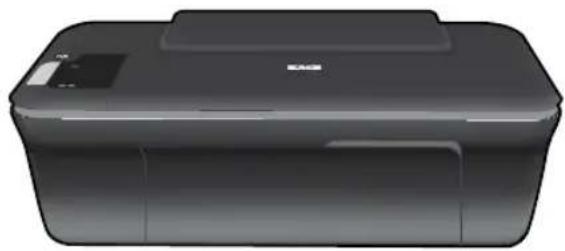
Deskjet 1050 J410e - Printer HP - Free user manual and instructions
Find the device manual for free Deskjet 1050 J410e HP in PDF.


| Brand | HP |
| Model | Deskjet 1050 J410e |
| Product type | Multifunction inkjet printer (print, copy, scan) |
| Dimensions (W × D × H) | 427 x 306 x 150 mm |
| Weight | 3.6 kg |
| Power supply | Power adapter 100-240 V~, 50/60 Hz |
| Power consumption | Not specified in the manual |
| Main functions | Inkjet printing, copy (black and color), scanning |
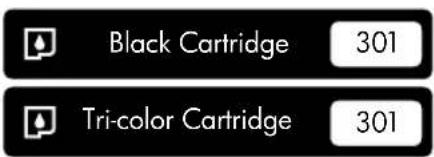
| Ink cartridges | Black 301 and tri-color 301 |
| Number of copies | Up to 10 copies |
| Connectivity | USB 2.0 |
| Maintenance and cleaning | Cleaning of print heads via software; clearing paper jams; replacing cartridges |
| Safety | Use only the included HP adapter; unplug before cleaning; do not block ventilation openings |
| Spare parts and repairability | Ink cartridges (301 black and color), power adapter (ref. 0957-2286/2290), installation guide |
| Warranty | 1 year (parts and labor outside US/Canada); 90 days for software media |
| General information | 96-page manual; online support at www.hp.com/support |
Frequently Asked Questions - Deskjet 1050 J410e HP
User questions about Deskjet 1050 J410e HP
0 question about this device. Answer the ones you know or ask your own.
Ask a new question about this device
Download the instructions for your Printer in PDF format for free! Find your manual Deskjet 1050 J410e - HP and take your electronic device back in hand. On this page are published all the documents necessary for the use of your device. Deskjet 1050 J410e by HP.
USER MANUAL Deskjet 1050 J410e HP

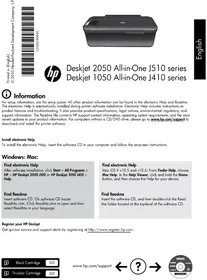
Deskjet 2050 All-in-One J510 series Deskjet 1050 All-in-One J410 series
i Information
For setup information, see the setup poster. All other product information can be found in the electronic Help and Readme. The electronic Help is automatically installed during printer software installation. Electronic Help includes instructions on product features and troubleshooting. It also provides product specifications, legal notices, environmental, regulatory, and support information. The Readme file contains HP support contact information, operating system requirements, and the most recent updates to your product information. For computers without a CD/DVD drive, please go to www.hp.com/support to download and install the printer software.
Install electronic Help
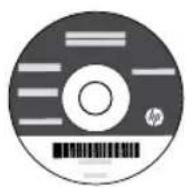
To install the electronic Help, insert the software CD in your computer and follow the on-screen instructions.
Windows: Mac:
Find electronic Help
After software installation, click Start > All Programs > HP > HP Deskjet 2050 J510 or HP Deskjet 1050 J410 > Help.
Find Readme
Insert software CD. On software CD locate ReadMe.chm. Click ReadMe.chm to open and then select ReadMe in your language.
Find electronic Help
Mac OS X v10.5 and v10.6: From Finder Help, choose Mac Help. In the Help Viewer, click and hold the Home button, and then choose the Help for your device.
Find Readme
Insert the software CD, and then double-click the Read Me folder located at the top-level of the software CD.
Register your HP Deskjet
Get quicker service and support alerts by registering at http://www.register.hp.com.
www.hp.com/support

Windows: Mac:
Installation Troubleshooting
If you are unable to print a test page:
• Make sure the cable connections are secure. See the setup poster.
• Make sure the printer is powered on. The ⏻ [On button] will be lit green.
Make sure the printer is set as your default printing device:
- Windows® 7: From the Windows Start menu, click Devices and Printers.
- Windows Vista®: On the Windows taskbar, click Start, click Control Panel, and then click Printer.
- Windows XP®: On the Windows taskbar, click Start, click Control Panel, and then click Printers and Faxes.
Make sure that your printer has a check mark in the circle next to it. If your printer is not selected as the default printer, right-click the printer icon and choose "Set as Default Printer" from the menu.
If you are still unable to print, or the Windows software installation fails:
- Remove the CD from the computer's CD/DVD drive, and then disconnect the USB cable from the computer.
- Restart the computer.
- Temporarily disable any software firewall and close any anti-virus software. Restart these programs after the printer software is installed.
- Insert the printer software CD in the computer's CD/DVD drive, then follow the on-screen instructions to install the printer software. Do not connect the USB cable until you are told to do so.
- After the installation finishes, restart the computer.
Windows XP, and Windows Vista are U.S. registered trademarks of Microsoft Corporation. Windows 7 is either a registered trademark or trademark of Microsoft Corporation in the United States and/or other countries.
Installation Troubleshooting
If you are unable to print a test page:
- Make sure the cable connections are secure. See the setup poster.
• Make sure the printer is powered on. The ⏻ [On button] will be lit green.
If you are still unable to print, uninstall and reinstall the software:
Note: The uninstaller removes all of the HP software components that are specific to the device. The uninstaller does not remove components that are shared by other products or programs.
To uninstall the software:
- Disconnect the HP product from your computer.
- Open the Applications: Hewlett-Packard folder.
- Double-click HP Uninstaller. Follow the on-screen instructions.
To install the software:
- Connect the USB cable.
- Insert the HP software CD into your computer's CD/DVD drive.
- On the desktop, open the CD and then double-click HP Installer.
- Follow the on-screen and the printed setup instructions that came with the HP product.
Power specifications:
Power adapter: 0957-2286
Input voltage: 100-240Vac (+/- 10%)
Input frequency: 50/60Hz (+/- 3Hz)
Note: Use only with the power adapter supplied by HP.
Power adapter: 0957-2290
Input voltage: 200-240Vac (+/- 10%)
Input frequency: 50/60Hz (+/- 3Hz)
Ink usage
Note: Ink from the cartridges is used in the printing process in a number of different ways, including in the initialization process, which prepares the device and cartridges for printing, and in printhead servicing, which keeps print nozzles clear and ink flowing smoothly. In addition, some residual ink is left in the cartridge after it is used. For more information, see www.hp.com/go/inkusage.
Control panel
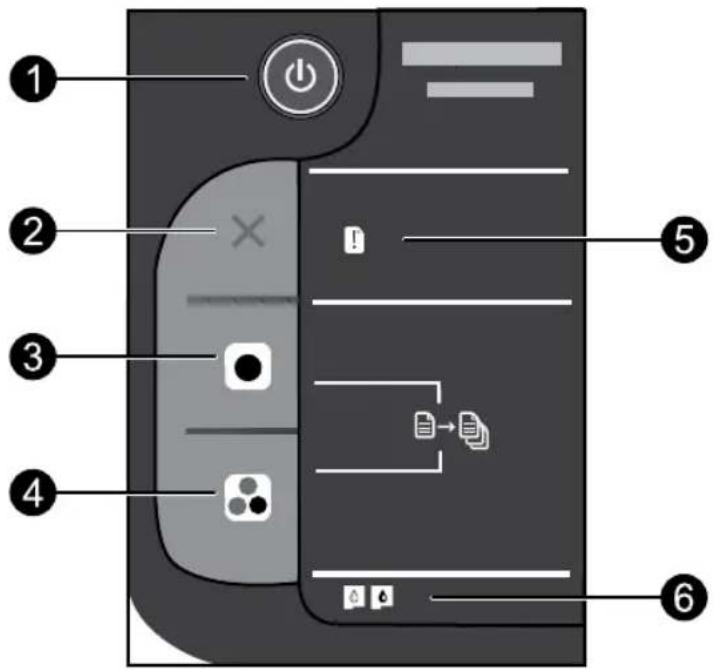
| Label Icon | Name and Description | |
| 1 |  | On: Turns the product on or off. When the product is off, a minimal amount of power is still used. To completely remove power, turn off the product and then unplug the power cord. |
| 2 |  | Cancel: Stops the current operation. |
| 3 | [SAX4] | Start Copy Black: Starts a black-and-white copy job. Increase the number of copies (up to 10) by pressing the button multiple times. Acts as a resume button after resolving print problems. |
| 4 |  | Start Copy Color: Starts a color copy job. Increase the number of copies (up to 10) by pressing the button multiple times. Acts as a resume button after resolving print problems. |
| 5 | Attention light: Indicates that there is a paper jam, the printer is out of paper, or some event that requires your attention. If the attention light and both cartridge lights blink when you set up the printer, the cartridge carriage might be obstructed. Open cartridge door and make sure that cardboard and blue tape have been removed from inside the printer. Then press Start Copy Black or Start Copy Color to resume. | |
| 6 |  | Cartridge light: Indicates low ink or a print cartridge problem.If a cartridge is low on ink, replace the cartridge when print quality is no longer acceptable.If a cartridge light blinks after you install a cartridge, make sure that the pink tape has been removed from the cartridge. |
HP printer limited warranty statement
| HP product Duration of limited warranty | |
| Software Media 90 days | |
| Printer Technical support by phone: 1 year worldwideParts and labor: 90 days in US and Canada (outside the USand Canada 1 year or as required by local law)Purchase a one- or two-year HP Next Business Day ExchangeCanadian customers call 1-877-231-4351 or visit | USExtended Service Plan. In the US call 1-866-234-1377 or visitwww.hp.com/go/nextdayexchange90.www.hpshopping.ca |
| Print or Ink cartridges | Until the HP ink is depleted or the “end of warranty” date printed on the cartridge has been reached, whichever occurs first. This warranty does not cover HP ink products that have been refilled, remanufactured, refurbished, misused, or tampered with. |
A. Extent of limited warranty
Hewlett-Packard (HP) warrants to the end-user customer that the HP products specified above will be free from defects in materials and workmanship for the duration specified above, which duration begins on the date of purchase by the customer.
-
For software products, HP's limited warranty applies only to a failure to execute programming instructions. HP does not warrant that the operation of any product will be interrupted or error free.
-
HP's limited warranty covers only those defects that arise as a result of normal use of the product, and does not cover any other problems, including those that arise as a result of:
a. Improper maintenance or modification;
b. Software, media, parts, or supplies not provided or supported by HP;
c. Operation outside the product's specifications;
d. Unauthorized modification or misuse.
-
For HP printer products, the use of a non-HP cartridge or a refilled cartridge does not affect either the warranty to the customer or any HP support contract with the customer. However, if printer failure or damage is attributable to the use of a non-HP or refilled cartridge or an expired ink cartridge, HP will charge its standard time and materials charges to service the printer for the particular failure or damage.
-
If HP receives, during the applicable warranty period, notice of a defect in any product which is covered by HP's warranty, HP shall either repair or replace the product, at HP's option.
-
If HP is unable to repair or replace, as applicable, a defective product which is covered by HP's warranty, HP shall, within a reasonable time after being notified of the defect, refund the purchase price for the product.
-
HP shall have no obligation to repair, replace, or refund until the customer returns the defective product to HP.
-
Any replacement product may be either new or like-new, provided that it has functionality at least equal to that of the product being replaced.
-
HP products may contain remanufactured parts, components, or materials equivalent to new in performance.
-
HP's Limited Warranty Statement is valid in any country where the covered HP product is distributed by HP. Contracts for additional warranty services, such as on-site service, may be available from any authorized HP service facility in countries where the product is distributed by HP or by an authorized importer.
B. Limitations of warranty
TO THE EXTENT ALLOWED BY LOCAL LAW, NEITHER HP NOR ITS THIRD PARTY SUPPLIERS MAKES ANY OTHER WARRANTY OR CONDITION OF ANY KIND, WHETHER EXPRESS OR IMPLIED WARRANTIES OR CONDITIONS OF MERCHANTABILITY, SATISFACTORY QUALITY, AND FITNESS FOR A PARTICULAR PURPOSE.
C. Limitations of liability
-
To the extent allowed by local law, the remedies provided in this Warranty Statement are the customer's sole and exclusive remedies.
-
TO THE EXTENT ALLOWED BY LOCAL LAW, EXCEPT FOR THE OBLIGATIONS SPECIFICALLY SET FORTH IN THIS WARRANTY STATEMENT, IN NO EVENT SHALL HP OR ITS THIRD PARTY SUPPLIERS BE LIABLE FOR DIRECT, INDIRECT, SPECIAL, INCIDENTAL, OR CONSEQUENTIAL DAMAGES, WHETHER BASED ON CONTRACT, TORT, OR ANY OTHER LEGAL THEORY AND WHETHER ADVISED OF THE POSSIBILITY OF SUCH DAMAGES.
D. Local law
-
This Warranty Statement gives the customer specific legal rights. The customer may also have other rights which vary from state to state in the United States, from province to province in Canada, and from country to country elsewhere in the world.
-
To the extent that this Warranty Statement is inconsistent with local law, this Warranty Statement shall be deemed modified to be consistent with such local law. Under such local law, certain disclaimers and limitations of this Warranty Statement may not apply to the customer. For example, some states in the United States, as well as some governments outside the United States (including provinces in Canada), may:
a. Preclude the disclaimers and limitations in this Warranty Statement from limiting the statutory rights of a consumer (e.g., the United Kingdom);
b. Otherwise restrict the ability of a manufacturer to enforce such disclaimers or limitations; or
c. Grant the customer additional warranty rights, specify the duration of implied warranties which the manufacturer cannot disclaim, or allow limitations on the duration of implied warranties.
- THE TERMS IN THIS WARRANTY STATEMENT, EXCEPT TO THE EXTENT LAWFULLY PERMITTED, DO NOT EXCLUDE, RESTRICT, OR MODIFY, AND ARE IN ADDITION TO, THE MANDATORY STATUTORY RIGHTS APPLICABLE TO THE SALE OF THE HP PRODUCTS TO SUCH CUSTOMERS.
HP Limited Warranty
Dear Customer,
You will find below the name and address of the HP entity responsible for the performance of the HP Limited Warranty in your country.
You may have additional statutory rights against the seller based on your purchase agreement. Those rights are not in any way affected by this HP Limited Warranty.
Ireland: Hewlett-Packard Ireland Limited, 63-74 Sir John Rogerson's Quay, Dublin 2
United Kingdom: Hewlett-Packard Ltd, Cain Road, Bracknell, GB-Berks RG12 1HN
Malta: Hewlett-Packard International Trade B.V., Malta Branch, 48, Amery Street, Sliema SLM 1701, MALTA
South Africa: Hewlett-Packard South Africa Ltd, 12 Autumn Street, Rivonia, Sandton, 2128, Republic of South Africa


Deskjet 2050 All-in-One J510 series Deskjet 1050 All-in-One J410 series

Deskjet 2050 All-in-One J510 series Deskjet 1050 All-in-One J410 series
i Informazioni
Windows: Mac:


Deskjet 2050 All-in-One J510 series Deskjet 1050 All-in-One J410 series
i Informatie
Windows: Mac:

Deskjet 2050 All-in-One J510 series Deskjet 1050 All-in-One J410 series
i Información

Deskjet 2050 All-in-One J510 series Deskjet 1050 All-in-One J410 series
i Informações

Deskjet 2050 All-in-One J510 series Deskjet 1050 All-in-One J410 series
i Πληροφορίες
Windows: Mac:

Deskjet 2050 All-in-One J510 series Deskjet 1050 All-in-One J410 series
i Informacje
Windows: Mac:

Deskjet 2050 All-in-One J510 series Deskjet 1050 All-in-One J410 series
Bilgiler

Deskjet 2050 All-in-One J510 series Deskjet 1050 All-in-One J410 series
i Informace

Deskjet 2050 All-in-One J510 series Deskjet 1050 All-in-One J410 series
i Informácie
Windows: Mac:

Deskjet 2050 All-in-One J510 series Deskjet 1050 All-in-One J410 series
i Információ
Windows: Mac:

Deskjet 2050 All-in-One J510 series Deskjet 1050 All-in-One J410 series
i Информация
Windows: Mac:

Deskjet 2050 All-in-One J510 series Deskjet 1050 All-in-One J410 series
i Informacije
| Oznaka Ikona Naziv i opis | ||
| 1 |  | On (Uključeno): uključuje ili isključuje uređaj. Kada je isključen, uređaj i dalje koristi minimalnu količinu energije. Da biste potpuno isključili napajanje, isključite uređaj i odspojite kabel za napajanje. |
| 2 |  | Cancel (Odustani): zaustavlja trenutnu operaciju. |
| 3 |  | Start Copy Black (Početak kopiranja – crno-bijelo): započinje posao crno-bijelog kopiranja. Povećajte broj kopija (do 10) tako da više puta pritisnete gumb. Funkcionira kao gumb za nastavak rada nakon rješavanja problema s ispisom. |
| 4 | | Start Copy Color (Početak kopiranja – u boji): započinje posao kopiranja u boji. Povećajte broj kopija (do 10) tako da više puta pritisnete gumb. Funkcionira kao gumb za nastavak rada nakon rješavanja problema s ispisom. |
| 5 | Attention light (Lampica upozorenja): označava da se papir zaglavio, da je nestalo papira u pisaču ili upućuje na drugi događaj koji zahtijeva vašu pažnju. Ako žaruljica upozorenja i obje žaruljice spremnika za tintu trepću kada postavite pisač, nosač spremnika za tintu možda je blokiran. Otvorite vratašca spremnika i provjerite jesu li karton i plava traka uklonjeni iz unutrašnjosti pisača. Potom pritisnite Početak kopiranja crno-bijelo ili Početak kopiranja u boji da biste nastavili. | |
| 6 |  | Cartridge light (Žaruljica spremnika s tintom): ukazuje na nestanak tinte ili problem sa spremnikom za ispis.Spremnik s tintom trebali biste zamijeniti kad kvaliteta ispisa postane neprihvatljiva.Ako žaruljica spremnika trepće nakon što instalirate spremnik, provjerite je li ružičasta vrpca uklonjena iz spremnika. |

Deskjet 2050 All-in-One J510 series Deskjet 1050 All-in-One J410 series
i Informatii
Windows: Mac:
Remedierea problemelor de instalare
Europe House Business Center, Et 3,
Sector 1, Bucureşti

Deskjet 2050 All-in-One J510 series Deskjet 1050 All-in-One J410 series
i Informacije
Windows: Mac:

Deskjet 2050 All-in-One J510 series Deskjet 1050 All-in-One J410 series
i Information

Deskjet 2050 All-in-One J510 series Deskjet 1050 All-in-One J410 series
i Tietoja

Deskjet 2050 All-in-One J510 series Deskjet 1050 All-in-One J410 series
i Informasjon
Windows: Mac:
Løse installeringsproblemer

Deskjet 2050 All-in-One J510 series Deskjet 1050 All-in-One J410 series
© Oplysninger
Windows: Mac:
Fejlfinding ved installation

Deskjet 2050 All-in-One J510 series Deskjet 1050 All-in-One J410 series
i Teave

Deskjet 2050 All-in-One J510 series Deskjet 1050 All-in-One J410 series
i Informācija
Windows: Mac:

Deskjet 2050 All-in-One J510 series Deskjet 1050 All-in-One J410 series
i Informacija
Windows: Mac:
- DESKJET 2050 ALL-IN-ONE J510 SERIES DESKJET 1050 ALL-IN-ONE J410 SERIES
- I INFORMATION
- INSTALL ELECTRONIC HELP
- WINDOWS: MAC
- FIND ELECTRONIC HELP
- FIND README
- REGISTER YOUR HP DESKJET
- INSTALLATION TROUBLESHOOTING
- IF YOU ARE UNABLE TO PRINT A TEST PAGE
- MAKE SURE THE PRINTER IS SET AS YOUR DEFAULT PRINTING DEVICE
- IF YOU ARE STILL UNABLE TO PRINT, OR THE WINDOWS SOFTWARE INSTALLATION FAILS
- IF YOU ARE STILL UNABLE TO PRINT, UNINSTALL AND REINSTALL THE SOFTWARE
- TO UNINSTALL THE SOFTWARE
- TO INSTALL THE SOFTWARE
- POWER SPECIFICATIONS
- INK USAGE
- CONTROL PANEL
- HP PRINTER LIMITED WARRANTY STATEMENT
- EXTENT OF LIMITED WARRANTY
- LIMITATIONS OF WARRANTY
- LIMITATIONS OF LIABILITY
- LOCAL LAW
- HP LIMITED WARRANTY
- DEAR CUSTOMER
- I INFORMAZIONI
- I INFORMATIE
- I INFORMACIÓN
- I INFORMAÇÕES
- I ΠΛΗΡΟΦΟΡΊΕΣ
- I INFORMACJE
- BILGILER
- I INFORMACE
- I INFORMÁCIE
- I INFORMÁCIÓ
- I ИНФОРМАЦИЯ
- I INFORMACIJE
- I INFORMATII
- REMEDIEREA PROBLEMELOR DE INSTALARE
- I TIETOJA
- I INFORMASJON
- LØSE INSTALLERINGSPROBLEMER
- © OPLYSNINGER
- FEJLFINDING VED INSTALLATION
- I TEAVE
- I INFORMĀCIJA
- I INFORMACIJA
Brand : HP
Model : Deskjet 1050 J410e
Category : Printer