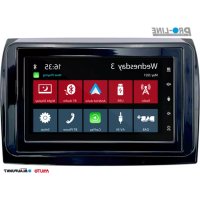
Camper 600 DAB - Car radio BLAUPUNKT - Free user manual and instructions
Find the device manual for free Camper 600 DAB BLAUPUNKT in PDF.



| Product Type | Car radio with capacitive touch screen |
| Dimensions (DIN standard) | 1-DIN (approx. 178 x 50 mm) |
| Weight | Approx. 0.8 kg |
| Power supply | 12 V DC (vehicle), ACC connection required |
| Power consumption | Max. 10 A (with external amplifier) |
| Radio functions | FM/AM with RDS, DAB/DAB+ digital |
| Compatible audio formats | MP3, WMA, WAV, FLAC, OGG |
| Compatible video formats | AVI, MKV (video playback only when stopped) |
| Bluetooth connectivity | Hands-free (HFP), audio streaming (A2DP/AVRCP), up to 5 devices |
| USB ports | 1 x rear USB (FAT/FAT32) |
| AUX input | AV-IN (RCA) |
| Smartphone compatibility | Apple CarPlay (wired), Android Auto (wired) |
| Steering wheel control (SWC) | Yes, programmable |
| Reverse camera | Dedicated input (RCA), power 12V/200mA |
| Audio outputs | 4 x speakers (50W max), 1 x subwoofer (SUB-OUT) |
| Screen | Color TFT 6.2 inches (approx.), capacitive touch |
| Care and cleaning | Dry or slightly damp cloth; avoid solvents and sprays |
| Safety | Observe traffic regulations, do not use video while driving, moderate volume |
| Protection rating | IPX0 (not waterproof) |
| Included accessories | Remote control, external Bluetooth microphone, cables, mounting frame, screws |
| Repairability | Installation and repair by a specialist recommended; software update possible via Blaupunkt website |
Frequently Asked Questions - Camper 600 DAB BLAUPUNKT
User questions about Camper 600 DAB BLAUPUNKT
0 question about this device. Answer the ones you know or ask your own.
Ask a new question about this device
Download the instructions for your Car radio in PDF format for free! Find your manual Camper 600 DAB - BLAUPUNKT and take your electronic device back in hand. On this page are published all the documents necessary for the use of your device. Camper 600 DAB by BLAUPUNKT.
USER MANUAL Camper 600 DAB BLAUPUNKT
28 General safety notes
28 Use as directed
29 Cleaning notes
29 Disposal notes
29 Scope of delivery
29 Placing the device in operation
29 Switching on/off
29 Volume
29 Operation
29 Touchscreen
30 Settings in menus
30 Main menu
30 Opening main menu
30 The main menu display
31 Sound settings
31 The equalizer display 1
31 The equalizer display 2
32 System settings
32 Opening system settings
32 The Settings display
32 External devices and data carriers
32 Basic information
32 USB data carrier
33 Bluetooth® sources
34 Analogue Radio (FM, AM)
34 Starting radio playback
34 Radio display
35 Digital Radio (DAB/DAB+)
35 Starting DAB playback
35 DAB display
35 Media playback (USB, AV-IN, BT Audio)
35 Starting media playback
35 Media display
36 Media browser for media type and folder
37 Calling
37 Opening the phone
37 The keyboard display
37 The list of calls
37 Phone book
38 Incoming/outgoing call
38 SWC Input Operation
39 How to use CarPlay
39 Requirements
39 Phone Setup
39 Device Setup
39 Familiar home screen
40 Using Siri
40 Apple Music
40 Apple Maps
41 How to use Android Auto
41 Basic Requirements
41 Phone Setup
41 Device Setup
41 Overview
41 Google Assistant
42 Music
43 Accessing Map
44 Installation guide
45 Connection diagram
46 Trouble Shooting

- Touchscreen user interface
- Reset button
Restoring factory settings
Note: All personal settings will be deleted!
- Button (MENU)
- Volume Up button
- Voice command button (for phone)
-
Volume Down button
-
Power button/Mute:
Short press: Mutes audio source
Long press: Switches off device
- Internal microphone
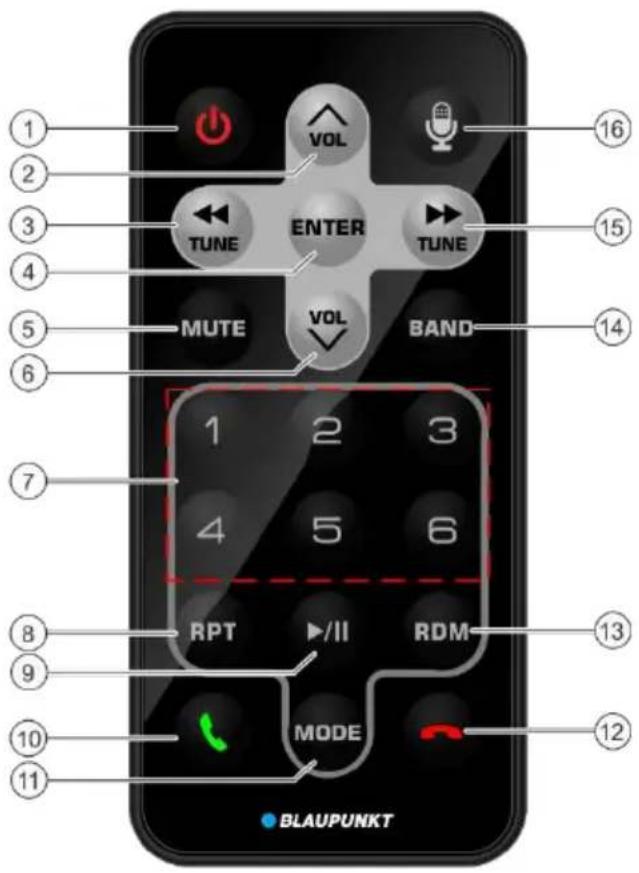
- POWER button
Switching the device on/off - Volume Up
- Track/Track Down
- Enter
- Mute
- Volume Down
7.P 1-6 - Repeat
- PlayPause
- TALK
11.MODE - Email Call
- Random
- BAND
- Tube/Track Up
- Voice Activation Button (for Phone)
Safety notes
The car sound system was manufactured according to the state of the art and established safety guidelines.
Even so, dangers may occur if you do not observe the safety notes in these instructions.
- Read these instructions carefully and completely before using the car sound system.
- Keep the instructions at a location so that they are always accessible to all users.
Always pass on the car sound system to third parties together with these instructions.
In addition, observe the instructions of the devices used in conjunction with this car sound system.
Symbols used
These instructions employ the following symbols:

DANGER!
Warns about injuries

DANGER!
Warns about high volume

The CE mark confirms the compliance with EU directives.
Identifies a sequencing step
Identifies a listing
Road safety
Observe the following notes about road safety:

DANGER!
Risk of road safety by using the device while driving.
The use of device functions while driving may divert your attention from the traffic situation and lead to serious accidents!
Particularly the use of the following functions significantly impacts your attention as the operator of the vehicle:
Video playback
- Use of a connected smartphone
- Refrain from these functions and all additional functions that will divert your attention from the traffic situation and from operating the vehicle while driving.
To use these functions, stop at a suitable location and operate your device while the vehicle is standing.
- Use your device in such a way that you can always safely control your vehicle. In case of doubt, stop at a suitable location and operate your device while the vehicle is standing. As the driver, you may not use the applications that will distract you from traffic (depending on the scope of functions of the device, e.g. viewing videos, entering a destination).
- Follow the driving recommendations during the route guidance only if you are not violating any traffic regulations! Traffic signs and traffic regulations have always priority over driving recommendations.
- Always listen at a moderate volume to protect your hearing and to be able to hear acoustic warning signals (e.g. police sirens). During mute phases (e.g. when changing the audio source), changing the volume is not audible. Do not increase the volume during this mute phase.
General safety notes
Observe the following note to protect yourself against injuries:
Do not modify or open the device. The device contains a Class 1 laser that can cause injuries to your eyes.
Use as directed
This car sound system is intended for installation and operation in a vehicle with 12 V vehicle system voltage and must be installed in a DIN slot. Observe the output limits of the device. Repairs and installation, if necessary, should be performed by a specialist.
Installation instructions
You may only install the car sound system yourself if you are experienced in installing car sound systems and are very familiar with the electrical system of the vehicle. For this purpose, observe the connection diagram at the end of these instructions. Installing the device must not obstruct or block the function of any airbags, other safety devices or controls.
Declaration of conformity
The Blaupunkt Competence Center Car Multimedia - Evo Sales GmbH declares that the device complies with the basic requirements and the other relevant regulations of the directive 2014/53/EU.
The declaration of conformity can be found on the Internet under www.blaupunkt.com.
Cleaning notes
Solvents, cleaning and scouring agents as well as dashboard spray and plastics care product may contain ingredients that will damage the surface of the car sound system.
Use only a dry or slightly moistened cloth for cleaning the car sound system.
Disposal notes

Do not dispose of your old unit in the household trash!
Use the return and collection systems available to dis-pose of the old device, the remote control and exhausted batteries.
Scope of delivery
The scope of delivery includes:
- Car sound system
Remote control
External Bluetooth microphone - Operating manual
Support frame
Small parts set
Installation material - Connecting cable(s)
Operation
Touchscreen
Important note:
Do not use any pointed or hard objects, such as ball point pens or fountain pens, to operate the touch-screen.
The device features a capacitive touchscreen that provides a remote control (see the section "Controls" at the beginning of these instructions) and allows operating the device.
Tapping
To activate a control, e.g. a button, a slight touching of the display surface is surface is sufficient. You do not have to exert any pressure on the display surface
Short tap:
A short tap on the display surface is sufficient for activating most of the controls.
- Long tap:
Some functions require a long tap. Rest your fingertip on the display surface for approximately 1 second.
Swiping/scrolling
Some functions require swiping across the display surface, e.g.
- scrolling in lists
adjusting sliders
Tap on the display surface and rest your finger on the surface. Next, move your finger over the surface.
Main menu
Opening main menu
Press the[] button
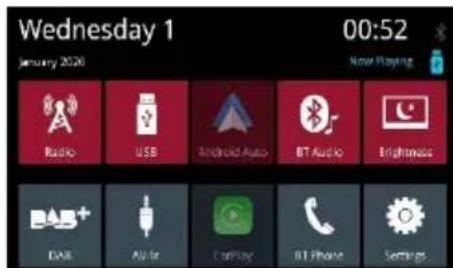
The main menu display
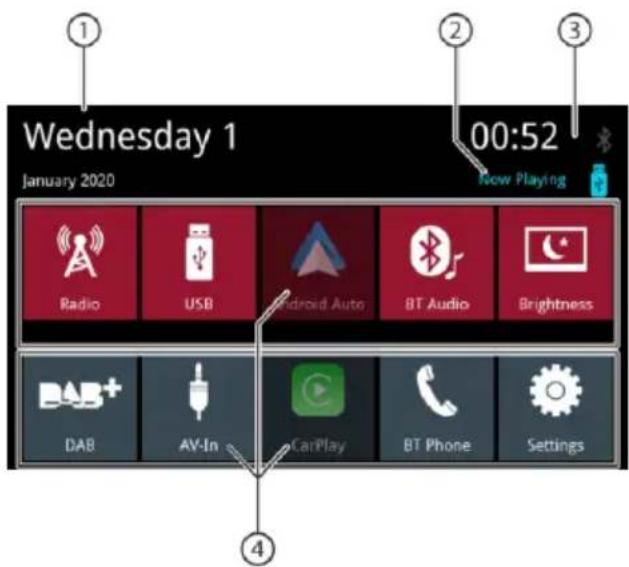
The main menu features the following areas and displays:
- Date
- Playing audio/video source
- Time/Bluetooth™ status
- Buttons for audio sources, tap on a button to start the audio source.
In main menu you can do following actions:
- Select audio sources Radio, DAB, USB, BT Audio, AV-In (see corresponding chapters in manual)
- Select Phone to make a call (see corresponding chapters in manual)
- Select Apple Car Play or Android Auto (this needs compatible phone connected to USB, see corresponding chapters in manual)
- Change display brightness (tab button briefly) or switch display off (tab button >1 second), touch again to enable display
- Open settings (see corresponding chapters in manual)
- Select "now playing" to open playing audio source
Changing to the previous screen or the higher-level menu
Touch the [ ] button.
or:
Touch the [ ] button.
Settings in menus
Activating/deactivating options
To activate or deactivate options, tap on the corre sponding menu entry or symbol.
Activated:
Deactivated:

Control
Certain settings can be made using a slider.
Tap on the desired point of the slider or swipe along the slider.
Additional settings
Some options offer additional settings.
Touch the button to open the settings menu.
Sound settings
The equalizer display 1
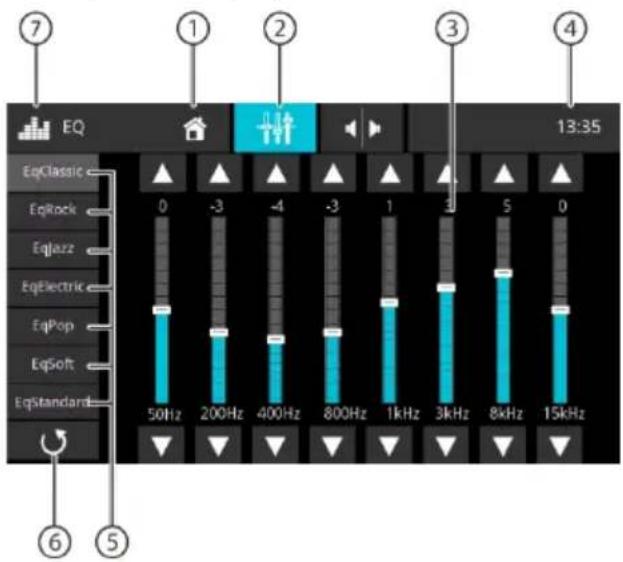
The equalizer display 1 features the following functions:
- Home button, return to main menu
- Change to the equalizer display 2 (see the following section)
- Frequency band display, tab to change
- Time/Bluetooth™status
- Equalizer presets: Tap on a preset to select it.
- Not available
7.EQ Button, return to main menu
Note:
If you select and change an equalizer preset, it will automatically become "custom" setting. Previous custom setting will be overwritten.
The original equalizer preset remains unchanged.
The equalizer display 2

The equalizer display 2 features the following functions:
- Home button, return to main menu
- Change to the equalizer display 1 (see previous section)
- Set the LPF level with the buttons[ ] and [ ]
- Set the HPF level with the buttons[ ]and[ ]
- Time/Bluetooth™status
- Set the Loudness function on and off
- Set the Subwoofer level with the buttons[ ]and []
Note: Subwoofer must be enabled in audio settings to change subwoofer level
- Adjusting balance and fader:
Shift the volume distribution with the buttons [ ] and [ ] (balance) or [ ] and [ ] (fader) or:
Tap on a point in the displayed passenger compartment to directly adjust the corresponding volume distribution.
- Current balance and fader value
- EQ Button, return to main menu
System settings
Opening system settings
In the main menu, select the Settings button (see the chapter "main menu")
The Settings display

Note:
Scroll through the list, if necessary, to access the desired setting.
The settings display features the following functions and displays:
- Home button, return to main menu
- Time/Bluetooth™ status
3.Submenu items - Menu items
- Settings Button, Return to main menu
The Settings menu features the following menu and submenu items:
-
General: Performing general device settings:
-
Setting the Date and Time
- Setting the Time Format
- Setting the Microphone
- Setting the Microphone Gain
- Setting the Parking
- Setting the Language
- Setting key sound
- Setting SWC (steering wheel control)
Audio:Performing audio settings:
Setting the Equalizer
- Setting the Subwoofer/ Subwoofer Gain
- Setting source volumes
-
Display: Making display settings:
-
Adjusting Brightness
- Setting Dimmer Mode (note: mode "auto")
, needs car lights input connected)
Other: Making Other settings:
- Displaying information about the current software of the device
- Setting the Factory Default
External devices and data carriers Basic information
USB data carriers
MP3 files, movies and images
Format/file system:FAT/FAT32
Recognizable formats: .mp3, .ogg, .flac, .wma, .wav, .mkv, .avi
Note:
Playability of files may depend on used encoder software and/ or embedded audio/video CODECS in container formats. Blaupunkt cannot guarantee compatibility with every available file.
USB data carrier
This device features one USB port:
USB port at the rear of the device
Connecting a USB data carrier
Insert the USB data carrier in the USB socket. The device automatically switches to USB mode. The data are read, the playback starts with the first media file recognized by the device.
Removing a USB data carrier
Turn off the car sound system. Disconnect the USB data carrier.
Bluetooth® sources
The Bluetooth® function allows registering cell phones and media playback devices with the car sound system.
When you register a cell phone with the car sound system, you can make phone calls with the built-in hands free function. You can access the lists of dialed numbers and the phone book of the registered cell phone.
If the connected Bluetooth device supports the functions A2DP and AVRCP, you can play the music via the car sound system and control the playback.
Connecting a Bluetooth device for the first time
Note:
If necessary, switch on Bluetooth® on your external Bluetooth® device first and ensure that it is visible.
In the main menu, select the Settings button (see the chapter "Main menu").
Select the Bluetooth option.
Note:
If necessary, switch on Bluetooth® first.
Select the Devices Management entry.
Tap on Add device.
Your device is being recognized and appears in the device list under its Bluetooth name.
Note:
If your Bluetooth device does not appear in the device list, you have to establish the connection from your Bluetooth device:
The device is recognized as " BLAUPUNKT " by your Bluetooth® device.
- When establishing the connection, use the Bluetooth® PIN of the device. If necessary, first define the Bluetooth® PIN in the Bluetooth menu under the Pairing Code option.
Tap on the entry of the device in the device list.
If necessary, enter the Bluetooth PIN on your external Bluetooth device.
The external Bluetooth device is being connected and is available.
Note:
You can change the Bluetooth® PIN in the Bluetooth menu under the Pairing Code option.
Managing Bluetooth® devices
In the main menu, select the Settings button (see the chapter "Main menu").
Select the Bluetooth option.
Note:
If necessary, switch on Bluetooth® first. Select the Devices Management
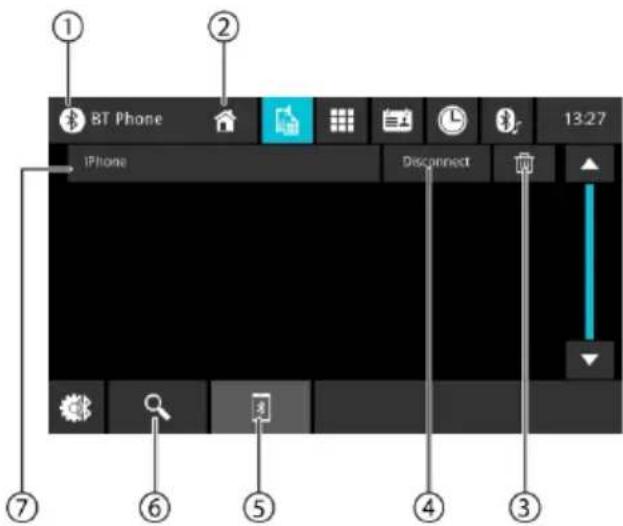
- Bluetooth Button, Return to main menu
- Home button, return to main menu
- Delete device button
- Disconnect button
- Pairing list button
- Search device button
- List of registered devices
To unregister a device, tap on its entry and then on the cross for deletion. After your confirmation, the device is being unregistered.
Analogue Radio Starting radio playback
In the main menu, select the radio button (see the chapter "Main menu").
The radio display opens (see the next section) and playback starts.
Radio display

The radio display features the following functions and displays:
- Home button, return to main menu
-
Station info area:
-
Current frequency/ station name/radio text
Current memory bank
Frequency scale
Note:
Tap on the frequency scale or swipe across the frequency scale to change the frequency.
[ ] Short press: ascending seek tuning Long press: Increases the frequency in increments
[Short press: descending seek tuning Long press: Decreases the frequency in increments
- Selecting the waveband
- Time/Bluetooth™ status
- Direct frequency input keypad
- Memory locations of the current memory bank Short press: Calls up the stored station Long press: Saves the set station
Note:
Swipe across the list of memory locations to scroll to additional memory locations
- Intro scan of presets of the current waveband
- TRAFFIC function ON/OFF
- Tuner settings
- Radio Button, Return to main menu
Settings menu
The options menu features the following functions and settings:
RDS Alternative Frequency/ RDS AF:
If RDS AF is activated, the device automatically changes to the strongest frequency of the set station.
RDS Regional:
Switches RDS regional mode on/off. If regional mode is activated, the device changes only to the alternative frequencies of the set station that broadcast the same regional program.
RDS Time/RDS CT:
Switches RDS time on/off With RDS CT activated, the time of the device is automatically set via the received RDS signal.
Digital Radio DAB/DAB+
Starting DAB playback
In the main menu, select the DAB button (see the chapter "Main menu"). The DAB display opens (see the next section) and playback starts.
DAB display

The DAB display features the following functions and displays:
- Home button, return to main menu
- Service info area (current service name/ additional DAB info)
- DAB reception status
- Time/Bluetooth™ status
- Selecting a service: Sliding interface Short press: Calls up the stored service Long press: Saves the current service Slide: Show further presets
- [Changes to the next preset [Changes to the previous preset
- Opens the service list
- Scanning all receivable services
- DAB Button. Return to main menu
After first start of DAB/DAB+, the band scan will be performed automatically to find available services (radio stations). Available services will be added to the service list.
Available services are shown in the service list and you can select them for listening.
Media playback
This chapter describes the playback of media on connected devices and data carriers (USB, CarPlay, Android Music Player, Bluetooth™ Streaming, A/V).

DANGER! Risk of road safety due to video playback.
The use of the video playback can divert your attention from the traffic situation and lead to serious accidents!
Do not use video playback while driving. To use it, stop at a suitable location and operate your device while the vehicle is standing.
Notes:
- For connecting or inserting devices and data carriers, please read the chapter "External devices and data carriers".
- Not all media, devices or connection types support all options.
Starting media playback
In the main menu, select the desired data carrier or the device (see the chapter "Main menu"). The media display opens (see the next section) and playback starts or the media browser opens (see the section "Media browser").
Media display
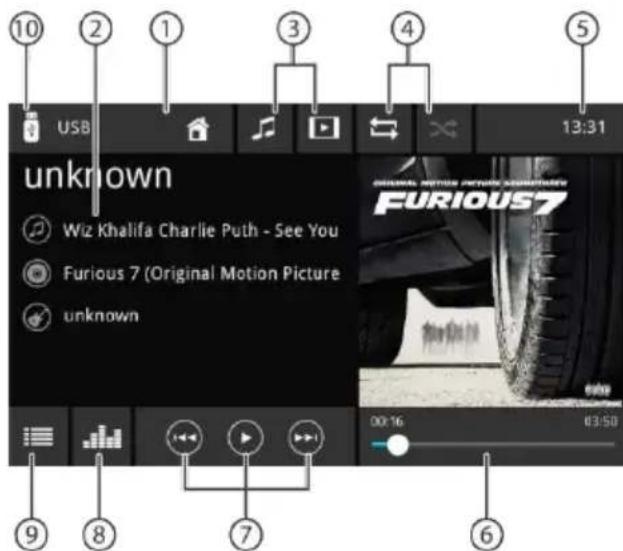
The Media display features the following functions and displays:
- Home button, return to main menu
Note:
If Scan has been finished without any found stations, please check DAB- antenna or try new scan at a different location.
- Track info area:
For audio playback: Track information such as name of track, artist and cover art (not for A/V) For video/image/Image playback
Notes:
- Track information (ID3 tags) must be provided by the connected data carrier or device.
-
For image playback, the menu bars are automatically hidden after approx. 3 seconds. To show the menu bars again, tap on the display.
-
Changing the media type
[ ] Audio track
Video title
When changing the media type, the media browser is automatically opened (see the next section).
- Setting repeat title/random track playback
[ ] Repeat title off
[]Repeat all tracks of the folder
[ ] Repeat current track
[ ] Repeat track playback on(all files)
[ ] Random track playback off
Random track playback on(current folder)
[Random track playback on(all files)
-
Time/Bluetooth™ status
-
Playback process (not for image playback):
-
Current track number/number of tracks
Current time
Total time
Progress bar
Note:
Tap on the progress bar or swipe across progress bar to go to a different position in the current playback.
- Controlling playback:
[ ] Short press: Changes to the next track/DVD chapter Press and hold: Fast searching forward
Interrupting/continuing playback
[ ] Short press: Changes to the previous track/DVD chapter Press and hold: Fast searching reverse
- Tap the button to adjust equalizer setting
- Tap the button to show the track list
- USB Button, Return to main menu
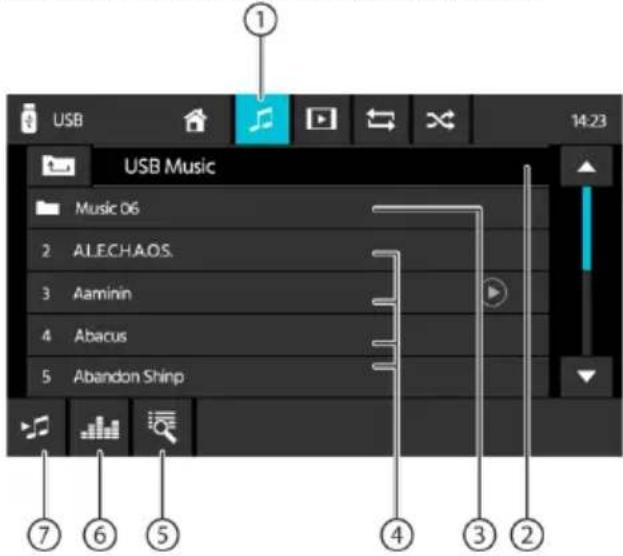
Media browser for media type and folder
The media browser for media type and folder features the following functions and displays:
- Current media type
- Name of current folder
- Opening subfolder
- Starting a track
- Open the list and search
- Equalizer button: Makes equalizer settings and sets volume distribution
Note:
For further details, read the chapter "Sound settings".
- Top to go back to previous page
Calling
Opening the phone
In the main menu, select the Phone button (see the chapter "Main menu").
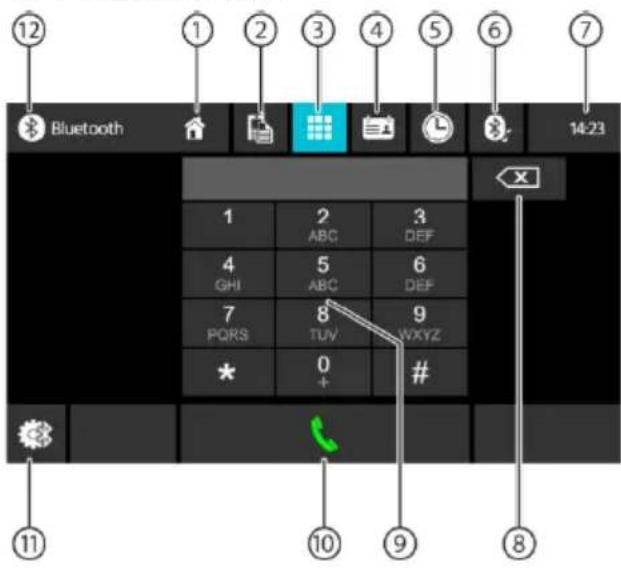
The keyboard display
The keyboard display features the following functions and displays:
General functions of the phone displays:
- Home button, return to main menu
- Changing to the devices display
- Changing to the keyboard display
- Changing to the phone book
- Changing to the list of calls
- Changing to the list of A2DP
- Time/Bluetooth™ status
- Correction key for deleting the entry
- Keyboard for number input
- Dial key for dialing the number entered
- Bluetooth setting: Opens Bluetooth™ settings
- Bluetooth button, return to main menu
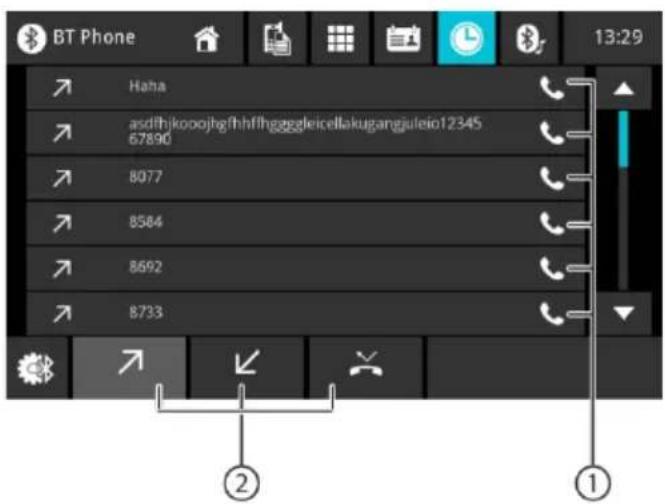
The list of calls
The list of calls features the following functions and displays:
- List of the most recently called numbers/contacts with date and time of the call Tap on an entry to call the number/contact.
- Dialed/Received/Missed View
Phone book
Note:
The phone book contains all the contacts from the phone book of your cell phone.

The phone book or list of favorites features the following functions and displays:
- Entries of the list of contacts
Short press: Calls number/contact or displays numbers (if several numbers are available)
- Phone Book Sync: Copies contacts from the phone book of the cell phone to the device/updates contacts on the device
Note:
You can automatically synchronise the device phone book with the phone book of the cell phone (see the chapter "System settings", Bluetooth /Auto Phone Book Sync option).
- Letter menu: Jumping to the selected starting letter in the list of contacts
Opening a keyboard for name search in the list of contacts
Incoming/outgoing call
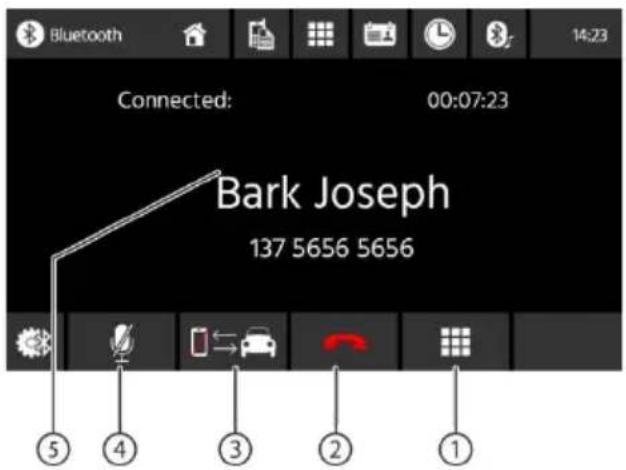
An incoming call provides the following functions and displays:
- DTMF keyboard
- Call/ phone call handling:
[]Rejecting a call (for incoming call)
Cancelling a call (for outgoing call)
Ending a phone call (for ongoing call)
[]Answering a call (for incoming call)
- Switching a phone call between device and cell phone
- Turn the microphone on or off
-
Caller info
-
Contact name/caller number (if available)
- Call duration
SWC Input Operation
The following controls are available for most vehicles.
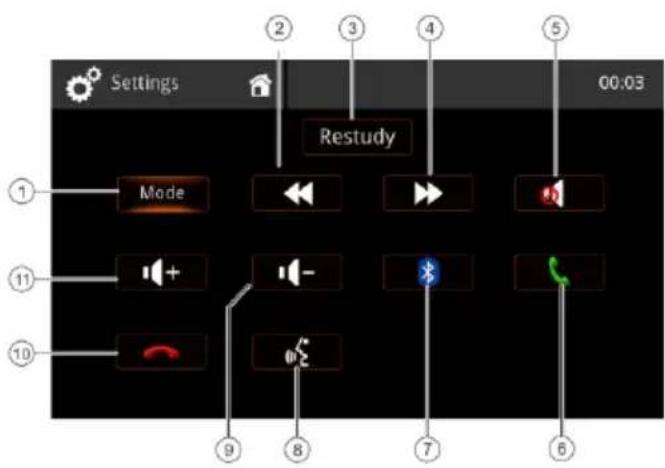
- Mode (select source)
- Seek/Track Up/Preset Up (+)
- Restudy- delete all settings
- Seek/Track Down/ Preset Down (-)
- Mute
- BT call/ accept call
- Bluetooth
- Voice command (phone)
- Volume Down (-)
10.BT end/ reject call
11.Volume Up (+)
To learn SWC commands from your car steering wheel control, please press briefly the desired button on your steering wheel control which you want to associate with the highlighted button on display. The display will show you measured values for this button and wait for next key. You can learn all keys step for step or you can select one special button on display to skip other buttons.
Note:
For using SWC function, an additional connection to your car steering wheel control is necessary, this may require additional adaptors. Therefore please ask your local dealer for compatible accessories. Blaupunkt cannot guarantee compatibility with all available steering wheel controls on market.
Requirements
Apple Lightning® to USB cable or a high-quality, certified USB cable
iPhone 5s or above
- Siri® must be enabled to use Apple CarPlay
Phone Setup
Before you begin:
- Apple CarPlay® features may operate differently than on your Apple iPhone®.
- Message and data charges may apply when using Apple CarPlay. Please check with your carrier.
-
Apple CarPlay relies on the performance of your phone. If you experience performance issues:
-
Close all apps and then restart them again or
- Disconnect and then reconnect your phone using the Apple Lightning cable that was provided with your phone is recommended.
- Siri® must be enabled to use voice recognition system with Apple CarPlay.
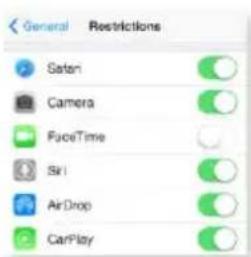
- On your phone, go to Settings > General > Restrictions > CarPlay to allow CarPlay access.

- On your phone, go to Settings > General > Siri and ensure Siri is turned ON.
Device Setup
Connect your iPhone to the USB port of the radio device.


- Your iPhone will receive a prompt message, then tap "Allow".
The Apple CarPlay® icon is now enable on the main menu.
Press the CarPlay® icon on radio screen.
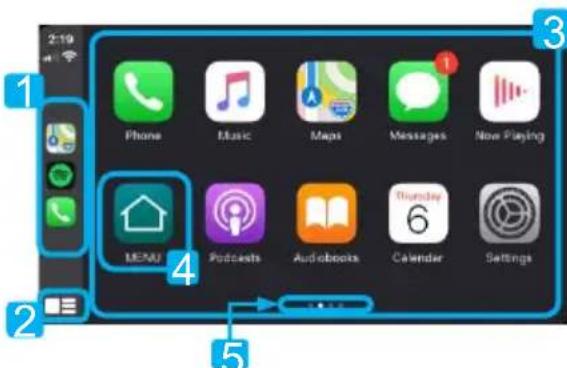
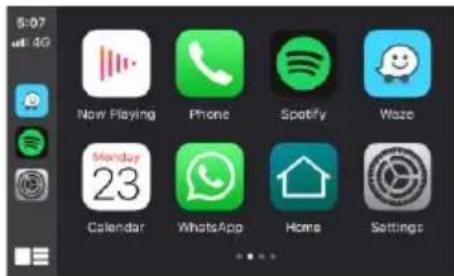
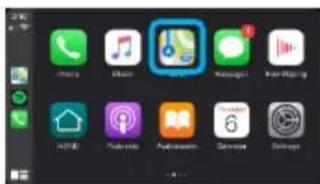
Familiar home screen
- Recently Used App
- Home button / Activate Siri
- Apps
- Return to Main Menu
- Page Indicator
Apple CarPlay uses Siri to perform many actions like sending messages, placing calls, and looking up/setting POI/Destinations. A Siri session can be initiated on any screen by:
- Pressing and hold the Home icon on the CarPlay screen, pressing the Voice Command button, or
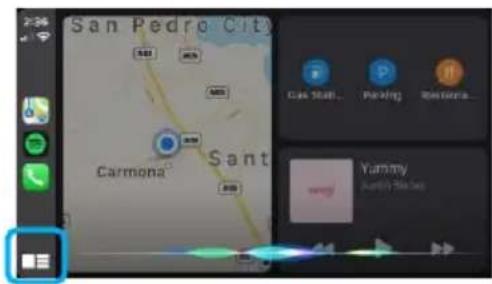
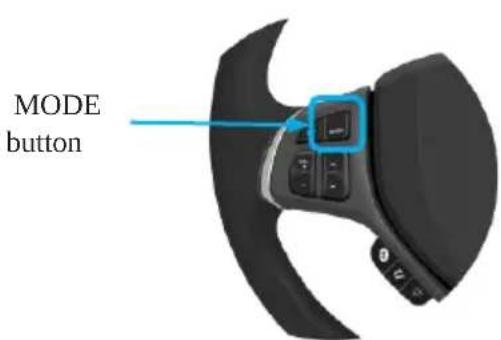
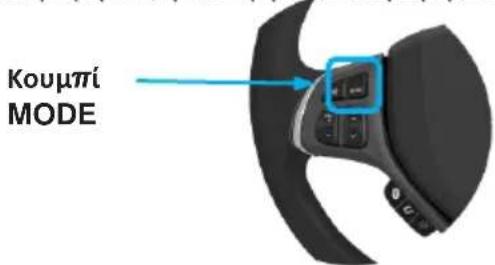
- Pressing and hold the steering wheel MODE button, then say any of the following commands:
Text
- "Read text troeosagavalable text message.
"Call < Name > "to make a phone call.
- "Find

NOTE:
Ensure Siri feature is set to ON in your phone (Go to Settings > General > Siri).
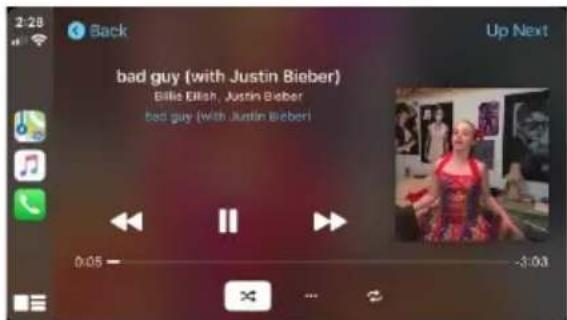
Apple Music
Apple Maps
- Navigate your way by using Apple Maps or any other third party navigation app (e.g., Waze).

- Navigation app will display your destination and route options.

A list of the supported CarPlay supported apps can be found at http://www.apple.com/ios/carplay/.
Ensure phone has latest version of the third party apps.

Connect your phone using the Apple Lightning cable that was provided with your phone is recommended.

INFORMATION
Depending on use, Apple CarPlay can share certain vehicle information (e.g., vehicle location, speed, and other operating conditions) with the connected iPhone. See Apple's privacy policy for details regarding Apple's use and handling of data uploaded by CarPlay. Use of CarPlay is at user's own risk, and is subject to agreement to the CarPlay terms of use, which are included as part of the Apple iOS terms of use. CarPlay vehicle integration is provided "as is," and cannot guarantee CarPlay operability or functionality now or in the future due to, among other conditions, changes in CarPlay software/Apple iOS, service interruptions, or incompatibility or obsolesce of vehicle-integrated hardware or software. Due to updates form 3^rd party the functionality can change without further notice. Only use CarPlay when conditions allow you to do so safely.
Basic Requirements
To use Android Auto, you'll need an Android phone running 5.0 (Lollipop) or higher.
- For best performance, Android 6.0 (Marshmallow) or higher is recommended.
You'll need a high-quality, certified USB cable for the in-vehicle connection.
Phone Setup
Before you begin:
Android Auto® features may operate differently than on your Android® phone.
- Message and data charges may apply when using Android Auto. Please check with your carrier.
Android Auto relies on the performance of your phone. If you experience performance issues:
- Close all apps and then restart them again or disconnect and then reconnect your phone
- Using the USB cable that was provided with your phone is recommended.
- When Android Auto is active, your in-vehicle voice recognition system is disabled and you will be using Google® voice actions to make your requests.
Device Setup
- Turn on Bluetooth on your Android Phone and connect it to the USB port.
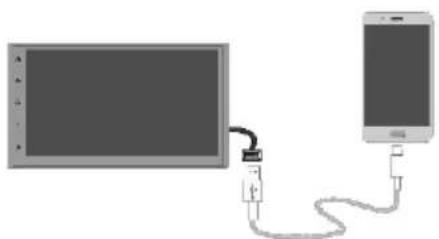
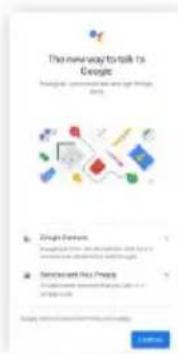
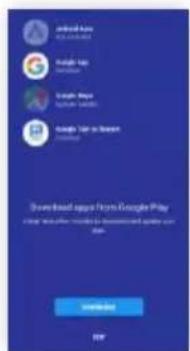


- First time connection will prompt the phone to download Android Auto app and other needed apps.
- Phone will ask you to allow all permission to be activated.
Overview
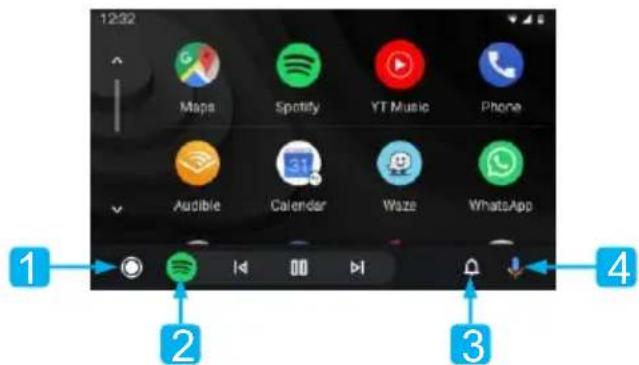
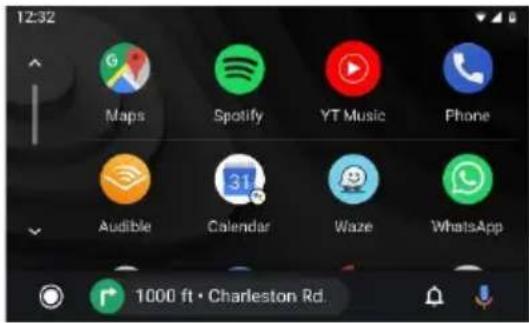
- Android Auto Home Button
- Recent Apps
- Notification Button
- Activate Google AssistantTM
Google Assistant
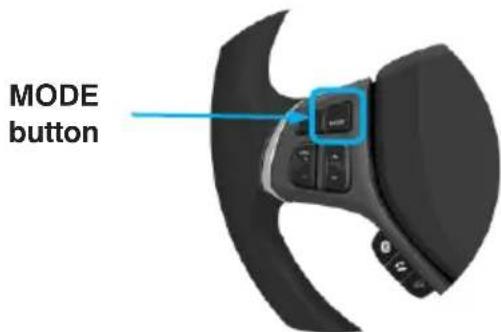
Android Auto uses Google Assistant for many functions. A Google Assistant can be initiated on radio screen by:

Microphone Icon
-
Touching the Microphone icon on Android Auto Home screen.
-
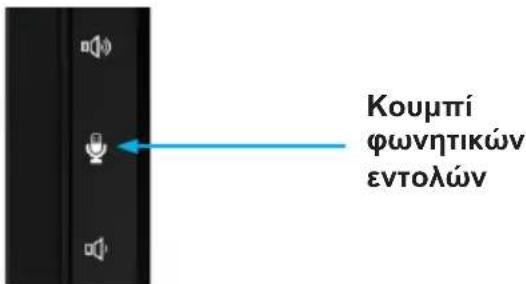
Pressing the Voice Command Button located on right side of the Head unit or,
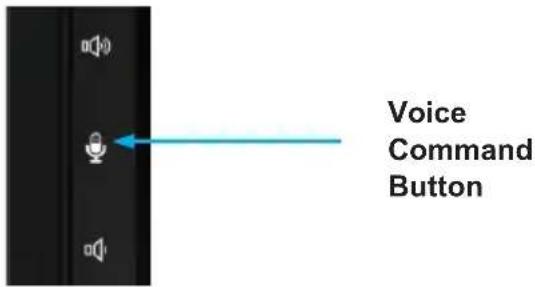
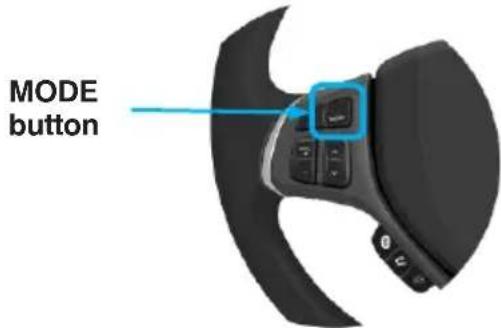
- long press the Mode button on your steering wheel, and state your request by saying first "Hey Google" or then Googlequest, (e.g. "Ok Google, my agenda for today?.)
Phone
Make a call
- Touch the Phone icon on Android Auto Main Menu to access recent calls and contact list. You can initiate a voice action and then say "Ok Google, Call
" or "Dial " make phone calls.

- To hang up call just press the red telephone handset icon.

Music
Playing Music
Touch Google Play Music or any other third party Music Apps (e.g., Spotify).

NOTE:
A list of supported third party apps can be found on the Android Auto website at http://www.android.com/auto
Finding Playlists and Songs

Touch the Queue icon on your Music app to access recent playlists, mixes, and queue songs.
Accessing Settings
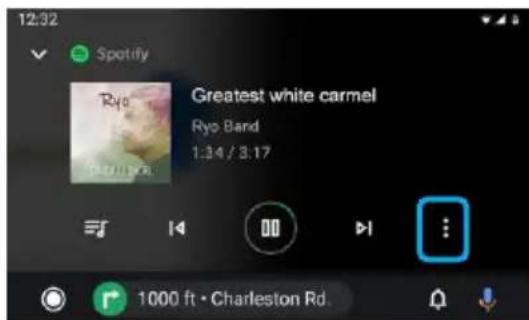
Touch the Options icon to view additional settings (thumbs/down, etc). Settings may vary by app.
Navigation
Accessing Maps

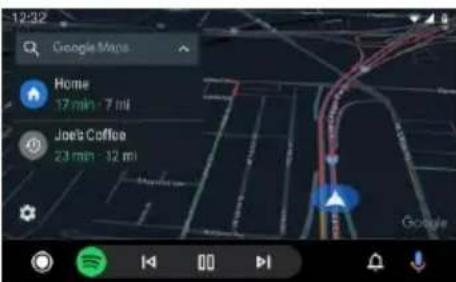
While in the Android Auto Main Menu, touch the
Maps icon to access Google Maps or any other third
party navigation apps (e.g., Waze).
Getting Directions
Press the Voice Command button then state your destination (e.g., Ok Google, navigate home.) or POI to activate a Google Search.
Press and Hold the Mode button to Activate Voice Recognition: Search places, ask for traffic information along route, and re-routing.
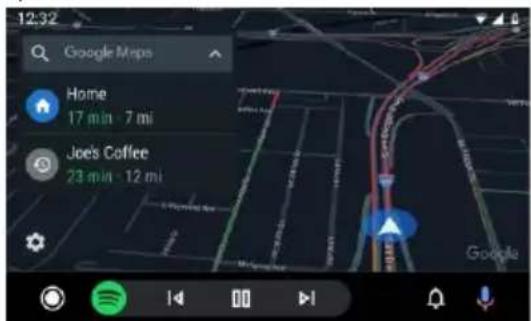
Viewing Directions
Google Maps will display your destination and route options.
iINFORMATION
Android Auto requires the Android Auto app from Google Play installed on an Android smartphone running Android Lollipop 5.0 or higher.
Warning:
Certain uses of the smartphone may not be legal while driving in your jurisdiction, so you must be aware of and obey any such restrictions. If in doubt as to a particular function, only perform it while the car is parked. No feature should be used unless it is safe to do so under the driving conditions you are experiencing.
Starting Android Auto
Connect an Android Auto compatible device to the unit via USB cable. Android Auto will launch automatically, or it can be accessed at any time from the main menu.
Note: When the device for Android Auto is connected to this unit, the device is also connected via Bluetooth at the same time. If five devices are already paired, the message confirming whether to delete the registered device is displayed. If you want to delete the device, touch [Agree]. If you want to delete other device, touch [BT Settings] and delete the devices manually.
Note: If Android Auto is turned on during a call on a cellular phone other than the Android Auto compatible device, the Bluetooth connection will switch to the Android Auto compatible device after the call.
Android Auto vehicle integration is provided "as is," and cannot guarantee Android Auto operability or functionality now or in the future due to, among other conditions, changes in Android Auto software/Android OS, service interruptions, or incompatibility or obsolesce of vehicle-integrated hardware or software. Due to updates form 3^rd party the functionality can change without further notice.


M5.0x6.0mm

M5.0×5.0mm

MOUNTING SLEEVE MOUNTING RELEASE KEY
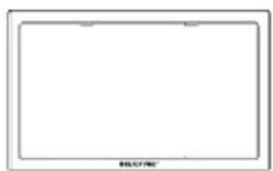
TRIM RINGMOUNTING SCREWS
Installation:
- Please contact your local car-hifi specialist for installation support if you are unsure
Depending on your car there may be additional accessories, adaptors and frames necessary. Your local car-hifi specialist will be able to support you - Installation errors can destroy the vehicle electrical system or the device

Connections:
- REVERSE: reverse signal from car, needed to enable reverse camera
P.ANT: Switched power supply for active antenna (12V/ max. 200mA)
ACC: Ignition signal
P.CONT: Switched power supply for external amplifier (12V/ max. 200mA)
ILLUMI: car lights input, needed for dimmer mode "auto", only DC 12 V, PWM signal may cause flickering display!
PARKING: Connect to handbrake signal
WHEEL KEY: SWC input (steering wheel control)
Connections:
B+:Power output (enabled if ACC is ON) (12V/ max.500mA)
CAMERA 12V: Power supply for camera (enabled if source camera active) (12V/ max. 200mA)
DAB phantom feeding (12V/ max. 100mA)
Note:
For operation, ACC must be connected and switched on. Device is not operable without ACC.
Don't connect ACC to BATTERY directly, this will cause high battery drain.
To keep all settings and memory, BATTERY must be connected permanently.
Below you will find some error patterns and their possible solutions. If you continue to have problems with the device, contact your specialist dealer or Blaupunkt Service. If you have any problems, please have the installation checked or carried out by a specialist. Most of the problems that may arise can be traced back to connection and operating errors.
After installation, the control lights for the airbag from car dashboard light up/ the speedometer does not work etc:
The device was obviously connected incorrectly. Immediately disconnect the vehicle battery and remove the radio. The installation must carried out / checked by a specialist.
- At higher volumes, the device switches off completely or display flickers:
Please check the cable diameter of the power supply. The installation must carried out / checked by a specialist.
The remote control does not work:
Please check that the battery is correctly inserted. Please check the battery.
Device does not switch on / device does not react to ACC:
ACC / battery connected correctly? Please check the correct connection of the device. The installation must carried out / checked by a specialist. Please note: This device is only operable if ACC is connected properly.
-
The device has no or poor radio reception: Please check the antenna for the respective reception area. Please check whether you may need a phantom feeding adapter.
-
USB, CD, SD or other data carriers no function:
Please check the function with another data carrier, reformat the data carrier, user other media files.
Please check user manual for compatible data carriers.
- Camera no picture / no sound:
Please check the connection of the camera, check the system settings of the device. As a test, you can connect the camera to an AV-IN connection and check whether it works with this.
Video playback not possible:
Please check the correct connection of the brake signal. Apply the handbrake to activate the video playback.
- Bluetooth problems such as the phone book are not displayed, the phone does not connect, the caller cannot be heard:
Please check whether there are software updates for the phone and / or radio available. Please delete the phone from the radio and delete the phone from the list on the radio, then re-establish the connection. Confirm all authorization requests on the phone with YES. Try a different phone.
- Caller cannot hear me:
Please check the connection of the external microphone. Check the microphone setting in the Bluetooth settings. Try a different phone.
- The screen has small, incorrectly lit, or non-lit pixels:
Despite the most careful and most modern production processes, it is unfortunately inevitable, due to technology, to have so-called pixel errors on LCD screens. These can be present from the start or occur over time. If there are a small number of such errors, this is not a reason for complaint.
-
SUB-OUT or its setting options in the device have no function: Please check the correct connection of the subwoofer to the SUB-Out output of the device, otherwise the options in the sound settings have no effect. Please make sure to enable the SUB-OUT in the settings.
-
Malfunction / problem not listed here. A function of the device does not work as expected / device does not behave as expected:
Please reset the device to factory settings. Please check that the software is up-to-date, current software updates can be found on our homepage.
57 Preehravani multimedi (USB,AV-IN,BT Audio)
57 Start prehravani multimedi
57 Obrazovka multimédii
58 Prohlizec multimédii podle typu a slozek
59 Telefonovani
59 Přechod do Telefonu
RDS Alternative Frequency/ RDS AF:
Analog radio (FM, AM
Start radioafspiling
Radioskaerm
Digital radio (DAB/DAB+)
Start of DAB-afspiling
DAB-skaerm
Multimediaafspiling (USB, AV-IN, BT Audio)
Start afspiling af multimediaier
Multimiedieskaerm
MultimediaBrowser after type og mapper
Foretag opkald
Gà til Telefonen
Tastaturkaerm
Opkaldsliste
Telefonbog
RDS Alternative Frequency/RDS AF:
RDS Alternative Frequency/ RDS AF:
166 Analog radiok (FM, AM)
RDS Alternative Frequency/ RDS AF:
- Freqenza alternative RDS / RDS AF:
210 Analoge radio (FM, AM)
210 Radio afspelen starten
210 Radioschem
211 Digitale radio (DAB/DAB+)
211 DAB afspelen starten
211 DAB-schem
211 Multimedia afsplen (USB, AV-IN, BT Audio)
211 Multimedia afsplen starten
211 Multimedia-schem
217 Google Assistant
218 Muziek
219 Kaarten openen
220 Montagehandleiding
RDS Alternative Frequency/ RDS AF:
RDS Alternative Frequency/ RDS AF:
250 Ecrdo menu principal
254 Rado analogico (FM, AM)
254 Iniciar o
254 Ecrade radios
255 Rádio digital (DAB/DAB+)
255 Iniciar a reproducao da DAB (Radiodifusao Sonora Digital
255 Ecrda DAB
261 Google Assistant
262 Música
263 Abrir mapas
RDS Alternative Frequency/ RDS AF:
apparaten under körning.
RDS Alternative Frequency/ RDS AF:
RDS Alternative Frequency/RDS AF:
Avanapaywyn mouoiknc
AyyiTeToEikovidioTncEapuoynCGooglePlay Music n aalwv Eapmuoyuvouaiknc TpiWv etaipewv (OncwTo Spotify).
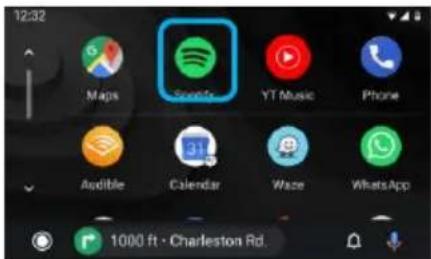
PPOOxH:
Tn laota unootnpicoevec eapuoyec tpiwv
etaipeiwv mopeite va bpote oToV iototono
Android Auto otNdeltaovon
http://www.android.com/auto
Iwc va poue iotec avanapaywync kai KOpataiwv

AyyiETo EIKovidio oupac otnv evapauyn
muoknc yia npoaaon oe liotec avanapaywync,
menc muokn c kai koupatiw nou avanapaxkav
npoopa tOnv oupa.
PpOaon otic puHuaeic

AyyiETo EIKovidio EInIoYec, yia va EupavioTe EinnIeov puOIOEcic (ou apoei/akupwn k.ln).Ot puOIOEcEvExetai va diapepov avaloya eTnv evapuoyn.
Hohyn
Avoiyma tnc eapauoyic aaptowv
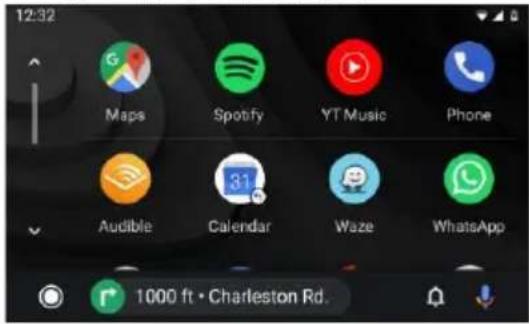
AnoTo Kupio evoou Tou Android Auto, ayyiTe To Eikovidio Xaptec yia va anoktnoete npoaon Otoc Map Google n oe alaec evapauoyc nnonyonctptiw uepwv (oWc to Waze)
PnOynon
NATNOTE TO KOUMI OWNTIKOWv EVTOWv, KAI EIOAYAYETE Evav npoopioo (n.x. Ok Google,
PAnoyon yia to oniti) n eva POI yia va
EekivnoTe Tnv avacntnon Google.
Natote kai kpatote natnevo to koumi Mode, yia va evepyoioeTe tn aeitoupyia avaywpioc oovnc: Avzntnon mepouc, avzntnon n npopopovy ia tvkivnon otndeltaounacn aalayn tncdeltaounc ac.
Emokonnondeltapounc
Oi eiooyec npoopiaou kai diaobpouncthetae aaviovtaotouxCapc Google.
7 PAHPOΦOPIE
DE, EN, CS, DA, ES, FI, FR, HU, IT, NL, PL, PT, SV, EL



- Safety notes
- Symbols used
- DANGER!
- Road safety
- General safety notes
- Use as directed
- Installation instructions
- Declaration of conformity
- Cleaning notes
- Disposal notes
- Scope of delivery
- Operation
- Touchscreen
- Important note:
- Tapping
- Swiping/scrolling
- Main menu
- Opening main menu
- The main menu display
- In main menu you can do following actions:
- Changing to the previous screen or the higher-level menu
- Settings in menus
- Activating/deactivating options
- Control
- Additional settings
- Sound settings
- The equalizer display 1
- Note:
- The equalizer display 2
- System settings
- Opening system settings
- The Settings display
- External devices and data carriers Basic information
- USB data carrier
- Connecting a USB data carrier
- Removing a USB data carrier
- Bluetooth® sources
- Connecting a Bluetooth device for the first time
- Managing Bluetooth® devices
- Analogue Radio Starting radio playback
- Radio display
- Settings menu
- RDS Alternative Frequency/ RDS AF:
- RDS Regional:
- RDS Time/RDS CT:
- Digital Radio DAB/DAB+
- Starting DAB playback
- DAB display
- Media playback
- DANGER! Risk of road safety due to video playback.
- Notes:
- Starting media playback
- Media display
- Calling
- Opening the phone
- General functions of the phone displays:
- Phone book
- Incoming/outgoing call
- SWC Input Operation
- Requirements
- Phone Setup
- Before you begin:
- Device Setup
- Apple Music
- Apple Maps
- INFORMATION
- Basic Requirements
- Overview
- Google Assistant
- Phone
- Make a call
- Music
- Playing Music
- Finding Playlists and Songs
- Accessing Settings
- Navigation
- Accessing Maps
- Getting Directions
- Viewing Directions
- iINFORMATION
- Installation:
- Connections:
- RDS Alternative Frequency/RDS AF:
- - Freqenza alternative RDS / RDS AF:
- Avanapaywyn mouoiknc
- PPOOxH:
- Iwc va poue iotec avanapaywync kai KOpataiwv
- PpOaon otic puHuaeic
- Hohyn
- Avoiyma tnc eapauoyic aaptowv
- PnOynon
- Emokonnondeltapounc
- PAHPOΦOPIE
Brand : BLAUPUNKT
Model : Camper 600 DAB
Category : Car radio