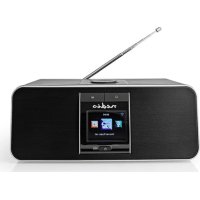
RDIN5005BK - Radio NEDIS - Free user manual and instructions
Find the device manual for free RDIN5005BK NEDIS in PDF.



| Product Type | Multifunction Internet Radio |
| Brand | Nedis |
| Model | RDIN5005BK |
| Dimensions (W x H x D) | 255 x 180 x 105 mm |
| Weight | 1.4 kg |
| Power Supply | 100-240 V AC, 50/60 Hz |
| Wireless Connectivity | Wi-Fi 802.11 b/g/n, Bluetooth 5.0 + EDR |
| Radio Bands | FM (87.5-108 MHz), DAB+ (174.928-239.2 MHz), Internet Radio |
| Audio Power (RMS) | 2 x 7 W |
| Display | 2.4 inch TFT |
| Supported Audio Formats | MP3, WMA, AAC, FLAC, WAV |
| Radio Presets | Over 250 stations |
| USB Charging Port | 5 V DC / 1 A |
| Headphone Output | Yes, 3.5 mm jack |
| Main Functions | FM/DAB+/Internet radio, Bluetooth, alarm, timer, snooze, dimmer, sleep, weather, UPnP/DLNA |
| Operating Power Consumption | 29 W |
| Standby Power Consumption | Less than 2 W |
| Cleaning | Wipe with a soft, dry cloth. Do not use abrasive products. |
| Safety | Do not expose to water or moisture. Use only the supplied power cable. Do not open the product. Keep out of reach of children. |
| Spare Parts and Repairability | Repair by qualified technician only. No user-serviceable parts. Contact Nedis customer service. |
Frequently Asked Questions - RDIN5005BK NEDIS
User questions about RDIN5005BK NEDIS
0 question about this device. Answer the ones you know or ask your own.
Ask a new question about this device
Download the instructions for your Radio in PDF format for free! Find your manual RDIN5005BK - NEDIS and take your electronic device back in hand. On this page are published all the documents necessary for the use of your device. RDIN5005BK by NEDIS.
USER MANUAL RDIN5005BK NEDIS
with DAB+ / FM and Bluetooth®
RDIN5005BK
natural_image
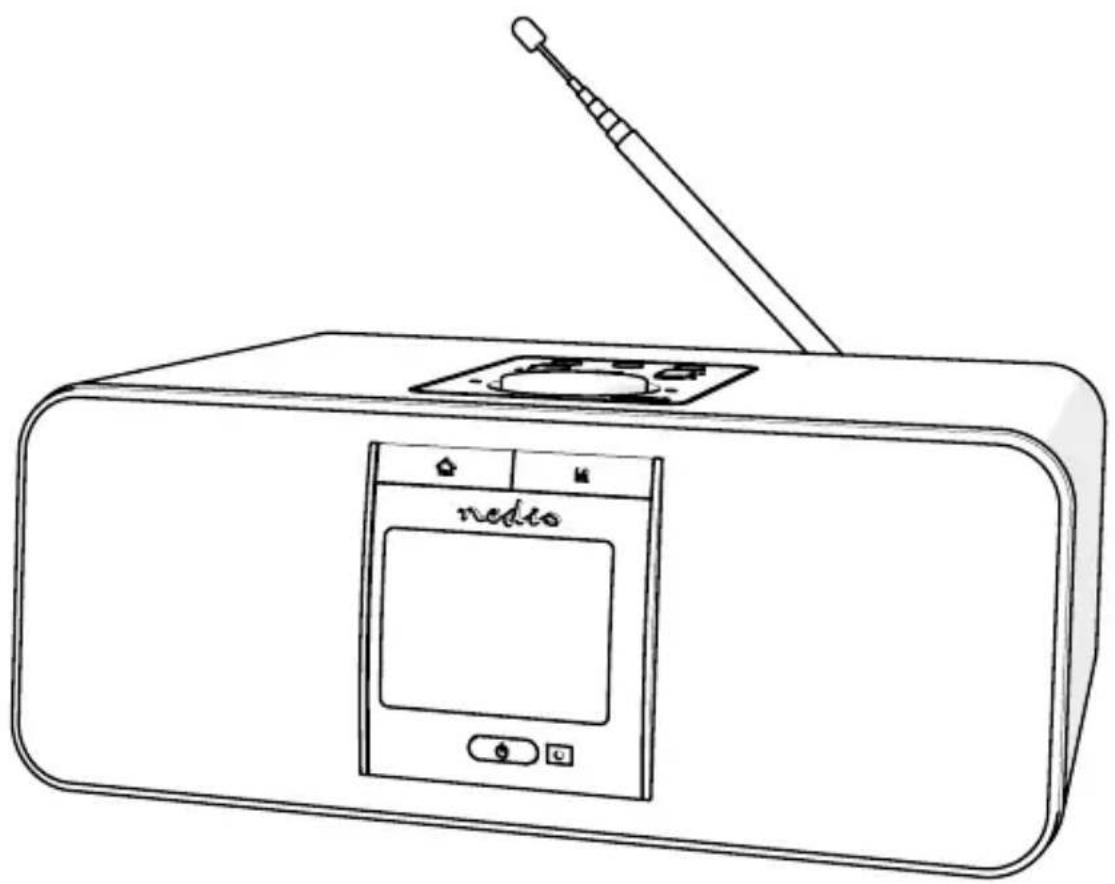
Line drawing of a portable electronic device with a screen and antenna (no text or symbols)
Quick start guide 6

Kurzanleitung 11

B


C

Internet Radio RDIN5005BK

For more information see the extended manual online: ned.is/rdin5005bk
Intended use
The Nedis RDIN5005BK is a multifunctional internet radio.
The radio incorporates FM, DAB+ and internet radio.
The product is equipped with timer, alarm, nap, dimmer, sleeper and weather forecast functions.
You can control the radio manually, with remote or pair it with your smartphone or tablet via Bluetooth to stream music.
The product is intended for indoor use only.
The product is not intended for professional use.
This product is not intended for use by persons (including children) with a reduced physical, sensory or mental capabilities or lack of experience and knowledge, unless they have been given supervision or instruction concerning the use of the product by a person responsible for their safety.
Any modification of the product may have consequences for safety, warranty and proper functioning.
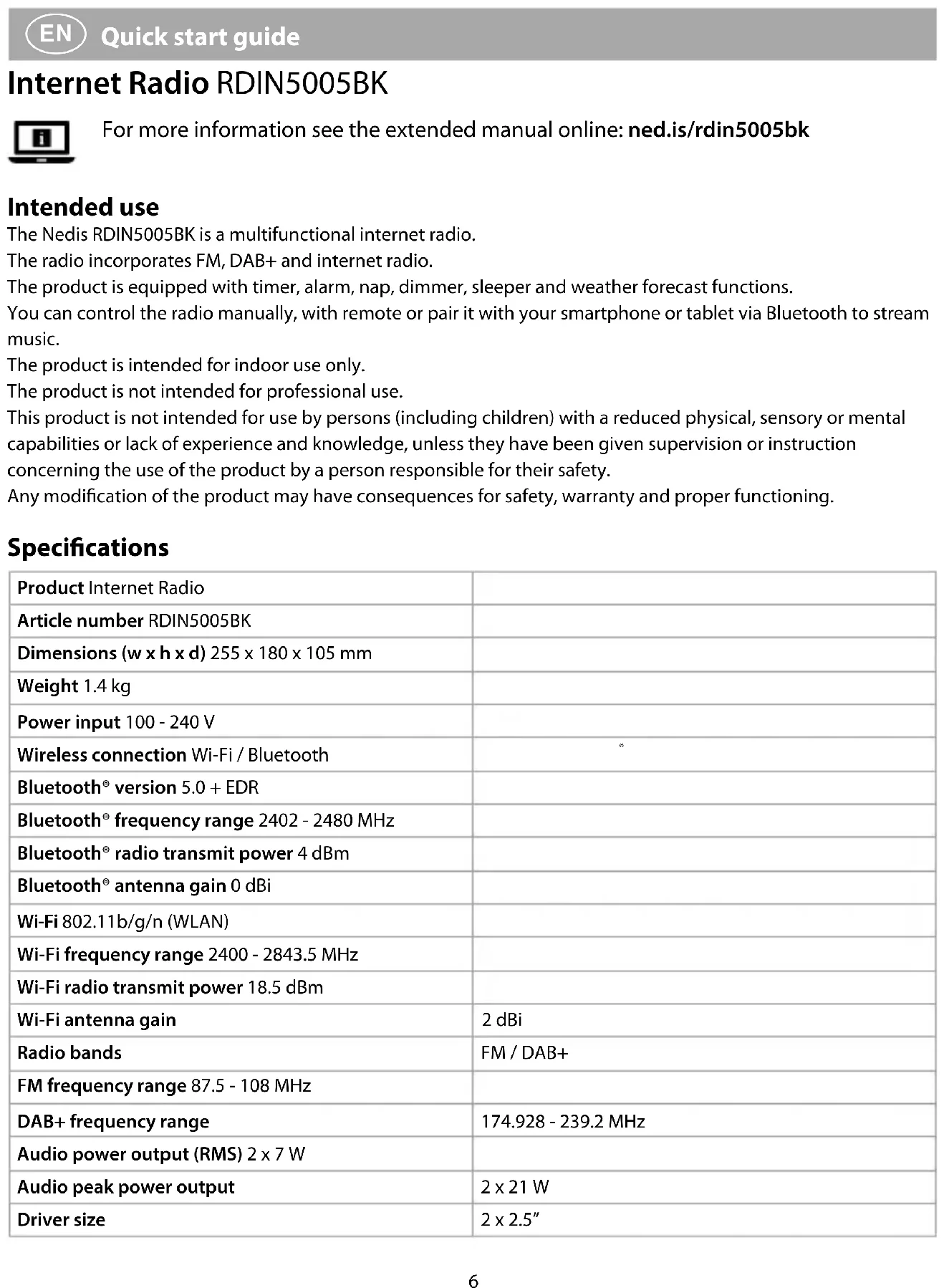
Specifications
| Product Internet Radio | |
| Article number RDIN5005BK | |
| Dimensions (w x h x d) 255 x 180 x 105 mm | |
| Weight 1.4 kg | |
| Power input 100 - 240 V | |
| Wireless connection Wi-Fi / Bluetooth | |
| Bluetooth® version 5.0 + EDR | |
| Bluetooth® frequency range 2402 - 2480 MHz | |
| Bluetooth® radio transmit power 4 dBm | |
| Bluetooth® antenna gain 0 dBi | |
| Wi-Fi 802.11b/g/n (WLAN) | |
| Wi-Fi frequency range 2400 - 2843.5 MHz | |
| Wi-Fi radio transmit power 18.5 dBm | |
| Wi-Fi antenna gain | 2 dBi |
| Radio bands | FM / DAB+ |
| FM frequency range 87.5 - 108 MHz | |
| DAB+ frequency range | 174.928 - 239.2 MHz |
| Audio power output (RMS) 2 x 7 W | |
| Audio peak power output | 2 x 21 W |
| Driver size | 2 x 2.5" |
| Display TFT 2.4" | |
| Supported media playback MP3, WMA, AAC, FLAC, WAV | |
| Streaming protocols UpnP, DLNA | |
| USB charging port 5 VDC / 1 A | |
| Connection output Headphones | |
| Saving radio presets > 250 stations | |
| Power consumption in use 29 W | |
| Power consumption standby < 2 W | |
Main parts (image A)
1 Antenna
2 Radio
3 USB charging port
4 3.5 mm headphones output
5 Remote control
6 Power cable
7 Antenna holder
8 Power input
Safety instructions
WARNING

To prevent possible hearing damage, do not listen at high volume levels for long periods.
- Ensure you have fully read and understood the instructions in this document before you install or use the product. Keep this document for future reference.
- Only use the product as described in this document.
- Do not use the product if a part is damaged or defective. Replace a damaged or defective product immediately.
- Do not drop the product and avoid bumping.
- This product may only be serviced by a qualified technician for maintenance to reduce the risk of electric shock.
- Unplug the product from the power source and other equipment if problems occur.
- Only use the provided power cable.
- Do not expose the product to water or moisture.
- Do not use the product where splashing of water might occur, e.g. bathroom, swimming pool or close to a washbowl.
- Do not use this product in a bathtub, shower, or water-filled reservoir.
- Observe the plus (+) and minus (−) marks on the cell, battery and equipment and ensure correct use.
- Do not use any cell or battery that is not designed for use with the product.
- Seek medical advice immediately if a cell or a battery has been swallowed.
- Use only the cell or battery in the application for which it was intended.
- Battery usage by children should be supervised.
- Do not mix cells of different manufacture, capacity, size or type within a product.
• Properly dispose of the empty battery.
- When possible, remove the battery from the product when not in use.
- Protect the eyes against exposure to visible and/or infrared radiation. Take adequate precautions when exposed.
- The product might cause interference with nearby devices.
- Do not use the product at locations where the use of wireless devices is prohibited due to potential interference with other electronic devices, which may cause safety hazards.
- Do not cover the product when in use.
- Place the product on a stable and flat surface.
- Do not use a timer or a separate remote-control system that switches on the product automatically.
- Keep distance from flammable objects.
- Do not open the product.
- Do not use an extension cable.
- Do not leave the product unattended when switched on.
- Keep the product out of reach from children.
- Listening on high volume for a long time will damage your hearing.
- Do not repair the product. If damaged, it must be properly disposed of.
Place the battery
- Insert the required batteries into the battery compartment on the rear of the remote control A 5. Observe the plus (+) and minus (−) marks on the cell, battery and equipment and ensure correct use.
Connecting the product
- Plug the power cable A 6 into the power input A 8.
- Plug the other end of A 6 into a power outlet.
Charging your phone
- Connect a smartphone or tablet with a USB cable to the USB port A 3 to charge the device.
Controls on the radio (image B)
| 9 | Menu button Press to return to the menu. |
| 10 | Display Shows information and settings. |
| 11 | On / standby button Press to enter or exit standby mode. |
| 12 | Mode button Press to switch between audio sources. |
| 13 | Remote control sensor Point the remote control to the sensor. |
| 14 | Left button Press to select the previous radio station, track or menu item. |
| Right button Press to select the next radio station, track or menu item.Internet Radio / Bluetooth mode: Press to zoom in or out on an icon. | |
| 15 | Preset 1 / STOP button Internet Radio / FM mode: Press to choose the preset 1 station.Bluetooth mode: Press to stop the current track. |
| Preset 2 / PLAY button Internet Radio / FM mode: Press to choose the preset 2 station.Bluetooth mode: Press to resume the current track. |
| 16 | Preset button DAB / FM: Press the | button to preset radio stations.Menu mode: Press the button to exit the menu mode. |
| 17 | Volume control dial / navigation dial / OK button | Playback mode: Turn the dial to increase or decrease the volume.Menu mode: Turn the dial to navigate through the menu. Press to confirm the selection. |
| 18 | Mute button Press the button to mute or unmute the sound. | |
| 19 | Preset 3 / Previous button Internet | Radio / FM mode: Press to choose the preset 3 station.Bluetooth mode: Press to play the previous track. |
| Preset 4 / Next button Internet Radio / FM mode: Press to choose the preset 4 station.Bluetooth mode: Press to play the next track. | ||
Using the remote (image C)
| 20 | On / standby button Switch the device on or off.Enter or exit stand-by mode. |
| 21 | Info button View information. |
| 22 | Sleep button Set sleep mode |
| 23 | Arrow buttons Navigation. |
| 24 | Digit buttons Select stored stations. |
| 25 | Preset button Preset radio stations.Enter digits and letters. |
| 26 | Mute button Mute or unmute the sound. |
| 27 | Alarm button Alarm mode. |
| 28 | Timer button Timer function. |
| 29 | Volume+ button Increase the volume. |
| 30 | OK button Confirm. |
| 31 | Volume- button Decrease the volume. |
| 32 | Equalizer button Select the sound scenario. |
Network configuration (LAN/WLAN)
Any walls or ceilings may reduce the strength of the Wi-Fi connectivity.
Install the product within a distance of 1205 meters from the Wi-Fi access point.
If you use the product for the first time, the system will ask you to set language and network configurations.
-
Switch the product on with B 11.
-
Select the language.
- "Enable 'Check Network' when Power On?" Select "Yes" to connect to the network.
- "Would you like to configure Network now?"
• Yes. The system starts scanning for wireless networks. The display shows a list of available wireless networks.
• Yes (WPS). Press the WPS button on your Wi-Fi router. (WPS routers only)
• No. If you want to listen to a terrestrial station or to use the speaker with an external device.
-
Turn the volume control dial B 17 to select.
-
Press B 17 to confirm.
The display B10 shows "No Wireless Networks Found", if the product does not find any wireless networks. Change the location of the product and check your WLAN router.
- Select your network.
- Press the OK button C 30 to confirm.
- Enter the password.
Radio:
- Turn B 17 to select a letter or digit.
- Press the next button B 14 for the next letter or digit.
- Repeat the above steps for the complete password.
- Press B 17 to confirm the password.
Press the previous button B ^14 if you enter a wrong letter or digit, Go to the relevant entry space and correct the letter or digit. Press the next button B ^14 if you want to go to the next entry space.
Remote control:
- Press the relevant digit buttons C 24 or use the arrow buttons C 23.
- Press C 30 to confirm a letter or digit.
- Press C 30 to confirm the password.
Extend the antenna A 1 for the best possible radio reception.
If the Wi-Fi connection is successful, the display B10 will show the main menu.
| Internet Radio Worldwide radio stations. | |
| Media Centre Access to your UpnP devices. | |
| Information Center Weather, financial and system information. | |
| FM FM radio stations. | |
| DAB DAB radio stations. | |
| Bluetooth Access to all devices connected with Bluetooth. | |
| Configuration Various system settings. | |
| Local Radio Radio stations in a particular region. | |
The product connects automatically if you use the product again within the Wi-Fi network. Change the network configuration if you want to change the Wi-Fi network.
Declaration of Conformity
We, Nedis B.V. declare as manufacturer that the product RDIN5005BK from our brand Nedis ^® , produced in China, has been tested according to all relevant CE standards and regulations and that all tests have been passed successfully. This includes, but is not limited to the RED 2014/53/EU regulation.
The complete Declaration of Conformity (and the safety datasheet if applicable) can be found and downloaded via:
nedis.com/rdin5005bk#support
For additional information regarding the compliance, contact the customer service:
Web: www.nedis.com
E-mail: service@nedis.com
Nedis B.V., de Tweeling 28
5215 MC 's-Hertogenbosch, the Netherlands

Kurzanleitung
Internetradio RDIN5005BK

5215 MC 's-Hertogenbosch, the Netherlands
Internetes rádió RDIN5005BK

5215 MC 's-Hertogenbosch, the Netherlands

Rýchly návod
Internetové rádio RDIN5005BK

Viac informácií nájdete v rozšírenom návode online:ned.is/rdin5005bk
Určené použitie
- with DAB+ / FM and Bluetooth®
- Internet Radio RDIN5005BK
- Intended use
- Main parts (image A)
- Safety instructions
- Place the battery
- Connecting the product
- Charging your phone
- Controls on the radio (image B)
- Using the remote (image C)
- Network configuration (LAN/WLAN)
- Radio:
- Remote control:
- Declaration of Conformity
- Kurzanleitung
- Internetradio RDIN5005BK
- Internetes rádió RDIN5005BK
- Rýchly návod
- Internetové rádio RDIN5005BK
- Určené použitie
Brand : NEDIS
Model : RDIN5005BK
Category : Radio