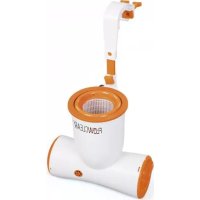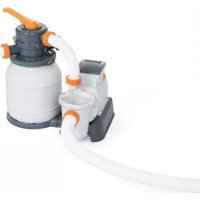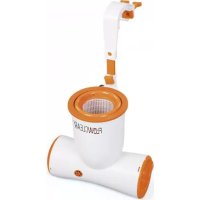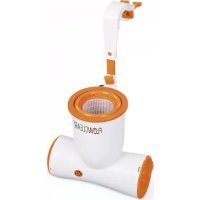
69060 - Pump BESTWAY - Free user manual and instructions
Find the device manual for free 69060 BESTWAY in PDF.



User questions about 69060 BESTWAY
0 question about this device. Answer the ones you know or ask your own.
Ask a new question about this device
Download the instructions for your Pump in PDF format for free! Find your manual 69060 - BESTWAY and take your electronic device back in hand. On this page are published all the documents necessary for the use of your device. 69060 by BESTWAY.
USER MANUAL 69060 BESTWAY
Transmitter working frequency: 2400\~2483.5 MHz
Transmitter maximum output power: 18dBm
NOTICE: READ CAREFULLY BEFORE OPERATING AND SAVE THESE INSTRUCTIONS.
CAUTION: TO AVOID THE RISK OF ELECTRIC SHOCK, DO NOT EXPOSE TO WATER OR RAIN. FOR INDOOR USE ONLY.
- If the supply cord is damaged, it must be replaced by the manufacturer, its service agent or similarly qualified persons in order to avoid a hazard.
- Motor for short time operation only. Inflate only for 5 minutes and deflate only for 5 minutes. Make sure motor's run time at a time not exceeds 5 minutes.
- The air vent on the cover should be kept free of debris during use.
-
Product must be stored in a dry location.
-
WARNING - This appliance can be used by children aged from 8 years and above and persons with reduced physical, sensory or mental capabilities or lack of experience and knowledge if they have been given supervision or instruction concerning use of the appliance in a safe way and understand the hazards involved. Children shall not play with the appliance. Cleaning and user maintenance shall not be made by children without supervision. (For EU market)
WARNING - This appliance is not intended for use by persons (including children) with reduced physical, sensory or mental capabilities, or lack of experience and knowledge, unless they have been given supervision or instruction concerning use of the appliance by a person responsible for their safety. Children should be supervised to ensure that they do not play with the appliance. (For market other than EU)
NOTE: This product is not intended for commercial use.
NOTE: Drawings for illustration purpose only. May not reflect actual product. Not to scale.
CLEANING & STORAGE:
- If product gets dirty, use a clean damp cloth and wipe gently on the air bed surface. Do not use harsh detergents to clean. Fold and store after product is dried.
- Before storing the product, release all the air. Store in a cool and dry place.
- Do not place sharp or heavy objects near or on top of the mattress. Doing so will cause damage and tears.
PUMP DISPOSAL:

Waste electrical products should not be disposed of with household waste. Please recycle where facilities exist. Check with your local authority or retailer for recycling advice.
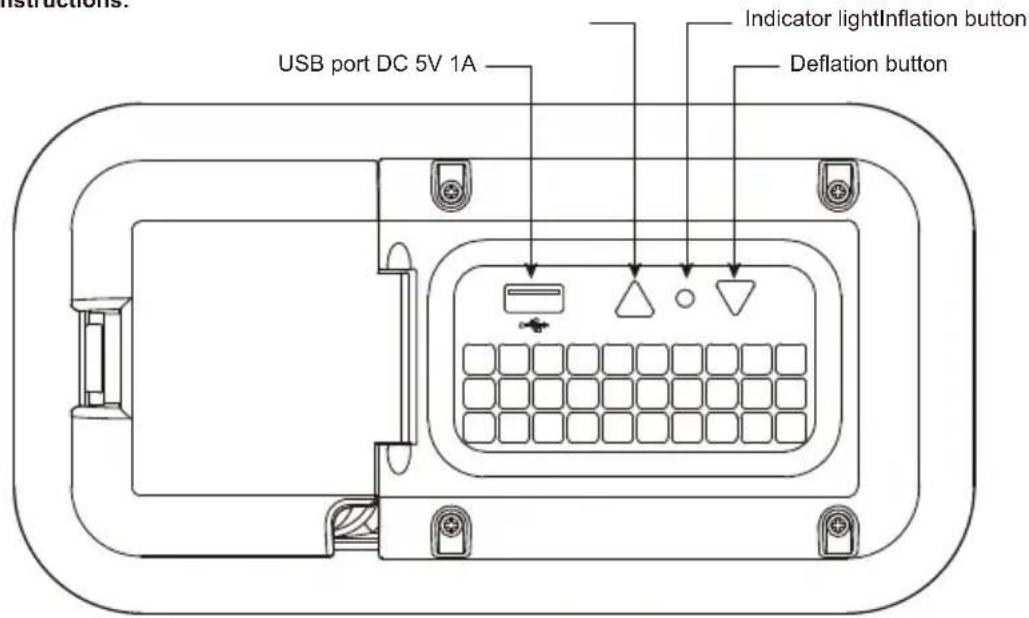
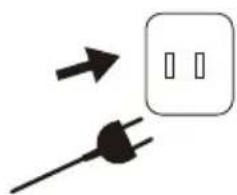
Pump operation instructions:
text_image
USB port DC 5V 1A Indicator lightInflation button Deflation buttonNote: Inflation and deflation will stop automatically within 5 min.
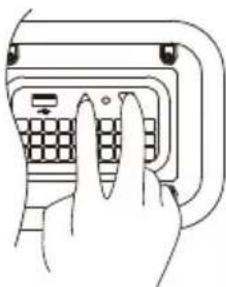
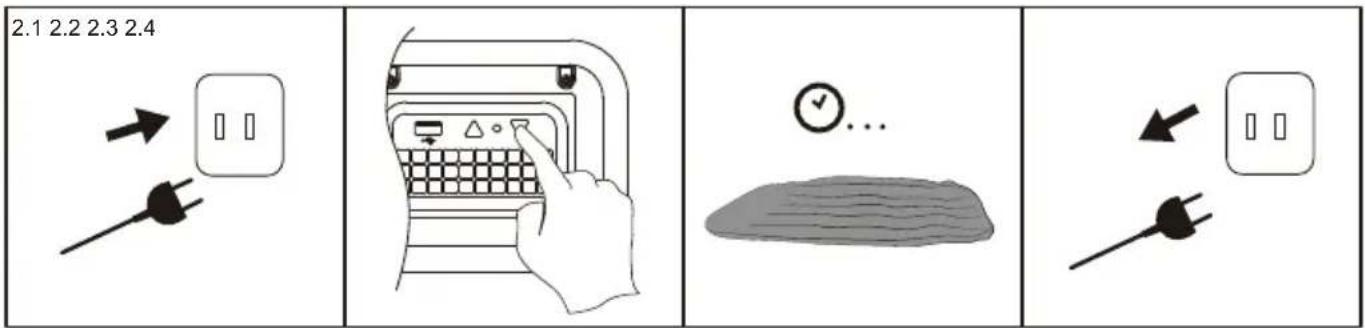
Note: Hold deflation button for 2 sec. to start the deflation.
Note: The output voltage and current of the USB charging port is DC 5V 1A. When the power is turned on, the USB port can charge devices such as a mobile phone.
Note: When the pump inflates or deflates the mattress, press the “△” or “▽” button and the pump will turn off.
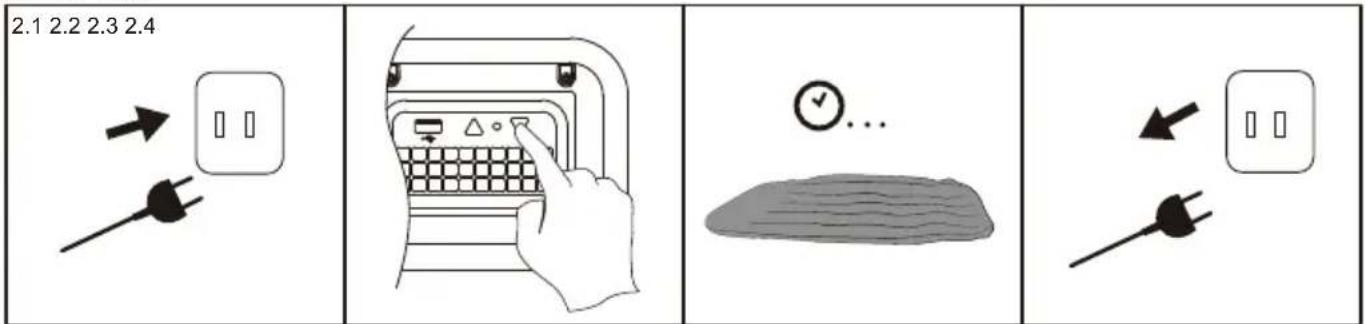
Important: The pump should not be operated for more than 5 minutes at a time.
After each use of the main pump, the pump should cool down completely.
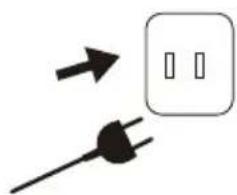
INFLATION

text_image
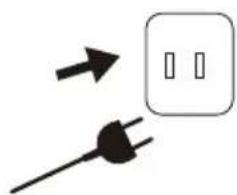
1.1 1.2 1.3 1.4 → → → → → ...DEFLATION
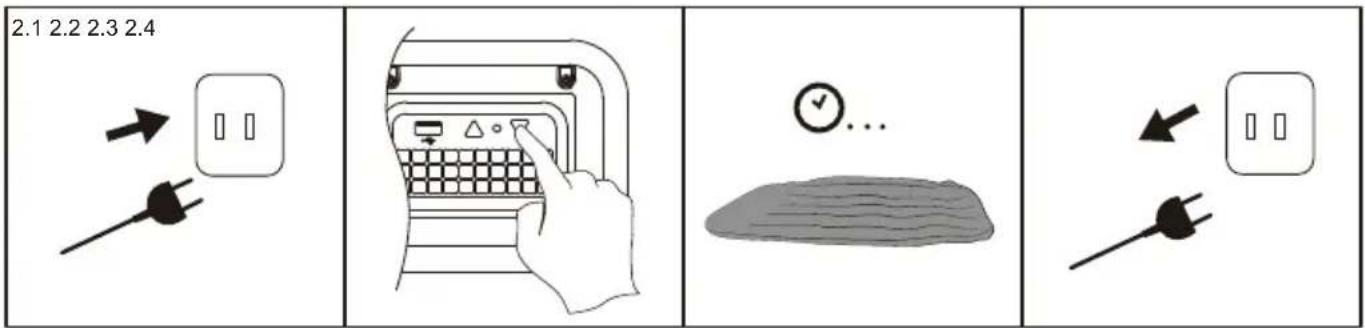
text_image
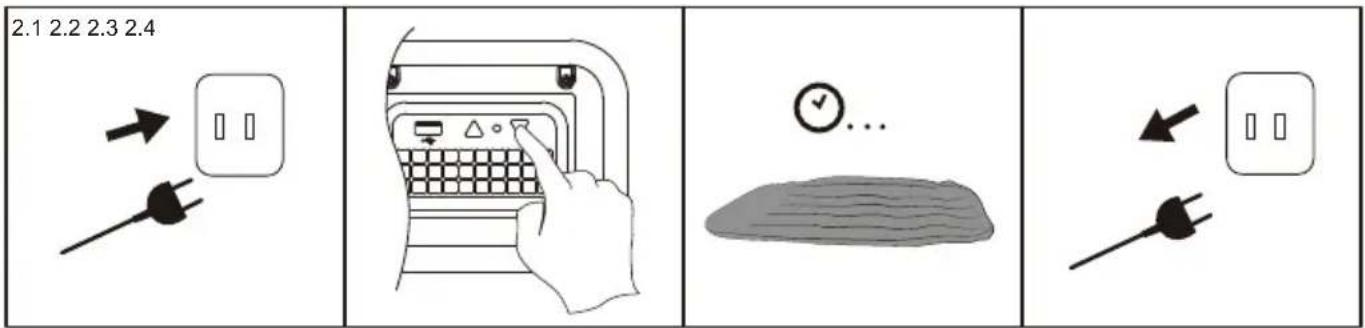
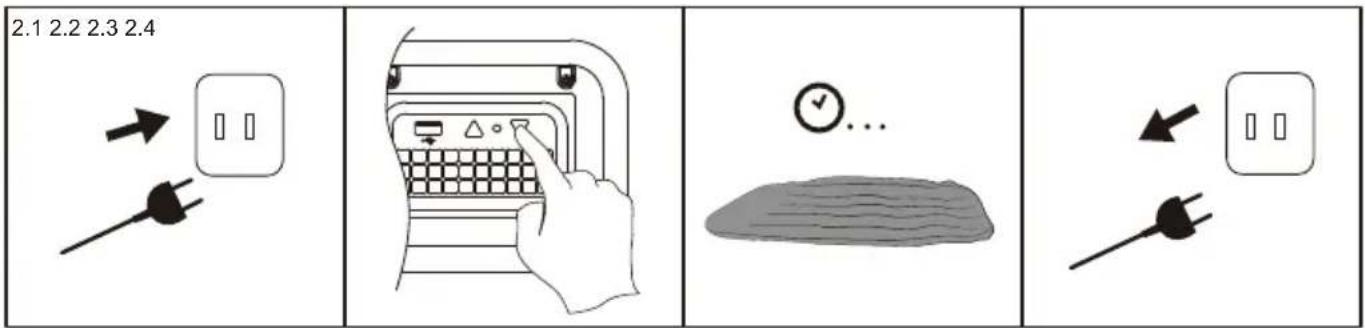
2.1 2.2 2.3 2.4 → ↓ ↑ ↓ → ↓ ↓ ← ← ← ← ← ← ← ← ← ← ← ← ← ← ← ← ← ← ← ← ← ← ← ← ← ← ← ← ← ← ← ← ← ← ← ← ← ← ← ← ← ← ← ← ← ← ← ← ← ← →APP connection instructions:
The Bestway Smart Hub™ app can operate with Android and iOS systems.
Follow the following instructions to connect your phone to the pump.
-
Make sure your phone is connected to WiFi.
-
Download the Bestway Smart Hub app from the Apple Store/Google Play Store or scan the following QR code:
-
Registration:
1) Open the app, and click Sign Up.
2) Select the country you are in.
3) Input your email address and select "Read and agree to the user's terms of use and privacy," click Next Step.
4) Input your password (must be at least 6 characters) and confirm.
5) Check the registered email inbox, and open the activation email to complete registration. NOTE: If you do not see the activation email in your inbox, please check your spam folder.
- Log in:
1) Open the app and select the country that you chose when you registered.
2) Input your email address and password and confirm.
Note: Before connect the app to the pump, please keep your mobile phone, device and router close to one another.
Note: This app supports Android 7.0 version and above or iOS 10.0 and above.
Note: The device only supports distributing 2.4G network, but does not support 5G network.
Note: It is not recommended to use public Wi-Fi. By connecting to public WiFi, you can have problems when inputting verification codes during log-in.
Note: If your network has changed, you have to reset the Wi-Fi connection.
Note: The device can only be connected to one mobile phone at a time. If you need to connect to another mobile phone, please press and hold the "inflation" and "deflation" buttons for 3 seconds.
When the indicator light ○ flashes slowly, the device will clear the connection information of the previous mobile phone. Please follow the instruction to connect the new phone to the pump.

natural_image
Line drawing of a hand pressing a button on a computer keyboard (no text or symbols)Instructions for mobile phones with the Android Operating System
After the app download is complete, you will need to turn on location services in phone set up.
- Open the app, and press Add Device.
- Select SLEEP CONTROL.
- Select "Device is powered on" and confirm.
- Select the WiFi name, input the WiFi password and click Next Step.
- Wait until the connection is 100% complete.
- Select Default.
- Name your device and confirm (optional).
- Push the icon with the device name, and you will go inside the "BESTWAY AIRBED SLEEP CONTROL" panel.
Instructions for mobile phone with the iOS Operating System
- Open the app, and press Add Device.
- Select SLEEP CONTROL.
- Select "Device is powered on" and confirm.
- Select the WiFi name, input the WiFi password and click Next Step.
- Click Change WiFi.
- Choose the device hotspot : BW-Airbed-XXXX (Last 4 digits are different for each product).
- Input the password: 123456789
- Return to the app.
- Click Join on the pop-up window.
- Wait until the connection is 100% complete.
- Select Default.
- Name your device and confirm.
- Push on the icon with the device name, and you will go inside the "BESTWAY AIRBED SLEEP CONTROL" panel.
Sharing Function
You can share device control authority with other mobile phones that have separately registered an account, and who have installed the software through 'device sharing' command of the mobile app.
Note: 1) Sharing function only can be used when users are in the same country.
2) Only one person can scan the Shared QR code generated each time. If you want to share it with others, you need to generate a new Shared QR code each time, and the valid time of each generated QR code is 15 minutes.
Forgot password
If you forget your password, please follow the following instructions to reset:
- Open the app, and press Forgot.
- Input your registered email address and select Reset Password.
- You will receive the message, "Succeed," click OK.
- Open your registered email inbox, and you will find an email from Bestway.
- Open the email and click the link.
- Input your registered email address and your new password, and reset. Now you can login with your new password.
APP PANEL INSTRUCTION:
- Click "FULL INFLATE" and the pump will inflate the airbed.
- Click "FULL DEFLATE" and the pump will deflate the airbed.
- Click "STOP" and the pump will stop inflating or deflating.
- Click "MICRO INFLATE" and the pump will inflate the airbed, automatically stopping after 5 sec.
- Click "MICRO DEFLATE" and the pump will deflate the airbed, automatically stopping after 2 sec.
TROUBLE SHOOTING
| Indicator light show | The state of the pump |
| Indicator light flashes slowly | Waiting to connect to the router |
| Indicator light is on | Connected to the router |
| Indicator light flashes quickly | Lost WiFi signal |
| Indicator light is off | Light is damaged & Wi-Fi module has problem |
| Indicator light is on when powered | Self-inspection |
| Problems Probable Causes | Solutions | |
| The Wi-Fi setup is not successful | The pump has been connected to the wrong band | If the router your pump is connected to is dual-band and currently it is not connecting to a 2.4GHz network, please switch to another band of the same router (2.4GHz) and try to pair pump again. 5GHz networks are not supported. |
| The pump location is too far from the router | Check with your mobile phone if there is full WIFI signal. In case the strength of the signal on your phone is too low, check where the strength of the WIFI signal is full on your phone and position the pump in that position. | |
| Set up the wrong Network Name | Start again with the connection procedures and be sure that the network name is typed correctly. | |
| The WIFI password used during the connection is wrong | Start again with the connection procedures and be sure that the password is correct | |
| The strength of the WIFI signal is not stable | 1) Check if the router works correctly.2) Go near the pump and check the signal on your phone.If the signal strength is not stable, check the condition of your router.If the signal strength is full, repeat the operation to connect the pump to the network. | |
| There is appliance near the pump or the router that is creating a signal interference. | The Wi-Fi connectivity can be interrupted by electromagnetic or other interferences. Keep the appliance away from other electronic devices that may cause interferences. | |
| Your phone is not connected to the Wi-Fi network during registration. | Check if the mobile device is in airplane mode.Make sure to have the airplane mode deactivated when connecting to the Wi-Fi network. | |
NOTICE D'UTILISATION
FONCTION DOUBLE : GONFLAGE ET DÉGONFLAGE CONÇUS EXCLUSIVEMENT POUR LES LITS D'APPOINT GONFLABLES
natural_image
Pure mechanical component diagram without any text, numbers, or symbols
natural_image
Simple diagram showing a plug and a square outlet with two vertical slots, no text or symbols present.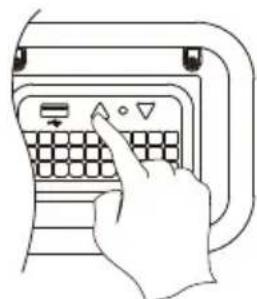
natural_image
Line drawing of a hand pressing a keyboard on a device (no text or symbols)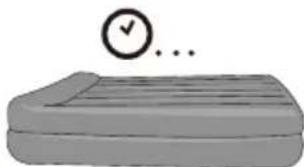
natural_image
Illustration of a bed with a clock showing 3 o'clock (no text or symbols on the bed or background)DÉGONFLAGE
2.1 2.2 2.3 2.4

natural_image
Pure electrical circuit lines without any symbols
natural_image
Line drawing of a hand pressing a keyboard with control buttons (no text or symbols)


natural_image
Line drawing of a hand pressing a keyboard on a device (no text or symbols)text_image
1.1 1.2 1.3 1.4 → → → → → ...ENTLÜFTUNG
text_image
2.1 2.2 2.3 2.4 → ↓ ↑ ↓ → ↓ ↓ ← ← ← ← ← ← ← ← ← ← ← ← ← ← ← ← ← ← ← ← ← ← ← ← ← ← ← ← ← ← ← ← ← ← ← ← ← ← ← ← ← ← ← ← ← ← ← ← ← ← →natural_image
Line drawing of a hand pressing a button on a computer keyboard (no text or symbols)text_image
2.1 2.2 2.3 2.4 → ↓ ↑ ↓ → ↓ ↑ ↓ ← ← ← ← ← ← ← ← ← ← ← ← ← ← ← ← ← ← ← ← ← ← ← ← ← ← ← ← ← ← ← ← ← ← ← ← ← ← ← ← ← ← ← ← ← ← ← ← ← ← →natural_image
Line drawing of a hand pressing a button on a device (no text or symbols)text_image
1.1 1.2 1.3 1.4 → → → → → ...LEEGMAKEN

text_image
2.1 2.2 2.3 2.4 → ↓ ↑ ↓ → ↓ ↑ ↓ ← ← ← ← ← ← ← ← ← ← ← ← ← ← ← ← ← ← ← ← ← ← ← ← ← ← ← ← ← ← ← ← ← ← ← ← ← ← ← ← ← ← ← ← ← ← ← ← ← ← →natural_image
Line drawing of a hand pressing a button on a computer keyboard (no text or symbols)text_image
1.1 1.2 1.3 1.4 → → → → → ...DESINFLADO

text_image
2.1 2.2 2.3 2.4 → ↓ ↑ ↓ → ↓ ↑ ↓ ← ← ← ← ← ← ← ← ← ← ← ← ← ← ← ← ← ← ← ← ← ← ← ← ← ← ← ← ← ← ← ← ← ← ← ← ← ← ← ← ← ← ← ← ← ← ← ← ← ← →natural_image
Line drawing of a hand pressing a button on a device panel (no text or symbols visible)text_image
1.1 1.2 1.3 1.4 → → → → → → ...LUFTUDT∅MNING

text_image
2.1 2.2 2.3 2.4 → ↓ ↑ ↓ ↑ ↓ ↓ ← ↓ ↓natural_image
Line drawing of a hand pressing a keyboard on a device (no text or symbols)Vejledning for mobiltelefoner med Android styresystem
natural_image
Line drawing of a hand pressing a keyboard on a device (no text or symbols)natural_image
Line drawing of a hand pressing a keyboard on a device (no text or symbols)natural_image
Pure mechanical diagram showing a U-shaped component with a directional arrow, no text or symbols present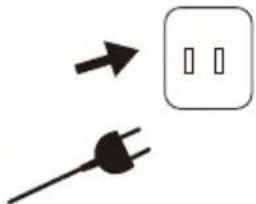
natural_image
Simple diagram showing a plug and a square with two vertical slots, no text or symbols present.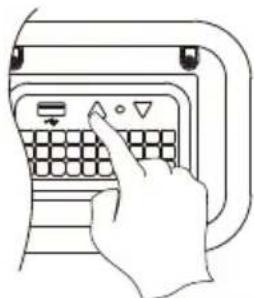
natural_image
Line drawing of a hand pressing a keyboard on a device (no text or symbols)
natural_image
Simple illustration of a bed with a checkmark and ellipsis (no text or symbols)СДУВАНИЕ
2.1 2.2 2.3 2.4

natural_image
Pure electrical circuit lines without any symbols
natural_image
Line drawing of a hand pressing a button on a keyboard (no text or symbols)
natural_image
Simple sketch of a gray surface with wavy lines and a checkmark symbol above it (no text or labels)
natural_image
Simple electrical circuit diagram showing a plug and two switches (no text or symbols)natural_image
Hand pressing a button on a device panel (no text or symbols visible)text_image
1.1 1.2 1.3 1.4 → → → → → ...VYFUKOVÁNÍ

text_image
2.1 2.2 2.3 2.4 → ↓ ↑ ↓ → ↓ ↓ ← ← ← ← ← ← ← ← ← ← ← ← ← ← ← ← ← ← ← ← ← ← ← ← ← ← ← ← ← ← ← ← ← ← ← ← ← ← ← ← ← ← ← ← ← ← ← ← ← ← →natural_image
Line drawing of a hand pressing a button on a keyboard (no text or symbols)text_image
1.1 1.2 1.3 1.4 → → → → → ...T∅MMING AV LUFT

text_image
2.1 2.2 2.3 2.4 → ↓ ↑ ↓ → ↓ ↑ ↓ ← ← ← ← ← ← ← ← ← ← ← ← ← ← ← ← ← ← ← ← ← ← ← ← ← ← ← ← ← ← ← ← ← ← ← ← ← ← ← ← ← ← ← ← ← ← ← ← ← ← →natural_image
Line drawing of a hand pressing a keyboard on a device (no text or symbols)text_image
1.2 1.3 1.4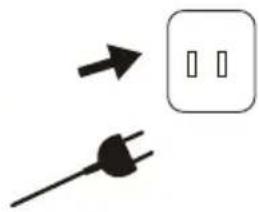
natural_image
Simple diagram showing a plug and a square electrical outlet with two vertical slots (no text or symbols)
natural_image
Line drawing of a hand pressing a keyboard on a device (no text or symbols)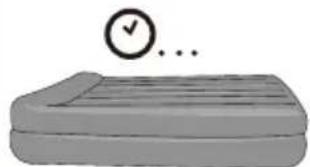
natural_image
Illustration of a bed with a clock above it (no text or symbols)TÖMNING PÅ LUFT
2.1 2.2 2.3 2.4
natural_image
Simple diagram showing a plug and a square electrical outlet with two vertical slots (no text or symbols)
natural_image
Line drawing of a hand pressing a button on a keyboard (no text or symbols)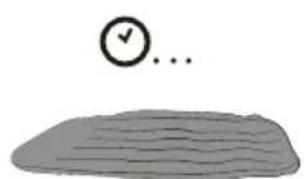
natural_image
Simple sketch of a textured surface with a checkmark and ellipsis (no text or symbols)
natural_image
Simple electrical circuit diagram showing a plug and a square socket with two vertical slots (no text or symbols)natural_image
Line drawing of a hand pressing a button on a computer interface (no text or symbols)text_image
1.1 1.2 1.3 1.4 → → → → → ...ILMAN TYHJENTÄMINEN

text_image
2.1 2.2 2.3 2.4 → ↓ ↑ ↓ → ↓ ↓ ← ← ← ← ← ← ← ← ← ← ← ← ← ← ← ← ← ← ← ← ← ← ← ← ← ← ← ← ← ← ← ← ← ← ← ← ← ← ← ← ← ← ← ← ← ← ← ← ← ← →natural_image
Line drawing of a hand pressing a keyboard on a device (no text or symbols)text_image
1.2 1.3 1.4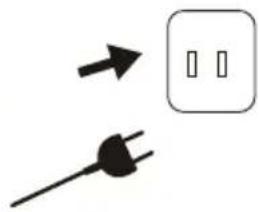
natural_image
Simple diagram showing a plug and a square outlet with two vertical slots, no text or symbols present.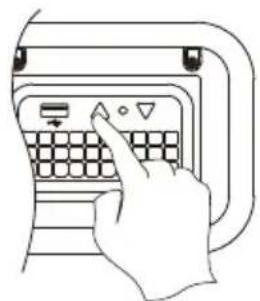
natural_image
Line drawing of a hand pressing a keyboard on a device (no text or symbols)
natural_image
Illustration of a bed with a clock icon above it (no text or symbols)VYFUKOVANIE
2.1 2.2 2.3 2.4
natural_image
Simple diagram showing a plug and a square with two vertical slots, no text or symbols present.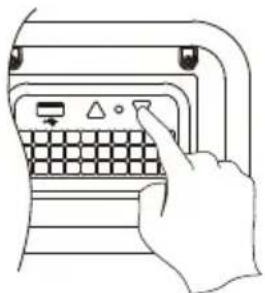
natural_image
Line drawing of a hand pressing a keyboard with a triangular indicator (no text or symbols)
natural_image
Simple sketch of a flat surface with a checkmark and ellipsis (no text or symbols)
natural_image
Simple electrical circuit diagram showing a plug and a square socket (no text or symbols)natural_image
Line drawing of a hand pressing a button on a device (no text or symbols)text_image
1.2 1.3 1.4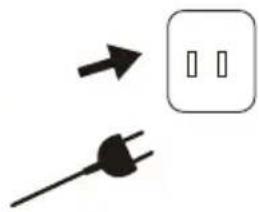
natural_image
Simple diagram showing a plug and a square electrical outlet with two vertical slots (no text or symbols)
natural_image
Line drawing of a hand pressing a keyboard with an arrow (no text or symbols)
natural_image
Illustration of a bed with a checkmark and ellipsis (no text or symbols)WYPOMPOWANIE
2.1 2.2 2.3 2.4

natural_image
Simple diagram showing a plug and a square electrical socket with two vertical slots (no text or symbols)
natural_image
Line drawing of a hand pressing a keyboard on a device (no text or symbols visible)
natural_image
Simple sketch of a checkmark and ellipsis above a textured surface (no text or symbols)
natural_image
Simple electrical circuit diagram showing a plug and a square socket with two vertical slots (no text or symbols)natural_image
Line drawing of a hand pressing a button on a keyboard (no text or symbols)text_image
1.1 1.2 1.3 1.4 → → → → → ...LEERESZTÉS
text_image
2.1 2.2 2.3 2.4 → ↓ ↑ ↓ → ↓ ↓ ← ← ← ← ← ← ← ← ← ← ← ← ← ← ← ← ← ← ← ← ← ← ← ← ← ← ← ← ← ← ← ← ← ← ← ← ← ← ← ← ← ← ← ← ← ← ← ← ← ← →natural_image
Line drawing of a hand pressing a button on a device (no text or symbols)text_image
1.1 1.2 1.3 1.4 → → → → → ...GAISA IZLAIŠANA

text_image
2.1 2.2 2.3 2.4 → ↓ ↓ ↓ ↓ ↓ ↓ ↓ ↓ ↓ ↓ ↓ ↓ ↓ ↓ ↓ ↓ ↓ ↓ ↓ ↓ ↓ ↓ ↓ ↓ ↓ ↓ ↓ ↓ ↓ ↓ ↓ ↓ ↓ ↓ ↓ ↓ ↓ ↓ ↓ ↓ ↓ ↓ ↓ ↓ ↓ ↓ ↓ ↓ ↓ ↓ ↑natural_image
Line drawing of a hand pressing a keyboard on a computer (no text or symbols)text_image
1.1 1.2 1.3 1.4 → → → → → ...ORO IŠLEIDIMAS
text_image
2.1 2.2 2.3 2.4 → ↓ ↑ ↓ → ↓ ↓ ← ← ← ← ← ← ← ← ← ← ← ← ← ← ← ← ← ← ← ← ← ← ← ← ← ← ← ← ← ← ← ← ← ← ← ← ← ← ← ← ← ← ← ← ← ← ← ← ← ← →natural_image
Line drawing of a hand pressing a keyboard on a device (no text or symbols)text_image
1.1 1.2 1.3 1.4 → → → → → ...IZPUŠČANJE ZRAKA

text_image
2.1 2.2 2.3 2.4 → ↓ ↑ ↓ → ↓ ↓ ← ← ← ← ← ← ← ← ← ← ← ← ← ← ← ← ← ← ← ← ← ← ← ← ← ← ← ← ← ← ← ← ← ← ← ← ← ← ← ← ← ← ← ← ← ← ← ← ← ← →3) Vnesite vaš elektronski naslov in izberite "Read and agree to the user's terms of use and privacy" ter kliknite Next Step.
4) Vnesite vaše geslo (vsebovati mora najmanj 6 znakov) in potrdite.
natural_image
Line drawing of a hand pressing a button on a device (no text or symbols)Navodila za mobilne telefone z operacijskim sistemom Android
Potem ko je prenos aplikacije zaključen morate v nastavitvah telefona vklopiti lokacijske storitve.
- Odprite aplikacijo in pritisnite Add Device.
- Izberite SLEEP CONTROL.
- Izberite "Device is powered on" in potrdite.
- Izberite ime WiFi, vnesite geslo za WiFi in kliknite Next Step.
- Počakajte, dokler ni povezava 100% zaključena.
- Izberite Default.
- Poimenujte vašo napravo in potrdite (opcijsko).
- Pritisnite na ikono z imenom naprave za vstop v panel "BESTWAY AIRBED SLEEP CONTROL".
Navodila za mobilne telefone z operacijskim sistemom iOS
- Odprite aplikacijo in pritisnite Add Device.
- Izberite SLEEP CONTROL.
- Izberite "Device is powered on" in potrdite.
- Izberite ime WiFi, vnesite geslo za WiFi in kliknite Next Step.
- Kliknite Change WiFi.
- Izberite hotspot naprave: BW-Airbed-XXXX (zadnja 4 mesta so za vsak izdelek različna).
- Vnesite geslo: 123456789
- Vrnite se v aplikacijo.
- Kliknite Join v pojavnem oknu.
- Počakajte, dokler ni povezava 100% zaključena.
- Izberite Default.
- Poimenujte vašo napravo in potrdite.
- Pritisnite na ikono z imenom naprave za vstop v panel "BESTWAY AIRBED SLEEP CONTROL".
Funkcija skupne rabe (Sharing Function)
text_image
1.1 1.2 1.3 1.4 → → → → → → ...İNDİRME
text_image
2.1 2.2 2.3 2.4 → ↓ ↑ ↓ → ↓ ↑ ↓ ← ← ← ← ← ← ← ← ← ← ← ← ← ← ← ← ← ← ← ← ← ← ← ← ← ← ← ← ← ← ← ← ← ← ← ← ← ← ← ← ← ← ← ← ← ← ← ← ← ← →natural_image
Line drawing of a hand pressing a keyboard on a device (no text or symbols)text_image
1.2 1.3 1.4
natural_image
Simple diagram showing a plug and a square electrical outlet with two vertical slots (no text or symbols)
natural_image
Line drawing of a hand pressing a keyboard with a cursor index finger (no text or symbols)
natural_image
Illustration of a bed with a clock icon above it (no text or symbols)DEZUMFLAREA
2.1 2.2 2.3 2.4

natural_image
Simple diagram showing a plug and a square with two vertical slots, no text or symbols present.
natural_image
Line drawing of a hand pressing a keyboard on a device (no text or symbols)
natural_image
Simple sketch of a checkmark and ellipsis above a textured surface (no text or symbols)
natural_image
Simple electrical circuit diagram showing a plug and a square socket with two vertical slots (no text or symbols)Instructiuni de conectare la APLICATIE:
- Log In (Autentificare):
natural_image
Line drawing of a hand pressing a keyboard on a device (no text or symbols)text_image
1.2 1.3 1.4
natural_image
Simple diagram showing a plug and a square with two vertical slots, no text or symbols present.
natural_image
Hand pressing a keyboard on a device (no text or symbols visible)
natural_image
Illustration of a bed with a clock icon above it (no text or symbols)ИЗПУСКАНЕ НА ВЪЗДУХ
2.1 2.2 2.3 2.4
natural_image
Simple diagram showing a plug and a square with two vertical slots, no text or symbols present.
natural_image
Line drawing of a hand pressing a button on a keyboard (no text or symbols)
natural_image
Simple sketch of a flat surface with a checkmark and ellipsis (no text or symbols)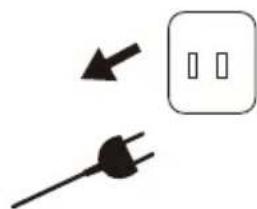
natural_image
Simple electrical circuit diagram showing a plug and a square socket (no text or symbols)natural_image
Line drawing of a hand pressing a keyboard on a device (no text or symbols)text_image
1.2 1.3 1.4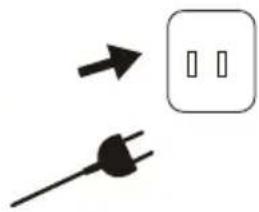
natural_image
Simple diagram showing a plug and a square with two vertical slots, no text or symbols present.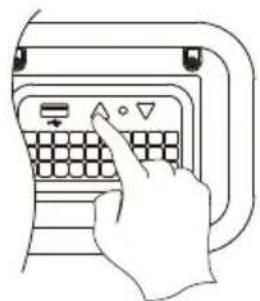
natural_image
Line drawing of a hand pressing a keyboard on a device (no text or symbols)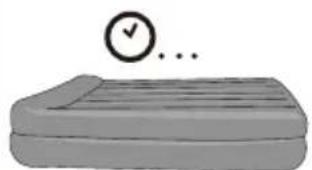
natural_image
Simple line drawing of a bed with a checkmark and ellipsis (no text or symbols)ISPUHIVANJE
2.1 2.2 2.3 2.4

natural_image
Simple diagram showing a plug and a square electrical socket with two vertical slots (no text or symbols)
natural_image
Line drawing of a hand pressing a button on a keyboard (no text or symbols)
natural_image
Simple line drawing of a flat surface with a checkmark and ellipsis (no text or symbols)
natural_image
Simple electrical circuit diagram showing a plug and a square socket with two vertical slots (no text or symbols)Upute o povezivanju s aplikacijama:
natural_image
Line drawing of a hand pressing a button on a device (no text or symbols)Upute za mobitele s operativnim sustavom Android
text_image
1.1 1.2 1.3 1.4 → → → → → ...TÜHJAKSPUMPAMINE

text_image
2.1 2.2 2.3 2.4 → ↓ ↑ ↓ → ↓ ↓ ← ← ← ← ← ← ← ← ← ← ← ← ← ← ← ← ← ← ← ← ← ← ← ← ← ← ← ← ← ← ← ← ← ← ← ← ← ← ← ← ← ← ← ← ← ← ← ← ← ← →natural_image
Line drawing of a hand pressing a keyboard on a device (no text or symbols)text_image
1.1 1.2 1.3 1.4 → → → → → ...IZDUVAVANJE

text_image
2.1 2.2 2.3 2.4 → ↓ ↑ ↓ → ↓ ↑ ↓ ← ← ← ← ← ← ← ← ← ← ← ← ← ← ← ← ← ← ← ← ← ← ← ← ← ← ← ← ← ← ← ← ← ← ← ← ← ← ← ← ← ← ← ← ← ← ← ← ← ← →natural_image
Line drawing of a hand pressing a keyboard on a device (no text or symbols)Uputstva za mobitele s operativnim sistemom Android
Po završetku preuzimanja aplikacije, moraćete uključiti lokacione usluge u postavkama telefona.
- Otvorite aplikaciju i pritisnite Add Device (Dodajte uređaj).
- Izaberite SLEEP CONTROL.
- Izaberite Device is powered on (Uređaj je uključen) i potvrdite.
- Izaberite naziv WiFi-ja, unesite lozinku za WiFi kliknite na Next Step (Sledeći korak).
- Pričekajte da veza bude 100% uspostavljena.
- Izaberite Default (Zadano).
- Imenujte svoj uređaj i potvrdite (opcionalno).
- Pritisnite ikonu s imenom uređaj i ući ćete u upravljačku ploču "BESTWAY AIRBED SLEEP CONTROL".
Uputstva za mobitele s operativnim sistemom iOS
- Otvorite aplikaciju i pritisnite Add Device (Dodajte uređaj).
- Izaberite SLEEP CONTROL.
- Izaberite Device is powered on (Uređaj je uključen) i potvrdite.
- Izaberite naziv WiFi-ja, unesite lozinku za WiFi kliknite na Next Step (Sledeći korak).
- Kliknite na Change WiFi (Promeni WiFi).
- Izaberite pristupnu točku uređaja : BW-Airbed-XXXX (Poslednja 4 simbola se razlikuju za svaki proizvod).
- Unesite lozinku: 123456789
- Vratite se u aplikaciju.
-
Kliknite na Join (Spajanje) u skočnom prozoru.
-
Pričekajte da veza bude 100% uspostavljena.
-
Izaberite Default (Zadano).
-
Imenujte svoj uređaj i potvrdite.
-
Pritisnite ikonu s imenom uređaj i ući ćete u upravljačku ploču "BESTWAY AIRBED SLEEP CONTROL".
Funkcija deljenja
Ovlaštenja za upravljanje uređajem možete da podelite s drugim telefonima koji imaju posebno registrovan račun i koji imaju instaliran softver pomoću komande „deljenje uređaja“ ('device sharing') u aplikaciji mobitela.
Napomena: 1) Funkcija deljenja može se koristiti samo kad su korisnici u istoj državi.
الاستمرار علای أزرار "الانفق" "inflation" "deflation" "wid" "wid" "wid" "wid" "wid" "wid" "wid" "wid" "wid" "wid" "wid" "wid" "wid" "wid" "wid" "wid" "wid" "wid" "wid" "wid" "wid" "wid" "wid" "wid" "wid" "wid" "wid" "wid" "wid" "wid" "wid" "wid" "wid" "wid
natural_image
Line drawing of a hand pressing a button on a keyboard (no text or symbols)Bestway Inflatables & Material Corp., No.3065 Cao An Road, Shanghai, 201812, China.
Manufactured, distributed and represented in the European Union by/
Bestway (USA) Inc., 3411 E. Harbour Drive, Phoenix, Arizona 85034, United States of America
Tel: +86 21 69135588 (For U.S. and Canada)
Distributed in Australia & New Zealand by Bestway Australia Pty Ltd, Unit 2/98-104 Carnarvon St Silverwater, NSW 2128, Australia
Tel: Australia: (+61) 29 0371 388; New Zealand: 0800 142 101
Exported by/Exporté par/Exportado por/Exportiert von/Esportato da
Bestway (Hong Kong) International Ltd./Bestway Enterprise Company Limited
Suite 713, 7/Floor, East Wing, Tsim Sha Tsui Centre, 66 Mody Road, Kowloon, Hong Kong
www.bestwaycorp.com