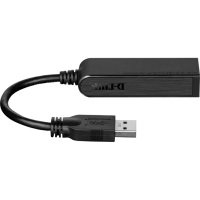
DUB1312 - Network card / adapter D-LINK - Free user manual and instructions
Find the device manual for free DUB1312 D-LINK in PDF.



| Product type | USB 3.0 Gigabit Ethernet Adapter |
| Brand | D-Link |
| Model | DUB-1312 |
| Interfaces | USB 3.0 (compatible 2.0/1.1), RJ-45 Gigabit Ethernet |
| Data rates | Up to 1 Gbps |
| Network standards | IEEE 802.3, 802.3u, 802.3ab, Auto-MDI/MDI-X |
| System compatibility | Windows 8/7/Vista/XP, Mac OS 10.6-10.8, Linux kernel 2.6.14 |
| Minimum requirements | Available USB port, 32 MB disk space |
| LED indicators | 1 speed LED (solid green: 1 Gbps, off: 10/100 Mbps), 1 link/activity LED (solid green: link, blinking: activity) |
| Power supply | USB bus-powered (self-powered, no power adapter) |
| Dimensions (approx.) | 7.2 x 2.5 x 1.6 cm |
| Weight (approx.) | 30 g |
| Material | ABS plastic |
| Operating temperature | 0°C to 40°C |
| Operating humidity | 10% to 90% non-condensing |
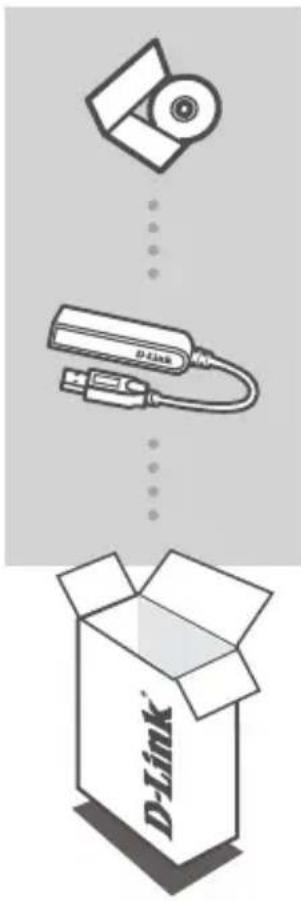
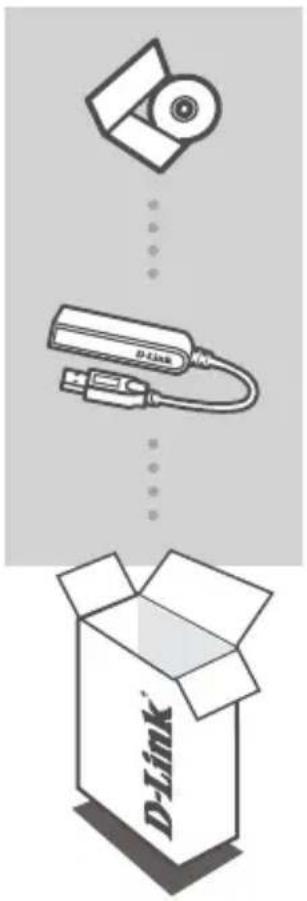
| Package contents | DUB-1312 adapter, installation CD, USB 3.0 cable, quick installation guide |
| Warranty | 2 years |
| Certifications | CE, FCC, RoHS |
| Maintenance | Clean with a dry, soft cloth. Do not use chemicals. |
| Safety | Use in a dry environment. Do not expose to water or excessive humidity. |
| Repairability | Device not user serviceable. No spare parts available. |
Frequently Asked Questions - DUB1312 D-LINK
User questions about DUB1312 D-LINK
0 question about this device. Answer the ones you know or ask your own.
Ask a new question about this device
Download the instructions for your Network card / adapter in PDF format for free! Find your manual DUB1312 - D-LINK and take your electronic device back in hand. On this page are published all the documents necessary for the use of your device. DUB1312 by D-LINK.
USER MANUAL DUB1312 D-LINK
If any of these items are missing from your packaging, please contact your reseller.
SYSTEM
REQUIREMENTS
MINIMUM REQUIREMENTS
- Computer with Microsoft Windows ^® 8, 7, Vista ^® , XP ^® (Service Pack 3); Mac OS ^® 10.6 to 10.8; or Linux kernel 2.6.14 or higher
• Available USB port - At least 32 MB of available disk space
PrODUCT SETUP
DRIVER INSTALLATION
This driver installation process is for Windows 8, 7, Vista, and XP. If you require information on how to install the DUB-1312 on a Mac or Linux system, please refer to the DUB-1312 user manual on the included installation CD.
Windows 8, 7, Vista, and XP
Step 1:
Insert the Installation CD into the CD drive. The DUB-1312 user interface menu screen will appear. Click on Install to begin the DUB-1312 driver installation. The InstallShield Wizard will appear and complete the installation.
Note: If the user interface does not start up, please browse to the Autorun folder in your PC's CD drive and open Install manually.
Note for Windows Vista/XP: This driver has not been digitally signed for Windows Vista or Windows XP. If you receive a notification regarding the WHQL status of the driver, you must choose to Continue Anyway in order to install the driver. For 64-bit operating systems, you will need to disable the WHQL check function in order to install the driver.
Step 2:
Once you have completed the driver installation, please continue to "HARDWARE INSTALLATION" on page 5.
PRODUCT SETUP
HARDWARE INSTALLATION
Step 1:
Plug the DUB-1312's USB cable into an available USB port on your computer. If available, you should use a USB 3.0 port in order to achieve the fastest possible transfer speeds.
Step 2:
Attach an Ethernet cable to the Ethernet port on the DUB-1312.
Step 3:
Attach the other end of the Ethernet cable to your network switch, hub, or router.
Step 4:
Windows will detect the new hardware and prompt you for the drivers.
For Windows 7 and Vista:
The driver software installation will start automatically.
For Windows XP:
The Found New Hardware Wizard box will pop up. Select Yes, this time only and click Next to continue.
On the next screen, choose the option to install the software automatically and click Next to Next to continue. The driver software installation will then start automatically.
INSTALLATION COMPLETE
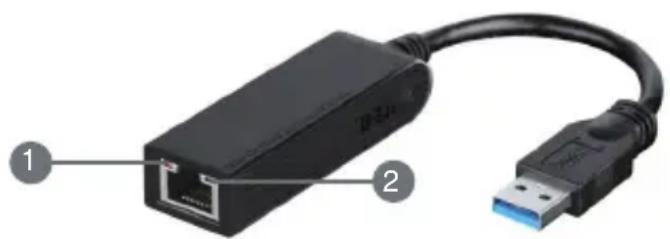
When the installation of the DUB-1312 is complete, the LINK LED should be solid green, indicating a good physical connection between the DUB-1312 and the network, and will flash when data is being sent or received. The Connection Speed LED will light solid to indicate a Gigabit connection, or remain unlit to indicate a 10/100 Mbps connection. If both LEDs are unlit, there may be a problem with the physical connection. Check the cables between your DUB-1312, the computer, and the network. Verify that your network switch, hub, or router is powered on.
natural_image
Black USB connector with network ports and cable, labeled with numbers 1 and 2 (no text or symbols on the device body)| Number Indication Status Description | |||
| 1 Connection Speed | Solid 1 Gbps | connection present | |
| Off 10/100 | Mbps connection present | ||
| 2 Link/ACT | Solid An active connection is present | ||
| Flashing Data | is being transmitted/received | ||
TECHNICAL SUPPORT
dlink.com/support
PACKUNGS- INHALT
INHALT
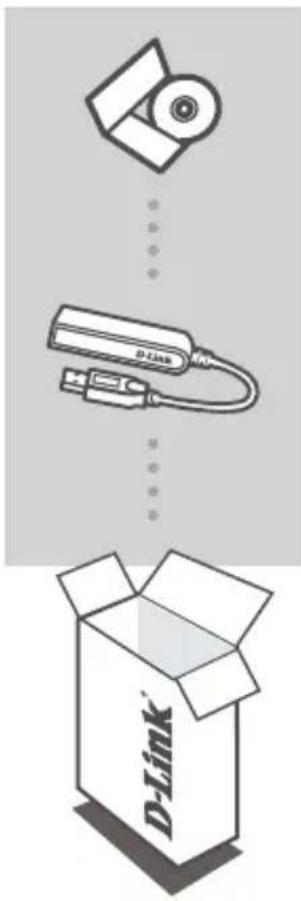
INSTALLATIONS-CD
natural_image
Black USB connector with network ports and cable, labeled with numbers 1 and 2 (no text or symbols on the device itself)INSTALLATION DU PRODUIT
INSTALLATION DES PILOTES
INSTALLATION DU PRODUIT
INSTALLATION DU MATÉRIEL
Étape 1 :
natural_image
Black USB connector with network ports and cable, labeled with numbers 1 and 2 (no text or symbols on the device itself)natural_image
Black USB connector with port and cable, labeled with numbers 1 and 2 (no text or symbols on the device body)USB 3.0 to Gigabit Ethernet Adapter
DUB-1312
natural_image
Black USB connector with labeled ports and cable, no text or symbols presentnatural_image
Black USB connector with labeled ports, showing internal structure and cable (no text or symbols beyond labels)natural_image
Black USB connector with Ethernet port and cable, labeled with numbers 1 and 2 (no text or symbols on the device body)natural_image
Black USB connector with attached cable, labeled parts 1 and 2 (no text or symbols on the device body)natural_image
Black USB connector with Ethernet port and USB cable, labeled with numbers 1 and 2 (no text or symbols on the device itself)natural_image
Black USB connector with Ethernet port and cable, labeled with numbers 1 and 2 (no text or symbols on the device itself)| Nummer Indikator Status Beskrivelse | |||
| 1 Tilkoblingshastighet | Stabilt 1 Gbps-tilkobling er til stede | ||
| Av 10/100 Mbps-tilkobling er til stede | |||
| 2 Link/ACT | Stabilt En aktiv tilkobling er til stede | ||
| Blinker Data blir sendt/mottatt | |||
TEKNISK ST∅TTE
dlink.com/support
INDHOLD AF ÆSKE
INDHOLDSFORTEGNELSE
INSTALLATIONS-CD
OMFATTER SOFTWARE-DRIVERE OG TEKNISK MANUAL
USB 3.0 to Gigabit Ethernet Adapter
DUB-1312
INDSTILLING AF PRODUKTET
DRIVER-INSTALLATION
INDSTILLING AF PRODUKTET
INSTALLATION AF HARDWARE
Trin 1:
INSTALLATIONEN GENNEMF∅RT
natural_image
Black USB connector with attached cable, labeled parts 1 and 2 (no text or symbols on the device body)natural_image
Black USB connector with labeled ports and cable, showing internal structure (no text or symbols beyond labels)USB 3.0 to Gigabit Ethernet Adapter
DUB-1312
natural_image
Black USB connector with network ports and cable, labeled with numbers 1 and 2 (no text or symbols on the device body)natural_image
Diagram of a USB cable connector with two labeled ports (no text or symbols beyond labels)natural_image
Black USB connector with network ports and cable, labeled with numbers 1 and 2 (no text or symbols on the device body)INSTALACIJA JE ZAVRŠENA
natural_image
Diagram of a USB cable connector with two labeled ports (no text or symbols beyond labels)| Broj Označavanje Stanje Opis | |||
| 1 Brzina veze | Jak Prisutna je 1 Gbps veza | ||
| Isključeno Prisutna je 10/100 Mbps veza | |||
| 2 Link/ACT | Jak Prisutna je aktivna veza | ||
| Treperi Podaci se prenose/primaju | |||
TEHNIČKA PODRŠKA
dlink.com/support
VSEBINA PAKETA
VSEBINA
CD ZA NAMESTITEV
VSEBUJE GONILNIKE ZA PROGRAMSKO OPREMO IN TEHNIŠKE PRIROČNIKE
USB 3.0 TO GIGABIT ETHERNET ADAPTER
DUB-1312
Če kateri koli izmed teh predmetov manjka, kontaktirajte svojega trgovca.
SISTEMSKE ZAHTEVE
MINIMALNE SISTEMSKE ZAHTEVE
- Računalnik z Microsoft Windows® 8, 7, Vista®, XP® (Service Pack 3); Mac OS® 10.6 do 10.8; ali Linux kernel 2.6.14 ali novejši
- Prosta vrata USB
• Najmanj 32 MB dostopnega prostora na disku
