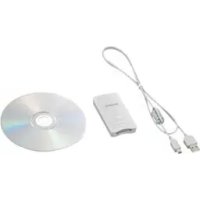
MSACUS30 - USB Drive SONY - Free user manual and instructions
Find the device manual for free MSACUS30 SONY in PDF.



| Product Type | USB Reader/Writer for Memory Stick |
| Brand | Sony |
| Model | MSACUS30 |
| Interface | USB 2.0 Hi-Speed |
| Max transfer speed | 480 Mbps |
| Power supply | 5 V DC via USB cable |
| Power consumption | 500 mA max (operation), 0.5 mA (standby) |
| Dimensions (W × H × D) | 38 × 14 × 74.5 mm |
| Weight | Approx. 30 g (without Memory Stick) |
| Media compatibility | Memory Stick, Memory Stick PRO, Memory Stick Duo (without adapter) |
| Operating systems | Windows 98SE/Me/2000/XP, Mac OS 9.0 to 9.2.2 and X v10.1 to 10.2.6 |
| Supplied software | SonicStage, Memory Stick Formatter, Windows drivers |
| Main functions | Data read and write, photo and music transfer (via SonicStage), Memory Stick formatting |
| Maintenance and cleaning | Clean with a soft cloth; do not use solvents (benzine, alcohol, thinner) |
| Safety | Do not remove the Memory Stick or disconnect the USB cable while the access indicator is lit; do not force insertion |
| Operating temperature | 0 °C to 40 °C (without condensation) |
| Operating humidity | 20% to 80% (without condensation) |
Frequently Asked Questions - MSACUS30 SONY
User questions about MSACUS30 SONY
0 question about this device. Answer the ones you know or ask your own.
Ask a new question about this device
Download the instructions for your USB Drive in PDF format for free! Find your manual MSACUS30 - SONY and take your electronic device back in hand. On this page are published all the documents necessary for the use of your device. MSACUS30 by SONY.
USER MANUAL MSACUS30 SONY
"SonicStage"
- Memory Stick Formatter
Operating Instructions
MSAC-US30
MEMORYSTICKTM
English
Before operating the unit, please read this instructions thoroughly, and retain it for future reference.
For the Customers in the U.S.A.
If you have any questions about this product, you may call: Sony Customer Information Center 1-800-222-SONY(7669). The number below is for the FCC related matters only. Regulatory Information
Declaration of Conformity
Trade Name: SONY
Model: MSAC-US30
Responsible Party: Sony Electronics Inc.
Address: 680 Kinderkamack Road, Oradell, NJ 07649 U.S.A.
Telephone number: 201-930-6972
This device complies with Part 15 of the FCC Rules. Operation is subject to the following two conditions: (1) This device may not cause harmful interference, and (2) this device must accept any interference received, including interference that may cause undesired operation.
SONY® MSAC-US30
FC Tested To Comply With FCC Standards
FOR HOME OR OFFICE USE
CAUTION
You are cautioned that any changes or modifications not expressly approved in this manual could void your authority to operate this equipment.
Note:
This equipment has been tested and found to comply with the limits for a Class B digital device, pursuant to Part 15 of the FCC Rules. These limits are designed to provide reasonable protection against harmful interference in a residential installation. This equipment generates, uses, and can radiate radio frequency energy and, if not installed and used in accordance with the instructions, may cause harmful interference to radio communications. However, there is no guarantee that interference will not occur in a particular installation. If this equipment does cause harmful interference to radio or television reception, which can be determined by turning the equipment off and on, the user is encouraged to try to correct the interference by one or more of the following measures:
- Reorient or relocate the receiving antenna.
- Increase the separation between the equipment and receiver.
- Connect the equipment into an outlet on a circuit different from that to which the receiver is connected.
- Consult the dealer or an experienced radio/TV technician for help.
The specified USB cable (supplied) must be used with the equipment in order to comply with the limits for a digital device pursuant to Subpart B of Part 15 of FCC Rules.
For the customers in Canada
This class B digital apparatus complies with Canadian ICES-003.
Notice
If static electricity or electromagnetism causes data transfer to discontinue midway (fail), restart the application or disconnect and connect the USB cable again.
Program©2000-2003 Sony Corporation Documentation©2003 Sony Corporation
- "Memory Stick," "OpenMG," "SonicStage," "MagicGate Memory Stick," "Memory Stick PRO," "Memory Stick Duo," "MagicGate Memory Stick Duo," "Memory Stick PRO Duo" and are trademarks of Sony Corporation.
- Microsoft and Windows are registered trademarks of Microsoft Corporation in the United States and/or other countries.
- MMX Pentium is registered trademark or trademark of Intel Corporation.
- Adobe, Acrobat, Acrobat Reader are registered trademarks or trademarks of Adobe Systems, Inc. in the United States and/or other countries.
- Macintosh and Mac OS are registered trademarks of Apple Computer, Inc. in the United States and/or other countries.
- All other trademarks and registered trademarks or trademarks of their respective holders.
Furthermore "TM" and ^ are not mentioned in each case in this manual.
Pay attention to the following points when using this unit.
- If the body becomes dirty, wipe with a soft cloth. Never use benzine, alcohol, paint thinner or other solvents. This unit may deform or malfunction.
- The contents of data cannot be compensated if recording or playing back is not made due to malfunctions such as "Memory Stick" error.
- To prevent recording or deletion of data on "Memory Stick" set the "Memory Stick" write-protect switch to "LOCK."
Hint
Refer to the contents of the supplied CD-ROM for detailed operating instructions (PDF file).
Make sure to read it before using the unit.
Notes
- The access lamp lights while the "Memory Stick" is being accessed. Never remove the "Memory Stick," turn off the computer, or unplug the USB cable, etc., while the access lamp is on. The data on the "Memory Stick" could be destroyed.
- When disconnecting the USB cable, do not hold it by its cable; hold it by its connector.
Table of contents
On "Memory Stick" 6
System requirements 8
Checking the supplied accessories 11
Supplied applications 12
Using the operating instructions and online help 13
Installing the software on your computer 15
Installing the "SonicStage" software (including "OpenMG") on your computer 19
Connecting this unit to your computer 22
Confirming that connections are completed 24
When the removable disk (Memory Stick icon) is not indicated 25
Copying image data recorded on "Memory Stick" to your computer .... 28
Disconnecting the unit from your computer 29
How to Use (When using Macintosh) 31
About "SonicStage" 32
Music files compatible with "SonicStage" 34
Check-in/check-out 36
Before using "SonicStage" (Be sure to read) 37
Launching "SonicStage" 39
Formatting (initialization) of "Memory Stick" 40
Precautions for use of "Memory Stick" 42
Uninstalling (Deleting) the software 44
Troubleshooting 46
Restrictions imposed by the copyright protection 47
Specifications 48
LIMITED WARRANTY 49
On "Memory Stick"
What is "Memory Stick"?
"Memory Stick" is a new-generation IC storage media that is ultra-small and lightweight and has far greater storage capacity than floppy disks. The media can be used not only for transferring data between "Memory Stick" compatible products, but also as a removable, external storage media for storing data.
"Memory Stick" is available in standard size and a smaller size called "Memory Stick Duo." When "Memory Stick Duo" is inserted into a Memory Stick Duo Adaptor, the size becomes the same as the standardized "Memory Stick" to allow use with products that are compatible with the standard-sized "Memory Stick."
"Memory Stick" types that can be used with this unit
- Five types of "Memory Stick" are available to suit your needs.
"Memory Stick PRO"
This type of "Memory Stick" can only be used with products that are compatible with "Memory Stick PRO," and the media features built-in copyright-protection technology ("MagicGate"). (You need the application software programs compatible with copyright-protection technology to use copyright-protection technology of "Memory Stick PRO" with this unit.)
"Memory Stick"
A "Memory Stick" that allows recording of all kinds of data with the exception of data requiring copyright-protection technology ("MagicGate").
"Memory Stick Duo" (MagicGate/High-speed data Transfer compatible)
"Memory Stick Duo" is a "Memory Stick" with the "MagicGate" copyright protection technology, and supports high-speed data transfer. You can use this unit with "Memory Stick" compatible devices and "Memory Stick PRO" compatible devices. (The transfer speed varies depending on the "Memory Stick" compatible device used.)
"Memory Stick" (with Memory Select Function)
This is a "Memory Stick" containing more than one memory (128MB). The memory select switch on the back of the "Memory Stick" enables you to select the memory most suitable for the intended use. You cannot use different memories at the same time or in succession.
"MagicGate Memory Stick"
This is a "Memory Stick" featuring built-in copyright protection technology ("MagicGate").
What is "MagicGate"?
"MagicGate" is a copyright protection technology that operates when it is provided in both the "Memory Stick" and the product in which the media is used. A "Do you comply with "MagicGate"? authentication takes place between devices equipped with "MagicGate" (this unit, etc.) and the "Memory Stick." Data encryption takes places after the authentication. Copyright-protected data cannot be played back on devices other than those certified for this.
Music and other data that require copyright protection can be recorded and played back by using a combination of a MagicGate compatible "Memory Stick" and equipment compatible with "MagicGate", such as this unit.
Different types of data can be recorded on a single "Memory Stick." For example, it is possible to record image data on the remaining empty section of a MagicGate compatible "Memory Stick" containing music data.
Using MagicGate compatible "Memory Stick"
Notes
- Data transferred (checked out) from "SonicStage" to a MagicGate compatible "Memory Stick" are collected in a folder named "Hifi folder."
- Do not edit the "Hifi folder" using anything but "SonicStage", such as Explorer, etc. Data edited by other means cannot be played back or checked in. Sony can not be held responsible for the data lost in the case of editing.
- Formatting a MagicGate compatible "Memory Stick" containing data will delete all the data, including music data. Be careful not to delete important data accidentally. Sony can not be held responsible for the data lost through formatting.
- What you record are for personal enjoyment only. Copyright laws prohibit other forms of use without the permission of the copyright holder.
- In no event will Sony be liable for the data contents in case download of recorded material is impeded or music data is corrupted or deleted due to malfunctions of this unit or the "Memory Stick".
- "SonicStage" Ver. 1.5 is not compatible with "Memory Stick PRO".
System requirements
Recommended Windows environment
-
OS: Microsoft Windows 98 Second Edition (Windows 98SE)/Windows Millennium Edition (Windows Me)/Windows 2000 Professional (Windows 2000)/Windows XP Home Edition/XP Professional Edition (Windows XP)
-
The operating systems mentioned above must be installed on the computer when shipped from the factory.
-
Operation is not guaranteed for upgraded operating systems even if they are among those mentioned above.
-
CPU: MMX Pentium II 400 MHz or faster processor (Pentium III 450 MHz or faster processor recommended)
- RAM: 64 MB or more
- Available hard disk space: 100 MB or more (More disk space may be required depending on the version of Windows you are using. Further space is also required for handling music data.)
-CD-ROM drive - Sound board (A sound board is required to use "SonicStage".)
- USB jack as standard equipment (This unit supports Hi-Speed USB (USB 2.0 based).)
- Display: High Color (16-bit) or higher, 800 × 480 pixels or more ( 800 × 600 pixels or more recommended.)
Recommended Macintosh environment
-
OS: Mac OS 9.0~9.2.2/X (v10.1~10.2.6)
-
The operating systems mentioned above must be installed on the computer when shipped from the factory.
-
Operation is not guaranteed for upgraded operating systems even if they are among those mentioned above.
-
RAM: 64 MB or more
- Hard disk: 50 MB or more available hard-disk space
- USB jack as standard equipment (This unit supports Hi-Speed USB (USB 2.0 based).)
Notes
- Operation is not guaranteed for all computers even if they comply with the recommended environments.
- "SonicStage" does not support Macintosh. If you are using a Macintosh computer, it is not possible to transfer music data that requires copyright protection.
Note
To safeguard copyrights, optical digital output from equipment equipped with optical digital output may be restricted during playback using the supplied software.
When using Windows 2000/Windows XP
The following restrictions apply when "SonicStage" is running under Windows 2000/Windows XP.
- Installation should take place after you log on as Administrator. For how to log on using the Administrator account, see the manual provided with your computer.
- When using the software, log on as an Administrator or as a Power User.
- Do not insert or remove a CD-ROM drive while "SonicStage" is running. Your important data may get lost.
- Only the Professional edition of Windows 2000 can be used.
- NTFS format can only be used when standard-installed (installed when shipped from the factory).
When using this unit on a computer with Service Pack 3 of Windows 2000 installed
Performing the following operations may cause the unit to not be recognized by your computer when using this unit on a computer with Service Pack 3 of Windows 2000 installed:
- Starting Windows with your computer on or rebooting while the products in question are connected to your computer's USB port.
- Unplugging and plugging in the USB cable that is connecting the unit and your computer after starting Windows.
→The products in question will cease to be recognized by your computer.
If the USB cable is not unplugged, these issues will not occur.
To avoid these issues
When starting Windows with your computer on or when rebooting Windows, remove the USB cable that is connecting the products in question and your computer.
On System Restore and Windows XP/Windows Me
When using the Windows XP or Windows Me, executing the "System Restore" item in System Tools may make it impossible to play back the songs managed by "SonicStage."
Therefore, be sure to back up the song data managed by "SonicStage" before you execute "System Restore."
After "System Restore" has been executed, the backed-up data can be restored and the songs managed by "SonicStage" can then be played back again.
For how to back up data, see the Help information for "SonicStage."
Note
An error dialog appears if playback of song data is impeded following execution of "System Restore." In this case, follow the instructions displayed on the screen.
Checking the supplied accessories
- Memory Stick USB Reader/Writer (1)
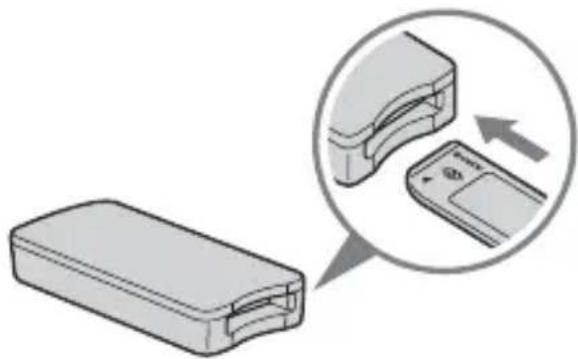
Note (The standard size of "Memory Stick" / the Duo size compatible slot)
You can use both of the standard sizes of "Memory Stick" and the sizes of "Memory Stick Duo" by one slot. (You cannot use both of the sizes of "Memory Stick" at the same time.) When you use the sizes of "Memory Stick Duo", do not attach the Memory Stick Duo Adaptor to them.
Do not insert the two or more "Memory Stick" into the slot at the same time or insert the "Memory Stick" in the opposite direction. It causes the malfunction of this unit.
- Special USB cable 1.0 m (1)
- CD-ROM for Windows (MSAC-US30) (1)
Note
Select the CD-ROM which contains the language you prefer, when installing "SonicStage".
- The CD-ROM contains the following software programs.
Device Driver Software
"SonicStage" Ver. 1.5
- Memory Stick Formatter Ver. 2.1
-Operating Instructions (PDF file)
The data of Operating Instructions for this unit (PDF file) is MSAC-US30Manual_ENG.pdf
- Operating Instructions for this unit (1)
Supplied applications
The supplied Windows CD-ROM contains the following software programs.
Device driver (Windows)
The driver must be installed when this unit is used on a Windows computer.
For how to install the driver software, see page 15.
"SonicStage" Ver. 1.5 (Windows)
"SonicStage" is comprehensive software for enjoying music. With "SonicStage", you can enjoy listening to music sources such as music CDs, etc., or you can import music into the hard disk of your PC for a complete management of your collection. Furthermore, music data that has been imported into the hard disk of your PC can also be transferred to a MagicGate compatible "Memory Stick" so that they can be enjoyed outside the PC environment.
Notes
- "SonicStage" does not support Macintosh.
- This software is not compatible with writing of music data to CD-RW/CD-R media. Sony will not be liable for any loss of data resulting from such operation.
- "SonicStage" Ver. 1.5 is not compatible with "Memory Stick PRO".
Memory Stick Formatter Ver. 2.1 (Windows)
This is a software program for formatting (initialization) of "Memory Stick." Formatting deletes all the data recorded on a "Memory Stick." In order to maintain the compatibility of a "Memory Stick" when using it with compatible products, always use this software when formatting "Memory Stick" on this unit.
Note
Formatting a "Memory Stick" to which data has already been written will delete the existing data. Be careful not to delete important data by mistake.
Using the operating instructions and online help
Using the Operating Instructions on the CD-ROM
The supplied CD-ROM contains more detailed Operating Instructions (PDF file).
For details on how to use this unit, see these Operating Instructions.
Acrobat Reader from Adobe Systems Incorporated is required to view PDF files.
How to use Acrobat Reader is described in the following.
Screen view
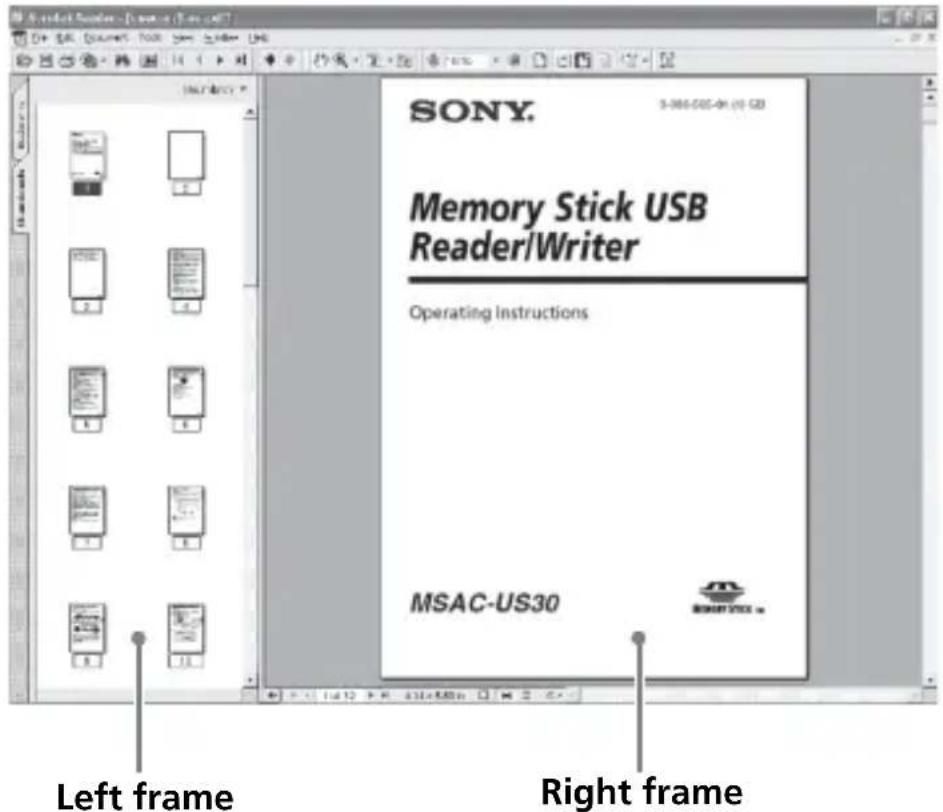
- Left frame
- Each page of the Operating Instructions appears as a thumbnail. When you click on the thumbnail corresponding to the page that you want to view, the page is shown in the "Right frame."
Right frame Shows each page.
For details on how to use Acrobat Reader, see the online Help manual for Adobe Acrobat Reader.
How to use the online Help (When Using Windows)
The following applications feature separate online Help manuals.
"SonicStage"
- Memory Stick Formatter
For details on how to use each of the application software programs, see the respective online Help manuals.
How to use the online Help manuals is described in the following.
Screen view
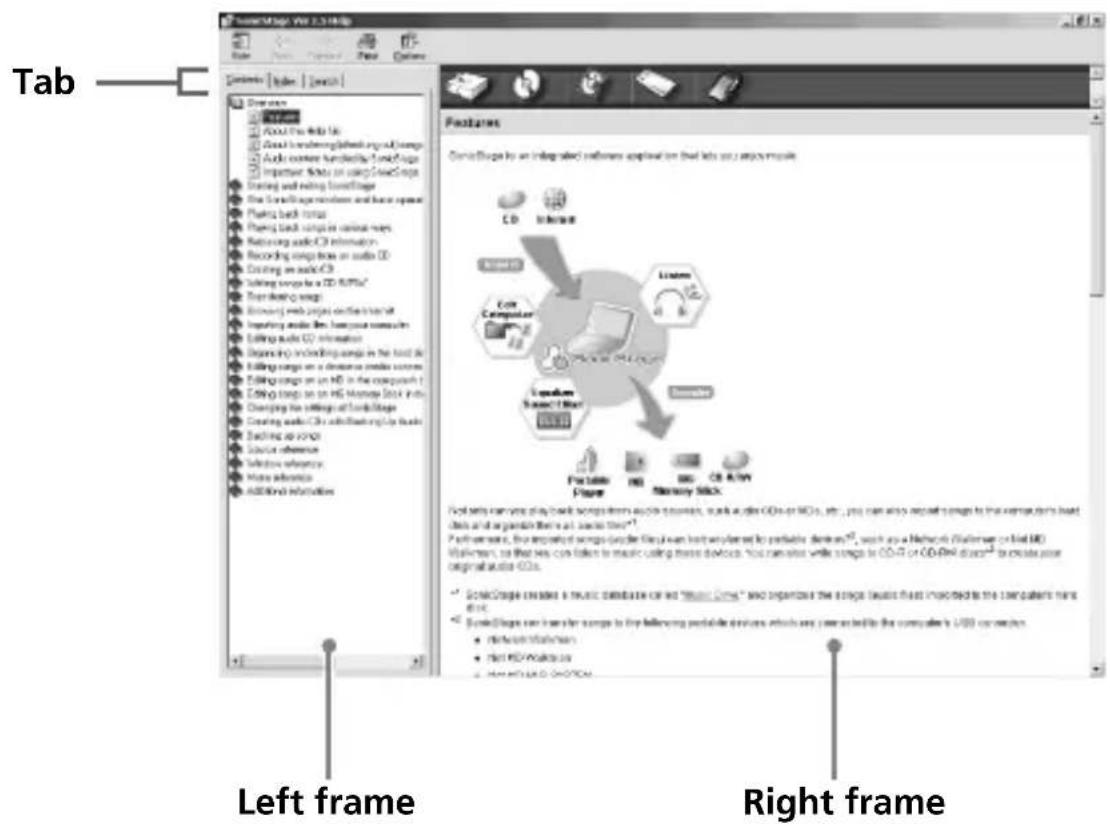
- Left frame
Contents or Keywords are displayed here.
- Right frame
Displays explanations. Clicking underlined parts in the text displays related explanations.
Installing the software on your computer
Note
Be sure to install the supplied software before you connect this unit to your computer.
Do not perform the installation while this unit is connected to your computer. Restart your computer when installation is completed, and then connect this unit to your computer.
The following explanation is based on the screens shown in Windows XP.
Depending on the OS, the screens may look different.
A part of the installation may take place automatically.
Use the following procedure to install the software.
Installing the device driver on your computer
Note
Simultaneously with the installation of the device driver, the "Memory Stick Formatter" and the operating instructions (PDF file) are also installed on your computer.
1 Turn on your computer.
At this point, do not connect this unit to your computer.
Close all running applications.
To install the device driver when you are using Windows 2000 or Windows XP, you must log on with Administrator rights.
2 Insert the supplied CD-ROM (MSAC-US30) into the CD-ROM drive on your computer.
The Installer launcher starts up automatically.
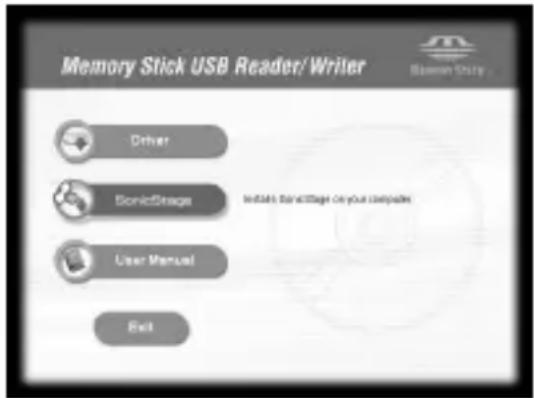
To install a driver, click the [Driver] button in the menu.
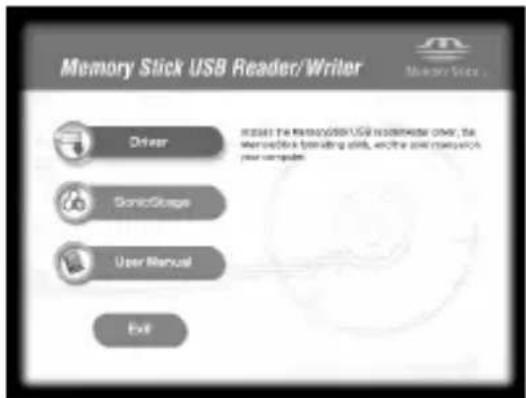
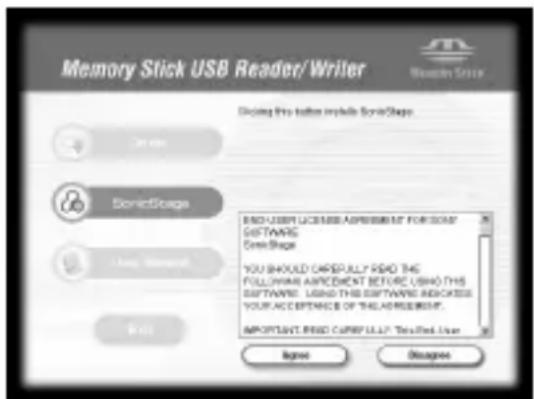
3 Carefully read the License Agreement, and then click the [Agree] button.
When you click the [Agree] button, installation of the driver starts.
![SONY MSACUS30 - Carefully read the License Agreement, and then click the [Agree] button. - 1](/content/2026/03/510371/images/6b04551413d130095b77e3ab7f6cc7ede03c9683b5dbc0bb9b908c0672d3da29.jpg)
4 Click the [Next] button as prompted on the screen.
5 When you click [Finish], the driver installation is completed.
![SONY MSACUS30 - When you click [Finish], the driver installation is completed. - 1](/content/2026/03/510371/images/c5ffb0d1fcda974258a5eee81df1039a3bd89a6d2f6f721fbc3ff3a637a55d9e.jpg)
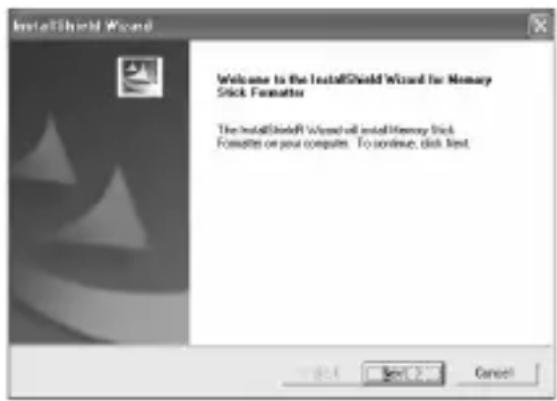
6 Following this, installation of the "Memory Stick Formatter" starts.
Click the [Next] button as prompted on the screen.

7 When you click [Finish], installation of "Memory Stick Formatter" is completed.
![SONY MSACUS30 - When you click [Finish], installation of "Memory Stick Formatter" is completed. - 1](/content/2026/03/510371/images/b829a8ecba3a58ced64ea9db950e9e4e03109ec20b468335521d342781feb084.jpg)
To use "Memory Stick Formatter", select [Start] - [Programs] - [Memory Stick Utility] - [Memory Stick Formatter].
8 Following this, installation of the operating instructions (PDF file) is performed automatically.
When installation of the operating instructions is completed, the application selection screen returns.
To end installation of the software at this point, click [Exit].
If you do so, "SonicStage" is not installed.
To view the operating instructions, select [Start] - [Programs] - [Sony Memory Stick Reader Writer] - [MSAC-US30 Instructions].
Note
Acrobat Reader from Adobe Systems Incorporated is required for viewing the operating instructions (PDF file).
Installing the "SonicStage" software (including "OpenMG") on your computer
1 Do as follows to install "SonicStage".
Click the [SonicStage] button in the menu.
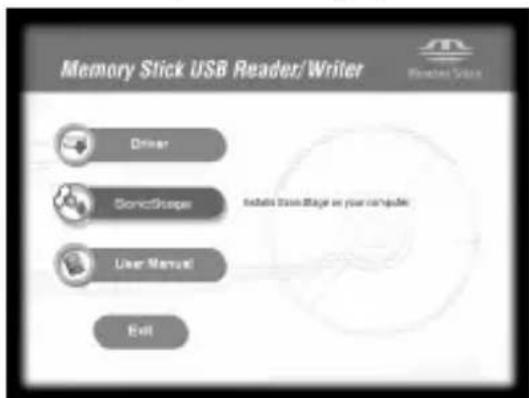
2 Carefully read the License Agreement, and then click the [Agree] button.
When you click the [Agree] button, installation of "SonicStage" starts.
![SONY MSACUS30 - Carefully read the License Agreement, and then click the [Agree] button. - 1](/content/2026/03/510371/images/9c13a57d220cebf58ef54a69a27baf353d97c7dbb510d9fab5ec7f321a1a8f10.jpg)
3 Click the [Next] button as prompted on the screen.
![SONY MSACUS30 - Click the [Next] button as prompted on the screen. - 1](/content/2026/03/510371/images/80b392f1e0458f84a419f587596737cb44d034a1828befb1eaded0654a98e97a.jpg)
4 Select the folder in which you want to install "SonicStage".
To change the folder suggested for the installation, click the [Browse] button and then select the folder. When the installation destination folder is decided, click the [Next] button.
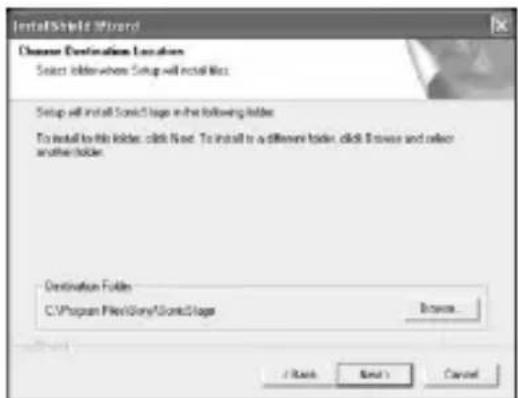
5 Select the folder for storing the "OpenMG" contents.
To change the folder suggested for the installation, click the [Browse] button and select the folder. When the storage destination folder is decided, click the [Next] button.
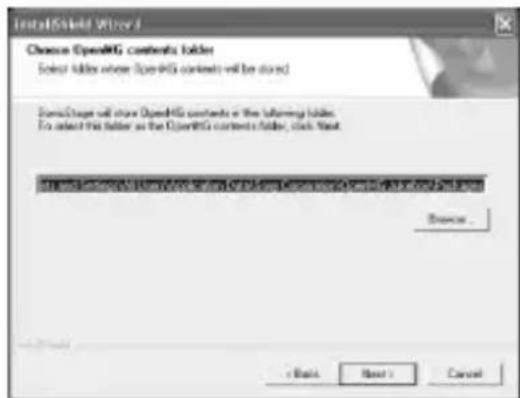
6 Click the [Finish] button.
7 Click the [Restart] button to restart your computer.
Note
Be sure to connect this unit only after you have restarted your computer.
Connecting this unit to your computer
Note
Be sure to install the supplied software before you connect this unit to your computer. Restart your computer following installation.
Connect the USB jack on this unit to a USB jack on your computer using the special USB cable supplied.
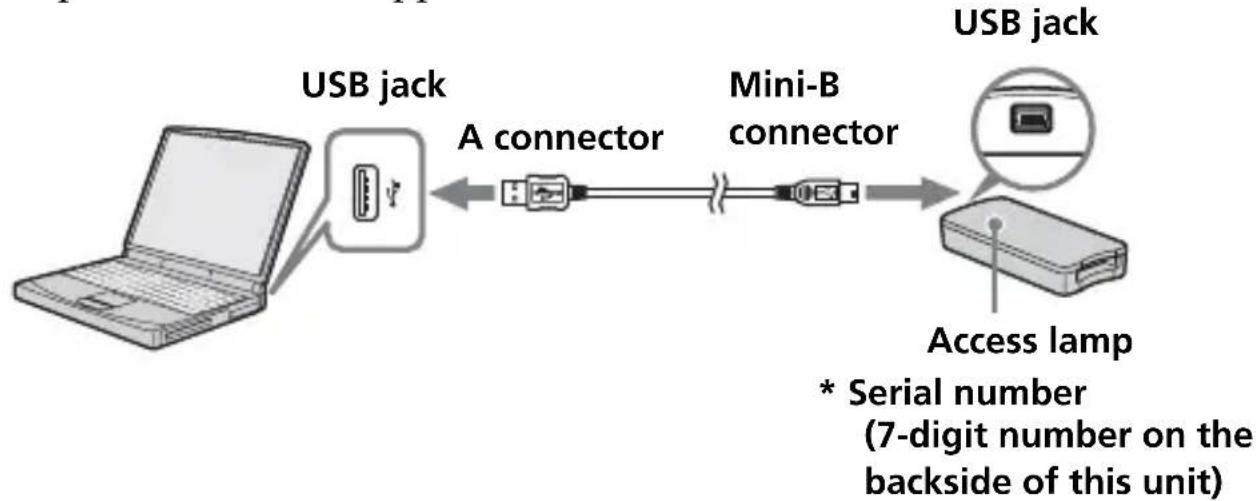
On the special USB cable
A connector: This is plugged into the USB jack on the computer. Any of the jacks can be used if the computer is provided with multiple USB jacks.
Mini-B connector: This is plugged into the USB jack on this unit.
1 Firmly insert the Mini-B connector of the USB cable into the USB jack on this unit as far as it will go.
2 Plug the A connector of the USB cable into a USB jack on your computer.
-
The "Found New Hardware Wizard" starts up and installation of the driver begins. Depending on the OS, the driver installation may take place automatically.
-
The location of the USB jack on the computer differs with the computer used.
-
When using a computer with multiple USB jacks, do not connect other devices, with the exception of a standard mouse and keyboard, to USB jacks at the same time as this unit. When using a desktop computer, use a USB jack on the main unit of the computer. For details, see "Recommended ways for connecting this unit" on page 23.
Recommended ways for connecting this unit
The operation of this unit has been confirmed when connected to the computer in either of the following ways.
When this unit is connected to a USB jack on the computer main unit, and nothing is connected to other USB jacks on the computer main unit.

When, on a computer with a USB keyboard and mouse as standard equipment, the USB keyboard is connected to one of the USB jacks on the computer main unit, and this unit is connected to another USB jack on the computer main unit with the supplied USB cable.
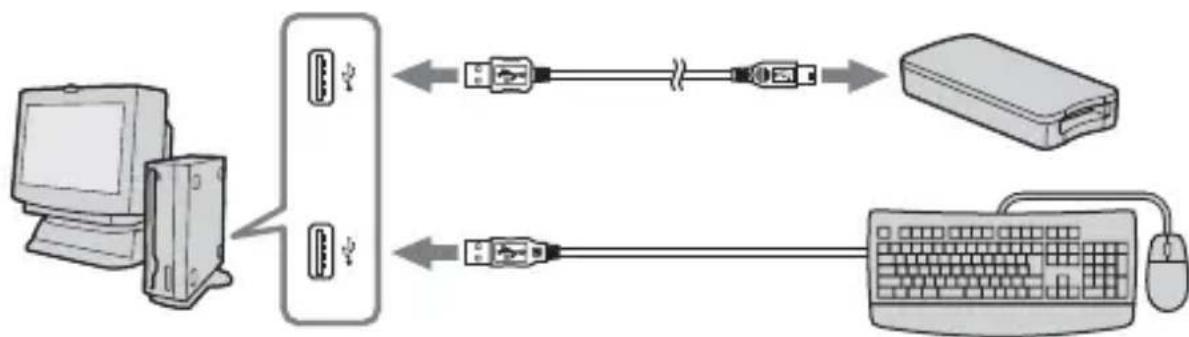
Notes
- When two or more USB devices except standard equipment are connected to one computer, and both are used simultaneously, operation is not guaranteed depending on the USB devices.
- Make sure to connect the supplied USB cable to a USB jack on the computer main unit. Operation is not guaranteed if the cable is connected via the keyboard or a USB hub, etc.
- Not all operations are guaranteed on all computers running under the recommended environment.
- Make sure to use the specified USB cable (supplied) to connect to your computer.
Confirming that connections are completed
In the following, Windows XP is used for instructions. Depending on the OS type and the settings, the screens may look different.
1 Open the "My Computer" folder.
The "My Computer" folders appear.
2 Confirm that the newly recognized Memory Stick-MG(F:) icon is shown.
Note
Depending on the computer used, the drive letter (F:) may be different.
The connection is completed when the Memory Stick-MG(F:) icon is shown. It may take a little while before the Memory Stick-MG(F:) icon appears.
Notes
-
Depending on the OS type used and the "Memory Stick", the displayed icon may appear as "Removable Disk (F:)" instead of "Memory Stick-MG(F:)"
-
If the Memory Stick icon is not shown, the device driver may not be installed correctly. Perform the procedures described on the following page. When using another "Removable Disk," plural "Removable Disk" icons appear.
When the removable disk (Memory Stick icon) is not indicated
A separate device driver may already have been installed. Connect this unit to your computer, and then perform the following procedure.
- When using Windows 2000/Windows XP -
Log on as Administrator or using a user ID that has administrative privilege.
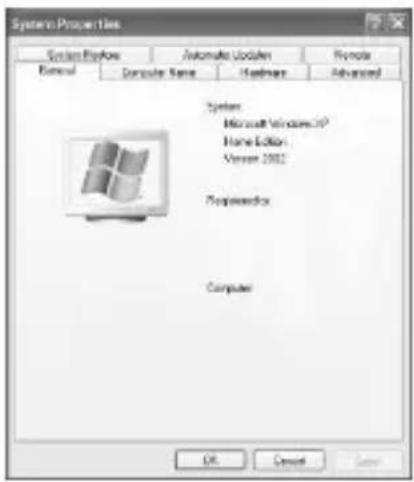
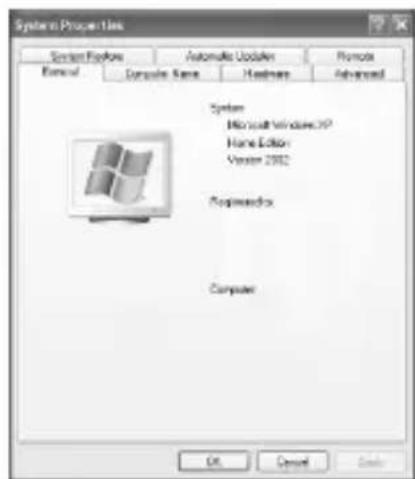
1 Double-click the "System" icon on the "Control Panel".

The "System Properties" screen appears.
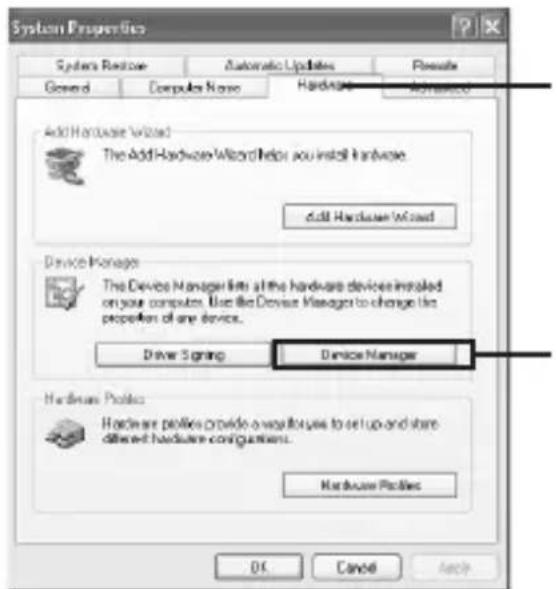
2 Check if the device driver has already been installed.
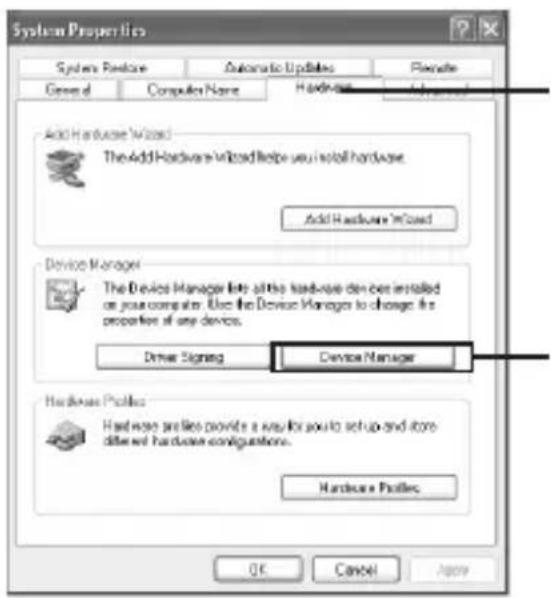
① Click the [Hardware] tab on the "System Properties" screen.
②Click [Device Manager].
The "Device Manager" screen appears.
2 (Continued)
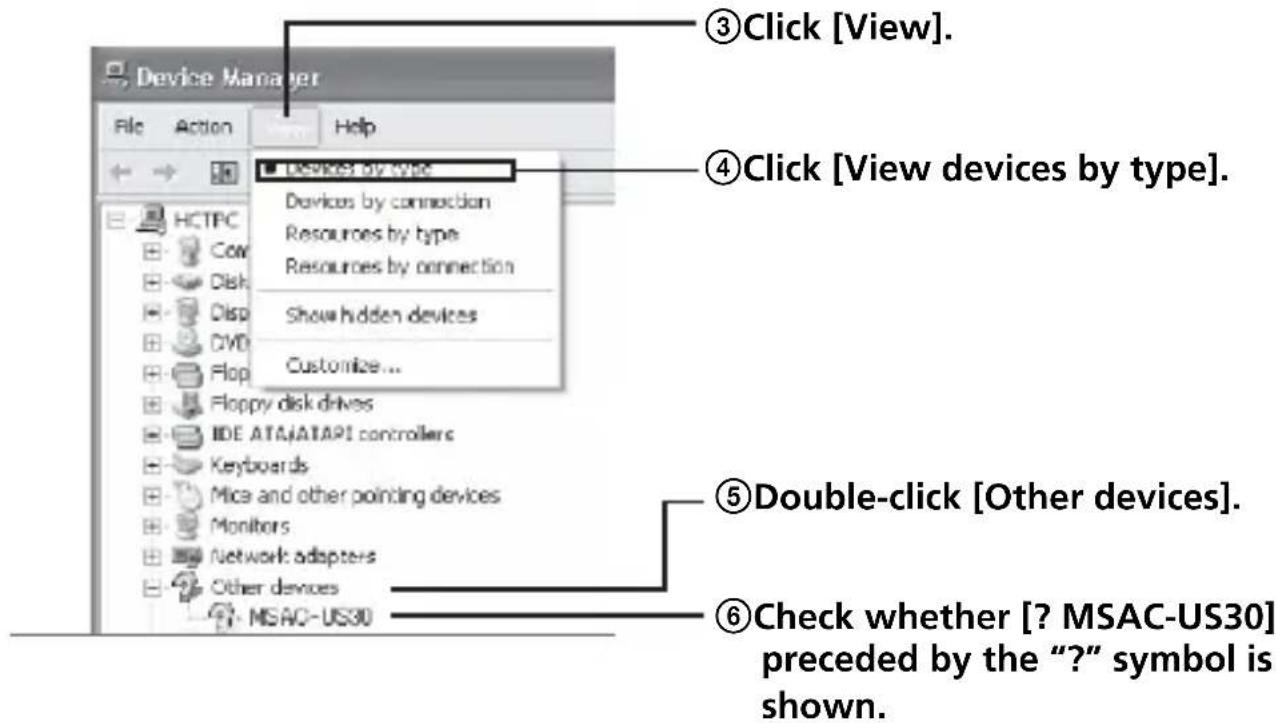
3 Delete the driver if installed.
If you use the procedure described in Step 2 and confirm that [? MSAC-US30] is shown under "Other devices" in the "View devices by type" display, a separate device driver has already been installed. Use the following procedure to delete this driver.
Do not delete other devices than [? MSAC-US30].
① Right-click on [? MSAC-US30].
② Click on [Remove]. The "Confirm Device Removal" screen appears.
③ Click the [OK] button. The device is removed.
④ Restart your computer after disconnecting this unit from the computer.
Install the device driver again by performing the procedure from Step 1 described on page 15.
Notes
- If you delete other devices than [? MSAC-US30], your computer may no longer operate normally.
-
You do not need to install "SonicStage" again if installation of "SonicStage" has already been completed. Following completion of the driver installation, restart your computer before you connect this unit to the computer.
-
When using Windows 98SE/Windows Me -
1 Double-click the "System" icon on the "Control Panel".
The "System Properties" screen appears.
2 Check if the device driver has already been installed.
① Click the [Device Manager] tab on the "System Properties" screen.
② Double-click [Other devices].
③ Check whether [? MSAC-US30] preceded by the “?” symbol is shown.
3 Delete the driver if installed.
If you use the procedure described in Step 2 and find that [? MSAC-US30] is shown under "Other devices," a separate device driver has already been installed.
Use the following procedure to delete this driver.
Do not delete other devices than [? MSAC-US30].
① Click on [? MSAC-US30].
② Click on [Remove]. The "Confirm Device Removal" screen appears.
③ Click the [OK] button. The device is removed.
④ Restart your computer after disconnecting this unit from the computer.
Install the device driver again by performing the procedure from Step 1 described on page 15.
Notes
- If you delete other devices than [? MSAC-US30], your computer may no longer operate normally.
- You do not need to install "SonicStage" again if installation of "SonicStage" has already been completed. Following completion of the driver installation, restart your computer before you connect this unit to the computer.
Copying image data recorded on "Memory Stick" to your computer
If the USB cable used to connect this unit and your computer is disconnected, the computer will no longer be able to recognize this unit and the image data stored on the "Removable Disk ("Memory Stick")" can no longer be viewed on the computer. If you copy the image data stored on the "Memory Stick" to your computer, the image data can be displayed and processed on your computer even if this unit is not connected to your computer.
When the USB cable is disconnected, the Memory Stick-MG(F:) icon disappears.
For how to copy image data to your computer, see the manual for your computer.
Disconnecting the unit from your computer
- For customers using Windows Me/Windows 2000/Windows XP -
Perform the procedure described below before disconnecting the USB cable from the computer.
- The screens shown in Windows XP are used in the following explanations.
The screens may differ slightly with the type of OS used.
- Customers using Windows 98SE do not need to perform this procedure.
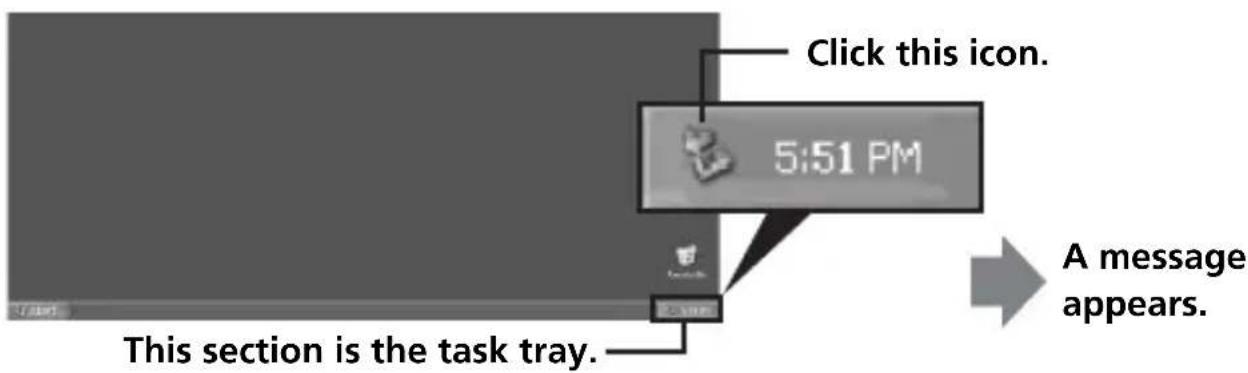
1 Click the "Unplug or Eject Hardware" icon in the task tray in the lower right corner of the screen.
2 Click "Safely remove Sony Memory Stick USB Reader/Writer (MSAC-US30)-Drive (F:)"
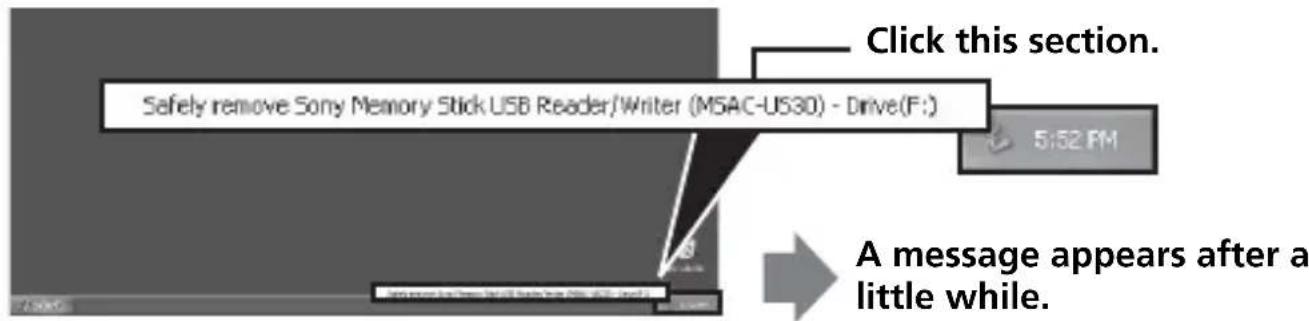
- The drive letter "(F:)", etc. differs with the computer used.
3 ["Sony Memory Stick USB Reader/Writer (MSAC-US30) can be safely removed.'] is displayed.
In this condition, you can safely remove this unit from your computer.
Note
The indications may be different depending on the OS that you are using.
Notes
- When you just want to remove the "Memory Stick" from this unit, the procedure described above is not required.
- Do not remove the "Memory Stick" from this unit while the access lamp is blinking. Data on the "Memory Stick" could be corrupted.
- When you carry out this operation, this unit is not recognized by your computer. To make this unit recognize again, disconnect the USB cable from your computer and connect the USB cable to your computer again.
How to Use (When using Macintosh)
You can use the driver provided as a standard feature of the OS.
Operate as described in the following.
You can use this unit without installing the driver by connecting this unit to your computer.
1 Turn on your computer.
2 Insert "Memory Stick" to this unit and connect the USB jack on this unit with a USB jack on the computer main unit using the special USB cable supplied.
See page 23 for how to connect this unit and your computer.
3 Driver installation starts automatically and the driver is installed on the computer.
4 When driver installation is completed, a drive icon of this unit appears on the desktop and this unit can now be used.
Note
The drive icon of this unit is not displayed on the desktop when "Memory Stick" is not inserted to this unit.
Removing this unit from your computer or removing "Memory Stick" from this unit.
1 Close the software used by this unit.
2 Confirm that the access lamp is off.
3 Drag the drive icon of this unit to the Trash icon. Alternatively, place the drive icon of this unit in the selected state and select "Eject" from the "Special" menu in the upper left of the screen.
4 Remove this unit from your computer or remove "Memory Stick" from this unit.
Notes
- Do not remove the "Memory Stick" from this unit while the access lamp is blinking. Data on the "Memory Stick" could be corrupted.
- Removing this unit or the "Memory Stick" in this unit without performing the operations above may cause damage to the "Memory Stick." Sony will not be liable for any damage caused as a result of not following the instructions above.
About "SonicStage"
"SonicStage" is comprehensive software for enjoying music.
With "SonicStage", you can enjoy listening to music sources such as music CDs, etc., or you can import music into the hard disk of your PC for a complete management of your collection.*
Furthermore, music data that has been imported into the hard disk of your PC can also be transferred to a MagicGate compatible "Memory Stick" so that they can be enjoyed outside the PC environment.
- With "SonicStage", music data imported into the hard disk of your PC is managed using a special music database program called "Music Drive".
Using "SonicStage" to listen to various music sources
With "SonicStage", you can play back the following music sources using the simple, integrated mouse operations:
Devices/tracks recorded on a medium connected to the USB port of your PC. (This is available using the main unit and MagicGate compatible "Memory Stick".)
Music CD
Music files on your PC
- Music files provided by Internet music distribution services (EMD services).
Creating a music database by importing music from various music sources ("Music Drive")
"SonicStage" uses the music database "Music Drive" to manage music files that are stored in your PC.
Music files can be imported into "Music Drive" from various music sources using the following methods:
- Record tracks from a music CD into "Music Drive".
- Import music files already existing on your PC into "Music Drive".
- Download music files from an Internet music distribution service and import them into "Music Drive".
Categorizing imported music as desired (Play List)
Music files imported into the hard disk ("Music Drive") of your PC can be categorized by adding information such as artist name, song title, cover image, etc. or by using the "Play List" container.
Searching imported music using various methods (Categorized List)
When using "Categorized List", you can narrow down and display music files in "Music Drive" in categories of "artist", "genre", "format", etc., or search using keywords and conditions.
Convenient when searching for a specific artist or genre from a large volume of data imported into "Music Drive".
Transferring imported music data to another device/medium for listening outside the PC environment
Music files imported into the hard disk ("Music Drive") of your PC can be transferred to a MagicGate compatible "Memory Stick".
Music files transferred to a MagicGate compatible "Memory Stick" can be played outside the PC environment using devices such as a portable audio player, etc.
Listening to music files using sound effects and equalizer
"SonicStage" is equipped with a "Vocal Canceller" sound effect. The "Vocal Canceller" sound effect can be used to play back music tracks with the vocals turned off (lowered) or with the pitch altered.
Furthermore, an equalizer effect can be added to music play back. Other than the preexisting settings of "Rock", "Jazz", etc., you can store the sound quality adjusted according to your tastes.
Enjoying music to images (Visualizer)
Various pattern images can be displayed on the Visualizer screen of "SonicStage" to match the music being played.
It is also possible to enjoy watching Visualizer images on the entire screen while listening to music.
For various uses of "SonicStage", please refer to the "SonicStage" Help.
Music files compatible with "SonicStage"
With "SonicStage", music files of the following formats can be imported into "Music Drive", the "SonicStage" music database.
OpenMG format music files
These are music files that have been converted using a format referred to as ATRAC3 or ATRAC3plus and encrypted using the "OpenMG" format, a format unique to the "OpenMG" copyright protection technology (file extension: .omg). "OpenMG" format music files can be imported into "Music Drive" using the following methods:
- Download "OpenMG" format music files from an EMD service and import them into "Music Drive".
- Record tracks of a music CD using the "OpenMG" (ATRAC3/ ATRAC3plus) format.
- Convert music files stored on a hard disk to "OpenMG" (ATRAC3/ATRAC3plus) format and import.
- Transfer music tracks downloaded directly in a MagicGate compatible "Memory Stick" from an EMD service, etc., to "Music Drive".
WAV format music files
WAV format music files can be imported into "Music Drive" using the following methods:
- Record tracks of a music CD using the WAV format.
- Import WAV format music files stored on a hard disk in the same format.
MP3 format music files
MP3 format music files can be imported into "Music Drive" using the following method:
- Import MP3 format music files stored on a hard disk in the same format.
Note
MP3 format music files cannot be imported if Windows Media Player Version 6.4 or later is not installed in your PC.
WMT (Windows Media Technologies) compatible music files
WMT compatible music files can be imported into "Music Drive" using the following methods:
- Download WMT compatible music files from an EMD service and import them into "Music Drive".
- Record tracks of a music CD using the Windows Media (WMA) format*.
- Import WMT compatible music files stored on a hard disk in the same format.
- One of the WMT compatible music file formats.
Note
WMT compatible music files cannot be played back if Windows Media Player Version 7.0 or later is not installed in your PC.
Note
There are some WAV format, MP3 format and WMT compatible music files that cannot be imported depending on sampling rate, etc. For details concerning music files that cannot be imported, please refer to "Importable Files" in "SonicStage" Help.
Check-in/check-out
Music files imported into the hard disk ("Music Drive") of your PC can be transferred to a MagicGate compatible "Memory Stick" using an operation referred to as "check out."
When recording tracks from a music CD to a MagicGate compatible "Memory Stick", the check-out process is automatically performed by "SonicStage". The audio tracks are continuously recorded in "Music Drive", and are then checked out to the MagicGate compatible "Memory Stick."
Music files checked out automatically or using the above operation can be played back outside the PC environment using devices such as a MagicGate compatible "Memory Stick" compatible audio player.
Furthermore, checked out music files can be returned to "Music Drive" using the "check in" operation.
Such "check-in/check-out" operations (processes) are for the protection of copyrighted music contents. For this reason, the following rules and restrictions apply:
Each music file has "the right for up to 3 checkouts."
Music files imported into "Music Drive" from a CD recording, etc., can be simultaneously checked out to 3 different devices/media. Furthermore, play back is possible from the original music file retained in "Music Drive" even after checking out to 3 devices/media.
Checking in music files that have been checked out makes them available for check out again.
Checked out music files can only be checked into the PC where the check-out was made.
Music files checked out from another PC cannot be checked in.
For details concerning "check-in/check-out", please refer to the "SonicStage" Help.
Note
Depending on the music file, the "check-out rights" may be set to other than 3 or there may be restrictions concerning the period or number of times the file can be played back. Any files deleted on a different PC are read as checked in files upon reconnection to the PC used to check out the MagicGate compatible "Memory Stick". Therefore, the remaining checkout number of music files in the PC returns automatically.
Before using "SonicStage" (Be sure to read)
Before using "SonicStage", please read the following cautionary items.
Cautions concerning launching "SonicStage" and other "OpenMG" compatible software
Do not launch "SonicStage" and other "OpenMG" compatible software (software capable of running/managing "OpenMG" format files) simultaneously. Doing so may cause music files stored on the PC hard disk or devices/media to be damaged, and rendered unusable.
Cautions concerning using "SonicStage" and other "OpenMG" software at the same time
Please note the following when running "SonicStage" and other "OpenMG" software at the same time.
When recording tracks from a music CD using "SonicStage", do not run other software capable of music CD playback. Recording of the music CD may not perform properly.
When running other software while playing back music files using "SonicStage", the sound may pause momentarily.
Cautions when running Windows XP/Windows Me system tool "System Restore"
Running "System Restore", a system tool built in Windows XP and Windows Me, may cause a malfunction in management data resulting in all recorded or imported files to become unusable. In order to prevent the loss of important music data, use the "SonicStage" backup tool to backup music data before running "System Restore" on your system. After using "System Restore," saved music data can be made to play back by restoring with the "SonicStage" back up tool. For the use of the "SonicStage" backup tool, please refer to the "SonicStage" Help.
Cautions when using "OpenMG Jukebox"
"OpenMG Jukebox" Version 2.1 or earlier cannot be installed in a PC already installed with "SonicStage".
Although it is possible to install "OpenMG Jukebox" Version 2.2 or later in a PC already installed with "SonicStage," "SonicStage" and "OpenMG Jukebox" cannot be run simultaneously.
Installing "OpenMG Jukebox" Version 2.2 or later in a PC already installed with "SonicStage" causes the database that manages the music data (files) to be shared.
Writing to a CD-RW/CD-R disc
This software is not compatible with writing of music data to CD-RW/ CD-R media.
Sony will not be liable for any loss of data resulting from such operation.
Launching "SonicStage"
From the [Start] button of Windows, click [All Programs] - [SonicStage] - [SonicStage].
"SonicStage" is launched and the main window appears.
Tips
- When using an operating system other than Windows XP, launch "SonicStage" by clicking from the [Start] button of Windows: [Programs] - [SonicStage] - [SonicStage].
- When launching "SonicStage" on your PC for the first time, the "SonicStage playback settings" dialog box is displayed before the main window appears. For details, please refer to "Launching "SonicStage " for the first time" in "SonicStage" Help.
-
"SonicStage" can also be launched by:
-
Double clicking a SonicStage icon on the desktop if displayed. (When using Windows XP, icons that have not been used for some time are deleted from the desktop depending on the setting. If the SonicStage icon does not appear on the desktop, launch from the start menu.)
-
Double click music files associated for playback on "SonicStage" using Windows Explorer, etc.
Note
When installing "OpenMG Jukebox" Version 2.2 or later in a PC already installed with "SonicStage", "SonicStage" and "OpenMG Jukebox" cannot be run simultaneously.
For various uses of "SonicStage", please refer to the "SonicStage" Help.
Formatting (initialization) of "Memory Stick"
This deletes all the data recorded on a "Memory Stick." When formatting on this unit, be sure to use the supplied "Memory Stick Formatter" software program, following the procedures outlined below. Operation on a Handycam or other "Memory Stick" compatible products is not guaranteed for a "Memory Stick" formatted on a computer without the use of the "Memory Stick Formatter" software program.
For the details on how to use the "Memory Stick Formatter," refer to the manual supplied with the "Memory Stick Formatter." You can download the "Memory Stick Formatter" at the following Web Site.
http://www.sony.net/Products/mssupport/
Note
If you format a "Memory Stick" that contains recorded data, the already recorded data will be deleted. Be careful not to inadvertently delete important data.
1 Insert a "Memory Stick" into this unit.
2 Start "Memory Stick Formatter."
3 After confirming that the drive is selected on which the "Memory Stick" is recognized to have been mounted, click [Start formatting]. Formatting begins.
Note
Never remove this unit from the computer while formatting the "Memory Stick." The data on the "Memory Stick" may be damaged.
Write-protecting data
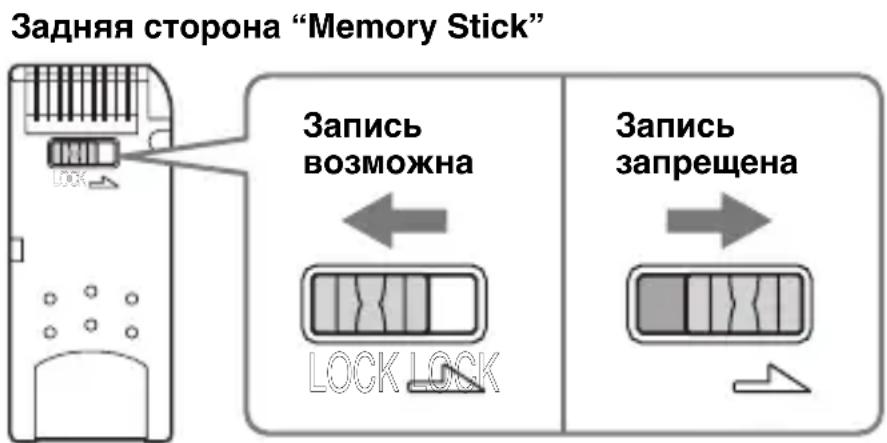
A "Memory Stick" is equipped with an erasure prevention switch to ensure that important data is not deleted by mistake. (Some of "Memory Stick" ("Memory Stick Duo") are not equipped with an erasure prevention switch. If you use a "Memory Stick" ("Memory Stick Duo") unequipped with the erasure prevention switch, be careful not to write data or delete data by mistake.) Sliding this switch to the left or right enables or prevents writing of data to the "Memory Stick."
Write enable
Data can be written.
Write protect
When the switch is moved to the right, the condition becomes the one in which data cannot be written to the "Memory Stick." Data can be read out but writing is prevented.
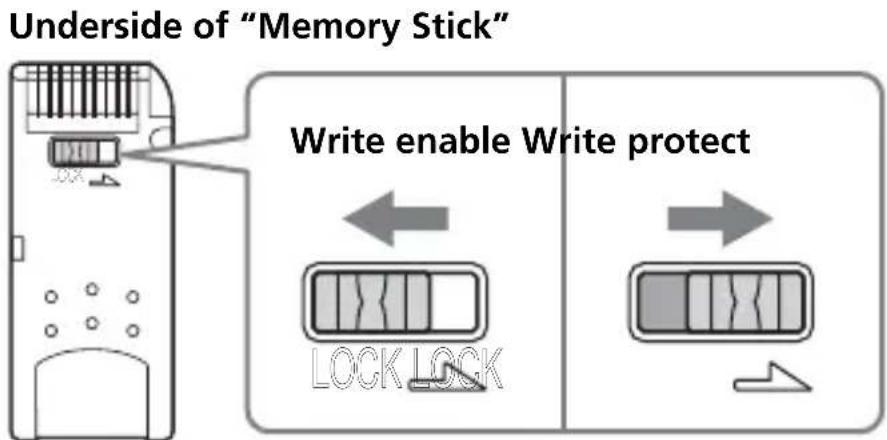
Data read/write speed
The data read/write speed differs with the "Memory Stick" and product combination that you are using.
Precautions for use of "Memory Stick"
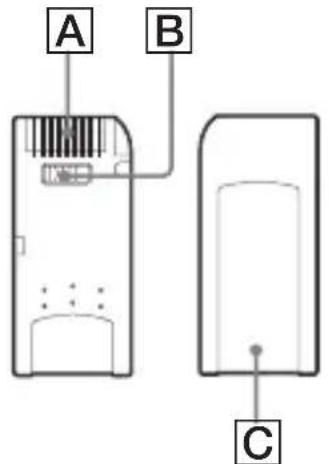

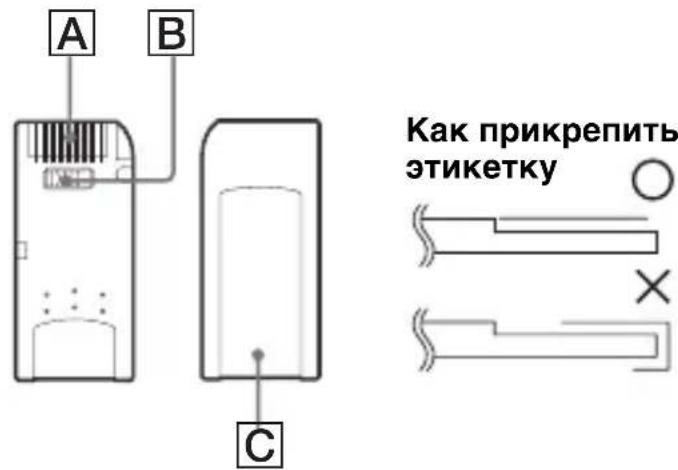
- Recording, editing and deletion are prevented when the erasure prevention switch is set to the "LOCK" position. B
- Use a pointed object to move the erasure prevention switch on the "Memory Stick Duo." (Some of "Memory Stick" ("Memory Stick Duo") are not equipped with an erasure prevention switch.)
-
Never remove the "Memory Stick" while the access lamp is on (while data is being read/written).
Data may be corrupted in the following cases. -
If the "Memory Stick" is removed or the power to this unit is turned off while the access lamp is on (while data is being read/written)
-
When used in a location subject to static electricity or electrical noise
-
Always backup important data. Sony does not accept liability for damage of the data.
We cannot accept responsibility in the event that data is lost or damaged and the unit is damaged, while using this unit. - Data copyright protected by "MagicGate" can only be used with a MagicGate compatible "Memory Stick."
- Do not affix any label other than those specially provided to the "Memory Stick." C
- When affixing labels, affix these at the designated positions. Labels should not protrude from the edges of the "Memory Stick."
- Do not apply excessive force when writing in the memo area of a "Memory Stick Duo."
- When transporting or storing a "Memory Stick," place it in the supplied storage case.
- Do not touch the connector section with fingers or metallic objects. A
- Do not bend, drop or subject the "Memory Stick" to strong impacts.
- Do not attempt to disassemble or modify the "Memory Stick."
-
Do not wet with water.
-
Avoid use and storage in the following locations.
-
In a car where the temperature may become very high or in other hot locations
- Location subject to direct sunlight
- Location with humidity or where corrosive substance are present.
Uninstalling (Deleting) the software
- In the case of Windows 98SE/ Windows Me -
1 Select [Settings] from the [Start] menu and then click [Control Panel].
The "Control Panel" screen appears.
2 Double-click the "Add/Remove Programs" icon.
The "Add/Remove Programs Properties" dialog box appears.
3 Select the software to be removed ("SonicStage", Memory Stick Formatter) from the list of software programs that can be automatically removed, and then click [Add/Remove].
The selected software programs are uninstalled.
- When you want to remove the "SonicStage" software, uninstall the programs in the following order.
"SonicStage"
"Music Visualize Library"
"OpenMG Secure Module"
-In the case of Windows 2000/Windows XP-
After logging on as Administrator, perform the procedure described below. For how to log on as Administrator, see the manual for the computer that you are using.
Using Windows 2000: Select [Settings] from the [Start] menu and then click [Control Panel].
Using Windows XP: Click [Control Panel] from the [Start] menu.
The "Control Panel" screen appears.
2 Using Windows 2000: Double-click the "Add/Remove Programs" icon.
Using Windows XP: Double-click the "Add/Remove Programs" icon*.
The "Add/Remove Programs" dialog box appears.
3 Click "Change/Remove".
4 Select the software to be removed ("SonicStage", Memory Stick Formatter) from the list of "Currently installed programs," and then click [Change/Remove] ([Change and Remove] in the case of Windows XP).
The selected software programs are uninstalled.
- When you want to remove the "SonicStage" software, uninstall the programs in the following order.
"SonicStage"
"Music Visualize Library"
"OpenMG Secure Module"
Troubleshooting
| Symptom | Cause/Solution |
| The Memory Stick icon (Removable disk) is not displayed. | Not connected correctly. →Connect correctly. (Page 22) In addition to this unit, another device is connected to the USB jack on the computer. →Disconnect other USB devices than this unit. Also turn off the power and reboot. The driver is not installed. →Install the driver from the supplied CD-ROM. (Page 15) |
| The “Memory Stick” cannot be accessed from Explorer or My Computer. | No “Memory Stick” inserted. →Insert a “Memory Stick.” |
| The access lamp blinks when a “Memory Stick” is inserted. | Foreign matter adhering to the connector section of the “Memory Stick.” →Check whether dust or dirt is adhering to the connector section of the “Memory Stick.” Remove any foreign matter and insert the “Memory Stick” again. |
| Music data can no longer be used on the computer | The System Restore function found in Windows Me and Windows XP have been executed. (Page 10) →When you have backup data, restore the backup data to the computer. For how to use the backup tool, see the online Help manual for “SonicStage.” |
Restrictions imposed by the copyright protection
Restrictions imposed by the copyright-protection technology "OpenMG"
The "SonicStage" software employs the Sony-developed copyright-protection technology "OpenMG" to safeguard the copyrights of music contents. To allow copyright-protected music data to be handled on a personal computer, "OpenMG" employs an advanced encryption technology that complies with the SDMI agreement. Consequently, please understand that the following restrictions apply when you use the software.
- Music data stored on your computer's hard disk by use of "SonicStage" cannot be played back on another computer, even after being copied to that device.
- Music data transferred (checked out) from your computer on a MagicGate compatible "Memory Stick" cannot be played back on another computer, etc., even when copied to the device.
- Music data transferred (checked out) to a MagicGate compatible "Memory Stick" cannot be transferred (checked in) to any other computer than the one from which the data was originally transferred.
- The same "SonicStage" program cannot be installed on multiple computers.
- If Usage Rule conditions are attached to music data in accordance with the wishes of the copyright holder and service businesses, you can only perform the operations that are allowed in accordance with the imposed rules. In the case of music data, such as music CDs, etc., where no usage rules apply, you can only perform the operations defined by the basic SDMI rules (Default Usage Rule). According to the Default Usage Rule "a single set of music data can only be checked out 3 times."
- In accordance with the SDMI agreements, the "SonicStage" software is not capable of handling music data with imbedded copy-guard signals.
- The current version of the "SonicStage" software is designed based on the current SDMI agreements. There is a possibility that a part of the functions featured in the current software version may become unusable if the SDMI stipulations are to be amended in the future. Upgraded versions are scheduled to be released to cope with future amendments. Please note that upgrade versions may be offered at cost to the user.
Specifications
Memory Stick USB Reader/Writer
Interface: USB interface
Baud rate: Max. 480 Mbps
General
Operating voltage DC 5V (supplied via USB cable)
Power consumption Max. 500mA (during operation)
Max. 0.5mA (PC suspend time)
External dimensions
Approx. 38mm× 14mm× 74.5mm
(11 / 2× 9 / 16× 3 in.) (Width × Height × Depth)
Mass Approx. 30g (not including "Memory Stick")
Operating conditions Temperature 0^ to 40^ (32^ to 104^)
condensation not allowed)
Humidity 20% to 80% (condensation not allowed)
Design and specifications are subject to change without notice.
If you have any questions/comments related to this product, please visit our Customer Support website at
http://www.sony.net/Products/mssupport/
LIMITED WARRANTY
If this product should prove defective in workmanship or material during the period of 1 year from the date of original purchase at retail, the same will be replaced by either the Seller, or Sony Electronics, Inc. or Sony of Canada, Ltd.
SUCH REPLACEMENT SHALL BE THE SOLE REMEDY OF THE CONSUMER, AND THERE SHALL BE NO LIABILITY ON THE PART OF THE MANUFACTURER, DISTRIBUTOR OR SELLER FOR ANY LOSS OR DAMAGE, DIRECT OR CONSEQUENTIAL, ARISING OUT OR THE USE OF, OR INABILITY TO USE, THIS PRODUCT.
Some states of the United States do not allow the exclusion of incidental or consequential damages, so the above exclusion may not apply to you.
This warranty gives you specific legal rights and you may also have other rights which vary from state to state in the United States, Puerto Rico or from province to province in Canada.
In the United States, contact: Sony Electronics Inc.,
Sony Building, 680 Kinderkamack Road, Oradell, New Jersey 07649.
In Canada, contact: Sony of Canada Ltd.,
115 Gordon Baker Road, Toronto, Ontario, M2H 3R6 CANADA.
http://www.sony.net/
Memory Stick USB Reader/Writer
Mode d'emploi
MSAC-US30
Français
Check-in/Check-out 36
Applications fournies
http://www.sony.net/Products/mssupport/
Remarque
http://www.sony.net/Products/mssupport/
GARANTIE RESTREINE
Sony Building, 680 Kinderkamack Road, Oradell, New Jersey 07649.
115 Gordon Baker Road, Toronto, Ontario, M2H 3R6 CANADA.
http://www.sony.net/
Memory Stick USB Reader/Writer
Bedienungsanleitung
MSAC-US30
MEMORYSTICKTM
Deutsch
"MagicGate Memory Stick"
"SonicStage" Ver. 1.5 (Windows)
"SonicStage"
- Memory Stick Formatter
http://www.sony.net/Products/mssupport/
Hinweis
Baudrate:Max.480Mbps
Allgemeines
Kunden-Support-Website:
http://www.sony.net/Products/mssupport/
http://www.sony.net/
Memory Stick USB Reader/Writer
Riguardo "SonicStage" 31
Check-in/Check-out 35
"MagicGate Memory Stick"
"SonicStage" Ver. 1.5 (per Windows)
3 Appare ["Sony Memory Stick USB Reader/Writer (MSAC-US30) can be safely removed."].
Riguardo "SonicStage"
http://www.sony.net/Products/mssupport/
Nota
http://www.sony.net/Products/mssupport/
Memory Stick USB Reader/Writer
Gebruiksaanwijzing
MSAC-US30
MEMORYSTICKTM
Nederlands
Omtrent "SonicStage" 33
"MagicGate Memory Stick"
Omtrent "SonicStage"
http://www.sony.net/Products/mssupport/
Opmerking
http://www.sony.net/Products/mssupport/
http://www.sony.net/
Memory Stick USB Reader/Writer
"MagicGate Memory Stick"
"SonicStage" Ver. 1.5 (Windows)
"SonicStage"
Memory Stick Formatter
http://www.sony.net/Products/mssupport/
Nota
"MagicGate Memory Stick"
"SonicStage" Ver. 1.5 (Windows)
http://www.sony.net/Products/mssupport/
Nota
http://www.sony.net/Products/mssupport/
Memory Stick USB Reader/Writer
Bruksanvisning
MSAC-US30
MEMORYSTICKTM
Svenska
"MagicGate Memory Stick"
"SonicStage" Ver. 1.5 (Windows)
http://www.sony.net/Products/mssupport/
Obs!
http://www.sony.net/Products/mssupport/
http://www.sony.net/
Memory Stick USB Reader/Writer
Brugsanvisning
MSAC-US30
MEMORYSTICKTM
Dansk
Formatering (initialising) at "Memory Stick" 39
"MagicGate Memory Stick"
"SonicStage" Ver. 1.5 (Windows)
"SonicStage"
Memory Stick Formatter
(Programmer)] - [Sony Memory Stick Reader Writer] - [MSAC-US30
Instructions].
Bemærk
3 ["Sony Memory Stick USB Reader/Writer (MSAC-US30) can be safely removed.'] vises.
http://www.sony.net/Products/mssupport/
Bemaerk
http://www.sony.net/Products/mssupport/
Memory Stick USB Reader/Writer
Käyttoohjeet
MSAC-US30
MEMORYSTICKTM
Suomi
"SonicStage" Ver. 1.5 (Windows)
IcnoIb3OBaHne IHCtpyKuIN NO IoIb3OBaHIO IO HnaHOBOcnpaBKn 13
YcTaHOBka nporpaMMbI Ha BaWem KOMNbIOTepe 15
YcTaHOBka "SonicStage" (BkIouaay "OpenMG") Ha BaIeM KOMnbItepe .... 19
IopKJIouHHe aadantepa K KOMNbIOTepy 22
Y6eJdeHne B 3aBepseHn NpokJIIOueHnA 24
B cnyuae, ecn He oTo6pa3ntc8 cbemhbl nnck (3NaOk Memory Stick) .... 25
KoHnpOBaHne daHHbIX n306paXeHnra, 3aHncaHHbIX Ha "Memory Stick", Ha BaW KOMNbIOTep 28
OTcoeHHeHne aanTepa ot BaWero KOMbIOTepa 29
Kak noIb30BaTbc8 (IЯ Macintosh) 31
O "SonicStage" 32
My3bikaJIbHbIe 4aaiJIbI, COBMeCTnMbIe c "SonicStage" 34
Check in/check out (3arpy3ka B PK/n3 PK) 36
Ipeed noIb3ObaHnem "SonicStage" (Haio npouHTaTb) 37
Bo36yXdHne "SonicStage" 39
ΦopMaTnOBaHne (iHnuaJIn3aun) "Memory Stick" 40
Ipeoctopoxhoctn no noB30BaHnIO "Memory Stick" 42
YdaneHne (nckloueHne) nporpaMMHoro oecneueHna 44
YcTpaHHe HEnCnPaBHOCTeI 46
OrpaHnueHn, CBa3aHHbIe C 3aunToB aBTOpCKoR O npaba 47
Texnueckne xapaKtepcntuK 48
О кAPEпамяту "Memory Stick"
"MagicGate Memory Stick"
"Memory Stick", ochaueHHa TExHONorne 3aunTbI aBTopcknx npab ("MagicGate").
Poka3bIbAeT KaXdyU cTpaHnU.
IopnoHyIO nHOpMaUIO 6 NCNoB3OBAHN Acrobat Reader, cmoTpTe B OHnHOBOI cnpaBKe Ira Adobe Acrobat Reader.
Kak noIb3OBaTbc8 OHJaHOBoCnpaBkoj (ДЯ Windows)
Hnkeyka3aHHbIe npINIOXKeHn IMeIOT OTdJIbHbIe OHJaIHOBbIe cnpaBKn.
"SonicStage"
- Memory Stick Formatter
Iopohyio HOpmaio 6ncno3oHaHn KaJDOrO n3 npINOxHcMOTpTE B COOTBeTCTByIOx OHnaHOBbIX CnpaBKax.
Hnke noka3aHa npoueDypa nCNOJb3OBaHHN OHnaIHOBOcnpaBKn.
EcnBbI cdeJaan TaK, "SonicStage" He yctaHOBNTcH.
IeKHTe Ha KHOpKe [SonicStage] B MeHIO.
2TuaTeIbHo npOuTnte License Agreement (JIuueH3nOHnoe corlaaSeHne) n ueknte Ha KhoNke [Agree] (A corlaaocb).
Прицелоче на Кногке [Agree] на неся сюповka "SonicStage".
3IeJKNHe Ha KhoNke [Next] cpa3y nocJe noka3aHnHa 3KpaHe.
![SONY MSACUS30 - 3IeJKNHe Ha KhoNke [Next] cpa3y nocJe noka3aHnHa 3KpaHe. - 1](/content/2026/03/510371/images/0ea8628b5e36cdb78832c7e4c3a48331445a35c4e31c858c99fa9571caa22d5b.jpg)
4BbI6epnte npKy, B KOTOpYOBbl XOTnTe yCTaHOBTb "SonicStage". IЯ n3MeHEnr naKn, npedHa3NaUeHHoJ dJa yCTaHOBKn, ZeJIKNITE Ha KhoNke [Browse] (O63op) n BbI6epnte Jeaemyo npKy. Korda npanka IЯ yCTaHOBKn onpeDeleHa, ZeJIKNTe Ha KhONke [Next].
![SONY MSACUS30 - 4BbI6epnte npKy, B KOTOpYOBbl XOTnTe yCTaHOBTb "SonicStage". IЯ n3MeHEnr naKn, npedHa3NaUeHHoJ dJa yCTaHOBKn, ZeJIKNITE Ha KhoNke [Browse] (O63op) n BbI6epnte Jeaemyo npKy. Korda npanka IЯ yCTaHOBKn onpeDeleHa, ZeJIKNTe Ha KhONke [Next]. - 1](/content/2026/03/510371/images/1e7472e0f2caba1c07f9d20f02e75cebc0faad2fc8d88eb90d0a106384487fe2.jpg)
BoiTe KaK aMnHcTpaTop nIcNcNoJIb3OBaHHeM NOJIb3OBaTeJIbCKo IeHTnΦnKauN, KOToPoI ppeOCTaBLeHa aMmHcTpaTnBHa npNBIner.
13aueIKNHte DbaXdbI Ha 3NaUKe "System" Ha "Control Panel".
Ha 3KpaHe nOBHTcR OKHO "System Properties".
2IpoBepbTe, yctaHOBJeH IIN dpaIBep yCTpOcTBa.
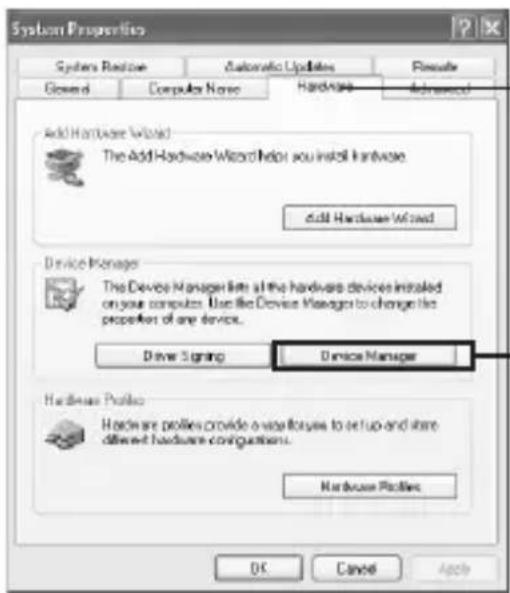
B cnyuae, cnn Bbl ydaIte ycTpoNcTBa, nHbIe Yem [? MSAC-US30], To BaW KOMnbOTep daIbwe MOXET He pa6OtaTb HOpMaJIbHO.
He Tpe6yeTcH yCTaHOBnTB "SonicStage" BHOBb, ecNI "SonicStage" 3apaHee yCTaHOBJIeHa. IocIe 3aBepWeHn yCTaHOBKn dpaIbepa, 3anyCKaHT KOMNbIOTeP cHOBa, NOdKJIIOuHb aDaIaTEp K KOMNbIOTepy.
-�� Windows 98SE/Windows Me -
1 3aIeJIKNHtTe IBaJbI Ha 3NaUKe "System" Ha "Control Panel". Ha 3KpaHe nOraBnTcA OKHO "System Properties".
2IpoBepbTe, yCTaHOBJIeH JIN dpaIBep ycTpoiCTBa.
① Μεικητέ Na Bκλαίke [Device Manager] B OKHe "System Properties".
②Двжды щeелкнITE ha [Other devices].
③Поберът,покаьвaeТсял [?MSAC-US30] cnpeДшecТыюим 3нakOM“?”.
3 YdaJIInTe IpaIbep, ecIN OH yCTaHOBJIeH.
EcnBbI BbIOJHnIe Oepaunio n.2 HauJn [? MSAC-US30] noD "Other devices",TO 3TO O3HaueT, UTO dpaBep ycToPcTBa yXe ycTaHOBJIeN. YdaJInte 3OTdpaBep,BbIOJHNB HxKeyKa3aHNHyIO npOceDpy. He cIeJyET yJaINtB IIO6bIe ycToPcTBa Kpome [? MSAC-US30].
2Шелкниета "Safely remove Sony Memory Stick USB Reader/ Writer (MSAC-US30) - Drive (F:)"
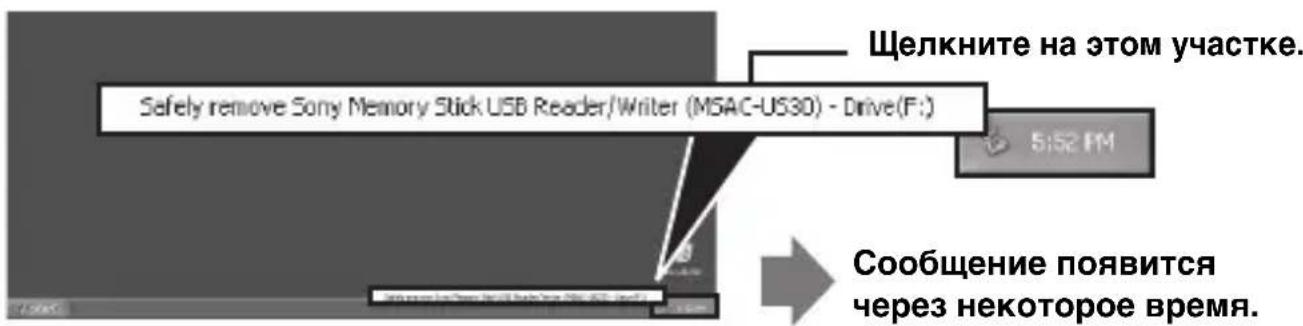
- CnmboJ npBoda "(F:) "и T.I. MoKeT 6bITb pyrIM B 3aBnCmOCTN OT nCnoJIb3yUoIeOcR KOMNbIOTepa.
3Покаьвается ["Sony Memory Stick USB Reader/Writer (MSAC-US30) can be safely removed."].
Ipn TaKOM yCNoBn MOxHOn IcnpaBHO ydaJIuTb aJaAnTep n3 KOMNbIoTepa.
Ппримеанne
HnKaunMOyT 6bITb pa3NHyBIMN B 3aBNCMOCTN OT npImeHReMoOnepaNoHHoCCTeMbI OC.
Приимechаю
- При жени сны только "Memory Stick" n3 aanterpa He Tpe6yeTcBbINOHNITb npoceDpy, yKa3aHHyIO Bblwe.
He cneyuET cnTb "Memory Stick" n3 aanTepa, noka mepcaet cnHaNbHnamnoUka doctyna. DaHHbIe, 3anomHeHHbIe Ha "Memory Stick", Moryt 6bITb pa3pyuWeHbl.
- Пи ВьЮЛнHeHn BblweyKa3aHNoI Oepaun HacToaHn aДaNTep He paCno3HaEcra BaUIM KOMNbIbTePOM.ДЯ TOrO,чTObI KOMNbIbTePpacNo3HaBaJ aDAnTep onrTb,OTcoeDInHte USB-Ka6eJIb OT KOMNbIbTePa I NOdCoeDInHte USBKa6eJIb K Hemy eue pa3.
Kak noIb3OBaTbc8 (ДЯ Macintosh)
Bbl mokeTe nCnoIb3ObaTb dpaIbep, npEynCMOTpeHHbI B KaueCTBe cTaHapTHoro KOMNoHeHa OC.
BbINOJIHnTe onepaun, KaK OINcaHO HIXe.
BbI MoXeTe nCNoJIb3OBA Tb aAaTep 6e3 ycTaHOBKn dpaIbepa, NOdKJIIOuH bAaTep K BaSeMy KOMNbIoTepy.
1Включnte Baш komlbIoTeP.
2Вставыт "Memory Stick" вадапетери-coeДинITE USB-rHe3do aадапета с USB-rHe3dOM Ha ochOBHOM 6LoKe KOMьTOtepa cneцальныIM USB-ka6eJem, npnilaraembIM K KOMПLEkTу.
PpoeDpy PoiKJIIOueHnAaIaTepa K KOMNbIoTepy CmOTpnte Ha cTp. 23.
3yctaHOBka dpaIbepa NaHcHTc aBTOMaTnueckn I dpaIBep yCTaHOBNTcHa KOMNbIOTeP.
4No 3aBepseHn yCTaHOBKn dpaBepa Ha pa6ooyem cToJe NOABNTc3NaQK npVBODa aAnTepa. AanTep roTOB K pa6Ote.
Ппримеанne
3нauok npivboda aadantepa He otobpajaetcna pa6oem ctole, korda "Memory Stick" He BCTabneHa B adanTep.
"OpenMG Jukebox" Bercn 2.2 nnn Bblne moKeT yCTaHOBtbcra B PIK, B KOTOpom 3apaHee ycTaHOBJIeHo "SonicStage", Ho, "SonicStage" n "OpenMG Jukebox" He mOryT pa60TaTb OndHOBpeMeHHo.
YcTaHOBka "OpenMG Jukebox" Bercn 2.2 nnn BbIe B PIK, B KOTOpom 3apaHee ycTaHOBJeHO "SonicStage", npNBOJNT K COBMeCTHomy IcNoJIb3OBAHnIO 6a3bl DaHHbIX, ynpaBJIouSei My3bIKaJIbHbIMn DaHHbIMN (paJamn).
3aHnscb Ha CD-RW/CD-R-ДИСК
Данhoe пиложене He COBMeCTnMo C 3aПиСьIO My3bIkaJIbHbIX DaHHbIX Ha CD-RW/CD-R-HocnteIb.
ΦηρMa Sony He 6yIDeT HOCnTb Ha ce6a OTBeTCTBENHOCTb 3a NOTepIIO daHHbIX, Bbl3bIBaEmyIO B pe3yNbTaTe TaKoI ONEpaUIN.
Bo36yxdenHe "SonicStage"
Hauвс конь [Start] Windows, щелкни Та [All Programs] - [SonicStage] - [SonicStage].
"SonicStage" BO36yIITcI rIJIaBHOE OKHO NOBNTcI.
CObetbl
-При Испосьовим onepaцнонов систembl, КрOME Windows XP, ВОЗБудente "SonicStage" руtem щелчka на Кногке [Start] Windows иnotom на [Programs] - [SonicStage] - [SonicStage].
- Пи пьвом ВОзбухждени "SonicStage" на вашем ПК диалогове OKно "SonicStage playback settings" (Установки лявocронЗveдени на "SonicStage") поныгся посы отообрахенья галв Horо okha. Поробости см. в "Launching "SonicStage" for the first time" (первoe ВОзбухждени "SonicStage") bo скравке o "SonicStage".
"SonicStage" MoXHo BO36yIuTb CneIyUOuIMn cNoocO6aMn:
-Двжды селкнту на 3начke SonicStage Ha pa6очem cTone, ecnno OTo6paЖeH.
ДаHHые He MOryT 6bITb 3aINcaHbl.
3aanncb 3anpeueha
Припегemeши посякюаеля ВпраBO He 3aПИСьIBaIOTcЯдньie Ha NamrTn "Memory Stick", пriчем даньie BbIBOДТСЯ n3 NamrTn, HO He BBOДТСЯ B NamrTb.
Ckopoctb cHTbIBaHn/3aIncn daHHbIX
CkopoocTb BBOda/BbIBOda daHHbIX yCTaHaBnBaETcB 3aBNCmOCTN OT Kombnaun npimehembx "Memory Stick" n annapaTypbl.
Пре dioctopoxkHocTи NO ПОльь3OBaHnIO "Memory Stick"
3aIncb,peaKtupOBaHne uJaIeHne daHHbIX He OcyuEcTBJIOTcB CnUyae, ecnn nepeKlIOuataIb 3aunTbI NOCTabIeH B noLoXeHne "LOCK". B
He cIeNyET npnlaTb Ype3MepHbIe ycNJIaI npn BncaHn 3aMeTOK ByyacToK Ha "Memory Stick Duo".
-
Пи Транспортуовани плхаени "Memory Stick" pekomehyetca BLOXITb ee B NOCTaBЯмь C Hei cyTЯр.
He cIeIyEt TpOraTb YacTn pa3beMa pyKaMn IJI MTeaJIInueCKIMN npEiMeTaMn. A
He cIeIyET 3aHHTb, yPOHITb IIN IOBepraTb "Memory Stick" cnIbHbIM yIapam.
He cneyuET pa3o6paTb nIi nepeHaJaNTb "Memory Stick".
He cneyuET yBnaXnHTb "Memory Stick" BOdoi.
He donyckaetc npimehene nn xpaehne B cJe dyuux Mectax: -
B aBTOMO6nIax, rIe TempePaTypa DoCTnraeTcR ype3MePHo BbICOKoJ, IIN B dp. TOpAUX MecTaX;
B MeCTaX, NOДВeрraeMbIX HeNOCpeIcTBeHHOMy BO3dEiCtBNIO COJIHeuHbIX JIyEi.
B MeCTax NOBblIeHHoB BIIaXHocTn IIN rIe OkpyKaIOUaJcpeJa coDEpKHT arpeccNBbIe Ra3bl Nnapbl.
Ydalenne (ncklouyenep) npoerpamMHOO o6ecpeHnA
- B cnyuae Windows 98SE/Windows Me -
1 BbI6paTb [Settings] n3 MeHIO [Start], 3aTeM igeJKNHyTb Ha [Control Panel].
"Control Panel" noRbntcHa 3KpaHe.
2Двжды селкунь на зачke "Add/Remove Programs".
Диалoroboe okHo "Add/Remove Programs Properties" noRbUTca.
3ВьбраТь удалиемую nporpammy ("SonicStage", Memory Stick Formatter) ИЗ спнSCа nporpaMM, КOTOpbie MOryT удалиTBСАВТOMaTHUeCKN, 3aTeM ΜeДКНУТь Ha [Add/Remove].
BbIbpaHna nporpaMMA ncklioyaeTc.
*IINCKJIIOUeHnI nporpaMMbl "SonicStage"HaO ydaJIaTb nporpaMMbl BCJeDyIOUeM NoprAKe:
"SonicStage"
"Music Visualize Library"
"OpenMG Secure Module"
- B cnyuae Windows 2000/Windows XP -
Посл Вхда кak admHnCTpaTOp, BblnoHIOr npBedeHHbIe HNXe onepaun. Порpo6hee O TOM, kaK BOITN KaK admHnCTpaTOp, CM. OTdJIbHOe rykoBOdCTBO K npIMeHIOUeMyca KOMNbIoTepy.
1C npmeneHem Windows 2000: Bb6paTb [Settings] n3 meHIO [Start], 3aTeM 3aueJKNHe Na [Control Panel].
C npimeneHem Windows XP:Двжды щeелкнут ha [Control Panel]ВMeHIO [Start].
PONBNTcA 3KpaH "Control Panel".
2C npimHeHem Windows 2000:Двждь lsEлКHyТь Ha 3Haчke "Add/Remove Programs".
C npimeneHnem Windows XP:Двжды щeелКнуТь Ha 3naчke "Add/Remove Programs".*
Диалoroboe okho "Add/Remove Programs" повится.
3 ΚeЛКнуТь Ha "Change/Remove".
4ВьбраТь удаляемую поррамmy ("SonicStage", Memory Stick Formatter) ИЗ списка "Currently installed programs", за темелкунть на [Change/Remove] ([Change and Remove] в снычae Windows XP).
BbI6paHHa npoPpMa nckJIouaetc.
* IInckIoueHnI nporpaMMbl "SonicStage" HaIo ydaJIaTb nporpaMMbl BCLeDyUoIeM nopAKe:
"SonicStage"
"Music Visualize Library"
"OpenMG Secure Module"
YctpaHHe HencpapBHOCTeI
OrpaHnueHn, CBa3aHHbIe C TexHOJorNei 3aunTbI aBtOpckoro npaba "OpenMG"
Прорразмma "SonicStage" Выллнгетс с разработанно Фпрмо Sony Textногием 3auntbl abTOpSCKOrO npaba "OpenMG", obecneuBaIoцeim 3auntby abTOpSCKOrO npaba Ha My3bIkaJIbHbIe npoN3BeDeHn.ДяпрEOCTaBLeHn BO3MOxHOCtN BOCNoJIb3OBaTbCЯшицEHhIMn паВOM My3bIkaJIbHbIMn ДaHHbIMn Ha nepcoHaJIbHbIX KOMnbIOTepax, "OpenMG" pa3pa6OtaHa cперedoBoi TexHOLorNe, COOTBeTCTByIOUeI corlaшeHnSDMI.Тak, наdo nomHTb,чTO првedeHbIe HIXe orpaHnueHnпрIMeHJOTcRпрИСПОЛБ3OBaHnnporpAMMHorO obecneueHn.
- My3bIkaJIbHbIe daHHbIe, COXpaHeHHbIe Ha JecTKOM IuCKe BaUero KOMNbIOTepa c nOmoUbIO "SonicStage", He BOCpON3BOJrTcR Ha pyROM KOMNbIOTepe, daKe npN KOINPOBaHIn npIMeHNTeJbHO K DaHHOMy KOMNbIOTepy.
- My3bIkaJIbHbIe dAHHbIe, NepeJaAHHbIe (3aRpyXeHHbIe) OT BaIero KOMNbIOTepa Ha MagicGate-coBmecTmMyo "Memory Stick", He BOCnPoN3BOJATcHa IpyrIX KOMNbIOTepaX dAxe npi KOIpOBAHIn nPpIMeHNTEbHO K KOMNbIOTepaM.
- My3bikaHbIe daHHbIe, nepeDaHHbIe (3arpyXeHHbIe) Ha MagicGatecoBMeCTmMyIO "Memory Stick", He nepeDaIOrTa (3arpyXaIOrTa) Ha HnKaKHe KOMNbIOTepbI 3a NCKJIIOUeHHeM TaKOrO KOMNbIOTepa, OT KOToPOr OdaHHbIe nepeDaHbI nepBOHaUaJIbHO.
- Odha n Ta Xe nporpaMma "SonicStage" He HcTaJIpyeTcH a MHOKeCTBO KOMNbIOTePOB.
Bcnyae,ecnnpabnna nOJb3OBaHn npedycmOTpeHbIK My3bIKAJIbHbIM daHHbIM NO pa3peWeHIO BlaadeJIbca aBTOPCKoro npabaN erO npedCTaBHTeJI, Bbl MOKeTe BblONHrTb OHN ONEpaUN, KOTOpbie pa3peWHaOTcB COOTBeTCTBnC daHHbIMn PpaBnAmN. B clyuae My3bIKAJIbHbIX daHHbIX, TaKnx KaK CD-dnckN iDpyrne npo3BeDEHn, Ha KOToPbIE He pacnpocTpAHOTc HnKaKHe npabnla NoJb3OBaHn, Bbl MoKeTe BblONHrTb OHN ONEpaUN, onpeJeHhble OCHOBbIMn npabnAmN SDMI (3aBOdckmN npabnAmN noJb3OBaHn). C nCpOJb3OBaHnem "3aBOdckx npabn INoJb3OBaHn" MoXHO TPN pa3a 3arpykatab KOMJIeKT My3bIKAJIbHbIX daHHbIX.
B COOTBeTCTBnC corlaaHeHem SDMI He npeIOcTaBJIeTcR BO3MOXHOCTb NOIb3ObaTbcra "SonicStage" IJRA My3bIKaJIbHBbIX DaHHbIX, BKJIIOUaIOuix B Ce6e CnHaJIb 3aunTbI OT KONIPOBAHn.
TekyzaBepn nporpammbi "SonicStage" pa3pa6oTaHa ha ochobe Tekyux npabnl SDMI. BbIbaIOT cIyuaI, KOrda HeKOToPbIe cyHKun, PpeDyCMOTpeHHbIe B 3TOB BepCn nporpammbI, MOrTy 6blTb HeDenCTBNTeHbIMN pRn DaJIbHeIWeM n3MeHEnu ycNoBn SDMI. PIIaHpyIO T BbInyCK yJyuUHeHNOB BepCn nporpammbI B COOTBeTCTBUN C daJIbHeIMn I3MeHEnm EycOBn. POMHInTe, YTO yJyuUHeHHbIe BepCn nporpamMbI PpeDIOCTaBnIOTcra 3a ChET NOLb3OBaTeJIa.
TexHnueckne xapaKtepncTnKn
Aanrep USB-nopra dЯ Memory Stick
IHTeppeic: IHTeppeic USB
Скорocь пeredачи даньх: He 6oilee 480 M6nt/ceK
06uine daHHbIe
Paboyee hapjkeHne 5 V (B) noct.ToKa (nntaeTc8 OT Ka6eJN USB) Notpe6nemam cna Toka
He 60lee 500 mA (B pa6oey mpexime)
He 60nee 0,5 mA (B dexkypHom pexKme PIK)
OpneHTnpoBOuHbIe ra6apntbI
38× 14× 74,5mm (MM) (× × )
OpneHTnpoBouHaMacca
30 g (r) (He BkIIOUaY "Memory Stick")
YcnoBnOkpykaHoueI cpebl
TeMnepaTpa - ot 0 do 40^ (He donyckaetcKoHdeHcaun)
OTH.BlaJxHoCTb-ot 20do 80% (He donyckaetcKOHdeHcaun)
B KOHCTpyKcIIO n TexHnueckyIO xapaKTepnCTnky MOryt 6bITb BHeceHbI HeKOToPbIE N3MeHEnIA 6e3 DoNoJIHnTeJbHOINHOpMaun.
В сныаe, ecn y Bac ecTb KaKne-HnbB BOpocbl/3aMeuHnA, CBa3aHHbIe c NaCTOAnm n3dJIeNem, nocTeNaH Customer Support ha web-caIte no aDpecy http://www.sony.net/Products/mssupport/
Memory Stick USB Reader/Writer
使用說明書
MSAC-US30
中文
"MagicGate Memory Stick"
Professional (Windows 2000)/Windows XP Home Edition/XP
Professional Edition (Windows XP)
http://www.sony.net/Products/mssupport/
Memory Stick USB Reader/Writer
使用说明书
MSAC-US30
MEMORYSTICKTM
中文
"MagicGate Memory Stick"
http://www.sony.net/Products/mssupport/
Memory Stick USB Reader/Writer
사용품명서
MSAC-US30
MEMORYSTICKTM
中国国
"Memory Stick" of the 41
"MagicGate Memory Stick"
i.
"MagicGate"讓末尾日aka?
→∈兑躁贝士贝士贝士贝士贝士贝士贝士贝士贝士贝士贝士贝士贝士贝士贝士贝士贝士贝士贝士贝士贝士贝士贝士贝士贝士贝士贝士贝士贝士贝士贝士贝士贝士贝士贝士贝士贝士贝士贝士贝士贝士贝士贝士贝士贝士贝士贝士贝士贝士贝士贝土贝土贝土贝土贝土贝土贝土贝土贝土贝土贝土贝土贝土贝土贝土贝土贝土贝土贝土贝土贝土贝土贝土贝土贝土贝土贝土贝土贝土贝土贝土贝土贝土贝土贝土贝土贝土贝土贝土贝土贝土贝土贝土贝土贝土贝土贝土贝土贝土贝土贝
USB 则是的删时在义用,其于说的能有
I.
Kunloe 1000000000000000000000000000000000000000000000000000000000000000000000
SisTtBkwnl JnWindowsXP/WindowsMee
DaiiHaiiHa iHaii HAIHAIHAIHAIHAIHAIHAIHAIHAIHAIHAIHAIHAIHAIHAIHAIHAIHAIHAIHAIHAIHAIHAIHAIHAIHAIHAIHAIHAIHAIHAIHAIHAIHAIHAIHAIHAIHAIHAIHAIHAIHAIHAIHAIHAIHAIHAIHAIHAIHAIHAI
人
5 [Finish] to kIikhJn 3RaiiBb stiH aonl.
![SONY MSACUS30 - [Finish] to kIikhJn 3RaiiBb stiH aonl. - 1](/content/2026/03/510371/images/5e5936dadf2467df673b9ee6314e2f78617972e2fa27c24c151b1bafa49fb2c2.jpg)
6 册私道“Memory Stick Formatter”端到台,
1 "Control Panel" of "System" aoIkon to dbrb kllrchnla.
"System Properties" 3
2 2
CD ReKdng dEeepr "Music Drive"ro gHgOgH hAok pHlE 3QJcJrJrJrJrJrJrJrJrJrJrJrJrJrJrJrJrJrJrJrJrJrJrJrJrJrJrJrJrJrJrJrJrJrJrJrJrJrJrJrJrJrJrJrJrJrJrJrJrJrJrJ r J
"Music Drive"e nA aNn oRiJIe ngkPakil e Rnchal s Hsnu.
Keohh anh oAok PaiIe hnnn nn n
"SonicStage"와그 backsの“OpenMG”ocrine OpenMG" "OpenMG" "OpenMG" "OpenMG" "OpenMG" "OpenMG" "OpenMG" "OpenMG" "OpenMG" "OpenMG" "OpenMG" "OpenMG" "OpenMG" "OpenMG" "OpenMG" "OpenMG" "OpenMG" "OpenMG" "OpenMG" "OpenMG" "OpenMG" "OpenMG" "OpenMG" "OpenMG" "OpenMG" "OpenMG" "openmg"
"SonicStage"와그 backs of "OpenMG" SoFTrWerHnL 1
1 [Start] [-] [Settings] [Control Panel] [控制Panel]
2 "Add/Remove Programs" aoIqon to dbrh kllrhl.
"Add/Remove Programs Properties" 这方, 从右方向左方倾斜.
Memory Stick USB Link/Linker
intert:USBintert
前通:到480Mbps
日
自动连接DV5V(USB制写器)
500mA (2
0.5mA (PC 391)
http://www.sony.net/Products/mssupport/
Memory Stick USB Reader/Writer
javel
J 11 J 11 J 11 J 11 J 11
."Memory Stick" 1111111111111111111
Jg 1001 4SmoI aai JSLI 4Sv USB JSU Jus
1g 1g
"Memory Stick" 1
V
1. .
11 1
b1 1e oclu11 lloglo g Jiai i Iaoi .
jS1 jLg 10
"OpenMG" "SonicStage"
jS11 jje jie 11i joo
yJlss...
Y 1
V..... Jg Sjglge "Memory Stick" 11111111111111111111
jss
(MacintoshpLjipJwIie)JaeWy
"SonicStage"
"SonicStage"
10 Check-in/check-out 1/
".. "SonicStage" J
"SonicStage"
"Memory Stick" 日 1J (Jdd)
"Memory Stick"JlJlJgbl
24 1 (j)
0
g 1 g> 4a> 4b> 4c> 4d> 4e> 4f> 4g> 4h> 4i> 4j> 4k> 4l> 4m> 4n> 4o> 4p> 4q> 4r> 4s> 4t> 4u> 4v> 4w> 4x> 4y> 4z> 4aa> 4ab> 4ac> 4ad> 4ae> 4af> 4ag> 4ah> 4ai> 4aj> 4ak> 4ak> 4al> 4an> 4an> 4an> 4an> 4an> 4an> 4an>
E V
"Memory Stick"
"Memory 1.
LJaa J:Stit
"Memory Stick "Memory Stick""Memory Stick""Memory Stick""Memory Stick""Memory Stick""Memory Stick""Memory Stick""Memory Stick""Memory Stick""Memory Stick""Memory Stick""Memory Stick""Memory Stick""Memory Stick""Memory Stick""Memory Stick""Memory Stick""Memory Stick""Memory Stick""Memory Stick""Memory Stick""Memory Stick""Memory Stick""Memory Stick""Memory Stick""Memory Stick""Memory Stick""Memory Stick""Memory Stick""Memory Stick""Memory Stick""Memory Stick""Memory Stick""Memory Stick"" Memory Stick""Memory Stick""Memory Stick""Memory Stick""Memory Stick""Memory Stick""Memory Stick""Memory Stick""Memory Stick""Memory Stick""Memory Stick""Memory Stick""Memory Stick""Memory Stick""Memory Stick""Memory Stick""Memory Stick""Memory Stick""Memory Stick""Memory Stick""Memory Stick""Memory Stick""Memory Stick""Memory Stick""Memory Stick""Memory Stick""Memory Stick""Memory Stick""Memory Stick""Memory Stick""Memory Stick""Memory Stick""Memory Stick""MemoryStick""MemoryStick""MemoryStick""MemoryStick""MemoryStick""MemoryStick""MemoryStick""MemoryStick""MemoryStick""MemoryStick""MemoryStick""MemoryStick""MemoryStick""MemoryStick""MemoryStick""MemoryStick""MemoryStick""MemoryStick""MemoryStick""MemoryStick""MemoryStick""MemoryStick""MemoryStick""MemoryStick""MemoryStick""MemoryStick""MemoryStick""MemoryStick""MemoryStick""MemoryStick""MemoryStick""MemoryStick""MemoryStick""MemoryStick ""
"Memory Stick"
"Memory Stick" 1
"Memory Stick PRO"
"Memory Stick" "Memory Stick PRO" "Memory Stick" "Memory Stick PRO"
"Memory Stick" 3
"Memory Stick" 51
Jagg /MagicGate)"Memory Stick Duo"
(
"Memory Stick" "Memory Stick Duo" "MagicGate" "Memory" "Memory Stick" "Memory Stick" "Memory Stick" "Memory Stick" "Memory Stick" "Memory Stick" "Memory Stick" "Memory Stick" "Memory Stick" "Memory Stick" "Memory Stick" "Memory Stick" "Memory Stick" "Memory Stick" "Memory Stick" "Memory Stick" "Memory Stick" "Memory Stick" "Memory Stick" "Memory Stick" "Memory Stick" "Memory Stick" "Memory Stick" "Memory Stick" "Memory Stick" "MemoryStick" "Memory Stick" "Memory Stick" "Memory Stick" "Memory Stick" "Memory Stick" "Memory Stick" "Memory Stick" "Memory Stick" "Memory Stick" "Memory Stick" "Memory Stick" "Memory Stick" "Memory Stick" "Memory Stick" "Memory Stick" "Memory Stick" "Memory Stick" "Memory Stick" "Memory Stick" "Memory Stick" "Memory Stick" "Memory Stick" "Memory Stick" "Memory Stick" "Memory Disk" "Memory Disk" "Memory Disk" "Memory Disk" "Memory Disk" "Memory Disk" "Memory Disk" "Memory Disk" "Memory Disk" "Memory Disk" "Memory Disk" "Memory Disk" "Memory Disk" "Memory Disk" "Memory Disk" "Memory Disk" "Memory Disk" "Memory Disk" "Memory Disk" "Memory Disk" "Memory Disk" "Memory Disk" "Memory Disk" "Memory Disk" "Memory Disk" "Memory disk" "Memory disk" "Memory disk" "Memory disk" "Memory disk" "Memory disk" "Memory disk" "Memory disk" "Memory disk" "Memory disk" "Memory disk" "Memory disk" "Memory disk" "Memory disk" "Memory disk" "Memory disk" "Memory disk" "Memory disk" "Memory disk" "Memory disk" "Memory disk" "Memory disk" "Memory disk' ' ' ' ' ' ' ' ' ' ' ' ' ' ' ' ' ' ' ' ' ' ' ' ' ' ' ' ' ' ' ' ' ' ' ' ' ' ' ' ' ' ' ' ' ' ' ' ' ' ' ' ' ' ' ' ' ' ' ' ' ' ' ' ' ' ' ' ' ' ' ' ' ' ' ' ' ' '
"Memory Stick"(J
U. (c) 15 s1s "Memory Stick" s1s
"Memory Stick"
1
"Magic
.("MagicGate") 1
Jia lo"Magi
"MagicGate" S|J
b g r j 1111111111111111111111111111111111111111111"Memory Stick"
"Memory Stick" "MagicGate" "MagicGate".
y 1
Joo
"Memory Stick" go MagicGate
山
"Memory Stick" MagicGate "SonicStage" (a)
.Hifi folder"
"SonicStage" "Hifi folder"
.()
J 1
"Memory Stick" MagicGate
1
.
.Macintosh "SonicStage"
JMacintosh 5o jb jg
它恰好 a < 1 或 b > - 1 .
1 1
S OBC = S OAC + S OBC = S ABO +
a#l JiaewiuecWind
. Windows 2000/Windows XP "SonicStage"
.Administrator 日 _ 1 ^ 日
Administrator
S_ ACD = 12 · CD · CM = 12 × 2t × 5
LoL
Power User.
"SonicStage" CD-ROM 1
.
. Windows 2000 Professional
()NTFS
a#iagio 15c 5o jgss jg/. 1e oogll Jaeiwlic
Windows 2000 Service Pack 3
"Memory Stick" "Memory Stick" "Memory Stick" "Memory Stick" "Memory Stick" "Memory Stick" "Memory Stick" "Memory Stick" "Memory Stick" "Memory Stick" "Memory Stick" "Memory Stick" "Memory Stick" "Memory Stick" "Memory Stick" "Memory Stick" "Memory Stick" "Memory Stick" "Memory Stick" "Memory Stick" "Memory Stick" "Memory Stick" "Memory Stick" "Memory Stick" "Memory Stick" "Memory Stick"
. Memory Stick Duo Adaptor
J 1
"Memory Stick"
(125) p1,·Jgbs USB
(12c) (MSAC-US30) Windows CD-ROM
山
. "SonicStage" 1
CD-ROM
j1
Ver. 1.5 "SonicStage"
Ver. 2.1 Memory Stick Formatter
PDF(1o)
J (PDF 111
MSAC-US30Manual_ARA.pdf
(126) jgl11ia Jc
aaii
i 1
p) jjJ JnWnd
. Windows pIj Joo jy jss 1e jie IJaaai iie Jiaai
12 1
(Windows) Ver. 1.5 "SonicStage"
"SonicStage" 10000000000000000000000000000000000000000000000000000000000000
CD
J 1
11111111111111111111
Jg jge 1e Jg "Memory Stick" MagicGate
山
.Macintosh p 12345678901011234567890101123456789010112345678901011234567890
. CD-RW/CD-R 11111111111
.
."Memory Stick PRO" j 15 J Ver. 1.5 "SonicStage"
)Ver.2.1 Memory Stick Formatter
Windows(
"Memory Stick" 日 日 (JJJ)
."Memory Stick" 1
"Memory Stick" 1
"Memory Stick" 1
#
lll l 1s 15 4gKo 11y "Memory Stick" o sl
.1234567890
b1 1e oclalloglaol
g
. (PDF 1) 1 J 1 1 CD-ROM 1
.
.
. PDF 1 1 1 1 1 1 1 1 Acrobat Reader 2
Acrobat Reader.
Screen
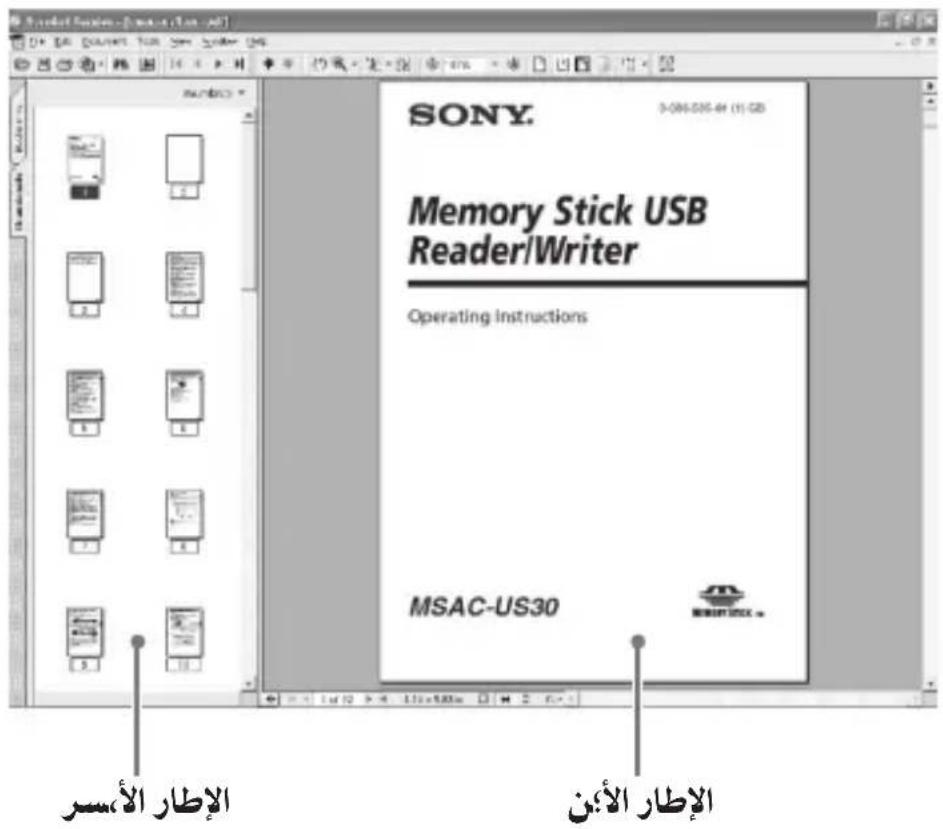
y1jb
J 15
.(jLbY)i j 150
15
15
Hep 1dLl lglg jAcrobat Reader Jyj JyJyJyJyJyJyJyJyJyJyJy
pplipieiieiie) HcHep oclll Jd Jlss
aHepd
Memory
Hep 1
.
Help.
aLalbioScreel
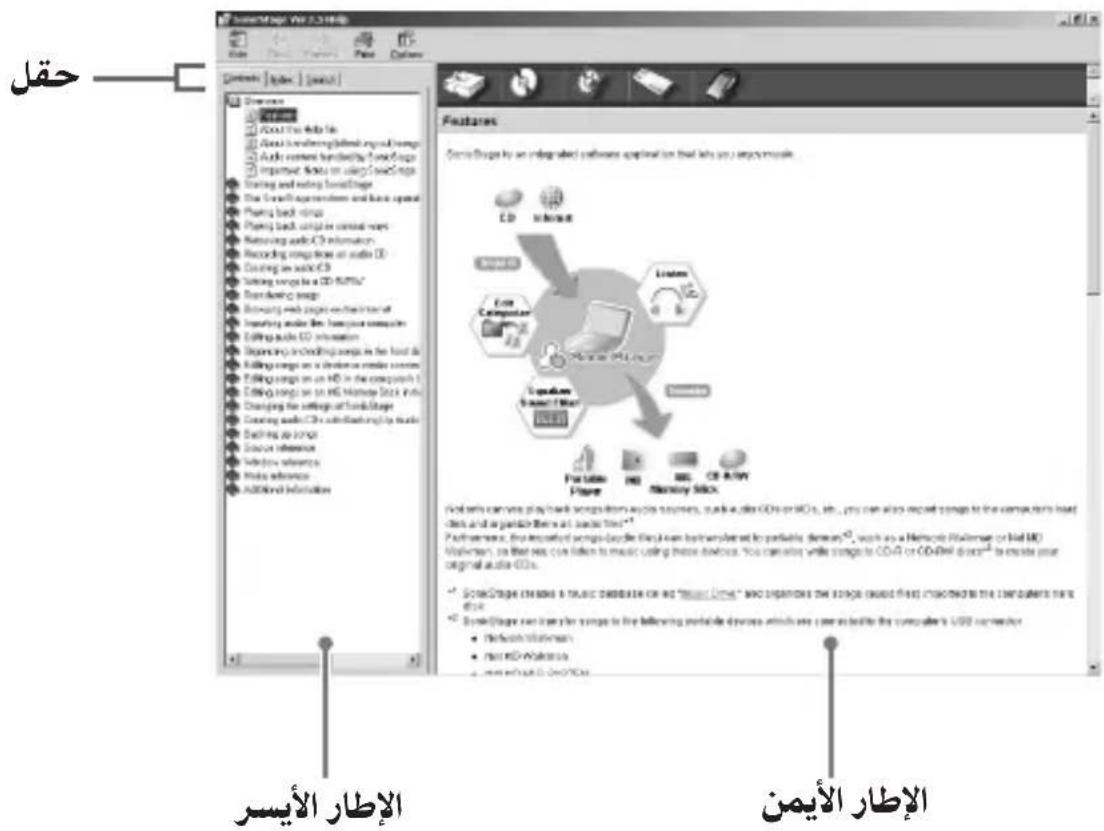
Keywords Contents
1
.
gaa:1 14% col#
JgssS11 jgeo 000000000000000000000000000000000000000
Jgssu 1 Jg jy 100000000000000000000000000000000000000
. juj 11 s|jlg> o> g> o.o. Joo y p a c u s s i n no slg> Jijogssl jlg>
. Windows XP pIi jy
OS.
Laii 1
a1^2 + a2^2 + a_3^2
Jgaa:11 14% 1c jglj#ol#
(PDF) "Memory Stick Formatter"
1
1.
.
iL
WindowsXPWindows2000
.Administrator (j)
CD-ROM CD-ROM (MSAC-US30) 2
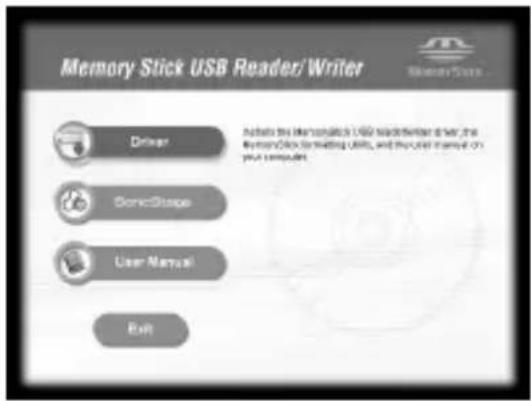
[Agree] jJj [Agree] Jj J
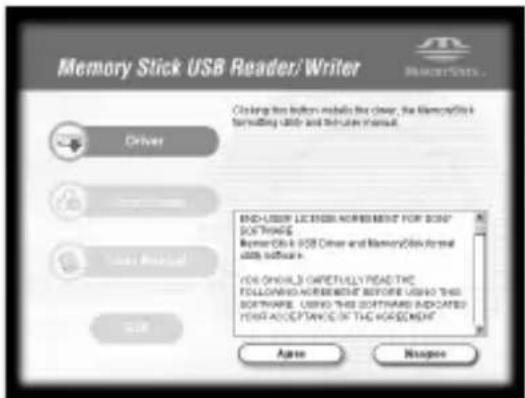
4
J [Finish]
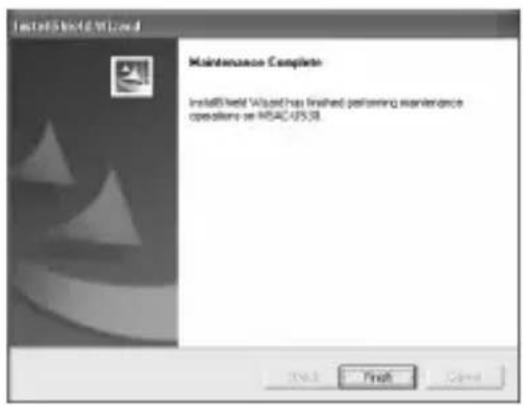
"Memory Stick 351
.
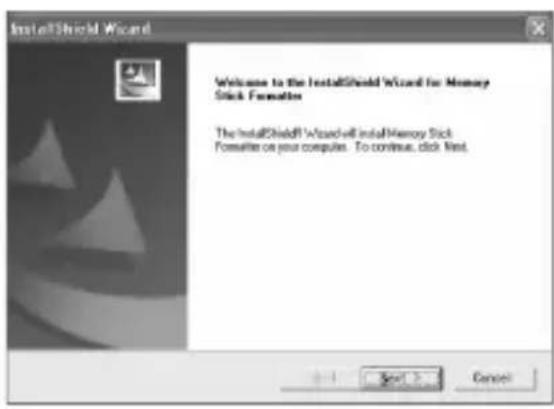
."Memory Stick Formatter"" [Finish]
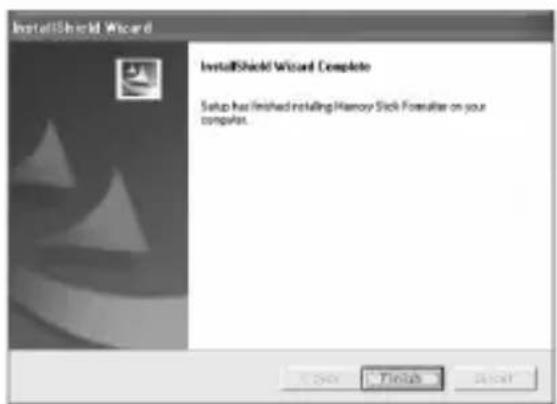
[Start] - [Programs] - "Memory Stick Formatter" √ √ √ √ √ √ √ √ √ √ √ √ √ √ √ √ √ √ √ √ √ √ √ √ √ √ √ √ √ √ √ √ √ √ √ √ √ √ √ √ √ √ √ √ √ √ √ √ √ √ ∙
.(PDF al)
i 1
[Exit] 1
"SonicStage".
[Start] - [Programs] - [Sony Memory Stick
Reader Writer] - [MSAC-US30 Instructions]
Adobe Systems 念 _ 一 ^ 一 Acrobat Reader (PDF 1o)
Incorporated.
"Son
"OpenMG"
"SonicStage"
[IonicStage].
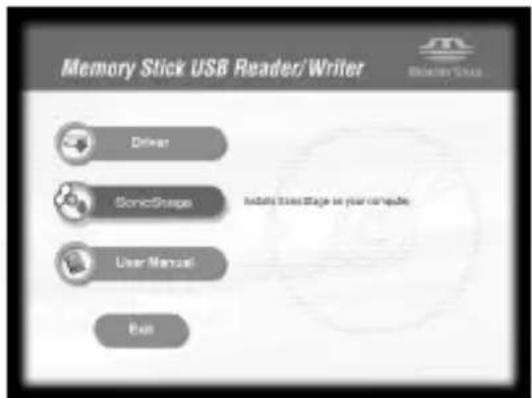
.[Agree] Jr j. "SonicStage" [Agree]
2
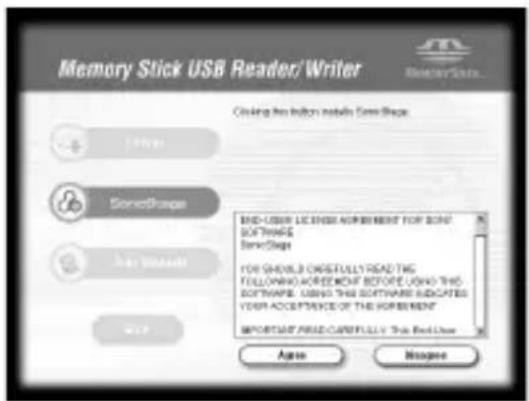
aLlle [Next]
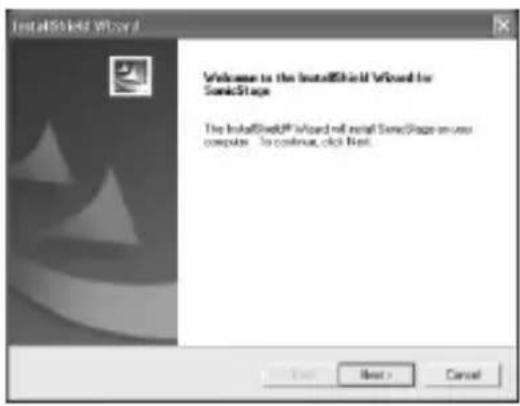
"SonicStage"
"OpenMG" 100000000000000000000000000000000000000000
[Browse] 15
[Next].
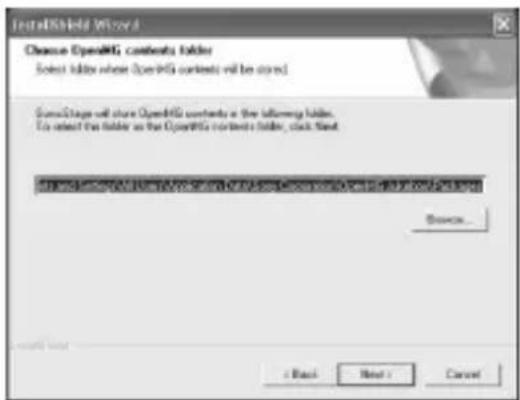
6
7
.
jgssll jlgjgl1iog
J 1
1
J. "Found New Hardware Wizard"
OS.
sulwly s jg Jusy USB jgs
Jiaowl dic. jie111i o c0 gJ 1s USB JwLg, jn wlaI aJg w
JusuSuljge USB Juaauiu! uuiuuiu
()
111111111111111
1
USB
USB

JU JU UUUUUUUUUUUUUUUUUUUUUUUUUUUUUUUUUUUUUUUUUUUUUUUUUUUUUUUUUUUUUUUUUUUUUUUUUUUUUUUUUUUUUUUUUUUUUUUUUUUUUUUUUUUUUUUUUUUUUUUUUUUUUUUUUUUUUUUUUUUUUUUUUUUUUUUUUUUUUUUUUUUUUUUUUUUUUUUUUUUUUuuuuuuuuuuuuuuuuuuuuuuuuuuuuuuuuuuuuuuuuuuuuuuuuuuuuuuuuuuuuuuuuuuuuuuuuuuuuuuuuuuuuuuuuuuuuuuuuuuuuuuuuuuuuuuuuuuuuuuuuuuuuuuuuuuuuuuuuuuuuuuuuuuuuuuuuuuuuuuuuuuuuuuuuuuuuuuuuuuuuuuuuuuuuuuuuuuuuuuuu uu
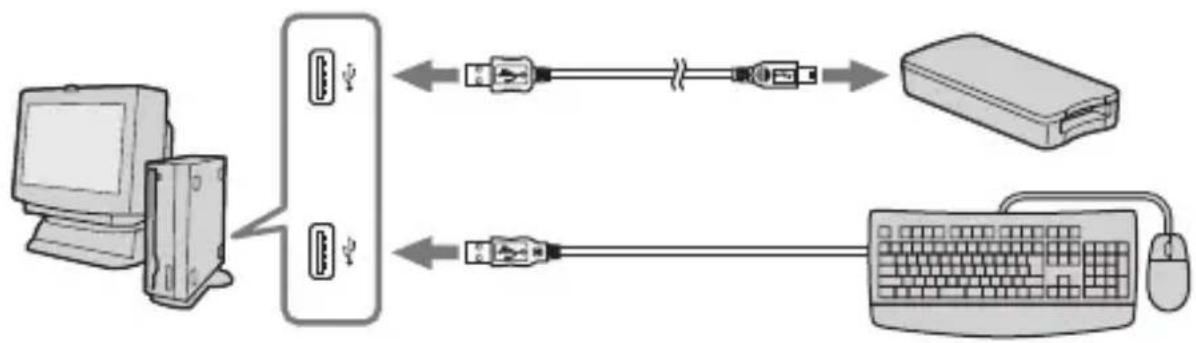
P
JL JUULI JUULI JUULI JUULI JUULI JUULI JUULI JUULI JUULI JUULI JUULI JUULI JUULI JUULI JUULI JUULI JUULI JUULI JUULI JUULI JUULI JUULI JUULI JUULI JUULI JUUL1
yogll jos
J. J. J. J. J. J. J. J. J. J. J. J. J. J. J. J. J. J. J. J. J. J. J. J. J. J. J. J. J. J. J. J. J. J. J. J. J. J. J. J. J. J. J. J. J. J. J. J. J. J. J.
My Computer" 1 My Compu
Memory Stick-MG(F:)g#j g2
JgSulu Jus Lalz (F:) JdU 1 UU
.Memory Stick-MG(F:) 1 Jg 1Jg 1Jg 1Jg 1Jg 1Jg 1Jg 1Jg 1Jg
山
"Memory Stick-MG(F:)" "Removable Disk (F:)" "Removable Disk (F:)" "Removable Disk (F:)" "Removable Disk (F:)" "Removable Disk (F:)" "Removable Disk (F:)" "Removable Disk (F:)" "Removable Disk (F:)" "Removable Disk (F:)" "Removable Disk (F:)" "Removable Disk (F:)" "Removable Disk (F:)" "Removable Disk (F:)" "Recall" "Recall" "Recall" "Recall" "Recall" "Recall" "Recall" "Recall" "Recall" "Recall" "Recall" "Recall" "Recall" "Recall" "Recall" "Recall" "Recall" "Recall" "Recall" "Recall" "Recall" "Recall" "Recall" "Recall" "Recall" "Recall'."Removable Disk"
()
J 1 J 1
Windows 2000/Windows XP- Adminstrator
."Control Panel" 品 _ 一 ^ 一 "System"g*j
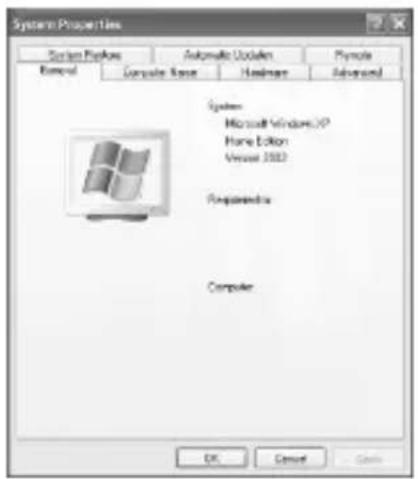
."System Properties"
2
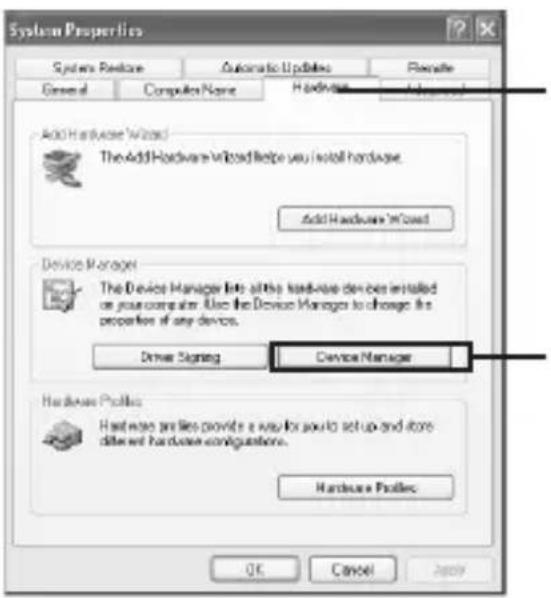
"System Properties".
.[Device Manager]

Device Manager"
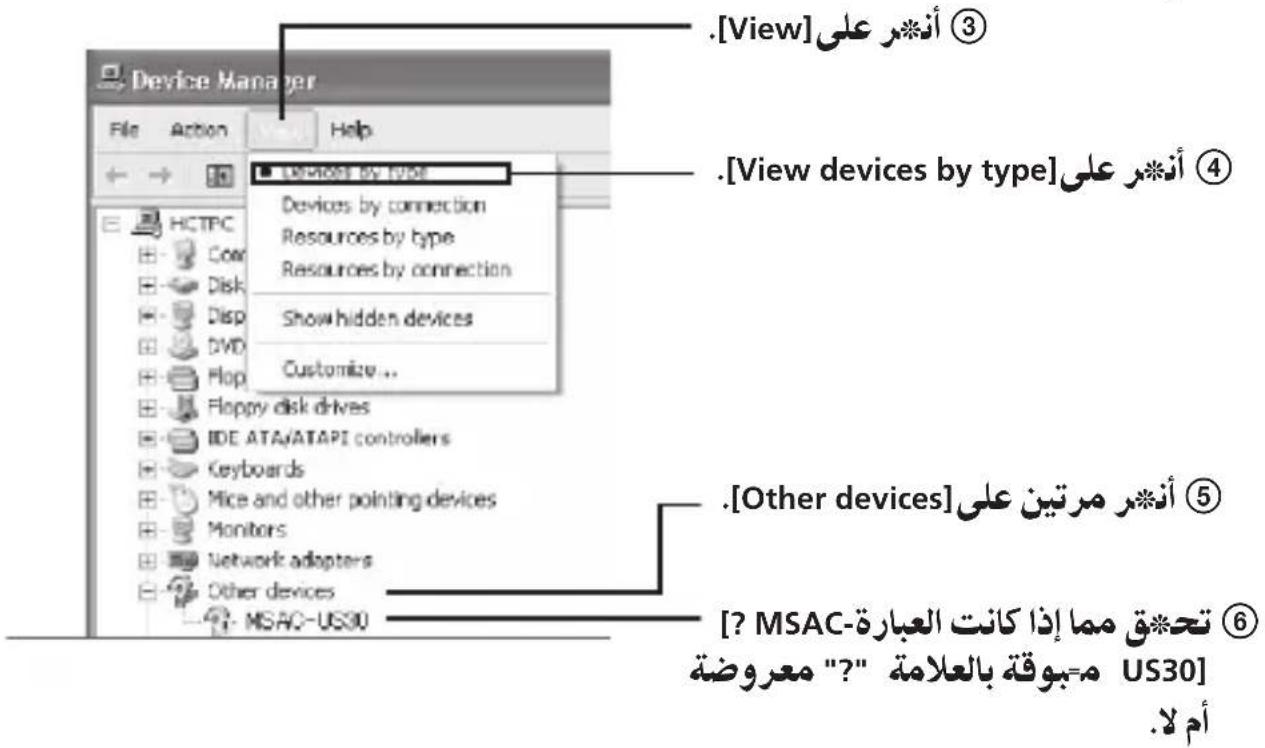
3s no
."Confirm Device Removal".[Remove] ②
.1e[OK]jJ ③
J ④
12 100
山
[?MSAC-US30]
"SonicStage" "SonicStage"
Jooepg 1 JooosuSul jge Jooosuolj y.
jgssjjg 000
."Control Panel" 品 _ 一 ^ System"g\*
1
System Propei
2s j4
."System Properties" [Device Manager] ①
.[Other devices] ②
.?" 1000 [? MSAC-US30]
15 1
.1aueb aee bJouu Jggey [? MSAC-US30] 5
"SonicStage" 15 s "SonicStage"
Jg 1 Jg j g 1
j1 = 35,j2 = - 35,j_3 = 0
0111 1111 1111 1111 1111
"Memory Stick"
JSSS SJS JSGS SJS JSGS JSGS 111111111111111111
- 1,2,·s ,l ,l = 1,2,·s ,n
"Removable Disk ("Memory Stick")""
"Memory Stick"
"Unplug or Eject Hardware" 1
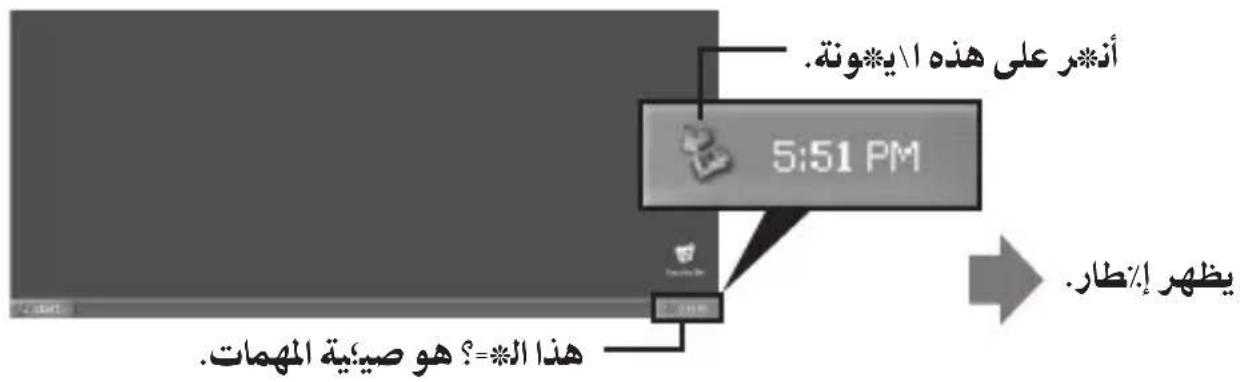
"Safely remove Sony Memory Stick USB Reader/Writer (MSAC- 一 _ 一 .US30)-Drive (F:)
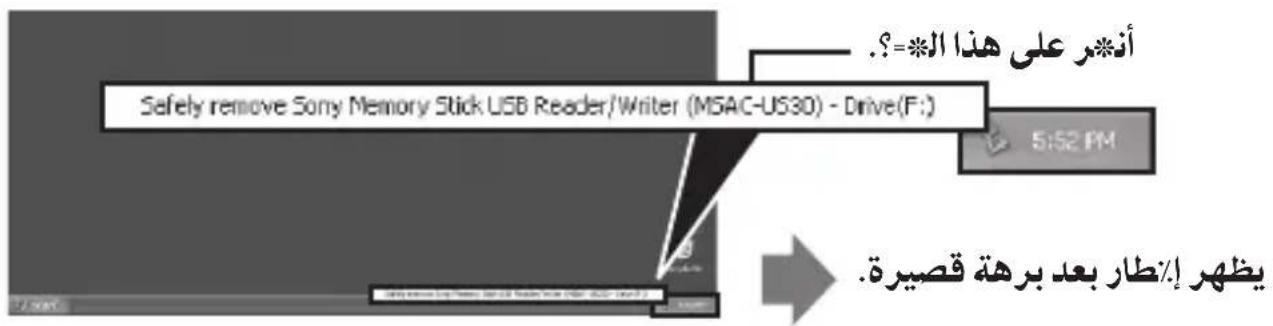
1
[“Sony Memory Stick USB Reader/Writer (MSAC-US30) can be safely removed.”].
1
.000000000000000000000000000000000000000
"Memory Stick" oJlil
JJJ J. 11111111111111111111111111111111111
."Memory Stick" 1
a
S
pplnuswic)Jmaci
.0S J 1
S OBC = S BOC + S BOC - S BOC
j 1000000000000000000000000000000000000000000
.
1.
2
USB "Memory Stick"
USB 15 laeus gss jg USB
.
.
j 1
.
10000000000000000000000000000000000000000000
.
山
oJlU lIy Ioc desktop 112w y oJg Jdall i g
"Memory Stick"
"Memory Stick" 1
.010i
0000000000000000000000000000000000000
.laaii ciao slabi! no gao
.
1 1
"Special" 150 "Eject" 150
a 111 111 111 111 111 111 111 111 111
"Memory Stick"
山
J 1
."Memory Stick" 1
"Memory Stick" oJl l 0
"SonicStage"
CD 1 日 _ 日 "SonicStage"
"Music "Drive"
"SonicStage"
S 1111111111111111111111111111111111
J USB J go b w g a l (a yll) c 1 / o j . (."Memory Stick" G MagicGate J J J J J
CD
JgssuS1sJg:glaaaewd1 LdU
.(EMDclu)iJyIaKwIgWgljgWglclld
J (Music Drive")
"Music Drive" "SonicStage"
.
"Music Drive" 1
:
CD 山 _ 山 ^ 山 "Music Drive" 1111111111111111111111111111
.
."Music Drive" 11111111111111111111111111
."Music Drive"
(Play List)
"Music Drive") 11111111111111111
"Play List".
aalill llll llll llll llll (Categ List)
g 1111 1111 1111 1111 1111 1111 1111 1111
"genre" "artist" "Music Drive"
"format".b g w a
i 1
"Music Drive"
e 1
i
"Music Drive")
."Memory Stick" MagicGate
"Memory Stick" MagicGate
J 1
e 151g aagaaa aaii
b: b之
"Vocal Cancellation" 11111111111111111111111111111111111111
(2) _ 1x dx 与 f(x) = _ 1x^2 dx 与 g(x) = _ 1x^3 dx 与
()
y 100
"Jazz" & "Rock"
(Visualizer)
"SonicStage" Visualizer
a
.
"SonicStage" 1
."SonicStage"Help
So
"Music 11111111111111111111111111111111111111111
. "SonicStage"
Ae aagoll Opei
ATRAC3plus ATRAC3 pWbLJ Jy 100000000000000000000000000000000000000
"OpenMG"
"Music 一 _ 一 "OpenMG" .(omg:
Drive"
E M D "OpenMG"
"Music Drive"
"OpenMG" 10000000000000000000000000000000000000000000000000000000000
.(ATRAC3/ATRAC3plus)
"OpenMG" (ATRAC3/
LADgATRAC3plus)
MagicGate 1
."Music Drive" EMD "Memory Stick"
WAV 1
"Music Drive" WAV WAV
.WAV aJooaowy aagwoc CD 1g2wV (aoglll Jull) cIgall
WAV WAW
MP3
"Music Drive" MP3 MP3
MP3 1
#
Windows Media Player MP3
. 15.15.15.15.15.15.15.15.15.15.15.15.15.15.15.15.15.15.15.15.15.15.15.15.15.15.15.15.15.15.15.15.15.15.
WMT (Windows Media
Technologies)
"Music Drive" 1 WMT WMT
"Music Drive"
Windows 10
. Media (WMA)*
WMT 1
. WMT 10
Windows Media Player WMT
jg < ( 1 + u) jg < j_g( 1 + u)
WMT 10 MP3 WAV 10
. "SonicStage" Help oolalllooglo "Importable Files" a
"Music Drive") "Memory Stick" MagicGate lMagicGate sMagicGate CD (a) a (a) a (a) a (a) a (a) a (a) a (a) a (a) a (a) a (a) a (a) a (a) a (a) a (a) a (a) a (a) a (a) a (a) a (a) a (a) a (a) a (a) a (a) a (a) a (a) a (a)
1 1 1 1 1 1 1 1 1 1 1 1 1 1 1 1 1 1 1 1 1 1 1 1 1 1 1 1 1 1 1 1 1 1 1 1 1 1 1
y
.1512 1 1 1 1 1 1 1 1 1 1 1 1 1 1 1 1 1 1 1 1 1 1 1 1 1 1 1 1 1 1 1 1 1 1
山
"check-out rights" 245
"MagicGate |y p d uu u u u u u u u u u u u u u u u u u u u u u u u u u u u u u u u u u u u u u u u u u u u u u u u u u u u u u u u u u u u u uuuuuuuuuuuuuuuuuuuuuuuuuuuuuuuuuuuuuuuuuuuuuuuuuuuuuuuuuuuuuuuuuuuuuuuuuuuuuuuuuuuuuuuuuuuuuuuuuuuuuuuuuuuuuuuuuuuuuuuuuuuuuuuuuuuuuuuuuuuuuuuuuuuuuuuuuuuuuuuuuuuuuuUUUUUUUUUUUUUUUUUUUUUUUUUUUUUUUUUUUUUUUUUUUUUUUUUUUUUUUUUUUUUUUUUUUUUUUUUUUUUUUUUUUUUUUUUUUUUUUUUUUUUUUUUUUUUUUUUUUUUUUUUUUUUUUUUUUUUUUUUUUUUUUUUUUUUUUUUUUUUUUUUUUUUUUUUUUUUUUUUUUUUUUUUUUUUUUUUUUUUUUU
"SonicStage"
1
SonicStag
S" "SonicStage"J
"OpenMG"
/1
"OpenMG"
111/0jgJ 111111111111111
JuaeWUaIgLg
"SonicStage" "OpenMG"
"OpenMG" "SonicStage" 10000000000000000000000000000000000000000000000000000000000000000000000000
"SonicStage" 110000000000000000000000000000000000000000000000000
J 1 J 1 J 1 J 1 J 1 J 1 J 1 J 1 J 1 J 1 J 1 J 1 J 1 J 1 J 1 J 1 J 1 J 1 J 1 J 1 J 1 J 1 J 1 J 1 J 1 J 1 J 1 J 1 J 1 J 1 J 1 J 1 J 1 J 1 J
. "SonicStage" 1 y 1 1 1 1 1 1 1 1 1 1 1 1 1 1 1 1 1 1 1 1 1 1 1 1 1 1 1 1 1 1 1 1 1 1 1 1 1 1
"OpenMG Jukebox"
"SonicStage".
Jg 2.2 J+ "OpenMG Jukebox"
"SonicStage"#"J#J*J#J#J" "SonicStage"
Syyjgssolji
"Open!
201 2.2 1 "OpenMG Jukebox"
. CD-RW/CD-RwIgBwI gAeAeAeAeAeAeAeAeAeAeAeAeAeAe
.1000000000000000000000000000000000000000000000
[All Programs] - Windows [Start] [SonicStage] - [SonicStage].
"SonicStage" 1
#
"SonicStage" Windows XP
[Programs] - [SonicStage] - :Windows [Start]
.[SonicStage]
"SonicStage 1
. "SonicStage" Help "LaLol" "Launching "SonicStage " for the first time
"SonicStage"
.1s o 15 1 1 SonicStage
P 10000000000000000000000000000000000000000000000
SonicStage 1
(.start 1
"loni y "SonicStage" 1000
Windows Explorer
山
2.2 1"OpenMG Jukebox"
"OpenMG Jukebox" "SonicStage" "SonicStage"
"SonicStage" "SonicStage"
.Help
"Me
"Memory Stick" "Memory Stick" "Memory Stick" "Memory Stick" "Memory Stick" "Memory Stick" "Memory Stick" "Memory Stick" "Memory Stick" "Memory Stick" "Memory Stick" "Memory Stick" "Memory Stick" "Memory Stick" "Memory Stick" "Memory Stick" "Memory Stick" "Memory Stick" "Memory Stick" "Memory Stick" "Memory Stick" "Memory Stick" "Memory Stick" "Memory Stick" "Memory Stick" "Memory Stick"
y
"Memory Stick" 1
."Memory Stick Formatter" 2
3 3
. "Memory Stick" 1511111111111111111111111111111
a
aalee eee
"Memory
"Memory Stick Duo") "Memory Stick"
- | b - 1| = | S - 1|
"Memory Stick Duo") "Memory Stick" 1
(.1b)
"Memory 1
Stick"
·y
.
- L = 1,2,3
"Memory 111111111111111111111111111
.
"Memory Stick"
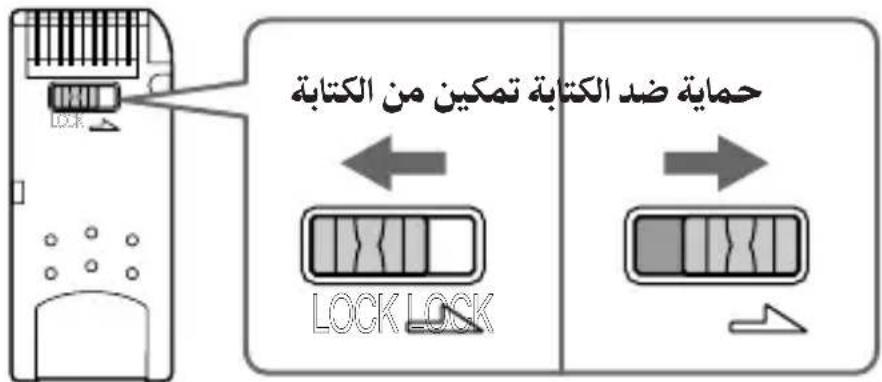
"Memory Stick" 5/
.
"Me Stick"
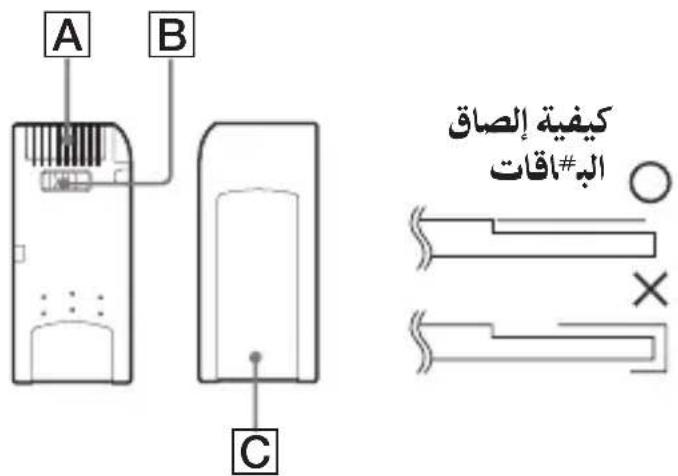
B."LOCK" JfJgJgJgJgJgJgJgJgJgJgJgJgJgJgJgJgJgJgJgJgJgJgJgJgJgJgJgJgJgJgJgJgJgJgJgJgJgJgJgJgJgJgJgJgJgJgJgJgJgJgJ g JI
."Memory Stick Duo" oOo oOo oOo oOo oOo oOo oOo oOo oOo oOo oOo oOo oOo oOo oOo oOo oOo oOo oOo oOo oOo oOo oOo oOo oOo oOo oOo oOo oOo oOo oOo oOo oOo oOo O O O O O O O O O O O O O O O O O O O O O O O O O O O O O O O O O O O O O O O O O O O O O O O O O O O O O O O O O O O O O O O O O O O O O O O O O O O O O O O O O O O O O O O O O O O O O O O O O O O O 1
.
.
.
.
.
.
.
.
.
.
.
.
.
.
.
.
.
.
.
.
.
.
.
.
.
.
.
.
.
.
.
.
.
.
.
.
.
.
.
.
.
.
.
.
.
.
.
.
.
.
.
.
.
.
.
.
.
.
.
.
.
.
.
.
.
.
.
.
.
.
.
.
.
.
.
.
.
.
.
.
.
.
.
.
.
.
.
.
.
.
.
.
.
.
.
.
.
.
.
.
.
.
.
.
.
.
.
.
.
.
.
.
.
.
.
.
.
.
.
.
.
.
.
.
.
.
.
.
.
.
.
.
.
.
.
.
.
.
.
?
.
2
3
4
5
6
7
8
9
10
11
12
13
14
15
16
17
18
19
20
21
22
23
24
25
26
27
28
29
30
31
32
33
34
35
36
37
38
39
40
41
42
43
44
45
46
47
48
49
50
51
52
53
54
55
56
57
58
59
60
61
62
63
64
65
66
67
68
69
70
71
72
73
74
75
76
77
78
79
80
81
82
83
84
85
86
87
88
89
90
91
92
93
94
95
96
97
98
99
100
eol (c)
-Window
. [Control Panel] [Start] [Settings] 1
. "Add/Remove Programs" 2
".Add/Remove Programs Properties"
Memory Stick 們 "SonicStage") 3 [Add/ 日 _ 日 .
.01
"Ji j 1000000000000000000000000000000000000000000000000000000000000000000000000000000000000000
-Windows 2000/Windows XP
[Start] [Settings] Windows 2000
.[Control Panel]
J [Control Panel] :Windows XP 1. [Start]
"Control Pa
"Add/Remove 4:Windows 2000 p
Programs".
WindowsXP
*Add/Remove Programs".
".Add/Remove Programs"
."Change/Remove" 3
Memory Stick "SonicStage") 4 Currently installed programs" (Formatter .(Windows XP [Change and Remove]) [Change/Remove]
.01lii 1
"lonicStage" 1oJy Joo
"SonicStage"
"Music Visualize Library"
"OpenMG Secure Module"
| الله/الله الله/الله الله/الله الله/الله الله/الله الله/الله الله/الله الله/الله الله/الله الله/الله الله/الله الله/الله الله/الله الله/الله الله/الله الله/الله الله/الله الله/AL الله/AL AL AL AL AL AL AL AL AL AL AL AL AL AL AL AL AL AL AL AL AL AL AL AL AL AL AL AL AL AL AL AL AL AL AL AL AL AL AL AL AL AL AL AL AL AL AL AL AL AL AL |
| "Memory Stick" "Memory Stick" "Memory Stick" "Memory Stick" "Memory Stick" "Memory Stick" "Memory Stick" "Memory Stick" "Memory Stick" "Memory Stick" "Memory Stick" "Memory Stick" "Memory Stick" "Memory Stick" "Memory Stick" "Memory Stick" "Memory Stick" "Memory Stick" "Memory Stick" "Memory Stick" "Memory Stick" "Memory Stick" "Memory Stick" "Memory Stick" "Memory Stick" "Memory Stick "Memory Stick" "Memory Stick" "Memory Stick" "Memory Stick" "Memory Stick" "Memory Stick" "Memory Stick" "Memory Stick" "Memory Stick" "Memory Stick" "Memory Stick" "Memory Stick" "Memory Stick" "Memory Stick" "Memory Stick" "Memory Stick" "Memory Stick" "Memory Stick" "Memory Stick" "Memory Stick" "Memory Stick" "Memory Stick" "Memory Stick" "Memory Stick" "Memory Stick' "Memory Stick" "Memory Stick" "Memory Stick" "Memory Stick" "Memory Stick" "Memory Stick" "Memory Stick" "Memory Stick" "Memory Stick" "Memory Stick" "Memory Stick" "Memory Stick" "Memory Stick" "Memory Stick" "Memory Stick" "Memory Stick" "Memory Stick" "Memory Stick" "Memory Stick" "Memory Stick" "Memory Stick" "Memory Stick" "Memory Stick" "Memory Stick" "Memory Stick") "Memory Stick" "Memory Stick" "Memory Stick" "Memory Stick" "Memory Stick" "Memory Stick" "Memory Stick" "Memory Stick" "Memory Stick" "Memory Stick" "Memory Stick" "Memory Stick" "Memory Stick" "Memory Stick" "Memory Stick" "Memory Stick" "Memory Stick" "Memory Stick" "Memory Stick" "Memory Stick" "Memory Stick" "Memory Stick" "Memory Stick" "Memory Stick" "Memory Stick) "Memory Stick" "Memory Stick" "Memory Stick" "Memory Stick" "Memory Stick" "Memory Stick" "Memory Stick" "Memory Stick" "Memory Stick" "Memory Stick" "Memory Stick" "Memory Stick" "Memory Stick" "Memory Stick" "Memory Stick" "Memory Stick" "Memory Stick" "Memory Stick" "Memory Stick" "Memory Stick" "Memory Stick" "Memory Stick" "Memory Stick" "Memory Stick" "Memory Stick'' "Memory Stick" "Memory Stick" "Memory Stick" "Memory Stick" "Memory Stick" "Memory Stick" "Memory Stick" "Memory Stick" "Memory Stick" "Memory Stick" "Memory Stick" "Memory Stick" "Memory Stick" "Memory Stick" "Memory Stick" "Memory Stick" "Memory Stick" "Memory Stick" "Memory Stick" "Memory Stick" "Memory Stick" "Memory Stick" "Memory Stick" "Memory Stick" "Memory Stick” "Memory Stick" "Memory Stick" "Memory Stick" "Memory Stick" "Memory Stick" "Memory Stick" "Memory Stick" "Memory Stick" "Memory Stick" "Memory Stick" "Memory Stick" "Memory Stick" "Memory Stick" "Memory Stick" "Memory Stick" "Memory Stick" "Memory Stick" "Memory Stick" "Memory Stick" "Memory Stick" "Memory Stick" "Memory Stick" "Memory Stick" "Memory Stick" "Memory Stick*/ "Memory Stick" "Memory Stick" "Memory Stick" "Memory Stick" "Memory Stick" "Memory Stick" "Memory Stick" "Memory Stick" "Memory Stick" "Memory Stick" "Memory Stick" "Memory Stick" "Memory Stick" "Memory Stick" "Memory Stick" "Memory Stick" "Memory Stick" "Memory Stick" "Memory Stick" "Memory Stick" "Memory Stick" "Memory Stick" "Memory Stick" "Memory Stick" "Memory Stick"[ |
g> 100g# gao
"Open
"OpenMG" "SonicStage"
1 1
"OpenMG"
1
"SonicStage"
MagicGate
"Memory Stick"
j ≤ k - 1
"Memory Stick" MagicGate (a)
.1
.1JgS J 5 "SonicStage"
1gell 1b gaaal llaaal jia bao slls. gjg jg a
1g 1
JaaWUaIuIoueI) aLwYSDMIuey
Default Usage Rule .(Default Usage Rule
1
"SonicStage" SDMI
- z 且 x > 0 恒有 ≥ 0
S.11.11.11 SDMI 111111111111111111111111111111111
12
y 1
1
USB Memory Stick /
b:USB
它恰好 x,y 且 x^2 - 4y ≥ 0
(USB 500)
$$ (j \omega \cos S) \sin S = \sin \frac {\pi}{2} \cos \frac {\pi}{2} \cos \frac {\pi}{2} \cos \frac {\pi}{2} $$
$$ (\iota_ {0} \circ \varepsilon \left\lfloor \dot {\iota} _ {0} \right\rfloor \times \dot {\iota} _ {0} \circ) \iota_ {0} \ddot {\iota} _ {0} \circ V \xi , 0 \times_ {\rho_ {0}} 1 \xi \times $$
("Memory Stick" 151111111)
Aa
()
( < 0, > 0) /% · y^ 1% · y^
1
(
S APQ = S AQP + S_ PQR
S OBC = S BOC + S_ BOC
J 1
- | x - 2| = | x + 3| .
1
j
http://www.sony.net/Products/mssupport/
http://www.sony.net/
Sony Corporation
