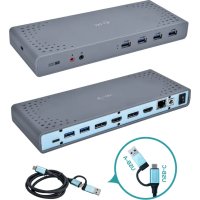
CADUAL4KDOCK - Other computer accessories i-TEC - Free user manual and instructions
Find the device manual for free CADUAL4KDOCK i-TEC in PDF.



| Product type | USB-C/USB-A Docking Station |
| Brand | i-TEC |
| Model | CADUAL4KDOCK |
| Dimensions | 223 x 88 x 27 mm |
| Weight | 338 g |
| Power supply | External power adapter 20 V / 2 A (DC cable 110 cm) |
| Video connectivity | 2x HDMI, 2x DisplayPort (2 simultaneous outputs max.) |
| Maximum resolution | 1 monitor: 5K (5120 x 2880) @60Hz via 2 DP cables; 2 monitors: 4K (4096 x 2160) @60Hz |
| USB ports | 6x USB-A 3.0 (4 front, 2 rear; 5 Gbps speed) |
| Network | 1x Gigabit Ethernet RJ-45 (10/100/1000 Mbps) |
| Audio | 1x 3.5 mm headphone output, 1x 3.5 mm microphone input (5.1 audio) |
| Host interface | USB-C (compatible with USB-A via included cable) |
| Operating systems | Windows 7/8/8.1/10 (32/64 bit), macOS X, Linux Ubuntu 14.04/16.04, Android ≥6 |
| Driver installation | Windows 10: automatic; other OS: download from www.i-tec.cz/en |
| Package contents | Docking station, USB-C to USB-C cable (90 cm), USB-C to USB-A cable (90 cm), power adapter, quick start guide |
| Maintenance | Clean with a soft, dry cloth. Do not use abrasive products or solvents. |
| Safety | Do not expose to moisture, extreme temperatures or shocks. Use on a flat, stable surface. |
| Repairability | Contact i-TEC support (support@itecproduct.com) in case of malfunction. No spare parts provided. |
| Warranty | Check the i-TEC website for warranty conditions. |
Frequently Asked Questions - CADUAL4KDOCK i-TEC
User questions about CADUAL4KDOCK i-TEC
0 question about this device. Answer the ones you know or ask your own.
Ask a new question about this device
Download the instructions for your Other computer accessories in PDF format for free! Find your manual CADUAL4KDOCK - i-TEC and take your electronic device back in hand. On this page are published all the documents necessary for the use of your device. CADUAL4KDOCK by i-TEC.
USER MANUAL CADUAL4KDOCK i-TEC
USB 3.0 / USB-C Dual Display Docking Station
natural_image
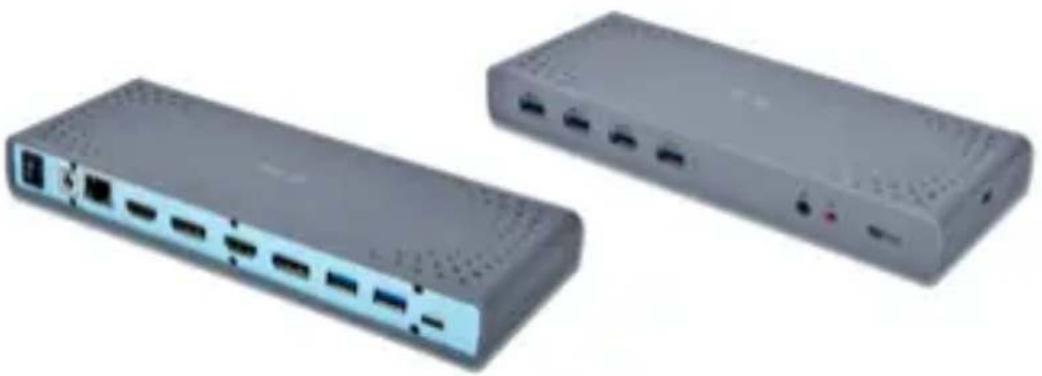
Two gray network switch devices with ports and ventilation slots, shown from front and side views (no text or symbols visible)User guide • Gebrauchsanweisung • Mode d'emploi Manual de instrucciones • Manuale • Uživatelská príručka Instrukcje obsługi • Užívatel'ská príručka • Vartotojo vadovas Handleiding
P/N: CADUAL4KDOCK
EN Please read the entire instruction manual carefully. Detailed manual is available on our website www.i-tec.cz/en/ in the tab „Manuals, drivers“. In case of any issues, please contact our technical support at: support@itecproduct.com
USB 3.0 / USB-C Dual Display Docking Station
ENGLISH....05-08
DEUTSCH....09-12
FRANÇAIS....13-16
ESPAÑOL....17-20
ITALIANO....21-24
ČESKY.... 25–28
POLSKI.... 29-32
SLOVENSKY 33-36
LIETUVOS.... 37-40
NEDERLANDS....41-44
WEEE....45-46
Declaration of Conformity.... 47–48
European Ecodesign Directive.... 49–51
FCC....52

INTRODUCTION
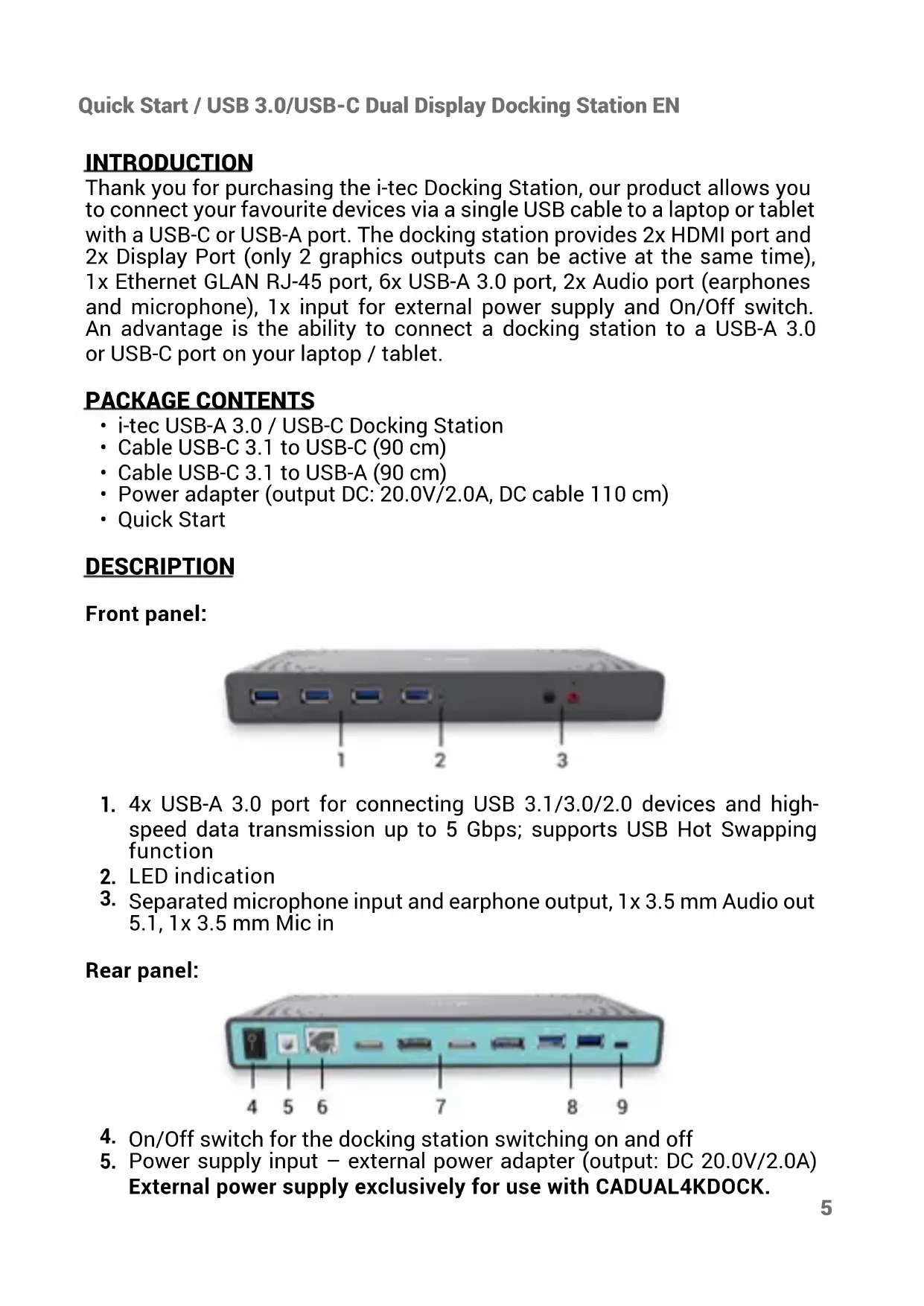
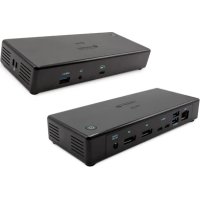
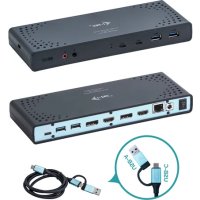
Thank you for purchasing the i-tec Docking Station, our product allows you to connect your favourite devices via a single USB cable to a laptop or tablet with a USB-C or USB-A port. The docking station provides 2x HDMI port and 2x Display Port (only 2 graphics outputs can be active at the same time), 1x Ethernet GLAN RJ-45 port, 6x USB-A 3.0 port, 2x Audio port (earphones and microphone), 1x input for external power supply and On/Off switch. An advantage is the ability to connect a docking station to a USB-A 3.0 or USB-C port on your laptop / tablet.
PACKAGE CONTENTS
• i-tec USB-A 3.0 / USB-C Docking Station
• Cable USB-C 3.1 to USB-C (90 cm)
• Cable USB-C 3.1 to USB-A (90 cm)
• Power adapter (output DC: 20.0V/2.0A, DC cable 110 cm)
- Quick Start
DESCRIPTION
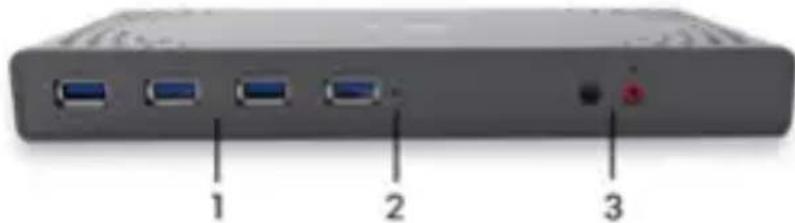
Front panel:
natural_image
Back panel of a gray electronic device with three ports and an orange indicator button (no text or symbols visible)- 4x USB-A 3.0 port for connecting USB 3.1/3.0/2.0 devices and high-speed data transmission up to 5 Gbps; supports USB Hot Swapping function
- LED indication
- Separated microphone input and earphone output, 1x 3.5 mm Audio out 5.1, 1x 3.5 mm Mic in
Rear panel:
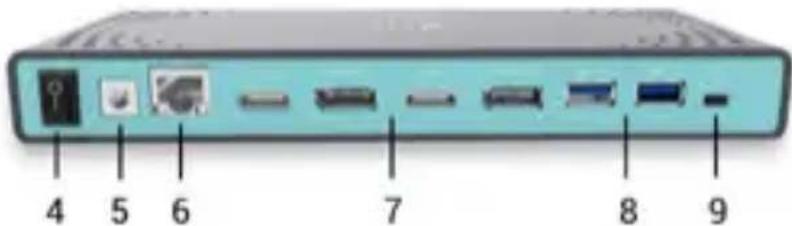
- On/Off switch for the docking station switching on and off
-
Power supply input – external power adapter (output: DC 20.0V/2.0A) External power supply exclusively for use with CADUAL4KDOCK.
-
1x Ethernet GLAN RJ-45 port for fast network and Internet access with Gigabit Ethernet connection, it supports speeds of 10 / 100 / 1000 Mbps
-
Graphic interface: 2x HDMI and 2x Display Port. Docking station supports up to two monitors.
Resolution:
- 1 monitor connected via 2 DP cables: 1x DP + 1x DP supports up to 5K 5120 x 2880/60 Hz, a graphics card on your computer must support 5K resolution - 2 monitors connected at the same time: 1x DP + 1x DP supports up to 4K 4096 x 2160/60 Hz; 1x DP + 1x HDMI supports up to 4K 4096 x 2160/60 Hz; 1x HDMI + 1x HDMI supports up to 4K 4096 x 2160/60 Hz
-
2x USB-A 3.0 port for connecting USB 3.1/3.0/2.0 devices and high-speed data transmission up to 5 Gbps; supports USB Hot Swapping function
-
USB-C port for connecting to a laptop with the USB-C or USB-A interface, both connecting cables are included
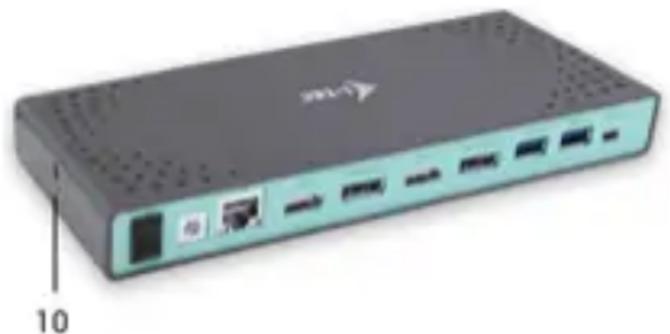
Side panel:
natural_image
Front view of a black wireless router with ports and indicator lights, labeled with '10' on the side (no readable text or symbols beyond label)-
Kensington lock
-
Chipset: DisplayLink DL6950, VIA VI813
• Product dimensions: 223 x 88 x 27 mm
• Product weight: 338 g
INSTALLATION IN WINDOWS 7/8/8.1/10 AND HIGHER, MACOS, LINUX AND OTHERS
The HUB is installed automatically, no need install drivers. Plug the HUB via USB-C 3.1, gen. 1 cable into available USB-C port of your notebook/PC and follow the on-screen instructions. The HUB will be installed and displayed in Device manager as "Generic USB Hub" and "Generic USB SuperSpeed Hub".
CHARGING
The HUB supports charging of the connected USB mobile equipment such as smartphones (including iPhone and Samsung phones), e-book readers, multi-media players, GPS navigators, and tablets (e.g., Asus, Toshiba, Go-Clever, Prestigio, Emgeton, Sencor). Using the original cable connect the equipment to be charged to the USB port of the HUB.
SYSTEM REQUIREMENTS
Hardware requirements: Laptop/tablet with a free USB-A or USB-C port
Operating system: Windows 7/8/8.1/10 32/64 bit, macOS X, Linux Ubuntu 14.04/16.04, Android 6 or later. Windows 10 – automatic installation of OS drivers. Other operating systems – manual installation of drivers. Firmware updates automatically.
For routine work on multiple monitors
- Processor: Intel Core i5 2+GHz / AMD Trinity or higher
- RAM: 4GB
- Graphic processor: Intel HD 4000, ATI Radeon HD7xxx, NVidia GeForce 5xxM or higher
- Port USB 3.0/USB-C
Video playback
- Processor: Intel Core i7 2+GHz/AMD Richland A10-575x/AMD Kaveri A10-7400P or higher
- RAM: 8GB
- Graphic processor: Intel HD 4000, ATI Radeon HD 8650, NVidia GeForce 7xxM or higher
- Port USB 3.0/USB-C
To play Ultra HD 4K/5K videos, your computer must be able to decode this video with its graphics processor. Especially in less powerful laptops, they can handle 4K/5K video playback, but the result is not ideal (interruption, video tearing).
DRIVER INSTALLATION IN WINDOWS 7/8/8.1/10 (32/64 BIT)
ATTENTION! Do not connect the docking station to your laptop/tablet until you have installed the appropriate drivers. Drivers must only be installed before first use. Before installation, make sure that your system has installed the latest drivers for your device and updated BIOS.
For Windows 7/8/8.1, download the drivers from our website www.i-tec.cz/en on the "Download" tab of this product. Run the installation from the downloaded file, select the installation language, and follow the instructions on the screen.
In Windows 10, the docking station can be connected directly, drivers are automatically installed from the system when connected to the Internet.
Note: In Windows 7/8/8.1/10, install the drivers as the "Administrator" user. The screen may blink while the drivers are being installed, this is a standard process. Once the installation is complete, we recommend restarting the notebook/tablet.
DRIVER INSTALLATION IN MACOS X
ATTENTION! Do not connect the dock to your mac until you install the appropriate drivers. Drivers must only be installed before first use. We recommend that you have the latest macOS operating system installed.
Download drivers from our website www.i-tec.cz/en on the "Download" tab of this product.
SAFETY INSTRUCTIONS
- Do not expose to extreme temperatures and air humidity.
- Use the device on flat surfaces – you will prevent it from slipping and falling to the ground.
- Save the user manual for a possible use later.
In cooperation with the service department:
- Check functionality after falling to water or to the ground.
- Check functionality when the cover is broken.
- Send the device back if it does not work in accordance with the user manual.
FREQUENTLY ASKED QUESTIONS
Available on our website www.i-tec.cz/en on the "FAQ" tab of this product.
EINLEITUNG
natural_image
Back panel of a network device showing four ports and a terminal block with three labeled ports (no text or symbols beyond labels)natural_image
Front view of a network switch device with ports and indicator lights (no visible text or symbols)10. Kensington lock
Chipset: DisplayLink DL6950, VIA VL813
Quick Start / USB 3.0/USB-C Dual Display Docking Station DE
natural_image
Front view of a network switch device with ports and an Ethernet port, labeled with number 10 (no text or symbols on the device itself)10. Serrure Kensington
INSTRUCTIONS DE SÛRETÉ
natural_image
Front view of a gray electronic device rear panel with three labeled ports (no text or symbols beyond labels)natural_image
Front view of a black network switch with ports and an Ethernet port, labeled with number 10 (no text or symbols on the device body)-
Kensington lock
-
Chipset: DisplayLink DL6950, VIA VI813
- Dimensiones del producto: 223 x 88 x 27 mm
- Peso del producto: 338 g
Quick Start / USB 3.0/USB-C Dual Display Docking Station ES
natural_image
Back panel of a network device showing four ports and a terminal block (no text or symbols visible)natural_image
Front view of a network switch device with ports and an Ethernet port, labeled with number 10 (no text or symbols on the device body)Quick Start / USB 3.0/USB-C Dual Display Docking Station CZ
ÚVOD
natural_image
Back panel of a network device showing four ports and a terminal block (no text or symbols visible)natural_image
Front view of a network switch device with ports and an Ethernet port, labeled with '10' on the side (no other text or symbols visible)10. Kensington lock
Quick Start / USB 3.0/USB-C Dual Display Docking Station CZ
natural_image
Back panel of a computer device showing ports and a terminal block (no text or symbols visible)natural_image
Front view of a black network switch device with ports and indicator lights, labeled with '10' on the side (no text or symbols on the device body)-
Zamek Kensington
-
Chipset: DisplayLink DL6950, VIA VL813
• Wymiary produktu: 223 x 88 x 27 mm
• Waga produktu: 338 g
WYMAGANIA SYSTEMOWE
Quick Start / USB 3.0/USB-C Dual Display Docking Station PL
natural_image
Back panel of a gray electronic device with three ports and a red indicator light (no text or symbols visible)natural_image
Front view of a network switch device with ports and indicator lights (no visible text or symbols)10. Kensington lock
- Chipset: DisplayLink DL6950, VIA VL813
- Rozmery produktu: 223 x 88 x 27 mm
• Hmotnost produktu: 338 g
SYSTÉMOVÉ POŽADAVKY
Quick Start / USB 3.0/USB-C Dual Display Docking Station LT
JVADAS
natural_image
Back panel of a network device showing four ports and a terminal with a red indicator light (no text or symbols visible)natural_image
Front view of a network switch device with ports and an Ethernet port, labeled with '10' on the side (no other text or symbols visible)Šoninis panelis:
-
Kensington lock
-
Chipset: DisplayLink DL6950, VIA VL813
• Gaminio matmenys: 223 x 88 x 27 mm
• Gaminio svoris: 338 g
SISTEMOS REIKALAVIMAI
Quick Start / USB 3.0/USB-C Dual Display Docking Station LT
natural_image
Front view of a black wireless router with ports and ventilation slots, labeled with '10' on the side (no text or symbols on the device body)10. Kensington-slot
- Processor: Intel Core i5 2+GHz / AMD Trinity of better
- RAM: 4GB
- Grafische processor: Intel HD 4000, ATI Radeon HD7xxx, NVIDIA GeForce 5xxM of better
• USB 3.0 / USB-C-poort
This equipment is marked with the above recycling symbol. It means that at the end of the life of the equipment you must dispose of it separately at an appropriate collection point and not place it in the normal domestic unsorted waste stream. This wil benefit the environment for all. (European Union only)
DEUTSCH
This equipment has been tested and found to comply within the limits of a Class B digital device pursuant to Part 15 of the FCC Rules. These limits are designed to provide reasonable protection against harmful interference in a residential installation.
www.i-tec.cz/en
- USB 3.0 / USB-C Dual Display Docking Station
- INTRODUCTION
- PACKAGE CONTENTS
- DESCRIPTION
- Front panel:
- Rear panel:
- Side panel:
- INSTALLATION IN WINDOWS 7/8/8.1/10 AND HIGHER, MACOS, LINUX AND OTHERS
- CHARGING
- SYSTEM REQUIREMENTS
- For routine work on multiple monitors
- Video playback
- DRIVER INSTALLATION IN WINDOWS 7/8/8.1/10 (32/64 BIT)
- DRIVER INSTALLATION IN MACOS X
- SAFETY INSTRUCTIONS
- FREQUENTLY ASKED QUESTIONS
- EINLEITUNG
- Kensington lock
- Quick Start / USB 3.0/USB-C Dual Display Docking Station DE
- Serrure Kensington
- INSTRUCTIONS DE SÛRETÉ
- Quick Start / USB 3.0/USB-C Dual Display Docking Station ES
- Quick Start / USB 3.0/USB-C Dual Display Docking Station CZ
- ÚVOD
- WYMAGANIA SYSTEMOWE
- Quick Start / USB 3.0/USB-C Dual Display Docking Station PL
- SYSTÉMOVÉ POŽADAVKY
- Quick Start / USB 3.0/USB-C Dual Display Docking Station LT
- JVADAS
- Šoninis panelis:
- SISTEMOS REIKALAVIMAI
- Kensington-slot
- DEUTSCH
Brand : i-TEC
Model : CADUAL4KDOCK
Category : Other computer accessories