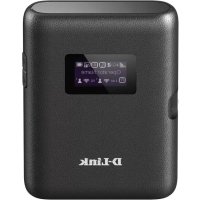
DWR933 - Router D-LINK - Free user manual and instructions
Find the device manual for free DWR933 D-LINK in PDF.



| Product type | Portable 4G LTE router |
| Dimensions | 118 x 61 x 21 mm |
| Weight | 120 g (with battery) |
| Power supply | Rechargeable battery, charges via USB cable (power adapter or PC) |
| Cellular connectivity | 4G LTE/3G, micro-SIM card |
| Wi-Fi connectivity | Dual-band 2.4 GHz and 5 GHz, WPS |
| Management interface | Web (192.168.0.1), username: admin, password: blank |
| External storage | microSD card reader |
| Display | Yes, to display connection information |
| Main functions | 4G sharing, Wi-Fi hotspot, USB router mode |
| Maintenance and cleaning | Wipe with a soft, dry cloth. Do not use chemicals. |
| Security | Wireless networks with password, factory reset via Reset button |
| Spare parts and repairability | Removable battery, SIM and microSD cards accessible under the cover |
| General information | Brand: D-Link, Model: DWR933, Manual available online |
Frequently Asked Questions - DWR933 D-LINK
User questions about DWR933 D-LINK
0 question about this device. Answer the ones you know or ask your own.
Ask a new question about this device
Download the instructions for your Router in PDF format for free! Find your manual DWR933 - D-LINK and take your electronic device back in hand. On this page are published all the documents necessary for the use of your device. DWR933 by D-LINK.
USER MANUAL DWR933 D-LINK
flowchart
graph TD
    A["D-Link Package"] --> B["Access Box"]
    B --> C["Coiled Cable"]
    C --> D["Document with Details"]
    D --> E["Delivery Box with Details"]
    E --> F["Next Step"]
    style A fill:#f9f,stroke:#333
    style F fill:#ccf,stroke:#333
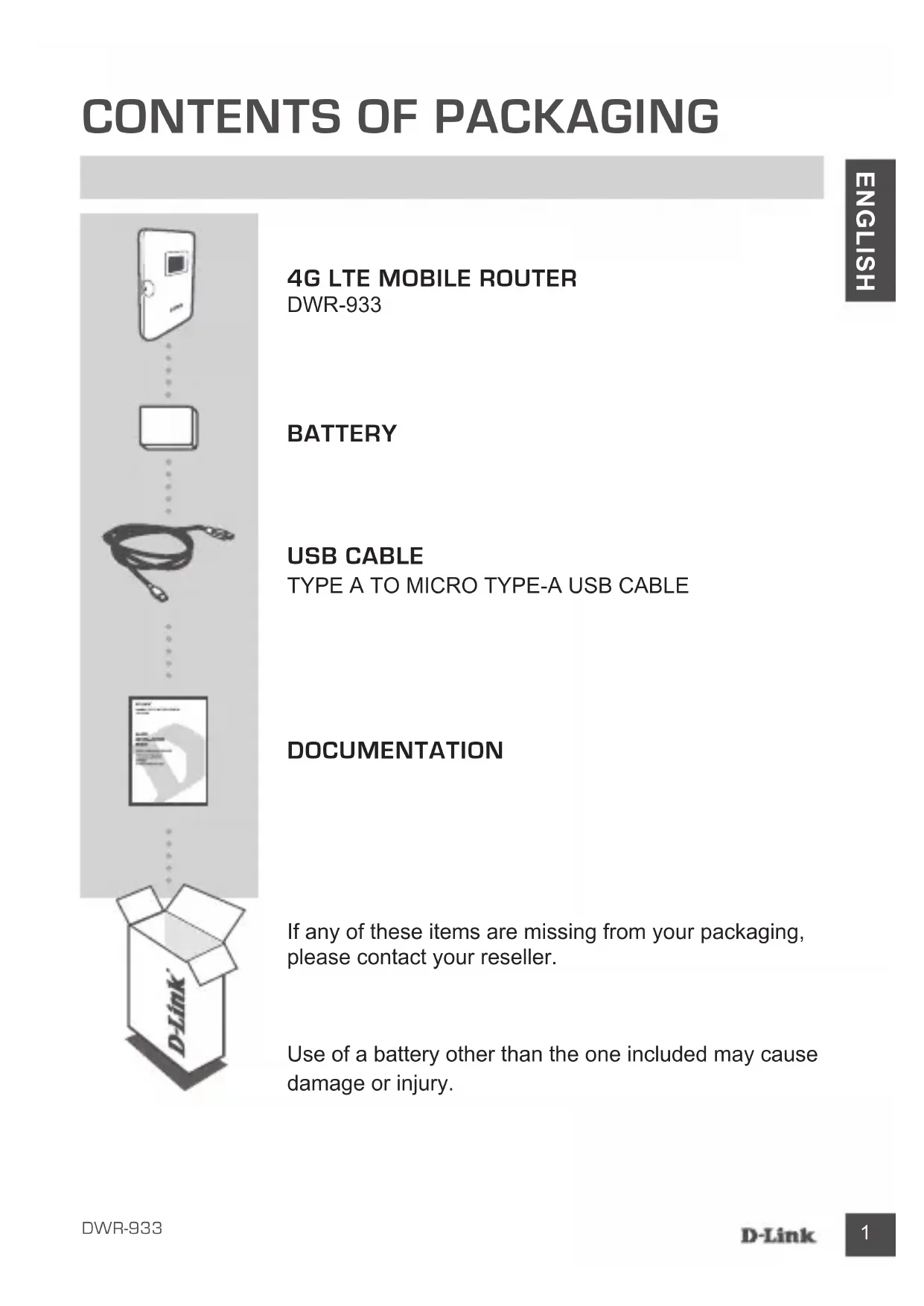
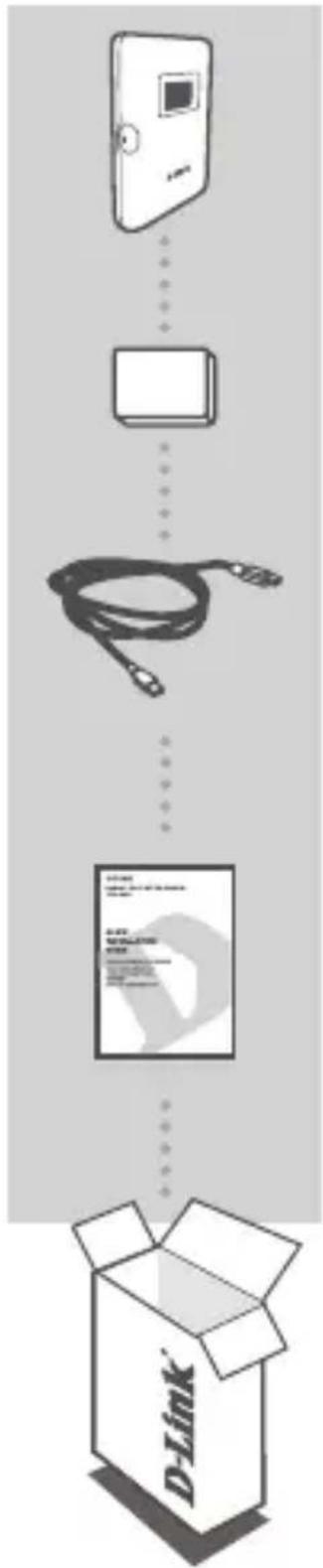
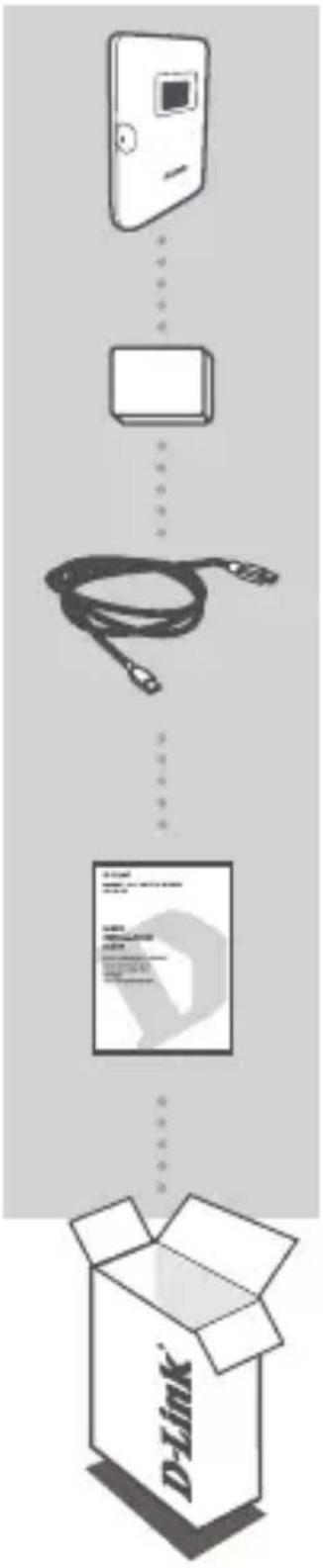
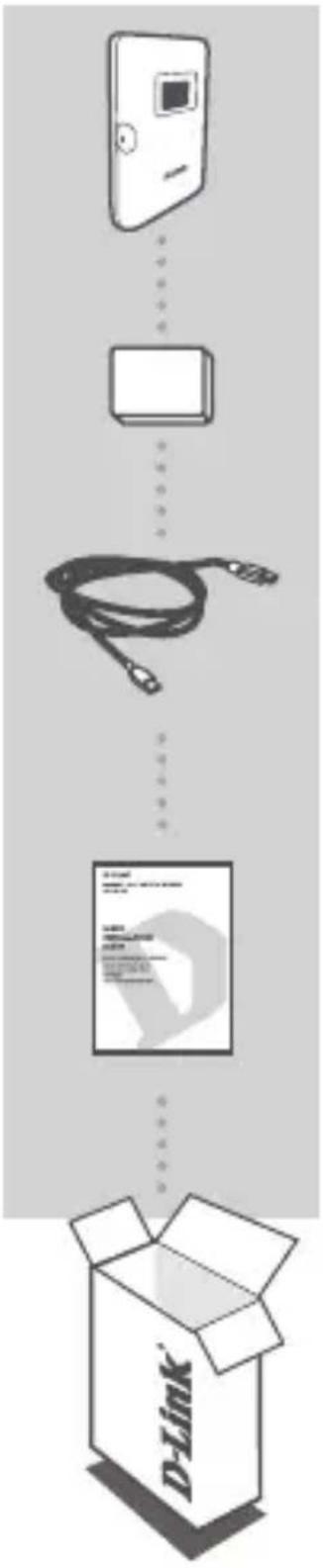
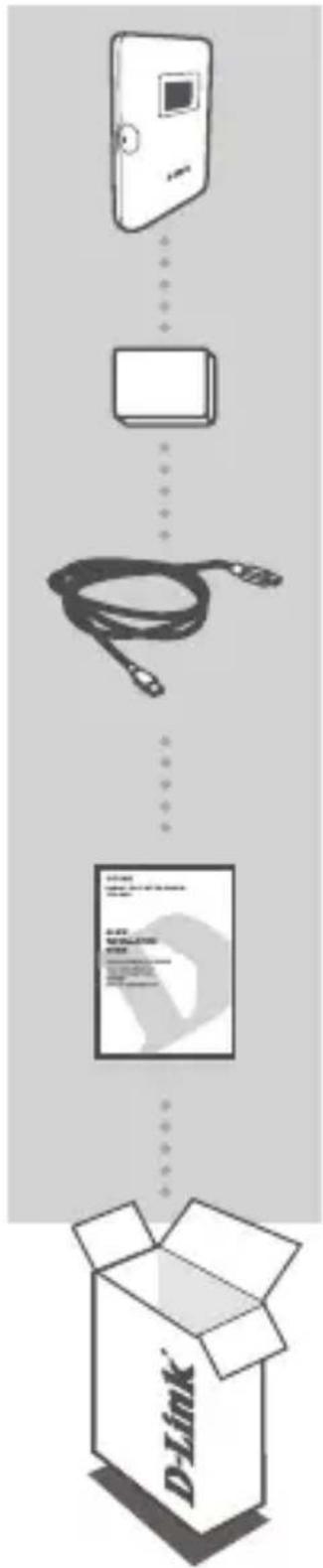
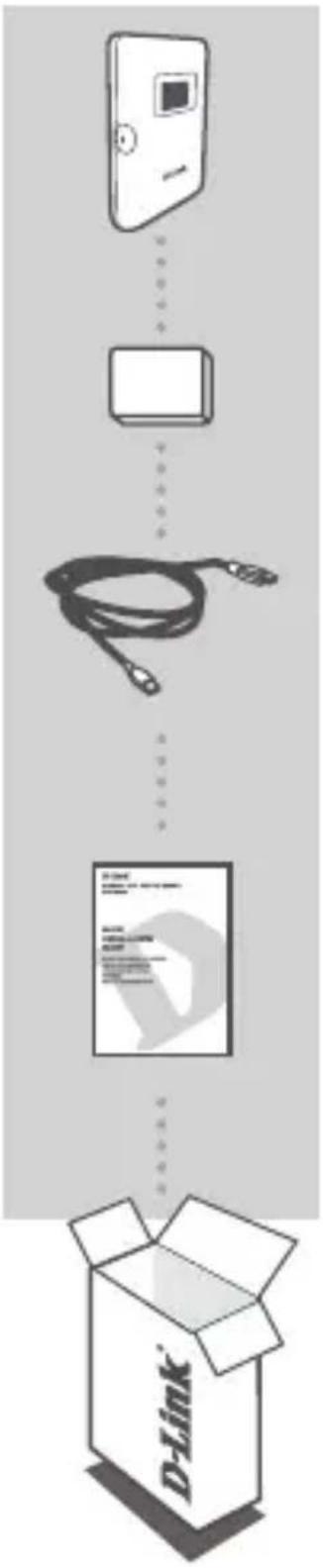
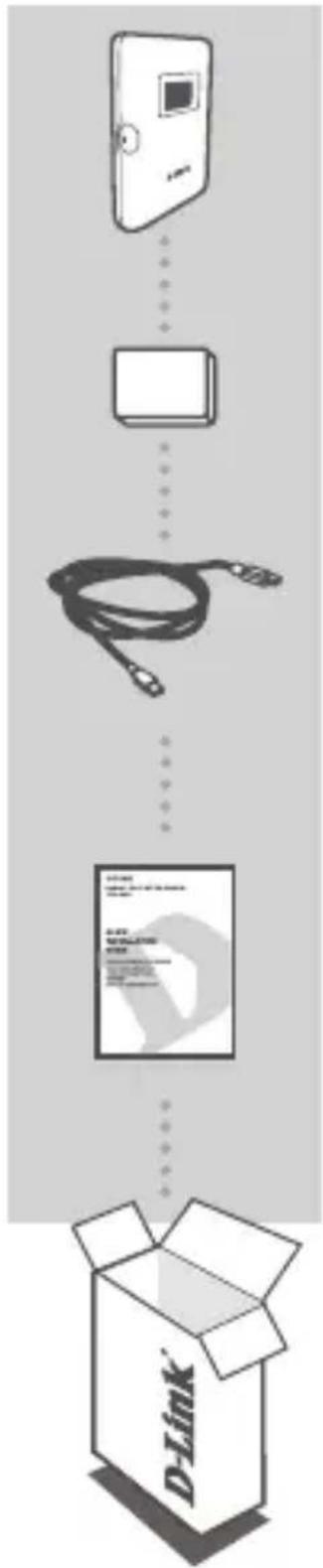
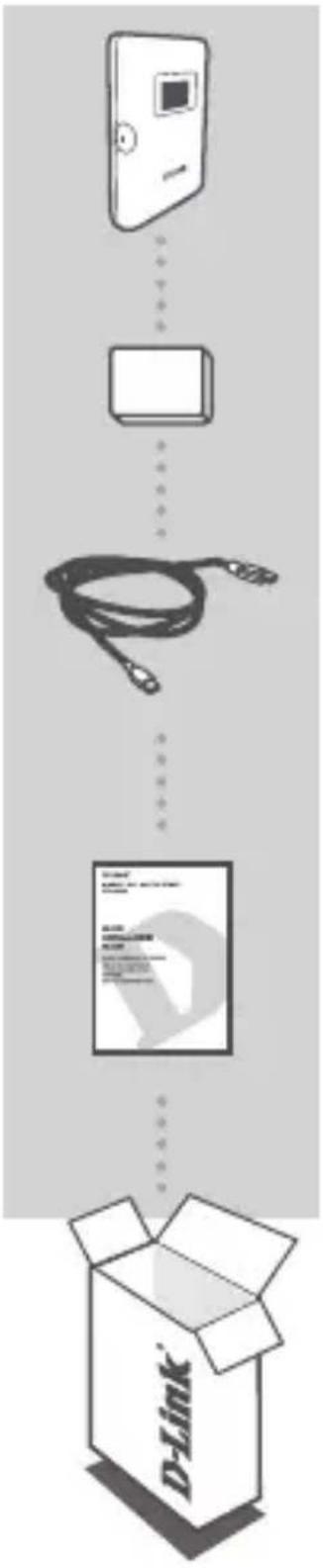
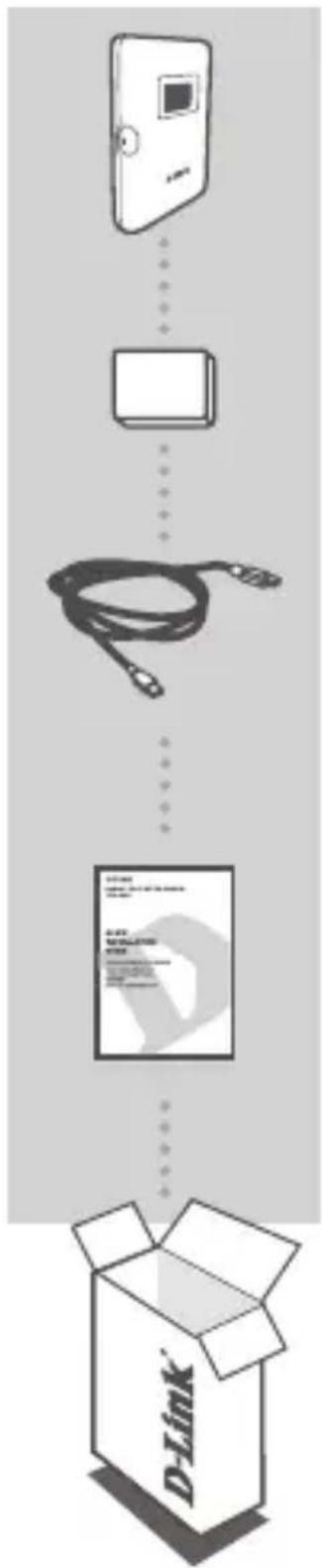
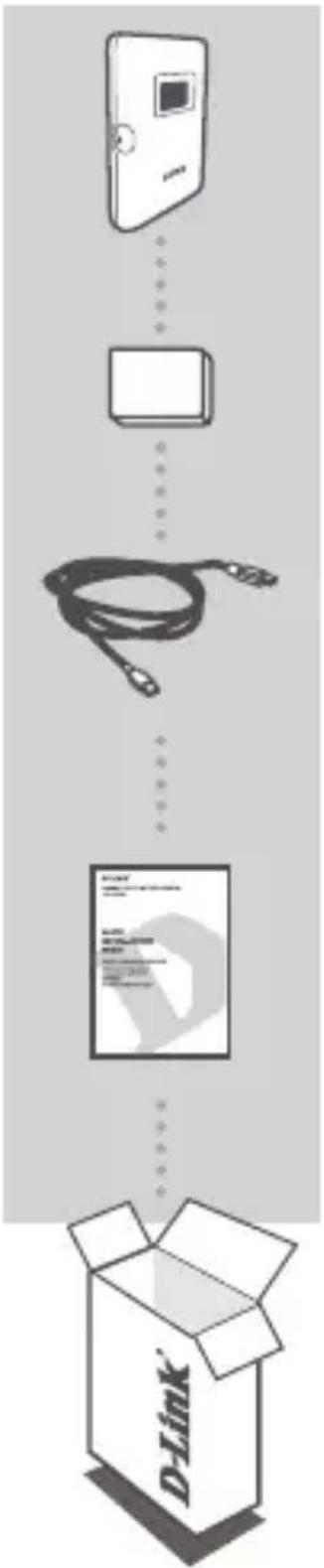
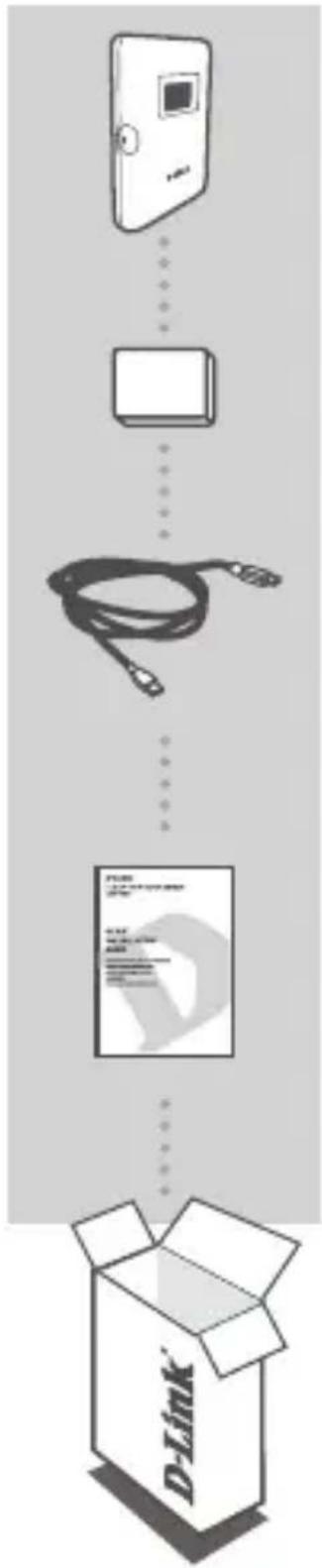
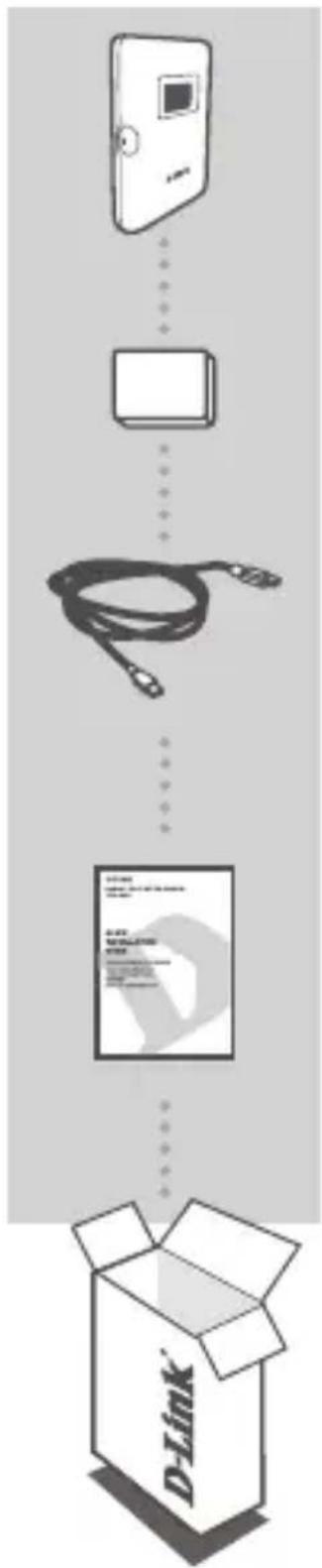
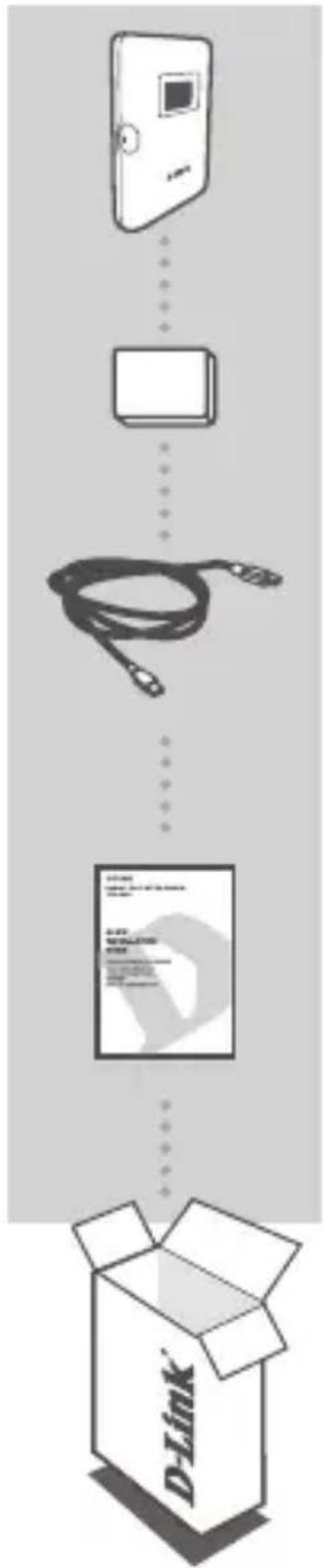
4G LTE MOBILE ROUTER
DWR-933
BATTERY
USB CABLE
TYPE A TO MICRO TYPE-A USB CABLE
DOCUMENTATION
If any of these items are missing from your packaging, please contact your reseller.
Use of a battery other than the one included may cause damage or injury.
PRODUCT SETUP
QUICK INSTALLATION
natural_image
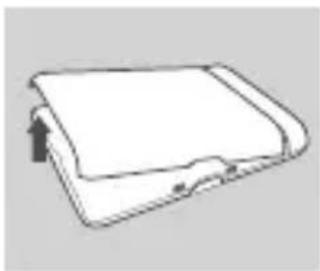
Simple line drawing of a closed book or folder with an arrow indicating a page direction (no text or symbols)Step 1:
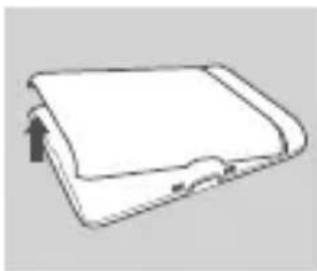
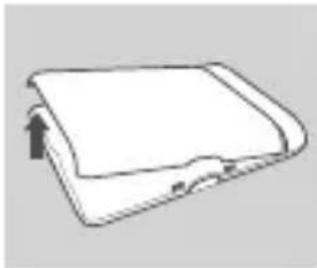
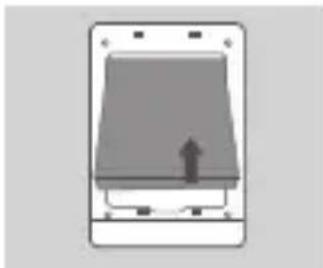
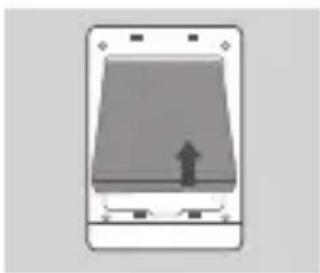
Lift off the back cover by using the notch on the bottom.
natural_image
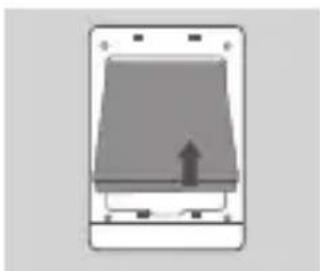
Simple diagram of a device with a handle and arrow, no text or symbols presentStep 2:
Remove the battery using the notch along the top edge of the battery bay
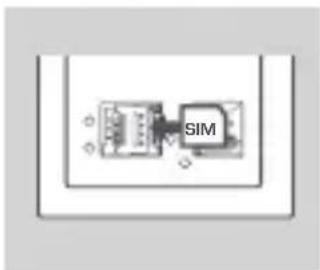
Step 3:
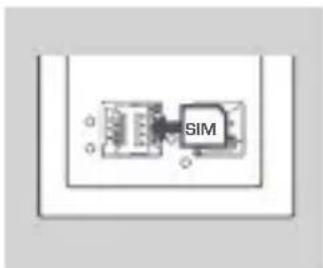
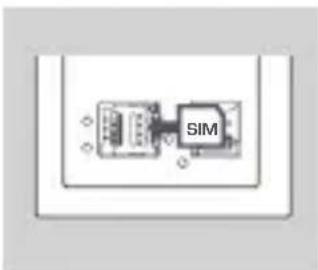
Slide the micro-SIM card bracket to the left until it clicks to unlock it, then lift it open. Place your micro-SIM card in the tray with the notch situated at the top-right, then close the bracket and slide it to the right until it clicks to lock it in place.
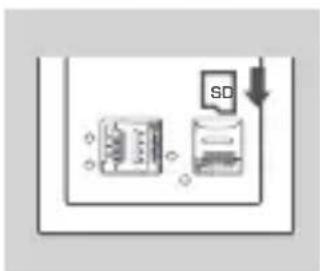
Step 4:
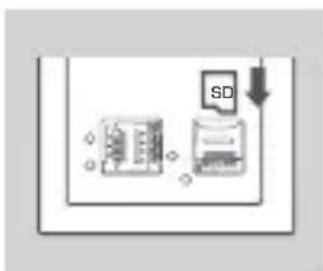
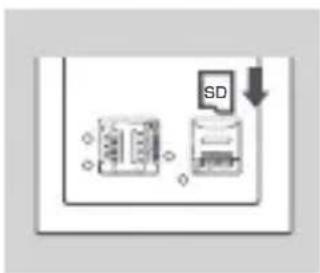
If you want to insert a microSD card, push the microSD card bracket down until it clicks, then lift it open. Place the microSD card in the indentation, then close the bracket and slide it up until it clicks to lock it in place.
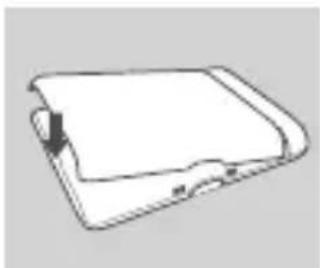
natural_image
Simple line drawing of a closed notebook or folder with a bookmark (no text or symbols)Step 5:
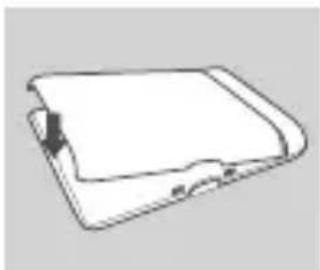
Reinsert the battery and reattach the battery cover.
natural_image
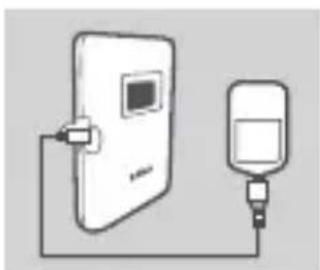
Simple line drawing of a device connected to a battery (no text or symbols)Step 6:
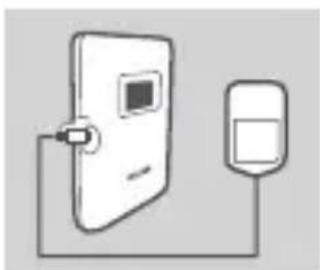
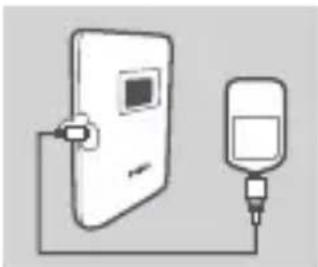
Connect the USB cable and plug it into the USB port of a power adapter or a PC to charge the battery.
CONFIGURATION
CONNECT YOUR DEVICE - VIA WIRELESS
natural_image
Simple line drawing of a smartphone with an arrow pointing to the side panel (no text or symbols)Step 1:
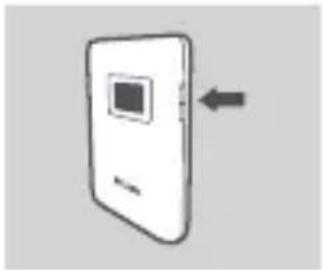
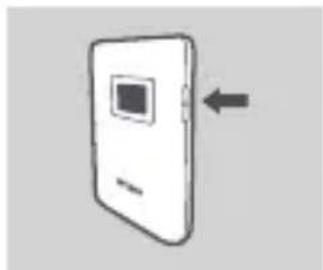
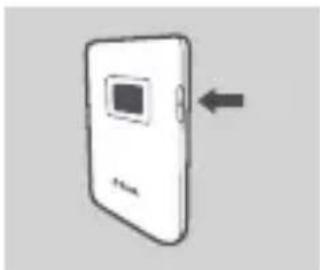
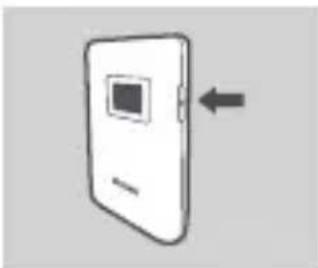
Turn on the DWR-933 by pressing and holding the power button until the "Welcome" message appears on the display.
natural_image
Illustration of a smartphone connected to a laptop with wireless signal waves (no text or symbols)Step 2:
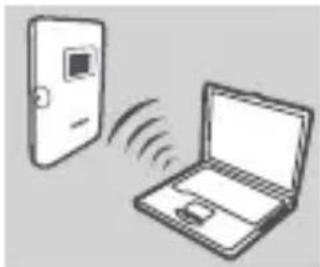
Connect your PC to one of the DWR-933's wireless networks.
By default, the settings are:
2.4 GHz SSID: dlink_DWR-933-xxxx
5 GHz SSID: dlink_DWR-933-5G-xxxx
Password: xxxxxxxxxxxx
(xxxx is a 4 character code unique to your DWR-933)
Step 3:
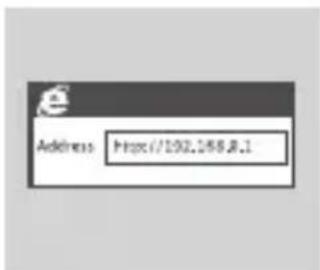
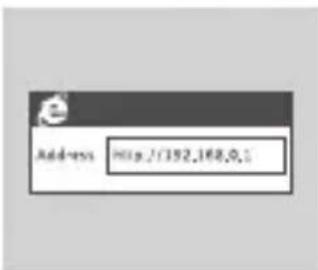
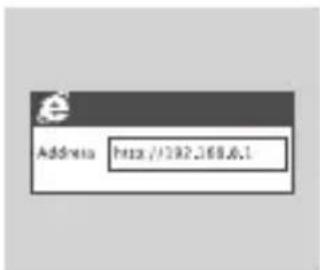
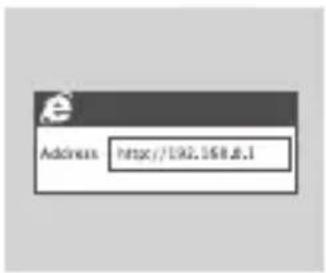
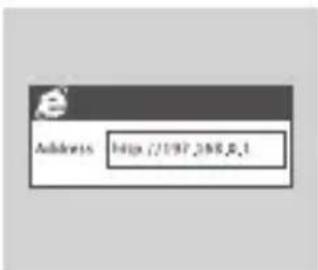
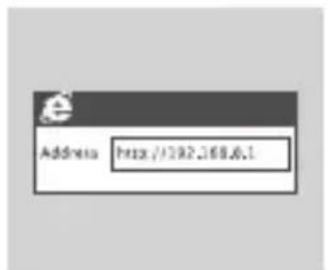
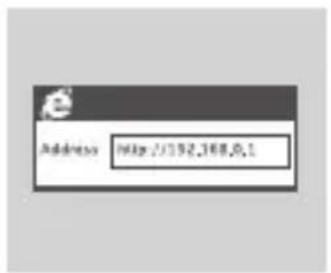
Use a web browser to go to 192.168.0.1 to log in to the configuration interface. The default username is admin, and the password should be left blank.
Step 4:
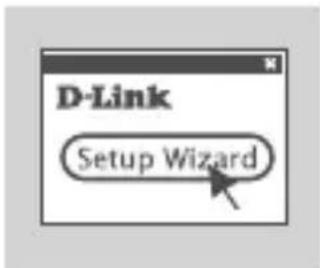
Use the on-screen the menus to configure the device.
CONNECT YOUR DEVICE - VIA USB CABLE

natural_image
Simple line drawing of a smartphone with an arrow pointing to the side panel (no text or symbols)Step 1:
Turn on the DWR-933 by pressing and holding the power button until the "Welcome" message appears on the display.
natural_image
Illustration of a laptop and its screen connected to a smartphone (no text or symbols present)Step 2:
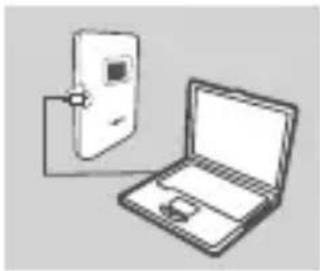
Connect the DWR-933 to your PC using the USB cable. The device should install automatically on modern operating systems.
Step 3:
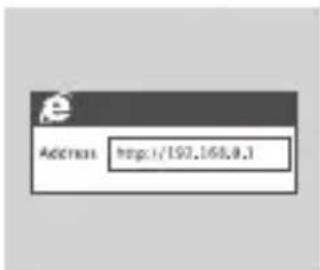
Use a web browser to go to 192.168.0.1 to log in to the configuration interface. The default username is admin, and the password should be left blank.
Step 4:
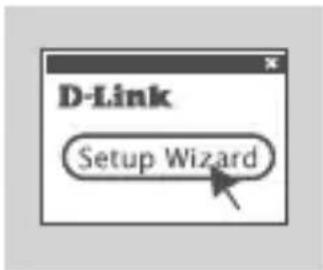
Use the on-screen the menus to configure the device.
TROUBLESHOOTING
SETUP AND CONFIGURATION PROBLEMS
1. WHY AM I UNABLE TO CONNECT TO MY MOBILE INTERNET SERVICE?
Check to make sure the SIM card is installed properly, and that your SIM card has 4G/3G data service. Also, make sure that antivirus software is not blocking your connection.
2. I'M HAVING TROUBLE USING THE DWR-933 ON MY MAC.
Due to how Mac OS handles USB ports, if you connect the DWR-933 to a different USB port than you originally used, you will need to reinstall the drivers.
3. I CAN'T CONNECT TO THE DWR-933'S WI-FI.
If your DWR-933 is powered on and does not display the two Wi-Fi indicators on the screen, your DWR-933's Wi-Fi may have been turned off. To toggle Wi-Fi, press and hold the WPS pairing button for six seconds.
4. IF I HAVE FORGOTTEN MY SSID OR PASSWORD, WHAT CAN I DO?
You can press the power button to cycle through the different screens until the wireless network name (SSID) and password (KEY) appear. Please note that the 2.4 GHz wireless network (2.4G) and 5 GHz wireless network (5G) are configured independently.
Additionally, you can use WPS to connect other WPS-supported devices to your wireless network without entering the SSID or password. Initiate WPS pairing on your device, then press and hold the WPS button on the DWR-933 until the WPS icon appears on the display. Your device will then automatically connect to your wireless network.
Finally, you can perform a factory reset by inserting a long thin tool, such as an unfolded paperclip, into the reset button under the battery cover. Press and hold for 10 seconds and release to initiate a factory reset. Your SSID and password will be reset to factory defaults.
TECHNICAL SUPPORT
eu.dlink.com/support
LIEFERUMFANG
flowchart
graph TD
    A["Device with logo"] --> B["Package"]
    B --> C["Delivery Box with cable"]
    C --> D["Packaging Package with specification details"]
    D --> E["Out of package"]
4G LTE MOBILE ROUTER
DWR-933
AKKU
USB-KABEL
TYP A ZU MICRO TYP-A USB-KABEL
DOKUMENTATION
natural_image
Simple line drawing of a closed book with an arrow indicating the page direction (no text or symbols)Schritt 1:
natural_image
Simple diagram of a device with a central screen and an arrow pointing to it (no text or symbols)Schritt 2:
natural_image
Pure electrical circuit lines without any symbolsSchritt 3:
Schritt 4:
natural_image
Simple line drawing of a closed folder or notebook with a bookmark (no text or symbols)Schritt 5:
natural_image
Simple line drawing of a device with a rectangular panel connected to a bulb (no text or symbols)Schritt 6:
natural_image
Simple line drawing of a smartphone with an arrow pointing to the side panel (no text or symbols)Schritt 1:
natural_image
Illustration of a laptop connected to a smartphone via wireless signal waves (no text or symbols)Schritt 2:
Schritt 3:
natural_image
Simple line drawing of a smartphone with an arrow pointing to the side panel (no text or symbols)Schritt 1:
natural_image
Illustration of a laptop and a smartphone with a separate screen (no text or symbols)Schritt 2:
Schritt 3:
eu.dlink.com/support
CONTENU DE LA BOÎTE
flowchart
graph TD
    A["Device with monitor"] --> B["Package"]
    B --> C["Bus strip"]
    C --> D["Package with card and cable"]
    D --> E["Confirmation Panel with 'D-Link' label"]
4G LTE MOBILE ROUTER
DWR-933
BATTERIE
CÂBLE USB
CÂBLE USB TYPE A À MICRO TYPE-A
DOCUMENTATION
CONFIGURATION DU PRODUIT
INSTALLATION RAPIDE
natural_image
Simple line drawing of an open book with a bookmark, no text or symbols presentÉtape 1 :
natural_image
Illustration of a smartphone front panel with an upward arrow indicator (no text or symbols)Étape 2 :
natural_image
Pure electrical circuit lines without any symbolsÉtape 3 :
Étape 4 :
natural_image
Simple line drawing of a closed notebook or clipboard (no text or symbols)Étape 5 :
natural_image
Simple line drawing of a device with a rectangular panel and connected to a plug (no text or symbols)Étape 6 :
natural_image
Simple line drawing of a smartphone with an arrow pointing to the side panel (no text or symbols)Étape 1 :
natural_image
Illustration of a smartphone and a laptop with wireless signal waves (no text or symbols)Étape 2 :
Étape 3 :
natural_image
Simple line drawing of a mobile phone with an arrow pointing to the front panel (no text or symbols)Étape 1 :
natural_image
Illustration of a laptop and its corresponding device (no text or symbols visible)Étape 2 :
Étape 3 :
3. JE NE PEUX PAS ME CONNECTER AU WI-FI DU DWR-933.
eu.dlink.com/support
flowchart
graph TD
    A["Device with monitor icon"] --> B["Package box"]
    B --> C["Coiled cable"]
    C --> D["Package box with printed details and specifications"]
    D --> E["Packaging with D-Link package"]
4G LTE MOBILE ROUTER
DWR-933
BATERÍA
CABLE USB
CABLE USB TIPO A A TIPO MICRO
DOCUMENTACIÓN
natural_image
Simple line drawing of a closed book or folder with an arrow pointing to the cover (no text or symbols)Paso 1:
natural_image
Simple diagram of a device with a central screen and an arrow pointing to it (no text or symbols)Paso 2:
natural_image
Pure electrical circuit lines without any symbolsPaso 3:
Paso 4:
natural_image
Simple line drawing of a closed notebook or binder (no text or symbols)Paso 5:
natural_image
Simple line drawing of a device connected to a wall-mounted device (no text or symbols)Paso 6:
natural_image
Simple line drawing of a rectangular device with a square display and an arrow pointing left (no text or symbols)Paso 1:
natural_image
Illustration of a device with a door and laptop connected by wireless signals (no text or symbols)Paso 2:
Paso 3:
natural_image
Simple line drawing of a smartphone with an arrow pointing to the side panel (no text or symbols)Paso 1:
natural_image
Illustration of a laptop connected to a smartphone (no text or symbols visible)Paso 2:
Paso 3:
eu.dlink.com/support
flowchart
graph TD
    A["Device with monitor"] --> B["Package"]
    B --> C["Delivery Package"]
    C --> D["Packaging Box with USB cable"]
    D --> E["Product with specification details"]
    E --> F["Out of package"]
4G LTE MOBILE ROUTER
DWR-933
BATTERIA
CAVO USB
CAVO USB TIPO A SU MICRO TYPE-A
DOCUMENTAZIONE
natural_image
Simple line drawing of an open book or notebook with a bookmark (no text or symbols)Fase 1:
natural_image
Simple diagram of a device with a black arrow pointing upward on its screen (no text or symbols)Fase 2:
natural_image
Pure electrical circuit lines without any symbolsFase 3:
Fase 4:
natural_image
Simple line drawing of a closed notebook or binder with a bookmark (no text or symbols)Fase 5:
natural_image
Simple line drawing of a device with a rectangular panel connected to a plug and a bulb (no text or symbols)Fase 6:
natural_image
Simple line drawing of a smartphone with an arrow pointing to the front panel (no text or symbols)Fase 1:
natural_image
Illustration of a smartphone and a laptop with wireless signal waves (no text or symbols)Fase 2:
Password: xxxxxxxxxxxx
Fase 3:
natural_image
Simple line drawing of a mobile phone with an arrow pointing to the front panel (no text or symbols)Fase 1:
natural_image
Illustration of a laptop and its corresponding device (no text or symbols visible)Fase 2:
Fase 3:
eu.dlink.com/support
INHOUD VAN DE VERPAKKING
flowchart
graph TD
    A["Device with logo"] --> B["Package"]
    B --> C["Delivery Box with cable"]
    C --> D["Packaging Package with specification details"]
    D --> E["Out of package"]
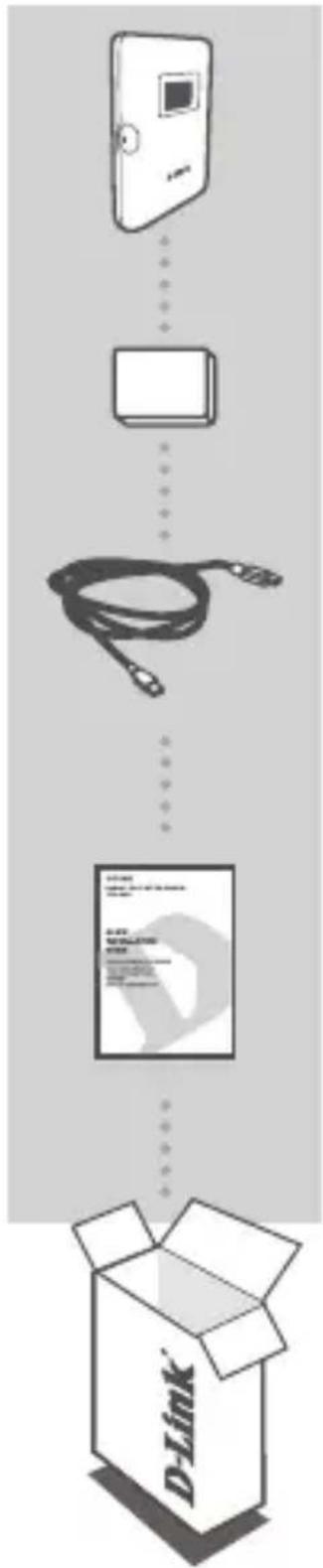
4G LTE MOBILE ROUTER
DWR-933
BATTERIJ
USB-KABEL
TYPE A-NAAR-MICRO TYPE-A USB-KABEL
DOCUMENTATIE
natural_image
Simple line drawing of a closed book with a bookmark and an arrow indicating the page (no text or symbols)Stap 1:
natural_image
Simple diagram of a device with a central indicator and arrow, no text or symbols present.Stap 2:
natural_image
Pure electrical circuit lines without any symbolsStap 3:
Stap 4:
natural_image
Simple line drawing of a closed notebook or binder with a bookmark (no text or symbols)Stap 5:
natural_image
Simple line drawing of a device connected to a battery (no text or symbols)Stap 6:
UW APPARAAT VERBINDEN - DRAADLOOS
natural_image
Simple line drawing of a smartphone with an arrow pointing to the side panel (no text or symbols)Stap 1:
natural_image
Illustration of a laptop connected to a door via wireless signals (no text or symbols)Stap 2:
5 GHz SSID: dlink_DWR-933-5G-xxxx
Password: xxxxxxxxxxxx
Stap 3:
natural_image
Simple line drawing of a smartphone with an arrow pointing to the side panel (no text or symbols)Stap 1:
natural_image
Illustration of a laptop and a smartphone connected by a cable (no text or symbols)Stap 2:
Stap 3:
eu.dlink.com/support
ZAWARTO ŚĆ OPAKOWANIA
flowchart
graph TD
    A["Device with LCD"] --> B["Package"]
    B --> C["Delivery Package"]
    C --> D["Packaging Box with D-Link package"]
4G LTE MOBILE ROUTER
DWR-933
BATERIA
KABEL USB
KABEL USB TYPU A-TYPU MIKRO A
DOKUMENTACJA
natural_image
Simple line drawing of an open book or notebook with a bookmark (no text or symbols)Krok 1:
natural_image
Simple diagram of a device with a black arrow pointing upward on its screen (no text or symbols)Krok 2:
natural_image
Pure electrical circuit lines without any symbolsKrok 3:
Krok 4:
natural_image
Simple line drawing of a closed notebook or folder (no text or symbols)Krok 5:
natural_image
Simple line drawing of a device with a rectangular panel and a bulb connected to it (no text or symbols)Krok 6:
natural_image
Simple line drawing of a smartphone with an arrow pointing to the side panel (no text or symbols)Krok 1:
natural_image
Illustration of a smartphone and a laptop with wireless signal waves (no text or symbols)Krok 2:
Domyślne ustawienia to:
2,4 GHz SSID: dlink_DWR-933-xxxx
5 GHz SSID: dlink_DWR-933-5G-xxxx
Hasło: xxxxxxxxxxxx
Krok 3:
natural_image
Simple line drawing of a mobile phone with an arrow pointing to the front panel (no text or symbols)Krok 1:
natural_image
Illustration of a laptop and a smartphone connected by an interface (no text or symbols)Krok 2:
Krok 3:
eu.dlink.com/support
OBSAH BALENÍ
flowchart
graph TD
    A["Device with logo"] --> B["Package"]
    B --> C["Delivery Box with cable"]
    C --> D["Packaging Package with description and specifications"]
4G LTE MOBILNÍ ROUTER
DWR-933
BATERIE
USB KABEL
KABEL USB - MICRO USB
DOKUMENTACE
natural_image
Simple line drawing of a closed book or notebook with a bookmark, no text or symbols present.Krok č. 1:
natural_image
Simple diagram of a device with a central screen and an arrow, no text or symbols present.Krok č. 2:
Krok č. 4:
natural_image
Simple line drawing of a closed notebook or binder with a clip (no text or symbols)Krok č. 5:
natural_image
Simple line drawing of a device with a rectangular panel and connected to a plug (no text or symbols)Krok č. 6:
natural_image
Simple line drawing of a smartphone with an arrow pointing to the side panel (no text or symbols)Krok č. 1:
natural_image
Illustration of a smartphone connected to a laptop with wireless signal waves (no text or symbols)Krok č. 2:
Krok č. 3:
natural_image
Simple line drawing of a smartphone with an arrow pointing to the side panel (no text or symbols)Krok č. 1:
natural_image
Illustration of a laptop and a smartphone connected by a cable (no text or symbols)Krok č. 2:
Krok č. 3:
eu.dlink.com/support
A CSOMAG TARTALMA
flowchart
graph TD
    A["D-Link"] --> B["Card"]
    B --> C["Bus"]
    C --> D["Cable Cable"]
    D --> E["Packaging Package"]
    E --> F["Final Shipment"]
4G LTE MOBILE ROUTER
DWR-933
AKKUMULÁTOR
USB-KÁBEL
A – MIKRO-A TÍPUSÚ USB-KÁBEL
DOKUMENTÁCIÓ
natural_image
Simple line drawing of a closed book or folder with an arrow pointing to the cover (no text or symbols)1. lépés:
natural_image
Simple line drawing of a device with an upward arrow on the screen (no text or symbols)2. lépés:
natural_image
Pure electrical circuit lines without any symbols3. lépés:
natural_image
Simple line drawing of a closed notebook or binder with a bookmark (no text or symbols)5. lépés:
natural_image
Simple line drawing of a device with a door and plug, no text or symbols present6. lépés:
natural_image
Simple line drawing of a smartphone with an arrow pointing to the side panel (no text or symbols)1. lépés:
natural_image
Illustration of a smartphone and a laptop with wireless signal waves (no text or symbols)2. lépés:
3. lépés:
natural_image
Simple line drawing of a smartphone with an arrow pointing to the front panel (no text or symbols)1. lépés:
natural_image
Illustration of a laptop and a smartphone device (no text or symbols)2. lépés:
3. lépés:
eu.dlink.com/support
PAKKEINNHOLD
flowchart
graph TD
    A["Device with monitor icon"] --> B["Package box"]
    B --> C["Coiled cable with connector"]
    C --> D["Delivery package with description and specifications"]
    D --> E["D-Link package"]
4G LTE MOBILE ROUTER
DWR-933
BATTERI
USB-KABEL
USB-KABEL TYPE A TIL MICRO TYPE A
DOKUMENTASJON
natural_image
Simple line drawing of a closed book or folder with an arrow pointing to the cover (no text or symbols)natural_image
Simple diagram of a device with a central screen and an arrow pointing to it (no text or symbols)natural_image
Simple line drawing of a closed notebook or binder with a bookmark (no text or symbols)natural_image
Simple line drawing of a device connected to a battery (no text or symbols)Trinn 6: Koble til USB-kabelen og koble den til USB-porten på en strømadapter eller en PC for å lade opp batteriet.
KONFIGURASJON
KOBLE TIL ENHETEN DIN - VIA TRÅDL∅S TILKOBLING
natural_image
Simple line drawing of a smartphone with an arrow pointing to the front panel (no text or symbols)Trinn 1:
natural_image
Illustration of a smartphone and a laptop with wireless signal waves (no text or symbols)Trinn 2:
5 GHz SSID: dlink_DWR-933-5G-xxxx
Passord: xxxxxxxxxxxx
Trinn 3:
natural_image
Simple line drawing of a smartphone with an arrow pointing to the front panel (no text or symbols)natural_image
Illustration of a laptop connected to a smartphone (no text or symbols present)Trinn 2: Koble DWR-933 til PC-en med USB-kabelen. Enheten skal installeres automatisk på moderne operativsystemer.
eu.dlink.com/support
PAKKENS INDHOLD
flowchart
graph TD
    A["D-Link Package"] --> B["Open Box"]
    B --> C["Completed Package"]
    C --> D["Final Package"]
4G LTE MOBILE ROUTER
DWR-933
BATTERI
USB-KABEL
TYPE A TIL MIKROTYPE-A USB-KABEL
DOKUMENTATION
OPSÄETNING AF PRODUKT
HURTIG INSTALLATION
natural_image
Simple line drawing of a closed book with an arrow indicating a page direction (no text or symbols)Trin 1:
natural_image
Simple diagram of a device with an upward arrow, no text or symbols presentTrin 2:
natural_image
Pure electrical circuit lines without any symbolsTrin 3:
natural_image
Simple line drawing of a folded paper or document with a black arrow indicating a specific area (no text or symbols)Trin 5:
natural_image
Simple line drawing of a device with a screen and plug, no text or symbols presentTrin 6:
natural_image
Simple line drawing of a smartphone with an arrow pointing to the side panel (no text or symbols)Trin 1:
natural_image
Illustration of a laptop and a smartphone with wireless signal waves (no text or symbols)Trin 2:
5 GHz SSID: dlink_DWR-933-5G-xxxx
Adgangskode: xxxxxxxxxxxx
Trin 3:
natural_image
Simple line drawing of a smartphone with an arrow pointing to the front panel (no text or symbols)Trin 1:
natural_image
Illustration of a laptop and its screen device (no text or symbols)Trin 2:
Tilslut DWR-933 til din PC med USB-kablet. Enheden skulle blive installeret automatisk på moderne operativsystemer.
Trin 3:
2. JEG HAR PROBLEMER MED AT ANVENDE DWR-933 PÅ MIN MAC.
eu.dlink.com/support
PAKKAUKSEN SISÄLTÖ
flowchart
graph TD
    A["D-Link Package"] --> B["Online Customer Service"]
    B --> C["Customer Service"]
    C --> D["Online Customer Service"]
    D --> E["Online Customer Service"]
4G LTE MOBILE ROUTER
DWR-933
AKKU
USB-KAAPELI
TYYPPI A - MICRO TYPE-A -USB-KAAPELI
DOKUMENTAATIO
natural_image
Simple line drawing of a closed book or folder with an arrow indicating the cover (no text or symbols)Vaihe 1:
natural_image
Simple line drawing of a device with a handle and arrow symbol (no text or labels)Vaihe 2:
natural_image
Pure electrical circuit lines without any symbolsVaihe 3:
natural_image
Simple line drawing of a closed notebook or binder (no text or symbols)Vaihe 5:
natural_image
Simple line drawing of a device with a screen and plug, no text or symbols presentVaihe 6:
natural_image
Simple line drawing of a smartphone with an arrow pointing to the side panel (no text or symbols)Vaihe 1:
natural_image
Illustration of a smartphone and a laptop with wireless signal waves (no text or symbols)Vaihe 2:
5 GHz SSID: dlink_DWR-933-5G-xxxx
Salasana: xxxxxxxxxxxx
Vaihe 3:
natural_image
Simple line drawing of a smartphone with an arrow pointing to the front panel (no text or symbols)Vaihe 1:
natural_image
Illustration of a laptop and a rectangular device with a lock, no text or symbols presentVaihe 2:
eu.dlink.com/support
FÖRPACKNINGENS INNEHÅLL
flowchart
graph TD
    A["Device with monitor icon"] --> B["Device with cable"]
    B --> C["Package with D-Link package"]
    C --> D["Package with D-Link package"]
4G LTE MOBILE ROUTER
DWR-933
BATTERI
USB-KABEL
TYP A TILL MICRO TYPE-A-USB-KABEL
DOKUMENTATION
natural_image
Simple line drawing of a closed book or folder with a bookmark (no text or symbols)Steg 1:
natural_image
Simple diagram of a device with a central screen and an upward arrow, no text or symbols present.Steg 2:
natural_image
Pure electrical circuit lines without any symbolsSteg 3:
Steg 4:
natural_image
Simple line drawing of a closed notebook or binder with a clip, no text or symbols present.Steg 5:
natural_image
Simple line drawing of a device with a rectangular panel and connected to a digital meter (no text or symbols)Steg 6:
natural_image
Simple line drawing of a smartphone with an arrow pointing to the side panel (no text or symbols)Steg 1:
natural_image
Illustration of a smartphone and a laptop with wireless signal waves (no text or symbols)Steg 2:
5 GHz SSID: dlink_DWR-933-5G-xxxx
Lösenord: xxxxxxxxxxxx
Steg 3:
natural_image
Simple line drawing of a smartphone with an arrow pointing to the side panel (no text or symbols)Steg 1:
natural_image
Illustration of a laptop and its screen connected to a smartphone (no text or symbols present)Steg 2:
Steg 3:
2. JAG HAR PROBLEM MED ATT ANVÄNDA DWR-933 PÅ MIN MAC.
eu.dlink.com/support
CONTEÚDO DA EMBALAGEM
flowchart
graph TD
    A["D-Link Package"] --> B["Product Description"]
    B --> C["Assembly Box"]
    C --> D["Final Packaging"]
4G LTE MOBILE ROUTER
DWR-933
BATERIA
CABO USB
CABO TIPO A PARA MICRO USB TIPO A
DOCUMENTAÇÃO
natural_image
Simple line drawing of a closed book or notebook with a bookmark (no text or symbols)Passo 1:
natural_image
Simple diagram of a device with a handle and arrow symbol (no text or labels)Passo 2:
natural_image
Pure electrical circuit lines without any symbolsPasso 3:
Passo 4:
natural_image
Simple line drawing of a closed notebook or binder with a bookmark (no text or symbols)Passo 5:
natural_image
Simple line drawing of a device connected to a battery (no text or symbols)Passo 6:
natural_image
Simple line drawing of a smartphone with an arrow pointing to the front panel (no text or symbols)Passo 1:
natural_image
Illustration of a laptop and a door connected by wireless signals (no text or symbols)Passo 2:
5 GHz SSID: dlink_DWR-933-5G-xxxx
Palavra-passe: xxxxxxxxxxxx
Passo 3:
natural_image
Simple line drawing of a smartphone with an arrow pointing to the side panel (no text or symbols)Passo 1:
natural_image
Illustration of a laptop connected to a smartphone (no text or symbols visible)Passo 2:
Passo 3:
eu.dlink.com/support
flowchart
graph TD
    A["Device with monitor"] --> B["Package"]
    B --> C["Delivery Package"]
    C --> D["Packaging Box with USB cable"]
    D --> E["Product with specification details"]
    E --> F["Out of package"]
4G LTE MOBILE ROUTER
DWR-933
ΜΠΑΤΑΡΙΑ
ΚΑΛΩΔΙΟ USB
natural_image
Simple line drawing of a closed book or notebook with a bookmark, no text or symbols present.Βήμα 1:
natural_image
Simple diagram of a device with a black arrow pointing upward on a gray panel (no text or symbols)Βήμα 2:
natural_image
Pure electrical circuit lines without any symbolsΒήμα 3:
Βήμα 4:
natural_image
Simple line drawing of a closed notebook or binder with a clip (no text or symbols)Βήμα 5:
natural_image
Simple line drawing of a device connected to a rectangular panel (no text or symbols)Βήμα 6:
natural_image
Simple line drawing of a smartphone with an arrow pointing to the front panel (no text or symbols)Bήμα 1:
natural_image
Illustration of a smartphone and a laptop with wireless signal waves (no text or symbols)Βήμα 2:
Βήμα 3:
natural_image
Simple line drawing of a mobile phone with an arrow pointing to the front panel (no text or symbols)Bήμα 1:
natural_image
Illustration of a laptop and a smartphone connected by an interface (no text or symbols)Βήμα 2:
Βήμα 3:
TEXNIKH YΠΟΣΤΗΡΙΞΗ eu.dlink.com/support
SADRŽAJ PAKIRANJA
flowchart
graph TD
    A["Device with logo"] --> B["Package"]
    B --> C["Delivery Box with cable"]
    C --> D["Packaging Package with specification details"]
    D --> E["Out of package"]
4G LTE MOBILE ROUTER
DWR-933
BATERIJA
USB KABEL
TYPE A NA MICRO TYPE-A USB KABEL
DOKUMENTACIJA
natural_image
Simple line drawing of a closed book with a bookmark and an arrow indicating the page (no text or symbols)Prvi korak:
Podignite stražnji poklopac pomoću zareza na dnu.
natural_image
Simple diagram of a device with a handle and arrow symbol (no text or labels)Drugi korak:
Izvadite bateriju pomoću zareza duž gornje ruba ležišta baterije.
Treći korak:
Kliznite okvir za micro-SIM karticu ulijevo dok ne klikne, kako biste ga otključali, zatim ga podignite i otvorite. Postavite svoju micro-SIM karticu u ležište tako da zarez bude u gornjem desnom kutu, zatim zatvorite okvir i kliznite ga udesno dok ne klikne i zaključa se u svoj položaj.
Četvrti korak:
Ako želite umetnuti microSD karticu, gurnite okvir microSD kartice prema dolje, zatim ga podignite i otvorite. Postavite microSD karticu u utor, zatim zatvorite okvir i kliznite ga prema gore dok ne klikne i zaključa se u svoj položaj.
natural_image
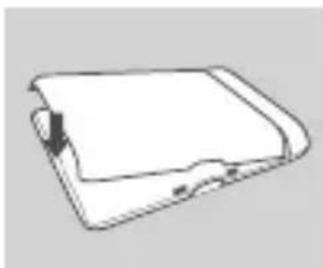
Simple line drawing of a closed book or notebook with a bookmark (no text or symbols)Peti korak:
Ponovno umetnite bateriju i zatvorite poklopac baterije.
natural_image
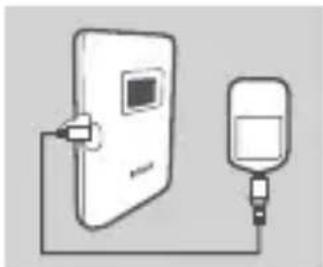
Simple line drawing of a device with a rectangular panel connected to a bulb (no text or symbols)Šesti korak:
natural_image
Simple line drawing of a smartphone with an arrow pointing to the side panel (no text or symbols)Prvi korak:
Uključite DWR-933 tako što ćete pritisnuti i držati pritisnutim gumb za uključivanje dok se na zaslonu ne pojavi poruka „Dobro došli“.
natural_image
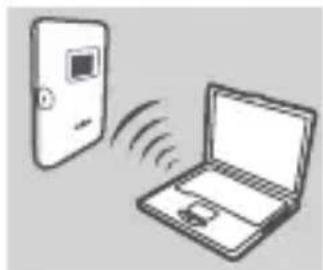
Illustration of a laptop and a smartphone with wireless signal waves (no text or symbols)Drugi korak:
5 GHz SSID: dlink_DWR-933-5G-xxxx
Zaporka: xxxxxxxxxxxx
(xxxx je kod od 4 znaka jedinstven za vaš DWR-933)
Treći korak:
natural_image
Simple line drawing of a smartphone with an arrow pointing to the front panel (no text or symbols)Prvi korak:
Uključite DWR-933 tako što ćete pritisnuti i držati pritisnutim gumb za uključivanje dok se na zaslonu ne pojavi poruka „Dobro došli“.

natural_image
Illustration of a smartphone and a laptop computer (no text or symbols)Drugi korak:
Povežite DWR-933 s računalom koristeći USB kabel. Na modernim operacijskim sustavima uređaj se treba automatski instalirati.
Treći korak:
eu.dlink.com/support
VSEBINA PAKETA

flowchart
graph TD
    A["D-Link Package"] --> B["Delivery Box"]
    B --> C["Package"]
    C --> D["Delivery Box with Cable"]
    D --> E["Final Package"]
4G LTE MOBILE ROUTER
DWR-933
BATERIJA
USB KABEL
KABEL USB TYPE-A V MICRO TYPE-A
DOKUMENTACIJA
Če kateri koli izmed teh predmetov manjka, se obrnite na prodajalca.
natural_image
Simple line drawing of an open book or notebook with a bookmark (no text or symbols)1. korak:
Z uporabo zareze na dnu dvignite zadnji pokrov.
natural_image
Simple diagram of a device with a central screen and an arrow pointing to it (no text or symbols)2. korak:
natural_image
Pure electrical circuit lines without any symbols3. korak:
Nosilec za kartico micro-SIM povlecite v levo, da klikne, s čimer ga odklenete, nato pa ga dvignite, da ga odprete. Kartico micro-SIM postavite v predal tako, da je reža zgoraj desno, nato pa zaprite nosilec in ga povlecite v desno, da klikne in se zaskoči.
4. korak:
Če želite vstaviti kartico microSD, potisnite nosilec za kartico microSD navzdol, da klikne, nato pa ga dvignite, da ga odprete. Kartico microSD namestite v zarezo, nato pa zaprite nosilec in ga povlecite navzgor, da klikne in se zaskoči.
natural_image
Simple line drawing of a closed notebook or binder with a bookmark (no text or symbols)5. korak:
Vstavite baterijo in namestite pokrov baterije.
natural_image
Simple line drawing of a door connected to a device via a cable (no text or symbols)6. korak:
Povežite kabel USB in ga priključite v vrata USB na napajalnem adapterju ali računalniku, da napolnite baterijo.
KONFIGURACIJA
POVEZAVA NAPRAVE - PREK BREZŽIČNEGA OMREŽJA
natural_image
Simple line drawing of a smartphone with an arrow pointing to the front panel (no text or symbols)1. korak:
natural_image
Illustration of a smartphone connected to a laptop with wireless signal waves (no text or symbols)2. korak:
2,4-GHz SSID: dlink_DWR-933-xxxx 5-GHz SSID: dlink_DWR-933-5G-xxxx
Geslo: xxxxxxxxxxxx
(xxxx je 4-mestna znakovna koda, edinstvena za vašo napravo DWR-933)
3. korak:
natural_image
Simple line drawing of a smartphone with an arrow pointing to the side panel (no text or symbols)1. korak:
natural_image
Illustration of a laptop connected to a small electronic device (no text or symbols visible)2. korak:
Napravo DWR-933 povežite z računalnikom s kablom USB. V sodobnih operacijskih sistemih bi se morala naprava namestiti samodejno.
3. korak:
eu.dlink.com/support
CONTINUTUL PACHETULUI
flowchart
graph TD
    A["Received Package"] --> B["Transmit"]
    B --> C["Product Package"]
    C --> D["Shipping Box"]
    D --> E["Out of Package"]
    style A fill:#f9f,stroke:#333
    style E fill:#bbf,stroke:#333
4G LTE MOBILE ROUTER
DWR-933
BATERIE
CABLU USB
CABLU USB TIP A LA MICRO TIP-A
DOCUMENTATIE
natural_image
Simple line drawing of a closed book or folder with an arrow pointing to the cover (no text or symbols)Pasul 1:
natural_image
Simple diagram of a device with a central screen and an arrow pointing to it (no text or symbols)Pasul 2:
natural_image
Simple line drawing of a closed notebook or binder with a bookmark (no text or symbols)Pasul 5:
natural_image
Simple line drawing of a device with a rectangular panel connected to a plug and a bulb (no text or symbols)Pasul 6:
natural_image
Simple line drawing of a smartphone with an arrow pointing to the side panel (no text or symbols)Pasul 1:
natural_image
Illustration of a laptop connected to a smartphone via wireless signal waves (no text or symbols)Pasul 2:
5 GHz SSID: dlink_DWR-933-5G-xxxx
Parola: xxxxxxxxxxxx
Pasul 3:
natural_image
Simple line drawing of a smartphone with an arrow pointing to the side panel (no text or symbols)Pasul 1:
natural_image
Illustration of a laptop connected to a smartphone (no text or symbols present)Pasul 2:
Pasul 3:
3. NU POT SĂ MĂ CONECTEZ LA REȚEA WI-FI A DWR-933.
eu.dlink.com/support
flowchart
graph TD
    A["D-Link Package"] --> B["Product Description"]
    B --> C["Assembly Box"]
    C --> D["Final Packaging"]
4G LTE MOBILE ROUTER
DWR-933
БАТЕРИЯ
USB КАБЕЛ
ТИП А КЪМ MICRO ТИП-А USB КАБЕЛ
ДОКУМЕНТАЦИЯ
natural_image
Simple line drawing of a closed book or folder with an arrow pointing to the cover (no text or symbols)Стъпка 1:
natural_image
Simple line drawing of a device with an upward arrow on the screen (no text or symbols)Стъпка 2:
natural_image
Simple diagram of a SIM device with an internal component and mounting holes (no text or symbols)Стъпка 3:
Стъпка 4:
natural_image
Simple line drawing of a closed notebook or folder (no text or symbols)Стъпка 5:
natural_image
Simple line drawing of a device with a connector and plug, no text or symbols presentСтъпка 6:
natural_image
Simple line drawing of a smartphone with an arrow pointing to the front panel (no text or symbols)Стъпка 1:
natural_image
Illustration of a smartphone and a laptop with wireless signal waves (no text or symbols)Стъпка 2:
natural_image
Simple line drawing of a smartphone with an arrow pointing to the side panel (no text or symbols)Стъпка 1:
natural_image
Illustration of a laptop and a smartphone connected by an interface (no text or symbols)Стъпка 2:
Стъпка 3:
flowchart
graph TD
    A["Device with 3D icon"] --> B["Package"]
    B --> C["Coiled cable"]
    C --> D["Package with 100% delivery"]
    D --> E["Delivery Box with D-Link branding"]
4G LTE MOBILE ROUTER
DWR-933
BATÉRIA
USB KÁBEL
USB KÁBEL TYPE A – MICRO TYPE-A
DOKUMENTÁCIA
natural_image
Simple line drawing of a closed book or folder with a bookmark (no text or symbols)Krok 1:
natural_image
Simple diagram of a device with a handle and arrow symbol (no text or labels)Krok 2:
Pomocou drážky popri hornej hrane priehradky na batériu vytiahnite batériu.
natural_image
Diagram of an SIM integrated circuit component with no visible text or symbolsKrok 3:
Krok 4:
natural_image
Simple line drawing of a closed notebook or folder with a bookmark (no text or symbols)Krok 5:
Znova vložte batériu a nasad'te kryt batérie.
natural_image
Simple line drawing of a device connected to a battery (no text or symbols)Krok 6:
natural_image
Simple line drawing of a smartphone with an arrow pointing to the side panel (no text or symbols)Krok 1:
natural_image
Illustration of a smartphone and a laptop with wireless signal waves (no text or symbols)Krok 2:
5 GHz SSID: dlink_DWR-933-5G-xxxx
Heslo: xxxxxxxxxxxx
(xxxx je 4-znakový kód jedinečný pre zariadenie DWR-933)
Krok 3:
natural_image
Simple line drawing of a smartphone with an arrow pointing to the side panel (no text or symbols)Krok 1:
natural_image
Illustration of a laptop and a rectangular device (no text or symbols)Krok 2:
Krok 3:
eu.dlink.com/support
Maximum radio-frequency power transmitted in the frequency bands Maximale Funkfrequenzleistung, die in den Frequenzbandbreiten übertragen wird Puissance de radiofréquence maximale transmise dans les bandes de fréquence Potencia máxima de radiofrecuencia transmitida en las bandas de frecuencia Potenza di radio-frequenza massima trasmessa nelle bande di frequenza Maximaal radiofrequentievermogen in frequentiebanden Maksymalna moc transmitowana w paśmie częstotliwości radiowych Maximální výkon kmitočtu vysílače prénášený ve frekvenčních pásmech A frekvenciasávokon leadott maximális rádiofrekvenciás teljesítmény Maksimum radiofrekvenseffekt overført i frekvensbändene Maksimale radiofrekvens-strøm overført i frekvensbändene Taajuuskaistoilla lähetetty suurin radiotaajuus Maximal radiofrekvenseffekt som sänds på frekvensbanden Potência máxima de radiofrequência transmitida nas bandas de frequência Μέγιστη ισχύς radioσυχνοτήτων που μεταδίδεται σε κάθε ζώνη συχνοτήτων Najveća radiofrekvencijska snaga koja se prenosi u frekvencijskim pojasima Največja moč radijske frekvence, ki se prenaša v frekvenčnih pasovih Puterea frecvenței radio maxime emise în benzile de frecvență
| Frequency band/ Frequenzbandbreite Bande de fréquence/ Banda de frecuencia Banda di frequenza/ Frequentieband Pasmo częstotliwości/ Frekvenční pásmo Frekvenciasáv/ FrekvensbåndFrekvensbånd/TaajuuskaistaFrekvensband/ Banda de frequênciaZówn συχνοτήτων/ Frekvencijski pojasFrekvenčni pas/ Bandă de frecvență | Maximum transmit power/ Maximale Übertragungsleistung Puissance d'émission maximale/ Potencia máxima transmitidaPotenza di trasmissione massima/ Maximaal zendvermogenMaksymalna moc nadawania/ Maximální výkon přenosuMaximális adóteljesítmény/ Maksimum overföringseffektMaksimal overførselsstrøm/ Lähetysteho enintäänMaximal sändningseffekt/ Potência máxima de transmissãoМéγιστη ισχύς μετάδοσης/ Najveća snaga koja se prenosiMaksimalna moč oddajanja/ Puterea maximă emisă | |
| Wi-Fi 2.4 GHz 2.412~2.472GHz 11b:14±2dbm;11g:12±2dbm;11n(20/40M):11±2dbm | ||
| Wi-Fi 5 GHz | 5.15 ~ 5.35 GHz (8 Channels),5.47~5.725(11 Channels) | 11ac(20/40/80M):11±2dbm |
| GSM850/900 gsm/gprs:33±2dbm edge:27±2dbm | ||
| DCS/PCS gsm/gprs:30±2dbm edge:26±2dbm | ||
| WCDMA Band 1 | TX 1920 MHz - 1980 MHzRX 2110 MHz - 2170 MHz | 24 +1/-3dbm |
| WCDMA Band 8 | TX 880 MHz - 915 MHzRX 925 MHz - 960MHz | 24 +1/-3dbm |
| LTE Band 1 | TX 1920 MHz - 1980 MHzRX 2110 MHz - 2170 MHz | 23±2dbm |
| LTE Band 3 | TX 1710 MHz - 1785 MHzRX 1805 MHz - 1880 MHz | 23±2dbm |
| LTE Band 7 | TX 2500 MHz - 2570 MHzRX 2620 MHz - 2690 MHz | 23±2dbm |
| LTE Band 8 | TX 880 MHz - 915 MHzRX 925 MHz - 960MHz | 23±2dbm |
| LTE Band 20 | TX 832 MHz - 862 MHzRX 791MHz - 821MHz | 23±2dbm |
| LTE Band 38 TX/RX | 2570MHz - 2620 MHz 23±2dbm | |
