
ROG XG Station 2 - Docking station ASUS - Free user manual and instructions
Find the device manual for free ROG XG Station 2 ASUS in PDF.
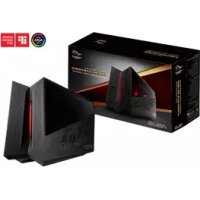



| Product Type | External docking station for laptop |
| Brand | ASUS |
| Model | ROG XG Station 2 |
| Connection to computer | Thunderbolt™ 3 (Type-C) |
| Ethernet connection | Gigabit network controller 10/100/1000 Mb/s |
| USB ports | 4 x USB 3.0, 1 x USB 3.0 Type-B |
| RGB lighting control | ASUS ROG AURA |
| Power supply | 600W, 80 Plus Gold |
| Dimensions (L x W x H) | 456 mm x 158 mm x 278 mm |
| Weight | 5.1 kg |
| Graphics card compatibility | PCI-Express x16, slot 2.5 ; NVIDIA GeForce GTX 900+, AMD Radeon R9+ |
| Graphics output | Defined by the installed graphics card |
| Included accessories | USB 3.0 Type-B cable, Thunderbolt™ 3 Type-C cable, Power cord |
| Operating temperature | 5 °C to 40 °C |
| Cleaning | Cellulose sponge or chamois soaked in a non-abrasive solution |
| Safety | Do not use solvents; unplug before cleaning; avoid humidity and magnetic fields |
| Repairability | Reserved for ASUS technicians; do not disassemble |
| Plasma tube | Not replaceable by user |
| Required operating system | Microsoft Windows 10 64-bit |
Frequently Asked Questions - ROG XG Station 2 ASUS
User questions about ROG XG Station 2 ASUS
0 question about this device. Answer the ones you know or ask your own.
Ask a new question about this device
Download the instructions for your Docking station in PDF format for free! Find your manual ROG XG Station 2 - ASUS and take your electronic device back in hand. On this page are published all the documents necessary for the use of your device. ROG XG Station 2 by ASUS.
USER MANUAL ROG XG Station 2 ASUS
The following safety precautions will increase the life of the ROG XG-Station 2. Follow all precautions and instructions. Except as described in this manual, refer all servicing to qualified personnel. Do not use damaged power cords, accessories, or other peripherals. Do not use strong solvents such as thinners, benzene, or other chemicals on or near the surface.

Disconnect the AC power before cleaning. Wipe the ROG XG-Station 2 using a clean cellulose sponge or chamois cloth dampened with a solution of nonabrasive detergent and a few drops of warm water and remove any extra moisture with a dry cloth.
DO NOT place on uneven or unstable work surfaces. Seek servicing if the casing has been damaged. DO NOT place or drop objects on top and do not shove any foreign objects into the ROG XG-Station 2. DO NOT expose to dirty or dusty environments. DO NOT operate during a gas leak. DO NOT expose to strong magnetic or electrical fields. DO NOT leave the ROG XG-Station 2 on your lap or any part of the body to prevent discomfort or injury from heat exposure. DO NOT expose to or use near liquids, rain, or moisture. DO NOT use the modem during electrical storms. DO NOT carry or cover a ROG XG-Station 2 that is powered ON with any materials that will reduce air circulation such as a carrying bag. SAFE TEMP: This ROG XG-Station 2 should only be used in environments with ambient temperatures between 5°C (41°F) and 40°C (104°F). Never attempt to disassemble and reassemble ROG XG-Station 2. Only ASUS-authorized technicians should repair the device.
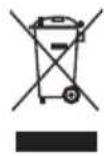
This symbol of the crossed out wheeled bin indicates that the product (electrical and electronic equipment) should not be placed in municipal waste. Check local regulations for disposal of electronic products.
1. Installation requirements
To ensure a successful installation of the ROG XG-Station 2, your computer must meet the following requirements:
A Notebook PC with Thunderbolt™ 3 (updated to the latest firmware) Microsoft Windows 10 (64 bit) Refer to www.asus.com for the complete Notebook PC QVL (Qualified Vendors List)
2. Specifications summary
| Model | ROG XG STATION 2 |
| Connection to PC | Thunderbolt™ 3 |
| Ethernet connection | Gigabit Lan 10/100/1000 Mbps |
| Input / Output | 4 x USB 3.0 ports |
| Additional USB | 1 x USB 3.0 Type B port |
| RGB Lighting Control | ASUS ROG AURA supported |
| Power Supply | 600W 80 Plus Gold Power Supply |
| Dimension | Length: 456mm; Width: 158mm; Height: 278mm |
| Weight | 5.1KG |
| Graphics Card Support | Provides support for a single full-length, 2.5 slot, PCI-Express x16 graphics card: - NVIDIA GeForce™ GTX 900 series and newer - AMD Radeon R9 series and newer |
| Graphics output | Defined by the graphics card installed |
| Accessories | 1x USB 3.0 Type-B cable 1x Thunderbolt™ 3 Type-C cable 1x Power cord Important product information guides |
3. Hardware introduction
Rear view
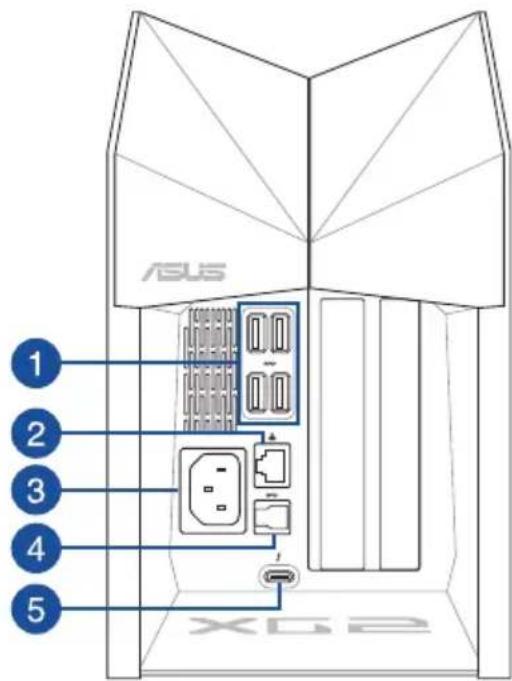
1 USB 3.0 port LAN port 3 Power (DC) input port 4 USB3.0 Type-B port 5 Thunderbolt™ 3 Type-C port
4. Hardware installation
To install the ROG XG-Station 2:
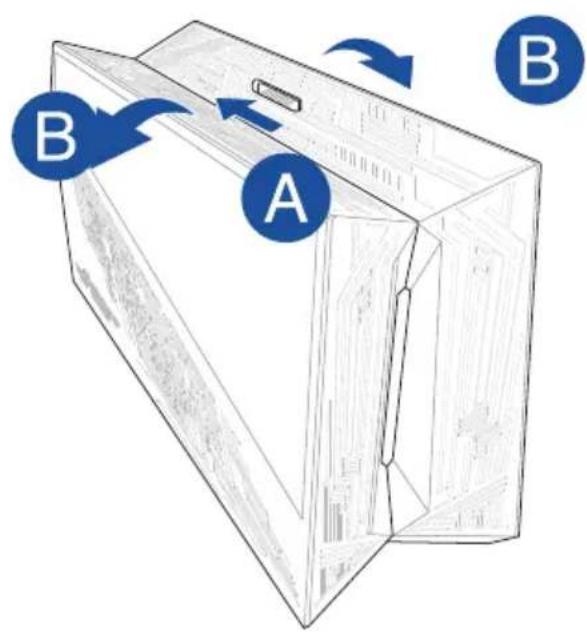
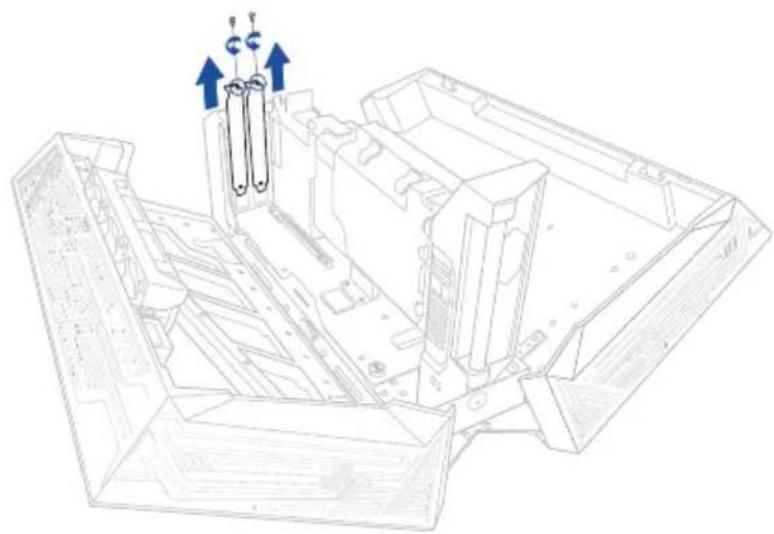
- Slide the spring lock to an unlocked position, then open the ROG XG-Station 2.
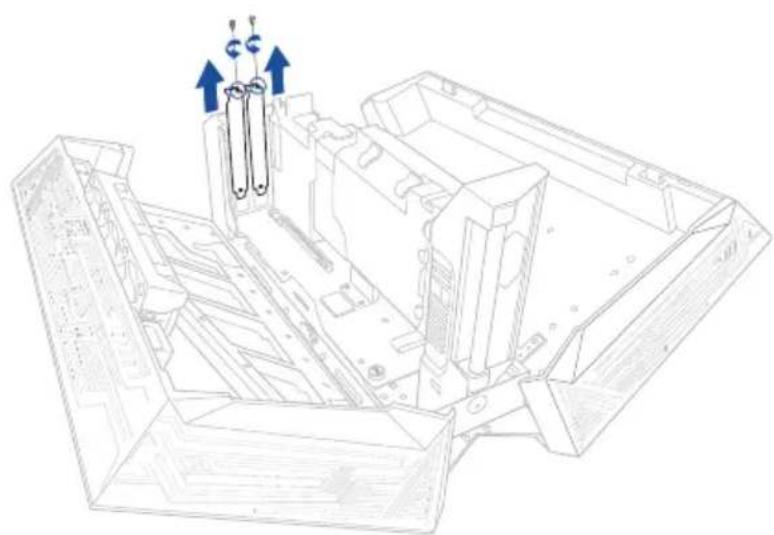
- Remove the screws that secure the metal bracket to the ROG XG-Station 2, then remove the metal bracket.
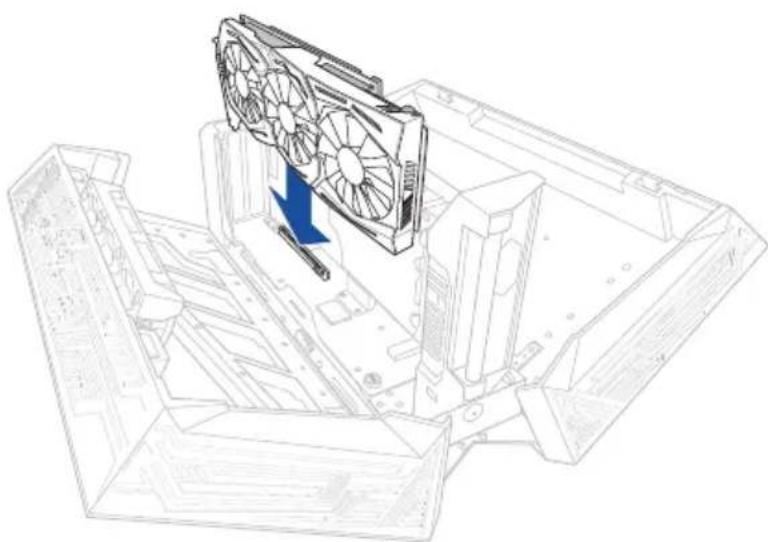
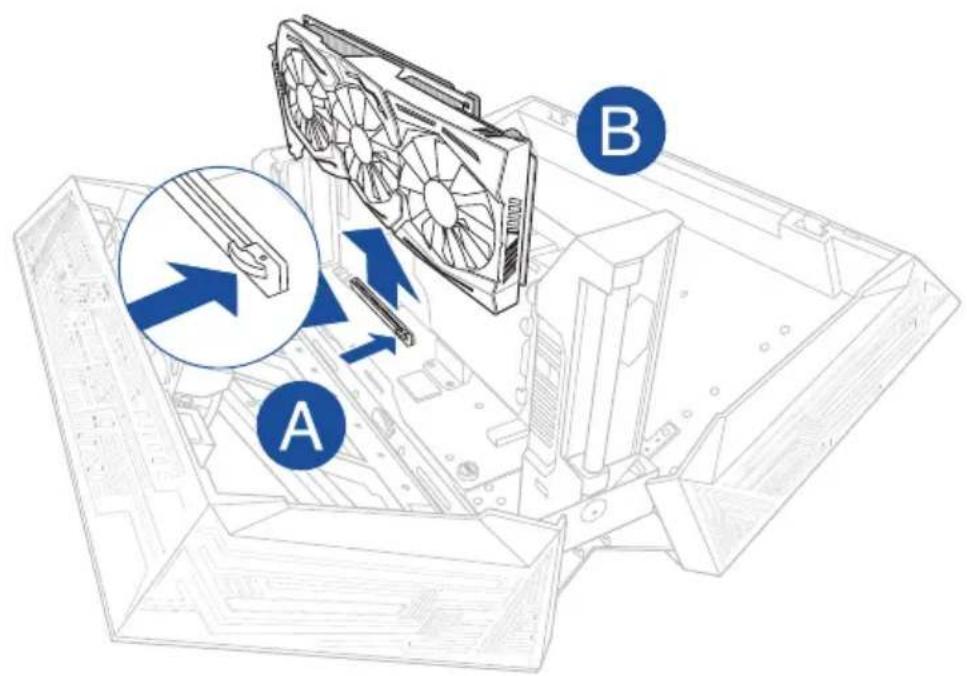
- Align and insert the graphics card into the PCI-E slot.

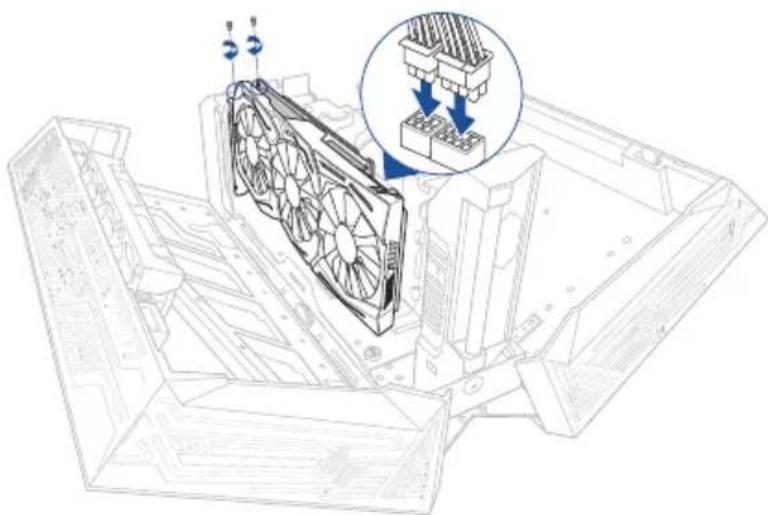
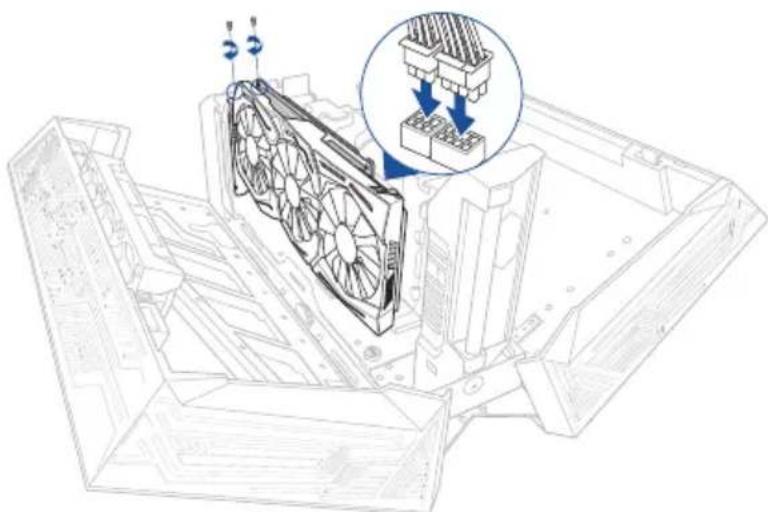
- Secure the metal bracket with the screws you removed earlier, then connect the power cables to the graphics card.
- Connect the AC power cord to the ROG XG-Station 2 and into a 100V~240V power source, then press the power button to turn on the ROG XG-Station 2. The plasma tube will light up.
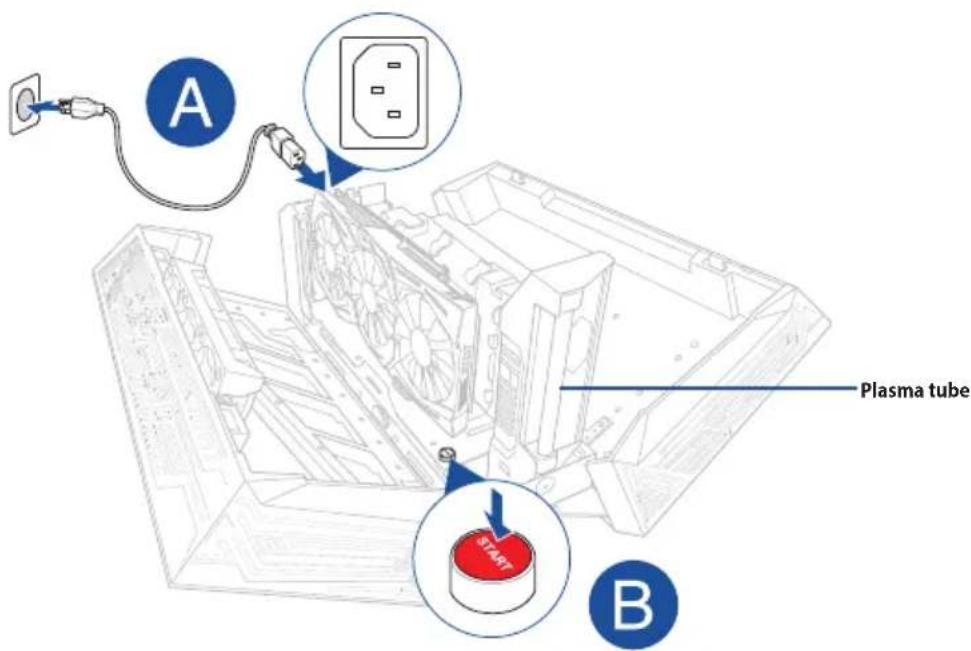

Never attempt to replace the plasma tube by yourself. Only ASUS-authorized technicians should repair the device.
- Close the ROG XG-Station 2, then connect the bundled Thunderbolt™ 3 Type-C cable to your Notebook PC and the ROG XG-Station 2.
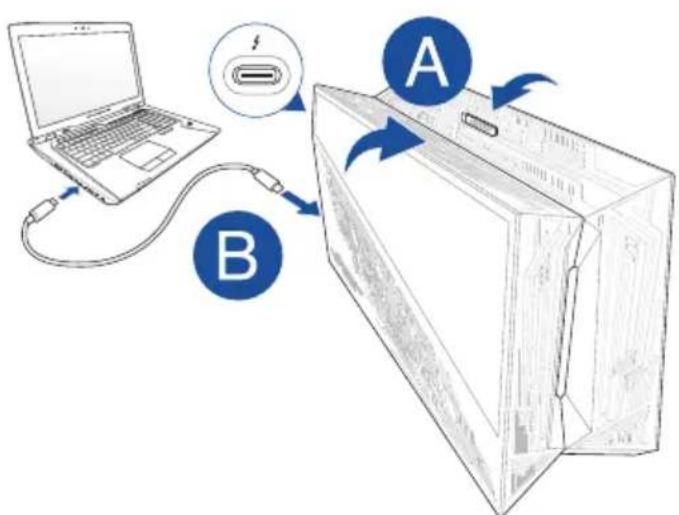

You can also connect a USB keyboard, USB mouse, external monitor, and other peripherals to your ROG XG-Station 2.
- Power on your Notebook PC and the LEDs in the ROG XG-Station 2 will light up.
- Install the corresponding drivers for your graphics card.
To remove the graphics card, press the release tab on the side of the PCI-E slot, then remove the graphics card.
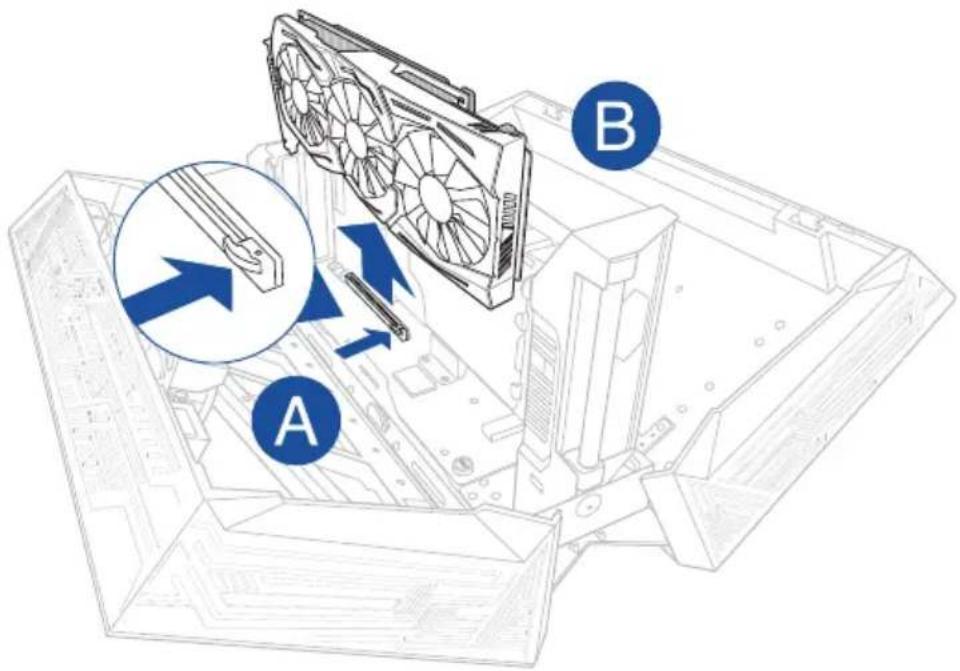

- Disconnect the AC power before removing the graphics card.
- Your graphics card may become extremely hot after operating for a period of time, please be careful when removing the graphics card.
5. Hardware customization
To customize the lighting effects of your ROG XG-Station 2, visit www.asus.com and download the ASUS ROG AURA software.
Safety Instructions
- Close the latch to the "Open" position, then open your ROG XG-Station 2.
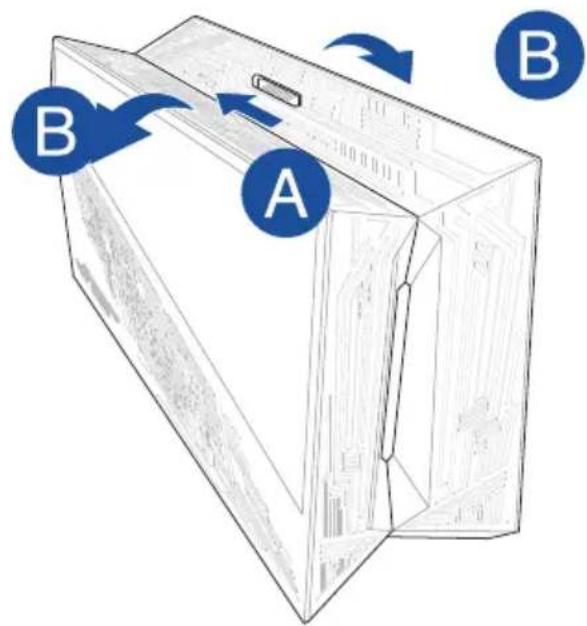
- Unscrew the screws that secure the metal bracket and remove it.

- Insert the graphics card into the PCI-E slot.
- Secure the metal bracket with the screws removed earlier, then connect the power cables to the graphics card.
5. Connect the power cord to the ROG XG-Station 2 and to a 100V~240V wall outlet, then press the power button to turn on the ROG XG-Station 2. The indicator light will illuminate.
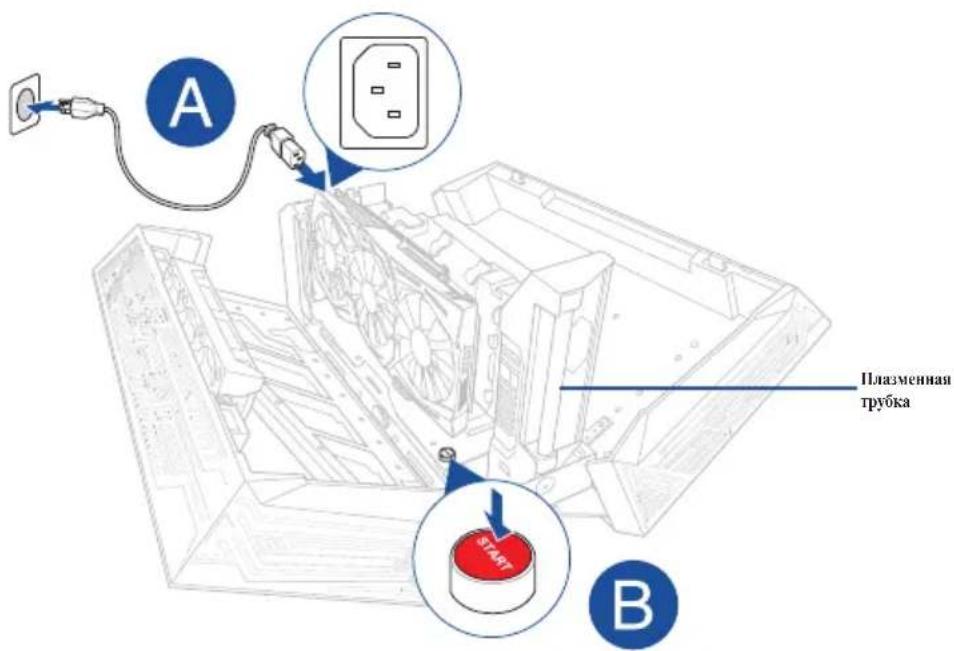

Do not attempt to replace the indicator light yourself. Repair of the device should only be performed by authorized ASUS technicians.
- Close the ROG XG-Station 2, then connect the included Thunderbolt 3 cable to the laptop and the ROG XG-Station 2.
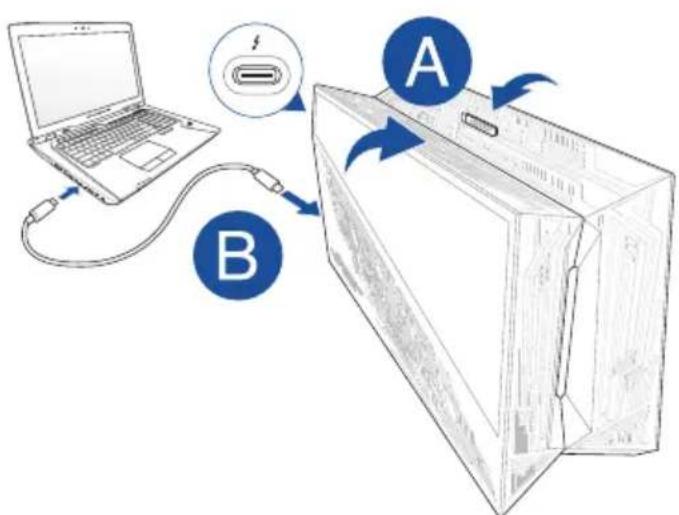

You can also connect a USB keyboard, USB mouse, external monitor, and other peripheral devices to the ROG XG-Station 2.
- Turn on the laptop, and the ROG XG-Station 2 indicator will light up. 8. Install the graphics card driver.

To remove the graphics card, press the latch on the PCI-E slot, then pull out the graphics card.
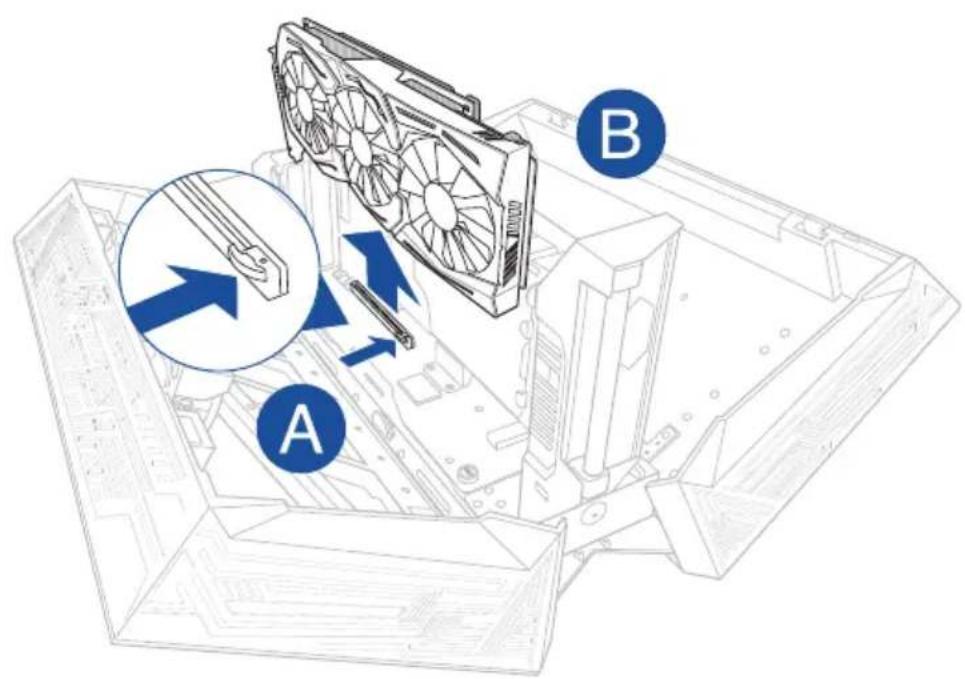

The graphics card may become very hot after prolonged use. Please be careful when removing the graphics card. The graphics card heats up during operation, so please be cautious when removing it.
5. Device setup
For Aura RGB lighting effects on the ROG XG-Station 2, visit www.asus.com and download the ASUS ROG AURA software.
1. Installation requirements
1. Installation steps
To install the graphics card into the ROG XG-Station 2, your computer must meet the following requirements:
- A Thunderbolt™ 3 port (with the latest version of the firmware). Microsoft Windows 10 (64-bit). A list of compatible portable computers is available on the ASUS website at www.asus.com.
2. Technical specifications
To install a graphics card into the ROG XG-Station 2 chassis:
- Push the latch to the 'unlocked' position, then open the ROG XG-Station 2.
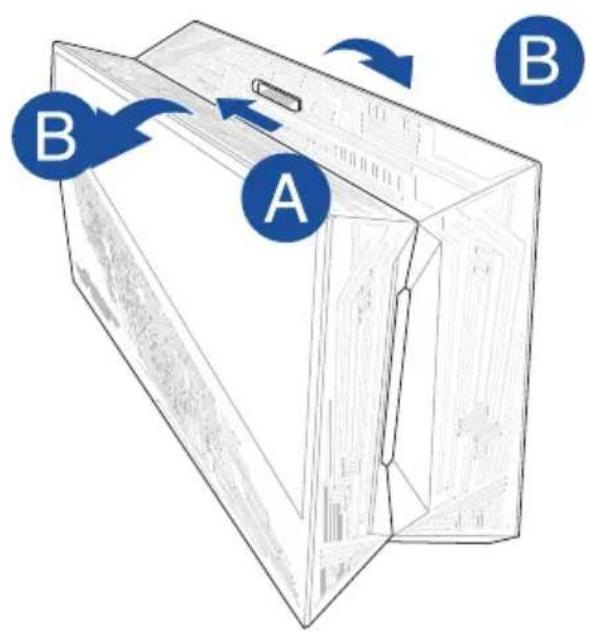
- Remove the screws securing the metal bracket on the ROG XG-Station 2, then remove the metal bracket.

- Align and insert the graphics card into the PCI-E slot.
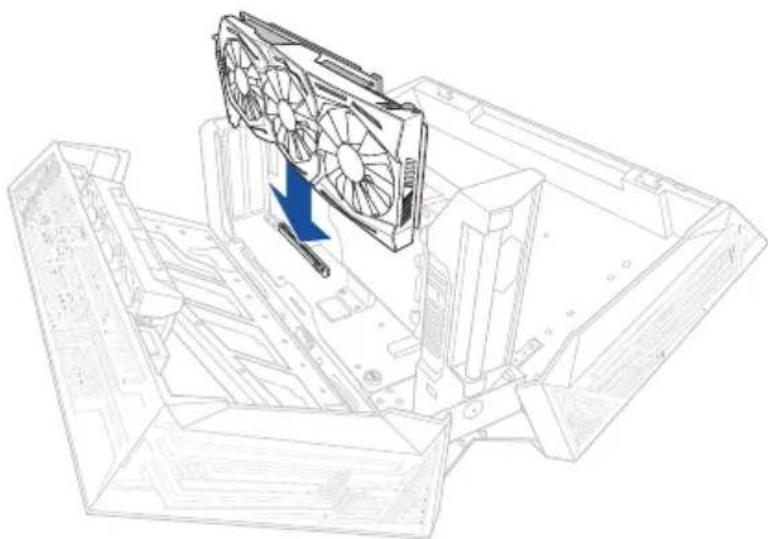
- 3akpiitb MeTaeBn KPOHtEHH RBHTAMN, Aki BN BnHn paHie, notim niknOHTb Ka6eJI XNBHeHH Do BideOKapTu.
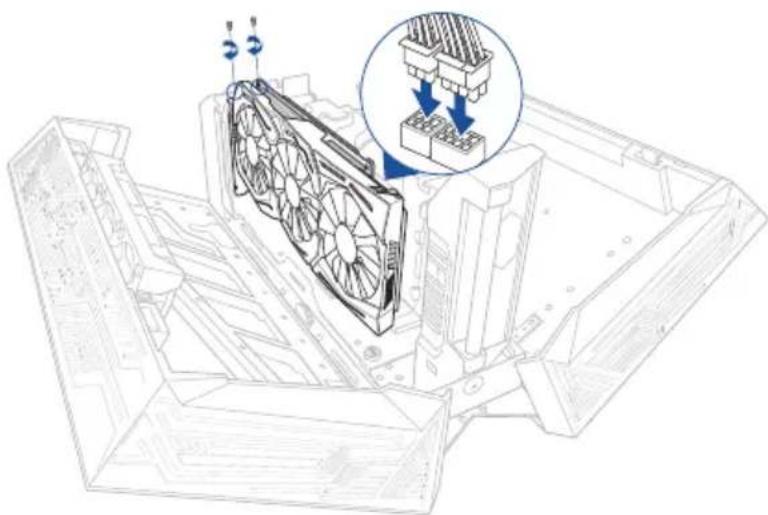
- Connect the power adapter to the ROG XG-Station 2 and to a 100-240V power source, then press the power button to turn on the ROG XG-Station 2. The graphics card will light up.
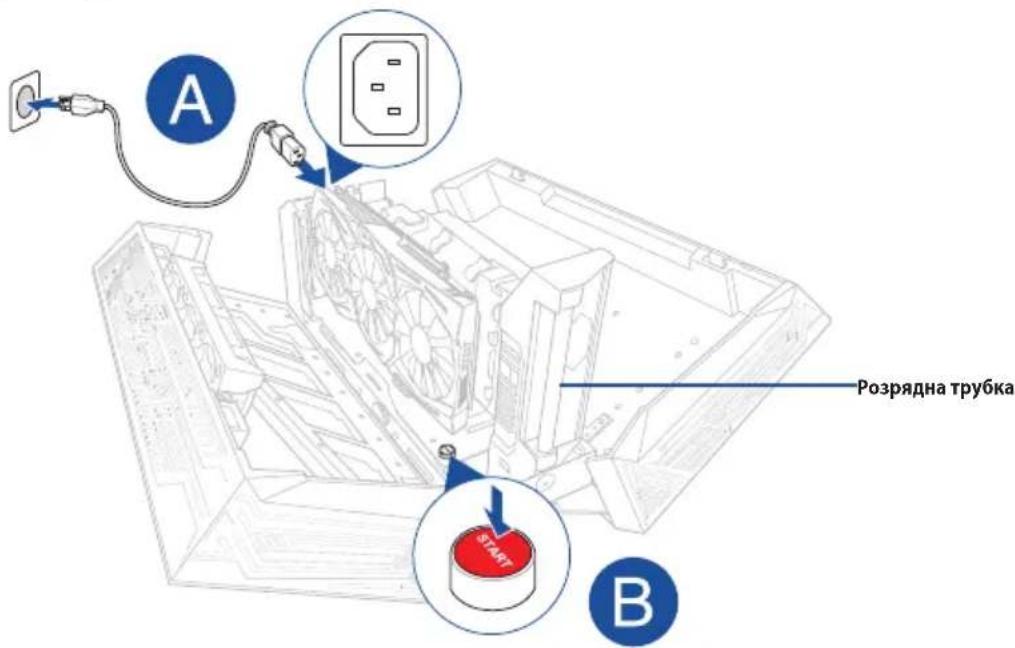

Never attempt to replace the graphics card yourself. Only qualified technicians authorized by ASUS should do this.
- Turn off the ROG XG-Station 2, disconnect the Thunderbolt 3 (USB Type-C) cable from the package from the ROG XG-Station 2.
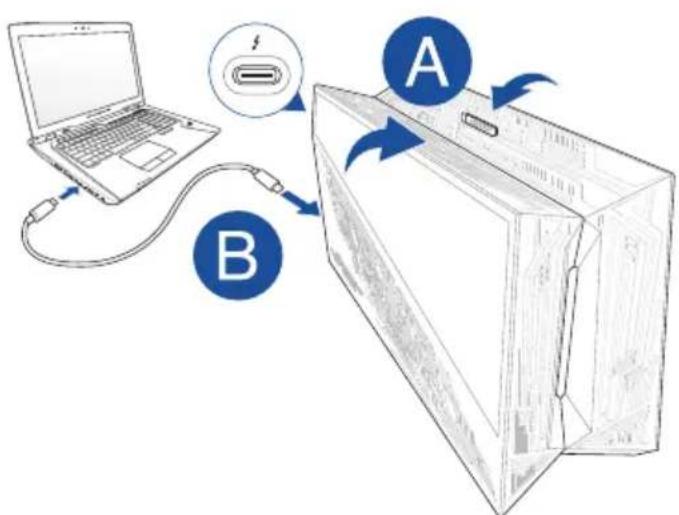

You can also connect a USB keyboard, USB mouse, external monitor, and other peripheral devices to the ROG XG-Station 2.
- The power button on the ROG XG-Station 2 will light up.
- Install the appropriate drivers for the graphics card.
To remove the graphics card, press the release button on the PCI-E slot, then pull out the graphics card.
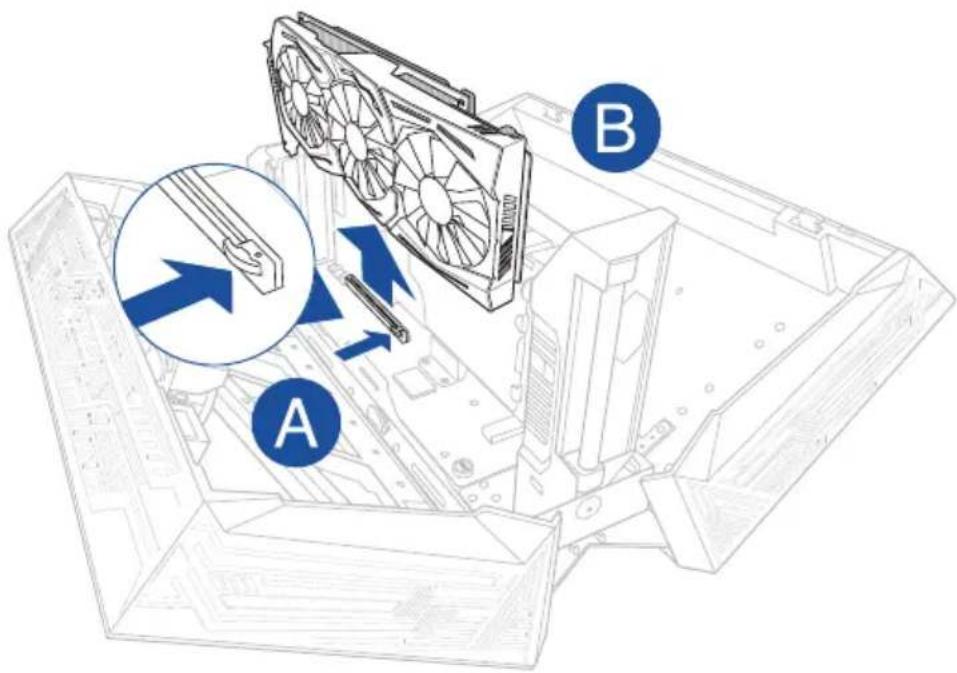

The device may heat up when running high-load applications. The video card may become very hot after a certain period of operation, so be careful when handling it.
5. Setting up visual effects
To learn about the visual effects setup system for the ROG XG-Station 2, visit www.asus.com and download ASUS ROG AURA.

ROG XG-Station 2
ASUS
ROG XG-Station 2
TM Thunderbolt 4
Windows 10
()
() Micro
www.asus.com
.
.ROG XG-Station 2 LED
A
PCI-E interface for graphics card
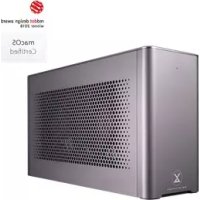
Brand : ASUS
Model : ROG XG Station 2
Category : Docking station