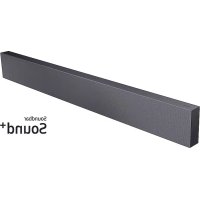
HWNW700 - Soundbar SAMSUNG - Free user manual and instructions
Find the device manual for free HWNW700 SAMSUNG in PDF.


User questions about HWNW700 SAMSUNG
0 question about this device. Answer the ones you know or ask your own.
Ask a new question about this device
Download the instructions for your Soundbar in PDF format for free! Find your manual HWNW700 - SAMSUNG and take your electronic device back in hand. On this page are published all the documents necessary for the use of your device. HWNW700 by SAMSUNG.
USER MANUAL HWNW700 SAMSUNG
Thank you for purchasing this Samsung product.
To receive more complete service, please register
your product at www.samsung.com/register
SAFETY INFORMATION
SAFETY WARNINGS
TO REDUCE THE RISK OF ELECTRIC SHOCK, DO NOT REMOVE THE COVER (OR BACK). NO USER-SERVICEABLE PARTS ARE INSIDE. REFER SERVICING TO QUALIFIED SERVICE PERSONNEL.
 | CAUTIONRISK OF ELECTRIC SHOCK.DO NOT OPEN. |  |
 | This symbol indicates that high voltage is present inside. It is dangerous to make any kind of contact with any internal part of this product. | |
 | This symbol indicates that this product has included important literature concerning operation and maintenance. | |
 | Class II product: This symbol indicates that it does not require a safety connection to electrical earth (ground). | |
 | AC voltage: This symbol indicates that the rated voltage marked with the symbol is AC voltage. | |
 | DC voltage: This symbol indicates that the rated voltage marked with the symbol is DC voltage. | |
 | Caution, Consult instructions for use: This symbol instructs the user to consult the user manual for further safety related information. | |
WARNING
- To reduce the risk of fire or electric shock, do not expose this appliance to rain or moisture.
CAUTION
- TO PREVENT ELECTRIC SHOCK, MATCH WIDE BLADE OF PLUG TO WIDE SLOT, FULLY INSERT.
- This apparatus shall always be connected to a AC outlet with a protective grounding connection.
- To disconnect the apparatus from the mains, the plug must be pulled out from the mains socket, therefore the mains plug shall be readily operable.
- Do not expose this apparatus to dripping or splashing. Do not put objects filled with liquids, such as vases on the apparatus.
- To turn this apparatus off completely, you must pull the power plug out of the wall socket. Consequently, the power plug must be easily and readily accessible at all times.
PRECAUTIONS
- Ensure that the AC power supply in your house complies with the power requirements listed on the identification sticker located on the bottom of your product. Install your product horizontally, on a suitable base (furniture), with enough space around it for ventilation (7\~10 cm). Make sure the ventilation slots are not covered. Do not place the unit on amplifiers or other equipment which may become hot. This unit is designed for continuous use. To fully turn off the unit, disconnect the AC plug from the wall outlet. Unplug the unit if you intend to leave it unused for a long period of time.
- During thunderstorms, disconnect the AC plug from the wall outlet. Voltage peaks due to lightning could damage the unit.
- Do not expose the unit to direct sunlight or other heat sources. This could lead to overheating and cause the unit to malfunction.
-
Protect the product from moisture (i.e. vases), and excess heat (e.g. a fireplace) or equipment creating strong magnetic or electric fields. Unplug the power cable from the AC wall socket if the unit malfunctions. Your product is not intended for industrial use. It is for personal use only. Condensation may occur if your product has been stored in cold temperatures. If transporting the unit during the winter, wait approximately 2 hours until the unit has reached room temperature before using.
-
The battery used with this product contains chemicals that are harmful to the environment. Do not dispose of the battery in the general household trash. Do not expose the battery to excess heat, direct sunlight, or fire. Do not short circuit, disassemble, or overheat the battery. Danger of explosion if the battery is replaced incorrectly. Replace only with the same or equivalent type.
ABOUT THIS MANUAL
The user manual has two parts: this simple paper USER MANUAL and a detailed FULL MANUAL you can download.

natural_image
Illustration of a person sitting on a sofa using a laptop (no text or symbols visible)USER MANUAL
See this manual for safety instructions, product installation, components, connections, and product specifications.

natural_image
Illustration of a person sitting on a couch next to a desk with a laptop (no text or symbols visible)
FULL MANUAL
You can access the FULL MANUAL on Samsung's on-line customer support centre by scanning the QR code. To see the manual on your PC or mobile device, download the manual in document format from Samsung's website. (http://www.samsung.com/support)
Design, specifications, and App screen are subject to change without prior notice.
CONTENTS
01 Checking the Components 6
Inserting Batteries before using the Remote Control (AA batteries X 2) ____ 6
02 Product Overview 7
Front Panel / Bottom Panel of the Soundbar 7
Rear Panel of the Soundbar 8
03 Connecting the Soundbar 9
Connecting Electrical Power ____ 9
04 Connecting to a TV 10
Connecting using an Optical Cable 10
Connecting Wirelessly ____ 11
- Connecting a TV via Bluetooth 11
- Connecting via Wi-Fi 13
05 Connecting an External Device 15
Connecting using an Optical Cable 15
06 Connecting a Mobile Device 16
Connecting via Bluetooth 16
Connecting via Wi-Fi (Wireless Network) 19
07 Connecting the Soundbar to an SWA-9000S (Sold separately) 21
08 Connecting the Soundbar to an SWA-W700 (Sold separately) 24
09 Connecting an Amazon product 27
Connect and use with an Amazon product (Amazon Echo) 27
Use voice commands to control the Soundbar ____ 29
10 Using the Remote Control 30
How to Use the Remote Control ____ 30
Adjusting the Soundbar volume with a TV remote control ____ 33
Using the Hidden Buttons (Buttons with more than one function) ____ 34
Output specifications for the different sound effect modes ____ 34
11 Installing the Wall Mount 35
Installation Precautions ____ 35
Wallmount Components 35
12 Software Update 39
13 Troubleshooting 40
14 Licence 41
15 Open Source Licence Notice 41
16 Important Notes About Service 41
17 Specifications and Guide 42
Specifications 42
01 CHECKING THE COMPONENTS

Holder-Cable Cushion Pad Holder-Dongle Screw
- For more information about the power supply and power consumption, refer to the label attached to the product. (Label : Bottom of the Soundbar Main Unit)
- For Soundbar wall mounting components, see page 35.
- To purchase additional components or optional cables, contact a Samsung Service Centre or Samsung Customer Care.
• This Soundbar is for wall mounting only.
- Use the Holder-Dongle Screw to secure the Holder-Dongle when connecting the Soundbar to the Wireless Rear Speaker Kit (SWA-9000S) or Wireless Subwoofer (SWA-W700) (Sold separately).
- The appearance of the accessories may differ slightly from the illustrations above.
Inserting Batteries before using the Remote Control (AA batteries X 2)
Slide the battery cover in the direction of the arrow until it is completely removed. Insert 2 AA batteries (1.5V) oriented so that their polarity is correct. Slide the battery cover back into position.

text_image
Diagram illustrating battery internal structure changes with labeled components and polarity indicators02 PRODUCT OVERVIEW
Front Panel / Bottom Panel of the Soundbar

text_image
Position the product so that the SAMSUNG logo is located on the top. 1 Bottom Panel 2 3 4| 1 | DisplayDisplays the product's status and current mode. | |
| 2 |  (Power) ButtonTurns the power on and off. (Power) ButtonTurns the power on and off. | |
| 3 |  (Volume) ButtonAdjusts the volume.When adjusted, the volume level appears on the Soundbar's front display. (Volume) ButtonAdjusts the volume.When adjusted, the volume level appears on the Soundbar's front display. | |
| 4 |  (Source) ButtonSelects the source input mode. (Source) ButtonSelects the source input mode. | |
| Input mode Display | ||
| Optical Digital input D.IN | ||
| Wi-Fi mode WIFI | ||
| BLUETOOTH mode BT | ||
• To turn on "BT PAIRING" mode, change the source to "BT" mode, and then press and hold the  button on the bottom panel for more than 5 seconds. button on the bottom panel for more than 5 seconds. | ||
- When you plug in the AC cord, the power button will begin working in 4 to 6 seconds.
- When you turn on this unit, there will be a 4 to 5 second delay before it produces sound.
- If you want to enjoy sound only from the Soundbar, you must turn off the TV's speakers in the Audio Setup menu of your TV. Refer to the owner's manual supplied with your TV.
Rear Panel of the Soundbar

text_image
DIGITAL AUDIO IN (OPTICAL) WIRELESS DC 23V 4 5 NETWORK ID SET (WOOFER/REAR)| 1 | DIGITAL AUDIO IN (OPTICAL)Connect to the digital (optical) output of an external device. |
| 2 | WIRELESSAttach the wireless dongle that connects the Soundbar to surround speakers and a subwoofer wirelessly.(The surround speaker, subwoofer, and wireless dongle are sold separately.)The WIRELESS jack is not USB-compatible.The availability of subwoofers differs by area. Check the availability athttp://www.samsung.com/support. |
| 3 | DC 23V (Power Supply In)Connect the AC/DC power adapter. |
| 4 | NETWORKPress to connect to a wireless network (Wi-Fi) via the SmartThings app. |
| 5 | ID SET (WOOFER/REAR)Press to connect the Soundbar to surround speakers and a subwoofer wirelessly.Press and hold the Up button on the remote for 5 seconds to complete ID SET. |
- When disconnecting the power cable of the AC/DC power adaptor from a wall outlet, pull the plug. Do not pull the cable.
- Do not connect this unit or other components to an AC outlet until all connections between components are complete.
03 CONNECTING THE SOUNDBAR
Connecting Electrical Power
Use the power components (1, 2) in the following order to connect the Soundbar to an electrical outlet:
① Connect the power output cable to the power adapter, and then to the Soundbar.
② Connect the power cord to a wall socket.
See the illustrations below.
- For more information about the required electrical power and power consumption, refer to the label attached to the product. (Label: Bottom of the Soundbar Main Unit)

flowchart
graph TD
    A["Power Cord"] --> B["Connecting Electrical Power"]
    B --> C["AC/DC Adapter"]
    C --> D["Rear of the Soundbar Main Unit"]
• Make sure to rest the AC/DC Adapter flat on a table or the floor. If you place the AC/DC Adapter so that it is hanging with the AC cord input facing upwards, water or other foreign substances could enter the Adapter and cause the Adapter to malfunction.
04 CONNECTING TO A TV
Hear TV sound from your Soundbar through wired or wireless connections.
- When the Soundbar is connected to selected Samsung TVs, the Soundbar can be controlled using the TV's remote control.
- This feature is supported by 2017 and later Samsung Smart TVs that support Bluetooth when you connect the Soundbar to the TV using an optical cable.
- This function also allows you to use the TV menu to adjust the sound field and various settings as well as the volume and mute.
Connecting using an Optical Cable
When the audio in a broadcast is encoded in Dolby Digital and the "Digital Output Audio Format" on your TV is set to PCM, we recommend that you change the setting to Dolby Digital. When the setting on the TV is changed, you will experience better sound quality. (The TV menu may use different words for Dolby Digital and PCM depending on the TV manufacturer.)

flowchart
graph TD
    A["TV"] --> B["OPTICAL OUT"]
    B --> C["Optical Cable (not supplied)"]
    C --> D["Rear of the Soundbar"]
    D --> E["D. IN"]
    E --> F["Bottom of the Soundbar"]
- Connect the DIGITAL AUDIO IN (OPTICAL) jack on the Soundbar to the OPTICAL OUT jack of the TV with a digital optical cable (not supplied).
- Press the 📋 button on the bottom panel or on the remote control, and then select the "D.IN" mode.
Auto Power Link
Auto Power Link automatically turns on the Soundbar when the TV is turned on.
-
Connect the Soundbar and a TV with a digital optical cable (not supplied).
-
Press the Left button on the remote control (the blue spot in the illustration to the right) for 5 seconds to turn Auto Power Link on or off.
• Auto Power Link is set to ON by default.
(To turn off this function, press the Left button on the remote for 5 seconds.)
- Depending on the connected device, Auto Power Link may not function.
- This function is only available in the "D.IN" mode.

natural_image
Circular play button icon with two playback buttons (no text or symbols)Connecting Wirelessly
Connecting a TV via Bluetooth
When a TV is connected using Bluetooth, you can hear stereo sound without the hassle of cabling.
- Only one TV can be connected at a time.

text_image
TV ... ... Bottom of the Soundbar ORThe initial connection
- Press the

button on the remote control to enter the "BT PAIRING" mode.
(OR)
a. Press the button on the bottom panel and then select "BT". "BT" changes to "BT READY" in a few seconds automatically if there is no Bluetooth device connected to the Soundbar.
b. When "BT READY" appears, press and hold the button on the bottom panel of the Soundbar for more than 5 seconds to display "BT PAIRING".
-
Select Bluetooth mode on the TV. (For more information, see the TV's manual.)
-
Select "[AV] Samsung Soundbar NWxxx" from the list on the TV's screen. An available Soundbar is indicated with "Need Pairing" or "Paired" in the TV Bluetooth device list. To connect the TV to the Soundbar, select the message, and then establish a connection.
- When the TV is connected, [TV Name] "BT" appears on the Soundbar's front display.
- You can now hear TV sound from the Soundbar.
If the device fails to connect
- If a previously connected Soundbar listing (e.g. "[AV] Samsung Soundbar NWxxx") appears in the list, delete it.
- Then repeat steps 1 through 3.
NOTE
- After you have connected the Soundbar to your TV the first time, use the "BT READY" mode to reconnect.
Disconnecting the Soundbar from the TV
Press the ➕ button on the bottom panel or on the remote control and switch to any mode but "BT".
- Disconnecting takes time because the TV must receive a response from the Soundbar. (The time required may differ, depending on the TV model.)
- To cancel the automatic Bluetooth connection between the Soundbar and TV, press the ▶ button on the remote control for 5 seconds with the Soundbar in "BT READY" status. (Toggle On → Off)
What is the difference between BT READY and BT PAIRING?
- BT READY : In this mode, you can search for previously connected TVs or connect a previously connected mobile device to the Soundbar.
- BT PAIRING : In this mode, you can connect a new device to the Soundbar. (Press the 📄 button on the remote control or press and hold the 📋 button on the bottom of the Soundbar for more than 5 seconds while the Soundbar is in “BT” mode.)
NOTES
- If asked for a PIN code when connecting a Bluetooth device, enter <0000>.
- In Bluetooth connection mode, the Bluetooth connection will be lost if the distance between the Soundbar and the Bluetooth device exceeds 10 meters.
- The Soundbar automatically turns off after 5 minutes in the Ready state.
- The Soundbar may not perform Bluetooth search or connection correctly under the following circumstances:
- If there is a strong electrical field around the Soundbar.
- If several Bluetooth devices are simultaneously paired with the Soundbar.
- If the Bluetooth device is turned off, not in place, or malfunctions.
- Electronic devices may cause radio interference. Devices that generate electromagnetic waves must be kept away from the Soundbar main unit - e.g., microwaves, wireless LAN devices, etc.
Connecting via Wi-Fi
Pre-connection Checklist
- Confirm that your Samsung Smart TV was released after 2014. This function is compatible only with Samsung Smart TVs released after 2014.
- Make sure your Wireless router (Wi-Fi) is ready and working.
- Make sure that the TV is connected to the Wireless router (your Wi-Fi network).

text_image
TV Bottom of the SoundbarStep 1: Connecting the Soundbar to Wi-Fi
- Press the button on the bottom of the Soundbar or on the remote control to select "WIFI" mode.
- When using selected Samsung TVs (2016 \~ 2018 Samsung Smart TVs that support Bluetooth.) - If you select "WIFI" mode when the TV is turned on, the TV screen displays a pop-up window providing instructions on how to automatically connect the Soundbar to a wireless router (Wi-Fi). Refer to instructions in the pop-up window of the TV.

text_image
WIFI Bottom of the Soundbar-
Connect your mobile device (smartphone, tablet, etc.) to the Wi-Fi network the TV is connected to.
-
Install and launch the SmartThings app on your mobile device (smartphone, tablet, etc.).

flowchart
graph LR
    A["Mobile Device"] --> B["GET IT ON Google Play"]
    B --> C["iOSAndroid"]
    C --> D["Download on the App Store"]
    D --> E["SmartThings app"]
- Follow the instructions in the app screen on the mobile device to connect the Soundbar to your Wi-Fi network.
Step 2 : Configuring Settings on the TV
- If the TV disconnects from your wireless network after you change the input source to the Soundbar, use the TV menu to connect the TV to the network again.
For TVs released in 2018
Home (☐) → Settings (☐) → Sound → Sound Output → [AV] Samsung Soundbar NWxxx (Wi-Fi)
For TVs released in 2017
Home (☐) → Settings (☐) → Sound → Sound Output → [AV] Samsung Soundbar NWxxx (Wi-Fi)
For TVs released in 2016
Home (☐) → Settings (☐) → Sound → Select Speaker → [AV] Samsung Soundbar NWxxx (Wi-Fi)
For TVs released in 2015
Menu → Sound → Speaker List
For TVs released in 2014
Menu → Sound → Speaker Settings → Multiroom Link - Settings
NOTES
- The TV and Soundbar must be connected to the same wireless network (Wi-Fi).
- If your wireless router (Wi-Fi) uses a DFS channel, you will not be able to establish a Wi-Fi connection between the TV and Soundbar. Contact your Internet service provider for details.
- If the 5GHz Wi-Fi connection is not smooth, use the 2.4GHz bandwidth.
- Because the menus may differ depending on the year of manufacture, refer to your TV manual.
05 CONNECTING AN EXTERNAL DEVICE
Connect to an external device via a wired or wireless network to play the external device's sound through the Soundbar.
Connecting using an Optical Cable

flowchart
graph TD
    A["Game console"] --> B["Optical OUT"]
    B --> C["1"]
    C --> D["Rear of the Soundbar"]
    D --> E["D. IN"]
    E --> F["Bottom of the Soundbar"]
    style A fill:#f9f,stroke:#333
    style D fill:#ccf,stroke:#333
- Connect DIGITAL AUDIO IN (OPTICAL) on the main unit to the OPTICAL OUT jack of the Source Device using a digital optical cable (not supplied).
- Select "D.IN" mode by pressing the button on the bottom panel or on the remote control.
06 CONNECTING A MOBILE DEVICE
Connecting via Bluetooth
When a mobile device is connected using Bluetooth, you can hear stereo sound without the hassle of cabling.
- You cannot connect more than one Bluetooth device at a time.

text_image
Bluetooth device Bottom of the Soundbar ORThe initial connection
- Press the button on the remote control to enter the "BT PAIRING" mode.
(OR)

button on the remote control to enter the "BT PAIRING" mode.
a. Press the button on the bottom panel and then select "BT". "BT" changes to "BT READY" in a few seconds automatically if there is no Bluetooth device connected to the Soundbar.
b. When "BT READY" appears, press and hold the button on the bottom panel of the Soundbar for more than 5 seconds to display "BT PAIRING".
- On your device, select "[AV] Samsung Soundbar NWxxx" from the list that appears.
- When the Soundbar is connected to the Bluetooth device, [Bluetooth Device Name] → "BT" appears in the front display.
- Play music files from the device, connected via Bluetooth, through the Soundbar.
If the device fails to connect
- If a previously connected Soundbar listing (e.g. "[AV] Samsung Soundbar NWxxx") appears in the list, delete it.
- Then repeat steps 1 and 2.
NOTE
- After you have connected the Soundbar to your mobile device the first time, use the "BT READY" mode to reconnect.
What is the difference between BT READY and BT PAIRING?
- BT READY : In this mode, you can search for previously connected TVs or connect a previously connected mobile device to the Soundbar.
- BT PAIRING : In this mode, you can connect a new device to the Soundbar. (Press the 🧿️ button on the remote control or press and hold the 📷 button on the bottom of the Soundbar for more than 5 seconds while the Soundbar is in “BT” mode.)
NOTES
- If asked for a PIN code when connecting a Bluetooth device, enter <0000>.
- In Bluetooth connection mode, the Bluetooth connection will be lost if the distance between the Soundbar and the Bluetooth device exceeds 10 meters.
- The Soundbar automatically turns off after 5 minutes in the Ready state.
-
The Soundbar may not perform Bluetooth search or connection correctly under the following circumstances:
-
If there is a strong electrical field around the Soundbar.
- If several Bluetooth devices are simultaneously paired with the Soundbar.
- If the Bluetooth device is turned off, not in place, or malfunctions.
- Electronic devices may cause radio interference. Devices that generate electromagnetic waves must be kept away from the Soundbar main unit - e.g., microwaves, wireless LAN devices, etc.
- The Soundbar supports SBC data (44.1kHz, 48kHz).
-
Connect only to a Bluetooth device that supports the A2DP (AV) function.
-
You cannot connect the Soundbar to a Bluetooth device that supports only the HF (Hands Free) function.
- Once you have paired the Soundbar to a Bluetooth device, selecting “[AV] Samsung Soundbar NWxxx” from the device’s scanned devices list will automatically change the Soundbar to “BT” mode.
- Available only if the Soundbar is listed among the Bluetooth device's paired devices.
(The Bluetooth device and the Soundbar must have been previously paired at least once.)
- The Soundbar will appear in the Bluetooth device's searched devices list only when the Soundbar is displaying "BT READY".
- The Soundbar cannot be paired to another Bluetooth device if already in Bluetooth mode and paired to a Bluetooth device.
Disconnecting the Bluetooth device from a Soundbar
You can disconnect a Bluetooth device from the Soundbar. For instructions, see the Bluetooth device's user manual.
• The Soundbar will be disconnected.
- When the Soundbar is disconnected from the Bluetooth device, the Soundbar will display "BT DISCONNECTED" on the front display.
Disconnecting the Soundbar from the Bluetooth device
Press the button on the bottom panel or on the remote control, and then change to any mode except "BT".
- Disconnecting takes time because the Bluetooth device must receive a response from the Soundbar. (Disconnection time may differ, depending on the Bluetooth device)
- When the Soundbar is disconnected from the Bluetooth device, the Soundbar will display "BT DISCONNECTED" on the front display.
NOTES
- In Bluetooth connection mode, the Bluetooth connection will be lost if the distance between the Soundbar and the Bluetooth device exceeds 10 meters.
- The Soundbar automatically turns off after 5 minutes in the Ready state.
More About Bluetooth
Bluetooth is a technology that enables Bluetooth-compliant devices to interconnect easily with each other using a short wireless connection.
- A Bluetooth device may cause noise or malfunction, depending on usage, if:
- A part of your body is in contact with the receiving/transmitting system of the Bluetooth device or the Soundbar.
- It is subject to electrical variation from obstructions caused by a wall, corner, or office partition.
- It is exposed to electrical interference from same frequency-band devices including medical equipment, microwave ovens, and wireless LANs.
- Pair the Soundbar with the Bluetooth device while they are close together.
- The further the distance between the Soundbar and Bluetooth device, the worse the quality is. If the distance exceeds the Bluetooth operational range, the connection is lost.
- In poor reception areas, the Bluetooth connection may not work properly.
- The Bluetooth connection only works when it is close to the unit. The connection will be automatically cut off if the Bluetooth device is out of range. Even within range, the sound quality may be degraded by obstacles such as walls or doors.
- This wireless device may cause electric interference during its operation.
Connecting via Wi-Fi (Wireless Network)
- Connect a single Soundbar to Wi-Fi to access a variety of music streaming services and Internet radio. Connect multiple Soundbars to Wi-Fi to use grouped playback or the stereo sound mode.
- To connect a Soundbar to a mobile device via a wireless network (Wi-Fi), the SmartThings app is required.

Mobile device


text_image
Bottom of the SoundbarThe initial connection
- Press the ➕ button on the bottom of the Soundbar or on the remote control to select "WIFI" mode.

text_image
WIFI Bottom of the Soundbar- Install and launch the SmartThings app on your mobile device (e.g. smartphone or tablet).

flowchart
graph LR
    A["手机"] --> B["GET IT ON Google Play"]
    B --> C["Download on the App Store"]
    C --> D["iOSAndroid"]
    C --> E["SmartThings app"]
- Launch the app, and then follow the instructions on the screen to register (add) your Soundbar in the app.
- The automatic pop-up (the third illustration below) may not be available on some mobile devices.
If this is the case, select and complete "Add device" from the app menu. Your Soundbar is now added to the app.

flowchart
graph LR
    A["Sensor Input"] --> B["Add device"]
    B --> C["Add device to Samsung Connect"]
    C --> D["Registering device with Audio to Samsung Account"]
    D --> E["All Devices Added Device"]
Launch App Add speakersAuto pop-up
NOTE
- To connect an additional SWA-9000S wireless rear speaker kit (not supplied), disconnect the Samsung wireless speakers from the Soundbar to disable the surround sound system. (If you connect the surround speakers without disconnecting the SWA-9000S speakers, sound is played via both the Samsung wireless speaker and the Surround speaker.)
07 CONNECTING THE SOUNDBAR TO AN SWA-9000S (SOLD SEPARATELY)
Expand to true wireless surround sound by connecting the Samsung Wireless Rear Speaker Kit (SWA-9000S - Sold separately) to your Soundbar.
- Turn off the Soundbar.

text_image
BYE- Connect the wireless dongle to the "WIRELESS" port on the Soundbar main unit.
- When inserting the Wireless Dongle into the Wireless port, make sure that the "WIRELESS" logo is facing up, as shown in the illustration below.

flowchart
graph LR
    A["Use the Holder-Dongle Screw (M3 x L10) supplied with the HW-NW700."] --> B["Step 1: Initial component with screw"]
    B --> C["Step 2: Display device with wireless cable"]
    C --> D["Step 3: Wireless connection to device"]
NOTE
- If you have purchased and want to add an SWA-W700 (optional Subwoofer) to your speaker setup after adding an SWA-9000S:
- Do not remove the Wireless dongle you have already attached to the Soundbar's "WIRELESS" port. The Wireless dongle that came with the SWA-9000S can be used with the SWA-W700 (optional Subwoofer).
- Connect the Wireless Receiver Module to the two Surround Speakers.
• The speaker cables are colour coded.

- Plug in the Wireless Receiver Module, and then check its standby status.
- The LINK LED indicator (blue LED) on the Wireless Receiver Module should blink. If the LED does not blink, press the ID SET button on the back of the Wireless Receiver Module with a pen tip for 5\~6 seconds until the LINK LED indicator blinks (in Blue). For more about the LED, please refer to the SWA-9000S user manual.

flowchart
graph LR
    A["Power"] --> B["POWER"]
    B --> C["ID SET"]
    C --> D["5 Sec"]
    D --> E["LINK"]
    E --> F["Blue blinking"]
-
Press and hold the Up button on the remote control or press the ID SET button on the bottom panel for at least 5 seconds.
-
The ID SET message appears on the display of the Soundbar for a moment, and then disappears.
- The Soundbar will automatically power on when ID SET is complete.

text_image
5 Sec ID SET
CAUTION
- If your Soundbar is playing music when it connects to the SWA-9000S, you may hear some stuttering from the woofer as the connection finalises.
- Check if the LINK LED is solid blue (connection complete).

text_image
LINK Blue is OnThe LINK LED indicator stops blinking and glows a solid blue when a connection is established between the Soundbar and the Wireless Receiver Module.
- If the SWA-9000S is not connected, repeat the procedure from Step 4.
NOTES
- Do not connect the power cord of this product or your TV to a wall outlet until all connections between components are complete.
- Before moving or installing this product, be sure to turn off the power and disconnect the power cord.
- The maximum transmission distance of the wireless signal of the main unit is about 10 meters, but may vary depending on your operating environment. If a steel-concrete or metallic wall is between the main unit and the wireless subwoofer, the system may not operate at all, because the wireless signal cannot penetrate metal.
PRECAUTIONS
- Wireless receiving antennas are built into the wireless subwoofer. Keep the units away from water and moisture.
- For optimal listening performance, make sure that the area around the wireless subwoofer and Wireless Receiver Module (Sold separately) is clear of any obstructions.
08 CONNECTING THE SOUNDBAR TO AN SWA-W700 (SOLD SEPARATELY)
- Turn off the Soundbar using the Soundbar's remote control or by pressing the ⏻ button on the main Soundbar.

text_image
BYE- Connect the wireless dongle to the "WIRELESS" port on the Soundbar main unit.
- When inserting the Wireless Dongle into the holder, make sure that the "WIRELESS" logo is facing up, as shown in the pictures below.

flowchart
graph LR
    A["User with Sensor"] --> B["Device with Hw-NW700 Supply"]
    B --> C["Sensor with Wireless"]
    C --> D["Device with Wireless Connection"]
- If you purchase and want to add an SWA-9000S (optional Wireless Rear Speaker Kit) to your speaker setup after adding an SWA-W700, do not remove the Wireless dongle you have already attached to the Soundbar's "WIRELESS" port.
-
The wireless dongle that came with the SWA-W700 can be used with the optional Wireless Rear Speaker Kit.
-
Plug in the Wireless Subwoofer, and then check its standby status.
- Plug the Wireless Subwoofer power cord into an electrical outlet and into the Wireless Subwoofer to turn on the Wireless Subwoofer. The LINK LED indicator (blue LED) on the Wireless Subwoofer blinks. If the LED does not blink, press the ID SET button on the bottom of the Wireless Subwoofer with a pen tip for 5\~6 seconds until the LINK LED indicator blinks (in Blue). For more about the LED, please refer to the SWA-W700 user manual.

flowchart
graph TD
    A["Power"] --> B["Switch"]
    B --> C["ID SET"]
    C --> D["5 Sec"]
    D --> E["Arrow"]
Bottom of the Wireless Subwoofer

text_image
SAMSUNG Blue blinkingFront of the Wireless Subwoofer
- The main unit is heavy. Be careful not to pinch your fingers when pressing the ID SET button or connecting the power cord to the bottom of the unit.
- The upper part of the subwoofer is prone to scratches. Handle it carefully.

text_image
Speaker UnitRear of the Wireless Subwoofer
Do not press on or strike the Speaker Unit on the rear of the body. You can deform or damage the speaker.
-
Press and hold the Up button on the remote control or press the ID SET button on the bottom panel for at least 5 seconds.
-
The ID SET message appears on the display of the Soundbar for a moment, and then disappears.
• The Soundbar will automatically power on when ID SET is complete.

text_image
PASS 5 Sec ID SET- Check if the LINK LED is solid blue (connection complete).

text_image
SAMSUNG Stops blinking. Glows blue.Front of the Wireless Subwoofer
The LINK LED indicator stops blinking and glows a solid blue when a connection is established between the Soundbar and the Wireless Subwoofer.
NOTES
- Do not connect the power cord of this product or your TV to a wall outlet until all connections between components are complete.
- Before moving or installing this product, be sure to turn off the power and disconnect the power cord.
- The maximum transmission distance of the wireless signal of the main unit is about 10 meters, but may vary depending on your operating environment. If a steel-concrete or metallic wall is between the main unit and the wireless subwoofer, the system may not operate at all, because the wireless signal cannot penetrate metal.
PRECAUTIONS
- Wireless receiving antennas are built into the wireless subwoofer. Keep the units away from water and moisture.
- For optimal listening performance, make sure that the area around the wireless subwoofer and Wireless Receiver Module (Sold separately) is clear of any obstructions.
09 CONNECTING AN AMAZON PRODUCT
- This feature may not be available in some countries.
- This service is provided by Amazon and can be terminated at any time. Samsung does not assume responsibility for service availability.
Connect and use with an Amazon product (Amazon Echo)
Use an Amazon Echo product to control your Soundbar and enjoy music services provided by Amazon Echo.
NOTE
- Check if the Soundbar is connected to Wi-Fi. (Refer to "Connecting via Wi-Fi (Wireless Network)")
- In the SmartThings app, change your Soundbar's name to one that can be recognized by your Amazon device.
(Example: Samsung, Soundbar, Living Room, Family Room, Bedroom, Office, etc.)

CAUTION
- Amazon devices may not recognize names that contain elements such as special characters.

flowchart
graph LR
    A["Input Image"] --> B["Select speakers"]
    B --> C["Change name"]
    C --> D["SaveSelect Edit"]
- In the Alexa app, search "Samsung Wireless Audio" in Skills, and then select "ENABLE".
- Skip this step if you have Skills set up already.

flowchart
graph LR
    A["Amazon Alexa app"] --> B["Select Skills"]
    B --> C["Search"]
    C --> D["Enable"]
- In the Alexa app, tap "Smart Home → Devices → Discover" to complete the connection.

flowchart
graph LR
    A["Amazon Alexa app"] --> B["Select Smart Home"]
    B --> C["Select Devices Discover device"]

    subgraph "Select Smart Home"
        D["Home"] --> E["Things to Try"]
        E --> F["I love you"]
        F --> G["Features: I'm good to it"]
        G --> H["Your friends"]
        H --> I["Home found"]
        I --> J["Old home to do my"]
        J --> K["Yes: No"]
        K --> L["Always read"]
        L --> M["Timer set for"]
    end

    subgraph "Select Devices Discover device"
        N["Smart Home"] --> O["Groups"]
        P["Devices"] --> Q["Scenes"]
        R["Configure Smart Home"] --> S["Smart Home Skills"]
        T["Enable smart home skills to control devices with Alexa. If you've already enabled your skill, discover devices below: SMART HOME SKILL"]
        U["Discover"] --> V["Device"]
        W["Alexa SMART HOME"] --> X["Discover"]
    end
Use voice commands to control the Soundbar
- The Amazon Echo service you can use with your Soundbar is limited to music. Other services provided by Amazon Echo, such as news and weather, can only be accessed through your Amazon Echo product.

Trigger + Command + Speaker name
Use the Speaker name you changed in the SmartThings app. (Refer to "Connect and use with an Amazon product (Amazon Echo)")
| Action Voice Command | |
| To search an audio device added to theSmartThings account connected to theAmazon Alexa account | "Alexa Discover devices" |
* To use voice commands for the Soundbar named "Living room"
| Action Voice Command | |
| To set the volume level to 5 | "Alexa Set the volume to 5 on Living room" |
| To increase the volume level | "Alexa Volume up on Living room" |
| To mute the sound "Alexa Mute on Living room" | |
| To listen to a radio station named KISS FM | "Alexa Play Kiss FM on Living room" |
| To play the next song | "Alexa Next song on Living room" |
| To stop the audio | "Alexa Stop on Living room" |
| To turn the audio on "Alexa Turn on Living room" | |
| To turn the audio off "Alexa Turn off Living room" | |
| To change the input source | "Alexa Switch to Bluetooth on Living room" |
10 USING THE REMOTE CONTROL
How to Use the Remote Control

text_image
1 2 3 4 5 6 7 8 9 VOLBASS 10 SAMSUNG SOUNDBAR| 1 |  Power Power | Turns the Soundbar on and off. |
| 2 |  Source Source | Press to select a source connected to the Soundbar.Auto Power Down FunctionThe unit turns off automatically in the following situations.- D.IN / WIFI / BT Mode: If there is no audio signal for 5 minutes. |
| 3 |  Mute Mute | Press thebutton to mute the sound.Press it again to unmute the sound. |
| 4 |  SOUND MODE SOUND MODE | You can select the desired sound effect by choosingSTANDARD, SURROUND, or SMART.Select the “STANDARD” mode if you want to enjoy the original sound.SMART modeAutomatically optimizes sound effects to suit the scene currently playing. |
| 5 |  BluetoothPAIR BluetoothPAIR | Press the button. “BT PAIRING” appears in the Soundbar’s display.You can connect the Soundbar to a new Bluetooth device in this mode by selecting the Soundbar in the Bluetooth device's search list. | |
| 6 |  Play / Pause (BT/Wi-Fi) Play / Pause (BT/Wi-Fi) | Press the button to pause a music file temporarily.When you press the button again, the music file plays. | |
| 7 |  Up/Down/Left/Right Up/Down/Left/Right |  Press the indicated areas to select Up/Down/Left/Right.Press Up/Down/Left/Right on the button to select or set functions.RepeatTo use the Repeat function, press the Up button.Music SkipPress the Right button to select the next music file. Press the Left button to select the previous music file.Auto Power LinkYou can turn Auto Power Link on or off.- Auto Power Link : If the Soundbar is connected to your TV through a digital optical cable, the Soundbar can automatically turn on when you turn on your TV. Press and hold the Left button for 5 seconds to toggle Auto Power Link ON and OFF.- Auto Power Link is set to ON by default.ID SETPress and hold the Up button for 5 seconds to complete ID SET (when connecting to an accessory item). Press the indicated areas to select Up/Down/Left/Right.Press Up/Down/Left/Right on the button to select or set functions.RepeatTo use the Repeat function, press the Up button.Music SkipPress the Right button to select the next music file. Press the Left button to select the previous music file.Auto Power LinkYou can turn Auto Power Link on or off.- Auto Power Link : If the Soundbar is connected to your TV through a digital optical cable, the Soundbar can automatically turn on when you turn on your TV. Press and hold the Left button for 5 seconds to toggle Auto Power Link ON and OFF.- Auto Power Link is set to ON by default.ID SETPress and hold the Up button for 5 seconds to complete ID SET (when connecting to an accessory item). | |
| 8 |  Sound Control Sound Control | You can select from TREBLE, SYNC, REAR LEVEL, or REAR SPEAKER ON/OFF.To adjust the TREBLE volume, select Sound Control → TREBLE, and then use the Up/Down buttons to adjust the volume within a -6 to +6 range.Press and hold thebutton for about 5 seconds to adjust the sound for each frequency band. 150Hz, 300Hz, 600Hz, 1.2KHz, 2.5KHz, 5KHz, and 10KHz are selectable using theLeft/Rightbuttons and each can be adjusted to a setting between -6 to +6 using theUp/Downbuttons.If the video on the TV and audio from the Soundbar are not synchronised, selectSYNCin Sound Control, and then set the audio delay between 0~300 milliseconds by using theUp/Downbuttons.If surround speakers (not supplied) are connected, select REAR LEVEL, and then use theUp/Downbuttons to adjust the volume within a -6 to +6 range.The REAR SPEAKER function can be turned ON/OFFby using theUp/Downbuttons.SYNCis only supported for some functions. | |
| 9 | BASS |  | 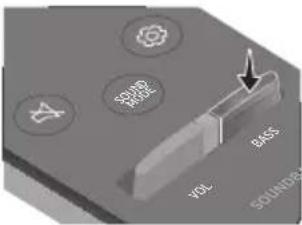 Push the button up or down to adjust the BASS volume within a -6 to +6 range.To set the BASS volume level to 0, press the button.When a Subwoofer (not supplied) is connected, theBASSbutton becomes the Subwoofer button. Push the button up or down to adjust the subwoofer volume either to -12 or within a -6 to +6 range. To set the subwoofer volume level to 0, press the button. Push the button up or down to adjust the BASS volume within a -6 to +6 range.To set the BASS volume level to 0, press the button.When a Subwoofer (not supplied) is connected, theBASSbutton becomes the Subwoofer button. Push the button up or down to adjust the subwoofer volume either to -12 or within a -6 to +6 range. To set the subwoofer volume level to 0, press the button. |
| 10 |  VOL VOL |  | 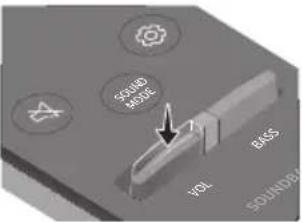 Push the button up or down to adjust the volume.MutePress the VOLbutton to mute the sound. Press it again to unmute the sound. Push the button up or down to adjust the volume.MutePress the VOLbutton to mute the sound. Press it again to unmute the sound. |
Adjusting the Soundbar volume with a TV remote control
If you have a Samsung TV, you can adjust the Soundbar's volume using the IR remote control that came with your Samsung TV.
First use the TV menu to set the TV audio on your Samsung TV to external speakers, then use your Samsung remote to control the Soundbar's volume. For more information, see the TV's user manual. The default mode for this function is control by a Samsung TV remote. If your TV is not a Samsung TV, follow the directions below to change the settings of this function.
- Turn Off the Soundbar.

text_image
BYE- If you do not want to use this function, push up and hold the BASS button on the remote repeatedly for 5 seconds until "OFF-TV REMOTE" appears in the display.

text_image
5 Sec OFF-TV REMOTE- If you want to control the Soundbar with your TV's remote, push up and hold the BASS button for 5 seconds repeatedly until "ALL-TV REMOTE" appears in the display. Then, use your TV's menu to select external speakers.

text_image
5 Sec ALL-TV REMOTE- If you want to return the Soundbar to the default mode (control by a Samsung TV remote), push up and hold the BASS button for 5 seconds repeatedly until "SAMSUNG-TV REMOTE" appears in the display.

text_image
(Default mode) SAMSUNG-TV REMOTE– Each time you push the BASS button up and hold it for 5 seconds, the mode switches in the following order:
"SAMSUNG-TV REMOTE" (Default mode)
→ "OFF-TV REMOTE" → "ALL-TV REMOTE".
- This function may not be available, depending on the remote control.
- Manufacturers supporting this function: VIZIO, LG, Sony, Sharp, PHILIPS, PANASONIC, TOSHIBA, GRUNDIG, Hisense, RCA
Using the Hidden Buttons (Buttons with more than one function)
| Hidden Button | Reference page | |
| Remote Control Button Function | ||
| BASS | TV remote control On/Off (Standby) | page 33 |
 | Automatic Bluetooth connection ON/OFF page 12 | |
| Left Auto Power Link | ON/OFF page 31 | |
| Up ID SET page 31 | ||
 | 7 Band EQ page 32 | |
Output specifications for the different sound effect modes
| Effect Input | Output | ||||
| Without Wireless Rear Speaker Kit & Subwoofer | With Subwoofer Only | With Wireless Rear Speaker Kit Only | With Wireless Rear Speaker Kit & Subwoofer | ||
| STANDARD | 2.0 ch | 2.0 ch 2.1 ch 2.0 | ch 2.1 ch | ||
| 5.1 ch 3.0 ch | 3.1 ch 5.0 ch 5.1 ch | ||||
| SURROUND | 2.0 ch | 3.0 ch 3.1 ch 5.0 | ch | 5.1 ch | |
| 5.1 ch 3.0 ch | 3.1 ch 5.0 ch 5.1 ch | ||||
| SMART | 2.0 ch | 2.0 ch 2.1 ch 2.0 | ch 2.1 ch | ||
| 5.1 ch 3.0 ch | 3.1 ch 5.0 ch 5.1 ch | ||||
- The Samsung Wireless Rear Speaker Kit and the Samsung Wireless Subwoofer can be purchased separately. To purchase a Kit or the Subwoofer, contact the vendor you purchased the Soundbar from.
11 INSTALLING THE WALL MOUNT
Installation Precautions
• Install on a vertical wall only.
- Do not install in a place with high temperature or humidity.
- Verify whether the wall is strong enough to support the product's weight. If not, reinforce the wall or choose another installation point.
- Purchase and use the fixing screws or anchors appropriate for the kind of wall you have (plaster board, iron board, wood, etc.).
If possible, fix the support screws into wall studs.
- Purchase wall mounting screws according to the type and thickness of the wall you want to mount the Soundbar on.
- Diameter: M5
– Length: 35 mm or longer recommended.
- Connect cables from the unit to external devices before you install the Soundbar on the wall.
- Make sure the unit is turned off and unplugged before you install it. Otherwise, it may cause an electric shock.
Wallmount Components

text_image
5cm or more
text_image
A x 3 (M5 x L50) B x 3 C D E x 2 x 2 F1.

text_image
DC 23V 100.00NOTES
- Install the Soundbar 5cm or more below your TV.
- Install part E before mounting your Soundbar on the wall.
- Insert the Power Plug from the Adapter into the Soundbar before mounting the Soundbar on the wall.
- Use part E to secure the power cable on the left or right side of the Soundbar.

natural_image
Diagram of a computer drive with a curved sensor and labeled component E (no text or symbols beyond label)OR

natural_image
Illustration of a computer drive with a sensor emitting a curved cable (no text or symbols)- Use part F to attach to the centre of the bottom of the Soundbar.

natural_image
Diagram of a mechanical component with two circular features and a labeled force (F), no readable text or symbols present.2.

text_image
CENTRE LINENOTE
- Make sure the Wall Mount Guide D is level.
3.

natural_image
Diagram showing a mechanical or electrical component with directional arrows and a downward arrow, no readable text or symbols present.
text_image
50 mm 6 mmNOTE
- The installation method shown here is for Concrete walls. Installation methods will vary depending on the wall type. For installation on dry wall, we strongly recommend you drill screw support holes into the underlying wood studs.

flowchart
graph TD
    A["Cut a blade"] --> B["Assembly Step 1"]
    B --> C["Assembly Step 2"]
    C --> D["Assembly Step 3"]
    D --> E["Assembly Step 4"]
    E --> F["Assembly Step 5"]

text_image
Diagram showing a device component with labeled parts and directional arrows indicating rotation or movement.
natural_image
Illustration showing two scenes: top shows a hand holding a device, bottom shows a person using a TV (no text or symbols present)
text_image
Diagram illustrating a device operation with magnified views and directional arrows, showing steps to process components.
flowchart
graph TD
    A["Object Detection"] --> B["Human Interaction"]
    B --> C["Human Interaction"]
    D["Personnel Recognition"] --> E["Human Interaction"]
    style A fill:#f9f,stroke:#333
    style B fill:#ccf,stroke:#333
    style C fill:#cfc,stroke:#333

CAUTION

text_image
Diagram illustrating mechanical assembly steps with labeled components and directional indicators
text_image
Diagram illustrating a window display setup with labeled components and two people working at a table, including a magnified inset showing the screen layout.
natural_image
Illustration of a hand holding a small object above a rectangular panel, with no visible text or symbols.12 SOFTWARE UPDATE
When the Soundbar is connected to the Internet, software updates automatically occur even when the Soundbar is turned off.
- To use the Auto Update function, the Soundbar must be connected to the Internet. The Wi-Fi connection to the Soundbar will be terminated if its power cord is disconnected or the power is cut off. If the power is cut off, when the power comes back on or you reconnect the power cord, turn on the Soundbar, and then reconnect it to the Internet.
13 TROUBLESHOOTING
Before seeking assistance, check the following.
The unit will not turn on.
Is the power cord plugged into the outlet?
→Connect the power plug to the outlet.
A function does not work when the button is pressed.
Is there static electricity in the air?
→Disconnect the power plug and connect it again.
Sound dropouts occur in BT mode.
→See the Bluetooth connection sections on pages 11 and 16.
Sound is not produced.
Is the Mute function on?
→Pressthe button to cancel the function.
Is the volume set to minimum?
→Adjust the Volume.
The remote control does not work.
Are the batteries drained?
→Replace with new batteries.
Is the distance between the remote control and
Soundbar main unit too far?
→ Move the remote control closer to the Soundbar main unit.
Cannot connect to the TV.
If connected via a wired network
→ Check if the cable is connected correctly. (Check the port name to make sure that the cable is connected to the correct port.) (See the corresponding page regarding each connection method.)
→ Press the button on the bottom panel of the Soundbar or on the remote control to check if the mode is correct.
If connected via a wireless network
→Connected via Bluetooth
- Switch the Soundbar to "BT PAIRING" mode, and then use the TV to search again. (See page 11 for details.)
→Connected via Wi-Fi
- Check if the TV is a compatible model.
- Only Samsung Smart TVs released after 2014 are supported.
- Check if the TV is connected to Wi-Fi.
- If the TV is not connected to Wi-Fi, use the network menu on the TV to establish a connection. (See the TV user manual.)
- Check if the Soundbar is connected to Wi-Fi.
- When the Soundbar is connected, you can find it in the list of speakers on your mobile device when you run the SmartThings app. See page 19 for details.
4. Check for a DFS channel.
- If your wireless router (Wi-Fi) is using a DFS channel, you cannot establish a Wi-Fi connection between the TV and Soundbar. Contact your Internet service provider for details.
14 LICENCE

DOLBY AUDIO
Manufactured under license from Dolby Laboratories. Dolby, Dolby Audio, Pro Logic, and the double-D symbol are trademarks of Dolby Laboratories.


Digital Surround
For DTS patents, see http://patents.dts.com. Manufactured under license from DTS Licensing Limited. DTS, the Symbol, DTS in combination with the Symbol, and DTS Digital Surround are registered trademarks or trademarks of DTS, Inc. in the United States and/or other countries. © DTS, Inc. All Rights Reserved.

Spotify®
- The Spotify Software is subject to third party licences found here : www.spotify.com/connect/third-party-licenses.
- For more information about Spotify Connect, please visit www.spotify.com/connect
15 OPEN SOURCE LICENCE NOTICE
For further information on Open Sources used in this product, please visit the website:
http://opensource.samsung.com
16 IMPORTANT NOTES ABOUT SERVICE
- Figures and illustrations in this User Manual are provided for reference only and may differ from actual product appearance.
- An administration fee may be charged if either
(a) an engineer is called out at your request and there is no defect with the product (i.e. where the user manual has not been read).
(b) you bring the unit to a repair centre and there is no defect with the product (i.e. where the user manual has not been read). - You will be informed of the administration fee amount before a technician visits.
17 SPECIFICATIONS AND GUIDE
Specifications
| Model Name HW-NW700 | |
| Weight 6.7 kg | |
| Dimensions (W x H x D) 1220.0 x 140.0 x 53.5 mm | |
| Operating Temperature Range +5°C to +35°C | |
| Operating Humidity Range 10 % ~ 75 % | |
| AMPLIFIERRated Output power Woofer x4, Tweeter x 3, 4ohm | |
| Supported play formats | LPCM 2ch, Dolby AudioTM(supporting Dolby® Digital), DTS |
| WIRELESS DEVICE OUTPUT POWERWi-Fi max transmitter power | 100mW at 2.4GHz -2.4835GHz, 5.15GHz- 5.35GHz & 5.47GHz-5.725GHz |
| WIRELESS DEVICE OUTPUT POWERBT max transmitter power | 100mW at 2.4GHz - 2.4835GHz |
NOTES
– Samsung Electronics Co., Ltd reserves the right to change the specifications without notice.
- Weight and dimensions are approximate.
Precaution : The Soundbar will restart automatically if you turn on/off Wi-Fi.
| Overall Standby Power Consumption (W) | 2.8W |
| Wi-FiPort deactivation method | Press the ID SET button on the rear panel of the Soundbar for 30 seconds to turn Wi-Fi On / Off. |
| BluetoothPort deactivation method | Press the NETWORK button on the rear panel of the Soundbar for 30 seconds to turn Bluetooth On / Off. |
- Hereby, Samsung Electronics, declares that this equipment is in compliance with Directive 2014/53/EU.
The full text of the EU declaration of conformity is available at the following internet address: http://www.samsung.com go to Support > Search Product Support and enter the model name.
This equipment may be operated in all EU countries.
The 5GHz WLAN(Wi-Fi or SRD) function of this equipment may only be operated indoors.

[Correct disposal of batteries in this product]
(Applicable in countries with separate collection systems)
This marking on the battery, manual or packaging indicates that the batteries in this product should not be disposed of with other household waste at the end of their working life. Where marked, the chemical symbols Hg, Cd or Pb indicate that the battery contains mercury, cadmium or lead above the reference levels in EC Directive 2006/66.
If batteries are not properly disposed of, these substances can cause harm to human health or the environment.
To protect natural resources and to promote material reuse, please separate batteries from other types of waste and recycle them through your local, free battery return system.

Correct Disposal of This Product
(Waste Electrical & Electronic Equipment)
(Applicable in countries with separate collection systems)
This marking on the product, accessories or literature indicates that the product and its electronic accessories (e.g. charger, headset, USB cable) should not be disposed of with other household waste at the end of their working life. To prevent possible harm to the environment or human health from uncontrolled waste disposal, please separate these items from other types of waste and recycle them responsibly to promote the sustainable reuse of material resources.
Household users should contact either the retailer where they purchased this product, or their local government office, for details of where and how they can take these items for environmentally safe recycling.
Business users should contact their supplier and check the terms and conditions of the purchase contract. This product and its electronic accessories should not be mixed with other commercial wastes for disposal.
For information on Samsung's environmental commitments and product specific regulatory obligations e.g. REACH, WEEE, Batteries, visit:
http://www.samsung.com/uk/aboutsamsung/samsungelectronics/corporatecitizenship/data_corner.html
natural_image
Illustration of a person sitting on a sofa using a tablet (no text or symbols visible)РЪКОВОДСТВО НА ПОТРЕБИТЕЛЯ
natural_image
Illustration of a person sitting on a couch next to a laptop and desk (no text or symbols)
ПЪЛНО РЬКОВОДСТВО
text_image
Diagram illustrating the step-by-step assembly of a battery pack, showing internal components and polarity indicators.natural_image
Circular gray button with a play symbol icon, no text or symbols presentflowchart
graph LR
    A["Start Device"] --> B["Add device"]
    B --> C["Add device has been found. Add this device to Samsung Connect?"]
    C --> D["Add device is registered to your Samsung account."]
    D --> E["Add device to register the device with a key. Add device to register the device with a key. Add device to register the device with a key. Add device to register the device with a key. Add device to register the device with a key. Add device to register the device with a key. Add device to register the device with a key. Add device to register the device with a key. Add device to register the device with a key. Add device to register the device with a key. Add device to register the device with a key."]
    style A fill:#f9f,stroke:#333
    style B fill:#ccf,stroke:#333
    style C fill:#cfc,stroke:#333
    style D fill:#fcc,stroke:#333
    style E fill:#cff,stroke:#333
ЗАБЕЛЕЖКА
text_image
PAIR 5 Sec ID SET
ВНИМАНИЕ
text_image
MAIN 5 Sec ID SETflowchart
graph LR
    A["Input Image"] --> B["Add scene: All Devices"]
    B --> C["Edit: [AV"] Samsung]
    C --> D["EXIT: You can only delete your own devices that are in locations this year."]
    D --> E["Cancel: Device name, [AV"] Samsung]
    E --> F["Shortout on dashboard"]
    F --> G["CANCEL: Device name, Living room"]
    G --> H["Запазване Изберете Енголета"]
flowchart
graph LR
    A["Start: 5 Sec"] --> B["OFF-TV REMOTE"]
natural_image
Diagram of a computer drive with a labeled sensor component (no text or symbols present)ИЛИ

natural_image
Illustration of a device with a curved sensor or antenna above a base (no text or symbols)natural_image
Diagram of a mechanical component with two circular annotations highlighting features (no text or symbols present)2.

text_image
ЦЕНТРАЛНА ЛИНИЯЗАБЕЛЕЖКА
natural_image
Diagram of a mechanical device with directional arrows and a downward arrow, no readable text or symbols present.
text_image
50 MM 6 MMЗАБЕЛЕЖКА
flowchart
graph TD
    A["Cut a blade"] --> B["Assembly of a tool"]
    B --> C["Assembly of a tool with a hammer, screwdriver, and baseplate"]
    C --> D["Assembly of a tool with a hammer, screwdriver, and baseplate"]
    D --> E["Assembly of a tool with a hammer, screwdriver, and baseplate"]

text_image
Diagram showing a device component with labeled parts and directional arrows indicating rotation or movement.
natural_image
Illustration showing two scenes: top shows a hand holding a device, bottom shows a person using a TV (no text or symbols present)
text_image
Diagram illustrating a process with labeled steps and magnified views of device components, showing transformation from device to mechanical assembly.
flowchart
graph TD
    A["Device Placement"] --> B["Hand Position"]
    B --> C["Hand Action"]
    C --> D["Operation"]
    style A fill:#f9f,stroke:#333
    style B fill:#ccf,stroke:#333
    style C fill:#cfc,stroke:#333
    style D fill:#fcc,stroke:#333

ВНИМАНИЕ

text_image
Diagram illustrating door seat mounting technique with magnified views and labeled symbols
natural_image
Illustration showing three different views of a cabinet or rack assembly: top-down view, front-down view, and close-up of two people (no text or symbols present)
natural_image
Illustration of a hand holding a small object above a rectangular panel with a downward arrow (no text or symbols)Manufactured under license from Dolby Laboratories. Dolby, Dolby Audio, Pro Logic, and the double-D symbol are trademarks of Dolby Laboratories.

dts
Digital Surround
For DTS patents, see http://patents.dts.com. Manufactured under license from DTS Licensing Limited. DTS, the Symbol, DTS in combination with the Symbol, and DTS Digital Surround are registered trademarks or trademarks of DTS, Inc. in the United States and/or other countries. © DTS, Inc. All Rights Reserved.

Spotify®
natural_image
Illustration of a person sitting on a sofa using a laptop (no text or symbols visible)KORISNIČKI PRIRUČNIK
Pogledajte ovaj priručnik za sigurnosne upute, instalaciju proizvoda, komponente, povezivanje i specifikacije proizvoda.

natural_image
Illustration of a person sitting on a couch next to a desk with a laptop (no text or symbols)
POTPUNI PRIRUČNIK
POTPUNI PRIRUČNIK možete pristupiti putem web-centra službe za korisnike tvrtke Samsung skeniranjem QR koda. Za pregled priručnika na računalu ili mobilnom uređaju preuzmite priručnik u formatu dokumenta s web-stranice tvrtke Samsung. (http://www.samsung.com/support)
text_image
Diagram illustrating the step-by-step assembly of a remote control panel, showing disassembly and reassembly.02 PREGLED PROIZVODA
Prednja ploča / donja ploča sustava Soundbar

text_image
Namjestite proizvod tako da logotip SAMSUNG bude na vrhu. 1 Donja ploča 2 3 4| 1 | ZaslonPrikazuje status proizvoda i trenutni način. | |
| 2 | Gumb (Napajanje)Turns the power on and off. | |
| 3 | Gumb (Glasnoća) Adjusts the volume.When adjusted, the volume level appears on the Soundbar's front display. | |
| 4 | Gumb (Izvor)Odabir načina unosa izvora. | |
| Način unosa Zaslon | ||
| Optički digitalni ulaz D.IN | ||
| Način Wi-Fi WIFI | ||
| Način BLUETOOTH BT | ||
| • Za uključivanje načina „BT PAIRING" promijenite izvor u način „BT", a zatim pritisnite i držite gumb duže od 5 sekundi. | ||
- Kad priključite kabel napajanja, tipka napajanja radi još 4 do 6 sekundi.
- Kad uključite napajanje ove jedinice, početak reprodukcije zvuka kasnit će 4 do 5 sekundi.
- Ako želite uživati u zvuku koji se reproducira samo putem uređaja Soundbar, zvučnike televizora morate isključiti u izborniku Postavke zvuka televizora. Pogledajte priručnik TV-a koji je isporučen uz TV.
natural_image
Circular gray button with a play symbol icon at center (no text or symbols)Bežično povezivanje
Povezivanje na televizor putem Bluetootha
natural_image
Illustration of a TV and Wi-Fi symbol (no text or labels)
text_image
Donja strana sustava Soundbar1. korak : Povezivanje sustava Soundbar s bežičnom mrežom
flowchart
graph LR
    A["Input Device"] --> B["Add Device"]
    B --> C{Switch: New building your connected world by adding this appliance, and other devices.}
    C --> D["Supported Devices"]
    D --> E{Switch: New device found. Add this device to Samsung Connect?}
    E --> F{Switch: New device has been found. Add this device to Samsung Connect?}
    F --> G{Switch: New device is registered, setup will be complete.}
    G --> H{Switch: New device is registered, setup will be complete.}
    H --> I{Switch: New device is registered, setup will be complete.}
    I --> J["Add Device"]
    J --> K{Switch: New device is registered, setup will be complete.}
    K --> L["Add Device"]
    L --> M{Switch: New device is registered, setup will be complete.}
    M --> N["Add Device"]
NAPOMENA
- Da biste povezali komplet bežičnog stražnjeg zvučnika SWA-9000S (nije isporučen), isključite bežične zvučnike Samsung iz sustava Soundbar kako biste onemogućili sustav surround zvuka (ako povežete surround zvučnike bez isključivanja zvučnika SWA-9000S, zvuk će se reproducirati putem bežičnog zvučnika Samsung i zvučnika za surround zvuk).
07 POVEZIVANJE SUSTAVA SOUNDBAR I SWA-9000S (PRODAJE SE ZASEBNO)
Povežite Samsungov komplet bežičnog stražnjeg zvučnika (SWA-9000S – prodaje se zasebno) sa svojim sustavom Soundbar kako biste proširili ozvučenje na istinski surround zvuk.
- Isključite sustav Soundbar.

text_image
BYE- Uključite hardverski ključ za bežičnu vezu u priključak „WIRELESS” na glavnoj jedinici sustava Soundbar.
- Pri postavljanju hardverskog ključa u bežični priključak provjerite je li logotip „WIRELESS” okrenut prema gore kao što je prikazano na slici dolje.

flowchart
graph LR
    A["Upotrijebite Vijak držača za hardverski ključ (M3 x L10) koji je isporučen s uređajem HW-NW700."] --> B["Disassembly"]
    B --> C["Wireless Cable"]
    C --> D["Wireless Connection"]
NAPOMENA
- Ako ste kupili i želite dodati SWA-W700 (dodatni subwoofer) svojem skupu zvučnika nakon dodavanja zvučnika SWA-9000S:
text_image
5 Sec ID SET
OPREZ
text_image
5 Sec ID SET- Provjerite svijetli li indikator LINK LED postojano plavo (uspostavljanje veze dovršeno).

text_image
SAMSUNG Prestaje treptati. Postojano svijetli plavo.Prednja strana bežičnog subwoofera
LED indikator LINK prestat će treptati i počet će postojano svijetliti plavo nakon uspostavljanja veze između sustava Soundbar i bežičnog subwoofera.
NAPOMENE
- Nemojte utaknuti kabel za napajanje ovog proizvoda ili TV-a u zidnu utičnicu dok međusobno ne povežete sve komponente.
- Prije premještanja ili postavljanja proizvoda isključite napajanje i izvucite kabel za napajanje iz utičnice.
- Maksimalna udaljenost prijenosa bežičnog signala između glavne jedinice i subwoofera približno je 10 metara, no može se razlikovati ovisno o radnom okruženju. Ako se između glavne jedinice i bežičnog subwoofera nalazi armirani beton ili metalni zid, može se dogoditi da sustav uopće ne radi jer bežični signal ne može proći kroz metal.
MJERE OPREZA
- Bežične antene ugrađene su u bežični subwoofer. Držite jedinice podalje od vode i vlage.
- Za optimalan učinak slušanja u području oko bežičnog subwoofera i modula bežičnog prijamnika (prodaje se zasebno) ne smije biti prepreka.
09 POVEZIVANJE S PROIZVODOM AMAZON
flowchart
graph LR
    A["Aplikacija Amazon Alexa"] --> B["Odaberite Smart Home"]
    B --> C["Odaberite Devices Otkrij uređaj"]

    subgraph Aplikacija
        A1["amazon alexa"]
    end

    subgraph B
        B1["Smart Home"]
        B2["Things to Try"]
        B3["Video Refresh"]
        B4["I love you"]
        B5["Home"]
        B6["Items not available"]
        B7["Help & Refresh"]
        B8["Not Have/Sign out"]
    end

    subgraph C
        C1["Smart Home"]
        C2["Groups"]
        C3["Devices"]
        C4["Scenes"]
        C5["Configure Smart Home"]
        C6["Smart Home Skills"]
        C7["Enabled"]
    end

    subgraph D
        D1["Devices"]
        D2["Enable smart home skills to control devices with Alexa. If you've already enabled your doll, discover devices below. SMART HOME SKILL"]
        D3["DISCOVER"]
        D4["ALEXA SMART HOME"]
    end
Uporaba glasovnih naredbi za upravljanje zvučnicima
flowchart
graph LR
    A["5 Sec"] --> B["OFF-TV REMOTE"]
- Ako želite upravljati sustavom Soundbar putem daljinskog upravljača za televizor Samsung, uzastopno gurajte prema gore i držite gumb BASS 5 sekundi dok se na zaslonu ne prikaže poruka „ALL-TV REMOTE”. Zatim putem izbornika televizora odaberite vanjske zvučnike.

flowchart
graph LR
    A["Input: 5 Sec"] --> B["ALL-TV REMOTE"]
- Ako želite vratiti Soundbar u zadani način rada (upravljanje putem daljinskog upravljača za televizor Samsung), gurajte prema gore i zadržite gumb BASS 5 sekundi dok se na zaslonu ne prikaže poruka „SAMSUNG-TV REMOTE”.

text_image
(Zadani način rada) SAMSUNG-TV REMOTE- Svaki put kada pritisnete gumb BASS prema gore i zadržite ga 5 sekundi, način rada prebacuje se sljedećim redoslijedom: „SAMSUNG-TV REMOTE” (Zadani način rada) → „OFF-TV REMOTE” → „ALL-TV REMOTE”.
– Ova mogućnost možda nije dostupna, ovisno o daljinskom upravljaču.
– Proizvođači koji imaju podržanu ovu funkciju: VIZIO, LG, Sony, Sharp, PHILIPS, PANASONIC, TOSHIBA, GRUNDIG, Hisense, RCA
Uporaba skrivenih gumba (gumba s više funkcija)
| Skriveni gumb | Referentna stranica | |
| Gumb daljinskog upravljača Funkcija | ||
| BASS | Daljinskom upravljaču televizoraUključeno/Isključeno (Stanje čekanja) | Stranica 33 |
 | Automatsko ON/OFF Bluetooth veze Stranica 12 | |
| Lijevo | Auto Power Link ON/OFF | Stranica 31 |
| Gore ID SET Stranica 31 | ||
 | 7 Pojas EQ Stranica 32 | |
Izlazne specifikacije za različite načine rada sa zvučnim efektima
natural_image
Diagram of a computer drive with a labeled sensor (E) pointing to a button, showing no text or symbols beyond the label.ILI

natural_image
3D illustration of a computer drive with a curved sensor mounted on top (no text or symbols)natural_image
Diagram of a device panel with labeled ports and a letter F pointing to a component (no text or symbols beyond labels)2.

text_image
D SREDIŠNJU LINIJUNAPOMENA
natural_image
Diagram showing a mechanical or electrical component with directional arrows and a downward arrow, no readable text or symbols present.
text_image
50 mm 6 mmNAPOMENA
– Ovdje prikazan način montaže odnosi se na montažu na zid. Način montaže ovisi o vrsti zida. Za montažu na gips-kartonske zidove preporučujemo da izbušite rupe za vijke u potporne drvene nosače.

flowchart
graph TD
    A["Cutting Slice"] --> B["Assembly Step 1"]
    B --> C["Assembly Step 2"]
    C --> D["Assembly Step 3"]
    D --> E["Assembly Step 4"]

text_image
Diagram showing a device component with labeled parts and directional arrows indicating rotation or movement.
natural_image
Illustration showing two scenes: top shows a hand holding a device, bottom shows a person using a TV (no text or symbols present)
text_image
Diagram illustrating a process with three steps: device insertion, hand tool manipulation, and user interaction.
text_image
Diagram illustrating a mechanical or electrical process with labeled components and directional arrows, showing steps from installation to assembly.
OPREZ

text_image
Diagram illustrating door seat mounting technique with labeled parts and cross symbol
natural_image
Illustration showing three different views of a cabinet or rack assembly: top-down view, front-down view, and close-up of two people (no text or symbols present)
natural_image
Illustration of a hand holding a small object above a rectangular panel with a downward arrow (no text or symbols)12 AŽURIRANJE SOFTVERA
Kada je Soundbar povezan s internetom, softver se ažurira automatski, čak i kada je Soundbar isključen.
Manufactured under license from Dolby Laboratories. Dolby, Dolby Audio, Pro Logic, and the double-D symbol are trademarks of Dolby Laboratories.


For DTS patents, see http://patents.dts.com. Manufactured under license from DTS Licensing Limited. DTS, the Symbol, DTS in combination with the Symbol, and DTS Digital Surround are registered trademarks or trademarks of DTS, Inc. in the United States and/or other countries. © DTS, Inc. All Rights Reserved.

Spotify®
- Softver Spotify predmet je licence treće strane koju možete pronaći ovdje: www.spotify.com/connect/third-party-licenses.
- Za više informacija o softveru Spotify Connect posjetite stranicu www.spotify.com/connect
15 OBAVIJEST O LICENCI ZA UPORABU SOFTVERA OTVORENOG KODA
Za dodatne informacije o otvorenom kodu korištenom u ovom proizvodu, posjetite: http://opensource.samsung.com
16 VAŽNA NAPOMENA VEZANA UZ SERVIS
- Slike u ovom korisničkom priručniku služe kao samo kao referenca i mogu se razlikovati od stvarnog izgleda proizvoda.
- Moguća je naplata administrativne pristojbe u slučaju
natural_image
Illustration of a person sitting on a sofa using a laptop (no text or symbols)UŽIVATELSKÁ PŘÍRUČKA
natural_image
Illustration of a person sitting on a couch next to a computer monitor (no text or symbols present)
KOMPLETNÍ PŘÍRUČKA
text_image
Diagram illustrating the step-by-step assembly of a battery pack, showing internal components and charge distribution.02 POPIS VÝROBKU
natural_image
Circular gray button with a play symbol icon, no text or symbols presentnatural_image
Simple icon showing a smartphone and Wi-Fi symbol (no text or labels)Mobilní zařízení

flowchart
graph LR
    A["Spustění aplikace"] --> B["Add device"]
    B --> C["Add device has been found. Add this device to Samsung Connect?"]
    C --> D["Registering device..."]
    D --> E["All Devices"]
POZNÁMKA
text_image
5 Sec ID SET
VÝSTRAHA
text_image
5 Sec ID SETflowchart
graph LR
    A["Aplikace Amazon Alexa"] --> B["Home: Amazon alexa"]
    B --> C["Things to Try: New York & New Jersey"]
    C --> D["I love you: Paris, France, Italy, Italy, Italy, Italy, Italy, Italy, Italy, Italy, Italy, Italy, Italy, Italy, Italy, Italy, Italy, Italy, Italy, Italy, Italy, Italy, Italy, Italy, Italy, Italy, Italy, Italy, Italy, Italy, Italy, Italy, Italy, Italy, Italy, Italy, Italy, Italy, Italy, Italy, Italy, Italy, Italy"]
    D --> E["Things to Play: New York & New Jersey"]
    E --> F["Things to Play: New York & New Jersey"]
    F --> G["I love you: Paris, France, Italy, Italy, Italy, Italy, Italy, Italy, Italy, Italy, Italy, Italy, Italy, Italy, Italy, Italy, Italy, Italy, Italy, Italy, Italy, Italy, Italy, Italy, Italy, Italy, Italy, Italy, Italy, Italy, Italy"]
    G --> H["Things to Play: New York & New Jersey"]
    H --> I["I love you: Paris, France, Italy, Italy, Italy, Italy, Italy, Italy, Italy, Italy, Italy, Italy, Italy, Italy, Italy, Italy, Italy, Italy, Italy, Italy, Italy, Italy, Italy, Italy, Italy, Italy, Italy, Italy"]
    H --> J["Things to Play: New York & New Jersey"]
    J --> K["I love you: Paris, France, Italy, Italy, Italy, Italy, Italy, Italy, Italy, Italy, Italy, Italy, Italy, Italy, Italy, Italy, Italy, Italy, Italy, Italy, Italy, Italy, Italy, Italy"]
    J --> L["Things to Play: New York & New Jersey"]
    L --> M["I love you: Paris, France, Italy, Italy, Italy, Italy, Italy, Italy, Italy, Italy, Italy, Italy, Italy, Italy, Italy, Italy, Italy, Italy, Italy, Italy"]
    L --> N["Things to Play: New York & New Jersey"]
    N --> O["I love you: Paris, France, Italy, Italy, Italy, Italy, Italy, Italy, Italy, Italy, Italy, Italy, Italy, Italy, Italy, Italy"]
    N --> P["Things to Play: New York & New Jersey"]
    P --> Q["I love you: Paris, France, Italian America & Europe & North America & North America & North America & North America & North America & North America & North America & North America & North America & North America & North America & North America & North America & North America & North America & North America & North America & North America & North America & North America & North America & North America & North America & North America & North America & North America & North America & North America & North America & North America & North America & North America & North America & North America 10.1.1<br>    B --> R[Výběr položky Smart Home"]
    R --> S["Výběr možnosti Devices"]
    S --> T["Výběr možnosti Devices"]
    T --> U["Výhledání zařízení"]
text_image
Diagram showing a person interacting with an OSA device, labeled D and OSA, with a monitor screen in the background.POZNÁMKA
natural_image
Diagram showing a mechanical component with arrows indicating motion or force direction (no text or symbols)
text_image
50 mm 6 mmPOZNÁMKA
flowchart
graph TD
    A["Cutting Slice"] --> B["Assembly Step 1"]
    B --> C["Assembly Step 2"]
    C --> D["Assembly Step 3"]
    D --> E["Assembly Step 4"]

text_image
Diagram showing a device component with labeled parts and directional arrows indicating rotation or movement.
natural_image
Illustration showing two scenes: top shows a hand holding a device, bottom shows a person using a TV (no text or symbols present)
text_image
Diagram illustrating a mechanical assembly process with labeled components and directional arrows, showing steps from disassembly to assembly.
flowchart
graph TD
    A["Object Tracking"] --> B["Movement"]
    B --> C["Operation"]
    C --> D["Execution"]

VÝSTRAHA

text_image
Diagram illustrating the correct and incorrect assembly of a mechanical component, with labeled parts F and X.
natural_image
Illustration showing three scenes: a close-up of a wall-mounted device, a close-up of a cabinet with a handle, and a person working at a counter (no text or symbols present)
natural_image
Illustration of a hand holding a small object above a rectangular panel with a vertical line and arrow (no text or symbols)12 AKTUALIZACE SOFTWAREU
Manufactured under license from Dolby Laboratories. Dolby, Dolby Audio, Pro Logic, and the double-D symbol are trademarks of Dolby Laboratories.


Digital Surround
For DTS patents, see http://patents.dts.com. Manufactured under license from DTS Licensing Limited. DTS, the Symbol, DTS in combination with the Symbol, and DTS Digital Surround are registered trademarks or trademarks of DTS, Inc. in the United States and/or other countries. © DTS, Inc. All Rights Reserved.

Spotify®
natural_image
Illustration of a person sitting on a sofa using a laptop (no text or symbols visible)BENUTZERHANDBUCH
natural_image
Illustration of a person sitting on a couch next to a computer (no text or symbols visible)
VOLLSTÄNDIGES HANDBUCH
text_image
Diagram illustrating the step-by-step assembly of a battery pack, showing charge distribution and disassembly steps.02 PRODUKTÜBERSICHT
natural_image
Circular gray button with a play symbol and double arrow icon (no text or numbers)natural_image
Simple icon showing a smartphone and Wi-Fi symbol (no text or labels)Mobilgerät

flowchart
graph LR
    A["App"] --> B["Connect"]
    B --> C["Add device"]
    C --> D["Supported devices"]
    D --> E["How to use"]
    E --> F["Download, Camera, Automatics"]
    F --> G["Connect"]
    G --> H["[AV"] SAMSUNG SOUNDBAR]
    H --> I["A new device has been found. Add this device to Samsung Connect?"]
    I --> J["Never, Last, After, Back Now"]
    J --> K["Registering device..."]
    K --> L["Audio is being registered to your Samsung account."]
    L --> M["After the device is registered, setup will be complete."]
    M --> N["hinzufügen"]
    N --> O["ALL DEVICES"]
    O --> P["[AV"] Samsung]
    P --> Q["Add Device"]
HINWEIS
text_image
5 Sec ID SET
ACHTUNG
text_image
5 Sec ID SETflowchart
graph LR
    A["Amazon Alexa-App"] --> B["Skills auswählen"]
    B --> C["Suchen"]
    C --> D["Search"]
    D --> E["Aktivieren"]

    subgraph Skills auswählen
        F["Amazon Alexa"]
        G["I love you"]
        H["Settings"]
        I["Web & Headbook"]
        J["The Market Stage is"]
        K["Timer set for 00:10"]
    end

    subgraph Search
        L["All Skills"]
        M["Search Engine"]
        N["Search Engine"]
        O["Search Engine"]
        P["Search Engine"]
        Q["Search Engine"]
        R["Search Engine"]
        S["Search Engine"]
        T["Search Engine"]
        U["Search Engine"]
        V["Search Engine"]
        W["Search Engine"]
        X["Search Engine"]
        Y["Search Engine"]
        Z["Search Engine"]
        AA["Search Engine"]
        AB["Search Engine"]
        AC["Search Engine"]
        AD["Search Engine"]
        AE["Search Engine"]
        AF["Search Engine"]
        AG["Search Engine"]
        AH["Search Engine"]
        AI["Search Engine"]
        AJ["Search Engine"]
        AK["Search Engine"]
        AL["Search Engine"]
        AM["Search Engine"]
        AN["Search Engine"]
        AO["Search Engine"]
        AP["Search Engine"]
        AQ["Search Engine"]
        AR["Search Engine"]
        AS["Search Engine"]
        AT["Search Engine"]
        AU["Search Engine"]
        AV["Search Engine"]
        AW["Search Engine"]
        AX["Search Engine"]
        AY["Search Engine"]
    end

    subgraph Aktivieren
        AZ["Samsung Wireless Audio"]
        BA["Samsung Wireless Audio"]
        BB["Samsung Wireless Audio"]
        BC["Samsung Wireless Audio"]
        BD["Samsung Wireless Audio"]
        BE["Samsung Wireless Audio"]
        BF["Samsung Wireless Audio"]
        BG["Samsung Wireless Audio"]
        BH["Samsung Wireless Audio"]
        BI["Samsung Wireless Audio"]
        BJ["Samsung Wireless Audio"]
        BK["Samsung Wireless Audio"]
        BL["Samsung Wireless Audio"]
        BM["Samsung Wireless Audio"]
        BN["Samsung Wireless Audio"]
        BO["Samsung Wireless Audio"]
        BP["Samsung Wireless Audio"]
        BQ["Samsung Wireless Audio"]
        BR["Samsung Wireless Audio"]
        BS["Samsung Wireless Audio"]
        BT["Samsung Wireless Audio"]
        BU["Samsung Wireless Audio"]
        BV["Samsung Wireless Audio"]
        BW["Samsung Wireless Audio"]
    end
flowchart
graph LR
    A["Input: 5 Sec"] --> B["ALL-TV REMOTE"]
natural_image
Diagram of a mechanical component with two circular annotations highlighting features (no text or symbols present)2.

text_image
MITTELLINIEHINWEIS
natural_image
Diagram of a mechanical device with directional arrows and a downward arrow, no readable text or symbols present.
text_image
50 mm 6 mmHINWEIS
flowchart
graph TD
    A["Cut a blade"] --> B["Assembly Step C"]
    B --> C["Assembly Step A"]
    C --> D["Assembly Step B"]

text_image
Diagram showing a device component with labeled parts and directional arrows indicating rotation or movement.
natural_image
Illustration showing two scenes: top shows a close-up of a mechanical component with a magnified inset; bottom shows a person using a TV (no text or symbols present)
text_image
Diagram illustrating a process with three steps: device insertion, hand press, and screen setup, showing progressive states of the device.
flowchart
graph TD
    A["Device Placement"] --> B["Hand Position"]
    B --> C["User Interaction"]
    style A fill:#f9f,stroke:#333
    style B fill:#ccf,stroke:#333
    style C fill:#cfc,stroke:#333

ACHTUNG

text_image
Diagram illustrating door seat mounting technique with magnified views and labeled symbols
natural_image
Illustration showing three different views of a cabinet or rack assembly: top-down view, front-down view, and close-up of two people (no text or symbols present)
natural_image
Illustration of a hand holding a small object above a rectangular panel with a downward arrow (no text or symbols)12 SOFTWAREAKTUALISIERUNG
Manufactured under license from Dolby Laboratories. Dolby, Dolby Audio, Pro Logic, and the double-D symbol are trademarks of Dolby Laboratories.

dts
Digital Surround
For DTS patents, see http://patents.dts.com. Manufactured under license from DTS Licensing Limited. DTS, the Symbol, DTS in combination with the Symbol, and DTS Digital Surround are registered trademarks or trademarks of DTS, Inc. in the United States and/or other countries. © DTS, Inc. All Rights Reserved.

Spotify®
natural_image
Illustration of a person sitting on a couch next to a desk with a laptop (no text or symbols visible)
TÄIELIK JUHEND
text_image
Diagram illustrating the step-by-step assembly of a battery pack, showing disassembly and reassembly steps.02 TOOTE ÜLEVAADE
Soundbari esipaneel / alumine paneel

natural_image
Circular play button icon with two playback buttons (no text or symbols)natural_image
Simple icon showing a smartphone and Wi-Fi signal symbol (no text or labels)Mobiilsideseade

text_image
Soundbari alaosaflowchart
graph LR
    A["Start of network icon"] --> B["Connect: Start building your connected world by adding PVL appliances, and other devices."]
    B --> C["Add device: Start building your connected world by adding PVL appliances, and other devices."]
    C --> D["Supported Devices: Start building your connected world by adding PVL appliances, and other devices."]
    D --> E["How to use: Discover world location?"]
    E --> F["Download Device"]
    F --> G["Device Automation"]
    G --> H["Connect: [AV"] SAMSUNG SOUNDBAR]
    H --> I["A new device has been found. Add this device to Samsung Connect?"]
    I --> J["NEW LISTED ADD NOW"]
    J --> K["Registering device..."]
    K --> L["Audio is being registered to your Samsung account."]
    L --> M["After the device is registered, setup will be complete."]
    M --> N["ALL DEVICES: All devices + ADD DEVICE"]
Käivitage rakendus Kölarite lisamineAutomaatne hüpikaken
MÄRKUS
text_image
5 Sec ID SET
ETTEVAATUST!
flowchart
graph LR
    A["Rakendus Amazon Alexa"] --> B["User interacting with Amazon"]
    B --> C["What is you to try something like a book, I love you, or what can do so?"]
    C --> D["What is you to try something like a book, I love you, or what can do so?"]
    D --> E["What is you to try something like a book, I love you, or what can do so?"]
    E --> F["What is you to try something like a book, I love you, or what can do so?"]
    F --> G["What is you to try something like a book, I love you, or what can do so?"]
    G --> H["What is you to try something like a book, I love you, or what can do so?"]
    H --> I["What is you to try something like a book, I love you, or what can do so?"]
    I --> J["What is you to try something like a book, I love you, or what can do so?"]
    J --> K["What is you to try something like a book, I love you, or what can do so?"]
    K --> L["What is you to try something like a book, I love you, or what can do so?"]
    L --> M["What is you to try something like a book, I love you, or what can do so?"]
    M --> N["What is you to try something like a book, I love you, or what can do so?"]
    N --> O["What is you to try something like a book, I love you, or what can do so?"]
    O --> P["What is you to try something like a book, I love you, or what can do so?"]
    P --> Q["What is you to try something like a book, I love you, or what can do so?"]
    Q --> R["What is you to try something like a book, I love you, or what can do so?"]
    R --> S["What is you to try something like a book, I love you, or what can do so?"]
    S --> T["What is you to try something like a book, I love you, or what can do so?"]
    T --> U["What is you to try something like a book, I love you, or what can do so?"]
    U --> V["What is you to try something like a book, I love you, or what can do so?"]
    V --> W["What is you to try something like a book, I love you, or what can do so?"]
    W --> X["What is you to try something like a book, I love you, or what can do so?"]
    X --> Y["What is you to try something like a book, I love you, or what can do so?"]
    Y --> Z["What is you to try something like a book, I love you, or what can do so?"]
    Z --> AA["What is you to try something like a book, I love you, or what can do so?"]
    AA --> AB["What is you to try something like a book, I love you, or what can do so?"]
    AB --> AC["What is you to try something like a book, I love you, or what can do so?"]
    AC --> AD["What is you to try something like a book, I love you, or what can do so?"]
    AD --> AE["What is you to try something like a book, I love you, or what can do so?"]
    AE --> AF["What is you to try something like a book, I love you, or what can do so?"]
    AF --> AG["What is you to try something like a book, I love you, or what can do so?"]
    AG --> AH["What is you to try something like a book, I love you, or what can do so?"]
    AH --> AI["What is you to try something like a book, I love you, or what can do so?"]
    AI --> AJ["What is you to try something like a book, I love you, or what can do so?"]
    AJ --> AK["What is you to try something like a book, I love you, or what can do so?"]
    AK --> AL["What is you to try something like a book, I love you, or what can do so?"]
    AL --> AM["What is you to try something like a book, I love you, or what can do so?"]
    AM --> AN["What is you to try something like a book, I love you, or what can do so?"]
    AN --> AO["What is you to try something like a book, I love you, or what can do so?"]
    AO --> AP["What is you to try something like a book, I love you, or what can do so?"]
    AP --> AQ["What is you to try something like a book, I love you, or what can do so?"]
    AQ --> AR["What is you to try something like a book, I love you, or what can do so?"]
    AR --> AS["What is you to try something like a book, I love you, or what can do so?"]
    AS --> AT["What is you to try something like a book, I love you, or what can do so?"]
    AT --> AU["What is you to try something like a book, I love you, or what can do so?"]
    AU --> AV["What is you to try something like a book, I love you, or what can do so?"]
    AV --> AW["What is you to try something like a book, I love you, or what can do so?"]
    AW --> AX["What is you to try something like a book, I love you, or what can do so?"]
    AX --> AY["What is you to try something like a book, I love you, or what can do so?"]
    AY --> AZ["What is you to try something like a book, I love you, or what can do so?"]
    AZ --> BA["What is you to try something like a book, I love you, or what can do so?"]
    BA --> BB["What is you to try something like a book, I love you, or what can do so?"]
    BB --> BC["What is you to try something like a book, I love you, or what can do so?"]
    BC --> BD["What is you to try something like a book, I love you, or what can do so?"]
    BD --> BE["What is you to try something like a book, I love you, or what can do so?"]
    BE --> BF["What is you to try something like a book, I love you, or what can do so?"]
    BF --> BG["What is you to try something like a book, I love you, or what can do so?"]
    BG --> BH["What is you to try something like a book, I love you, or what can do so?"]
    BH --> BI["What is you to try something like a book, I love you, or what can do so?"]
    BI --> BJ["What is you to try something like a book, I love you, or what can do so?"]
    BJ --> BK["What is you to try something like a book, I love you, or what can do so?"]
    BK --> BL["What is you to try something like a book, I love you, or what can do so?"]
    BL --> BM["What is you to try something like a book, I love you, or what can do so?"]
    BM --> BN["What is you to try something like a book, I love you, or what can do so?"]
    BN --> BO["What is you to try something like a book, I love you, or what can do so?"]
    BO --> BP["What is you to try something like a book, I love you, or what can do so?"]
    BP --> BQ["What is you to try something like a book, I love you, or what can do so?"]
    BQ --> BR["What is you to try something like a book, I love you, or what can do so?"]
    BR --> BS["What is you to try something like a book, I love you, or what can do so?"]
flowchart
graph LR
    A["Rakingus Amazon Alexa"] --> B["Valige Smart Home"]
    B --> C["Valige Devices Otsi seadet"]

    subgraph "Rakingus Amazon Alexa"
        A1["amazon alexa"]
    end

    subgraph "Valige Smart Home"
        B1["Home"]
        B2["Things to Try"]
        B3["I love you"]
        B4["Home, this good to be"]
        B5["Green home"]
        B6["Home found"]
        B7["Other home is MHI"]
        B8["Yes, No"]
        B9["Remove read"]
        B10["Timer set for"]
    end

    subgraph "Valige Devices Otsi seadet"
        C1["Groups"]
        C2["Devices"]
        C3["Scenes"]
        C4["Configure Smart Home"]
        C5["Smart Home Skills"]
        C6["? enabled"]
    end

    subgraph "Devices"
        D1["Enable smart home skills to control devices with Alexa. If you've already enabled your skill, discover devices below: SMART HOME SKILL"]
        D2["DISCOVER"]
        D3["ALEXA SMART HOME OK"]
    end
flowchart
graph LR
    A["Input: Screen with icons for speed, speed, speed, etc."] --> B["Time: 5 Sec"]
    B --> C["SAMSUNG-TV REMOTE"]
    C --> D["Output: (Vaikerežim)"]
natural_image
Diagram of a computer drive with a labeled component (E) and an arrow pointing to a button on the drive casing (no text or symbols beyond label)VõI

natural_image
Illustration of a computer drive with a sensor and mounting bracket (no text or symbols)natural_image
Diagram of a mechanical component with two circular annotations highlighting features (no text or symbols present)2.

text_image
D KESKJOONMÄRKUS
- Veenduge, et Seinakinnitusjuhik D oleks loodis.
3.

natural_image
Diagram showing a mechanical component with arrows indicating direction and a downward arrow, no text or symbols present.
text_image
50 mm 6 mmMÄRKUS
flowchart
graph TD
    A["Cutting Slice"] --> B["Assembly Step 1"]
    B --> C["Assembly Step 2"]
    C --> D["Assembly Step 3"]
    D --> E["Assembly Step 4"]

text_image
Diagram showing a device component with labeled parts and directional arrows indicating rotation or movement.
natural_image
Illustration showing two scenes: top shows a close-up of a mechanical component with a magnified inset; bottom shows a person using a TV (no text or symbols present)
text_image
Diagram illustrating a mechanical device operation with magnified views and directional arrows, showing tool placement and operation steps.
flowchart
graph TD
    A["Device Placement"] --> B["User Interaction"]
    B --> C["System Control"]
    style A fill:#f9f,stroke:#333
    style B fill:#ccf,stroke:#333
    style C fill:#cfc,stroke:#333

ETTEVAATUST!

text_image
Diagram illustrating door seat mounting technique with magnified views and labeled symbols
natural_image
Illustration showing three scenes: a person assembling a wall-mounted device, a close-up of a mounted panel with a grid, and another person working on a cabinet (no text or symbols visible)
natural_image
Illustration of a hand holding a small object above a rectangular panel with a downward arrow (no text or symbols)12 TARKVARA- VÄRSKENDUS
Manufactured under license from Dolby Laboratories. Dolby, Dolby Audio, Pro Logic, and the double-D symbol are trademarks of Dolby Laboratories.

dts
Digital Surround
For DTS patents, see http://patents.dts.com. Manufactured under license from DTS Licensing Limited. DTS, the Symbol, DTS in combination with the Symbol, and DTS Digital Surround are registered trademarks or trademarks of DTS, Inc. in the United States and/or other countries. © DTS, Inc. All Rights Reserved.

Spotify®
- Spotify Software allub muu osapoole litsentsidele, mille leiate siit: www.spotify.com/connect/third-party-licenses.
- Lisateavet Spotify Connecti kohta vt veebisaidilt www.spotify.com/connect.
15 AVATUD LÄHTEKOODI LITSENTSI TEATIS
natural_image
Illustration of a person sitting on a couch next to a desk with a laptop (no text or symbols visible)
MANUEL COMPLET
text_image
Diagram illustrating the step-by-step assembly of a remote control device, showing battery release and disassembly.02 PRÉSENTATION DU PRODUIT
natural_image
Circular play button icon with two vertical bars, no text or symbols presentConnexion sans fil
text_image
5 Sec ID SET
ATTENTION
text_image
5 Sec ID SETflowchart
graph LR
    A["Input Image"] --> B["Add score: All Devices"]
    B --> C{Edit}
    C --> D["Select the product: [AV"] Samsung]
    D --> E{Edit: Select the product: [AV] Samsung with You Can only delete your own devices that are in locations for you.}
    E --> F{Edit: Select the product: [AV] Samsung with Location Name: Shortcut on dashboard}
    F --> G{Changer le nom: Cancel: SAVE Device name: [AV] Samsung Location Name: Shortcut on dashboard}
    G --> H{Changer le nom: Cancel: SAVE Device name: Living room Location Name: Shortcut on dashboard}
    H --> I["Enregistrer Selection"]
flowchart
graph LR
    A["Application Amazon Alexa"] --> B["Sélectionner Skills"]
    B --> C["Rechercher"]
    C --> D["Search"]
    D --> E["Activer"]

    subgraph Applications
        A1["amazon alexa"]
        B1["Home Playing"]
        B2["Logic & Audio"]
        B3["App"]
        B4["Application & Apps"]
        B5["I love you"]
        B6["What is your mind"]
        B7["Where is your mind"]
        B8["How can't know"]
        B9["How can't know"]
        B10["How can't know"]
        B11["How can't know"]
        B12["How can't know"]
        B13["How can't know"]
        B14["How can't know"]
        B15["How can't know"]
        B16["How can't know"]
        B17["How can't know"]
        B18["How can't know"]
        B19["How can't know"]
        B20["How can't know"]
        B21["How can't know"]
        B22["How can't know"]
        B23["How can't know"]
        B24["How can't know"]
        B25["How can't know"]
        B26["How can't know"]
        B27["How can't know"]
        B28["How can't know"]
        B29["How can't know"]
        B30["How can't know"]
        B31["How can't know"]
        B32["How can't know"]
        B33["How can't know"]
        B34["How can't know"]
        B35["How can't know"]
        B36["How can't know"]
        B37["How can't know"]
        B38["How can't know"]
        B39["How can't know"]
        B40["How can't know"]
        B41["How can't know"]
        B42["How can't know"]
        B43["How can't know"]
        B44["How can't know"]
        B45["How can't know"]
        B46["How can't know"]
        B47["How can't know"]
        B48["How can't know"]
        B49["How can't know"]
        B50["How can't know"]
        B51["How can't know"]
        B52["How can't know"]
        B53["How can't know"]
        B54["How can't know"]
        B55["How can't know"]
        B56["How can't know"]
        B57["How can't know"]
        B58["How can't know"]
        B59["How can't know"]
        B60["How can't know"]
    end
flowchart
graph LR
    A["Input: 5 Sec"] --> B["ALL-TV REMOTE"]
text_image
5 cm minimum
text_image
A x 3 (M5 x L50) B x 3 C D E x 2 x 2 F1.

text_image
DC 23V 100.0VREMARQUES
natural_image
Diagram of a computer drive with a labeled sensor (E) pointing to a button, showing no text or symbols beyond the label.OU

natural_image
Illustration of a computer monitor with a curved scroll icon pointing to the top panel (no text or symbols)natural_image
Diagram of a mechanical component with two circular features labeled 'F' and dotted outlines, no readable text or symbols present.2.

text_image
D LIGNE CENTRALEREMARQUE
natural_image
Diagram showing a mechanical or electrical component with arrows indicating direction and a downward arrow, no readable text or symbols present.
text_image
50 mm 6 mmREMARQUE
flowchart
graph TD
    A["Cutting Slice"] --> B["Assembly Step 1"]
    B --> C["Assembly Step 2"]
    C --> D["Assembly Step 3"]
    D --> E["Assembly Step 4"]

text_image
Diagram showing a device component with labeled parts and directional arrows indicating rotation or movement.
natural_image
Illustration showing two scenes: top shows a hand holding a device, bottom shows a person using a computer (no text or symbols present)
text_image
Diagram illustrating a process with labeled steps and magnified views of device components, showing transformation from device to mechanical assembly.
text_image
Diagram illustrating a mechanical or electrical process with labeled components and directional arrows, showing steps from installation to assembly.
ATTENTION

text_image
Diagram illustrating door seat mounting technique with labeled parts and cross symbol
natural_image
Illustration showing three different views of a cabinet or rack assembly: top-down view, front-down view, and close-up of two people (no text or symbols present)
natural_image
Illustration of a hand holding a small object above a rectangular panel with a downward arrow (no text or symbols)12 MISE À JOUR DU LOGICIEL
Manufactured under license from Dolby Laboratories. Dolby, Dolby Audio, Pro Logic, and the double-D symbol are trademarks of Dolby Laboratories.


Digital Surround
For DTS patents, see http://patents.dts.com. Manufactured under license from DTS Licensing Limited. DTS, the Symbol, DTS in combination with the Symbol, and DTS Digital Surround are registered trademarks or trademarks of DTS, Inc. in the United States and/or other countries. © DTS, Inc. All Rights Reserved.

Spotify®
natural_image
Illustration of a person sitting on a sofa using a laptop (no text or symbols visible)ΕΓΧΕΙΡΙΔΙΟ ΧΡΗΣΗΣ
natural_image
Illustration of a person sitting on a sofa next to a desk with a laptop (no text or symbols)
ΠΛΗΡΕΣ ΕΓΧΕΙΡΙΔΙΟ
natural_image
Four grayscale product images showing different devices: a rectangular remote, two remote control units, a cable with plug, and a USB cable (no text or symbols visible)natural_image
Two types of electrical connectors shown side by side: a cable with a plug and a U-shaped connector (no text or symbols)natural_image
Three technical diagrams showing mechanical parts: a rectangular panel, a plastic housing with cutouts, and a multi-pin screw (M5 x L50) with three 3x3 dimensions.text_image
Diagram illustrating the process of battery charging with polarity labels and circuit breakersnatural_image
Circular gray button with a play symbol and double arrow icon (no text or symbols)flowchart
graph LR
    A["Input Image"] --> B["Connect: Anovyma εφαρμογής"]
    B --> C["Connect: [AV"] SAMSUNG SOUNDBAR]
    C --> D["Registering device..."]
    D --> E["All Devices: ADD DEVICE"]

    subgraph Process Steps
        B -->|Anovyma εφαρμογής| C
        C -->|Anovyma εφαρμογής, Add device, Don't building your connected world by asking FVs, appliances, and other devices.
        C -->|Add device, Don't building your connected world by asking FVs, appliances, and other devices.
        C -->|Supported Devices.
        C -->|Supported Devices.
        C -->|Supported Devices.
        C -->|Supported Devices.
        C -->|Supported Devices.
        C -->|Supported Devices.
        C -->|Supported Devices.
        C -->|Supported Devices.
        C -->|Supported Devices.
        C -->|Supported Devices.
        C -->|Supported Devices.
        C -->|Supported Devices 21
        C -->|Supported Devices 21
        C -->|Supported Devices 21
        C -->|Supported Devices 21
        C -->|Supported Devices 21
        C -->|Supported Devices 21
        C -->|Supported Devices 21
        C -->|Supported Devices 21
        C -->|Supported Devices 21
        C -->|Supported Devices 21
    end
ΣΗΜΕΙΩΣΗ
text_image
5 Sec ID SET
ΠΡΟΣΟΧΗ
text_image
5 Sec ID SETflowchart
graph LR
    A["Input: 5 Sec"] --> B["ALL-TV REMOTE"]
natural_image
Diagram of a computer drive with a labeled component (E) pointing to a button on the rear panel (no text or symbols beyond label)'H

natural_image
Illustration of a computer drive with a sensor attached (no text or symbols)natural_image
Diagram of a mechanical component with two circular annotations highlighting features (no text or symbols present)2.

text_image
КЕНТРИКН ГРАММНΣΗΜΕΙΩΣΗ
natural_image
Diagram showing a mechanical component with arrows indicating direction and a downward arrow, no text or symbols present.
text_image
50 mm 6 mmΣΗΜΕΙΩΣΗ
flowchart
graph TD
    A["Cut a blade"] --> B["Assembly of a tool"]
    B --> C["Assembly of a tool with a hammer, screwdriver, and base"]
    C --> D["Assembly of a tool with a hammer, screwdriver, and base"]
    D --> E["Assembly of a tool with a hammer, screwdriver, and base"]
    E --> F["Assembly of a tool with a hammer, screwdriver, and base"]

text_image
Diagram showing a device component with labeled parts and directional arrows indicating rotation or movement.
natural_image
Illustration showing three different mechanical or electrical installation setups: a close-up of a bracket, a close-up of a cable with a magnified inset, and a person operating a control panel (no text or symbols visible)
text_image
Diagram illustrating a mechanical device operation with magnified views and directional arrows, showing tool positioning and assembly steps.
flowchart
graph TD
    A["Device Placement"] --> B["Hand Position"]
    B --> C["User Interaction with Monitor"]

ΠΡΟΣΟΧΗ

text_image
Diagram illustrating door seat mounting technique with labeled parts and cross symbol
natural_image
Illustration showing three scenes: a close-up of a wall-mounted device, a close-up of a metal bracket, and a person adjusting a cabinet (no text or symbols present)
natural_image
Illustration of a hand holding a small object above a rectangular panel with a downward arrow (no text or symbols)Manufactured under license from Dolby Laboratories. Dolby, Dolby Audio, Pro Logic, and the double-D symbol are trademarks of Dolby Laboratories.

dts
Digital Surround
For DTS patents, see http://patents.dts.com. Manufactured under license from DTS Licensing Limited. DTS, the Symbol, DTS in combination with the Symbol, and DTS Digital Surround are registered trademarks or trademarks of DTS, Inc. in the United States and/or other countries. © DTS, Inc. All Rights Reserved.

Spotify®
natural_image
Illustration of a person sitting on a sofa using a laptop (no text or symbols visible)FELHASZNÁLÓI KÉZIKÖNYV
natural_image
Illustration of a person sitting on a couch next to a desk with a laptop (no text or symbols visible)
TELJES KÉZIKÖNYV
text_image
Diagram illustrating battery internal structure changes with polarity indicators and directional arrows02 A TERMÉK ÁTTEKINTÉSE
natural_image
Circular gray button with a play symbol and double arrow icon (no text or symbols)text_image
5 Sec ID SET
FIGYELEM
text_image
5 Sec ID SETflowchart
graph LR
    A["5 Sec"] --> B["OFF-TV REMOTE"]
flowchart
graph LR
    A["Input: 5 Sec"] --> B["ALL-TV REMOTE"]
natural_image
Diagram of a device with a curved component and an arrow pointing to a small hole, labeled 'E' (no text or symbols on the diagram itself)VAGY

natural_image
3D illustration of a device with a curved arrow pointing to a component (no text or symbols)natural_image
Diagram of a mechanical component with two circular annotations highlighting features (no text or symbols present)2.

text_image
KÖZÉPSŐ VONALÁTMEGJEGYZÉS
natural_image
Diagram showing a mechanical or electrical component with arrows indicating direction, no text or symbols present
text_image
50 mm 6 mmMEGJEGYZÉS
flowchart
graph TD
    A["Cutting Slice"] --> B["Assembly"]
    B --> C["Assembly with Hammer"]
    C --> D["Assembly with Hammer"]
    D --> E["Assembly with Hammer"]
    style A fill:#f9f,stroke:#333
    style E fill:#bbf,stroke:#333

text_image
Diagram showing a device component with labeled parts and directional arrows indicating rotation or movement.
natural_image
Illustration showing two scenes: one of a hand holding a tool, another of a close-up of a mechanical component with circular annotation (no text or symbols)
text_image
Diagram illustrating a process with labeled steps and magnified views of device components, showing transformation from device to mechanical assembly.
text_image
Diagram illustrating a mechanical or electrical process with labeled components and directional arrows, showing steps from installation to assembly.
FIGYELEM

text_image
Diagram illustrating door seat mounting technique with labeled parts and cross symbol
natural_image
Illustration showing three different indoor scenes: a close-up of a wall-mounted device, a close-up of a metal bracket, and a person adjusting a cabinet (no text or symbols present)
natural_image
Illustration of a hand holding a small object above a rectangular panel with a downward arrow (no text or symbols)12 SZOFTVERFRISSÍTÉS
Manufactured under license from Dolby Laboratories. Dolby, Dolby Audio, Pro Logic, and the double-D symbol are trademarks of Dolby Laboratories.

dts®
Digital Surround
For DTS patents, see http://patents.dts.com. Manufactured under license from DTS Licensing Limited. DTS, the Symbol, DTS in combination with the Symbol, and DTS Digital Surround are registered trademarks or trademarks of DTS, Inc. in the United States and/or other countries. © DTS, Inc. All Rights Reserved.

Spotify®
natural_image
Illustration of a person sitting on a sofa using a laptop (no text or symbols)MANUALE UTENTE
natural_image
Illustration of a person sitting on a couch next to a desk with a laptop (no text or symbols visible)
MANUALE COMPLETO
text_image
Diagram illustrating the step-by-step assembly of a battery pack, showing internal components and charge distribution.02 PANORAMICA DEL PRODOTTO
natural_image
Circular gray button with a play symbol and double arrow icon (no text or symbols)text_image
5 Sec ID SET
ATTENZIONE
text_image
5 Sec ID SETflowchart
graph LR
    A["Input Image"] --> B["Add scene: All Devices"]
    B --> C["Edit: Add scene, [AV"] Samsung]
    C --> D["Edit: [AV"] Samsung, You can only delete your own devices that are in located they you]
    D --> E["Cambia il nome: CANCEL, SAVE, Device name: [AV"] Samsung, Location: From, Shortcut on dashboard]
    E --> F["Cambia il nome: CANCEL, SAVE, Device name: Living room, Location: Many, Shortcut on dashboard"]
    F --> G["Edit: SalvaSeleziona Edit: 1 2 3 4 5 b 7 8 q 0 q w e r t y u i o p a s d f g h j k l z x c v b n m Ingha UU Done"]
flowchart
graph LR
    A["OFF-TV REMOTE"] --> B["5 Sec"]
    B --> C["Control panel with icons for speed, speed, focus, focus"]
natural_image
Diagram of a computer drive with a labeled component (E) and an arrow pointing to a button on the drive casing (no text or symbols beyond label)OPPURE

natural_image
Illustration of a computer drive with a sensor and mounting bracket (no text or symbols)natural_image
Diagram of a mechanical component with two circular annotations highlighting features (no text or symbols present)2.

text_image
D LINEA CENTRALENOTA
natural_image
Diagram showing a mechanical component with arrows indicating direction and a downward arrow, no text or symbols present.
text_image
50 mm 6 mmNOTA
flowchart
graph TD
    A["Cutting Slice"] --> B["Assembly Step 1"]
    B --> C["Assembly Step 2"]
    C --> D["Assembly Step 3"]
    D --> E["Assembly Step 4"]

text_image
Diagram showing a device component with labeled parts and directional arrows indicating rotation or movement.
natural_image
Illustration showing two scenes: top shows a close-up of a mechanical component with a magnified inset; bottom shows a person using a TV (no text or symbols present)
text_image
Diagram illustrating a device operation process with magnified views and directional arrows, showing steps to press or adjust components.
flowchart
graph TD
    A["Step 1: Setting Hand Position"] --> B["Step 2: Hand Placement"]
    B --> C["Step 3: Move to Hand Position"]

ATTENZIONE

text_image
Diagram illustrating door seat mounting technique with magnified views and labeled symbols
natural_image
Illustration showing three different views of a cabinet or rack assembly: top-down view, front-down view, and close-up of two people (no text or symbols present)
natural_image
Illustration of a hand holding a small object above a rectangular panel with a downward arrow (no text or symbols)13 AGGIORNAMENTO DEL SOFTWARE
Manufactured under license from Dolby Laboratories. Dolby, Dolby Audio, Pro Logic, and the double-D symbol are trademarks of Dolby Laboratories.


Digital Surround
For DTS patents, see http://patents.dts.com. Manufactured under license from DTS Licensing Limited. DTS, the Symbol, DTS in combination with the Symbol, and DTS Digital Surround are registered trademarks or trademarks of DTS, Inc. in the United States and/or other countries. © DTS, Inc. All Rights Reserved.

Spotify®
http://www.samsung.com/it/aboutsamsung/sustainability/environment/our-commitment/data/
DROŠĪBAS INFORMĀCIJA
DROŠĪBAS BRĪDINĀJUMI
LAI SAMAZINĀTU ELEKTRISKĀS STRĀVAS TRIECIENA RISKU, NENOŅEMIET PĀRSEGU (VAI KORPUSA AIZMUGURI). IERĪCES IEKŠPUSĒ NEATRODAS NEVIENA DETAļA, KURAS APKOPE BŪTU JĀVEIC LIETOTĀJAM. UZTICIET APKOPI KVALIFICĒTIEM APKOPES SPECIĀLISTIEM.
natural_image
Illustration of a person sitting on a sofa using a laptop (no text or symbols)LIETOTĀJA ROKASGRĀMATA
natural_image
Illustration of a person sitting on a couch next to a desk with a laptop (no text or symbols visible)
PILNĀ ROKASGRĀMATA
text_image
Diagram illustrating battery internal structure changes with polarity labels02 IZSTRĀDĀJUMA PĀRSKATS
natural_image
Circular play button icon with two vertical bars, no text or symbols presentflowchart
graph LR
    A["Palaidiet programmu"] --> B["Add device\nStart building your connected world by adding FVs, appliances, and other devices.\nSUPPORTED DEVICES\nNow to use\nSuggested software\Hardware\nCloud Award\nDevice\nAutomaticus"]
    B --> C["Automātiskais uznirstošais logs\nConnect\n[AV"] SAMSUNG SOUNDBAR\nA new device has been found.\nAdd this device to Samsung Connect?\NEMER\nLATCH\nADD NOW\nPLAN TO ZAR\nAutomaticus\ADAM\nAutomaticus]
    C --> D["Registering device\nAudio is being registered to your Samsung account.\nAfter the device is registered, setup will be complete.\n60%\nAfter the device is registered, setup will be complete."]
    D --> E["Pievienojiet skalruņus\nALL DEVICES\nADD DEVICE\nName: [AV"] Samsung\nDashboard\nDevices\nAutomaticus]
PIEZIME
text_image
5 Sec ID SET
UZMANIBU
text_image
5 Sec ID SETflowchart
graph LR
    A["Programma Amazon Alexa"] --> B["Izvelieties Skills"]
    B --> C["Mekléjiet"]
    C --> D["Search"]
    D --> E["Aktivizet"]

    subgraph IZvelieties Skills
        B1["Amazon Alexa"]
        B2["You're I love you"]
        B3["You're I love you"]
        B4["You're I love you"]
        B5["You're I love you"]
        B6["You're I love you"]
        B7["You're I love you"]
        B8["You're I love you"]
        B9["You're I love you"]
        B10["You're I love you"]
        B11["You're I love you"]
        B12["You're I love you"]
        B13["You're I love you"]
        B14["You're I love you"]
        B15["You're I love you"]
        B16["You're I love you"]
        B17["You're I love you"]
        B18["You're I love you"]
        B19["You're I love you"]
        B20["You're I love you"]
        B21["You're I love you"]
        B22["You're I love you"]
        B23["You're I love you"]
        B24["You're I love you"]
        B25["You're I love you"]
        B26["You're I love you"]
        B27["You're I love you"]
        B28["You're I love you"]
        B29["You're I love you"]
        B30["You're I love you"]
        B31["You're I love you"]
        B32["You're I love you"]
        B33["You're I love you"]
        B34["You're I love you"]
        B35["You're I love you"]
        B36["You're I love you"]
        B37["You're I love you"]
        B38["You're I love you"]
        B39["You're I love you"]
        B40["You're I love you"]
        B41["You're I love you"]
        B42["You're I love you"]
        B43["You're I love you"]
        B44["You're I love you"]
        B45["You're I love you"]
        B46["You're I love you"]
        B47["You're I love you"]
        B48["You're I love you"]
        B49["You're I love you"]
        B50["You're I love you"]
        B51["You're I love you"]
        B52["You're I love you"]
        B53["You're I love you"]
        B54["You're I love you"]
        B55["You're I love you"]
        B56["You're I love you"]
        B57["You're I love you"]
        B58["You're I love you"]
        B59["You're I love you"]
        B60["You're I love you"]
        B61["You're I love you"]
        B62["You're I love you"]
        B63["You're I love you"]
        B64["You're I love you"]
        B65["You're I love you"]
        B66["You're I love you"]
        B67["You're I love you"]
        B68["You're I love you"]
        B69["You're I love you"]
        B70["You're I love you"]
        B71["You're I love you"]
        B72["You're I love you"]
        B73["You're I love you"]
        B74["You're I love you"]
        B75["You're I love you"]
        B76["You're I love you"]
        B77["You're I love you"]
        B78["You're I love you"]
        B79["You're I love you"]
        B80["You're I love you"]
        B81["You're I love you"]
        B82["You're I love you"]
        B83["You're I love you"]
        B84["You're I love you"]
        B85["You're I love you"]
        B86["You're I love you"]
        B87["You're I love you"]
        B88["You're I love you"]
        B89["You're I love you"]
        B90["You're I love you"]
    end

    subgraph Meklejiet
        C1["Meklejiet"] --> C2["Meklejiet"] --> C3["Meklejiet"] --> C4["Meklejiet"] --> C5["Meklejiet"] --> C6["Meklejiet"] --> C7["Meklejiet"] --> C8["Meklejiet"] --> C9["Meklejiet"] --> C10["Meklejiet"] --> C11["Meklejiet"] --> C12["Meklejiet"] --> C13["Meklejiet"] --> C14["Meklejiet"] --> C15["Meklejiet"] --> C16["Meklejiet"] --> C17["Meklejiet"] --> C18["Meklejiet"] --> C19["Meklejiet"] --> C20["Meklejiet"] --> C21["Meklejiet"] --> C22["Meklejiet"] --> C23["Meklejiet"] --> C24["Meklejiet"] --> C25["Meklejiet"] --> C26["Meklejiet"] --> C27["Meklejiet"] --> C28["Meklejiet"] --> C29["Meklejiet"] --> C30["Meklejiet"] --> C31["Meklejiet"] --> C32["Meklejiet"] --> C33["Meklejiet"] --> C34["Meklejiet"] --> C35["Meklejiet"] --> C36["Meklejiet"] --> C37["Meklejiet"] --> C38["Meklejiet"] --> C39["Meklejiet"] --> C40["Meklejiet"] --> C41["Meklejiet"] --> C42["Meklejiet"] --> C43["Meklejiet"] --> C44["Meklejiet"] --> C45["Meklejiet"] --> C46["Meklejiet"] --> C47["Meklejiet"] --> C48["Meklejiet"] --> C49["Meklejiet"] --> C50["Meklejiet"] --> C51["Meklejiet"] --> C52["Meklejiet"] --> C53["Meklejiet"] --> C54["Meklejiet"] --> C55["Meklejiet"] --> C56["Meklejiet"] --> C57["Meklejiet"] --> C58["Meklejiet"] --> C59["Meklejiet"] --> C60["Meklejiet"] --> C61["Meklejiet"] --> C62["Meklejiet"] --> C63["Meklejiet"] --> C64["Meklejiet"] --> C65["Meklejiet"] --> C66["Meklejiet"] --> C67["Meklejiet"] --> C68["Meklejiet"] --> C69["Meklejiet"] --> C70["Meklejiet"] --> C71["Meklejiet"] --> C72["Meklejiet"] --> C73["Meklejiet"] --> C74["Meklejiet"] --> C75["Meklejiet"] --> C76["Meklejiet"] --> C77["Meklejiet"] --> C78["Meklejiet"] --> C79["Meklejiet"] --> C80["Meklejiet"] --> C81["Meklejiet"] --> C82["Meklejiet"] --> C83["Meklejiet"] --> C84["Meklejiet"] --> C85["Meklejiet"] --> C86["Meklejiet"] --> C87["Meklejiet"] --> C88["Meklejiet"] --> C89["Meklejiet"] --> C90["Meklejiet"] --> C91["Meklejiet"] --> C92["Meklejiet"] --> C93["Meklejiet"] --> C94["Meklejiet"] --> C95["Meklejiet"] --> C96["Meklejiet"] --> C97["Meklejiet"] --> C98["Meklejiet"] --> C99["Meklejiet"] --> D
- Programmā Alexa pieskarieties pie "Smart Home → Devices → Discover", lai pabeigtu savienojuma izveidi.

flowchart
graph LR
    A["Programma Amazon Alexa"] --> B["Amazon Alexa"]
    B --> C["Smart Home"]
    C --> D["Smart Home Skills"]
    D --> E["Devices Atrast ierici"]
flowchart
graph LR
    A["5 Sec"] --> B["OFF-TV REMOTE"]
flowchart
graph LR
    A["Input: 5 Sec"] --> B["ALL-TV REMOTE"]
natural_image
Diagram of a computer drive with a curved sensor and labeled component E (no text or symbols beyond label)VAI

natural_image
Illustration of a computer drive with a curved sensor or sensor mounted on top (no text or symbols)natural_image
Diagram of a device panel with labeled ports and a letter F pointing to a component (no text or symbols beyond labels)2.

text_image
D VIDUSLINIJAPIEZIME
natural_image
Diagram showing a mechanical component with arrows indicating direction and a downward arrow, no text or symbols present.
text_image
50 mm 6 mmPIEZIME
flowchart
graph TD
    A["Cut a blade"] --> B["Assembly of a tool"]
    B --> C["Assembly of a tool with a hammer, screwdriver, and baseplate"]
    C --> D["Assembly of a tool with a hammer, screwdriver, and baseplate"]
    D --> E["Assembly of a tool with a hammer, screwdriver, and baseplate"]

text_image
Diagram showing a device component with labeled parts and directional arrows indicating rotation or movement.
natural_image
Illustration showing two scenes: top shows a hand holding a device, bottom shows a person using a computer (no text or symbols present)
text_image
Diagram illustrating a mechanical device operation with magnified views and directional arrows, showing tool positioning and assembly steps.
flowchart
graph TD
    A["Device Placement"] --> B["Hand Position"]
    B --> C["Hand Action"]
    C --> D["Operation"]
    style A fill:#f9f,stroke:#333
    style B fill:#ccf,stroke:#333
    style C fill:#cfc,stroke:#333
    style D fill:#fcc,stroke:#333

UZMANĪBU

text_image
Diagram illustrating door seat mounting technique with magnified views and labeled symbols
natural_image
Illustration showing three different indoor scenes: a close-up of a wall-mounted device, a close-up of a metal bracket, and a person adjusting a cabinet (no text or symbols present)
natural_image
Illustration of a hand holding a small object above a rectangular panel with a downward arrow (no text or symbols)12 PROGRAMMATŪRAS ATJAUNINĀŠANA
13 PROBLÉMU NOVĚRŠANA
Manufactured under license from Dolby Laboratories. Dolby, Dolby Audio, Pro Logic, and the double-D symbol are trademarks of Dolby Laboratories.


Digital Surround
For DTS patents, see http://patents.dts.com. Manufactured under license from DTS Licensing Limited. DTS, the Symbol, DTS in combination with the Symbol, and DTS Digital Surround are registered trademarks or trademarks of DTS, Inc. in the United States and/or other countries. © DTS, Inc. All Rights Reserved.

Spotify®
natural_image
Illustration of a person sitting on a sofa using a laptop (no text or symbols visible)NAUDOTOJO VADOVAS
natural_image
Illustration of a person sitting on a couch next to a desk with a laptop (no text or symbols visible)
IŠSAMUS VADOVAS
text_image
Diagram illustrating battery internal structure changes with polarity indicators and directional arrows02 GAMINIO APŽVALGA
Priekinis / apatinis „Soundbar“ skydelis

natural_image
Circular play button icon with two playback buttons, no text or symbols present- Atsižvelgiant i prijungta jrenginj, funkcija automatinio siejimo jjungus funkcija gali neveikti.
natural_image
Simple icon showing a smartphone and Wi-Fi symbol (no text or labels)Mobilusis jrenginys

text_image
Apatiné Soundbar dalisflowchart
graph LR
    A["Start with a device icon"] --> B["Connect: Start building your connected world by adding D's appliances, and other devices."]
    B --> C["Add device: Start building your connected world by adding D's appliances, and other devices."]
    C --> D["Supported Devices: Supported Devices and supported Devices"]
    D --> E["Now to use: New Computer Devices and Software"]
    E --> F["Connect: [AV"] SAMSUNG SOUNDBAR: A new device has been found. Add this device to Samsung Connect?]
    F --> G["Add device: Never & Latest & Next Now"]
    G --> H["Registering device: Audio is being registered to your Samsung account."]
    H --> I["After the device is registered, setup will be complete."]
    I --> J["All Devices: ADD DEVICE: [AV"] Samsung]
PASTABA
text_image
5 Sec ID SET
DÈMESIO
text_image
PASS 5 Sec ID SETflowchart
graph LR
    A["5 Sec"] --> B["OFF-TV REMOTE"]
flowchart
graph LR
    A["Start"] --> B["5 Sec"]
    B --> C["ALL-TV REMOTE"]
natural_image
Diagram of a computer drive with a labeled sensor (E) pointing to a button, showing no text or symbols beyond the label.ARBA

natural_image
Illustration of a computer drive with a sensor and mounting bracket (no text or symbols)natural_image
Diagram of a mechanical component with two circular annotations highlighting features (no text or symbols present)2.

text_image
D VIDURIO LINIJAPASTABA
natural_image
Diagram showing a mechanical or electrical component with arrows indicating direction and a downward arrow, no readable text or symbols present.
text_image
50 mm 6 mmPASTABA
flowchart
graph TD
    A["Cut a blade"] --> B["Assembly of a tool"]
    B --> C["Assembly of a tool with a hammer, screwdriver, and baseplate"]
    C --> D["Assembly of a tool with a hammer, screwdriver, and baseplate"]
    D --> E["Assembly of a tool with a hammer, screwdriver, and baseplate"]

text_image
Diagram showing a device component with labeled parts and directional arrows indicating rotation or movement.
natural_image
Illustration showing two scenes: top shows a hand holding a device, bottom shows a person using a computer (no text or symbols present)
text_image
Diagram illustrating a mechanical assembly process with labeled steps and directional arrows, showing tool positioning and assembly steps.
flowchart
graph TD
    A["Patient Consultation"] --> B["Surgical Placement"]
    B --> C["Patient Recognition"]
    C --> D["Monitor Display"]
    style A fill:#f9f,stroke:#333
    style B fill:#ccf,stroke:#333
    style C fill:#cfc,stroke:#333
    style D fill:#fcc,stroke:#333

DÈMESIO

text_image
Technical diagram showing two mechanical assembly steps with labeled components and cross symbols
natural_image
Illustration showing three scenes: a close-up of a wall-mounted device, a close-up of a cabinet with internal components, and a person adjusting a cabinet (no text or symbols present)
natural_image
Illustration of a hand holding a small object above a rectangular panel with a downward arrow (no text or symbols)12 PROGRAMINĖS JRANGOS NAUJINIMAS
Manufactured under license from Dolby Laboratories. Dolby, Dolby Audio, Pro Logic, and the double-D symbol are trademarks of Dolby Laboratories.

dts
Digital Surround
For DTS patents, see http://patents.dts.com. Manufactured under license from DTS Licensing Limited. DTS, the Symbol, DTS in combination with the Symbol, and DTS Digital Surround are registered trademarks or trademarks of DTS, Inc. in the United States and/or other countries. © DTS, Inc. All Rights Reserved.

Spotify®
natural_image
Illustration of a person sitting on a couch next to a desk with a laptop (no text or symbols visible)
PEŁNY PODRĘCZNIK UŻYTKOWNIKA
text_image
Diagram illustrating the step-by-step assembly of a battery pack, showing internal components and polarity indicators.02 OPIS PRODUKTU
natural_image
Circular play button icon with two vertical bars, no text or symbols presentnatural_image
Simple icon showing a smartphone and Wi-Fi symbol (no text or labels)flowchart
graph LR
    A["Input Device"] --> B["Add device\nStart building your connected world by adding TYP appliances, and other devices."]
    B --> C["Add device\nA new device has been found\nAdd this device to Samsung Connect?"]
    C --> D["Registering device\nAudio is being registered to your Samsung account."]
    D --> E["Add device\nAfter the device is registered, setup will be complete."]
    E --> F["All Devices\nAdd Device\nName: [AV"] Samsung]
text_image
PAINT 5 Sec ID SET
PRZESTROGA
text_image
5 Sec ID SETflowchart
graph LR
    A["Input Image"] --> B["Add scene: All Devices"]
    B --> C["Edit: [AV"] Samsung]
    C --> D["Wybierz głośniki: You can only delete your own devices that are in accordance with you."]
    D --> E["Zmień nazwę: Cancel, SAVE, Service name: [AV"] Samsung]
    E --> F["Delete Device: Shortcut on dashboard"]
    F --> G["Zapisz Wybierz opcję: Cancel, SAVE, Device name: Living room"]
flowchart
graph LR
    A["Aplikacja Amazon Alexa"] --> B["You are you to try"]
    B --> C["Where is going to you like you can go"]
    C --> D["I love you I want you to try"]
    D --> E["When you want you to try"]
    E --> F["When you want you to try"]
    F --> G["When you want you to try"]
    G --> H["When you want you to try"]
    H --> I["When you want you to try"]
    I --> J["When you want you to try"]
    J --> K["When you want you to try"]
    K --> L["When you want you to try"]
    L --> M["When you want you to try"]
    M --> N["When you want you to try"]
    N --> O["When you want you to try"]
    O --> P["When you want you to try"]
    P --> Q["When you want you to try"]
    Q --> R["When you want you to try"]
    R --> S["When you want you to try"]
    S --> T["When you want you to try"]
    T --> U["When you want you to try"]
    U --> V["When you want you to try"]
    V --> W["When you want you to try"]
    W --> X["When you want you to try"]
    X --> Y["When you want you to try"]
    Y --> Z["When you want you to try"]
    Z --> AA["When you want you to try"]
    AA --> AB["When you want you to try"]
    AB --> AC["When you want you to try"]
    AC --> AD["When you want you to try"]
    AD --> AE["When you want you to try"]
    AE --> AF["When you want you to try"]
    AF --> AG["When you want you to try"]
    AG --> AH["When you want you to try"]
    AH --> AI["When you want you to try"]
    AI --> AJ["When you want you to try"]
    AJ --> AK["When you want you to try"]
    AK --> AL["When you want you to try"]
    AL --> AM["When you want you to try"]
    AM --> AN["When you want you to try"]
    AN --> AO["When you want you to try"]
    AO --> AP["When you want you to try"]
    AP --> AQ["When you want you to try"]
    AQ --> AR["When you want you to try"]
    AR --> AS["When you want you to try"]
    AS --> AT["When you want you to try"]
    AT --> AU["When you want you to try"]
    AU --> AV["When you want you to try"]
    AV --> AW["When you want you to try"]
    AW --> AX["When you want you to try"]
    AX --> AY["When you want you to try"]
    AY --> AZ["When you want you to try"]
    AZ --> BA["When you want you to try"]
    BA --> BB["When you want you to try"]
    BB --> BC["When you want you to try"]
    BC --> BD["When you want you to try"]
    BD --> BE["When you want you to try"]
    BE --> BF["When you want you to try"]
    BF --> BG["When you want you to try"]
    BG --> BH["When you want you to try"]
    BH --> BI["When you want you to try"]
    BI --> BJ["When you want you to try"]
    BJ --> BK["When you want you to try"]
    BK --> BL["When you want you to try"]
    BL --> BM["When you want you to try"]
    BM --> BN["When you want you to try"]
    BN --> BO["When you want you to try"]
    BO --> BP["When you want you to try"]
    BP --> BQ["When you want you to try"]
    BQ --> BR["When you want you to try"]
    BR --> BS["When you want you to try"]
    BS --> BT["When you want you to try"]
    BT --> BU["When you want you to try"]
    BU --> BV["When you want you to try"]
    BV --> BW["When you want you to try"]
    BW --> BX["When you want you to try"]
    BX --> BY["When you want you to try"]
    BY --> BZ["When you want you to try"]
    BZ --> CA["When you want you to try"]
    CA --> CB["When you want you to try"]
    CB --> CC["When you want you to try"]
    CC --> CD["When you want you to try"]
    CD --> CE["When you want you to try"]
    CE --> CF["When you want you to try"]
    CF --> CG["When you want you to try"]
    CG --> CH["When you want you to try"]
    CH --> CI["When you want you to try"]
    CI --> CJ["When you want you to try"]
    CJ --> CK["When you want you to try"]
    CK --> CL["When you want you to try"]
    CL --> CM["When you want you to try"]
    CM --> CN["When you want you to try"]
    CN --> CO["When you want you to try"]
    CO --> CP["When you want you to try"]
    CP --> CQ["When you want you to try"]
    CQ --> CR["When you want you to try"]
    CR --> CS["When you want you to try"]
    CS --> CT["When you want you to try"]
    CT --> CU["When you want you to try"]
    CU --> CV["When you want you to try"]
    CV --> CW["When you want you to try"]
    CW --> CX["When you want you to try"]
    CX --> CY["When you want you to try"]
    CY --> CZ["When you want you to try"]
    CZ --> DA["When you want you to try"]
    DA --> DB["When you want you to try"]
    DB --> DC
flowchart
graph LR
    A["Start: 5 Sec"] --> B["OFF-TV REMOTE"]
flowchart
graph LR
    A["Input: 5 Sec"] --> B["ALL-TV REMOTE"]
natural_image
Diagram of a computer drive with a curved cable and labeled component E (no text or symbols beyond label)LUB

natural_image
Illustration of a computer monitor with a curved scroll on top (no text or symbols)natural_image
Diagram showing a mechanical component with arrows indicating direction and a downward arrow, no readable text or symbols present.
text_image
50 mm 6 mmUWAGI
flowchart
graph TD
    A["Cut a blade"] --> B["Assembly Step 1"]
    B --> C["Assembly Step 2"]
    C --> D["Assembly Step 3"]
    D --> E["Assembly Step 4"]
    E --> F["Assembly Step 5"]

text_image
Diagram showing a device component with labeled parts and directional arrows indicating rotation or movement.
natural_image
Illustration showing two scenes: top shows a hand holding a device, bottom shows a person using a computer (no text or symbols present)
text_image
Diagram illustrating a process with labeled steps and magnified views of device components, showing transformation from device to mechanical assembly.
flowchart
graph TD
    A["Device Placement"] --> B["Hand Position"]
    B --> C["Hand Action"]
    C --> D["Operation"]
    style A fill:#f9f,stroke:#333
    style B fill:#ccf,stroke:#333
    style C fill:#cfc,stroke:#333
    style D fill:#fcc,stroke:#333

PRZESTROGA

text_image
Diagram illustrating door seat mounting technique with magnified views and labeled symbols
natural_image
Illustration showing three different views of a ceiling fixture: top-down view, front-down view, and close-up of two people (no text or symbols present)
natural_image
Illustration of a hand holding a small object above a rectangular panel with a downward arrow (no text or symbols)12 AKTUALIZACJA OPROGRAMOWANIA
Manufactured under license from Dolby Laboratories. Dolby, Dolby Audio, Pro Logic, and the double-D symbol are trademarks of Dolby Laboratories.

dts
Digital Surround
For DTS patents, see http://patents.dts.com. Manufactured under license from DTS Licensing Limited. DTS, the Symbol, DTS in combination with the Symbol, and DTS Digital Surround are registered trademarks or trademarks of DTS, Inc. in the United States and/or other countries. © DTS, Inc. All Rights Reserved.

Spotify®
natural_image
Illustration of a person sitting on a sofa using a laptop (no text or symbols visible)MANUAL DE UTILIZARE
natural_image
Illustration of a person sitting on a couch next to a laptop and desk (no text or symbols)
MANUAL COMPLET
text_image
Diagram illustrating battery internal structure changes with polarity indicators and component layout02 DESCRIERI
natural_image
Circular play button icon with two vertical bars, no text or symbols presentConectarea wireless
Conectarea la un televizor via Bluetooth
natural_image
Simple icon showing a smartphone and Wi-Fi symbol (no text or labels)Dispozitiv mobil

text_image
5 Sec ID SET
ATENTIE
text_image
5 Sec ID SETflowchart
graph LR
    A["Hand gesture: 5 Sec"] --> B["OFF-TV REMOTE"]
natural_image
Diagram of a computer drive with a curved sensor and labeled component E (no text or symbols beyond label)SAU

natural_image
Illustration of a computer drive with a sensor attached to the top block (no text or symbols)natural_image
Diagram of a mechanical component with two circular annotations highlighting features (no text or symbols present)2.

text_image
D LINIE CENTRALÄNOTĂ
natural_image
Diagram showing a mechanical component with arrows indicating motion or force direction (no text or symbols)
text_image
50 mm 6 mmNOTĂ
flowchart
graph TD
    A["Cut a blade"] --> B["Assembly of a tool"]
    B --> C["Assembly of a tool with a hammer, screwdriver, and baseplate"]
    C --> D["Assembly of a tool with a hammer, screwdriver, and baseplate"]
    D --> E["Assembly of a tool with a hammer, screwdriver, and baseplate"]

text_image
Diagram showing a device component with labeled parts and directional arrows indicating rotation or movement.
natural_image
Illustration showing two scenes: top shows a close-up of a mechanical component with a magnified inset; bottom shows a person using a TV (no text or symbols present)
text_image
Diagram illustrating device state changes with magnified views of components and a person operating equipment.
flowchart
graph TD
    A["Security Camera"] --> B["Hand Gesture"]
    B --> C["Computer Interface"]
    style A fill:#f9f,stroke:#333
    style B fill:#ccf,stroke:#333
    style C fill:#cfc,stroke:#333

ATENTIE

text_image
Diagram illustrating two mechanical or structural states with labeled components and directional arrows, including a cross symbol.
natural_image
Illustration showing three scenes: a close-up of a wall-mounted device with a magnified inset, and two people working at a counter (no text or symbols visible)
natural_image
Illustration of a hand holding a small object above a rectangular panel with a downward arrow (no text or symbols)12 ACTUALIZARE SOFTWARE
Manufactured under license from Dolby Laboratories. Dolby, Dolby Audio, Pro Logic, and the double-D symbol are trademarks of Dolby Laboratories.

dts
Digital Surround
For DTS patents, see http://patents.dts.com. Manufactured under license from DTS Licensing Limited. DTS, the Symbol, DTS in combination with the Symbol, and DTS Digital Surround are registered trademarks or trademarks of DTS, Inc. in the United States and/or other countries. © DTS, Inc. All Rights Reserved.

Spotify®
natural_image
Illustration of a person sitting on a sofa using a laptop (no text or symbols visible)KORISNIČKI PRIRUČNIK
Pogledajte ovaj priručnik za bezbednosna uputstva, postavljanje proizvoda, komponente, povezivanje i specifikacije proizvoda.

natural_image
Illustration of a person sitting on a sofa next to a desk with a laptop (no text or symbols visible)
KOMPLETAN PRIRUČNIK
Možete da pristupite KOMPLETAN PRIRUČNIK na internet centru za korisničku podršku kompanije Samsung skeniranjem QR koda. Da biste videli priručnik na vašem PC računaru ili mobilnom uređaju, preuzmite priručnik u formatu dokumenta sa internet stranice kompanije Samsung. (http://www.samsung.com/support)
Dizajn, specifikacije i ekran „Aplikacija“ su podložni izmenama bez prethodnog obaveštavanja.
SADRŽAJI
01 Provera Komponenata 6
natural_image
Simple rectangular diagram with four circular symbols at the top and bottom corners (no text or labels)
natural_image
3D rendering of a computer RAM module (no text or symbols visible)
text_image
x 3 x 3 (M5 x L50)Vodica za montažu na zid Nosača za montažu na zid Tipl / Zavrtanj

natural_image
3D rendered curved mechanical part with label 'x 2' (no other text or symbols)
text_image
x 2
text_image
(Opciono) x 1 (M3 x L10)text_image
Diagram illustrating the step-by-step assembly of a remote control device, showing internal components before and after disassembly.02 PREGLED PROIZVODA
Prednja tabla/donja tabla uređaja Soundbar

text_image
Pozicionirajte proizvod tako da se SAMSUNG logotip nalazi u gornjem delu. 1 Donja tabla 2 3 4| 1 | EkranPrikazuje status proizvoda i trenutni režim. | |
| 2 | Dugme (Napajanje)Uključuje i isključuje napajanje. | |
| 3 | Dugme (Jačina zvuka)Podešava jačinu zvuka.Kada se podesi, nivo jačine zvuka se prikazuje na prednjem ekranu uređaja Soundbar. | |
| 4 | Dugme (Izvor)Bira režim ulaza izvora. | |
| Režim ulaza Ekran | ||
| Optički digitalni ulaz D.IN | ||
| Wi-Fi režim WIFI | ||
| BLUETOOTH režim BT | ||
| Da biste uključili režim „BT PAIRING“, promenite izvor na režim „BT“, a zatim pritisnite i zadržite dugme duže od 5 sekundi. | ||
natural_image
Circular gray button with a play symbol icon, no text or symbols presentBežično povezivanje
Povezivanje televizora putem Bluetooth veze
Kada je televizor povezan preko Bluetooth-a, možete da slušate stereo zvuk bez gnjavaže oko povezivanja kablova.
flowchart
graph LR
    A["Hand icon"] --> B["Connect"]
    B --> C["Add device"]
    C --> D["Start building your connected world by adding TPU appliances, and other devices."]
    D --> E["SUPPORTED DEVICES"]
    E --> F["How to use open source devices"]
    F --> G["Switchboard Devices Automation"]
    B --> H["Connect"]
    H --> I["[AV"] SAMSUNG SOUNDBAR]
    I --> J["A new device has been found. Add this device to Samsung Connect?"]
    J --> K["Never LATEST ADD NOW"]
    K --> L["How to use Open Source Devices"]
    L --> M["Switchboard Services Automation"]
    H --> N["Registering device..."]
    N --> O["Audio is being registered to your Samsung account."]
    O --> P["After the device is registered, setup will be complete."]
    P --> Q["Dodajte zvučnike Automatski"]
    Q --> R["ALL DEVICES ADD DEVICE"]
    R --> S["[AV"] SAMSUNG]
    S --> T["Switchboard Devices Automation"]
NAPOMENA
- Da biste povezali dodatni komplet bežičnih zadnjih zvučnika SWA-9000S (ne isporučuje se), isključite bežične zvučnike Samsung s uređaja Soundbar da biste onemogućili sistem okružujućeg zvuka. (Ako povežete zvučnike za okružujući zvuk bez isključivanja zvučnika SWA-9000S, zvuk se reprodukuje preko oba bežična zvučnika Samsung i zvučnika za okružujući zvuk.)
07 POVEZIVANJE UREĐAJA SOUNDBAR NA ZVUČNIKE SWA-9000S (PRODAJU SE ODVOJENO)
Stvorite pravi bežični surround zvuk povezivanjem Kompleta Bežičnih Zadnjih Zvučnika Samsung (SWA-9000S - Prodaju se odvojeno) s vašim uređajem Soundbar.
text_image
5 Sec ID SET
OPREZ
- Ako se preko uređaja Soundbar puštala muzika dok ste ga povezivali sa SWA-9000S, čućete isprekidan zvuk iz vufera dok se veza uspostavlja.
- Proverite da li LED lampica za vezu (LINK) svetli plavom bojom (povezivanje je završeno).

text_image
LINK Plava lampica svetliLED indikator za vezu (LINK) prestaje da treperi i počinje neprekidno da svetli plavom bojom kada se uspostavi veza između uređaja Soundbar i bežičnog modula prijemnika.
text_image
5 Sec ID SET- Proverite da li LED lampica za vezu (LINK) svetli plavom bojom (povezivanje je završeno).

text_image
SAMSUNG Prestaje da treperi. Svetli u plavoj boji.flowchart
graph LR
    A["Start"] --> B["5 Sec"]
    B --> C["OFF-TV REMOTE"]
flowchart
graph LR
    A["Input: 5 Sec"] --> B["ALL-TV REMOTE"]
    B --> C["Output"]
natural_image
Diagram of a computer drive with a labeled component (E) and an arrow pointing to a button on the drive casing (no text or symbols beyond label)ILI

natural_image
3D diagram of a device with a curved arrow pointing to a component (no text or symbols)– Uzmite deo F i pričvrstite ga na sredinu donjeg dela Soundbar uređaja.

natural_image
Diagram of a mechanical component with two circular annotations highlighting features (no text or symbols present)2.

text_image
Diagram showing a person interacting with an OSA device, labeled D and OSA, with a monitor screen in the background.NAPOMENA
natural_image
Diagram showing a mechanical component with arrows indicating direction and a downward arrow, no text or symbols present.
text_image
50 mm 6 mmNAPOMENA
- Metoda montiranja koja je ovde prikazana se odnosi samo na Betonske zidove. Metode montiranja će se razlikovati u zavisnosti od vrste zida. Za montiranje na gipsanom zidu preporučujemo da obavezno izbušite rupe za vijke u drvenom sloju koji se nalazi ispod.

flowchart
graph TD
    A["Cut a blade"] --> B["Assembly of a tool"]
    B --> C["Assembly of a tool with a hammer, screwdriver, and baseplate"]
    C --> D["Assembly of a tool with a hammer, screwdriver, and baseplate"]
    D --> E["Assembly of a tool with a hammer, screwdriver, and baseplate"]

text_image
Diagram showing a device component with labeled parts and directional arrows indicating rotation or movement.
natural_image
Illustration showing two scenes: top shows a close-up of a mechanical component with a magnified inset; bottom shows a person using a TV (no text or symbols present)
text_image
Diagram illustrating a mechanical assembly process with labeled components and directional arrows, showing steps from disassembly to assembly.
flowchart
graph TD
    A["Object Detection"] --> B["Hand Position"]
    B --> C["Movement"]
    C --> D["Operation"]

OPREZ

text_image
Diagram illustrating door lock mechanism with labeled parts and directional arrows, including a cross symbol indicating disassembly or repair.
natural_image
Illustration showing two people interacting with a wall-mounted device, one close-up of a panel with a magnified inset (no text or symbols)
natural_image
Illustration of a hand holding a small object above a rectangular panel with a downward arrow (no text or symbols)12 AŽURIRANJE SOFTVERA
Kada je uređaj Soundbar povezan sa internetom, softverske ispravke se automatski obavljaju čak i kada je uređaj Soundbar isključen.
Manufactured under license from Dolby Laboratories. Dolby, Dolby Audio, Pro Logic, and the double-D symbol are trademarks of Dolby Laboratories.

dts
Digital Surround
For DTS patents, see http://patents.dts.com. Manufactured under license from DTS Licensing Limited. DTS, the Symbol, DTS in combination with the Symbol, and DTS Digital Surround are registered trademarks or trademarks of DTS, Inc. in the United States and/or other countries. © DTS, Inc. All Rights Reserved.

Spotify®
- Softver Spotify je predmet licenci nezavisnih proizvođača koje možete pronaći ovde :
www.spotify.com/connect/third-party-licenses. - Za dodatne informacije o funkciji Spotify Connect posetite www.spotify.com/connect
15 OBAVEŠTENJE O LICENCI OTVORENOG IZVORNOG KODA
Za dodatne informacije o otvorenim izvornim kodovima korišćenim u ovom proizvodu posetite veb lokaciju: http://opensource.samsung.com
16 VAŽNA NAPOMENA O SERVISIRANJU
- Slike i ilustracije koje su upotrebljene u ovom korisničkom uputstvu date su samo kao reference i mogu se razlikovati od vašeg proizvoda.
- Administrativni troškovi mogu biti naplaćeni u sledećim slučajevima:
(a) tehničar je pozvan u vaš dom na vaš zahtev i ako proizvod nije u kvaru (tj. ako niste pročitali ovo korisničko uputstvo),
(b) vi donesete uređaj u servisni centar, a proizvod nije u kvaru (tj. ako niste pročitali ovo korisničko uputstvo). - I znos tih administrativnih troškova biće vam saopšten pre obavljanja bilo kakvih radova ili kućne posete.
17 SPECIFIKACIJE I VODIČ
Specifikacije
| Naziv modela HW-NW700 | |
| Težina 6,7 kg | |
| Dimenzije (Š x V x D) 1220,0 x 140,0 x 53,5 mm | |
| Opseg radne temperature +5°C do +35°C | |
| Radni opseg vlažnosti vazduha 10 % ~ 75 % | |
| POJAČALONominalna izlazna snaga | Vufer x 4, Tviter x 3, 4 oma |
| Podržani formati za reprodukciju | LPCM 2ch, Dolby AudioTM(podržani Dolby® Digital), DTS |
| IZLAZNA SNAGA BEŽIČNOG UREĐAJAWi-Fi maks. snaga predajnika | 100 mW pri 2,4 GHz – 2,4835 GHz,5,15 GHz – 5,35 GHz & 5,47 GHz – 5,725 GHz |
| IZLAZNA SNAGA BEŽIČNOG UREĐAJABT maks. snaga predajnika | 100 mW pri 2,4 GHz – 2,4835 GHz |
NAPOMENE
- Samsung Electronics Co., Ltd zadržava pravo da promeni specifikacije bez prethodne najave. - Težina i dimenzije su približne.
natural_image
Illustration of a person sitting on a sofa using a laptop (no text or symbols visible)POUŽÍVATELŠKÁ PRÍRUČKA
natural_image
Illustration of a person sitting on a sofa next to a desk with a laptop (no text or symbols visible)
ÚPLNÁ PRÍRUČKA
text_image
Diagram illustrating the process of inserting a battery into a device, showing three stages with positive charges.02 OPIS PRODUKTU
natural_image
Circular gray button with a play symbol and double arrow icon (no text or numbers)flowchart
graph LR
    A["Start"] --> B["Add device"]
    B --> C{Start including your connected world by adding F's, appliances, and other devices.}
    C --> D["SUPPORTED DEVICES"]
    D --> E["How to Use Division's world features"]
    E --> F["Dashboard"]
    E --> G["Display"]
    E --> H["Automotive"]
    F --> I["Connect"]
    G --> I
    H --> I
    I --> J["Connect"]
    J --> K["AV"] SAMSUNG SOUNDBAR
    K --> L["A new device has been found. Add this device to Samsung Connect?"]
    L --> M["NEW"]
    L --> N["LATER"]
    L --> O["ADD NOW"]
    M --> P["How to use Calendar search server"]
    N --> P
    O --> P
    P --> Q["Registering device..."]
    Q --> R["Audio is being registered to your Samsung account."]
    R --> S["After the device is registered, setup will be complete."]
    S --> T["All Devices"]
    T --> U["[AV"] Samsung]
    U --> V["Add Device"]
Launch App Add speakersAuto pop-up
POZNÁMKA
text_image
5 Sec ID SET
UPOZORNENIE
flowchart
graph LR
    A["Použite Skrutka držiaka modulu (M3 x L10) dodanú so zariadením HW-NW700."] --> B["Step 1: Initial component with dot at bottom"]
    B --> C["Step 2: Induction device with wireless signal"]
    C --> D["Step 3: Connection to wireless device"]
    D --> E["End: Wireless signal icon"]
text_image
5 Sec ID SET- Overte, či LED dióda LINK svieti na modro (pripojenie dokončené).

text_image
SAMSUNG Prestane blikat. Svieti namodro.flowchart
graph LR
    A["Hand pointing at a device"] --> B["Edit: All Devices"]
    B --> C["Add screen: [AV"] Samsung]
    C --> D["Edit: [AV"] Samsung]
    D --> E["Remove the device name: [AV"] Samsung]
    E --> F["Device name: Location Name"]
    F --> G["Insert the device with Shortcut on dashboard"]
    G --> H["Delete Device: Zmeňte názov"]
    H --> I["Cancel: Device name: Living room"]
    I --> J["Save: Location Name: Shortcut on dashboard"]
    J --> K["Uložte: English (10) - Chinese"]
flowchart
graph LR
    A["Aplikácia Amazon Alexa"] --> B["My home"]
    B --> C["Things to Try"]
    C --> D["I love you"]
    D --> E["Changes to try"]
    E --> F["Settings"]
    F --> G["How to follow the text"]
    G --> H["Has a key? Sign it out"]
    H --> I["Times set for 00:10"]

    B --> J["All Skills"]
    J --> K["Search"]
    K --> L["Samsung Wireless Audio"]

    subgraph Skills
        M["My home"]
        N["Things to Try"]
        O["I love you"]
        P["Changes to try"]
        Q["Settings"]
        R["How to follow the text"]
        S["Has a key? Sign it out"]
    end

    subgraph Adjaje
        T["My home"]
        U["Things to Try"]
        V["I love you"]
        W["Changes to try"]
        X["Settings"]
        Y["How to follow the text"]
        Z["Has a key? Sign it out"]
    end

    subgraph Povolte
        L["My home"]
        M["Search"]
        N["Services"]
        O["Applications"]
        P["Applications"]
        Q["Applications"]
        R["Applications"]
        S["Applications"]
        T["Services"]
        U["Applications"]
        V["Applications"]
        W["Applications"]
        X["Applications"]
        Y["Applications"]
        Z["Applications"]
    end
- Ak chcete vytvorit prepojenie, v aplikácii Alexa poklepte na možnost „Smart Home → Devices → Discover“.

flowchart
graph LR
    A["Aplikácia Amazon Alexa"] --> B["Home: Amazon"]
    B --> C["Home Playing: New York"]
    C --> D["Music & Games: New York"]
    D --> E["Users: New York"]
    E --> F["Beginners & Associates: New York"]
    F --> G["Sells: New York"]
    G --> H["Smart Home: New York"]
    H --> I["I love you: New York, New York's home, New York's food, New York's food, New York's food, New York's food, New York's food, New York's food, New York's food, New York's food, New York's food, New York's food, New York's food, New York's food, New York's food, New York's food, New York's food, New York's food, New York's food, New York's food, New York's food, New York's food, New York's Food, New York's Food, New York's Food, New York's Food, New York's Food, New York's Food, New York's Food, New York's Food, New York's Food, New York's Food, New York's Food, New York's Food, New York's Food, New York's Food, New York's Food, New York's Food, New York's Food, New York's Food, New York's Food, New York's Food, New York'sFood, New York's Food, New York's Food, New York's Food, New York's Food, New York's Food, New York's Food, New York's Food, New York's Food, New York's Food, New York's Food, New York's Food, New York's Food, New York's Food, New York's Food, New York's Food, New York's Food, New York's Food, New York's Food, New York's Food, New York's Game"]
    B --> C["Things to Try: Výberte položku Smart Home"]
    C --> D["New York: Výberte položku Smart Home"]
    D --> E["I love you: Výberte položku Smart Home"]
    E --> F["New York: Výberte položku Smart Home"]
    F --> G["New York: Výberte položku Smart Home"]
    G --> H["New York: Výberte položku Smart Home"]
    H --> I["I love you: Výberte položku Smart Home"]
    I --> J["New York: Výberte položku Smart Home"]
    J --> K["New York: Výberte položku Smart Home"]
    K --> L["I love you: Výberte položku Smart Home"]
    L --> M["New York: Výberte položku Smart Home"]
    M --> N["I love you: Výberte položku Smart Home"]
    N --> O["New York: Výberte položku Smart Home"]
    O --> P["I love you: Výberte položku Smart Home"]
    P --> Q["New York: Výberte položku Smart Home"]
    Q --> R["I love you: Výberte položku Smart Home"]
    R --> S["New York: Výberte položku Smart Home"]
    S --> T["I love you: Výberte položku Smart Home"]
    T --> U["New York: Výberte položku Smart Home"]
    U --> V["I love you: Výberte položku Smart Home"]
    V --> W["New York: Výberte položku Smart Home"]
    W --> X["I love you: Výberte položku Smart Home"]
    X --> Y["New York: Výberte položku Smart Home"]
    Y --> Z["I love you: Výberte položku Smart Home"]
    Z --> AA["New York: Výberte položku Smart Home"]
    AA --> AB["I love you: Výberte položku Smart Home"]
    AB --> AC["New York: Výberte položku Smart Home"]
    AC --> AD["I love you: Výberte položku Smart Home"]
    AD --> AE["New York: Výberte položku Smart Home"]
    AE --> AF["I love you: Výberte položku Smart Home"]
    AF --> AG["New York: Výberte položku Smart Home"]
    AG --> AH["I love you: Výberte položku Smart Home"]
    AH --> AI["New York: Výberte položku Smart Home"]
    AI --> AJ["I love you: Výberte položku Smart Home"]
    AJ --> AK["New York: Výberte položku Smart Home"]
    AK --> AL["I love you: Výberte položku Smart Home"]
    AL --> AM["New York: Výberte položku Smart Home"]
    AM --> AN["I love you: Výberte položku Smart Home"]
    AN --> AO["New York: Výberte položku Smart Home"]
    AO --> AP["I love you: Výberte položku Smart Home"]
    AP --> AQ["New York: Výberte položku Smart Home"]
    AQ --> AR["I love you: Výberte položku Smart Home"]
    AR --> AS["New York: Výberte položku Smart Home"]
    AS --> AT["I love you: Výberte položku Smart Home"]
    AT --> AU["New York: Výberte položku Smart Home"]
    AU --> AV["I love you: Výberte položku Smart Home"]
    AV --> AW["New York: Výberte položku Smart Home"]
    AW --> AX["I love you: Výberte položku Smart Home"]
    AX --> AY["New York: Výberte položku Smart Home"]
    AY --> AZ["I love you: Výberte položku Smart Home"]
    AZ --> BA["New York: Výberte položku Smart Home"]
    BA --> BB["I love you: Výberte položku Smart Home"]
    BB --> BC["New York: Výberte položku Smart Home"]
    BC --> BD["I love you: Výberte položku Smart Home"]
    BD --> BE["New York: Výberte položku Smart Home"]
    BE --> BF["I love you: Výberte položku Smart Home"]
    BF --> BG["New York: Výberte položku Smart Home"]
    BG --> BH["I love you: Výberte položku Smart Home"]
    BH --> BI["New York: Výberte položku Smart Home"]
    BI --> BJ["I love you: Výberte položku Smart Home"]
    BJ --> BK["New York: Výberte položku Smart Home"]
    BK --> BL["I love you: Výberte položku Smart Home"]
    BL --> BM["New York: Výberte položku Smart Home"]
    BM --> BN["I love you: Výberte položku Smart Home"]
    BN --> BO["New York: Výberte položku Smart Home"]
    BO --> BP["I love you: Výberte položku Smart Home"]
    BP --> BQ["New York: Výberte položku Smart Home"]
    BQ --> BR["I love you: Výberte položku Smart Home"]
    BR --> BS["New York: Výberte položku Smart Home"]
    BS --> BT["I love you: Výberte položku Smart Home"]
    BT --> BU["New York: Výberte položku Smart Home"]
    BU --> BV["I love you: Výberte položku Smart Home"]
    BV --> BW["New York: Výberte položku Smart Home"]
    BW --> BX["I love you: Výberte položku Smart Home"]
    BX --> BY["New York: Výberte položku Smart Home"]
    BY --> BZ["New York: Výberte položku Smart Home"]
    BZ --> CA["I love you: Výberte položku Smart Home"]
    CA --> CB["New York: Výberte položku Smart Home"]
    CB --> CC["I love you: Výberte položku Smart Home"]
    CC --> CD["New York: Výberte položku Smart Home"]
    CD --> CE["I love you: Výberte položku Smart Home"]
    CE --> CF["New York: Výberte položku Smart Home"]
    CF --> CG["I love you: Výberte položku Smart Home"]
    CG --> CH["New York: Výberte položku Smart Home"]
    CH --> CI["I love you: Výberte položku Smart Home"]
    CI --> CJ["New York: Výberte položku Smart Home"]
    CJ --> CK["New York: Výberte položku Smart Home"]
    CK --> CL["I love you: Výberte položku Smart Home"]
    CL --> CM["New York: Výberte položku Smart Home"]
    CM --> CN["I love you: Výberte položku Smart Home"]
    CN --> CO["New York: Výberte položku Smart Home"]
    CO --> CP["I love you: Výberte položku Smart Home"]
    CP --> CQ["New York: Výberte položku Smart Home"]
    CQ --> CR["I love you: Výberte položku Smart Home"]
    CR --> CS["New York: Výberte položku Smart Home"]
    CS --> CT["I love you: Výberte položku Smart Home"]
    CT --> CU["New York: Výberte položku Smart Home"]
    CU --> CV["I love you: Výberte položku Smart Home"]
    CV --> CW["New York: Výberte položku Smart Home"]
    CW --> CX["I love you: Výberte položku Smart Home"]
    CX --> CY["New York: Výberte položku Smart Home"]
    CY --> CZ["I love you: Výberte položku Smart Home"]
    CZ --> DA["New York: Výberte položku Smart Home"]
    DA --> DB["I love you: Výberte položku Smart Home"]
    DB --> DC["New York: Výberte položku Smart Home"]
    DC --> DD["I love you: Výberte položku Smart Home"]
    DD --> DE["Zistite zariadenie"]
flowchart
graph LR
    A["Start: 5 Sec"] --> B["OFF-TV REMOTE"]
flowchart
graph LR
    A["Input: 5 Sec"] --> B["ALL-TV REMOTE"]
text_image
Diagram showing a device with a labeled component 'E' pointing to a circular feature on a base, likely indicating a sensor or interface.ALEBO

natural_image
Illustration of a device with a curved sensor or antenna inserted into a base (no text or symbols)natural_image
Diagram of a device handle with labeled ports and a letter F pointing to a component (no text or symbols beyond labels)2.

text_image
D STREDOVÚ LÍNIUPOZNÁMKA
natural_image
Diagram showing a mechanical component with arrows indicating direction and a downward arrow, no text or symbols present.
text_image
50 mm 6 mmPOZNÁMKA
flowchart
graph TD
    A["Cutting Slice"] --> B["Assembly Step 1"]
    B --> C["Assembly Step 2"]
    C --> D["Assembly Step 3"]
    D --> E["Assembly Step 4"]

text_image
Diagram showing a device component with labeled parts and directional arrows indicating rotation or movement.
natural_image
Illustration showing two scenes: top shows a close-up of a mechanical component with a magnified inset; bottom shows a person using a TV (no text or symbols present)
text_image
Diagram illustrating a device operation process with magnified views and directional arrows, showing steps to press or adjust components.
flowchart
graph TD
    A["Device Placement"] --> B["Hand Position"]
    B --> C["Hand Action"]
    C --> D["Operation"]
    style A fill:#f9f,stroke:#333
    style B fill:#ccf,stroke:#333
    style C fill:#cfc,stroke:#333
    style D fill:#fcc,stroke:#333

UPOZORNENIE

text_image
Diagram illustrating door seat mounting technique with labeled parts and cross symbol
natural_image
Illustration showing three different views of a cabinet or rack assembly: top-down view, front-down view, and close-up of two people (no text or symbols present)
natural_image
Illustration of a hand holding a small object above a rectangular panel with a downward arrow (no text or symbols)12 AKTUALIZÁCIA SOFTVÉRU
Ked'je zariadenie Soundbar pripojené k internetu, softvér sa aktualizuje automaticky, aj ked'je zariadenie Soundbar vypnuté.
Manufactured under license from Dolby Laboratories. Dolby, Dolby Audio, Pro Logic, and the double-D symbol are trademarks of Dolby Laboratories.


For DTS patents, see http://patents.dts.com. Manufactured under license from DTS Licensing Limited. DTS, the Symbol, DTS in combination with the Symbol, and DTS Digital Surround are registered trademarks or trademarks of DTS, Inc. in the United States and/or other countries. © DTS, Inc. All Rights Reserved.

Spotify®
natural_image
Illustration of a person sitting on a sofa using a laptop (no text or symbols visible)UPORABNIŠKI PRIROČNIK
natural_image
Illustration of a person sitting on a sofa next to a desk with a laptop (no text or symbols visible)
POPOLNI PRIROČNIK
text_image
Diagram illustrating battery internal structure change with polarity labels02 PREGLED IZDELKA
natural_image
Circular gray button with a play symbol and double arrow icon (no text or numbers)Brezžično povezovanje
Povezovanje televizorja prek funkcije Bluetooth
flowchart
graph LR
    A["Hand pointing at a connector"] --> B["Connect: Start building your connected world by adding PVs, appliances, and other devices."]
    B --> C["Add device: Start building your connected world by adding PVs, appliances, and other devices."]
    C --> D["SUPPORTED DEVICES: Supported Devices"]
    D --> E["How to use: Software interface features..."]
    E --> F["Cloud Award"]
    E --> G["Device"]
    E --> H["AutoCAD"]

    B --> I["Connect: Add device: Add device with [AV"] SAMSUNG SOUNDBAR]
    I --> J["A new device has been found. Add this device to Samsung Connect?"]
    J --> K["NEW LISTED ADD NOW"]
    K --> L["Status: No change in device status"]
    L --> M["Registering device: Audio is being registered to your Samsung account."]
    M --> N["After the device is registered, setup will be complete."]

    L --> O["After the device is registered, setup will be complete."]

    P["ALL DEVICES"] --> Q["ADD DEVICE"]
    Q --> R["Home: [AV"] Samsung]
OPOMBA
text_image
5 Sec ID SET
POZOR
text_image
PASS 5 Sec ID SET- Preverite, ali kazalnik LINK LED sveti modro (povezava končana).

text_image
SAMSUNG Preneha utripati. Sveti modo.flowchart
graph LR
    A["Aplikacija Amazon Alexa"] --> B["Izberite Smart Home"]
    B --> C["Izberite Devices Iskanje Naprave"]

    subgraph_A["Aplicacija Amazon Alexa"]
        D["amazon alexa"]
    end

    subgraph_B["Izberite Smart Home"]
        E["Home: New Playing, Music & Decor, Live, Textiles & Airline, Books, Smart Home"]
        F["Things to Try: I Love you, Features my good to be, Save friends"]
        G["I love you: Features my good to be, Add new user's skills"]
        H["Timer set for: New Playing"]
        I["Smart Home Skills: I enabled"]
    end

    subgraph_C["Izberite Devices Iskanje Naprave"]
        J["Groups"]
        K["Devices"]
        L["Scenes"]
        M["Configure Smart Home"]
        N["Smart Home Skills: I enabled"]
        O["Discover"]
        P["Devices"]
        Q["Enable smart home skills to control devices with Alexa. If you've already enabled your skill, discover devices below: SMART HOME SKILL"]
    end
flowchart
graph LR
    A["Monitor Icon"] --> B["5 Sec"]
    B --> C["OFF-TV REMOTE"]
flowchart
graph LR
    A["Control buttons: 5 Sec"] --> B["ALL-TV REMOTE"]
natural_image
Diagram of a mechanical component with two circular annotations highlighting features (no text or symbols present)2.

text_image
D SREDINSKO ČRTOOPOMBA
- Provjerite je li Priročnik za namestitev na steno D u ravnini.
3.

natural_image
Diagram showing a tool interacting with a rectangular object, with arrows indicating direction and a downward arrow at the bottom (no text or symbols present)
text_image
50 mm 6 mmOPOMBA
flowchart
graph TD
    A["Cutting Slice"] --> B["Assembly"]
    B --> C["Assembly with Hammer"]
    C --> D["Assembly with Hammer"]
    D --> E["Assembly with Hammer"]
    style A fill:#f9f,stroke:#333
    style E fill:#bbf,stroke:#333

text_image
Diagram showing a device component with labeled parts and directional arrows indicating rotation or movement.
natural_image
Illustration showing two scenes: top shows a close-up of a mechanical component with a magnified inset; bottom shows a person using a TV (no text or symbols present)
text_image
Diagram illustrating a device operation process with magnified views and directional arrows, showing steps from device placement to screen setup.
flowchart
graph TD
    A["Object Detection"] --> B["Hand Interaction"]
    B --> C["User Interaction"]
    D["Device Setup"] --> E["User Interface"]
    style A fill:#f9f,stroke:#333
    style B fill:#ccf,stroke:#333
    style C fill:#cfc,stroke:#333
    style D fill:#fcc,stroke:#333

POZOR

text_image
Diagram illustrating door seat mounting technique with magnified views and labeled symbols
natural_image
Illustration showing three stages of a furniture or mechanical assembly: top-down view, front view, and close-up of two people working at a table (no text or symbols visible)
natural_image
Illustration of a hand holding a small object above a rectangular panel with a downward arrow (no text or symbols)12 POSODOBITEV PROGRAMSKE OPREME
Manufactured under license from Dolby Laboratories. Dolby, Dolby Audio, Pro Logic, and the double-D symbol are trademarks of Dolby Laboratories.


Digital Surround
For DTS patents, see http://patents.dts.com. Manufactured under license from DTS Licensing Limited. DTS, the Symbol, DTS in combination with the Symbol, and DTS Digital Surround are registered trademarks or trademarks of DTS, Inc. in the United States and/or other countries. © DTS, Inc. All Rights Reserved.

Spotify®
- Za programsko opremo Spotify veljajo licence tretjih oseb, ki so na voljo na naslovu:
www.spotify.com/connect/third-party-licenses. - Podrobnejše informacije o funkciji Spotify Connect najdete na naslovu www.spotify.com/connect
15 OBVESTILO O ODPRTOKODNIH LICENCAH
© 2018 Samsung Electronics Co., Ltd. All rights reserved.
Contact SAMSUNG WORLD WIDE
If you have any questions or comments relating to Samsung products, please contact the SAMSUNG customer care Centre.
| Country | Contact Centre | Web Site |
| ■Europe | ||
| UK 0330 SAMSUNG (7267864) | www.samsung.com/uk/support | |
| IRELAND (EIRE) 0818 717100 | www.samsung.com/ie/support | |
| GERMANY 06196 77 555 77 | www.samsung.com/de/support | |
| FRANCE 01 48 63 00 00 | www.samsung.com/fr/support | |
| ITALIA 800-SAMSUNG (800.7267864) | www.samsung.com/it/support | |
| SPAIN 0034902172678 | www.samsung.com/es/support | |
| PORTUGAL 808 207 267 | www.samsung.com/pt/support | |
| LUXEMBURG 261 03 710 | www.samsung.com/be_fr/support | |
| NETHERLANDS 088 90 90 100 | www.samsung.com/nl/support | |
| BELGIUM 02-201-24-18 | www.samsung.com/be/support (Dutch)www.samsung.com/be_fr/support (French) | |
| NORWAY 815 56480 | www.samsung.com/no/support | |
| DENMARK 707 019 70 | www.samsung.com/dk/support | |
| FINLAND 030-6227 515 | www.samsung.com/fi/support | |
| SWEDEN | 0771 726 786 | www.samsung.com/se/support |
| POLAND | 801-172-678* lub +48 22 607-93-33** (koszt połączenia według taryfy operatora) | http://www.samsung.com/pl/support/ |
| HUNGARY | 0680SAMSUNG (0680-726-7864) | www.samsung.com/hu/support |
| AUSTRIA | 0800-SAMSUNG (0800-7267864)[Only for Dealers] 0810-112233 | www.samsung.com/at/support |
| Country | Contact Centre | Web Site |
| SWITZERLAND | 0800 726 78 64 (0800-SAMSUNG) | www.samsung.com/ch/support (German)www.samsung.com/ch_fr/support (French) |
| CZECH | 800 - SAMSUNG (800-726786) | www.samsung.com/cz/support |
| SLOVAKIA | 0800 - SAMSUNG (0800-726 786) | www.samsung.com/sk/support |
| CROATIA | 072 726 786 | www.samsung.com/hr/support |
| BOSNIA | 055 233 999 | www.samsung.com/support |
| MONTENEGRO | 020 405 888 | |
| SLOVENIA | 080 697 267 (brezplačna številka) | www.samsung.com/si/support |
| SERBIA | 011 321 6899 | www.samsung.com/rs/support |
| ALBANIA 045 620 202 | www.samsung.com/al/support | |
| BULGARIA | *3000 Цена в мрежата0800 111 31, Безплатна телефонна линия | www.samsung.com/bg/support |
| ROMANIA | *8000 (apel in retea)08008-726-78-64 (08008-SAMSUNG)Apel GRATUIT | www.samsung.com/ro/support |
| CYPRUS | 8009 4000 only from landline, toll free | www.samsung.com/gr/support |
| GREECE | 80111-SAMSUNG (80111 726 7864) only from land line(+30) 210 6897691 from mobile and land line | |
| LITHUANIA 8-800-77777 | www.samsung.com/lt/support | |
| LATVIA | 8000-7267 | www.samsung.com/lv/support |
| ESTONIA | 800-7267 | www.samsung.com/ee/support |