
Alloy FPS RGB - Keyboard HYPERX - Free user manual and instructions
Find the device manual for free Alloy FPS RGB HYPERX in PDF.
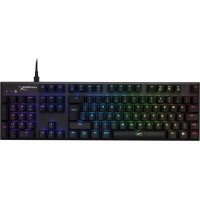



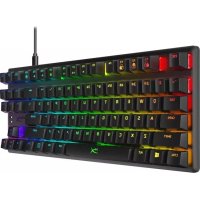
| Brand | HyperX |
| Model | Alloy FPS RGB |
| Product type | Mechanical gaming keyboard |
| Switches | Cherry MX (Blue, Brown, Red) |
| Backlighting | Per-key RGB, 6 modes |
| Connectivity | 2x USB 2.0 (braided cable) |
| Multimedia functions | Volume control, play/pause, forward/back |
| Game mode | Windows key disable |
| Wrist rest | Detachable |
| Additional keys | 8 gaming keys, function keys |
| Weight | Approximately 1.5 kg |
| Dimensions | 444 x 227 x 37 mm |
| Power supply | Powered via USB (5V, 500 mA) |
| Compatibility | Windows, Mac, Linux |
| Software | HyperX NGenuity (optional) |
| Box contents | Keyboard, wrist rest, keycap puller, quick start guide |
| Factory reset | Hold Fn + Esc + Space until blinking |
| Maintenance | Clean with a soft, dry cloth |
| Warranty | 2 years |
Frequently Asked Questions - Alloy FPS RGB HYPERX
User questions about Alloy FPS RGB HYPERX
0 question about this device. Answer the ones you know or ask your own.
Ask a new question about this device
Download the instructions for your Keyboard in PDF format for free! Find your manual Alloy FPS RGB - HYPERX and take your electronic device back in hand. On this page are published all the documents necessary for the use of your device. Alloy FPS RGB by HYPERX.
USER MANUAL Alloy FPS RGB HYPERX
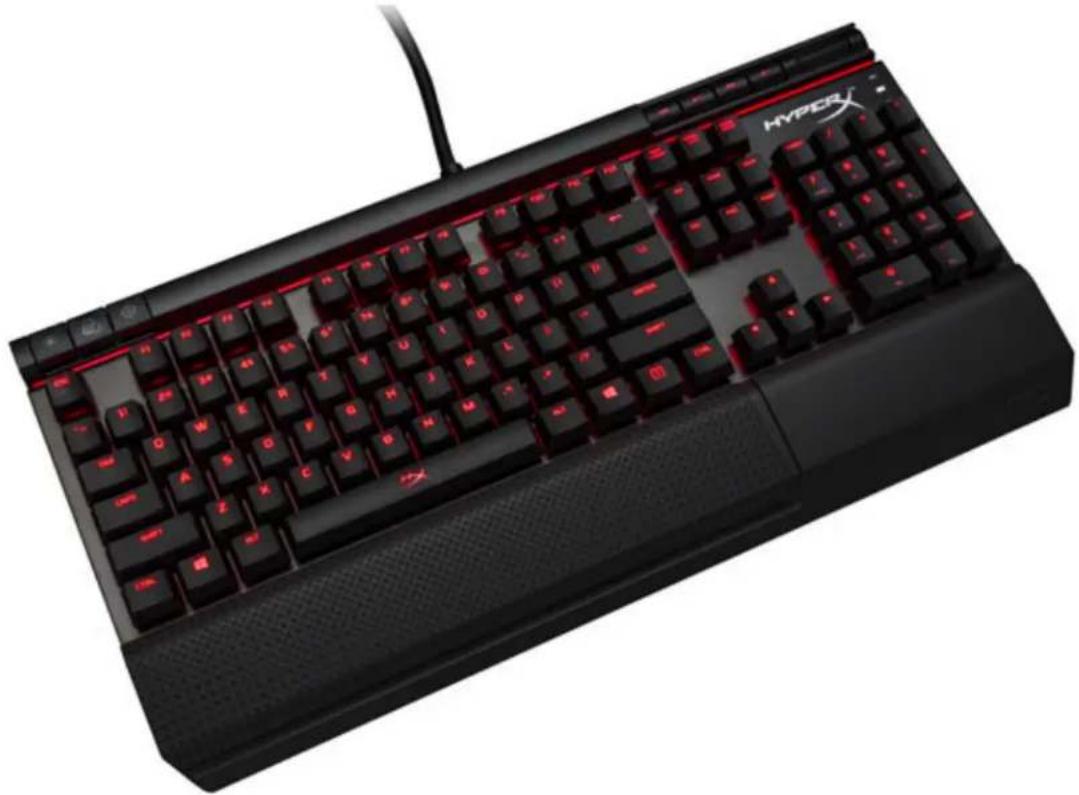
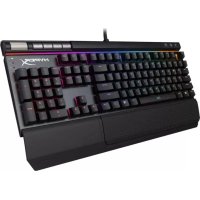
HyperX Alloy Elite Mechanical Gaming Keyboard
Find the language and latest documentation for your HyperX Alloy Elite Mechanical Gaming Keyboard here.
HyperX Alloy Elite Mechanical Gaming Keyboard User Manual
For instructions in English
Traditional Chinese....中文說明
HyperX Alloy Elite Mechanical Gaming Keyboard
| Part Numbers | ||
| Cherry® MX Blue | Cherry® MX Brown | Cherry® MX Red |
| HX-KB2BL1-UK/R1 | HX-KB2BR1-UK/R1 | HX-KB2RD1-UK/R1 |
| HX-KB2BL1-FR/R1 | HX-KB2BR1-FR/R1 | HX-KB2RD1-FR/R1 |
| HX-KB2BL1-DE/R1 | HX-KB2BR1-DE/R1 | HX-KB2RD1-DE/R1 |
| HX-KB2BL1-NO/R1 | HX-KB2BR1-NO/R1 | HX-KB2RD1-NO/R1 |
| HX-KB2BL1-RU/R1 | HX-KB2BR1-RU/R1 | HX-KB2RD1-RU/R1 |
| HX-KB2BL1-LA/R2 | HX-KB2BR1-LA/R2 | HX-KB2RD1-LA/R2 |
| HX-KB2BL1-US/R1 | HX-KB2BR1-US/R1 | HX-KB2RD1-US/R1 |
| HX-KB2BL1-US/R2 | HX-KB2BR1-US/R2 | HX-KB2RD1-US/R2 |
What's included:
HyperX Alloy Elite Mechanical Gaming Keyboard - 8x Gaming keycaps - Keycaps puller - Wrist rest
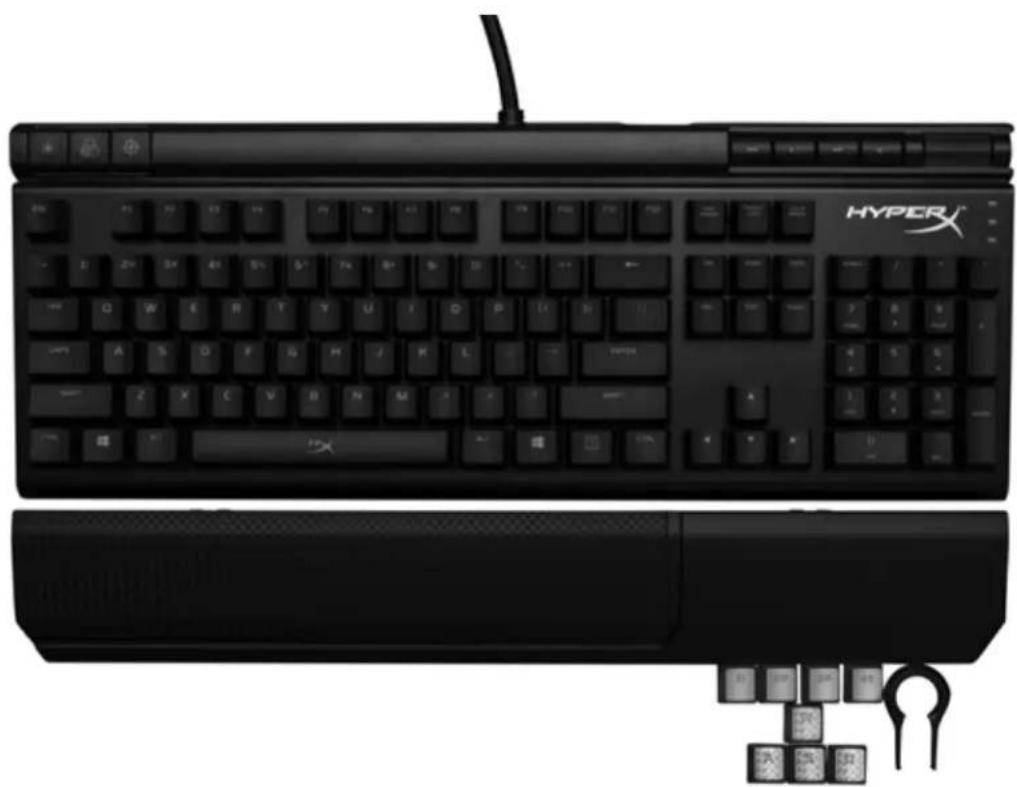
Keyboard Overview:
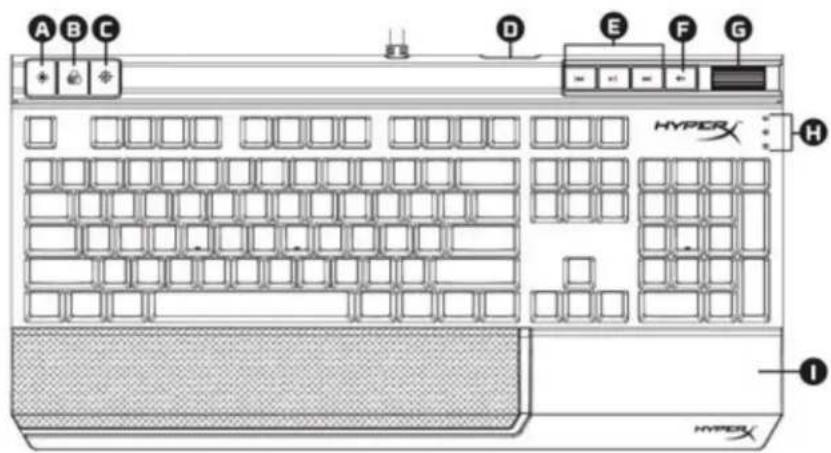
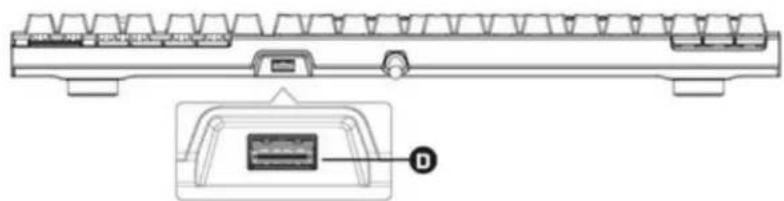
A- Brightness control button B- LED mode control button C- Game Mode button D- Back USB port (USB 2.0 pass-through) E- Media control buttons F- Volume mute button G- Volume control wheel H- Game Mode / Num Lock / Caps Lock indicators I- Detachable wrist rest

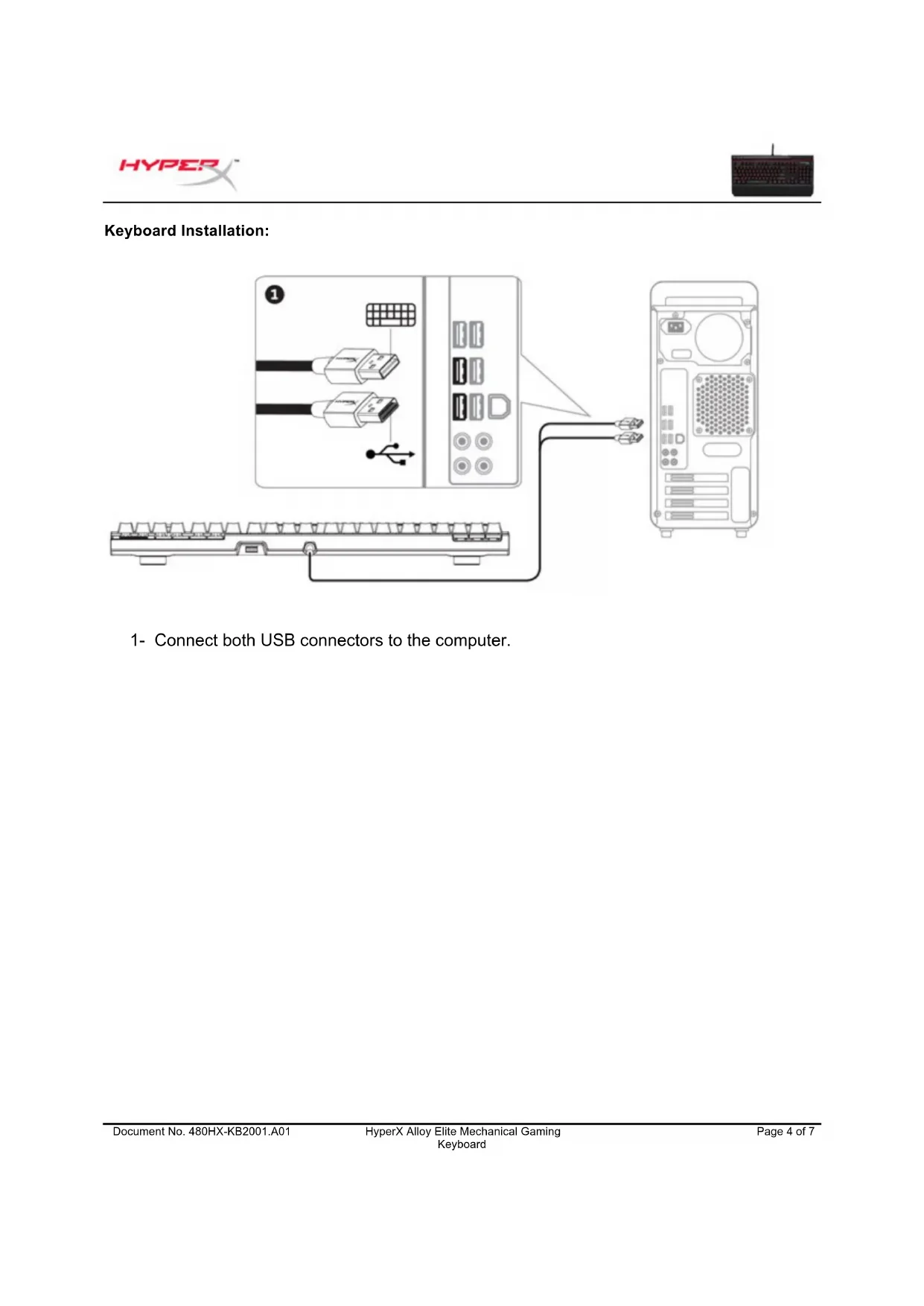
Keyboard Installation:

1- Connect both USB connectors to the computer.
Function Keys:
| Function Keys | Secondary Feature |
| Change the LED Backlight brightness. There are 4 levels of brightness: OFF, low, medium and high. | |
| Switch between the LED backlight modes. | |
| Enable Game Mode disable the Windows key and prevent accidental interruption during gaming. When Game Mode is enabled the indicator will illuminate. | |
| Play/pause skip backwards or skip forward while listening to music or watching videos. | |
| Mute computer audio. | |
| Increase or decrease computer audio volume. |
LED backlight modes:
There are six LED backlight modes: Solid (default) Breathing Trigger Explosion Wave Custom.

Solid: Constant lightning (default setting).

Breathing: Slow rhythmic blinking that mimics breathing.

Trigger: Individual keys will light up when pressed and slowly fade after one second.

Explosion: A lighting effect will radiate from individual keys when pressed.

Wave: Keys will light up from left to right in a wave pattern.

Custom: You can choose which keys you want to light up.
Follow these steps to customize:
1- Switch the backlight mode to Custom.

2- Hold until the backlight turns off.
3- Press the key or keys you want to have backlight ON.
4- When finished, press again to save your custom backlight profile.
Keyboard factory reset:
If you are experiencing any issue with the keyboard you can perform a factory reset. You will lose your custom LED profile by doing this.
| Function Keys | Secondary Feature |
| + + + | Press all three keys simultaneously until the keyboard LED backlight blinks twice. |
I- Removable wrist rest
Brand : HYPERX
Model : Alloy FPS RGB
Category : Keyboard