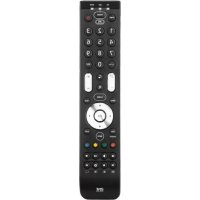
URC 7130 Essence 3 - Controller ONE FOR ALL - Free user manual and instructions
Find the device manual for free URC 7130 Essence 3 ONE FOR ALL in PDF.



| Product type | Universal remote control |
| Brand | One for All |
| Model | URC 7130 Essence 3 |
| Dimensions (approx.) | 20 x 5 x 2 cm |
| Weight (approx.) | 100 g |
| Power source | 2 AAA batteries (not included) |
| Configuration methods | SimpleSet, code setup, auto search |
| Compatible devices | TV, SAT, DVD, and other audio/video equipment |
| Special features | Key Magic, Macro, Reassignment Mode, Volume Control, Combi Control, Master Power |
| Visual indicator | Blue diode (mode indicator) |
| Infrared range | Approximately 10 meters |
| Care and cleaning | Clean with a soft, dry cloth. Do not use abrasive products. |
| Safety | Do not expose to moisture, shocks, or excessive heat. Do not open the device. |
| Spare parts and repairability | Batteries replaceable by user. No other internal parts repairable. |
| Warranty | 1 year (parts and labor) |
| General information | Manual available as PDF download. Online support. |
Frequently Asked Questions - URC 7130 Essence 3 ONE FOR ALL
User questions about URC 7130 Essence 3 ONE FOR ALL
0 question about this device. Answer the ones you know or ask your own.
Ask a new question about this device
Download the instructions for your Controller in PDF format for free! Find your manual URC 7130 Essence 3 - ONE FOR ALL and take your electronic device back in hand. On this page are published all the documents necessary for the use of your device. URC 7130 Essence 3 by ONE FOR ALL.
USER MANUAL URC 7130 Essence 3 ONE FOR ALL
TV:Television/HDTV/LCD/Plasma/Projector/Rear Projector
SAT:Satellite Receiver/Set-Top-Box/IPTV/DVB-S/DVB-T/Freeview (UK)/TNT(F)/Digitenne(NL)/SAT/HDD
CBL: Cable Converter/Set-Top-Box/IPTV/DVB-C
VAC: Video Accessory like Media Centres / AV Accessories / AV Selectors
DVD*
DVD : DVD Player / DVD-R / Blu-ray / DVD Home Cinema / DVD Combi / DVD/HDD
LASER: Laserdisc
- URC-7130

1
2
3

E.g. nr. 1 = Hitachi TV
English
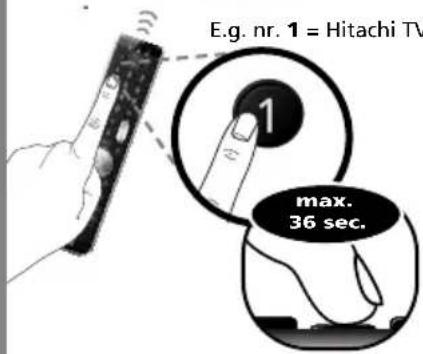
Start by checking if the brand of your particular device is listed in the "SimpleSet" brand list and check which "number key" is assigned to your brand (e.g. Hitachi tv = 1).
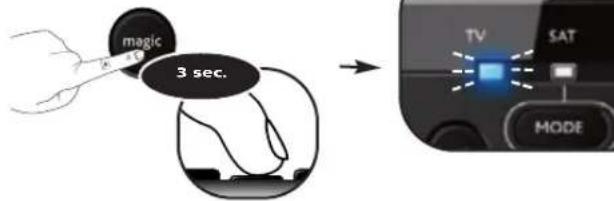
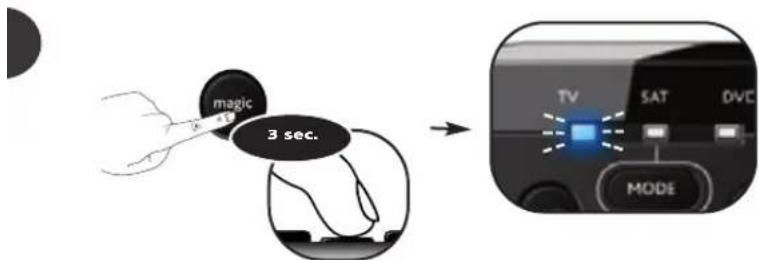
1) Press and hold MAGIC for 3 seconds until a mode indicator (Blue LED) stays lit.
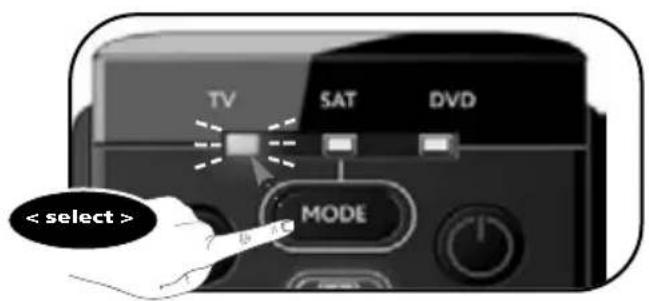
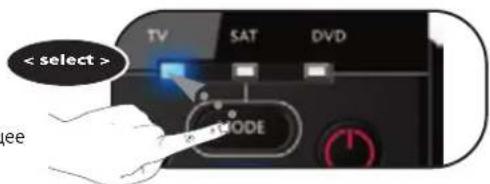
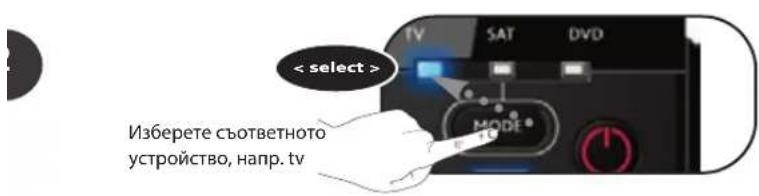
2) Select the device you wish to set up (e.g. tv).
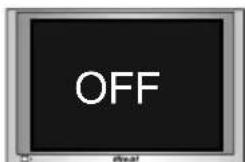
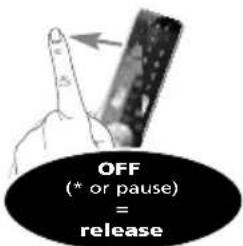
3) Press and hold the "number key" according to your brand (e.g. for Hitachi tv = press 1) until your device switches off (max. 36 seconds). The blue LED will switch off every 3 seconds as a 'power signal' is being sent. Make sure to release this "number key" as soon as your device switches OFF to complete the set up.
If your brand is not listed in the "SimpleSet - brand list"? -> Go to the Direct Code Set up (page 8).
The ONE FOR ALL is not performing commands properly? --Simply repeat SimpleSet
- If SimpleSet is unsuccessful? --> Go to the Direct Code Set Up or try the Search Method.
Deutsch
- Extra Features (see manual on our internet site)
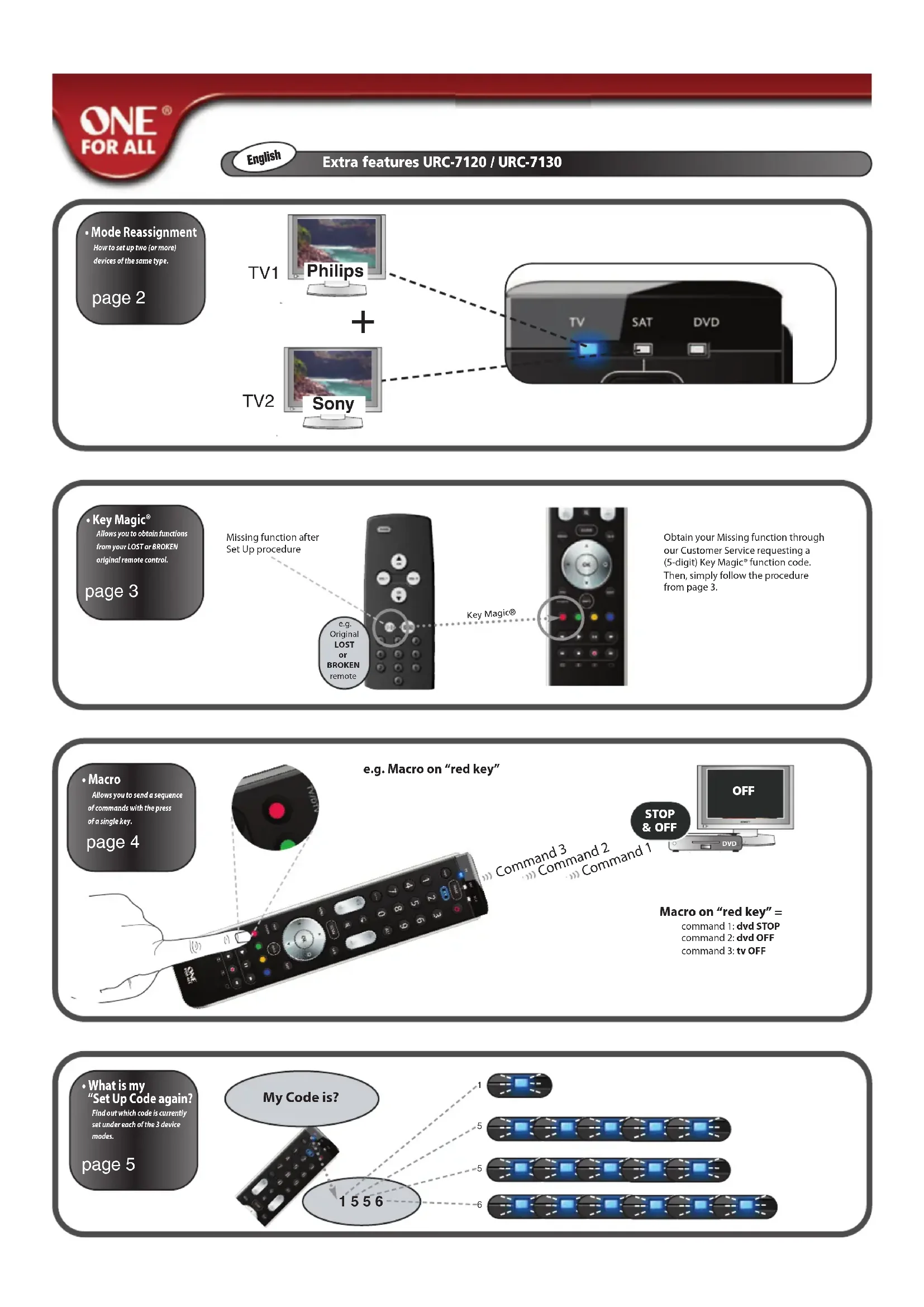
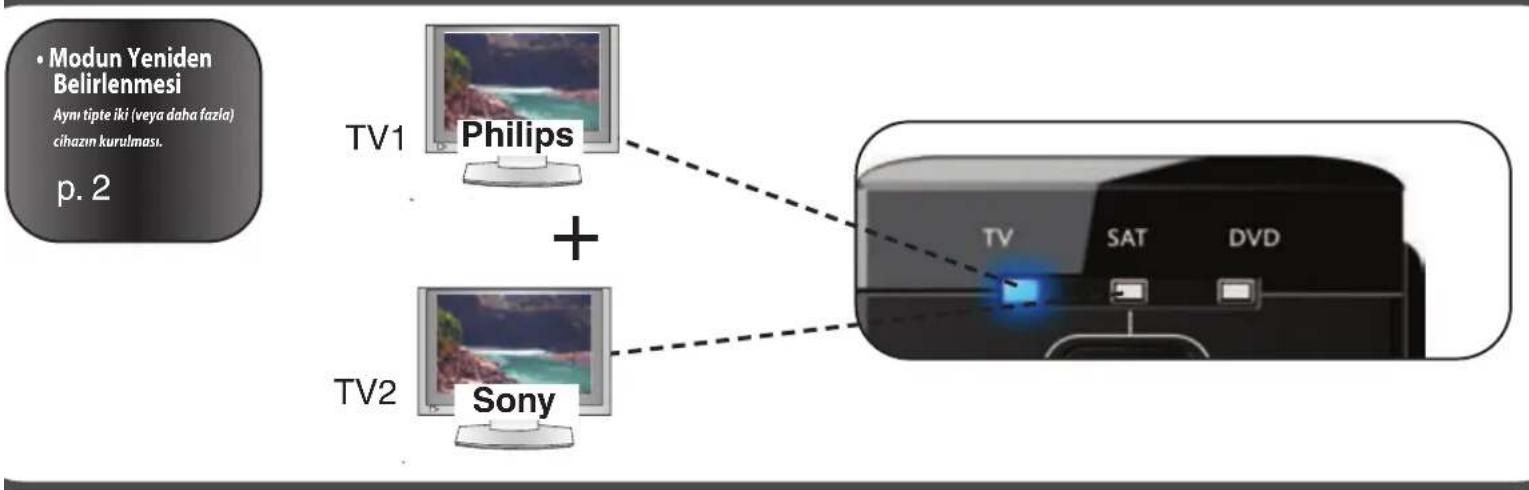
Mode Reassignment - Changing a device mode to set up two (or more) devices of the same type.
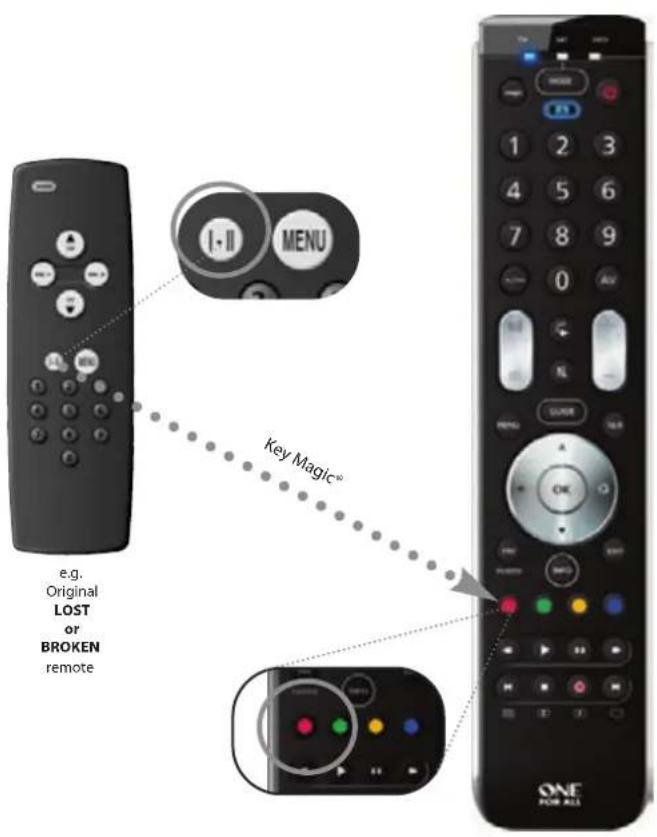
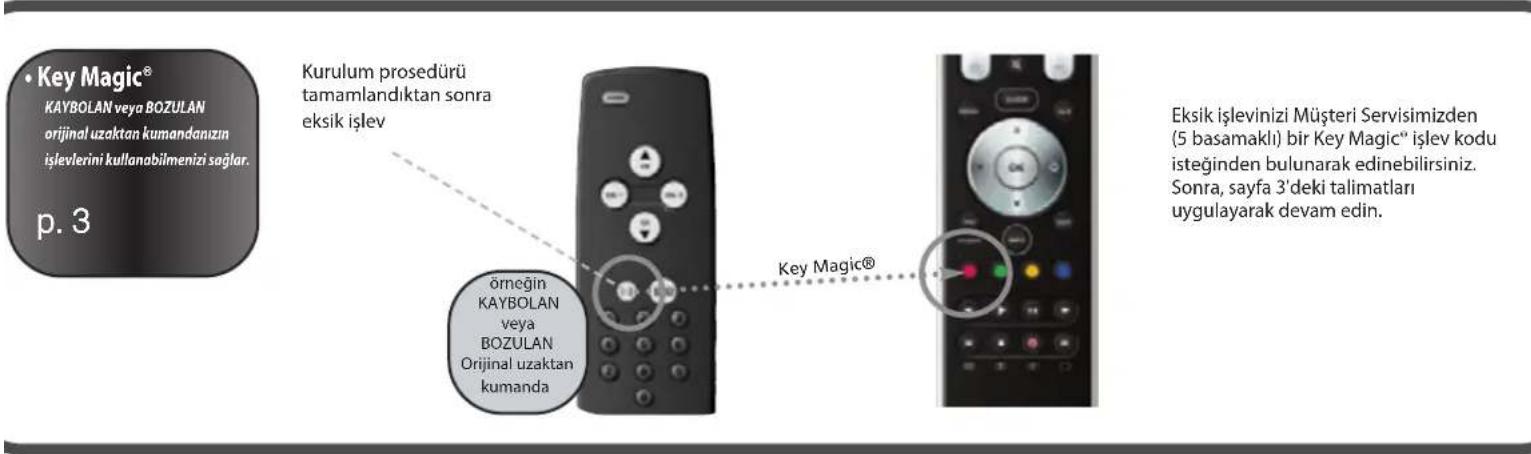
Key Magic - Allows you to program functions from your original remote control even when LOST or BROKEN.
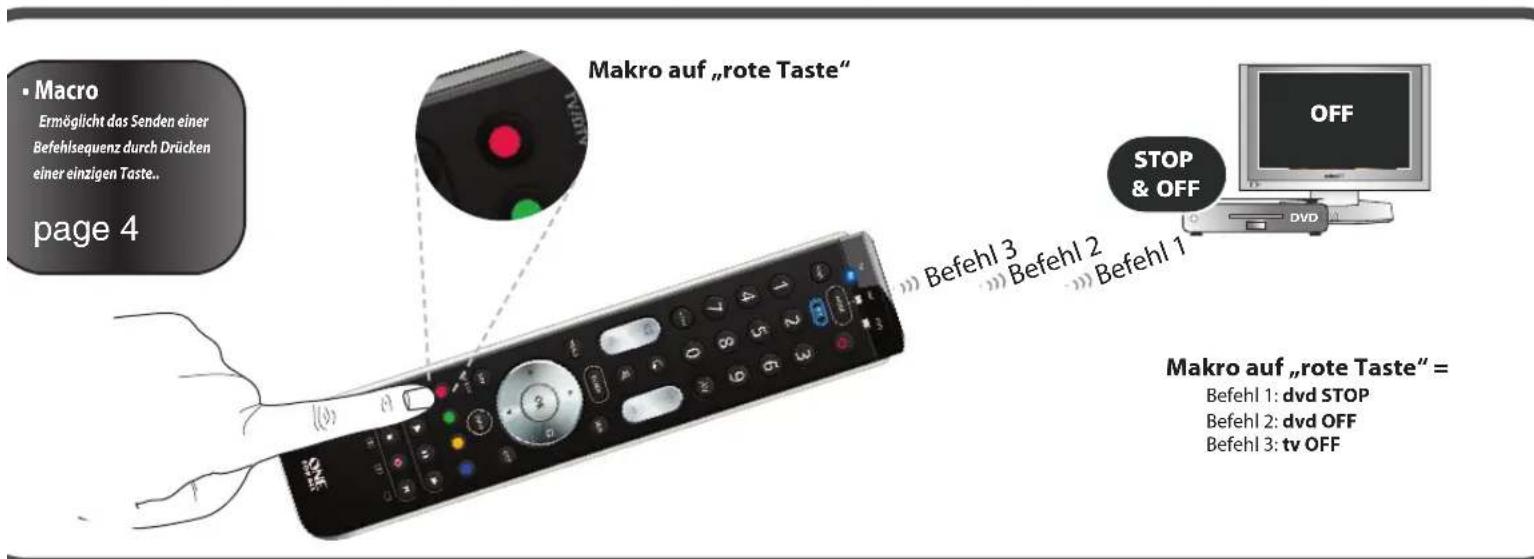
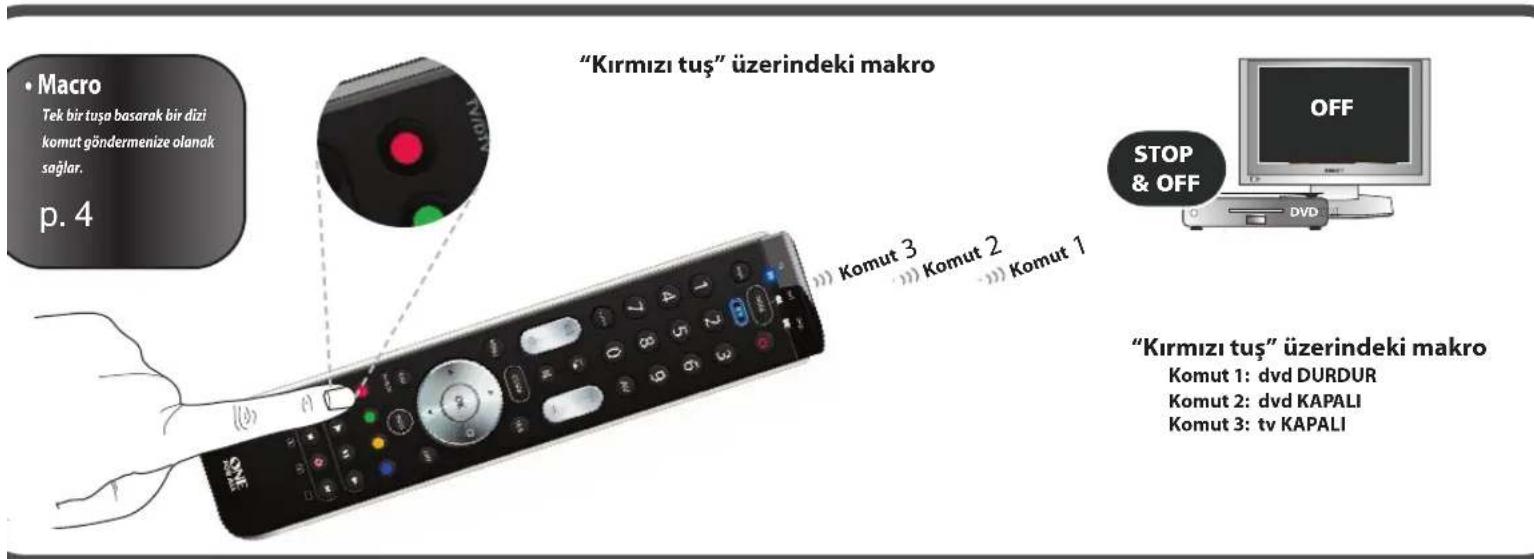
- Macro - Allows you to send a sequence of commands with the press of a single key.
Direct Code Set Up
1
Find the code for your device in the Code list (page 71 - 85). Codes are listed by device type and brand name. The most popular code is listed first. Make sure your device is switched on (not on standby).
2
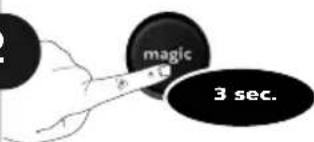
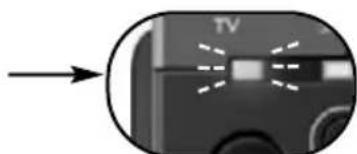
Press and hold magic for 3 seconds until the blue LED (any LED) stays on.
3
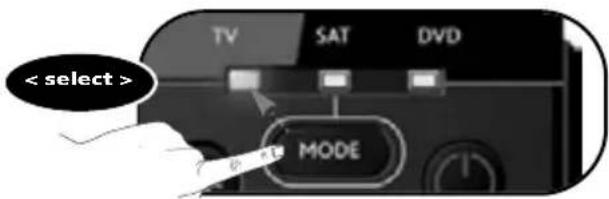
Select the corresponding device e.g. TV
4
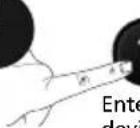


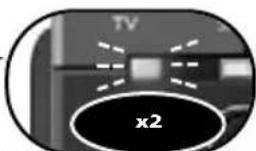
Enter the 1st code listed for your device type & brand (e.g. TV Hitachi = 1576)
The blue LED will blink twice and then switch off.
5
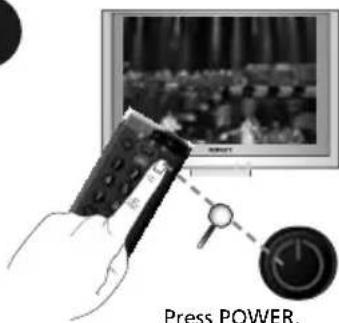
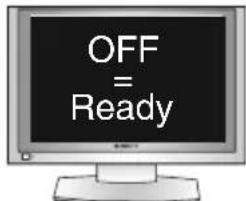
If your device does NOT switch off?
Please repeat steps 1-5 trying the next code listed for your brand.
If NOT successful?
Try the Search Method.
Congratulations! You should now be able to switch your device back ON and control your device successfully.
Search Method
The Search Method allows you to find the code for your device by scanning through all the codes contained in the memory of the ONE FOR ALL. The Search Method may also work if your brand is not listed at all.
Example: To search for your TV code: Switch on television (not on standby) and aim your ONE FOR ALL at your TV.
- Press and hold MAGIC for 3 seconds until the blue LED (any LED) stays on.
- Select the corresponding device e.g. TV
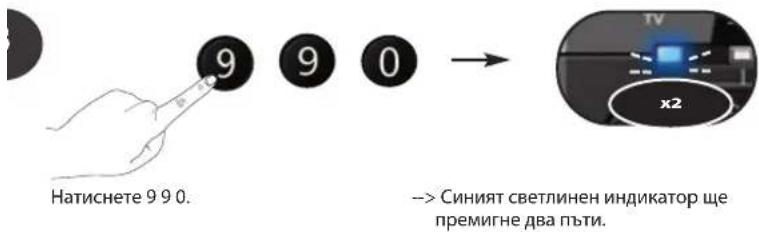
- Press 9 9 1. The blue LED will blink twice.
- Next, press POWER.
- Press CH+ (over and over) again until your device switches OFF.
You may have to press these keys many times (up to 150 times) so please be patient.
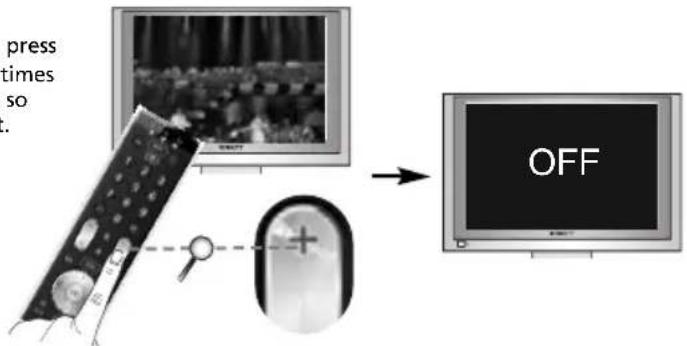
- As soon as your television turns off, press the magic key to store the code.
Congratulations! You should now be able to switch your device back ON and control your device successfully.
Volume Control
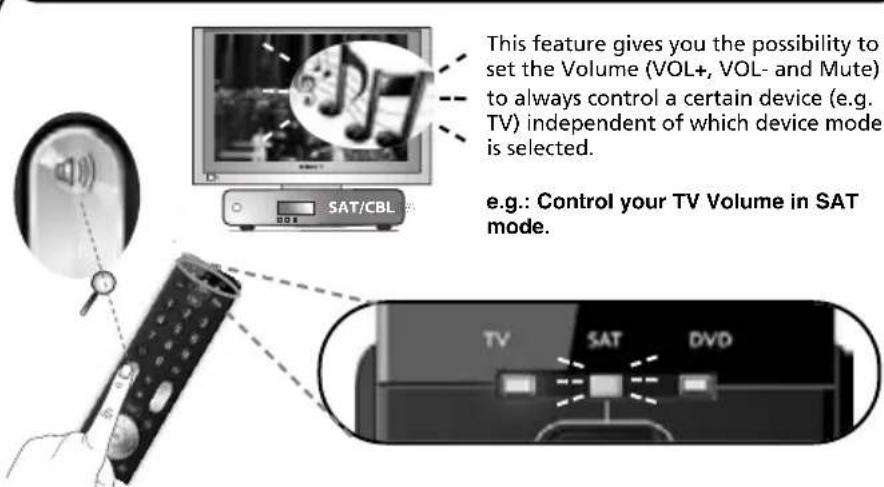
In this example we will set Volume Control (VOL+, VOL- and Mute) to "TV volume":
- Press and hold MAGIC for 3 seconds until the blue LED (any LED) stays on.
- Press 9 93. The blue LED will blink twice.
- Select the corresponding device e.g. TV.
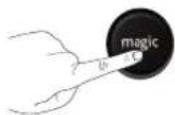
- Press and hold the magic key for 3 sec. The blue LED will blink twice and then switch off.
Now you have set the Volume Control to "TV volume". The VOL+, VOL- and Mute keys will always control "TV volume" independent which device mode key is selected.
How to deactivate Volume Control
1) Press and hold MAGIC for 3 seconds until the blue LED stays on.
2) Press 993.
3) Press Vol +. The blue LED will blink 4 times.
All devices will send out their own VOL+ , VOL- and MUTE .
How to remove a device from Volume Control
1) Press and hold MAGIC for 3 seconds until the blue LED stays on.
2) Press 993.
3) Select the device mode you wish to deactivate from Volume Control.
4) Press Vol - The blue LED will blink 4 times.
The removed device will send out its own VOL+ , VOL- and MUTE .
ONE FOR ALL Combi Control
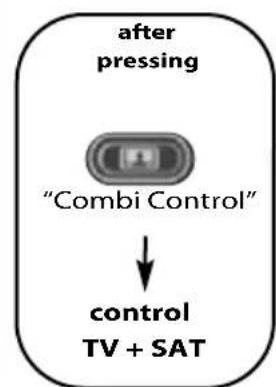
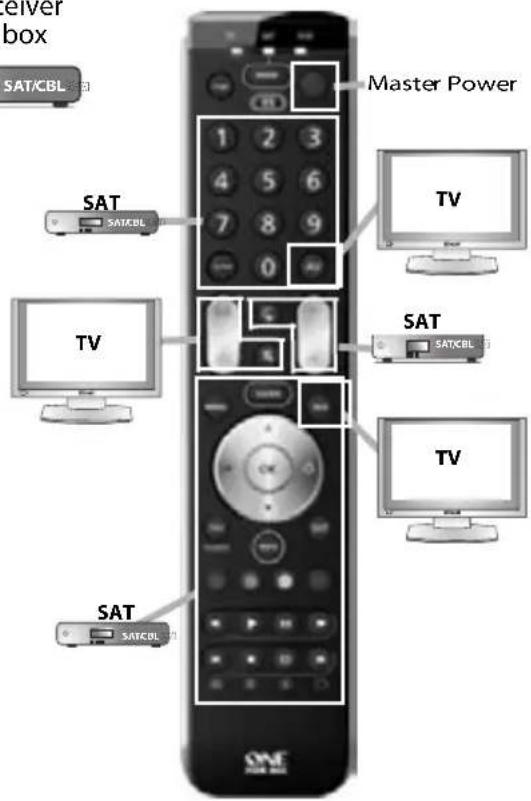
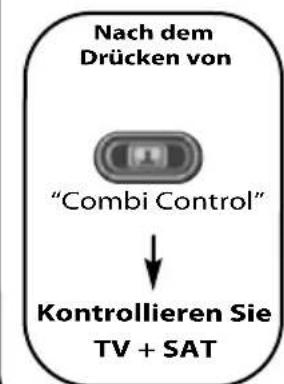
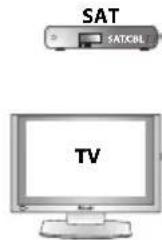
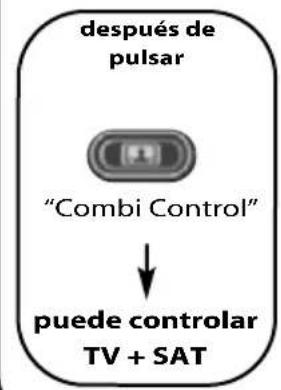
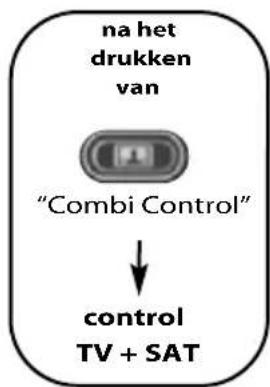
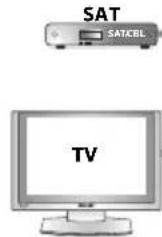
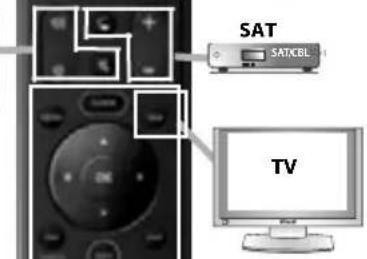
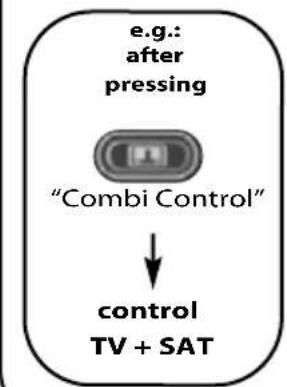
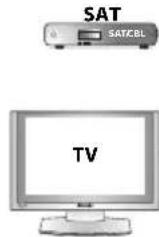
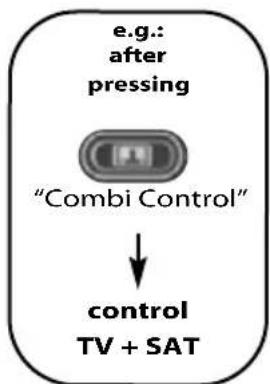
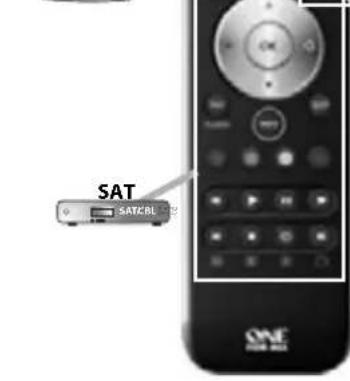
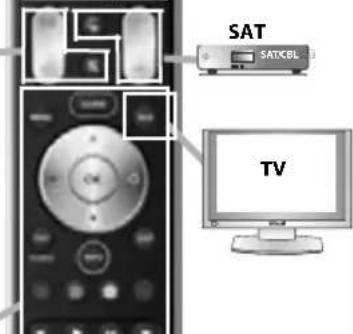
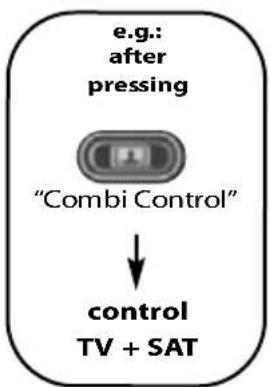
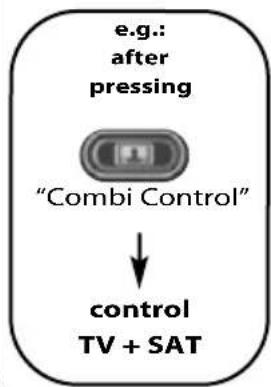
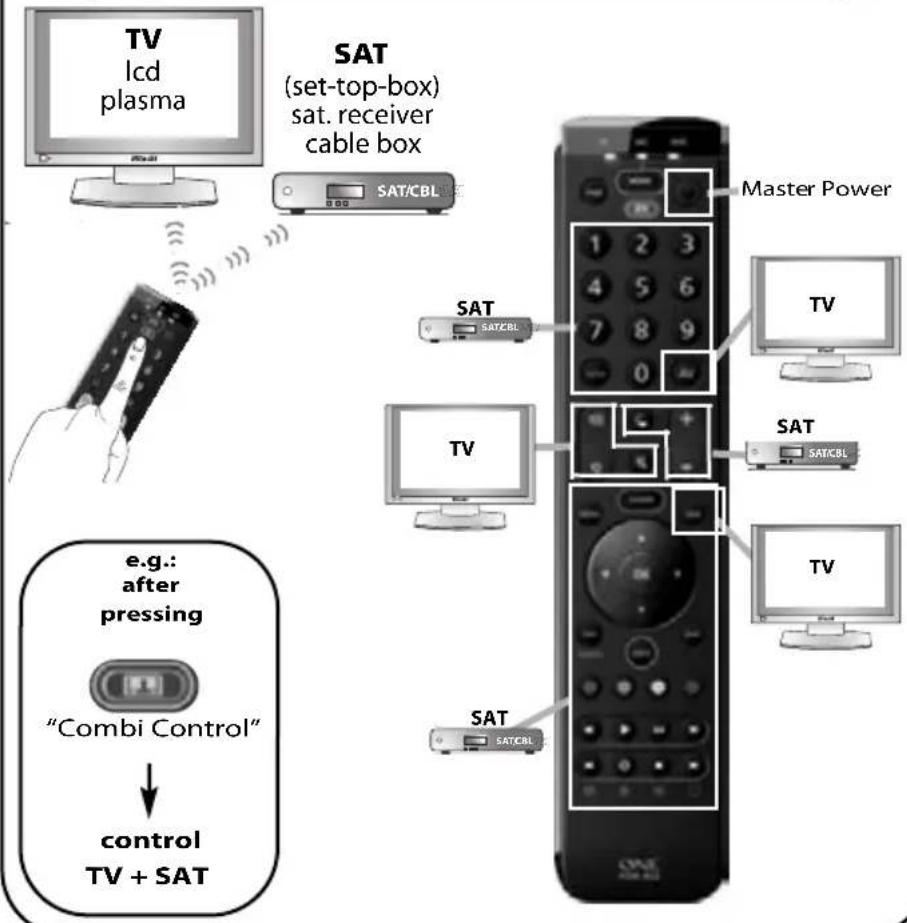
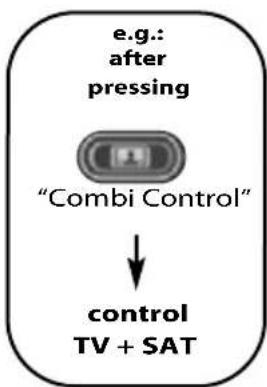
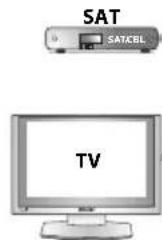
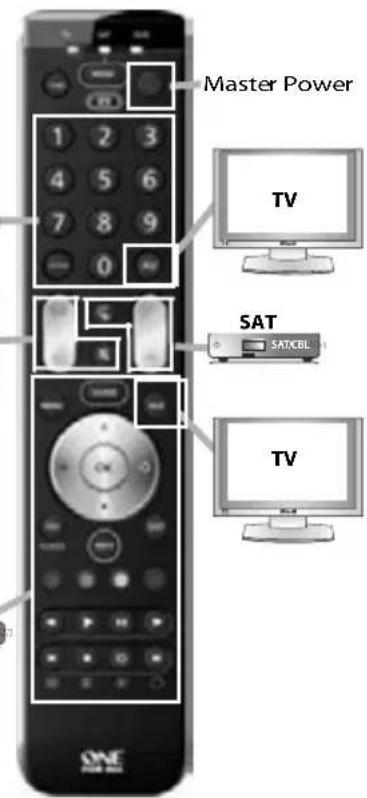
By now you probably have set up the ONE FOR ALL remote to control all (or most of) your devices. Wouldn't it be convenient if you wouldn't have to select a device type all the time. You can make this possible with ONE FOR ALL Combi Control. Combi Control enables you to control up to 2 devices simultaneously (e.g control TV + SAT simultaneously).

"Combi Control"
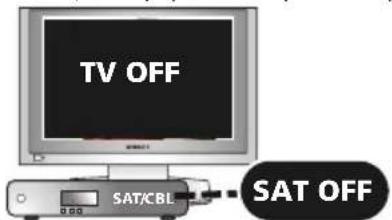
control TV + SAT
will be programmed automatically when you set up a TV and SAT.
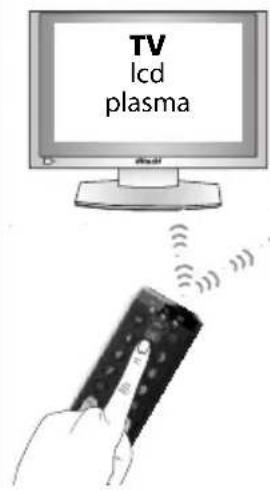
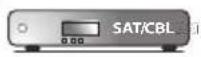
SAT (set-top-box) sat. receiver cable box
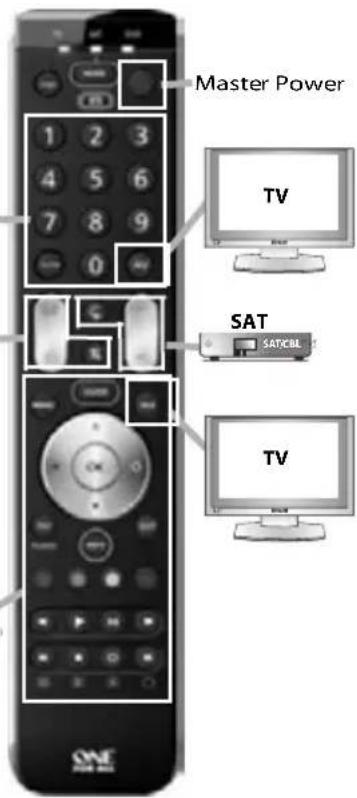
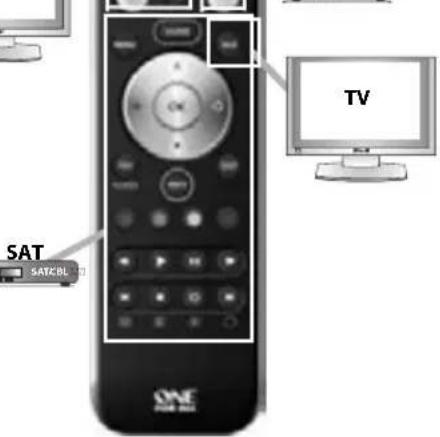
Master Power (in Combi Control)
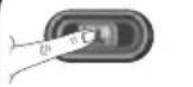
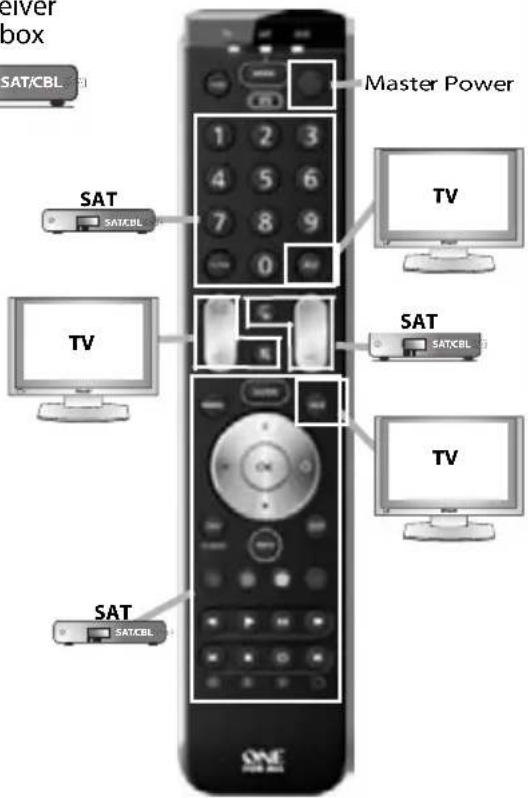
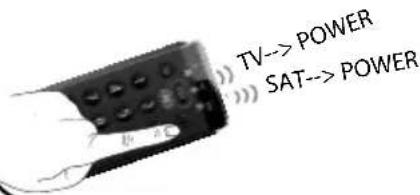
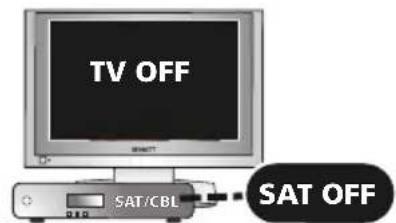
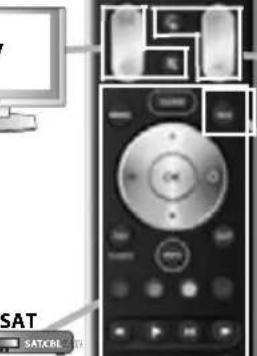
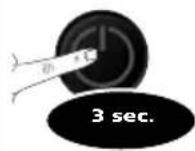
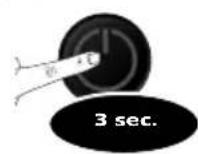
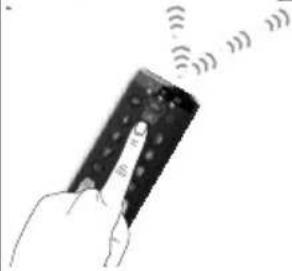
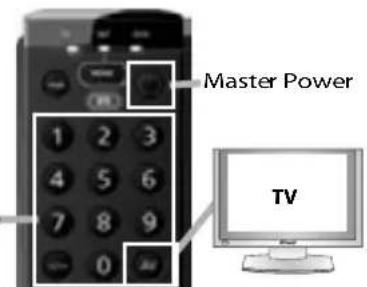
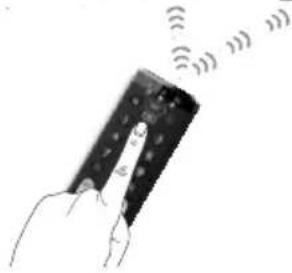
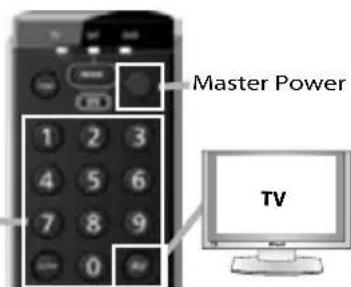
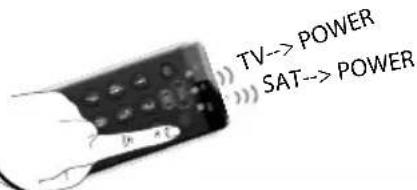
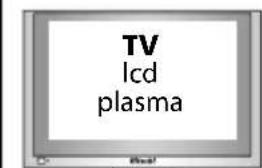
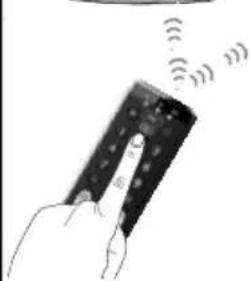
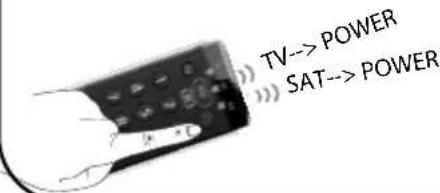
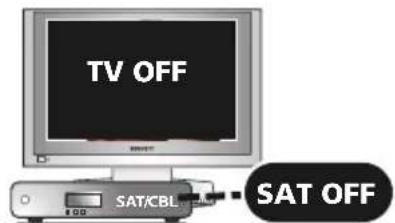
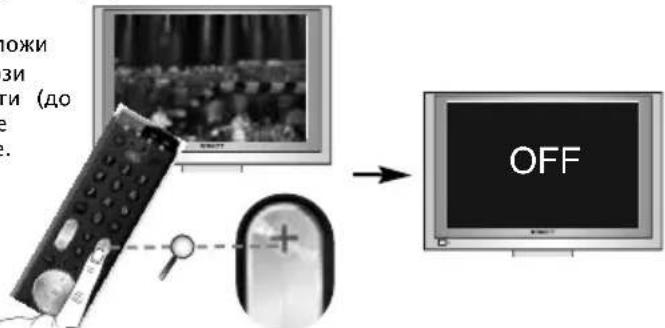
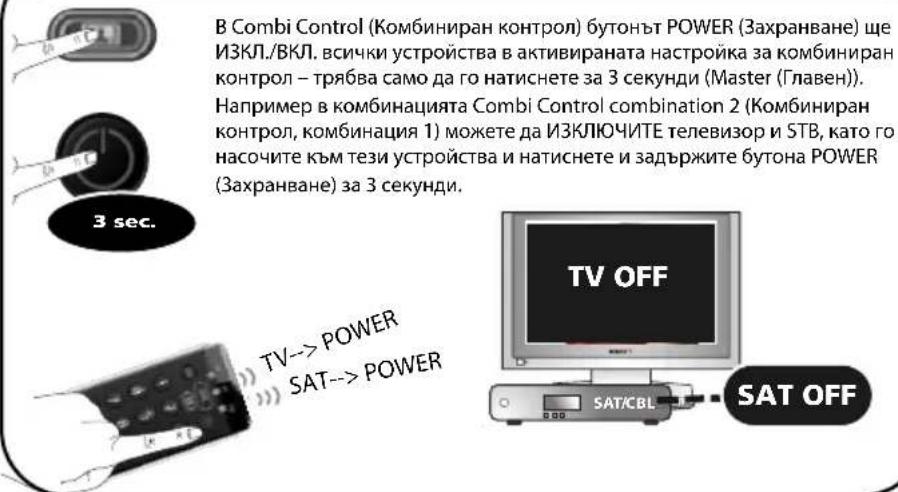
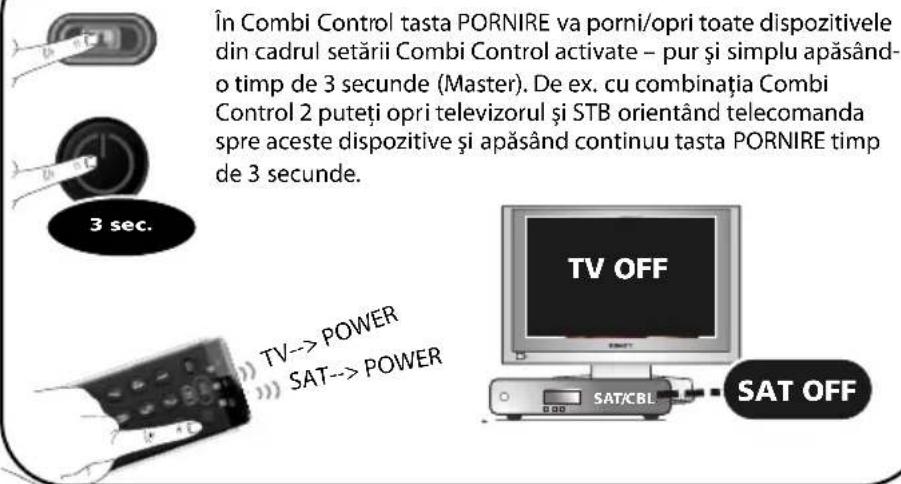
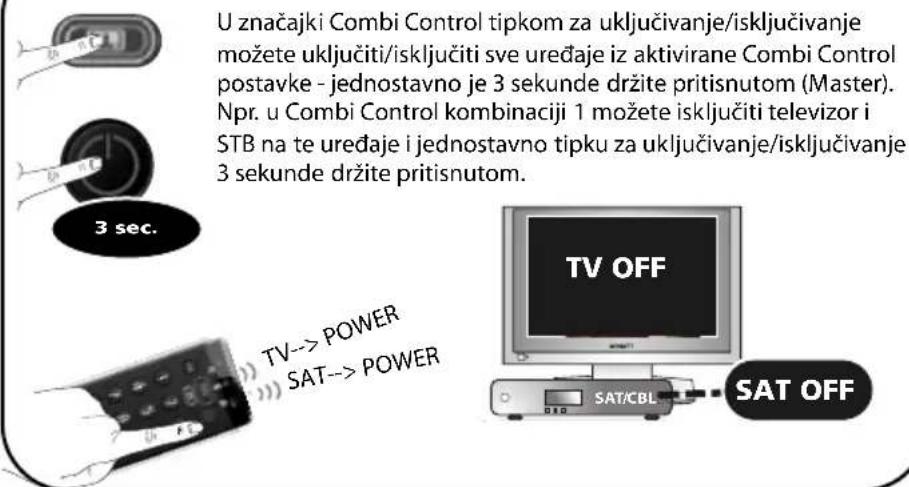
In Combi Control the POWER key will switch ON/OFF all devices within the activated Combi Control Setting – simply by pressing it for 3 seconds.
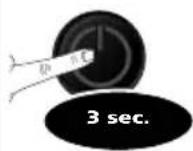
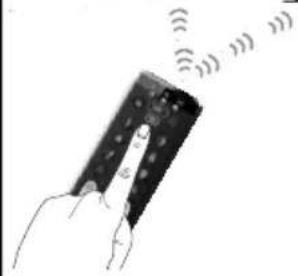
E.g. within Combi Control combination 1 you can switch OFF your TV and SAT by by pointing towards these devices and simply press and hold the POWER key for 3 seconds.
Deutsch
Bedienungsanleitung
SAT (set-top-box) sat. receiver cable box
Master Power (in Combi Control)
SAT (set-top-box) sat. receiver cable box
5
。

Master Power
SAT
SATCBL

(set-top-box) satreceiver cablebox
Master Power (en Combi Control)
Master Power (in Combi Control)
SAT (set-top-box) sat. receiver cable box
Master Power (in Combi Control)
SAT (set-top-box) sat. receiver cable box

Master Power (in Combi Control)
(set-top-box) sat. receiver cable box

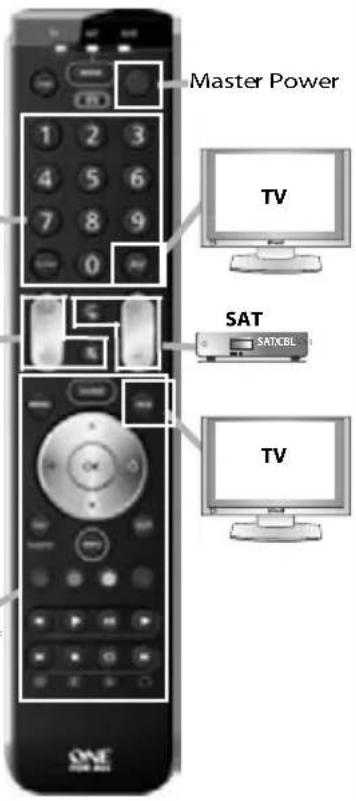
Master Power
SAT
Master Power (Combi Control)
SAT (set-top-box) sat. receiver cable box
Master Power

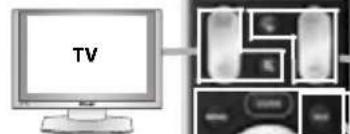



control
TV + SAT
Master Power (in Combi Control)
Master Power (in Combi Control)

Svensk
Bruksanvisning
Sokmetoden 45
Volume Control (Volymkontroll) 45
ONE FOR ALL Combi Control 46
·MasterPower 46
Example: To search for your TV code: Switch on television (not on standby) and aim your ONE FOR ALL at your TV.
Master Power (in Combi Control)
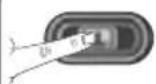
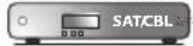
(set-top-box) sat. receiver cable box


Master Power (in Combi Control)
Master Power (in Combi Control)
Tn aeoupyia Combi Control, to nKpOPOWER evpyoioei kai anevepyoioi oec tic ouakeuec nou nepiaaubovtai otnv evpyo- noiuev Puthion Combi Control, av to natnoet yia 3 deutepoAen (Master). Tia npadeiyua, oTo Suuvuao o1 tnC aeoupyiac Combi Control unopeite va anevepyoiohoet eyn tneLopaon, to anokwdi- konoiintkai tov Evxut, atpeovtac to xepiotnpio poc tnV kateu- thuvon twv oukeuw kai natwvtac to nAnktpo POwER yia 3 deutepoAen.
Pycckn
PykoBODCTBO no 3KcNpyaTaunn
- Metod nomka 54
Volume Control (Perynnpobka rpoMkoctu) 54
ONE FOR ALL Combi Control 55
·Master Power. 55
DeakTbBaunpeylnpOBKn rpoMkoCTn
1) HaxMMTe u ydepKnaBae KnaBnUy magic B teueHne 3 cekyH, noka ropnt INndkaTOp peKMa (cHHu INndkaTOp).
2)HaxMMTe993.
3) HaxmTe Vol +.
Bce ycmpoicmea nepeadym cbou cuhanbVOL+,VOL-u MUTE.
KaK nckIOHTb yCTpOncTBO H3 yHKm npBk npOBKn rpOMKOCTn
1) HaxMMTe n ydepKnBaTKe KnaBnSy magic B TeueHne 3 cekyH, noka rOpNT nHnKaTOp peKMa (cHHn nHnKaTOp).
2)HaxMMTe993.
3)Bb6epnte KnaBnuy yctpoNCTBa, KOtopoE Tpe6yETcNCKIOHTb N3 FyHKmnperynn-poBNr pOMKoCTN.
4) HaxMMTe Vol.
IcknoeHnoe ycmpoocm8o omnpabum cou cu2hanb1 VOL+, VOL- u MUTE.
ONE FOR ALL Combi Control
K 3TOMy MOMHTy, BepoATHO, NylbT DY ONE FOR ALL yXe HactpoeH a YnpaBneHne BCEMn (NIN 60JIb 5HNCTBOM) BaWIMN yCTpOcTBAM. 5blIO 6bl yD06HO, ecNI 6bl He HADIO 6blIO BCE Bpemr BblOpaTB TIN yCTpOcTBa, He TaK IIN? 3TO BO3MOxHO C NOMO- ubo peKmAm ONE FOR ALL Combi control.

"Combi Control"
TV + SAT
nporpammpnyetcaabTomatueckn npn hactponke TV n SAT.
SAT (set-top-box) sat. receiver cable box


Master Power (in Combi Control)
3 sec.
PnncnB3OBAHn FyHKuHn Combi Control KnaBnHa TINTAHNE 6yET BKNHOaTb N BbIKHOaTb BCE yCTPONCBA, AKTNBnPOBaHHbe B HAcTPOkax Combi Control, npocTBm HaxTaHem N yEpKaHHeM B TeueHne 3 cekHy (Master). HanpImep, C kOMbHaCne 1 fynKcHn Combi Control MoXHo BbIKHOaTb TV (TeJeBn3Op) n STB (TeenepnCTabKa), HanpaNB N Dv B CTopoHy 3TNx YCTPONCB n ydepKnBaA KnaBnHy PINTAHNE B TeueHne 3 cekHyd.
Türkce
Kullanma kilavuzu
·Arama Yontemi 57
Volume Control (Ses Kumandasi) 57
- ONE FOR ALL Combi Control 58
- Master Power 58
Master Power (in Combi Control)
PnMep:3a Da noTbpcnte KoDa Ha cB0r TeBn3Op:
- HatncheTe n 3aDpBxTe magic 3a 3 cekyHn,doKaTo uHdkaTOpbT 3a peKm (CNCBETNIHHeuHdkaTop) OCTaHe CBETHaT.
2.ИЗберете сьотьгенто усторно,нанр.TV(TeneBu3op). - HatncheTe 991.
- HATNCHETe 6yToHa 3a BkIIOUBaHe/V3KIOUBAHe
- HatnckaTe CH+,doKaTo yCTpoNCTBTO Bn Ce n3KJIOUH.
- Korato TeleBn3OpBt ce n3KnIOH, HATNCHEte 6yToHa magic, 3a da cbxpaHInTe KOJa. Yecntto! Beue Tp8Ba Da moKeTe Da BKNIOHTe OTHOBO yCTPOINCTBOTO cN (ON) n Da ro ynpablaBate ycneuHo.
Volume Control
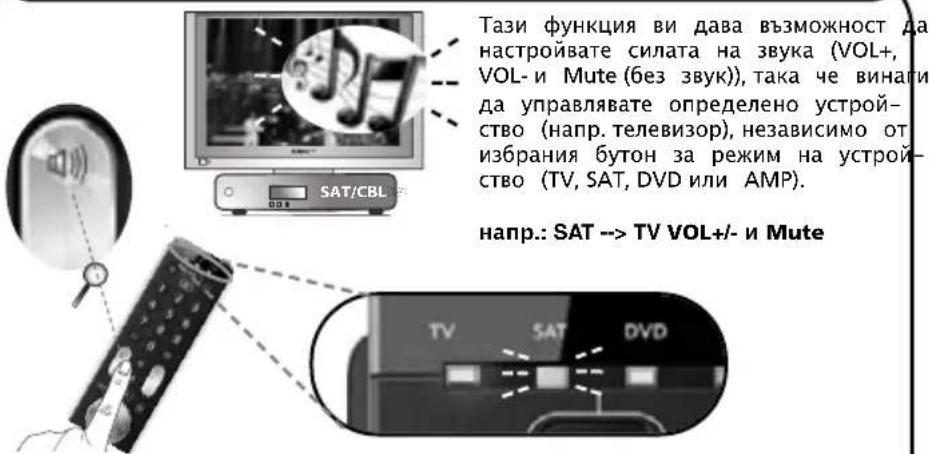
B To3n npMep ige HacTponm CnIaTa Ha 3ByKa ((VOL+, VOL- n Mute) Ha "tv vol-ume" (Cnla Ha 3ByKa Ha TeneBuN3opa):
- HatncheTe n 3a npkTe magic 3a 3 ckyHn, okaTo nHnKaTOpbT 3a peKIM (CN CBeTIInHe HnDnKaTOp) OCTaHe CBeTHaT.
- Hatnchete 9 93.
- N36epete cboBtHTo yCTpoIcTBO, Happ.TV (TeJeBn3Op).
- HatncheTe n 3aDpBkTe 6yToHa magic 3a 3cek Beue cTe HAcTponn CnIata Ha 3ByKa Ha "tv volume" (Cnla Ha 3ByKa Ha TeneBu3Opa). ByTOHnte VOL+, VOL- Mute ue perynpaT BuHarn CnIata Ha 3ByKa Ha TeneBu3Opa (tv volume), He3aBnCMo OT n36paHna 6yToH 3a peKMM Ha yCTpoiCTBO.
KaJa daeakmbnpaTe perympaHTo Ha cnlaTa Ha 3Byka
1)HaHcHete 3aDpBxTe magic 3a 3cekyHn,doKaTo HdkKaTOpbT 3apeKMM (CNH CBeTInHeHnDKKaTOp)OCTaHE CBEThA.
2) Hatuchete 9 93.
3) Hatnche Vol +.
Bcuu ycmpoucmea ue u3npamr mco6cmehume cu cu2hanu 3a VOL+ (ycunbahe), VOL-(hamnae) u MUTE (uzknoen 3eyk).
KaJa npemaxheYcTpoiCTBOOT KOHTpOHa yHKnIa 3a perylnpaHe Ha cnIaTa Ha 3Byka
1) Hatachete n 3aDpBxTe magic 3a 3cekyHn,doKato uHdkKatopbT 3a peKMM (CN CBeTTINHeH uHdkKatOp) OCTaHE CBETHaT.
2) Hatuchete 9 93.
3)N36epeTe 6yToHa Ha yCTpOINCTBOTO, KOETo NCKaTe Da DeAKTNBnPaTe OT perynnpaHTo Ha cnIaTa Ha 3Byka.
4) Hatuchete Vol.
IpeMaxhamomo ycmpoicm80 ue u3npamu co6cmehume cu cu2hanu 3a VOL+ (ycunbahe), VOL-(hamanehae) u MUTE (uzknoey38yk).
ONE FOR ALL Combi Control
Docera BepoTHO Beue Cte HacTponn BaWeTo yHnBepcaHNO dNCTaHcNoHHO ynpabLeHne ONE FOR ALL da ynpabIbRa BCuKN (nn noBeyeTo) Baun yCtpoiCTBa. Ho Hma nn da e No-ydo6Ho, aKo He BN Ce Hana Ta NoCToAHHO da n36bpaTe Bn yCtpoiCTBO? MoxTe da OcbseCTBnTe Ta3n BB3MOxHOC T c NHTeJIrEHTHO To ynpabIeHne Combi control Ha nctaHcNoHto ONE FOR ALL. Combi control BN no3BoJra Da ynpabIbBaTe eHOBpeMeHHO do 2 yCtpoiCTBa (Hanp. da ynpabIbBaTe eHOBpeMeHHO TeJeBn3Op n peKm stb (set top box dekoep)).
Master Power (in Combi Control)
Româna
Manual de instructiuni
- Metoda de cautare 63
Volume Control (Controlul volumului) 63
ONE FOR ALL Combi Control 64
·MasterPower 64
Master Power (in Combi Control)
Slovensky
SAT (set-top-box) sat. receiver cable box
Master Power
Master Power (in Combi Control)
Master Power (in Combi Control)
TV
A.R. Systems 0037 0556
Accent 0009 0037 0556
Accusound 0860
Acer 1339
Acoustic Solutions 1667 1523 1865 1037 1163
Adcom 0625
ADL 1217
Admiral 0093 0264
Advent 1613
AEA0037 0556
AEG 0606 1556 1037 1324 1163
Aftron 0891
Agashi 0264
Aqora 1585 0037
Aiko 0009 0037 0556 0371 1681
0035 0880 0264
Aim 0037 0412 0556 0753 0208
0706 0698 0634 0606 0499
Airis 183320501531
Aiwa 070519161505
Akai 1326 0208 0371 0037 0035
0009 0753 0729 0714 0706
0698 0715 0556 0548 0480
0264 0178 0606 1037 0473
0812 1248 1308 1865 1163
1523
Akashi 0860 0009
Akiba 0037 0556
Akira 0753 0037
Akito 0037 0556
Akura 1770 0714 1687 1709 1667
1037 0037 0556 1645 0668
15850412000902641982
1983 1363 2059
Alba 1037 1585 0714 0037 0668
0556 0009 0371 0587 0487
0443 2050 1865 1163
Alkos 0035
Allstar 0037 0556
Amitech 1849
Amstrad 0009 0264 0371 0037 0556
0412 1037 1324 1982
Anam 0037 0556 0009 0650
Anam National 0037 0650 0556
Andersson 1163 1585
Anglo 0009 0264
Anitech 0009 0264 0037 0556
0037 0556 0009 0668 0292
AOC 0625 1588 2111 2214
Apollo 0473
AquaVision 1606
ArcenCiel0109
Arcelik 0714
Ardem 0714 0486 0633 0037 0715
0556
Arena 0037
Aristona 0556 0037
ART 1037
Art Mito 1585
Asberg 0037 0556
Asora 0009
Astra 0037 0556
Asuka 0264
ATD 0698
Atec 1606
Atlantic 0037 0556
Atori 0009
Audiosonic 0009 0037 0820 0556 1308
1681 0109 0714 2050 2059
0715 0264 0486 1983
Audioton 0486 0264
Audioworld 0698
AWA 0009 0412 0037 0556 0606
0108 0264 0178 0698 1681
Axxent 0009
Axxon 0714
B&D 1217
Bajer 1324
Baird 0109 0343 0208 0606
Bang & Olufsen 0565
Base 0780
Basic Line 0037 0668 0556 0009 1037
Bauer 0009 0698 0706 0264
Baur 0009 0195 0512 0037 0556
1505
BBK 1523 1645
Beaumark 0178
Beko 0714 0486 0035 0715 0037
05562125 130806060808
1652
Belson 06982032
Belstar 1037
Bennett 0556 0037
BenQ 1562 1523 2214
Bensten 1326
Beon 0037 0556
Beond 1833
Berthen 0668 0556
Bestar 0037 0556
Bestwell 1326
Black Diamond 0614 0820 1037 0556 1163
0753 0587
Black Strip 0035
Ministry of Sound 1667
Minoka 0412 0037 0556
Mirai 1666 1852 1651
Mitsai 1556
Mitsubishi 0108 0093 0512 0178 0037 0556 0208 1037
Mivar 0609 0292
Monaco 0009
Moree 0037
Morgan's 0037 0556
Motorola 0093
MTC 0512
MTlogic 0714 1308 2050
Multitec 0037 0556 0486 0668 1037 1556 1982
Multitech 0009 0486 0037 0556 0264
Murphy 2005 1849 0443
Musikland 0037 0556
Mx Onda 1687 1983 1645
MyCom 0178
Myryad 0556 0037
NAD 0178
Naiko 0037 1982 0606 0556
Nakimura 0037 0556
Narita 1982
NAT 0226
National 0226
NEC 0170 0587 1775 0009 0037
0556 0499 0653
Neckermann 0037150505560512
NEI 0037 0556 0371 1037
NEO 07541324
Neon 1770
Netsat 0037 0556
Neufunk 0037 009 0556 0610 0714
New Tech 0037 0009 0556 0343
Nikai 1163
Nikkai 0037 0556 0264 0035 0009
1667
Nikkei 0714
Nikko 0178
Nintaus 0891
Nogamatic 0109
Nokia 0480 0548 0473 0208 0606
0610 0109
Nordmende 0560 0891 0109 0287 2001
0343 0195 0037 0556 0335
1248 07/14 0443 2007 1585
1667 1163 1308 0625
Normerel 0037 0556
Nortek 0668
Novak 0037 0556
Novatronic 0037 0556
Novex 1523
Novita 1585
Nu-Tec 0698 0820 0037 0556 0706
0264
O.K.Line 1037 1324 1556
Oceanic 0208 0473 0548 0480 2001
Odeon 0264
Okano 0037 0556 0264 0009
OKI 10372125166715851308
1163
Olevia 1588
Omega 0264
Omni
Onei 1667
Onimax 0714
Onn 1709 1556 2125 0556 1667
1770
Onwa 0371
Onyx 1709 1770
Opera 0037 1308 0556 0714
Optimus 0650
Optonica 0093
Orava 1037 1163
Orbit 0037 0556
Orion 2007 2032 2005 0037 0443
0714 0556 0009 0264 0412
1916 0880 2001 1954 1037
Online 0037 0556
Ormond 0668 1037 0037 0556
Osaki 0264 0037 0412 0556
Osio 0037 0556
Osume 0037 0556
OTIC 1687 1645 1983
Otto Versand 1505 0093 0512 0037 0556
0195 0109 0226 0009 0343
Pacific 0037 1916 0556 1137 0714
1037 0443 1324
Palladium 0037 0714 1137 1505 0556
1982
Palsonic 0264 0412 0037 0698 0556
077313261681
Panache 1585
Panama
0009 0264 0037 0556
Panasonic 0650 1636 1650 0226 1310
0037 0556 0548 0108
Panavision 0037 0556
Papouw 0037 0556
Pathe Cinema 0292
Pathe Marconi 0109
Pausa 0009
Perdio
0037 0556
Perfekt 0037 0556
Philco 0074 0037 0556
Philips 0556 0037 1506 0605 0343
0009 1505
Phocus 1308 0714 1652
Phoenix 0037 0556 0486
Phonola 0037 0556
Pilot 0556 0037 0712 0706
Pioneer 1260 1457 0170 0679 0037
0556 0343 0109 0287 0486
0512
Pionier
0486
Plantron 0037 0556 0264 0009
Playsonic 0714 0037 0715 1652
Polar 0037
Polaroid 1523 1720 1645 1687 2125
Policom
0109 0074
Poppy 0009
Portland 1909
Powerpoint 0487 0037 0556 0698 1770
Premier 0009 0264 0891
President 0860
Prima 0009 0264 0412
PrimeView 1606
Princess 0698 1326
Prinston 1037
Pro Vision 0499 0037 0556 1037 0714
1324 1531
Profex 0009
Profi 0009
Profilo 1556
Profitronic 0037 0556
ProLine 06341613103706250037
0556
Prosonic 0037 0556 1865 0371 0880
0668 0714 2001 1324 1770
2106 1709 1163 0606 2125
1849 0715 2050 1523
Protech 0037 0556 0009 0264 0668
0486 1037
Proton 0178
Proview 1687 1645
PVision 2001
Pye 0037 0556 0412
Pymi 0009
Quadro 07531326055600371163
Quartek 1606
Quasar 0650 0009
Free Wave Technology1743
Freecom 0501 0173
Freesat 2376 1692
Freesat+2443
Fte Maximal 0713 1932 1886
Fuba 1801 2750 0396 0173 1161
1251
Fuji Onkyo 1631 2728 2101
Galaxis 1111 1176 0853 0879
Galaxy 1956
Garnet 1075
Gecco 1412
General Satellite 1176
Get
Globo 1251 1626 1412 1429 1334
1474 0740 1579
GOD Digital
0200
GoGen 2738
Gold Box
Gold Vision
Golden Interstar 1572
GoldMaster 1334 1722
Goodmans 1284 2433 2034 1291 0560
2376
Gradient
GranPrix 0740
Grandin 1626
Grogos 1409 1658
Grundig 0173 0847 2367 1291 1284
2376 2433 0879 0853 0501
1780 2034
Guepard 2871
Haier 2418
Hailo 2289
Hallo 1626
Hama 1567
Handan 1622 1780
Hanseatic 1099 1100
Hansel &Gretel 0132
Hauppauge 1672
HB 1801 1736
HDT 1159
Hills 1232
Hirschmann 03961886111101732308
1232 0501 1412 0740
Hitachi 2034 1284
HNE
Homecast
1232 0132
1680 1736 1700
Houston 0396
Humax 1176 1232 2289 1808 1631
1427 2736 1915 2144 1882
1788 1675 1670 1743 2357
2443
Huth 0132 1075
Hyundai 1159 1075
i-Box 1652
i-CAN 136727372367
ID Digital 1176
ID Sat 2289 1334 1631
IDTE 1159
i-Joy 2370 2938
Illusion Sat 1631 2257
Image 1993
Imperial 1429 1334 2289 1099 1100
1197 1195 0200 1672 1631
iNETBOX 1652
Ingelen 0396
Inno Hit 1626
International 0132
Inves 1993 1743
inVion 2418
iodronic 14130132
IQ 2813
Irradio 3067 2505
ITT
2418
ITT Nokia 0873
Jadeworld 0642
SAT
Jaeger 1334
KabelBW 1882 1915 1195 1197 1046
2176 1176
Kamm 0713
Kaon 1004 1300
KaTelco 1111
Kathrein 15612569070715670658
1717 0114 0173 0200 0713
1323
Kentron 3067
Kenwood 0853
Key West 0132
Kiton 0114
Kocmoc TB 1333
Kongque 1300
Konig 1631 2289 1567
Kooltek 2718 2811 3330
Koscom 1956
KPN 1986 1545
Kreiling 0658 0114 1626
Kreiselmeyer 0173
K-SAT 0713
Kyostar 0132
L&S Electronic 0132 1334
LaSAT 0132 0740 0173
Lauson 2531 2505
Leiko 1626
Lemon 1334
Lenco 0713
Lenoxx 1611
Lenson 0501
Lexus 0200
LG 1414 1075
Lifesat 0132 0713
Linsar 128430122842
Listo 1626
Lodos 1284
Logik 1284 2034 2842
LogiSat 2813
Logix 1075
Lorenzen 1161 1579 0132
Luxor 1935203408730501
M vision 1812
Macab 0853
Madritel 0642
Majestic 2738 3012 2842
Manata 0713 0132
Manhattan 1572 1300
Maplin 2034
Marantz 0200
Mascom 2738
Maspro 0713 0173
Matsui 16260173174319291284
0200
Maximum 1075 1334 1986
Mediabox 0853
Mediacom 1206
MediaSat 0501 0853 2107
Mediaset 2750 2739 2278 1916
MediaStar 1173 1572
Medion 12320713013210751412
1626 1334 0740 1579
Medison 0713
Mega 0200
Megasat 22891631271818861658
3038 2813 0740 2034 1284
2738
Meo 2466
Metronic 1704 2167 3155 1691 1659
0713 1631 2738 2418 0132
1993 1986 1413 2269 1672
Metz 0173
MiCO 1811 1993
Micro 2308 2813 0501 0713
Micro electronic 0713 2308 2813
Micro Technology 0713
Microstar 1075 1161
Microtec 0713
Morgan's 0132 0713 0200 1232 1412
1409
Motorola 0856
mp man 3067
Multichoice 0879 1333 1433 0642 1959
1960 2059 2060
Mustek 2718
Mx Onda 1659 2938 3067
Myryad 0200
Mysat 0713 2738
MySky 1356 1850 1693 1848
NEC 1617
Neom 1993
Neotion 1334
Netgem 1322
Neuf TV 1322
Neuhaus 0501 0713
Neuling 1232 1474 0132
Neusat
0713
Neveling
Nevir 165930672938
Newton 0396
NextWave
Nichimen 0560
Nikko
0713 0200
Nilox 2278
Noda Electronic
Nokia 11140873 1023 12230853
Noos
Nordmende 1611
Nova 0879 1959 1960 2059 2060
NPG 2289163129312531
Numericable 24660853
Octagon 2352
OctalTV 1429
OKI
1567 1658
Olin 2931 2289
Omni 1993
Onn 1284 2034
Openbox 1956
Opensat 1956
Opentel 1232 1412
Optex 1777 1232 1993 0114 0713
1611 1626 1413
Optus 0879 0853 1356
Orbis 1334 1412 1232
Orbitech 1099 1195 1197 1100 0200
0501 0114
P/Sat 1232
Pace 0842 1175 1682 1693 1717
1356 2657 1423 2160 1848
0847 0887 1662 2467 1850
2059 1323 2060 2466 0200
0853
Pacific 1284
Packard Bell 1111
Palcom 1611 1161 1409 2117
Palladium 0501 0396
Palsat 0501
Panasat 0879
Panasonic 084713041404
Panda 0173
Patriot 0132
peeKTON 1658 1993 2418 3012
Philips 0099 0842 2107 2176 1076
1114 1499 0853 0200 1672
1743017314292466
Phoenix 2418 1658 1956
Pilotime 1339
Pino 1334
Pioneer 08531308
Planet 0396
PMB 16110713
Polytron 0396
Portugal Telecom 2466
UEI Electronics Private Ltd offers you, the customer, ONE YEAR WARRANTY for your Remote.
The Remote is warranted against manufacturing defects arising from faulty design, poor workmanship and materials for a period of One year ("the period") from the date of its original purchase by you, on the following terms and conditions.
To obtain warranty service, please call us at the numbers applicable to your local area mentioned on the Customer Service Page of the User Manual or available on www.oneforall.co.in
This warranty will be valid only when the original invoice/purchase receipt (indicating date of purchase, product description, dealer's name etc.) is presented with the defective Remote. Universal reserves the right to refuse free-of-charge warranty replacement if the above document cannot be presented or if the information contained in it is incomplete, illegible or incorrect. This Warranty does not apply if the type, serial number on the Remote has been altered, deleted, removed or otherwise made illegible. Universal's liability, under this warranty, shall be strictly limited to the first/original sale by the dealer/retailer to you (the first user), and will not apply or extend to any secondary or subsequent sale/transfer of the Remote by you.
You shall be liable for all expenses incurred in delivering the defective Remote to us at the applicable addresses, however, we shall bear the cost of delivery to you for the replacement Remote. While Universal shall make all efforts to replace the defective Remote at the earliest, it is made expressly clear that Universal is under no obligation to do so in a specified period of time. Universal reserves the right to retain the defective Remote, at its own discretion. Please note that the replacement of the Remote, shall not extend the warranty period beyond one year from the original purchase. No fresh warranty shall apply to the replacement Remote.
This Warranty covers only manufacturing defects in the Remote which occur under conditions of normal operation of the Remote and in consonance with their proper and prescribed use. This Warranty does not cover the damage resulting from adaptations, adjustments, modifications made to the Remote or normal wear and tear, misuse, reckless use, damages caused due to natural disasters, Acts of God. This Warranty does not extend to accessories or products used with the Remote, batteries, broken or marred cabinets, cartons, carrying cases or any other item used in connection with the Remote. This Warranty does not apply if the Remote has been tampered with, altered, serviced by any agency, person not authorized by Universal. It is your responsibility to check and verify from Universal, the authenticity of the authorization, which any servicing agency may represent to you.
This Warranty is in lieu of all implied conditions and warranties under applicable law and is confined to replacement of the defective Remote and does not cover any special, consequential, incidental or resulting liability, damage, loss arising from such defects. This Warranty, in no event, shall extend to the payment of any monetary consideration or compensation whatsoever. This Warranty does not affect your statutory rights under applicable Indian laws. This Warranty is valid only within the territory of India. In the event of a dispute arising in relation to or connected with this Warranty, the decision of Universal shall be final and binding.
For more information, write to: UEI Electronics Private Ltd
5th Floor, East Wing
Khanija Bhavan
49 Race course Road
Bangalore 560 001
Dansk
Universal Electronics Inc. ONE FOR ALL guarantorhermed over for den oprindelige kober, at ditte produkt ikke bor fremvise materielle erler tekniske fejvd mednal og
kormet: drug inden en periode af 11) 14 fra den oprindelige kobsdato. Produkt erstates urb, hwis det har vist sig at vaere defekt inden for garantiperriden pa et (1)
A. Derne garanti omfattier ike embal age, eti, battenier, edolarte/Ksammede kabinetner ell andre anehler, der er berjetet sammen med produkt.
Erstatingsplitgen gelder kun under de ovenfor anfar forhold. Oopdar der feil inden for garantiperriden, bedes De venligst ringe til os pa nummeret naent under
"Kundeservice" i manuten. Bemark nevirigt, at vi skal have Deres kabsnotar for at kurne fastsla, hvovidt De er berettig till garantiservice. Hvis du har kabdt destra prot med est formal der ike har relation dil et herverv, forenling erlbranche husk, at du muligvis har legale rettighender und cin nationale
lovgimns bestemmelser om salg af forbruvagervarner.Denne garanti pawirker icke disse rettihender.
Norsk
UNIVERSAL ELECTRONICS INC. ONE FOR ALL warrants to the original purchaser that this product will be free from defects in materials and workmanship under normal and correct use for a period of one (1) year from the date of original purchase. This product will be replaced free of charge if it has been proven to be defective within the one (1) year warranty period. This warranty does not cover cartons, carrying cases, batteries, broken or marred cabinets or any other item used in connection with the product. Any further obligation than listed above is excluded. To obtain warranty service during the warranty period, please call us at the number mentioned on the Customer Service page. Please notice that we need your purchase receipt so that we may establish your eligibility for service. If you have bought this product for purposes which are not related to your trade, business or profession, please remind that you may have legal rights under your national legislation governing the sale of consumer goods. This guarantee does not affect those rights.
Deutsch
TV:Television/HDTV/LCD/Plasma/Projector/Rear Projector 71
SAT
SAT:Satellite Receiver/Set-Top-Box/IPTV/DVB-S/DVB-T/ Freeview (UK)/TNT(F)/Digitenne(NL)/SAT/HDD 77
CBL: Cable Converter/Set-Top-Box/IPTV/DVB-C 82
VAC: Video Accessory like Media Centres / AV Accessories / AV Selectors 82
DVD*
DVD:DVD Player/DVD-R/Blu-ray/DVDHome Cinema/DVD Combi/DVD/HDD 82
LASER: Laserdisc 82
- URC 7130
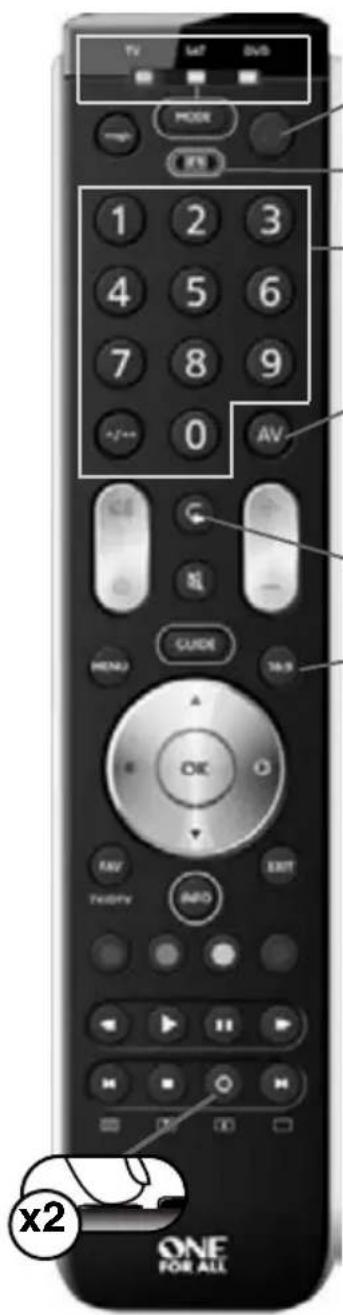
Power
- Master Power (in "Combi Control")
- Combi Contol
"Channel Selection"
- AV/Input/20/C/P (in TV)
- TV/SAT" / TV/DTV (in SAT)
TV/DVD/20 (in DVD)
Previous Channel (in TV/SAT/DVD)
16:9 (in TV/SAT)
open/close (in DVD)
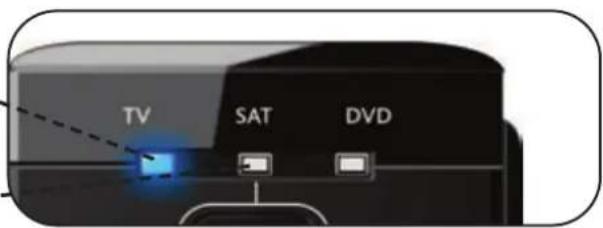
- If the LED's become dim; please replace the batteries.
-
Wenn die LED verdunkelt,itte Batterien auswechseln.
-
Si la luz del LED se vuelve tenue, sustituya las pilhas.
-
Si l'intensité des diodes diminue, remplacez les piles.
- Se o LED brilhar difuso, substitua as pilhas.
Se l'intensita del LED diminuise, sostituire le pile. Vervang de batterijen als de LED-Ichtsterkte afneemt
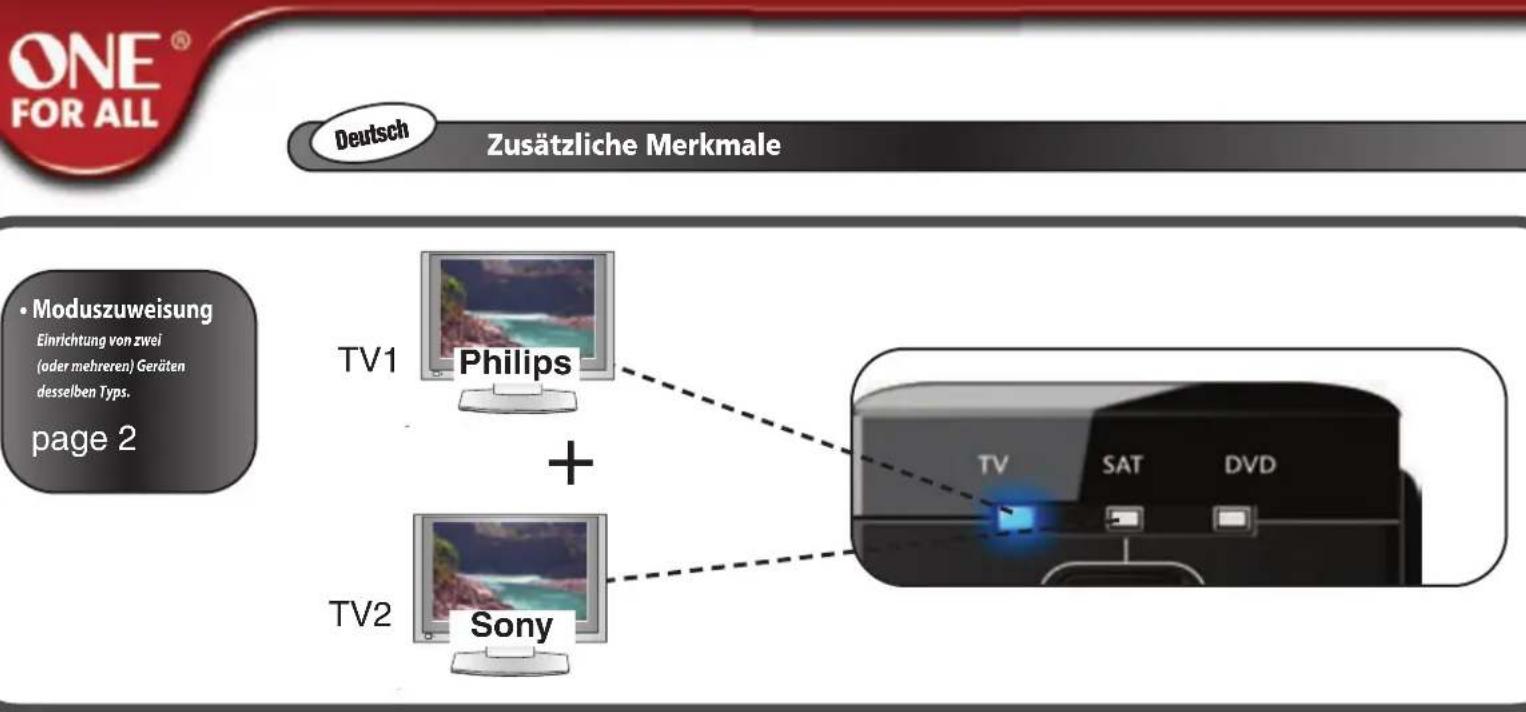
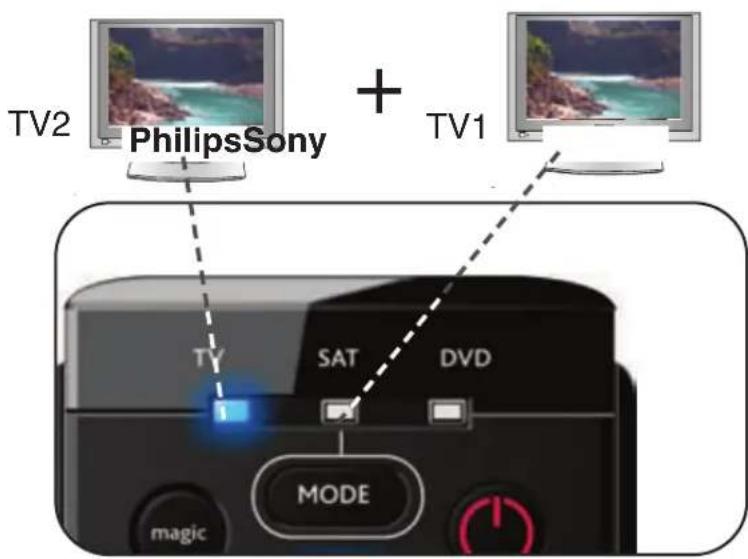
How to set up two (or more) devices of the same type.
page 2
TV1


TV2


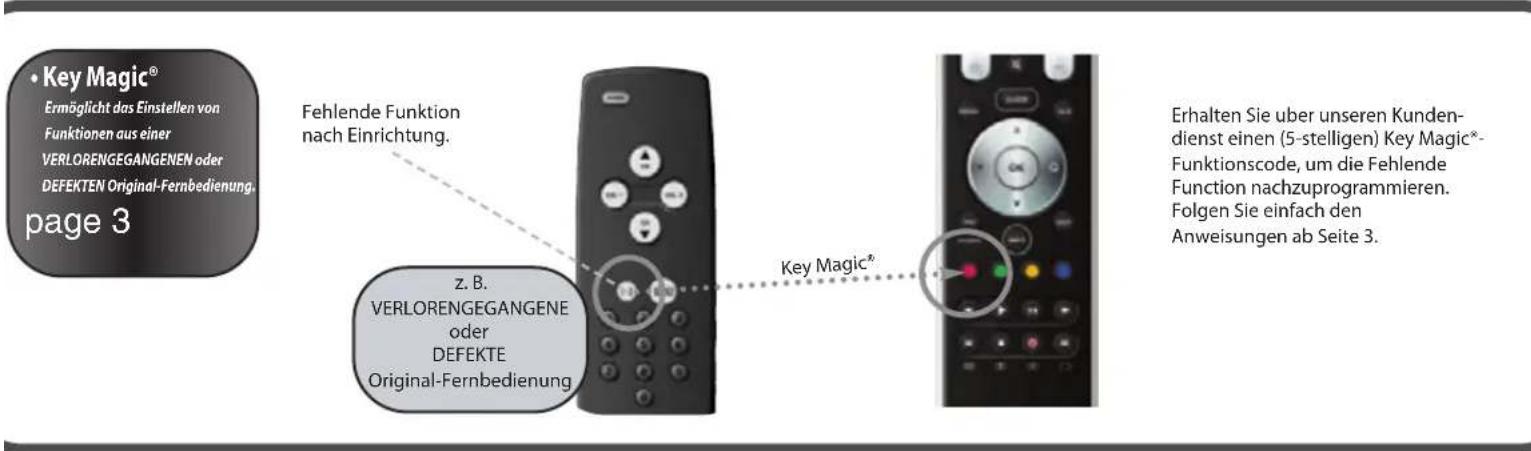
Key Magic
Allows you to obtain functions from your LOST or BROKEN original remote control.
page 3
Missing function after Set Up procedure
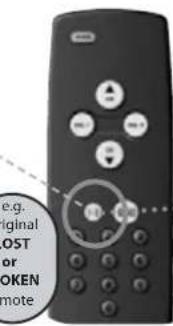
Key Magic®
Obtain your Missing function through our Customer Service requesting a (5-digit) Key Magic function code. Then, simply follow the procedure from page 3.
Macro
Allows you to send a sequence of commands with the press of a single key.
page 4
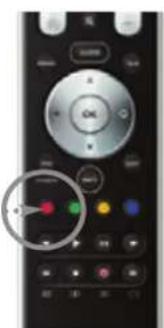
e.g. Macro on "red key"
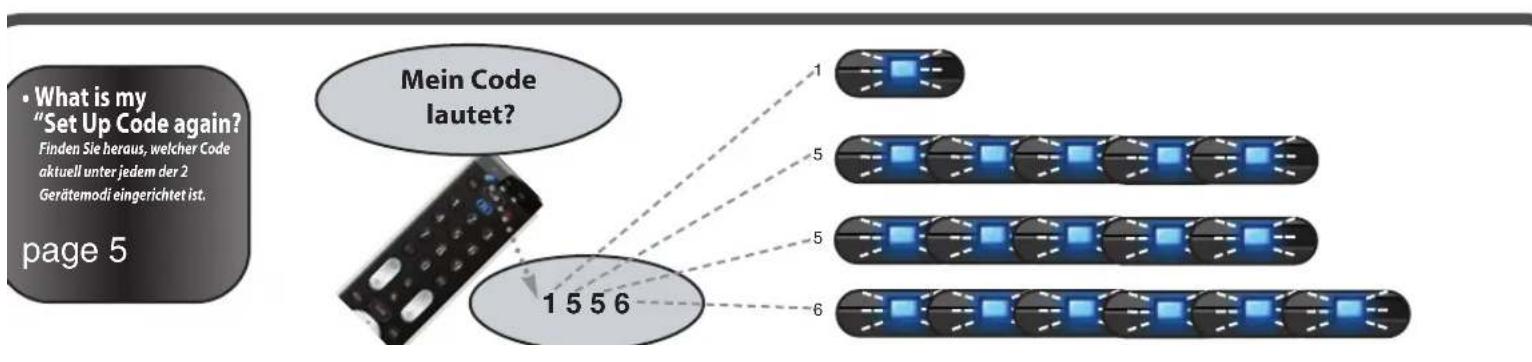
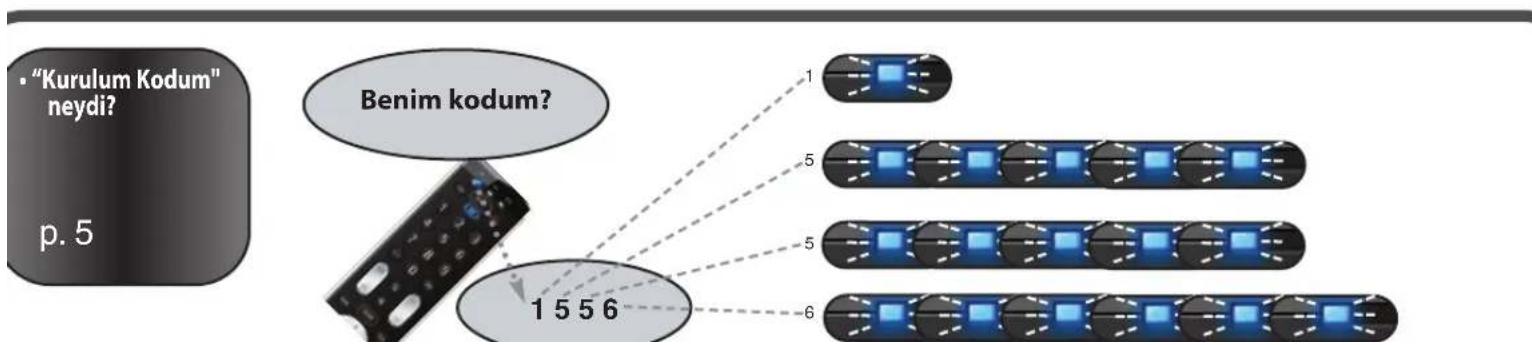
What is my Set Up Code ag
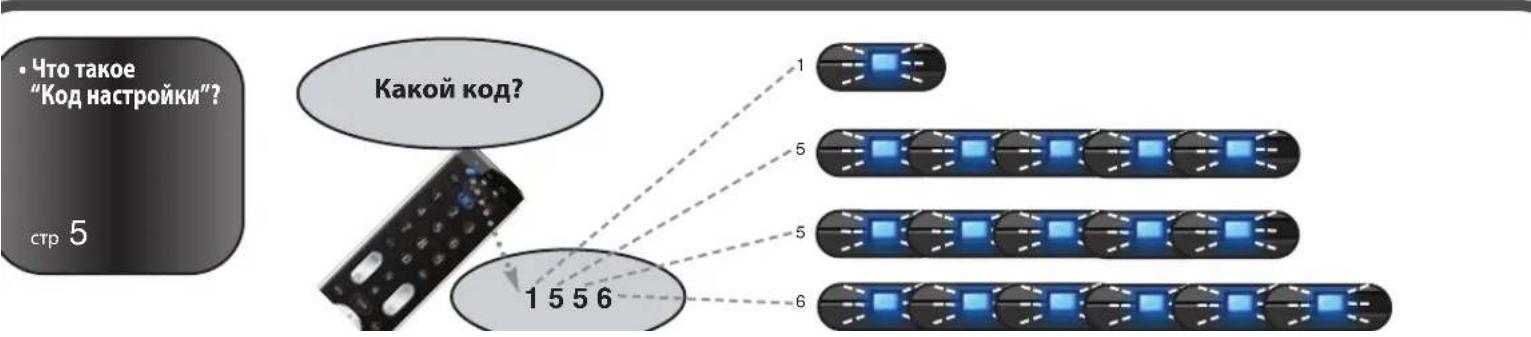
Find out which code is current set under each of the 3 device modes.
page 5
My Code is?
1556
D.
A
A
4
m = 311
12 =
m = 311
法
公
C
m = 311
m = 311
(1)
(一)
1
Mode Reassignment
This feature gives you the possibility to program 2 (or more) of the same device types onto the ONE FOR ALL remote (e.g. two tv's). In the following example you wish to set up an additional television. Therefore we will reassign (change) "sat" mode into "tv" mode.

TV2

TV1
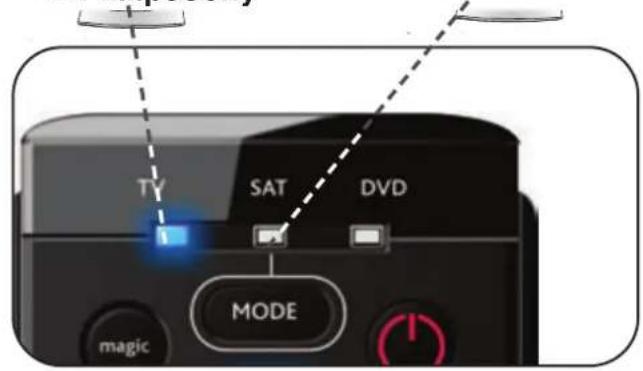
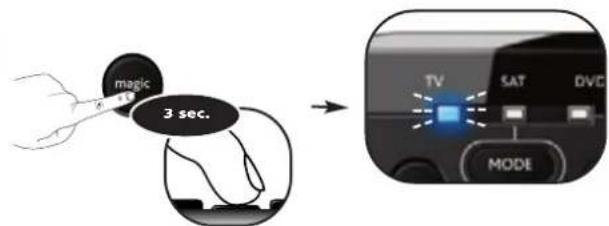
e.g. How to reassign "sat" into "tv" so you can control your second television as well:
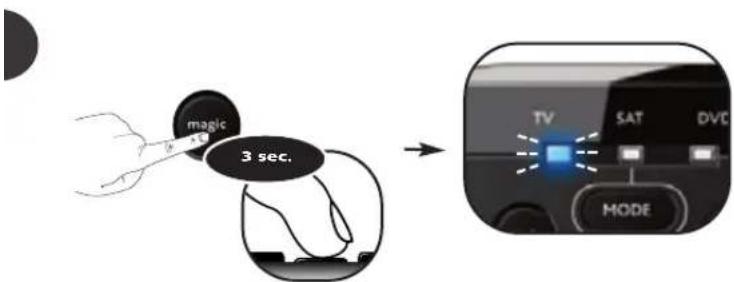
1
Press and hold magic for 3 seconds until a mode indicator (Blue LED) stays lit.

2
Press 992.->The blue LED will blink twice.
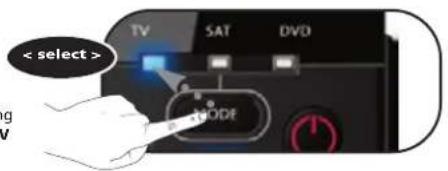
3
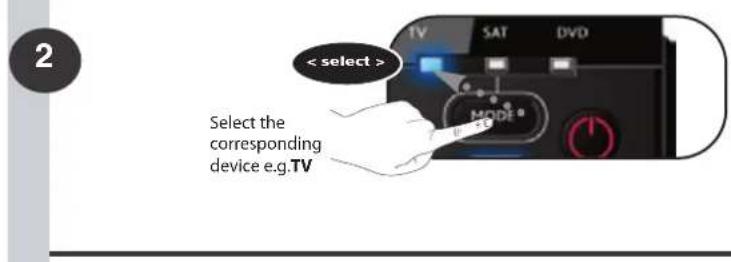
Select the corresponding device e.g. TV
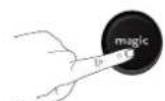
4
Press and release the magic key.

5
Select the destination device e.g. sat
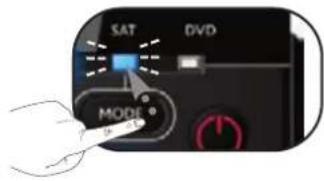
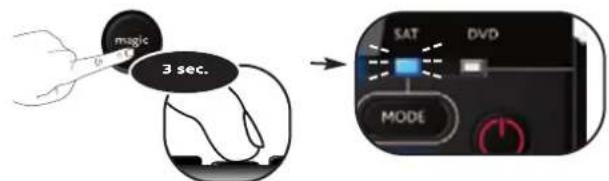
6
Press and release the magic key. --> The blue LED will blink twice.
Congratulations! You have successfully reassigned "sat" mode to become a second "tv" mode.
Now simply follow "ONE FOR ALL SimpleSet", "Direct Code Set Up" or the "Search Method" to program your television in sat mode.
How to reset a device mode to its original mode?
1) Press and hold magic for 3 seconds until a mode indicator (Blue LED) stays lit.
2) Press 9 9 2.
3) Select the corresponding device mode you wish to reset to its original mode (e.g. select sat).
4) Press the MAGIC key twice. The blue LED will blink twice.
Key Magic®
Key Magic is an exclusive ONE FOR ALL feature. The design of the ONE FOR ALL ensures that many functions of your original remote control can be operated - even those that do not have their own key on the ONE FOR ALL keypad. Frequently used functions can be assigned to a key of your choice using the Key Magic feature of your ONE FOR ALL. In order to program a certain function with Key Magic you need to know the corresponding function code. As the function codes vary with different types of devices, they cannot be found in the manual. You can request your function codes through our consumer service help-line or by letter, fax or e-mail.
When you contact us please make sure to mention the following:
The Current code you are using (see "What is my Set Up Code again?")
Device-type, Brand & Model-number of the corresponding device.
- Model-number of the original LOST or BROKEN remote control.
How the function was labeled on your original remote control.
then;
Customer Service will provide you:
- A fonction-code (5-digit) for every requested function.
Once you obtain your function code(s) from customer service, programming the code is easy:
Example: How to get the "I/II (mono/stereo)" function from your original LOST or BROKEN remote onto the "red key" on your ONE FOR ALL remote control.
1
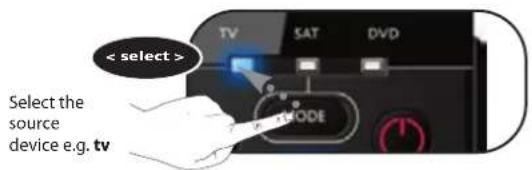
2
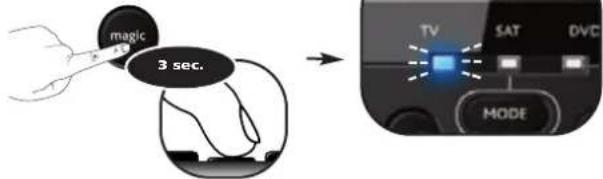
Press and hold magic for 3 seconds until a mode indicator (Blue LED) stays lit.
3

Press 9 94.
-> The blue LED will blink twice.
4
Press and release
the magic key.
5

Enter the 5-digit function-code provided by Customer Service.
(e.g.00123)
6
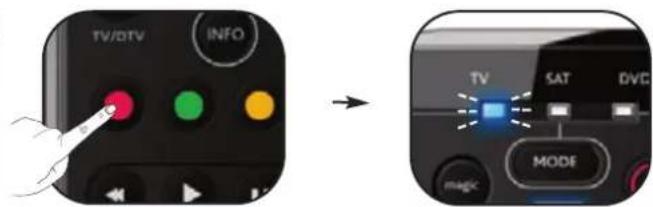
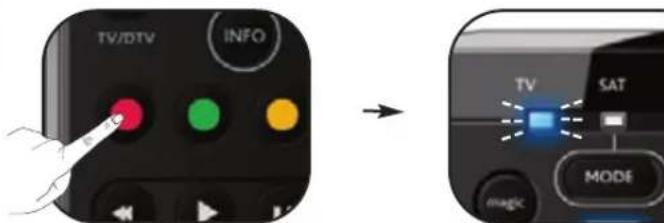
Press the key to which the function will be assigned (e.g. red key).
->The blue LED will blink twice.
Congratulations! You have successfully programmed the "I/II (mono/streo)" function from your original remote control onto your ONE FOR ALL remote control. NOW whenever you press the "red key" (in tv mode) you will obtain the "I/II (mono/streo)" function.
How to reset a key to obtain its original function?
1) Select the corresponding device mode (e.g. tv).
2) Press and hold magic for 3 seconds until a mode indicator (Blue LED) stays lit.
3) Press 9 9 4.
4) Press the corresponding key (e.g. red) twice.
Macro
You can program your ONE FOR ALL to issue a sequence of commands at the press of one single key. Any sequence of commands you regularly use can be reduced to one key press for your convenience.
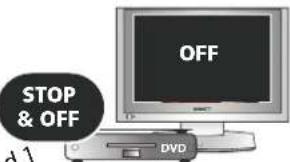
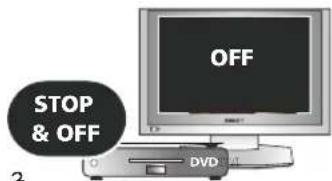
For example, you may want to create the following macro:
1st command: dvd --> STOP
3rd command: tv --> OFF
To set up the Macro mentioned above on the e.g. "Red" key on your ONE FOR ALL:
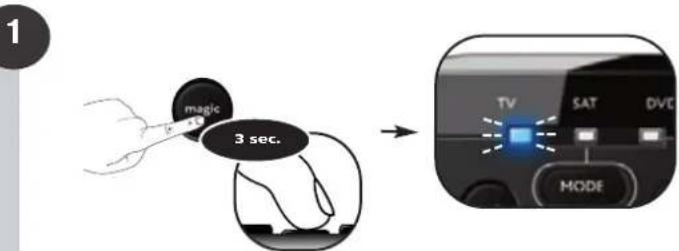
Press and hold magic for 3 seconds until a mode indicator (Blue LED) stays lit.
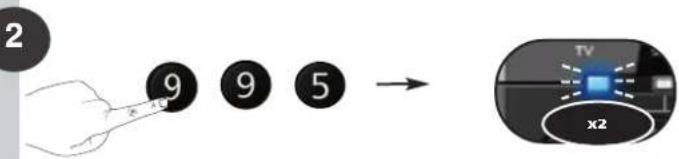
Press 995. --The blue LED will blink twice.
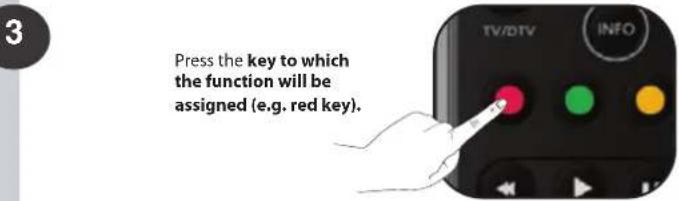
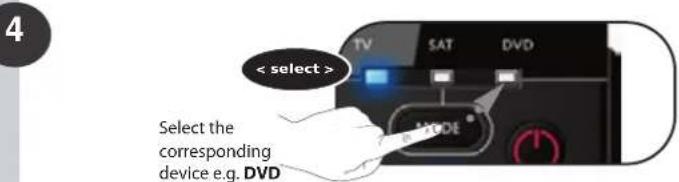
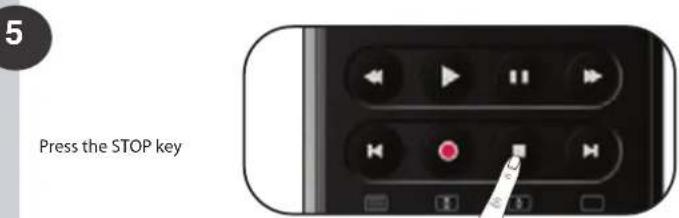
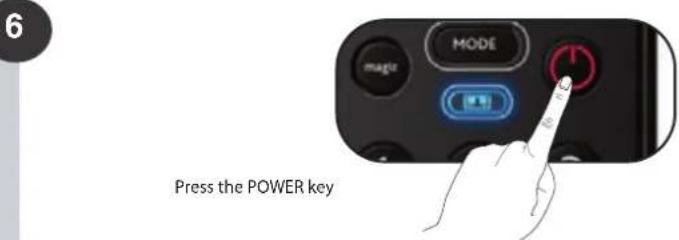
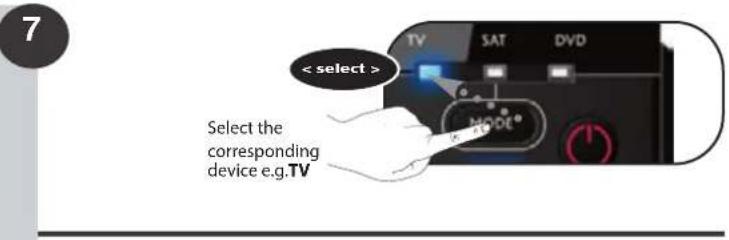
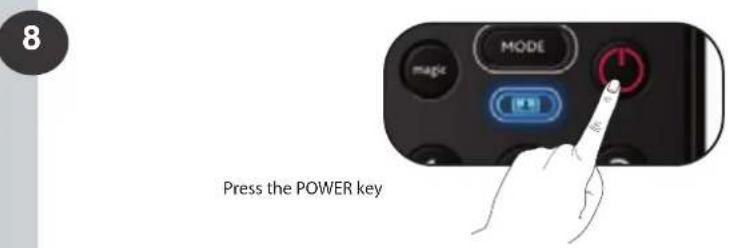
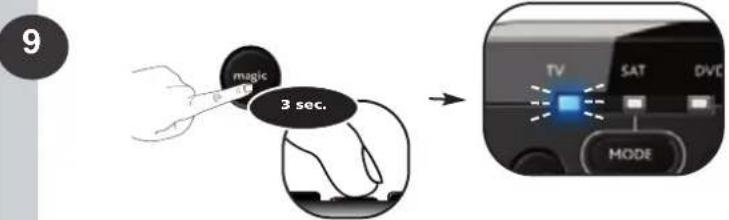
Press and hold magic for 3 seconds The blue LED will blink twice and then switch off.
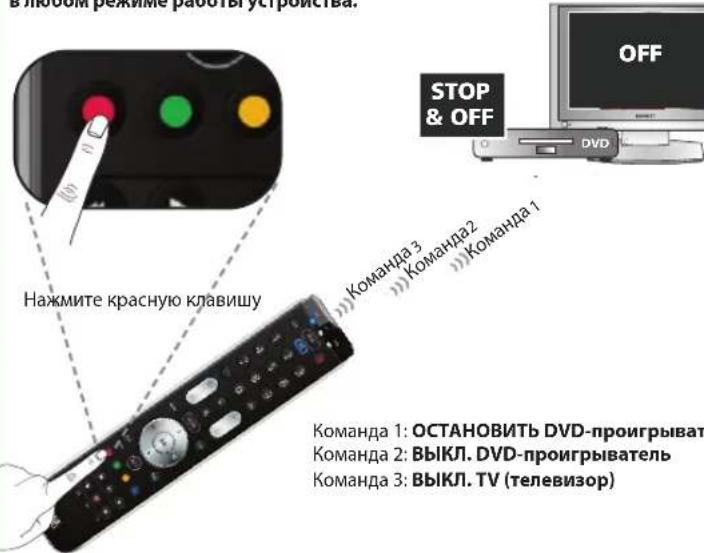
Congratulations! You have successfully programmed a macro on the "red" key. NOW, when you press the red key: 1st:DVD will STOP, 2nd:DVD switches OFF, 3rd:tv switches OFF. The remote will do this in every device mode whenever you press the red key.
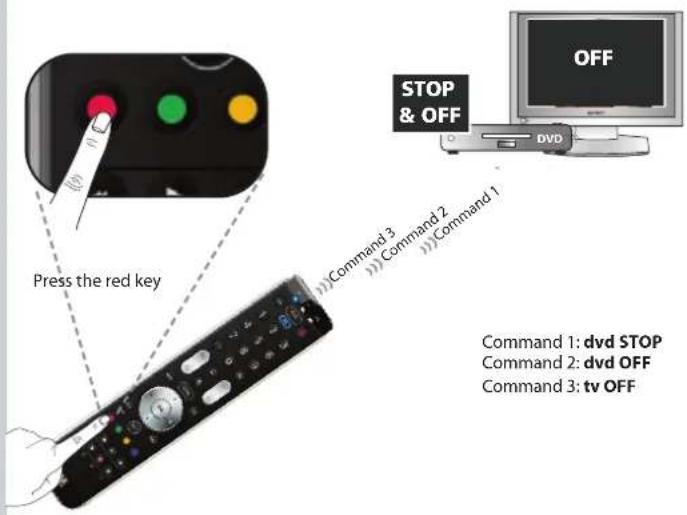
How to reset the macro key to obtain its original function?
1) Press and hold magic for 3 seconds until a mode indicator (Blue LED)
stays lit.
2) Press 9 95.
3) Press the corresponding macro key (e.g. the red key).
4) Press and hold magic key for 3 sec. --> The blue LED will blink twice.
What is my "Set Up Code" again?
You either set up your ONE FOR ALL by:
- ONE FOR ALL SimpleSet
- Direct Code Set Up
Search Method
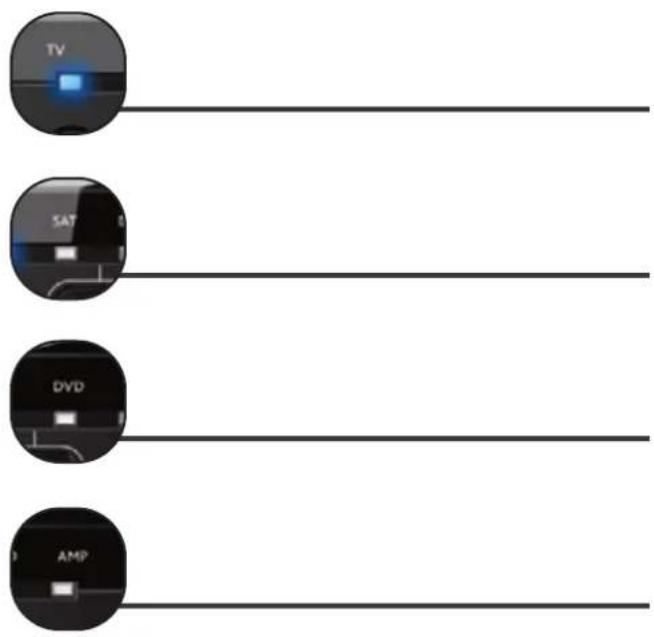
Example! How to find out which "Set Up Code" is currently set in tv mode:

Press and hold magic for 3 seconds until a mode indicator (Blue LED) stays lit.
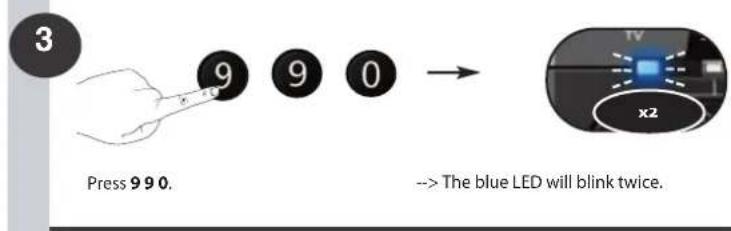
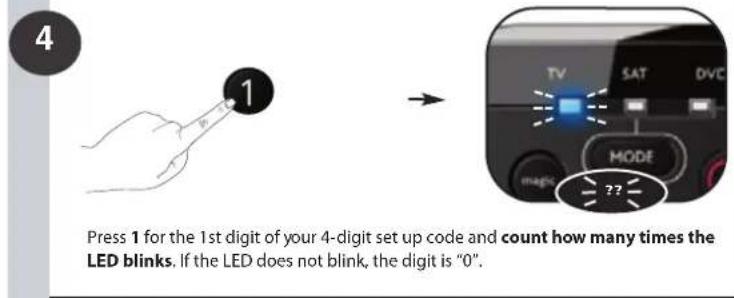
Press 2 for the 1st digit of your 4-digit set up code and count how many times the LED blinks. If the LED does not blink, the digit is "0".
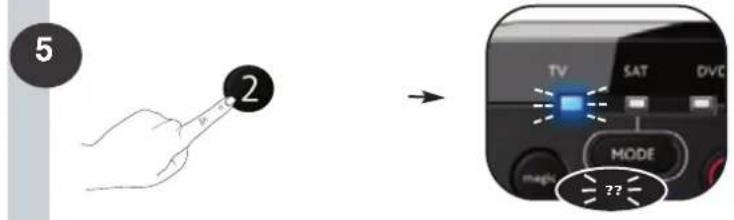
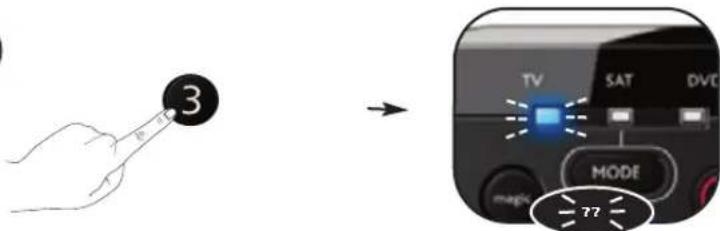
Press 3 for the 1st digit of your 4-digit set up code and count how many times the LED blinks. If the LED does not blink, the digit is "0".
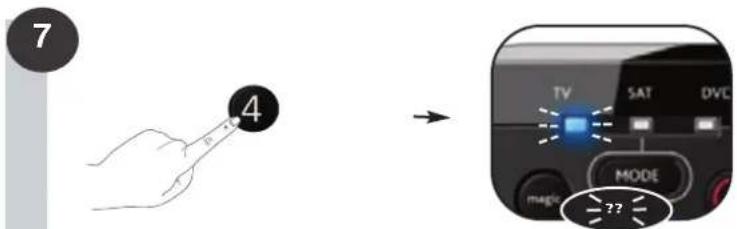
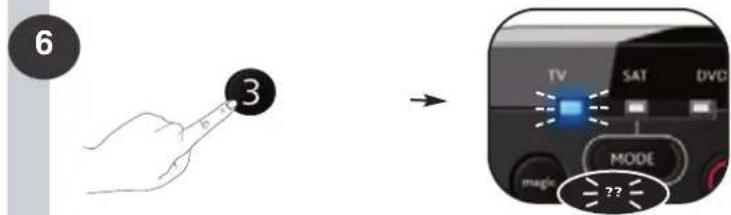
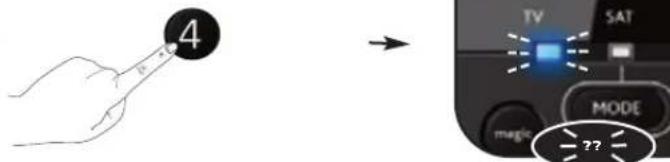
Press 4 for the 1st digit of your 4-digit set up code and count how many times the LED blinks. If the LED does not blink, the digit is "0".
Congratulations! You have successfully blinked out your current Set Up Code in tv mode.
Your "Set Up Codes":
Operational Reset
The Operational reset will erase all learned functions across all modes and some other programmed functions like Key Magic and Macros.
1) Press and hold magic for 3 seconds until a mode indicator (Blue LED) stays lit.
2) Press 980. The blue LED will blink twice.
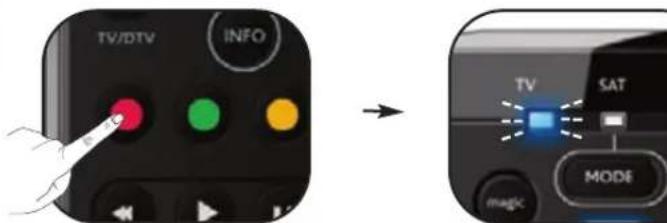
e.g. Macro on "red key"
Naredba 1 Naredba 2 Naredba 3
Makronaredba na crvenoj tipki =
Naredba 1: ZAUSTAVi dvd
Naredba 2: ISKLJUCIDVD
Naredba 3: ISKLJUCI tv
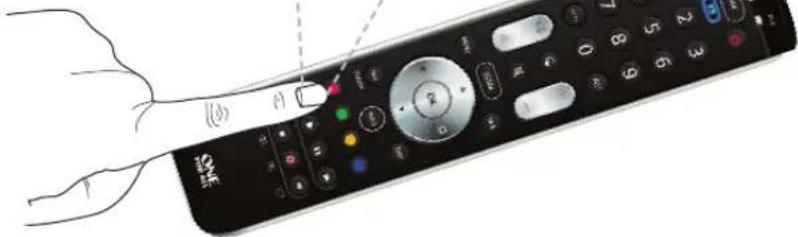
e.g. Macro on "red key"
4
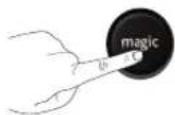
Pntote ovvtoua to nktpo magic.
5

Eoiayayetev05yio KwokkoAeIoupyiacnOaac Eoe to TmuEAeunnpentncNlaatw. (x.00123)
6
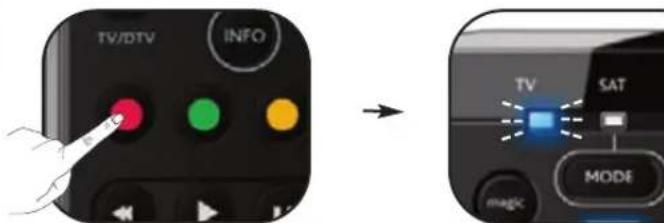
PiEOTo nAnktpo oTo onio 0a avTIOxIe iN aeToupyia (n.x. KOKivo nnktpo).
→HμπλeλuxviaLEDθαavαβoβδu0φopεc.
Luyxpntpia! Ooknpwate me emituxia tov npoypaumatno tnc leitoup I/ll (mvoopwviKO/otepeoovkiO) ano to apxikoac tnexeiptnio 0to TneepiOTIO ONE FOR ALL. Twpa, onote natate to "kKIO pKnkp" (me emeayevn tn aeitouyia nteopaoc) 0a evpyonoietai n keitoupyia "I, (mvoovwkiO/otepeoovkiO).
Iwc enavaepoue eva nktpo stn apxikn tou aeitoupyia;
1) EmleEeTe Tny avirotoyn aeitoupyia ouokueuc (n.x. tnaleopaon).
2) Pnathote to nAiktpo magic yia 3 deutepolenta, wonou va avaesi ia anotic luxviec aeitoupyiac (muAe luxvia LED).
3) Natnote 994.
4) NaTHoTe To avTiToIOxO nnKtPO (n.x. KOKkivo) dUo OOpEc.
Iopeite va npoypaumatioe To ONE FOR ALL va ktealeia akoauoia evtoaw me to natau evoc mvo nktpou. Oonoaohote akoloutheta evtoaw xpoaionoiite ouxva mopeie v oipotei oTo ntaeta evoc kai movadikou nktpou, yia akoun nepioootepn avenk kai eukolia.
KoMaHdA 1: OCTAHOBuTb DVD-nponrpbBaTeB
Komahda 2:BblKJ.DVD-npourpbibatenb
KOMaHaJa 3:BblKI.TV (TeneBn3Op)
ra yHKnna No3BnneT 3anporpamnpoBaTb 2 (nn6one) odHOTnNhbX yCTpoiCTBa (HaNPmep, DBA TeneBnOpa) c nOmoaIO OHOr OY ONE FOR ALL. Hxke nokaah
Papok hactpoKn BTOPOrTO TEeBnOpa. Ia 3TOr Heo6xoJMo nepeha3NaHTb (3Mehntb), K npimepy, pexim "stb" Ha pexim "tv".
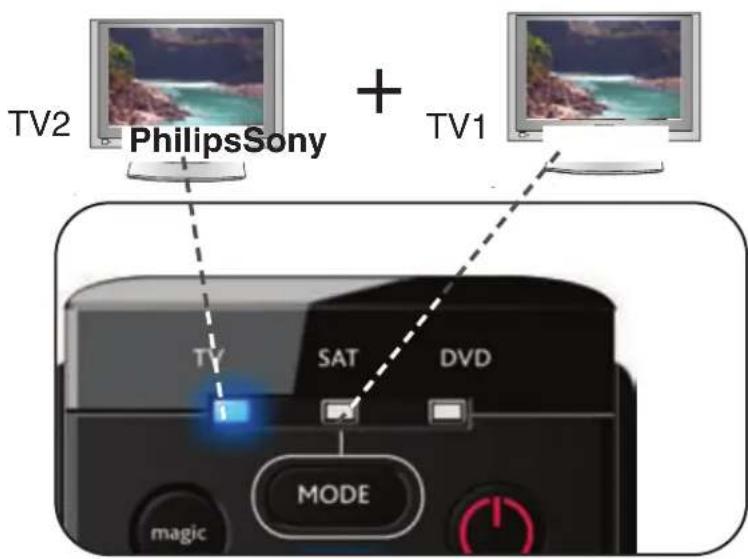
pnmep.Kak n3meHntb peKm "stb"Ha "tv":
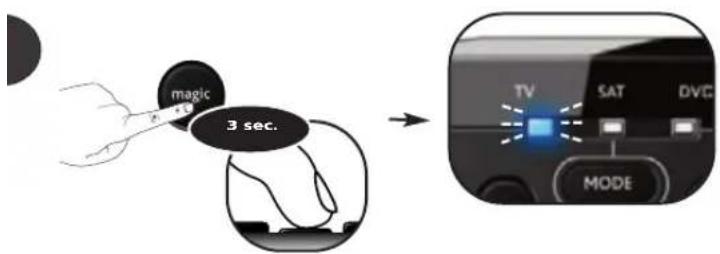
Haxmnte u yepkmbaTe knabmy magic B teueHne 3 cekyHn, noka ropnt Hndnkatop pexma (cHHn HHdkatop).
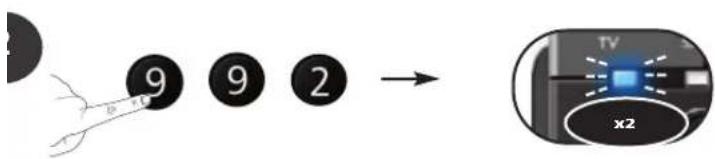
HakmTe 992->CnHn uHnKaTOp MngHT DaBaxbl.
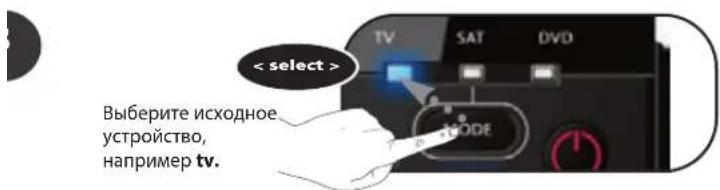
4
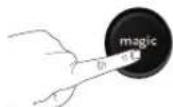
Haxmnte n OTnyCTnTe KnaBmy magic.
5
BbIepeKeHoeyCTpoCTBO, HApnPmep stb.
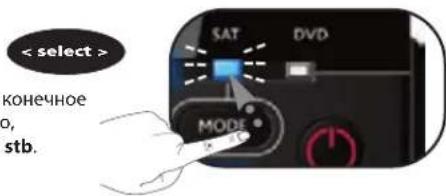
6
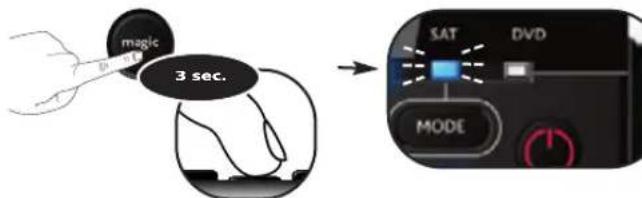
HaKMTe n OTnycTne KlaBnuy magic. --CnnH mHdkaTOp MmHTet ABaxkbl.
No3dpabnem! Bby yceuho n3meHnnpexkM "stb"Ha pekm Btporo TeneBu3opa "tv".
Tenepb, yto6bI zanporpammmpoBaTb TeleBn3Op B pexm "stb", HxHNO BblnoHHb Warn Hactpoek "ONE FOR ALL SimpleSet", "PpmaHactpon Ko#a", N6o MeToD noncKa".
Bnla Magic eTb tonko HA ONE FOR ALL. ONE FOR ALL oecneuBaet pa6oty mnoxctba fynkui nepboaahnboro nybta D, dae ecnn nna Hx He npedycmptbe knaun H bnatype ONE FOR ALL. Knabua Magic no3oBnaret, no co6tBeHOMy ycmotpeHHIO, h3aHaHTb knaBwU HA knabnatype ONE FOR ALL. dnaactocncnoIb3yemixfynkui. 1ro6bI c 10cuBn KnaBnMgic 3anporpamnpoabaT onpeeneHHyo fynkuiHO, Heo6xoIMo 3HaTb coOTBECTByuoi KOD fynkui. BcneDCTBn pa3Hoobpa3N TINOB yctpoCTB BYKOBOte YT OytCTBOBAtb HEKOTOpbe Kobl fynkui. KoBl fynkui MoXHO NOnyHTB CnpaBOOH CnyXBe p6otbcl KInnENTAMn, IIn60 OTnpaBntb 3anpoc Ha erno Nonyehne No 3NeKTPOHHe Te, pAky, inn no Tenefohy.
pn otnpabke 3anpoca Heo6xoJmo yka3aTb cneyioune daHHbe:
aok Tekyuon KOD nCnObn3yTec (CM. "Tt Kaoe KOD HacTpoKn? Ha cTp.xx). IN yCTPOINCTBa, TopROBAMapKa IN HOMep MOeIN COOTBeTCTByIOero yCTPOINCTBa. Iomep MoeIN npBOHaunbHorO YTPAUEHHORO nnHEICPABHO ngIbTa DY. aok npblk 6bl npncBoEH yHKnn npBOHaunbHoro nyIbTa DY.
TEM;
Tky6a pa60Tb C KIneHTAMn BBicBnaeT BaM:
Tn3NaHbKoDnKaJDoyHKuM,OTHOCTeBHO KOTopo6bHnPaBHe 3aPoc.
Ocne nonyeHnKaODB cyHKn, nporpamMnpOBaHHe KOOB He Bbl3bBaET IOXHOCTeI:
PIMeP: KaK hAcTpoNTb yHKnUIO "I/II (MOHO/CTepeo)" cNepBoHaauJIbHoro TPAUEHHORO mnn HENCIPTABHORO nylbTa Dy Ha "kpacHyo KlaBnWy" nylbTa DY NE FOR ALL.
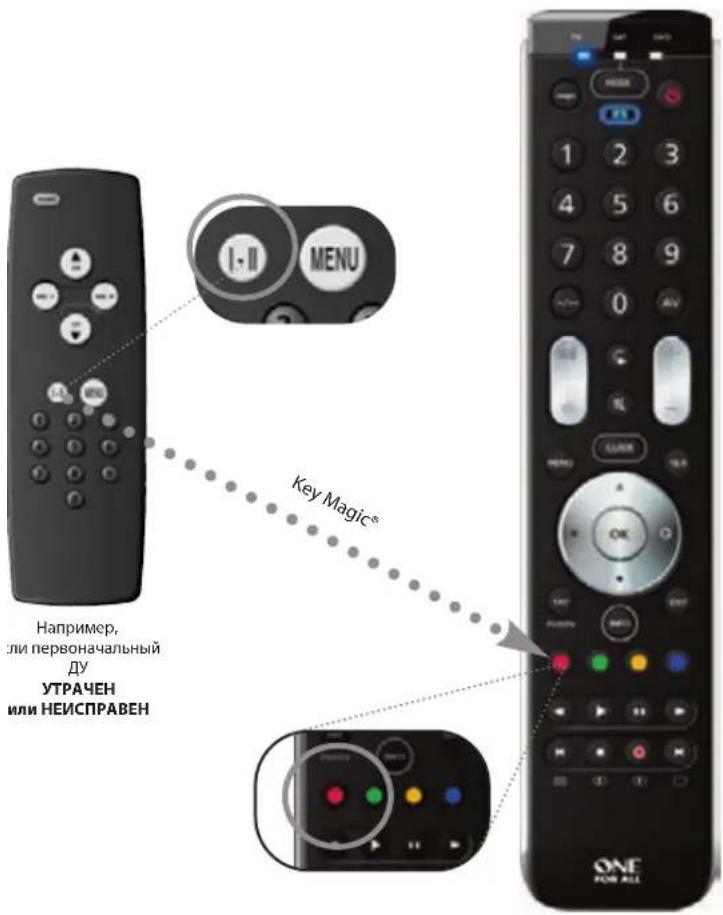
Bb6epnte COOTBECTBYIOUe yCTPOCTBO, HAnpImep tv.
2
Hajmte u yedpkmbaute KnaBnwy magic B teyeHe 3 ckyH, noka ropnt INdkaTOp pekma (CINHn INdkaTOp).

3
HaKMTe 9 94.
->CnHHnHnDnKaTOpMNrHeTDbAaK
4
HaxmntnoTnyctme KnaBmy magic.

5
BBeNTe 5-3NaHbI KOd FyHKuH, nonyuHHeB B cnyK6pepa6oTb c KIneHTaMn. (Haepmep 00123)
6
HaKmTe KnaBnWy, KOtOpoi 6yIe TaHa3NaHeHa FyHKuINa (HapnMep, KpaChyIO KaBnWy).
->CnHn nHnKaTOp MmHTeT Da
No3dpabnem! Bby ycneuho 3anporpamnpobann nepehecn yfHKnIO "I (MOHOtepeo) c npbohaunbHoro nynbTa YHa nynbT DY ONE FOR ALL. B DAJIbHEIWEM, npnaKatauN "kpachoi KnaBm" (B pexnme tv) 6ydet BbInonHHBaC yfHKnn "I/II (MOHOtepeo)"
KaKc6pocntb cyHKNUO KnaBnM N BepHyTb nepBOHaayBhIe HactpoiKN?
1) Bb6epnte cooTBeTCTByIOUnn pexn yCToPOnCTBa, HanpImep tv (TeJeBn3Op)
2) Haxmte u ydepkmbae knaBnuy magic B Teeyne 3 ckyH, noka ropnt INdkatop pexma (CnHn INndkaTOp).
3) HaxmTe 994.
4)Дыхдынхмite COOTBETCTBYOуI KnaBnIy (HanpIMep,КpacHyI).
NE FOR ALL MOXHO 3anporpaMMPOBaT TaK, YTO6bI npH HaxaTN ODNHO KlaBUN BbIOINRAIacb NocJeOBATeNBOCTb KOAMn. IyO6cTB, IIO6yIO NOCJeOBATeNBHOCTb qACTo NCMb3yEmbIX KOAMn MOXHO CBeCTN K HaxaTIIO ODNHO KlaBUN.
aPIMep, Heo6xOIMo Co3DaTb CneIyIOUyIO MaKpOKOMaHNy:
KOMaHda: OCTAHOBUTb --> DVD-npOurpbBaTeIb
KOMaHd:A BblKJI.-->DVD-npounrpbBaTeNb
KOMaHJa:BblKJI.-->TV(TeneBu3Op)
anpimep,HTo6bHa3NaHtB BbIeeyKa3aHHy MaKpOKOMaHy "kpacHO"KnabNwe ONE FOR ALL,BbInonHnTe cneJyouee:
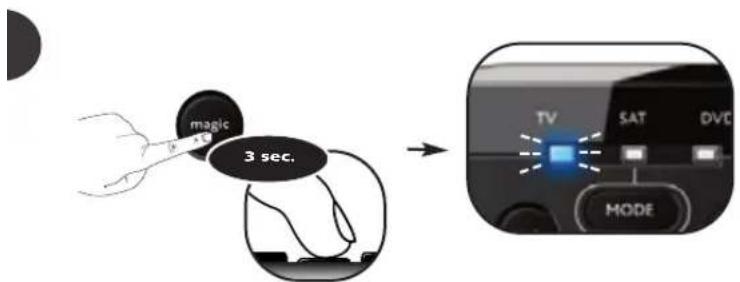

Hajmte u ydepkmbaute KnaBnuy magic B TeueHe 3 ckyH, noka ropnt INdkaTOp peKMa (CINHn INdkaTOp).
HaKMMTe 995.
→CHHHmHnKaTOPMnHTDbaxkbl.
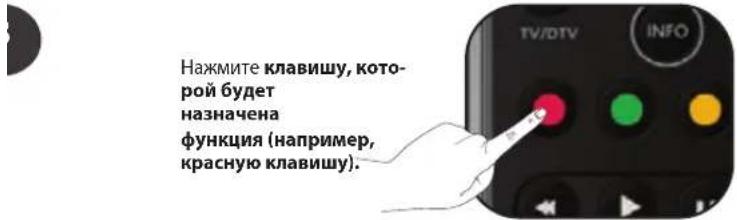
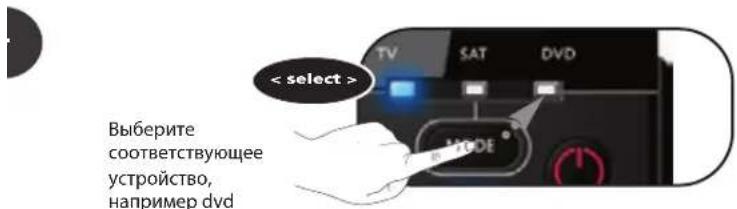
BbIeepnte COOTBECTBByOuueyCTPOCTBO, HANPMepDVD
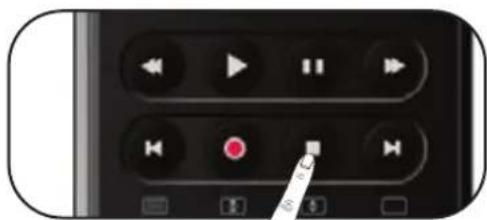
Haxmte knabny OCTAHOBNTb.
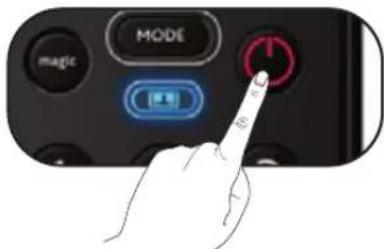
Hakmte KnaBnuSy IITAHNE.
7
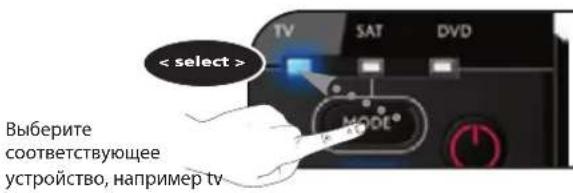
8
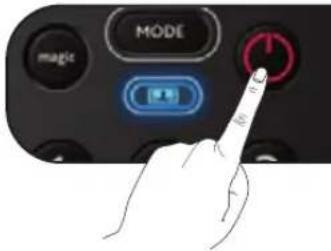
Haxmte KnaBnuy IITAHNE.
9
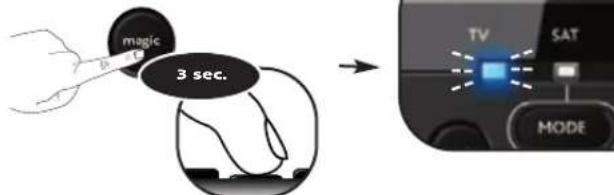
HaTncheTe 3a4pBxTe MAGIC 3a 3cekyHdN
→CnHnI INHdkATOp MNRHT (norAChET) DBaKbIyNorAChE
I03dpabnem! Bbl ycneuho 3anporpaMMPOBann BblnoHHeMaKpOKOM npn haxatnn "kpacOH"knabuIN. B DAJIbHEIM, npn haxatnn KpaCHO knaBuIN:1)DVD-nporpbibateb OCTAHABJIBAETC2,2) DVD-nporprbBaB BBIKJIIOHYAETCR,3) TV (TeneBnOtp) BblIOHYAETCR. DaHHa noCneDobATeNHOCTb KOAMAN6ydt BblNOHtBCR CaKN pa3 npn haxatnn KpachOH KNAIBB BIO6om pexmme pa6oTby yctpoiCTBa.
KaK c6pocntb MaKPOKOMaHy KlaBmH N BepHyt nepBOHaaybHyO cyHKuio?
1) Haxmte u ydepknaBaiTe knabuWy magic B TeueHne 3 cekyH, noka ropnt INdkatop pekma (CNHH INdkatop).
2)HaxMnte995.
3) HaxMMTE COOTBETCTBYIOU KnaBnU, KOtOpO Ha3NaueHa MaKpOKOMHa (Hapmep KpaChyio).
4)Haxmnte u ydepkmbaTe knaBnuy magic B teueHne 3 cekyHd.->Cnnn nH
IueCTByeT Dba peXIMHaCtpoKNI ONE FOR ALL: 1exM ONE FOR ALL SimpleSet
IpmaHnactpoKaKoJa VteoNnonka
HKe NOKa3aHo, KaY3HaTb "KoN HAcTpoKn" dIy KaKdOrO peKIma yctpoiCTBa.

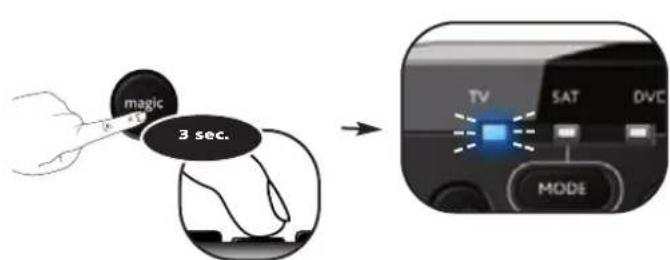
HaxMnte u ydepxmbaute KnaBnuy magic B TeueHene 3 cekynd, noka ropnt INdkatop pekma (Cnnn Hnkatop).




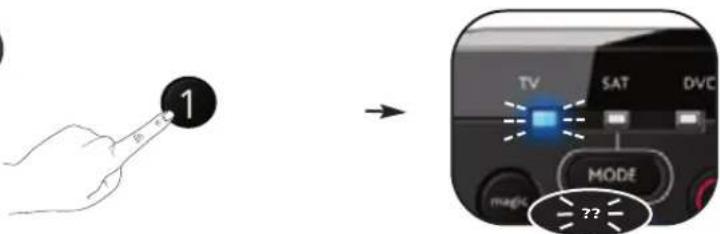
Haxmnte 1 nepBoi uΦpby tebipex3NaHOro KoJa hAcTpoKn nocuTaIte, cKolbko pa3 mHnHTe HnDnKaTOp. Ecn HnDnKaTOp He mRaet, torda eTa uΦpa "0".

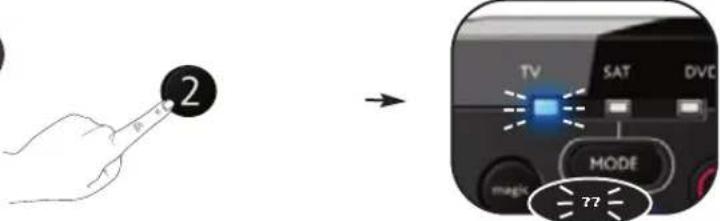
HaxMMTE 2ДЯпЕВОИ ΜФБУЧТЕТБЕРEX3HAHНО КОДA HACTpOKN I NOCHTaITe, COKOBpo3 MmHETNMDKATOp. EcINnMnNKaTOp He MNaEaT, TOrDa 3a ΚΦpA"0".

Haxmte 3 nepBoi uΦpby tebpex3aHOro KoJa hAcTpoKn nocuTaIte, CKoBko pa3 mHHTe HnDkaTop. Ecn HnDkaTop He mHaet, TOrda 3Ta uΦpa "0".

Haxmnte 4 nepBoi uΦpby tebipex3NaHOro KoJa hactpoKn nocHTaTe, cKoJIbKO pa3 MInrHer INHnKaTOp. EcIn INHnKaTOp He mIrAet, TOrDa 3Ta uΦpa "0".
P03dpabnem! Bbyy3hann Tekyu nKoHacTpoKnpeXmHa tv.
NepcoHaIbHbIe"KoDbI HAcTpOaKN":
OnepaTHBbIc6poc
Onepamuhbui c6poc cmupaem ace 3aHeceHHbte b namrrb fyHKuuu u Hekomopbie npoepaMMHbe fynKuuu, Hanpumep Knabuuu Magic" u MakpokOMAHob.
1) HaxMnte u ydepKmbaTe KnaBnuy magic B TeueHne 3 cekyH, noka ropnt INdkkatopt peKMA (Cnnn INdkkatoT).
2)HuaHua
2 10
HaTnCHeTe nOTnycHeTe 6byToHa magic.

5
BbBeTe 5-ncfpeHnKaoHa yHKnna, nOyueH or UeHTbpa 3a 06cnyBaHe Ha KIneHTn. (HaPp. 00123)
6
HaTnchete 6yToHa,Ha KoiTo 1e 3aAdaTe
fHKuIra (Hap. cpeBHeN6yToH).
→CnHnATCBETINHeHnHnKaTOI npemHrHEBaPiTn.
Yecntto! Bnpe nporpamnpaxte ycneuho fynkunraT aI/II (MOHO/cTepeo)OT o r HnHAnHOTc nI dmtaHNOHNOynpabNeHne Ha yHMBepcalnoTO dNCTauHHNHynpabHeNE ONE FOR ALL. CETA pnu BcKaNo Hatmckane Ha "uepBHeHs 6yToH" peKIM tv (tenebu3na) ue nonyuabaTe DoctbN do fynkunraT aI/II (MOHO/ cTepeo)"
Kak da Bbphete opurnHaHaTa yHKua Ha 6yToH?
1)N36peTe cBoTBeTHnA peKm Ha yCTpoiCtBO (Haip. tv (TeneBnra).
2)HaHnchTe n 3aDpBxTe magic 3a 3 cekyHn,doKaTo HnNkAToPbT 3a peKIM (CNH CBETNIHEH INNkAToP) OCTaHe CBeTHaT.
3)HaTnCHTe 994.
4)HaTnchete CbOTBETHN6VTOH (HAP, YEPBEHNJ DBa PbTM
IOXe Ta nporpaMPaTe BaWeto yHBePcAHO nCTaHnOHHO ONE FOR ALL da noBa napeuca ot KOMaHN c HATNCKaHe Ha eINH 6yToH. BcKa nopeuca ot KOMaHN, KOrTO n3nO 3aTe peoBHO, MoKe Da Ce CBeDe Do eo HO HAtNcKaHe Ha 6yToH 3a No-tTAMO yDo6CTBO..
aPIMep,MOKeTe Da c3dAeTe CneHaTa MaKPOKOMHa:
-BA KomaHa:DVD-->STOP(DVD nIeIb-->CTOJI
-pa komaHa:dvd > OFF (DVD nneBp > I3KJI)
-TaKOMaHda:tv-->OFF(TeneBn3Op-->N3KJI)
3 da 3aadaTe ropeNoceHaTa MaKpOKoMaHda, HAnp. Ha "YepeBHeN" 6yToH Ha BaWeTo DnCTaHmOHO ONE FOR ALL:
HaTNCHTe H3aDpBxTe magic 3a 3 ckyHm,doKATO INdNkATOpbT 3a peKIM (CIN CBETNIHEH INDnKaTOP) OCTaHe CBETHaT.
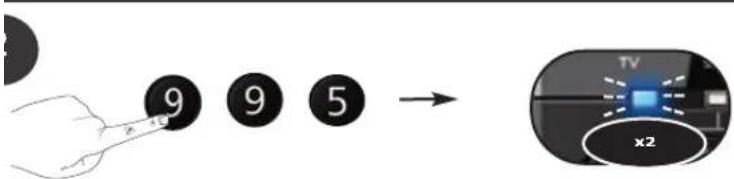
HaTmChTe 992
->CnHnATcBETnINHeHnHnKaTOpIePnpMnRHeDbA nTn.
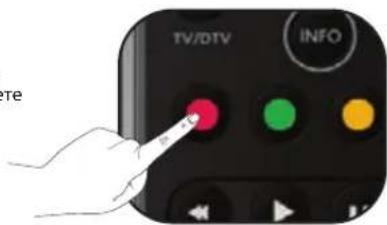
HaTnCHeTe 6yToHa, Ha KoiTO ue 3aJaTe HeyHKUHTA (HAp. YepeBHeNHa 6yToH).
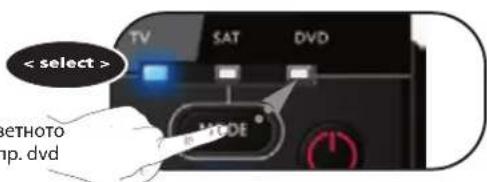
136epete Cb0tBeTHoTo yCTPOCTBO,Hanp.dvd
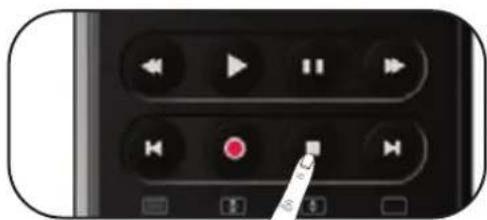
HaTnCHTe 6yToHa STOP.
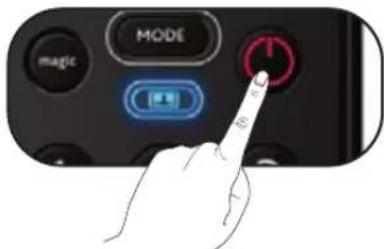
HaTnchete 6yToHa POWER.
7
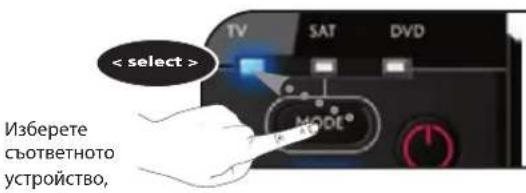
8
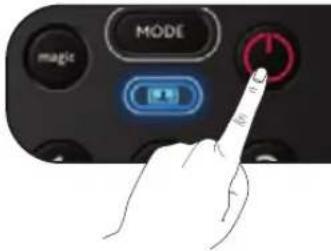
HaTmChete 6yToHa POWER
9
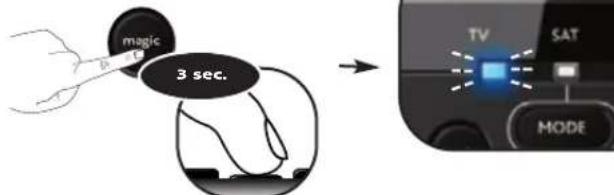
HaTnCHETe 3aApbXTe 6yToHa magic, 3a Da CbxpaHnTe HaCTpoKnTe cn.
CINHATCBETNIHEHINIMKATOPI npemrrheDbA mTnNue Ce n3kn
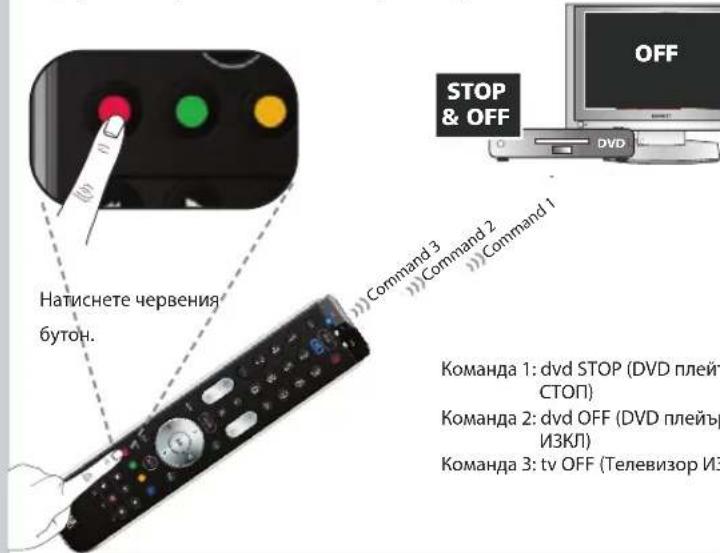
YcHTnO! BnE nporpaPaxte yCneuHMO MaKpOKOMaHa Ha "UepBHeH" 6yTOI CEFA, aKO HATNCHE TcepeBHeH 6yToH: 1-BO: dvo nneBpbT ue cnpe (STOP), 2 dvo nneBpbT ce n3KnOhy BA(OFF), 3 To: TeNeBu3OpBt (tv) ce n3KnOhy BA(OFF). NCTaHcNHOHOTo YypBaNHeHme ue n3NbBnRaTea KOMaHN BbB BCEKN peKn HA yCTpoiCTbA, KOrato HATNCHE TcepeBHeH 6yTOH.
KaKaBbPheOpurHannHaTaΦyHKuHa 6yToH,Ha KaITo e3aJaEHa MaKpOKoMaHa?
1) HATnCHete n 3aApbXTe magic 3a 3cekyHn,doKaTo VHnKAtOpbT 3a peKIM (CNH CBETNIHHe HnDnKaTop) OCTaHE CBETHaT.
2) HatncheTe 9 95.
3)HaTnCHHeTe CBoTBeTHMa 6yToH 3a MaKpOKoMaHda (HaP. YepBeHHa 6yToH).
4)HaTnCHETe n3aipbXTe 6yToHa magic 3a 3 cek. --> CnHnT CBtLnHeH INnKa
actpoTe BaWTo DnCTaHNoHNo ynpabHeHne ONE FOR ALL no eHN OT cIeHNrte MeToDn: simpleSet Ha ONE FOR ALL
InpekTHaHaCTpOkaHaKoA
MeToHa TbpcHe
TeBaNTeCTbNkIe Bn NOKaKaT, Ka Da pa36peTe KOJ"KoI 3a HAcTpoJaKa e 3aJaAeH B MOMeHTa 3a BCEKu peXIM Ha yCtpoiCTBO.
HaTnCHHeI 3aIpbjXte magic 3a 3 ckyHm,doKaTo HmdkaTopbT 3a peKIM (CIN CBETnHmHmukatop) octaHe CBEThat.
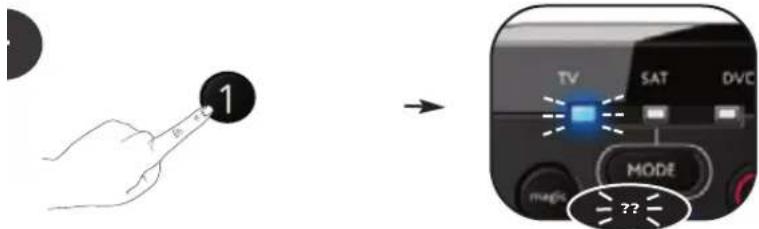
HaHtnche 13a 1-ta ufo p0r taBua 4-uep0en KoJ 3a Hactpoika n np6p0te, KOJI KIO Tn ue MHTe CBeTOIDHOIT (LED) HndkaTOp. AKe LED HndkaTOpBT He Mira, ufoPata e "0".
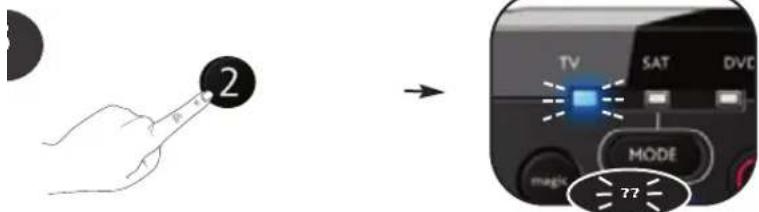
HaTnCHeTe 23a 1-Ta uΦpa O T BaaNna 4-uaPpeH KOd 3a HactpoKa n ppe6pOte, KIOKIObTu Ie MIRHe CBeTOmOHDnT (LED) INDnKaTOp. AKO LED INDnKaTOpbT He MInrA, UINPpTa e "0".
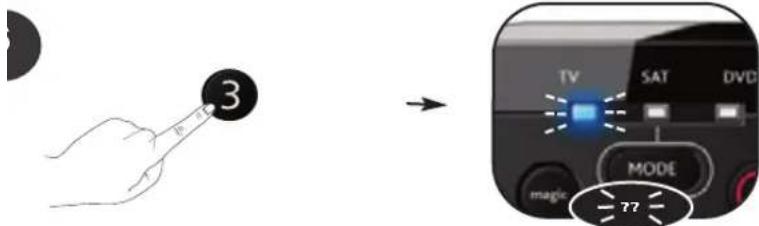
HaTnchete 3a 1-Ta uphi oT Baunr 4-umpeH KOd 3a HcTpoKa n ppePoTe, KIOKIObTu Ie MIRHe CBeTOmOHDnT (LED) INDnKATOp. AKO LED INDnKATOpBt He MURa, uphiata e "0".
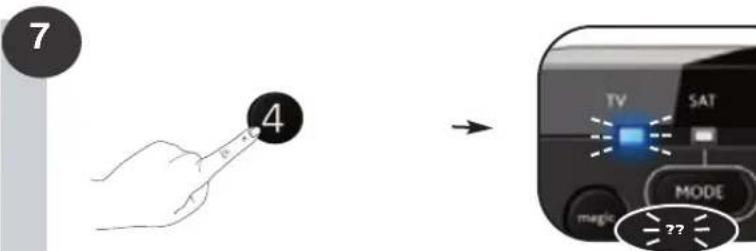
HaHCTHe 43a 1-Ta uPpOa OT Baunn 4- uPpeH KOa HactpoKa n ppeoTe, Kc bTu ue MmRHe CBToDnOuHNrT (LED) INuNKaTOp. AKO LED INuNKaTOpBt He MInra, uNpFATA e "0".
Yecnto!Bue Bb3npn3BeOxTe ycneuHo ype3 Mrrane Baunr Tekyu KoJ 3a HactpoKa B pexm tv (TeneBu3Op).
Baunte"KoObe 3a NaCTpoIka":
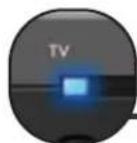
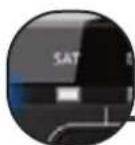
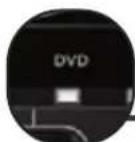
HynnpaHe Ha hactpoknTe
HynpaheTo Ha HactpOienKte ue n3tpne BcNKn 3ayeHN yHKnBvB BcNKn peXMMn HAKOn dpyrnporpaMpaHn fyHKn, KaTo Key Magic makpokomahnte.
1) HATNCHETe n 3aDpBxTe magic 3a 3 cekyHn,doKaTo NHnKAtOpbT 3a peXmU (CnH CBTnHEn NHnKAtOp) OCTaHe CBETHaT.
2)HaTnCHete 980.->CmHnT CBETnHHeH HnDMkAtOp ue