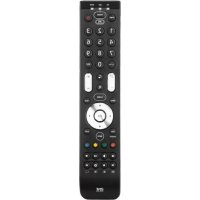
Kameleon 6 URC 8060 - Controller ONE FOR ALL - Free user manual and instructions
Find the device manual for free Kameleon 6 URC 8060 ONE FOR ALL in PDF.



| Product type | Universal remote |
| Brand | One For All |
| Model | Kameleon 6 URC 8060 |
| Number of controllable devices | Up to 6 audio/video devices |
| Display type | Electroluminescent (EL) backlit |
| Power supply | 4 AAA/LR03 alkaline batteries (included) |
| Dimensions (approx.) | 20 x 5 x 2 cm |
| Weight (with batteries) | Approx. 150 g |
| Infrared range | Long range thanks to two powerful IR emitters |
| IR frequency | Up to 450 kHz |
| Learning function | Yes, copies functions from original remote (approx. 50 functions) |
| Macros | Yes, command sequences up to 15 steps |
| Sleep timer | Yes, built-in for device or remote-specific |
| Code update | Yes, via Internet or phone (magnetic coupling) |
| Channel +/- simulation | Yes |
| Direct volume access | Yes, from another mode |
| Key Magic | Yes, programming missing functions via code |
| Device key reassignment | Yes, possibility to change a key's mode |
| Cleaning and maintenance | Wipe with a soft, dry cloth. Avoid moisture. |
| Safety | Do not expose to water, shocks, or excessive heat. |
| Batteries | Use only AAA/LR03 batteries. Observe polarity. |
| Warranty | 1 year (parts and labor) |
| Consumer service | Website: www.oneforall.com, phone (0800 907357 in France), email: ofahelp@uebv.com |
Frequently Asked Questions - Kameleon 6 URC 8060 ONE FOR ALL
User questions about Kameleon 6 URC 8060 ONE FOR ALL
0 question about this device. Answer the ones you know or ask your own.
Ask a new question about this device
Download the instructions for your Controller in PDF format for free! Find your manual Kameleon 6 URC 8060 - ONE FOR ALL and take your electronic device back in hand. On this page are published all the documents necessary for the use of your device. Kameleon 6 URC 8060 by ONE FOR ALL.
USER MANUAL Kameleon 6 URC 8060 ONE FOR ALL
(How to set up the KAMELEON 6 to control your devices)
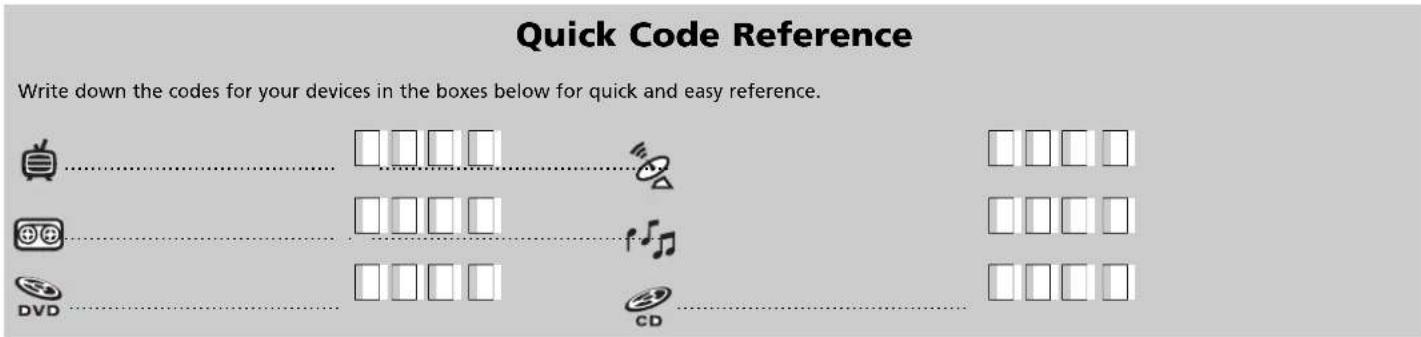
Direct code set up 6
Quick Code Reference 6
Search Method 7
Code blink out (to find out which code is currently programmed) 7
LEARNING FEATURE
(How to copy functions from your original working remote onto the KAMELEON 6)
Learning (direct) 8
Shifted Learning 9
EXTRA FEATURES
Mode re-assignment (Changing a Device Mode) 10
Colour & Brightness 11
"EL" Screen brightness adjustment 11
Channel +/- simulation 11
Volume Punch-Through 12
Sleeptimer 12
Macros (sequence of commands) 13
Key Magic (how to program missing functions) 14
Code upgrade technology 15
TROUBLE-SHOOTING
Problem & Solution 16
Customer Service 16
SET-UP CODES:
Televisions 113
Video Recorders 118
Satellite Receivers 120
Cable Converters 122
Video Accessory 123
CD/Mini Disc Players 123
Phonograph Player 123
Miscellaneous Audio 124
Amplifiers 124
Amp/Tuners 124
Cassette Players 125
Laser Disc (LD) Players 125
Digital Audio Tape (DAT) Players 125
DVD Players 125
Your ONE FOR ALL KAMELEON 6 package contains:
- Your KAMELEON 6 universal remote control (incl. 4 AAA/LR03 alkaline batteries).
- Your KAMELEON 6 manual.
- 4 Additional AAA/LR03 alkaline batteries.
Your KAMELEON 6 manual is divided into two parts:
- "Set-Up Instructions".
- "Device Codes".
You will need this manual to set up your new KAMELEON 6 so please be sure to keep it.
Easy to use unique "EL" display
By choosing the ONE FOR ALL KAMELEON 6 universal remote control you have opted for easy use. Your KAMELEON 6 features a unique, user-friendly backlit display, which ensures you have easy access to all the keys you need, whilst hiding those you don't. Made of the strictest quality, it will provide long-term satisfaction. When replacing batteries, you will need to first press any key before the screen will light up. From then on, the display will automatically illuminate whenever the remote is picked up or moved.
Controls up to 6 devices
Your KAMELEON 6 is designed to let you use one remote to operate your Video and Audio equipment; any device designed to be operated by an infrared signal. Your KAMELEON 6 comes with 2 IR (infra-red) wide range transmitters for maximum range and is High Frequency capable up to 450kHz . You can choose any combination of six devices you would like to operate (see page 6 for more information).
Learning feature
The KAMELEON 6 comes equipped with the unique "learning feature" (next to the regular Set Up), which means that you can copy almost any function from your original (working) remote control onto your new KAMELEON 6 (See "Learning Feature" on page 8.). This comes in handy, when after having setup your KAMELEON 6 you may find some functions from your original remote missing on your KAMELEON 6 key pad.
Macros (sequence of commands)
Your KAMELEON 6 comes with an easy-to-use Macro feature, allowing you to send several commands with the press of a single key (for example turning all your home theatre devices on or off).
Code upgrade technology
Your ONE FOR ALL KAMELEON 6 also offers a Code upgrade technology. This technology gives you the possibility to add codes to the memory. If your device uses a particular code which is not found in the KAMELEON 6 memory (using the "Direct code set up" on page 6 or the "Search Method" on page 7) you may use the "Code Upgrade Technology" (see page 15). Thanks to this technology your KAMELEON 6 will never become obsolete.
Batteries
Your KAMELEON 6 comes with 4 new AAA/LR03 (+4 extra) alkaline batteries.
- Unscrew and remove the battery cover from the back of your KAMELEON 6.
- Match the batteries to the (+) and (-) marks inside the battery case, then insert the batteries.
- Replace the battery cover and tighten the screw.
After re-installing the batteries, the entire "EL" display will be lit for a duration of 6 seconds after which it will default to the TV mode.
The Keypad
- IR (infra-red) indicator

The IR Indicator animates when IR is being "sent" or "received". The KAMELEON 6 animated IR Indicator will show "outgoing IR" whenever a functional key is pressed. When using the "Learning Procedure" and "upgrading service" the animated IR indicator will show "incoming IR". The IR Indicator will give feedback (bottom part will blink) when keys are pressed both during normal use and in programming mode the bottom part of the IR indicator will blink.
- Device 1


The TV, VCR, DVD, SAT, AUD and CD keys select the device to be controlled. For example pressing the TV key allows the remote to control the functions of your Television, after pressing VCR you can operate your Video Recorder, after pressing the SAT key you can operate your Satellite Receiver or Cable Converter etc. (see page 6 for more details). As an added value your KAMELEON 6 features a special animation movement within every device key. After pressing a device (mode) key on your KAMELEON 6 an animated movement will begin, to show the currently activated mode. Pressing the device key will allow you to return to the main screen (TV, VCR, SAT modes).
- POWER (shifted mode; Sleeptimer)


The POWER key controls the same function as on your original remote. In shifted mode (accessed by pressing MAGIC shortly and releasing it) the POWER key becomes the Sleeptimer function (see page 12).
The Keypad
4. "EL" panel with animated screens
This product features an "EL" panel (Electro Luminescence technology) which is motion activated. In order to save battery life, the "EL" screen will stay illuminated for 10 seconds during normal use. It is also possible to increase or decrease the brightness on the KAMELEON 6 "EL" panel. To do so, please refer to page 11. One of the key features of the KAMELEON 6 is the "EL" display, which changes to suit the device you are controlling. The next overview will show you all the possible screens and the functions that you will obtain.
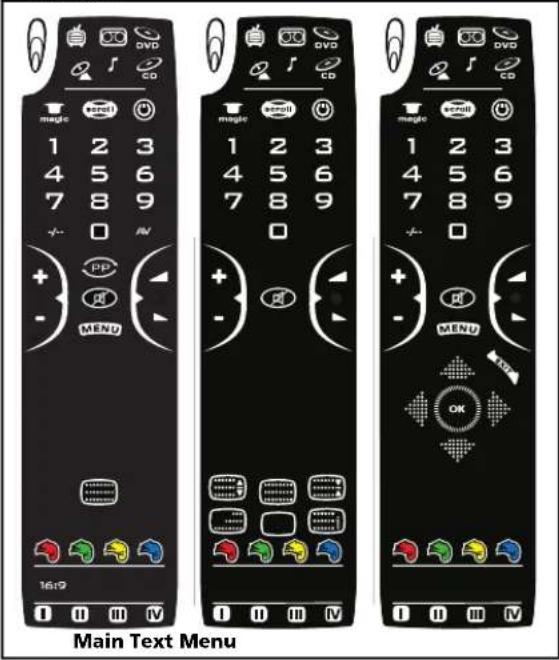
TV Mode
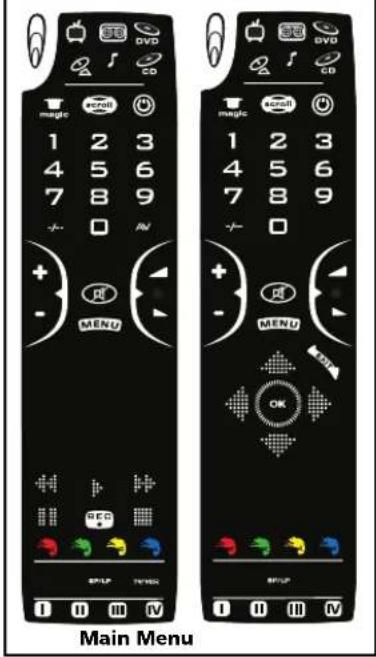
VCR Mode
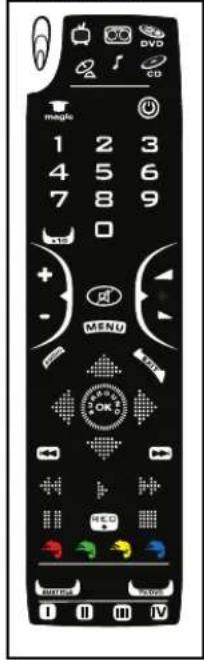
DVD Mode
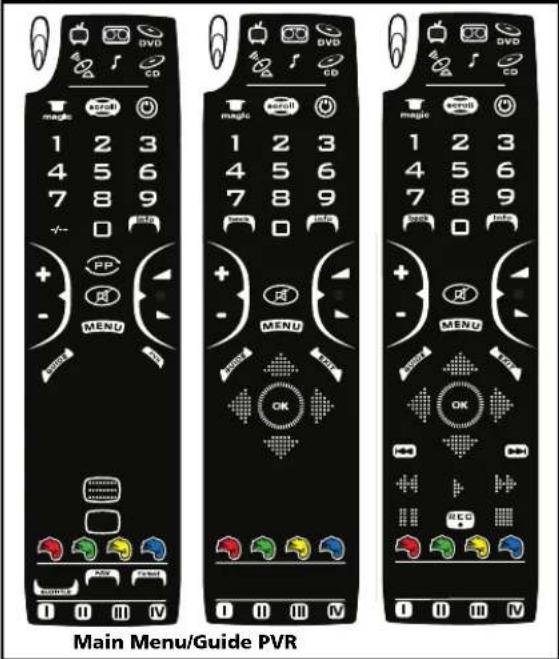
SAT Mode
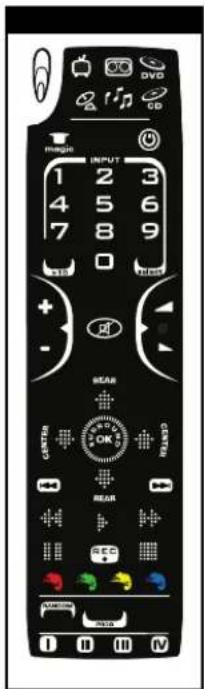
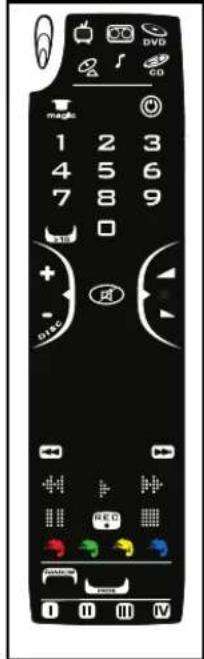
CD ModeAUD Md

5. MAGIC (in "shifted
magic


programming"mode)
The MAGIC key is used to set up your KAMELEON 6 and to access special functions. If you press this key shortly, the screen will go into "shifted" mode (for 10 seconds). If you press this key longer (about 3 seconds), the KAMELEON 6 will go into "programming" mode (during "programming" mode you will see the rabbit icon above the hat).

6. SCROLL

7.Number


The SCROLL key gives you the possibility to move through the different screens (if applicable) within a certain mode during normal use and programming mode. This only applies in TV, VCR and SAT modes.
The number (1 - 9, 0) keys provide functions just like your original remote. In AUD mode the number keys will provide direct input selection.
The Keypad
- Back / >10/

If your original remote uses one/two digit input switching (- / - symbol), this function can be obtained by pressing the - / - key. In SAT menu mode you may use the "back" key to go the previous menu screen. In DVD, CD or AUD mode you will obtain the >10 function.
- Info AANs eletiv

The AV key operates the same function it did on your original remote control. Also, if your original remote has a 20 key, this function can be found under the AV key. In SAT mode you can select the "info" function. In AUD mode the "select" key will give you the possibility for direct input selection if your original remote has one single key for input selection.
- CH +/- (in shifted mode; brightness +/-) / (in CD mode DISC +/-)
These keys operate just as those on your original remote. In CD mode they will function as Disc +/- keys. In shifted TV mode (accessed by pressing MAGIC shortly and releasing it) these keys may provide you the brightness +/- function.
- VOL +/- (in shifted mode; colour +/-)
()
The volume keys operate just as those on your original remote. In shifted TV mode (accessed by pressing MAGIC shortly and releasing it) these keys may provide you the colour +/- function.
- PP

In TV and SAT mode this key may feature the "Last Channel", "Previous Program" or "Recall" function (depending on your original remote control).
- MUTE

The Mute key operates the same function it did on your original remote control.
- MENU

Pressing this key will allow you to operate the Menu and in TV, VCR and SAT mode will change the screen to menu mode. The MENU key operates the same function it did on your original remote control.
15.AUDIO/GUDE

In DVD mode you will obtain the "Audio" function. In SAT mode the "GUIDE" key will change the screen into SAT-menu mode and give you the "Guide" function, if available on your original remote.
16.PVR/EXIT

In SAT mode the "PVR" key will change the screen into SAT PVR (Personal Video Recorder), which will bring up the transport functions. If your digital satellite receiver or cable converter has a built in recording function, you can operate it with these keys. The EXIT key will operate the same as on your original remote. To return to the main screen (TV, VCR, SAT modes) press the device key or use the SCROLL key.
- Directional

If available on your original remote control, these keys will allow you to navigate through the menu.
- OK/SURROUND

If available on your original remote this key will allow you to access the surround mode of your device. In menu mode this key will confirm your choice.
- CENTER / REAR


中

- SKIP (+)

In AUD mode these keys will (if available on your original remote) allow you to adjust the center and rear levels of your speaker(s).
These keys operate just as those on your original remote. In SAT ("PVR"), CD, DVD and/or AUD mode they will function as SKIP (TRACK) +/- keys. The screen will show an animation when pressing the SKIP +/- keys.
The Keypad
21. Transport keys



22. Teletext Key
When in VCR, DVD, SAT ("PVR"), CD or AUD mode; these keys operate the transport functions (PLAY, FF, REW etc.) of your device. To prevent accidental recording, the RECORD key must be pressed twice to start recording.
After pressing the TV Text key this will switch on text and more text functions will be displayed. These keys are used to operate the main teletext functions. Of course, your Television must have teletext capability. For a more detailed explanation of teletext and fastext, please refer to the manual of your television. Remember, different televisions control teletext and fastext functions in different ways. Not all of the teletext functions may be available on your particular model. You can also access the text keys in TV mode by pressing the SCROLL key.

EXPAND:
Shows the top half of the teletext page in larger letters. By pressing again, you can see the bottom half of the teletext page enlarged. To return to regular teletext viewing, press the EXPAND key again, or press the TEXT ON key, depending on your television.

TEXT ON:
In TV mode: once in text mode, pressing this key may switch to MIX or TURN OFF text, depending on your television. This function is also available in SAT mode.

HOLD/STOP: Stops changing pages.

MIX: Shows both text and TV picture.

TEXT OFF:
In TV mode: switches the television back to regular viewing mode and changes back to TV-main screen. On some televisions this may be done by pressing the "TEXT ON" key several times. This function is also available in SAT mode.

TEXT INDEX: This key will give you access to the index function within the text mode.
23.


When accessing the text mode, the colour keys marked red, green, yellow and blue, allow you to access the fastest functions of your television. If on your original remote control these keys are used for Menu navigation, the KAMELEON 6 Fastext keys may operate the same.
24.



In CD and AUD mode you will obtain the RANDOM (or shuffle) function. In TV mode you will obtain the 16:9 (screen format) function. In SAT and DVD mode you will obtain the SUBTITLE function.
25.



In SAT mode you will obtain the FAV (favourite) function. In VCR mode you will obtain the SP/LP (tape speed) function. In AUD and CD mode you will obtain the PROG (program) function.
26.



In SAT mode you will obtain the TV/SAT function. In VCR mode you will obtain the TV/VCR function. In DVD mode you will obtain the TV/DVD function.
27.


The custom keys are spare keys that give you the possibility to customize the KAMELEON 6 according to your original remote control using the "Learning feature" (see page 8) or "Key Magic" (see page 14). These keys are also ideal for use as "Macro keys" (see page 13).
After having used the "Direct Code Set up" or Search Method your KAMELEON 6 may also feature standard picked functions on the I, II, III and IV key. These functions may differ per device mode. Please check the table below.
| Key Device Mode & Function | ||||||
| CD | DVD | CD | CD | CD | ||
| I | - | - | Display / OSD | Radio / Radio/TV | DTS / 5.1CH / Prologic | Finalize |
| II | - | - | Angle | Audio / Language / Sound | DSP, DSP+ | Clear, Cancel |
| III | - | - | Title | Help | Delay + | Timer |
| IV | - | - | Zoom | List | Delay - | Sync. |
(How to set up the KAMELEON 6 to control your devices)
Direct Code Set Up
Example: To set up the KAMELEON 6 for your television:
1 Find your device code in the code section (page 113-126). Codes are listed by device mode and brand name. The most popular code for each brand is listed first.
2 Make sure your television is switched on (not on standby).
3 Press and release the TV key on your KAMELEON 6.
4 Press and hold down the MAGIC key (for about 3 seconds) until the rabbit comes out of the hat.

5 Enter your four-digit code using the number keys. The bottom part of the animated IR Indicator will blink twice.

6 Now, aim your KAMELEON 6 at your television and press POWER. If your television switches off, your KAMELEON 6 should be ready to control your television.
Most TV's do not switch back on pressing the POWER key, please try pressing a "number" key or the "TV-text off" key to switch your TV back on (you can use the SCROLL key to access this function).
If your device does not respond, follow steps 1 through 6 with each code listed for your brand. If none of the codes listed for your brand operates your device, then try the Search Method described on page 7, even if your brand is not listed at all.
Some codes are quite similar. If your device does not respond or is not functioning properly with one of the codes, try another code listed under your brand.
If the original remote control from your Video Recorder did not have a POWER key, press PLAY instead of POWER during step 6.
- To set up your other devices, follow the same instructions above, only press the appropriate device key during step 3.
- Remember to press the correct device key before operating your device. Only one device (CD, amplifier, cassette etc.) can be assigned to a device key. If your original remote operates more than one device (for example; a receiver, CD player and cassette player in one remote), you need to set up each device separately.
Devices (code groups) can be set-up on the following (Mode) keys:
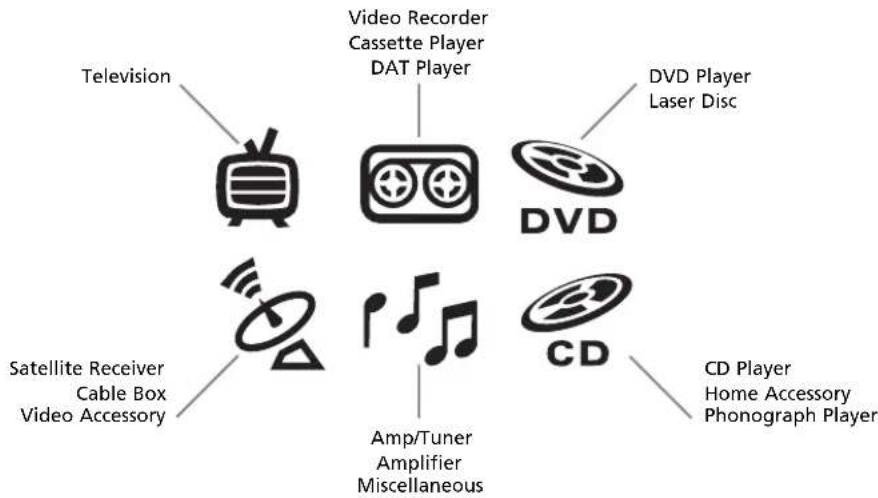
To set up a second TV, VCR, SAT, CD, AUD or DVD (See page 10).
Search method
If your device does not respond to the KAMELEON 6 after you have tried all the codes listed for your brand, try searching for your code. The Search Method allows you to find the code for your device by scanning through all the codes contained in the memory of the KAMELEON 6. The Search Method may also work if your brand is not listed at all.
Example: To search for your TV code:
1 Switch your Television on (not on standby).
Press the TV key on your KAMELEON 6.
3 magic Aim the KAMELEON 6 at your Television. Press and hold down the MAGIC key (for about 3 seconds) until the rabbit comes out of the hat.

4 991 Press 9 91, the bottom part of the animated IR Indicator will light up twice.
5 Next, p433 POWER.
Now press CH+ over and over, until your Television turns off (everytime you press the CH+ key the KAMELEON 6 will send out a POWER signal from the next code contained in the memory). You may have to press this key many times (up to 150 times) so please be patient. If you skip past a code, you can go to the previous code(s) by pressing the CH- key. Remember to keep pointing the KAMELEON 6 at your Television while pressing this key.
When your Television switches off, press the MAGIC key to store the Code. The bottom part of the animated IR Indicator will light up twice. Now your KAMELEON 6 should be ready to control your television.

- Most TV's do not switch on pressing the POWER key. Please try pressing a "number" key or the "TV-text off" key to switch your TV back on (you can use the SCROLL key to access this function).
If you cannot control your Television properly, please continue the Search Method, you may be using the wrong Code.
During step 5, instead of POWER you can also press 0,1,2,3,VOL+,PLAY,STOP or MUTE. This will be the function sent for the next key presses of CH+ or CH- in step 6. If for example; during step 5, you press "2" instead of "POWER", the KAMELEON 6 will send the "number 2" signal every time you press CH+ during step 6 (make sure your TV is switched to an other channel).
During step 6, while searching you can sample any of the following keys 0, 1, 2, 3, VOL+, PLAY, STOP, MUTE and thereafter continue the search (CH+ on CH-) with the last function sampled. Pressing CH+ will send the signal from the next code contained in the memory. Pressing CH- will send the signal from the previous code. This can be useful if you missed the code while searching (reversed search).
To search for your other devices, follow the same instructions above, only press the appropriate device key during step 2.
If your Video's original remote control does not have a POWER key, press PLAY instead of POWER during step 5.
Code blink out (to find out which code is currently programmed)
If you have set up your KAMELEON 6 via the Search Method, you can blink back your code for future reference. Please note that the bottom part of the animated IR Indicator will indicate the 4 digits by animated blink(s).
Example: To blink out your television code:
-
Press the TV key on your KAMELEON 6.
-
Press and hold down the MAGIC key until the rabbit comes out of the hat.

- 990 Press 9 9 0, the bottom part of the animated IR Indicator will light up twice.
- For the first digit of your four-digit code, press 1 and count the blinks on the bottom part of the animated IR Indicator. If there are no blinks, the digit is "0".
- For the second digit, press 2 and count the animated blinks. If there are no blinks, the digit is "0".
- For the third digit, press 3 and count the animated blinks. If there are no blinks, the digit is "0".
- For the fourth digit, press 4 and count the animated blinks. If there are no blinks, the digit is "0".
To blink back the code for your other devices follow the instructions above, only press the appropriate device key during step 1.
Learning (direct)
(How to copy functions from your original working remote onto the KAMELEON 6)
The KAMELEON 6 comes with a complete library of pre-programmed codes. After you have set up the KAMELEON 6 for your device, you may find that there are one or more keys that you had on the original remote control, which do not have a place on the KAMELEON 6 keypad.
The KAMELEON 6 offers a special Learning feature that allows you to copy almost any function from your original remote control onto the keypad of the KAMELEON 6.
The custom keys (I - IV) have been especially provided for this feature. If you need to learn more than four functions per mode (max. approximately 50 functions), you need to place the function on another key or on a shifted key.
Before you start:
- Make sure your original remote is working correctly.
- Make sure neither your KAMELEON 6, nor your original remote control is pointing at your device.
Example: To copy the "mono/stereo" function from your original TV remote control onto the "IV"-key of your KAMELEON 6.
1.
Place the KAMELEON 6 and your original remote control on a flat surface. Make sure the ends which you normally point at your device are facing each other. Point the original remote to the front left side of the KAMELEON 6 (see picture below). Keep the remotes at a distance of 2 to 5 cm (0.8 to 2 inches).

2.

Press and hold down the MAGIC key (for about 3 seconds) until the rabbit comes out of the hat.

3.
975
Press 975. The bottom part of the animated IR Indicator will blink twice.
4.

Press the device key (Example: TV key) on the KAMELEON 6 remote to select the mode to which you want to copy the learned function.
5.

Press the key (Example: IV key) on the KAMELEON 6 remote where you want to place the learned function. The IR Indicator will show "incoming IR" three times and then the display will switch off.
6.

Press and hold the key that you want to copy (Example: mono/stereo key on your original remote control). The display switches back on and you will see two blinks to indicate successful learning operation.
7.
If you want to copy other functions within the same mode, simply repeat steps 5 and 6 pressing the next key you want to copy by learning. If your want to copy another function in a different mode, simply continue with step 4 followed by steps 5 and 6.
8.

magic
To exit the learning mode, Press and hold down the MAGIC key (for about 3 seconds) until the bottom part of IR Indicator blinks four times.

As soon as the display switches off in step 5 you need to press the key (in this example: the "mono/stereo" key) on your original remote within 5 seconds. If no key is pressed while in
learning mode, the remote will return to user mode after 30 seconds.
- During learning, keys such as (TV) text, (TV) menu etc. will not change screen when pressed.
If you learn a function on a key, the original KAMELEON 6 function automatically becomes shifted. Press the MAGIC key then the key to access it (this excludes the POWER, Channel and Volume keys). If you learned on a digit key, access the original function by pressing magic twice and then the digit.
If you want to learn a function on a key that is not in the main screen, use the SCROLL key to change the screen.
The learning feature is mode specific. Therefore you can place one learned function per mode on the same key.
- The KAMELEON 6 can learn approximately 50 functions.
- You can replace a learned function by placing another learned function on top.
- Please make sure not to use the learning procedure when in direct sunlight or under incandescent lights.
- Make sure you are using new batteries before following the instructions above.
Upon changing the batteries, your learned functions will be retained.
Learning Feature
Shifted Learning
It is also possible to place a function shifted on a key to maintain the original function.
Example: to place the mono/stereo function shifted on the "red" key.
To place a shifted function on a certain key, simply follow steps 1-8 on the previous page, only press "MAGIC" before starting step 5.
To place the (e.g. mono/stereo) function shifted on the red key, simply follow steps 1-8 on the previous page, only press "MAGIC" then the "red" key (instead of "IV") during step 5.
To access the e.g. "mono/stereo" function in this example; simply press "MAGIC" then the "red" key.
If a Shifted Learned function is placed on the POWER, Channel and Volume keys then the "Sleeptimer" and "Colour & Brightness features will be sacrificed.
If you place a function shifted on a digit key (0 - 9) you need to press MAGIC twice then the digit key to access this shifted function.
To delete a learned function: (To delete one single learned function, follow the steps below.)
Example: to delete the mono/stereo function learned on the IV key in TV mode:
- Press and hold the MAGIC key until the rabbit comes out of the hat.
- Press 976. The bottom part of the animated IR Indicator will blink twice.
- Press the device key (example TV) in which the function will be deleted.
-
Press the learned key which you want to restore (example IV) twice. The IR Indicator will blink twice. (*)
-
The original function (if present) of the KAMELEON 6 will be restored.
- If there is another learned function you want to delete, repeat steps 1 - 4.
To delete a "Shifted" learned function: (To delete one single "shifted" learned function, follow the steps below.)
Example: to delete the mono/stereo function learned shifted on the "red" key in TV mode:
- Press and hold the MAGIC key until the rabbit comes out of the hat.
- Press 976. The bottom part of the animated IR Indicator will blink twice.
- Press the device key (example TV) in which the function will be deleted.
-
Press MAGIC then press the learned key which you want to restore (example "red" key) twice. The IR Indicator will blink twice. (*)
-
The original function (if present) of the KAMELEON 6 will be restored.
-
If there is another Shifted learned function you want to delete, repeat steps 1 - 4.
To delete all learned functions within a certain mode
Example: to delete all learned functions within the TV mode:
- Press and hold the MAGIC key until the rabbit comes out of the hat.
- Press 976. The bottom part of the animated IR indicator will blink twice.
- Press the mode key in which you want to delete all functions twice. In our example, press TV twice. The IR Indication will light up twice.
To delete all learned functions across all modes:
- Press and hold the MAGIC key until the rabbit comes out of the hat.
- Press 980. The IR Indicator will blink four times.
If you follow steps 1 and 2 above this may also delete some other programmed functions that are listed in this manual.
Mode re-assignment (Changing a Device mode)
It is possible to change the mode of any device key. This is useful if you want to set up two of the same devices on the KAMELEON 6. The modified device key will display the applicable keys for the revised mode. The code can be set up using "Direct set up" (p. 6) or "Search method" (p. 7). To change a device key, see the two examples below.
Example 1; if you like to program a second TV on the DVD key.
Example 2; if you like to program a second VCR on the CD key.
Example 1:
To program a second Television on the DVD key (for example), you need to change the DVD key into a TV key, so press:





The DVD key has now become a second TV key and will display the applicable keys for this mode.
- Now enter the Set-Up code for your second TV by pressing:





(TV Code) (^**)
Example 2:
To program a second Video Recorder on the CD key (for example), you need to change the CD key into a VCR key, so press:







The CD key has now become a second VCR key and will display the applicable keys for this mode.
- Now enter the Set-Up code for your second VCR by pressing:





(VCR Code) (^**)
() Hold down the MAGIC key until the rabbit comes out of the hat.
(^*) The bottom part of the animated IR Indicator will blink twice.


The animation (icon) of the device key will stay retained while the mode will change. If you program a different device type on another key (e.g. second TV on the DVD key) the original device key icon will remain, but the function will change to suit the new device mode. For example; if a second TV is programmed on the DVD key, teletext functions will become available in DVD mode.
Resetting a Device key
Example: To reset the DVD key to its original mode, press:





() Hold down the MAGIC key until the rabbit comes out of the hat.
(^*) The bottom part of the animated IR Indicator will blink twice.


Extra Features
Colour & Brightness
Depending on the functions of your original remote control, the KAMELEON 6 can operate the colour and brightness settings of your Television.
To adjust the colour:
Press the MAGIC key followed by Volume + (for colour +) or Volume - (for colour -).
To adjust the brightness:
Press the MAGIC key followed by Channel + (for brightness +) or Channel - (for brightness -).
"EL" Screen brightness adjustment
To increase or decrease the brightness of the KAMELEON 6 "EL" screen.
- Press and hold the MAGIC key until the rabbit comes out of the hat.
- Press 974. The icons for colour and brightness will appear.
- To increase the brightness of the "EL" screen press CH+. To decrease the brightness of the "EL" screen press CH-.
- Press MAGIC to store the brightness setting.
Increasing the brightness of the KAMELEON "EL" panel can affect the battery life. Battery life varies from 3 - 12 months (depending on brightness setting and usage).
Channel +/- simulation
If your original TV, VCR or SAT/CABLE remote control does not have any channel +/- keys, your KAMELEON 6 can simulate this function.
Example: to program "Channel +/- Simulation" in TV mode.
- Press TV once.
- Press and hold the MAGIC key until the rabbit comes out of the hat.
- Press 971. The bottom part of the animated IR Indicator will light up twice.
The original channel + / - function of your TV (if present) on the CH + / - key will now be sacrificed.
Example: to cancel the "Channel +/- Simulation" in TV mode:
- Press TV once.
- Press and hold the MAGIC key until the rabbit comes out of the hat.
- Press 971. The bottom part of the animated IR Indicator will blink four times.
The CH + / - function of your TV (if present) will now be restored.
- The Channel +/- simulation will be limited to: (1 - 9,0) .
Channel +/- simulation will only function in TV, VCR and SAT/CABLE mode (if, for example, you changed the VCR key in a DVD key, Channel +/- simulation will not work). - It is only possible to switch Channel +/- simulation on for one mode at a time.
Volume Punch-Through
This feature allows you to adjust the volume in a certain mode (e.g. TV mode) while being in a different mode (e.g. VCR). If for example you're watching a programme on your Video, you can adjust the volume (a TV function) without first pressing the TV key. The chart below lists some of the possibilities:
Last key pressed: You can control:
VCR TV volume up and down, mute
DVD TV volume up and down, mute
SAT TV volume up and down, mute
AUD TV volume up and down, mute
CD TV volume up and down, mute
To punch through to TV volume, being in another mode (VCR, DVD, SAT, AUD or CD mode):
-
Press and hold down the MAGIC key until the rabbit comes out of the hat.
-
Press 9 93.
-
Then press the TV key and the bottom part of the animated IR Indicator will blink twice.
Example: being in SAT mode, you will be able to control VOL+/- or MUTE functions of your TV.
To cancel the "Volume Punch Through" per mode:
(Example: to cancel the "Volume Punch Through" to your CD)
- Press CD once.
- Press and hold down the MAGIC key until the rabbit comes out of the hat.
- Press 9 9 3.
- Then press the VOL (-) key and the animation on the bottom part of the IR Indicator will blink four times.
Example: being in CD mode, you will be able to control VOL+/- or MUTE functions of your CD (provided it has volume control).
To cancel the "Volume PunchThrough" for all modes:
- Press and hold down the MAGIC key until the rabbit comes out of the hat.
- Press 9 9 3.
-
Then press the VOL (+) key and the animation on the bottom part of the IR Indicator will blink four times.
-
In all modes the VOL+ , VOL- and MUTE keys will now operate the original functions again.
Volume Punch-Through does not apply for modes that have been changed by mode re-assignment (see page 10).
Sleeptimer
Device Sleeptimer
If your television, satellite receiver, audio or CD player has a "Sleeptimer" function built in, you can access this function with your KAMELEON 6 remote. To do so:
- Make sure your TV (or satellite receiver, audio or CD player) is switched on.
- Press the device key TV (or SAT, AUD or CD).
- Point the KAMELEON 6 at your television (or satellite receiver, audio or CD player) and press and release the MAGIC key then press POWER. You should see the Sleeptimer activate on your TV screen.
To increase the timer, simply press POWER again (within 10 seconds) until the timer gets to the desired time.
To deactivate the "Device Sleeptimer", repeat steps 1-3 above. During step 3, continue pressing POWER again (within 10 seconds) until the timer indicates zero minutes.
Depending on how you used sleptimer on the original remote, you might need to access sleptimer in a different way (through menu for example).
The KAMELEON 6 Sleeptimer
If your device does not have a sleptimer function built in, you can install the "KAMELEON 6 Sleeptimer" function.
- Press the device key (TV, SAT, CD or AUD).
- Then, press and hold the MAGIC key until the rabbit comes out of the hat.
- Press 970. The bottom part of the animated IR Indicator will light up twice again.
It is only necessary to follow steps 1, 2 and 3 once. For subsequent use of the "KAMELEON 6 Sleeptimer", simply follow steps 4, 5, 6 and 7.
To switch the KAMELEON 6 back to "Device Sleeptimer", repeat steps 1, 2 and 3. The IR Indicator will blink 4 times.
It is possible to set the KAMELEON 6 Sleeptimer for 15, 30, 45 or 60 minutes. To do this;
- Make sure that your device is switched on.
- Press the device key (TV, SAT, CD or AUD).
- Now, press and release the MAGIC key, then press POWER. For each keystress of the POWER key the "zZ" animation will appear. To increase the timer, simply press POWER again (this must be done within 10 seconds). You can press POWER to a maximum of four times which will set the timer to 60 minutes.
-
Once you have set the timer to the desired time, set your KAMELEON 6 down, pointing it at your device. When the programmed amount of time has elapsed, the KAMELEON 6 will send the command for POWER, hence turning off your device.
-
While in sleeptime mode, the display will be turned off.
- The "zZ" animation (next to the POWER key) will animate every 15 seconds indicating that the remote is in sleeptimer mode.
- To deactivate the Sleeptimer, simply press any key on the KAMELEON 6 remote. This will also turn the display back on.
- Remember, when using the KAMELEON 6 Sleeptimer, you must set the remote so it is pointing at your device.
- The KAMELEON 6 Sleeptimer can only be set for only one device at a time.
Macros (sequence of commands)
Macros (direct)
You can program your KAMELEON 6 to issue a sequence of commands at the press of one button. For example, you may want to turn off your TV, VCR and Satellite at the same time. Any sequence of commands you regularly use can be reduced to one key stroke for your convenience. A key that is programmed with a Macro works through all modes (provided it's accessible in that mode). Therefore a Macro should only be set on the Custom keys (I - IV). You can install a Macro on any key, except for the device keys (TV, VCR, SAT, CD, AUD and DVD), the MAGIC key and the SCROLL key.
Example: To set up a Macro that switches off your TV, VCR and SAT on the key labelled "IV" on your KAMELEON 6:
- Press and hold MAGIC until the rabbit comes out of the hat.
- Press 9 95.
- Then press the "IV" key to which the Macro will be assigned.
- Next press TV, POWER, VCR, POWER, SAT, POWER.
- To store the Macro, press and hold MAGIC until you get two blinks on the IR Indicator and the rabbit disappears.
- Whenever you press the "IV" key, the KAMELEON 6 will turn off your TV, VCR and Satellite.
Each MACRO can consist of a maximum of 15 keystrokes.
- To include a function from a particular screen in a mode, use the SCROLL key.
- Make sure that you program a Macro on a spare key that you don't use in any mode.
- Once you program a Macro on a specific key, the sequence will work regardless of the mode (TV, VCR, SAT, CD, AUD or DVD) you are using. This means that the function picked on that specific key will be sacrificed.
To avoid accidental recordings with the KAMELEON 6, you must press the RECORD key twice to begin recording. Please note that if you assign a Macro or Shfted Macro on the RECORD key this will deactivate the double key press. Therefore we recommend not to assign a Macro to this key.
If you had to hold down a key for a few seconds on the original remote control to get a function, this function may not work in a macro on your KAMELEON 6 remote.
- Keys such as (TV) text, (TV) menu etc. will not change screen when pressed during Macro programming.
- Upon changing the batteries your Macros will be retained.
If you program a Macro on a key, the original function will become shifted (excluding POWER, CH+/- and VOL+/- keys). Press MAGIC then the key to access it. If you place a Macro shifted on a digit key, access the original function by pressing MAGIC twice and then the digit key.
- You can replace a Macro by placing another Macro on top.
Extra Features
Shifted Macros
It is also possible to place a shifted Macro on a key to maintain the original function.
If for example, you want to program a shifted Macro on the red Key (so that you will keep the original function on that key). Please follow steps 1-6 on the previous page. Simply press MAGIC once then the "red" key (instead of "IV") during step 3 on the previous page. Now every time you press "MAGIC", then "red" key, the KAMELEON 6 will turn off your TV, VCR and Satellite.
If a Shifted Macro is placed on the POWER, CH+/- or VOL+/- keys, the Sleeptimer and Colour/Brightness features will be sacrificed.
To erase a (direct) Macro
Example: To erase the Macro from the "IV" key, press: MAGIC 9 9 5 "IV" MAGIC*
To erase a (shifted) Macro
Exemple: To erase the Shifted Macro from the red key press:
MAGIC 995 MAGIC "red key" MAGIC*
- Here you must hold down MAGIC until the rabbit comes out of the hat.
** Here you must hold down MAGIC until the IR Indicator will blink twice and the rabbit will disappear.
Key Magic
(How to program missing functions)
Key Magic is an exclusive ONE FOR ALL feature. The design of the KAMELEON 6 ensures that many functions of your original remote control can be operated - even those that do not have their own key on the KAMELEON 6 keypad. Frequently used functions can be assigned to a key of your choice using the Key Magic feature of your KAMELEON 6. In order to program a certain function with Key Magic you need to know the corresponding function code. As the function codes vary with different types of devices, they cannot be found in the manual. You can request your function codes through our consumer service help-line, by letter, fax or e-mail. All we need to know is the 4-digit set-up code your device is working with and how the function was labelled on your original remote control.
You can also visit our website (www.oneforall.com) to find an answer to your questions.
Once you obtain(ed) your function code(s) from customer service, programming the code is easy:
- Press the device key (TV, VCR, SAT, CD, AUD or DVD).
- Press and hold the MAGIC key until the rabbit comes out of the hat.
- Press 9 9 4. The bottom part of the IR Indicator will blink twice.
- Press the MAGIC key once.
- Enter the 3-digit function code (provided by customer service).
- Press the key to which the function will be assigned (if this key is located in a different screen than the main screen, use the SCROLL key to access the screen). The IR Indicator will blink twice.
EXTENDED FUNCTION REFERENCE (first entry is an example):
DEVICE SET-UP CODE FUNCTION FUNCTION CODE
TV 0556
16/9 format
234
- As Key Magic * functions are mode specific, to access the function you have programmed, press the device key first.
Key Magic can be assigned to any key EXCEPT the following: Device keys, MAGIC key and the SCROLL key. - The Custom Keys (I, II, III, IV) are spare keys, which can be used for programming Key Magic ^ functions. If you need more than four keys,make sure you program your extended function on a spare key in the device mode you are using.
- Please note all the extended function codes you obtain from customer service for easy future reference.
- The SCROLL key can be used to assign a function to a key in a particular screen.
- Keys such as (TV) text, (TV) menu etc. will not change screen when pressed during Key Magic programming.
Code Upgrade Technology
Your KAMELEON 6 contains a unique feature, which allows new codes to be added to the memory: either by Internet or over the phone. In a matter of seconds, our magnetic coupling technology quickly and reliably transfers information to the KAMELEON 6 without complex plugs, adapters or connectors. This means, as you buy new products in the future, the KAMELEON 6 will never become obsolete. Simply visit our website or ring our consumer help-line and one of our customer service representatives will assist you through the entire process of upgrading your KAMELEON 6. To ensure the process goes smoothly, here are a few steps to follow:
Code upgrade through "internet download".
Instructions for start up:
- Visit our website "www.oneforall.com".
- Select your region.
- Select "Product support".
- Select "Universal Remote Controls".
- Select the ONE FOR ALL remote you want to upgrade: ONE FOR ALL KAMELEON 6 (URC-8060).
- Select 'Internet Download'.
Now you have entered our special Online Download section. From this point just follow the instructions on the screen for easy upgrade of your remote.
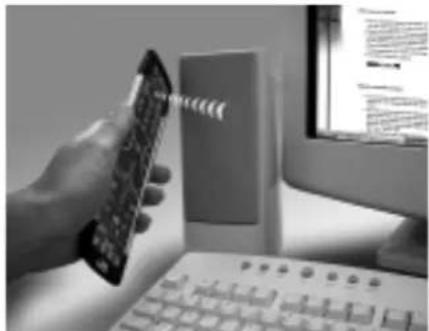
Code upgrade through the phone.
Alternatively ring our consumer help-line and explain which device(s) you would like added to your KAMELEON 6.
Write down the brand name(s) and model number(s) of your device(s) in the space provided on the customer service (page 16) before calling.
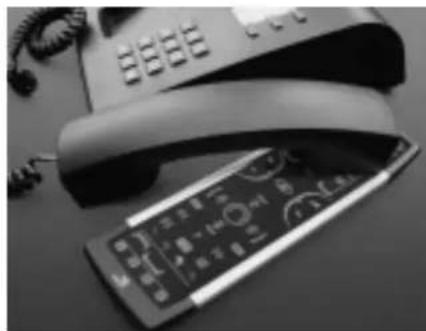
- After our customer service agent records the brand name(s) and model number(s) of your device(s), he/she will lead you through the set up procedure and then will ask you to put the speaker portion of your telephone on the SCROLL key on the KAMELEON 6 (see diagram below). In doing this, the information needed for your device is transferred through the telephone into your KAMELEON 6 in a matter of seconds.
- Cordless telephones, speaker telephones and mobile telephones are not recommended.
- After your KAMELEON 6 has been upgraded by telephone, stay on the line. Our customer service agent will ensure that your KAMELEON 6 is working properly with your device(s) and answer any other questions you may have.
Trouble-Shooting
Problem & Solution
Problem:
Solution:
| Your brand is not listed in the code section? | Try the search method on page 7. |
| The KAMELEON 6 does not operate your device(s)? | A) Try all the codes listed for your brand. B) Try the search method on page 7. |
| The KAMELEON 6 is not performing commands properly? | You may be using the wrong code. Try repeating the Direct Set-Up using another code listed under your brand or start the search method over again to locate the proper code. |
| Problems changing channels? | Enter the programme number exactly as you would on your original remote. |
| Video not recording? | As a safety feature on your KAMELEON 6, you must press the Record key twice. |
| The KAMELEON 6 does not respond after pressing a key? | Make sure you are using new batteries and are aiming the KAMELEON 6 at your device. |
| Your original remote had a “20” key? | You can find this function on the AV key. |
| Upon each keypress, the KAMELEON 6 reverts to TV mode and the display goes off. | Replace batteries with 4 fresh, new “AAA/LR03” alkaline batteries. |
Customer Service
If you still have questions about the operation of your ONE FOR ALL KAMELEON 6 universal remote and could not find the answer(s) in the trouble shooting section, you may want to contact the customer service department for assistance.
You may care to visit our Internet-site: www.oneforall.com
Our internet-site has many advantages:
- Internet download - Add codes to your KAMELEON 6 over the Internet!
-24 hours access
- no waiting time
page for Frequently Asked Questions
- info about the ONE FOR ALL product range
Before contacting us, by Fax, E-mail or Phone, make sure you have the required information available by filling in the table below.
What do we need to know before you contact us:
1 That you have the ONE FOR ALL KAMELEON 6 URC-8060 universal remote
2 The date of purchase (..../..../....).
3 A list of your equipment/models/helpcodes(*): (see example below)
Helpcode(*) Device Brand Device Remote SET-UP
model nr. model nr. code
| 1610805 | TV | Sony | KVX-2950B | RMT-V131B | 0505 (example) |
Type/model numbers can often be found in your equipment owner's manual or on the factory plate behind the device.
- Then Fax, E-mail or Dial us:
In the UK
e-mail: ofahelp@uebv.com
fax :+31534329816
tel. :0808-1000306(*)
In Ireland
e-mail: ofahelp@ueby.com
fax :+31534329816
tel. :1-800 553199 (*)
In Australia
e-mail: ofahelp@uebv.com
fax :+31534329816
tel. : 1-800 064472
In South Africa
e-mail: support@oneforall.co.za e-mail: ofahelp@uebv.com
fax : 011 298 2302
tel. : 0860 100551
tel. : 011 298 2300
In New Zealand
ofahelp@uebv.com
fax : (06) 878 2760
tel. : 0508 ONE 4 ALL (663 4 255)
(*) When you call us you will be asked to enter your helpcode(s). You only have to enter the helpcode(s) of those devices you have a problem with. The helpcode is a 7-digit code, which defines the ONE FOR ALL-model you have, the device type and the brand of your device. This helpcode can be found in the first column of the setup code list.
IHRE KAMELEON 6 18
BATTERIEN 18
DAS TASTENFELD 18
Einstellung
Apprentissage/Copier (direct)
26. TV/SAT / TV/NCR / TV/DVD: TV/DVD
En modo de satélite obtendra la fonction de TV/SAT. En el modo de VCR obtendra la fonction de TV/VCR. En el mode de DVD obtendra la fonction de TV/DVD.
27. Ⅱ/Ⅱ/Ⅱ/Ⅳ: III IV
26. TV/SAT TV/CR TV/DVD TV/DVD
Para apagar Uma Shfted Macro
- POWER (shifted Mode, Sleeptimer)


5. Magic (in "shifted" or "programming" Mode)


- SCROLL


- VOL +/- (in Shifted Mode: color +/-)

Video accessories 123
CD/MiniDiscSpelers 123
Platenspeler 123
Overige Audio 124
Amplifiers (HiFi Versterkers) 124
Amp./Tuners 124
Cassettedecks 125
Laser Disc (LD) spelers 125
Digital Audio Tape (DAT) spelers 125
DVD spelers 125
Volume direct bediening
Guarantee UK UNIVERAL ELECTRONICS INC/ONE FOR ALL warrants to the original purchaser that this product will be free from defects in materials and workmanship under normal and correct use for a period of one (l) year from the date of original purchase. This product will be replaced free of charge if it has been proven to be defective within the one (l) year warranty period. This warranty does not cover cartons, carrying cases, batteries, broken or marred cabinets or any other item used in connection with the product. Any further obligation than listed above is excluded. To obtain warranty service during the warranty period, please call us at the number mentioned on the Customer Service page. Please notice that we need your purchase receipt so that we may establish your eligibility for service.