EasyManual
DeX Pad EEM5100 - Cellphone SAMSUNG - Free user manual and instructions
Find the device manual for free DeX Pad EEM5100 SAMSUNG in PDF.

 FR
FR
 BG
BG
 CS
CS
 DA
DA
 DE
DE
 EL
EL
 EN
EN
 ES
ES
 ET
ET
 FI
FI
 HU
HU
 IT
IT
 KK
KK
 KO
KO
 LT
LT
 LV
LV
 NL
NL
 NO
NO
 PL
PL
 PT
PT
 RO
RO
 RU
RU
 SK
SK
 SL
SL
 SV
SV
 TR
TR
 UK
UK
 ZH
ZH
Frequently Asked Questions - DeX Pad EEM5100 SAMSUNG
User questions about DeX Pad EEM5100 SAMSUNG
0 question about this device. Answer the ones you know or ask your own.
Ask a new question about this device
Download the instructions for your Cellphone in PDF format for free! Find your manual DeX Pad EEM5100 - SAMSUNG and take your electronic device back in hand. On this page are published all the documents necessary for the use of your device. DeX Pad EEM5100 by SAMSUNG.
USER MANUAL DeX Pad EEM5100 SAMSUNG
Srpski English (USA)
Portugues Espanol (Castellano)
Latviešu 简体中文
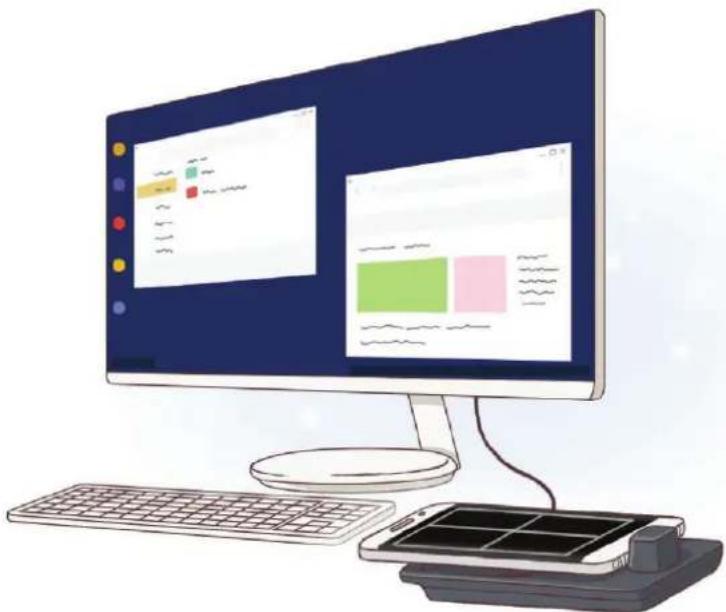
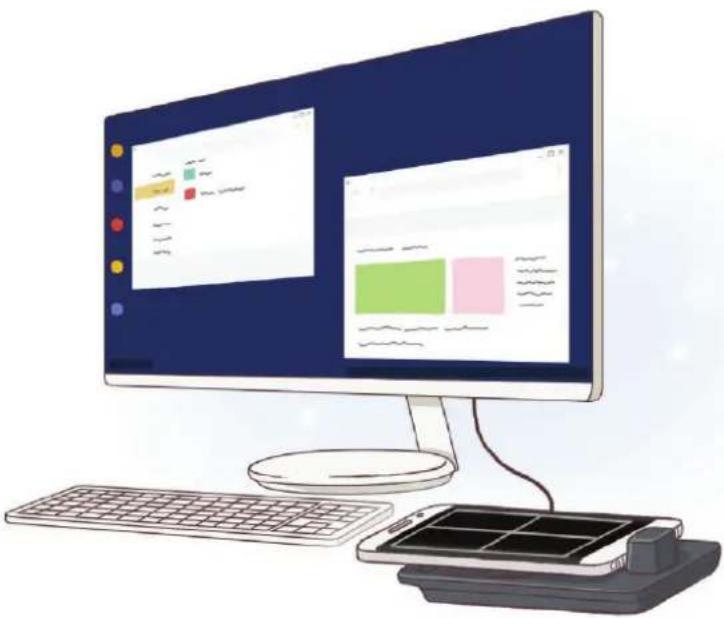
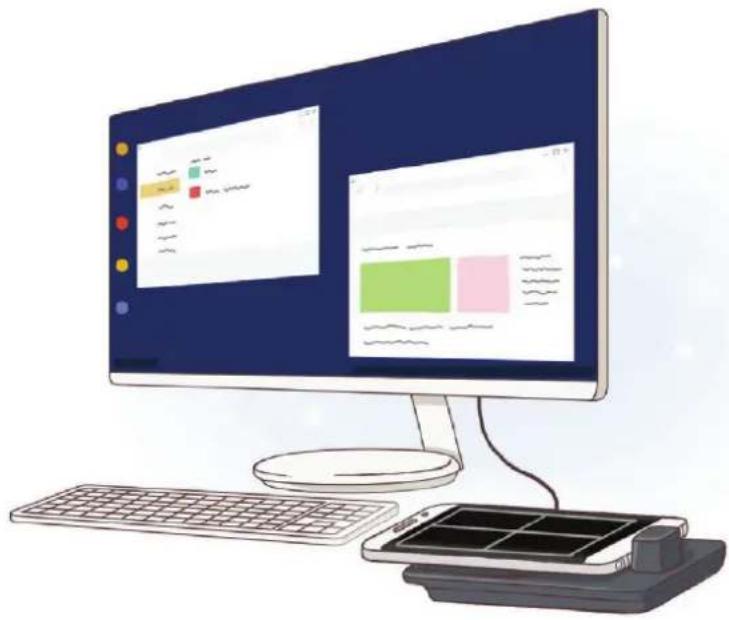
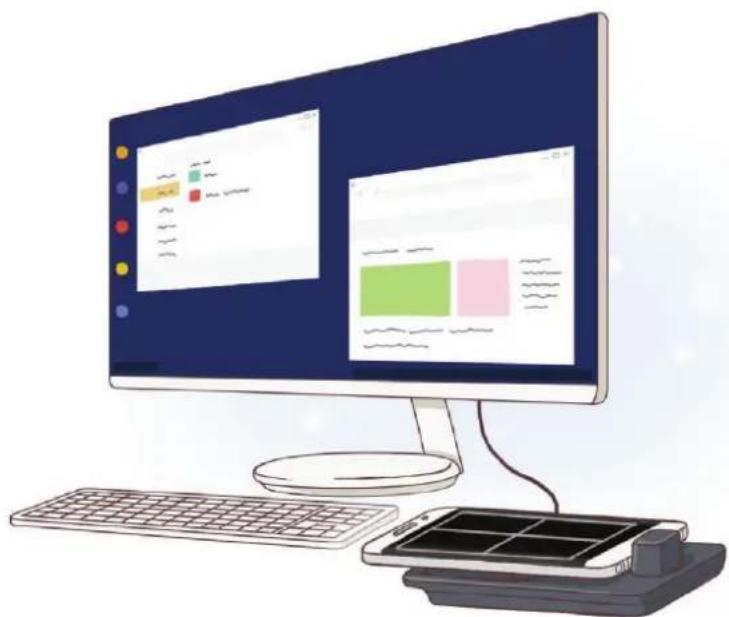
With the multimedia dock, you can use your mobile device's features on a wider screen by connecting a TV or monitor. You can also connect with nearby devices, such as a keyboard or mouse.
Read me first
Please read this manual before using the device to ensure safe and proper use.
- Images may differ in appearance from the actual product. Content is subject to change without prior notice.
- You can use the multimedia dock only on supported mobile devices running Android 8.0 or higher. You can view the compatible devices in the introduction section for the multimedia dock on the Samsung website.
Instructional icons

Warning: situations that could cause injury to yourself or others

Caution: situations that could cause damage to your device or other equipment

Notice: notes, usage tips, or additional information
Package contents
Check the product box for the following items:
Multimedia dock
HDMI cable
USB cable
USB power adaptor
- Quick start guide

- The items supplied with the device and any available accessories may vary depending on the region or service provider.
- The supplied items are designed only for this device and may not be compatible with other devices.
- Appearances and specifications are subject to change without prior notice.
- You can purchase additional accessories from your local Samsung retailer. Make sure they are compatible with the device before purchase.
- Use only Samsung-approved accessories. Using unapproved accessories may cause the performance problems and malfunctions that are not covered by the warranty.
- Availability of all accessories is subject to change depending entirely on manufacturing companies. For more information about available accessories, refer to the Samsung website.
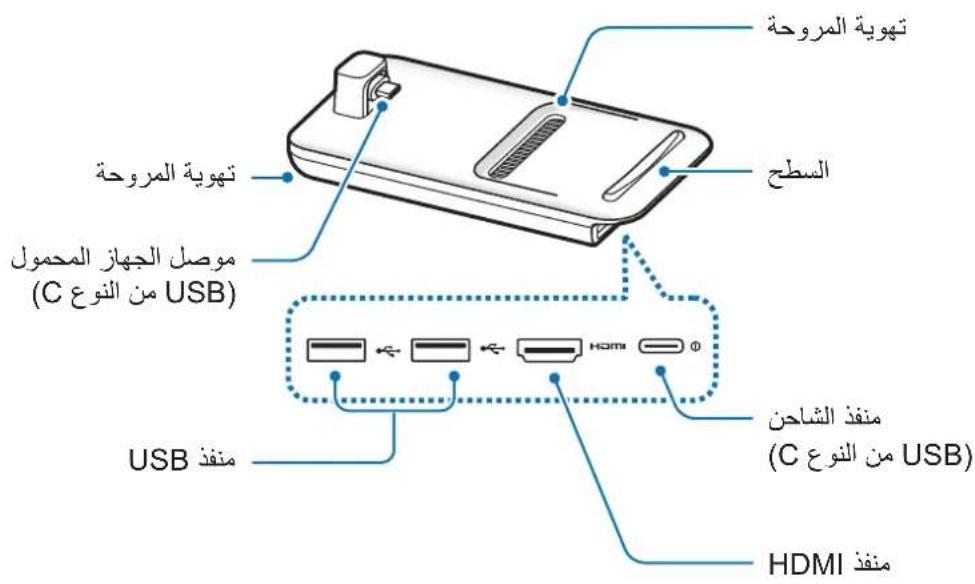
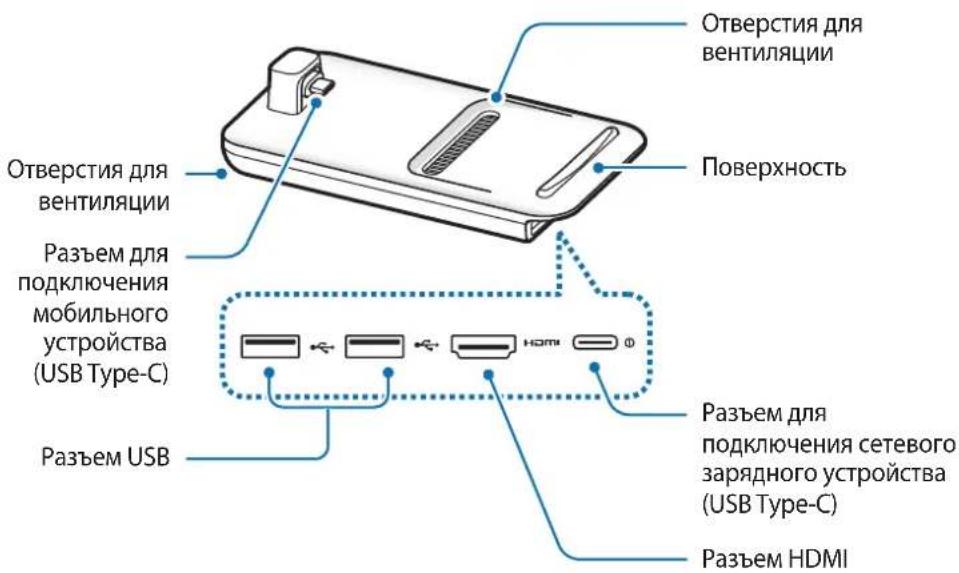
Device layout
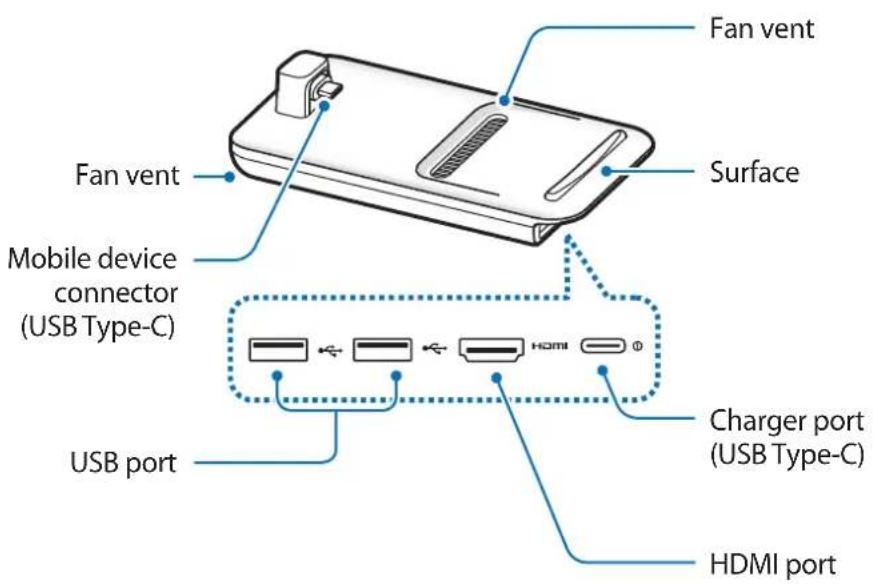

When you connect the charger to the multimedia dock's charger port (USB Type-C), be sure to use a USB Type-C cable. If you connect a Micro USB cable, the multimedia dock may malfunction or be damaged.
Using the multimedia dock
Connecting the multimedia dock and a mobile device
1 Connect the charger to the multimedia dock's charger port (USB Type-C).

Use only Samsung-approved chargers that support the fast charging feature (9 V/1.67 A, 9 V/2 A, 12 V/2.1 A).

- To save energy, unplug the charger when not in use. The charger does not have a power switch, so you must unplug the charger from the electric socket when not in use to avoid wasting power. The charger should remain close to the electric socket and easily accessible while charging.
- Remove your mobile device from the multimedia dock when it is not in use. Otherwise, your mobile device's battery will drain.
- The socket-outlet shall be installed near the equipment and shall be easily accessible.
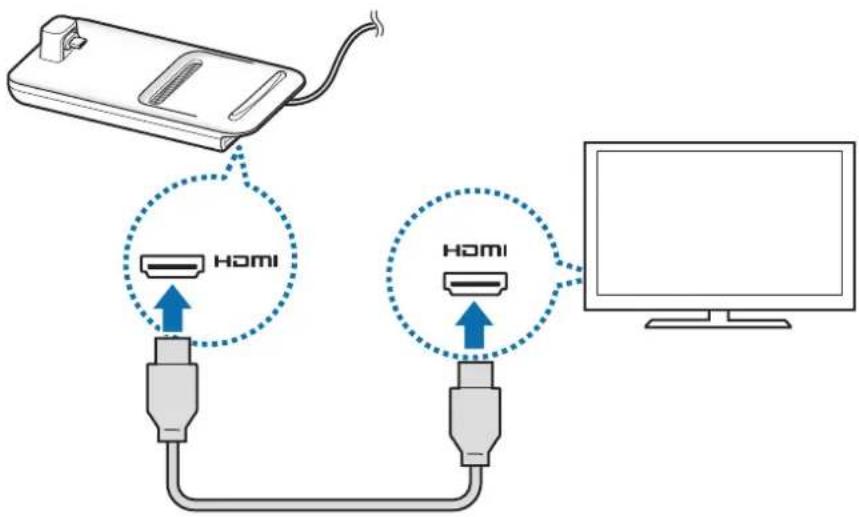
2 Connect one end of an HDMI cable to the multimedia dock's HDMI port, and plug the other end of the cable into a TV or monitor's HDMI port.
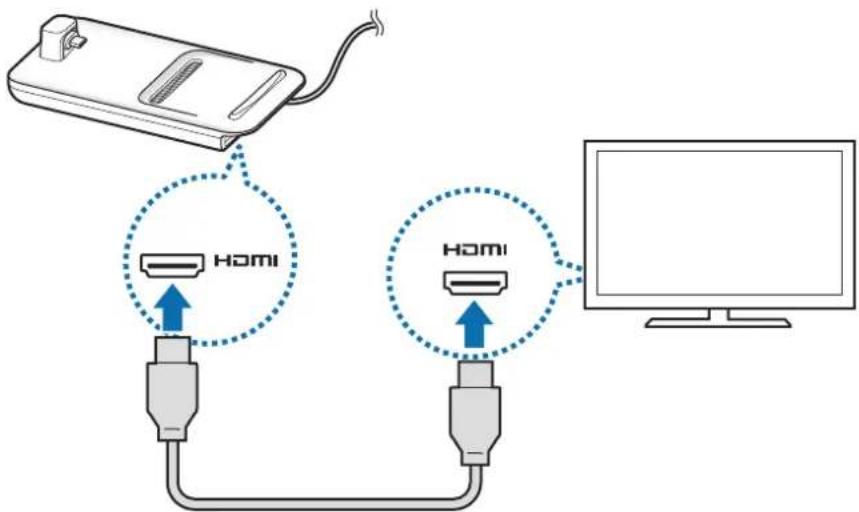

Use only the HDMI cable supplied with the multimedia dock. Otherwise, the multimedia dock may not work properly.
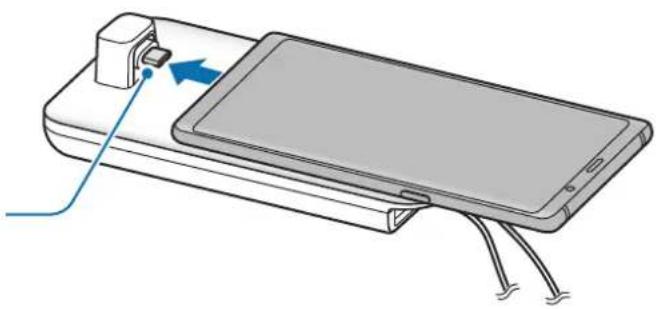
3 Connect the mobile device's multipurpose jack to the mobile device connector (USB Type-C) on the multimedia dock.
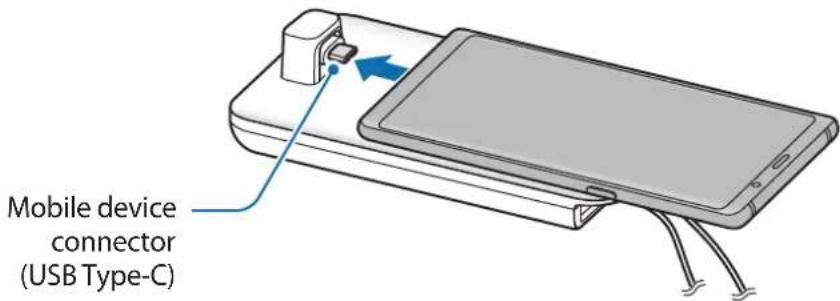

- Ensure that the mobile device is horizontal to the connector. Otherwise, the multimedia dock and the mobile device may be damaged.

- If you connect your mobile device with a case attached, it may not correctly connect to the multimedia dock or run SAMSUNG DeX properly depending on your mobile device's case. Remove the case before use.

For some mobile devices, only the normal charging mode is available when your mobile device is turned off. If you want to activate the fast charging feature, activate it when the mobile device is on or connect your mobile device directly to the Samsung-approved fast charger, not the multimedia dock. When charging, use only the Samsung-approved charger that is provided on purchase.
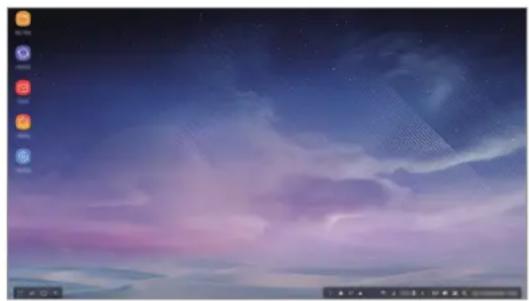
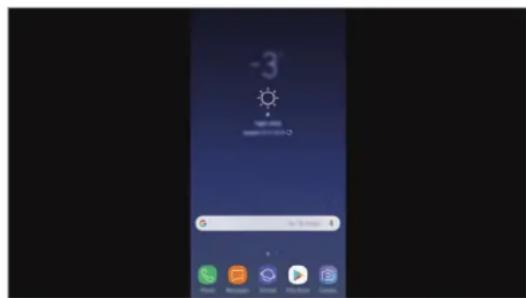
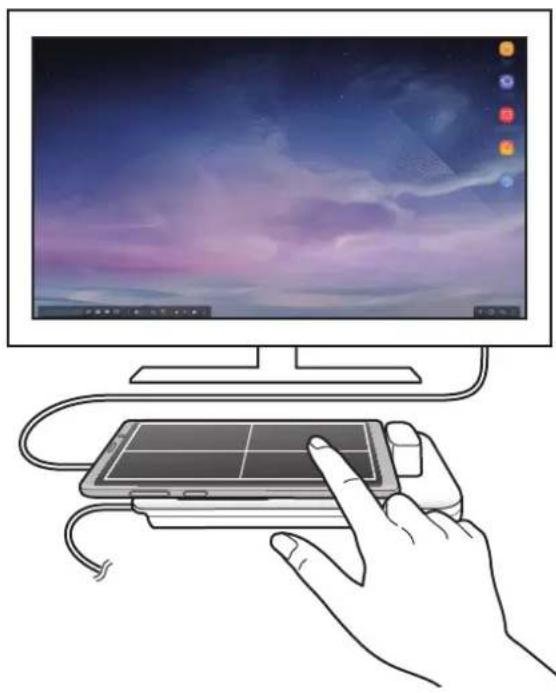
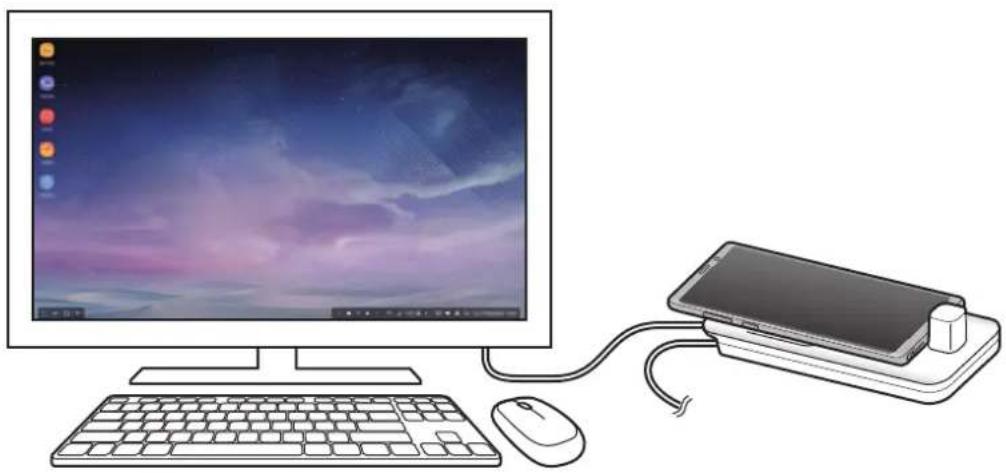
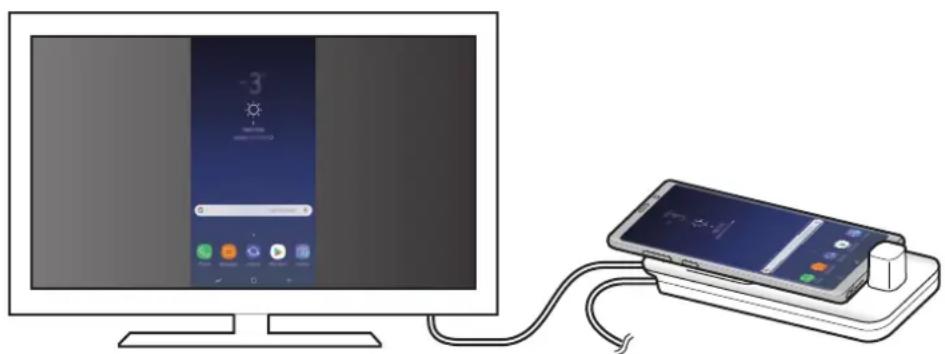
4 Select the screen mode you want to use. You can select Samsung DeX mode or Screen mirroring mode.
- START SAMSUNG DeX: The mobile device's screen will turn off and appear on the connected TV or monitor in desktop mode.
- SWITCH TO SCREEN MIRRORING The same screen as the mobile device will appear on the connected TV or monitor.
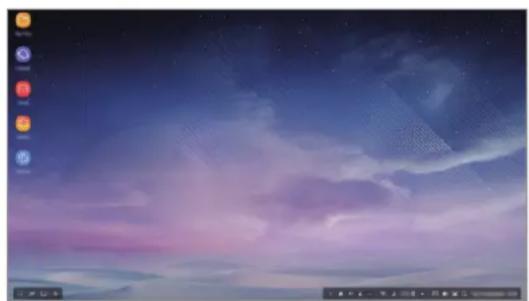
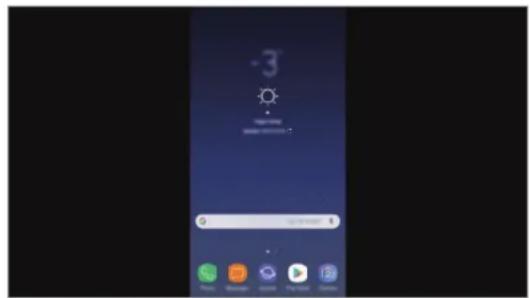
Samsung DeX mode Screen mirroring mode

- The screen mode you first select will be applied for subsequent connections. Refer to Changing screen mode for more information.
- If you want to use a keyboard or a mouse, connect them using the multimedia dock's USB ports or via Bluetooth. Refer to Controlling with an external keyboard and mouse for more information.
- The available features may vary depending on the mobile device. You can view more information in the introduction section for the multimedia dock on the Samsung website.
Precautions for connecting the device
- You can use the multimedia dock only when you connect it to a Samsung-approved charger that supports the fast charging feature.
- Connect only a keyboard, mouse, or an USB storage device to the multimedia dock's USB ports. Charging devices or connecting high-capacity devices with these ports may not work properly.
- Prevent the fan vent and mobile device connector (USB Type-C) inside from coming into contact with liquids or dust. Exposure to liquid or dust may cause the multimedia dock not to work properly.
- Do not move the mobile device while it is connected to the multimedia dock. Doing so may damage the mobile device connector (USB Type-C).
- When you use the mobile device's voice recognition after connecting the multimedia dock to your mobile device, the voice recognition may not perform well.
Ending the device connection
Remove the mobile device from the multimedia dock to end the connection between the mobile device and TV or monitor.

Be sure to remove the mobile device horizontally. Raising it up too high, pulling it excessively, or shaking it may damage the mobile device connector (USB Type-C).
Controlling the Samsung DeX screen
Controlling with a mobile device
You can use your mobile device's screen as a touchpad.
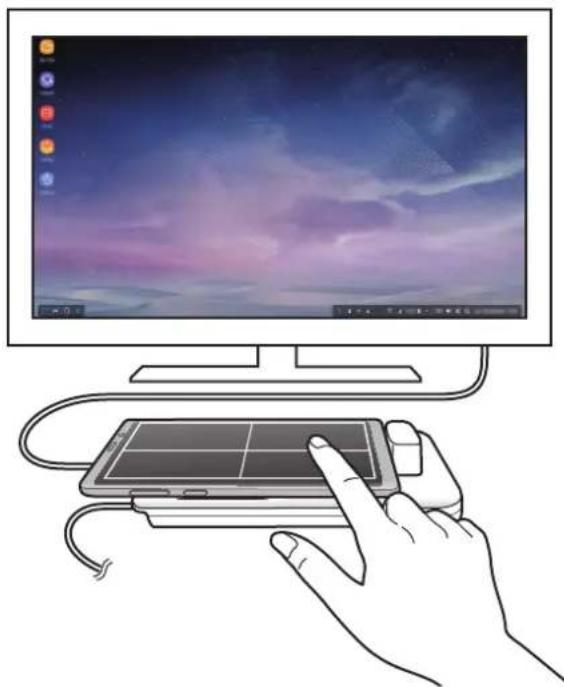

- You can use the touchpad only when using Samsung DeX mode.
- If your mobile device's case has a front cover, open the front cover to use the mobile device as a touchpad. If the front cover is closed, the touchpad may not work properly.
Controlling the screen
- Tapping: Launch an app or select a button.
- Tapping with two fingers: Show the additional options.
- Swiping with two fingers: Scrolling the screen in any direction.
- Spreading or pinching with two fingers: Zoom in or out.
- Tapping and holding: Select an item on the screen.
- Dragging: Move an item or select text.
Orienting your mobile device's screen
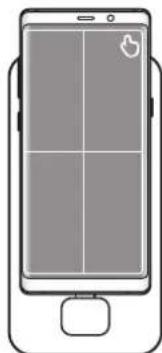
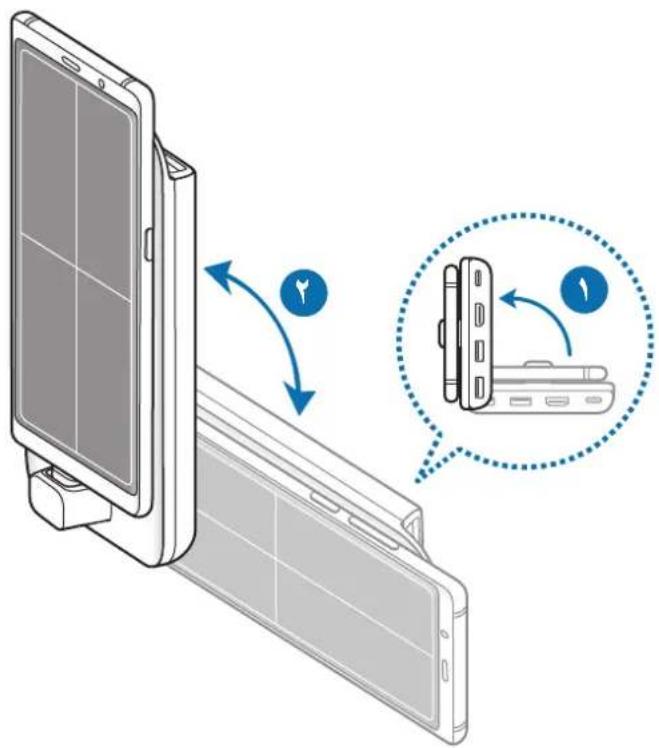
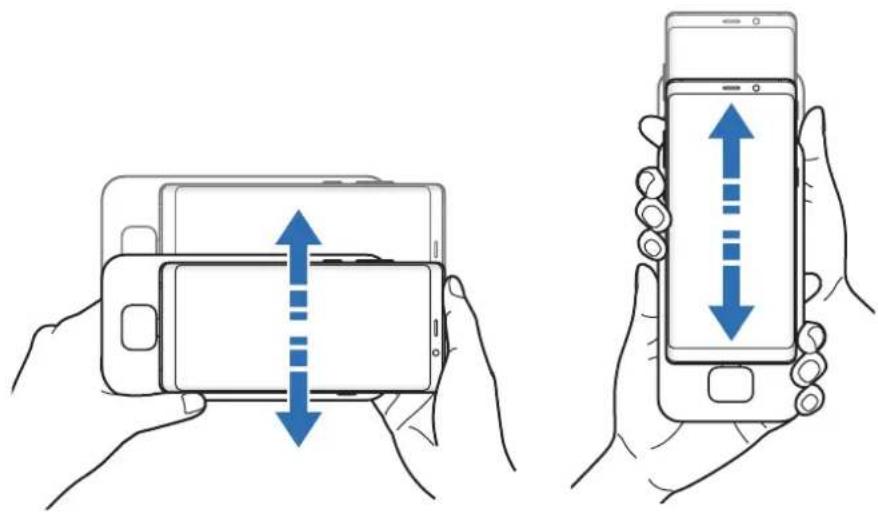
When you are using your mobile device as a touchpad, you can use it in either the horizontal or vertical alignment.
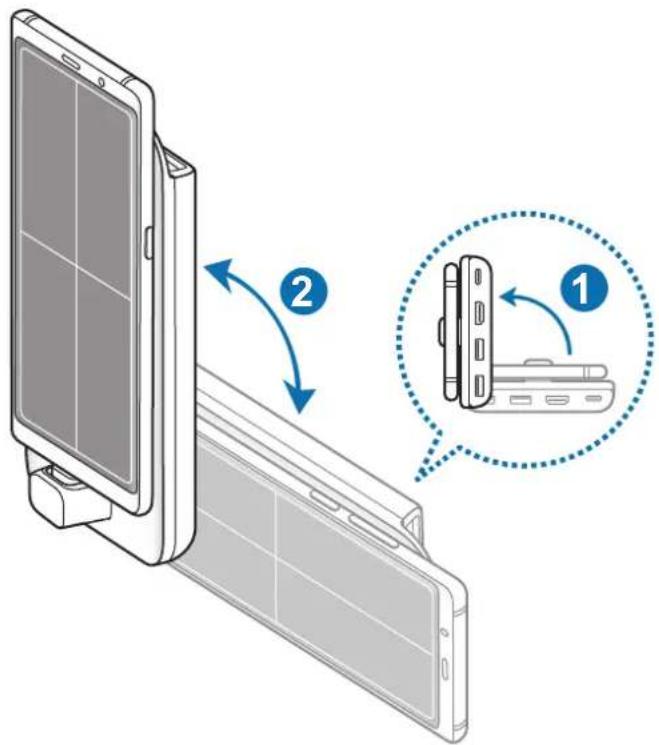
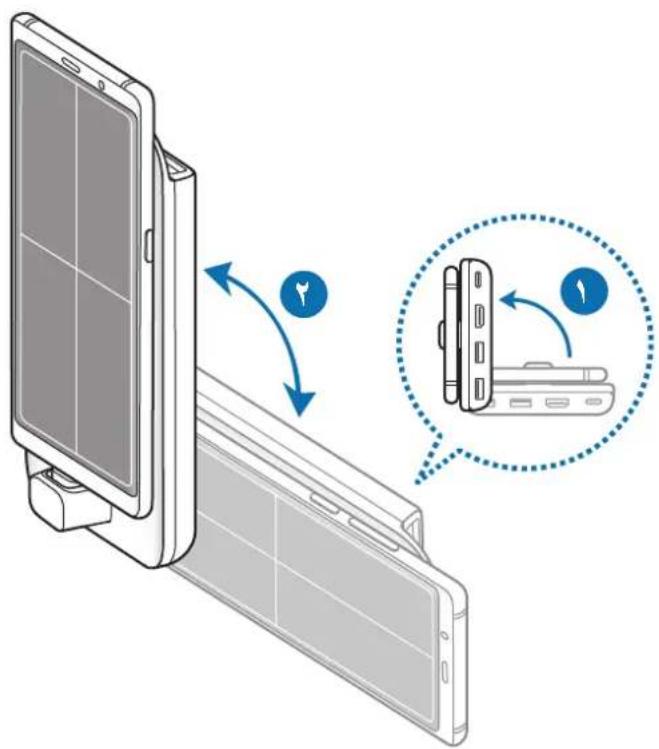
1 When the multimedia dock and the mobile device are connected, raise both of them to be perpendicular to the surface (①). Then, turn the mobile device to be either vertical or horizontal, the orientation you want (②).
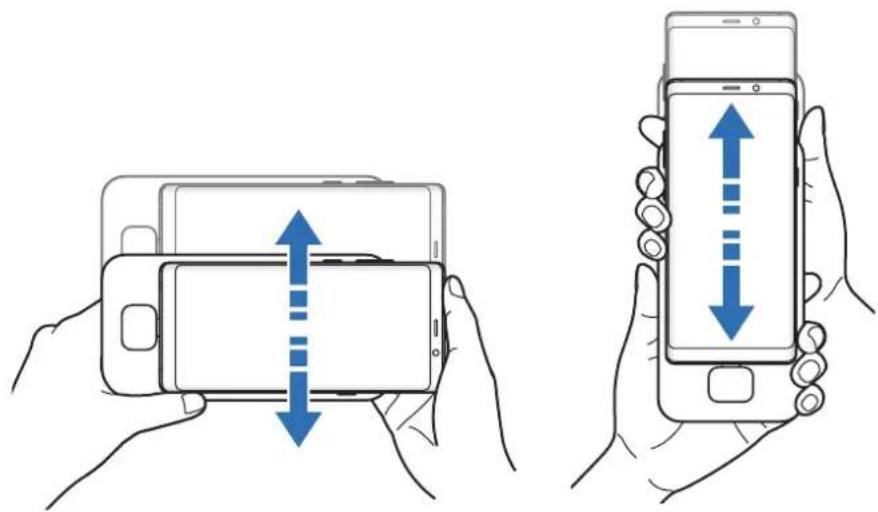
2 Move both the multimedia dock and the mobile device up and down slightly.
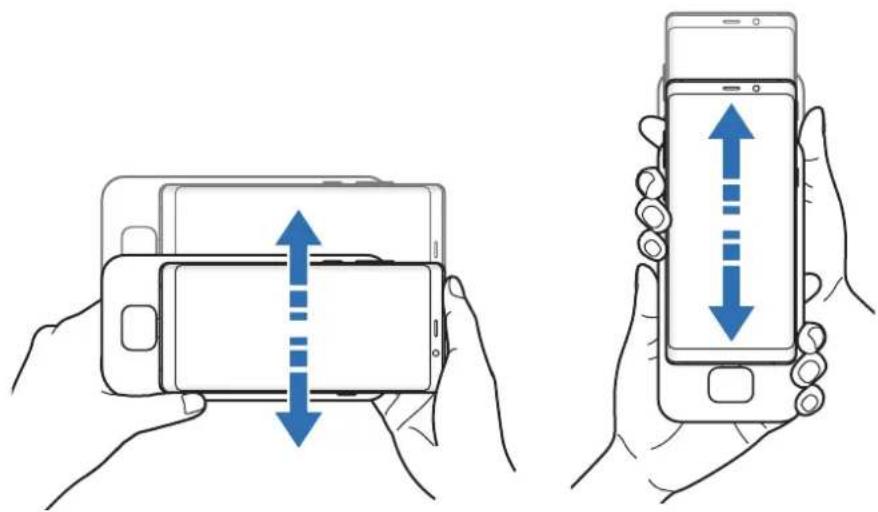
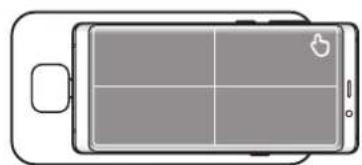
If your mobile device's screen has been properly oriented, the icon will appear at the top right of your mobile device's screen.
Controlling with an external keyboard and mouse
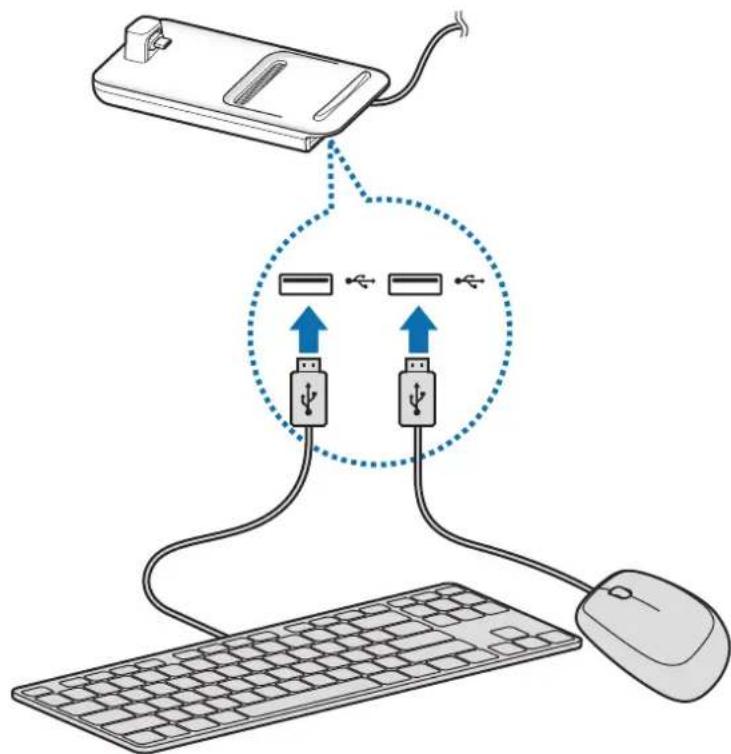
Connect a wired keyboard and mouse to the multimedia dock's USB port or connect a wireless keyboard and mouse with the Bluetooth feature of the connected mobile device.

- When you connect a mouse, the touchpad will not appear on your mobile device.
- You can control with an external keyboard and mouse even in Screen mirroring mode.
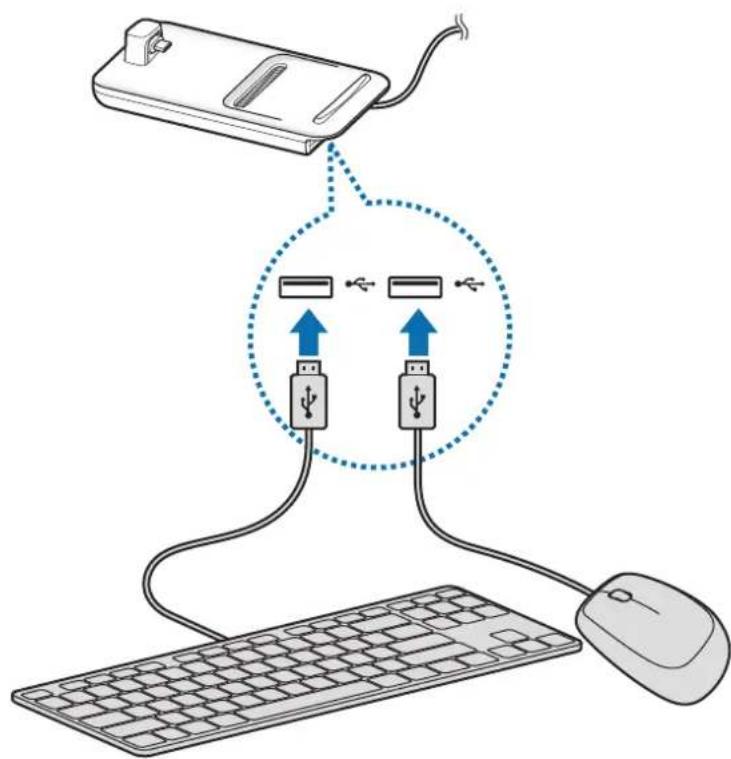
Connecting via cable
If you want to use a wired keyboard or wired mouse, connect their USB cables to the multimedia dock's USB ports.
Connecting via wireless or Bluetooth
You can connect a wireless keyboard and mouse or Bluetooth keyboard and mouse. For more information about the devices, refer to the device's user manual.
- Wireless keyboard and mouse: Insert a wireless receiver into the USB port.
- Bluetooth keyboard and mouse: Connect to a mobile device via Bluetooth.
Using Samsung DeX mode
You can use your mobile device's features in an interface environment similar to a computer. You can launch the mobile device's apps or check the mobile device's notifications and status.
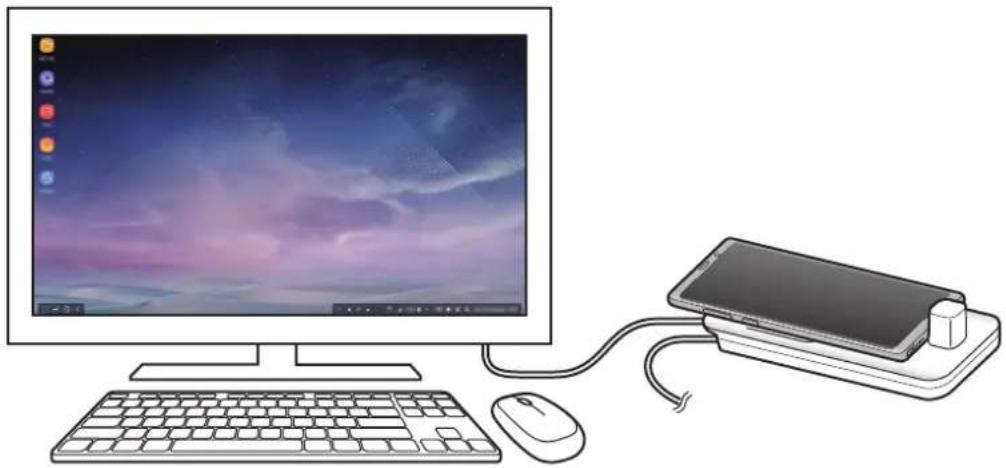

Some apps or features may not be available when using Samsung DeX mode.
Precautions for launching Samsung DeX mode
- When you launch or disconnect Samsung DeX mode, the currently running apps will close except some apps.
- You cannot launch Samsung DeX mode if your mobile device is in the following mode: the ultra power saving mode, emergency mode, and safe mode.
- If the TV or monitor do not support HDCP (High-bandwidth Digital Content Protection), the Samsung DeX mode screen may not be displayed.
Samsung DeX mode supports HD+, FHD, and WQHD resolutions. Some content on y mobile device may be displayed differently on the TV or monitor. - The available time for battery usage can be reduced when you use Samsung DeX mode
- If you change the settings on Samsung DeX mode, the mobile device's settings will be changed as well. Some settings of the mobile device may not be changed even if you change the settings on Samsung DeX mode.
- Download the firmware from the server to update Samsung DeX mode to the latest version. It is available only when connected to a Wi-Fi network.
- Some apps may become paid apps depending on their licence policies when you use Samsung DeX mode.
Using the Home screen
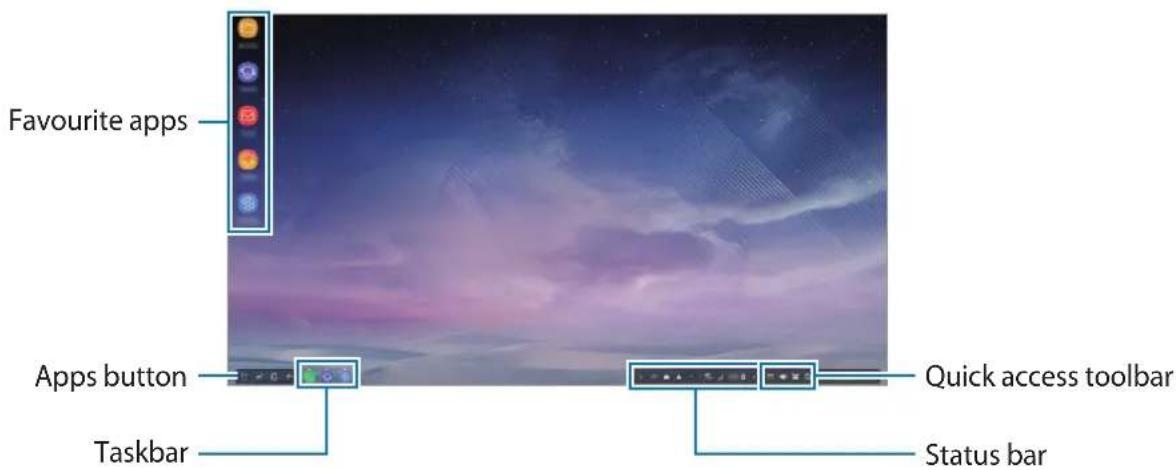
- Favourite apps: Add frequently used apps to the Home screen and launch them quickly.
- Apps button: View or launch apps installed on your mobile device.
- Taskbar: View the apps that are currently running.
- Status bar: View your mobile device's status or notifications. The displayed icons may differ depending on your mobile device's current status. Select and turn on and off your mobile device's various features on the quick settings list.
- Quick access toolbar: Use the on-screen keyboard, volume, screenshot, and finder features quickly.
Receiving an incoming call
You can receive an incoming call with the connected TV or monitor while using Samsung DeX mode.
If you receive a phone call, select the incoming call menu from the connected TV or monitor. The mobile device's speaker is used for answering the call.

Connect earphones or remove your mobile device from the multimedia dock to use the mobile device instead of the speaker phone to receive an incoming call.
Adding app shortcuts
Select the Apps button, select the app you want to create a shortcut to, and then drag it to the Home screen.
A shortcut to the app will be added on the Home screen.
Changing the speakers
You can change the default speakers from your mobile device's speakers to the speakers of a TV, monitor, or an audio device.
Launch the Settings app on a connected TV or monitor, and select the Samsung DeX Set default audio output switch to activate the feature. After you change the default speakers, sound will play through the new default speakers whenever Samsung DeX mode is on.

You can temporarily change from your mobile device's speakers to the speakers of a TV, monitor, or an audio device. On the status bar, select Audio output and select the device you want. Alternatively, on the status bar, right click the Volume icon and select the device you want under Audio output.
Using the quick access toolbar
- : Display the on-screen keyboard.
- Adjust the volume level for call ringtones, music and videos, notifications, and system sounds.
- Capture a screenshot and use the captured screen in various ways, such as drawing on, writing on, cropping, or sharing it.
- Q: Search for content on your mobile device by entering a keyword in the search field.
Home screen options
On the Home screen, when you press the connected mouse's right button, you can use the home screen options.
- Sort by: Select the arrangement method for apps on the Home screen.
- Clean up: Arrange apps or folders on the Home screen based on your selected arrangement method.
- Wallpapers for Samsung DeX: Change the Samsung DeX mode wallpaper settings for the Home screen and the locked screen.
Enjoying games vividly on a large screen
Play your mobile device's games on a large screen. On the connected TV or monitor, launch the Game Launcher app.
Launching apps
Launch apps installed on the mobile device on Samsung DeX mode.
When selecting the Apps button, your mobile device's apps list will appear. Select an app and launch it. You can open several apps and launch them at the same time and multitask as you use the computer.

Some apps may not be available when using Samsung DeX mode.
Configuring the settings
Configure your Samsung DeX mode settings.
Launch the Settings app on the connected TV or monitor and select Samsung DeX.
- Screen timeout for Samsung DeX: Set how long Samsung DeX mode waits before turning off the display's backlight.
-
Wallpapers for Samsung DeX: Change the Samsung DeX mode wallpaper settings for the Home screen and the locked screen.
-
Screen resolution for Samsung DeX: Change the Samsung DeX mode's screen resolution.
- Pointer speed: Adjust the pointer speed for the mouse.
- Show on-screen keyboard in Samsung DeX: Show an on-screen keyboard on the connected screen when you connect the external keyboard.
- Set default audio output: Set a TV or monitor as a default speaker.
- Receive marketing information: Set whether to receive Samsung DeX's marketing information.
Samsung DeX Labs: Resize the apps that are not officially supported by Samsung DeX.

Some apps cannot be resized.
- How to use Samsung DeX: View help information to learn how to use Samsung DeX mode or configure important settings.
- About Samsung DeX: View the Samsung DeX software information and update your Samsung DeX's software.
Using Screen mirroring mode
The mobile device's screen will remain on and appear on the connected TV or monitor. View your mobile device's various content on the wide screen of the connected TV or monitor.
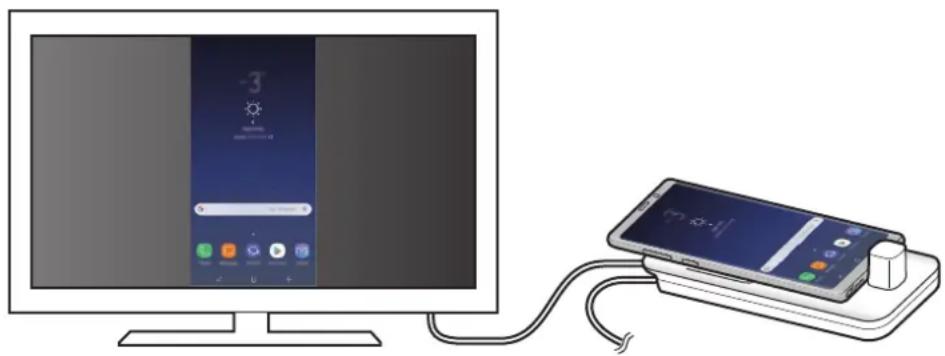

You can use Screen mirroring mode without connecting a keyboard or mouse. Control the screen with the connected mobile device.
Changing screen mode
You can change the screen mode on the connected TV or monitor.
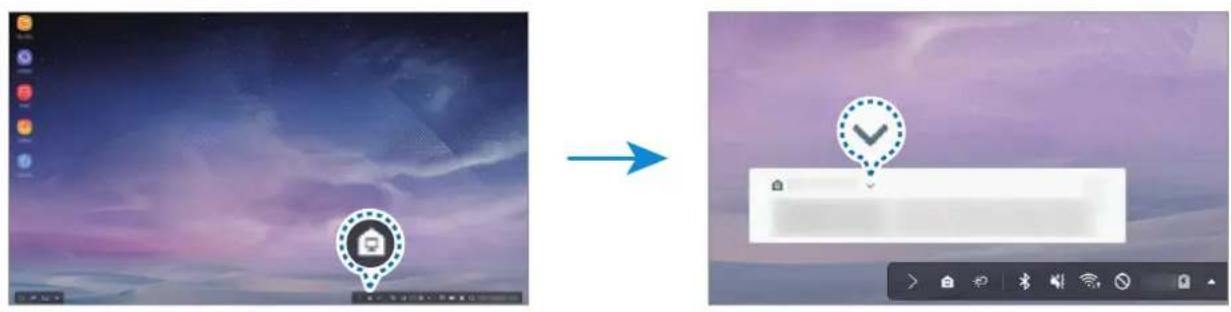
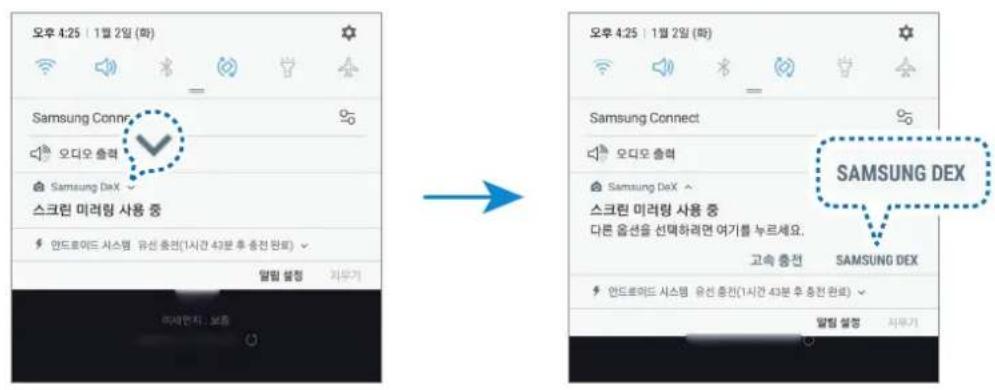
1 On the status bar, tap end tap next to Samsung DeX.
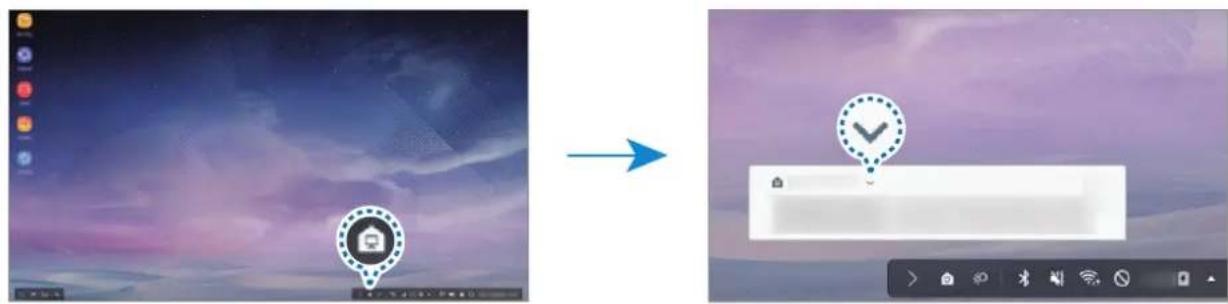
2 Tap above Using Samsung DeX and tap SCREEN MIRRORING.
Samsung DeX mode will be ended and the same screen as your mobile device will appear on the connected TV or monitor.
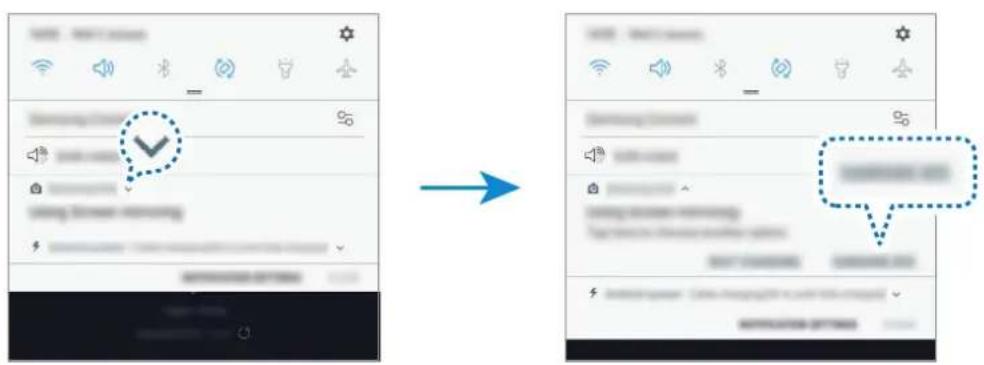
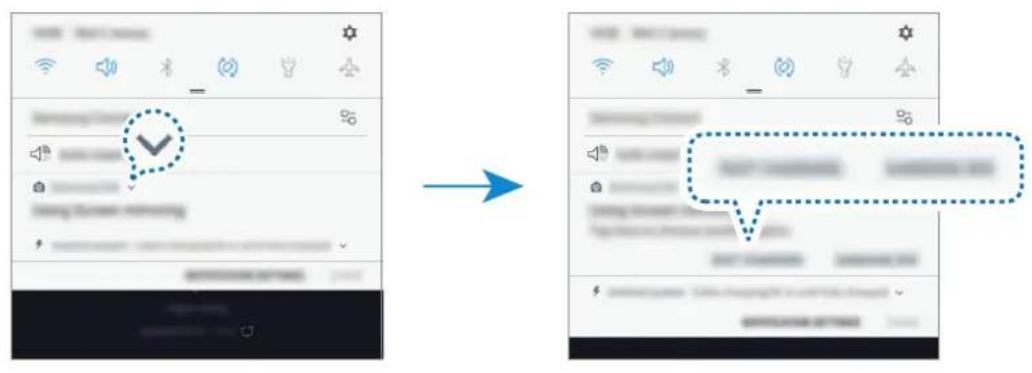
If you want to switch modes on your mobile device, open the notification panel, tap next to Samsung DeX, and then tap SAMSUNG DEX.
Charging the mobile device's battery
You can charge your mobile device's battery using the multimedia dock.
1 On the status bar, tap end tap next to Samsung DeX.
2 Tap above Using Samsung DeX and tap FAST CHARGING.
The connected TV or monitor will turn off and your mobile device will start charging.
Appendix
Troubleshooting
Before contacting a Samsung Service Centre, please attempt the following solutions.
On Samsung DeX mode, select the Apps button Contact us FAQ and refer to the relevant content.
Your multimedia dock or connected devices freezes
If the multimedia dock or connected devices freezes or hangs, try to resolve it by turning off the connected mobile device and then turning it on again.
If the multimedia dock or connected devices are still unresponsive, disconnect devices from the multimedia dock and reconnect them.
If the problem is still not resolved, contact a Samsung Service Centre.
The multimedia dock works differently as described in the manual
Available functions may differ depending on the connected device.
The screen ratio is incorrect
Samsung DeX mode supports HD+, FHD, and WQHD resolutions. Some content on your mobile device may be displayed differently on the TV or monitor. Adjust the screen ratio from the menu of the connected TV or monitor.
Copyright
Copyright © 2018 Samsung Electronics
This manual is protected under international copyright laws.
No part of this manual may be reproduced, distributed, translated, or transmitted in any form or by any means, electronic or mechanical, including photocopying, recording, or storing in any information storage and retrieval system, without the prior written permission of Samsung Electronics.
Trademarks
- SAMSUNG, the SAMSUNG logo, and Samsung DeX are registered trademarks of Samsung Electronics.
All other trademarks and copyrights are the property of their respective owners.
Démarriage
Introduction
Copyright © 2018 Samsung Electronics
Copyright © 2018 Samsung Electronics
Copyright © 2018 Samsung Electronics
Copyright © 2018 Samsung Electronics
Copyright © 2018 Samsung Electronics
Copyright © 2018 Samsung Electronics
Cbbp3BaHe Ha MylTmEiHaTa DOKnHr CtaHcIaM06nIHO yCTpO'CTBO
1 CbpxKeTe 3apAnHTo yCTPOcTBo KbM npTa 3a 3apeKdaHe Ha MyNTmEiHaTa DOKNr cTaNn (USB TnN-C).

I3noJI3BaIte cAmO oIo6peHn ot Samsung 3apAaHn yCTpoiCTBa, KOITo IODIbPkaT cyHKuYraTa 6bp30 3apeKdaHe (9V/1,67 A, 9V/2 A, 12 V/2,1 A).

3aДа спеспite eheprn, n3BaTe 3apHnOTo yCTpoIcTBO OT eNEKTPueCKn KOHTaKT, KOrato He ro n3NoJIbTaTe. 3apHnOTo yCTpoIcTBO HЯMa npEbkIIOUbaTeN BkL./I3Kn., 3aToBa Tp6Ba Da ro n3BaJInTe OT eNEKTPueCKn KOHTaKT, KOrato He ro n3NoJIbBaTe, 3a Da He n3pa3XoJbATE eHeprn. 3apHnOTo yCTpoIcTBO Tp6Ba Da OCTaHe 6IIN3O Do eNEKTPueCKn KOHTaKT I NeCHO DoCTbIIHO, DOKaTO 3apeJda.
- Otctpahe Ta BaaTe Mo6nH0 yCTpoiCTBO OT MyIITmEiHaTa DOKIHr CTaHcIa, KOraTO He ce n3noJI3Ba. B npotuBEN cIyauh 6aTePnra Ta Ha BaAeTo Mo6nH0 yCTpoiCTBO MoKe da ce n3TOU.
2 Cbpxte eHnna Kpa HDMI ka6ena KbM HDMI nopTa Ha MyltmeHnHaTa DOKNr CTaHn, BKIOUeTe dpytna Kpa Ha Ka6ena B TepeBn3opa nn HDMI nopTa Ha MOHTopa.

I3noJ3BaIte cmoHDMI ka6eI, KOIto BIn3a B KOMJIeKTa Ha MyNTMMeiHaTa DOKNHcTahn. B npOTuBeH cnyaI e Bb3MOxHO MyNTMMeiHaTa DOKNH cTahnJa He pa6OTKaKTo Tpr6Ba.
3 CbpxKeTe MHOrOfoyHKUHOHaJIHna KaHa MO6NJHOTo yCTPOcTBO KbM KOHeKTopa 3a MO6NJHO yctpoJcTBo (USB TnC) Ha MyIImeDnHaTa DOkInr cTaHcNia.
KoHeKTop 3a Mo6nIHo yctpoiCTBO (USB Tn-C)

Ocnpyte Xopn3oHTaHNO NOJoxHe H a MO6NJHO TO yCTPOIcTBO cnpraMo KOHEKTopa. B npOTuBEH CnyaM MyNTmEeHHaTa DOKINr CTAHcN r M06NJHOTo yCTPOIcTBO MORaT da ce NOBpeJrT.

Ako Cbpxte BaIeTo MO6nH0 yCTPOcTBo C npINIOxHn KaIb e Bb3MOxHO To da He ce Cbpxte npaBnHc MyITmEduHaTa DOKInr CTaHcNru IN, B 3aBNCUMOcT OT KaIb a Ha BaIeTo MO6nH0 yCTPOcTBo, Da 3aDeicTBa CBOcTBoto SAMSUNG DeX. PpeDu ynoTpe6a OTCTpaHeTe KaIb.

3a HЯков моблини усточа e HaJIuYeH самоHopmaJIeH pexIM ha 3apeKdaHe, KOraTo BaIeTO m6nIHo ySTPOJCTBO e n3KnIOUeHO. Ako nCKaTe da aKTINBupaTe FOHKcIraTa 6bp30 3apeKdaHeЯakTINbpaIte, KORATO MO6nIHOTO ySTPOJCTBO e BKNIOUeHO, INN CBpXeTe BaIeTo MO6nIHo ySTPOJCTBO dInpeKTHO KbM Odo6peHO ot Samsung 3apAINOy USTPOJCTBO 3a 6bp30 3apeKdaHe,a He KbM MyIITmEiHaHaT aOkINr CtaHcIy. Ppr 3apeKdaHe n3NoI3BaIte cAmo Odo6peHOT oT Samsung 3apAINO ySTPOJCTBO, Koeto ce npedna r npnpodaJ6a.
4 I36epepepeKIM Ha ekpaHa, KoITo NcKaTe Da n3nOJ3BaTe. MoKeTe da n36epepepeKIM Samsung DeX uIN peKIM OrIeJaHNo OTrpaKeHne Ha ekpaHa.
CTAPTIPAHE HA SAMSUNG DeX EkpaHbT Ha Mo6nHTo yCTpoiCTBO ige ce n3KnIOuN Ie ce IONBn Ha CBbp3aHna TeleBu3Op INI MOHITOP Ha DECKTON.
- ПЕВКЛIOUBAHE HA „ДУБЛИРАСЕ EA EKPAHA".СьиЯт ekран, КОТо ceяява И на мбинноу устpoйстBO, ще се поBNHa CBbp3aHЯ TeleBu3OP Ил мOHINTOp.
PexkM Samsung DeX Pekim orIeJaanHO OtpaKeHne Ha ekpaHa

- PeximbT ha ekpaHa, koTo n36epe Te PbPBO ue 6bJe npInoJen 3a noCneDbau cnBbP3BaHn. ObpHeTe ce KbM IpomHa Ha pexima Ha ekpaHa 3a nobuee INΦopMaun.
Ako nckaTe da n3noJ3BaTe KnaBnAtya nn Mmka, CBpbXeTe rN KbM USB nopTOBeTe Ha MyIImeDnHaTa DOKnHr CtaHcna IIN Ype3 Bluetooth. O6bpHeTe ce KbM KoHTpOJIpaHe c BbHsHa KnaBnAtya n Mmka 3a NOBEue INΦOpMaζu.
HaJIuHnTe ΦyHKcIM MoRaT Da ce pa3JIuYaBaT B 3aBcUMoCT OT pa3JIuHnTe Mo6IIHN yCtpoIcTbA. MoXeTe Da BnITe NOBeue INHΦOpMauN B yBOdHnPa3JeI 3a MylTIMeiHaTa DOKINr CTaHcN Ha ye6caI-Ta Ha Samsung.
KpaTknrT nT tse 6bDe aBToMaTuH OdoaBeH KbM HaayanHnE kPaH.
CmHa Ha BnCOKOrOBOpNTeJIte
Mozete da npomehnte hactpoeHnte no nopa3bupahe BnCOKOROBOPNTeIN OT BnCOKOROBOPNTeIN Ha MO6nIHOTO yCTPOICTBO Ha BnCOKOROBOPNTeINe Ha TeneBn3opa, MOHITOPa NIn Ha ayDnO yCTPOICTBO.
CtapTnpaTe npnnoxehneTo HactpoKn Ha Cbbp3an TeleBn3Op nnn MOHnTO, cneI KOeTo n36epeTc Samsung DeX 3ad. n3xoJHO aydno yctp. noDp. no noDpa36bnpaHe, 3a da aKTNBpuape fynkuiTa.
CneI KaTo CMeHInTe BnCOKOrOBOpHTeJIte, KOInTo Ca No NpOpa3bnpaHe, 3ByKbT Ie Ce Bb3IpOn3BexJa Ipe3 HOBInTe BnCOKOrOBOpHTeIN No NpOpa3bnpaHe BNHarN KOraTo e BkIoUeH peXmblT Samsung DeX.

Moxete Bpemehno da npebknoBate OT BucOKoROBOpTeHa MO6nHOTO yCTPOIcTBO Ha BUCOKoROBOpTeIte Ha TeleBn3Opa, MOHTopa IIN Ha aydno ycTpoiCtBO. OT JeHTaTa Ha cTaTyca n36epeTe Ayno n3XoDN u36epeTe JekahOTO ot Bac yCTPOIcTBO. IIN, ot JeHTaTa Ha cTaTyca upaKHeTe C decen 6yToH IKoHaTa Cnla 3ByK N u36epeTe JekahOTO ot Bac yCTPOIcTBO IOd AydnO n3XoD.
I3no3BaHe Ha JeHTaTa Ha 3aJaUTe 3a 6bp3 DocTbN
:Ioka3BaHeHaekpaHHaTaKnaBnAtypa.
:PerynpaHe Ha cnilata Ha 3Byka 3a MeIoDInTe Ha 3BbHeHe, My3Nka N BnDeOKnIOBe, yBeOMJIeHnI n CnCTeMHn 3Byu.
:3aChemaTe ekpaHHa cHIMKa I a N3PON3BaTe no pa3NIuHN HaUNH, HApnPmep pucyBaHe Bbpxy He, nicaHe Bbpxy He, N3Pra3BaHe UIN CnOdeJe.
Q:TbpcHe Ha cBdIbpxaHne B MO6nHOTo BN yCTpoiCTBO ue3 BBBeJdaHe Ha KJIIOOBA dyma B noneto 3a TbpcHe.
OnuHa HauaJIeH ekpaH
Ha haayalnna ekpaH, KOraTo HaTnCHeTe DeChn8 6yToH Ha Cbbp3aHaTa MmUka, MoXeTe Da N3POn3BaTe Ongnte Ha ekpHa.
Coptnpahe no: N36peTe MeToDa 3a nOdpexKaHe Ha npuI. Ha NaaHnra ekpaH.
- ИзUCTBaHe: ПОдретe пил. Или пankи на На Наалня ekpan Ha 6a3a Ha n3брапma MeToJHa
- Рдждe.
- Дугш:
- Дугш:
- Дугш:
- Дугш:
- Дугш:
- Дугш:
- Дугш:
- Дугш:
- Дугш:
- Дугш:
- Дугш:
- Дугш:
- Дугш:
- Дугш:
- Дугш:
- Дугш:
- Дугш:
- Дуgш:
- Дуgш:
- Дуgш:
- Дуgш:
- Дуgш:
- Дуgш:
- Дуgш:
- Дуgш:
- Дуgш:
- Дуgш:
- Дуgш:
- Дуgш:
- Дуgш:
- Дуgш:
- Дуgш:
- Дуgш:
- Дуgш:
-Дуgш:
-Дуgш:
-Дуgш:
-Дуgш:
-Дуgш:
-Дуgш:
-Дуgш:
-Дуgш:
-Дуgш:
-Дуgш:
-Дуgш:
-Дуgш:
-Дуgш:
-Дуgш:
-Дуgш:
-Дуgш:
-Дуgш:
Tane 3a Samsung DeX: Помеlete насторкite на талет ржим Samsung DeX 3a на чалини ekpanи 3a зашиоченя ekpan.
HacnaKdaBaHe Ha XnBO n3PbIHeHne Ha ngpHa roJAM ekpaH
IrgaTe nrgte ot BaSeTo MO6nH0 ycTpoiCTBO Ha rOJAM ekpaH. Ha cBbP3aHna TeJeBn3Op nn MOHtOp cTaptnaTe npil. KoHTpOen ceHTbp 3a nrpn.
BaShaTa MyIITmEiHa DoKInr CTaHcNIA NII CBbP3aHN yCTpoiCTBa 3aMpB3BaT
Ako MyIIMeHnHaTa DOKINr CTaHcNn IIN Cbbp3aHN yCTPOINCTBa CTaHAT HeaKTINBHN IIN YBnCHaT, ONiTae Ce da pa3peWnte TOBa, KaTO N3KIIOHTe MObUNHOTo yCTPOINCTBO n FO BKIOHTe OTHOB.
Ako MyNTmEiHaTa DOKnHr CTaHcIaN cBbP3aHn yCTpoiCTBa BCE OSe He OTRObApT, pa3eHNHeTe yCTPOICTbATA OT MyNTmEiHaTa DOKnHr CTaHcIa N rN CbbpXeTe OTHOBO.
Ako npo6JIembT He ce pa3peuH, ce CbPKeTe cbc cepBn3eH ueTbp Ha Samsung.
MyltmEiHaTa DOKHr CtAHcIa He pa6OTn KaKTo e OINcaHO BpbKOBOdCTBOTO
HaHnHTe yHKcIM MoKe da ce pa3IuBaBt B 3aBncMocT OT Cbbp3aHOTo yCTpoICTBO.
CboTHoWeHneTo Ha ekpaHa e HeToUHO
PeximbT Samsung DeX noDbpxka pa3dienTeHa cnoc6hOCT HD+, FHD n WQHD. Bb3moJHo e HraKoTINOBe cbDbpxkHne OT MO6nIHOTo BN yctpoiCTBO da N3rIeXdaT pa3nUHO Ha TeNEBn3Op nIMMOHTopa. PerynpaTe cBOTHouEHeNo To Ha ekpaHa OT MeHIOTo Ha Cbbp3aHn TNeBn3Op nIM MOHTop.
ABTOPsI npaBa
Copyright © 2018 Samsung Electronics
ToBa pBkoBOdCTBO e 3aUHTeHO OT MekDyHapOdHn 3aKOHn 3a aBTOpCKn npaba.
HnKoAcrT pBKOBOCTBOTO He MoKe da 6bDe Bb3POn3BExJaHa, pa3npocpaHbHa, npeBeXdaHa nn npexBbpIHa NO KaBATO I da e oopMa nn IO KaBbTO I da e HauH, eJeKTPOHeH nn MEXaHnueH, B TOBa YncNo oToKOpInpAHe, 3aNc nn CbXpaHeHne B KaBATO I da e CnCTema 3a INoOpMaunHO cBxaHHeHne I n3BnuHae, 6e3 npedBaPntHoto pa3peSeHne Ha Samsung Electronics.
TbproBcN MapKn
- SAMSUNG, логото на SAMSUNG и Samsung DeX са ретирани Тьровский марки на Samsung Electronics.
- BCNUKn DpyrN TbproBCKn MapKn n aBTopCKn npaba ca co6CTBeHOCT Ha CbOTBeHTHe Nm co6CTBeHnCn.
Kako započeti
Uvod
Copyright © 2018 Samsung Electronics
Ovaj je prisučnik zašićen meünarodnim zakonima o zašiti autorskih prava.
Niti jegan dio ovog prisučnika ne smije se reproduci rati, distribuirati, prevoditi ili prenositi u bilokojem obliku, ni na koji način, elektronici ili mehanički, uključujuci fotokopiranje, snimanje ili pohranjivanje na bilo kojem mediju za pohranu informaci je i sustavu dohvata podataka, bez prethodnog pisanog dopusteŋa Samsung Electronicsa.
Zašitni znakovi
SAMSUNG, SAMSUNG logotip i Samsung DeX registrarani su zašitni znakovi tvrtke Samsung Electronics.
- Svi su ostali zašitni znakovi i autorska prava vlasnistvo svojih odgovarajućih vlasnika.
Prvi koraci
Uvod
Uz multimedijalnu bazu, možete da koristite funkcjte mobilnog Telefona na širem ekranu povezivanjem TV-a ili monitora. Takoš možete da povežete sa obližnjim urežajima/opremom, kao što je tastatura ili miš.
Prvo pročitajte
Copyright © 2018 Samsung Electronics
Ovaj prisučnik je zašićen medunarodnim zakonima o autorskim pravima.
Nijedan deo ovog prisučnika se ne sme reprodukovati, distribuirati, prevoditi niti prenositi ni u Jednom obliku niti bilo kojim putem, elektronskim niti mehaničkim, što podrazumeva fotokopiranje, snimanje i skladistenje u okviru bilo kog skladišta informacija i sistemas za preuzimanje, bez prethodne dozvole kompanije Samsung Electronics u pisanom obliku.
Trgovačke marke
- SAMSUNG, SAMSUNG logotip i „Samsung DeX“ su registrovane trgovache marke kompanije Samsung Electronics.
Sve ostale trgovačke marke i autorska prava su vlasništro njihovih vlasnika.
Começar
Introdução
Copyright © 2018 Samsung Electronics
Copyright © 2018 Samsung Electronics
Copyright © 2018 Samsung Electronics
Copyright © 2018 Samsung Electronics
Copyright © 2018 Samsung Electronics
Copyright © 2018 Samsung Electronics
TMHMA EYINHPETHZH NEAATON SAMSUNG:
Copyright © 2018 Samsung Electronics
Copyright © 2018 Samsung Electronics
Telif hakki © 2018 Samsung Electronics
i gwalw go 1c oiaial
y
1 1

s 120 s jg jll oii g aai iil gall

aI 1 aIglo gI gI pIiIyI caiyi I iIbDall:

#
i 1
S OBC = S COD + S BOC - S BOC
HDMI
USB
USB
J
a
.
.
.
a 1
Jg 1
.


J 1000000000000000000000000000000000000000000000000000000000

aill bilwgl 1 g pial
Jg jgeo 1000
.1
1,7V/(u9)j 0 j 0 0 0 0 0 0 0 0 0 0 0 0 0 0
(1)/111 1

Jn Jn Jn Jn Jn Jn Jn Jn Jn Jn Jn Jn Jn Jn Jn Jn Jn Jn Jn Jn Jn Jn
J 1
J 1 J 1 J 1 J 1 J 1 J 1 J 1 J 1 J 1 J 1 J 1 J 1
1 1
(Cg USB)Joo

Samsung DeX
Jgaa Jgaa piaauiy
Jg0000 1
Samsung DeX 1
jglal 120000000000000000000000000000000000000000000
J 1

auii 1
j 1
aai
.
.
ailll lue aie yai:Jgball baiall
ai jai jiaic jai:
Jgaaal jlgjg 4
i 1
()
()0
J 1
jlll lllllllllllllllllllll
.USB 1
.
Samsung DeX bei p
Jgazall jgeell clll 1jz 1y 1sikg . Jgzzssll aillaae gglg Jgazall gljegc lglg Jgazall jgeell llg g
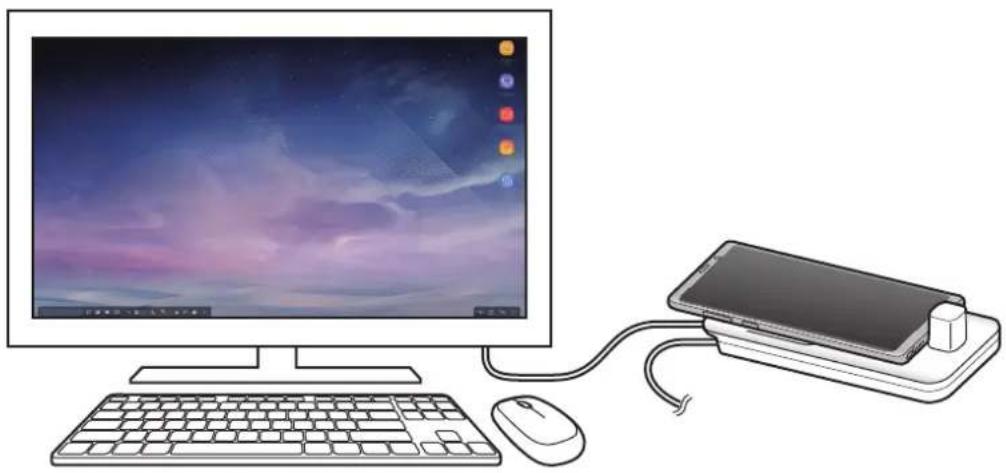
Samsung DeX 1

Samsung DeX bai jia
Samsung DeX bai J
.
Samsung DeX
aill 1 glll
HDCP 1
Samsung DeX
Samsung DeX
jol jolil 1000
Samsung DeX baiy
Samsung DeX bai
Samsung DeX baii daiy
Samsung DeX
.Wi-Fi
.Samsung DeX
auii iuiuui
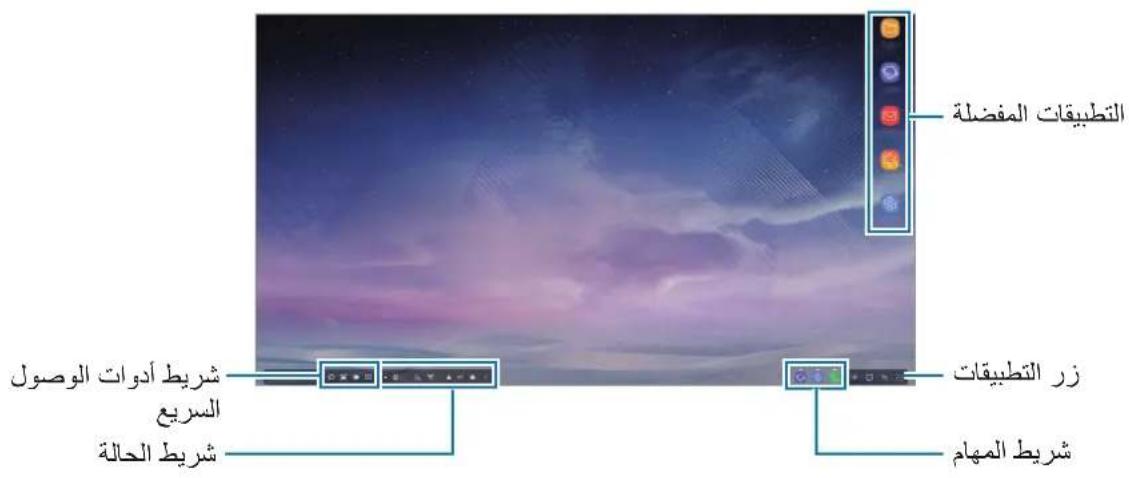
.
Lg 100000000000000000000000000000000000000000
1
aalal aol gssgaaal lgl 1000000000000000000000000000
a
aalaa
. Samsung DeX bai piai iiaiaiaiaiaiaiaiaiaiaiaiaiaiaiaiaiaiaiaiaiaiaiaiaiaiaiaiaiaiaiaiaiaiaiaiaiaiaiaiaiaiaiaiaiaiaiaiaiaiaiaiaiaiaiaiaiaiaiaiaiaiaiaiaiaiaiaiaiaiaiaiaiaia
aalssll jgljgall
jlll lssssssssssssssssssssssssssssssssssssssssssssssss
aJg aalSaa Jgauu 8n Jgao all

iabill 1jai
a
aaii jil aai iie gubill juaiai
Clew
jaiy jaii jaii jaii jaii jaii jaii jaii jaii jaii jaii jaii jaii jaii jaii jaii jaii jaii jaii jaii jaii jaii jaii jaii jaii jaii jaii jaii jaii jaii jaii jaii jaii jaii jaii
jgl jg g
Samsung DeX
aal aal alal aal alal alal alal alal alal
Samsung DeX
j j 1
j. 0j j j j j j j j j j j j j j j j j j j j j j j j j j j j j j j j j j j j j j
jll jll l 1
G

y
:
111 1
eaii gieie aikllg ieie pwr jia adilioa qbr baiolal aaiil alaiw gaiw abai bai:
k1 = 5 l1 = 4
1 0
a
a aalaaal alalal alalal alalal alalal alalal
auii iie 1e caiu bll i jyj yj:
1
Samsung DeX Samsung DeX
aia gall ailll g
#
j 1 j 1 1 1 1 1 1 1 1 1 1 1 1 1 1 1
i
Samsung DeX bai jolj jil jil jil jil jil jil jil jil jil
aikaii i 1j gbiill 1. jgall jie gao gai lai bill ail jbiw lai bill j dydi dic
Jgssll p 111 111 111 111 111 111 111 111 111
Samsung DeX bai duii iie aaiii

#
Samsung DeX 1
Samsung DeX 1
Samsung DeX :Samsung DeX
auii
Samsung DeX Samsung DeX
aiaagai aaii
Samsung DeX :Samsung DeX
glal jgo aee ybuol: gall e you
Samsung DeX
a jie jie jie jie jie jie jie jie jie jie jie jie jie jie jie jie jie jie jie jie jie jie jie jie jie jie jie jie jie jie jie jie jie jie jie jie jie jie jie
J 1
Samsung DeX aiaaiaaaaiiiaaiiaai
Samsung DeX Labs
y

Samsung DeX
Samsung DeX
Samsung DeX:Samsung DeX
Samsung DeX
aaii iiaibai aiil bai
alilall gaiall gciay aliall aill gaiall jaliil ie jbiw Jaoi Jgall jaiu
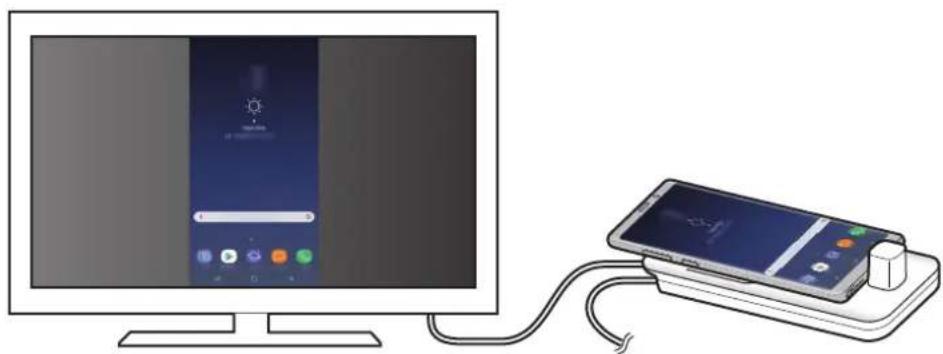
aill l 5ll sll y. wgl g j jg j j g j g j g j g j g j g j g j g j g j g j g j g j g j g j g j g j g j g j g j g j g j g j g j g
Jaaal Jgaaal jgsaal D

a
aaiiaaii i jilil ie aaiie
Samsung DeX 1000
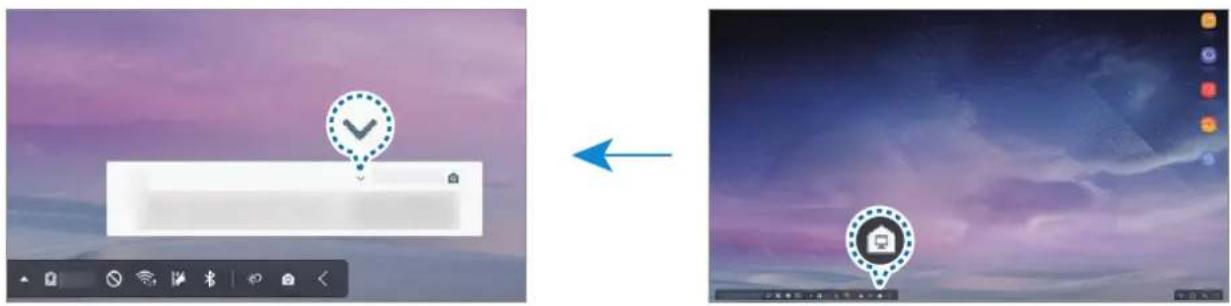
.SCREEN MIRRORingSamsung DeX
Samsung DeX
J 1
. SAMSUNG DEX , Samsung DeX
Jgall jglal yj
aill bilwgl cwlj! 2g y jgall jgey jn
Samsung DeX
Samsung DeX
Jgaoall jglj g Jy w g aiaai yilai g jolll lal
JgI JgI gI gI gI gI gI gI gI gI gI gI gI gI gI gI gI gI gI gI gI gI gI gI gI gI gI gI gI gI gI gI gI gI gI gI gI gI gI gI gI gI gI gI gI gI gI gI gI gI gI gI
i 1
aaii oie! pia aial jgaoall jgeaill jiaai caiyabw yau! jgl aai g i ayall rso aai .
g j 1 1 1 1 1 1 1 1 1 1 1 1 1 1 1 1 1 1 1
iogwolwla 5jy jLil, Jn y
JdIgaggaLac Jia jai bilwgl
Jaiil jieill aialll ilbgl alizj
i
J 1000000000000000000000000000000000000000000000000000000000
gaa
J 1
aJgdl gglg 1000
y 1
i 1
a
Samsung DeX,
oJai
G
a
i 1
1 1
1g20. 1
15
a 8.0
i 1
gai gai slalai
j 1

i j 1 i j k l m n o p q r s t


Jgaaa
:
s4ilwj 4y
HDMI
USB
USB

jLjw jy d y oKu w y 100000000000000000000000000000000
.
115
j 1 j 1 j 1 j 1 j 1 j 1 j 1 j 1
.111 15 jIw oB iJ W
a 1000
i 1
1 1
1 1
Oo
USB j 12k (C g USB) 1 1111111111111111111111111111111111111

ailln jil 10
J 1
.(CgUSB)
iiS oaii iis 5i j 45 s g wolw d y
J 1 J 1 J 1 J 1 J 1 J 1 J 1 J 1 J 1 J 1 J 1 J 1 J 1 J 1
.(CgUSB)

Samsung DeX
01
1
Samsung DeX jolal Jolj.

1 1
.
.
.
1
.
gol 1000
gac y gai j 1 j 1 j 1 j 1 j 1 j 1 j 1 j 1 j 1 j 1 j 1 j 1 j 1 j 1 j 1 j 1 j 1 j 1 j 1 j 1 j 1 j 1 j 1 j 1 j 1 j 1 j 1 j 1 j 1 j 1 j 1 j 1 j 1 j 1
1
1
Jai j 1 Jai j 1 Jai j 1 Jai j 1 Jai j 1 Jai j
.
. 1
Samsung DeX:Samsung DeX
1 4
i 1
aai jy jn jn jn jn jn jn jn jn jn jn jn jn jn jn jn jn jn jn jn jn jn jn jn jn jn jn jn jn jn jn jn jn jn jn jn jn jn jn jn jn jn jn jn jn jn jn jn jn
iiS jaiol 1 jjaiol
laalj jdlol
Samsung DeX
alolj j. 2010 100000000000000000000000000000000000000000000000
jolaii l o j 000 g jao jao jao jao jao jao jao jao jao jao jao jao jao jao jao jao jao jao jao jao jao jao jao jao jao jao jao jao jao jao jao jao jao jao jao jao jao
它恰好 x,y 且 x^2 + y^2 - 4x + 3 = 0
Samsung DeX j 1000000000000000000000000000000000000000

#
Samsung DeX
Samsung DeX 5
Samsung DeX:Samsung DeX
ii 1
Samsung DeX:Samsung DeX
1 1
Samsung DeX:Samsung DeX
1
Samsung DeX
J 15
1
Samsung DeX
Samsung DeX Samsung DeX Labs
120 0j12i j
.12

Samsung DeX j
Samsung DeX
Samsung DeX :Samsung DeX
Samsung DeX
i 1
i 1
Jis Jis. 150aiui iaiia aaii 1 j 1 gla ly dks 1aill jy lai

#
1
Samsung DeX
SCREEN MIRRORing Samsung DeX
Jaaa a a a a a a a a a a a aa a a a a a a a a a a a a a a a a
Copyright © 2018 Samsung Electronics
1
Samsung Electronics j k j 1
g j 1 1 1 1 1 1 1 1 1 1 1 1 1 1 1 1
J 14 j j j j j j j j j j j j j j j j j j
s
Samsung DeX ,
Samsung Electronics
.
HauaNo pa60TbI
В级以上
MylbTmEiHnA JOK-CTaHcIy N03BOLaET NOlb3OBaTbCg FyHKcIyM Mo6NlBHO rYCTPOICTBa Ha 6OJIbWOM 3KpaHe, POnKJIIOuVB TeLeBn3Op IIN MOHITOp. KpOme TOrO, MoXHO POnKJIIOUHTb HaxOJaIeCeP rJOM yCTPOICTBa, TaKHe KaK KJIaBnaTypy IIN MbIWB.
BHeuHn BnD yCTpoIcTba

YnpaBHeHne c nOMoU BHeU HeN KlaBNaTpybI Mblu
IopKnIOUHTe npoBOHyIO KnaBnAtpy N MbIb K pa3bemy USB Ha MyIbTmmedHoi DOK-CTaHcN INI
IopKnIOUHTe 6ecnpoBOHyIO KnaBnAtpy N MbIb C NOMOsbO fYHKcNn Bluetooth nOdkJIoueHHoro
MObINbHOro yCTpoiCTBa.

- Ppi nooknoueHH MbIsh ceHcOpHa naHeIb Ha MOnbHom ycTpoNCTBe He OTo6paXaetca.
BheHnKaIaBnAtpaN MbIb pa6oTaIOT daKe B pexKmE dy6nIpObaHn 3KpaHa.
PoiKJIoueHnE c nOmoaBIO Ka6eIa
Pn nCpOJb3OBaHn npoBODHO KlaBnaTypbI NmMbIe NIOKJIOnTe IX COOTBeTCTByUOuNe Ka6eN USB K pa3beMaM USB Ha MyIbTImMeiHOH DOK-CTaHcN.
Becnpobodhoe nodknquene nnn noeknquene no Bluetooth
Moxho noKluuHb 6ecnpoBOHyIO KlaBnaTypy uMbIb nn KlaBnaTypy uMbIb, KOToPbIe noDepxNBAIoT fYHKcUIO Bluetooth. DOnOJIHnTeNbHbIe cBeDeHnO 6 yCTPOINCTBax npNBedeHbIBpyKOBOdCTBe NOlb3OBaTeJRA K COOTBeTCTByIOUeMy yCTPOINCTBy.
- BecepnoBODnHa KJIaBnAtypa N MbIb: BCTaBbTe 6ecnpoBOHbI nPiNeMnK B pa3bEm USB.
- Bluetooth-KnabnaTypa n MbIb: BblonHnte noKluyeHne K MObnHomy yCTpoiCTBy nO Bluetooth.
Исpenьзоване рек imma Samsung DeX
Функцям MOбиьHOrO yctpoiCTBa MoxHo NOIb3OBaTbCBy INHTepfeiCHOI cpe, noXoxeHa cpey KOMpbIoTepa. MoxHo 3aanyckaTb npInIOxehnMo6nbHOrO yctpoiCTBa nIN npOBepaTb erO yBeDOMJIeHn I COCTOAHnE.

HeKOTOpBie npINOxKeHnI nn fynKcnn MoYr 6bITb HeNoCTyINbI B pexIme Samsung DeX.
PpeynpeKdEHH npn 3anyske peKmSaMssung DeX
- Пи зауcke пи OTКлоченп ржima Samsung DeX 6удт зakрытbl BCE pa6oTaIoшппюжен (3a ИСКлоченem HeKOTopbIX).
- Pexim Samsung DeX He 3anyctntcra, ecn mo6nbHoe yctpoiCTBO haoDNTcB ODHOM n3 cnedyuixx peKIMOB: MaKcMaJIbHO rHePrc6epeKeHrA, kCTpeHHOM, 6e0NaCHOM.
- Ecn TeneBn3Op nnn MoHITop He noDepKnBAOT TexHONOrn HDCP (aunTa uPOKoNOnOCHoro cnΦpOBOrO coePkmOro), kpaH B pexmme Samsung DeX moKeT he oTo6paKaTbCra.
- Pexim Samsung DeX noidepknBaet pa3peuHn HD+, FHD n WQHD. HeKoTope coepkmoe Ha TeIeBnOpe mmoHTope moKET OTo6paKaTbCHe TaK, KaK Ha 3KpaHe Mo6NlbHoro yCTpoiCTBa.
- Пи IncnoIb3ObaHn pexima Samsung DeX akKymyIaT op MoKeT pa3pKaTbC 6bIcTpee.
- Изменихе настpoек в ржиме Samsung DeX cootbetCTbyuizmОбразOM Измен и настpoй К мобильноу устpoиства. HeKOTOPbIe Habstpoikn MOBINbHOrO ySTpoiCTBa MOrTy He IN3MeHHTbcя доже пол Изенихе настpoек в ржиме Samsung DeX.
- Дя обновеня рекиma Samsung DeX до akтуалов Версни загузпг Встpoehhoe nporpaMMHoe obecneueHne c cepBepa. 3TO BO3MOxH0 TOnbKO pri noДКЛIOчEHN K ceTn Wi-Fi.
B 3aBnCmOCTN OT NOnTnK NInCeH3nPoBaHnR HeKOTOpbIe npNoJxEHNr Pn INcNoJIb3OBaHnB pexIme Samsung DeX mOryT cTaT b nAaTHbIMn.
PnnoctynneHn Bbl3OBA BbI6epnte Ha noKIOueHHOM TebeN3ope nIM MOHTope MeHIO BXoJxN Bbl3OBob. Ira OTBeTa Ha Bbl3OB NcNoJIb3yeTc dHaAMK MObIbHO rCTPOICTBa.

IopKIOUHTe HayuHnKu nn CHmUte MO6nIbHOe yCTPOcTBO C MyIbTmEduHOJ DOKCTaHcN, YTO6bl NCNoJIb3OBA Tb erO BMeCTO DnHaMnKa TeJefoHa npn OTBeTe Ha BXoJaun Bbl3OB.
I06aBHeHne apbIKOB npINOxKeHn
Bb6epnte KhoNky «PpnoJKeHnry», Bb6epnte npinoJKeHne,ДЯ KOTOPOrO HxKHO CO3daTbЯрblk,И nepetauTe erO Ha rIaBHyI kpaH.
Apnbik npunoxeHn 6ydet doabneH Ha rnaBHy 3KpaH.
CmeHa nnHaMnKOB
BmecTo DNHaMKOB MObHOrO yCTpoiCTBa, Bbl6paHHbIX NO yMOJIaHNIO, MoKHO Bbl6paTb DnHaMKI TeJeBn3opa, MOHITopa NII dpyrOro aydnooyctpoiCTBa.
OTKpoTe npInIOxHHe HAcTPOkN Ha NODKJIIOueHHOM TeIeBUN3Ope IIN MOHHTope IN KOCHTecb nepeKJIIOuAteJia Samsung DeX HAcTPOka CtaHd. ayDIOOBbIXoDa, YTO6bI BKJIIOUHTb COOTBeTCTByIOyIO fYHKcIIO. Iocne n3MeHENRA BbIbpaHHbIX NO yMOJuaHIO DNHaMnKOB 3ByK 6yJeT BOCpON3BOIDITBCa Chepe3 HOBbie DnHaMnKIO yMOJuaHIO KaJdbI pa3, KOrDa BKNIOueH peXIM Samsung DeX.

BmecTo DNHaMKOB MO6nIbHOrO yCTpoNCTBa, Bbl6paHHbIX NO yMOJIaHNIO, MoXHO BpeMeHHO Bbl6paTb DNHaMKU TeneBuN3OpA, MOHITOPA nII dpyrTO aYdNOyCTPOINCTBa. B CTPOKe COCTOHN HaKMITE KONKU AynOBbIXoN HA3NaYbTe Heo6xOIMoe yCTPOINCTBO. MoXHO TaKHe IeIKHyTB npABOi KNHKO Mbln 3HaQOK peRyInpOBKn rPOMKoCTN B CTPOKe COCTOHN N Bbl6paTb HxHHe yCTPOINCTBO B O6naCTN AyNoBBIXoN
IcnoIb3OBAHne naHei 6bICTpOro doCTyna
:0To6paXeHne3KpaHHoNKnabNaTpybl.
:perynilpoBka ypOBHra rPOMKoCTn dIa MeIoAn Bbl3OBA, My3bIKN IN BnJeO, YBeDOMJIeHNI NCCTEMHbIX 3ByKOB.
:co3aHne CHMka 3KpaHa, KOTOpbIM 3aTeM MOXHO NcNoIb3OBA Tb B KaYeCTBe fOHa InPa pncyHKOB n HaIIncEi, KaIprpOBa Tb nIIN NOeJIITbcra.
Q:NONCK COeepKIMOMOBMOBnHOM yCTPOIcTBe NO KIOUeBOMy CIOBy, BBeDeHHOMy B NOpE NOnCKa.
Hactpoikn rnaBHoro 3KpaHa
Pa3Mep HeKOTOpbIX npNJIOXKeHm N3MeHHTb HeBO3MOxHO.
- Исторы Samsung DeX: посмOTр спраBOчHои ИФОмaци O6 Исторы Samsung DeX ини NGMeHeHи Вадньх HabTpoEK.
O npiloxeHn Samsung DeX: nHopmaun o nporpaMMHom oecneueHn Samsung DeX ero 6HOBJIeHne.
Исpenьзоване рек imma дубліровая за Крана
3KpaH MO6nIbHO rO yCTPOiCTBa OCTaETcRA BkIIOUeHHbIM I OTO6paXaETcRA Ha NODKIIIOUeHHOM TeJIeBUN3OpE
IIN MoHTope. IpocMaTpNBaiTe pa3Hoo6pa3Hoe coJepXIMoe MO6nIbHOrO yCTPOiCTBa Ha
POnKIIIOUeHHOM 7nPoKo3KpaHHOM TeJIeBUN3OpE IIN MoHTope.

Pexm ny6nupobAHna kpaHa moKHO nCnoJb3OBaTb 6e3 noKluoyehn KnaBnAtpyblnnMbIu. YnpabTb kpaHOM MOKHO C NOMOsbIO noKluoyehHOro MoBnBHorO kpaHa.
MoxHo n3MeHnTb pexm əkpaHa Ha NODKJIIOUeHHOM TeJeBn3ope nn MoHntope.
1 B cTPOKe COCTOHN KOCHTecb 3HaUka KOCHTecb pAOM C NyHKTOM Samsung DeX.
2 KocHTecb 3HaUka Hnd NyHKTOM IcnoIb3yeTcSamsung DeXn Bbl6epuTe nyHKT SCREEN MIRRORING.
Pexim Samsung DeX OTKIouaetcI N EKpaH MO6bHOrO yCTpoiCTBa OTo6paJxaeTcHa NOdkIIOueHHOM TeJeBn3OpE IIN MOHtOpe.
Для поюени м exу ржимамmoьногу yctpoиCTBa, otкpoite naheь уbedомпи, Kochntecb 3HaUka рдOM c nyHKTOM Samsung DeX, a 3aTeM bbl6epHTe nyHKT SAMSUNG DEX.
3apяdka aKKymyIaTopa Mo6nIbHOro yCTpoIcTba
AkkymyIaTOp MO6nIbHOrO yCTpoIcTBa MoXHO 3apJkaTb C NOMoUbIO MyJIbTmMeiHoi HOJ DOK-CTaHcUN.
1 B cTpoKe coCToHnKoCHHTecb 3HaUka KocHTeCb pAOM C nyHKTOM Samsung DeX.
2 KocHTecb 3HaUka HaI nyHkTOM IocpeCTBom Samsung DeX n BbI6epnte npHKT BblCTPAJ 3APJKA.
Подключehнь Teleев30р ИИ MOHITOP BbIKIQUaTcЯ И Nauchetca 3apяДka MO6nIbHoro yCTpoiCTBa.
Приложкени
YcTpaHHe NHeNoJaOK
Ipeed o6paueHnem B cepBnchb i ceHTp Samsung nonpo6yIte cIeDyOuIe cnocobI yCTpaHeHHn HeNoJaOK.
B pexime Samsung DeX haxmTe KhoNkY «PpInloXeHnry» → CbXmTecb c haMn → BonpoCbl n OTBeTbI n HauDInTe HxKHyIO INΦOpMaunio.
MylbTmEiHaj DOK-CTaHcIy IJI NIOkJIIOUeHHbIe yCTpoIcTBA He pearnpuyot Ha DeIcTBnI
Ecn MyIbTmmeHnHa DOK-CTaHcHn IIN NpOKnIOueHHbIe yCTpoiCTBa He pearpyIOT Ha deIcTBn IIN «3aBncaIOT»,ДЯ peSeHn IPO6Nembl IOnpO6yIte BbIKIOUHTb NpOKnIOueHHoe MoBnIbHOe yCTpoIcTBO n CHOBA BKIOuHTb erO.
Ecn MylbTmMeiHna DOK-CTaHcN IIN NOkIoueHHbIe yCTpoIcTBa BCE eue He pearnpuyot, OTKnIOHTe yCTPOIcTBa OT MylbTmMeiHNOJ DOK-CTaHcN IN NOkIIOUHTe IX CHOBA.
Ecnn HenoJaKa He yctpaHeHa, o6patntecb B cepBncbI ueHtp Samsung.
© Samsung Electronics, 2018
Ie noci6nK KopncTyBaHa 3axnueHo 3riH0 3 MxHapOnHMn 3aKoHaMn 1Odo ABTOpcbKnX npaB.
3a6opOHeNo BiTbOpIOBaTu, Po3noBcIoxJyBaTu, nepeKnaIaTu a6o nepeDaBaTu B 6yb-iaKiΦopMi a6o 6yd-IAKIMN 3acO6aMn, eNEKTPOHHmN a6o MexaHcHMM, BKlUOHO i3 KcepOKoIIOBaHNM, 3aINCyBaHNM a6o 36epirAHNM Ha 6yd-IAKOMy npinCTpoI dIra 36epiraHn DaHnx YB iHΦopMaizIHO- NOwkyobii cIstemi, JODHy qactInHy cboRo noci6Hnka 6e3 nonepedHbOro nncbMOBOrO do3BOy KOMNaHii Samsung Electronics.
Tobaphi 3HaKn
SAMSUNG, norotun SAMSUNG i Samsung DeX € 3apeectroBaHIMN TOBAPHIMN 3HaKaMn KOMNaHii Samsung Electronics.
- Yci iHsi TOBAPHI 3NaKn aBTOpcbKi npaba HaleKaT bIINOBiHNM BlaChHKaM.
KymbICTbi 6actay
Kipicne
MylbTmEaIbIK DOK-CTaHcIyHbIH KEMerImeH MObIbI KypblfblHbIM MyMKiHdIKTeipH TeJeIaIapHa HemeC MOHTopfa KaIfay apKbIbI KeHIpeK 3KpaHda NaIaIaHyFa 6OlaDbI. CoHbImeH KaTAp, NepHeTaKaTHa HemeC TiHTyip cNkTbI XaKbIH KypblfblApDbI KOca aIaCbI3.
Xymbictbi 6actamac 6ypbIH OKbIHbl3
Kayinci3 api dypbic naiaaHy ysiH kypbilfbHbI naiaaHa6ac 6ypbIH OcbI HcKaylbIKbI OKbln bIfbIHbI3.
CypetTep HaKtbi OHIMHeH epeKwJelHyi MymKiH. Ma3MvH aIbIH ana eckepTyci3 3reptiIiyi MymKiH.
- MylbTImeHaJIbIK DOK-CTaHcIyHbI Android 8.0 Hemece OdaH KeiHri HycKaIapbl KOLdaHbIaTbIH MO6NbI KypblfblIapda fHa NaIdaHa aIacbI3. YIlecIMdi KypblfblIapDbSamsung Be6-caITbIHdAfbl MylbTImeHaJIbIK DOK-CTaHcIyHbIH Kipicne 6OJIIMHeH Kepe aIacbl3.
Hycayb6eJIwelepe

Eckepy: e3iHizH HeMece 6acKaIapDbH XapaKaT aIyBaHa aKeIyIMyMkiH KaFdaJnap

A6aIahb3: KypblfblHbI Hemece 6aca Ka6dbkTbI 6y3ybIMyMKiH KaFdaIap

Eckepim: eckepTuJep, naJaIaHy TpyaJIb KeHeCTep HeMece KocbIMsa aknapaT
KopanTbIH iwiHderici
KypblfblbIHcblpTKbl KepiHici

3apraTbIbI MylbTmMeHaIbIK DOK-CTaHcIyHbIH 3apraTbIbI NopTBHa (USB Type-C) KaIFaHaN Ke3e USB Type-C Ka6eIi NaIdaIaNbIHbI3. Erep MInKpo USB Ka6eIi Kocblca, MylbTmMeHaIbIK DOK-CTaHcIy aKaayIbI 6Olybl HeMece 3aKbIMdAlybl MyMKiH.
MylbTmMeHaJaBik Dok-CTaHcIaNbI naJaIaHy
MylbTmEHaJIbIK DOK-CTaHcIaHbI JxHe Mo6nJIbdi KypblfblHbI JkaIfay
1 3apraTafbl MyIbTImMeJaIbIK DOK-CTaHcIyHbIH, 3apraTafblnopTBHa (USB Type-C) XaJIFaHbI3.

XbIaam 3apTay yHKunacbIn Kojday KepceTeiH Tek Samsung 6ekitkeh 3apTaBItapDbI NaJaHaHbIHbI3 (9 B/1,67 A, 9 B/2 A, 12 B/2,1 A).

KyaTbI yHemdey ysiH naJaIaHaBImMaFah Ke3De 3apraTaBtB1 XeJIiDen aXbipTaBtB13. 3apraTaBtBtBn Kyat Kockblu JOK, COHbIKTaH Kyat bICbipab6H 6oJbIPMay uH, NaJaIaHa6aFah Ke3De 3apraTaBtB1 3JeKtp po3etkacbHa H axbipaty Kepek. 3apraTay Ke3iHd e 3apraTaBtB1 W JeKtp po3etKa YacbHa XaKbIH XHe OHa KOJ XeTimdi 6OlybI Kepek.
Mo6nIbdi Kypblfbl naiDalaHbImMaHaH Ke3de MylbTImMeaHaBik DOK-CTaHcuaHa aIbIHbI3.BoJMacac,MO6nIbdi KypblfblHbI3dbH,6aTaperaCbHbIH,3apAdbTomeHdEiDi.
2HDMI ka6einiin 6ip yshbIM MylbTmmeHaIbIK DOK-CTaHcIyHbIH HDMIOptbHa Kocbln, Ka6eJIbdiEkiHwi yshbIH TD HeMece MoHTOp HDMIOptbHa KaIFaHbI3.

MylbTMnMaJIbIK DOK-CTaHcIcBiHbIH XeTKi3IIM XNbIHbIFbIHdAfbl HDMI Ka6eJIH fHa KAJdaHbIHbI3. OcbI TalaNTbI YCTaH6aFaH XafDaJa, MylbTMnMaJIbIK DOK-CTaHcIraCbl dypbc eMcXyMbIC icTeyi MymKiH.
3 Mo6nJIbdi KypblfblHbIH, KeI MaKcattbI YAcbl H MyJIbTmEHaJIbIK DOK-CTaHcIraFbIMo6nJIbDi Kypblfbl aftbnacbHa (USB Type-C) KocblbI3.

Mo6nIbdi Kypblfbaftnafa KeJIbey eKeHdiirH TeKcepH3. OHTnece, MyIbTMMeHaNbIK DOK-CTaHcNJaXaHe Mo6nIbdi Kypblfba 6yliHyi MymKiH.

Erep KyHdaKa caIbIHFaH Mo6nIbdi Kypblfbi KaIHaHca, OI KyHdaKa 6aJIaHbICTbl MybTImMeHaJIbIK DOK-CTaHcIrcbHa dypbc XaIHa6aybl MymKiH HeMece SAMSUNG DeX cTaHcIrcbI dypbic JyMbIC ICTeMeyi MymKiH. TbICTbl KOJaHbIC aJIbIHda aJIbHbI3.

Kei6ip MoibIki Kypblfblap ywiH MoibIki Kypblfbl eipyli Ke3de TeK KaibITbI 3apTay pexnmi KoJxetimdi 6oIaDbI. Erep Xblam 3apTay MymkHirih 6eHdpy Kepek 6oIca, OHBI MOIBIki Kypblfbl Kocylb Ke3de 6eHepiH3 Hemece MoibIki KypblfblHbIdbIMylbTMnMaNbIK DOK-CTaHcNraFa emec tikeJe Samsung pactaHa HxbIdAm 3apTafbioka xalfaHbI3. 3apTay keiHe Samsung pactaHa XeTKiIm XnbHTbIFbIHdaftb 3apTafbltfaHa naJaHaHbIbI3.
KypblfblHbI Kocy Ke3iHderi caKTbIK shapalapbl
XbIaM 3apTay MymKiHirHe KOJdAy KepCetTeIH Samsung paTaHa 3apTaBikKa Kocy Ke3iHde faHa MylbTmMeDnAJIbIK DOK-CTaHcNHaHbI naJaHa aIacbl3.
- MylbTImeMaIbIK DOK-CTaHcIaHbIH USB nopTTapbHa TeK nepHeTaKaTaHbI, TiHTyipDi Hemece USB caTay Kypblfbcih KocbiHb3. KypblfApdbI 3apdTay Hemece Kofapbl CbiMbIbIKTbi KypblfApdbI OcbI NOPTTapFa Kocy dYpbIC Kymbic ICTemeyi MymKIn.
XeIeTkiTiH caHbIaybI MeH MO6NJIbDi Kypblfbl aftbnacbl (USB Type-C) iwiH cyBikTBiKtAH HeMece WaHHaH KOpFaHbI3. CyBikTBiK Hemece WaH acepIMyIbTMnMaJIbIK DOK-CTaHcHbIH dypbc icTeMeyiHe ce6en 6OlybIMymKiH.
Mo6nIbdi Kypblfbl MyIbTmEHaJIbIK DOK-CTaHcNraFa Kocylb Ke3de OHbl XblXbITNaHbI3. Bynai icTey Mo6nIbdi Kypblfbl aftPiacbHa (USB Type-C) 3akblm KeItipyi MymkIn.
- MylbTImeMaIbIK DOK-CTaHcIaHbI MO6NJIbDi KypblfbiFa KocKaHHaH KeiH Mo6NJIbDi KypblfbiHbIH DaybIC TaHy MymKiHdiRiH naJaIaNHaHKe3De, DaybIC TaHy MymKiHdiRi DypbIC OpbHdAlMaybIMymKiH.
Kypblfbl KocblbIMbIH aay
Mo6nJIbdi Kypblfbi MeH Td Hemece MOHITop apacbIHdaftbi 6aJIaHbICTbi aKtay ywiH, Mo6nJIbdi KypblfbiHb MyJIbTImMeHaJIbIK DOK-CTaHcIyDaH aJIbIHbI3.

Mo6nIbdi KypblfblHbI KeJdeHeHHeH aIbIHb3. OHbl TBIM Xofapbl KeTepy, apTbIK TaPty Hemece waKay Mo6nIbdi Kypblfbl aftbnacbHa (USB Type-C) 3akblm keJtipyi MymkIn.
KoIdaH6a TaH6aShaIapbIn Kocy
KoJaHa6aIap Tymecin TaHdI, TaHbIaXacay KepeK KoJaHa6aHbI TaHdI, Ohbl BaCTaNkbl 3KpaHra cyIpeHi3.
KoIaH6a TaH6aawacbI BaCTanKbI 3KpaHfA KocblaBl.
Динамктердia aybICTbipy
MoibIbI KypblfblHbIH dHaMkTepiH T, MOHITOp Hemece aydno KypblfbcI dHaAMkTepiHe aybICTbIpa aIacbl3.
XaHaHFaH TД HeMece MoHITOpdAn KoH-Nap KOnDaH6acbIH icKe KocbIn, MymKiHdiKti 6eIceHdpy ySiH Samsung DeX ΘaENKi Dbl6bc IdbfApdy Ophaty KockblbIH TaHaHbI3. ΘaENKi dHaAMnKTepei aybICTbIPfAHHaN KeiH, TiTI, Samsung DeX pexmiki KocylbI 6oJIHaHbIMeH, Dbl6bc XaHa aENKi dHaAMnKTepeH OHaTbIaDbI.

MoibIbI KypblfblHbIH DnHaMkTepiH T, MOHITOp HeMece aydno Kypblfbcbl
DInHaMkTepiHe yaBtwa aybICTbipa aIacb3. Kyj XoJalbfHaH 6bictbIH WbIFybl
TapMaftbIH TaHdaI, KaKeTTI KypblfblHbI TaHdaHbI. BoImaca, Kyj XoJalbfHaH KeJIem
6eJIiWeciH TiHTyipdiH OH XaFbIMeH 6acbl, 6bICTbIH WbIFybl actbHaH KaXeTTI
KypblfblHbI TaHdaHbI3.
KbIaM KaTbHaC KypaJaap TaKTacbH naJaHaHy
:3KpaHdbI nepHeTaKaTahbI KepceTy.
: KOhbpay pHHTOHaPbI, My3bka XaHe 6eHHepe, xa6aplaHdbIpynap XaHe Jxuye Dbl6bictapbl Dbl6blic DeHrein peTey.
:ckpnHwOTka Tycipy XaHe TycipinreH 3KpaHdbI ap Typni JoJapMeH naJaHaHy, MbicaJIbI cypert caly, Jxay, KnbIn any HeMece 6eNicy.
Q: i3dey epicihe kiIITce3 eHri3ymeh mo6nIbdi KypblfbiHaH Ma3Myni3dey.
BactanKbI 3KpaH onuJapbl
BactanKbI 3kpaHda Kocblfah TiHTyipdiH OH Jka Tymecin BacKaH Ke3de BactanKbI 3kpaH OpiJapbH NaJaHa aJacbl3.
CypbInay aici: 6actanKbl kpaHda konlaH6aIapdbI opHaIacTbipy adicin TaHday.
Tataay. TaHdaIraH opHaIacTbipy aicHe caikec bactanKbi kpaHfKaoldaH6aIap HeMece KaItaIap opHaIacTbipy.
Samsung DeX Tycka3a4bbl: 6actankb1 kpaH xHe KylbntalraH kpaH ysiH Samsung DeX pexmih Tycka3 napameTplepH e3reptiH3.
YlkeH 3KpaHda aHbIK KepiHeTIN OyBInDapDbI naJaIaHy
Moibblki KpybIbI ObiHapbi H yKeH 3KpaHa oHaHbI3. Kocblfah Td-dan HeMece MOHTopdaH Game Launcher KOJaHa6acbiH icKe KocbiHbI3.
KoIdaH6aIapDbI icKe kocy
Samsung DeX pexmihderi moibjki KypbifbcibaHa opHaTbifan KoJaH6aJapdbicke KocbiHb3.
KoIdaH6aIap tyImei taHaIca, MoIbI Kypblfbl KoIdaH6aIapbl ti3imi naJa 60laIbI.
KoJaH6aHb TaHdAn icKe KocbHb3. BipHeWe KoJaH6aHb aHbIn, OApDbI 6ip yaKaBITTa icKe KocyFa XaHe KOMNbHOTep NaIdaHaHy Ke3iHne KcN TaNCbIPMaHb OPbHdAyFa 6OlaDbI.

Kei6ip kOlaH6aIap Samsung DeX peximn naJaIaNy ke3iHne kOJIkeTImci3 6onybIMyMKiH.
Параметрелді теншey
Samsung DeX peximi napaMeTppeiH TeHweHiz.
KocbIHaH KOnDaH6aIap HeMece MOHITOpdaH KoH-JaP KOJaH6acbIH icKe KocbIn, Samsung DeX TaHdaHbI3.
Samsung DeX ekpan yaKbITbI 6iTTi: dinpneiH apTKbl JapbIFbIH eWipy aIbHda Samsung DeX pexnmi Kty yaKbITbIH opHaTy.
Samsung DeX Tycka3apb: 6actankbI eKpaH XaHe KylbntalraH eKpaH ysiH Samsung DeX peKmIH TycKa4a3 npaMeTpIepiH e3reptiH3.
Samsung DeX yushi kpaan aXbipatbIM: Samsung DeX pexmihkpan aXbipatbIMdbIbIfbIH 03repty.
Me3ep KbIaMdbIfbI: TiHTyipDiH Me3ep KbIaMdbIfbH peTey.
Samsung DeX KbI3MeTInHe 3KpaHbIK nepHeTaKaTKePcTeY. CbIPTKbl NepHeTaKaTahbl Kocy Ke3iHde KocblfAH 3KpaHda 3KpaHdbIK nepHeTaKaTahbl KepCeTy.
- ΘДENKI ДБИбIC WbHApybl OPhATy. TД-Nы Hemece MOHITOpbl AДENKI DnHaMnK petiHdE OPhATy.
MapkeTnHrtik aknapat any: Samsung DeX MapkeTnHr aknapaTBH any KyiHe opHaTy.
Samsung DeX Labs: Samsung DeX peKIMHe pecMn KoJday KepceTImeTIn KoJaH6aJap ŒIseMiN Θ3repty.

Kei6ip kOlaH6aIap oIseMi 3reptimMei.
Samsung DeX naДалану колы Samsung DeX peжими naДалану HeMece MaHbI3dI npaMaTePJIepdi TeHwey KOLbl Tpyalbl aHbIKTaMa aKnapaTTb Kepy.
Samsung DeX Typalb: Samsung DeX 6aFapamaIbIK xacaKaTamacbl TpyaIb aKnapaTbI Kepy XHe Samsung DeX 6aFapamaIbIK xacaKaTamacbl XHaPty.
Copyright © 2018 Samsung Electronics
Bny HycKayIbIK XaIbIKapaIbIK aBTOpIbIK KyKbIKTap TypaJIbI 3aHapMeH KopfaiFaH.
Samsung Electronics kompanhncbih andbih ana Jka36a7a pyKcTBHcb3 6yI HycaylbkTBiH e6ip 6eirin Ke3 keiren Typde He mece Ke3 keiren adic, 3neKTPOHdbIK He mece MexaHnKaIbIK, cohbiH ihiDe, fotokeippy, k3y He mece Ke3 keiren aKnapaTbIK KOImada KHe 8bIfapBIn any xyieciHde caTay apkbbl Keiwipre, tapatfA, aydapyfa He mece TaebmaJayfa 6olmaiDbI.
Cayda 6eIrilepi
- SAMSUNG, SAMSUNG Jorotuni Jxhe Samsung DeX — Samsung Electronics KOMnHaHnCbInbH TipKeIreH cayda 6eIripei.
- BapIbIK 6acKa cayda 6enrIepi XaHe aBTOpIbIK KYKbIKTap Tnicti nelepiHmehwiRi 6oJIbIn Ta6blJaBl.
Getting started
Introduction
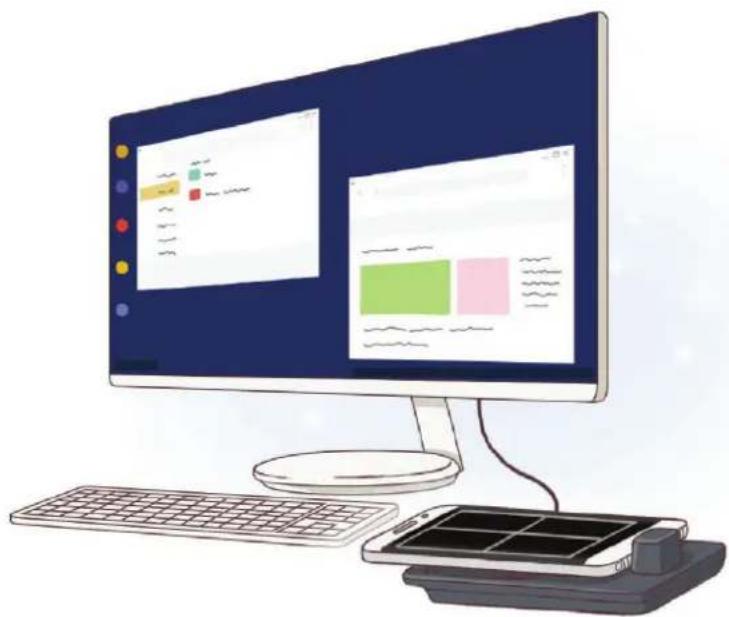
With the multimedia dock, you can use your mobile device's features on a wider screen by connecting a TV or monitor. You can also connect with nearby devices, such as a keyboard or mouse.
Read me first
Please read this manual before using the device to ensure safe and proper use.
- Images may differ in appearance from the actual product. Content is subject to change without prior notice.
- You can use the multimedia dock only on supported mobile devices running Android 8.0 or higher. You can view the compatible devices in the introduction section for the multimedia dock on the Samsung website.
Instructional icons

Warning: situations that could cause injury to yourself or others

Caution: situations that could cause damage to your device or other equipment

Notice: notes, usage tips, or additional information
Package contents
Check the product box for the following items:
Multimedia dock
HDMI cable
USB cable
USB power adaptor
- Quick start guide

- The items supplied with the device and any available accessories may vary depending on the region or service provider.
- The supplied items are designed only for this device and may not be compatible with other devices.
- Appearances and specifications are subject to change without prior notice.
- You can purchase additional accessories from your local Samsung retailer. Make sure they are compatible with the device before purchase.
- Use only Samsung-approved accessories. Using unapproved accessories may cause the performance problems and malfunctions that are not covered by the warranty.
- Availability of all accessories is subject to change depending entirely on manufacturing companies. For more information about available accessories, refer to the Samsung website.
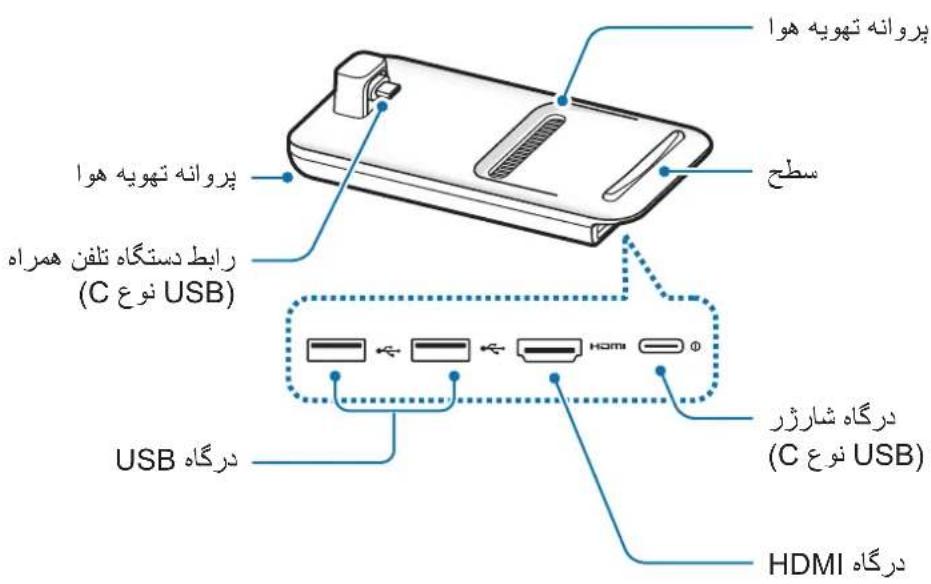
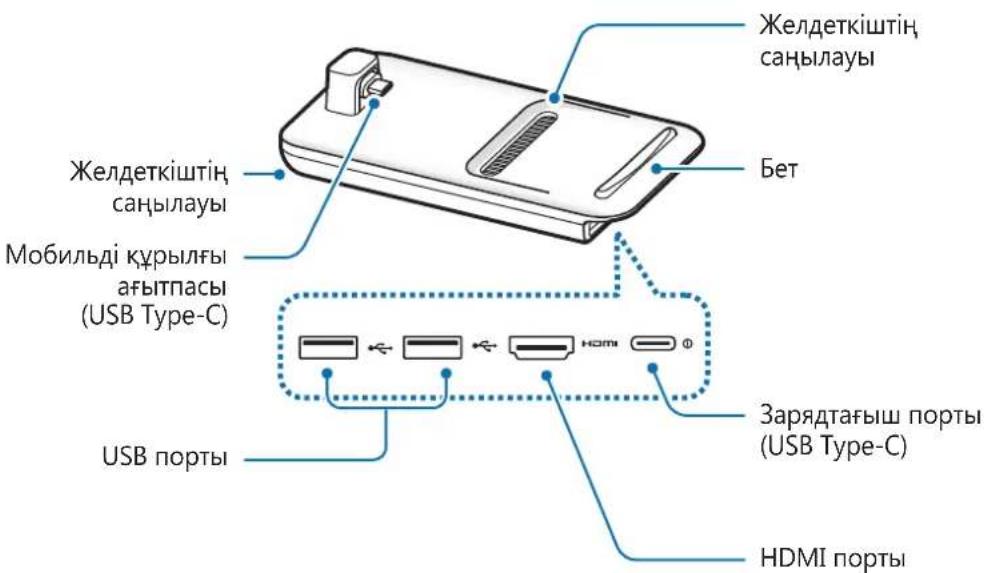
Device layout
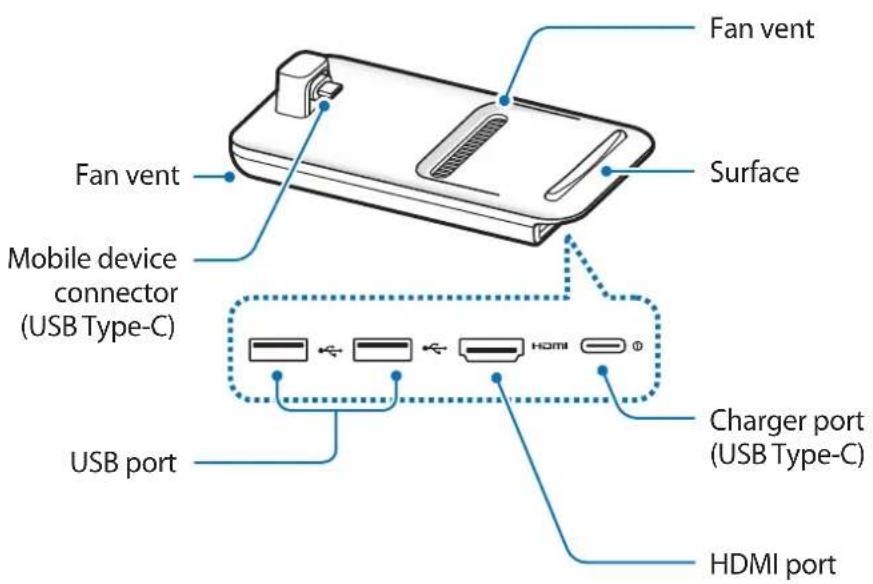

When you connect the charger to the multimedia dock's charger port (USB Type-C), be sure to use a USB Type-C cable. If you connect a Micro USB cable, the multimedia dock may malfunction or be damaged.
Using the multimedia dock
Connecting the multimedia dock and a mobile device
1 Connect the charger to the multimedia dock's charger port (USB Type-C).

Use only Samsung-approved chargers that support the fast charging feature (9 V/1.67 A, 9 V/2 A, 12 V/2.1 A).

- To save energy, unplug the charger when not in use. The charger does not have a power switch, so you must unplug the charger from the electric socket when not in use to avoid wasting power. The charger should remain close to the electric socket and easily accessible while charging.
- Remove your mobile device from the multimedia dock when it is not in use. Otherwise, your mobile device's battery will drain.
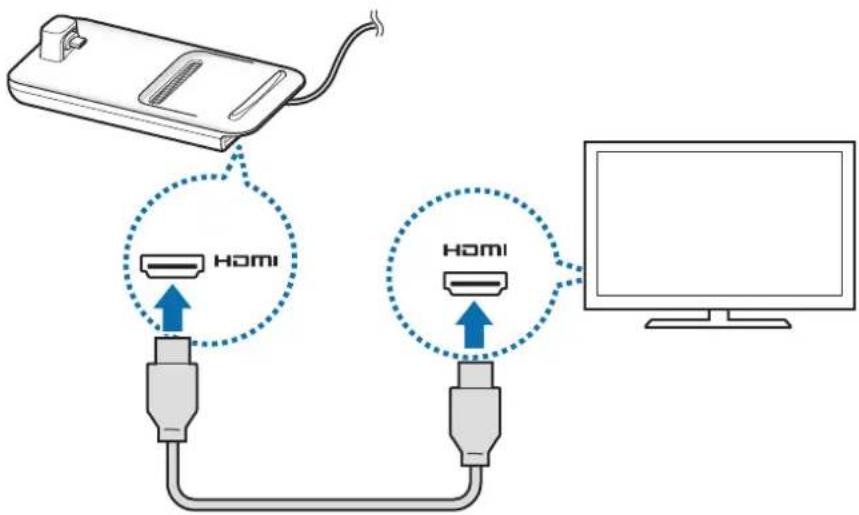
2 Connect one end of an HDMI cable to the multimedia dock's HDMI port, and plug the other end of the cable into a TV or monitor's HDMI port.
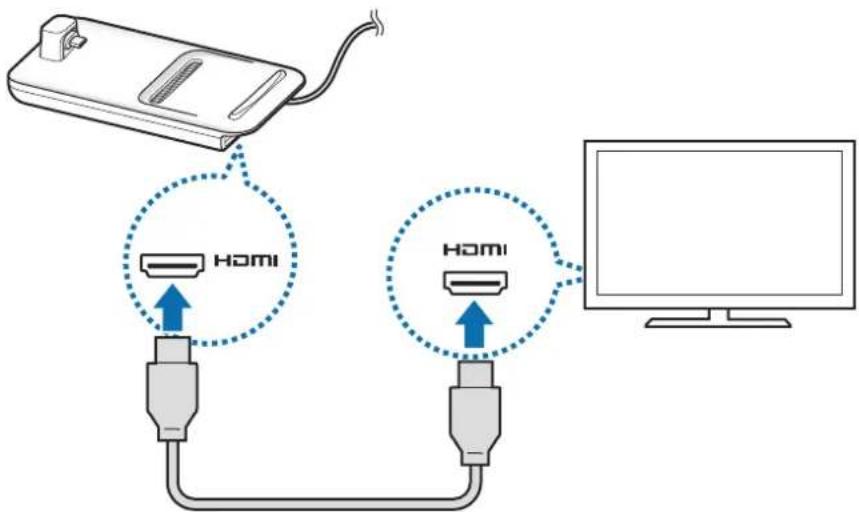

Use only the HDMI cable supplied with the multimedia dock. Otherwise, the multimedia dock may not work properly.
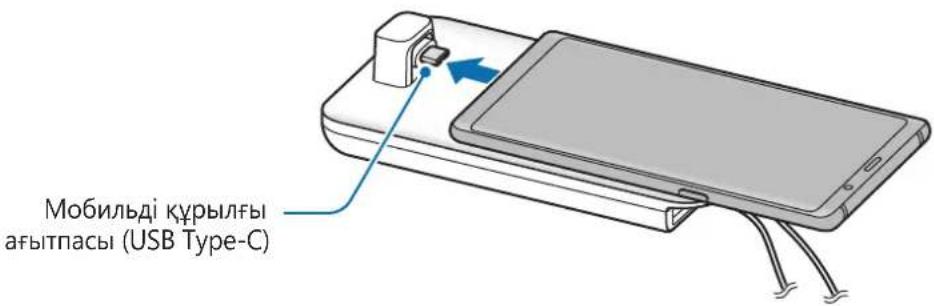
3 Connect the mobile device's multipurpose jack to the mobile device connector (USB Type-C) on the multimedia dock.
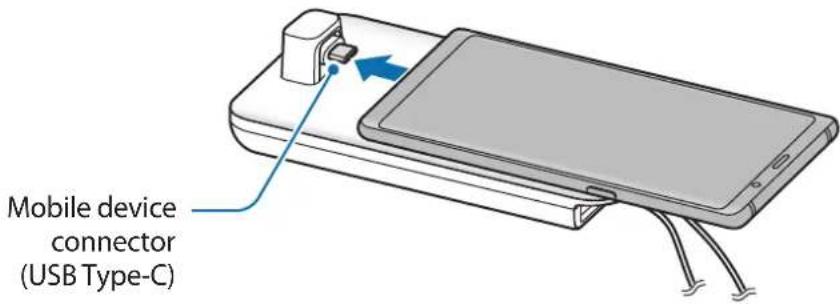

- Ensure that the mobile device is horizontal to the connector. Otherwise, the multimedia dock and the mobile device may be damaged.

- If you connect your mobile device with a case attached, it may not correctly connect to the multimedia dock or run SAMSUNG DeX properly depending on your mobile device's case. Remove the case before use.

For some mobile devices, only the normal charging mode is available when your mobile device is turned off. If you want to activate the fast charging feature, activate it when the mobile device is on or connect your mobile device directly to the Samsung-approved fast charger, not the multimedia dock. When charging, use only the Samsung-approved charger that is provided on purchase.
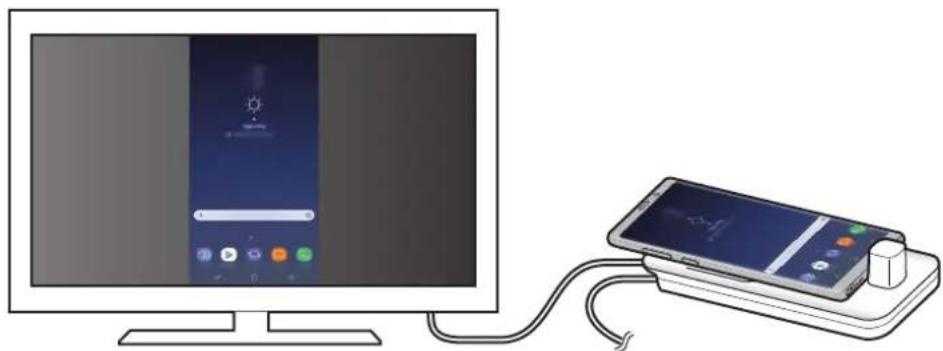
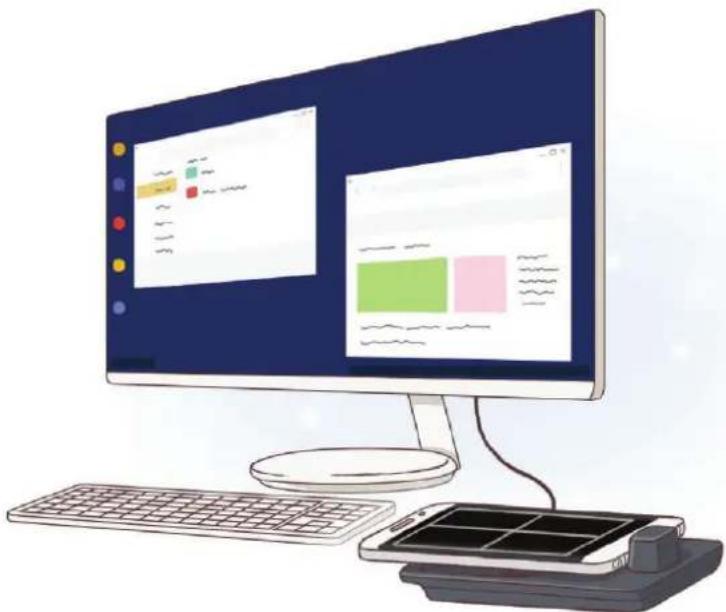
4 Select the screen mode you want to use. You can select Samsung DeX mode or Screen mirroring mode.
- START SAMSUNG DeX: The mobile device's screen will turn off and appear on the connected TV or monitor in desktop mode.
- SWITCH TO SCREEN MIRRORING The same screen as the mobile device will appear on the connected TV or monitor.
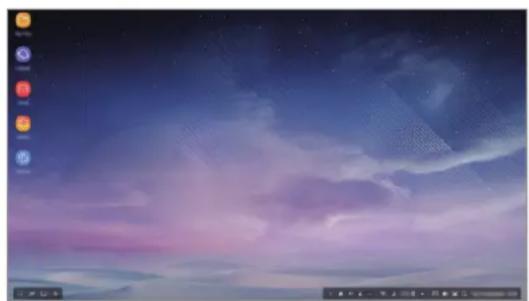
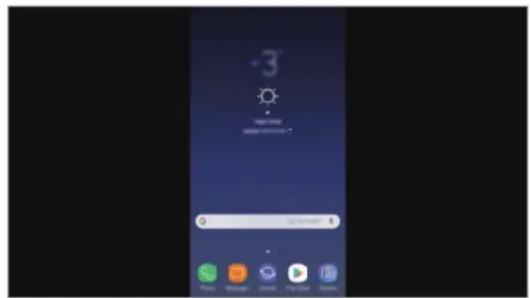
Samsung DeX mode Screen mirroring mode

- The screen mode you first select will be applied for subsequent connections. Refer to Changing screen mode for more information.
- If you want to use a keyboard or a mouse, connect them using the multimedia dock's USB ports or via Bluetooth. Refer to Controlling with an external keyboard and mouse for more information.
- The available features may vary depending on the mobile device. You can view more information in the introduction section for the multimedia dock on the Samsung website.
Precautions for connecting the device
- You can use the multimedia dock only when you connect it to a Samsung-approved charger that supports the fast charging feature.
- Connect only a keyboard, mouse, or an USB storage device to the multimedia dock's USB ports. Charging devices or connecting high-capacity devices with these ports may not work properly.
- Prevent the fan vent and mobile device connector (USB Type-C) inside from coming into contact with liquids or dust. Exposure to liquid or dust may cause the multimedia dock not to work properly.
- Do not move the mobile device while it is connected to the multimedia dock. Doing so may damage the mobile device connector (USB Type-C).
- When you use the mobile device's voice recognition after connecting the multimedia dock to your mobile device, the voice recognition may not perform well.
Ending the device connection
Remove the mobile device from the multimedia dock to end the connection between the mobile device and TV or monitor.

Be sure to remove the mobile device horizontally. Raising it up too high, pulling it excessively, or shaking it may damage the mobile device connector (USB Type-C).
Controlling the Samsung DeX screen
Controlling with a mobile device
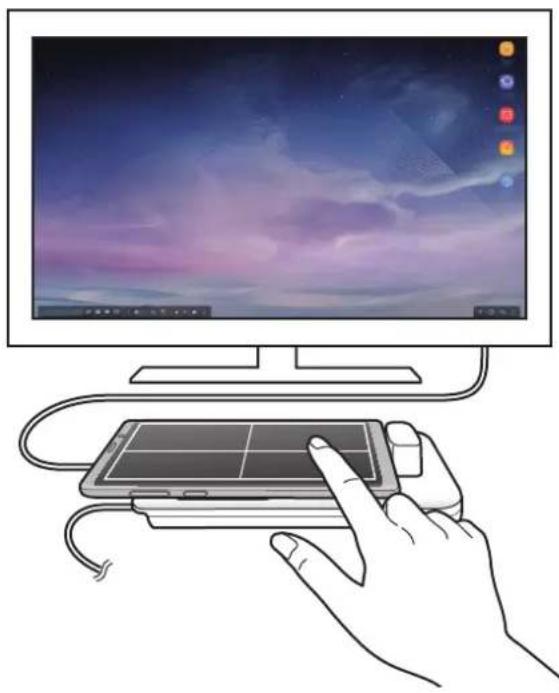
You can use your mobile device's screen as a touchpad.
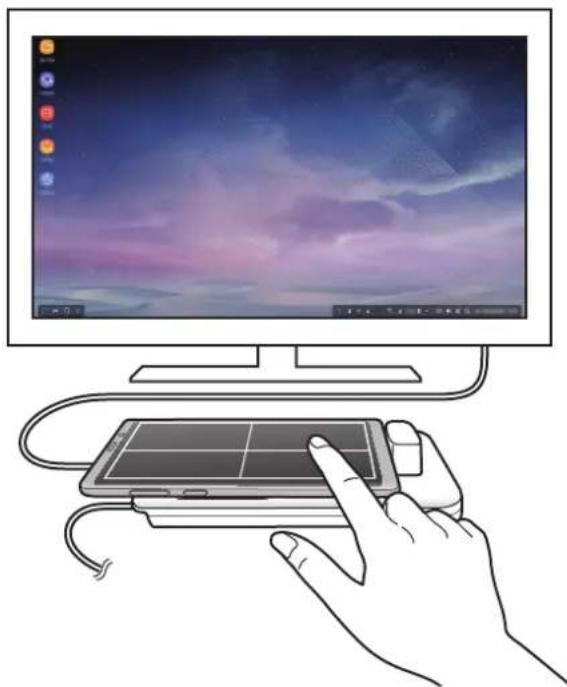

- You can use the touchpad only when using Samsung DeX mode.
- If your mobile device's case has a front cover, open the front cover to use the mobile device as a touchpad. If the front cover is closed, the touchpad may not work properly.
Controlling the screen
- Tapping: Launch an app or select a button.
- Tapping with two fingers: Show the additional options.
- Swiping with two fingers: Scrolling the screen in any direction.
- Spreading or pinching with two fingers: Zoom in or out.
- Tapping and holding: Select an item on the screen.
- Dragging: Move an item or select text.
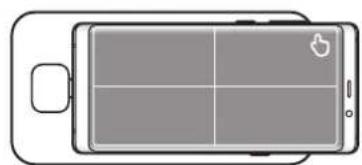
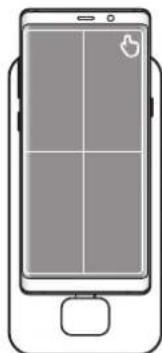
Orienting your mobile device's screen
When you are using your mobile device as a touchpad, you can use it in either the horizontal or vertical alignment.
1 When the multimedia dock and the mobile device are connected, raise both of them to be perpendicular to the surface (①). Then, turn the mobile device to be either vertical or horizontal, the orientation you want (②).
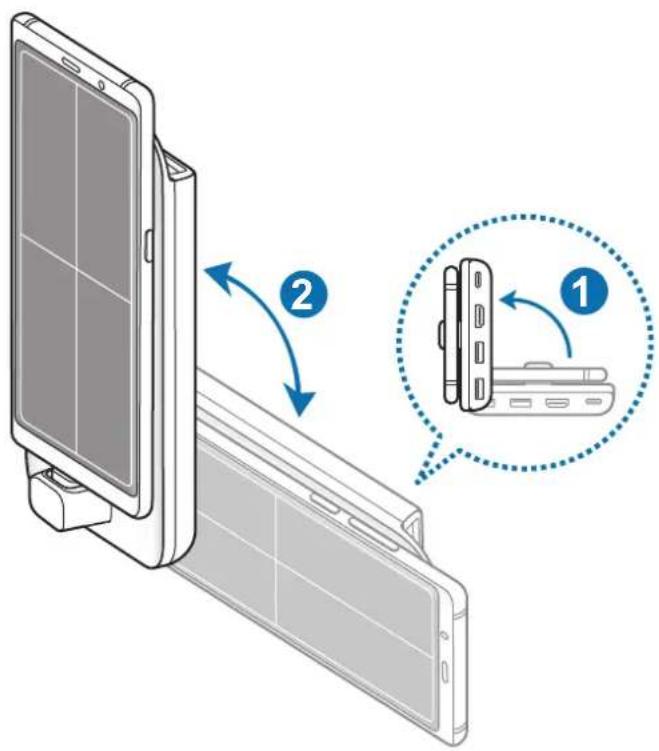
2 Move both the multimedia dock and the mobile device up and down slightly.
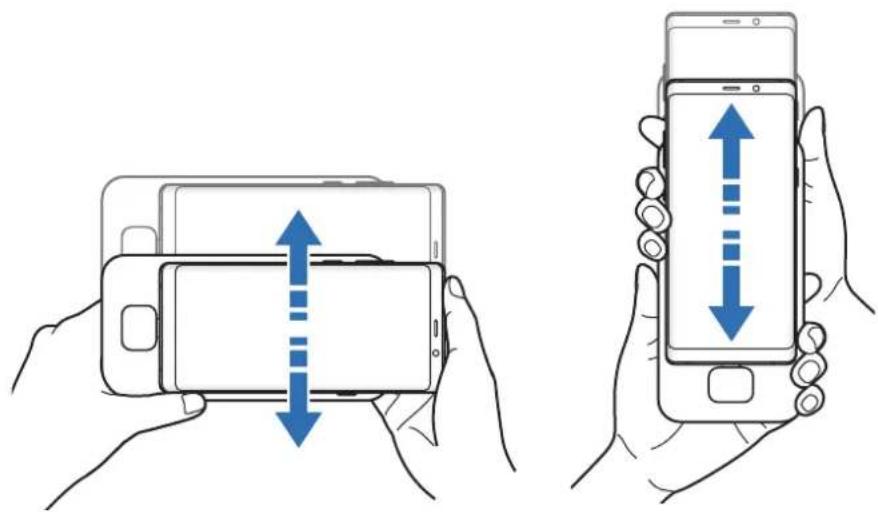
If your mobile device's screen has been properly oriented, the icon will appear at the top right of your mobile device's screen.
Controlling with an external keyboard and mouse
Connect a wired keyboard and mouse to the multimedia dock's USB port or connect a wireless keyboard and mouse with the Bluetooth feature of the connected mobile device.

- When you connect a mouse, the touchpad will not appear on your mobile device.
- You can control with an external keyboard and mouse even in Screen mirroring mode.
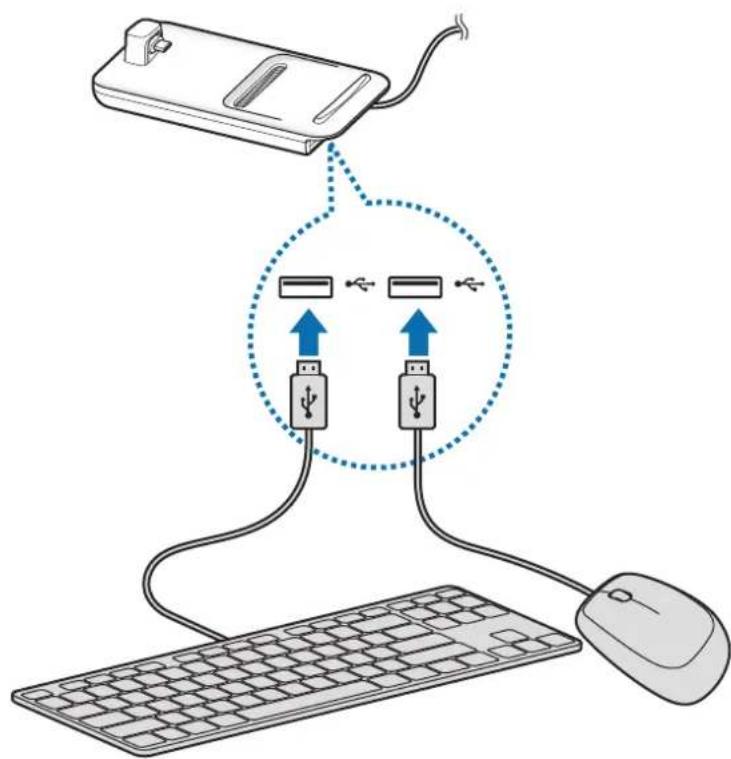
Connecting via cable
If you want to use a wired keyboard or wired mouse, connect their USB cables to the multimedia dock's USB ports.
Connecting via wireless or Bluetooth
You can connect a wireless keyboard and mouse or Bluetooth keyboard and mouse. For more information about the devices, refer to the device's user manual.
- Wireless keyboard and mouse: Insert a wireless receiver into the USB port.
- Bluetooth keyboard and mouse: Connect to a mobile device via Bluetooth.
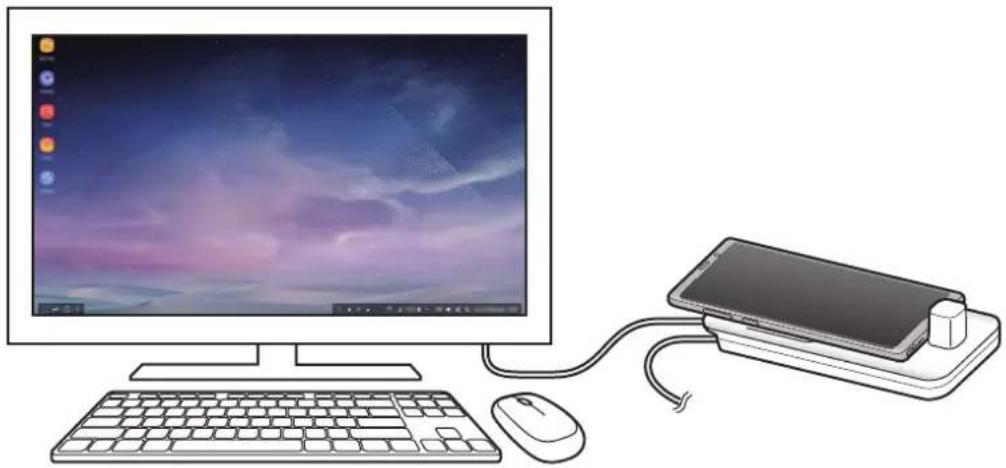
Using Samsung DeX mode
You can use your mobile device's features in an interface environment similar to a computer. You can launch the mobile device's apps or check the mobile device's notifications and status.

Some apps or features may not be available when using Samsung DeX mode.
Precautions for launching Samsung DeX mode
- When you launch or disconnect Samsung DeX mode, the currently running apps will close except some apps.
- You cannot launch Samsung DeX mode if your mobile device is in the following mode: the ultra power saving mode, emergency mode, and safe mode.
- If the TV or monitor do not support HDCP (High-bandwidth Digital Content Protection), the Samsung DeX mode screen may not be displayed.
Samsung DeX mode supports HD+, FHD, and WQHD resolutions. Some content on y mobile device may be displayed differently on the TV or monitor. - The available time for battery usage can be reduced when you use Samsung DeX mode
- If you change the settings on Samsung DeX mode, the mobile device's settings will be changed as well. Some settings of the mobile device may not be changed even if you change the settings on Samsung DeX mode.
- Download the firmware from the server to update Samsung DeX mode to the latest version. It is available only when connected to a Wi-Fi network.
- Some apps may become paid apps depending on their license policies when you use Samsung DeX mode.
Using the Home screen
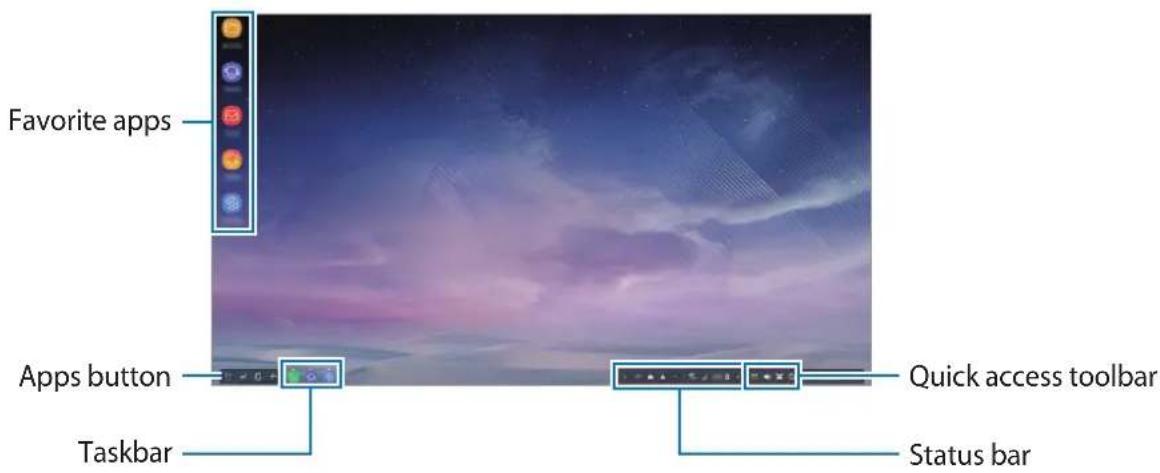
- Favorite apps: Add frequently used apps to the Home screen and launch them quickly.
- Apps button: View or launch apps installed on your mobile device.
- Taskbar: View the apps that are currently running.
- Status bar: View your mobile device's status or notifications. The displayed icons may differ depending on your mobile device's current status. Select and turn on and off your mobile device's various features on the quick settings list.
- Quick access toolbar: Use the on-screen keyboard, volume, screenshot, and finder features quickly.
Receiving an incoming call
You can receive an incoming call with the connected TV or monitor while using Samsung DeX mode.
If you receive a phone call, select the incoming call menu from the connected TV or monitor. The mobile device's speaker is used for answering the call.

Connect earphones or remove your mobile device from the multimedia dock to use the mobile device instead of the speaker phone to receive an incoming call.
Adding app shortcuts
Select the Apps button, select the app you want to create a shortcut to, and then drag it to the Home screen.
A shortcut to the app will be added on the Home screen.
Changing the speakers
You can change the default speakers from your mobile device's speakers to the speakers of a TV, monitor, or an audio device.
Launch the Settings app on a connected TV or monitor, and select the Samsung DeX Set default audio output switch to activate the feature. After you change the default speakers, sound will play through the new default speakers whenever Samsung DeX mode is on.

You can temporarily change from your mobile device's speakers to the speakers of a TV, monitor, or an audio device. On the status bar, select Audio output and select the device you want. Alternatively, on the status bar, right click the Volume icon and select the device you want under Audio output.
Using the quick access toolbar
- : Display the on-screen keyboard.
- Adjust the volume level for call ringtones, music and videos, notifications, and system sounds.
- Capture a screenshot and use the captured screen in various ways, such as drawing on, writing on, cropping, or sharing it.
- Q: Search for content on your mobile device by entering a keyword in the search field.
Home screen options
On the Home screen, when you press the connected mouse's right button, you can use the home screen options.
- Sort by: Select the arrangement method for apps on the Home screen.
- Clean up: Arrange apps or folders on the Home screen based on your selected arrangement method.
- Wallpapers for Samsung DeX: Change the Samsung DeX mode wallpaper settings for the Home screen and the locked screen.
Enjoying games vividly on a large screen
Play your mobile device's games on a large screen. On the connected TV or monitor, launch the Game Launcher app.
Launching apps
Launch apps installed on the mobile device on Samsung DeX mode.
When selecting the Apps button, your mobile device's apps list will appear. Select an app and launch it. You can open several apps and launch them at the same time and multitask as you use the computer.

Some apps may not be available when using Samsung DeX mode.
Configuring the settings
Configure your Samsung DeX mode settings.
Launch the Settings app on the connected TV or monitor and select Samsung DeX.
- Screen timeout for Samsung DeX: Set how long Samsung DeX mode waits before turning off the display's backlight.
-
Wallpapers for Samsung DeX: Change the Samsung DeX mode wallpaper settings for the Home screen and the locked screen.
-
Screen resolution for Samsung DeX: Change the Samsung DeX mode's screen resolution.
- Pointer speed: Adjust the pointer speed for the mouse.
- Show on-screen keyboard in Samsung DeX: Show an on-screen keyboard on the connected screen when you connect the external keyboard.
- Set default audio output: Set a TV or monitor as a default speaker.
- Receive marketing information: Set whether to receive Samsung DeX's marketing information.
Samsung DeX Labs: Resize the apps that are not officially supported by Samsung DeX.

Some apps cannot be resized.
- How to use Samsung DeX: View help information to learn how to use Samsung DeX mode or configure important settings.
- About Samsung DeX: View the Samsung DeX software information and update your Samsung DeX's software.
Using Screen mirroring mode
The mobile device's screen will remain on and appear on the connected TV or monitor. View your mobile device's various content on the wide screen of the connected TV or monitor.
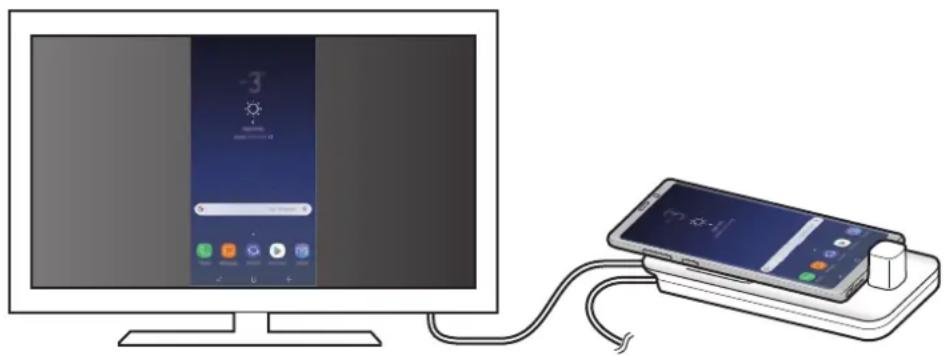

You can use Screen mirroring mode without connecting a keyboard or mouse. Control the screen with the connected mobile device.
Changing screen mode
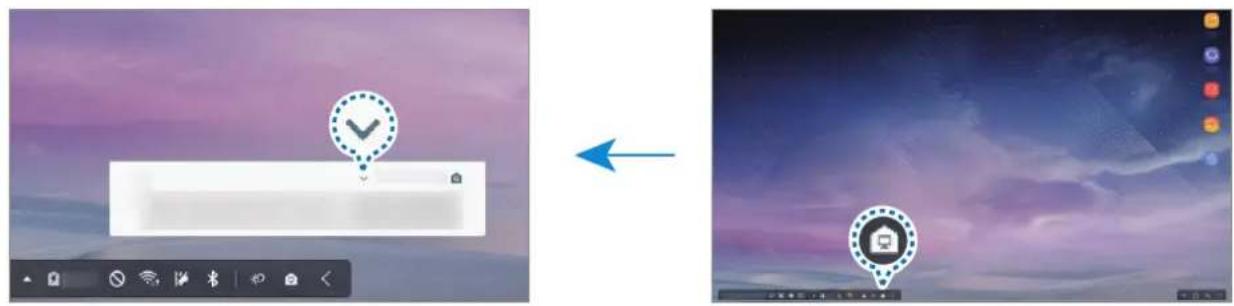
You can change the screen mode on the connected TV or monitor.
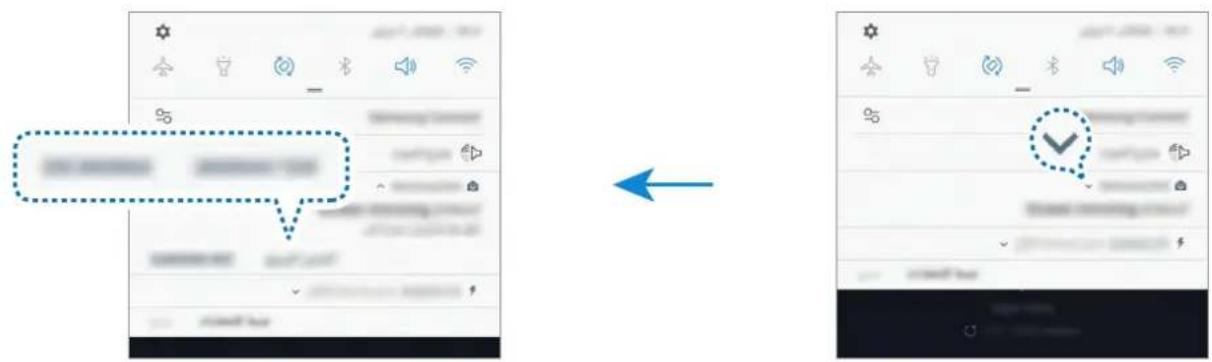
1 On the status bar, tap end tap next to Samsung DeX.
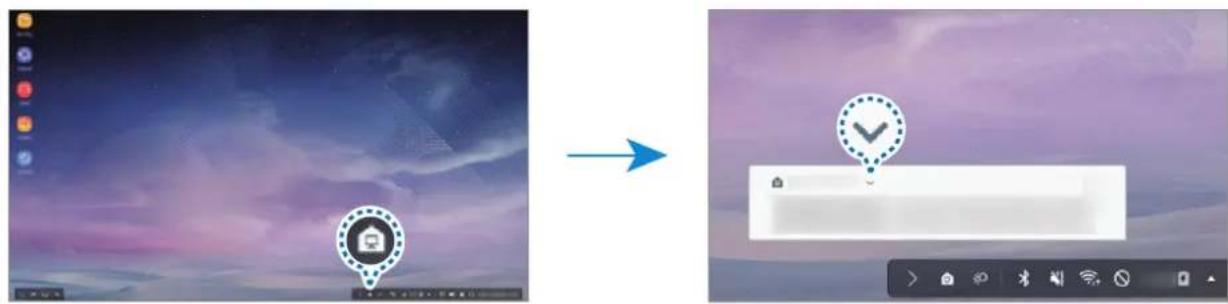
2 Tap above Using Samsung DeX and tap SCREEN MIRRORING.
Samsung DeX mode will be ended and the same screen as your mobile device will appear on the connected TV or monitor.
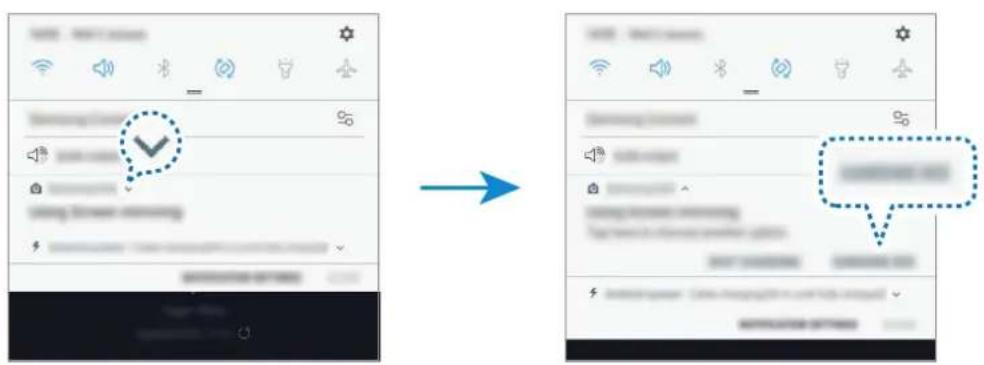
If you want to switch modes on your mobile device, open the notification panel, tap next to Samsung DeX, and then tap SAMSUNG DEX.
Charging the mobile device's battery
You can charge your mobile device's battery using the multimedia dock.
1 On the status bar, tap end tap next to Samsung DeX.
2 Tap above Using Samsung DeX and tap FAST CHARGING.
The connected TV or monitor will turn off and your mobile device will start charging.
Appendix
Troubleshooting
Before contacting a Samsung Service Center, please attempt the following solutions.
On Samsung DeX mode, select the Apps button Contact us FAQ and refer to the relevant content.
Your multimedia dock or connected devices freezes
If the multimedia dock or connected devices freezes or hangs, try to resolve it by turning off the connected mobile device and then turning it on again.
If the multimedia dock or connected devices are still unresponsive, disconnect devices from the multimedia dock and reconnect them.
If the problem is still not resolved, contact a Samsung Service Center.
The multimedia dock works differently as described in the manual
Available functions may differ depending on the connected device.
The screen ratio is incorrect
Samsung DeX mode supports HD+, FHD, and WQHD resolutions. Some content on your mobile device may be displayed differently on the TV or monitor. Adjust the screen ratio from the menu of the connected TV or monitor.
Copyright
Copyright © 2018 Samsung Electronics
This manual is protected under international copyright laws.
No part of this manual may be reproduced, distributed, translated, or transmitted in any form or by any means, electronic or mechanical, including photocopying, recording, or storing in any information storage and retrieval system, without the prior written permission of Samsung Electronics.
Trademarks
- SAMSUNG, the SAMSUNG logo, and Samsung DeX are registered trademarks of Samsung Electronics.
All other trademarks and copyrights are the property of their respective owners.
Para comenzar
Presentación
Copyright © 2018 Samsung Electronics
Copyright © 2018 Samsung Electronics
本手册受國際版權法保護。
Mabaii gii h t a s Samsung DeX of SAMSUNG DEX to
罗马日
試者是也用他,马自日,
Copyright © 2018 죠성전자주식회사
I.