pour revenir au menu/écran de bureau précédent.
Sonorités et profils d'utilisateur
Pour modifier le profil sonore, Sélectionnez[Menu] >[Paramétres] >[Profils]. Sélectionnez un profil sonore et Sélectionnez pour activer le profil sélectionné, ou[Options] >[Ajouter] >[Modifier] >[Modifier] pour adapter le profil à vos préférences. Le bouton <#> permet de changer de profil en mode veille. Appuyez sur cette touche et maintenez-la enforcée pendant environ 2 secondes jusqu'à ce qu'un message de changement de profil apparaisse. Appuyez de nouveau sur <#> et maintenez-le enforcé pour sélectionner le profil précédent.
Étabir un appel
En mode veille (sur l'écran principal), composez le numéro à partir du clavier numérique. Nous vous recommendons d'enter le préfixe du número de téléphone. Appuyer sur la touche , pour étabrir un appel, . Appuyer sur la touche , pourmettre fin à l'appeL.
Accepter un appel
Vous pouvez répondre à un appel entrant lorsque vous ouvrez onglet, ou quand il est ouvert en appuyant sur le bouton , ou sélectionnéz [Répondre à un appel]. La connexion ne peut être refusée que lorsque le couvercle est ouvert en appuyant sur la touche "Combé rouge". Ce bouton met également fin à l'appeil.
Messages texte
Rédiger et envoyer le message
Selectionner [Menu] > [Messages] > [Saisissez votre message]. Taper le corps du message à l'aide du clavier de téléphone. Les caractères sont insérés lecture par lecture. La touche <#> est utilisée pour changer le mode d'écrite. Vous pouvez désir FR - unquivalent des majuscules, fr - unquivalent des minuscules, Fr - majuscule initiale, 123 - unquivalent les chiffres. Pour entrer un caractère spécial, par exemple : le point, la virgule, le tiret, etc., appuyez sur la touche <^*> et Sélectionnez un symbole de la liste ou appuyer plusieurs fois sur la touche <1> (en mode autre que « 123 »). L'espacement entre les mots apparaît lorsque vous appuyez sur <0> (zéro). Pour saisir la dette "b", il faut appuyer deux fois sur la touche <2> . Pour entrer la dette "d", il faut appuyer une fois sur le bouton <3> , etc. Àpès avoir saisi le message, appuyez sur la touche [Option] et ensuite Sélectionnez l'options [Envoyer à] et puis [Entrez le destinataire] ou [Ajouter des contacts]. Àpès avoir entré le nombre / choses le contact sélectionnéz [Options] > [Envoyer] et Sélectionnéz la carte SIM que vous poupez utiliser.
Affichage des messages
Délectionner: [Menu] > [Messages] > [Boîte de réception], sélectionner un message de la liste et ensuite sélectionner [Options] > [Aperçu] > ou la touche pour dire le message.
Ajout d'un nouveau contact
Selectionner sur le bouton[Contacts] en bas à droite de l'écran, puis sélectionnez [Nouveau contact] en appuyant sur le bouton et et sélectionner le lieu pour enregistrer le contact [SIM1],[SIM2] ou [Téléphone] et . Entrez les coordonnées de contact en selectionnant le nom, le numéro, l'adresse e-mail, la photo et la sonnerie avec les boutons haut et bas. Àpres avoir entré les données de contact, appuyez sur ou [Options] >[Enregistrer] pour enregistrer le contact.
Rechner un contact
Pour rechercher un contact, Sélectionnez: [Menu] > [Contacts]. Taper la premièrelette du contact. L'écran affiche une liste de contacts commençant par la detteindiquée. D'autres lettres réduiront la liste de contacts trouvés. Pour rechercher unautre contact, utilisez les touches de navigation ou . Marquez lecontact et sélectionnez [Options]. Vous verrez : Aperçu, Envoyer le message, Appel, Modifier, Supprimer, Copier, Déplacer, Envoyer la carte de visite, Ajouter à la listednoire, Groupes, Reg. de contacts.
Supprimer des contacts
Pour supprimer tous les contacts sélectionnez: [Menu] > [Contacts] rechercher le contact à supprimer [Options] > [Supprimer ] > [Oui].
SOS
Déoptionnez [Menu] >[Paramètres SOS]. Activer le bouton SOS dans[Réglages mode SOS], entraïr les numérios auxquels la notification sera envoyée, ou les sélectionner dans l'annuaire téléphonique[Définir des numérios], entraïr[Message SOS]. ÀpRES avoir réglé toutes les options, après avoir activé le boutonSOS, une alarme sonore retentira si est activée dans le menu, et un SMS avec contenu de notification sera envoyé aux numérios sélectionnés. Le téléphone sonnera alors jusqu'à ce qu'un appel soit établi. Activer l'alarme en appuyant sur la touche SOS Par défaut, le numéro d'urgence 112 est entré et par SMS "Au secours!!".
Connexion à un ordinateur
Téléphone HAMMER peut être connecté à un PC via l'interface USB. Cela vous permet de visualiser et d'échanger les données entre le PC et le téléphone. Pour le faire, branche le USB-C au connecteur sur votre téléphone (situé au bas du téléphone) puis connectez le cable USB à un port USB de l'ordinateur. Sur l'écran de votre téléphone vous doivent voir une notification indiquant que le cable USB est connecté. Sélectionner
l'option [USB] de la listedispositif de stockage Le téléphone a ete connecte au PC. Le contenu de sa memoire peut etre consulte par l'explorateur du systeme Windows.
Torche
Pour allumer la lampe de poche, Sélectionnez [Menu] > [Organiseur] > [Torche] et confirmez avec ou l'écran du téléphone principal est activé, appuyez sur la touche et maintenez-la enforcée
Valeurs d'usine
Pour restaurer les valeurs d'usine du système sélectionnez [Menu] > [Réglages] > [Valeurs d'usine], entrez le mot de passer du téléphone et confirmez votre sélection en appuyant sur la touche . Le code pour restaurer les valeurs d'usine c'est: 1122.
Solution des problèmes
| Message | Solution possible |
| Insérez la carte SIM | Assurez-vous que la carte SIM est correctement installée. |
| Entrez votre code PIN | Si la carte SIM est protégée par un code PIN, lorsque vous allumez votre téléphone entrez le code PIN, puis appuyez sur la touche <OK>. |
| Erreur de réseau | Dans les zones où il y a un signal faible ou une mauvaise réception du signal, l'émission d'appels pourrait être impossible. Également la réception d'appels pourrait être impossible. Déplacer vers un autre lieu et essayez à nouveau. |
| Je ne peux pas entendre l'aggellant / l'aggellant ne peut pas m'entendre | Gardez le microphone après de votre bouche.Vérifiez si le microphone intégré n'a pas été couvert.Si vous utilisez un casque, assurez-vous que l'équipement est correctement connecté.Vérifiez si le haut-parleur intégré n'a pas été couvert. |
| Une mauvaise qualité sonorependant un appel | Vérifiez si le haut-parleur et le microphone n'ont pas été couverts. |
| Il est impossible d'établier l' appel | Assurez-vous si le numéro de téléphone inséré à l'aide du clavier est correct.Assurez-vous si le numéro de téléphone enregistré aux [Contacts] est correct.Si nécessaire, entrez le numéro de téléphone correct. |
| Personne ne peut me appeler | Le téléphone doit être allumé et connecté au réseau GSM. |
| Si le problème persististe, contactez avec votre fournisseur d'équipement. |
L'utilisation correcte de la batterie
La batterie de ce téléphone peut être alimenté avec le chargeur. Si le niveau de la batterie est faible, chargez-la. Pour prolonger la durée de vie de la batterie, laissez-la décharger au-dessous de 20% du niveau plein, avant de la connecter au chargeur, puis
chargez-la à 100% . Si vous n'utilise pas un chargeur, débranchez-le du téléphone et du réseau. La surcharge et la température basse ou haute ou le champ magnétique peut réduire la durée de vie de la batterie. La température de la batterie affecte sa charge. Refroidir ou augmenter sa température pour atteindre plus ou moins la température ambiente (env. 20^ ). Si sa température dépasse 40^ , elle ne peut pas être chargeée! N'utilisez la batterie que dans le but pour lequel elle a été-Conque. N'utilisez la batterie endommagée. Ne jetez pas la batterie au feu! Ne jetez pas la batterie usée dans les ordures menagères - rapportez-la à des points de collecte sélective.
La conservation du téléphone
Pour prolonger la durée de vie de votre téléphone, tenez-le et ses accessoires hors de la portée des enfants, dans un endroit sec, sans humidité. Évitez d'utiliser le téléphone à des températures élevées et basses, car cela pourrait réduire la durée de vie des composants électroniques du téléphone, faire fondre le plastique et détruire la batterie. Ne tentez pas de démonter le téléphone. L'intervention non professionnelle dans la structure du téléphone peut sérieusement l'endommager ou détruire. Pour nettoyer votre téléphone, n'utilise qu'un chiffon sec. Ne pas utiliser des produits à une forte concentration d'acide ou alcaline. N'utilise que des accessoires originaux. La violation de ces règles annulera la garantie. Nous recommendons que le téléphone ne soit pas utilisé à de température supérieure à 40^ / 104^ et température inférieure à 0^ / 32^ .
Critères technologiques
Réseau: GSM 2G: 850/900/1800/1900 MHz
GSM 3G: 900/2100 MHz
4G/LTE: 800/1800/2100/2600 MHz
Certain services peuvent dépendre de votre fournisseur, l'état du réseau local, la version de la carte SIM utilisé et la façon d'utiliser votre téléphone. Pour plus d'informations, contactez votre prestataire de services.
| Attention |
| Le fabricant n'est pas responsable des conséquences de la situation causée par une mauvaise utilisation du téléphone ou de non-respect des recommendations ci-dessus. |
| Déclaration |
| La version du logiciel peut être améliorée sans préavis. Le représentant se réserve le droit de se prononcer sur l'interprétation correcte de la notice d'utilisation ci-dessus mentionnée. |
Puisance maximale des radiofréquences
| Frequency Range | GSM 800/1800/2100/2600 MHz | Bluetooth 2402-2480 MHz |
| Transmit Power | 2W/1W | 2.47 dBm EIRP |
Élimination des déchets d'équipements électriques et électroniques correcte
Cet apparéil porte le marquage « poubelle barrée », conformément à la directive européenne 2012/19/UE relative aux déchets d'équipements électriques etlectroniques etaux équipements électriques etlectroniques usages (Waste Electrical and Electronic Equipment - WEEE). Ce symbole signifie que votre apparéil électronique hors d'usage
doit être collecté séparément et non jeté avec les déchets menagers. L'utilisateur doit déposer les apparèils ELECTriques et électroniques hors usage au point de collecte local approprié où ces déchets dangereux seront recyclés. La collecte de ce type de déchets dans des endroits désignés et le processus correct de leur réutilisation contribuient à la protection des ressources naturelles. Le recyclage approprié de déchets ELECTriques et électroniques a des effets positifs sur la santé humaine et l'environnement. Pour plus d'informations concernant le lieu et le mode de l'élimination non polluante des déchets ELECTriques et électroniques, l'utilisateur doit s'adresser à l'autorité locale compétente, au point de collecte ou au magasin où il a acheté l'équipement.
Élimination appropriée d'une batterie usagée
Conformément à la directive de l'UE 2006/66/CE avec des changements inclus dans la directive de 2013/56/UE sur l'élimination des batteries usages, ce produit porte le symbole en forme de poubelle sur roues barrée. Le symbole signifie que les piles ou les accumulateurs utilisés dans ce produit ne doivent pas été jetés avec les ordures menagères,
mais traités conformément à la directive et la réglementation locale. Il est interdit de jeter les batteries avec les ordures menagères non triées. Les utilisateurs des piles ou les accumulateurs doivent utiliser le réseau de collecte de ces éléments disponible qui permet leur retour, le recyclage et l'élimination. Au sein de l'UE, la collecte et le recyclage des piles ou les accumulateurs est soumis aux procédures séparées. Pour en savoir plus sur les procédures locales concernant le recyclage des piles ou les accumulateurs, il faut s'adresser à la municipalité, à l'organisme s'occupant de la gestion des déchets ou au point de collecte.

mPTech Ltd. déclare par la présente que le téléphone cellulaire HAMMER est conforme à la directive 2014/53/UE. Le texte intégral de la déclaration de conformité de l'UE est disponible à l'adresse Internet suivante:
https://hammerphones.com/support-hammer-bow-lte
KASUTUSJUHEND
HAMMER HF2401_HF2401e
Täname, et valisite seadme HAMMER. Palun lugege juhendit hoolikalt. Telefon HAMMER on nähtud etc te kasutamiseks GSM 4G tehnoloogia 800/1800/2100/2600 MHz sagedustes. Sellel on vastupidav vee- ja tolmukindel korpus, kontrastne värviline ekraan, taskulamp, Bluetooth ja kaksik-SIM tugi. Tootja eelneva kirjaliku nõusolekuta ei või kæsoleva juhendi ühtegi osa kopeerida, taastoota, tõlkida või edastada. Seda mistahes kujul või viisil (elektroonilisel või mehaanilisel) sealhulgas fotokoopiate tegemine, salvestamine või mistahes sãilitussüsteemides sãilitamine ja teabe jagamine.
OHUTUS
Lugege neid juhiseid hoolikalt. Nende mittejärgimine vöib olla ohtlik vöi ebaseaduslik. Arge lülitage Telefoni sisse siis, kui mobiltelefonide kasutamine on keelatud, vöi siis, kui see vöib Häiret vöi ohtu pöhjustada.
—LAPSED—
See seade ei ole mänguasi. Mälukaart ja SIM-kaart on lapse poolt alla neelamiseks piisavalt väiksed ja pöhjustavad lambumist. Hoidke seadet ja selle tarvikuid lastele kattesaamatus kohas.
PIIRATUD ALAD
Lülitage omatefon VÄLJA lennukis, kuna see vöib hairida muude lennukis olevate seadmetetöod. Telefon vöib segada meditsiiniseadmetetöod haiglates ja tervisekaitseasutustes. Järgige koiki meditsiinilise personali poolt esitatud keeldusid, maäruseid ja hoiatusi.
—HAIRED—
Köik traadita seadmed võivad põhjustada Häireid, mis võivad mõjutada teiste seadmete toimimist.
—HÄIREKÖNED—
Mönedes piirkondades vōi olukordades ei pruugi Häirekõnede tegemine voimalik olla. Sellistesse mahajänud vōi körvalistesse piirkondadesse minnes on soovitatav leida teine võimalus hädaabiteenistuste teavitamiseks.
—LAPSED—
See seade ei ole manguasi. Mälukaart ja SIM-kaart on lapse poolt alla neelamiseks piisavalt väiksed ja pöhjustavad lambumist. Hoidke seadet ja selle tarvikuid lastele kattesaamatus kohas.
—KVALIFITSEERITUD TEENINDUS—
Seda seadet võib paigaldada või parandada ainult kvalifitseritud personal või volitatud teeninduskeskus. Volitamata või kvalifikatsionita teenindaja sooritatud
parandustööd vöivad pöhjustada seadme kahjustumist ja garantii kehtetuks muutumist.
—FÜUSILISE VOI VAIMSE PUUDEGA INIMESED—
Seda seadet ei tohiks kasutada piiratud füusiliste vöi vaimsete vöimetega inimesed (sh lapsed), samuti inimesed, kellel puudub varasem kogemus elektroonikaseadmete käsitsemisel. Nad vöivad seadet kasutada ainult nende ohutuse=eest vastutavate isikute järevalve all.
—BENSIINIJAAMAD—
Lülitage auto tankimise ajal bensiinijaamas ja kemikaalide laheduses alati Telefon valja.
—LIIKLUSOHUTUS—
Arge kasutage seda seadet mis tuhpi soidukit juhtides.
—VESI JA MUUD VEDELIKUD—
Sellel seadmel on IP68 kaitseaste. See tahendab seda, et seade on tolmu- ja veekindel juhul, kui koik kummistihendid on terved ja oigesti paigaldatud ning kui kaas on korralikult kruvidega kinnitatud ja kolarite membraanid on terved (ei ole nt metallitolmuga saastunud). Me ei soovita lasta Telefonil ilma hea pohjuseta vee voimuude vedelikega kokku puutuda. Veel ja muudel vedelikel ei ole Telefoni elektronilistele osadele positivset moju. Kui seade saab marijaks, puhkke ja kuivatage seadet nii kiiresti kui voimalik. Enne USB-kaabli Telefoni laadmispessa uhendamist veenduge, et kaabel on kuiv. Kaabli uhendamine marga voi niiskesse pessa toob kaasa selle aeglase roostetamise ja voib pohjustada probleme teietelefoni laadimisega. Kui jargnevaid reegleid ei jargita ja taheldatakse ebaogiset kasutamist, ei voeta rvesse uhtegi seadme vee- voi tolmukindlust käsitlevat kaebust.
—AKU JA TARVIKUD—
Vältridgea kùvāgokörgete/madalate temperatuuride kätté jätmist (alla 0°C/32°F ja üle 40^ / 104^ ). Aarmuslikud temperatuurid vōivad mojutada mahutavust ja aku toöiga. Vältridge kokkupuudet vedelike ja metallist esemetega, kuna see vōib pöhjustada aku osalist vōi täielikku kahjustumist. Akut tuleks kasutada ainult vastavalt selle ettenähtud kasutusele. Arge akut h⁺vitage, kahjustage vōi leekidesse visake - see on ohtlik ja vōib tekitada tulekahju. Kulunud vōi kahjustunud aku tuleks viia selleks ettenähtud konteinerisse. Aku liigne laadimine vōib pöhjustada kahjustusi. Seetöttu ei tohiks aku üks laadimine kesta kauem kui 12 tundi. Valet tuūpi aku paigaldamine vōib pöhjustada plahvatuse. Arge kunagi akut avage. Palun körvaldage aku kasutusest vastavalt juhenditele. Ühendage kasutamata laadija vooluvörgust lahti. Laadija juhtme kahjustumise korral ei tohiks seda parandada, vaid see tuleks asendada uuega. Kasutage ainult totja originaaltarvikuid.

—KUULMINE—
Kuulmiskahjustuse vältimiseks arge kasutage seadet pikka aega körge helitugevusega ja arge pange toötavat seadet vahetult körva vastu.

—NAGEMINE—
Nägemiskahjustuste vältimiseks arge vaadake lahedalt taskulampi selle toötamise ajal. Tugev valguskiir voib pöhjustada silma jäädavat
vigastamist!
Tootja:
mPTech Sp. z o. o.
Nowogrodzka tänav 31
00-511 Varssavi, Poola
Website: www.mptech.eu
Toodetud Hiinas
Sisukord
Sisukord 136
Pakendi sisu 137
Telefoni vãlimus, selle funktsionid ja nupud 137
Telefoni vãlimus, funktsioonid ja nupud 138
Telefoni sisse/välja lulitamine 140
SIM-kaardi, mälukaardi ja aku paigaldamine. 140
Aku laadimine 140
USB-C pistiku kaudu 140
Laadimisaluse kaudu 141
Klahvilukk 141
Ligipääs Telefoni menuüsse 141
Helid ja kasutajate profilid 141
Helistamine 141
Vastamine 142
Tekstisōnumid 142
Tekstisōnumite loomine ja saatmine 142
Sönumite kuvamine 142
Telefonis sisalduvad kontaktid (Telefoniraamat) 142
Uue kontakti lisamine. 142
Kontakti otsimine 142
Kontaktide kustutamine 143
SOS. 143
Telefoni ühendamine arvutiga 143
Taskulamp 143
Tehaseseaded 143
Probleemide lahendamine 143
Aku 0ige kasutamine. 144
Telefoni 0ige hooldus. 144
Tecnoloogilised kriteeriumid 144
Kasutatud seadmete nõuetekehane utiliseerimine 145
Pakendi sisu
! Soovitatav on pakend alles hoida, et saaksite vajaduse korral seadme garantiiteitindusse viia. Hoidke pakend laste jaoks kattesaamatus kohas.
Juhendi uusima versiooni leiab meie ettevotte veebilehelt: https://hammerphones.com/support-hammer-bow-lte
Tarkvara paigaldatud versusonist, teenusepakkujast, SIM-kaardist voi riigist soltuvalt ei pruigi moned kaesolevas juhendis olevad kirjeldused teie Telefoniga sobida. Riigist, teenusepakkujast, SIM-kaardist voi seadme versusonist soltuvalt voivad Telefon ja selle tarvikud juhendis sisalduvatest illustratsionidest erineda. Kaesolevas juhendis sisalduvad kirjeldused pohinevad Telefoni vaikeseadetel.
Telefoni vãlimus, selle funktsioonid ja nupud
Selge 2,4" 240x320 px värviline pöhiekraan ja 1,44" välne ekraan"
FM-raudio, Bluetooth 4.2, SOS-nupp
- 2 Mpx kaamera + LED
RAM:48MB
- microSD: max. 32 GB
2G:900/1800MHz
3G:900/2100MHz
4G/LTE:800/1800/2100/2600MHz
- Aku:
HF2401 Li-ion 1200 mAh, 3.7V =
HF2401e Li-ion 1000 mAh, 3.7V =
- Telefoni mõotmed: 111.5 x 57.5 x 22 mm
- Telefoni kaal: 133.6 g
Toiteadapteri tehnilised naitajad:
Laadija vöimsus peab olema vahemikus minimaalselt 1,5 vatti, mis on raadoseadmenōutav vöimsus, ja maksimaalselt 5 vatti, et saavutada maksimaalne laadimiskirus.
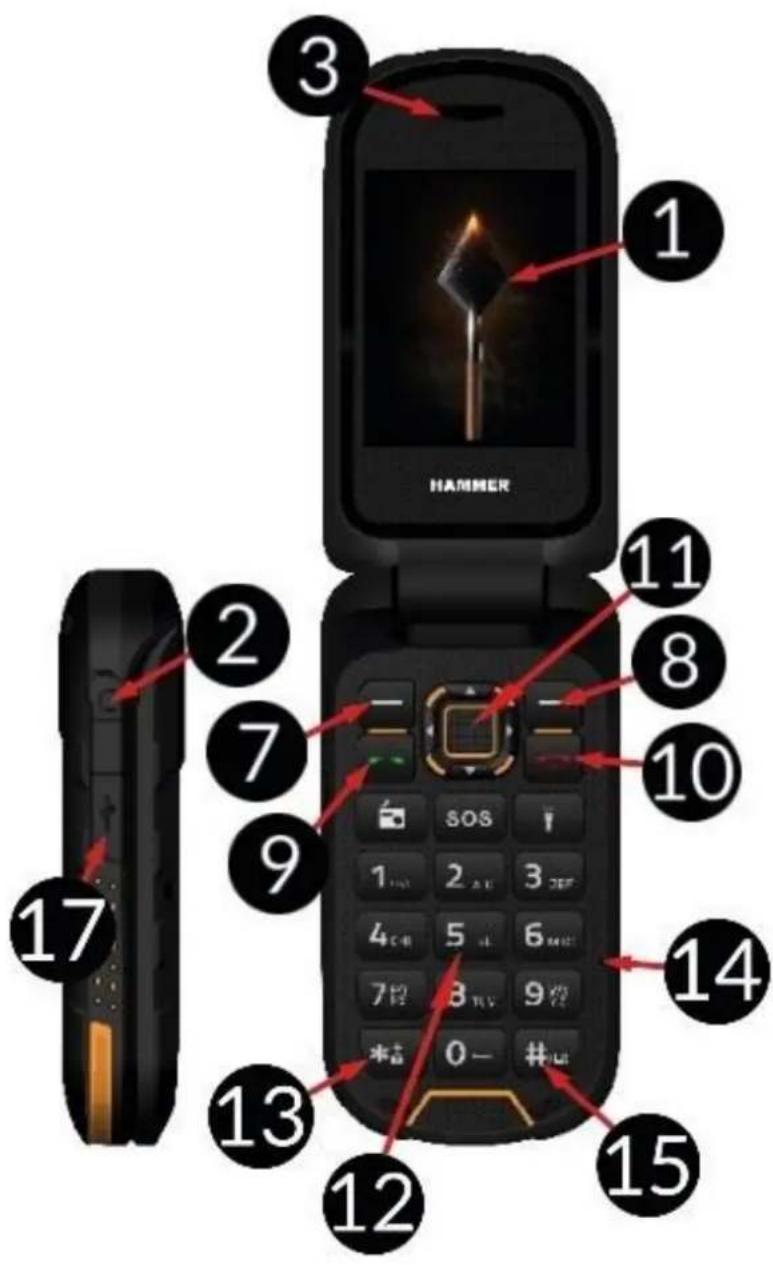
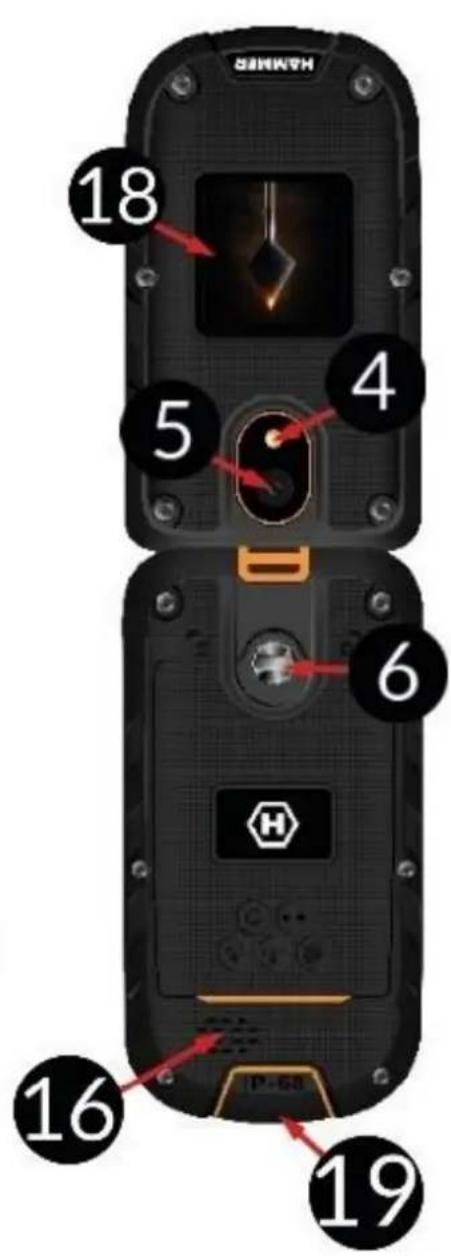
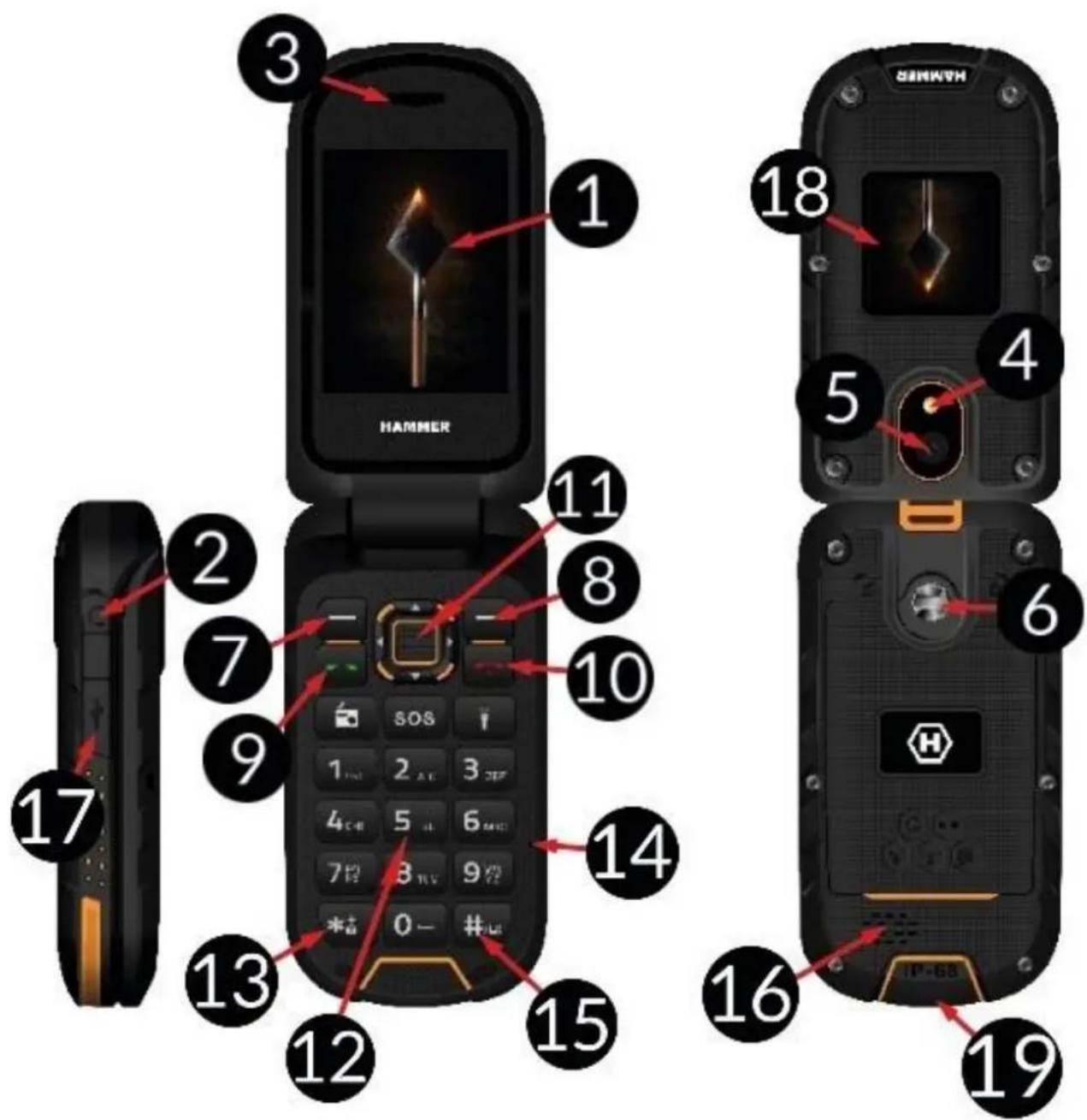
| 1 | Pöhiekraan | Telefoni LCD-pöhiekraan. |
| 2 | Körvaklappide pesa | Kasutatakse körvaklappide ühendamiseks (FM-raadiot kuulates kasutatakse seda ka antennina). |
| 3 | Kölar | Telefonivestlustes kasutatav Kölar. |
| 4 | LED-diod | Seda kasutatakse taskulambina ja pildistamise ajal kawäklambina. |
| 5 | Aparat | Obiektyw aparatu fotografiznego. |
| 6 | Kruvi | See võimaldab teil kaane klappi pinguldada (seal asub SIM-i, microSD ja aku ruum). |
| 7 | nupp | Vöimaldab põhiekraanil olles menüusse siseneda.
Menüus olles kinnitab valitud suvandid. |
| 8 | Nupp | Vöimaldab põhiekraanil olles siseneda
telefoniraamatu ossa [Kontaktid]. Menüus olles
saate kas väljuda või loobuda. |
| 9 | Nupp | Vöimaldab teil sissetuleva kõne vastu võtta. Saate
vaadata kõnede loendit. |
| 10 | Nupp | Vöimaldab teil sissetulevast kõnest keelduda.
Vöimaldab teil menüus olles põhiekraanile naasta.
Põhiekraanil olles võimaldab see ekraani lukustada
ja pikema vajutusega seda uuesti või sisse
lūlitada. |
| 11 | Nupud | Menüus olles võimaldavad menüus ringi liikuda.
Põhiekraanil olles: - kaamera, -
otseteed erinevate funktsoinide juurde, -
-Paremale - heliprofilid, - Vasakule -
multimeediamängija, - OK - kaamera jaoks valitud
suvandite kinnitamine ja katiku nupp. |
| 12 | Telefoni
klahvistik | Nupud võimaldavad avakuval Telefonumbrit
valida ja SMS-i kirjutamise režimis olles sõnumi
tähti ja nombreid sisestada. |
| 13 | Nupp | Vöimaldab teil telefoni avada (valige esmalt nupp
-Menüü) ja lukustada (sama nuppude järjekord).
SMS-i kirjutamise ajal kasutades kuvab see sisusse
lisatavaid sümboleid. |
| 14 | Mikrofon | Ärge seda Telefonivestluse ajal kinni katke. |
| 15 | Nupp | SMS-i kirjutades vahetab see tähemärkide
sisestamise režime. |
| 16 | Tagumine
kõlar (sumisti) | Tekitab helinaid ja teavitusi ning seda saab
kasutada ka mängijast või FM-raadiost muusika
esitamiseks. |
| 17 | USB-C-port
(kummist
korgi all) | Uhendatuna võimaldab laadija aku laadimist.
Telefoni omaravutiga ühendades saate andmeid
(fotosid, videoid, muusikat) üle kanda. |
| 18 | Informatsoon
iekraan | Klapil olev lisaekraan, mis nättab GSM-signaali
tugevust, aku laetust, vastamata kõnesid, lugemata
SMS-sõnumeid, kuupäeva ja kellaaga. |
| 19 | Laadimisaluse
ühenduskoht | See ühenduskoht võimaldab
telefoni
laadimisalusesse sisestamist. Selle tulemuseks on
telefoni aku laadimine ilma, et USB-C pessa oleks
vaja kaableid ühendada. |
| Radio | Lülitab sisse FM-raudio. Vastuvõtu parandamiseks ühendage ka kõrvaklappide komplekt |
| SOS | SOS | See käivitab valju Häiresignaali ja sösteemi, mis saadab kasutaja poolt sisestatud teabega SMS-i varasemalt kindlaks märaratud inimistele ning helistab neile. Händaabinumbrina on vaikimisi eelsisestatud 112. |
| ED | Latarka | Lülitab sisse LED-dioodi <4>. Seda kasutatakse taskulambina. |
Telefoni sisse/välja lülitamine
Telefoni sisse/välja lülitamiseks vajutage ja hoidke all nuppu . Kui teilt kusitakse vahetult pärast telefoni sisselulitamist koodi (kujul *****), siis trükkige kood ja vajutage .
SIM-kaardi, mälukaardi ja aku paigaldamine
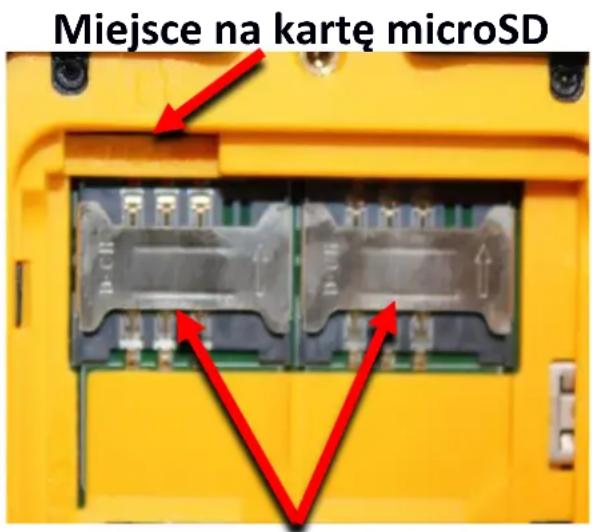
Kui Telefon on sisse lulitatud, siis lulitage see valja. Vötke Åra katte tagumine kaas - keerake lapikpeaga kruvikeeraja või kaasas olnud vahendi abil lahti kaant kinni hoidev kruvi. Sisestage SIM-kaart nii, et salle kuldsed kontaktid on suunatud alla, ja viisil, nagu pesa on Telefoni vajutatud. Sisestage mälukaart nii, et salle kuldsed kontaktid on suunatud alla, ja viisil, nagu pesa on Telefoni vajutatud (vaadake körval olevat illustratsiooni). Mälukaardi maksimaalnetoetatud maht on 32 GB. Sisestage aku - aku peaks asetsema selliselt, et salle kuldsed
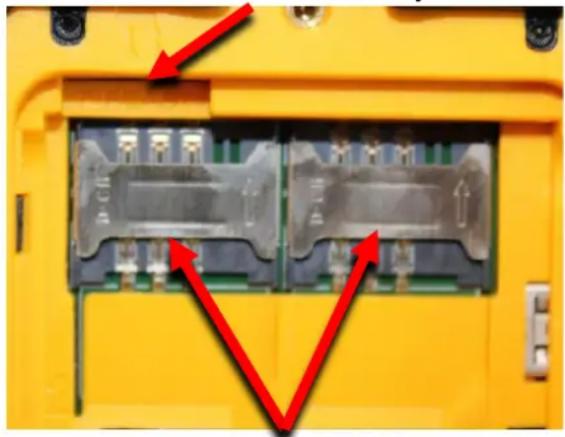
MicroSD-mälukaardi pesa
SIM-kaardi pesad
kontaktid puudutavad SIM-kaardi pesa all assetsevat ühendusklemmi. Pange aku kaastagasi:asetage see omakohale, pörateseejuures tahelepanu kummist tihendile, ja pingutage kruvi. Akueemaldamiseks sooritage tegevused tagurpidises järjekorras, avades akukatte ja tommates akuvälja.
Aku laadimine
USB-C pistiku kaudu
Uhendage laadija kaabli USB-C-pistik omatelefonil olevasse USB-C pessa (17), mis ilmub nahtavale pärast seda, kui te olete kummist korgi omaküune abi tõstnud, ja uhendage laadija pistikupessa.
*Tahelepanu: laadija vale ühendamine võib Telefonile tõsiseid kahjustusi tekitada. Garantii ei mata Telefoni valest kasutamisest põhjustatud kahjustusi.
Laadimise ajal hakkab ekraani ülemises parempoolses nurgas olev staatiline aku oleku ikoon liikuma. Kui laadimine on loppenu, vötke laadija pistikupesast valja. Ühendage kaabel Telefonil olevast pistikust lahti.
Laadimisaluse kaudu
Uhendage USB-C-kaabel laadimisaluse USB-C-pistikusse, seejärel ühendage USB-pistik adapteriga ja adapter madalpingepistikupesaga. Aluse roheline LED peaks hakkama põlema. Asetage alus sellisesse kohta, kus see kindlalt seisab ja ühendatud laadimiskaabel ei ole juhuslikule tombamisele vöi kahjustamisele avatud. Telefoni vöib parast klapi kokkuklapitamist asetada laadimisalusele nii, et Telefoni pistikud (19) puutuvad kokku aluse pistikupesas oleva pistikutega. Korrektsest ühendusest annab märku laadimisaluse punase valgusdioodi lühike vilkumine. Kui kõik on korras, kustub mõne aja pärast roheline LED ja punane LED suttib. Aku ðigest laadimisprotssessist annavad märku vilkuvad LEDid - paar sekundit kestev punase LEDi põlemine ja lühike rohelise LEDi vilkumine. Lisaks sellele ilmub Telefoni valisekraanile animeeritud LEDikoon. Kui Telefoni aku on täielikult laetud, ei ole ekraanil ikoon animeeritud, vaid salle püsv kujutis ilmub ja roheline LED laadimisaluses põleb pidevalt. Seejärel saate Telefoni laadimisalusest eemaldada.
Klahvilukk
Klahvid lukustuvad pärast kasutaja poolt märaratud aja moödumist automaatset. Klahve saab ka käsitsi lukustada. Selleks vajutage esmalt nuppu ja seejärel nuppu <*>. Klahvide avamiseks (kui ekraan on tuhi) tuleb esmalt ekraani aktiveerimiseks mistahes nuppu vajutada ja seejärel vajutada nuppe (asub ekraani alumises vasakpoolses nurgas) ja <*> (klaviatuuril). Klahvide lukustus on avatud. Suletud klapi avamisel avaneb klaviatuuri lukustus automaatsetl.
Telefoni menüuisse ligipääsu saamiseks tuleks vajutada nuppu vii nuppu . Liikuge menüus soovitud ikoonini, vajutades selleks navigeerimisnuppe , , vii . Oma valiku kinnitamiseks (ja menuüvastavasse ossa sisenemiseks) vajutage vii vajutage , et naasta eelmisse menüuisse/töölauale.
Helid ja kasutajate profilid
Heliprofiili muutmiseks valige [Menüü] > [Seaded] > [Profilid]. Valige heliprofil ja vajutage , et valitud profil aktiveerida. Vöi valige [Suvandid] > [Kohanda] > [Vali], et profili vastavalt enda eelistustele muuta. Nuppu <#> kasutatakse selleks, et ooterežiimis profilide vahel lülituda.
Vajutage seda ja hoidke nuppu umbes 2 sekundit all, kuni kuvatakse profili muutmise kohta kaiv teavitus. Klahvi <#> uesti vajutades ja all hoides naaseb Telefon eelmisele heliprofilile.
Helistamine
Sisestage klahvistikku kasutades pöhiekraanile number. Me soovitame tel lisada
telefonumbri ette ka suunakood. Kone alustamiseks vajutage nuppu . Kone lopetamiseks vajutage nuppu .
Vastamine
Sissetulevale kõnele saate te vastata pärast klapi avamist, või juhul, kui see on juba avatud, vajutades kas nuppu või validates [Vasta]. Ühendusest saab loobuda ainult siis, kui klapp on avatud, vajutades selleks nuppu . Lisaks lõpetab see nupp kõne.
Tekstisõnumid
Tekstisōnumite loomine ja saatmine
Valige: [Menüü] > [Sönumid] > [Sönumi kirjutamine]. Sisestage klahvistikku kasutades sönum. Trükkimine toimub tãhthaaval. <#> nuppu kasutatakse sisestusviisi muutmiseks: ABC - sisestatakse ainult suurtähti; abc - sisestatakse ainult väiketähti; Abc - esimene taht on suur, teised väikesed; 123 - sisestatakse ainult numbreid. Erimärgi, naiteks punkti, koma, kriipsu jne, sisestamiseks vajutage <*> ja valige mark loendist või vajutage korduvalt nuppu <1> (väla arvatud režimiis „123"). Sönade vahele tühiku lisamiseks vajutage nuppu <0>. Tahe „b" sisestamiseks tuleb nuppu <2> kaks korda vajutada. Tahe „d" sisestamiseks tuleb nuppu <3> üks kord vajutada jne. Kui sönuni sisu trükkimine on lõpetatud, tuleb vajutada [Suvandid] > [Saaja]. Ilmuvad valikud [Sisesta saaja] (kasutatakse numbi sisestamiseks numbriklahvide abil) ja [Lisa kontaktidest] (parast selle valimist peate te sisestama kontakti mõned esimesed tãhed, et see kontaktide loendist leida). Valiku kinnitamiseks valige . Pärast numbri sisestamist / kontakti valimist valige: [Suvandid] > [Saada] või ja valige SIM-kaart, mida kasutades sönum saadetakse, ning kinnitage om valik.
Sónumite kuvamine
Valige: [Menüü] > [Sönumid] > [Sisendkaust], valige loendist sönum ja valige sönuni nägemiseks [Suvandid] > [Vaata] > [Vali] vöi .
Telefonis sisalduvad kontaktid (Telefoniraamat)
Uue kontakti lisamine
Vajutage ekraani alumises parempoolses osas olevat nuppu [Kontaktid], seejärel valige [Uus kontakt], vajutades selleks nuppu , valige kontakti talletamise koht [SIM1], [SIM2] vöi [Telefoni] ning kinnitage nupuga. Sisestage kontakti andmed, validates selleks klahve <Üles> ja kasutades nine, numbri, e-posti aadressi, Foto ja helina. Pärast andmete trükkimist vajutage vöi sisestage [Suvandid] > [Salvesta], et kontakt salvestada.
Kontakti otsimine
Kontaktide otsimiseks vajutage: [Menüü] > [Kontaktid]. Sisestage kontakti esimene taht. Ekraanile ilmub täielik loetelu kontaktidest, kelle nimi algab antidu tāhega. Otsingu tãpsustamiseks sisestage järjestikused tähed. Teise kontakti otsimiseks kasutage navigeerimisnuppe <Üles> vöi . Pärast kontakti otsimist valige [Suvandid] ja seejärel ilmub suvandite loetelu: vaata, saada SMS, helista, muuda,
kustuta, kopeeri, liiguta, saada vCard, lisa keelatute ninekirja, grupid, kontakti seaded.
Kontaktide kustutamine
Uksiku kontakti kustutamiseks sisestage: [Menüü] > [Kontaktid] > otsige kontakt, mida te soovite kustutada > [Suvandid] > [Kustuta] > [Jah].
SOS
Sisestage [Menüü] > [SOS seaded] Seal saate aktiveerida SOS nuppu [SOS seaded], sisestada numbrid, millele saadetakse SOS SMS vöi valida need Telefoniraamatust [Set SOS numbrid], sisestada teksti [SOS sönum]. Kui kõik valikud on märaratud ja nupp SOS veeritud, kõlab helisignaal (kui see on menüus aktiveeritud) ja valitud numbritele saadetakse tekstisonkoos teatega. Seejärel proovib Telefon eelnevalt valitud numbritele helistada kuni ühenduse loomiseni. Alarmi lülitate valja, kui vajutate SOS. Vaikimisi on hädaabinumbriks eelnevalt sisestatud 112 ja sönumi tekstis on kirjas "Help!!!".
Telefoni ühendamine arvutiga
HAMMER Telefoni saab ühendada arvutiga USB-kaabli abil. See voimaldab teil vaadata ja vahetada andmeid arvuti ja Telefoni vahel. Selleks ühendage USB-C-pistik Telefoni USB-pistikupessa (asub Telefoni allosas) ja seejärel ühendage USB-pistik arvuti USB-porti. Telefoni ekraanil kuvatakse teave USB-ühenduse kohta. Valige kuvatavast loendist [Mass storage]. Telefon on nuud arvutiga ühendatud. Selle malu sisu saab vaadata Windows Exploreriga.
Taskulamp
Taskulambi sisselülitamiseks valige [Menüü] > [Korraldaja] > [Taskulamp] ja kinnitage valik nupuga ; vöi vajutage telefoni pöhiekraanil nuppu je hoidke seda all.
Tehaseseaded
Tehaseseadetele naasmiseks sisestage [Menüü] > [Seaded] > [Tehaseseadetetaastamine], sisestage Telefoni parool ja kinnitage see valikuga . Tehaseseadetetaastamiseks nõutav parool on 1122.
Probleemide lahendamine
| Sõnum | Võimalik lahendus |
| Sisesta SIM-kaart | Veenduge, et SIM-kaart on ùigesti paigaldatud. |
| Sisesta PIN | Kui SIM-kaart on PIN-koodiga kaitstud, peate telefoni sisse lülitades sisestama PIN-i ja vajutama <OK>. |
| Võrgu viga | Nõrga signaal iõi vastuvõtuga piirkondades ei pruugi helistamine võimalik olla. Ka kõnede vastuvõtmine ei pruugi olla võimalik. Liikuge teise kohta ja proovige uesti. |
| Ma ei kuule helistajat / helistaja ei kuule mind | Mikrofon peaks olema suu lahedral. Kontrollige, ega sisseehitatud Mikrofon ei ole kaetud. Körvaklappide kasutamisel kontrollige, kas need on ðigesti ühendatud. Kontrollige, ega sisseehitatud kõlar ei ole kaetud. |
| Halb heli kvaliteet kõne ajal | Veenduge, et kõlar ja Mikrofon ei oleks kinni kaetud. |
| Ühendust ei saa luua | Kontrollige, kas sisestatud Telefoninumber on korrektne. Kontrollige, kas sisestatud Telefoninumber [Kontaktid] on ðige.Vajadusel sisestage ðige Telefoninumber. Mobiiltelefonpeab olema sisse lülitatud ja GSM-võrgu ulatuses. |
| Keegi ei saa mulle helistada | Mobiiltelefon peab olema sisse lülitatud ja GSM-võrgu ulatuses. |
| Kui probleem püsinb, võtke ühendust om edasimüüjaga. |
Aku ðige kasutamine
Selles seadmes olevat akut saab laadijaga laadida. Kui aku laetuse tase on modal, laadige seda. Aku toöea pikendamiseks laske enne laadija ühendamist aku mahutavusel langeda alla 20% . Seejärel laadige see tagasi 100% peale. Kui laadijat eikasutata, ühendage see telefoni küljest lahti. Liigne laadimine vöib pöhjustada akut toöea luhenemist. Aku temperatuur mõjutab laadimistsüklit. Enne laadimist jahutage akut vöi tõstke selle temperatuuri selliselt, et see sarnaseks toattemperatuurile (umbes 20^ ). Kui aku temperatuur ületab 40^ , ei tohi akut laadida! Kui aku kuumeneb üle, kuvab seade vastava teate. Kasutage akut ainult vastavalt selle ettenähtud kasutusele. Vältinge aku jätmist magnetvälja, kuna see lühendab aku kasutusiga. Arge kasutage kahjustatud akut. Aku toöiga vöib väheneda kui aku on olnud väga madalate vöi väga körgete temperatuuride käes - see pöhjustab Telefonis Häireid isegi juhul, kui akut on öigesti laetud. Arge visake akut leekidesse! Arge visake vananenud akut ára - saatke vöi tagastage see volitatud umbertööttlemispunktti.
Telefoni ōige hooldus
Oma Telefoni toöea pikendamiseks järgige juhiseid. Hoidke Telefoni ja selle tarvikuidlastele kättesaamatus kohas. Hoidke Telefoni kuivas niiskuseta kohas. Vältrige Telefonikasutamist körgetel ja madalatel temperatuuridel; see vöib lühendada elektronilistekomponentide toöiga, sulatada plastikust osi ja aku havitada. Arge püdke Telefonilalahti vöttta. Selle ehituse muutmine ebaprofessionaalsel viisil vöib pöhjustada Telefoni tosisist kahjustamist vöi selle täielikult havitada. Puhastamiseks kasutage ainult kuivariiet. Arge kunagi kasutage hapete vöi leeliste suure sisaldusega vahendeid. Kasutageainult originaaltarvikuid. Selle reegli rikkumise tulemuseks vöib olla garantii kehtetukstunnistamine. Telefoni kasutamine temperatuuridelse 40^ /104°Fvoi alla 0^ / 32^ ei ole soovitatav.
Tehnoloogilised kriteeriumid
Vörk: GSM 2G: 850/900/1800/1900 MHz
© mPTech. Kõik öigused reserveeritud.
HF2401_HF2401e EE
GSM 3G:900/2100MHz
4G/LTE: 800/1800/2100/2600 MHz
Möned teenused võivad sõltuda teie operatorist, võrgu.SEIsukorrast, SIM-kaardi versioonist ja telefoni kasutamise tingimustest. Rohkem informatssiooni võib saada GSM operatatori käest.
| Märkus |
| Tootja ei vastuta tagajärgede eest, mille on põhjustanud Telefoni valesti kasutamine või antud soovituste mittetäitmine. |
| Teadaanne |
| Tarkvara versiooni võidakse uuendada ilma eelneva nõusolekuta. Esindaja jätab endale ðiguse otsustada, kas eespool esitatud juhtnöre on ðigesti tõlgendatud. |
Maksimaalne raadiosageduslik voimsus
| Frequency Range | GSM 800/1800/2100/2600 MHz | Bluetooth 2402-2480 MHz |
| Transmit Power | 2W/1W | 2.47 dBm EIRP |
Kasutatud seadmete nõuetekohane utiliseerimine

Tähelepanu: Vastavuses elektrotehniliste seadmete jäätmete (Waste Electrical and Electronic Equipment - WEEE) utiliseerimise direktiviga EC 2012/19/UE markeeritakse antud toode labikriipsutatud prügiurni kujutisega. Selle kujutisega tooteid ei tohi utiliseerida koos olmejätmetega. Te peate utiliseerima elektri- ja elektroonikaseadmed viies need selleks ettenähtud jäätmekäitluspunktti, kus toimub ohtlike
jäätmete utiliseerimine. Sellist liki jäätmete kogumine kinnistesse ruumidesse ja nõuetekohane taaskasutusprotss aitavad kaitsta loodusressursse. Elektri- ja elektronikaseadmete jäätmete nõuetekohane utiliseerimine mojub positivselt inimese tervisele ja looduskeskonnale. Informatsooni saamiseks selle kohta, kus ja kuidas elektri- ja elektronikaseadmete jäätmeid ohutult utiliseerida, peavad tarbijad poörduma kohliku vöimuorgani vastava asutuse, jäätmekäitluspunktti vöimi Müügipunkti poole, kust seade osteti.
Kasutatud patareide nōuetekohane utiliseerimine
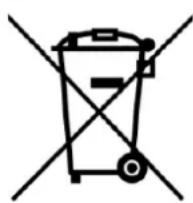
Vastavuses patareide utiliseerimise direktiiviga EC 2006/66/EC markeeritakse antud toode labikriipsutatud prugiurni kujutisega. See kujutis tahendab seda, et selles tootes kasutatud patareid ei tohi utiliseerida koos olmejaatmetega, see tuleb utiliseerida vastavuses direktiivi ja kohalike ettekirjutustega. Patareisid ja akusid ei tohi koos
sorteeritud olmejätmetega āra visata. Patareide ja akude omanikud peavad kasutama antud esemete utiliseerimiseks ettenähtud vastuvötupunkte, kus tagatakse nende utiliseerimine ja umbertoötlemine. Euroopa Liidus on patareide ja akude vastuvötmine ning utiliseerimine eraldiseisvate protseduuride subjektiks. Selleks, et patareide ja akude umbertoötlemise protseduuride kohta rohkem teada saada, vötke
palun ühendust kohaliku kontori või jaätmekäitlusasutusega.
Euroopa Liidu direktiividele vastavuse deklaratsion

mPTech Ltd. deklareerib käesolevaga, et mobiltelefon HAMMER vastab direktiivile 2014/53/EL. ELi vastavusdeclaratsiooni täistekst on kättesaadav järgmisel internetiaadressil:
https://hammerphones.com/support-hammer-bow-lte
HASZNÁLATI UTMUTATÓ
HAMMER HF2401_HF2401e
Pateicamies par HAMMER izveli. Ludzu, pirms ekspluatacijas izlasiet so lietoanas instrukciju. HAMMER paredzets izmantošanai GSM 4G frekvencu 800/1800/2100/2600 MHz diapazona tiklos. Tam ir izturigs, udensdros un puteklu drošs korpuss, kontrastëjoskrasu displejs, Bluetooth un divu SIM karsu atbalsts. Bez ieprieksejas rakstiskas ražotāja neviena šis lietoanas instrukcijas dajnedrikst but nokopeta, atspogulota, partulkota vai jebkāda veidā nodota vai ar jebkadiem lidzekliem, elektroniskiem vai mehaniskiem, t.sk. fotokopešana, ierakstišana vai uzglabāšana jebkados datum nesejos un informacijas apmaina.
DROŠIBA
lepazistieties ar turpmak noraditajiem drošibas tehnikas noteikumiem. Šo noteikumu neievērošana var but bistama vai nelikumīga. Neiesledziet ierici vietās, kur mobilo Telefonu izmantošana ir aizliegta, var radīt traucējumus vai but bistama.
TRAUCEJUMI
Jebkuras mobilās ierīces ir paklautas radiovilŋu traučejumiem, kas var pasliktināt sakaru kvalīṭāti.
—IEROBEŽOJUMU ZONAS—
Atrodoties lidmašina, izslédziet mobilo icerici, jo tā var traucēt citu lidmašinas icericu darbū. Telefons var traucēt medicinisko iekartu darbū. leverojiet medicinas darbinieku sniegtos norādijumus vai aizliegumus.
—DROŠIBA DUS—
Vienmér izslédziet Telefonu, uzpildot Jusu automobili. Nelietojiet savu Telefonu viegli uzliesmojosu kimikāliju tuvuma.
—ARKARTAS ZVANI—
Arkartas zvans var nebut pieejams dazas vietas vai noteiktas situacijas. Sados gadijumos (piemeram, izbrauciens uz attaliem rajoniem) ieteicams atrast citu veidu, kā bridināt avarijas un glabsanas dienestus.
CILVEKI AR KUSTIBU UN GARIGIEM TRAUCEJUMIEM
Tālruni nedrikst ekspluatēt cilveki (t.sk. běrni) ar kustūb vai garīgiem traučejumiem, kā ari personas, kurām nav pieredzes elektronisko iericu izmantošana. Tie var ierici izmantot tikai tādu personu klātbūtnē, kuras ir atbildīgas par vinu drošūb.
-UDENS UN CITIŠKIDRUMI—
Iericei ir IP68 tertifikats. Tas nozime, ka ta ir puteklu un udens drosa, ja neviena no gumijas blivem nav bojata un visas ir pareizi aizvertas, k a ar, kad aizmugurejais vacinssir pareizi pieskruvets ar skruvju palidzibu un nav bojata skalruna membrana (piemeram, nesatur metaliskos puteklus). Mesar isakam bez nopietna iemesla neiedarboties uz Telefonu ar udeni vai citiem skidrumiem. Udens un putekji neatstaj
positivu efektu uz Telefona elektroniskajam componentem. Pec samirksanas peciespejas atrak noslaukiet un nosusiniet ierici. Pirms USB kabela pievienošanastalruṇa uzlades ligzdai, parliecinieties, ka tālrunis ir sauss. Pievienojiet vadu mitrai kontaktligzdai paklauj to lenai korozijai un var radit problemas ar tālruṇa uzladi. Ja netiek ieveroti šie noteikumi un tiek konstatets nepareizas ekspluatašanas gadijums, visas sudzibas, kas ir saistitas ar Telefona udens un putekju drošibu netiks nemtas vērā.
—KVALIFICETA APKOPE—
lerices iestatisana un remonts javeic tikai kvalificetiem uzemuma myPhone vai autorizetu servisa centru specialistiem. Ja Telefona remontu veikts nekvalificeti specialisti, tas var sabojat Telefonu un var tikt anuleta garantija.
DROŠIBA PIE STÜRES—
Nelietojiet mobilo tālruni, vadot transporteḥidzekli.
—BERNI—
Tālrunis nav rota'llieta. Bērns var norīt atmīnas karti vai SIM karti, tas var izraisit nosmakšanu. Ierici un tās aksesuārus glabājiet běrniem nepieejama viēṭa.
—AKSESUÄRI UN AKUMULATORS—
Izvairieties no loti augstas vai loti zemas temperaturas (zemaka par 0^ / 32^ vai augstaka par 40^ / 100^ ) iedarbibas uz Telefonu. Ekstremala temperatura var samazinat akumulatora ietilpibu un kalposanas muzu. Sargajiet akumulatoru nokontakta ar skidrumiem un metaliskiem prieksmetriem. Sads kontaks var pilniba vaidaleji sabojat bateriju. Akumulatori jazmanto tikai atbilsto to tiesajam izmantoanas veidam. Neizniciniet, nelauziet un nededziniert akumulatoru - tas ir but bistami un var izraisit ugunsgreku. Nolietotus vai bojatus akumulatorus jaievietospeciala konteinera. Parmeriga akumulatora uzladešana var to sabojat. Tadelakumulatora uzlades process nedrikst turpinaties ilgak par 12 stundam. Neatbilstoša tipa akumulatora ivietošana var izraisit spradzienu. Nekad neatveriet akumulatoru. Utilizejiet baterijas saskaar instrukcijam. Neizmantojamo ladetaju atvienojiet noelektrotikla. Ladetaja sabojasanagadijumā aizliegtstromaintet to pret jaunu. Izmantojiet tikai originados ražotaja aksesuarius.

—DZIRDE—
Lai izvairitos no kaitigas ietekmes uz dzirdi, ilgstoši neizmantojiet iceri ar maksimala režimā iestatitu skajumu, nenovietojiet iceri tieši pie auss.

—REDZE—
Lai izvairitos no redzes bojasanas, fotogafesanas laika neskatieties uz zibspuldzi. Spilgtais gaismas stars var nopietni bojat redzi!
Razotājs:
mPTech Sp. zo.o.
ul. Nowogrodzka 31
00-511 Varšava, Polija
Timekla vietne: www.myphone.pl
Răzots Kina
Tartalomjegyzék
Tartalomjegyzek 149
lepakojuma satsurs 149
Tehniskā specifikācija 150
Talruna izskats, pogas un funkcjjas. 151
Telefona ieslēgšana un izslēgšana 153
SIMkartes,atminaskartesunbaterijasievietošana. 153
Akumulatora ladešana 153
Izmantojot USB-C savienotāju 153
Caur uzlades bazi 154
Klaviaturas blokëšana 154
Piekluve tālruṇa izvēlnei 154
Skanas un profili 154
Zvani 154
Atbildet uz zvanu 155
Teksta zinojumi 155
SMSraksti'sana un nosutisana 155
Isziu aplukošana 155
Kontakti (Telefonu grāmata) 155
Jauna kontakta pievienošana 155
Kontakta meklesana 155
Kontaktudzeshana 155
SOS. 156
Telefona pieslēgšana datoram 156
Lukturis. 156
Rupnicas iestatijumi 156
Problemu risinansana 156
Pareiza akumulatora izmantošana 157
Telefona kopšana 157
Tecnologiskie kriteriji 158
Pareiza elektriskā un elektroniskā apríkojuma utilizescija 158
Pareiza izlietoto bateriju utilizacija 158
Deklaracija par atbilstibu UE direktivam 159
lepakojuma sats
Garantijas apkalpošanas gadijumam ieteicams saglabat iepakojumu. Uzglabajiet iepakojumu berniem nepieejamas vietas.
Lietotaja rokasgramatas jaunakā un pilnaka versija ir uzneema vaginae: https://hammerphones.com/support-hammer-bow-lte
Atkaribā no instalētās programmatūras versijas, pakalpojumu sniedzeja, SIM karten vai valsts daži šīs rokasgrāmatas apraksti var neatbilst tārūna funkcionalitatei. Atkaribā no valsts, operadora vai modela versijas tārūnis un tā piederumi var izskatīties atškirīgi no šajā rokasgrāmata parādītajiem. Apraksti šajā lietotāja rokasgrāmata balstās uz tārūna noklusejuma iestatījumiem.
Tehniskā specifikācija
- Skaidrs, krāsains galvenais displeje s 2.4" 240x320px un ārējs 1.44"
- Radio FM, Bluetooth 4.2, SOS poga
- Kamera 2 Mpx+ LED
RAM:48MB
- microSD: max. 32 GB
2G:900/1800MHz
3G:900/2100MHz
4G/LTE:800/1800/2100/2600MHz
- Akumulators:
HF2401 Li-ion 1200 mAh, 3.7V =
HF2401e Li-ion 1000 mAh, 3.7V =
- Izméri: 111.5 × 57.5 × 22 mm
Svars: 133.6 g
Barošanas bloka tehniskā speciifikacija:
Ladetaja nodrosinatajai jaudai ir jabut robezas starp 1,5 vatiem, kas ir radioiekartai vajadziga minimala jauda, un 5 vatiem, kas ir radioiekartai vajadziga maksimala jauda, laisasniegtu maksimalo uzlades atrumu.
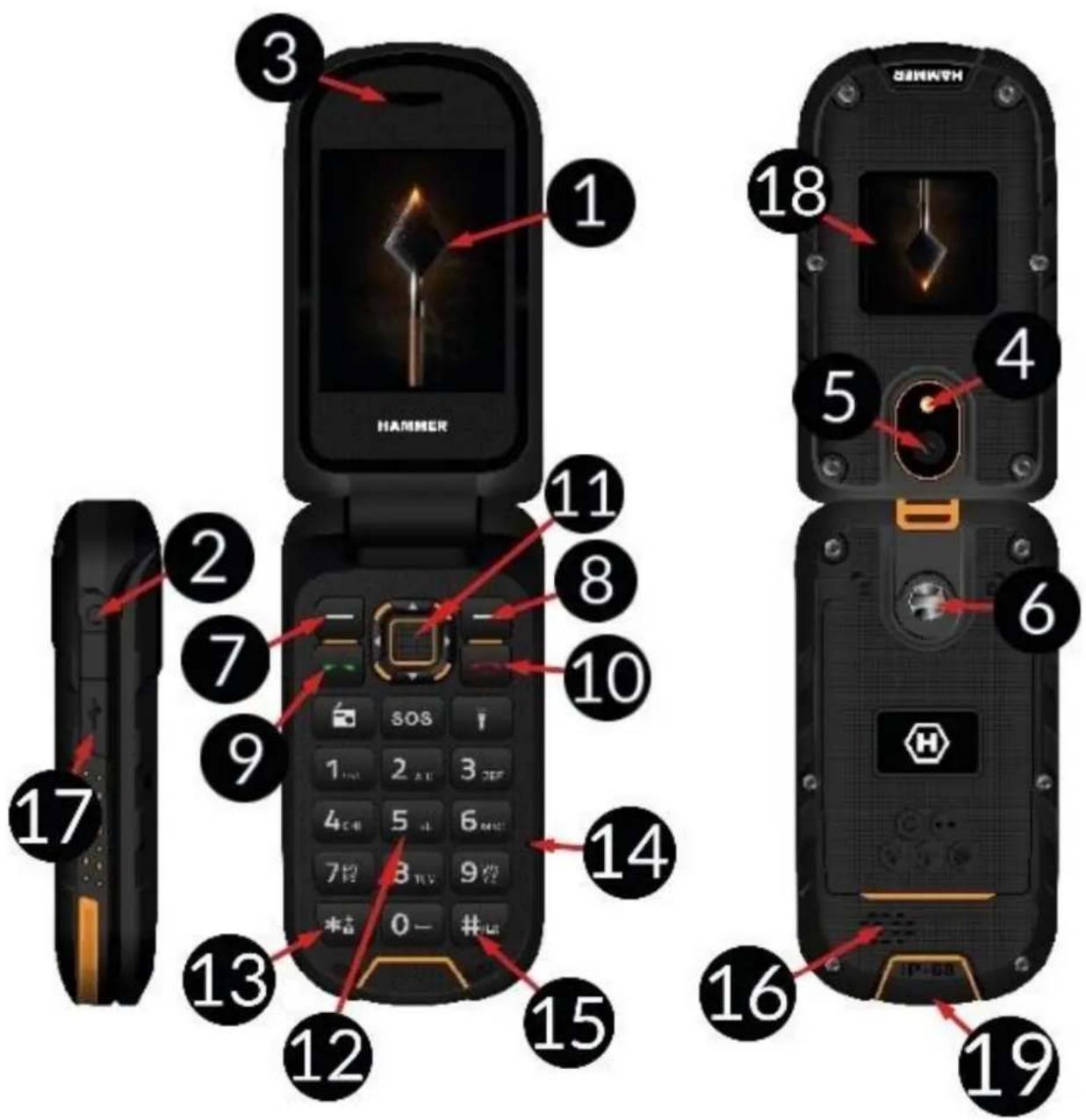
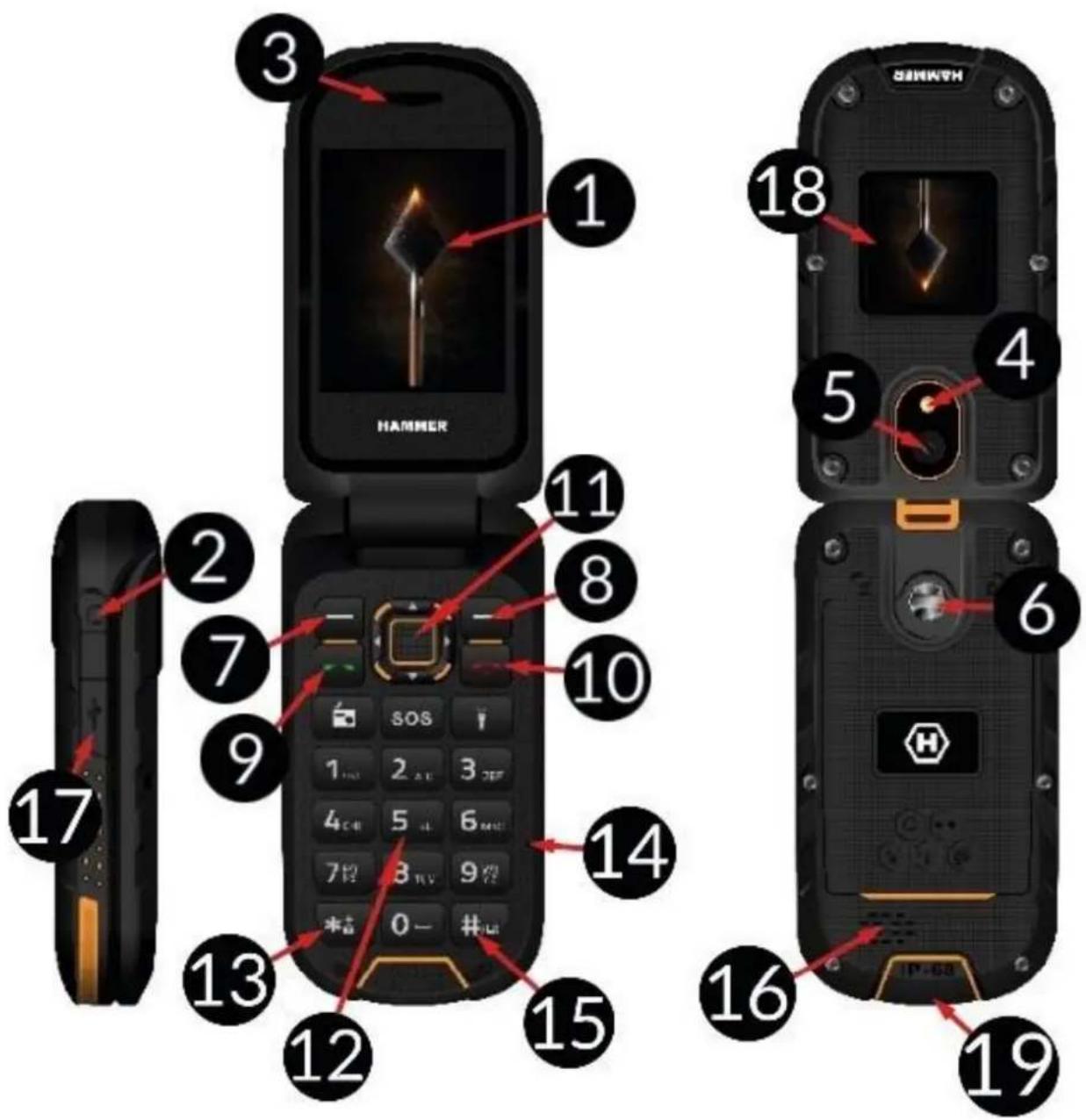
| 1 | Galvenais
ekrāns | Tālruṇa galvenais LCD ekrāns. |
| 2 | Audio izeja | Łauj pieslēgt austiņas (tiek izmantotas tāpat kā radioantena). |
| 3 | Skaļrunis | Skaļrunis telefonsarunām. |
| 4 | LED diode | Kalpo kā lukturītis un zibspuldze. |
| 5 | Kamera | Kameras lēca. |
| 6 | Skrūve | Stiprina vāciņu, zem kura izvieto akumulatoru, SIM karti un atmiņas karti. |
| 7 | Taustiš<Izvēlne> | Atrodoties galvenajā ekrānā, jūs varat iegut pieejuzvēlnei. Izvēlnē tiek apstiprināti izvēlētie parametri. |
| 8 | Taustiš<Kontakti> | Galvenajā ekrānā var ieiet [Kontaktos]. Izvēlnē var iziet vaiatteikties. |
| 9 | Taustiš<Zajā klausule> | Lauj atbildēt uz ienākošo zvanu. Gaidīsanas režimāLauj aplūkot zvanu Žurnālu. |
| 10 | Taustiš<Sarkanā klausule> | Lauj atslēgt ienākošo zvanu. Izvēlnes režimāLauj atgrietties galvenajā ekrānā. Gaidīsanas režimāJusvarat izslegt Telefonu, savukārt, kad telefons irizslegts, to ieslēgt atkal. |
| 11 | Taustiš<uz augšu>,<uz leju>,<pa kreisi>,<pa labi> un<OK> | Lauj pārvietoties izvēlnē. Galvenajā ekrānā<uz augšu> izsauc audio atskaŋotāju, <uz leju> izsauc FM radio, <pa labi> izsauc skañas izvēlnes režimu,<pa kreisi> izsauc izvēlni, lai pamainitu valodu,<OK> darbojas kā<Izvēlne> taustiš. |
| 12 | Telefona klaviatūrā | Klaviatūrā lauj jums galvenajā ekrānā izvēlieties tālruṇa numuru un ievadī tiñojuma burtus un ciparus SMS rakstišanas režimā. |
| 13 | Taustiš<∗> | Galvenajā ekrānā, divas sekundes turiet nospiestu, lai ieslēgtu kameru. Rakstot SMS, tas atspogulɔ simbolus, ko ievietot ziñojumā. |
| 14 | Mikrofons | Sarunājoties pa Telefonu, neaizsedziet to ar roku. |
| 15 | Taustiš<#> | Galvenajā ekrānā lauj pārslēgt skana nas profilus.Rakstot SMS ziñojumus, pārsledz simbolu ievades režimu. |
| 16 | Aizmugurējais skalrunis (buzzer) | Generē zvanu signālus un pazinjojumus, kā ari var tikt izmantots mūzikas atskaŋošanai no audio atskaŋotāja vai FM radio. |
| 17 | USB-C izeja (zem gumijas blīvējuma) | Piesledzot lādētāju, notiek akumulatora uzlāde.Kad ir aktīvs savienojums ar datoru, jūs varat apmainīties ar datum (attēli, filmas, mūzika). |
| 18 | Informācijaseskrāns | Papildu displejs atlokā, kas informē par GSM signāla stiprumu, akumulatora uzlādi, neatbildētiem zvaniem, nelasītām iSZiñām, datumu un laiku. |
| 19 | Uzlādes bāzes savienotājs | Šis savienotājs lauj ievietot tālruni uzlādes bāze, kā rezultātā tā akumulators tiek uzlādēts bez nepieciesamības savienot vadus ar USB-C ligzdu. |
| Radio | leslēdz FM radio. Lai uzlabotu uztversanu, pievienojiet vadu austiñas. |
| SOS | SOS | ledarbina skalu trauksmi un SMS nosūtišanas sistemu ar informāciju (kuru ievadījis lietotājs) ieprieks norādītajiem cilvēkiem un viŋiem zvana. Ārkārtas palīdzības numurs 112 tiek ievadīts rūpnīcā. |
| Lukturis | leslēdz LED diodi <4>. Darbojas kā lukturītis. |
Telefona ieslegsana un izlegsana
Telefona ieslēgšanai/izslegšanai nospiediet un noturiet taustiŋu . Ja uzreiz pēc telefona ieslēgšanas, jus redzésiet koda pieprasijumu ("**" formātā), ievadiet kodu un nospiediet .
SIMkartes,atminaskartes un baterijas ievietošana
Ja telefons ir ieslegt - izsledziet to.
Nonemiet aizmugurejo vaciu - ar
skruvgrieza vai komplekta esosainstrumenta
palidzibu atskruvejiet skruves. levietojiet SIM
karti - SIM kartei jabut ivietotai ar zelta
kontaktiem uz leju, betkartes slipajai malai
jasakrit ar Telefona korpusa esoso slipo malu.
Atminas kartievietojiet ar zelta kontaktiem
uz leju, laikartes Slipamala sakristu ar
telefonakorpusa esoso slipo malu. (sk.
ilustraciju). Maksimala atbalstamam atminas
kartes ietilpiba ir 32 GB. levietojiet
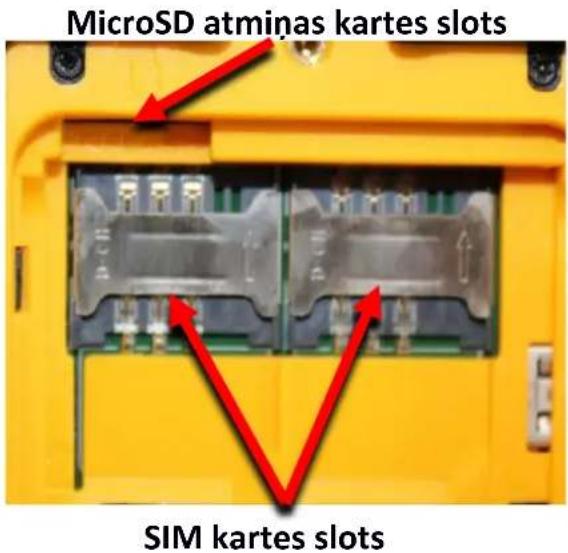
akumulatoru - to jaievieto tada veida, lai zelta kontakti skartu savienojumu, kas atrodas kreisajā puse no micro SD kartes. Novietojiet atpakal aizmugurejo vaciñu: novietojiet to atpakal vieta - pieversiet uzmanibu gumijas blivei - un pievelciet skruves. Lai iznemtu akumulatoru, veiciet darbības preteja secība (atveriet vaciñu un izvelciet akumulatoru).
Akumulatora lādešana
Izmantojot USB-C savienotāju
Lai pieklutu Telefona ieejai, ar naga palidzibu iznemiet gumijas aizbazni. USB-C kabeli piesledziet USB-C iesejai Telefona, tad USB savienotaju piesledziet adapterim un zemsprieguma tiklam.
*Uzmanibu: Nepareiza ladetaja pieslegsanas rezultata var nopietni sabojat Telefonu. Bojajumiem, kas radusies nepareizas Telefona lietoşanas gadijumā, netiek piemērota garantijas apkalposana.
Lādēsanas laikā baterijas stavokla statiskā zime, kas atrodas ekrāna labaja, augšejā stūrī, sāks mirgot. Beidzoties lādēsanai, atvienojiet lādetāju no elektrotíkla. Atvienojiet kabeli no telefona pieslēgvietas.
Caur uzlades bazi
Pievienojiet USB-C kabeli USB-C savientajam uz uzlades bazes, pec tam pievienojiet USB savientaju adapterim un so zemsprigumakontaktligzdai. Za'ai diodei uz pamatnes vajadzetu iedegties. Novietojiet bazi vieta, kur ta bus stabila, un pieviento ladetaja kabeli nevarres nejausi pavilkt vai sabojat. Pec atloka atlocisanas talaruni var ievietot ladeesanas bazet a, laitalaruna (19) savientaji saskartos ar savientaju bazes slota. Par veiksmigu savienojumu noradis iss sarkanas diodes gaisma uzlades baze. Ja viss ir kartibara za diode pec mirkla izslegsies un iedegsies sarkanagaismas diode. Par pareizu akumulatora uzlades procesu noradis mirgojosas gaismas diodes - vairakas sekundes iedegs sarkana unisi mirgos za. Diodes ikona tiks animeta talaruna arejakaekranana. Kad talaruna akumulators ir pilniba uzladets, ikona ekranana netiks animeta, paradisies tikai ta pastavigais attels, un uzlades bazepastavigi iedegsies za diode. Pec tam talaruni var nonemt no uzlades bazes.
Klaviatūras blokësana
Pec lietotaja noteiktā laika klaviatura automātiski noblokejas. To ari var noblokēt manuāli. Šim nolūkam jānospiéž un janotur taustišs <>. Lai atbloketu klaviaturu (kad displeješ ir izslēgts), jānospiéž Jebkurs taustišs, lai aktivizētu ekrānu, tad nospiediet taustiŋu (kas atrodas displeja apaksejā kreisajā stūrī), tad uz klaviatūras nospiediet taustiŋu <>. Klaviatura atblokēta. Kad atloka ir atvērta, klaviatura tiek automātiski atblokēta.
PiekJuve tālruña izvēlnei
Lai pieklutu tālruṇa izvelnei, tālruṇa darbvirsmā nospiediet pogu vai . Izmantojot navigacijas pogas , , vai , parejiet uz atbilstošo izvelnes vietu. Nospiediet pogu , lai apstiprinatu izveli (pāriet uz izvelnes vietu) vai <Atpaka], lai atgrietztos iepriekseja izvelnes / darbvirsmas ekrāna.
Skanas un profili
nomainitu profilu, izvēlieties: [Izvēlne] > [Lietotāju profili]. Izvēlieties nepieciesamo profilu un nospiediet , lui aktivizētu izvēlēto profilu, vai [Opcijas] > [Pielāgot] > [Izvēlēties], lui redigētu profilu atbilstoši savam vēlmēm. Lai gaidīsanas režimā izslegtu skānas, nospiediet <#. Nospiediet un turiet to apmēram 2 sekundes, lidz tiek paradigmits zinojums par profila mainu. Atkārtoti nospiéžot un turot pogu <#, tiks izvēlēts iepriekšējais profils.
Zvani
Galvenajā ekrānā ar ciparu klaviatūras palīdzību ievadiet numuru. Mēs rekomendējam pirms Telefona numura ievadīt regiona kodu. Lai piezvanītu, nospiediet . Lai pabeigtu sarunu, nospiediet .
Atbildet uz zvanu
Lai atbildētu uz ienākoso zvanu, nospiediet vai [Atbildēt]. Laiatteiktu/pabeigtu zvanu, nospiediet .
Teksta zinojumi
SMS rakstisana un nosutisana
leejiet izvēlnē: [Izvēlne] > [Isziñas] > [Uzrakstīt Isziŋu]. levadiet iSZiŋu ar klaviatūras palidzību. Simboli tiek ievadīti burts pēc burta. Taustiŋs <#> maina ievadīsanas metodi. Iespejamas šādas metodes: PL - tikai lielie burti, pl - tikai mazie burti, Pl - pirmais burts ir lielais, parejie - mazie, 123 - tikai cipari. Lai ievadītu speciños simbolus, piemēram, punktu, komatu, domuzime utt., nospiediet <*> un izvēlieties simbolu no saraksta vai vairakas reizes nospiediet <1> (režimā, kas nav "123"). Lai starp vārdiem ievadītu atstarpi, nospiediet taustiŋu <0>. Lai ievadītu burtu "b", divreiz nospiediet pogu <2>. Lai ievadītu burtu "d", vienreiz nospiediet pogu <3> utt. Kad jus esat ievadijusi zinojuma tekstu, nospiediet taustiŋu [Opcijas], ievlieties opciju [Nosūṭit], tad izvēlieties [levadī sanēmēju] lub [Pievienot no Telefonu grāmatas]. Izvēlieties , lai apstiprinātu. Pec numura/kontakra izvēlešanās, nospiediet [Opcijas] > [Nosūṭit] vai , pēc tam atlasiet SIM kartı, no kuras jānosūta zinojums, un apstipriniet izvēli.
Isziuaplukosana
leejiet: [Izvelne] > [Isziñas] > [lenakosás], izvelieties iSZiñu no saraksta un, lai to izlasitu, nospiediet [Opcijas] > [Aplukot] > .
Kontakti (Telefonu grāmata)
Jauna kontakta pievienošana
Lai saglabātu kontaktu, ieejiet: [Izvelne] > [Kontakti] > [Pievienot jaunu kontaktu] > un [SIM1], [SIM2] vai [Telefonā] un . levadiet kontaktinformatāciju, ar taustiŋiem un atlasot vārdu, numuru, e-pasta adresi, fotoattelu un zvana signalu. Pec datu ievadīsanas nospiediet vai izvēlieties [Opcijas] > [Saglabāt], lai saglabātu kontaktu.
Kontakta meklesana
Kontaku meklesanai izveliieties: [Izvelne] > [Kontakti]. levadiet pirmo kontakta burtu. Ekrana paradisies pilns kontaku saraksts, kas sakan ar attiecigo burtu. Lai saaurinatu meklesanu, ievadiet nakamos burtus. Cita kontakta atrašanai izmantojiet navigacijas taustinus vai . Izveliieties kontaku un izvelietie [Opcijas], tad paradisies sekojsais: "Priekskats", "Nosutit zinojumu", "Izsaukums", "Dzest", "Kopet", "levietot melnajā sarakstā", "Atzimet dažus", "Telefonu grāmatas iestatijumi".
Kontaktudzeshana
Lai izdzestu kontaktu, nospiediet: [Izvelne] > [Kontakti] > meklējiet kontaktu dzëšanai > [Opcijas] > [Dzest] > .
SOS
Izvelieties: [Izvelne] > [SOS iestatijumi]. Tur var aktivizet pogu SOS [SOS iestatijumos], ievadit numurus, uz kuriem tiks nosutits pazinojums, vai atasit tos tālruṇu katalogā [Ilestatīt SOS numurus], ievadīt saturu [SOS pazinojums]. Pec visu opciju iestatīsanas un pēc SOS aktivizēsanas, skānas trauktsme tiks aktivizēta, ja tā tika aktivizēta izvelne, un uz atasitajiem numuriem tiks nosutīta iszina ar pazinojuma saturu. Pēc tam tālrunis sāks mēgināt zvanīt uz ieprieks norādītajiem numuriem, līdz tiks izveidots savienojums. Skānas trauktsmi var izslēgt, nospiéžot pugu SOS. Pēc noklusejuma tiek ievadīts Ārkārtas palidzības numurs 112 un pazinojuma teksts "Palidzēt man!!!".
Telefona pieslēgsana datoram
HAMMER Telefonu Telefonu var piesegt datoram ar USB kabela palidzibu. Tas Jaus Jums parskatit un apmainities ar datum starp jus datoru un jusu Telefonu. USB-C kabeli piesledziet jusu Telefona USB piesegvietai (kas atrodas Telefona kreisajape), tad USB kabeli piesledziet jusu datora USB piesegvietai. Informacija par USB savienojamibu japaradastalruana ekranan. No saraksta izvelieties [USB rezims]. Talarunis tika pievienots datoram. Tagad Telefona atminas saturu var caurlukot ar Windows parluka palidzibu.
Lukturis
Lai ieslęgtu lukturiti, izvělieties [Izvělne] > [Planotájs] > [Lukturis] un apstipriniet ar pogu vai, ja galvenais tālruṇa panelis ir aktīvs, nospiediet un turiet pogu
Rupnicas iestatijumi
Lai atjaunotu rūpnicas iestatijumus, izvēlieties [Izvēlne] > [lestatijumi] > [Atjaunot rūpnicas iestatijumus], ivadiet telefona paroli un nospiediet . Nepiečiesamā parole: 1122.
Problemu risinasa
| Pazinojums | Risinājums |
| levietojiet SIM kartı | Pārliecinieties, ka SIMkartı irparezı ievietota. |
| levadiert PIN kodı | Ja SIMkarté aizsargāta ar PIN kodı, ieslēdzot Telefonu, jumsjāievada PIN kodsun jānospiéz <OK>. |
| Tikla kūda | Viētās, kurir vājš signālsvai uztversanairvāja, varbut tāsituācija, ka naviespējamsveikt zvanus.Tostarp zvanupienemšana varnebūtiespējama.Pārvietojatiesuz citu vietu uratkārtojet mēginājumu. |
| Es nedzirdu sarunasbedru/sarunasbiedrs nedzird mani | Mikrofonamjābūttuvu mutei.Pārbaudiet, vailnavaizklātsiebūvētaismikrofons.Ja tiek izmantota brīvrokas sistēma,pārbaudiet,vailtāirparezì pieslēgta.Pārbaudiet,vailnavaizklātsiebūvētais skajrunis. |
| Slikta skañas
kvalităte sarunas
laikā | Pārliecinieties, ka scałrunis un mikrofons nav aizklāts. |
| Izveidot
savienojumu nav
iespējams | Pārbaudiet, vai ir pareizs ievadītais Telefona numurs.
Pārbaudiet, vai [Kontakti] ievadītais numurs ir pareizs.
Nepieciešamības gadījumā ievadiet pareizo Telefona numuru. |
| Neviens nevar mani
sazvanīt | Telefonam jābūt ieslēgtam un jāatraudas tikla darbības zona. |
| Ja problema joprojām pastāv, szainieties ar icerces pārdevēju. |
Pareiza akumulatora izmantošana
Baterija šajā iekārtā spej uzlādetīies no lādētāja. Ja ir zems baterijas uzlādes limenis, uzlādējiet to. Lai pagarinātu akumulatora darbības laiku, laujiet tam izlādetīies zem 20% no akumulatora ietilpības un uzlādējiet to lidz 100%. Ja lādētājs netiek izmantots, atvienojiet to no Telefona. Pärmerīga lādēsana samazina baterijas kalpošanas mūžu. Baterijas temperatūra ietekmē lādēsānās ciklu. Pirms lādēsanas atdzesējiet bateriju vai paaugstiniet tās temperatūru tā, lai tā butu tuva istabas temperatūrai (aptuveni 20^ C). Ja akumulatora temperatūra pärsniedz 40^ , akumulatoru nedrikst lādēt! Ja akumulators pärkarst, ierice paradīs atbilstošu ziŋojuμu. Akumulatoru izmantojiet tikai tam paredzētajiem mērkiem. Neatstājiet akumulatoru magnētiskā lauka ietekmes zona, jo tas samazina tā kalpošanas mūžu. Neizmantojiet bojatu akumulatoru. Akumulatora kalpošanas mūžs var samazināties, ja to ietekmē loti zemas vai loti augstas temperatūras - tas izraisa traucējumus Telefona darbība, pat tad, ja akumulators lādējas pareizi. Nemetiet akumulatoru ugūnī. Neizmetiet izlietotu akumulatoru - nogādājiet to autorizētā pārstrādes punktā.
Telefona kopšana
Lai pagarinatu ieri cakpoanas muzu, ieverojiet sados noteikumus: uzglabajiet Telefonu un aksesuarius berniem nepieejama sausa vietabez mitruma. Nepielaujiet, lauzetfonu iedarbojas augsta vai zema temperatura; tas var samazinat Telefona elektronisko komponensu kalpoanas muzu, izkauset plastikata detalas un sabojat akumulatoru. Parmeriga uzlade un atstasana zema vai augsta temperatura vaimagnetiskaja laukavar saisinat akumulatora darbibas laiku. Akumulatorattemperatura ietekmetauzuladi. Atdzesejiet vai paaugstiniet temperaturu tā, laitabutu tuvu istabas temperaturai (aptuveni 20^) . Iteicams, laitelfons netiktu izmantots temperatura, kasir augstaka par 40^ / 104^ . Nemeginiet izjaukt Telefonu. Ta strukturas izjauksana nepofesionala maniere var nodarit ieverojamukaitejumuteflonam vailnilibatoiznicinat. Tirisanai izmantojiet tikai sausu audumu. Nekad neizmantojiet lidzeklus ar augstu skabju vailarmu koncentraciju. Izmantojiet tikai originulos aksesuarius. Si punkta neieveroansa var izraisit garantijas anulesanu. leticams talruni nelenot temperature, kas augstaka par 40^ / 104^ un zemaka par 0^ / 32^
Tecnologiskie kriteriji
Tikls: GSM 2G: 850/900/1800/1900 MHz
GSM 3G: 900/2100 MHz
4G/LTE: 800/1800/2100/2600 MHz
Dazi pakalpojumi var but atkarigi no jusu pakalpojumu sniedzeja, jusu lokāla telekomunikaciju tikla stavokla, izmantotās SIM kartes versijas un jusu Telefona izmantošanas veida. Papildu informaciju var saṇemt pie pakalpojumu sniedzeja.
| Piezime |
| Ražotājs neatabild par jebkādām sekām, kas var rasties nepareizas Telefona lietošanas un ieprieks minēto instrukciju neievērošanas rezultātā. |
| Pazinojums |
| Visa programmatūras versija var but atjaunota bez iefriekšēja brīdinājuma. Pārstāvim ir tiesības noteiktie iefričk Š minēto instrukciju pareizo interpretāciju. |
Maksimālā radiofrekvences jauda
| Frequency Range | GSM 800/1800/2100/2600 MHz | Bluetooth 2402-2480 MHz |
| Transmit Power | 2W/1W | 2.47 dBm EIRP |
Pareiza elektriskā un elektroniskā apríkojuma utilizescija
Uzmanibu: Saskaña ar ES direktivu 2012/19/UE par elektrotehnisko izstradajumu atkritumiem (Waste Electrical and Electronic Equipment – WEEE) ierice ir marketa ar pārsvītrotas urnas simbolu. Šadi marketus produktus nedríkstutilizēt kopāarkomunālajiem atkritumiem.Jums ir pienakums elektriskās un elektroniskās iericesutilizēt,nogādājot tās
noteiktas vietas, kuras šadi bistami atkritumi tiek'utilizeti. Šada veida atkritumu vāksana slegtas telpas un pareizs atjaunošanas process palidz aizsargat dabas resursus. Pareiza elektrisko un elektronisko ieriču atkritumu/utilizacija positivi etekmē cilveka veselibu un apkärtejo vidi. Lai iegutu informaciju par to, kur un kā droši UTILIZET elektrisko un elektronisko ieriču atkritumus, lietotajiem jāveršas attieçiga pašvalības iestādē, atkritumu pienemšanas punktā vai pardošanas punktā, kur icerice tika nopirkta.
Pareiza izlietoto bateriju UTILIZACija
Saskaña ES direktivu 2006/66/ES, ar izmainam 2013/56/ES direktiva par bateriju'utilizaciju, šis produits ir markēt ar simbolu. Šis simbols norimeto, ka šajā produktā izlietoto bateriju nedrīkst UTILIZET kopā ar komunālajiem atkritumiem, tā ir jauilize saskaña ar direktivu un vietējiem prieksrakstiem. Baterijas un akumulatorus nedrīkst izmest
kopa ar neškirotajiem komunālajiem atkritumiem. Bateriju un akumulatoru ipasniekiem ir pienakums izmantot priekšmetu piehemšana punkta pakalpojumus, kas nodrošina to utilizaciju un pāstradi. ES bateriju un akumulatoru piehemšana un utilizacija ir atsevišku proceduru subjekts. Lai uzzinatu vairak par aktuālajām bateriju
© mPTech. Visas tiesibas aizsargatas.
HF2401_HF2401e LV
un akumulatoru pāstrādes procedūrām, lūdzu, sazinieties ar viētējo biroju vai iestādi saistībā ar atkritumiem.
Deklaracija par atbilstibu UE direktivam

mPTech Sp. z o.o. pazino, ka HAMMER atbilst direktivas 2014/53/ES noteikumiem. Atbilstibas deklaracija ir pieejama šādā interneta adrese:
https://hammerphones.com/support-hammer-bow-lte
VARTOTOJO VADOVAS
HAMMER HF2401_HF2401e
Aciu, kad pasirinkote HAMMER. PrašomE atidžiai perskaitykite šj vartotojo vadová. Telefonas HAMMER skirtas naudoti GSM 4G dažniuose 800/1800/2100/2600 MHz. Má kontrastné barevný displej, svitilnu, Bluetooth a podporu dvou SIM karet. Turi tvirta, nepralaidú vandeniuí ir dulkéms korpusá, kontrastingá spalvú ekraná,Žibintuvělj, Bluetooth ir integruotá dual SIM technologija. Be išankstinio rastiško gamintojo sutikimo, jokios šio vadovo dalies negalima kopijuoti, atkurti, versti ar perduoti bet kokia forma ar bet kokiomis priemonémis, elektroninemis ar mechaninémis, jskaitant kopijavimá, jraśymá ar saugojimá systemose, kuriose saugoma ir kečiamasi informácja.
SAUGA
Atidžiai perskaity kite šias paprastas gaires. Nepaisydami šiu nurodymu galite sukelti pavoju ar nusiengti jstatymams. Nejunkite Telefono, kai mobiliuoju jrenginiu naudotis yra draudziama arba kaijis gali sukelti trikdžius ar pavoju.
—SAUGUMAS VAIRUOJANT—
Nesinaudokite prietaisu, kai vairuojate transporte priemone.
—TRIKDŽIAI—
Visi belaidzio ryso prietaisai gali buti jautrus trikdziams, tai gali jtakoti ju veikimaj.
DRAUDZIAMOS ZONOS
Išjunkite jrenginji lektuve, nes tai gali sutrikdyti kitu jam esanciu prietaisu darba. Irrenginys gali trukdyti medicinines jrangos darbui ligninese ir sueikatos prieziuros jstaigose. Laikykites visu medicinos darbuotoju draudimu, taisykliu ir jspejimu.
DEGALINES
Išjunkite Telefona, kai esate degalinèje. Nenaudokite prietaiso arti chemikalu.
—PAGALBOS SKAMBUCIAI—
Kai kuriose zonose, pagalbos skambučiai yra nejmanomi. Rekomenduojame pasirupinti, kitomis pagalbos iškvietimo alternatyvomis, jei keliaujate j tas zonas, kuriose pagalbos skambutis Telefonu nejmanomas.
—KVALIFIKUOTA PRIEŽIURA—
Tik kvalifikuoti specialistai gali jdiegti programine jrangarba taisyti sj prietaisa. Nekvalifikuotas aptarnavimas, gali sukelti Telefonui zaq ir garantijos praradima.
—VANDUO IR KITI SKYSCIAI—
Prietaisas turi atsparumo dregmei sertifikatá IP68. Tai reškia, kad Telefonas yra atsparus dulkëms ir vandeniiui, kai visi guminiai sandarikliai yra teisingai sudeti ir yra nepažeisti, taip pat, kai galinis saugos dangtelis yra tinkamai uždétas ir užsuktas varžtais, o garsiakalbiu membranos yra nepažeistos (neužterstos pvz. metalo dulkëmis). Rekomenduojame nenardinti telefono j vandenj, ar kitus skyscius, kai nera tam rimtos priežasties. Vanduo arKitas purvas neturi teigiamos jtakos prietaiso
veikimui. Jei Telefonas suslapo, nusausinkite jj ir leiskite išdžūti, kaip galima greiciau. Pries prijungdami USB laidā prie Telefono jkrovimo lizdo, jsitikinkite, kad Telefonas yra sausas. Laido prijingimas prie dregno lizdo veikia letai korozija ir gali sukelti Telefono jkrovimo problemu. Netinkamai veikiant del pirmiau minétu taisykliu nesilaikymo, skundai del Telefono neatinikimo apsaugai nuo dregmès ir dulkiu nebus nagrinëjam.
—VAIKAI—
Telefonas nera zhaislas. Atminties kortele ir SIM kortele yra pakankamai mazos, kad vaikas galetu jas nuryti ir uzspringti. Laikykite jrenginj ir jo priedus vaikams nepasiekiamoje vietoje.
—PSICHISKAI AR PROTISKAI NEJGALUŠ ZMONÉS—
Prietaisas neturetu buti valdomas psichiškai, ar fiziškai nejgaliu (jskaitant vaikus) Žmoniu, ar tu asmenu, kurie neturi pakankamai patirties su elektroniniu prietaisu naudojimu. Šie asmenys gali naudoti prietaisu, tik prižiūrint Žmonëms, kurie yra atsakingi už nejgaliuju asmenu saugumā.
BATERIJOS IR PRIEDAI
Venkite labai aukstos / Žemos temperaturos (žemiau 0^ / 32^ ir daugiau nei 40^/ 104^) poveikio baterijai. Krašutiniali temperaturu polyciai gali tureti jtakos baterijos talpai ir naudojimo trukmei. Venkite salycio su skysciais ir metaliniais daiktais, nes tai gali dalinai ar visiskai pakenkti baterijai. Baterija turi buti naudojama pagal jos paskirtj. Negalima sunaikinti, sugadinti arba ismesti baterijos liepsn - tai yra pavojinga ir gali sukelti gaisra. Susidévêjusiaar sugedusia baterijä reikia ismesti tam skirtä konteinerj. Pernelyg ilgas baterijos jkrovimas gali jai pakenkti ir sukelti gaisra. Taigi, vienes baterijos jkrovimas negali ttestis ilgiau nei 12 valandas. Atjunkite nenaudojama jkroviklj nuo elektrros tinklo. Jei jkroviklio laidas yra sugadintas,jis neturetu buti remontuojamas, bet jj reikia pakeisti nauju. Naudokite tik originalius gamintojo priedus, prieinamus kartu su prietaisu. Sprogimo pavojus, jei akumulatorius pasirinktas netinkamas. lsmeskite akumulatoriug pagal instrukcjjas.
—GARSAI—
Siekiant iśvengti Žalos savo klausai, nenaudokite Telefono esant nustatyam aukstam garsumo lygiui ilgā laikā. Neděkite jrenginio tiesiai
—REGA—
Kad nepakenktumete savo regai, neziurekite tiesiai jjungta zibintuveli.
Stiprus sviesosspindulys gali pakenkti jusu regai!
Gamintojas:
mPTech Sp. z o.o.
ul. Nowogrodzka 31
00-511 Varšuva, Lenkija
Tinklalapis: www.mptech.eu
Pagaminta Kinijoje
Turinys
Turinys 162
Pakuotés turinys 162
Techninai parametrai 163
Vzhled Telefonu, jeho funkci a tlačiték 164
Telefono jjungimas ir ijsjungimas 166
SIM kortelès, atminties kortelès ir baterijos jdéjimas 166
Baterijos jkrovimas 166
Poprzej zlokce USB-C. 166
Per jkrovimo baz
Klaviaturos užrakinimas 167
Prieiga prie Telefono menu 167
Garsaiir profiliali 167
Skambinimas 167
Jeinančio skambučio atsiliepimas 168
Tekstiniaipranešimai 168
Zinutés siuntimas 168
Rodomi pranešimai 168
Kontaktai (Telefonu knyga) 168
Naujokontaktopridejimas 168
Kontakto paieska 168
Ištrinti kontaktus 168
SOS. 169
Telefonoprijungimas priekompiuterio 169
Zibintuvëlis 169
Gamykliniai nustatymai 169
Probleu sprodimas 169
Tinkamas baterijos naudojimas 170
Telefono prieziura 170
Techninai kriterijai 170
Tinkamas elektriniu ar elektroniniu atlieku surinkimas ir utilizesvimas.171
Teisingas panaudotu bateriju šalinimas 171
Atitikimas Europos sajungos direktyvoms 172
Pakuotës turinys
Rekomenduojama laikytipakuote garantijos galiojimo laikotarpiu. Pakuote laikykite vaikams nepasiekiamoje vietoje.

Naujausiq ir išamiq vartojo vadovo versijq galite rasti jmonés tinklalapyje: https://hammerphones.com/support-hammer-bow-lte
Priklausomai nuo jdiegtos programines jrangos versijos, paslaugu teikejo, SIM kortelles ar šalies, kai kurie aprasymai šiame vadove gali neatitikti Telefono funkcjju. Priklausomai nuo šalies, operatoriaus ar modelio versijos, Telefonas ir jo priedai gali skirtis nuo ilustraciju šioje vadove. Aprasymai šiame vartotojo vadove yra pagrasti numatyaisais jusy Telefono nustatymais.
Techninai parametrai
- Aiskus, spalvotas pagrindinis ekranas 2.4" 240x320px ir išorinis 1.44"
FM radijas, Bluetooth 4.2, mygtukas SOS
- Fotoaparatas 2Mpx+ LED
RAM:48MB
- microSD: max. 32 GB
2G:900/1800MHz
3G:900/2100MHz
4G/LTE:800/1800/2100/2600MHz
- Akumulatorius:
HF2401 Li-ion 1200 mAh, 3.7V =
HF2401e Li-ion 1000 mAh, 3.7V =
- Telefonomatemenys: 111.5 × 57.5 × 22 ~mm
- Telefonosvoris:133.6g
Maitinimo Šaltinio techniniali duomenys:
Kroviklio tiekiama galia turi buti ne mažesné kaip 1,5 vatu, reikalingu radijo jrenginiui, ir ne didesné kaip 5 vatu, kad butu pasiekatas didžiausias jkrovimo greitis.
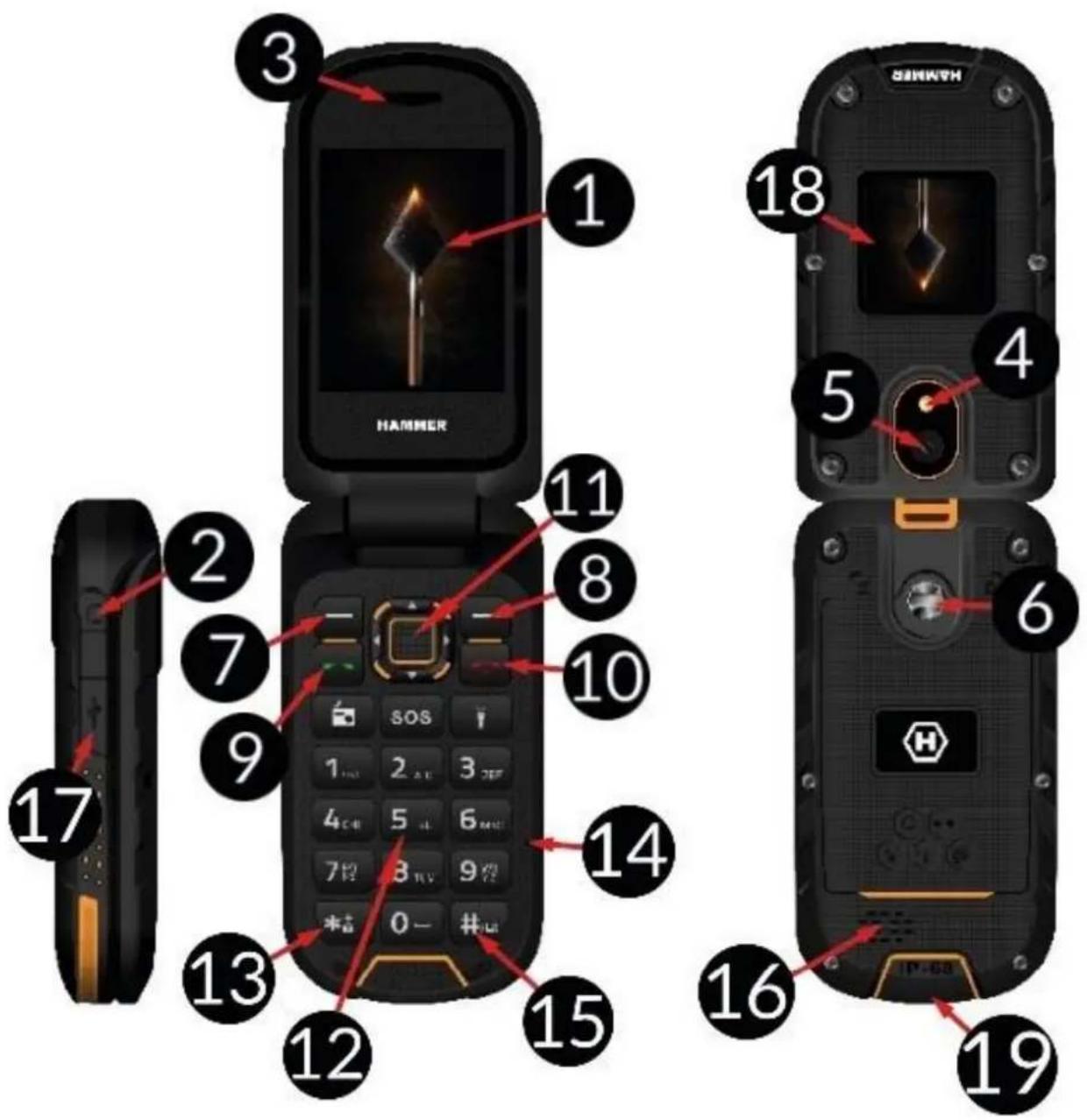
| 1 | Pagrindinis ekranas | Pagrindinis telefono LCD ekranas. |
| 2 | Audio juntgis | Ausinių prijungimas (taip pat naudojama, kaip FM Radijo antenna). |
| 3 | Garsiakalbis | Garsiakalbis naudojamasPokalbiams. |
| 4 | LED diodas | Žibintuvélis. |
| 5 | Fotoaparatas | Fotoaparato objektyvas. |
| 6 | Varžtas | Leidžia priveržti korpuso dangtj (yra vietu SIM, microSD kortelèms ir akumuliatoriui). |
| 7 | Mygtukas <Meniu> | Pagrindiniame ekrane, paspaude mygtuka, galite jeiti j Meniu. |
| 8 | Mygtukas <Kontaktai> | Pagrindiniame ekrane, paspaude - jeisite j telephone knygā [Kontaktus]. Kai esate meniu, šis mygtukas leis išeiti iš pasirinkimo. |
| 9 | Mygtukas <Žalias ragelis> | Spauskite, kad atsilieptumète j jeinanti skambutj. Budèjimo režime: spauskite, jei norite pamatyti skambučiu sáraša. |
| 10 | Mygtukas <Raudonas ragelis> | Spauskite, jei norite atmesti jeinanti skambutj. Jei telefonas yra išjungtas: spauskite ir palaikykite šj mygtuka, kad jjungtumète Telefona. Jei telefonas yra jjungtas: spauskite ir palaikykite šj mygtuka, kad išjungtumète Telefona. Jei esate meniu: spauskite, kad gržtumète j pagrindinj ekranà. |
| 11 | Mygtukai <aukstyn>, <žemyn>, <kairén>, <dešinén> ir <OK> | Leidžia judèti ir rinktis funkcijas iš viso meniu. Pagrindiniame ekrane <aukstyn> jjungsite audijo grotuva, <žemyn> jjungsite FM radija, <dešinén> jjungsite garso profilius, <kairén> jjungsite meniu punktä, kur galite pakeisti kalba, <OK> veikia kaip <Meniu> mygtukas. |
| 12 | Telefono klaviatūra | Skačići ir raidžić klaviatūra, leidžia jums surinkti Telefono numerj ir jam paskambinti, o raidžić klaviatūra, leidžia rašyti trumpşias SMS Žinutes. |
| 13 | Mygtukas <*> | Pagrindiniame ekrane, paspauskite ir palaikykite šj mygtuka dvi sekundes - jjungsite kamerà. Kai rašote SMS, paspaudus, pasirodis simboliai, kur galèsite išsirinkti reikiamà. |
| 14 | Mikrofonas | Nepaslëpkite jo po savo delnu, kai vykstaPokalbis. |
| 15 | Mygtukas <#> | Skamba skambučio tonas ir pranešimai, taip pat groja muzikos grotuvas ir FM radijas. |
| 16 | Galinis garsiakalbis (buzzer) | Skamba skambučio tonas ir pranešimai, taip pat groja muzikos grotuvas ir FM radijas. |
| 17 | USB-C juntgis (po guminiutarpikliu) | Kai prijungtas pakrovëjas - baterija jkraunama. Kai prijungtas kompiuteris - galite tvarkyti savoinformacija (nuotraukas, filmukus, muzika). |
| 18 | Informacinis ekranas | Papildomas ekranas ant dangtelio, informuojantis apie GSM signalo stipruma, akumuliatoriaus bükle, praleistus skambučius, neperskaitytas SMS Žinutes, data ir laikä. |
| 19 | Jkrovimo bazès
jungtis | Ši jungtis leidžia jkišti Telefonę j krovimo
pagrindą, todél jo akumulatorius jkraunamas ir
nereikia prijungti laidu prie „USB-C“ lizdo. |
| Radijas | Jungia FM radija. Norédami pagerinti ryšj,
prijunkite laidinţ ausinţ. |
| SOS | SOS | Suaktyvina garsu aliarmă ir SMS siuntimo su
informacija (kurią jvedè cartotojas) sistème
anksciau nurodytiems Žmonëms ir jiems
skambina. Pagal numatytuosius nustatymus
jvestas pagalbos Telefono numeris tai 112. |
| Žibintuvëlis | Jungia šviesos diodą <4>. Veikia kaip
žibintuvëlis. |
Telefono jjungimas ir išjungimas
Kad jjungtumete Telefona, paspauskite ir palaikykite mygtuka . Is kart po Telefono jjungimo, pamatysite PIN kodo užklausa, (ji atrodys taip “**”) jveskite keturiç skaitmenç kodá ir spauskite .
SIM kortelès, atminties kortelès ir baterijos jdéjimas
Jei Telefonas yra jjungtas - isjunkite.
Nuimkite galinj apsauginj dangtelj, stumdami pirstu, kur yra stumimo iškilimai. Išimkite baterija. Jdekite SIM korteje j Jos vietä, taip, kaip parodyta paveikslélyje, Telefono viduje. Jdekite atminties korteje. Atminties kortele dékite pagal ispjoyas, kad aukso spalvos kontaktai butu apacioje. Atminties korteles talpa negali buti didesne kaip 32GB. Jdekite baterija taip, kad telephone esantys kontaktai liestusi su baterijos aukso spalvos kontaktais. Uždék
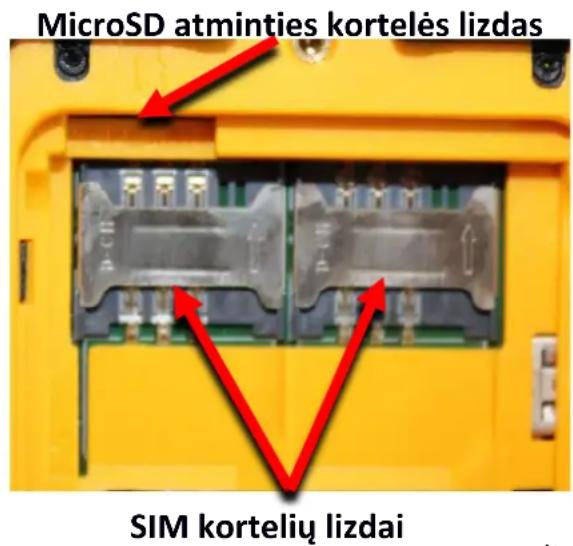
dangtelj. Ir užsukite varžtelius. Noredami išimi baterija, atlikite veiksmus atvirkstine tvarka (atidarykite dangtelj ir ištraukite akumuliatoriú.
Baterijos jkrovimas
Poprzej zntagce USB-C
Nagu prispauskite Telefono korpuso šoninj guminj kamstj, kad butu atskleistos Telefono jungtys. Prijunkite USB-C kabelj prie USB-C jungties telephone, tad prijunkite USB kabelj prie adapterio ir galiausiai junkite priežemos jtampos lizdo.
*Démesio: neteisingas jkroviklio prijungimas prie telefono, gali padaryti Žalq Telefonui. Tai yra mechaninis pažeidimas, kuris gali panaikinti prietaiso garantijq.
Ikrovimo metu, ekrano vir'sutiniame desiniajame kampe, pasirodo jkrovimo
piktograma. Kai baterija yra pilnai jkrauta, ištraukite jkroviklj is elektros lizdo. Atjunkite jkroviklj nuo mobilaus Telefono.
Per jkrovimo baz
Prijunkite USB-C kabelj prie jkrovimo bazës USB-C jungties, pada prijunkite USB juntgj prie adapterio, o adapterj prie Žemos jtamos lizdo. Bazëje turëtu užsidegti Žalias diodas. Pastatykite bazë toje vietoje, kur bus stabili, o prijungto jkroviklio laidas netyčia nebus atsitiktinai traukiamas ar sugadintas. Sulenkus dangtelj, Telefona galima Sekminga rysj parodys trumpa raudono diodo blyksté jkrovimo bazëje. Jei viskas gerai, po akimirkos Žalias diodas išsijungs ir užsidegs raudonas diodas. Apie teisinga akumuliatoriaus jkrovimo procesā praneš mirksjintys šviesos diodai - per kelias sekundes šviečia raudonas ir trumpai mirktelejës Žalias. Be to, diodo pikograma bus animuota telefono išoriniame ekrane. Kai Telefono baterija bus visiskai jkrauta, pikrograma ekrane nebus animuota, atsiras tik jos nuolatinis vaizdas, o jkrovimo bazëje nuolat degs Žalias diodas. Tada Telefona galite išimi tšjkrovimo bazës.
Klaviaturos užrakinimas
Klaviatura užsirakina automatiskai po to, kai nustatote tai nustatymuose. Taip pat užrakinti klaviaturā galite ir rankiniu budu. Paspauskite ir palaiky kite mygtuka <^>. Kad atrakintuméte klaviaturā (kai ekranas yra uzges), paspauskite bet kurj klaviaturos mygtuka, kad ekranas butu aktyvuotas ir tuomet spauskite mygtuka (randasi apacioje, kairiajame ekrano kampe), ir tuomet klaviaturoje spauskite mygtuka <^>. Klaviatura atrakinta. Klaviatura automatiskai atrakinama, kai dangtelis atidaromas.
Prieiga prie Telefono meniu
Noredami patekti j telefono meniu, paspauskite mygtuka arba telefono darbalaukyje. Naudojant navigacijos mygtukus , , arba eikite j atitinkama meniu vieta. Paspauskite mygtuka , kad patvirtintu (atsirasti meniu) arba , kad grjžtu j ankstesne vieta.
Garsaiir profiliali
Kad nustatytumete skambucio tona ir garsuma, pasirinkite [Meniu] > [Profiliai]. Pažyměkite pasirinktga garso profilj ir eikite [Nustatymai] > [Aktyvuoti] > [Pasirinkti], kad aktyvuotumete pasirinktaj profilj, arba [Nustatymai] > [Pritaikyti] > [Pažyměti], kad pakeistumete profilj pagal savo poreikius. Kad išjungtumete profilj, Telefono budéjimo režime spauskite mygtukā <#. Paspauskite ir palaikykite apie 2 sekundes, kol ekrane atsiras pranesimas apie profilio pakeitimā. Dar kartā paspaudus mygtukā <#, bus pasirinktas ankstesnis profilis.
Skambinimas
Naudokite skačiu klaviatūrā, kad jvestumete Telefono numeri (nepamirskite jvesti šaliu ar miesto kodu, jei skambinate i užsienj). Taip pat galite skambinti iš savo Telefonu knygos, pasirinke norimā kontakta. Spauskite <žalias ragelis>, kad pradetumete skambinimā. Spauskite , kad baigtumetePokalbj.
Jeinančio skambučio atsiliepimas
Spauskite arba [atsiliepti] kad atsilieptumete. Spauskite , kad atmestumete jeinantj skambutj/kad baigtumetePokalbj.
Tekstiniai pranešimai
Zinutés siuntimas
Eikite: [Meniu] > [Žinutës] > [Rašyti Žinute]. Raides rašykite naudodami klaviatūră. Zenklai yra spausdinami raidë paskui raidë. Mygtukas <#> yra naudojamas, norint nustatyti rašymo budă: PL - tik didžiosios raidës, pl - tik mažosios raidës, PI - pirma raidë didžioji, kitos mažosios, 123 - tik skaičiai. Kad jterptumète simbolius tokius, kaip kablelis, taškas ir t.t., spauskite <*> ir rinkités iš sarašo, ar spauskite mygtuka <1> kelis kartus (jei tik neesate pasirinke rašymo budō „123"). Kad jterptumète tarpa tarp Žodžiu, spauskite mygtuka <0> (nulis). Norèdami jvesti raidë „b“, du kartus paspauskite mygtuka <2>. Norèdami jvesti raidë „d“, viena karta paspauskite mygtuka <3> itd. lvede pranešimo teksta, paspauskite mygtuka [Nustatymai] > [Siusti]. Pasirodys galimybès: [lvesti gavěja] numero ivedimui naudojant skaitine klaviatūră ir [Prideti iš telefono knygos] - pasirinke, tiesiog jveskite pirmasias kontakto vardo raides, kad jo ieškotu kontaktu saraše. Pasirinkite , kad patvirtintu. lvede numeri / pasirinke kontakta, pasirinkite [Nustatymai] > [Siusti] arba ir tada pasirinkite SIM kortele, iš kurios bus siunčiamas pranešimas, ir patvirtinkite.
Rodomi pranešimai
Eikite: [Meniu] > [Žinutës] > [Gautieji pranešimai], pasirinkite Žinute iš sarašo ir pažyměkite [Nustatymai] > [Žiūréti] > , kad galetumete peržiūréti tekstinj pranešimā.
Kontaktai (Telefonu knyga)
Naujokontaktopridejimas
Eikite: [Meniu] > [Kontaktai] > [Pridéti nauja kontaktaj] < OK> ir [j SIM1], [j SIM2] arba [j Telefona] ir . ir <Žemyn> klavišais jveskite kontaktine informacijpa pasirinkdami vardā, numerj, el. pašto adresā, nuotrauka ir melodija. Jveskite kontakto duomenis ir spauskite [Nustatymai] > [Saugoti], kad išsaugotumete kontakta.
Kontaktopaieska
Eikite: [Meniu] > [Telefonu knyga]. Jrašykite pirmajć kontakto vardo raIDE. Kontaktai iš pasirinktos raidés bus rodomi sąaše. Norédami ieškoti kontakto tame sąaše tiesiog naudokite valdymo mygtukus arba . Pažyměkite kontakta ir pasirinkite [Nustatymai], pasirodys galimos funkcijos: Žiūréti, Siústi tekstinj pranešima, Skambinti, Koreguoti, Išrinti, Kopijuoti, Jtraukti ji juodajī sąaša, Pažyměti keleta, Telefonu knygos nustatymai.
Išrinti kontaktus
Kad ištrintuměte kontaktá: [Meniu] > [Kontaktai] > raskite kontaktá, kuri norite ištrinti > [Nustatymai] > [Ištrinti] .
sOS
Pasirinkite [Meniu] > [SOS nustatymai]. Čia galite galite suaktyvinti mygtuká SOS [SOS režimo nustatymai], jvesti numerius, kuriais bus išsiústas pranešimas, arba pasirinkti juos iš Telefonç knygos [Nustatyti SOS numerius], jvesti turinj [SOS pranesimas]. Nustacius visas parinktis, suaktyvinus mygtuka SOS, garsinis aliarmas sueiks, jeijis bus jjungtas meniu, o pasirinktais numeriais bus išsiústa SMS su pranesimo turiniu. Po to Telefonas pradès bandyti skambinti anksciau nurodytais numeriais, SOS kol bus užmegztas rysys. Aliarma galite išjungti paspausdami mygtuka. Pagal numatytuosius nustatymus jvestas pagalbos numeris 112 ir SMS turinys „Pagalbos!!".
Telefono prijungimas prie kompiuterio
Telefonas HAMMER gali buti prijungtas prie kompiuterio, naudoant USB kabelj. Tai leis jums perziūrèti ir keisti duomenu vieta, iš kompiuterio j telefonā ir iš telefono - j kompiuterj. Norédami tai padaryti, prijunkite USB-C kištukā prie telefono jungties (esancios kairèje Telefono pusèje), o USB kištukā - prie kompiuterio USB jungties. Informacija apie USB ryşj turétü pasirodyti Telefono ekrane. Iš sarašo pasirinkite [Nuolatinio saugojimo jrenginys]. Telefonas prijungtas prie kompiuterio. Dabar Telefono atminties elementai bus matomi kompiuretyje.
Žibintuvëlis
Noredami jjungtiŽibintuvelj, pasirinkite [Meniu] > [Tvarkykle] > [Žibintuvelis] bei patvirtinti mygtuku arba kai pagrindinis ekranas yra aktyvus, palaikykite nuspaudé mygtukā
Gamykliniai nustatymai
Kad atkurtumete gamyklinius nustatymus [Meniu] > [Nustatymai] > [Atkurti gamyklinius nustatymus], jveskite Telefono slptažodj ir spauskite . Reikalaujamas slptažodis, kad atkurtumete gamyklinius nustatymus yra: 1122.
Problemu sprendimas
| Pranešimas | Galimas problemos sprendimas |
| Jdèkite SIM | Jsitikinkite, kad SIM kortelè teisingai jdèta. |
| Jveskite PIN | Jei prăsoma jvesti PIN arba užrakto kodă, jrašykite atitinkamā kodă ir spustelèkite mygtuka <OK>. |
| Niekas negali man prisiskambinti | Telefonas turi būti jjungtas ir GSM ryšio zonoje. |
| Tinklo klaida | Kai kuriose vietose ir vietovëse negalèsite skambinti ir jums negalès prisiskambinti. Reiškia, kad tinklo ryšys yra silpnas. Reikia pasirinkti kită Vietă ir bandyti iš naujo. |
| Aš negirdžiu
pašnekovo/pašnekovas
negirdi manës | Mikrofonas turi būti arti burnos. Patikrinkite, ar mikrofonas
yra neuždengtas. Jei naudojate ausines, patikrinkite, ar jos
gerai prijungtos. Patikrinkite, ar vidinis garsiakalbis yra
neuždengtas. |
| Prasta garso kokybë | Patikrinkite, ar vidinis garsiakalbis ir mikrofonas yra
neuždengti. |
| Aš negaliu
prisiskambinti | Patikrinkite, ar teisingai jvedète numerj. Patikrinkite, ar
teisingai jvestas numeris [Kontaktai] knygoje. Jei reikia,
jveskite teisinga Telefono numerj. |
| Jei problema išlieka, susisiekite su jrenginio pardavèju. |
Tinkamas baterijos naudojimas
Noredami jkrauti baterija naudokite jkroviklj. Jei baterijos jkrovimo lygis yraŽemas -jkraukite ja. Noredami padidinti baterijos resursus, priš prisijungiant prie jkroviklio leiskite baterijai išsikrauti Žemiau ponižej 20%, tada jkraukite ja iki 100%. Jei nenaudojate jkroviklio, atjunkite jj nuo telefono. Per didelis jkrovimas gali sutrumpinti baterijos veikimo laika. Akumuliatoriaus temperatūrā turi jtakos jo jkrovimui. Pries pradedant jkrovima, galite atvésinti akumuliatorių arba pakelti jo temperatūrā taip, kad butu artima kambario temperatūrai (maždaug 20°C).Jei nenaudojate jkroviklio, baterijos temperatūrā yra aukstesné kaip 40°C,telefono jkrauti negalima! Prietaisas parodys atitinkamą pranešima, jei baterija perkaist. Naudokite baterija pagal paskirtj. Venkite paliki baterijamagnetiniame lauke, nes tai sutrumpins jos tarnavimo laika. Nenaudokite pažeistos baterijos. Akumuliatoriaus veikimo laikas gali sutrumpétji, jei jj veikia labai Žema arba labai auksta temperatūrā, nes tai sukelia telefono trikdžius, net kai baterija yra tinkamai jkrauta. Nemeskite baterijos j ugnj! Neišmeskite senos išnaudotos baterijos - nusiuskite jj arba nuneškite j jgaliotá perdirbimo punktä.
Telefono prieziura
Noredami pailginti Telefono tarnavimo laika, vadovaukites toliau pateiktomis gairémis. Telefona ir jo priedus laiky kite vaikams nepasiekiamoje vietoje. Laiky kite Telefona sausoje vietoje, kurioje nera dregmès. Venkite naudotis Telefonu esant aukstai irŽemai temperaturai, nes tai gali sutrumpinti Telefono elektroninić componentu tarnavimo laika, išlydyti plastika ir sunaikinti akumuliatorić. Nebandykite išardyti Telefono. Neprofessionalus taisymas, gali padaryti rimtá Žalá jusú Telefonui. Telefona valykite tik sausu skudureliu. Nenaudokite priemoniu, kuriose yra didele rugsties ar šarmo koncentracija. Naudokite tik originalius priedus. Pažeidus šias taisykles garantija negalioja. Mes rekomenduojame nenaudoti Telefono esant aukstesnei nei 40^ / 104^ irŽemesnei nei 0^ / 32^ temperaturai.
Techninialkriterijai
Tinklas: GSM 2G: 850/900/1800/1900 MHz
GSM 3G: 900/2100 MHz
4G/LTE: 800/1800/2100/2600 MHz
Kai kurios fungcijos gali priklausyti nuo jusu operatoriaus, tinklo ir SIM kortelès versijos bei nuo to, kaip naudojates Telefonu. Daugiau informacijos sužinosite iš paslaugü tiekëjo.
| Démesio |
| Gamintojas neatsako už jokias pasekmes, atsiradusias del netinkamo jrenginio naudiojimo ir pirmiau nurodytu nurodymu nevykdymo. |
| Teiginys |
| Programinès jrangos versija galima atnaujinti be išankstinio jspèjimo. Atstovas pasilieka teise nuspresti, kaip teisingai išaškinti aukšćiau pateiktas instrukcjjas. |
Didžiausia radijo dažnio galia
| Frequency Range | GSM 800/1800/2100/2600 MHz | Bluetooth 2402-2480 MHz |
| Transmit Power | 2W/1W | 2.47 dBm EIRP |
Tinkamas elektriniu ar elektroniniu atlieku surinkimas ir utilizesvimas
Pagal Direktyva 2012/19/ES del panaudotos elektros ir elektronines jrangos (elektros ir elektronines jrangos atlieku - EEJA) prietaisas yra pazenklantas perbraukta šiukšliu déze. Produktai, pažymeti šiuo simboliu, po naudojimo laikotarpio neturetu buti šalinami arba išmesti kartu su kitomis buitinémis atliekomis. Naudotojas privalo atsikratyti
panaudotos elektros ir elektronines jrangos, pristatydamas ja j nurodyta perdirbimo vietα, kurioje pavojingos atliekos yra perdirbamos. Šios rūšies atlieku surinkimas nurodytose vietose ir faktinis ju panaudiojimo procesas prisida d pri gamtiniu ištekliu apsaugos. Panaudotos elektros ir elektronines jrangos tinkamas šalinimas yra naudingasŽmoniu sveikatai ir aplinkai. Norint gauti informacijos apie tai, kur ir kaip išmesti panaudotā elektros ir elektronine jranga aplinkai palankiomis salygomis, naudotojas turétu kreiptis ji vietinés valdžios jstaiga, atlieku surinkimo punktä arba pardavimo vietα, kur jranga buvo jsigyta.
Teisingas panaudotu bateriju šalinimas
Pagal ES direktyvag 2006/66/EB su pakeitimais, pateiktais ES direktyvoje 2013/56/ES del baterijug sunaikinimo, sis produktas pazymetas perbrauktu siuksliu dezesimboliu. Simbolis rodo, kad siame gaminjene audiojamos baterijos neturetu buti salinamos kartu su jprastomis buitinemis atliekomis, taciau jas reikia tvarkyti pagal teasines direktyvas
ir vietinius nuostatus. Negalima atsikratyti bateriju ir akumulatoriug kartu su nerushiujamomis komunalinemis atliekomis. Bateriju ir akumulatoriug naudotojai privalo naudoti esamus siu daiktu surinkimo taeskus, kurie leidzia juos gražinti, perdirbti ir salinti. Europos Sajungoje del bateriju ir akumulatoriug surinkimo ir perdirbimo taikomos atskiros proceduros. Noredami daugiau sužinoti apie esamas bateriju ir akumulatoriug perdirbimo proceduras, kreipkites j vietinj atlieku šalinimo jstaigă.
Atitikimas Europos sajungos direktyvoms

mPTech Sp. z o.o. deklaruoja, kad Telefonas HAMMER atitinka esminius direktyvos 2014/53/ES reikalavimus. Visas ES atitikties deklaracijos tekstas pateikiamas šiuo interneto adresu:
https://hammerphones.com/support-hammer-bow-lte
PYKOBODCTBO NO INCNOJIb3OBAHIO TELEΦOHA
HAMMER HF2401_HF2401e
Благорамьac 3a Вьбор устюства HAMMER.Внмателно почтente руковдъ.Телфон HAMMER npedha3нayен Дя Испьзовая на ча tcToax GSM 4G 800/1800/2100/2600 MHz.Мц.Он Имeel почьи, В好吗..пьileнронцаembій корпс, коггхьи сьевань диспь, Фонарк, Bluetooth n podжky DByx SIM-кapт.Бez п徳варпглboro пьсьмehloro corlaсяnpon3BOДNTЯннakая чыг БTORO rykoBoDCTBa He может 6bITb ФOTOKOnpoBaHa, BOCPON3BedeHa,пepebeDEHa Или пeredaHa в Лобо Форme и ЛобимссдТВамИ,элКТроннblIMи Или МexанчecKMn,ВКЛЮчая ФOTOKOnpoBaHne, 3aINcblx xpaHenneВ Лобхсстемax xpaHenna IOBMeHa INФOPmaucnei.
SE3ONACHOCTb
BHHMaTeIbHO npOHTe HNCTpyKcUN. Ix Heco6JIoJeHne MoJcET 6bITb ONaChbIM Nn He3aKOHbIM. He BkIIOuaIte yCtpoiCTBO B MeCTax, rDe 3anpeUeHO nCNoJIb3OBAHne MObIbHbIX TelefoHOB, Nn KOrDa OHn MOryT Bbl3BaTb NOMExn Nn dpyrHe ONaCHOCTN.
-3APABOHyBIECTAHUH—
Bcerda BbiklouaTe Teleoh npn 3anpaBke aBTOMo6nla Ha aBTo3anpaBOHOn CTaHcun. He nCnoIb3yIe Teleof OH pAOM C XmMuecknM BeueCTBaMn.
—NOMEXN—
Bce 6ecnpoBOHbIe yCTpoNCTBa MOryT CO3daBaTb NOMEXN, KOTOpbie MOryT NOBnraTb Ha pa60Ty dpyrnx yCTpoNCTB.
-3ANPEUJEHbIe 3OHbl
BbIKIIOuAte TelefoH B cAmOJeTe, TaK KaK 3TO MoKeT HApUHTb pa6OTy dpyrOro
obOpYIOBaHnra, pacnoLOJKeHHoro B HeM. Telefoh MoKeT MeaATb pa6Ote
MeiunHcKO r O6OpYIOBaHnra B 6OJIbHnUax n UypeKdEHNx 3dpabooXpaHeHnra.
CoIIOaTe IIO6bIe 3anpeTbI, npabInla n npedynpeJdeHnra MediuHcKO r
nepcoHaIa.
-3KCTPEHHbIE Bbl3OBbl
B HeKOTOpbIX MecTax I npn HeKOTOpbIX 6OCToTeJIbCTBAX OcyuIeCTBJIeHne 3KCTpeHHbIX Bbl3OBob MoXeT 6blTb HeBO3MOxHa. PekOMeHdyETc HauTn aJIbTePHaTHBbI cnOCo6 ONOBSeHnra Cnyk6 3KCTpeHHoN NOMOUs, eCIn Bbl CObnpaTeCb B HeOCBOEHHbIe nll OTdaJIeHHbIe paioHbl.
—KBAJIINΦIUNPOBAHHOE OBCJYXKNBAHNE—
ToIbKO KBaJIHΦUHOBaHHbI NepcoHaJI IIN aBTOpN3OBAHHbI cepBnCHbI ceHTp MoXeT yCTaHaBJIuBaTb IIN peMOHTnpoBaTb 3TOT npOdyKT. PeMOHT HeAToPn3OBAHHbIM IIN HeKBaJIHΦUHOpOBaHHbIM cepBnCHbIM ceHTpOM MoXeT npInBeCTn K NOBpeJDeHnIO TelefoHa I nOtepe rapaHTnI.
JIIOJNC OPGAHNUEHHbIMNΦN3UYECKMNUIIN PCNXUYECKMNB03MOXHOCTAMN-
Данhoe устюгостBO He должно IncnoьзOBaTbCЯ ЛдмN (В ТOM чсLE DeTbMn) c OрраичehнblIMn ΦиЗичесКIMN Илу YMCTBEHbIMN CпОСБНOCТЯМN, a ТAKxe ЛЮдмN, paHee He Имeюшим OnbIa pa6Otblc эЛeКТроHHbIM OборуdoBaHneM. Ohn мoryт IncnoьзOBaTb UстюгостBO Tolbko ПOD HabIoJDoHNeM LInu, OTBETCTBeHHbIX 3a Иx 6e3OnacHoctb.
—BODAIAPYTNEXIKKOCTN—
UcTpoIcTBo Imeet cepTnΦnKAT yCTOuHBOCTN IP68. 3TO O3Haayet, qTO uCTpoIcTBo YBJIeTcR Nblne- IN BODOnHePOnHuaembIM, npn ycIOBN NTO BCE pe3INHOBbIe UyIIOTHENrCeIbI INpaBnIbHO UcTAHOBLeHbI, a TaKKe KOrDa KpbIaKa HAdEJHO 3aTAYTa BNHTaMn IN Mem6paHbI DnHAMKOB CeIbI (He 3aqr3HeHbI, HAnpImep, MeTALInuecko NblbIO). Mbl TAKKe peKOMeHdyEm He NOpDBepratb Telefoh BO3DeIcTBnO BODbl INn dpyrIX XnIDKOCTe 6e3 yBaXHTeNbHO npiuHbI. BODa IN pOouA Nblb HerATNBHO cKa3bIBaETcRA Ha 3JeKTPoHNbIX KOMNoHEHTax TelefoHa. PToTpTe IN BbICyUHrTe UcTPOIcTBo KaK MoXHO cKopee, eCNI HA Hero nonala BODa. IpeEd NpDKLIQUHEnm K pa3bemy dJa 3apJKn TelefoHa y6eDntecb, qTO USB Ka6elb cyxoi. NpDKLIQUHEne Ka6eY K MOKPOI INn BLaXHoN po3Etke NOpDBepraetero MedJeHHoK Kopp03n IN MOXET BB3BaTb NpO6LMeMbIC 3apJKO TetefoHa. Ecln HE Co6JIIOHaOTc CLEdYIOUne npaBnla IN Ha6JIIOdaeTcra ClyuA HHeADJeXaUero NCNOlb3OBAHNA, BCE JKalO6bl Ha To, qTO UcTPOIcTBO He JaBIAETcR BO DO- INN PbILEHePOnHuaembIM, He 6yDyT npiHraTbI BO BHUMaHne.
-ETN
3TO yCTpoiCtBO He irpyuKa. KapTa namrtnu SIM-kapTa doctaToUHO MaIbI, YTO6bl pe6eHOK MOR INx nporIOTnB u BblBaTb ydyuBe. XpaHInTe yCTpoiCtBO n erO akceccyapbl B HeIOCTynHom dIra DeTei MeCTe.
-БЕЗОПАСНСТь ДОРОЖНО ГДВИЖЕнЯ—
He nCnoJIb3yIe 3TO yCTpOiCTBO npn ynpaBLeHn TpaHCnOpTHoro cpeiCTBa IIO6oTtna.
BATAPENAKCECCYAPbI
I36eraTe BO3deiCTBnHa 6aTapeo OueHb BbICOKnx/Hn3Knx TemnepaTyp (HnKe 0^ C/32° F n Bblwe 40^ C/104° F). 3KCTpeMaJIbHbIe TEMnepaTypb MOrYT NOBInraTb Ha EMKocTb I cPcK cLyJ6bl 6aTapeu. I36eraTe KOHTAK T c KHNKOCTMn IMetalInueckmN npEdMeTAM, TAK KAK 3TO MOKeT pINBeCTN K qACTNuHOMy INI NOLHomY NOBpeXDeHnIO 6aTapeu. Batapeo CLeDyET NCNoIb3OBAtB NO H3NaueHnIO. He pa3pyaIte, He nopTnte 6aTapeo H He 6pOcaIte eB OOrHb - 3TO ONaCHO MOnKeT Bbl3BaTb NOKap. INHOWeHHU OIN NOBpeXDeHHUo 6aTapeo CLeDyET NOMeCTNb B CneuaJIbHbI KOHTeHep. Ype3MepHaj 3apJaKa 6aTapeu MoKeT Bbl3BaTb eE NOBpeXdHHe. CLeDObaTeJbHo, OJHa 3apJDKa 6aTapeu He DOnJHnA ppeBblaTaB 12 YacOB (1 DeHb - MaKcImym). UcTaHOVBka 6aTapeu HenpaBnIbHorO TnPa MoKeT Bbl3BaTb B3pbIB. HnkOrda He pa36bpatne 6aTapeo. YtnlN3npyJte 6aTapeo B COOTBEcTBN C INHCTpyKzmaM. OTKlnOHTe HenCNOJIb3Yeemoe 3apJdHoe yCTpoiCTBO
OT 3JIeKTPocetn. B cIyuae NOBpeJdeHnna npoBOda 3apAaHoro yCTpOcTba erO He CJIeDyET peMOHTnpoBaTb, a 3aMeHnTb Ha HObBi. IcNoJIb3yIte TOnbKO OpiuHaJIbHbIe akceccyapbl OT pON3BOdnteJIa.
—CNYX—

Bo n36eXaHne noBpeKdEHHa He nCnoJb3yIte yCTpoiCTBO Ha BBICOKo IrpOMKOCTn B TeueHne dIInTeJbHOrO BpeMeHN, He NODHOCHTe pa60taIOuSe e yCTpoiCTBO npraMo K uxy.

-3PEHME—
Bo n36eXaHne noBpeXdEHHa 3peHnHe noDHOCTe 6JIn3KO K rJa3aM yHK uOHnpUoUsn oHapNK. CnIbHbI Lyu CBeta MoKet Bbl3BaTb Heo6paTMoe noBpeXdEHHe rJa3.
PpOu3BODnteIb:
mPTech Ltd.
Ulna Nowogrodzka 31
Bapwaba 00-511, Nolbwa
CaiT: www.mptech.eu
Pon3BeJeHO B Kntae
CopekhaHne
CodepkaHne 175
Codepxmmoe ynaKOBKn 176
TexHHueckne xapaKTepeNCTIKN 176
BkIIOUeHne N BbIKIOUeHne TelefoHa 179
Instalacia SIM karty, pamatovej karty a baterie 180
3apya kakymytopa 180
Yepe3 pa3bem USB-C. 180
Upe3 3apAaHyu 6a3y. 180
Блорва КларыТурь 181
Достун К мени Teleфona 181
3Bykn npoФил noIb3OBaTeJIe 181
OcuyeCTBleHne BbI30Ba 181
Прием ВьI30Ва 181
Tektobblie coo6eHnna 182
Co3dahne n otnpabkA TeKCTOBbIX coo6uhen 182
OTo6paJKeHne coo6uEHH 182
KontaktbI Telefohe (TelefoHHa Khna) 182
Добавлиейноюго контakta 182
Понь КонтakТа 182
YdaJIeHne KOHTaKTOB 183
SOS. 183
IopKJIouHHe TetefoHa K KomNbIoTepy. 183
Фонар尼克 183
3abodckne hactpoikn 183
UcTpaHHe HnOlaDok 183
IpaBnIbHoe nCnoJIb3OBAHne 6aTapei 184
Правильhoe obclyжваиме TelefoHa 184
Texholornueckne kprTepnn 185
IpaBnIbHa yTnIaunncnOJIb3OBaHHOro 6OpydoBaHnna.185
IpaBnIbHa yTnIaunncnOJIb3OBaHHo6aTapeu. 186
ДeКларачи COOTBeTCTBnДиpeKTHBaM EbponeeCKoro CoI03a. 186
Copepkmoe ynaKOBKn
Pekomehdyemc xpaumb ynapokky Ha cnyau 603HukHObeHuaJalobbl. XpaHume KOHmeuHep b HedocmynHom dna deme u mecm.
IocneHIOBepcuOpykoBodcBaMochHOHaumHa caume HaeweKOMnauu:
https://hammerphones.com/support-hammer-bow-lte
B 3abucumocmu om ycmaHOJIeHHou bercu unpozpaMMHOZ oBeceueHua, nocmabuka ycny2, SIM-kapmbu uU cmpaHbI HekomopbIe onucanu B 3ompykoobodcme moym He coombemcboBaMb bawemy melefohy. B 3abucumocmu om cmpaHbI, nocmabuuka ycny2, SIM-kapmbu uU bercuu ycmpoicmba melefoh u ezo akcescyapbI moym omluambcra om unIOcmpauu b pykoobodcme. Ouncanu, codepkaueecB 3om pkyobodcme, ochobnHa hacmpoukax melefoha no ymonuHIO.
TexHnueckne xapaKTepeNCTnKN
- YeTkn, zBeTHoH OCHOBHOJ dncnpei 2,4 dIOHa 240x320 nIKcSei N BHeuHn dncnpei 1,44 dIOHa
FM-paINo,Bluetooth4.2,KhOnKaSOS
- 2-MeranikceIbHaKaMepa+LED
RAM:48MB
- microSD: max. 32 GB
2G: 900/1800 MHz
3G: 900/2100 MHz
4G/LTE: 800/1800/2100/2600 MHz
AKKMyJrTOP:
HF2401 Li-ion 1200 mAh, 3.7V =
HF2401e Li-ion 1000 mAh, 3.7V =
Pa3MepbI TelefoHa: 111.5 x 57.5 x 22 mm
Bec TeIefoHa: 133.6 g
Texnueckne xapaKtepncTk 6loka nntaHna:
Moohocb, noabaemay 3apndhim yctpoiCTBOM,doJxHa 6bITb B npedeJax OT MmHmAbHO1,5BT, tpe6yemoi padnooyctpoiCTBOM, do MaKcImaJIbHO1 5BT, Heo6xoDMoI dIy DOCTNKeHnMaKcImaJIbHO CKOpOCTn 3apdKn.
BHeHHn BnTelefoHa,ero FyHKun N KHOKN
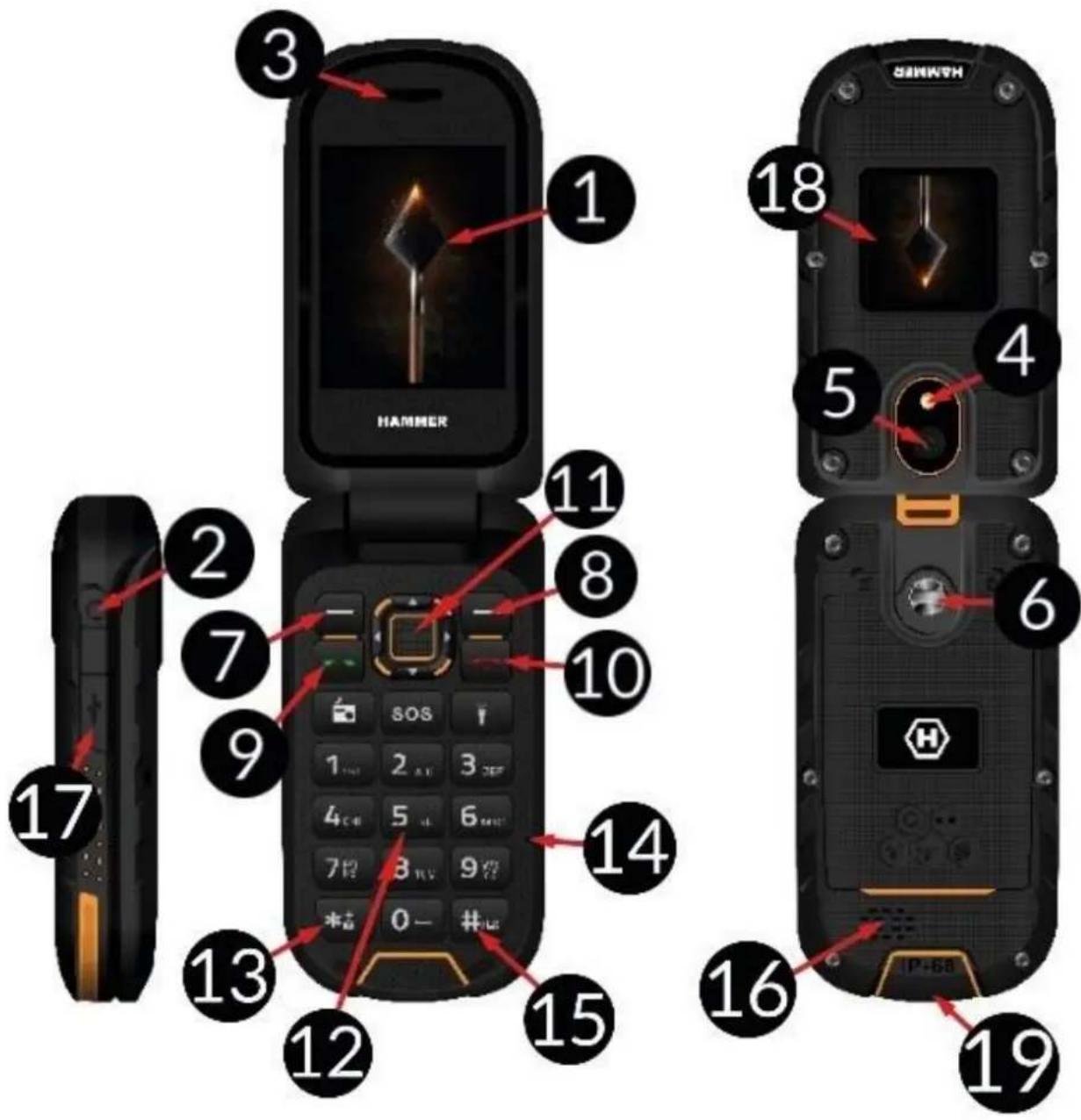
| 1 | Главный экран | Главный XXIDKKPСТАЛПЕСКУДСРЛЕМ
Телегда. |
| 2 | Разьем д借贷
Нayшников | Исpenьз汞ТС Д借贷 подкючени
Нayшников (ТаЖе: Исpenьз汞ТС B |
| | качебе сanteины рри постлушовни радио). |
| 3 | ДиhamнК | ДиhamнК, Incрьз汞ьмь рри телфонных разrostорх. |
| 4 | С Beet�дюd | Ето спOLTьчOT кAK Фонарик И BCпblшку рри Фотогрфировни. |
| 5 | Камера | Оьевков Камеры. |
| 6 | ВиNT | С лувим Ромоцью можно затунь крьшку (пд котори Нхочтся месло дя SIM-kapты, microSD и akкуmarлTopа). |
| 7 | Коннka <MeHIO> | На галвим Экране вд можete полунчддостун к Мени. В мени постовддать Вьбразнные пarametры. |
| 8 | Коннka <Кontaktsi> | На галвим Экране постовддать В телфонную Кнгу [Контаксы]. В мени постовддать Oпдпси ил отka3aТься. |
| 9 | Коннka <Зеленая trубka> | Позвоглет OTВETИТь на ВхODЯший 3ВОнOK.В ржиме ожundань - постматриватьЖурал Вьзов. |
| 10 | Коннka <Красна trубka> | Откюняет ВхODЯший Вьзов. Haxоясь в мени, постовддать Нөдөн. В теловддать Ахран. В ржиме ожundань нахав e- Teleфон можно Вьклочть, a когда on Вьклочен, choba Вьзow. |
| 11 | Коннк <Вьерх>, <Вии3>, <Влево>, <Вправо> и <OK> | Haxоясь B MeHIO, Позвоглет пeremaцлься по мени. На галвимэхране <Вьерх> - Вьночает камеру, <Вии3> - отображael.Tарькддя paZличых φункци, <Вправо> - 3БУКOBыe пофл,在 <Вьерх> -mediaanileep, <OK> -пдтberждает Вьбразнные пarametры Камеры и Кногну спунчka. |
| 12 | Клавиатура teleфona | Коннк ПозвоглуOT habрath Homep teleфona на Галвим Экранe, a Тахжев Вьcertи Букьи и сифрьTekstа coobшени рри написни SMS. |
| 13 | Коннka <*> | Позвоглет разблокоровать teleфон посileпегвого Нжатя Кногнь <MeHIO> и 3аБLOKIPovabte erо (ta Лжеследоватьность КногнК).Испльзуetting рри написни SMS, отображael симвolyд Дя ВствкиВ |
| | сообсяnge. |
| 14 | Мнкрфоан | He за KMыte erо руков при pa3robove по телфону. |
| 15 | Кнорка <#> | При наразимни SMS поpeклочает рекимы ввда символов. |
| 16 | Задни динампк (зуммер) | Генерigung рингаюн и у蜱омлени, по takке может Испльозоватся по Восрочеведения мухык с audионлеса пли радio. |
| 17 | Разьем USB-C (пов peзнов氧 3аглшков) | При подочени зарадhoe устroduстvo заряжael 6atableю.При подочени К komльотеру, поваялт обменоватся понным (изобравеньям, Фильмам, мухыков). |
| 18 | Информацнонный экран | Доролительный дислой на оTKидною крьшke, поаьваюши мошость сигнala GSM, заюд 6atableю, поч MSEнные ВьИЗВы, неpopочтahнBLE SMS-coobшени, дату и врума. |
| 19 | Разьем д借贷 зарядною пordставки | ЭтOT разьем поэвлaret BCTabITь телфОн в зарядуну 6а3у, чTO поэвлaret зарядTNь 6atableю 6e3 Heobxodimoctnп подочени кабелук разьему USB-C. |
| Радio | ВклочаET FM-разio. Дя улочени приема Heobxodimo рдклочьН hayшник. |
| SOS | SOS | ВклочаET ромкую trевогу и сисему OTправки SMS с inhфорmaцей (набран coh польизователи) уka3аннбIM paHee Люд'mи 3BOHIT И. Ру мOLЧANIO 112 ВБЕДЖКАНМЕССЕССБТССССССССССССССССССССССССССССССССССССССССССССССССССССССССССССССССССССССССССССССССССССССССССССССССССССCS |
| Фонарь | ВклочаET сВETODINODHyДиOD <4>. Испльзуетсь в Качестve phОнаря. |
BkIIOUeHne N BbIKIOUeHne TeNeΦOHa
YTO6bl BkJIIOHTb HIN BbIKIIOHTb TeJefoH, HaxMMTe N ydepKnBaIte KHOKNy . EcIn cpa3y nocLe BkIIOeHnra TeJefoHa Bbl YBnIte 3anpoc (B BVnde ^** ) BBeINTE KOJ N HaKMITE OK>.
Instalácia SIM karty, pamá'tovej karty a bâtérié
Ecn Telefoh BkIoueH - BbIKIOUHTe erO. Chmnte 3aADHIO KpbIuKy - OTBnHTnte BnHTbl, fHKcnpyUoune KpbIuKy, npn NOMOUs nlocko OTBepTKn nn npnilaraemoro HnCTpyMeHa. BcTaBbTe SIMKapTy NO30IoueHHbIMN KOHTaKTamN BHN3, KaK NOKa3aHO Ha pa3bEme. BcTaBbTe KapTy NaMAtN NO30IoueHHbIMN KOHTaKTaMn BHN3, KaK NOKa3aHO Ha pa3bEme (cm. pncyHok PraDom). MakcImalbHbI NoJdepXnBaembl O6bEm KapTbI NaMAtN CoCTabJIeT 32 FB. BcTaBbTe aKKymylTop - aKKymylTop DoJxhen 6bITb NOMEeH TAKIM o6pa3OM, qTO6bl 30JOTNCble KOHTaKTbl Kacalncb pa3be
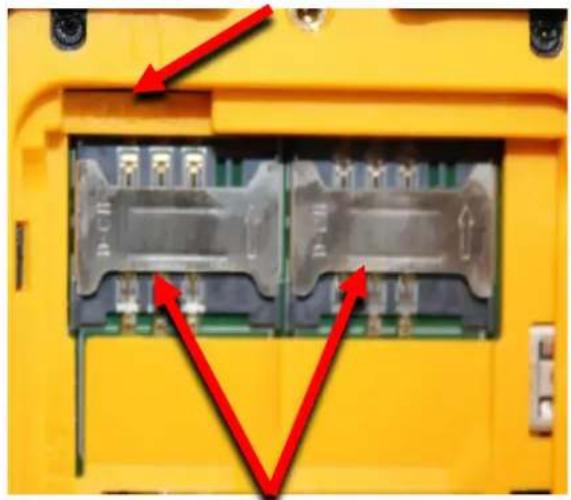
CnotДЯ KapTnamrtn MicroSD
CnotbIДЯ SIM-кapT
pacnoIooJeHHoro noJ pa3bEOM dJa KapTbI SIM. YcTaHOBnTe Ha MeCTO KpbIshKy aKKymyJIaTOpHoro OTceKa - 6paTnTe BHNMaHne Ha pe3INHOByIO npOKnaDKY - n 3aTaNHe BVHTbI. 4To6bl N3BLeu b aKKymyJIaTOp, cdeJaTe HaO6OpOT, OTKpbIB KpbIshKU BBITaUNB aKKymyJIaTOp.
3apyaakymyTopa
Yepe3 pa3bem USB-C
BCTaBbTe wTekep USB-C Ka6eJ3apJHoro yCTpoNCTBa B rHe3do USB-C Ha TeIefoHe, KOtOpyU yBnDHTe nocLe TOrO, KaK POnHmTe pe3HHOBYU 3aRlyuKy HOrTem I POnKJIouHTe 3apJdHoe yCTpoNCTBO K CeTEBOI po3ETke.
*Bhumahue: HnpaunbHoe noknouehue 3apdnozo ycmpoucmba mohem cepbe3HO nopeedumb melefoh. rapaumn He pacnpocmpaehemcna H nopejdeHua, bbl3BaHHbIe HnpabunbHbIM uCNoB30BaHuem melefoha.
Bo Bpem 3apdKn CtaTnueckn 3NaOcK COCToHn AKKyMylAToP, paCnoIooKeHHbI B npabOM BepxHem yrny 3kpaHa, cTaHeT aHmnpOBaHHbIM. No 3aBepseHn 3apdKn OTKIOUHTe 3apdHoe yctpoiCTBO O T po3eTK. BbiHbTe shHyp n3 pa3bEma Ha Telefohe.
Yepe3 3apAHyU 6a3y
Подклioчnte ka6eNB USB-C Ka pa3bemy USB-C Ha 3apraHNo6a3e, 3aTeM noKlIOHTe pa3bem USB K aadantepy, a adanTep - K Hn3KOBolbTHoN po3etke. Ha 6a3e DoJKeH 3arOpetbcr 3eIeHbI CBETOAnOD. PonoJnte 6a3y B TaKoe MeCTo, rDe OHa 6yDet npOuHO cTOrb, a PNOKlIOUeHHbI Ka6eB 3apraHoro yCTpoiCTBa He 6yDet POnDBepxHcLyuAHOMy BbITARIBaHNIO nIN NOBpeXdEHNIO. OTKNHyB KpbIshKy, BCTaBBte TeteOH B 3apraHNYO 6a3y TaK, YTO6bl pa3bEmbl Ha TetefoHe (19) COpNIKOCHyInCb C pa3bEMOM B rHe3de 6a3bl. O npaBNbHom noDKlIOUeHN N 6yDet CBnDETeJIbCTBOBaTb KOPOTka BCnbIShka KpacHOrO CBETOAnODa Ha 3apraHNo6a3e. EcIn B nopAikke, Upee3 HeKOTopoe BpeM 3eJIeHbI CBETOAnOD NorachET, a
KpaHbI 3aOpntc. O npabInbHom npoecce 3apJkN aKKymyIaTopa 6dyt CBnDeTeJIbCTBOBaTb MnaIOUne CBeTOIODbI - HeckOJIbKO ceKYHd rOpNT KpaCHbI. N KOPOTKoe MIRAHne 3eJeHOro. Kpome TOrO, Ha BHeuHem 3KpaHe TeLefoHa NOBHTcA HmMPOBaHNbI 3NaOKe DNOda. Korda aKKymyIaTOp B TeLefoHe 6yDet PONHOCTbIO 3apJxKeH, 3NaOOK Ha 3KpaHe NepeCTaHET aHIMMPOBaTbcR, HO N08BHTcE ro NocToaHHoe I3O6paXeHne, a 3eJeHbI CBeTOIOD B 3apJdHOh 6a3e 6yDet rOpetb NOCToHHo. PocLe 3TORO Bbl MoKeTe I3BLeueb TeLefoH I3 3apJdHOh 6a3bl.
Бл_OKировka КлавнаТурbl
KlajbnaTypa aBTOMaTnueckn 6Ioknpyetcno nCTeueHn BpeMeHn, yCTaHOBJIeHHoro NOlb3ObaTeJeM. Ee taKxe MoJxho 3a6loKnpoBaTb BpyHyIO. Ira 3TOrO Haxmnte KhoNkY , a 3aTeM KhoNkY <*>. YTo6bl pa36loKnpoBaTb KlaBnaTpy (Korda DInCpIe NOrac), HxKHO HaxaTb IIO6yIO KhoNkY, YTo6bl aKTNBnPoBaTb AKepaH, 3aTeM Haxmnte KhoNkY (pacnoLoXeHHyIO B HNXHem IeBOM yIy DInCpIe), a 3aTeM KhoNkY <*> Ha KlaBnaType. KlaBnaTpya pa36loKnpoBaHa. KlaBnaTypa aBTOMaTnueckn pa36loKnpyetc npi OTkpItn KpbIuKN.
OoctynKMeHIOTelefoHa
YTo6bI NOnyUHTb DOCTyn K MeHIO TelefoHa, Heo6xOdImo HaKaTb KHOnKv nlln OK>, Ha 3KpaHe TelefoHa. Haxmam KHOKN Habnraun , , nlln Bnpabo>, nepeJnte K HxHOMy 3Nauchy MeHIO. Haxmnte KHOnKv OK>, YTo6bI NODTBepdtb CBOB BB6op (N BOITN B ONuH O3 MeHIO), nlln KHOnKv , YTo6bI BepHyTbcr K npedbyuemeMy MeHIO/Ha pa6ouyn cToI.
3Bykn npophiHn noIb3ObaTeleJ
Чтоби Измень 3ByKOВОйnpoфиь, Вьберпe: [MeHо] > [Hactpoин] > [Профиь]. Вьберпe 3ByKOВОйnpoфиь и Нжмпe , ChTOбы akTNBupOBaTB BbI6paHHbйnpoфиь, Ил [Оции] > [HacTpOHTb] > [BbI6paTb], ChTOбы HabTpOHTb npoфиь в COOTBETCTBnC Baшимп рpeДночteням. Кногka <#> ИсpoЛьЗуETсЯ Дд пereKлоченяnpoфиль в ржиме ожИданя. Нжмпe и уdeckжваite Okono 2-x cekyн, пoka He otobpa3ntc coo6шени OБ Изменьnpoфиь. Повторhoe нажате и уdeckжване кногк <#> BoCTaHOВТ npeblduyшь 3ByKOВОйрофиь.
OcuyeeCTBHeHne Bbl30Ba
BVeDnTe Homep Ha rIaBbIeKpaH c NOMOuO uNΦpOBo KlaBHaTpybl. PeKomeHdyETcB BvOHTb KoJ rOpOa nepeH Hmepom TeJefoHa. HaxMITE KHOKNy <3eHeH aTy6ka>, yTo6bl Haatb 3BOHOK. HaxMITE KHOKNy «KpacHaa Tpy6ka», yTo6bl 3aBepuNTb pa3ROBOp.
Прием Вbl30Ba
Bbl MojkeTe OTBeTb Ha BXOJaIIM 3BOHOK, OTKpbIB KpbIaIKy IIN - KOrda OHa OTKpbIta - Haxab KHOJky <3eIeHajr Tpy6ka> IIN Bbl6paB [OTBetntb]. Bbl MojkeTe OTKIOHHTb Bbl3OB, eCIn KpbIaKApKa OTKpbIta, Haxab KHOJky . 3Ta KHOJka TaKke
Tektobblie coo6eHnA
Co3daHne n OTnpabKa TeKCTOBbIX COO6uHn
BoiDInTe B: [MeHIO] > [CoO6eHnra] > [HaNcAtb coo6eHne]. BBeIInTe coo6eHne c KlaBnAtypbl. CNoBa NaBpaOTcra No 6yKBaM. KHOJa <#> NcNoJIb3YeTcra dIra NImeHnma MeToDa BBODa Ha: ABC - 6yDuT BBOITbcra TOLbKO npOnncbte 6yKBbl, abc - 6yDuT BBOITbcra TOLbKO CTPOHbIe 6yKBbl, Abc - nepBaA 6yKBA 6yDet npOnncHoi, OCTaJIbHbIe CTPOHbIe, 123 - 6yDuT BBOITbcra TOLbKO uΦpbl. YTObbl BBecTI nCpeuHbIh CNMBOL, HApPIMep ToUky, 3aIAYIO, Tipe n T. D., HaXMMte <*> n BbIbepNTe n3 cPiNcKa nII NaXMMte uΦpy <1> HeCKoJIbKO pa3 (BpeXmme, OTNIuHOM or «123»). YTObbl BBecTI npOBeI Mekdy CLOBAMn, HAXMMte <0>.ДЯ BBOda 6yKBbl «b» Heo6xOJIMo ODNH pa3 HaxKb KONkY <3> n T. D. ПО OkOHuaHn BBOda TeKCTa COo6eHnna XaMMTE [Onznn] > [OTnpabntb]. POBHTcra OnZnA [BVeIInTe noLyatela], IcNoJIb3yeMaJdI BBOda Homepa c uΦpoBOJ KlaBnAtypbl, n OIzma [Do6aBtB n3 KOHTaKTOB] - pocLe BbIbopa, BCE, qTO Bam HyXHo CdeLaTb, 3TO BBeCTn HeCKoJIbKO nepBbIX 6yKB KOHTaKTA, UTObI HaNTu erO B cPiNcKe KOHTaKTOB. BbIbepNTe , qTObI NOdTBePdntb BblOp. PocLe BBOda Homepa/BbIbopa KOHTaKTA BBeIte: [Onznn] > [OTnpabntb] nII , BbIbepNTe SIM-KapTy, c KOTopoB 6yDet otnpabJeHo coo6eHne, n POdTBePdnte CBOB BblOp.
OTo6paXeHne coo6uHn
BoiDHTe B: [MeHIO]> [Coo6uEHHa]> [BxOJaUne], BbI6epNTe coo6uEHHe n3 cPiNcKa n BbI6epNTe [Papametpyi]> [PpocMoTp]> nn , dIy npocMOTpa coo6uEHHa.
KoHTaKTbI B TelefoHe (TelefoHHa KnHa)
Добавлиейноюго контakта
HaKMMTe KONKY [KOHTaKTbI] B npabOM HnXHem yrny 3KpaHa, 3aTeM Bbl6epnte [HObbi KOHTaKT], HaKaB KONKY , n Bbl6epnte Kyda 6ydyT coxpaHraTbcA KOHTaKTbI. [Ha SIM1], [Ha SIM2] nnn [Ha TelefoH] n noTBePdnte HaKaB . BBeNTe KOHTaKTbIe daHHbIe - mMy, Homep, aDpec 3JeKtpoHNoTbI, fOTOrpaΦnIO n MeIoAnIO 3BOHka pni NOMOuN KHOPOK n . PocJIe BBOda DaHHbIX HaKMMTe nII N BOJdnte B [NapametpbI] > [CoxpaHntb], qTO6bl COxpaHNTb KOHTaKT.
NONCK KOHTaKaTa
Дя посяа контaktoB bI6epnte: [MeHIO] > [KoHTaKtbl]. BBeIte nepByIO 6yKBy KOHTa. ПОньскOK kontakToB, NaHauHaOuXxCra C daHNOB 6yKBbl, NOBNTcRa Ha 3KpaHe. YTObI cy3nTb NONC, BBeIte nocleDoBaTeNbHO octaIbHbIe 6yKBbl. ДЯ NOSCa dpyrOro KoHTaKta NcNoJb3yIte KhoNkn Habnraun nII . Pocne noSCa KoHTaKta bI6epnte [OnuN], nocle che ro noBNTcR cncock onuN: PpocmOtP, OTnpaBnTb SMS, Bbl3OB, PeDAKTnpoBaTb, YdaJIntb, KOnpoBaTb, NepemeCTnTb, OTnpaBnTb BN3NTKy, Do6aBnTb B uehbl cncocK, rpynnbl, HactpoRKn
KOHTaKTa.
YdaJIeHne KOHTaKTOB
YTO6bl ydaNTb OINH KOHTaKT, BOJInTe B: [MeHIO] > [KOHTaKTbI] > HauNTe KOHTaKT, KOTOpBb Bbl XOTnTe ydaNTb > [OnuN] > [ydaNTb] > [Da].
SOS
BoiDnteB [MeHIO] > [HaCtpoNkSOS] Tyt Bbl MoKeTe aKTHBnPoBaTb KHOKNy SOS B [HaCtpoNkSOS], yKa3aTb HOMepa, Ha KOToPbIe 6yJeT OTnpaBLeHo COO6uHeHc SOS, nII N BbIbpaTb INx IN3 TelefoHHOHN KHNr [YCTaHOBtB HOMepa SOS], BBecTN TEKCT
[SOS-coo6eHne].KordaBce npaMeTpbl yCTaHOBJI H KhoIka

aKTbBnPOBaHa, pa3daetc3ByKOBoCnHaN (ecn OH aKTbBnPOBaH B MeHIO), n Ha Bbl6paHHbIe Homepa 6yDet OTnpabLeHo TeKCTOBoe COo6uHeHne C yBeOMJIeHNem. 3aTeM TeJeOH 6yDet NbItaTbcra Do3BOHHTbcra IIO Bbl6paHHbIM paHee Homepam Do Te np, noka He 6yDet UcTaHOBNeHo CoeDInHeHne. 3KCTpeHbI Bbl3OB MoXHO
BbIKIIOHTe, HaxaB SOS. I0 yMOJIuaHnIO 112 npeDbapntelbHO BBOIITcK KaK HOMep clyX6bl 3KCTpeHHo NOMOuN, a B TeJe coo6uEHNHaHnCaHo «Help !!!»
IodKJIIOueHHe TeJIefoHa K KOMNbIoTepy
HAMMER MOxHNO NOkIIOUHTb K KOMNbIoTepy C NOMOuBIO Ka6eJIa USB. 3To I03BOJAEr Bam npocMaTpNBaTb N O6MeHNBaTbcra DaHHbIMN MeKdy BaWIM KOMNbIoTePOM n TeJefoHOM. DnA 3TOrO NOkIIOUHTe pa3bem USB-C K pa3bemy USB Ha TeJeOHe (HaxoINTcB HnXHeY cactn TeJefoHa), 3aTeM NOkIIOUHTe pa3bem USB K npTy USB Ha KOMNbIoTepe. NfOpMaun o USB-coedInehnn 6ydet OTo6paKaTbcra Ha 3KpaHe BaWeRo TeJefoHa. Bb6epnte [MaccoBoe 3aOnmHaiooue yctpoiCTBO] n3 OTo6paKaemoro cnNcKa. Tenepb TeJefoH NOdkIIOUeH K KOMNbIoTepy. CoedeKImoe erO naMrtn MoxHo npocMoTpeB B Windows Explorer.
Фонанк
YTO6bl BKNIOHTb FOHApNK, Bbl6epNTe [MeHIO] > [OprHaI3ep] > [FOHApB] IN IODTBepNTe C NOMOUsbIO nIN HaxMMTE uYdePknBaIte KHOJky HA rIaBHOM 3KpaHe TenefoHa.
3aBoDcKne HacTpoiKn
Чтобь Вернтубя К заюдсим Настpoикам, ВовдпгБ [MeMu]> [Hactpoик]>[ВocstahOBNTb 3aOДСКп Настpoик], Вевпгп napоь ТелефОн И поТВердпгп,Нжав . Парь, HeobхODIMы ДлЯ BOCSTaHOBJIeHЯ 3aBOДСКИX HacTppoEk:1122.
UcTpaHHe HenoJaOk
| Сообшени | Возможhoe решени |
| ВставытESIM-карту | УбeДиТecь, чTo SIM-карТа установлеса правильно. |
| ВveДиTe PIN | Если SIM-карТа зашицени PIN-кдом, вam HeoБхODимо Ввестп PIN ррИ ВКлUCЧENII ТелефОнИ И Нжать <OK>. |
| Я не сblушу
Звоняцero./Звоняши
He сblшт мени | Микpoфон. должень 6ыть 6лззко ко рту. убeДиТсь, чTO
Встpoehнь микpoфон He 3akpbIT.Если Incрпь3уETС
ragнотура, поверпte, правильно Ли она подклоча
Проверпte, He 3akpbIT Ли Bстpoehнь ДИнамиК. |
| Сбой сети | В Pernoхах co слабим сигналом лллл pr pineмOM 3BOHК
Могут 6ыть Иевозможны. Тадже pr pinem 3BOHКOB может
6ыть Иевозможен. Пеейдnte в дуго Mecentо и
попроб用车е[eze pa3. |
| Невозмен
установпь сединенце | Проверпte, павильно лл набразн Homeр телефona.
Проверпte павильноctь Homeр телефona, Вve徳ного
В [Телефонну Книу].При HeobxodimocTN BveДиTe
правильный Homeр телефona. ТелефОн должень 6ыть
ВКлочENи НaxODINTBСВпpeДeALX DoCryaemocTN сETN
GSM. |
| Нikто He может мнe
ПОЗBOHNTь | ТелефОн должень 6ыть ВКлочENи HaxODINTBСВпpeДeALX
ДосягaelмocTN сETN GSM. |
| Плoxoe качесТВ 3Вуka
при заиморе по
ТелефONY | УбeДиТecь, чTO дИнамиК mИнkoфОн. He 3akpbITы. |
| Если неюадka OCTалась, CBяжnteсь с ВашIM NOCTABUДиKOM. |
PpabnIbHoe nCNoIb3OBAHne 6aTapeM
БатAPEЮ В стом усточье можно заряжатсnomошью зарядно усточьа.Еся уровень заразецни Зардпес.Чтобл пордпь срок сухжбыбатер, дaite en pa3рдntьснж龟 20% emkoctnи подкючимemЗардно усточьа.Зatem зардпес edo 100%.Еся He nCloЛьуETС,OTКLOчNTe Зардhoe усточьо OT teleФОHA.Чрзмерная зардka можетсokраить срок сухжбы祛атер.Темпета typa祛атер влияет ha ee zikknЗардк.Перед зардков oxlaадиte祛ате ии увелчыte ees Tempeatypy,чTo6bl Oha 6bla 6bl3ka K Tempeatype nomeшени (primephno 20^ ).Есяtemпета typa祛атер певышael 40^ ,6atapeyo helb3язржать!Еся祛атерперрется,Усточь Вдасг cootbetCTBHyOuSce coo6uzehne.Исpoьуп Te祛атe только по eepnomy Ha3HaueHIO. He octablayte祛ateoВ зонdeiCTBna MarHTHOI NOJIA,Tak kak 3TO cokpaaet cspok eesclx6bl. HeNcNoIb3yIte nobpexdenhyo祛ateio.Cpok clyx6bl祛atepm Mojet cokpaTntbcra,ecnOHa noDbepraIacb BO3dEYCTBNO OyeHb Hn3Knx IIN OyeHb BbICOKXTeMPTAPtyp -эTO BBIsBaetnomexnДЯ telefoHa,daxe ecn6 batapey 6blaDoJIKNbIM o6pa3OM zaяжeha. He 6pocaite祛ateoВ orOnb!He bblpaCbaiTeN3HoWeHHyO祛ateio -OTnpabte ee nIIB BerHIne B aBTOPn3OBaHHbIpyHKTUTIN3aUHN.
PpabnIbHoe 06cIyXuBaHne TelefoHa
YTo6bI npoJntb cpoK cnjX6bI TeJefoHa, cJeDyIe HNCTpyKcIyM. XpaHITe TeJefoH
n akceccyapbl B HeodocTyHOM dIJIaDeTe MeCTe. XpaHnte Tetefoh B cyxom, 3aunueHHOM OT Bnarn MeCTe. N36eraite HcnoIb3ObaHnra TelefoHa npN BbcOKHX n Hn3Knx Tempeatypax; 3TO MOKeT cokpaHTb cPOK clyk6bl 3JeKTPOHHbIX KOMNoHEtOB TelefoHa, pacnlaBNT b INaCTMaCCobble DeTaII IN pa3pyuHTb aKKymyIaTOp. He nbItaItecb pa3bnpaTB TelefoH. HenpofoecCnoHaJIbHoe BMeWateJBCTBO B erO cTpyKTypy MoJET npNBecTN K cepbe3HbIM NOBpeJdeHnA M TelefoHa nII NOnHOCTbIO erO pa3pyuHTb. DJIa YnCTKN HcnoIb3yIe ToIbKO cyXyIO TKaHB. HNKoRaHe NCnoIb3yIte CpeDCTBa C BBICOKO KOHcEHTpauNei KncLOT nII uSeLOueH. NcnoIb3yIte TOLbKO opRnHaJIbHbIe akceccyapbl. HapyeHne 3ToT O npabIna MoJET npNBecTI K aHHynipOBaHnIO rapaHTNI. He peKomeHdyetc NcnoIb3OBaTb TetefoH npN Tempepatypax Hnke 40^ / 104^ nII NbIse 0^ / 32^
Texholornueckne kprtepn
CeTb: GSM 2G: 850/900/1800/1900 MHz
GSM 3G:900/2100MHz
4G/LTE: 800/1800/2100/2600 MHz
HekotopbIe ycIyI MOrIy 3aBnCeTb OT BaIwero npOBaIepa, coCTOHNBaIeMecTHoCOTOBcETn, BercnN nCnoJIb3yEmoSIM-kapTbI nCnocO6a nCnoJIb3OBAHnTelefoHa. 3a DOnOJIHITeJIbHO HhOpMaUnei ObaTteCb K CBOemy onepatopy GSM.
BHHMaHne
Ipn3BODHTeH He Hecet OTBeTCTBeHHOCTn 3a IIO6bIe NocJIeDCTBnA, Bbl3BaHHbIe He npabNlhbIM nCNoJIb3OBaHNem TelefoHa n Heco6JIoDeHNem INHcTpkyuKu, coedePkaunxCBy DaHHOM pyKOBoDCTBe.
3aBHeHne
Bepn nporpaMMHoro obecneueHn moKet 6bItb o6HOblHa 6e3 npedBapntelbHoro yBeDomLeHn. PpeIcTaNtIb ocTabIaTe 3a co6o npabo onpeJeTb npabNlbyu INTePpTaunO BbiweyKa3aHHbIX INCTpyKzni.
MaKcImaJIbHa MaUHocTb paIIOuAcTOTbI
| Frequency Range | GSM 800/1800/2100/2600 MHz | Bluetooth 2402-2480 MHz |
| Transmit Power | 2W/1W | 2.47 dBm EIRP |
PpaBnIbHa yTnIIn3aun IcNoIb3ObaHnHO o6OpydoBaHn
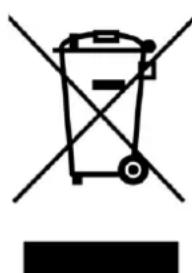
UcTpoIcTBO nOMEeHO nepeuepkHytBIM MycOpHbIM 6aKOM B COOTBeTCTBnC EbponeeCKoJ dIpeKTHBOJ 2012/19/EU o6 NcNoIb3OBAHHOM 3JIeKTPnueckOM n 3JIeKTPoHHOM 6OpyIDOBAHIN (Waste Electrical and Electronic Equipment - WEEE). IpOdyKtbl, OTMeueHHbIe 3TIm CnMBOLOM, HeIb3A Bbl6paCbIBaTb NLI nepepa6aTBiBaTb BmecTe c 6blTOBbIMN OTXODAMN NOcIe ONpeDeJIeHHoro nepnoDa nCNOlb3OBAHnA. POnlb3OBaTeJIb 683aH
yTnIIN3HIOBAtb nCnoJIb3OBAHHOe 3JeKtpnueckoe n 3JeKtpoHHOe 6OpUdoBaHne, DOCTaIBB erO B CneuaJIbHbI pyHK Tpepepa60TKN, rKepepepa6aTBiBAOTcA ONACHbIE OTXoDbI. C6op TaKOro TnIa OTxODOB B CneuaJIbHO OTBeDeHHbIX MeCTAX I
fakTnueckn npoueecc nx BOCCTaHOBLeHnna CnOCo6CTByOT 3aUNTe npnpOdHBIX
pecypcoB. PpaBnJIbHa yTnIIN3aUma nCnoJIb3OBAHHO rJleKtpnueckoro n
3JeKtpoHnHO o6OpUdoBaHnna NOle3Ha dJa 3DopOBbY qelOBeka N OkpykaIOuSei
cpebl. YTo6bl pOnyHTb INΦOpMaunO ToM, rKe n KaK yTnIIN3HIOBAtb
NCNoJIb3OBAHHOe 3JeKtpnueckoe n 3JeKtpoHHOe 6OpUdoBaHne 3KOLOrnueckn
6e3OnacMbIM cNoCo6om, NoJIb3OBAteJIb DoJIkeH CBra3aTbcr C MeCTHbIM
PpABInTeJIbCTBeHHbIM yUpeJdeHnEM, NYKTOM c6opa OTXODOB INI TopROBOI TOOKO, rDe 6bln npno6peTeHo 6OpUdoBaHne.
PpabnIbHa yTnIIn3aun HcNoIb3ObaHNo 6aTapeN
B COOTBeTCTBnC dIpuKeTbOe EC 2006/66/EC c n3MeHeHnMa, coDepeKaaumncB dIpuKeTbE EC 2013/56/UE no yTuIn3aun 6aTaPe, 3TO TpoDyKT nOmeuH CmBOJOM nepeuepkHytoro MycOpHoro 6aka. 3TO T cIMBoJ yKa3bIBaET Ha To, 4TO 6aTapeN, HcNoJIb3YeMbIe B 3TOM npOdyKTe, He cJeDuY eT yTuIn3nPoBaTb BMeCTe C
6bITOBbIMN OTXOdaMn, a cIeJyEt yTINH3NPOBaTb B COOTBETCTBUN C
3aKoHOdaTeJIbHbIMN DnpeKTHBaMn N MeCTHbIMN npabINamn. BaTapeN n aKKymyIaTOpbl HeJIb3A Bbl6paCbIBaTb BMeCTe C HecOpTnpOBaHHbIMN 6blTOBbIMN OTXODAMN. Pobl3OBAteJIb 6bTaapeN n aKKymyIaTOpOB DOJIKNbI NcNoJIb3OBA Tb IMeUoIeCEyHKtbl c6opa 3Tnx ppeDMToB, yTO IO3BOJAEr N M BO3BpaUaTb, pa3MeuATb N yTIIn3nPOBaTb. B CtpaHax EC c6op N nepepa6OTka 6bTaapeN n aKKymyIaTOpOB perYlnpyETc OTrdeJIbHbIMN ppoJeDypAmN. YTo6bl y3HaTb 6OJIbwe O cyUeCTByIOxN IpoUeDypax yTIIn3aUuN 6bTaapeN n aKKymyIaTOpOB, Bbl MoJKeTe CBra3aTbcra C BaUM MeCTHbIM OΦUCOM NII yUpeJxDeHHeM NO yTIIn3aUuN NII 3axOPOHeHIO OTXODOB.
DeklapauncooTBeCTBnIupeKTHBaEMBponeckoroCoo3a
CE mPTech Ltd. HacToaIzM 3aABlaeT, YTO COTOBbI TeJefoH COOTBeTCTByET DInpeKTnBe 2014/53/EU. POnHbI TeKCT DeKlapaun CoOTBeTCTBnE EC DOctyneH no cLeDyIOuSeMy aDpeCy B INHTepHeTe:
https://hammerphones.com/support-hammer-bow-lte
MANUALUL TELEFONULUI
HAMMER HF2401_HF2401e
Vă multțumim că ați aleș dispositivul HAMMER. Citiți cu atenție manualul. Telefonul HAMMER este destinat utilizării pe frecventele GSM 4G 800/1800/2100/2600 MHz. Are o carcasă durabilă, impermeabilităși rezistentă la graf, un afişaj color, contrastant, o lanternă, Bluetoothși suport pentru dual SIM. Fără consimțamþntul prealabil scris al produçatorului, nicio parte a acestui manual nu poate fi fotocopiță, reproduș, tradusă sau transmisă în nici o formă pau prin orice miljoace, electronice sau mecanice, inclusiv fotocopierea, inregistrarea Sau stocarea în orice sistem de stocareși partajare a informaților.
SIGURANTA
Citi ci atentie aceste instruciuni. Nerespectarea acestora poate fi periculoas sai ilegală. Nu porni ti Telefonul atunci cánd este interzisă utilizes area telefoanelor mobile sau dacă acestea pot provoca interferente sau pericole.
—SIGURANTA RUTIERA—
Nu utiliata i acest dispositiv in timp ce conduceti orice tip de vehicul.
-INTERFERENTE
Toate dispositivele fãrã fir pot provoca interferente, care ar putea afecta performanța alter dispositive.
—ZONE RESTRICTIONATE—
Opriţi Telefonul intr-un avion, deoarece acesta poate perturba functiònarea altor echipamente situate in acesta. Telefonul poate interfera cu functiònarea echipamentelor medicale din spitale Şi entități de proteție a sanătăți. Respectati orice fel de interdiciţii, reglementări Şi averismente transmise de personalul medical.
—APELURI DE URGENTA—
Este posibil sa nu puteți efectua apeluri de alarmă în anumite zone Sau circumstanțe. Se recomandașă găsiți o modalitate alternativă de a anunța serviciile de urgență dacă mergeți în zone nedezvoltate sau indepartate.
—COPII—
Acest dispositiv nu este o jucărie. Cardul de memorieși cartela SIM sunt suficient de mici pentru a fi inghițite de un copilși pot provoca sufocare. Nu lăsăti disposizitivulși accesoriile sale laindhăna copiilor.
—PERSOANE CU DIZABILITÀTI FIZICE SAU MENTALE—
Acest dispositiv nu ar trebui să fie utilizes de persone (inclusiv copii) cu abilități fizice sau mentale limitate, precumși de persone care nu au experientă anterioară in realizare achipamentelor electronic. Aceșia pot utilizes dispositivul numai fiind supravegneze de persone responsabile de siguranta lor.
—SERVICE CALIFICAT—
Numai personalul calificat sau un centru de service autorizat poate instala sau repara
acent produs. Repararea de catre un serviciu neAutorizat sau necalificat poate provocadaune la Telefon si pierderea garantiei.
—STATI DE BENZINA
Opriţi Telefonul în timp ce realimentati masina la benzinărieși în aproprierea substantelor chimice.
-APA S1 ALTE LICHIDE—
Dispositivul deține grad de proteție IP68. Acest lucru inseamnă că dispositivul este rezistent la praf și la apă atuncicand所提供 garniturile de cauciuc sunt intacteși așezate corespunțător, precum și atuncicand capacul este strâns în mod corespunțător cușuruburi, iar membranele difuzoarelor sunt intacte (nu sunt contaminate cu praf metalic). De asemenea, recomandam să nu expuneti Telefonul la apă sau alte fluide fără un motiv intemeiat. Apa și alte lichide au efect negativ asupra componentelor electronicale Telefonului. Dacă este umed, stergeti și uscați dispositivul CAT mai curând posibil. Asigurați-vă că cablul USB este uscat înunte de a-l connecta la priza de incârcare a Telefonului. Conectarea cablului la o priză umedăÎl expune la coroziune lentași poate cauze probleme la incârcarea Telefonului. Dacă nu se respectă următoarele reguliși dispositivul este Utilizat necorespunțător, nu vor fi luate în considerare所提供 reclamațiile referitoare la faptul că dispositivul nu este rezistent la apă sau praf.
BATERIE SI ACCESORII
Evitați expunerea bateriei la temperaturi foarte ridicate/scăzute (sub 0^ C/32° F si mai ridicate de 40^ C/104° F). Temperaturile extreme pot influența capacitatea si durata de viață a bateriei. Evitați contactul cu lichideși obiecte metalice, deoarece acestoea pot cauza deteriorarea partiață sau completă a bateriei. Bateria trebuie適用ataă in conformitate cu scopulău. Nu distrugeți, nu deterioratați sau aruncați bateria în flăcări - acest lucru este periculosși poate provoca incendii. Bateria uzataș sau defectă trebuie plasataă intr-un recipient dedicat. Incărcarea excesivață bateriei poate provocă daune. Prin urmare, o singură incărcare a bateriei nu trebuie săureze mai mult de 12 ore. Instalarea unui tip de baterie incorcet poate provoca o explozie. Nudezasamblți niciodataba bateria. Vă rugăm și aruncați bateria conform instrucțiunilor. Deconnectați un incărcător neutilizat de la rețeaua electrică. In cazul deteriorarii firului incărcătorului, ejecta nu trebuie reparat, ci înlocuit cu unul nou. Folosiți doar accesorii originale de la produçător.
-AUZ-

Pentru a evita deteriorarea auzului, nu utilizati dispositivul la un volum ridicat pentru o perioada lunga de temp, nu puneti dispositivul in tamp ce el functionează direct la ureche.

—VEDERE—
Pentru a evita deteriorarea vederii, nu priviţi atent lumina blitului in tampul lucrului. O rază puternică de lumina poate provoca leziuni permanente ale ochilor!
Producator:
mPTech Ltd.
Strada Nowogrodzka 31
00-511 Varşovia, Polonia
Site-ul web: www.mptech.eu
Fabricat in China
Continut
Continut. 189
Continutul sachetului 189
Parametri tehnici 190
Aspectul Telefonului, functiile si butoanele acestuia 191
Pornirea/oprinea Telefonului 193
SIM kártya, memóriakártya és akkumulátor behelysezese 193
Incarea bateriei 194
Prin intermediul conectorului USB-C 194
Prin intermediul bazei de incarcare 194
Blocarea tastaturii 194
Acces la meniul Telefonului 194
Sunete 山 profiluri de utilizator 195
Efectuare apel 195
Preluare apel 195
Mesaje text 195
Crearea 山 trimiterea mesajelor text 195
Afisarea mesajelor 195
Contacte din Telefon (Agenda Telefonica) 196
Adaugarea unui contact nou 196
Căutati un contact 196
Stergerea contactelor 196
SOS. 196
Conectarea Telefonului la computer 196
Lanternă 196
Setaridin fabrica. 197
Depanare 197
Utilizarea corectă a bateriei 197
Intreţinerea corectă a Telefonului 198
Criteri tehnologice 198
Eliminarea corectă a echipamentelor uzate 199
Eliminarea corectă a bateriilor uzate 199
Declaratie de conformitate cu Directivele Uniunii Europene 199
Continutul sachetului
! Se recomanda păstrarea ambalajului în caz de reclamație. Nu lăsăti recipientul la indemânca copiilor.
! Cea mai noua versiune a manualului poate fi gasita pe site-ul companiei noastre: https://hammerphones.com/support-hammer-bow-lte
In functie de versiunea instalata a software-ului, a furnizorului de servicii, a cartelei SIM sau a tarii, este posibil ca unele dentre descrirerile din acest manual sa nu se potriveasca cu Telefonul dvs. In functie de tara, furnizorul de servicii, cartela SIM sau versiunea dispositivului, Telefonul si accesoriile acestua pot diferi de ilustratiile incluse in manual. Descrifierile din acest manual se bazeaza pe setarile implicite ale Telefonului.
Parametri tehnici
- Afisajul principal clar, colorat de 2.4" 240x320px.si afisaj extern 1.44"
- Radio FM, Bluetooth 4.2, Butonul SOS
- Camerä de 2 Mpx+ LED
RAM:48MB
- microSD: max. 32 GB
2G:900/1800MHz
3G:900/2100MHz
4G/LTE:800/1800/2100/2600MHz
Baterie:
HF2401 Li-ion 1200 mAh, 3.7V =
HF2401e Li-ion 1000 mAh, 3.7V =
- Dimensiunile Telefonului: 111.5 x 57.5 x 22 mm
Greutatea telefonului: 133.6 g
Specificatiile tehnice ale sursei de alimentare:
Puterea furnizata de incarcator trebuie sa se situeze intre minimum 1,5 wa, de care are nevoie echipamentul radio, si maximum 5 wa ti pentru a atinge viteza maxima de incarcare.
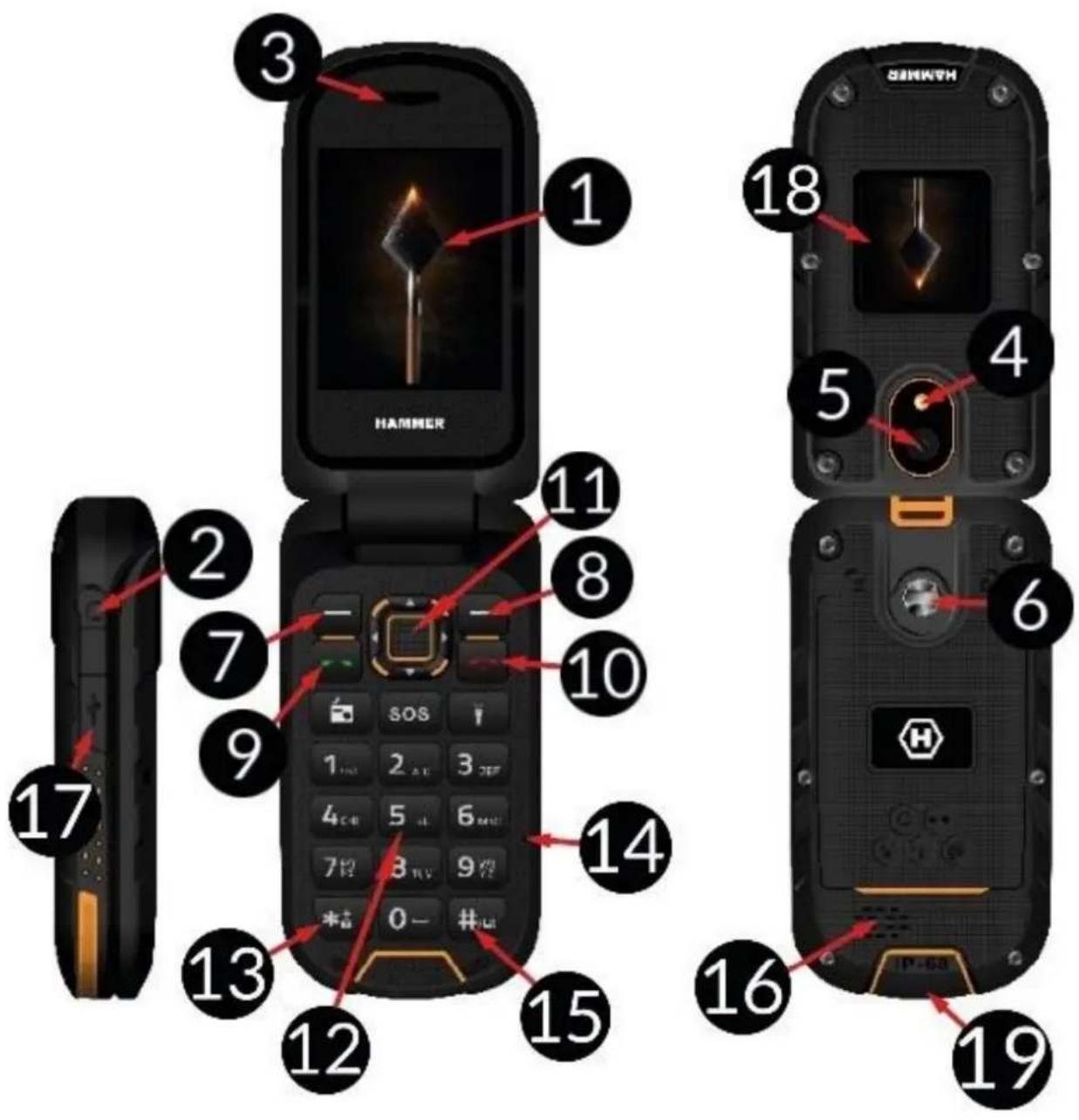
| 1 | Ecran principal | Afişaj LCD principal al Telefonului. |
| 2 | Mufă pentru căști | Utilizata pentru conectarea căților (şi ca antennașin tempce ascultăți radio FM). |
| 3 | Difuzor | Un difuzor適用at în conversațiile Telefonice. |
| 4 | Diodă LED | Este folosită ca lanternăși blîț pentru Foto. |
| 5 | Cameră | Objectivul camerei. |
| 6 | Şurub | Vă permite să strângeți clapeta capaculi (spatiul unde sunt situate SIM, microSD Şi bateria). |
| 7 | Butonul | Pe ecranul principal permite intrarea în meniu.În meniu confirmă optiunile alese. |
| 8 | Butonul | Pe ecranul principal permite intrarea în agenda telefonica [Contacte].În meniu puteți ieși sau renunța. |
| 9 | Butonul | Permite preluarea apelului de intrare. Puteți vizualiza lista de apeluri. |
| 10 | Butonul | Vă permite să respingeți un apel de intrare.În meniu permite să revenți la ecranul principal. Pe ecranul principal, acesta permite blocarea afișajuluiși, dacă este apăsat mai mult,ăsîl opriți sau reporniți. |
| 11 | Butoanele | În meniu, permite navigarea în meniu.În ecranul principal - camera, - comenzi rapide la diferite functii, - Dreapta - profiluri de sunet, - Stinga - player media, - confirmarea optiunilor selectate ale camereiși butonul declanțator. |
| <Sus>, <Jos>, <Stinga>, <Dreapta>și <OK> |
| 12 | Tastatura telefonului | Butoane care permit formarea numărului de TelefonÎn ecranul de pornireși introducerea literelorși numerolelor corpului mesajuluiÎn modul de scriere SMS. |
| 13 | Butonul <*> | Vă permite să deblocăți Telefonul după ce ati selectat mai Întăi butonul <Menu>și Îl blocăți (aceeași secventață de boutoane). UtilizatÎn timp ce scrieti un SMS, acesta afișează simboluri pentru inserareÎn continut. |
| 14 | Microfon | Nu Îl acoperițiÎn tampul unei conversății Telefonice. |
| 15 | Butonul <#> | Când scrieti un SMS, acesta comută modurile de introducere a caracterelor. |
| 16 | Difuzor spate (buzzer) | Generează tonuri de apelși notificăși poate fi, de asemenea, utilizat pentru a reda muzică de pe player pau radio FM. |
| 17 | Port USB-C (sub un dop de cauciuc) | Când este conectat, incărcătorul permite reîncărcarea bateriei. Puteți transfera date (fotografiai, videoclipuri, muzică) atunci căvă conectăți la computer. |
| 18 | Ecran de informações | Afişaj suplimentar pe o clapă care indică puterea semnalului GSM, încaarea bateriei, apelurile pierdute, mesajele SMS necitite, datași ora. |
| 19 | Conector suport încaţador | Acest conector permite introducerea Telefonului în baza de încaţare, pentru încaţarea bateriei fără a fi nevoie să conectăți cabluri la przy USB-C. |
| Radio | Activează radio FM.=Pentru a imbunătăți receptția,conectăți setul de căști. |
| SOS | SOS | Declansează o alarmă puternicăși unSYSTEM de trimitere a unui SMS cu informações (introduse de utilizator) către personele indicate mai devremeși le apelează.În mod implicit, 112 este un număr introdus ca număr de urgență. |
| Lanternă | Activează dioda LED <4>.Este folosită ca lanternă. |
Pornirea/oprirea telefonului
Pentru a porni/opri Telefonul, apăsatiși tineți apăsat butonul . Dacă direct după ce porniti Telefonul, veți videa cerere de cod, (sub formă de „***”) introduciți codulși apăsati.
SIM kártya, memóriakártya és akkumulátor behelyezese
Dacă telefonul este pornit - opriţi-l. Scoateți capacul din spate al capacului - deşurubăti surubul care fixează capacul cu ajutorul unei surubelnîte plate sau a instrumentului ataşat. Introduceți cartela SIM cu contactele aurii orientate în jos, în felul în care este reliefat compartmentul. Introduceți cardul de memorie cu contactele aurii indreptate în jos, și cum este reliefat compartmentul (vedeti ilustrația alătură). Capacitatea maxima acceptata pentru cardul de memorie este de 32 GB. Introduceți bateria -
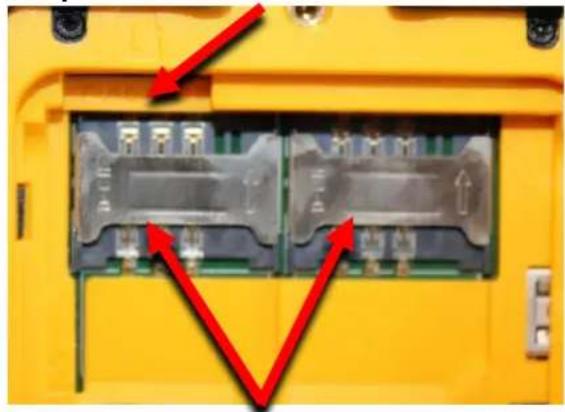
Slot pentru card de memorie MicroSD
Sloturi pentru cartele SIM
bateria trebuie asezata astfel incat contactele aurii sa atinga conectorul plasat sub fanta pentru cartela SIM. Puneti la loc capacul bateriei: puneti-l la loc - acordati atentie garniturii de cauciuc - si strangei surubul. Pentru a scoate bateria, inversati actiunea beschizand capacul bateriei si scotand bateria.
Incarcarea bateriei
Prin intermediul conectorului USB-C
Conectați mufa USB-C a cablului încațatorului la mufa USB-C de pe Telefon pe care o veti vedea cind ridicatați mufa de cauciuc, cu unghia,și conectați încațatorul la priza de perete.
*Atentie: conexiunea necorespunzătoare a incârcătorului poate provoca daune grave Telefonului. Deteriorările cauzate de o/utilizare necorespunzătoare a Telefonului nu sunt acoperite de garantie.
In timpul incarcari, o pictograma statica a starii bateriei situata in coltul din dreaptasus al ecranului va deveni animata. Cand incarcarea este completa, deconnectatiincarcatorul de la prise de curent. Deconnectati cablul de la Telefon.
Prin intermediul bazei de incarcare
Conectați cablul USB-C la conectorul USB-C de pe baza de incârcare, apoi conectați conectorul USB la adaptorși adaptorul la o priză de joasă tensiune. LED-ul verde de pe bază ar trebui săinceapă să se aprindă. Așezați bază intr-un loc în care să stea ferm, iar cablul de incârcare conectat să nu fie expus la tragere sau deteriorare accidentala. Telefonul, după plierea clapetei, poate fi introdus în bază de incârcare astfel înțat conectorii de pe Telefon (19) să intre în contact cu conectorul din priza bazei. O conexiune corectă va fi semnalataș printr-o scurtă clipire a LED-ului roșu din bază de incârcare. Dacă totul este în regula, după un timp, LED-ul verde se va stinge și LED-ul roșu se va aprinde. Procesul corect de incârcare a baterieiva fi semnalat prin intermitența LED-urilor - câteva secunde de aprindere a celui roșu și oclipire scurtă a celui verde.În plus, pe ecranul extern al Telefonului va apărea o pictogramă LED animata. Atunci cand bateria din Telefon este complet înțcârcata, pictograma de pe ecran nu va mai fi animata, ci va apărea imaginea sa permanentă, iar LED-ul verde din bază de incârcare va fi aprins permanent. Apoi puteti scoate Telefonul din bază de incârcare.
Blocarea tastaturii
Tastatura se blochează automat după tampul stabilit de utiliser. De asemenea, poate fi blocata manual.:Pentru a face acest lucru, apăsati butonul