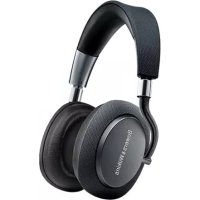
PX - Earphones BOWERS & WILKINS - Free user manual and instructions
Find the device manual for free PX BOWERS & WILKINS in PDF.



| Brand | Bowers & Wilkins |
| Model | PX |
| Product type | Over-ear wireless headphone |
| Weight | 335 g |
| Power source | Rechargeable lithium battery, charging via USB-C |
| Battery life | Up to 22 h (BT + ANC), 29 h (BT only), 33 h (wired + ANC), 50 h (wired only) |
| Bluetooth | 4.1 with aptX-HD, AAC, SBC |
| Bluetooth profiles | A2DP v1.3, AVRCP v1.6, HFP v1.6, HSP v1.2 |
| Transducers | 2 x 40 mm wideband |
| Frequency response | 10 Hz to 20 kHz |
| Impedance | 22 ohms |
| Distortion (THD) | < 0.3% (1 kHz / 10 mW) |
| Sensitivity | 111 dB/V at 1 kHz |
| Noise cancellation | Adaptive, with environment filters and external voice filter |
| Connectivity | Bluetooth, 3.5 mm stereo jack, USB-C audio |
| Included accessories | 1.2 m audio cable, 1.2 m USB-A to USB-C cable, carrying case |
| Materials | Memory foam leather earpads, premium finishes |
| Care | Clean with a damp cloth, no detergents |
Frequently Asked Questions - PX BOWERS & WILKINS
User questions about PX BOWERS & WILKINS
0 question about this device. Answer the ones you know or ask your own.
Ask a new question about this device
Download the instructions for your Earphones in PDF format for free! Find your manual PX - BOWERS & WILKINS and take your electronic device back in hand. On this page are published all the documents necessary for the use of your device. PX by BOWERS & WILKINS.
USER MANUAL PX BOWERS & WILKINS
PX Wireless Headphones
Welcome to Bowers & Wilkins and the PX Wireless Headphones.
Thank you for choosing Bowers & Wilkins. When John Bowers first established our company he did so in the belief that imaginative design, innovative engineering and advanced technology were keys that could unlock the enjoyment of audio in the home. His belief is one that we continue to share and it inspires every product we design.
PX headphones are high performance over-ear units that provide the highest quality personal audio experience combined with the convenience of wireless operation and the serenity of noise-cancellation. This manual will tell you everything you need to know to get the most from your PX headphones.
Your PX headphones can play music streamed wirelessly from your mobile phone, tablet or computer via Bluetooth, or conventionally connected by a jack cable to a suitable headphone output.
PX headphones can also play audio via a USB connection from a computer, and can be used for wireless telephony.
PX headphones Real World Listening features include Environment Filter and Voice Pass-through. Environment Filter noise-cancellation is optional and can be simply enabled or disabled via a button on the headphones. The Voice Pass-through feature enables external sounds, such as conversation or safety announcements, to be heard clearly without any need to remove the headphones. Environment Filter and Voice Pass-through are enabled via the Headphone iOS and Android app available. The app also enables certain headphone characteristics to be adjusted.
PX headphones incorporate a rechargeable battery pack. When fully charged and depending on the degree of Bluetooth, Environment Filter and Voice Pass-through use, the battery pack can provide up to 22 hours use at average volume levels.
1. PX Carton Contents
- PX Wireless Headphones
ii. USB charging cable
iii. Audio jack cable
iv. Storage pouch
v. Literature pack
Environmental Information
This product complies with international directives, including but not limited to the Restriction of Hazardous Substances (RoHS) in electrical and electronic equipment, the Registration, Evaluation, Authorisation and restriction of Chemicals (REACH) and the disposal of Waste Electrical and Electronic Equipment (WEEE). Consult your local waste disposal authority for guidance on how properly to recycle or dispose of this product.
2. Getting To Know PX headphones
Once switched on via the power slide-switch on the right hand ear-piece, your PX headphones can be controlled via Play/Pause and Volume buttons also located on the right hand ear piece. A connected Bluetooth or USB device will also be able to control headphone volume and audio playback.
An indicator alongside the Bluetooth button displays connection status and battery charge level. The headphones also play audio cues for some control commands and events.
Note: Indicator illumination is listed in Diagram 7.
Note: Audio cues can be toggled on and off by pressing the Play/Pause and Volume + buttons simultaneously.
A USB socket and an audio jack socket are located on the underside of the right hand ear-piece. The right hand ear piece also incorporates a pin-hole restart button beneath the ear pad.
Note: Connecting audio jack and USB cables is described in Section 10.
PX headphones incorporate proximity sensors in their ear-places that mean they will enter standby mode and disconnect from any connected Bluetooth devices two minutes after removal from the head. They will automatically wake from standby and connect to the last connected Bluetooth device when worn on the head.
A press button alongside the power button enables and disables Environment Filter noise-management. When enabled, Environment Filter operates on all three headphone inputs: Bluetooth, USB and audio jack.
Note: Button functions are listed in Diagram 8.
The Bowers & Wilkins Headphone app provides extended set up and control functions, including Environment Filter and Voice Pass-through, adjustment and mode selection. Ear-piece proximity sensor sensitivity can also be adjusted within the app. The app is available as a free download for iOS and Android devices.
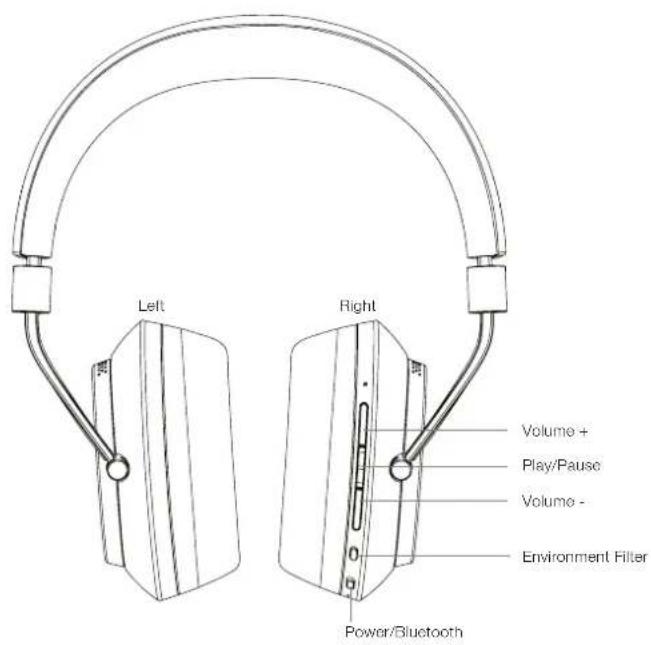
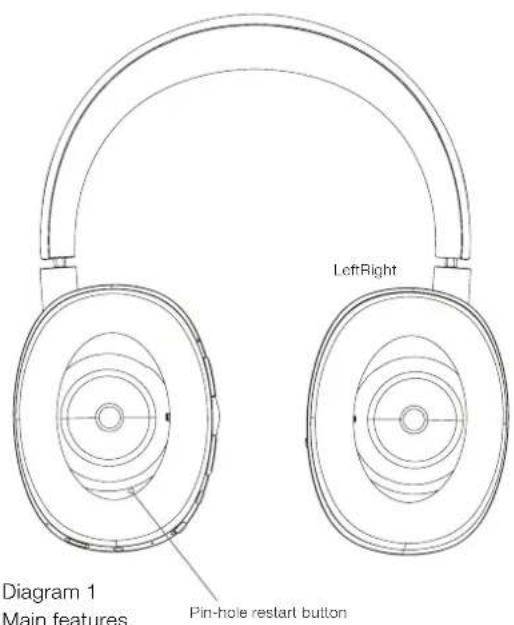
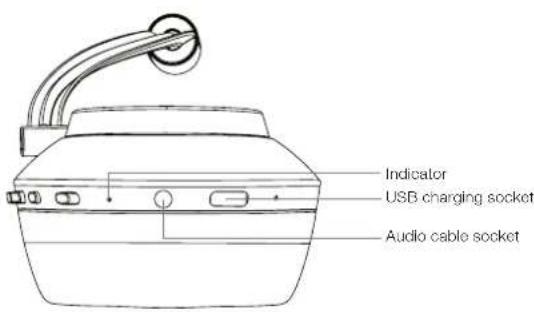
Diagram 2
Underside view
3. Battery Charging
PX headphones are shipped with battery power and may be used immediately, however, it is good practice to charge the battery fully before first use. It can take up to 3 hours for PX headphones to reach full charge. However it is possible to use them while the battery is charging.
Note: The indicator initially displays battery charge when PX headphones are switched on. Green indicates that the battery is above 50% charged. Yellow indicates that the battery is between 50% and 30% charged. Red indicates that the battery is below 30% charged. If the indicator blinks red, the battery charge is insufficient for headphones operation. Indicator illumination is fully described in Diagram 7.
Battery charging is described in the following paragraphs:
- Using the supplied USB charging cable, connect the headphones to a powered USB socket: a computer USB socket, a mains USB charger or an in-car charger.
While charging, the headphone indicator will blink green. As the level of charge increases the illuminated period of the blink will get longer. When fully charged the indicator will remain illuminated.
4. Wearing Your Headphones
Using your headphones correctly will help ensure that their performance reaches its full potential. First, identify the left and right ear pieces. Identification legends can be found on the lower inside of the headband as illustrated in Diagram 3.
Place the headphones on your head with the headband adjusted so that each ear piece sits comfortably over the ear as illustrated in Diagram 4. Ensure that the ear pieces are not pulling upwards and causing unnecessary pressure on your head.
We recommended that you return your headphones to their storage pouch when not in use.
Note: Wearing glasses that distort the profile of your ears may interfere with headphone Environment Filter performance. Similarly, hair trapped between your ears and the headphone ear-pieces may compromise proximity sensing.
5. Switching On and Off
To switch on your PX headphones, slide the power button sideways as shown in Diagram 5.
Your PX headphones are designed to switch intelligently to standby and disconnect from Bluetooth when not in use, and to wake up when worn, so there is generally no need to switch them off. Should you want to switch off however, slide the power button and hold it for a second or two. The indicator will flash red to confirm switch off.
The headphones will provide an audio cue as they switch on and off.
Note: PX headphones left switched on but inactive for more than two minutes will automatically switch to standby mode to save battery power.
Note: The sensitivity of the ear-piece proximity sensors that control switch on and standby can be adjusted within the headphone app.
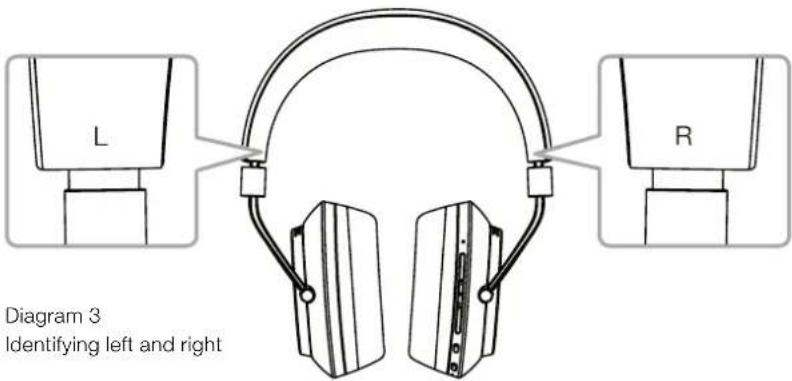
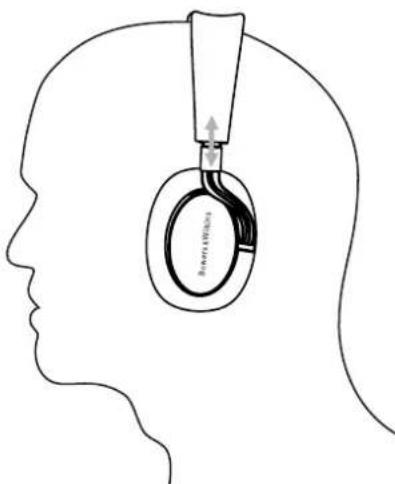
Diagram 4 Adjusting the ear-piece
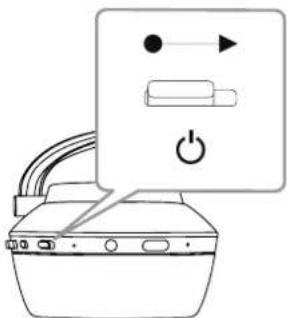
Diagram 5 Switching on
6. Bluetooth Pairing
To connect your PX headphones to a Bluetooth enabled audio device, such as your mobile phone, they must first be 'paired' with the device. Once paired, the Bluetooth device and the headphones will 'remember' each other will be able to connect without re-pairing when within range.
The first time you switch on your PX headphones they will start up in Bluetooth pairing mode. To pair a device follow these steps:
- Ensure the headphones are switched on and in. Pairing Mode. The indicator will blink blue.
- Open the Bluetooth settings on the device to be paired and ensure Bluetooth is switched on. 'PX Bowers & Wilkins' will appear as an available device. Select 'PX Bowers & Wilkins' and close the Bluetooth settings.
- The headphone indicator will flash blue while pairing is underway and switch to continuous blue when pairing is established. The headphones will also play an audible cue when pairing is established.
- Once pairing is established, ensure that the headphones are selected as the playback device in the audio apps.
For any subsequent pairs, your headphones must be switched manually to pairing mode: This is illustrated in Diagram 6.
- With the headphones switched on, press and hold the combined Bluetooth/power button directly inwards for two seconds. The indicator will flash blue and the headphones will play a cue as they enter Pairing Mode.
Once again, go to the Bluetooth setup screen of the device you want to pair with the headphones and look for 'PX Bowers & Wilkins' in the list. Tap on it and the two devices will pair.
Note: Your headphones will automatically exit from Bluetooth pairing mode if no device is paired within five minutes.
Note: Pairing may occasionally fail, in which case the headphone indicator will flash blue in two second bursts. Try again with the two devices closer together.
6.1 Bluetooth Pairing Notes
- Your PXheadphones can remember up to eight paired Bluetooth devices. It is possible for two devices to be connected simultaneously to enable, for example, music to play from one device while telephone calls are taken from the other.
- When your headphones start up following a period switched off or in standby mode, they will connect to the last connected device if it is switched on and within range. Other paired devices will not connect automatically but must be selected for connection via their Bluetooth settings.
- When disconnected, pressing the headphone's Bluetooth button at any time will cue connection to the last connected device if possible.
- To disconnect a Bluetooth source device from your PX headphones press the Bluetooth button twice in quick succession. This will disconnect all Bluetooth connected devices. The headphones will play an audible cue when Bluetooth is disconnected.
The headache paired device memory can be erased by pressing and holding and the Bluetooth and Volume - buttons simultaneously for 2 seconds. The indicator will flash and your headphones will restart.
7. Controlling Bluetooth Audio
The PX headphone Play/Pause,Volume ^+ and Volume - buttons can be used to control audio:
To increase volume press the Volume ^+ button.
To decrease volume press the Volume - button.
To play or pause audio press and release the Play/ Pause button.
To select the next track press the Play/ Pause button twice in quick succession.
To select the previous track press the Play/ Pause button three times in quick succession.
8. Real World Listening
PX headache Environment Filter noise-cancellation is switched on by pressing the Environment Filter button on the side of the right ear piece. Environment Filter is switched off by default. Three alternative Environment Filter profiles are available that provide noise-cancellation characteristics tuned for different environments. These are selected via the Bowers & Wilkins Headphone app. The right ear piece Environment Filter on/off button will select the last used noise-canceling profile.
The PX headphones Voice Pass-through function enables external sounds such as conversation or safety announcements to be heard without the need to remove the headphones. Voice Pass-through is selected via the Bowers & Wilkins Headphone app.
Note: The Environment Filter and Voice Pass-through functions do not require the headphones to be playing an audio signal. If headphone audio is playing the audibility of Voice Pass-through will always to some extent depend on its character and volume level.
Note: Wearing glasses that distort the profile of your ears may interfere with headphone Environment Filter performance. Similarly, hair trapped between your ears and the headphone ear-pieces may compromise proximity sensing.
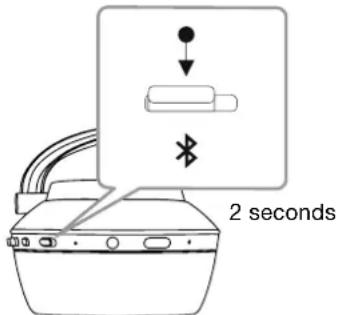
Diagram 6
Switching manually to Bluetooth pairing mode
9. Mobile Phone Use
Your PX headphones can be used with a Bluetooth connected mobile phone to make voice calls:
To answer a call press and release the Play/ Pause button.
To reject a call press the Play/Pause button for two seconds.
To end a call press and release the Play/ Pause button.
Bluetooth audio playing while a telephone call is taken will be paused. It will resume when the call is ended.
Note: Telephone functions only operate when the headphones are connected via Bluetooth.
10. Wired connection
In addition to operating wirelessly, your PX headphones can be connected to audio sources using the supplied audio jack and USB cables.
Audio jack cable connection is useful if the headphones are to be used on board an aircraft or with a non-Bluetooth audio source such as a traditional hi-fi system.
Note: Your PX headphones need to be charged and switched on to play audio using a jack.
USB connection enables your PX headphones to function as a USB sound output device when connected to a suitable computer.
Note: The USB and jack cables can be connected simultaneously so that USB battery charging can continue while the headphone jack input is in use.
Connecting an audio jack cable and PX headphone behaviour with the jack input in use is described in the following paragraphs:
Take one end of the jack cable and insert the plug into the socket in the lower section of the right ear piece. Make sure the plug is fully home. Connect the other end of the cable to an audio playback device's headphone socket.
The headphone volume controls and Play/ Pause button will not function when a jack cable connection is in use.
- Connecting a jack cable will automatically pause PX headphone Bluetooth streaming. To restore Bluetooth streaming the jack cable must be disconnected from the headphone ear piece.
Connecting and using the USB cable and PX headache behavior with USB input in use is described in the following paragraphs:
- Disconnect any connected Bluetooth devices by pressing the Bluetooth button on the right hand ear piece twice in quick succession.
Note: Bluetooth must be disconnected for USB audio to be played.
- Plug the small USB plug into the socket on the underside of the right hand headphone ear piece. Plug the larger USB plug into a computer USB socket. If the computer USB socket is powered, the headphones battery will immediately begin to charge.
- Select the PX headphones as the playback device in the computer's audio output control panel. Audio selected in computer audio playback apps will now play through your PX headphones.
The headache volume and Play/Pause controls will function normally when playing USB audio.
To restore headphone Bluetooth functions press the Bluetooth button. The headphones will attempt to connect to the last connected device.
11. Headphone Firmware Update
Your PX headphones will occasionally be subject to firmware updates as performance is refined and new features are added.
When a firmware update is available the headphone app will display a notification. Tap on the notification in the app to begin the update process.
Note: The headphones and mobile device must remain switched on and in close proximity during the firmware update process. It is important also that the battery charge remaining in the headphones is sufficient for the firmware update to be completed. The app will indicate if there is not enough battery charge available to complete the firmware update.
12. Headphone Reset and Restart
Your PX headphones can be reset to their default settings by using the Factory Reset option in the headphone app, or they can be restarted by pressing the pin-hole restart button located within the right ear-piece. The pin-hole button is illustrated in Diagram 1.
To use the restart button employ a straightened paper-clip to press and hold for two seconds. The headphones will turn off during the restart process. Switch on the headphones to complete the restart process.
Note: A pin-hole restart will not clear the Bluetooth paired device memory.
13. Cleaning Your PX Headphones
Your PX headphones can be cleaned by using a damp cloth and dabbing them until clean. Do not rub the cloth on the leather. Do not use cleaning detergents or leather polish as doing so may damage your headphones.
Note: The PX headphone leather ear-piece components are magnetically attached and can be removed for cleaning if required by gently pulling them away from the body of the ear-piece.
Diagram 7 Indicator Illumination
| Illumination Indication | |
| Green (slow blinking) Battery charging | |
| Green Headphones on, battery charge > 50% | |
| Yellow Headphones on, battery charge > 30% | |
| Red Headphones on, battery charge < 30% | |
| Red (slow blinking) Battery charge insufficient for headphone operation | |
| Red (flashing) Headphones powering off | |
| Blue Bluetooth connection established | |
| Blue (flashing) Bluetooth pairing mode active | |
| Blue (slow blinking) | Bluetooth pairing underway |
| Blue (repeating flash) | Bluetooth pairing failed |
| White | Environment Filter active |
Diagram 8 Button Functions
| Button | Action | Function |
| On/Off/Bluetooth | Slide | Switch on |
| Slide and hold | Switch off | |
| Press and hold | Enter pairing mode | |
| Press | Connect to last connected Bluetooth device | |
| 2 x Press | Disconnect all Bluetooth devices | |
| On/Off/Bluetooth and Volume - | Press and hold both | Erase Bluetooth device memory |
| Environment Filter | Press | Engage or disengage last Environment Filter setting selected in the app. |
| Volume + | Press | Increase volume |
| Volume - | Press | Decrease volume |
| Play/Pause | Press | Play or pause audio |
| 2 x Press | Play next track | |
| 3 x Press | Play previous track | |
| Note: The headphone volume controls and Play/Pause button will not function when a jack cable connection is in use. | ||
| Play/Pause | Press | Answer or end telephone call |
| Press and hold | Reject telephone call | |
| Note: Telephone functions only operate when the headphones are connected via Bluetooth. | ||
| Play/Pause and Volume + | Press both | Switch audio cues on/off |
Specifications
Technical Features: Adaptive noise cancellation and voice pass-through
Bluetooth audio - Bluetooth 4.1 with aptX-HD
Smart sensing for Play/Pause/Cn/Off
USB-C charging and audio interface
Rechargeable lithium battery
Soft leather memory foam cushions
World-class acoustics
Premium materials and build quality
Mobile companion app for personalised audio playback
Fold flat design
Bluetooth Codes: aptx-HD
AAC
SBC
Bluetooth Profiles A2DP v1.3
AVRCP v1.6
HFP v1.6
HSP v1.2
GAP
SDAP
DIP
Drive Units: 2 x 40mm full range
Frequency Range: 10Hz to 20kHz
Input Impedance 22 Ohms
Distortion (THD): <0.3% (1KHz/10mW)
Sensitivity: 111dB/V @ 1kHz
Battery Life: 22 hours BT/ANC, 29 hours BT only, 33 hours wired with ANC
50 hours wired only.
Inputs: Bluetooth, 3.5mm stereo jack, USB-C audio
Boxed Accessories: 1.2m stereo jack audio cable, 1.2m USB-A to USB-C cable.
Protective pouch
Weight: 335 grams
Distortion (THD): <0.3% (1 KHz/10 mW)
Bluetooth audio - Bluetooth 4.1 with aptX-HD
Senzory pro Play/Pause/On/Off
USB-C dobjifen a audio interface
Dobjeci lithová baterie
The headphones will provide an audio cue as they switch on and off.
PIMMCHAHNC:3BKYKOBIECINHANBU MOXHO BKNIOUOTb NTOKIOHCTb, HAKIMABI OITNYCKA OJNHOBDEMHO KHONK 'Play/Pause" n "Volume +'.
Pabem USB n pabem dny aydu no kabena paonolokhen Hn npboy qauke hayuynkoB, Bmecte c Kpoiuehmyb OTBCPTcEMd nIrcpe3anyco naHcN.
PpummeHHe: PnccoeHHHe ayno Ka6e n USB Ka60n onncn o Pa3pe 10.
HayuHnKPNochenbDatNkamnpnBnXeHH
KOTOpHEpeBODATINBXPcIMOXnAHAanstandby
OtKNCHAOIT BYoothyctbTBApeh3aEN
MmHTIIOCECHNTCRONBB.0HABOMATueckn
「noPpOyKaTOA NRPEMAOxDAHNI
IOIOKIOAOTCNRocNEHMeYyCTPOCTBy BluTooth,
ecHN XBOHB Haehts HAOJHOy
KHOIKA,PAOIOJXOEHHAR PDAOM C KHOIKOK NITAHNHO3BOHRET BKNIOHTB OTKIOHTb FyHKUIOYpNAOBHEYUMONODABNEHM ENmvironment Filter.ECNI OHa BKNOHEA,ΦnIbTp paBotaet dRbCExtpex BXoONd HAYHNNKOB:BluTeoth,USB u ayDIOpaBem.
PpMMeHAnHe: FyHKnKHOK pRMBeHbB Diagram 8.
PpnoKeHn Bowers & Wilkins Headphone app
oeceueaBt paccupeHHe Bo3MOxHOCTN
HaCtpoKm NypapBeHn, B ToM cneIe DpyHKn
Environment Filter nVoice Pass-through. C nomoubdo
ETOro PpnoXeHn MoXHO TaXe DEpynpoBaTb
yCbTBeNTBnHOCTb DaTHKa 6n3OcTn. PpnoXeHn
MoXHO BeCnPaTHo 3arpyntb dnn iOS n Android
ycToCTb.
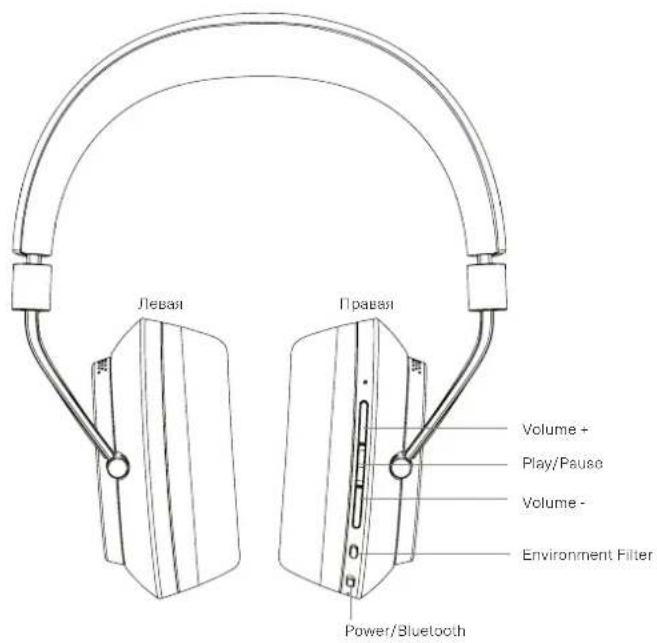
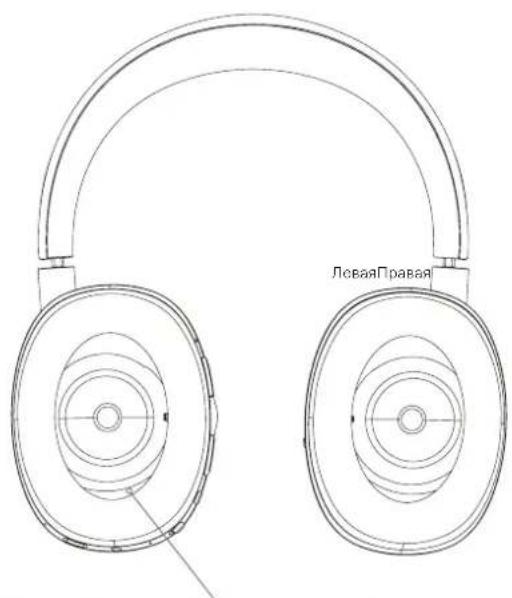
Diagram 1 OTeepctne KhoNKn dna c5pocn Hacptpoek OChOBHbJe cyHKun
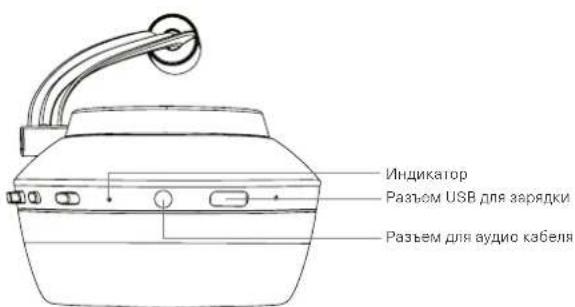
Diagram 2 BnD cn3y
3.3apkaakymyraTopa
HuyuHKN PNXOCTAALIOCTCCACTAAHOZAPRAKHHBAM AKKyMnTOpOM INXMOHO NONOS30BaTb ap3aYKe, ODAHKO XeJIATELHO NOHOTbAOPAHB AKKyMnTOp, IPEXJE HEM INX NEPBMB PA3 CNYIATb. NotpebEyETCRD 3cacoB DnI NNOH ZAPARKn PX, ODAHKO INX BNOHNE MOHXHNAHTb CNYIATb INPPOUCCS ZAPAKn
PpIMMeHHe:MHNKATOPnBkIOueHHN HauHHKOB PX CHaayana OTObpaKaET aepA. 3eHNHeuIeOaHaAeT,HTo AKyMMyNTOp aapRaeKHe 60nee, Yem Ha 50%. KeTbIy UeEOTsHaayeT, TTo aepaIK kkyMMyNTOp COCTaJIaEROT 50% Jo 30%. KpaCHNuEOT aHaAeT,HTo aepaIaIK kkyMMyNTOp coctaJIaER MeHee 30%. EcnI KpaCHNuHMyNTOp MuaReT,3hauVT aepaIK kkyMMyNTOp CNLHKOM Man Ira paobTo hauHHKOB PX LcTeBaor AHnuKaJNA NnoHtbo OnUcAna B Diagram 7.
Ppoeypa 3apnHayuHKnOB PX onncHa Hnke.
IcnoB3y npnnaeemb USB ka6eb. nOoepHnATE HAYUNK K AKTNBOMY USB paBemy:1N60KcmnbTePCHMOpy USB,mo60 pAantpey daaepn USB yctpoTcTa o cetn mOCT aTOMOBHBOHO pNkypmbate
B XOe 3apAKn HnHnKATOp HauHHNKB Byet MRATb 3cnhBm UBcOTm. Mo Mcp 3apAKn Nepno Eo MrranHb Byet Bce GoJIbue. Ppa NoHn 3apAKe HnHnKATOp Byet NOctOHTHO CBETNTBCa 3CNHbM.
4. KaK Hocntb HayuHnKu
PpaaHbHoepeonb30aBHeM HAYUHKnOB NOMOeT OBeceNHTpeanu3auNIXNnHOroNtEHmAnA. CHaHa, onpeDnnteJeBHy n PnpyoAuaKHN HAYUHKnOB.HaPiNC MoXHO HAHTnHa HxHKeH BHTpeHHe qactnOrOJbB, KaK pKa3aHO Ha Diagram 3.
Haenehe HanyuHnKn Ha rOoay,OTperynnpobab oronobc taK,TObKa kaxdaa HuaKa yD6Ho cndona Hauyoxm-Kak nokaaHO Ha Diagram 4.Y6dntncb,yto aukn He OTTMyBt BBePx H He BbBbAot HeYxHoe daBneHe HA BAuyrOyoB.
MpeKoMeHdyemnpTatebHayuHnKnBcymOkydnynx xpaHnH,KOda bIaNHe nCnOblSyte.
PnmeHoe:Ockn,NCkaxaIoune npoNnB BauWxuywMoryntomeuBpaobote pwnbtpa Environment Filter.ToHO TAK Xe,BOncb,3axaTbe MEXyUwAMn uauKAMn HAYuNNKOBMOYr OXONHnBpaboy TaunKa NpnnLNeHN
5.BkIOueHne N BbIKIOueHne HayuHkoB
INB KIOHHeHN PXCDBNHTe NONYKOBb BYKIOHOATeB BnPABOKAKoKa3aHoHa Diagram 5.
BaHn HuyuHKn PX oKHOtpyopobAHn TaK,HTo6bI
HtCNKCTYALBNO HePCKIOHATCB B PcKIM OXuADHn
NTOOeAaHHTboc To BLteoth, Korga Hx He cNoLb3yOT,
NPOCINATCB, KOrDa Bblnx HaeCaTe, TAK
Tc0b0 Bo0BcE HbKIOHAYbIX. Ecm BlBCx Ce
XOTNE BbKIOHUY HuyuHKn COBcEM, TO CBAHbTE
NONyHKOBu BblKnOHTbc N yDpKmTcero BTOCHNC
OCKHydHnn DByx. HINkATOP MHRCTKPacHbIM
CBETo, NOITBeRJa BIKIOCHHE.
HayuHKpcaHpyOTcblHMbIM3ByKOMHa BKNIOHNEINBbIKIOHNE.
IIpMueHHe: EOnn HayuHnKx PXPctabntb BIOUOeHHNIM, HIOHAKoA KIXNHOIN He IPOBnTb TBeHHeNe 2 MHT, TOrDa OHN AOTMATHEOCN BIKKOHOATC DIA KOOHOMN 3HEPNI NAKyMnHtopa.
PnmeH:HyCTBntelbHOCT DaTHKANPNOJNKeHH, KOTOpB ynpaRReT AKNIOHeHsM N BIKIOHcHEM, MOHXO OTOpEyINPOBaBH C ROMUBoI PnNOXeHH.
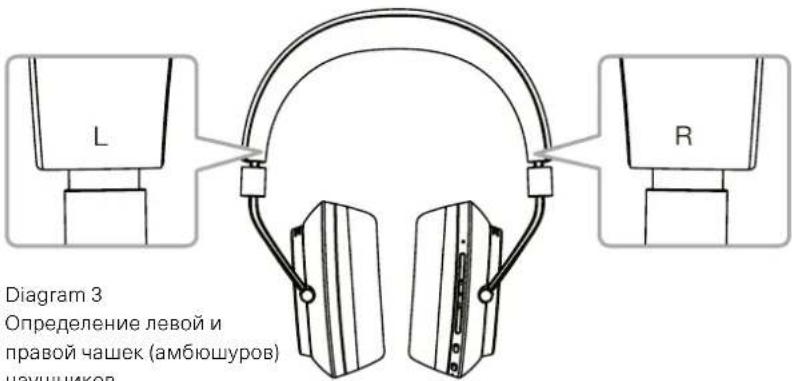
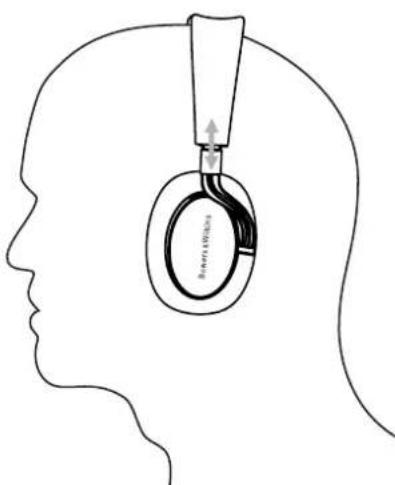
Diagram 4 Perynipobka orolobha HaynkoB
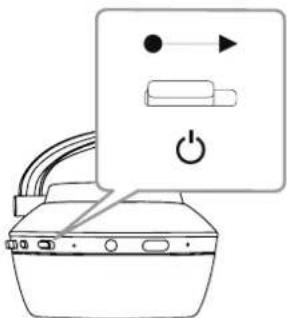
Diagram 5 BkIoueHneHayuHnKOB
6. Conpaxes HuyuHkoB PX c Bluetooth yctpoCTbAMN
TOb6b coeHNHTb HayuHnKx PxC bUeotho CBMECTNBM AynIOY cTOPOCTBOM, TAKIM KaK BAIcMAPTFOH, NXYHXO CHaHaLc COpNtBc C HMM ("paired").Iocne conpXeKHeBBiTeoH yTOPOCTBO IN PX 6dyT NOMHHTb dpyr O npre r CMOTy coeHNHTBc, 6dyUn 30e CBsIN.
KordaBbBKnOHTeHayuHnKNPxnpbblpa3,0nCp8yBoDyIpeXMMcopRjKeHNNoBluetooth.DnconopRcHEnBluTcoothyocpoTbaCPOoneyTaWAM,ONnCAHHMHNKc
Y6eDNTecB,4TO HAYHNIK BKNJIOHeHbI N HAXOJATcB pexHMeCOnpEXHn. HINKaTOp PON ATOM MInraet CINHMUIEBTOM.
- OtkpoTHe HaToPoiKn Bluttooth Ha yOToPcCTBe, KOTope DoXnHb 6bIe CnpxReHo, NyCepTeB, KTO pEXKm Bluttooth HA HEM KIOHcH, Ha JIMcHHe B KAAeHTB DoocTyHORo YTOpOCTBa NOBNTcR'PX Bowers & Wilkins' BbEepnt' PX Bowers & Wilkins' n 3aekpoTHe HaToPoiKn Bluetooth.
HJIKATOPHayHHKOB6yETMIRATbCINHM,POKA cOPIKHEHIIPOIOJIaETcH INPEKNOHTCA H ENpePBbHbCNH,KORaCOeHNHeHye 6yET yCTAHNOHEn. HayuHnKn npTOM bBydAynI 3BxOB0BmTHAI,KORa CONPJAHEHye yCTAHNOHEn.
NocTeToro,Kak cnpjxHeHyeCTAHOBnHO, y6eMTecb,TOHAYUHNKINBb6pAHB KAECTRE yCPOIcTBa BOCPON3BeEHNABydNO npJIOXEHNI.
Длпocнедукши conряжehн Heo6xOIMn BOpyHyokpeKIOUCHb HauNtHnBcRbMnCp9XeHH.3TO npovlncstprpoBaHa Na Diagram 6
PnBKNKHeHHbPX, HAKMITEaH3upeXHTeKOMBHNHPoAHyHO KONky Bluoteoh/Power BTeEHNE 2cekyH.1HmIKATOpZAMNtEaCnHMUBOTOM HAYUHNIK PX BbDpyT 3ByKOBoO CnHnA, KOrDa BOyDyB PCKM coPAXCHNA.
Eue pas otpoite HactpoKn Bluetooth Ha yctpOCTBc, KOTOPc DOnxHb 6blb cponpaXHO, n HauNtBe Ccnicke PX Bowers & Wilkins. KaKnHnTe Ha aty ctpOxy, m Mekdy dMyA yctpoCTBAMn 6byet YctahOBnCHO cponpaXHnC.
PnmeHaeBecpOdbHe Huynnk PAnomTneckBbNyt n poKmblustooCOPRHEH,BCIN BTeueh5MNNyH yactCHCOPRIHxHcQHmYCTPOAeTOM.
PpmeHHe: EcmopnepHHe 6yJET y1aHOJIHO, uMnKATOp 6yJET ACbXMMBt KaXJbIe 2cEkyHb. PekomeHyTeTc BO BpeMa copnepHn paonanatBa yCtpoNCTBa OTOCHTBbO bIN3Ko APyr KApYy.
6.1 3ameuHnno Bluetooth conpXeHHIO.
BaiHuyuHnKPNxMOTy3aONMHtBdoBOcBMN cnpRKeHHbXuBeothoyctpoTb.MoKHO nOcOeHHHTbKPXcpayJbuaCnPRKeHHbYcTPOCTBa,HanpIMep,COnHOrUHxCNyCbTuMb Mybky,NOppyOMpyNHmMaTbTeNEΦOHHeIe 3BOHKU.
Korda Baun HuyuHnKn npObykApTcnoe BbNIOEHNH NAKoTO pBpEMHa BpKHe MOKDAHNO, OHN POKNIKHOATC K NOINDEHME NIOKIOVCHOMY yCTPOCTBY, eON NH OHO B 3OT MOENT BKIOUHO HAXOITMC RpaNuCy DECTBN. Dpyrue cOpNpKHeHbIe yCTPOJCTaH He BYDy NpOKNIOHATCbA BtOMaTHneCKn, INx HApO BbNipatBn COOpHHeHnpeCnHX HAcTPOKn BiTeoth.
Korda HayuHnKoTKnIOCHHb, Haxab Ha KhoNkY Bluteoth bIIOoe BpEM, BByCTAHOBITe coepINHeHc cNoCepIN NOpKNIOOHHEHbIM yctpoIcTBOM, cOJI 30 BO3MOXHO.
Tc06BtOc0eHHbIeBluToothyctPoAcbIOHCTOHNNKOTPX,HAXMNTcDaxdBuCTPOHaKHONKYBLuTooth.3rOaPoeBtCoEHNHcBOCEMNnQkXHOeHHBMBluToothyctPoAETBAMN.PXbDACTTaKKe 3yKOBOcmHJ,KOrDa BLuToothyctPoAEOBydCtOCoOHNHO.
PAMrBcOpraeHHbxC PxycPoIcTa MoXHO OHCTnH, HaxaN yIepxab OIOHOBpeMeHHK HONK VoluMe - n Bluteoth a TeVeHne 2 cekyH. Hmikatop Bluetooth mHnetn PXP nepe3anyctntoN oocieOCHKTnHAMrT.
7. YnpabHeHne Bocpoun3BeDeHem aydno no Bluetooth
IynpaHnA BocponBaeHem Aynno no Bluteoth moXHO nCnObaHbT KhoKn Play/Pause, Volume +VVolume -paonolokHe Hna HayuHKax PX.
CtObIyBvJIInTeTfPOMKoCTb,HaKMnTeuJeDPKHTe KHONky Vol+
YTO6bIyMEnbIMbIrpOMKoCTb,HAXMTeN ydepXNTe KHOIKy Vol-
-Дагашистуca ecspnojaedemya aydinnyi naytsbHAKmteN ONTNYCTeK Honky Play / Pause.
Дяпорешда Кслдушему Т配电уБьстpo
нжмпгдхьдьн кнонку Play/Pause.
-Дагаэвра Кпгдьшучтугунжмале Ббсторпхдьдь на Кноку Play/Pause.
Diagram 7 Hnukau nca TaTyca Cbeehnem CBTeOnnoob
CbeueHne HndkauncaTatyca
UyBCTBNTeBHOCb111B/BHa1K
Bpemra 0a6oTbI OT OndH 22 c a C BT/ANC, 29 c aoc BTo bK cBT, 33 c aC B npoBHO m pexmec ANC, 50 Hcob TbKO B npoBHO m pexmE.
BxObl Blueltooth,3.5 MM Ctepeo MnnHJnK,USB-C ayio
PpnaeraeakcccyapbKa6b1.2Mco cTpeo pa3bMoM,Ka6b1.2MUSB-AHa USB-C, 3aunTHaCyMoKa
Bec 335r
B&WJH 10000000000000000000000000000000000000000000000000000000000
2.PX三三
- PX theon enoMri eepn 1000000000000000000000000000000000000000000000000000000000000000000000000