I.Beat sonix - Mp3 player TrekStor - Free user manual and instructions
Find the device manual for free I.Beat sonix TrekStor in PDF.


| Product type | MP3/Movie player |
| Brand | TrekStor |
| Model | I.Beat sonix |
| Approximate dimensions | 85 x 40 x 10 mm (estimate) |
| Approximate weight | 50 g (estimate) |
| Power supply | Rechargeable battery via USB; charging 3-4 hours |
| Display | TFT display with backlight, adjustable contrast and brightness |
| Supported audio formats | MP3, WMA (including WMA-DRM10), WAV |
| Supported video formats | AVI (converted with MediaCoder), WMV |
| Supported image formats | JPEG, BMP |
| Supported text formats | TXT |
| FM radio | Built-in with 30 memory presets, recording possible |
| Voice recording | Built-in microphone, voice format, stored in RECORDINGS folder |
| Equalizer | 5 presets + user equalizer |
| Playback modes | Normal, repeat one track, repeat all, shuffle |
| Connectivity | USB 2.0 (cable included) |
| HOLD function (lock) | Physical slider to lock buttons |
| Firmware update | Download from TrekStor website, update via software |
| Menu languages | Multiple languages, selectable in settings |
| Timers | Sleep timer, auto power off, alarm |
| Maintenance | Clean with a dry soft cloth; avoid moisture |
| Safety | Do not use while driving; avoid prolonged listening at high volume; keep out of reach of children |
| General information | Manual available in multiple languages; technical support via TrekStor website |
Frequently Asked Questions - I.Beat sonix TrekStor
User questions about I.Beat sonix TrekStor
0 question about this device. Answer the ones you know or ask your own.
Ask a new question about this device
Download the instructions for your Mp3 player in PDF format for free! Find your manual I.Beat sonix - TrekStor and take your electronic device back in hand. On this page are published all the documents necessary for the use of your device. I.Beat sonix by TrekStor.
USER MANUAL I.Beat sonix TrekStor
Note: Please charge the i.Beat sonix as described in these operating instructions for at least 3 to 4 hours before initial use.
1) Controls for the TrekStor i. Beat sonix
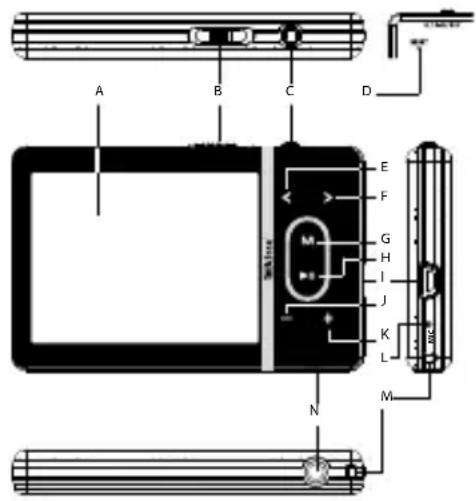
TFT displayA)
B) HOLD switch
C) / - B / REC button
D) RESET button
E) < button
F) > button
G)M button
H) button
USB portl)
Note: To reset, carefully press the RESET button with a pointed object (such as an unbent paperclip). The reset button is recessed deeply in the housing.
2) Connecting the TrekStor i.Beat sonix to a PC
Use the included USB cable to connect the i.Beat sonix to a USB port in your PC. Your operating system will immediately recognize the i.Beat sonix and will add a "PORTABLE MEDIA PLAYER" under "MY COMPUTER".
Note for users of Windows® XP without a current Windows Media® Player, or users of Windows® 2000: Your operating system will immediately recognize the iBeat sonix and will add a "DEVICE WITH REMOVABLE STORAGE" under "My Coot".
3) Load the TrekStor i. Beat sonix
The i.Beat sonix starts charging as soon as you connect it to a PC. The battery is charged after a maximum of three to four hours; charging automatically stops to prevent overcharging.
Note: The maximum battery life is only reached after approximately 10 charging cycles.
4) Exchanging data with the TrekStor i.Beat sonix
Files that are not copy-protected
a) Select the desired files (such as MP3) with the mouse. Copy these files by clicking them with your right mouse button ("C@").
b) Under "MY COMPUTER", open "I.BEATSONIX".
c) Switch to the folder "INTERNAL STORAGE", and open the directory that is for the files to be copied (such as "Mu" for MP3 files).
d) Click it with your right mouse button, and select "Pae" to start copying. After copying is over, the files will be available on the i.Beat sonix.
WMA DRM10 protected files
To copy DRM10-protected files, you need to use the Windows Media Player (reference version: Windows Media Player 11).
Note: If the necessary Codec s are installed, this procedure also works with many video files and other media files.
a) Connect your i.Beat sonix to your computer, and start the Windows Media® Player.
b) In the Windows Media Player under "VIEW", select "FULL MODE".
c) Then click the tab "S" at the top.
d) Drag the desired music files (WMA, MP3, WAV) to the "SYNCHRONIZATION LIST" on the right.
e) Click on the button "START SYNCHRONIZATION" below the list. The selected music will then be automatically copied to your MP3/movie player.
5) Logging off and disconnecting the TrekStor i. Beat sonix from the PC
When the status "READY" is shown on the display of the i.Beat sonix, you can disconnect the connection to your computer.
Note for users of Windows XP without a current Windows Media Player, or users of Windows 2000: At the bottom right on the task bar, click the right mouse button on the symbol "SAFELY REMOVE HARDWARE". In the context menu that appears, click the left mouse button on "SAFELY REMOVE MASS STORAGE DEVICE - DRIVE" to select it. You can now disconnect the i.Beat sonix from the PC.
Please follow the recommended logoff procedure to prevent damage to the device or data loss.
6) Firmware update for the TrekStor i.Beat sonix
a) Connect the i.Beat sonix to a USB port of your PC.
b) Back up all the important data on your i.Beat sonix onto your PC.
c) You can update the i.Beat sonix with the most current firmware from the Internet (on the TrekStor homepage at http://www.trekstor.de).
d) Insert the provided CD into your CD/DVD drive. When the startup function of your system is activated, a menu showing all the contents of the CD will open.
Note: If the startup function of your system is deactivated, you can access the CD/DVD drive via "My C" and start the program "MENUEX" in the main directory of the CD.
e) Select "FIRMA" and follow the instructions. Your internet browser opens, and the TrekStor homepage is loaded.
f) Download the firmware (*.zip-file), and unzip it to a folder of your choice.
g) Start the update program, and then follow the instructions of the update program. Follow the update procedure exactly to keep from damaging the i.Beat sonix.
7) Formatting the TrekStor i. Beat sonix
a) Connect the i.Beat sonix to a USB port of your PC.
b) Back up all the important data on your i.Beat sonix onto your PC.
c) Under "My Computer", open "MEDIA PLAYER" and click your right mouse button on "INTERNAL STORAGE".
d) Select "F" from the context menu.
e) Confirm the security prompt to run the formatting.
Note: If you use Windows® XP without the current Windows Media® Player or Windows® 2000, perform the following steps after step b):
c) Open "MY COMPUTER", and click your right mouse button on the "DEVICE WITH REMOVABLE STORAGE" with the name "sd".
d) Select "F" from the context menu.
e) Select the "FAT32" option under "FILE SYSTEM" from the dialog window that appears.
f) Click on the "S" button to start the formatting.
8) Using the TrekStor i.Beat sonix
Turning the device on and off
Before you can turn on the i.Beat sonix, the HOLD switch must be in the left position (viewed from the front). Turn on the i.Beat sonix by briefly pressing the button. To turn the i.Beat sonix off, hold the button for approximately 3 seconds.
Key lock
To activate the key lock, move the switch into the right position. The key lock symbol then appears in the display of the i.Beat sonix. To deactivate the key lock, move the switch into the left position.
Different modes
The i.Beat sonix has different modes that you can select in the main menu. Briefly press the M button to go to the main menu. Press the < or > button to select the desired mode, and confirm by briefly pressing the H button.
Folder navigation
You can select a file to be played from a list in the modes "Music", "VIDEO" and "PICTURES". You can go to the music library from the "Music" mode by pressing the M button for approximately 1 second. Here you can select folder navigation.
In the main menu, select the mode "Video" or "PICTURES" to go directly to folder navigation. If you are showing a video or photograph, briefly press the M button to reach the folder navigation.
Note: In folder navigation, only the current files of the most recently selected mode are displayed (i.e., only music files are displayed when you are in the "Mus" mode).
Press the > or < button to select the next or previous file. To play or display the selected file, press the button. To leave folder navigation and go to the main menu, briefly press the button.
To change to a subfolder, select the folder and press the button. To return to the main directory, briefly press the M button. To leave folder navigation, press the M button in the main directory.
Music library
The songs contained in the music library are sorted according to different criteria by means of the ID3 tags of the music files.
The following criteria are available: Artist, Album, Genre, Year and Playlist.
You can go to the music library by holding down the button in "Music" mode. Press the > or < button to select the desired criterion, and confirm your selection by briefly pressing the button.
If, for example, you select "ARTIST", the artists are displayed whose songs you have transferred to the player. Select an artist and confirm your selection by pressing the button. All the artist's albums on the player are then shown. Select a specific album and press the button to show all the songs on the album. To play a specific song select it and then press the button.
Mode: Music
Switch to the "Mut" mode.
Play mode
Briefly press the button to play an audio file.
Pause
Briefly press the + + button to stop playback. Repress the + + button to continue playing.
Change track
Briefly press the > button to select the next song. If you briefly press the < button within 5 seconds after a track starts, you switch to the prior track. If you briefly push the < button after a song has been playing for at least 5 seconds, you return to the beginning of the current song.
Fast-forward/rewind within a track
You can navigate within the current song by holding down the > or < button. Hold down the > or < button to fast-forward or rewind.
Note: The longer you hold down the > or < button, the faster you fast-forward or rewind.
Increase/lower volume
Briefly press the + or - button to raise or lower the volume.
Note: If you hold down the + or - button, the volume changes gradually.
Mode: Video
Switch to the "VIDEO" mode. You can watch movie files (.avi, .wmv) in Video mode. To create movie files in AVI format, use the "MEDIACODER" on the accompanying CD, or use Windows Media Player (Version 10 and higher) to convert film files into the WMV format.
The functions in this mode are like the ones in "Mu" mode.
Mode: Pictures
Switch to the "Pwr" mode.
You can view picture files in this mode.
Note: All pictures must either be in JPEG format (with the file ending .jpeg or .jpg), or in bitmap format (with the file ending *.bmp). Large pictures are automatically displayed in a reduced size which can lengthen the loading time.
In Folder navigation, select a picture file and briefly press the button to show the picture.
The picture options menu opens when you hold down the button. Here you can choose to display a picture larger or smaller ("Zoom"), start a "SLIDE SHOW", set the display time for the pictures of a slide show ("SLIDE-SHOW SPEED"), or select a "THUMBMAIL" view of the pictures. To select an option or change its value, press the > or < button, and confirm the option or the value by pressing the button.
Cycle picture
Briefly press the > or < button to go to the next or previous picture.
Slide show
To start a slide show, briefly press the button. You can alternately start a slide show using the picture options menu.
During a slide show if you press the > or < button, the slide show stops until you release the button.
Briefly press the +1 button again to stop the slide show.
Mode: FM radio
Switch to the "FM mode.
Note: Always connect your earphone or headphone to the headphone jack of the i.Beat sonix since the earphone/headphone cable serves as an antenna for the internal radio.
To go to the FM radio menu, hold the button for approx. 1 second. Press the < or > button to select the desired menu item, and confirm by briefly pressing the button.
Switching between manual station selection and memory mode
In the "FM RADIO" mode, you can choose between manual station selection "SCAN" and memory mode "PRESET". To switch between the two modes, briefly press the button.
Switching between saved stations
In memory mode "P", you can switch between the stored presets by briefly pressing the < or > button.
Manual frequency change / manual scan
In manual station mode "Scan", briefly press the < or > button to change the reception frequency by 0.05 MHz. Hold down the < or > button for the i.Beat sonix to automatically scan the upper and lower frequencies for stations with strong reception.
Saving individual stations
Change to manual station selection "SCAN". Set the desired frequency, and select "SAVE" from the FM radio menu. Press the < or > button to select the desired preset slot, and confirm by briefly pressing the button.
Deleting saved stations
To delete a saved station, select "DUE" from the FM radio menu. Select the station to be deleted by pressing the < or > button and confirm the deletion by briefly pressing the button.
Automatic memory assignment / automatic station scan
To start the automatic station search, select "AUTO SCAN" in the FM radio menu, and confirm the question that appears. The i.Beat sonix now automatically searches for the radio stations with the strongest reception and saves them in 30 preset slots.
Recording FM radio
To record FM radio, go to the FM radio menu, and select "FM", or briefly press the A-B/REC button. Recording starts as soon as you confirm the question. To pause the current recording, briefly press the button. To continue with the current recording, briefly press the button again. Briefly press the A-B/REC button to end recording.
Note: All radio recordings "RADIO_xxxx" are stored in the subdirectory "RECORDINGS" of the i.Beat sonix. Switch to "Mix mode to play the radio recordings.
Sensitivity of the FM radio
In the FM radio menu, select the sensitivity of the FM radio under "SENSITIVITY".
FM region
In the radio menu, select "FM" to change the regional radio settings.
Mode:Text
Switch to the "TExt" mode.
You can view text files (.txt) in this mode.
In Folder navigation, select a text file and briefly press the +1 button to show the text.
Briefly press the > or < button to read the text page by page. The text options menu opens when you hold down the button. Here you can turn on or off the automatic loading of the text page by page ("AUTO SCROLL"), set the viewing time of a page ("AUTO SCROLL INTERVAL"), and set the "SCROLL DIRECTION" as well as delete individual bookmarks ("DELETE BOOKMARK"). The text options menu functions the same as the picture options menu.
When you briefly press the M button to exit the "TEXT" mode and return to the main menu, an inquiry appears, and you can choose to save the momentary position in a text as a bookmark ("SAVE BOOKMARK?").
Mode: Record
Switch to the "R" mode.
You can make voice recordings in this mode using the integrated microphone.
Confirm the question to start recording. To pause the current recording, briefly press the button. To continue with the current recording, briefly press the button again. Briefly press the M button to stop recording.
Note: All voice recordings "VOICE_xxxx" are stored in the subdirectory "RECORDINGS" of the i.Beat sonix. Switch to "Mux" mode to play the voice recordings.
Mode: Settings
Switch to the "SETNS" mode.
Here you can select the sound settings under "EQUALIZER" and playback modes under "PLAY MODE". You can also specify the display settings under "DISPLAY", the time settings under "TIMER", the radio settings under "FM RADIO", and the recording settings under "RECORD". You can also choose general system settings under "SYSTEM".
Press the > or < button to select the desired setting, and confirm by briefly pressing the button. Briefly press the button to leave the settings.
Equalizer
Under the "EQUALIZER" menu item, you can select one of 5 preset equalizers or a user-defined equalizer. Select "USER EQUALIZER" to configure the equalizer as desired.
Play modes
Normal: Select the menu item "N to play all tracks once.
Repeat one: Select the menu item "REPEAT ONE" to have the current track repeated in a loop.
Repeat all: Select the menu item "REPEAT ALL" to have all the tracks played in sequence repeatedly.
Shuffle: In "SHUF" mode, the playback order of the tracks is selected at random.
Display
Contrast: Under the "Contrast" menu item, you can adjust the contrast of the display.
Brightness: Under the "BriHnEs" menu item, you can adjust the brightness of the display.
Title information: Under this menu item, you can choose whether the ID3 tag or the filename is displayed as the title of a song.
Background illumination: Under the menu item "BACKGROUND TIME", you can set the length of time until the display automatically shuts off.
Timer
Sleep timer: Under the menu item "SLEEP TIMER", you can set how long it takes the i.Beat sonix to automatically shut down after it has not been used.
Power management: Under the menu item "SHUTDOWN", you can set how long it takes the i.Beat sonix to automatically shut down after it has not been used.
Time settings: Under the menu item "TIME SETTINGS", you can display a calendar and the time ("TIME & DATE"), adjust them ("SET TIME & DATE") or set an alarm ("SET ALARM").
Record
Under the "RECORD" menu item, you can set the recording quality of the integrated microphone, and select if you wish to record in mono or stereo from the integrated FM radio.
Note: The recording quality for the integrated FM radio is set at 44.1 kHz.
System
System information: Under the menu item "MEMORY / FIMWARE", you are provided with information on the firmware version, as well as the entire memory and free memory of the i.Beat sonix.
Language: Under the menu item "LANGUAGE", you can select the menu language of the i.Beat sonix.
Keypad tones: Under the menu item "Keypad TONES", you can choose whether a key emits a tone when you press it.
Load defaults: Under the menu item "LOAD DEFAULTS", you can restore the default settings (settings upon delivery) of the i.Beat sonix.
Format memory: If you want to format the memory (that is, delete all the files on your i.Beat sonix), select this menu item and confirm the the following security prompt.
9) Convert video files
With the i.Beat sonix, you can play video files in AVI format that have been converted with the "MEDIACODER".
a) Insert the provided CD into your CD/DVD drive. When the startup function of your system is activated, a menu showing all the contents of the CD will open.
Note: If the startup function of your system is deactivated, you can access the CD/DVD drive via "My C:\ and start the program "MENU.EXE" in the main directory of the CD.
b) Then select "MCoR
c) The "MEDIACODER" is installed on your PC.
d) Start the "MEDIACODER" by going to "START" "PROGRAMS" "MEDIACODERSE" "MEDIACODERSE".
e) Click on the "A DD FILE" button, select the file to be converted (such as MPG, AVI), and enter the destination folder ("OurFader").
f) Under "SETTINGs", select the output format "320 x 240@24FPS" for the file.
g) Start the conversion via the "S" button.
h) Then copy the created AVI file to the i.Beat sonix.
Note: Alternately, you can also convert video files with a current version of Windows Media Player into WMV format while synchronizing them with the i.Beat sonix. You can get additional information by accessing the help function of the Windows Media Player.
| Problem Possible cause | What can you do? | |
| My MP3 player cannot be turned on. | The HOLD function is activated. | Check if the key lock (HOLD switch/HOLD function) of the MP3 player is activated. If yes, deactivate the key lock as described in the operating instructions. |
| No power With an MP3 p | layer that has an integrated battery:When the battery is dead, charge your MP3 player either with a USB cable connected to your PC, or with a USB charger. | |
| With a battery-operated MP3 player:The battery is dead. Replace the battery. Only use alkaline batteries. To find out if your MP3 player can also be operated with rechargeable batteries, contact our support team.The battery was incorrectly inserted. Check the polarity of the battery. | ||
| External effects External | effects (such as an electrostatic discharge) can cause your MP3 player to malfunction. If the malfunction continues after you turn your MP3 player off and on, reset the player or update the firmware (the software of the MP3 player). You can find the procedure for this in the operating instructions. The current firmware for your MP3 player is on our website under "Downloads". If you have any questions concerning the firmware update that were not answered in the instructions, please contact our support team. | |
| My MP3 player freezes. If this repeatedly occurs for a specific audio file, the file may be damaged. Delete the file.If this does not eliminate the problem, reset the player if possible. If your MP3 players still freezes, update the firmware. | ||
| My MP3 player does not respond when I press a button. | The HOLD function is activated. | Check if the key lock (HOLD switch/HOLD function) of your MP3 player is activated. If yes, deactivate the key lock as described in the operating instructions. |
| I do not hear any music from the earphones/headphones. | Check if an audio file is being played (the display of the elapsed or remaining time is changing). If not, start playback. | |
| Make sure that the stereo jack of the earphones/headphones is firmly seated in the jack socket. | ||
| Check if the volume of your MP3 player is loud enough. | ||
| I transferred files to my MP3 player. The MP3 player cannot play these files. | Wrong file format The files might be in a format that your MP3 player cannot play. The file formats supported by your MP3 player can be found on the respective datasheet on the TrekStor homepage at www.trekstor.de. | |
| I transferred WMA audio files to my MP3 player. The MP3 player cannot play these files. | The files are copy-protected. | If the files are WMA DRM copy-protected, you need to copy them through the Windows Media® player. Check beforehand if your MP3 player can play WMA DRM copy-protected files. You can find this information on the datasheet of your MP3 player on the TrekStor homepage at www.trekstor.de. |
| I transferred audio files to my MP3 player from my Mac®. The MP3 player cannot play these files. | Wrong file format Audio files in AAC format, for example, files that you generate with iTunes®, cannot be played on most MP3 players. Convert these files into MP3 format using a current iTunes® program or a different program. Audio files downloaded from the Internet may have protective mechanisms that prevent conversion. | |
| The audio files on my MP3 player are not played in the correct sequence. | The playback mode "Shuffle" has been selected. | If the playback mode "Shuffle" has been selected, switch to the "Normal" playback mode. |
| Sort your audio files in a subfolder before you copy them, and copy this folder to your MP3 player. In addition, you can sort your audio files by renaming them (by adding numbers such as "001 TITLE", "002 Title", etc.). | ||
| Odd characters appear on the display when I play music. | The character set is not supported. | Some MP3 players cannot correctly display all characters. Only use the standard character set of the menu language selected on the MP3 player when writing file names and ID3 tags, and do not use special characters (such as accents, etc.). |
| I cannot understand the menu language and do not know how to change it. | The menu language was incorrectly set. | Reset the player or, if this is not possible or does not work, update the firmware. Then the language selection menu usually appears. |
| How can I create MP3 files? To convert audio files (such as music from a CD) into the MP3 format, you need an MP3 encoder (such as the presently free "Audiograbber" program that can be obtained from www.audiograbber.de). Instructions and assistance for operating the program can be found under the help function of the program. | ||
Notes:
This MP3/movie player is optimized for the provided headphones (32 Ohm impedance). Using other earphones with a lower impedance can damage the MP3/movie player or earphone, especially MP3/movie players with 2 earphone jacks.
In certain circumstances, exposing the device to an electrostatic discharge may interrupt the data transfer between the device and the computer and impair the functions of the device. If this occurs, the device should be unplugged from the USB port and then plugged in again.
Note: This device can produce high volumes. In order to avoid hearing loss that can occur immediately, in the future, or gradually, you should not listen at high volumes for extended periods. This applies regardless of whether you listen with speakers, headphones, or earphones. If you notice a ringing noise in your ears, lower the volume immediately or stop using the MP3/movie player. Please keep in mind that permanent hearing loss can first appear at a later point in time. While you may become accustomed to higher volumes over time so that they may seem normal to you, your sense of hearing may still have been impaired by this. The higher you adjust the volume, the faster your sense of hearing can be damaged.
Note: Using earphones while driving a motor vehicle is not recommended and is prohibited in some countries. Always drive carefully and with full concentration. Stop using your MP3/movie player if you become distracted or interrupted by it when driving a motor vehicle or during other activities that require your full attention.
Do not use USB cables longer than 3 meters.
The manufacturer retains the right to continually improve the product. These changes may be made without being directly described in these operating instructions. For this reason, the information provided in these operating instructions may not reflect the current state of the art.
The manufacturer only guarantees suitability for the product's intended purpose. In addition, the manufacturer is not responsible for damages or loss of data and subsequent consequences.
Copyright © 2007 TrekStor GmbH & Co. KG. All rights reserved. Other cited product or company names may be trademarks or brand names of the respective owner.

NOTICE D'UTILISATION
Valtson at "Kuk" uzemmodba.
Valtson at "FM Üzemmodba.
MeaBeTe Otn λειToupyia "K
EcnBb6paH"KBAJIAI3EPIOJIb3OB,"TO NMeETCBO3MOXHOCTb KOHfNpypOBA Tb KBAJAI3ep no BaWemy JenaHIO.
Pexnmbi Bocnpon3BedeHna
Hopma: BbI6epnte nyHKT MeHIO "H, yTO6bI BOCnpon3BecTN BCE TpeKN OIN pa3.
NobTop TpeKa: BbI6epnte nyHKT MeHIO "NobTOr TPEKA"ДЯ NOBToPa TpeKa HeorpaHueHHeO qnclo pa3.
IobTop Bcex: Bb6epnte nyHKT MeHIO "PbBTOP BCEX", uTo6bl NOBTOpHO BOCnpon3BeCTN BCE TpeKN OINH 3a dpyrIM.
CnyaHNo:BpeKIme 7aΦn "CyH" nocJeIOBaTeIbHOCTb BOCnPOn3BeJeHn TpeKOB BBi6uPaETcA cnyuaiHo.
Ducnnei
KoHTpact:BnyHKTe MeHIO "KoBt Bb MoKeTe HAcTpoNTb KOHTpact DnCnJIeA.
Apkoctb:BnyHKeMeHIO"BbMoXeTeHaCTponTbApKOCTb DcNJIeJ.
B nyHKTe MeHIO "3Mbo MOXHO yCTaHOBNTb KaueCTBO 3aNNCU BCTPOEHHORO MKNPOoHa, a TaKKe Bbl6paTb BNd 3aNNCn C INHTerPupOBaHHORO FM-npneMHnKa - MOHO INN CTpeeo.
Yka3aHue: Kauecm8o 3anucu co 8cmpoeHHo2 npuemHuKa HacmpoeHo Ha 44,1 KfU.
CucTeMa
KoHTpact:BnyHkTI MeHIO "KeppepyIIOeTbcKa KOHTpact DnCnJIeA.
RcKpaBicb B nyHKti MeHIO "peyIIOeTbcra RcKpaBicb DnCpIeJ.
Infopm.npoHa3By:BcBOMy nyHKti MeHIO MOxHa Bn6paTu,6dy BnBOHTucHa nepeTJrK Ha3Ba KOMno3uii ter ID3 nn Ha3Ba faIny.
ΦOHOBe oCBtIeHHa: B nyHKTI MeHIO "UAC OCBITIIeHHa" MOxHa peryIIOBaTu, Hepe3 AKN qac aBTOMaTnHo BUMKHeTbCra DnCnJIeI.
Tmep
Taimep 3acnHaHn: B nyHKTI MeHIO "TaimEP MOXHa peYnIOBaTH, uepe3 aKm Yac i.Beat sonix Mae abTOMaTHUHO BMKHHTNCb.
BumKHyTu: B nyHKti MeHIO "BumKHyTu" MoXHa peryIHOBaTu, uepe3 kN yac HeBnKOpNCaHH a. Beat sonix Ma e ABTomaTuH O BumKHyTncb.
HanaTyBaHHa cY: B nyHKTI MeHIO "HAnAHT. YAcY" MOxHa HanaTuBaN BvBiD Ha nepeRJaK aJeHapra i acy ("HAC/DAtA"), HanaTuBaN ix "HAnAHT. YAcY/DAtN" uHanaTuBaN 6yDnJIbHNK "HAnAHT.ByDnJIbH."
3anu
B nyHKTI MeHIO "3Anic" MoXHa HanaHTyBaTn kAcIb 3aNcy B6yDobAHoro MkpofoHa, i Bn6paTu, u 6yde BIKOHyBaTnca 3aNc 3 B6yDobAHoro paio FM B MOHO u n Ctepeo.
BkaizbKa:Kicmb 3anucy 36bydoaHOz padionpuMa4 zafikcoBaHO Ha 44,1 KfU.
Cvctema
CnCTemHa iHopmai: B nyHKTI MeHIO "PAM'rB/ IPMBAPE" MOXHa OTpMaTH iHOpMaIIO npo BepciO fipmbape, a TAKOX npo 3araIbHy i BiIbHy nam'rTb i.Beat sonix.
Moba:BnyHKTI MeHIO "Mo MoKHa Bn6paTu MOBy MeHIO i.Beat sonix.
3Byk KhoNok: B nyHKTI MeHIO "3ByK KhoNOK" MoXHa Bn6paTn, YN 6yJe CyTN 3ByK npHaTnCKaHHI KHONKn.
3aBOcBi HalaTuBaHHa: B nyHKTI MeHIO "3AHAIT. 3AB.HAJIaTuBAHHa" MOKHa NOBepHyTnCra Do 3aBOcBKNx HalaTuBaHb (CTaHy NoCTaBKn) i.Beat sonix.
ΦopMaTyBaTu NaM'Yb: RaKIO Bu 6aKaTe BiDΦopMaTyBaTu NaM'Yb (TO6TO 3HnIHTN BCI φaIINa Ha i.Beat sonix), Bn6epiTb uei NyHK T MeHIO i NiITBepDiTb CTBepJxBaJIbHOU BiINOBIDIO HaCTyInHe PNTaHH.
9) KoHBeptTyBaHHaB ViDeofoaJJIb
Ha i.Beat sonix MoXHa BiTbOpOBaTu BiDeoFaJIn B oOpMaTi AVI, KOTpi 6yIn 3a3dAneriB 3KOHBeptOBAHi 3a DOnOMorIO nporpamN "MBCn.
a) BCTABTE CD, ilo BXOINITb Do KOMNIEKTy, B INCKOBOD IJRA CD/DVD. RaKIO aKTNB3ObaHa fYHKcIa ABTO3aNyCkY KOMN'IOTepa, BiKpNcTBcR MeHIO 3 ycIM 3MicTOM CD.
Bka3iBa: KaKo foHkuia aBmo3anycky Kom'omepa deakmuBaHa, MoKa nepeum Ha duckoobod dna CD/DVD uepes "MkoNTOEP" i 20no6Homy kaman03i CD 3anycmum npospamy "MENUEX".
b) Notim Bn6epiB nyHKT "MeC
c) Nicra yboRo "MEDIACODER" iHCTaJIIOETbcra na PIK.
d) 3anyctitb "MEDIACODER" uepe3 "3ANYCK" "POTPAMN" "MEDIACODERSE" "MEDIACODERSE".
e) KliKHTb KHONKy "A D FILE", Bn6epiB faJn IJRA KOHBePtauii (HaNP, MPG, AVI) i Bkaxitb KaTalor, de MaE 3hAxOHTNCb 3KOHBePTOBaHn fain, ("OurFQB).
f) Bn6epitb "SETTINGs" fOpMaT BnBOy ("320x240@24FPS") faIJa.
g) NouhItb KOHBeptyBaHHa HtNCKOM Ha KHONky "S"
h) Notim 3KoJIIOHTe CTbOpEni aI N AVI ha i.Beat sonix.
Bka3ibKa: B ykocmi aIbmepHaMuMoXHa 3KoHBepeMyBaMu bideofoaun nomouHO bepcicIO Windows Media Player 8 oopam WMV, dny u60zo u60nompio cunxponi3yBaMu 3 i.Beat sonix. IodamkoBy infopmaio 3 u60zo npubody due. e donomosi Windows Media Player.
Bka3ieku:
Leu MP3-/bideonneep onmumizobao dna Habywukib, 0o exodmb do komnlekmy (imnedac 32 om). BuKOpucmaHH iHux Habywukib 3 MeHUM immedaHcom MoKe, 3a neBHX o6cmaH, npubecmu do nowkodkeHH MP3-/bideonneepa y mokox Habywukib; Oco6nabo MP3-/bideonneepiB 3 2 po3'EMAMU dna Habywukib.
Akuo 3 npunady 3Himaemcbra enekmpocammuu 3apad, 3a nebHex o6cmaun MOxe buHKhymu nepepuha nepea dahux mix npunadom i kOmniomepom 4y fHKUHOAHbcmb npunady mox e bymnopuyueHa. Buomy eunadky npunad nompiHo Bid'edhamu Bid USB-nopma, a nomim 3hooy ni'd'ehamu.
YBa2a: L'eu npunad moke zhepybamc cunbHu 38yK. uo nonepedum ypaexHHO cnyx, uo moke nporBumc 3pa3y, n3hiue qu nocmynobo, He mpe6a cnxamu nneep Ha npom3i do0200 acy Ha benukui 2yHocmi. Ie cmocymbcBcix bunadkib, H3aneJHO Bid mozo, B yOMy Bu cnlyxcme My3uKy, -duhamiku, HabyuHku Cu BCmabHi HabyuHku. Kaio y byci nowao d3beHimu, HeauHO 3mehuimb 2yHicmb Yu 6bnwe He kopucmymecb MP3-/bideonleepom. lam'raume npo me, uo nocmiHe ywkodgeHHA cnxy Moke nporebumuc i uez deKuVac. Xoua 3a nebHex o6cmabH Bu 3acom 3BuKheme do benukoj2yHocmi, mak zuo BOHa 6yde 3daBamucBam HopMaIbHO, Bau cnx8e moke nocmpaxdAmu. Yum buue bcmaHOIOeBcra 2yHicmb, mum ckopiue moke 6ymu 3abdoHo WKodu cnxobvi.
YBa2a:BukOpucmaHHBcMaBHXHabyuHukB niD yac KepyBaHH aBmO6inem He peKomeHybCBAIHXU Ozo 3abOpHeNo.3aXdu Kepyume aBmO6inem o6epeXHO I3KoHueHmpoBaHO.3ynHimb npzpaBHcOZO MP3-/bideonneepa, Raio ue BIDbonkaE Bac niD yac KepyBaHH aBmO6iHa Ni niD yac IHux Budie dInhocmi, kompi nompebyomb nobHOYbaZu. Bid buKOpucmaHH USB-Ka6JI8 doBxuHOIO 6InbwoIO 3a M mpe6a BidMoumuc
Bupo6nK npinay 3aHnWae 3a c6oIO npABO noCTiHO po3BnBATn npinad dani. Li 3MiHN MoKyTB peanl3OByBaTncb 6e3 npamoro ONNCY BcBOMy KepIBNtBI.To6TO IHOpMaJr BcBOMy KepIBNtBi He NOBHnBAIDNOBIAtn HaioCTaHHIOMy CTaHy texhihoi MoNiΦikaii.
Bnpo6HnK nIe rapaHTy BIDnOBiDHCt b 3 npu3HaueHHaM Ubo rpoDky. Kpim TOrO, Bnpo6HnK He Hece BiNobiDaNbHiCt b 3a nowkoJKeHH a BtpaTy daHnx i kOdy BHaCnIOK zuoro.
Copyright © 2007 TrekStor GmbH & Co. KG. Bci npaba zactepexehi. B pa3i 3 iHsMM 3raaHmN Ha3BaMn Bnpo6ib i fipm piu Moke npo TpOBI MapKn Hn H3Bn MapOK BiNoBIDHX BlaCHIKIB.