i.Beat move S 2.0 - Mp3 player TrekStor - Free user manual and instructions
Find the device manual for free i.Beat move S 2.0 TrekStor in PDF.


User questions about i.Beat move S 2.0 TrekStor
0 question about this device. Answer the ones you know or ask your own.
Ask a new question about this device
Download the instructions for your Mp3 player in PDF format for free! Find your manual i.Beat move S 2.0 - TrekStor and take your electronic device back in hand. On this page are published all the documents necessary for the use of your device. i.Beat move S 2.0 by TrekStor.
USER MANUAL i.Beat move S 2.0 TrekStor
text_image
TrekStor A B D F M II C G E
text_image
TrekStor www.trekstor.de i.Beat move S 8 GB Rev. B FCCE Made in China 123451231231234 ON/OFF H I L J K
natural_image
Illustration of two hands holding a tool with arrows indicating movement or force direction (no text or symbols)
natural_image
Illustration of a black audio jack with two earbuds and a lock connector (no text or symbols)
natural_image
Illustration of two hands manipulating a curved line, no text or symbols present
natural_image
Hand holding a small object with an arrow indicating direction, no visible text or symbols
natural_image
Simple line drawing of a person's head and shoulders (no text or symbols)
text_image
3)INhalTSvErzElchNIS
System requirements 30
1) Controls and connections of the TrekStor i.Beat move S .... 30
2) Connecting the TrekStor i.Beat move S to a computer 30
3) Charging the TrekStor i.Beat move S .... 31
4) Exchanging data with the TrekStor i.Beat move S ...31
5) Logging off and disconnecting the TrekStor i.Beat move S from the computer 32
6) Operation of the TrekStor i.Beat move S ..... 33
7) Firmware update for TrekStor i.Beat move S ..... 41
8) Formatting the TrekStor i.Beat move S ..... 42
9) Converting video files 43
10) FAQ - troubleshooting 44

OPEraTING INSTrUcTIONS
Thank you for buying the TrekStor i.Beat move S. We are confident that this product will be the source of much enjoyment. Please read the following chapters carefully so that you can become acquainted with the advantages of this product and its use.
If you have problems with this product, you can quickly get assistance. Only in extremely rare cases will you need to return this product to your dealer. You can find answers to the most frequently asked questions at our website, www.trekstor.de, under "SERVICE" → "SUPPORT". You can of course also contact our award-winning support team by filling out the support form on our website, or by e-mail or telephone (see the back of these instructions). You will be surprised at how quickly we can help you.
i Please charge your MP3 player as described in these operating instructions for at least 3 to 4 hours before initial use.
Current product information and a list of the file formats supported by your MP3 player can be found at the TrekStor Website (www.trekstor.de).
At the time of printing, your MP3 player supports the following music file formats: MP3, WMA, WMA-DRM9, FLAC and WAV.
If you have difficulties with this product or its operation, please read the "FAQ" section. Here you will find answers to the most frequently asked questions.
System requirements
Computer:
Windows® 2000/XP/Vista™/7, Mac® OS X from version •
10.4, Linux ^® from kernel 2.6.x
USB 1.1 port (Hi-Speed USB 2.0 port recommended)•
1) Controls and connections of the TrekStor i.Beat move S
Please look at the illustrations on the inside of the unfolding cover.
TFT displayA)
2) Connecting the TrekStor i.Beat move S to a computer
Use the included USB cable to connect your MP3 player to a USB port on your computer.
Windows® 2000/XP/Vista™/7
Your operating system automatically detects the MP3 player and adds a "DEVICE WITH REMOVABLE STORAGE" to "MY COMPUTER"/"COMPUTER".
Mac ^® OS X from 10.4
Your operating system automatically detects the MP3 player and adds a "DRIVE" to "DESKTOP".
3) Charging the TrekStor i.Beat move S
The MP3 player starts charging automatically as soon as you connect it to a computer. The battery is charged after a maximum of three to four hours; charging stops automatically to prevent overcharging.
The maximum operating time of the MP3 player can be reached only after approximately 10 battery charging cycles have been completed.
4) Exchanging data with the TrekStor i.Beat move S
Windows® 2000/XP/Vista™/7
Files that are not copy-protected
a) Select the desired files (such as MP3) with the mouse. Copy these files by clicking them with your right mouse button ("Co").
b) Under "M Y COMPUTER" or "COMPUTER", select the device with removable storage, "I.BEAT MOVE S".
c) Right-click the device and select "P AE" to start copying. After copying has completed, the data will be available on your MP3 player.
WMA DRM9-protected files
To copy DRM9-protected files, you need to use the Windows Media® Player (reference version: Windows Media® Player 11).
a) Connect your MP3 player to your computer and start the Windows Media® Player.
b) In the Windows Media® Player under "V EW", select "FULL MODE".
c) Then click the tab "S YERON" at the top.
d) Drag the desired music files to the "S YNCHRONIZATION LIST" on the right.
e) Click the "S TART SYNCHRONIZATION" button below the list. The selected music will then be automatically copied to your MP3 player.
Mac ^® OS X from 10.4
Select the desired files (such as MP3) with the mouse. Drag and drop the files in the "FINDER" to the drive symbol of your MP3 player.
5) Logging off and disconnecting the TrekStor i.Beat move S from the computer
i Please follow the recommended logout procedure to prevent damage to the device or data loss!
Windows® 2000/XP/Vista™/7
At the bottom right on the task bar, left-click the "SAFELY REMOVE HARDWARE" icon. In the popup menu that appears, left-click "SAFELY REMOVE MASS STORAGE DEVICE - DRIVE" to select it. You can now disconnect your MP3 player from the computer.
Mac ^® OS X from 10.4
You must remove the drive from the "DESKTOP" before you disconnect your MP3 player. Click the relevant drive icon and drag it to the trash icon.
6) Operation of the TrekStor i.Beat move S
Turning the device on and off
Before you can turn on your MP3 player, the ON/OFF switch must be in the "ON" position. Subsequently turn on your MP3 player by pressing the ▶II button for approximately 2 seconds. To put the MP3 player in standby mode, hold down the ▶II button for approximately 2 seconds. To turn your MP3 player off, move the ON/OFF switch to the "OFF" position.
To execute a reset, slide the ON/OFF switch in the "OFF" position and then back to the "ON" position.
The current user settings will be saved in standby mode.
Different modes
Your MP3 player has different modes that you can select in the main menu. Press the < or > button to select the desired mode. Confirm your selection by briefly pressing the ▶ button. To reach the main menu from a mode, hold the M button for approximately 1 second.
Folder navigation
In the modes "MUSIC", "VIDEO", "PICTURES" and "TEXT", you can select a file to be played from a list. In the main menu, select the mode "VIDEO", "PICTURES", or "TEXT" to go directly to Folder navigation. If you are playing back a file, briefly press the M button to reach the Folder navigation.
In Folder navigation, only the current files of the most recently selected mode are displayed (i.e., only music files are displayed when you are in "Mus" mode).
Opening and/or playing files•
Press the ▼ or ∧ button to select the next or previous file. To play or display the selected file, briefly press the ▶ or > button.
i If you hold down the ▼ or △ button, you jump to the individual files more quickly.
Handling folders•
To change to a subfolder, select the folder and briefly press the ▶ or the ▶ button. To go back in the directory structure, briefly press the < button. To leave Folder navigation and return to the mode, press the < button repeatedly until you are back in the mode.
Delete files•
To delete marked files, briefly press the Ⓜ button and confirm the subsequent inquiry by pressing the ▶ button.
Mode: Music
Switch to "MUS" mode.
Play mode•
Briefly press the ▶ button to play an audio file.
Pause•
Briefly press the ▶ button to stop playback. Repress the ▶ button to continue playing.
Change track•
Briefly press the ▶ button to select the next track.
Briefly press the < button to select the previous track.
If you briefly press the < button within 5 seconds after a track starts, you switch to the prior track. If you briefly press the < button after a track has started playing for at least 5 seconds, you return to the beginning of the current song.
Fast-forward/rewind within a track•
You can navigate within the current track by holding down the ▶ or ◀ button. Hold down the ▶ or ◀ button to fast-forward or rewind.
Increase/lower volume•
Briefly press the ⬆ or ⬇ button to raise or lower the volume.
i If you hold down the ∧ or ∨ button, the volume changes gradually.
Mode: Video
Switch to the "V _10 " mode.
You can watch movie files (file extension *.avi) in Video mode. To create movie files in AVI format, please use the "AVI C _ONR " on the accompanying CD.
The functions in this mode are like the ones in "Mu" mode.
Mode: FM radio
Switch to the "FM _RD " mode.
Always connect your earphone or headphone to the headphone jack of your MP3 player since the earphone/ headphone cable serves as an antenna for the internal radio.
To open the FM radio menu, briefly press the Ⓜ button. Press the ∧ or ∨ button to select the desired menu item, and confirm by briefly pressing the ▶ button. To leave the FM radio menu, briefly press the Ⓜ button.
Switching between manual station selection and • memory mode
In the FM radio menu, choose between manual station selection "MANUAL" and memory mode "PRESET".
Switching between saved stations•
In memory mode "P _RESET ", you can switch between the existing memories by briefly pressing the (<) or (> ) button.
Manual frequency change / manual scan•
In manual station mode "SCAN", briefly press the < or > button to change the reception frequency by 0.1 MHz. Hold down the < or > button for the MP3 player to automatically scan the upper and lower frequencies for stations with strong reception.
Saving individual stations•
Change to the FM radio menu for manual station selection "SCAN" Set the desired frequency and select "SAVE" from the FM radio menu. Press the ▲ or ▼ button to select the desired memory slot and confirm the next question by briefly pressing the ▶ button.
Deleting saved stations•
To delete a saved station, select "D _ELETE " from the FM radio menu. Select the station to be deleted by pressing the ∧ or ∨ button and confirm the next question by briefly pressing the ▶ button.
Automatic memory assignment / automatic • station scan
To start the automatic station search, select "AUTO SCAN" in the FM menu and confirm the subsequent inquiry by briefly pressing the ▶ button. Your MP3 player automatically searches for the radio stations with the strongest reception and saves them in the 30 memory locations.
During automatic station search, the saved station settings are deleted beforehand.
Mode•
Under the menu item "M _OE ", you can set whether the received radio station will play in stereo or mono.
Recording FM radio•
Briefly press the ▶ button to start an FM radio recording. To pause the current recording, briefly press the ▶ button. To continue with the current recording, briefly press the ▶ button again. Briefly press the M button to stop and save the recording.
All radio recordings "FMxxx" are saved in the directory "FM" on your MP3 player. Switch to the "EXPLORER" mode to access your radio recordings.
Mode: Pictures
Switch to the "Pous" mode.
You can view picture files in this mode. In Folder navigation, select a picture file and briefly press the ▶ button to display it.
All pictures must be in JPEG or BMP format (file extension *.jpg or *.bmp). Large pictures are automatically displayed in a reduced size which can lengthen the loading time.
Cycle picture•
After the picture is displayed, press the ▶ or ▼ button to change to the next picture. Briefly press the ◀ or ∧ button to go to the previous picture.
Slide show•
To start a slide show, press the ▶■ button. Press the ▶■ button again to stop the slide show.
Mode: Text
Switch to the "T _EX " mode.
You can view text files (file extension *.txt) in this mode. In Folder navigation, select a text file and press the ▶ button to show the text.
Briefly press the (< or > button to read the text page by page. Press the (< or > button for approximately 1 second to jump to the beginning or end of the text.
Bookmarks•
Hold down the ⚠ button for approx. 1 second to open the text options menu. You can save a bookmark here ("SAVE BOOKMARK") and load individual bookmarks ("LOAD BOOKMARK"). Press the ⚠ or ⚙ button to select the desired bookmark, and confirm by briefly pressing the ▶ button.
Automatic page-wise loading•
Briefly press the ▶ button to automatically turn page-wise text loading on or off.
Mode: Record
Switch to the "R" mode.
You can make voice recordings in this mode using the integrated microphone.
Briefly press the ▶■ button to start recording. To pause the current recording, briefly press the ▶■ button. To continue with the current recording, briefly press the ▶■ button again. Briefly press the M button to stop and save the recording.
All voice recordings "RECxxx" are saved in the directory "VOICE" on your MP3 player. Switch to the "EXPLORER" mode to access your voice recordings.
Mode: Explorer
Switch to the "Ex" mode.
All the files that are on your MP3 player are displayed in this mode. You can play back audio and video files or display picture and text files that are supported by your MP3 player.
Mode: Settings
Switch to the "SETINGS" mode.
Here you can make various audio settings under "Aud" select play modes under "PLAY MODE" and activate or deactivate the shuffle function under "SHUFFLE MODE." In addition, you can specify the display settings under "DISPLAY" and time settings under "TIMER".
Press the ∧ or ∨ button to select the desired setting and confirm by briefly pressing the ▶ or ▶ button. Briefly press the M or < button to leave the settings.
Audio•
Equalizer: Under the "EQR" menu item, you can select one of seven preset equalizers or the user-defined equalizer.
User defined equalizer: If you select "U\$R EQ SET", you can configure the equalizer as desired.
Play modes•
Normal: Select the menu item "No" to play all tracks once.
Repeat one: Select the menu item "REPEAT" to have the current track repeat in a loop indefinitely.
Repeat all: Select the menu item "REPEAT ALL" to have all the tracks play in sequence repeatedly.
Folder: Select the menu item "FORCE" to play all tracks of the selected folder once.
Repeat folder: Select the menu item "FOLDER REPEAT" to repeatedly play all tracks from the selected folder in sequence.
Intro: Select the menu item "INR" to play the first 10 seconds of every track.
Shuffle mode•
Under the menu item "SHUFFLE MODE", you can activate or deactivate the shuffle mode. In shuffle mode, the playback order of the tracks is selected at random.
- Display
Brightness: Under the "BRIGHTNESS" menu item, you can adjust the brightness of the display.
Background illumination: Under the menu item "BACKLIGHT TIME", you can set the length of time until the display automatically shuts off. Depending on the settings in the backlight power save mode, the backlight illumination is either completely turned off ("BACKL. POWER SAVE" → ON") or dimmed ("BACKL. POWER SAVE" → "OFF").
Picture slide show: Under the menu item "PICT.SLIDE SHOW", you can adjust the length of time that the pictures in the slide show are displayed.
Text slide show speed: Under menu item the "TEXT SLIDE SHOW", you can adjust the display time for automatically loading a text page.
Timer•
Power management: Under the menu item "POWER MANAGEMENT", you can set how long it takes the MP3 player to automatically shut down after it has not been used.
Sleep timer: Under the menu item "SLEPNR, you can set how long it takes the MP3 player to automatically shut down.
Mode: System
You can also choose general system settings under "SYSTEM".
System information•
Under the menu item "SYSTEM INFO", you are provided with information on the firmware version, as well as the entire memory and free memory of the MP3 player.
- Update
Select the menu item "UPA" to run a firmware update for the MP3 player. The procedure for this can be found in the chapter Firmware Update.
- Language
Under the menu item "LAGAE", you can select the menu language of the MP3 player.
Factory Defaults•
Under the menu item "DEFAULT SETTINGS", you can restore the default settings (settings upon delivery) of the MP3 player. The files saved on your MP3 player will remain during the restoration of the default settings.
7) Firmware update for TrekStor i.Beat move S
The firmware is the program responsible for the control of your MP3 player. A firmware update serves to transfer firmware upgrades to your MP3 player. If you should encounter any problems with your MP3 player, please make sure that you have installed the latest firmware version.
A firmware update is possible only under Windows ^® and not under Linux ^® and Mac ^® OS X.
You can update the i.Beat move S with the most current firmware from the Internet. This can be found on the TrekStor website www.trekstor.de under "Dow"
Please make sure that you follow the instructions supplied with the firmware update exactly.
8) Formatting the TrekStor i.Beat move S

ALL the data on the MP3 player will be deleted when you format it.
Windows® 2000/XP/Vista™/7
a) Connect your MP3 player to a USB port on your computer.
b) Back up all the important files on your MP3 player onto your computer.
c) Open "M Y COMPUTER," or "COMPUTER" and right-click your MP3 player ("DEVICE WITH REMOVABLE STORAGE").
d) Select "F" from the popup menu.
e) Select the "FAT32" option under "F LE SYSTEM" from the dialog window that appears.
f) Click the "S" button to start the formatting.
g) Please wait until formatting has completed.
Mac ^® OS X from 10.4
a) Connect your MP3 player to a USB port on your computer.
b) Back up all the important data of your MP3 player on your computer.
c) Open "D ISK UTILITY" via "FINDER" → "PROGRAMS" → "UTILITIES".
d) Click the MP3 player.
e) From the right window, select the "E" option.
f) Using the drop-down list, select the "MS-DOS F LE SYSTEM" for your MP3 player.
g) Click the "E RASE" button to start formatting.
h) Please wait until formatting has completed.
9) Converting video files
With the MP3 player, you can play video files in AVI format that were converted with the program "AVI CONVERTER" beforehand.
a) Insert the provided CD into your CD/DVD drive. When the startup function of your system is activated, a menu showing all the contents of the CD will open.
If the startup function of your system is deactivated, you can access the CD/DVD drive via "MY COMPUTER" and start the program "MENU.EXE" in the main directory of the CD.
b) Then select the "AVI C ONR" item.
c) The "AVI C ONR" will then be installed on your computer.
d) Start the "AVI C ONVERTER" under "START" → "PROGRAMS" → "TREKSTOR I.BEAT MOVE" → "AVI CONVERTER".
e) Click on the "A ☐" button, select the file to be converted (such as MPG, AVI) under "SOURCE FILE" and enter the destination folder ("TARGET FILE PATH")
f) Under "R ☐", select the picture size for your i.Beat move S (128 x 128).
g) Under "S ETINGS", select the quality and the picture format ("ASPECT RATIO") of the output file.
h) Click the "S AE" button to save the settings.
i) Click the "C" button to close the window.
j) Start the conversion by clicking the "C now" button.
k) Then copy the created AVI file to your MP3 player.
10) FAQ - troubleshooting
This section contains information on eliminating problems with your MP3 player.
My MP3 player cannot be turned on.
No power
When the battery is dead, charge your MP3 player either with a USB cable connected to your PC, or with a USB charger.
i External effects
External effects (such as an electrostatic discharge) can cause your MP3 player to malfunction. If the malfunction continues after you turn your MP3 player off and on, reset the player or update the firmware (the software of the MP3 player). You can find the procedure for this in the operating instructions. The current firmware for your MP3 player is on our website under "Downloads". If you have any questions concerning the firmware update that were not answered in the instructions, please contact our support team.
My MP3 player freezes.
If this repeatedly occurs for a specific audio file, the file may be damaged. Delete the file.
If this does not eliminate the problem, reset the player if possible. If your MP3 players still freezes, update the firmware.
I do not hear any music from the earphones/headphones.
Check if an audio file is being played (the display of the elapsed or remaining time is changing). If not, start playback.
Make sure that the stereo jack of the earphones/•headphones is firmly seated in the jack socket.
Check if the volume of your MP3 player is loud enough.
I transferred files to my MP3 player. The MP3 player cannot play these files.
i Wrong file format
The files might be in a format that your MP3 player cannot play. The file formats supported by your MP3 player can be found on the respective datasheet on the TrekStor homepage at www.trekstor.de.
I transferred WMA audio files to my MP3 player. The MP3 player cannot play these files.
The files are copyprotected.
If the files are WMA DRM copy-protected, you need to copy them through the Windows Media® player. Check beforehand if your MP3 player can play WMA DRM copy-protected files. You can find this information on the datasheet of your MP3 player on the TrekStor homepage at www.trekstor.de.
I transferred audio files to my MP3 player from my Mac®. The MP3 player cannot play these files.
i Wrong file format
Audio files in AAC format, for example, files that you generate with iTunes ^® , cannot be played on most MP3 players. Convert these files into MP3 format using a current iTunes ^® program or a different program. Audio files downloaded from the Internet may have protective mechanisms that prevent conversion.
The audio files on my MP3 player are not played in the correct sequence.
Sort your audio files in a subfolder before you copy them, and copy this folder to your MP3 player. In addition, you can sort your audio files by renaming them (by adding numbers such as "001_Title", "002_Title", etc.).
The playback mode "Shuffle" has been selected.
If the playback mode "Shuffle" has been selected, switch to the "Normal" playback mode.
Odd characters appear on the display when I play music.
i The character set is not supported.
Some MP3 players cannot correctly display all characters. Only use the standard character set of the menu language selected on the MP3 player when writing file names and ID3 tags, and do not use special characters (such as accents, etc.).
I cannot understand the menu language and do not know how to change it.
The menu language was incorrectly set.
Reset the player or, if this is not possible or does not work, update the firmware. Then the language selection menu usually appears.
How can I create MP3 files?
To convert audio files (such as music from a CD) into the MP3 format, you need an MP3 encoder (such as the presently free "Audiograbber" program that can be obtained from www.audiograbber.de). Instructions and assistance for operating the program can be found under the help function of the program.
I can't copy any files onto my MP3 player even though it has free memory.
i Old file system (such as FAT16)
Since FAT16 creates two entries when the file names are long, the main directory can be full even though there is free space on the MP3 player. Copy the files to a subfolder, or format your MP3 player with FAT32 if possible. If you are unsure if your MP3 player supports FAT32, please contact our support service.
Instructions for safety and use:

Only qualified persons may perform technical work on the product. The product may not be opened or changed. The components cannot be serviced by the user.

Never expose the device to moisture, condensation and liquids.

Protect the device from extremely high and low temperatures and temperature fluctuations. Use the device within an ambient temperature of 5^ C to 40^ C.

Never place the device close to a source of heat, and protect it from direct sunlight.

Make sure that the surroundings are as dust-free as possible when you use and store the device.

Never clean the surface of the device with solvents, paint thinners, cleansers or other chemical products. Instead, use a soft, dry cloth or soft brush.

The capacity indicated by your operating system can be different than the actual capacity of your device. Like most manufacturers of computer hardware, TrekStor uses the prefixes for units (e.g. 1 GB = 1.000.000.000 bytes) as prescribed by the International System of Units (SI). Unfortunately, many operating systems do not comply with this norm and display a lower capacity because they base their calculations on the assumption that 1 GB = 2 ^30 bytes = 1.073.741.824 bytes.
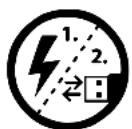
In certain circumstances, exposing the device to an electrostatic discharge may interrupt the data transfer between the device and the computer and impair the functions of the device. If this occurs, the device should be unplugged from the USB port and then plugged in again.

Do not use USB cables longer than 3 meters.

Batteries/rechargeable batteries contain chemical substances and must be disposed of properly. Batteries/rechargeable batteries should not be thrown away in household garbage. They can be brought to the public collection points of your community or wherever batteries/rechargeable batteries are sold.
Notes:
This MP3/movie player is optimized for the provided earphones • (32 Ohm impedance). Using other earphones/headphones with a lower impedance can damage the MP3/movie player or earphone/headphone, especially MP3/movie players with two earphone jacks.
Note: This device can produce high sound volumes. In order to avoid • hearing loss that can occur immediately, in the future, or gradually, you should not listen at high volumes for extended periods. This applies regardless of whether you listen with speakers, headphones, or earphones. If you notice a ringing noise in your ears, lower the volume immediately or stop using the MP3/movie player. Please keep in mind that permanent hearing loss can first appear at a later point in time. While you may become accustomed to higher volumes over time so that they may seem normal to you, your sense of hearing may still have been impaired by this. The higher you set the volume, the faster your sense of hearing can be damaged.
Note: Using earphones/headphones while driving a motor vehicle is not recommended and is prohibited in some countries. Always drive carefully and with full concentration. Stop using your MP3/movie player if you become distracted or interrupted by it when driving a motor vehicle or during other activities that require your full attention.
The manufacturer retains the right to continually improve the product. These changes may be made without being directly described in these operating instructions. For this reason, the information provided in these operating instructions may not reflect the current state of the art.
The manufacturer only guarantees suitability for the product's intended purpose. In addition, the manufacturer is not responsible for damages or loss of data and subsequent consequences.
Copyright © 2009 TrekStor GmbH. All rights reserved. Other cited product or company names may be trademarks or brand names of the respective owner.
SOMMARIO
ISTrUzIONI PEr I'USO
INNEHÅLLSFÖRTECKNING
Systemkrav 96
Instructions for removing the built in battery for safe disposal
The device must be turned off before the battery can be removed!

EC DECLARATION OF CON
As manufacturer and importer respectively:
TrekStor GmbH
Kastanienallee 8 - 10
D-64653 Lorsch, Germany
herewith declares that the products
Product: i.Beat move S
Type:
MP3-Player
comply with the following directive(s):
• 2004/108/EC EMC Directive: Electromagnetic Compatibility
• 2006/95/EC Low Voltage Directive
The following norms were consulted to assess conformity:
• EN 55013:2001 + A1:2003
Sound and television broadcast receivers and associated equipment – Radio disturbance characteristics – Limits and methods of measurement
• EN 55020:2002 + Corrigendum 2005-02 + A1:2003 + A2:2005
Sound and television broadcast receivers and associated equipment – Immunity characteristics – Limits and methods of measurement
• EN 55022:2006 + A1:2000 + A2:2003
EMC: Information technology equipment – Radio disturbance characteristics – Limits and methods of measurement
• EN 55024:1998 + A1:2001 + A2:2003
EMC: Information technology equipment – Immunity characteristics – Limits and methods of measurement
• EN 60065:2002 + A1:2006 + Corrigendum:2006
Audio, video and similar electronic apparatus – Safety requirements
• EN 61000-3-2:2006
EMC: Part 3-2: Limits – Limits for harmonic current emissions (equipment input current 16 A per phase)
• EN 61000-3-3:1995 + A1:2001 + A2:2005
EMC: Part 3-3: Limits – Limitation of voltage changes, voltage fluctuations and flicker in public low-voltage supply systems, for equipment with rated current 16 A per phase and not subjected to conditional connection
• EN 61000-4-2:1995 + A1:1998 + A2:2001
Electromagnetic compatibility (EMC) – Part 4-2: Testing and measurement techniques – Electrostatic discharge immunity test (ESD)
The CE symbol confirms that this product conforms with the above mentioned norms and regulations.
The manufacturer also declares the conformity of the product according to the following directives:
• 2001/95/EC General Product Safety
• 2002/95/EC RoHS: Hazardous substances in electrical and electronic equipment
• 2005/32/EC Ecodesign requirements for energy-using products
Lorsch, 02.11.2009

Aaron Taylor, SPM
Support
| Hotline E-Mail Language | ||
| AT | +49 431 - 24 89 45 70** | support.at@trekstor.de German |
| BE | +49 431 - 24 89 45 80** | support.en@trekstor.de English |
| CH | +49 431 - 24 89 45 73** | support.ch@trekstor.de German |
| DE | 01805 - TREKSTOR* | |
| 01805 - 87 35 78 67* | support.de@trekstor.de German | |
| ES | +49 431 - 24 89 45 76** | support.es@trekstor.de Spanish |
| FR | +49 431 - 24 89 45 74** | support.fr@trekstor.de French |
| HU | +49 431 - 24 89 45 79** | support.en@trekstor.de English |
| IT | +49 431 - 24 89 45 75** | support.it@trekstor.de Italian |
| LU | +49 431 - 24 89 45 72** | support.lu@trekstor.de German, French |
| NL | +49 431 - 24 89 45 81** | support.en@trekstor.de English |
| PL | +49 431 - 24 89 45 77** | support.pl@trekstor.de Polish |
| PT | +49 431 - 24 89 45 78** | support.en@trekstor.de English |
| UK | +49 431 - 24 89 45 71** | support.uk@trekstor.de English |
| GR | +49 431 - 24 89 45 82** | support.en@trekstor.de English |
| TR | +49 431 - 24 89 45 83** | support.en@trekstor.de English |
| RU | +49 431 - 24 89 45 84** | support.en@trekstor.de English |
| SE | +49 431 - 24 89 45 92** | support.en@trekstor.de English |
| UA | +49 431 - 24 89 45 93** | support.en@trekstor.de English |
| SI | +49 431 - 24 89 45 94** | support.en@trekstor.de English |
| CA | +49 431 - 24 89 45 95** | support.en@trekstor.de English |
| +49 431 - 24 89 45 96** | support.fr@trekstor.de French | |
| Other Countries | +49 431 - 24 89 45 99** | support.en@trekstor.de English |