Axiss 810 cid - Phone TOPCOM - Free user manual and instructions
Find the device manual for free Axiss 810 cid TOPCOM in PDF.


User questions about Axiss 810 cid TOPCOM
0 question about this device. Answer the ones you know or ask your own.
Ask a new question about this device
Download the instructions for your Phone in PDF format for free! Find your manual Axiss 810 cid - TOPCOM and take your electronic device back in hand. On this page are published all the documents necessary for the use of your device. Axiss 810 cid by TOPCOM.
USER MANUAL Axiss 810 cid TOPCOM
natural_image
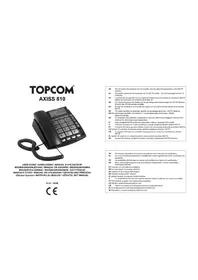
Black office telephone with attached cord and keypad, no visible text or symbols on the device bodyUSER GUIDE / HANDLEIDING / MANUEL D'UTILISATEUR BEDIENUNGSANLEITUNG / MANUAL DE USUARIO / BRUKSANVISNING BRUGERVEJLEDNING / ANVÄNDARHANDBOK / KÄYTTÖOHJE MANUALE D'USO / MANUAL DO UTILIZADOR / UŽIVATELSKÁ PŘÍRUČKA Οδηγιεσ Χρησησ / INSTRUKCJA OBSŁUGI / UŽIVATEL'SKÝ MANUÁL
V1.0 - 10/08
CE
UK The CE symbol indicates that the unit complies with the essential requirements of the R&TTE directive.
UK The features described in this manual are published with reservation to modifications
text_image
Diagram of a landline telephone receiver with numbered labels pointing to function keys and buttonsUK To be connected to the public analogue telephone network.
This product is in compliance with the essential requirements and other relevant provisions of the R&TTE directive 1999/5/EC.
The Declaration of conformity can be found on
http://www.topcom.net/support/cedeclarations.php
1 Before Initial use
Thank you for purchasing this new desktop caller ID telephone.
1.1 Intended Purpose
This product is intend to be connected indoor to an analogue PSTN telephone line.
1.2 Caller ID
To use ‘Caller ID’ (display caller), this service has to be activated on your phone line. Normally you need a separate subscription from your telephone company to activate this function. If you don’t have the Caller ID function on your phone line, the incoming telephone numbers will NOT be shown on the display of your telephone.
1.3 Connection
The CE symbol indicates that the unit complies with the essential requirements of the R&TTE directive.
This device has been designed and manufactured to comply with the 98/482/EC rule, referent to the Pan European connection of a terminal to the Public Switching Telephone Network (PSTN) and following the established guidelines by the 1999/5/EC Directive about radio electric equipments and the reciprocal acknowledge of their conformity. However, due to the fact that there are some differences in the PSTNs from one country to another, the verifying measurements by themselves do not set up an unconditional guarantee for an optimal working in every connection point to the PSTN of any country. If any problem comes up, get in touch firstly with the distributor.
In any case, use conditions for which the product has been created should be respected as well as avoid its use in public or private networks with technical requirements clearly different to those established in the EU.
2 Safety instructions
Please read carefully through the following information concerning safety and proper use. Make yourself familiar with all the functions of the equipment. Be careful to keep these advice notes and if necessary pass them on to a third party.
- Do not place the basic unit in a damp room or at a distance of less than 1.5 ~m away from a water source. Keep water away from the telephone.
- Do not use the telephone in environments where there is a risk of explosions.
- Dispose of the batteries and maintain the telephone in an environment-friendly manner.
3 Cleaning
Clean the telephone with a slightly damp cloth or with an anti-static cloth. Never use cleaning agents or abrasive solvents.
4 Disposal of the device (environment)
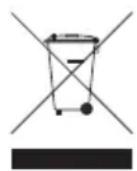
At the end of the product lifecycle, you should not throw this product into the normal household garbage but bring the product to a collection point for the recycling of electrical and electronic equipments. The
symbol on the product, user guide and/or box indicate this.
Some of the product materials can be re-used if you bring them to a recycling point. By re-using some parts or raw materials from used products you make an important contribution to the protection of the environment.
Please contact your local authorities in case you need more information on the collection points in your area.
5 Buttons / connections
(See picture on folded cover page)
-
LCD display
-
Delete key
-
Program / Dial key
-
Phone book key
-
Number store key
-
Memory key
-
VIP key
-
Hold key
-
Volume adjust button
-
Hands-free key
-
Redial / Pauze key
-
Ringer LED
-
Flash key
-
Mute key
-
Curl cord connection
-
Numerical keypad
-
Up key
-
Down key
-
Hook key
-
New call LED
-
In-use LED
-
Line connection
-
Ringer volume button
-
Handset volume button
-
Curl cord connection
6 Installation
Put batteries in the battery compartment to activate the display:
- Open the battery compartment at the bottom of the unit. Use a screw driver to remove the screw.
- Insert 4 Alkaline AA standard batteries.
- Close the battery compartment.
- Connect one end of the line cord to the telephone line wall socket and the other end to the backside of the telephone.
The telephone line needs to be disconnected prior to opening the battery door!
7 Telephone settings
7.1 Set the display language
The phone supports 8 display languages: English, French, Spanish, Italian, German, Turkish, Polish, Slovenian.
- P r e s s
- Use / to select " SELECT LANGUAGE".
- Press to enter the settings.
- Use / to select your language.
- Press to confirm.
- Press to exit the menu.
7.2 Date and time
When you have a subscription to the caller ID service and your telephone provider sends the date and time together with the telephone number, the phone's clock will be set automatically. The year must always be set manually!
• P r e s s
- Use / to select " DATE/TIME".
- Press to enter the year settings.
- Use / to change.
- Press to move to the hour setting.
- Use / to change.
- Press to move to the minute settings.
- Use / to change.
- Press to move to the month settings.
- Use / to change.
- Press to move to the date settings.
- Use / to change.
- P r e s s
- Press to exit the menu.
7.3 Display contrast
There are 5 display contrast levels you can choose from.
- P r e s s
- Use / to select " CONTRAST ADJUST".
- P r e s s
- Use / to change the contrast level.
- P r e s s
- Press to exit the menu.
7.4 Set the area code
When you have a subscription to the caller ID service it can be necessary in some countries to enter your area code. When the telephone re-
ceives a caller ID it will remove the entered area code from the incoming number.
You can set up to 5 digits for the area code.
- Press to enter the menu.
- Use / to select " SET AREA CODE".
- Press to enter the settings.
- Use / to change.
- Press to move to the next digit.
- Repeat this sequence until all digits are set.
- Leave unused digits as “ -”.
- Press to exit the menu.
7.5 Long distance code (prefix)
When you have subscribed at an alternative operator it sometimes is required to dial a prefix in front of the telephone number. Numbers in the caller ID list of your telephone can be used together with the prefix.
Section "8.6 Incoming Caller ID list" will explain how to add the prefix in front of a number from the caller ID list.
- P r e s s
- Use / to select " LONG DIST ACCESS".
- Press to enter the settings.
- Use / to change the digit.
- Press to move to the next digit.
- Repeat this sequence until all digits are set.
- Leave unused digits as “ -”.
- Press to exit the menu.
7.6 Phone book.
The phone has a phonebook that can store up to 125 contacts of 8 characters (name) and 12 digits (number) or up to 63 contacts with 16 characters and 22 digits.
You can add and/or edit contacts stored in the telephone.
7.6.1 Add a contact
- P r → e s s
- Use / to select " PHONEBOOK ADD".
- Press to enter the number.
- Enter the number using the numeric keypad.
- Press to delete a wrongly entered digit.
- Press to enter the name.
-
Enter the number using the numeric keypad. Press to delete a wrongly entered digit.
-
Press to confirm the entry.
- Enter a new contact or press to exit the menu.
7.6.2 Edit a contact
- P r e s s
- Use / to select " PHONEBOOK EDIT".
- P r e s s
- Now enter one or more characters of the name you want to edit and press ↗// If necessary, use ▲ to ▼roll through the contacts until you find the one you want to edit.
- Now change the number (use to delete).
- P r e s s
- Now change the name (use to delete).
- Press to confirm.
- Select another contact to edit or press to exit the menu.
7.7 Babycall function
The baby call function allows the telephone to dial out directly a pre-programmed number just by lifting off the handset or by pressing a key.
- P r e s s
- Use / to select " BABYCALL".
- P r e s s
- Use / to select " ON" or "OFF".
- P r e s s
- If you selected "ON" you can now enter the babycall number using the numeric keypad.
- Press to confirm.
- Press to exit the menu.
7.8 Set the flash time
The R-key (flash) is used for services like "Call waiting" (if this service is provided by your telephone company) or to transfer calls when the telephone is connected to a PBX-system.
Depending on the country, this flash-time can be different. The telephone supports 3 possibilities : 100, 300, 600 msec.
- P r e s s
- Use / to select " FLASH TIME".
• P r e s s - Use / to select the desired flash-time.
- P r e s s
- Press to exit the menu.
7.9 Ringer volume
At the back panel of the telephone you find a switch that can set three different ring volumes.
Choose the most comfortable volume.
8 Operation
8.1 Making a call
- Enter the telephone number.
- Press to delete a wrongly entered digit.
- Pick up the handset or press or to make a hands-free call.
The volume of the handset can be set to HI or LO by using switch 24
During a call made with the handset you can switch to hands-free by pressing and hanging up the handset. The hands-free volume can be adjusted using the volume button ⑨
In case the telephone is connected to a PBX system it might be necessary to add a pause after the PBX access code. The phone can generate a 4 second pause time.
Example: 0 P 012345678 - Press to enter a pause.
The call duration timer will start in the display 6 seconds after the number was dialled.
8.2 Receiving a call
- When a call comes in, the phone will ring and the ringer LED will blink.
- Pick up the handset or press to take the call hands-free.
8.3 Deactivating the microphone
During a call you can deactivate the microphone and talk freely without the caller hearing you.
- Press and hold to mute the microphone.
8.4 Putting a call on hold
During a call you can put the caller on hold. During this time the caller will hear an electronic melody.
- Press during the conversation and hang-up the handset. The other party will be on hold
• To continue the conversation, pickup the handset or press ■ or hands-free mode.
8.5 Last number redial
The phone will store the 16 latest dialed numbers together with the call duration.
- Press to go through your latest dialed numbers ("OUT" will appear in the display).
- Pick up the handset or press or to make a hands-free call.
- Press twice to delete a number.
8.6 Incoming Caller ID list
The phone can store up to 158 incoming numbers (depending on the length of the number) together with the time and date of the call.
- Press / to go through the incoming numbers ("IN" will appear in the display).
- Press twice to delete a number.
Secret numbers will be displayed as "---- UNAVAILABLE".
The LED will blink when you have new missed calls. Missed calls will be displayed together with "NEW".
- Pick up the handset or press make a hands-free call.


If a long distance code (see "7.5 Long distance code (prefix)") is programmed, you can add this code automatically by pressing twice to dial the number.
For example:
Long distance code: 1234 Number in the caller ID list: 012345678
- Press/ twice. The number dialled by the phone is 1234012345678
8.7 VIP numbers
In the incoming number list you can set special numbers as VIP (Very important person).
VIP numbers cannot be deleted from the incoming caller ID.
- When browsing the incoming number press VIP to set the number as VIP. "VIP" will appear in the display together with the number.
- Press again to unselect VIP.
8.8 Indirect Memory numbers
The Axiss 810 has 12 indirect memory numbers: 1, 2, 3, 4, 5, 6, 7, 8, 9, 0, * and #.
8.8.1 Storing a number
When a number is on the display, either via direct entry, from the caller ID list or from the redial list you have the possibility to store the number.
- P r →e STORE" will appear on the display.
- Choose a memory number 1, 2, 3, 4, 5, 6, 7, 8, 9, 0, * or # on the numeric keypad.
8.8.2 Using a memory number
- Press +1,2,3,4,5,6,7,8,9,0,* or #.
- Pick up the handset or press or to make a hands-free call.
8.9 Using the phone book
- Press
- Now enter one or more characters of the contact name you want to call.
- If necessary, use / to scroll through the contacts until you find the name you want to call.
- Pick up the handset or press or to make a hands-free call.
9 Topcom Warranty
9.1 Warranty period
The Topcom units have a 24-month warranty period. The warranty period starts on the day the new unit is purchased. There is no warranty on standard or rechargeable batteries (AA/AAA type).
Consumables or defects causing a negligible effect on operation or value of the equipment are not covered.
The warranty has to be proven by presentation of the original or copy of the purchase receipt, on which the date of purchase and the unit-model are indicated.
9.2 Warranty handling
A faulty unit needs to be returned to a Topcom service centre including a valid purchase note and a filled in service card.
If the unit develops a fault during the warranty period, Topcom or its officially appointed service center will repair any defects caused by material or manufacturing faults free of charge, by either repairing or exchanging the faulty units or parts of the faulty units. In case of replacement, colour and model can be different from the original purchased unit.
The initial purchase date shall determine the start of the warranty period. The warranty period is not extended if the unit is exchanged or repaired by Topcom or its appointed service centre.
9.3 Warranty exclusions
Damage or defects caused by incorrect treatment or operation and damage resulting from use of non-original parts or accessories are not covered by the warranty.
The warranty does not cover damage caused by outside factors, such as lightning, water and fire, nor any damage caused during transportation.
No warranty can be claimed if the serial number on the units has been changed, removed or rendered illegible.
Any warranty claims will be invalid if the unit has been repaired, altered or modified by the buyer.
- Sett inn 4 Alkaline AA standardbatterier.
Langdistansekode: 1234
DECLARATION OF CONFORMITY
We, Topcom Europe Nv, Grauwmeer 17, 3001 Heverlee, Belgium, declare that our product :
Model type: Axiss 810
is in compliance with the essential requirements and other relevant provisions of the R&TTE directive 1999/5/EC and carries the CE mark accordingly.
Supplementary information:
The product complies with the requirements of:
EN60950-1:2006
EN55022:2006
EN55024:1998 + A1:2001 + A2:2003
Date: 01/12/2008
Place: Heverlee, Belgium
Name: Verheyden Geert
Function: Technical Director
Signature
text_image
nature: gtludyEuropean contact: Topcom Europe Nv, R&D department, Research Park, Grauwmeer 17, 3001 Heverlee, Belgium. Tel: +32 16 398920, Fax: +32 16 398939
DEKLARACJA ZGODNOŚCI
My TOPCOM EUROPE Nv, Grauwmeer 17, 3001 Heverlee, Belgia,
RETURN WITH YOUR DEFECT PRODUCT
natural_image
Two identical vertical lines with evenly spaced tick marks, no text or symbols presentLocation/Ort./Lieu/Plaats: Post code/Postleitzahl/Code Postal/Postcode:

natural_image
Pure geometric lines forming a grid pattern without any text, numbers, or symbols| Country/Land/Pays/Land: |
| Tel./Tél.: |
| E-mail: |
(Original Proof of Purchase has to be attached to this return card to be valid for warranty)