Skyr@cer USB 4101 GMR - Router TOPCOM - Free user manual and instructions
Find the device manual for free Skyr@cer USB 4101 GMR TOPCOM in PDF.



User questions about Skyr@cer USB 4101 GMR TOPCOM
0 question about this device. Answer the ones you know or ask your own.
Ask a new question about this device
Download the instructions for your Router in PDF format for free! Find your manual Skyr@cer USB 4101 GMR - TOPCOM and take your electronic device back in hand. On this page are published all the documents necessary for the use of your device. Skyr@cer USB 4101 GMR by TOPCOM.
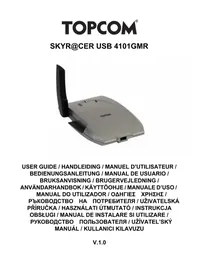
USER MANUAL Skyr@cer USB 4101 GMR TOPCOM
natural_image
Exterior view of a gray TOXOM wireless router device (no text or symbols visible on body)USER GUIDE / HANDLEIDING / MANUEL D'UTILISATEUR / BEDIENUNGSANLEITUNG / MANUAL DE USUARIO / BRUKSANVISNING / BRUGERVEJLEDNING / ANVÄNDARHANDBOK / KÄYTTÖOHJE / MANUALE D'USO / MANUAL DO UTILIZADOR / ODHΓIEΣ XPHΣΗΣ / РЪКОВОДСТВО НА ПОТРЕБИТЕЛЯ / UŽIVATELSKÁ PŘÍRUČKA / HASZNÁLATI ÚTMUTATÓ / INSTRUKCJA OBSŁUGI / MANUAL DE INSTALARE SI UTILIZARE / РУКОВОДСТВО ПОЛЬЗОВАТЕЛЯ / UŽÍVATEL'SKÝ MANUÁL / KULLANICI KILAVUZU
V.1.0

text_image
CE!For use in: Belgium, Holland, Germany, United Kingdom, Denmark, Norway, Finland, Spain, Italy, Portugal, Greece, Turkey, Russia, Poland, Romania, Hungary, Slovakia, Czech, Bulgaria
UK The features described in this manual are published with reservation to modifications.
1 System Requirements
• Windows 2000 and XP operating systems
• PC with Pentium III 600MHz system or above is recommended
- USB connection (USB 2.0 recommended!)
• One CD-ROM drive
2 Installation
- Before you insert the Wireless USB stick into your computer, please install the Software first.
Note: all the snapped images of installation mentioned in this manual are based on Windows XP. For other windows operating system, all the procedures are the same but the screens are not exactly the same.
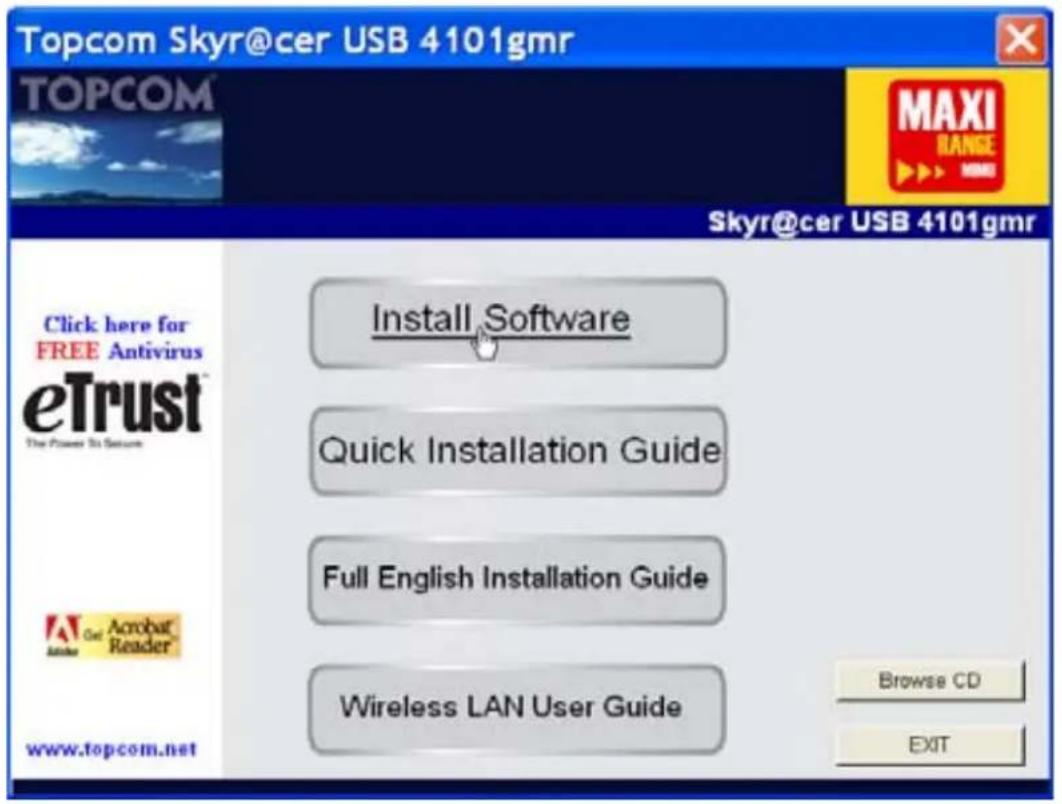
- Turn on the computer. Insert the CD into the CD-ROM Drive. The Autorun screen will automatically appear:
text_image
Topcom Skyr@cer USB 4101gmr TOPCOM® SKyr@cer USB 4101gmr Click here for FREE Antivirus eTrust™ The Power To Secure Install Software Quick Installation Guide Full English Installation Guide Wireless LAN User Guide Browse CD EXIT www.topcom.net- Please click "Install Software".
Topcom Skyr@cer USB 4101gmr
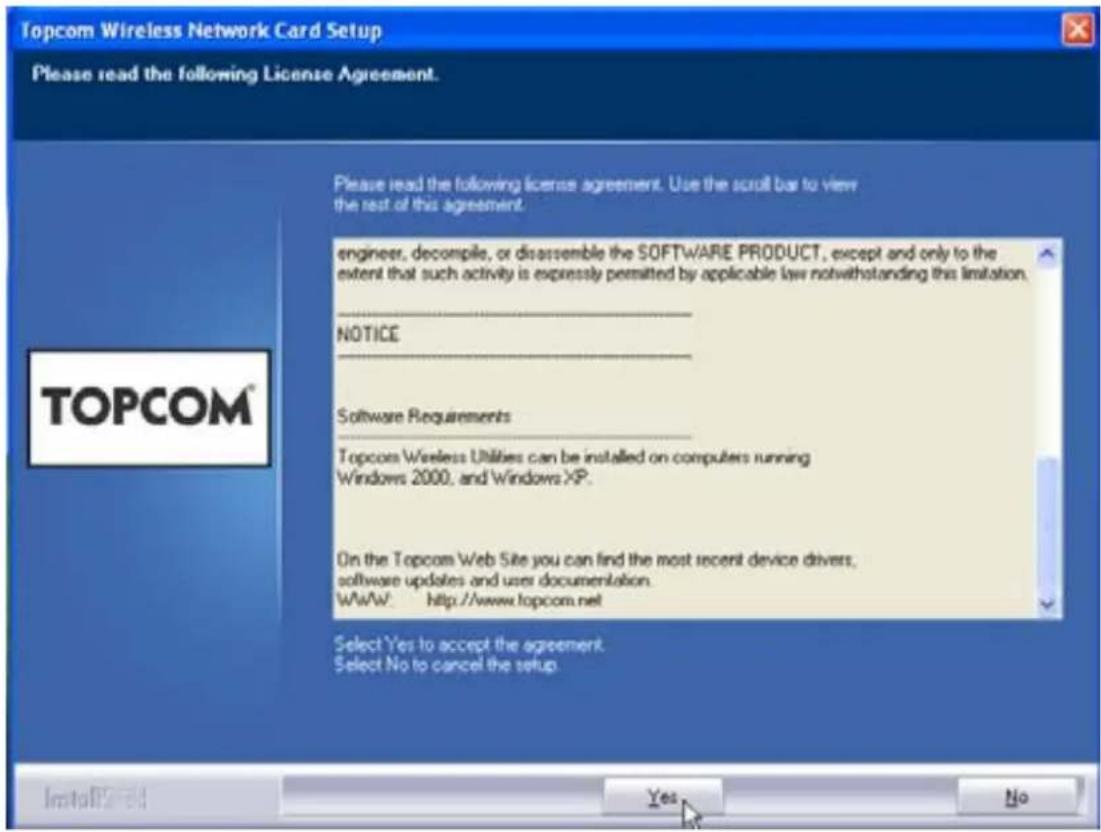
- The Install Shield Wizard will automatically start.
text_image
Topcom Wireless Network Card Setup Please read the following License Agreement. Please read the following license agreement. Use the scroll bar to view the rest of this agreement. engineer, decompile, or disassemble the SOFTWARE PRODUCT, except and only to the extent that such activity is expressly permitted by applicable law notwithstanding this limitation. NOTICE Software Requirements Topcom Wireless Utilities can be installed on computers running Windows 2000, and Windows XP. On the Topcom Web Site you can find the most recent device drivers, software updates and user documentation. WWW: http://www.topcom.net Select Yes to accept the agreement. Select No to cancel the setup. Installation... Yes No- Please click "Yes" to start the installation.
text_image
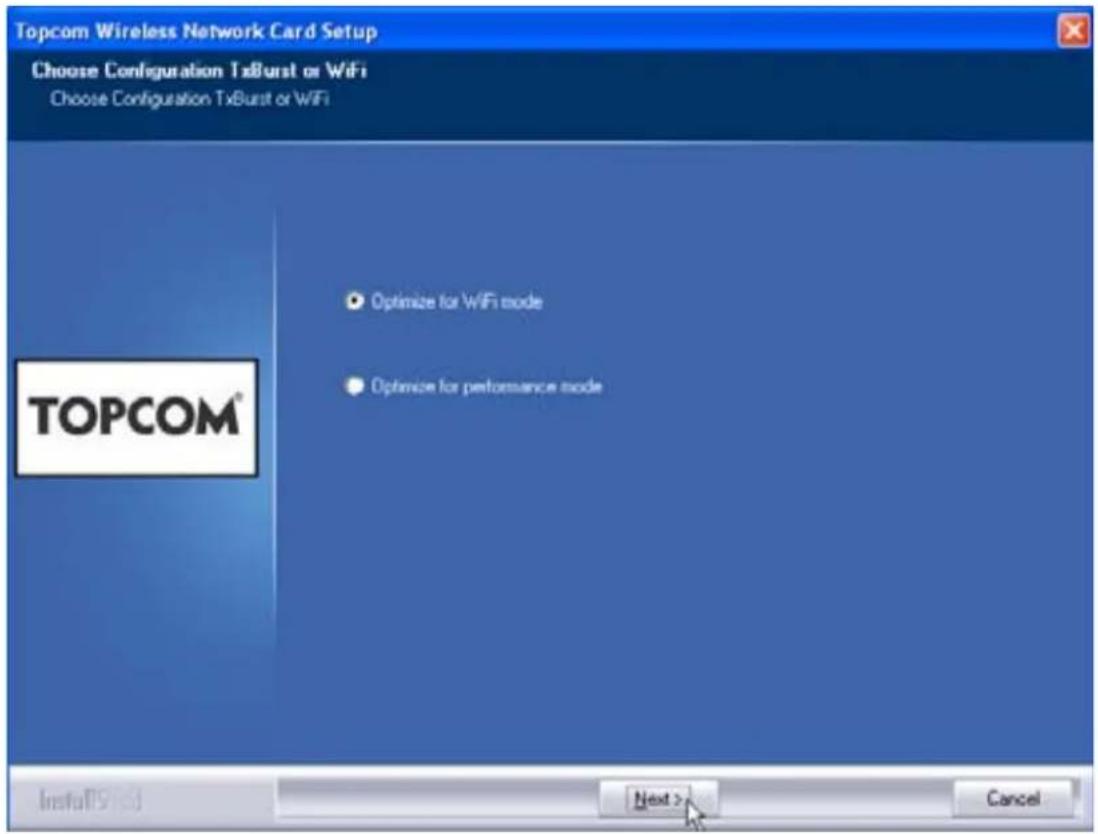
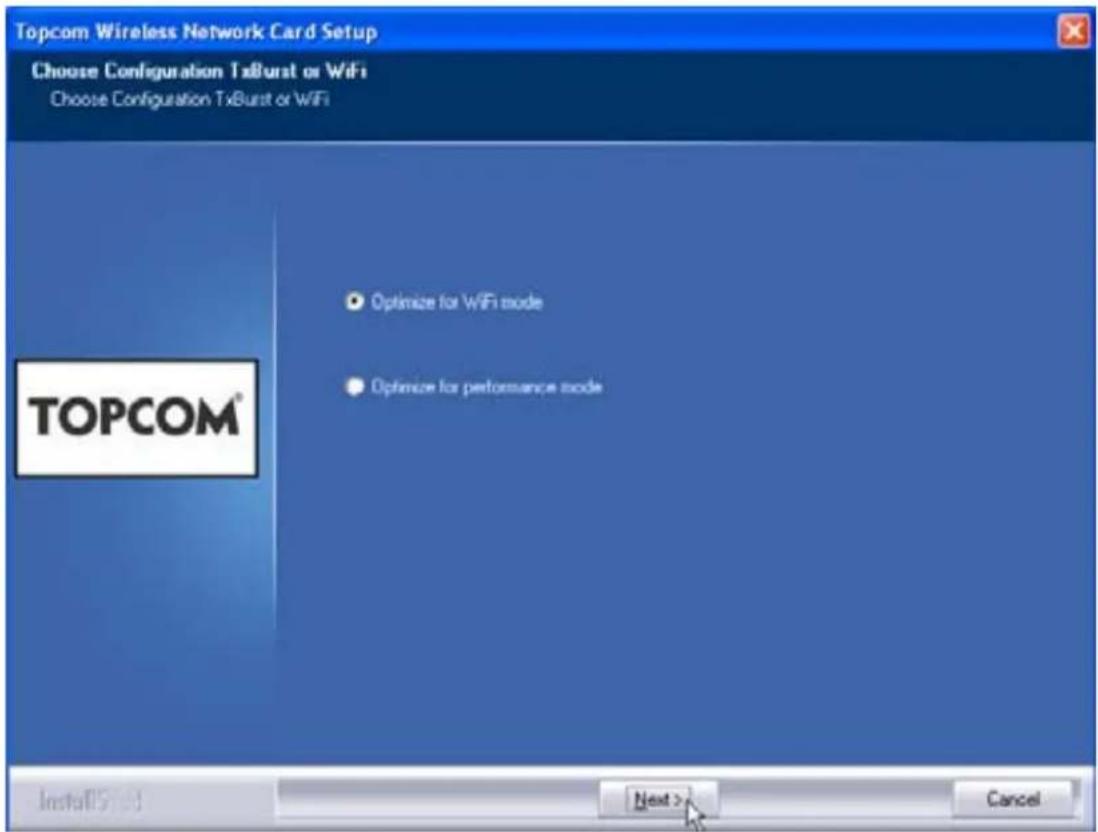
Topcom Wireless Network Card Setup Choose Configuration TxBurst or WiFi Choose Configuration TxBurst or WiFi Optimize for WiFi mode Optimize for performance mode TOPCOM® Install(S) 13 Next > Cancel- Please click "Next"
6 Topcom Skyr@cer USB 4101gmr
text_image
Topcom Wireless Network Card Setup Choose Configuration TxBurst or WiFi Choose Configuration TxBurst or WiFi Optimize for WiFi mode Optimize for performance mode TOPCOM® Install(S)... Next > Cancel- Please click "Next"
text_image
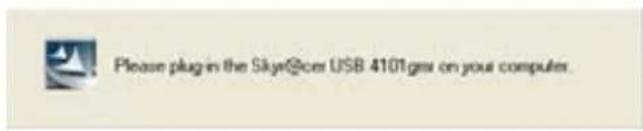
Please plug in the Sky80@cer USB 4101gas on your computer.Now plug the Wireless USB Stick in your USB connection. The drivers will be installed automatically.
text_image
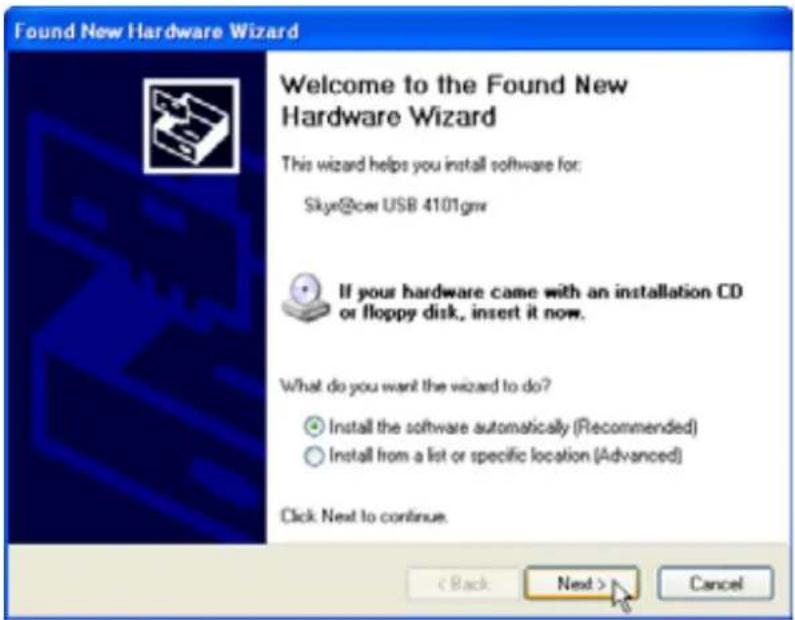
Found New Hardware Wizard Welcome to the Found New Hardware Wizard This wizard helps you install software for: Skyr@cei USB 4101gm If your hardware came with an installation CD or floppy disk, insert it now. What do you want the wizard to do? Install the software automatically (Recommended) Install from a list or specific location (Advanced) Click Next to continue. < Back Next > Cancel- Please click "Next"
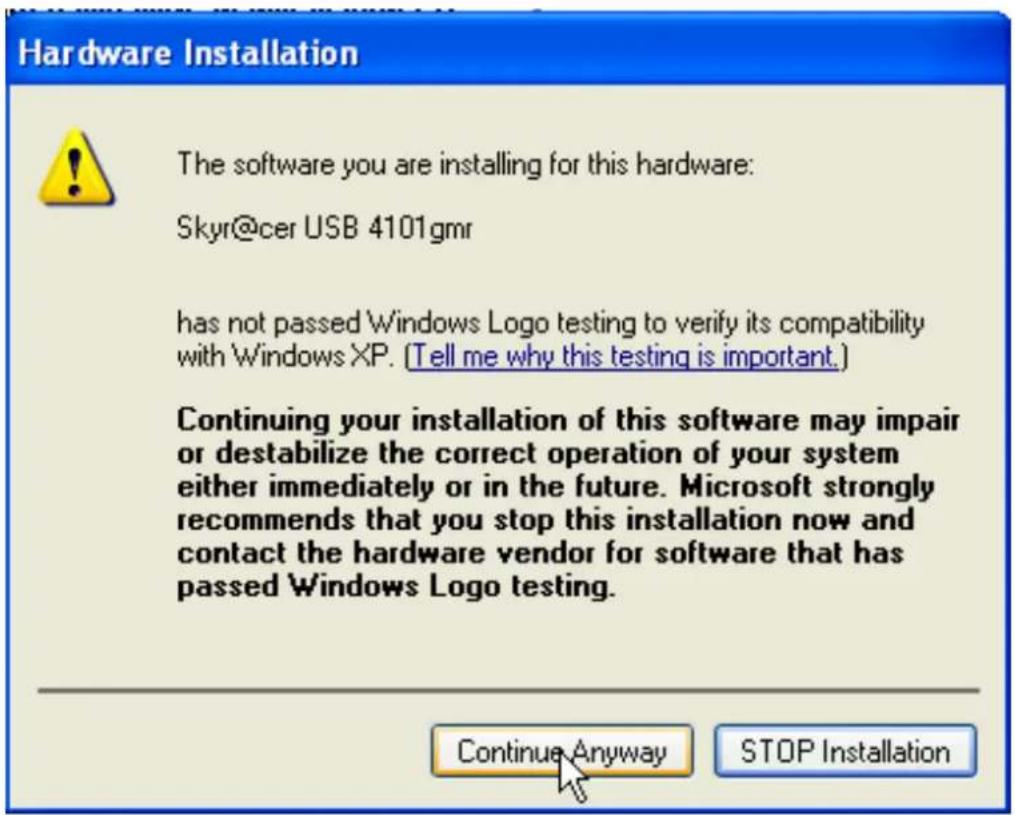
During the installation, next screen will appear:
text_image
Hardware Installation The software you are installing for this hardware: Skyr@cer USB 4101gmr has not passed Windows Logo testing to verify its compatibility with Windows XP. (Tell me why this testing is important.) Continuing your installation of this software may impair or destabilize the correct operation of your system either immediately or in the future. Microsoft strongly recommends that you stop this installation now and contact the hardware vendor for software that has passed Windows Logo testing. Continue Anyway STOP Installation- Please click "Continue Anyway"
text_image
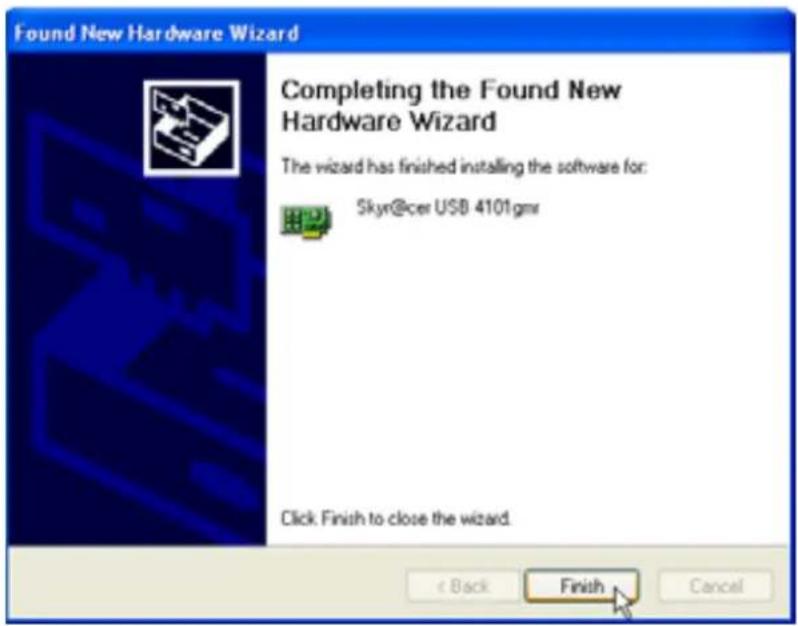
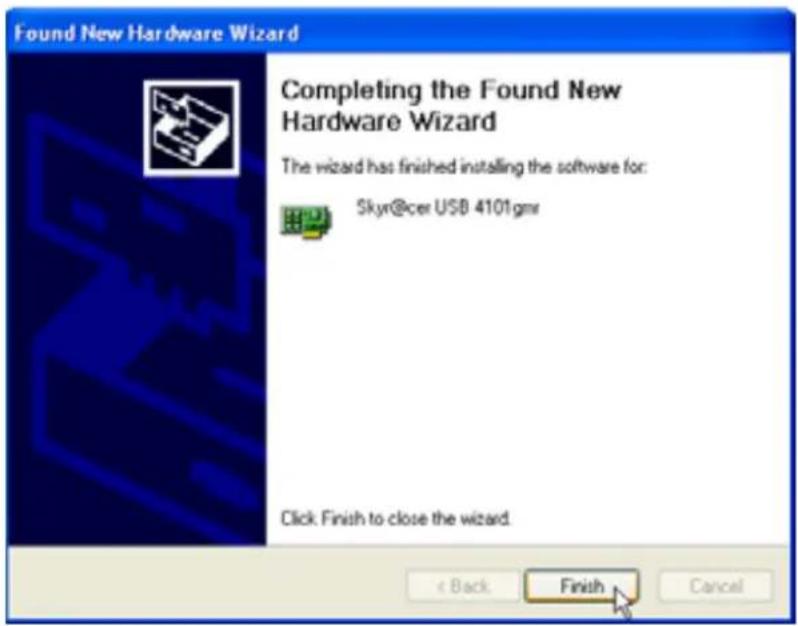
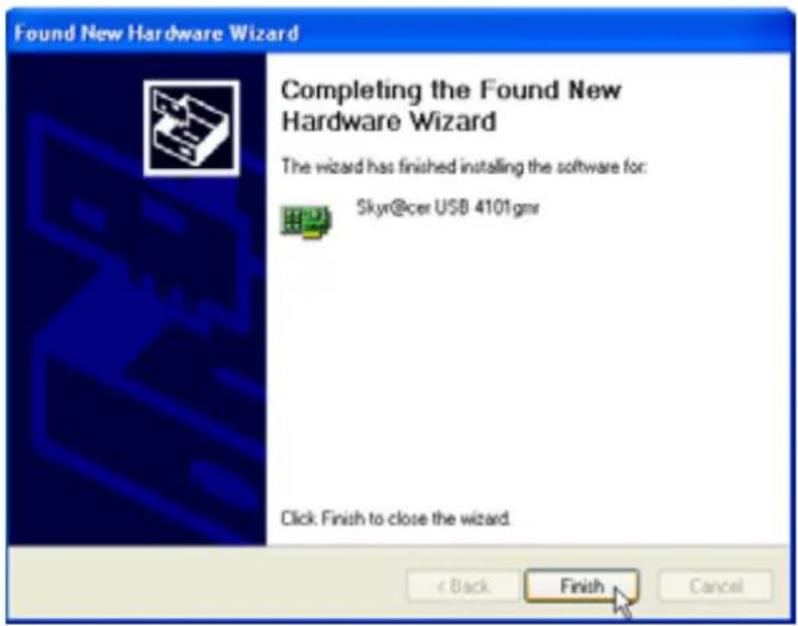
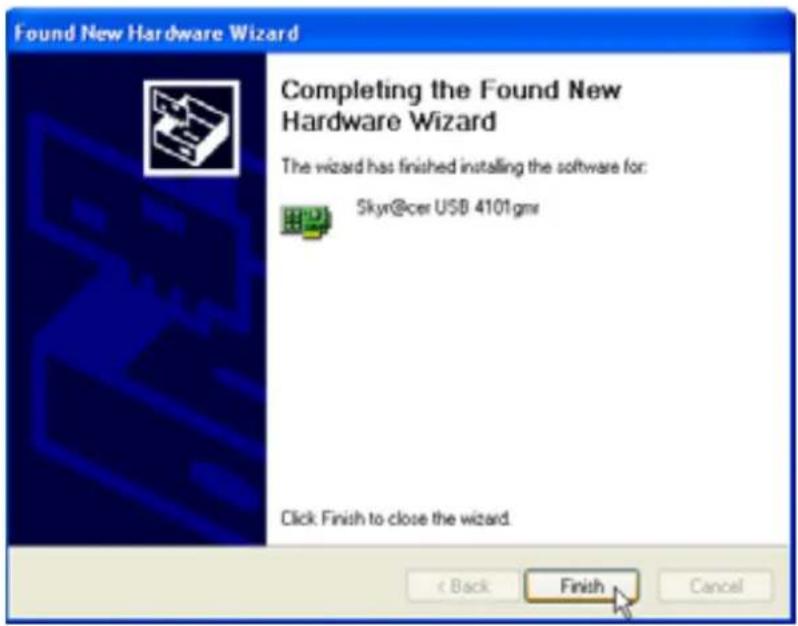
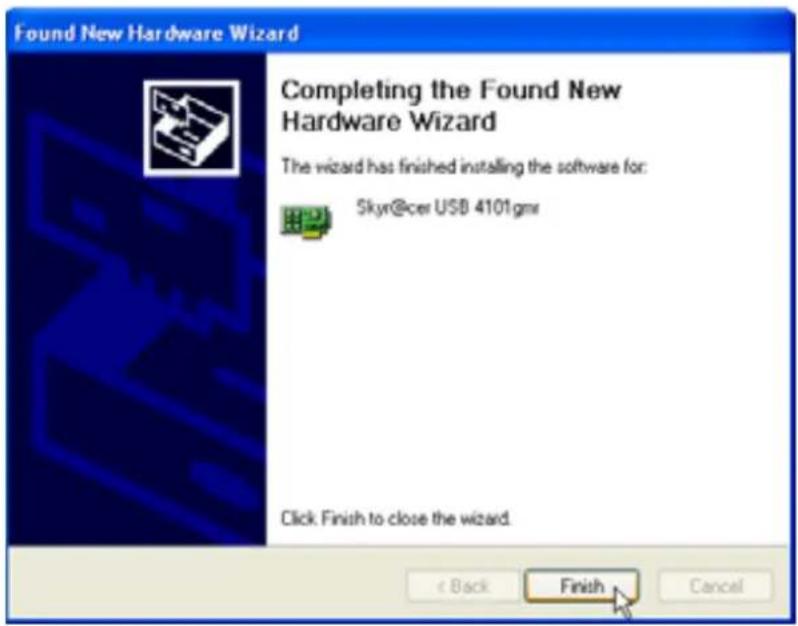
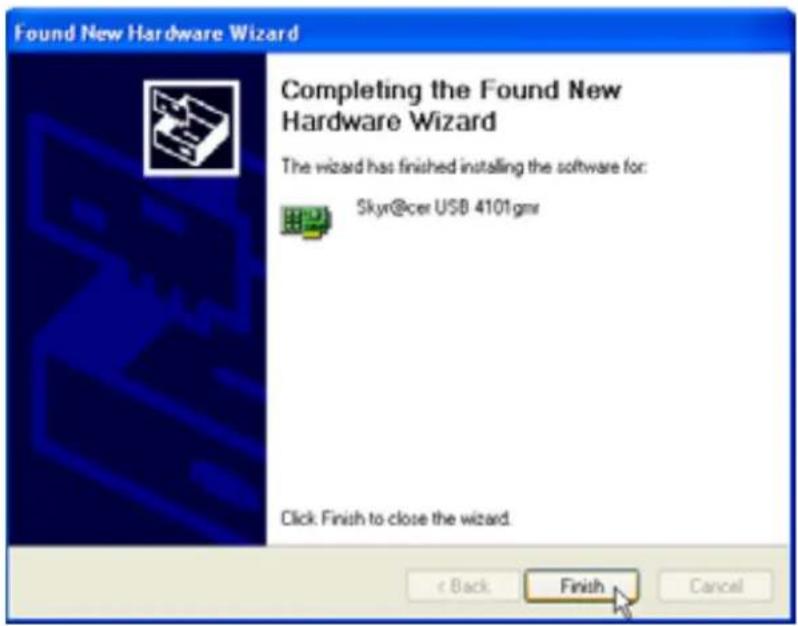
Found New Hardware Wizard Completing the Found New Hardware Wizard The wizard has finished installing the software for: Skyr@cer USB 4101.gmr Click. Finish to close the wizard. < Back Finish Cancel- Please click "Finish"
text_image
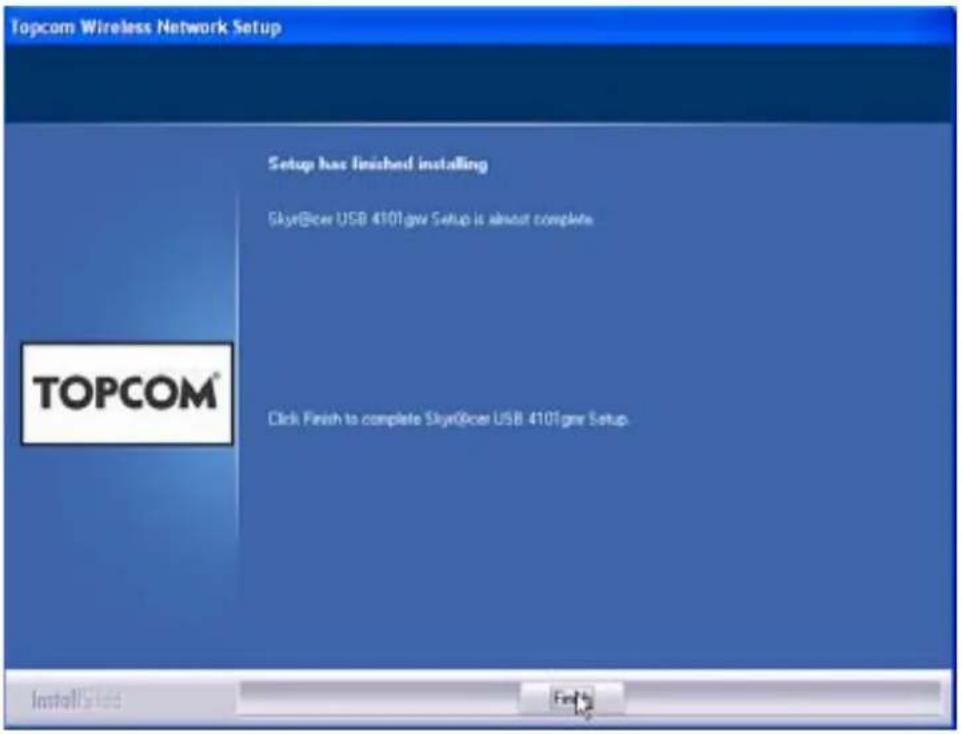
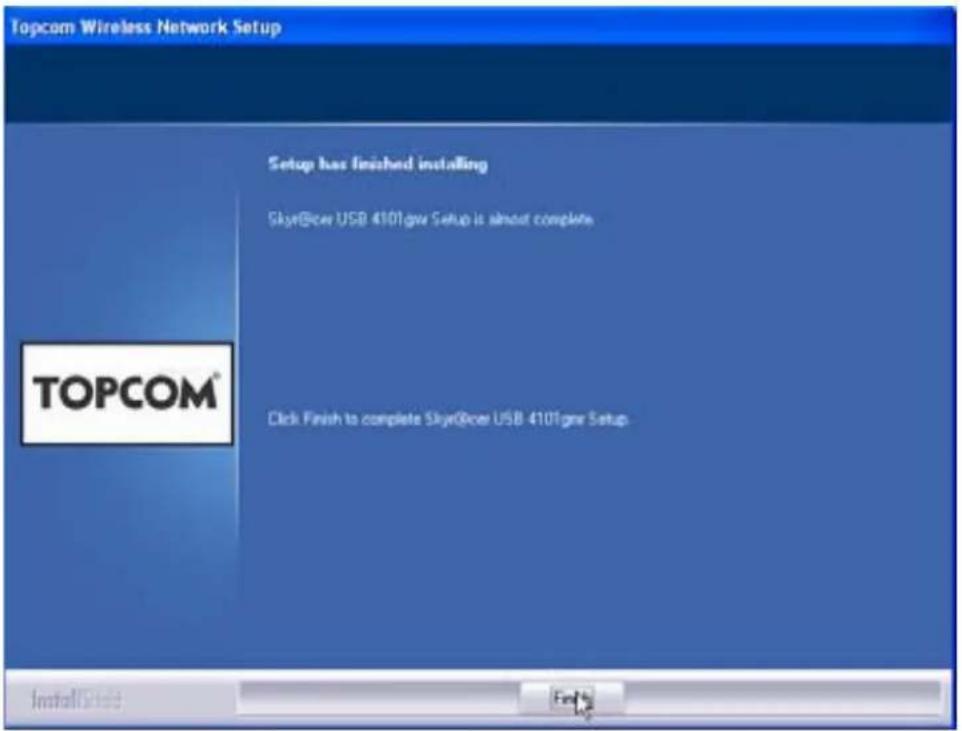
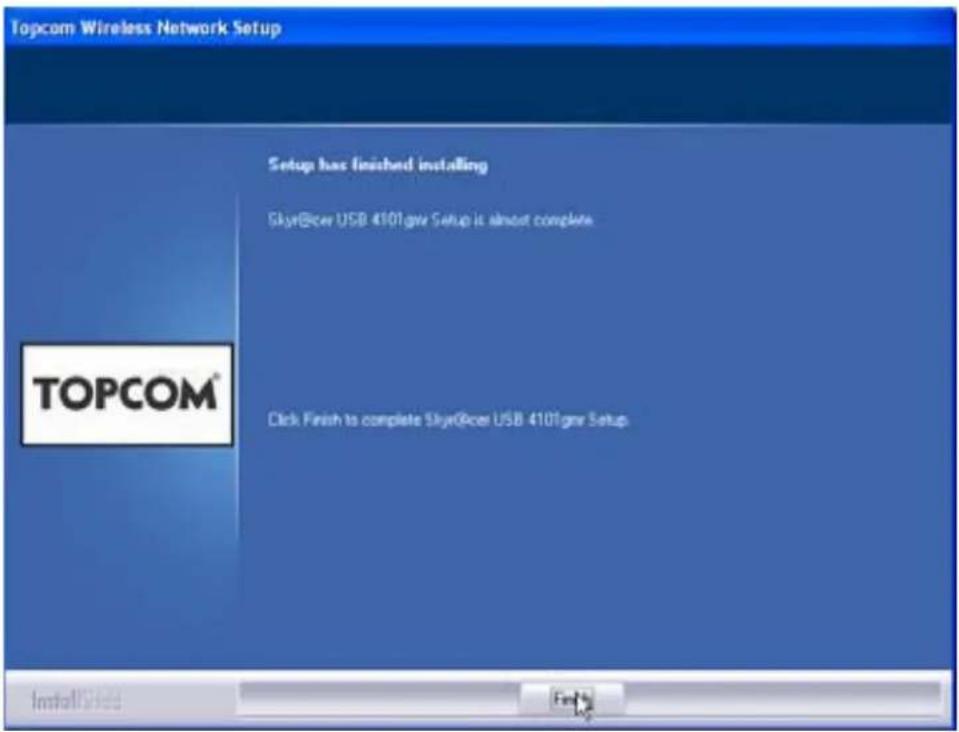
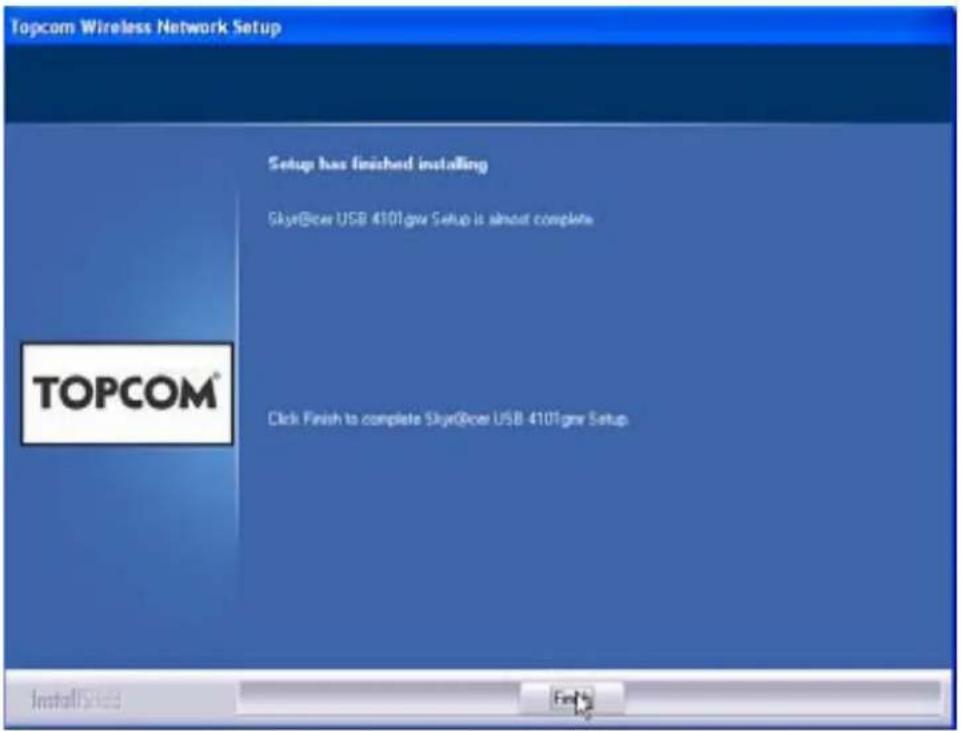
Topcom Wireless Network Setup Setup has finished installing Skyr@cer USB 410Tgew Setup is almost complete TOPCOM® Click Finish to complete Skyr@cer USB 410Tgew Setup. Install/Sales Help- Please click "Finish"
Once the installation is successful, the utility icon will show up in your Systray.
Topcom Skyr@cer USB 4101gmr
3 Configuration
Double-click the icon to open the utility.
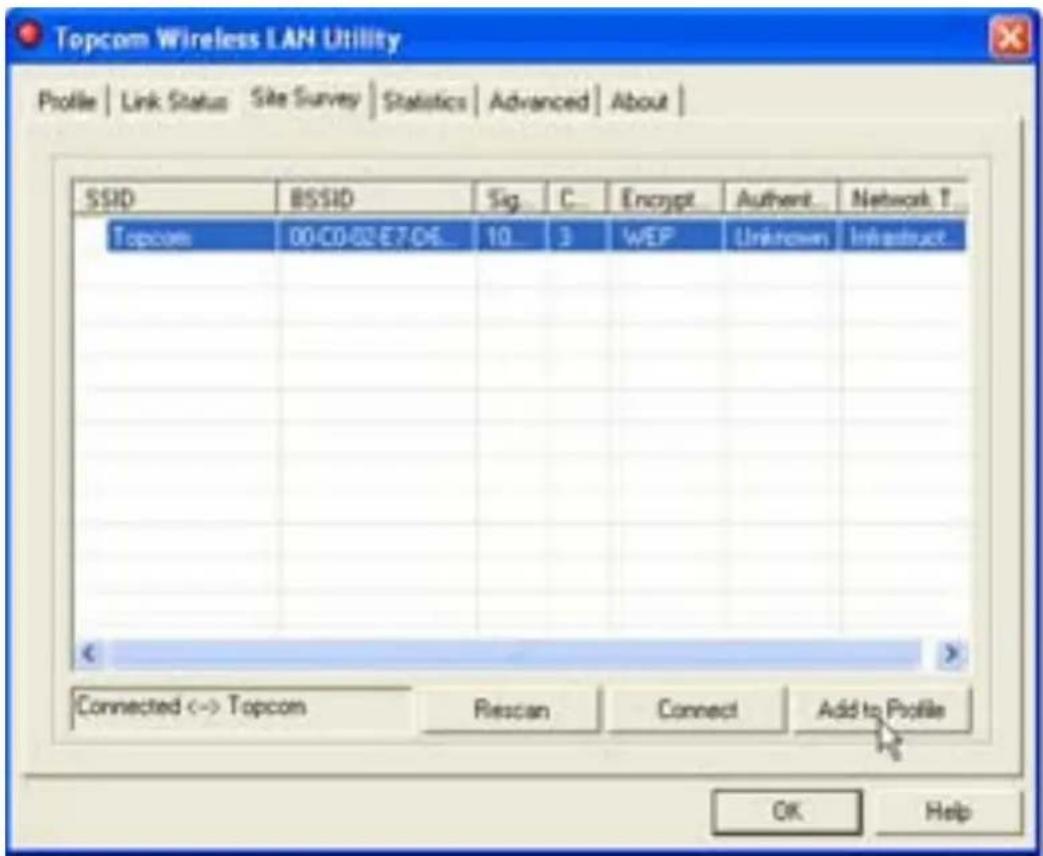
The "Site Survey" screen will appear. All available wireless networks are shown in the window.
text_image
Topcom Wireless LAN Utility Profile | Link Status | Site Survey | Statistics | Advanced | About | SSID BSSID Sig C... Encrypt Authent... Network T... Topcom 00 CD 02 E7 D6... 10... 3... WEP Unknown... Instruct Connected <-> Topcom Rescan Connect Add to Profile OK HelpIn the example above, the SSID is "Topcom" and WEP encryption is used.
When you click "Connect", you can connect to the wireless network until the computer is switched off. If you click "Add to Profile", the settings for this Wireless Access Point (or Wireless Router) will be stored in the profile list.
- Now select your Wireless Access Point and click "Add to Profile".
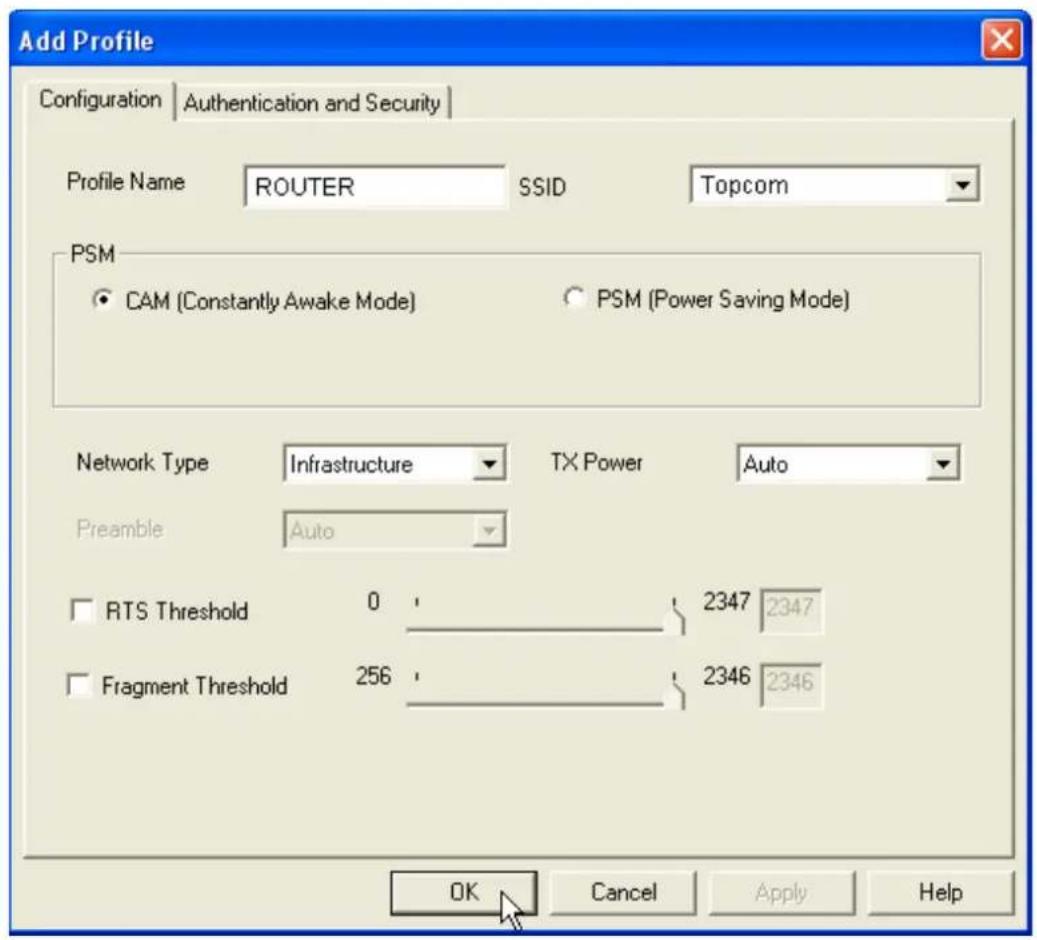
Next screen will appear:
text_image
Add Profile Configuration | Authentication and Security | Profile Name ROUTER SSID Topcom PSM ● CAM (Constantly Awake Mode) ○ PSM (Power Saving Mode) Network Type Infrastructure TX Power Auto Preamble Auto □ RTS Threshold 0 2347 2347 □ Fragment Threshold 256 2346 2346 OK Cancel Apply Help- Now enter a profile name: in example above "ROUTER" is created.
- Click OK to confirm.
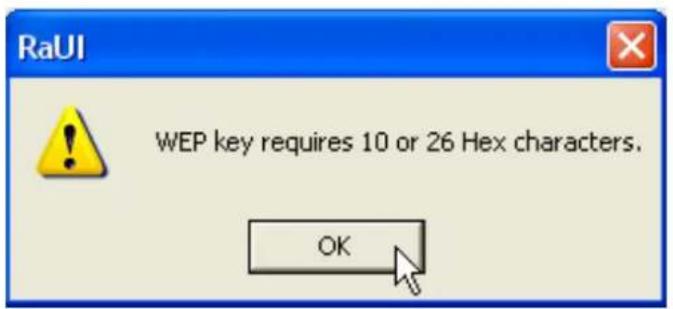
Remark: If the Wireless Access Point has encryption settings, next screen will appear.
text_image
RaUI WEP key requires 10 or 26 Hex characters. OKIn the example above, WEP encryption is used.
- Click OK
Topcom Skyr@cer USB 4101gmr
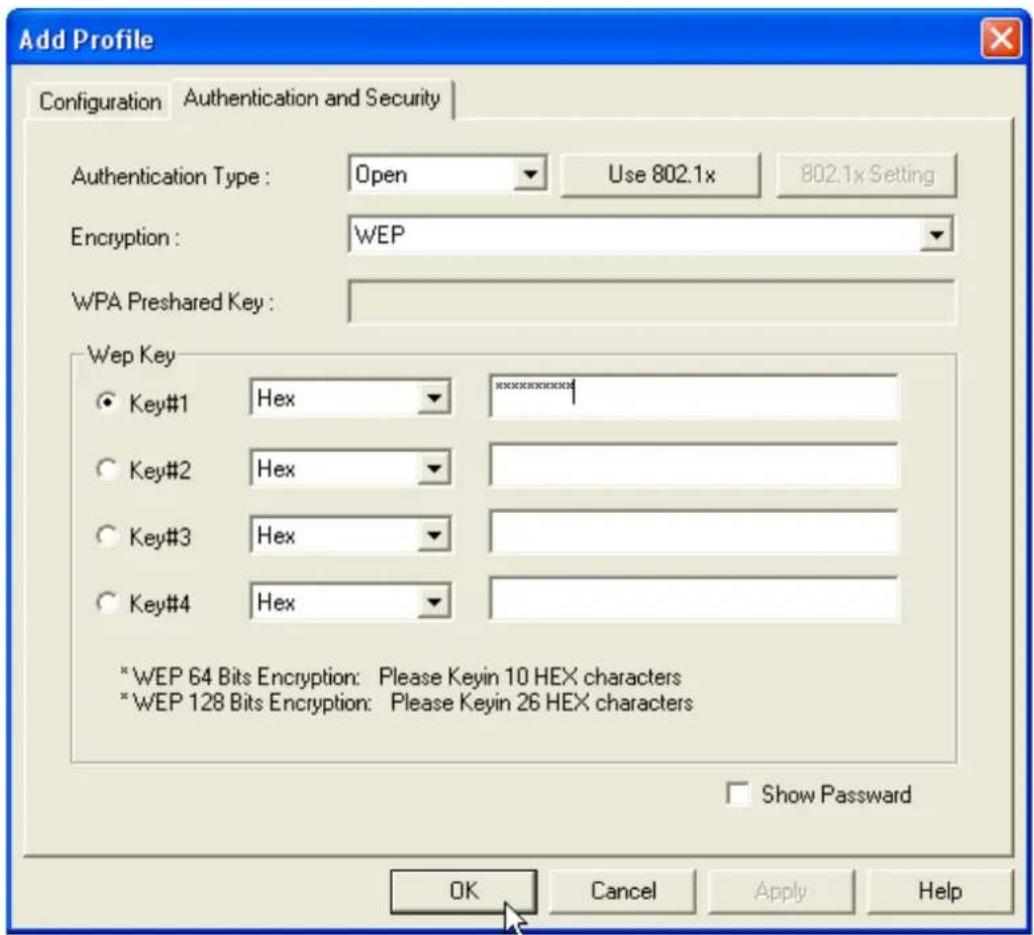
Next screen will appear:
text_image
Add Profile Configuration Authentication and Security Authentication Type: Open Use 802.1x 802.1x Setting Encryption: WEP WPA Preshared Key: Wep Key ● Key#1 Hex ************ ○ Key#2 Hex ○ Key#3 Hex ○ Key#4 Hex * WEP 64 Bits Encryption: Please Keyin 10 HEX characters * WEP 128 Bits Encryption: Please Keyin 26 HEX characters Show Password OK Cancel Apply Help- Enter the encryption key. Please make sure that exactly the same encryption type / key is entered as in your Wireless Access Point (or Wireless Router)
- Click OK to confirm.
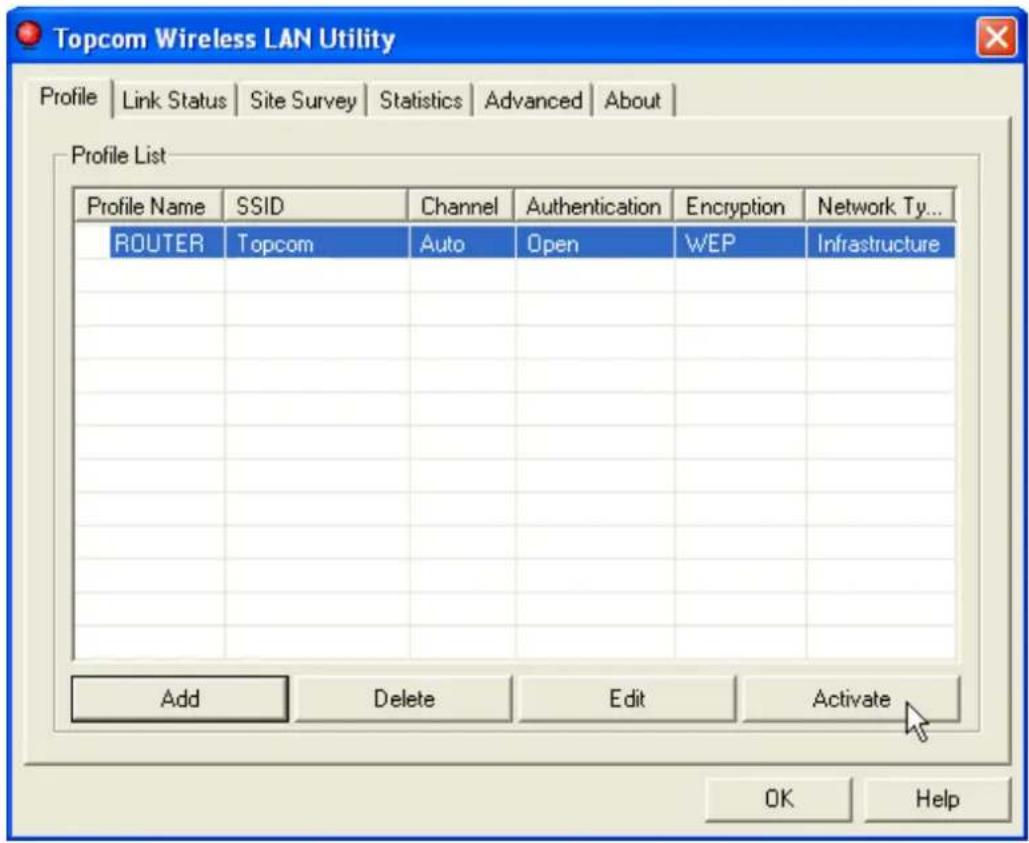
Now the wireless profile is created.
text_image
Topcom Wireless LAN Utility Profile | Link Status | Site Survey | Statistics | Advanced | About | Profile List Profile Name SSID Channel-Augentication Encryption Network Ty... ROUTER Topcom Auto Open WEP Infrastructure Add Delete Edit Activate OK Help- Now click "Activate" to activate the profile.
text_image
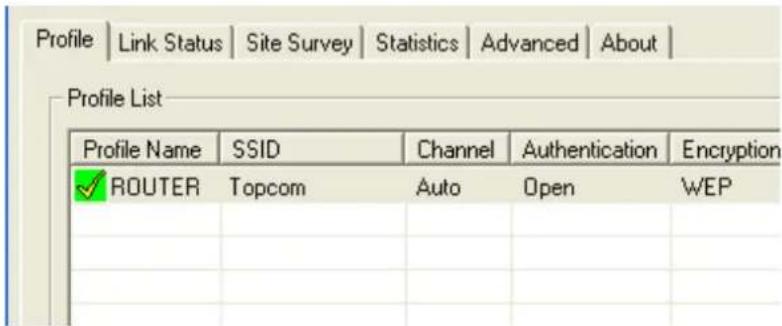
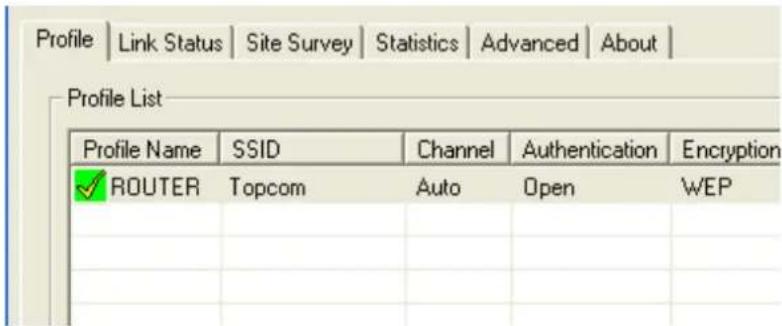
Profile | Link Status | Site Survey | Statistics | Advanced | About | Profile List Profile Name SSID Channel Authentication Encryption ✓ ROUTER Topcom Auto Open WEPThe icon in front of the profile name and the icon in the systray indicate that the connection is successful.
For more details, please read the full English user guide on the provided CD-rom.
4 Warranty
4.1 Warranty period
Topcom units have a 24-month warranty period. The warranty period starts on the day the new unit is purchased. Consumables or defects causing a negligible effect on operation or value of the equipment are not covered.
The warranty has to be proven by presentation of a copy of the original purchase receipt, on which the date of purchase and the unit-model are indicated.
4.2 Warranty handling
A faulty unit needs to be returned to an authorized service centre including a valid purchase note. If the unit develops a fault during the warranty period, the service centre will repair any defects caused by material or manufacturing faults free of charge.
The service centre will at its discretion fulfil its warranty obligations by either repairing or exchanging the faulty units or parts of the faulty units. In case of replacement, colour and model can be different from the original purchased unit.
The initial purchase date shall determine the start of the warranty period. The warranty period is not extended if the unit is exchanged or repaired by the appointed service centres.
4.3 Warranty exclusions
Damage or defects caused by incorrect treatment or operation and damage resulting from use of non-original parts or accessories are not covered by the warranty.
The warranty does not cover damage caused by outside factors, such as lightning, water and fire, nor any damage caused during transportation.
No warranty can be claimed if the serial number on the unit has been changed, removed or rendered illegal.
5 Disposal of the device (environment)
At the end of the product lifecycle, you should not throw this product into the normal household garbage but bring the product to a collection point for the recycling of electrical and electronic equipments. The symbol on the product, user guide and/or box indicate this.
Some of the product materials can be re-used if you bring them to a recycling point. By re-using some parts or raw materials from used
products you make an important contribution to the protection of the environment. Please contact your local authorities in case you need more information on the collection points in your area.
1 Systeemvereisten
text_image
Topcom Wireless Network Card Setup Please read the following License Agreement. Please read the following license agreement. Use the scroll bar to view the rest of this agreement. engineer, decompile, or disassemble the SOFTWARE PRODUCT, except and only to the extent that such activity is expressly permitted by applicable law notwithstanding this limitation. NOTICE Software Requirements Topcom Wireless Utilities can be installed on computers running Windows 2000, and Windows XP. On the Topcom Web Site you can find the most recent device drivers, software updates and user documentation. WWW: http://www.topcom.net Select Yes to accept the agreement. Select No to cancel the setup. Installation... Yes Notext_image
Please plug in the Skyt@com USB 4101gas on your computer.text_image
Found New Hardware Wizard Welcome to the Found New Hardware Wizard This wizard helps you install software for: Skyr@cei USB 4101gmr If your hardware came with an installation CD or floppy disk, insert it now. What do you want the wizard to do? Install the software automatically (Recommended) Install from a list or specific location (Advanced) Click Next to continue. < Back Next > Cancel- Klik op "Next"
text_image
Hardware Installation The software you are installing for this hardware: Skyr@cer USB 4101gmr has not passed Windows Logo testing to verify its compatibility with Windows XP. (Tell me why this testing is important.) Continuing your installation of this software may impair or destabilize the correct operation of your system either immediately or in the future. Microsoft strongly recommends that you stop this installation now and contact the hardware vendor for software that has passed Windows Logo testing. Continue Anyway STOP Installation- Klik op "Continue Anyway"
text_image
Found New Hardware Wizard Completing the Found New Hardware Wizard The wizard has finished installing the software for: Skyr@cer USB 4101gmw Click: Finish to close the wizard. < Back Finish Cancel- Klik op "Finish"
text_image
Topcom Wireless Network Setup Setup has finished installing Skyer@cer USB 410Tgu Setup is almost complete TOPCOM® Click Finish to complete Skyer@cer USB 410Tgu Setup Install2nd Help- Klik op "Finish"
text_image
Topcom Wireless LAN Utility Profile | Link Status | Site Survey | Statistics | Advanced | About | SSID BSSID Sig... C... Encrypt Authent... Network T... Topcom 00:C0:02:E7:D6... 10... 3 WEP Unknown Instruct Connected <-> Topcom Rescan Connect Add to Profile OK Helptext_image
Add Profile Configuration | Authentication and Security | Profile Name ROUTER SSID Topcom PSM ● CAM (Constantly Awake Mode) ○ PSM (Power Saving Mode) Network Type Infrastructure TX Power Auto Preamble Auto □ RTS Threshold 0 2347 2347 □ Fragment Threshold 256 2346 2346 OK Cancel Apply Helptext_image
RaUI WEP key requires 10 or 26 Hex characters. OKtext_image
Add Profile Configuration Authentication and Security Authentication Type: Open Use 802.1x 802.1x Setting Encryption: WEP WPA Preshared Key: Wep Key ● Key#1 Hex ************ ○ Key#2 Hex ○ Key#3 Hex ○ Key#4 Hex * WEP 64 Bits Encryption: Please Keyin 10 HEX characters * WEP 128 Bits Encryption: Please Keyin 26 HEX characters Show Password OK Cancel Apply Helptext_image
Topcom Wireless LAN Utility Profile | Link Status | Site Survey | Statistics | Advanced | About | Profile List Profile Name SSID Channel-Augentication Encryption Network Ty... ROUTER Topcom Auto Open WEP Infrastructure Add Delete Edit Activate OK Helptext_image
Profile | Link Status | Site Survey | Statistics | Advanced | About | Profile List Profile Name SSID Channel Authentication Encryption ✓ ROUTER Topcom Auto Open WEPtext_image
Topcom Wireless Network Card Setup Please read the following License Agreement. Please read the following license agreement. Use the scroll bar to view the rest of this agreement. engineer, decompile, or disassemble the SOFTWARE PRODUCT, except and only to the extent that such activity is expressly permitted by applicable law notwithstanding this limitation. NOTICE Software Requirements Topcom Wireless Utilities can be installed on computers running Windows 2000, and Windows XP. On the Topcom Web Site you can find the most recent device drivers, software updates and user documentation. WWW: http://www.topcom.net Select Yes to accept the agreement. Select No to cancel the setup. Installation... Yes Notext_image
Please plug in the Skyt@cer USB 4101gas on your computer.text_image
Found New Hardware Wizard Welcome to the Found New Hardware Wizard This wizard helps you install software for: Skyr@cei USB 4101gmr If your hardware came with an installation CD or floppy disk, insert it now. What do you want the wizard to do? Install the software automatically (Recommended) Install from a list or specific location (Advanced) Click Next to continue. < Back Next > Canceltext_image
Hardware Installation The software you are installing for this hardware: Skyr@cer USB 4101gmr has not passed Windows Logo testing to verify its compatibility with Windows XP. (Tell me why this testing is important.) Continuing your installation of this software may impair or destabilize the correct operation of your system either immediately or in the future. Microsoft strongly recommends that you stop this installation now and contact the hardware vendor for software that has passed Windows Logo testing. Continue Anyway STOP Installationtext_image
Found New Hardware Wizard Completing the Found New Hardware Wizard The wizard has finished installing the software for: Skyr@cer USB 4101.gmr Click: Finish to close the wizard. < Back Finish Canceltext_image
Topcom Wireless Network Setup Setup has finished installing Skyr@cer USB 4101gew Setup is almost complete TOPCOM® Click Finish to complete Skyr@cer USB 4101gew Setup. Installated Helptext_image
Topcom Wireless LAN Utility Profile | Link Status | Site Survey | Statistics | Advanced | About | SSID BSID Sig... C... Encrypt Authent... Network T... Topcom 00:C0:02:E7:D6... 10... 3... WEP Unknown Infrastructure... Connected <-> Topcom Riscan Connect Add to Profile OK Helptext_image
Add Profile Configuration | Authentication and Security | Profile Name ROUTER SSID Topcom PSM ● CAM (Constantly Awake Mode) ○ PSM (Power Saving Mode) Network Type Infrastructure TX Power Auto Preamble Auto □ RTS Threshold 0 2347 2347 □ Fragment Threshold 256 2346 2346 OK Cancel Apply Helptext_image
RaUI WEP key requires 10 or 26 Hex characters. OKtext_image
Add Profile Configuration Authentication and Security Authentication Type: Open Use 802.1x 802.1x Setting Encryption: WEP WPA Preshared Key: Wep Key Key#1 Hex ********* Key#2 Hex Key#3 Hex Key#4 Hex * WEP 64 Bits Encryption: Please Keyin 10 HEX characters * WEP 128 Bits Encryption: Please Keyin 26 HEX characters Show Password OK Cancel Apply Helptext_image
Topcom Wireless LAN Utility Profile | Link Status | Site Survey | Statistics | Advanced | About | Profile List Profile Name SSID Channel-Augentication Encryption Network Ty... ROUTER Topcom Auto Open WEP Infrastructure Add Delete Edit Activate OK Helptext_image
Profile | Link Status | Site Survey | Statistics | Advanced | About | Profile List Profile Name SSID Channel Authentication Encryption ✓ ROUTER Topcom Auto Open WEPtext_image
Topcom Wireless Network Card Setup Please read the following License Agreement. Please read the following license agreement. Use the scroll bar to view the rest of this agreement. engineer, decompile, or disassemble the SOFTWARE PRODUCT, except and only to the extent that such activity is expressly permitted by applicable law notwithstanding this limitation. NOTICE Software Requirements Topcom Wireless Utilities can be installed on computers running Windows 2000, and Windows XP. On the Topcom Web Site you can find the most recent device drivers, software updates and user documentation. WWW: http://www.topcom.net Select Yes to accept the agreement. Select No to cancel the setup. Installation... Yes Notext_image
Please plug in the Skyt@cer USB 4101gas on your computer.text_image
Found New Hardware Wizard Welcome to the Found New Hardware Wizard This wizard helps you install software for: Skyr@cei USB 4101gmr If your hardware came with an installation CD or floppy disk, insert it now. What do you want the wizard to do? Install the software automatically (Recommended) Install from a list or specific location (Advanced) Click Next to continue. < Back Next > Canceltext_image
Hardware Installation The software you are installing for this hardware: Skyr@cer USB 4101gmr has not passed Windows Logo testing to verify its compatibility with Windows XP. (Tell me why this testing is important.) Continuing your installation of this software may impair or destabilize the correct operation of your system either immediately or in the future. Microsoft strongly recommends that you stop this installation now and contact the hardware vendor for software that has passed Windows Logo testing. Continue Anyway STOP Installationtext_image
Found New Hardware Wizard Completing the Found New Hardware Wizard The wizard has finished installing the software for: Skyr@cer USB 4101gmw Click: Finish to close the wizard. < Back Finish Canceltext_image
Topcom Wireless Network Setup Setup has finished installing Skyr@cer USB 410Tgwr Setup is almost complete TOPCOM® Click Finish to complete Skyr@cer USB 410Tgwr Setup Installased Helptext_image
Topcom Wireless LAN Utility Profile | Link Status | Site Survey | Statistics | Advanced | About | SSID BSID Sig... C... Encrypt... Authent... Network T... Topcom 00:C0:02:E7:D6... 10... 3... WEP Unknown Infrastruct... Connected <-> Topcom Rescan Connect Add to Profile OK Helptext_image
Add Profile Configuration | Authentication and Security | Profile Name ROUTER SSID Topcom PSM ● CAM (Constantly Awake Mode) ○ PSM (Power Saving Mode) Network Type Infrastructure TX Power Auto Preamble Auto □ RTS Threshold 0 2347 2347 □ Fragment Threshold 256 2346 2346 OK Cancel Apply Helptext_image
RaUI WEP key requires 10 or 26 Hex characters. OKtext_image
Add Profile Configuration Authentication and Security Authentication Type: Open Use 802.1x 802.1x Setting Encryption: WEP WPA Preshared Key: Wep Key ● Key#1 Hex ************ ○ Key#2 Hex ○ Key#3 Hex ○ Key#4 Hex * WEP 64 Bits Encryption: Please Keyin 10 HEX characters * WEP 128 Bits Encryption: Please Keyin 26 HEX characters Show Password OK Cancel Apply Helptext_image
Topcom Wireless LAN Utility Profile | Link Status | Site Survey | Statistics | Advanced | About | Profile List Profile Name SSID Channel-Augentication Encryption Network Ty... ROUTER Topcom Auto Open WEP Infrastructure Add Delete Edit Activate OK Helptext_image
Profile | Link Status | Site Survey | Statistics | Advanced | About | Profile List Profile Name SSID Channel Authentication Encryption ✓ ROUTER Topcom Auto Open WEPtext_image
Topcom Wireless Network Card Setup Please read the following License Agreement. Please read the following license agreement. Use the scroll bar to view the rest of this agreement. engineer, decompile, or disassemble the SOFTWARE PRODUCT, except and only to the extent that such activity is expressly permitted by applicable law notwithstanding this limitation. NOTICE Software Requirements Topcom Wireless Utilities can be installed on computers running Windows 2000, and Windows XP. On the Topcom Web Site you can find the most recent device drivers, software updates and user documentation. WWW: http://www.topcom.net Select Yes to accept the agreement. Select No to cancel the setup. Installation... Yes Notext_image
Please plug in the Skyt@cer USB 4101gas on your computer.text_image
Found New Hardware Wizard Welcome to the Found New Hardware Wizard This wizard helps you install software for: Skyr@cei USB 4101gmr If your hardware came with an installation CD or floppy disk, insert it now. What do you want the wizard to do? Install the software automatically (Recommended) Install from a list or specific location (Advanced) Click Next to continue. < Back Next > Canceltext_image
Hardware Installation The software you are installing for this hardware: Skyr@cer USB 4101gmr has not passed Windows Logo testing to verify its compatibility with Windows XP. (Tell me why this testing is important.) Continuing your installation of this software may impair or destabilize the correct operation of your system either immediately or in the future. Microsoft strongly recommends that you stop this installation now and contact the hardware vendor for software that has passed Windows Logo testing. Continue Anyway STOP Installation- Por favor, haga clic en "Continue Anyway"
text_image
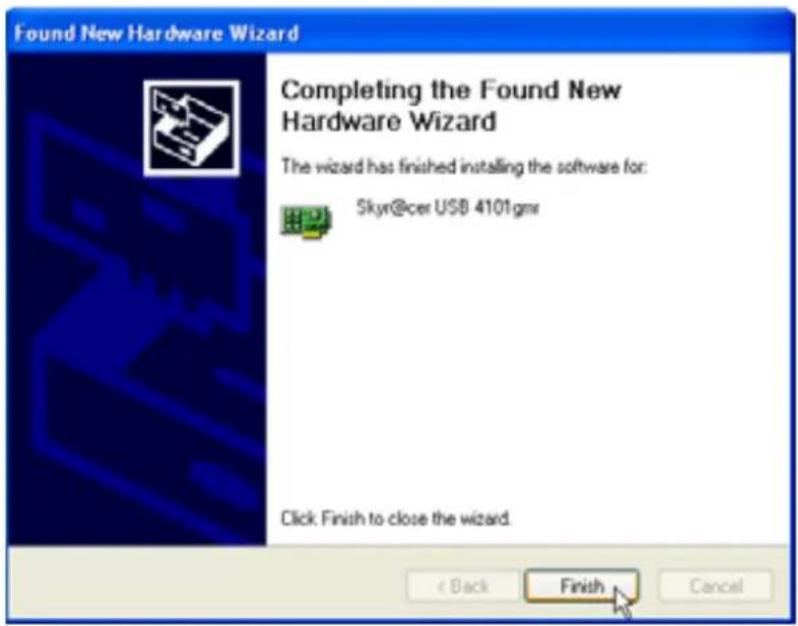
Found New Hardware Wizard Completing the Found New Hardware Wizard The wizard has finished installing the software for: Skyr@cer USB 4101.gmr Click: Finish to close the wizard. < Back Finish Cancel- Por favor, haga clic en "Finish"
text_image
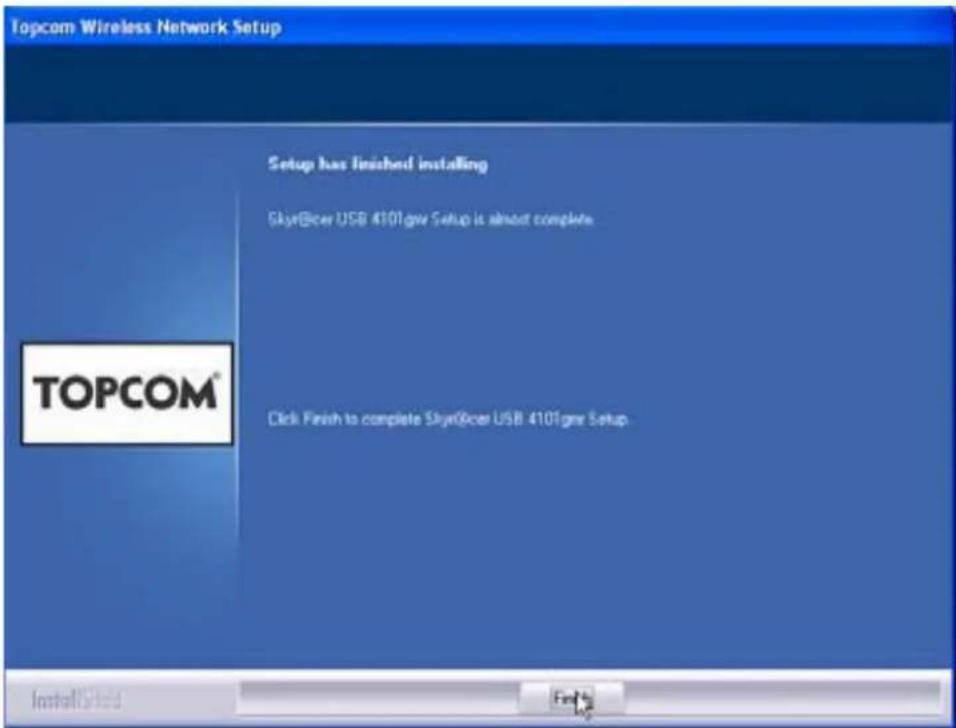
Topcom Wireless Network Setup Setup has finished installing Skye@cer USB 410T grow Setup is almost complete TOPCOM® Click Finish to complete Skye@cer USB 410T grow Setup. Installased Finish- Por favor, haga clic en "Finish"
text_image
Topcom Wireless LAN Utility Profile | Link Status | Site Survey | Statistics | Advanced | About | SSID BSSID Sig... C... Encrypt Authent... Network T... Topcom 00:C0:02:E7:D6... 10... 3... WEP Unknown Infrastructure Connected <-> Topcom Riscan Connect Add to Profile OK Helptext_image
Add Profile Configuration | Authentication and Security | Profile Name ROUTER SSID Topcom PSM ● CAM (Constantly Awake Mode) ○ PSM (Power Saving Mode) Network Type Infrastructure TX Power Auto Preamble Auto □ RTS Threshold 0 2347 2347 □ Fragment Threshold 256 2346 2346 OK Cancel Apply Helptext_image
RaUI WEP key requires 10 or 26 Hex characters. OKtext_image
Add Profile Configuration Authentication and Security Authentication Type: Open Use 802.1x 802.1x Setting Encryption: WEP WPA Preshared Key: Wep Key ● Key#1 Hex ************ ○ Key#2 Hex ○ Key#3 Hex ○ Key#4 Hex * WEP 64 Bits Encryption: Please Keyin 10 HEX characters * WEP 128 Bits Encryption: Please Keyin 26 HEX characters Show Password OK Cancel Apply Helptext_image
Topcom Wireless LAN Utility Profile | Link Status | Site Survey | Statistics | Advanced | About | Profile List Profile Name SSID Channel-Augentication Encryption Network Ty... ROUTER Topcom Auto Open WEP Infrastructure Add Delete Edit Activate OK Helptext_image
Profile | Link Status | Site Survey | Statistics | Advanced | About | Profile List Profile Name SSID Channel Authentication Encryption ✓ ROUTER Topcom Auto Open WEPtext_image
Topcom Wireless Network Card Setup Please read the following License Agreement. Please read the following license agreement. Use the scroll bar to view the rest of this agreement. engineer, decompile, or disassemble the SOFTWARE PRODUCT, except and only to the extent that such activity is expressly permitted by applicable law notwithstanding this limitation. NOTICE Software Requirements Topcom Wireless Utilities can be installed on computers running Windows 2000, and Windows XP. On the Topcom Web Site you can find the most recent device drivers, software updates and user documentation. WWW: http://www.topcom.net Select Yes to accept the agreement. Select No to cancel the setup. Installation... Yes Notext_image
Please plug in the Skyt@cer USB 4101gas on your computer.text_image
Found New Hardware Wizard Welcome to the Found New Hardware Wizard This wizard helps you install software for: Skyr@cei USB 4101gmr If your hardware came with an installation CD or floppy disk, insert it now. What do you want the wizard to do? Install the software automatically (Recommended) Install from a list or specific location (Advanced) Click Next to continue. < Back Next > Cancel- Klicka på "Next"
text_image
Hardware Installation The software you are installing for this hardware: Skyr@cer USB 4101gmr has not passed Windows Logo testing to verify its compatibility with Windows XP. (Tell me why this testing is important.) Continuing your installation of this software may impair or destabilize the correct operation of your system either immediately or in the future. Microsoft strongly recommends that you stop this installation now and contact the hardware vendor for software that has passed Windows Logo testing. Continue Anyway STOP Installationtext_image
Found New Hardware Wizard Completing the Found New Hardware Wizard The wizard has finished installing the software for: Skyr@cer USB 4101.gmr Click. Finish to close the wizard. < Back Finish Canceltext_image
Topcom Wireless Network Setup Setup has finished installing Skye@cer USB 410T grow Setup is almost complete Click Finish to complete Skye@cer USB 410T grow Setup. TOPCOM® Install@ceo Finltext_image
Topcom Wireless LAN Utility Profile | Link Status | Site Survey | Statistics | Advanced | About | SSID BSSID Sig... C... Encrypt Authent... Network T... Topcom 00:C0:02:E7:D6 10... 3 WEP Unknown Infrastructure Connected <-> Topcom Riscan Connect Add to Profile OK Helptext_image
Add Profile Configuration | Authentication and Security | Profile Name ROUTER SSID Topcom PSM ● CAM (Constantly Awake Mode) ○ PSM (Power Saving Mode) Network Type Infrastructure TX Power Auto Preamble Auto □ RTS Threshold 0 2347 2347 □ Fragment Threshold 256 2346 2346 OK Cancel Apply Helptext_image
RaUI WEP key requires 10 or 26 Hex characters. OKtext_image
Add Profile Configuration Authentication and Security Authentication Type: Open Use 802.1x 802.1x Setting Encryption: WEP WPA Preshared Key: Wep Key ● Key#1 Hex ************ ○ Key#2 Hex ○ Key#3 Hex ○ Key#4 Hex * WEP 64 Bits Encryption: Please Keyin 10 HEX characters * WEP 128 Bits Encryption: Please Keyin 26 HEX characters Show Password OK Cancel Apply Helptext_image
Topcom Wireless LAN Utility Profile | Link Status | Site Survey | Statistics | Advanced | About | Profile List Profile Name SSID Channel-Augentication Encryption Network Ty... ROUTER Topcom Auto Open WEP Infrastructure Add Delete Edit Activate OK Helptext_image
Profile | Link Status | Site Survey | Statistics | Advanced | About | Profile List Profile Name SSID Channel Authentication Encryption ✓ ROUTER Topcom Auto Open WEPtext_image
Topcom Wireless Network Card Setup Please read the following License Agreement. Please read the following license agreement. Use the scroll bar to view the rest of this agreement. engineer, decompile, or disassemble the SOFTWARE PRODUCT, except and only to the extent that such activity is expressly permitted by applicable law notwithstanding this limitation. NOTICE Software Requirements Topcom Wireless Utilities can be installed on computers running Windows 2000, and Windows XP. On the Topcom Web Site you can find the most recent device drivers, software updates and user documentation. WWW: http://www.topcom.net Select Yes to accept the agreement. Select No to cancel the setup. Installation... Yes Notext_image
Please plug in the Skyt@com USB 4101gas on your computer.text_image
Found New Hardware Wizard Welcome to the Found New Hardware Wizard This wizard helps you install software for: Skyr@cei USB 4101gmr If your hardware came with an installation CD or floppy disk, insert it now. What do you want the wizard to do? Install the software automatically (Recommended) Install from a list or specific location (Advanced) Click Next to continue. < Back Next > Cancel- Klik på "Next"
text_image
Hardware Installation The software you are installing for this hardware: Skyr@cer USB 4101gmr has not passed Windows Logo testing to verify its compatibility with Windows XP. (Tell me why this testing is important.) Continuing your installation of this software may impair or destabilize the correct operation of your system either immediately or in the future. Microsoft strongly recommends that you stop this installation now and contact the hardware vendor for software that has passed Windows Logo testing. Continue Anyway STOP Installationtext_image
Found New Hardware Wizard Completing the Found New Hardware Wizard The wizard has finished installing the software for: Skyr@cer USB 4101.gmr Click: Finish to close the wizard. < Back Finish Cancel- Klik på "Finish"
text_image
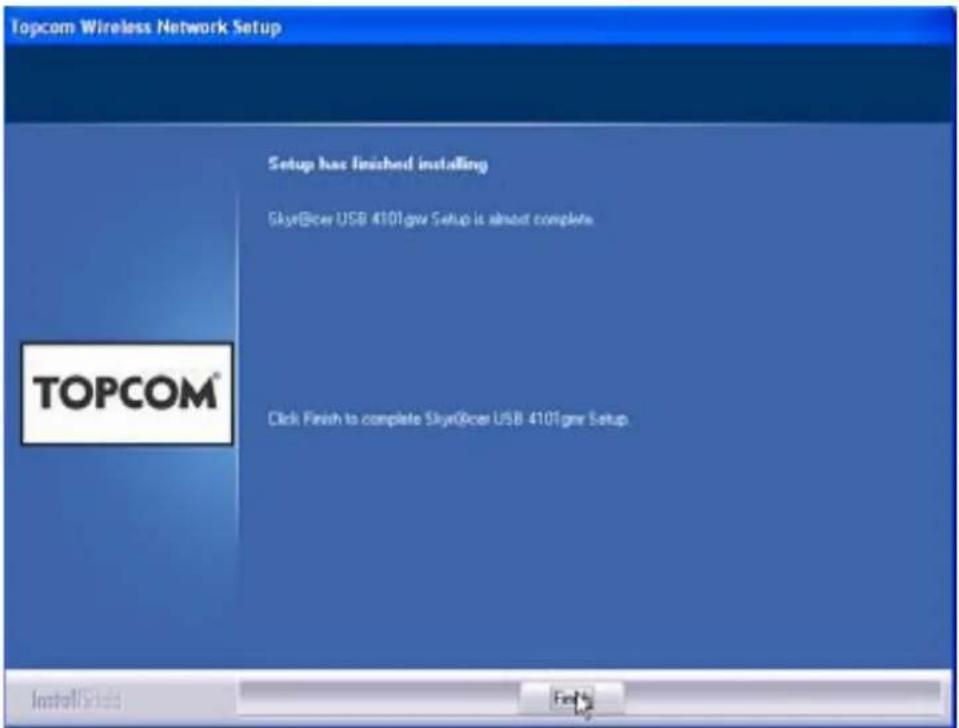
Topcom Wireless Network Setup Setup has finished installing Skye@cer USB 410Tgwr Setup is almost complete TOPCOM® Click Finish to complete Skye@cer USB 410Tgwr Setup. Install(Sales) Finish- Klik på "Finish"
text_image
Topcom Wireless LAN Utility Profile | Link Status | Site Survey | Statistics | Advanced | About | SSID BSID Sig... C... Encrypt Authent... Network T... Topcom 00 CD 02 E7 D6... 10... 3... WEP Unknown... Instruct Connected <-> Topcom Rescan Connect Add to Profile OK HelpI ovenstående eksempel er SSID "Topcom" og der bruges WEP-kryptering.
text_image
Add Profile Configuration | Authentication and Security | Profile Name ROUTER SSID Topcom PSM ● CAM (Constantly Awake Mode) ○ PSM (Power Saving Mode) Network Type Infrastructure TX Power Auto Preamble Auto □ RTS Threshold 0 2347 2347 □ Fragment Threshold 256 2346 2346 OK Cancel Apply Helptext_image
RaUI WEP key requires 10 or 26 Hex characters. OKtext_image
Add Profile Configuration Authentication and Security Authentication Type: Open Use 802.1x 802.1x Setting Encryption: WEP WPA Preshared Key: Wep Key Key#1 Hex ********* Key#2 Hex Key#3 Hex Key#4 Hex * WEP 64 Bits Encryption: Please Keyin 10 HEX characters * WEP 128 Bits Encryption: Please Keyin 26 HEX characters Show Password OK Cancel Apply Helptext_image
Topcom Wireless LAN Utility Profile | Link Status | Site Survey | Statistics | Advanced | About | Profile List Profile Name SSID Channel-Augentication Encryption Network Ty... ROUTER Topcom Auto Open WEP Infrastructure Add Delete Edit Activate OK Helptext_image
Profile | Link Status | Site Survey | Statistics | Advanced | About | Profile List Profile Name SSID Channel Authentication Encryption ✓ ROUTER Topcom Auto Open WEPtext_image
Topcom Wireless Network Card Setup Please read the following License Agreement. Please read the following license agreement. Use the scroll bar to view the rest of this agreement. engineer, decompile, or disassemble the SOFTWARE PRODUCT, except and only to the extent that such activity is expressly permitted by applicable law notwithstanding this limitation. NOTICE Software Requirements Topcom Wireless Utilities can be installed on computers running Windows 2000, and Windows XP. On the Topcom Web Site you can find the most recent device drivers, software updates and user documentation. WWW: http://www.topcom.net Select Yes to accept the agreement. Select No to cancel the setup. Installation... Yes Notext_image
Please plug in the Skyt@cer USB 4101gas on your computer.Sett deretter inn den trådløse USB-enheten i USB-kontakten. Driverne installeres automatisk.
text_image
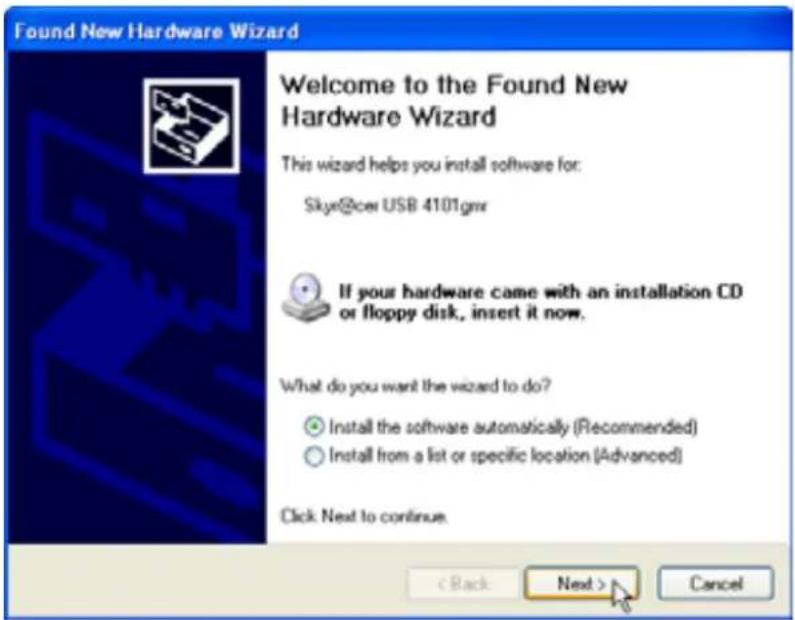
Found New Hardware Wizard Welcome to the Found New Hardware Wizard This wizard helps you install software for: Skyr@cei USB 4101gmr If your hardware came with an installation CD or floppy disk, insert it now. What do you want the wizard to do? Install the software automatically (Recommended) Install from a list or specific location (Advanced) Click Next to continue. < Back Next > Cancel- Klikk på ""Next"
text_image
Hardware Installation The software you are installing for this hardware: Skyr@cer USB 4101gmr has not passed Windows Logo testing to verify its compatibility with Windows XP. (Tell me why this testing is important.) Continuing your installation of this software may impair or destabilize the correct operation of your system either immediately or in the future. Microsoft strongly recommends that you stop this installation now and contact the hardware vendor for software that has passed Windows Logo testing. Continue Anyway STOP Installationtext_image
Found New Hardware Wizard Completing the Found New Hardware Wizard The wizard has finished installing the software for: Skyr@cer USB 4101.gmr Click: Finish to close the wizard. < Back Finish Cancel- Klikk på "Finish"
text_image
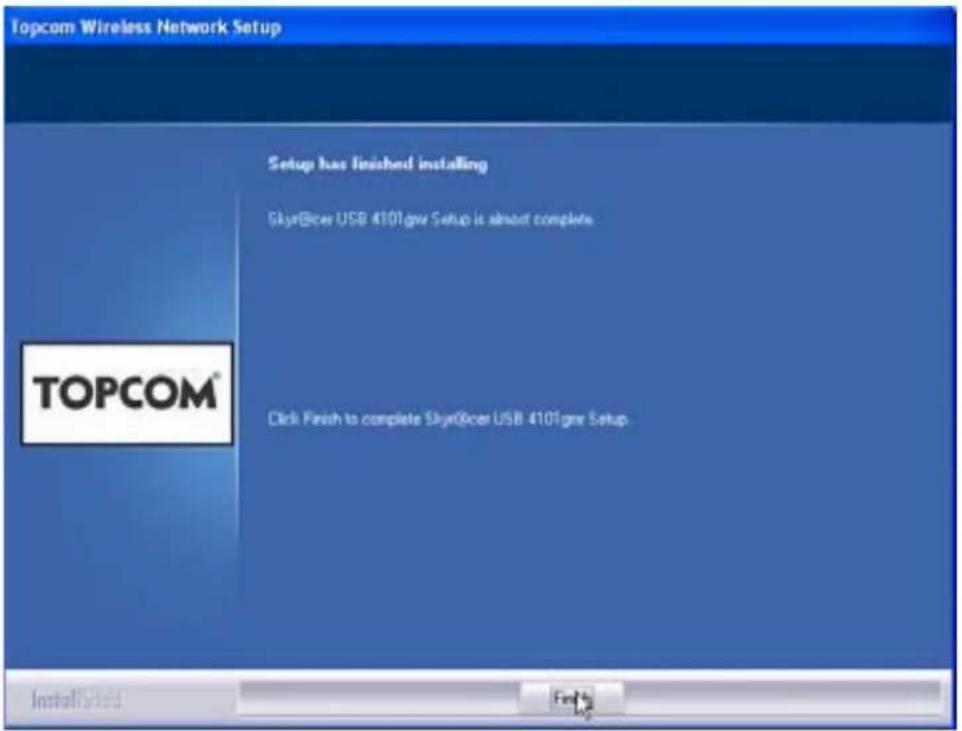
Topcom Wireless Network Setup Setup has finished installing Skyr@cer USB 4101gwr Setup is almost complete TOPCOM® Click Finish to complete Skyr@cer USB 4101gwr Setup. Installed...- Klikk på "Finish"
text_image
Topcom Wireless LAN Utility Profile | Link Status | Site Survey | Statistics | Advanced | About | SSID BSID Sig... C... Encrypt Authent... Network T... Topcom 00:C0:02:E7:06 10... 3 WEP Unknown Instruct Connected <-> Topcom Rescan Connect Add to Profile OK Helptext_image
Add Profile Configuration | Authentication and Security | Profile Name ROUTER SSID Topcom PSM ● CAM (Constantly Awake Mode) ○ PSM (Power Saving Mode) Network Type Infrastructure TX Power Auto Preamble Auto □ RTS Threshold 0 2347 2347 □ Fragment Threshold 256 2346 2346 OK Cancel Apply Helptext_image
RaUI WEP key requires 10 or 26 Hex characters. OKtext_image
Add Profile Configuration Authentication and Security Authentication Type: Open Use 802.1x 802.1x Setting Encryption: WEP WPA Preshared Key: Wep Key Key#1 Hex ********* Key#2 Hex Key#3 Hex Key#4 Hex * WEP 64 Bits Encryption: Please Keyin 10 HEX characters * WEP 128 Bits Encryption: Please Keyin 26 HEX characters Show Password OK Cancel Apply Helptext_image
Topcom Wireless LAN Utility Profile | Link Status | Site Survey | Statistics | Advanced | About | Profile List Profile Name SSID Channel-Augentication Encryption Network Ty... ROUTER Topcom Auto Open WEP Infrastructure Add Delete Edit Activate OK Helptext_image
Profile | Link Status | Site Survey | Statistics | Advanced | About | Profile List Profile Name SSID Channel Authentication Encryption ✓ ROUTER Topcom Auto Open WEPtext_image
Topcom Wireless Network Card Setup Please read the following License Agreement. Please read the following license agreement. Use the scroll bar to view the rest of this agreement. engineer, decompile, or disassemble the SOFTWARE PRODUCT, except and only to the extent that such activity is expressly permitted by applicable law notwithstanding this limitation. NOTICE Software Requirements Topcom Wireless Utilities can be installed on computers running Windows 2000, and Windows XP. On the Topcom Web Site you can find the most recent device drivers, software updates and user documentation. WWW: http://www.topcom.net Select Yes to accept the agreement. Select No to cancel the setup. Installation... Yes Notext_image
Please plug in the Skyt@cer USB 4101gas on your computer.text_image
Found New Hardware Wizard Welcome to the Found New Hardware Wizard This wizard helps you install software for: Skyr@cei USB 4101gmr If your hardware came with an installation CD or floppy disk, insert it now. What do you want the wizard to do? Install the software automatically (Recommended) Install from a list or specific location (Advanced) Click Next to continue. < Back Next > Cancel- Napsauta "Next"
text_image
Hardware Installation The software you are installing for this hardware: Skyr@cer USB 4101gmr has not passed Windows Logo testing to verify its compatibility with Windows XP. (Tell me why this testing is important.) Continuing your installation of this software may impair or destabilize the correct operation of your system either immediately or in the future. Microsoft strongly recommends that you stop this installation now and contact the hardware vendor for software that has passed Windows Logo testing. Continue Anyway STOP Installation- Napsauta "Continue Anyway"
text_image
Found New Hardware Wizard Completing the Found New Hardware Wizard The wizard has finished installing the software for: Skyr@cer USB 4101gmw Click: Finish to close the wizard. < Back Finish Cancel- Napsauta "Finish"
text_image
Topcom Wireless Network Setup Setup has finished installing Skyr@cei USB 410Tgwr Setup is almost complete TOPCOM® Click Finish to complete Skyr@cei USB 410Tgwr Setup Installased Help- Napsauta "Finish"
text_image
Topcom Wireless LAN Utility Profile | Link Status | Site Survey | Statistics | Advanced | About | SSID BSSID Sig... C... Encrypt Authent... Network T... Topcom 00:C0:02:E7:D6... 10... 3... WEP Unknown... Intrastruct... Connected <-> Topcom Riscan Connect Add to Profile OK Helptext_image
Add Profile Configuration | Authentication and Security | Profile Name ROUTER SSID Topcom PSM ● CAM (Constantly Awake Mode) ○ PSM (Power Saving Mode) Network Type Infrastructure TX Power Auto Preamble Auto □ RTS Threshold 0 2347 2347 □ Fragment Threshold 256 2346 2346 OK Cancel Apply Helptext_image
RaUI WEP key requires 10 or 26 Hex characters. OKtext_image
Add Profile Configuration Authentication and Security Authentication Type: Open Use 802.1x 802.1x Setting Encryption: WEP WPA Preshared Key: Wep Key Key#1 Hex ********* Key#2 Hex Key#3 Hex Key#4 Hex * WEP 64 Bits Encryption: Please Keyin 10 HEX characters * WEP 128 Bits Encryption: Please Keyin 26 HEX characters Show Password OK Cancel Apply Helptext_image
Topcom Wireless LAN Utility Profile | Link Status | Site Survey | Statistics | Advanced | About | Profile List Profile Name SSID Channel-Augentication Encryption Network Ty... ROUTER Topcom Auto Open WEP Infrastructure Add Delete Edit Activate OK Helptext_image
Profile | Link Status | Site Survey | Statistics | Advanced | About | Profile List Profile Name SSID Channel Authentication Encryption ✓ ROUTER Topcom Auto Open WEPtext_image
Topcom Wireless Network Card Setup Please read the following License Agreement. Please read the following license agreement. Use the scroll bar to view the rest of this agreement. engineer, decompile, or disassemble the SOFTWARE PRODUCT, except and only to the extent that such activity is expressly permitted by applicable law notwithstanding this limitation. NOTICE Software Requirements Topcom Wireless Utilities can be installed on computers running Windows 2000, and Windows XP. On the Topcom Web Site you can find the most recent device drivers, software updates and user documentation. WWW: http://www.topcom.net Select Yes to accept the agreement. Select No to cancel the setup. Installation... Yes Notext_image
Please plug in the Sky@ces USB 4101gas on your computer.text_image
Found New Hardware Wizard Welcome to the Found New Hardware Wizard This wizard helps you install software for: Skyr@cei USB 4101gmr If your hardware came with an installation CD or floppy disk, insert it now. What do you want the wizard to do? Install the software automatically (Recommended) Install from a list or specific location (Advanced) Click Next to continue. < Back Next > Cancel- Fare clic su "Next"
text_image
Hardware Installation The software you are installing for this hardware: Skyr@cer USB 4101gmr has not passed Windows Logo testing to verify its compatibility with Windows XP. (Tell me why this testing is important.) Continuing your installation of this software may impair or destabilize the correct operation of your system either immediately or in the future. Microsoft strongly recommends that you stop this installation now and contact the hardware vendor for software that has passed Windows Logo testing. Continue Anyway STOP Installation– Fare clic su "Continue Anyway"
text_image
Found New Hardware Wizard Completing the Found New Hardware Wizard The wizard has finished installing the software for: Skyr@cer USB 4101.gmr Click: Finish to close the wizard. < Back Finish Canceltext_image
Topcom Wireless Network Setup Setup has finished installing Skyr@cer USB 4101gwr Setup is almost complete TOPCOM® Click Finish to complete Skyr@cer USB 4101gwr Setup. Install/Sales Helptext_image
Topcom Wireless LAN Utility Profile | Link Status | Site Survey | Statistics | Advanced | About | SSID BSID Sig... C... Encrypt Authent... Network T... Topcom 00:C0:02:E7:D6... 10... 3... WEP Unknown Instruct Connected <-> Topcom Riscan Connect Add to Profile OK Helptext_image
Add Profile Configuration | Authentication and Security | Profile Name ROUTER SSID Topcom PSM ● CAM (Constantly Awake Mode) ○ PSM (Power Saving Mode) Network Type Infrastructure TX Power Auto Preamble Auto □ RTS Threshold 0 2347 2347 □ Fragment Threshold 256 2346 2346 OK Cancel Apply Helptext_image
RaUI WEP key requires 10 or 26 Hex characters. OKtext_image
Add Profile Configuration Authentication and Security Authentication Type: Open Use 802.1x 802.1x Setting Encryption: WEP WPA Preshared Key: Wep Key ● Key#1 Hex xxxxxxxxxxxx ○ Key#2 Hex ○ Key#3 Hex ○ Key#4 Hex * WEP 64 Bits Encryption: Please Keyin 10 HEX characters * WEP 128 Bits Encryption: Please Keyin 26 HEX characters □ Show Password OK Cancel Apply Helptext_image
Topcom Wireless LAN Utility Profile | Link Status | Site Survey | Statistics | Advanced | About | Profile List Profile Name SSID Channel-Augentication Encryption Network Ty... ROUTER Topcom Auto Open WEP Infrastructure Add Delete Edit Activate OK Helptext_image
Profile | Link Status | Site Survey | Statistics | Advanced | About | Profile List Profile Name SSID Channel Authentication Encryption ✓ ROUTER Topcom Auto Open WEPtext_image
Topcom Wireless Network Card Setup Please read the following License Agreement. Please read the following license agreement. Use the scroll bar to view the rest of this agreement. engineer, decompile, or disassemble the SOFTWARE PRODUCT, except and only to the extent that such activity is expressly permitted by applicable law notwithstanding this limitation. NOTICE Software Requirements Topcom Wireless Utilities can be installed on computers running Windows 2000, and Windows XP. On the Topcom Web Site you can find the most recent device drivers, software updates and user documentation. WWW: http://www.topcom.net Select Yes to accept the agreement. Select No to cancel the setup. Installation... Yes Notext_image
Please plug in the Sky@ces USB 4101gas on your computer.text_image
Found New Hardware Wizard Welcome to the Found New Hardware Wizard This wizard helps you install software for: Skyr@cei USB 4101gmr If your hardware came with an installation CD or floppy disk, insert it now. What do you want the wizard to do? Install the software automatically (Recommended) Install from a list or specific location (Advanced) Click Next to continue. < Back Next > Canceltext_image
Hardware Installation The software you are installing for this hardware: Skyr@cer USB 4101gmr has not passed Windows Logo testing to verify its compatibility with Windows XP. (Tell me why this testing is important.) Continuing your installation of this software may impair or destabilize the correct operation of your system either immediately or in the future. Microsoft strongly recommends that you stop this installation now and contact the hardware vendor for software that has passed Windows Logo testing. Continue Anyway STOP Installation- Por favor, clicar "Continue Anyway"
text_image
Found New Hardware Wizard Completing the Found New Hardware Wizard The wizard has finished installing the software for: Skyr@cer USB 4101.gmr Click. Finish to close the wizard. < Back Finish Canceltext_image
Topcom Wireless Network Setup Setup has finished installing Skyr@cer USB 4101gwr Setup is almost complete TOPCOM® Click Finish to complete Skyr@cer USB 4101gwr Setup. Installased Helptext_image
Topcom Wireless LAN Utility Profile | Link Status | Site Survey | Statistics | Advanced | About | SSID BSSID Sig... C... Encrypt Authent... Network T... Topcom 00:C0:02:E7:D6... 10... 3... WEP Unknown... Infrasstruct... Connected <-> Topcom Rescan Connect Add to Profile OK Helptext_image
Add Profile Configuration | Authentication and Security | Profile Name ROUTER SSID Topcom PSM ● CAM (Constantly Awake Mode) ○ PSM (Power Saving Mode) Network Type Infrastructure TX Power Auto Preamble Auto □ RTS Threshold 0 2347 2347 □ Fragment Threshold 256 2346 2346 OK Cancel Apply Helptext_image
RaUI WEP key requires 10 or 26 Hex characters. OKtext_image
Add Profile Configuration Authentication and Security Authentication Type: Open Use 802.1x 802.1x Setting Encryption: WEP WPA Preshared Key: Wep Key ● Key#1 HexXXXXXXXX# ○ Key#2 Hex ○ Key#3 Hex ○ Key#4 Hex * WEP 64 Bits Encryption: Please Keyin 10 HEX characters * WEP 128 Bits Encryption: Please Keyin 26 HEX characters □ Show Password OK Cancel Apply Helptext_image
Topcom Wireless LAN Utility Profile | Link Status | Site Survey | Statistics | Advanced | About | Profile List Profile Name SSID Channel-Augentication Encryption Network Ty... ROUTER Topcom Auto Open WEP Infrastructure Add Delete Edit Activate OK Helptext_image
Profile | Link Status | Site Survey | Statistics | Advanced | About | Profile List Profile Name SSID Channel Authentication Encryption ✓ ROUTER Topcom Auto Open WEPtext_image
Topcom Wireless Network Card Setup Please read the following License Agreement. Please read the following license agreement. Use the scroll bar to view the rest of this agreement. engineer, decompile, or disassemble the SOFTWARE PRODUCT, except and only to the extent that such activity is expressly permitted by applicable law notwithstanding this limitation. NOTICE Software Requirements Topcom Wireless Utilities can be installed on computers running Windows 2000, and Windows XP. On the Topcom Web Site you can find the most recent device drivers, software updates and user documentation. WWW: http://www.topcom.net Select Yes to accept the agreement. Select No to cancel the setup. Installation... Yes Notext_image
Please plug in the Sky@ces USB 4101gas on your computer.text_image
Found New Hardware Wizard Welcome to the Found New Hardware Wizard This wizard helps you install software for: Skyr@cei USB 4101gmr If your hardware came with an installation CD or floppy disk, insert it now. What do you want the wizard to do? Install the software automatically (Recommended) Install from a list or specific location (Advanced) Click Next to continue. < Back Next > Canceltext_image
Hardware Installation The software you are installing for this hardware: Skyr@cer USB 4101gmr has not passed Windows Logo testing to verify its compatibility with Windows XP. (Tell me why this testing is important.) Continuing your installation of this software may impair or destabilize the correct operation of your system either immediately or in the future. Microsoft strongly recommends that you stop this installation now and contact the hardware vendor for software that has passed Windows Logo testing. Continue Anyway STOP Installationtext_image
Found New Hardware Wizard Completing the Found New Hardware Wizard The wizard has finished installing the software for: Skyr@cer USB 4101.gmr Click: Finish to close the wizard. < Back Finish Canceltext_image
Topcom Wireless Network Setup Setup has finished installing Skye@cer USB 4101gwr Setup is almost complete TOPCOM® Click Finish to complete Skye@cer USB 4101gwr Setup. Install/Safe Helptext_image
Topcom Wireless LAN Utility Profile | Link Status | Site Survey | Statistics | Advanced | About | SSID BSSID Sig.C... Encrypt Authent... Network T... Topcom 00:00:02:E7:D6... 10... 3... WEP Unknown... Instruct Connected <-> Topcom Rescan Connect Add to Profile OK Helptext_image
Add Profile Configuration | Authentication and Security | Profile Name ROUTER SSID Topcom PSM ● CAM (Constantly Awake Mode) ○ PSM (Power Saving Mode) Network Type Infrastructure TX Power Auto Preamble Auto □ RTS Threshold 0 2347 2347 □ Fragment Threshold 256 2346 2346 OK Cancel Apply Helptext_image
RaUI WEP key requires 10 or 26 Hex characters. OKtext_image
Add Profile Configuration Authentication and Security Authentication Type: Open Use 802.1x 802.1x Setting Encryption: WEP WPA Preshared Key: Wep Key Key#1 Hex ********* Key#2 Hex Key#3 Hex Key#4 Hex * WEP 64 Bits Encryption: Please Keyin 10 HEX characters * WEP 128 Bits Encryption: Please Keyin 26 HEX characters Show Password OK Cancel Apply Helptext_image
Topcom Wireless LAN Utility Profile | Link Status | Site Survey | Statistics | Advanced | About | Profile List Profile Name SSID Channel-Augentication Encryption Network Ty... ROUTER Topcom Auto Open WEP Infrastructure Add Delete Edit Activate OK Helptext_image
Profile | Link Status | Site Survey | Statistics | Advanced | About | Profile List Profile Name SSID Channel Authentication Encryption ✓ ROUTER Topcom Auto Open WEPtext_image
Topcom Wireless Network Card Setup Please read the following License Agreement. Please read the following license agreement. Use the scroll bar to view the rest of this agreement. engineer, decompile, or disassemble the SOFTWARE PRODUCT, except and only to the extent that such activity is expressly permitted by applicable law notwithstanding this limitation. NOTICE Software Requirements Topcom Wireless Utilities can be installed on computers running Windows 2000, and Windows XP. On the Topcom Web Site you can find the most recent device drivers, software updates and user documentation. WWW: http://www.topcom.net Select Yes to accept the agreement. Select No to cancel the setup. Installation... Yes Notext_image
Please plug in the Skyt@cer USB 4101gas on your computer.text_image
Found New Hardware Wizard Welcome to the Found New Hardware Wizard This wizard helps you install software for: Skyr@cei USB 4101gmr If your hardware came with an installation CD or floppy disk, insert it now. What do you want the wizard to do? Install the software automatically (Recommended) Install from a list or specific location (Advanced) Click Next to continue. < Back Next > Canceltext_image
Hardware Installation The software you are installing for this hardware: Skyr@cer USB 4101gmr has not passed Windows Logo testing to verify its compatibility with Windows XP. (Tell me why this testing is important.) Continuing your installation of this software may impair or destabilize the correct operation of your system either immediately or in the future. Microsoft strongly recommends that you stop this installation now and contact the hardware vendor for software that has passed Windows Logo testing. Continue Anyway STOP Installationtext_image
Found New Hardware Wizard Completing the Found New Hardware Wizard The wizard has finished installing the software for: Skyr@cer USB 4101.gmr Click: Finish to close the wizard. < Back Finish Canceltext_image
Topcom Wireless Network Setup Setup has finished installing Skyr@cer USB 4101gwr Setup is almost complete TOPCOM® Click Finish to complete Skyr@cer USB 4101gwr Setup. Installed Helptext_image
Topcom Wireless LAN Utility Profile | Link Status | Site Survey | Statistics | Advanced | About | SSID BSID Sig... C... Encrypt Authent... Network T... Topcom 00:C0:02:E7:D6... 10... 3... WEP Unknown Infrastruct... Connected <-> Topcom Riscan Connect Add to Profile OK Helptext_image
Add Profile Configuration | Authentication and Security | Profile Name ROUTER SSID Topcom PSM ● CAM (Constantly Awake Mode) ○ PSM (Power Saving Mode) Network Type Infrastructure TX Power Auto Preamble Auto □ RTS Threshold 0 2347 2347 □ Fragment Threshold 256 2346 2346 OK Cancel Apply Helptext_image
RaUI WEP key requires 10 or 26 Hex characters. OKtext_image
Add Profile Configuration Authentication and Security Authentication Type: Open Use 802.1x 802.1x Setting Encryption: WEP WPA Preshared Key: Wep Key ● Key#1 HexXXXXXXXX# ○ Key#2 Hex ○ Key#3 Hex ○ Key#4 Hex * WEP 64 Bits Encryption: Please Keyin 10 HEX characters * WEP 128 Bits Encryption: Please Keyin 26 HEX characters □ Show Password OK Cancel Apply Helptext_image
Topcom Wireless LAN Utility Profile | Link Status | Site Survey | Statistics | Advanced | About | Profile List Profile Name SSID Channel-Augentication Encryption Network Ty... ROUTER Topcom Auto Open WEP Infrastructure Add Delete Edit Activate OK Helptext_image
Profile | Link Status | Site Survey | Statistics | Advanced | About | Profile List Profile Name SSID Channel Authentication Encryption ✓ ROUTER Topcom Auto Open WEPtext_image
Topcom Wireless Network Card Setup Please read the following License Agreement. Please read the following license agreement. Use the scroll bar to view the rest of this agreement. engineer, decompile, or disassemble the SOFTWARE PRODUCT, except and only to the extent that such activity is expressly permitted by applicable law notwithstanding this limitation. NOTICE Software Requirements Topcom Wireless Utilities can be installed on computers running Windows 2000, and Windows XP. On the Topcom Web Site you can find the most recent device drivers. software updates and user documentation. WWW: http://www.topcom.net Select Yes to accept the agreement. Select No to cancel the setup. Installation Yes Notext_image
Topcom Wireless Network Card Setup Choose Configuration TaBurst or WiFi Choose Configuration TaBurst or WiFi Optimize for WiFi mode Optimize for performance mode TOPCOM® Install(S) Next > Cancel- KliknČte na "Next".

text_image
Please plug in the Sky@ces USB 4101gas on your computer.text_image
Found New Hardware Wizard Welcome to the Found New Hardware Wizard This wizard helps you install software for: Skyn@cei USB 4101gm If your hardware came with an installation CD or floppy disk, insert it now. What do you want the wizard to do? Install the software automatically (Recommended) Install from a list or specific location (Advanced) Click Next to continue. < Back Next > Canceltext_image
Hardware Installation The software you are installing for this hardware: Skyr@cer USB 4101gmr has not passed Windows Logo testing to verify its compatibility with Windows XP. (Tell me why this testing is important.) Continuing your installation of this software may impair or destabilize the correct operation of your system either immediately or in the future. Microsoft strongly recommends that you stop this installation now and contact the hardware vendor for software that has passed Windows Logo testing. Continue Anyway STOP Installationtext_image
Found New Hardware Wizard Completing the Found New Hardware Wizard The wizard has finished installing the software for: Skyr@cer USB 4101gmr Click: Finish to close the wizard. < Back Finish Canceltext_image
Topcom Wireless Network Setup Setup has finished installing Skye@cer USB 410Tgwr Setup is almost complete TOPCOM® Click Finish to complete Skye@cer USB 410Tgwr Setup Installased Helptext_image
Topcom Wireless LAN Utility Profile | Link Status | Site Survey | Statistics | Advanced | About | SSID BSID Sig... C... Encrypt Authent... Network T... Topcom 00:C0:02:E7:D6... 10... 3... WEP Unknown... Infrstruct... Connected <-> Topcom Riscan Connect Add to Profile OK Helptext_image
Add Profile Configuration | Authentication and Security | Profile Name ROUTER SSID Topcom PSM ● CAM (Constantly Awake Mode) ○ PSM (Power Saving Mode) Network Type Infrastructure TX Power Auto Preamble Auto □ RTS Threshold 0 2347 2347 □ Fragment Threshold 256 2346 2346 OK Cancel Apply Helptext_image
RaUI WEP key requires 10 or 26 Hex characters. OKtext_image
Add Profile Configuration Authentication and Security Authentication Type: Open Use 802.1x 802.1x Setting Encryption: WEP WPA Preshared Key: Wep Key ● Key#1 HexXXXXXXXX# ○ Key#2 Hex ○ Key#3 Hex ○ Key#4 Hex * WEP 64 Bits Encryption: Please Keyin 10 HEX characters * WEP 128 Bits Encryption: Please Keyin 26 HEX characters □ Show Password OK Cancel Apply Helptext_image
Topcom Wireless LAN Utility Profile | Link Status | Site Survey | Statistics | Advanced | About | Profile List Profile Name SSID Channel-Augentication Encryption Network Ty... ROUTER Topcom Auto Open WEP Infrastructure Add Delete Edit Activate OK Helptext_image
Profile | Link Status | Site Survey | Statistics | Advanced | About | Profile List Profile Name SSID Channel Authentication Encryption ✓ ROUTER Topcom Auto Open WEPtext_image
Topcom Wireless Network Card Setup Please read the following License Agreement. Please read the following license agreement. Use the scroll bar to view the rest of this agreement. engineer, decompile, or disassemble the SOFTWARE PRODUCT, except and only to the extent that such activity is expressly permitted by applicable law notwithstanding this limitation. NOTICE Software Requirements Topcom Wireless Utilities can be installed on computers running Windows 2000, and Windows XP. On the Topcom Web Site you can find the most recent device drivers. software updates and user documentation. WWW: http://www.topcom.net Select Yes to accept the agreement. Select No to cancel the setup. Installation Yes Notext_image
Topcom Wireless Network Card Setup Choose Configuration TaBurst or WiFi Choose Configuration TaBurst or WiFi Optimize for WiFi mode Optimize for performance mode TOPCOM® Install(S) Next > Canceltext_image
Please plug in the Sky@ces USB 4101gas on your computer.text_image
Found New Hardware Wizard Welcome to the Found New Hardware Wizard This wizard helps you install software for: Skyn@cei USB 4101gm If your hardware came with an installation CD or floppy disk, insert it now. What do you want the wizard to do? Install the software automatically (Recommended) Install from a list or specific location (Advanced) Click Next to continue. < Back Next > Canceltext_image
Hardware Installation The software you are installing for this hardware: Skyr@cer USB 4101gmr has not passed Windows Logo testing to verify its compatibility with Windows XP. (Tell me why this testing is important.) Continuing your installation of this software may impair or destabilize the correct operation of your system either immediately or in the future. Microsoft strongly recommends that you stop this installation now and contact the hardware vendor for software that has passed Windows Logo testing. Continue Anyway STOP Installationtext_image
Found New Hardware Wizard Completing the Found New Hardware Wizard The wizard has finished installing the software for: Skyr@cer USB 4101gmr Click: Finish to close the wizard. < Back Finish Canceltext_image
Topcom Wireless Network Setup Setup has finished installing Skje@cer USB 410Tgwr Setup is almost complete TOPCOM® Click Finish to complete Skje@cer USB 410Tgwr Setup Installased Help- Please click "Finish"
text_image
Topcom Wireless LAN Utility Profile | Link Status | Site Survey | Statistics | Advanced | About | SSID BSID Sig... C... Encrypt Authent... Network T... Topcom 00:C0:02:E7:D6... 10... 3... WEP Unknown... Infrasstruct... Connected <-> Topcom Riscan Connect Add to Profile OK Helptext_image
Add Profile Configuration | Authentication and Security | Profile Name ROUTER SSID Topcom PSM ● CAM (Constantly Awake Mode) ○ PSM (Power Saving Mode) Network Type Infrastructure TX Power Auto Preamble Auto □ RTS Threshold 0 2347 2347 □ Fragment Threshold 256 2346 2346 OK Cancel Apply Helptext_image
RaUI WEP key requires 10 or 26 Hex characters. OKtext_image
Add Profile Configuration Authentication and Security Authentication Type: Open Use 802.1x 802.1x Setting Encryption: WEP WPA Preshared Key: Wep Key ● Key#1 HexXXXXXXXX# ○ Key#2 Hex ○ Key#3 Hex ○ Key#4 Hex * WEP 64 Bits Encryption: Please Keyin 10 HEX characters * WEP 128 Bits Encryption: Please Keyin 26 HEX characters □ Show Password OK Cancel Apply Helptext_image
Topcom Wireless LAN Utility Profile | Link Status | Site Survey | Statistics | Advanced | About | Profile List Profile Name SSID Channel-Augentication Encryption Network Ty... ROUTER Topcom Auto Open WEP Infrastructure Add Delete Edit Activate OK Helptext_image
Profile | Link Status | Site Survey | Statistics | Advanced | About | Profile List Profile Name SSID Channel Authentication Encryption ✓ ROUTER Topcom Auto Open WEPtext_image
Topcom Wireless Network Card Setup Please read the following License Agreement. Please read the following license agreement. Use the scroll bar to view the rest of this agreement. engineer, decompile, or disassemble the SOFTWARE PRODUCT, except and only to the extent that such activity is expressly permitted by applicable law notwithstanding this limitation. NOTICE Software Requirements Topcom Wireless Utilities can be installed on computers running Windows 2000, and Windows XP. On the Topcom Web Site you can find the most recent device drivers, software updates and user documentation. WWW: http://www.topcom.net Select Yes to accept the agreement. Select No to cancel the setup. Installation Yes Notext_image
Topcom Wireless Network Card Setup Please read the following License Agreement. Please read the following license agreement. Use the scroll bar to view the test of this agreement. engineer, decompile, or disassemble the SOFTWARE PRODUCT, except and only to the extent that such activity is expressly permitted by applicable law notwithstanding this limitation. NOTICE Software Requirements Topcom Wireless Utilities can be installed on computers running Windows 2000, and Windows XP. On the Topcom Web Site you can find the most recent device drivers, software updates and user documentation. WWW: http://www.topcom.net Select Yes to accept the agreement. Select No to cancel the setup. Installation Yes Notext_image
Topcom Wireless Network Card Setup Choose Configuration ToBurst or WiFi Choose Configuration ToBurst or WiFi Optimize for WiFi mode Optimize for performance mode TOPCOM® Install(S) Next > Canceltext_image
Please plug in the Sky@ces USB 4101gas on your computer.text_image
Found New Hardware Wizard Welcome to the Found New Hardware Wizard This wizard helps you install software for: Skyn@cev USB 4101gm If your hardware came with an installation CD or floppy disk, insert it now. What do you want the wizard to do? Install the software automatically (Recommended) Install from a list or specific location (Advanced) Click Next to continue. < Back Next > Canceltext_image
Hardware Installation The software you are installing for this hardware: Skyr@cer USB 4101gmr has not passed Windows Logo testing to verify its compatibility with Windows XP. (Tell me why this testing is important.) Continuing your installation of this software may impair or destabilize the correct operation of your system either immediately or in the future. Microsoft strongly recommends that you stop this installation now and contact the hardware vendor for software that has passed Windows Logo testing. Continue Anyway STOP Installationtext_image
Found New Hardware Wizard Completing the Found New Hardware Wizard The wizard has finished installing the software for: Skyr@cer USB 4101gmr Click: Finish to close the wizard. < Back Finish Canceltext_image
Topcom Wireless Network Setup Setup has finished installing Skje@cer USB 410Tgwr Setup is almost complete TOPCOM® Click Finish to complete Skje@cer USB 410Tgwr Setup Installased Helptext_image
Topcom Wireless LAN Utility Profile | Link Status | Site Survey | Statistics | Advanced | About | SSID SSID Sig... C... Encrypt... Authent... Network T... Topcom 00 CD02 E7 D6 10... 3 WEP Unknown funds Connected <-> Topcom Rescan Connect Add to Profile OK Helptext_image
Add Profile Configuration | Authentication and Security | Profile Name ROUTER SSID Topcom PSM ● CAM (Constantly Awake Mode) ○ PSM (Power Saving Mode) Network Type Infrastructure TX Power Auto Preamble Auto □ RTS Threshold 0 2347 2347 □ Fragment Threshold 256 2346 2346 OK Cancel Apply Helptext_image
RaUI WEP key requires 10 or 26 Hex characters. OKtext_image
Add Profile Configuration Authentication and Security Authentication Type: Open Use 802.1x 802.1x Setting Encryption: WEP WPA Preshared Key: Wep Key ● Key#1 Hex ************ ○ Key#2 Hex ○ Key#3 Hex ○ Key#4 Hex * WEP 64 Bits Encryption: Please Keyin 10 HEX characters * WEP 128 Bits Encryption: Please Keyin 26 HEX characters □ Show Password OK Cancel Apply Helptext_image
Topcom Wireless LAN Utility Profile | Link Status | Site Survey | Statistics | Advanced | About | Profile List Profile Name SSID Channel-Augentication Encryption Network Ty... ROUTER Topcom Auto Open WEP Infrastructure Add Delete Edit Activate OK Helptext_image
Profile | Link Status | Site Survey | Statistics | Advanced | About | Profile List Profile Name SSID Channel Authentication Encryption ✓ ROUTER Topcom Auto Open WEPtext_image
Topcom Wireless Network Card Setup Please read the following License Agreement. Please read the following license agreement. Use the scroll bar to view the rest of this agreement. engineer, decompile, or disassemble the SOFTWARE PRODUCT, except and only to the extent that such activity is expressly permitted by applicable law notwithstanding this limitation. NOTICE Software Requirements Topcom Wireless Utilities can be installed on computers running Windows 2000, and Windows XP. On the Topcom Web Site you can find the most recent device drivers, software updates and user documentation. WWW: http://www.topcom.net Select Yes to accept the agreement. Select No to cancel the setup. Installation... Yes Notext_image
Please plug in the Skyt@com USB 4101gas on your computer.text_image
Found New Hardware Wizard Welcome to the Found New Hardware Wizard This wizard helps you install software for: Skyr@cei USB 4101gmr If your hardware came with an installation CD or floppy disk, insert it now. What do you want the wizard to do? Install the software automatically (Recommended) Install from a list or specific location (Advanced) Click Next to continue. < Back Next > Canceltext_image
Hardware Installation The software you are installing for this hardware: Skyr@cer USB 4101gmr has not passed Windows Logo testing to verify its compatibility with Windows XP. (Tell me why this testing is important.) Continuing your installation of this software may impair or destabilize the correct operation of your system either immediately or in the future. Microsoft strongly recommends that you stop this installation now and contact the hardware vendor for software that has passed Windows Logo testing. Continue Anyway STOP Installationtext_image
Found New Hardware Wizard Completing the Found New Hardware Wizard The wizard has finished installing the software for: Skyr@cer USB 4101.gmr Click: Finish to close the wizard. < Back Finish Canceltext_image
Topcom Wireless Network Setup Setup has finished installing Skye@cer USB 4101gwr Setup is almost complete TOPCOM® Click Finish to complete Skye@cer USB 4101gwr Setup. Install/Safe Helptext_image
Topcom Wireless LAN Utility Profile | Link Status | Site Survey | Statistics | Advanced | About | SSID BSID Sig... C... Encrypt Authent... Network T... Topcom 00/C0/02/E7/D6... 10... 3... WEP Unknown Infrastructure... Connected <-> Topcom Riscan Connect Add to Profile OK Helptext_image
Add Profile Configuration | Authentication and Security | Profile Name ROUTER SSID Topcom PSM ● CAM (Constantly Awake Mode) ○ PSM (Power Saving Mode) Network Type Infrastructure TX Power Auto Preamble Auto □ RTS Threshold 0 2347 2347 □ Fragment Threshold 256 2346 2346 OK Cancel Apply Helptext_image
RaUI WEP key requires 10 or 26 Hex characters. OKtext_image
Add Profile Configuration Authentication and Security Authentication Type: Open Use 802.1x 802.1x Setting Encryption: WEP WPA Preshared Key: Wep Key ● Key#1 HexXXXXXXXX# ○ Key#2 Hex ○ Key#3 Hex ○ Key#4 Hex * WEP 64 Bits Encryption: Please Keyin 10 HEX characters * WEP 128 Bits Encryption: Please Keyin 26 HEX characters □ Show Password OK Cancel Apply Helptext_image
Topcom Wireless LAN Utility Profile | Link Status | Site Survey | Statistics | Advanced | About | Profile List Profile Name SSID Channel-Augentication Encryption Network Ty... ROUTER Topcom Auto Open WEP Infrastructure Add Delete Edit Activate OK Helptext_image
Profile | Link Status | Site Survey | Statistics | Advanced | About | Profile List Profile Name SSID Channel Authentication Encryption ✓ ROUTER Topcom Auto Open WEPtext_image
Topcom Wireless Network Card Setup Please read the following License Agreement. Please read the following license agreement. Use the scroll bar to view the rest of this agreement. engineer, decompile, or disassemble the SOFTWARE PRODUCT, except and only to the extent that such activity is expressly permitted by applicable law notwithstanding this limitation. NOTICE Software Requirements Topcom Wireless Utilities can be installed on computers running Windows 2000, and Windows XP. On the Topcom Web Site you can find the most recent device drivers, software updates and user documentation. WWW: http://www.topcom.net Select Yes to accept the agreement. Select No to cancel the setup. Installation Yes Notext_image
Topcom Wireless Network Card Setup Choose Configuration ToBurst or WiFi Choose Configuration ToBurst or WiFi Optimize for WiFi mode Optimize for performance mode TOPCOM® Install(S) Next > Cancel– Нажмите "Next"

text_image
Please plug in the Sky@ces USB 4101gas on your computer.text_image
Found New Hardware Wizard Welcome to the Found New Hardware Wizard This wizard helps you install software for: Skyn@cei USB 4101gm If your hardware came with an installation CD or floppy disk, insert it now. What do you want the wizard to do? Install the software automatically (Recommended) Install from a list or specific location (Advanced) Click Next to continue. < Back Next > Cancel– Нажмите "Next"
text_image
Hardware Installation The software you are installing for this hardware: Skyr@cer USB 4101gmr has not passed Windows Logo testing to verify its compatibility with Windows XP. (Tell me why this testing is important.) Continuing your installation of this software may impair or destabilize the correct operation of your system either immediately or in the future. Microsoft strongly recommends that you stop this installation now and contact the hardware vendor for software that has passed Windows Logo testing. Continue Anyway STOP Installationtext_image
Found New Hardware Wizard Completing the Found New Hardware Wizard The wizard has finished installing the software for: Skyr@cer USB 4101gmr Click: Finish to close the wizard. < Back Finish Cancel- Нажмите "Finish"

text_image
Topcom Wireless Network Setup Setup has finished installing Skyr@cer USB 410Tgew Setup is almost complete TOPCOM® Click Finish to complete Skyr@cer USB 410Tgew Setup Install+Sided Help– Нажмите "Finish"
text_image
Topcom Wireless LAN Utility Profile | Link Status | Site Survey | Statistics | Advanced | About | SSID BSID Sig... C... Encrypt Authent... Network T... Topcom 00:C0:02:E7:D6... 10... 3... WEP Unknown Infrastructure... Connected <-> Topcom Riscan Connect Add to Profile OK Helptext_image
Add Profile Configuration | Authentication and Security | Profile Name ROUTER SSID Topcom PSM ● CAM (Constantly Awake Mode) ○ PSM (Power Saving Mode) Network Type Infrastructure TX Power Auto Preamble Auto □ RTS Threshold 0 , 2347 2347 □ Fragment Threshold 256 , 2346 2346 OK Cancel Apply Helptext_image
RaUI WEP key requires 10 or 26 Hex characters. OKtext_image
Add Profile Configuration Authentication and Security Authentication Type: Open Use 802.1x 802.1x Setting Encryption: WEP WPA Preshared Key: Wep Key ● Key#1 HexXXXXXXXX# ○ Key#2 Hex ○ Key#3 Hex ○ Key#4 Hex * WEP 64 Bits Encryption: Please Keyin 10 HEX characters * WEP 128 Bits Encryption: Please Keyin 26 HEX characters □ Show Password OK Cancel Apply Helptext_image
Topcom Wireless LAN Utility Profile | Link Status | Site Survey | Statistics | Advanced | About | Profile List Profile Name SSID Channel-Augentication Encryption Network Ty... ROUTER Topcom Auto Open WEP Infrastructure Add Delete Edit Activate OK Helptext_image
Profile | Link Status | Site Survey | Statistics | Advanced | About | Profile List Profile Name SSID Channel Authentication Encryption ✓ ROUTER Topcom Auto Open WEPtext_image
Topcom Wireless Network Card Setup Please read the following License Agreement. Please read the following license agreement. Use the scroll bar to view the rest of this agreement. engineer, decompile, or disassemble the SOFTWARE PRODUCT, except and only to the extent that such activity is expressly permitted by applicable law notwithstanding this limitation. NOTICE Software Requirements Topcom Wireless Utilities can be installed on computers running Windows 2000, and Windows XP. On the Topcom Web Site you can find the most recent device drivers. software updates and user documentation. WWW: http://www.topcom.net Select Yes to accept the agreement. Select No to cancel the setup. Installation Yes Notext_image
Topcom Wireless Network Card Setup Choose Configuration TaBurst or WiFi Choose Configuration TaBurst or WiFi Optimize for WiFi mode Optimize for performance mode TOPCOM® Install(S) Next > Cancel– Kliknite prosím na "Next"

text_image
Please plug in the Sky@ces USB 4101gas on your computer.text_image
Found New Hardware Wizard Welcome to the Found New Hardware Wizard This wizard helps you install software for: Skyn@cei USB 4101gm If your hardware came with an installation CD or floppy disk, insert it now. What do you want the wizard to do? Install the software automatically (Recommended) Install from a list or specific location (Advanced) Click Next to continue. < Back Next > Cancel– Kliknite prosím na "Next"
text_image
Hardware Installation The software you are installing for this hardware: Skyr@cer USB 4101gmr has not passed Windows Logo testing to verify its compatibility with Windows XP. (Tell me why this testing is important.) Continuing your installation of this software may impair or destabilize the correct operation of your system either immediately or in the future. Microsoft strongly recommends that you stop this installation now and contact the hardware vendor for software that has passed Windows Logo testing. Continue Anyway STOP Installation– Kliknite na "Continue Anyway"
text_image
Found New Hardware Wizard Completing the Found New Hardware Wizard The wizard has finished installing the software for: Skyr@cer USB 4101gmw Click: Finish to close the wizard. < Back Finish Cancel- Kliknite na "Finish"
text_image
Topcom Wireless Network Setup Setup has finished installing Skje@cer USB 410Tgwr Setup is almost complete TOPCOM® Click Finish to complete Skje@cer USB 410Tgwr Setup Installased Help- Kliknite na "Finish"
text_image
Topcom Wireless LAN Utility Profile | Link Status | Site Survey | Statistics | Advanced | About | SSID BSID Sig... C... Encrypt Authent... Network T... Topcom 00/CD/02/E7/D6... 10... 3... WEP Unknown... Instruct Connected <-> Topcom Rescan Connect Add to Profile OK Helptext_image
Add Profile Configuration | Authentication and Security | Profile Name ROUTER SSID Topcom PSM ● CAM (Constantly Awake Mode) ○ PSM (Power Saving Mode) Network Type Infrastructure TX Power Auto Preamble Auto □ RTS Threshold 0 2347 2347 □ Fragment Threshold 256 2346 2346 OK Cancel Apply Helptext_image
RaUI WEP key requires 10 or 26 Hex characters. OKtext_image
Add Profile Configuration Authentication and Security Authentication Type: Open Use 802.1x 802.1x Setting Encryption: WEP WPA Preshared Key: Wep Key ● Key#1 HexXXXXXXXX# ○ Key#2 Hex ○ Key#3 Hex ○ Key#4 Hex * WEP 64 Bits Encryption: Please Keyin 10 HEX characters * WEP 128 Bits Encryption: Please Keyin 26 HEX characters □ Show Password OK Cancel Apply Help– Vložte kódovací klůč. Uistite sa prosím, že je vložený presne ten istý kódovací typ/klůč ako je vložený do vášho zariadenia bezdrôtového prístupu- Wireless Access Point (alebo Wireless Router-bezdrôtového routera)
- Potvrd'te kliknutím na OK.
text_image
Topcom Wireless LAN Utility Profile | Link Status | Site Survey | Statistics | Advanced | About | Profile List Profile Name SSID Channel-Augentication Encryption Network Ty... ROUTER Topcom Auto Open WEP Infrastructure Add Delete Edit Activate OK Help- Teraz kliknite na "Activate", aby ste profil aktivovali.
text_image
Profile | Link Status | Site Survey | Statistics | Advanced | About | Profile List Profile Name SSID Channel Authentication Encryption ✓ ROUTER Topcom Auto Open WEPtext_image
Topcom Wireless Network Card Setup Please read the following License Agreement. Please read the following license agreement. Use the scroll bar to view the rest of this agreement. engineer, decompile, or disassemble the SOFTWARE PRODUCT, except and only to the extent that such activity is expressly permitted by applicable law notwithstanding this limitation. NOTICE Software Requirements Topcom Wireless Utilities can be installed on computers running Windows 2000, and Windows XP. On the Topcom Web Site you can find the most recent device drivers, software updates and user documentation. WWW: http://www.topcom.net Select Yes to accept the agreement. Select No to cancel the setup. Installation Yes Notext_image
Topcom Wireless Network Card Setup Choose Configuration TaBurst or WiFi Choose Configuration TaBurst or WiFi Optimize for WiFi mode Optimize for performance mode TOPCOM® Install(S) Next > Canceltext_image
Please plug in the Sky@ces USB 4101gas on your computer.text_image
Found New Hardware Wizard Welcome to the Found New Hardware Wizard This wizard helps you install software for: Skyn@cei USB 4101gm If your hardware came with an installation CD or floppy disk, insert it now. What do you want the wizard to do? Install the software automatically (Recommended) Install from a list or specific location (Advanced) Click Next to continue. < Back Next > Canceltext_image
Hardware Installation The software you are installing for this hardware: Skyr@cer USB 4101gmr has not passed Windows Logo testing to verify its compatibility with Windows XP. (Tell me why this testing is important.) Continuing your installation of this software may impair or destabilize the correct operation of your system either immediately or in the future. Microsoft strongly recommends that you stop this installation now and contact the hardware vendor for software that has passed Windows Logo testing. Continue Anyway STOP Installationtext_image
Found New Hardware Wizard Completing the Found New Hardware Wizard The wizard has finished installing the software for: Skyr@cer USB 4101gmr Click: Finish to close the wizard. < Back Finish Canceltext_image
Topcom Wireless Network Setup Setup has finished installing Skyr@cer USB 410Tgwr Setup is almost complete TOPCOM® Click Finish to complete Skyr@cer USB 410Tgwr Setup Install/Sales Finishtext_image
Topcom Wireless LAN Utility Profile | Link Status | Site Survey | Statistics | Advanced | About | SSID BSID Sig... C... Encrypt Authent... Network T... Topcom 00 CD02 E7 D6... 10... 3... WEP Unknown Instruct Connected <-> Topcom Riscan Connect Add to Profile OK Helptext_image
Add Profile Configuration | Authentication and Security | Profile Name ROUTER SSID Topcom PSM ● CAM (Constantly Awake Mode) ○ PSM (Power Saving Mode) Network Type Infrastructure TX Power Auto Preamble Auto □ RTS Threshold 0 2347 2347 □ Fragment Threshold 256 2346 2346 OK Cancel Apply Helptext_image
RaUI WEP key requires 10 or 26 Hex characters. OKtext_image
Add Profile Configuration Authentication and Security Authentication Type: Open Use 802.1x 802.1x Setting Encryption: WEP WPA Preshared Key: Wep Key ● Key#1 HexXXXXXXXX# ○ Key#2 Hex ○ Key#3 Hex ○ Key#4 Hex * WEP 64 Bits Encryption: Please Keyin 10 HEX characters * WEP 128 Bits Encryption: Please Keyin 26 HEX characters □ Show Password OK Cancel Apply Helptext_image
Topcom Wireless LAN Utility Profile | Link Status | Site Survey | Statistics | Advanced | About | Profile List Profile Name SSID Channel-Augentication Encryption Network Ty... ROUTER Topcom Auto Open WEP Infrastructure Add Delete Edit Activate OK Helptext_image
Profile | Link Status | Site Survey | Statistics | Advanced | About | Profile List Profile Name SSID Channel Authentication Encryption ✓ ROUTER Topcom Auto Open WEPLow Voltage Directive 73/23/EEC EMC Directive 89/336/EEC
Data: 05/03/2006
UK The CE symbol indicates that the unit complies with the essential requirements of the R&TTE directive.
visit our website www.topcom.net